Ed Nisley's Blog: Shop notes, electronics, firmware, machinery, 3D printing, laser cuttery, and curiosities. Contents: 100% human thinking, 0% AI slop.
A year or so ago I picked up a refurbished HP w2408h monitor that’s been entirely satisfactory, although the backlight now seems to flicker occasionally. In the course of enabling the backlight sensor to see if that changes anything, I came across this useful bit of information about enabling the Factory Mode menu (lightly edited for clarity):
Make sure you have video on your current input.
Then turn off monitor.
Hold down the “Menu” and ” +” keys while turning OFF/ON REAR Power switch. If monitor does not have rear power switch (ex. w2408) then just do with front power switch.
Bring up OSD and scroll up/down to “F” letter at one corner of the OSD window.
Press Menu/select button to enter Factory menu.
Scroll down and turn off BurnIn.
Scroll back up to “Exit” menu.
Cycle power with front power button.
The menu isn’t particularly useful to mere mortals, although it does show total power-on hours (3700, IIRC) and some other settings. It seems the refurb shop shipped some of the monitors with Burn-In mode enabled, much to the confusion of purchasers.
Makes you wonder what other Easter Eggs lie in wait, doesn’t it?
Comes a time in the life of every keyboard when you must simply tear it apart to clean out the crud. I’ve been using a Microsoft Comfort Curve keyboard for several years and it’s worked well, but the grunge finally exceeded even my lax standards.
A handful of screws secures the bottom cover; the shortest screws run down the middle. Surprisingly, the giant HEALTH WARNING label doesn’t cover any screws. A row of gentle snap latches along the edges holds the covers together; ease them apart with a small screwdriver or your fingernails.
The lower cover holds the crosspoint matrix under a giant silicone rubber spring mat, with the USB interface board to the upper left. I left those in place, as the top cover captured nearly all the crud.
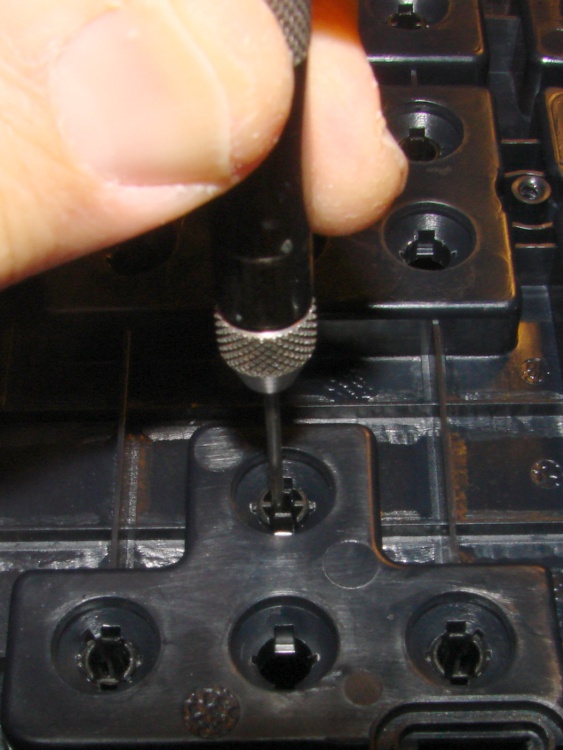
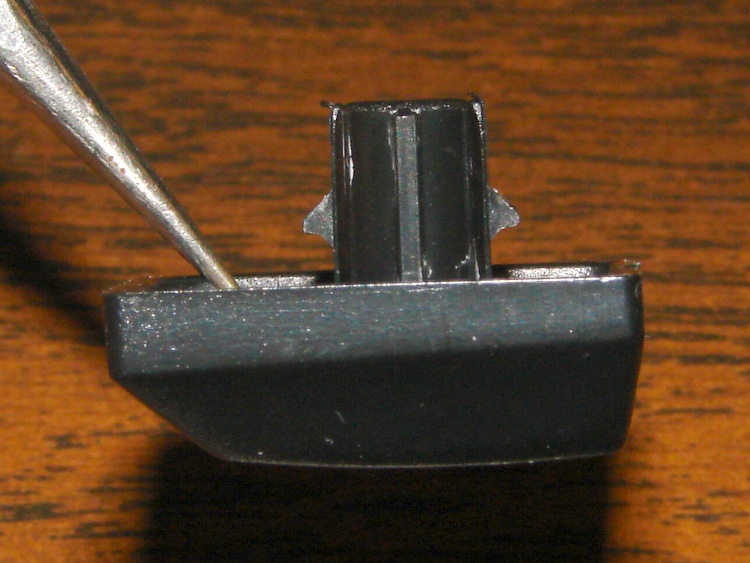
The keycaps have stems that slide in guide tubes molded into the top cover, with triangular latches that both secure the stem and prevent it from rotating. I used a small pin punch to push the keycaps out, as shown in the top picture; the punch much be small enough to allow the latches to bend inward as they clear the notches.
Keycap retaining latches
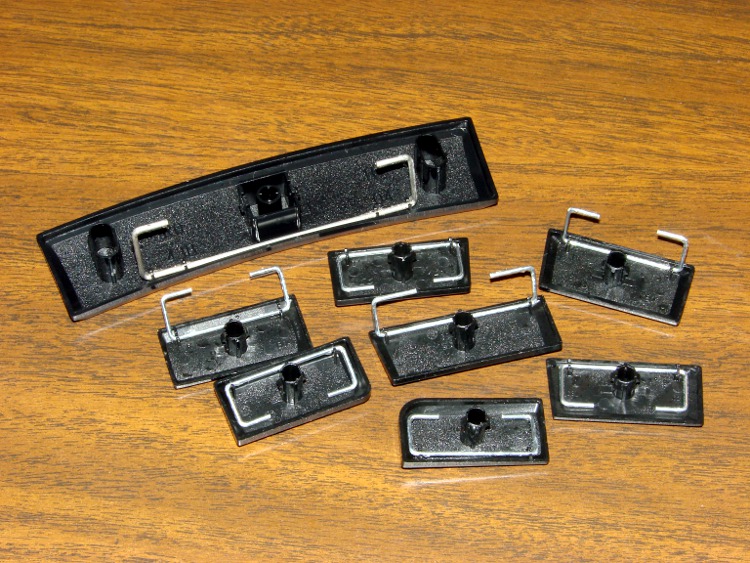
The larger keys have equalizing wire bails that latch under guides molded into the top cover. They’ll slide right out, but don’t shove the pin punch too far too fast.
Keycaps with equalizing wires
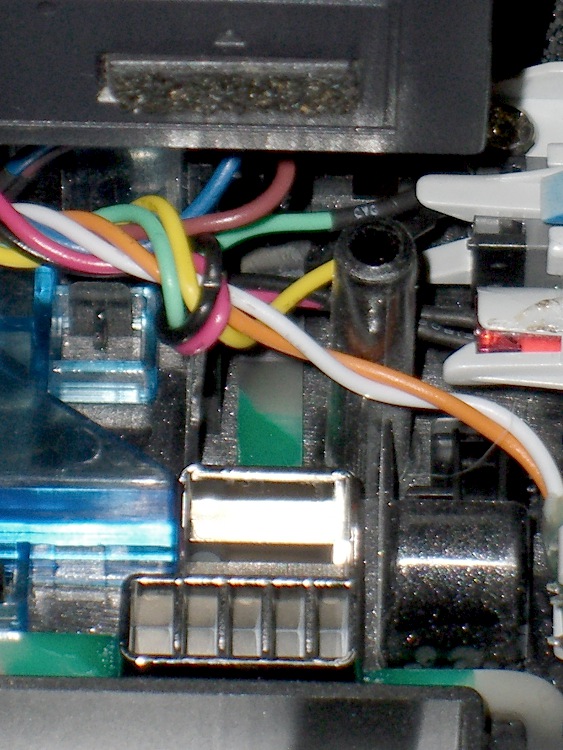
Many of the keycap stems have ridges along their length to ensure each one fits only in its proper position; the triangular latches also have different orientations. This view shows the numeric pad (from the “screen” side of the keyboard) with a variety of coded guide tubes, wire bail guides, and the surprisingly deep tub underneath the keycaps that may capture much of the inevitable liquid spill and route it out the drain hole near the far edge.
Keyboard top panel
I tossed the keycaps and top cover in the dishwasher, which did a wonderful job of cleaning them out. A dab of silicone grease on the wire bail contact points should keep them sliding freely.
Reassembly is in reverse order, although I defy you to put all the keycaps back in their proper places without referring to another keyboard…
So I stuck a CD-RW drive into the Foxconn Atom box and discovered that the pushbutton on the front panel doesn’t move quite far enough to actually hit the corresponding button on the drive.
Popped another drive off the heap and tried it out, just for grins, with the same result. Evidently the cute little ribbed back on the silvered panel button (near the bottom of the picture) isn’t quite long enough.
Solution: a bit of rubberized high-traction tape stuck to the drive button (near the top of the picture).
This is a black-on-black situation, so I pushed the contrast enough that you can actually see it.
It seems Evolution 2.32 moved its email files from ~/.evolution/mail/local (where I previously tweaked their location) to ~/.local/share/evolution/mail. As a result, Evolution fired up with all its various options and accounts still in place, but with a completely default set of folders.
After considerable thrashing around, all that’s required is a simple:
cd ~/.local/share/evolution
mv local local.base
ln -s /NFS-mounted-directory/Mail local
And it all works again.
This actually happened in 2.31.6, but the Arch Linux version jumped from 2.30.3 to 2.32.0 in one fell swoop. Some version of the Evolution changelogs are there, but the money quote is:
Evolution 2.31.6 2010-08-02
---------------------------

Evolution now complies with the XDG Base Directory Specification [1],
which means user-specific data is no longer stored under ~/.evolution.
Instead, data is partitioned into three base directories controlled by
environment variables:

   $XDG_DATA_HOME/evolution    (default: $HOME/.local/share/evolution)
   $XDG_CACHE_HOME/evolution   (default: $HOME/.cache/evolution)
   $XDG_CONFIG_HOME/evolution  (default: $HOME/.config/evolution)

Data which is managed by Evolution will be migrated from $HOME/.evolution
on startup.

[1] http://standards.freedesktop.org/basedir-spec/basedir-spec-latest.html
I think the “migration” tripped over the symlink I used to aim just the mail folder to the NFS mount.
One could argue that such a wrenching change should get some advance warning, but …
As mentioned there, I had to use the Arch Linux linuxwacom-bamboo-cth-ctl package because X Server 1.8 discarded all the carefully tweaked HAL baggage and the existing xf86-input-wacom package wasn’t yet compatible with the new server.
That worked fine, until the most recent X Server tweak killed the Bamboo driver (which I hadn’t manually updated). As I expected, though, the new xf86-input-wacom package works just fine, so I can discard my manual workaround.
Having recently tweaked the tablet coordinates to keep the pointer out of the gutter, I first thought I’d killed something… but that would happen instantly, not after a while. The key was looking in /var/log/Xorg.0.log to find this gem:
[  3447.599] (II) LoadModule: "wacom"
[  3447.638] (II) Loading /usr/lib/xorg/modules/input/wacom_drv.so
[  3447.651] dlopen: /usr/lib/xorg/modules/input/wacom_drv.so: undefined symbol: dixScreenOrigins
[  3447.652] (EE) Failed to load /usr/lib/xorg/modules/input/wacom_drv.so
[  3447.652] (II) UnloadModule: "wacom"
[  3447.652] (EE) Failed to load module "wacom" (loader failed, 7)
Removing the bamboo package seems to have wiped out the udev rule that creates the /dev/input/wacom symlink. Adding that back in, as described there, solves that problem. Again.
The evidence in /var/log/Xorg.0.log looked like this:
[ 52121.754] (**) Option "Device" "/dev/input/wacom"
[ 52121.754] (EE) xf86OpenSerial: Cannot open device /dev/input/wacom
        No such file or directory.
[ 52121.754] (EE) Wacom - stylus: Error opening /dev/input/wacom (No such file or directory)
[ 52121.754] (II) UnloadModule: "wacom"
[ 52121.754] (EE) PreInit returned NULL for "Wacom - stylus"
[ 52121.754] (**) Option "Device" "/dev/input/wacom"
[ 52121.754] (EE) xf86OpenSerial: Cannot open device /dev/input/wacom
        No such file or directory.
[ 52121.754] (EE) Wacom - eraser: Error opening /dev/input/wacom (No such file or directory)
[ 52121.754] (II) UnloadModule: "wacom"
[ 52121.754] (EE) PreInit returned NULL for "Wacom - eraser"
Everything is logged somewhere: the evidence is out there!
I’m putting together an Atom 510 box to replace the ancient Dell currently acting as the Sherline CNC controller, with the intent of seeing whether a rather anemic low-power CPU with two cores will work as well. The system board has room for one PCI card and I figured I’d install a second parallel printer while I had the hood up.
But then I realized that the only LPT cards in my stash had tall brackets that wouldn’t fit in the new mini-ITX case.
Well, it turns out that the LPT card itself would fit in the box, so all I had to do was reshape the bracket:
A bit of filing on the bottom knocked off a millimeter and put a tidy taper on the tab
A brief session with Mr Hammer bent the top flange over, so as to meet the case mounting flange
A somewhat surprised tin snips removed the excess length
A cylindrical file chewed out a somewhat generous screw clearance notch
Finished LPT bracket
And then it’s just a matter of screwing things together.
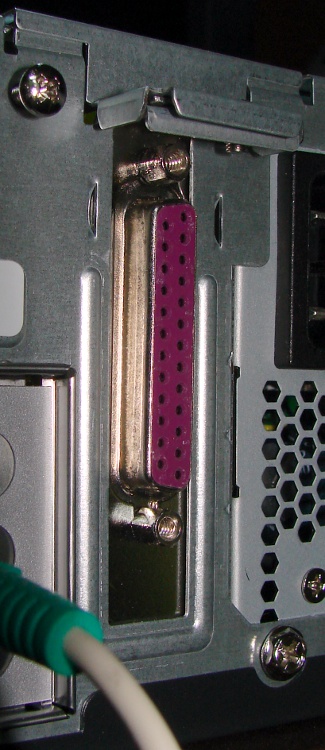
LPT Bracket – outsideLPT Bracket – top
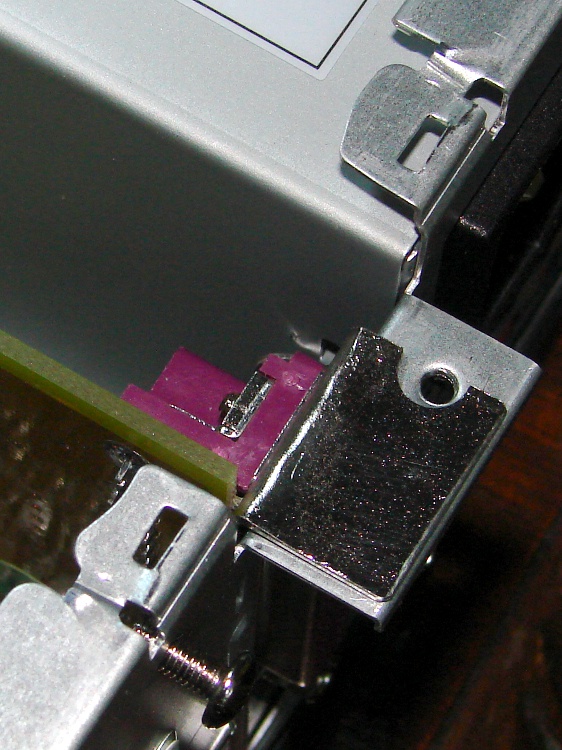
I’ll admit the clearance from the top mounting screw to the flange is terrifyingly cozy, but I’m not averse to applying force majeure to either an unsuspecting LPT connector or the case itself…
The top view omits the screwdown clamp that secures the card to the case so you can see where the screw notch goes.


 The Smell of Molten Projects in the Morning