The Smell of Molten Projects in the Morning

Ed Nisley's Blog: Shop notes, electronics, firmware, machinery, 3D printing, laser cuttery, and curiosities. Contents: 100% human thinking, 0% AI slop.

Category: PC Tweakage

Remembering which tweaks worked

  • Windows 7 Home Premium Remote Desktop: The Missing Link

    The tiny Lenovo Q150 has become the dedicated Windows box for running TurboTax this season. In earlier years, I used the Token Windows Laptop through a remote desktop session that appears on a Xubuntu desktop, but the Q150 runs rings around the old laptop.

    This time, no matter what I tried, I couldn’t connect to the Windows 7 desktop on the Q150 from my Xubuntu desktop. The usual search results suggested Windows configuration settings that didn’t quite match what the Q150 provided; a bit more searching revealed that Windows 7 Home flavors of the OS (this one is Home Premium) lack the Remote Desktop Protocol server required to export the desktop. The Q150 could act as a client that controlled another machine’s desktop server, but not the other way around.

    The suggested solutions required applying patches, in the form of EXE files downloaded from sketchy websites, or dropping in replacement DLLs obtained from similar sites. All that seems like Bad Practice, particularly for a Windows box used to prepare our taxes, and I was unwilling to proceed along those lines.

    Instead, I fetched UltraVNC, installed it on the Q150, and it works perfectly. Remmina occasionally requires a resize-window-to-match-server at startup and then it’s all good.

    From what I hear, Windows 7 doesn’t display the classic Blue Screen of Death nearly so often as before, although I did manage to lock it up during the course of this adventure. That’s OK, I can still use my favorite Windows wallpaper image:

    Windows 7 Home - UltraVNC via Remmina
    Windows 7 Home – UltraVNC via Remmina
  • Lenovo Q150 VESA Mount Hackage

    A permutation of our *cough* computing resources put the diminutive Lenovo Ideacentre Q150 flat on a desktop, where it was at risk of falling off due to the weight of the cables. It came with a VESA monitor mount bracket designed under the assumption that monitor manufacturers would provide an unused VESA socket and a completely separate desk stand mount, which turned out to be incorrect for all of the monitors in my collection. The IBM (pre Lenovo) monitor it was now driving, however, had exposed screws on its VESA mount, so I adapted a quartet of hulking standoffs to hold the Q150 far enough away to clear the desk stand.

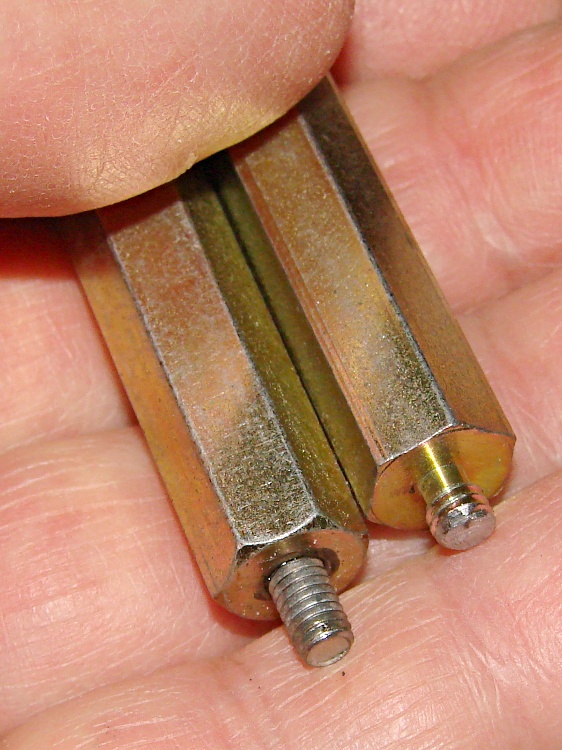
    One end had 4-40 tapped holes that I drilled out to clear the VESA mount’s M4x0.7 screws; I sawed the heads off four M4 screws and epoxied them in place. The other end had 8-32 studs that I cut down to fit inside the Q150’s dished mounting bracket:

    VESA Mount - standoffs
    VESA Mount – standoffs

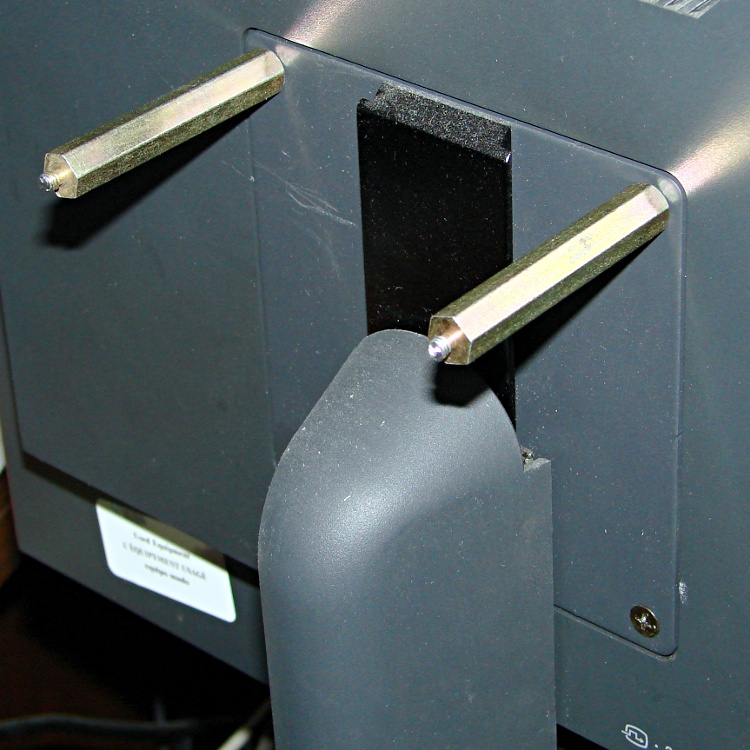
    Working around the mount, one standoff at a time, avoided having to lay the monitor flat on the desk:

    VESA Mount - standoffs on monitor
    VESA Mount – standoffs on monitor

    A bit of jiggling put the bracket on the standoffs, held in place by the 8-32 nuts:

    Lenovo Q150 VESA Mount on monitor
    Lenovo Q150 VESA Mount on monitor

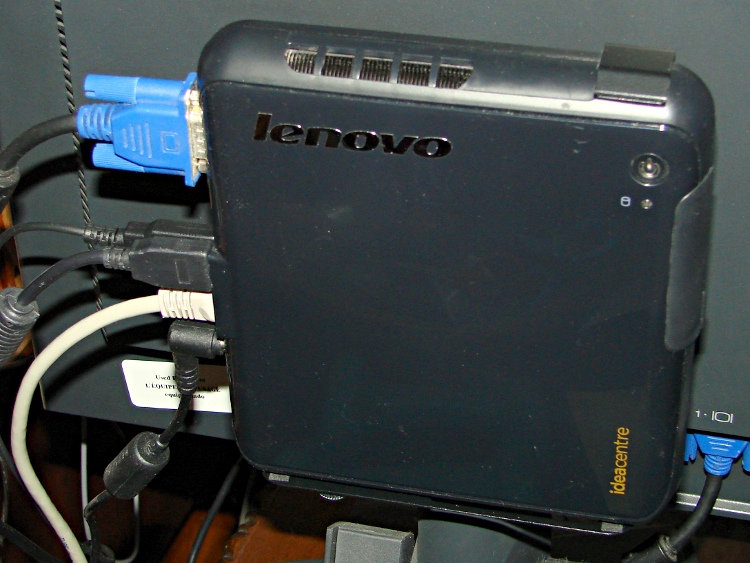
    And then the Q150 snapped into place:

    Lenovo Q150 - on VESA Mount
    Lenovo Q150 – on VESA Mount

    It’s captured by a thumbscrew in the bottom left corner (visible in the previous photo), so it can’t fall out.

    Took longer to take the pix and write this up than to finish the project… probably because there wasn’t a trace of CNC in sight.

  • Ancient Harman-Kardon PC Speaker Re-Capping

    HK Powered Speakers - front view
    HK Powered Speakers – front view

    Suddenly a resonant thwup-thwup-thwup-thwup fills the house, but no helicopters fill the skies; in fact, most of the noise seems to be inside the house and … it’s coming from the shop. We look at each other and dash toward the basement door, knowing perfectly well that this is the part of the movie where the audience chants “Don’t open the door! Don’t open the door!

    Come to find out that it’s the pair of old Harman-Kardon powered speakers attached to the PC attached to the Thing-O-Matic; the PC is off, but I left the speakers turned on. Quick diagnostics: turning the volume down doesn’t reduce the motorboating, pulling the audio cable out of the PC doesn’t change anything, the only cure is to turn them off.

    Under normal circumstances, they’re pretty good-sounding speakers, at least to my deflicted ears, although I have my doubts about the effectiveness of that reflex port. I plugged in a pair of unpowered speakers as subwoofers down near the floor, just because they were lying around; a pair of 75 mm drivers does not a subwoofer make, fer shure.

    Pop quiz: what’s wrong?

    Need a hint? Looky here:

    HK Powered Speakers - wall wart
    HK Powered Speakers – wall wart

    Disassembly:

    • The front cloth grille has four snap mount posts, two secured by hot-melt glue blobs: pry harder than you think necessary
    • Two screws near the top of the bezel thus revealed hold it to the back
    • The bottom two screws holding the driver frame in place also hold the bezel to the back
    • Remove two screws from the grooves in the bottom of the back
    • Amazingly, the driver has two different size quick-disconnect tabs; the neatly polarized wires slide right off

    Cut the audio cable just behind the back panel, then push the two-piece cable clamp outward from the inside:

    HK Powered Speakers - cable grommet
    HK Powered Speakers – cable grommet

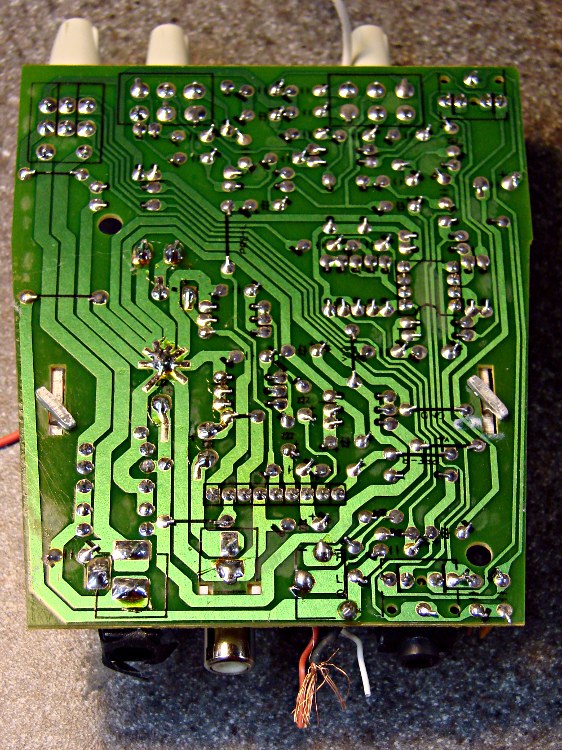
    The bottom of the circuit board shows considerable attention to detail. Note the excellent single-point ground at the negative terminal of the big filter capacitor:

    HK Powered Speakers - PCB foil side
    HK Powered Speakers – PCB foil side

    And, of course, that’s the problem: most of the electrolytic capacitors were dried out. My ESR tester reported the big filter cap (downstream of the bridge rectifiers) as Open and several of the smaller caps were around 10 Ω. Replacing them with similarly sized caps from the heap solved the problem.

    It should be good for another decade or two…

  • Kindle Fire NTP: Timing Channel Attack

    I’ve completely offloaded remembering my appointments to the Kindle Fire, which now lives in the right thigh pocket of my cargo pants (it’s a sartorial thing). While waiting for a meeting (which it had correctly reminded me of) to start, I did my usual “What do we find in the way of open WiFi networks?” scan, found one, and connected to it. Unfortunately, it was one of those open WiFi networks that subsequently requires a password, but … then I noticed something odd with the time displayed at the top of the screen.

    A bit of tapping produced the Date & Time settings screen:

    Kindle Fire - 0503 1 Jan 1970
    Kindle Fire – 0503 1 Jan 1970

    Evidently, that not-exactly-open WiFi network also features a defunct time server that’s happy to clobber any device asking for a time update. As you might expect, snapping back forty years does horrible things to many Kindle fire apps. The crash handler can only suggest re-downloading the app from the online store, which turns out to not be necessary after a complete shutdown / reboot.

    Ah, if I knew then what I know now… I’d certainly get into much more trouble. Not surprisingly, there’s a book about that; maybe it’s better not to know how things will work out.

    Memo to Self: watch the time!

  • Xubuntu 12.04: Forcing Monitor DPI Settings

    For whatever reason, X no longer automagically determines the dots/inch value for the right-hand portrait monitor and, for lack of anything better, defaults to 75 DPI. That scales everything down by 25% 33%, makes the menu fonts eye-crackingly small, and squinches the monospaced terminal font. The fix requires jamming the proper value directly into /etc/X11/xorg.conf along with all the other stuff:

    Section "Monitor"
        # HorizSync source: edid, VertRefresh source: edid
        Identifier     "Dell2005FP"
        VendorName     "Dell"
        ModelName      "DELL 2005FPW"
        HorizSync       30.0 - 83.0
        VertRefresh     56.0 - 75.0
        Option         "DPMS"
        Option         "DPI" "98x98"
    EndSection
    

    One could calculate the actual value, but that matches what X determines for the left-hand landscape monitor.

    And then it Just Works…

  • Canon S630 Printer vs. bj8XXYYZ.upp Printer Driver

    For quite some time, the Canon S630 printer connected to the file server downstairs has been printing some documents in what looks like garbled reverse video: all of the text areas render as white characters on a black background, with peculiar graphic gibberish filling the space to the right margin. I’d provide a picture, but it wouldn’t be too informative; suffice it to say that if I wasn’t using bulk ink the pages would cost about a buck each.

    Printing documents with two-up pages (two document pages on one paper sheet) generally resulted in the first sheet coming out garbled with the remainder emerging unscathed, but sometimes I found an entire stack of black paper. Ouch!

    This usually affected documents printed from Web pages, but sometimes clobbered pure PDF documents. Given that Linux printing involves multiple transformations between Postscript / Ghostscript / PDF / PNG / what-have-you, it’s impossible to pin down a common cause.

    Searching for the obvious keywords showed other folks had similar problems with different printers and different drivers. None of the threads had any resolution.

    Printing the same document on the Epson R380 worked perfectly.

    One recent morning I had four out of six documents fail, so I tried some of this and a little of that, before it occurred to me that I should switch the driver. I had chosen the default recommended printer driver during installation: the oddly named bj8xxyyz.upp file produced by the Ghostscript folks. Switching to the Gutenprint 5.2.7 driver seems to have solved the problem; all four failing documents printed perfectly and the problem hasn’t returned in a week of printing.

    The R380 was already using the Gutenprint driver, which (in retrospect) should have been a big, fat hint.

    I’d file a bug report, but to which project about what? [sigh]

  • Xubuntu 12.04: Some Steps Forward, Some Steps Back

    The continuing saga of trying to run a Linux desktop with two monitors (one rotated in portrait mode), separate X sessions, two trackballs, and a Wacom graphics tablet continue with Xubuntu 12.04. KDE continues to not work quite right with dual monitors, Gnome seems to be dead in the water, Unity wants to be a touch-screen UI when it grows up, and Linux Mint introduces yet another not-quite-baked UI. The breathtaking churn in Linux infrastructure continues, rendering everything I’d figured out with respect to FDI / HAL / udev configuration lagely irrelevant.

    For lack of a better alternative, I’ve installed Xubuntu, which is now a deprecated (available, but unsupported) version of Ubuntu. Configuring separate X sessions on two monitors requires the proprietary nVidia driver. The XFCE display configurator falls over dead when confronted with two screens and the xrandr extension seems unworkable. Fortunately, I’d left a bit of commented-out cruft in the xorg.conf file that worked in Xubuntu 10.10 and could copy the whole file over with only one change:

    Section "Screen"
        Identifier     "Portrait"
        Device         "GF9400_1"
        Monitor        "Dell2005FP"
        DefaultDepth    24
        Option         "TwinView" "0"
        Option         "metamodes" "DFP-1: 1680x1050 +0+0"
        Option         "NoLogo" "Off"
    #    Option         "RandRRotation" "On"
        Option         "Rotate" "CCW"
        SubSection     "Display"
            Depth       24
        EndSubSection
    EndSection
    

    Configuring two trackballs with the XFCE utility remains surprisingly easy: the Kensington is left-handed and the Logitech is right-handed.

    Swapping buttons 2 and 3 on the Wacom stylus poses a bit more of a challenge. Doing it on a per-session basis seems straightforward:

    xsetwacom set "Wacom Graphire3 6x8 stylus" button 2 3
    xsetwacom set "Wacom Graphire3 6x8 stylus" button 3 2
    

    You’d put those into a script and tell XFCE to auto-run it when you sign in, but that doesn’t handle hotplugging. I don’t hotplug the tablet, but random static glitches knock the USB hub into a tailspin and cause the same effect, so I jammed the lines that used to be in xorg.conf into /usr/share/X11/xorg.conf.d/50-wacom.conf:

    Section "InputClass"
            Identifier "Wacom class"
            MatchProduct "Wacom|WACOM|Hanwang|PTK-540WL|ISD-V4"
            MatchDevicePath "/dev/input/event*"
            Driver "wacom"
            Option "Button2" "3"
            Option "Button3" "2"
    EndSection
    

    I’m certain there’s a different location for those that fits in with whatever the overall design might be these days, but I’m kinda tired of figuring this stuff out.

    The Wacom drivers in Ubuntu 12.04 no longer permit restricting the tablet’s range to a single X session (xsetwacom set ... MapToOutput "HEAD-0" assumes you’re using xinerama with a single X session across two monitors), which sprawls the tablet’s limited resolution across both screens and leaves a big unusable rectangle in the lower third of the left side. This is not progress in a positive direction, but there’s no workaround.

    That workaround for the upstart Pachinko machine also applies to this box. The minute-long pause while NFS hauls itself to its feet isn’t attractive: you see VT 1 with the bare white-on-black command-line login prompt, but if you actually log in, things get very ugly, very quickly.

    Restoring the usual verbose Unix-oid startup messages requires tweaking /etc/default/grub to set noquiet nosplash, then running update-grub.

    Search the blog with the obvious keywords to get my earlier posts on all these topics…