So I drill two holes in the dust caps of those teensy Sandisk drives and added a cheerful red string:

That this should not be necessary goes without saying…
The Smell of Molten Projects in the Morning
Ed Nisley's Blog: Shop notes, electronics, firmware, machinery, 3D printing, laser cuttery, and curiosities. Contents: 100% human thinking, 0% AI slop.
Remembering which tweaks worked
So I drill two holes in the dust caps of those teensy Sandisk drives and added a cheerful red string:
That this should not be necessary goes without saying…
This resembles the 32 GB Micro SD card checkout, with the exception that, for some unknown reason, the available space doesn’t match up with the actual space occupied by the file. It also turns out that rsync deletes the incomplete file, rather than leaving a stub, which makes perfect sense, but was still a bit disappointing after two hours.
I had two identical Sandisk Cruzer Fit Flash Drives, one of which appears here:
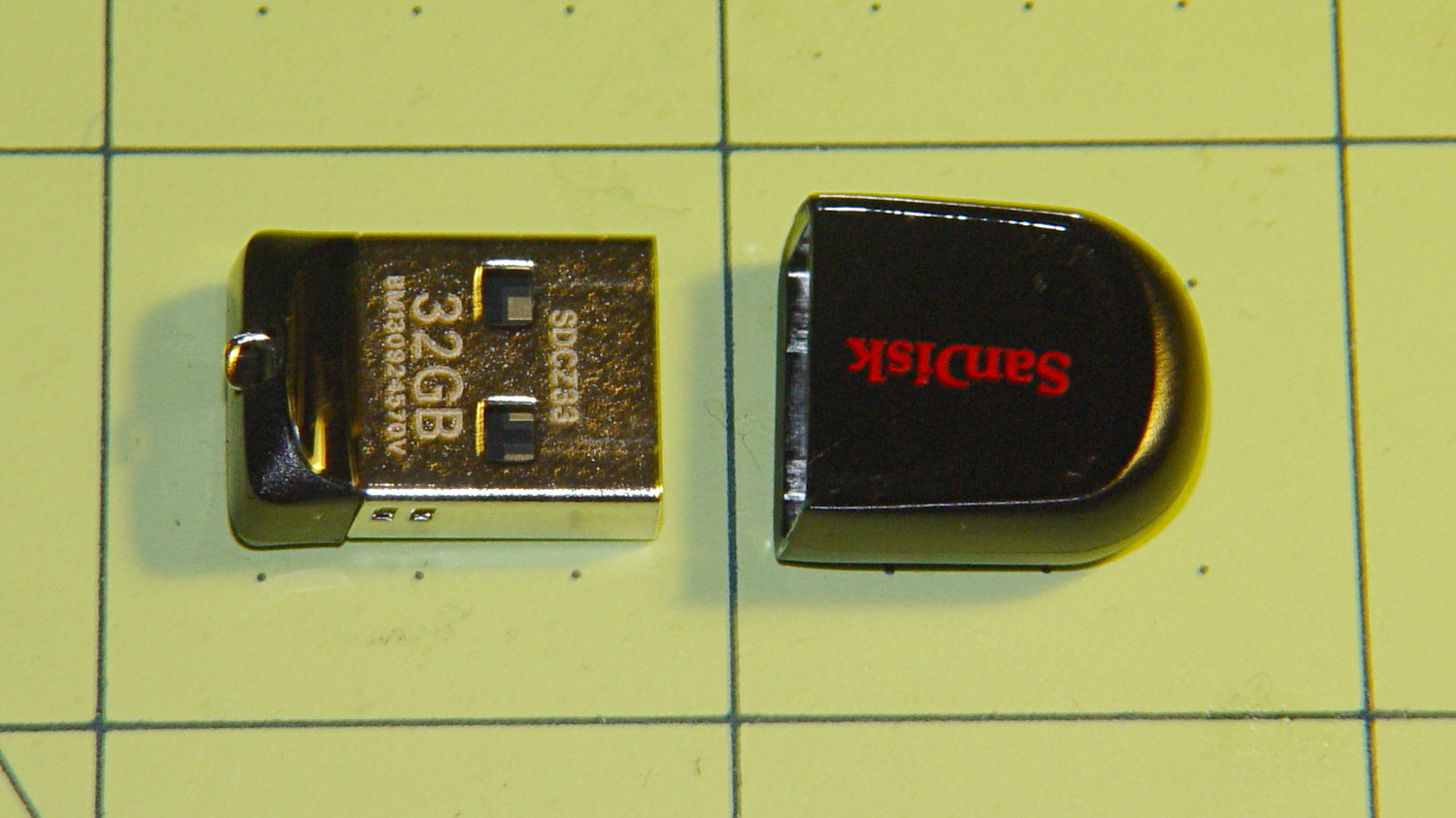
Those squares are an inch on a side, so it’s a bit larger than the Micro SD card. Adding a lanyard loop on the plastic cap or a string between cap and drive seems like a great idea, because that little thing is certain to get lost.
The snippets here represent a compendium of Things Done that happened over the course of two days; I didn’t save all the logs. The process started with the same 32 GB file of entropy I used for the Micro SD card:
df -B1 /mnt/part2
Filesystem       1B-blocks      Used   Available Use% Mounted on
/dev/sdc1      31512350720 180424704 31331926016   1% /mnt/part2
-----------------------
time rsync --progress /mnt/part/Testdata/Testdata.bin /mnt/part2
Testdata.bin
 31298191360  99%   14.18kB/s    0:39:38
rsync: writefd_unbuffered failed to write 4 bytes to socket [sender]: Broken pipe (32)
rsync: write failed on "/mnt/part2/Testdata.bin": No space left on device (28)
rsync error: error in file IO (code 11) at receiver.c(322) [receiver=3.0.9]
rsync: connection unexpectedly closed (28 bytes received so far) [sender]
rsync error: error in rsync protocol data stream (code 12) at io.c(605) [sender=3.0.9]

real	126m20.505s
user	3m6.393s
sys	2m17.492s
-----------------------
time dd bs=8K count=20000000 if=/mnt/part/Testdata/Testdata.bin of=/mnt/part2/Test1.bin
dd: writing ‘/mnt/part2/Test1.bin’: No space left on device
3820963+0 records in
3820962+0 records out
31301320704 bytes (31 GB) copied, 7455.97 s, 4.2 MB/s

real	124m15.970s
user	0m1.607s
sys	1m17.546s
-----------------------
truncate -s 31301320704 /mnt/part/Testdata/Testdata.bin
-----------------------
ll /mnt/part/Testdata/Testdata.bin
-rw-r--r-- 1 ed ed 31301320704 Dec 24 18:13 /mnt/part/Testdata/Testdata.bin
-----------------------
time diff /mnt/part/Testdata/Testdata.bin /mnt/part3/Test1.bin

real	26m37.081s
user	0m4.400s
sys	0m52.723s
Notice that the write speed runs around 4 MB/s, which is a lot slower than you might expect from a USB 2.0 device; as with a hard drive, the interface doesn’t limit the throughput! The read speed, on the other paw, trots along at about 20 MB/s.
One of these will go to Mary’s folks as an online daily backup device; their PC will soon run a version of the rsnapshot scripts that back up our basement file server. It’s not off-site backup and it’s not proof against catastrophic hardware failure, but it should be good enough.
Mary’s compadres sometimes send her pictures of garden vegetables and quilting projects. Those pictures usually pass through Microsoft Outlook (or its ilk) and emerge in winmail.dat files that aren’t particularly useful in a Linux context. That page gives a good overview of the problem and how to resolve it; I’m just documenting the process here, so I can find it again.
Start by installing both tnef and convmv. I think the latter isn’t needed in our situation, because most folks use flat ASCII file names that come through just fine.
Save the attachment in, say /tmp and unleash tnef on it:
cd /tmp
tnef --file=winmail.dat
That unpacks all the attachments into /tmp, where one may have one’s way with them.
It’s not worth my effort to bolt that into the email programs and then maintain that mess across updates, so we’ll do it by hand as needed.
Microsoft certainly had a good reason for inventing Yet Another Encapsulation Format, although I wonder why good old ZIP wouldn’t have worked nearly as well…
The new-to-me Optiplex 980 has a tool-free clamp securing the PCI card brackets to the chassis, with a nice plastic dress cover that really finishes off that side of the case. Alas, it’s secured by five small heat-staked plastic pegs that I managed to shear off as part of a finger fumble that you’ll recognize when it happens to you and which I need not further discuss:
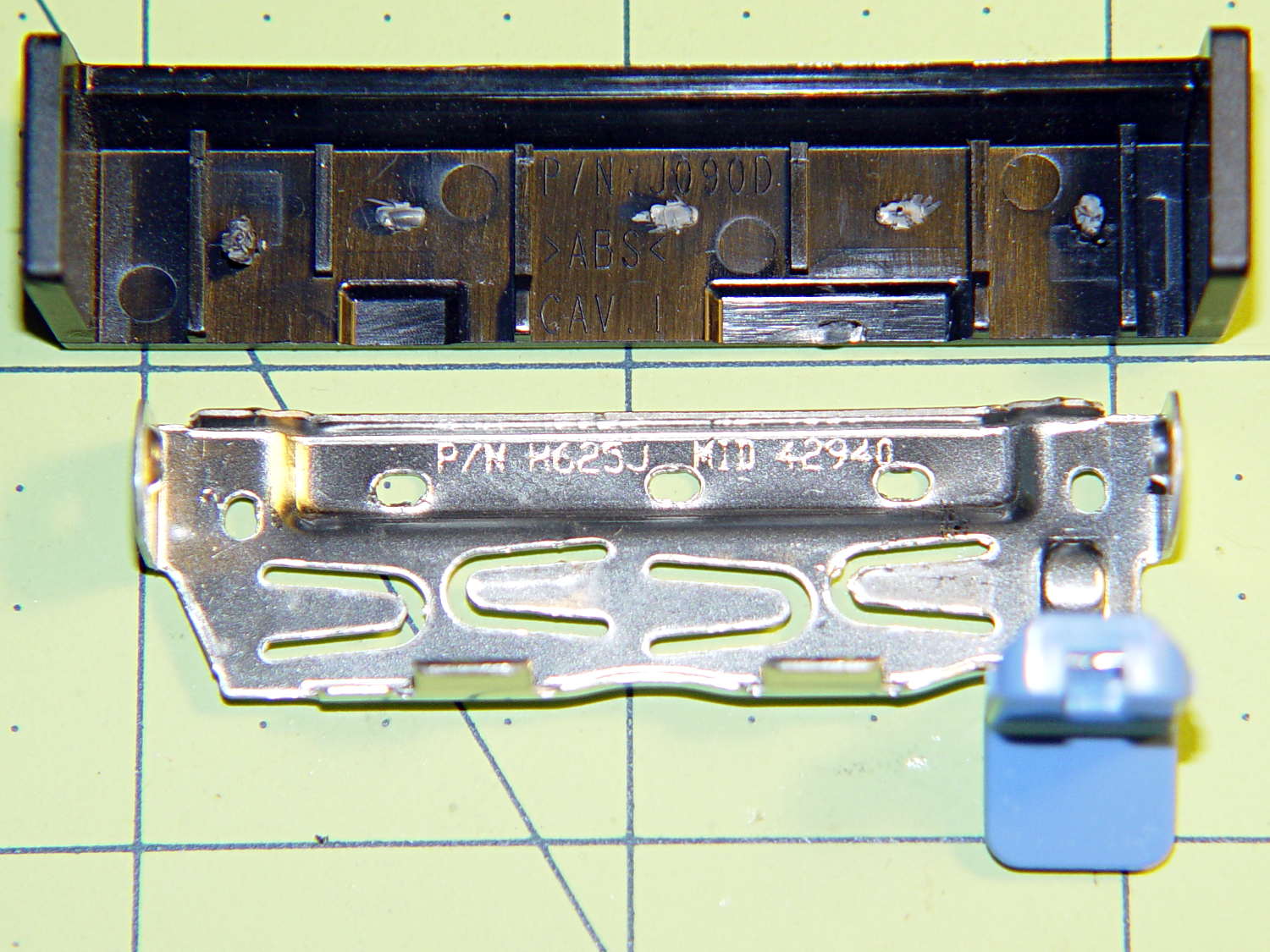
So I drilled two slightly undersized holes for the tiniest screws in the Little Box o’ Tiny Screws:

The two end plates sticking up are the only square parts of the cover, so that thing is actually clamped by the right-side plate and sheer will power. I ran the drill down 3 mm from the top of the post at the slowest manual jog speed from the Joggy Thing and I did not break through the top and did not hit that lathe bit under the cover.
The screw threads and a dab of epoxy hold them in place:

I’d like to say the finished repair looked like this:
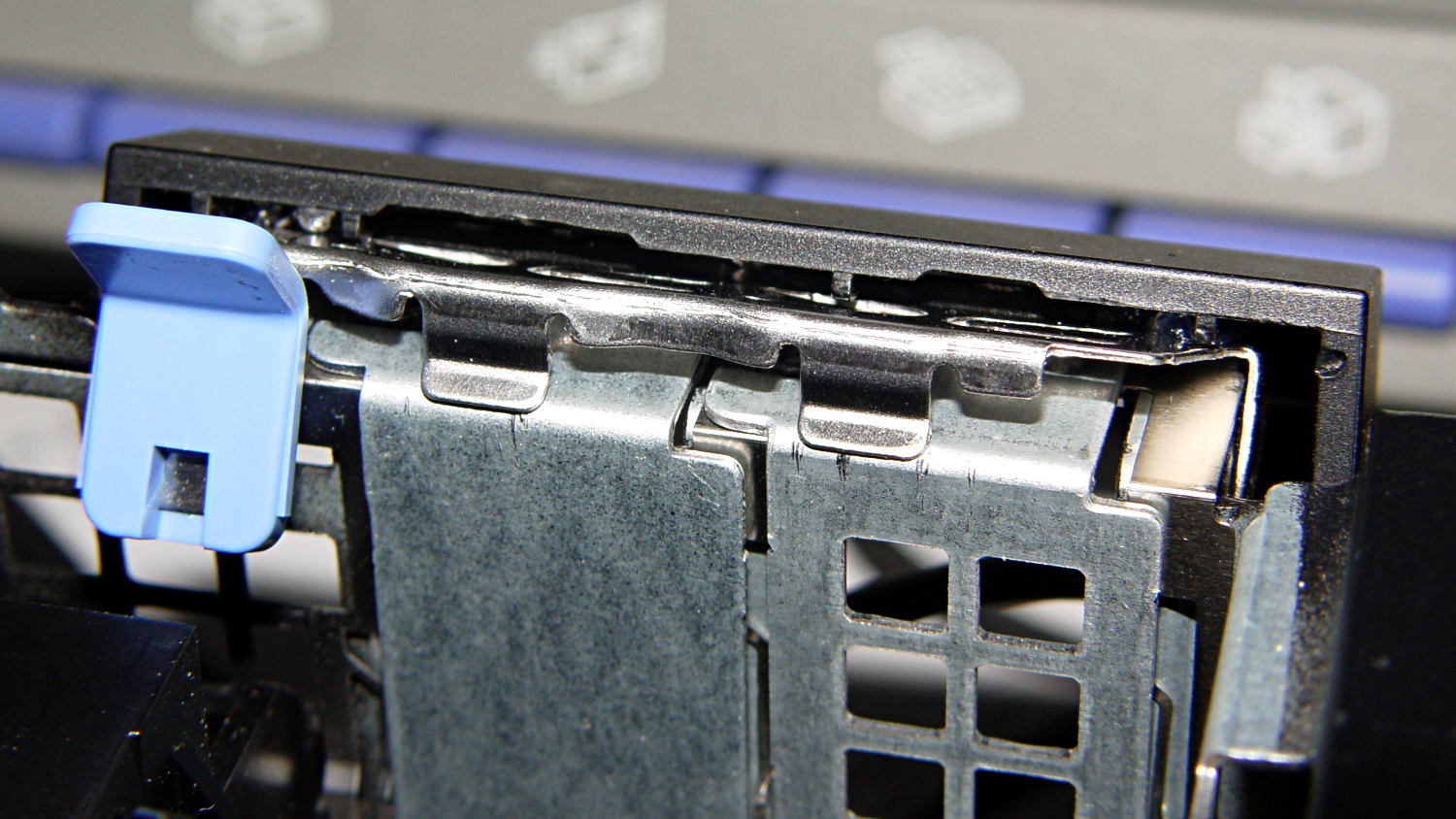
But, alas, the eagle-eyed reader will note that the screws are gone, replaced by two dabs of clear acrylic caulk; those faint threads and epoxy were no match for the snap of that latching lever and the slight distortion caused by the spring fingers applying force to the brackets.
Ah, well, it’s close enough…
Quick summary: the current Linux startup machinery Runs All The Things! in parallel, leaving you to figure out all the interdependencies and update all the script files to match your requirements. Mostly, the distro maintainers figure all that, but if you have essential files mounted as NFS shares, then you can will reach a login screen before the mount process completes.
Having wrestled with this problem for a while, I think I’ve doped out the right way to coerce the Upstart Pachinko Machine to converge on a workable login.
The solution is to fire off a unique signal after the NFS mount command, then force the display manager to wait until it receives that signal, rather than depend on happenstance as I did before. The mounts occur in /etc/init/local.conf, which now looks like this:
description "Stuff that should be in /etc/rc.local"
author "Ed Nisley - KE4ZNU"

start on (local-filesystems and net-device-up IFACE=em1)
stop on shutdown

emits nfs-mounted

script

logger Starting local init...

logger Mounting NFS filesystems
mount /mnt/bulkdata
mount /mnt/userfiles
mount /mnt/diskimages
mount /mnt/music
initctl emit nfs-mounted
logger Ending local init

end script
The start condition ensures that this code won’t run until the wired LAN is up; note that what was once eth0 is now em1. Then, after the mounts happen, initctl fires the nfs-mounted signal.
The modification to /etc/init/lightdm.conf script consists of one additional line to wait for that signal:
start on ((filesystem
           and runlevel [!06]
           and started dbus
           and plymouth-ready
           and nfs-mounted)
          or runlevel PREVLEVEL=S)

stop on runlevel [016]

emits login-session-start
emits desktop-session-start
emits desktop-shutdown
I’m not convinced lightdm.conf is the right spot to jam a stick in the gears, but it seems to be the least-awful alternative. The login-session-start signal doesn’t appear in any file in that subdirectory and I have no idea where else to look.
Anyhow, the greeter screen now shows a desktop background from the NFS mount, which I regard as A Good Sign:

Until the next startup revision, anyway…
Picked up a Sandisk 32 GB Micro SD Card from a reputable supplier for $0.62/GB, in the hope that Santa will deliver a helmet camera:
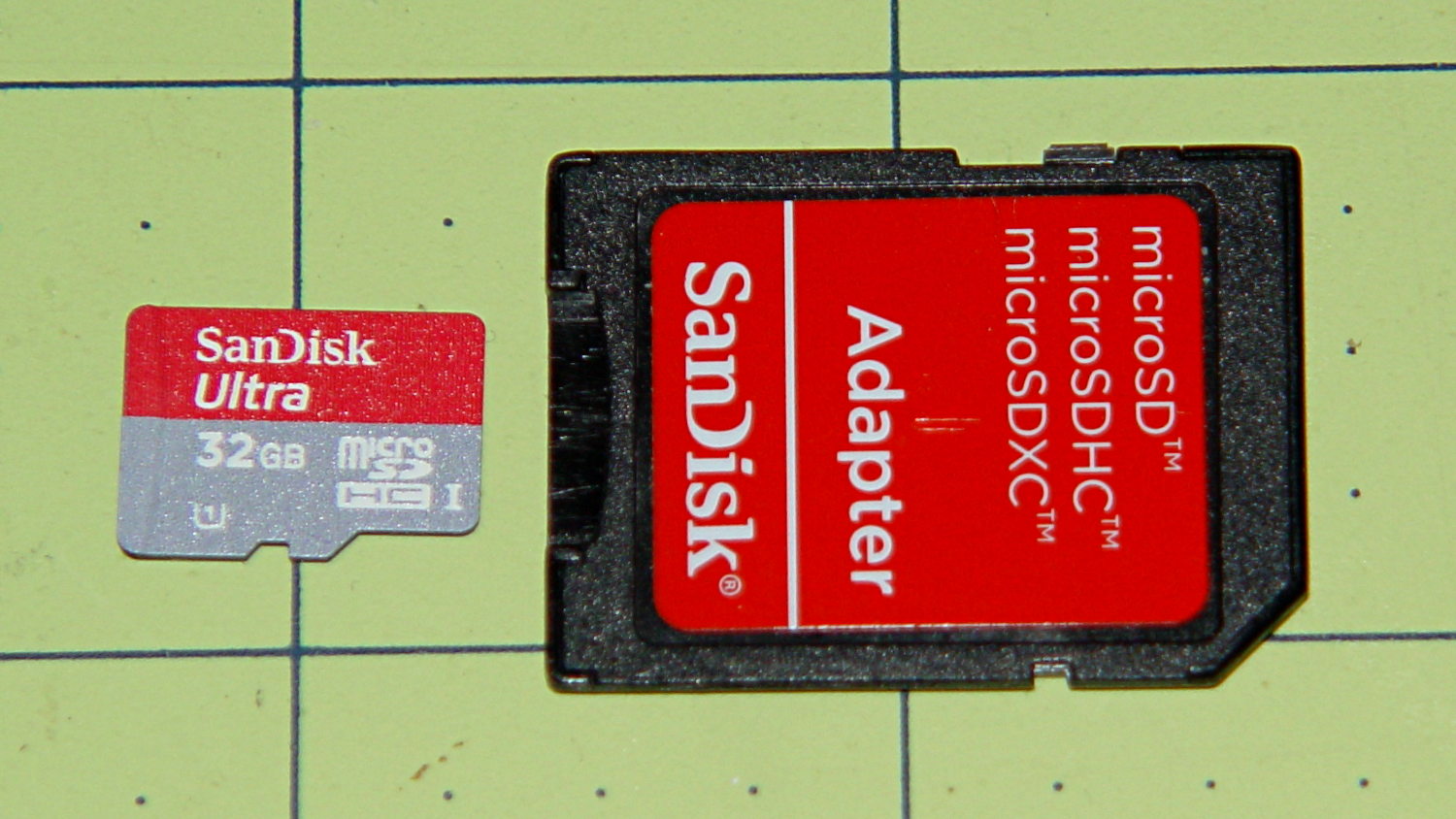
Until that happy event, I verified that it can store and return 32 GB of white noise with absolute fidelity.
It came formatted with an empty FAT32 filesystem that allows single files up to 4 GB. Reformatting with exFAT supports vastly larger capacities and, in this case, allows single files up to 32 GB. Whether it’s actually legal to use exFAT on a Linux box remains up for grabs, but installing exfat-utils, which drags in exfat-fuse, does the trick.
Verifying the SD Card capacity went swimmingly, much along the lines of the original recipe. The data file size came from the card’s FAT-32 formatting and is a smidge less than the capacity after reformatting the card with exFAT. Close enough for this purpose.
dd bs=1K count=31154656 if=/dev/urandom of=/mnt/part2/Testdata/Testdata.bin
(This took the better part of an hour; I didn't record it.)

sudo mkexfatfs -i babeface -n SanDisk32GB /dev/sdb1
mkexfatfs 1.0.1
Creating... done.
Flushing... done.
File system created successfully.

sudo dumpexfat /dev/sdb1
dumpexfat 1.0.1
Volume label             SanDisk32GB
Volume serial number      0xbabeface
FS version                       1.0
Sector size                      512
Cluster size                   32768
Sectors count               62325760
Free sectors                62317504
Clusters count                973719
Free clusters                 973711
First sector                       0
FAT first sector                 128
FAT sectors count               7616
First cluster sector            7744
Root directory cluster             7
Volume state                  0x0000
FATs count                         1
Drive number                    0x80
Allocated space                   0%

time rsync --progress /mnt/part2/Testdata/Testdata.bin /mnt/part/Test.bin
Testdata.bin
 31902367744 100%    9.15MB/s    0:55:24 (xfer#1, to-check=0/1)

sent 31906262150 bytes  received 31 bytes  9594425.55 bytes/sec
total size is 31902367744  speedup is 1.00

real	55m25.791s
user	3m16.088s
sys	2m7.808s

df -h /mnt/part
Filesystem      Size  Used Avail Use% Mounted on
/dev/sdb1        30G   30G  4.0M 100% /mnt/part

time diff /mnt/part2/Testdata/Testdata.bin /mnt/part/Test.bin

real	28m43.878s
user	0m4.044s
sys	0m42.902s

ll /mnt/part/Test.bin
-rwxr-xr-x 1 ed root 31902367744 Dec  2 18:32 /mnt/part/Test.bin*

rm /mnt/part/Test.bin

df -h /mnt/part
Filesystem      Size  Used Avail Use% Mounted on
/dev/sdb1        30G  4.1M   30G   1% /mnt/part
I’m probably easily impressed, but wow that’s a lot of data in a little chip of plastic… for $20 delivered.
Although the Optiplex 780 continues to chug along, some additional bringup notes for the new-to-me Optiplex 980 may be of future use. In no particular order, because that’s how it goes:
The OS is Xubuntu 13.10 in the 64-bit flavor, mostly for UI & infrastructure consistency with my other boxes. The Ubuntu project continues to diverge from consensus reality and the process of fighting down the Special Ubuntu Sauce seems increasingly difficult and less rewarding. This may be the last box I set up with Xubuntu, although I’m not sure what else to use; Arch requires more fiddly sysadmin-fu than I’m willing to allocate and Ubuntu-based distros like Mint seem to have all the disadvantage of Ubuntu plus the difficulties of splinter distros.
dmesg reports that the CPU:
Intel(R) Core(TM) i5 CPU 650 @ 3.20GHz (fam: 06, model: 25, stepping: 02)
With two cores and HyperThreading turned on, it has enough moxie to run one instance of the GIMPS prime factoring code without crippling the UI. The estimated completion date for the current work is 9 July 2014, which should creep closer as the CPU sees more uptime. The previous crontab startup continues to work. It adds about 25 W to the baseline 50 W consumption.
Adobe has abandoned Adobe Reader for Linux and attempting to install the most recent version of 9.whatever produces a blizzard of warnings. I’ll try Okular and Evince, although both have problems with some PDFs that Reader handles with aplomb. Eliminating the security exposures in Reader should be a net win.
Okular gets its own devilspie2 rule that look a lot like the previous one for Adobe Reader:
if (string.find(get_window_name(),"Okular")) then
      unmaximize();
      set_window_geometry(0,0,1000,100);
      set_window_geometry(2561,0,1000,100)
      maximize();
end
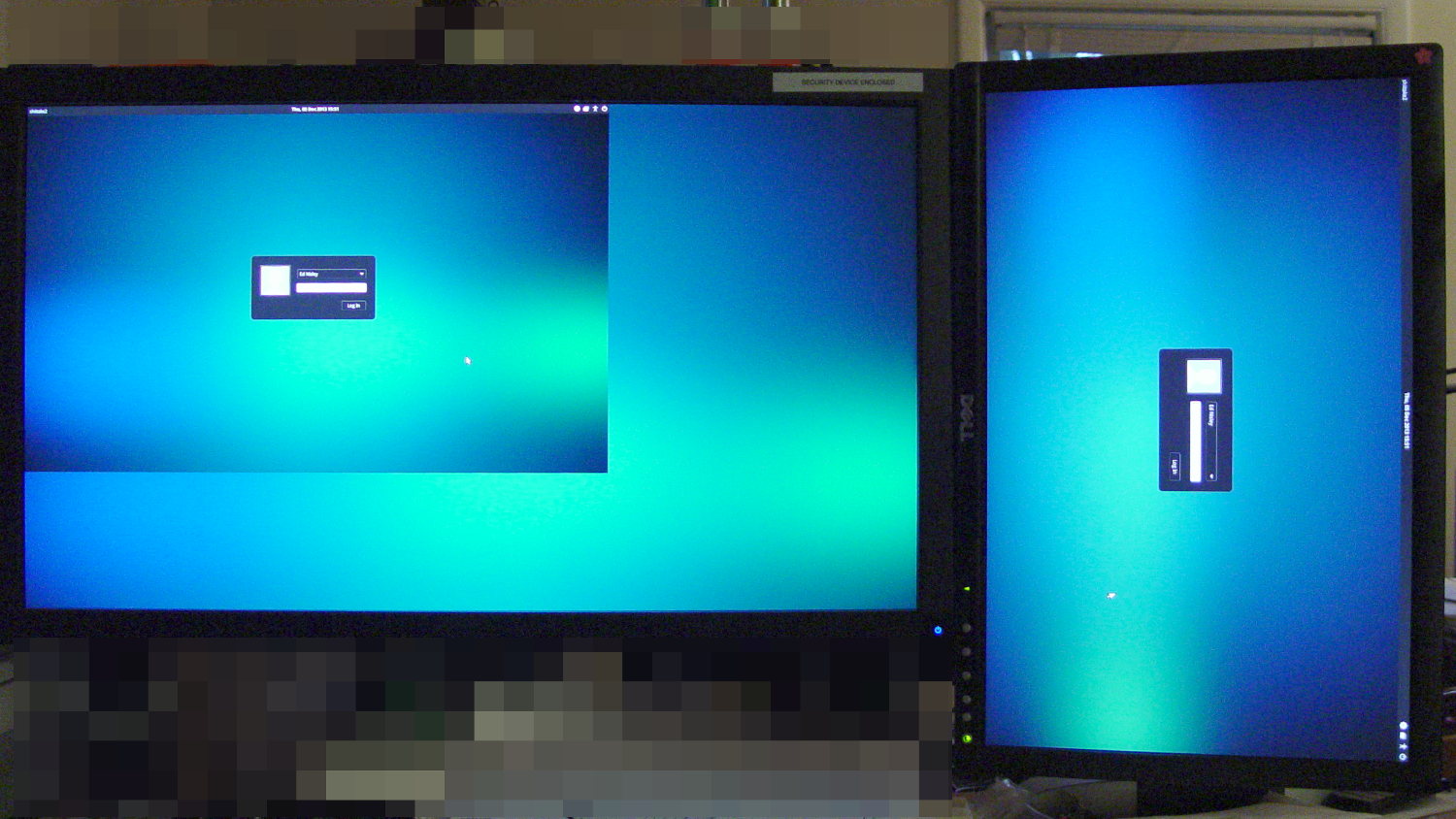
This Optiplex 980 has two built-in video connectors (DisplayPort and VGA) that work with the Free Software drivers. After some fumbling around, the XFCE Display configuration utility positioned and rotated the landscape and portrait monitors as I wanted them. Running the 1680×1050 display with analog VGA signals produces a noticeably less crisp result, but it’s on the OK side of Good Enough.
The startup display / greeter doesn’t handle that configuration very well at all:
The .xprofile file doesn’t need the xrandr hacks and includes the display names corresponding to the new video outputs:
setxkbmap -option terminate:ctrl_alt_bksp
#xrandr --output HDMI-0 --rotate left
#xrandr --dpi 100x100
xsetwacom --verbose set "Wacom Graphire3 6x8 stylus" MapToOutput "DP1"
xsetwacom --verbose set "Wacom Graphire3 6x8 eraser" MapToOutput "DP1"
Although I’m sure there’s a Better Way that’s now The Standard Method, just creating a simple /etc/X11/xorg.conf file (with nothing else!) swapped the Kensington Expert Mouse buttons:
Section "InputClass"
Identifier      "Kensington Trackball"
MatchProduct    "Kensington Expert Mouse"
Option          "SendCoreEvents" "True"
Option          "ButtonMapping" "3 8 1 4 5 6 7 2"
EndSection
Perhaps that should be in a file tucked in /usr/share/X11/, along with 50-wacom.conf, which I modified to swap the stylus buttons, which worked the last time:
Section "InputClass"
	Identifier "Wacom class"
	MatchProduct "Wacom|WACOM|Hanwang|PTK-540WL|ISD-V4"
	MatchDevicePath "/dev/input/event*"
	Driver "wacom"
        Option "Button2" "3"
        Option "Button3" "2"
EndSection
The default audio stream goes through DisplayPort and comes out of the monitor’s audio jack, which took an embarassingly long time to discover. As nearly as I can tell, there is no way to enable the internal audio in addition to the DisplayPort channel; putzing with pavucontrol and alsamixer was unproductive.
The “indicator applet” sound control seems to be irrecoverably broken, for reasons having to do with the change from GTK2 to GTK3 (or something like that); the suggested workaround do not work for this system. Unfortunately, XFCE allows exactly one mixer applet in the panel, which will pose a problem with the USB headset I use for phone calls.
The vast Pachinko machine that is the current Ubuntu startup process has slightly different timing, so the simpleminded scheme I used to get the NFS share mounted before the UI starts up doesn’t quite work; signing in a few seconds after the greeter pops up seems to do the trick.
I think having the local.conf routine emit a unique signal after mounting the NFS shares, then having the lightdm.conf routine wait for that signal, might just do the trick. More research is needed.
Of course, a release or two ago the tried-and-true network interface names changed, for well and good reason, but … OK, I can use em1 instead of eth0, although I sure hope that’s not a random outcome.
En passant, I discovered why the keyboard didn’t respond during boot: a crappy powered USB2 hub wasn’t working quite right. Swapping in an ancient Belkin powered USB hub solved that problem:
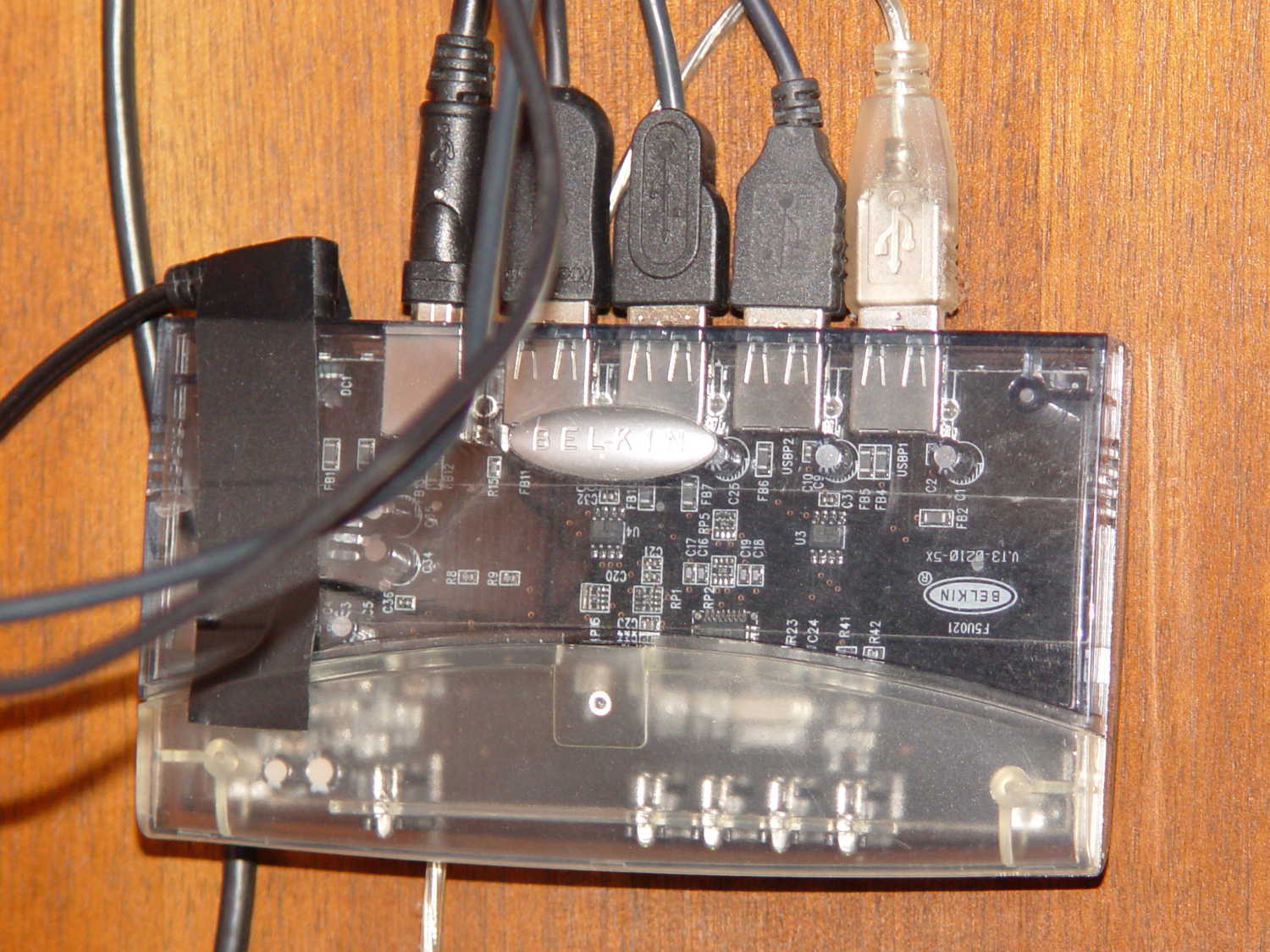
The hub concentrates the desktop peripherals (keyboard, two trackballs, and the tablet), so it doesn’t need high-speed throughput or responsiveness.
 The Smell of Molten Projects in the Morning