Ed Nisley's Blog: Shop notes, electronics, firmware, machinery, 3D printing, laser cuttery, and curiosities. Contents: 100% human thinking, 0% AI slop.
The aperiodic monotile discovery prompted some reverse engineering, snapping a path to regular hexagons for the proper lengths and angles without mathing too hard:
Aperiodic tile – hexagon overlay
The resulting red path is the “hat” monotile, here shown as a PNG for neatness:
Aperiodic monotile
With SVG hat in hand, I laid and cut a trial puzzle based on the sample shown in the paper:
Aperiodic tile layout
Which looked promising enough to add a few rings around that layout and turn it into an actual, albeit low budget, puzzle:
Aperiodic tile puzzle – starting
The paper notes that one can build mutually incompatible patches, which is the state I immediately blundered into:
Aperiodic tile puzzle – progress
The upper and lower left halves cannot be combined to extend rightward, as the middle section is incompatible with both. I began growing patches from the upper and lower right corners, hoping to use them to rectify the left half, but producing a small un-fillable situation in the middle:
Aperiodic tile puzzle – incorrect layout
Obviously, I need a cheat code. I’m resolutely not looking at the source layout for a while.
The stock Bafang pedal cranks measure 170 mm on centers between the bottom bracket shaft and the pedal spindle. Having grown accustomed to the 165 mm cranks from Mary’s bike, I got a set of cheap 160 mm cranks to feel if there was any difference:
Bafang vs ProWheel crank forging
The bottom crank has a quick-and-dirty adaptation of the magnet mount for the Lekkie Buzz Bar offset cranks, but, of course, the 160 mm cranks have an entirely different profile. They are also heavier and more crudely forged, which is about what you’d (well, I’d) expect.
Also unlike the Lekkie cranks, neither the Bafang nor the Prowheel cranks correct the Bafang motor’s offset, so I’m using the left-side Kneesaver from the old cranks, which turns out to be close enough.
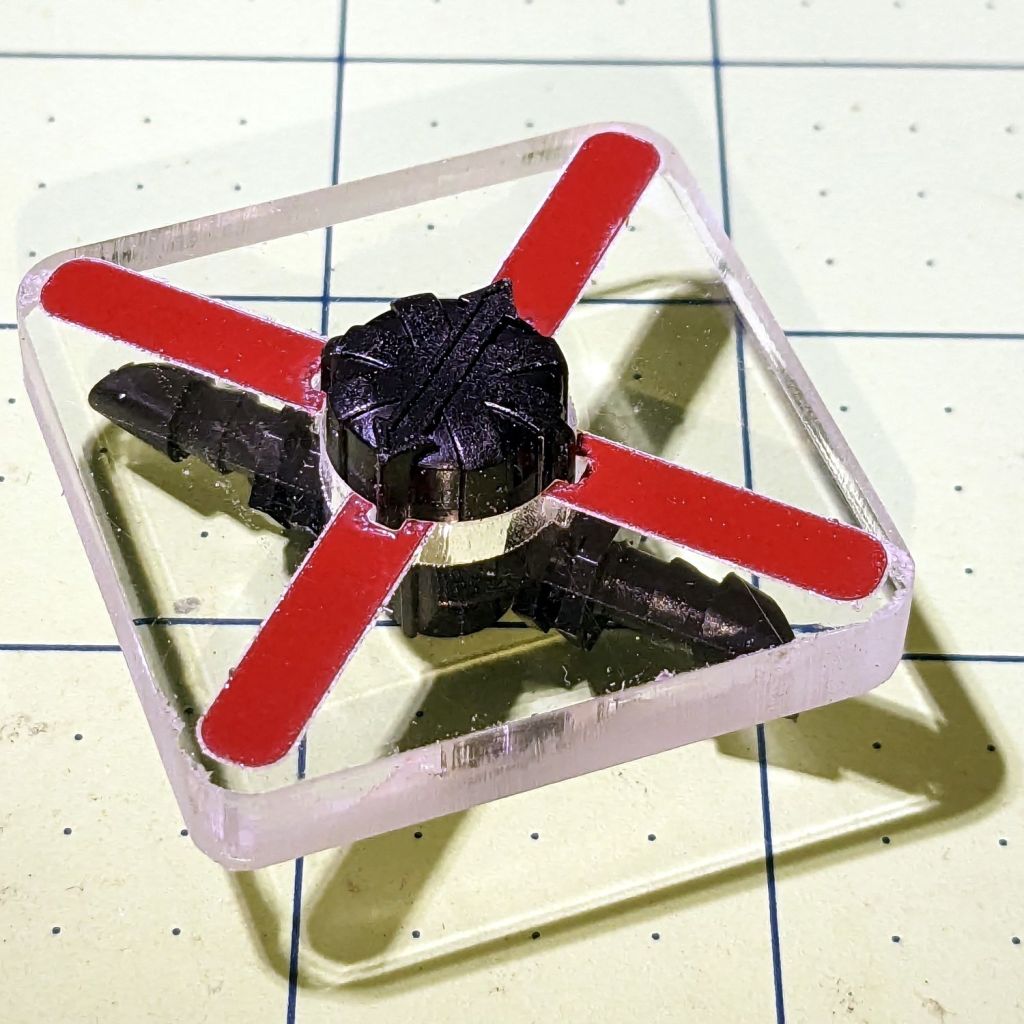
The black 3D printed mount in the upper right fit the Bafang crank and appears in the top photo.
Transferring the new contour to paper and applying the Chord Equation got the radius of the not-quite circle:
CatEye magnet crank adapter – chord radius
Knowing the size of the magnet and the radius of the circle, drawing the profile in LightBurn was straightforward:
CatEye magnet crank adapter – framed
Applying the laser cutter to MDF produced the two successive test-fit pieces in the picture while figuring out how much stickout the magnet needed beyond the inner crank face to reach the sensor. LightBurn’s Node Editor simplified adjusting the size: drag-select a group of nodes, then move them in precise increments with the arrow keys.
Export the profile from LightBurn as an SVG file, import it into OpenSCAD, and extrude it to the proper length:
The translate puts the profile approximately at the XY origin. The center = true option moves the profile elsewhere on the XY plane, but does not center it, which may have something to do with the viewport used by LightBurn, the OpenSCAD version I’m using, or something else entirely.
In any event, the 3D printed mount fits the crank and puts the magnet where it will do the most good:
CatEye Magnet holder – ProWheel crank – installed
What looks like an obvious curvature mismatch comes from having the tape edge not quite squashed against the crank.
I should poke a channel through it for a cable tie around the crank, but that 3M foam tape is really good stuff and hasn’t failed me yet.
It’s basically ten identical identical spacers cut from 3 mm plywood, with a side benefit of dramatically reducing my scrap plywood stash, then skewered by a pair of absurdly long 4 mm self-tapping metal screws into holes drilled half an inch into the ¾ inch solid wood cabinet floor.
It clears some clutter atop the microwave and, at least to my deflicted ears, sounds much better. At some point I must screw the Raspberry Pi under the cabinet, too, but that awaits further rearrangement.
I got the Bafang DPC-18 display for my Tour Easy specifically to put the control buttons on the handgrip, rather than the buttons on the left of the 500C display on Mary’s bike:
Tour Easy Bafang – display 26 mi
The first pass put them on the left handgrip, just behind the thumb throttle:
Bafang DPC-18 control buttons – initial mount
This turned out to be a catastrophically bad position, because the “buttons” extend all the way to the edge of the mount and trigger when pressed a fraction of a millimeter: the dark line visible under the light gray top is the entire range of motion.
My resting hand position on the grip put the edge of my gloved index finger along the buttons, where it would inexorably nudge the + button until I was riding in assist level 9 (Rocket Sled) mode.
One ride was enough to convince me those buttons needed a Mollyguard:
It is, of course, a laser-cut piece of 1.5 mil black acrylic, held in place with hot-melt glue. Because the button housing isn’t mounted symmetrically on the handlebar, I cut a few paper templates before getting the position and size right.
A view from the front shows the lip sticking up over the buttons:
Bafang DPC-18 button Mollyguard – front view
FWIW, the asymmetric mount put the buttons on the rider’s side of the flat handlebars found on contemporary upright city-rider style bikes. It makes perfect sense in that context, but didn’t help me in the least.
With the Mollyguard in place, I rotated the whole button assembly around the handgrip to allow pushing the buttons with my thumb in its natural position.
Now the assist level changes only when I want it to!
The next morning the dead section lit up again, albeit with a dim ring at its right end. I think one LED in that string failed open and darkened the whole string, then failed short under the voltage stress, and is now quietly simmering in there with slightly higher than usual current.
The lights over the workbench weren’t in the first wave of conversions, so they may be only four years old.
For sure, they have yet to approach their 50000 hour lifetime …
The “live hinge” on my overnight eyeglass case shattered when it hit the floor (these things happen), which prompted me to finish a longstanding project of replacing the inadequate / worn out padding in my most-used cases to reduce rattles while in my pocket.
I’d long ago cut craft foam sheets to fit some of the cases, so I started by scanning a sample:
Zenni case pad
Admittedly, black foam on a white background isn’t much to look at, but it did fit one of the cases pretty well.
Rotate the image to make things simple, convert it into a monochrome bitmask, import it into LightBurn, fair some Bezier curves around it, duplicate and tweak for the other not-quite half of the case:
Zenni eyeglass case pads – LB Layout
I ended up with several different versions for various cases, but you get the general idea:
Zenni eyeglass case pads – installed
They’re all cut from 2 mm EVAfoam sheets which, despite the “vinyl” in their name, do not contain chlorine and are suitable for laser cuttery.
Some of the deeper case halves required strips of adhesive sheet to secure the foam, but most sheets dry-fit in place.
This was really a thinly veiled excuse for a deeper look at the QR code generator encoding the myriad parameters required to create the box and see what happens when you try to burn such a complex thing into chipboard.
Spoiler: chipboard has very low contrast and really does not work well with high-density QR codes.
Although the festi.info box generator can produce QR codes, I used qrencode (available in your Linux distro) on the command line to generate QR code image files with specific settings:
--size → size of the smallest square (“module”) in pixels
--dpi → DPI of the output image file
The default file type is PNG. The unusual 254 DPI makes each pixel exactly 0.1 mm wide and a peculiar 169.33 DPI = 0.15 mm came in handy for the first pattern.
The final parameter is the character string to encode, which you should definitely quote to prevent the shell from wrecking things while trying to help you.
A pattern with 4×4 pixel modules didn’t scan at all:
Chipboard QR code – 15pct 0.15mm 4×4 – overview
A closer look shows the modules have ragged edges due to laser timing variations during the engraving scans and gaps between successive scans because the spot size is less than the 0.15 mm scan interval:
Chipboard QR code – 15pct 0.15mm 4×4 – detail
Increasing the module to 6×6 pixels at a 0.1 mm scan interval :
Chipboard QR code – 15pct 0.10mm 6×6 – overview
A closer look shows the larger module reduces the relative size of the timing errors, while the decreased line spacing tidies up the blocks:
Chipboard QR code – 15pct 0.10mm 6×6 – detail
Reducing the power from 15% to 10% reduced the contrast to the point of illegibility:
Chipboard QR code – 10pct 0.10mm 6×6 – overview
A closer look shows the engraving barely punches through the surface and has somewhat more ragged edges due to the tube’s pulsating startup current at very low power:
Chipboard QR code – 10pct 0.10mm 6×6 – detail
I also tried 5×5 modules with similar results.
The laser spot size sets the engraving scan interval, which then determines the DPI value for the QR code image. With all that matched up, you can send the images directly to the laser in Passthrough mode, without having LightBurn resample the pixels and change the module’s shape.
Looked at from a different angle: given the laser spot size and the module size, the QR code image size is not under your control.
From another angle: given a QR code image size in, say, millimeters, and the engraving scan interval, the module size is not under your control.
All this is moot if you print QR codes on a high-resolution / high-contrast printer. It’s just the gritty nature of laser cuttery that limits what you can accomplish.
And, of course, using a material less awful than chipboard will definitely improve the results.
If you want a similar box of your own, here ya go: