Ed Nisley's Blog: Shop notes, electronics, firmware, machinery, 3D printing, laser cuttery, and curiosities. Contents: 100% human thinking, 0% AI slop.
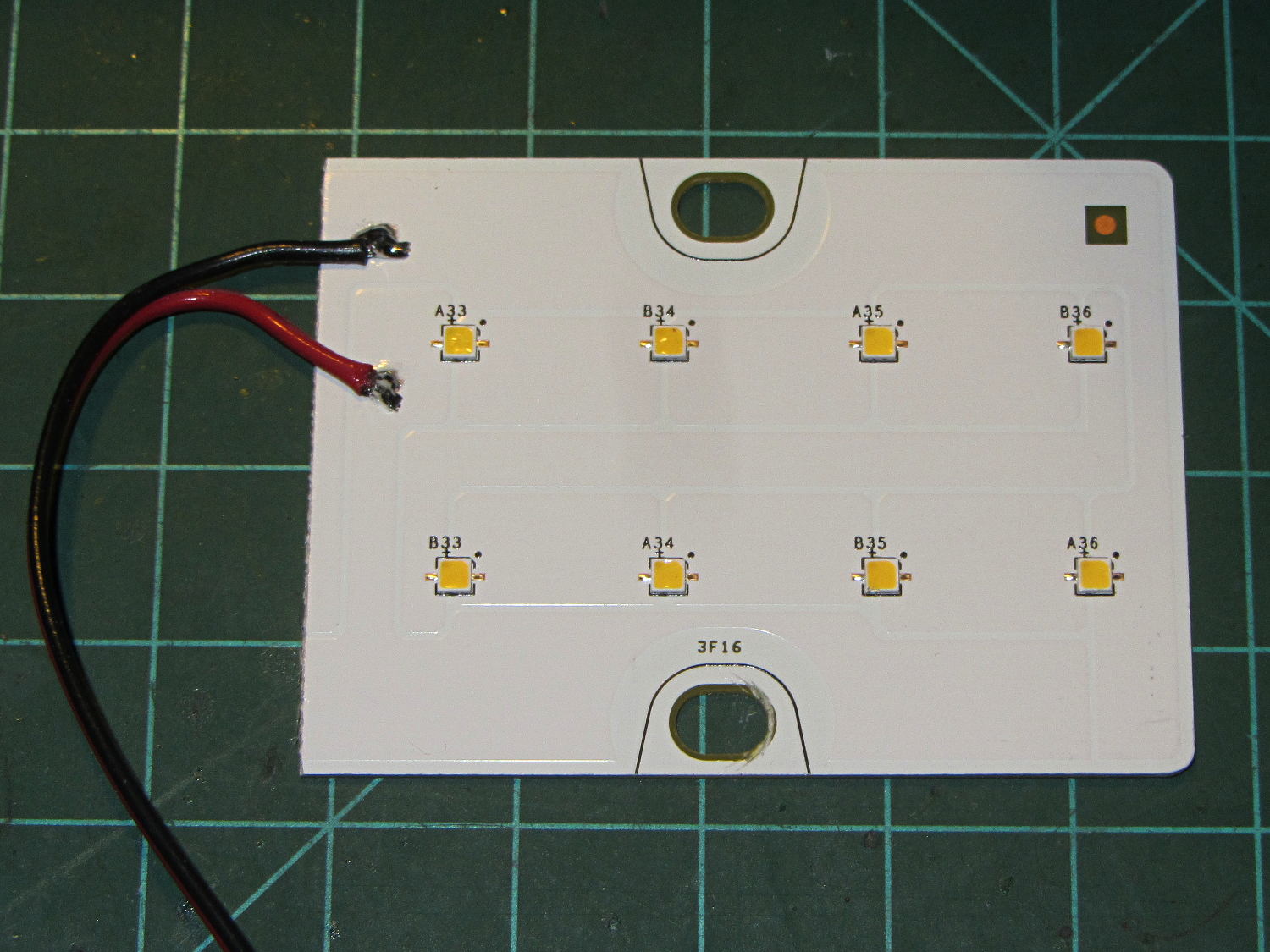
A surplus haul of 24 V / 150 mA white LED panels arrived:
LED Panel – 24 V 150 mA
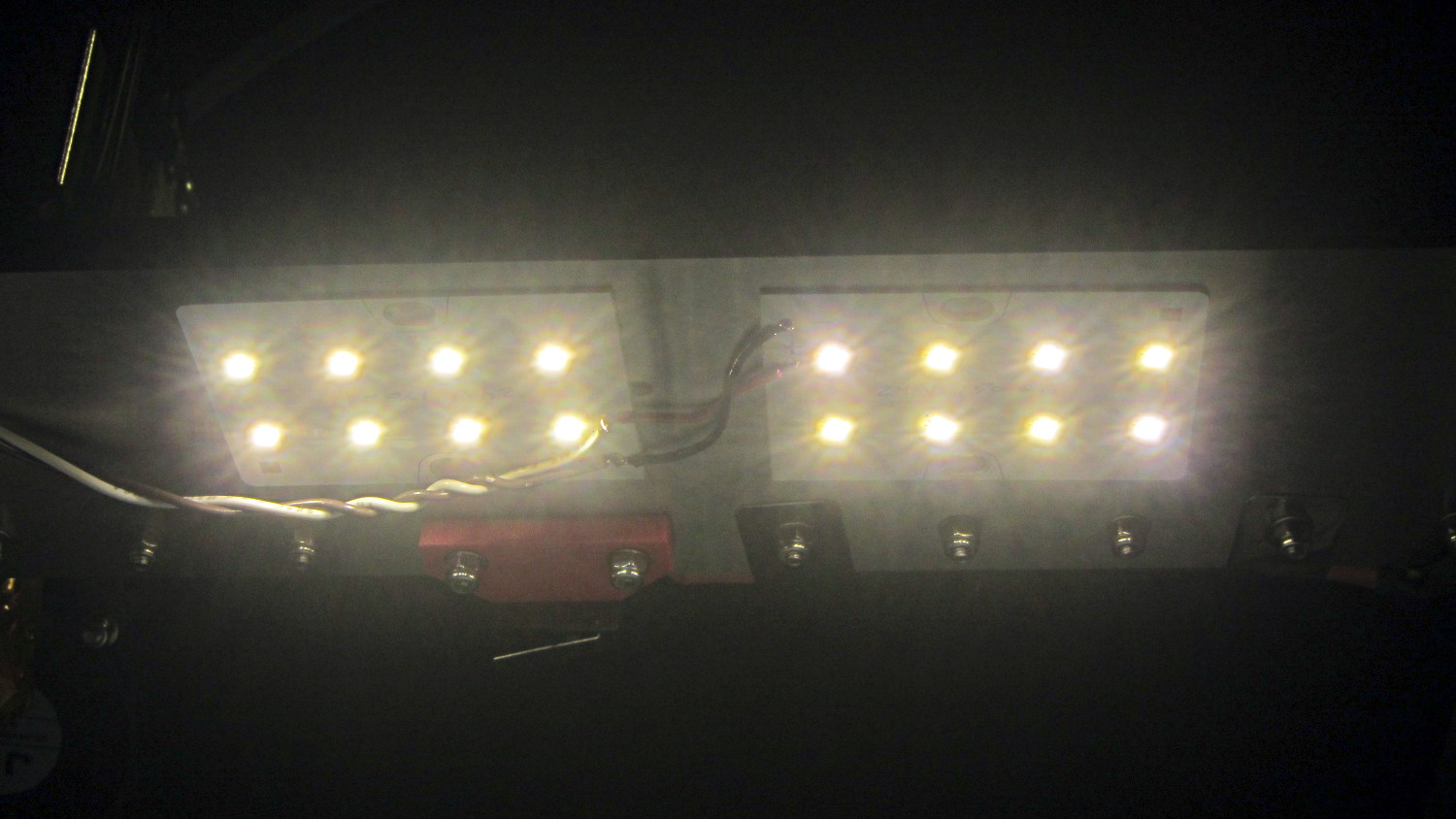
I wired a pair to a 24 V wall wart and stuck them under the M2’s bridge supporting the X stage:
LED Panel – on M2 Gantry
I thought about epoxying them in place to get better heatsinking to the metal bridge. The ever-trustworthy description said the big copper baseplate meant the panels didn’t need any heatsinking, so I used tapeless sticky and will hope for the best. Should the sticky give out, then I’ll use epoxy.
They’re much better than the previous white LED strip, although it’s tough to tell in the pictures. The chain mail armor appears under the new lights; some older pictures will creep in from time to time.
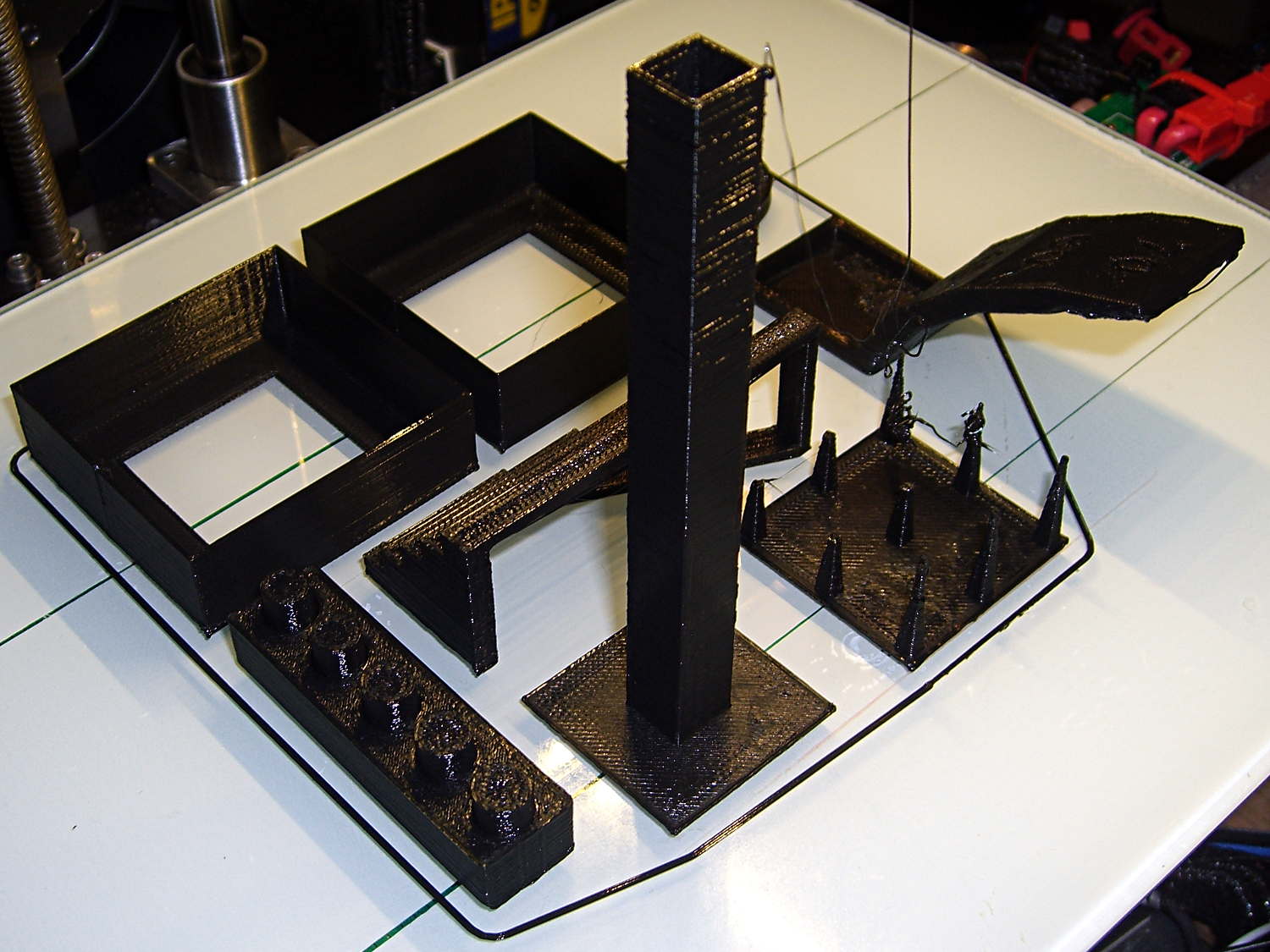
Just for completeness, here’s how the MAKE Magazine 2015 Test Objects came out on my somewhat modified MakerGear M2. I ignored the instructions, lumped all the models together, sliced ’em with my ordinary Slic3r settings, and printed the entire lot in one go:
MAKE Magazone 2015 Test Objects – on platform
Some details…
There’s no point in showing the Dimension Accuracy Tower-of-Hanoi (hiding behind the smokestack), as it looks exactly like it should. The 20 mm diameter platter came out at 19.7 ± 0.05 mm in both X and Y, so that’s a score of 2 or 3. It’s exactly the same along both axes, both diagonals, and, in fact, all the way around, within ±0.07 mm tolerance. In fact, all the layers worked out about that way; it’s consistently a bit too small. That’s what I’d expect for an uncalibrated model.
The Bridging Performance lattice gets a 5, with all the bars having dead-flat perimeters and no dropped infill. That would be a 1 if “dropped” should be “drooped”; I have no idea which is correct or exactly what they mean, but I have seen bridge threads drop off the sides, so I’ll assume it means what it says.
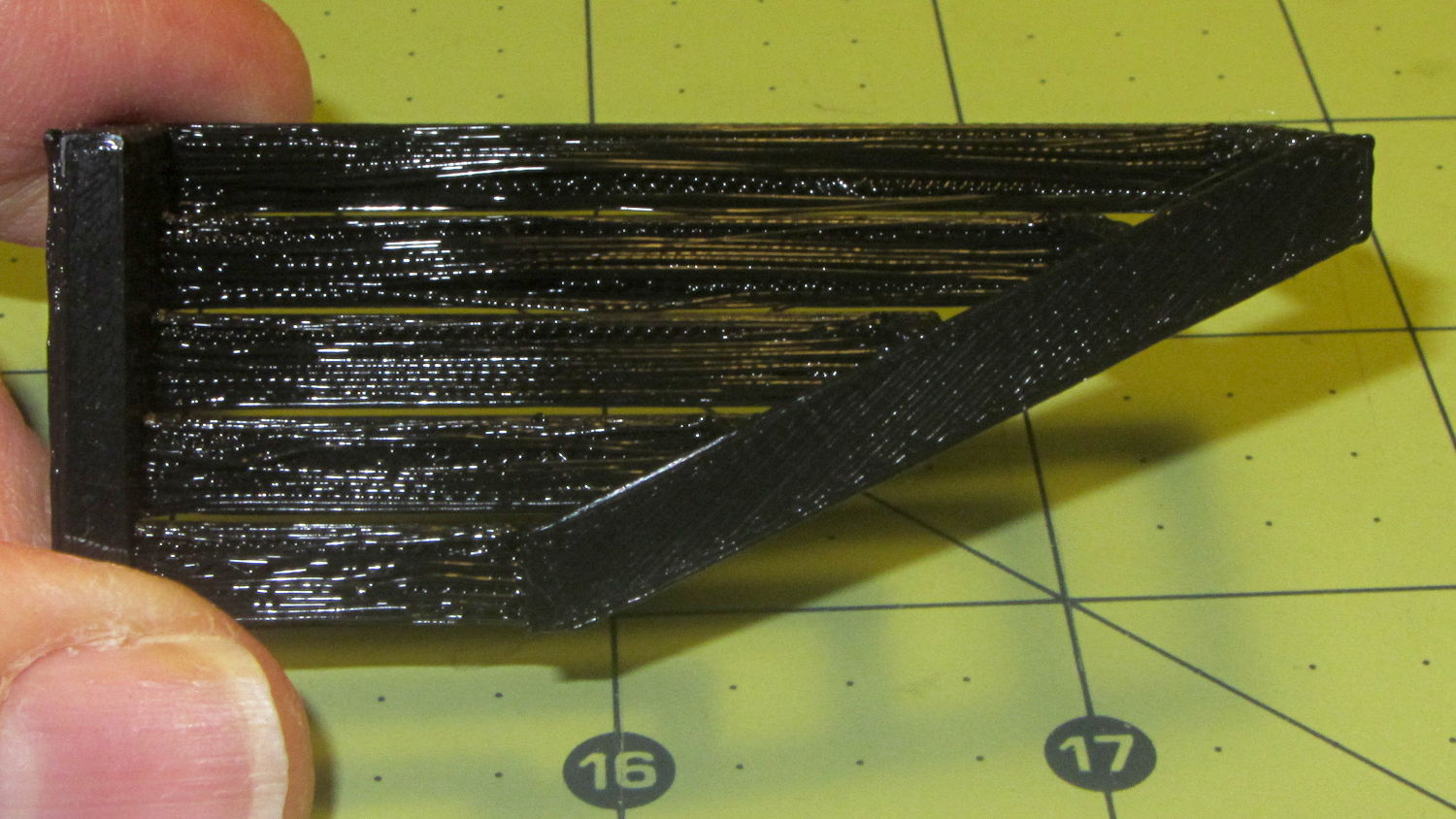
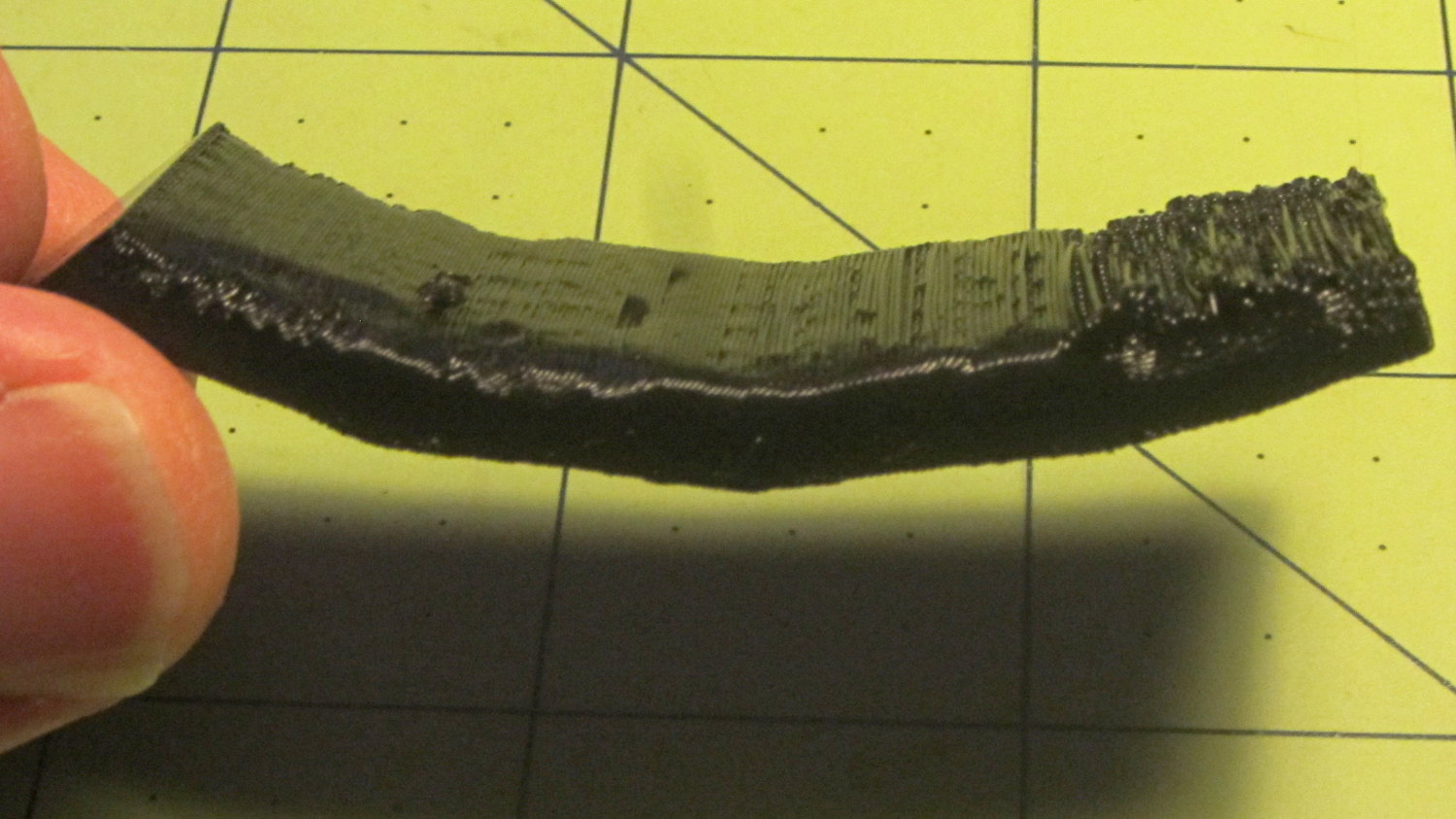
The front view shows the first bridging layer getting droopy under the longer bars, as you’d expect:
Bridging – front
All those drooping threads remain above the 2 mm tolerance, assuming that’s what they intended.
The bottom view shows the loose strands below the bars:
Bridging – bottom
The Overhang Performance arch gets a 5, because the top surface finish remains pretty much the same from 30° through 70° overhang:
Overhang – upper
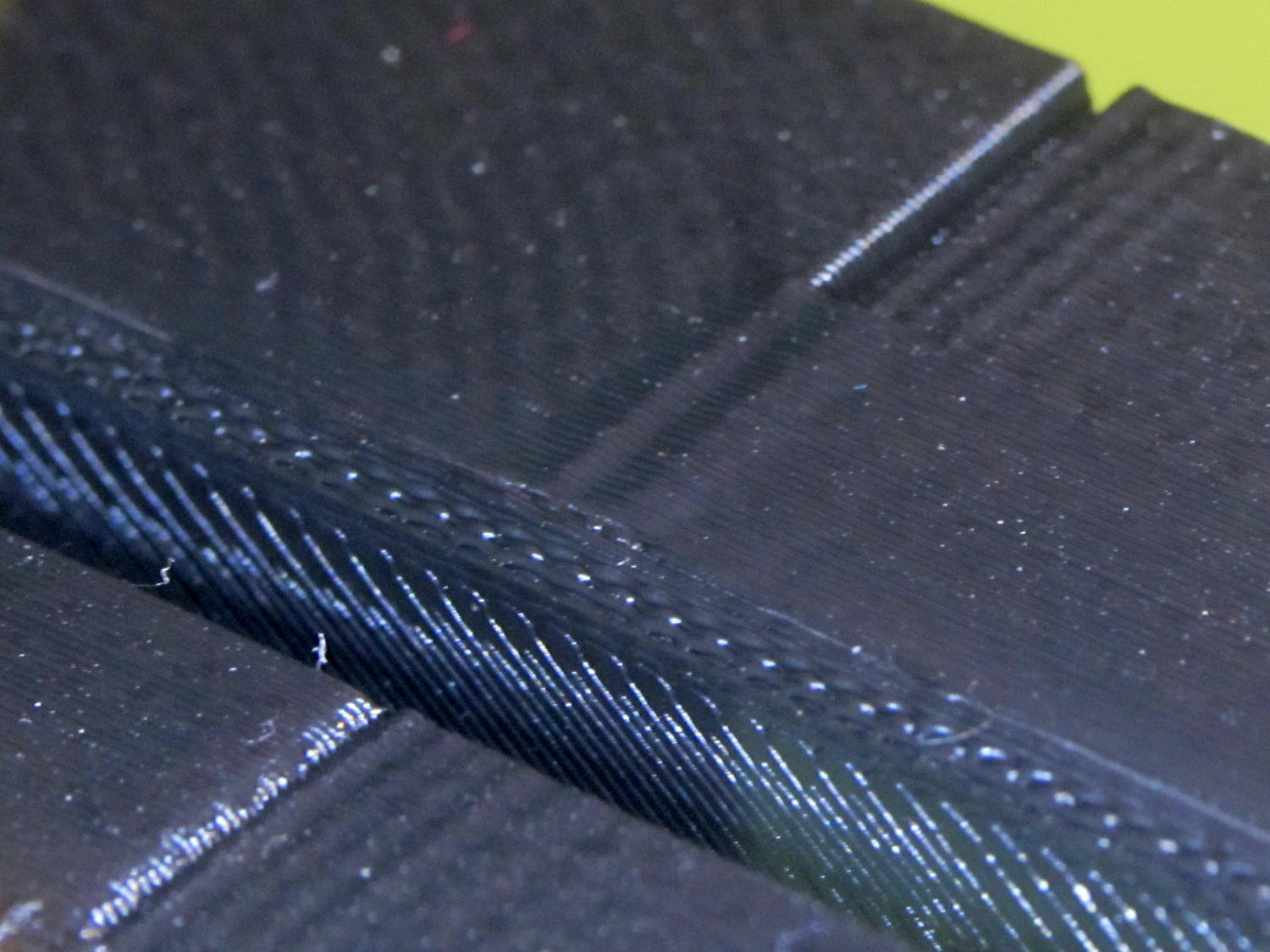
Underneath, things look weirder:
Overhang – lower
I think the oddness on the left (the underside of the 30° section) is due to interference from the Fine Positive Space Features spire array; the nozzle came directly from there. The 70° overhang looks ugly, but I wouldn’t have imagined that would work at all, let alone as well as it did.
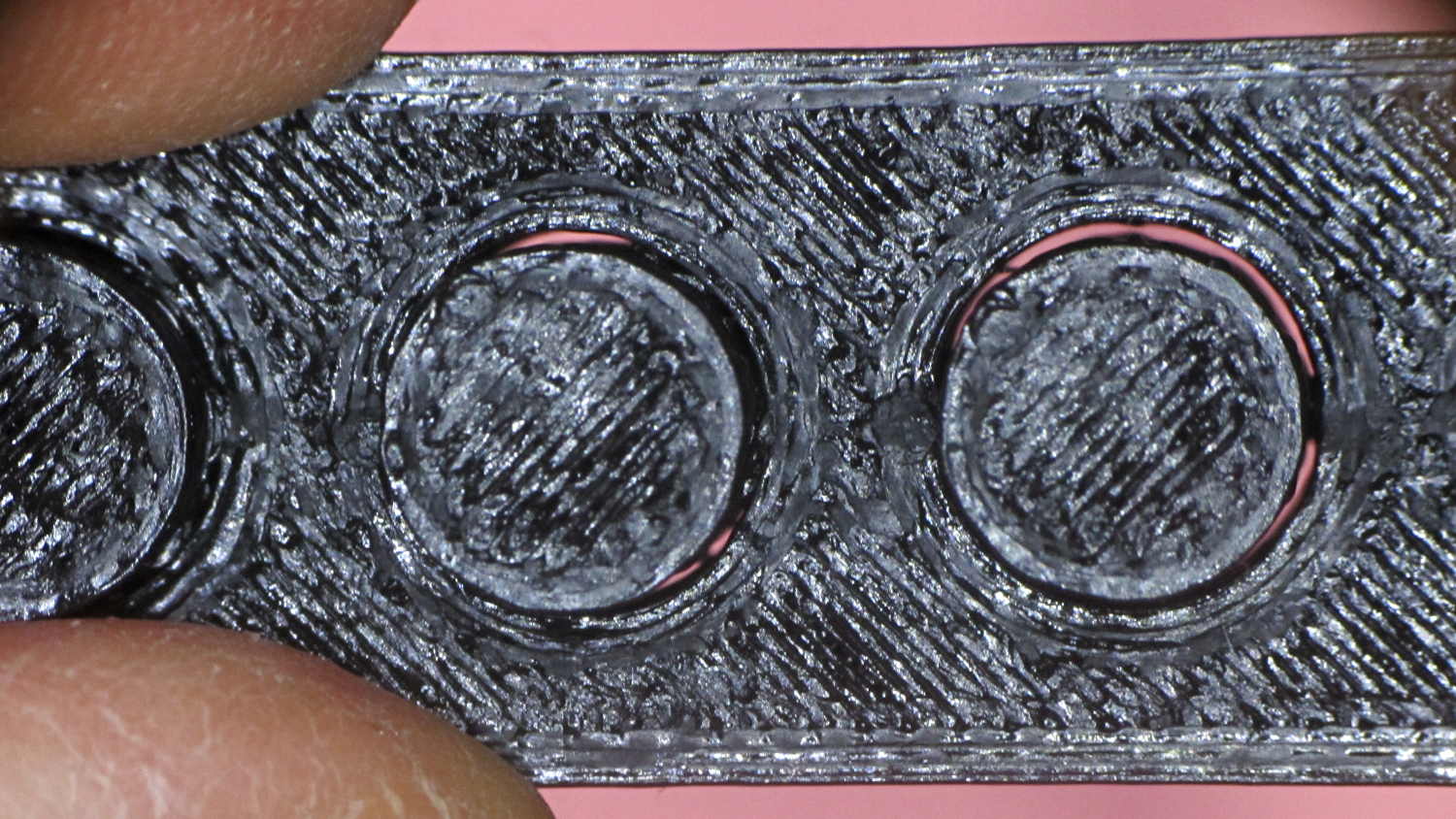
The Negative Space Tolerance block weighs in at 2, as the pins with 0.6 and 0.5 mm clearance pushed out with finger pressure. The 0.3 and 0.4 mm clearance pins have air nearly all the way around, but would require a sharp rap from a mallet. The 0.2 mm pin remains firmly stuck:
Negative Space Tolerance
I don’t know how to judge the Fine Positive Space Features bed-o’-nails:
Fine Positive
I think it’s either a 2 or a 3, but opinions will certainly differ. Hot off the platform, five of the nine spires completed successfully. Three other got almost done, but broke off in handling. The collection of drool on the left-middle spire seems to be from the uncompleted spires in the foreground; I think there just wasn’t enough adhesion to hold them together. The perimeters ran at 50 mm/s and the infill at 150 mm/s, because it’s printed with everything else, so it wasn’t done with the delicacy it would get in isolation.
Both Mechanical Resonance in XY boxes look fine to me:
XY Resonance – notch
The ripples are visible, but barely perceptible to the thumbnail. The Rules call for 0 or 2, I’d give it a 1: if those ripples pose a problem, then sheesh you’re using the wrong process.
Also, the perimeters ran at 50 mm/s perimeter and the thick walls got 150 mm/s infill.
A corner of the single-wall box looks about the same as the corresponding point on the 1 mm box (which isn’t shown):
XY Resonance – corner
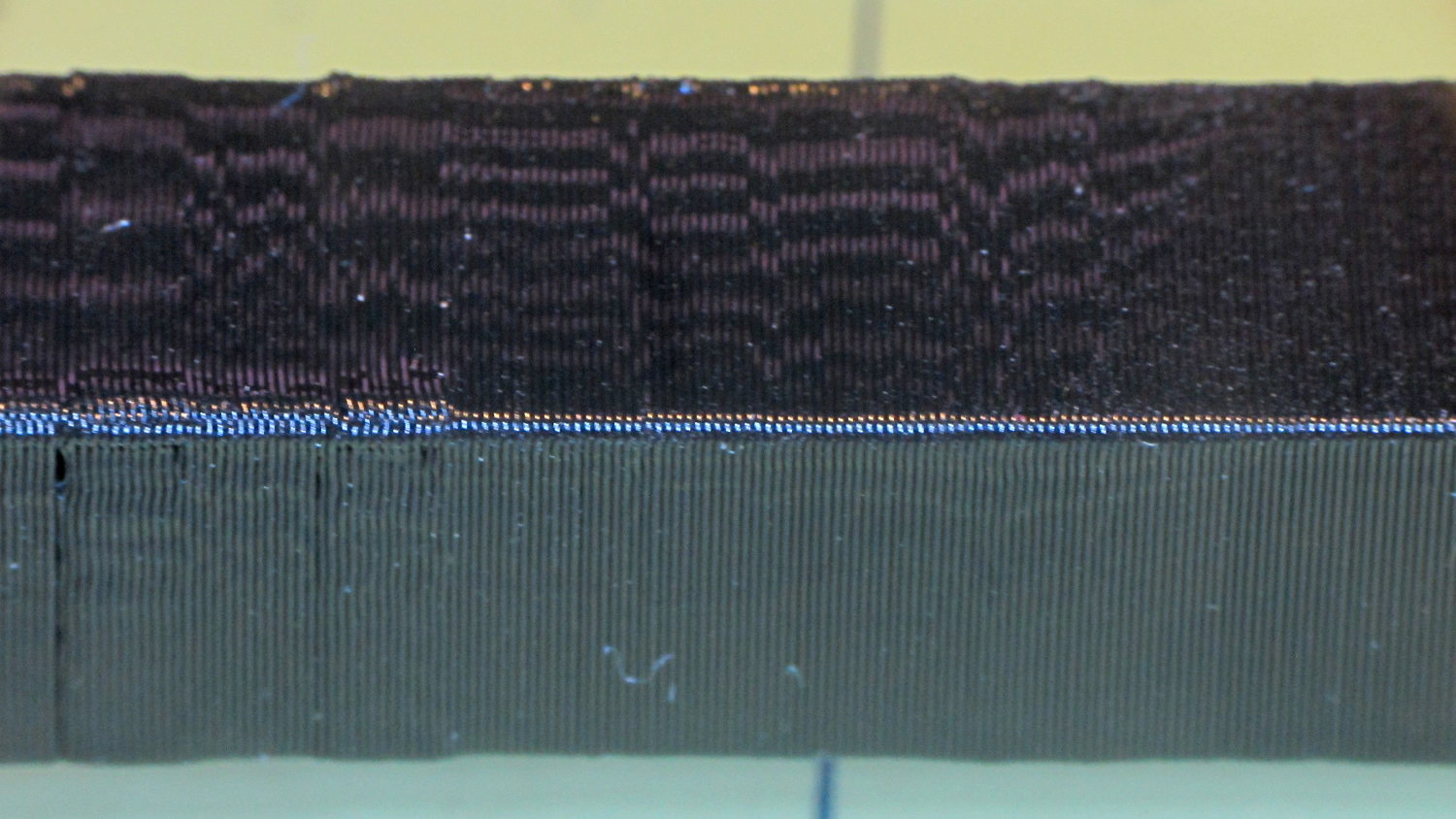
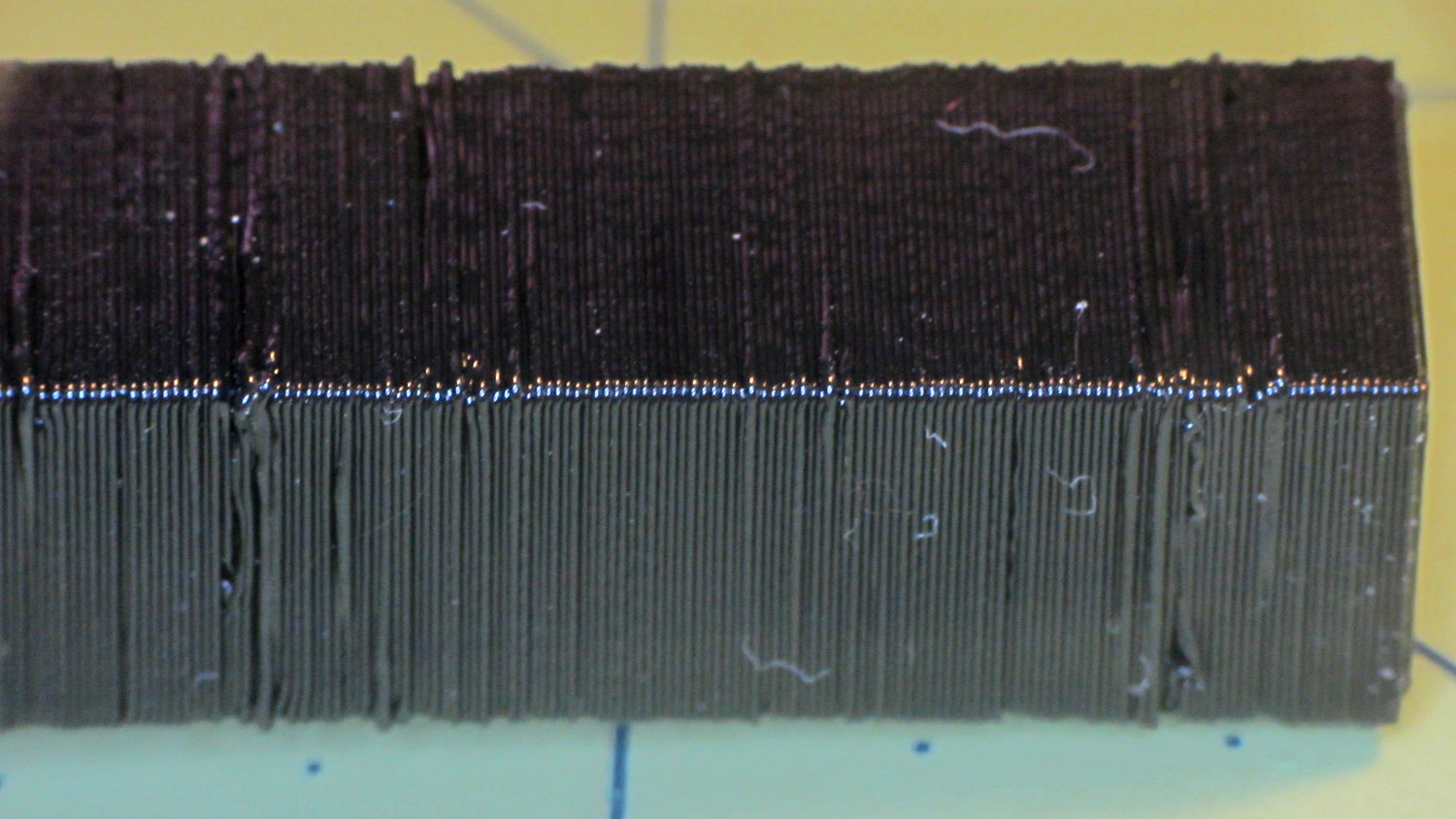
I think the Mechanical Resonance in Z smokestack gets a 1 (the Rules allow either 0 or 2); I stopped it after 100 mm, because bedtime. The bottom section shows the influence of all the other stuff going on around it:
Z Resonance – lower
That’s not a missed step over there on the far left: it lines up with the bottom bar of the adjacent Bridging Performance lattice. The next glitch lines up with the top of the Negative Space block. And so forth and so on.
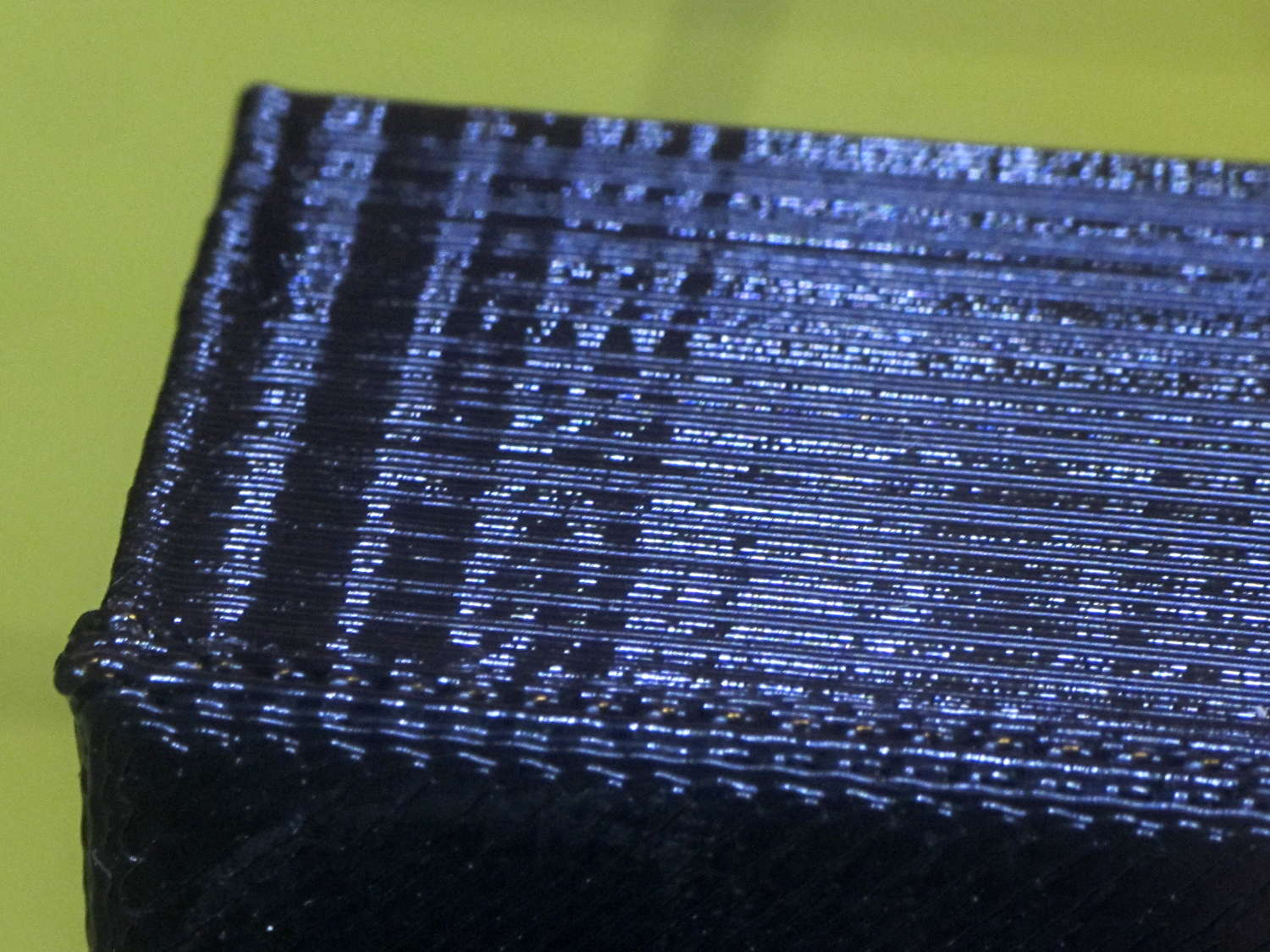
The top, done all by itself at 11 mm/s, shows some misalignment:
Z Resonance – upper
Each layer took 15 seconds, so I suspect it’d look better with more cooling.
So, using ordinary default settings for everything and with all the handwaving in mind, I’ll call the total score 19-ish of a possible 29. The M2 would definitely do better on individual objects sliced with carefully hand-tuned parameters after considerable iteration; this is its ordinary, day-in-and-day-out performance on crazy models that I’d never attempt without tweaking.
The score would be much much much higher if I judged it with criteria similar to what I see applied to some of the Thingiverse groupings.
The M2 works well for me, anyhow.
For reference, here’s the current Slic3r configuration:
# generated by Slic3r 1.2.1 on Sun Dec 7 12:19:19 2014
avoid_crossing_perimeters = 0
bed_shape = -100x-125,100x-125,100x125,-100x125
bed_temperature = 70
bottom_solid_layers = 3
bridge_acceleration = 0
bridge_fan_speed = 100
bridge_flow_ratio = 1
bridge_speed = 150
brim_width = 0
complete_objects = 0
cooling = 1
default_acceleration = 0
disable_fan_first_layers = 1
dont_support_bridges = 1
duplicate_distance = 6
end_gcode = ;-- Slic3r End G-Code for M2 starts --\n; Ed Nisley KE4NZU - 15 November 2013\nM104 S0 ; drop extruder temperature\nM140 S0 ; drop bed temperature\nM106 S0 ; bed fan off\nG1 Z160 F2000 ; lower bed\nG1 X130 Y125 F30000 ; nozzle to right, bed front\nM84 ; disable motors\n;-- Slic3r End G-Code ends --
external_perimeter_extrusion_width = 0
external_perimeter_speed = 50
external_perimeters_first = 0
extra_perimeters = 1
extruder_clearance_height = 25
extruder_clearance_radius = 15
extruder_offset = 0x0
extrusion_axis = E
extrusion_multiplier = 1.07
extrusion_width = 0.4
fan_always_on = 0
fan_below_layer_time = 30
filament_diameter = 1.72
fill_angle = 45
fill_density = 20%
fill_pattern = 3dhoneycomb
first_layer_acceleration = 0
first_layer_bed_temperature = 70
first_layer_extrusion_width = 0.4
first_layer_height = 100%
first_layer_speed = 25
first_layer_temperature = 175
gap_fill_speed = 50
gcode_arcs = 0
gcode_comments = 0
gcode_flavor = reprap
infill_acceleration = 0
infill_every_layers = 2
infill_extruder = 1
infill_extrusion_width = 0
infill_first = 1
infill_only_where_needed = 0
infill_speed = 150
interface_shells = 0
layer_gcode =
layer_height = 0.2
max_fan_speed = 100
min_fan_speed = 75
min_print_speed = 4
min_skirt_length = 15
notes =
nozzle_diameter = 0.35
only_retract_when_crossing_perimeters = 1
ooze_prevention = 0
output_filename_format = [input_filename_base].gcode
overhangs = 1
perimeter_acceleration = 0
perimeter_extruder = 1
perimeter_extrusion_width = 0.4
perimeter_speed = 150
perimeters = 2
post_process =
raft_layers = 0
resolution = 0.01
retract_before_travel = 1
retract_layer_change = 0
retract_length = 1
retract_length_toolchange = 5
retract_lift = 0
retract_restart_extra = 0
retract_restart_extra_toolchange = 0
retract_speed = 60
seam_position = nearest
skirt_distance = 3
skirt_height = 1
skirts = 3
slowdown_below_layer_time = 10
small_perimeter_speed = 50
solid_fill_pattern = rectilinear
solid_infill_below_area = 5
solid_infill_every_layers = 0
solid_infill_extrusion_width = 0
solid_infill_speed = 150
spiral_vase = 0
standby_temperature_delta = -5
start_gcode = ;-- Slic3r Start G-Code for M2 starts --\n; Ed Nisley KE4NZU - 15 Nov 2013\n; 28 Feb 2014 - 6 Mar 2014 - tweak Z offset June July 2014\n; Z-min switch at platform, must move nozzle to X=130 to clear\nM140 S[first_layer_bed_temperature] ; start bed heating\nG90 ; absolute coordinates\nG21 ; millimeters\nM83 ; relative extrusion distance\nG92 Z0 ; set Z to zero, wherever it might be now\nG1 Z10 F1000 ; move platform downward to clear nozzle; may crash at bottom\nG28 Y0 ; home Y to be sure of clearing probe point\nG92 Y-127 ; set origin so 0 = center of plate\nG28 X0 ; home X\nG92 X-95 ; set origin so 0 = center of plate\nG1 X130 Y0 F30000 ; move off platform to right side, center Y\nG28 Z0 ; home Z with switch near center of platform\nG92 Z-4.65 ; set origin to measured z offset\nG0 Z2.0 ; get air under switch\nG0 Y-127 F10000 ; set up for priming, zig around corner\nG0 X0 ; center X\nM109 S[first_layer_temperature] ; set extruder temperature and wait\nM190 S[first_layer_bed_temperature] ; wait for bed to finish heating\nG1 Z0.0 F500 ; put extruder at plate \nG1 E30 F300 ; prime to get pressure, generate blob\nG1 Z5 F2000 ; rise above blob\nG1 X15 Y-125 F20000 ; jerk away from blob, move over surface\nG1 Z0.0 F1000 ; dab nozzle to attach outer snot to platform\nG4 P0.5 ; pause to attach\nG1 X35 F500 ; slowly smear snot to clear nozzle\nG1 Z1.0 F2000 ; clear bed for travel\n;-- Slic3r Start G-Code ends --
support_material = 0
support_material_angle = 0
support_material_enforce_layers = 0
support_material_extruder = 1
support_material_extrusion_width = 0
support_material_interface_extruder = 1
support_material_interface_layers = 3
support_material_interface_spacing = 0
support_material_interface_speed = 100%
support_material_pattern = pillars
support_material_spacing = 2.5
support_material_speed = 150
support_material_threshold = 0
temperature = 175
thin_walls = 1
threads = 2
toolchange_gcode =
top_infill_extrusion_width = 0
top_solid_infill_speed = 50
top_solid_layers = 3
travel_speed = 250
use_firmware_retraction = 0
use_relative_e_distances = 0
vibration_limit = 0
wipe = 0
xy_size_compensation = 0
z_offset = 0
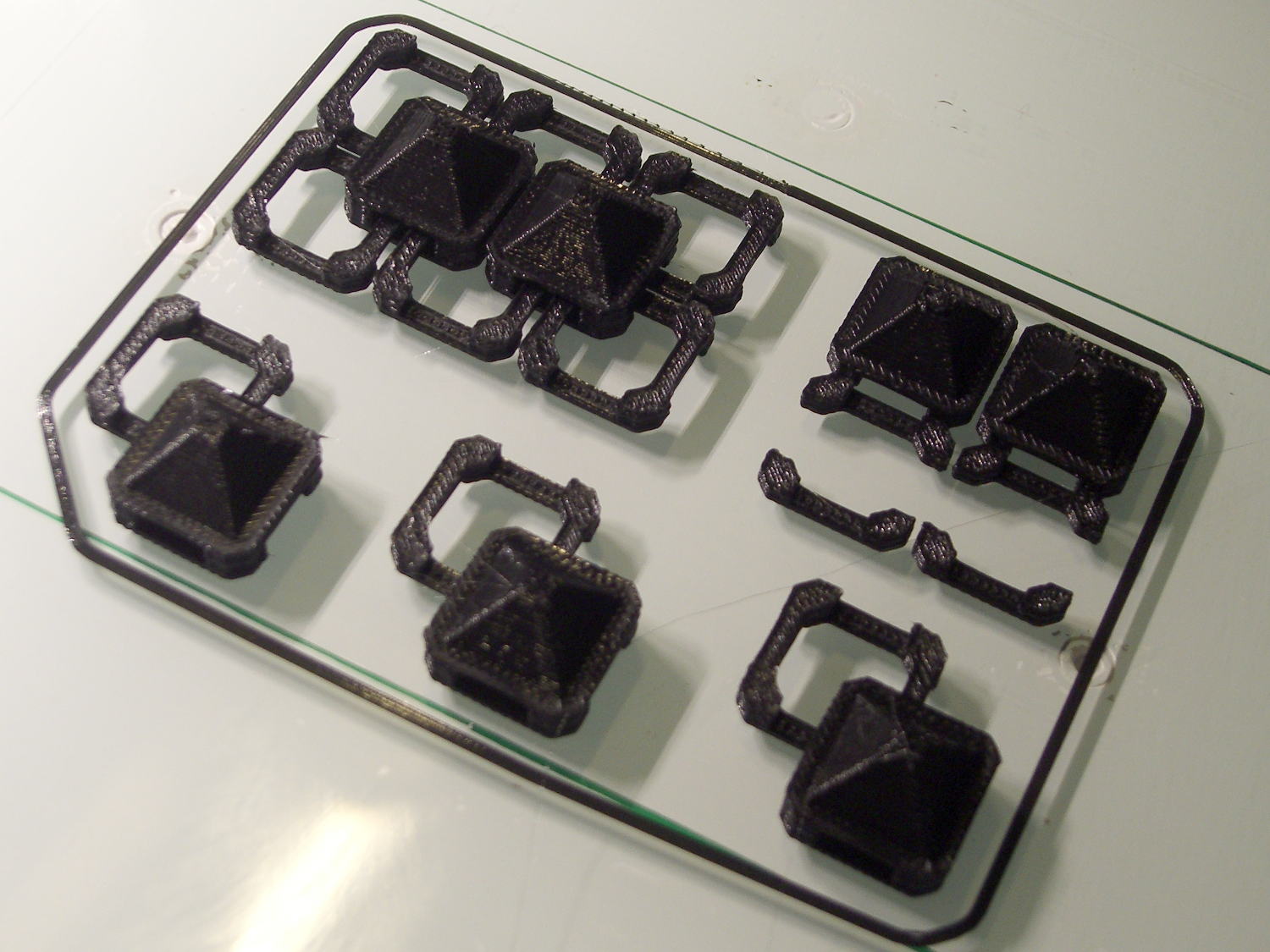
With about two meters of black PLA left on the spool, a pair of spare joiner links and a few tchotckes seemed in order:
Chain Mail Armor – spares and samples
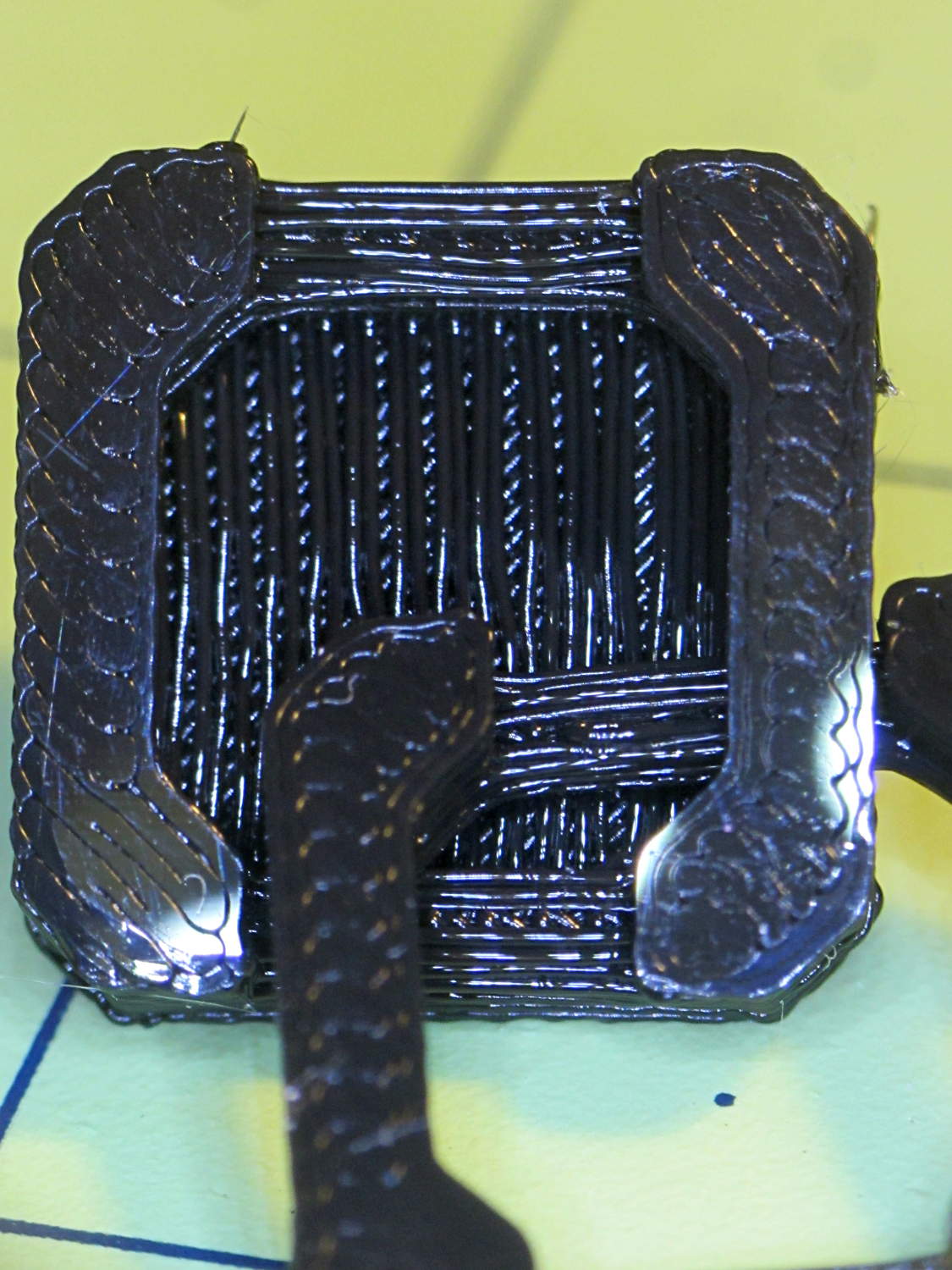
The underside of the samples shows the bridges between the pillars and the cap layer between the sides:
Chain Mail Armor – link bottom
The bridge strands start out droopy, then pull into a more-or-less straight thread as the plastic cools and shrinks. The next layer up looks much, much better.
I can spend a long time watching the nozzle stretch threads across the chasms, putting me in a definite Channel Zero state of mind…
We’ve been doing a lot of roasting and bought a not-dirt-cheap Taylor 1478 digital kitchen thermometer with a long probe wire to monitor the meat temperature. As soon as I unpacked it, I knew this would eventually happen:
Kitchen thermometer – nicked probe wire
The cable lasted just long enough to ensure the thermometer warranty expired; it’s a deliberate design flaw if I’ve ever seen one.
The thermistor inside the probe seems to be 100 kΩ at ordinary temperatures, although I’d be completely unsurprised to find that Taylor uses a slightly nonstandard resistance. Because nonstandard, of course.
Anyhow, replacement probes (*) are readily available from the usual Amazon suppliers, feature stainless steel braid sheathing and cost about as much as a whole new thermometer (albeit those still have cheap plastic insulation). With a replacement on order, I hauled the failed probe to the shop for an autopsy and possible resurrection…
Although I hoped that hammering out the crimp would release the thermistor, it was not to be. In retrospect, pulling on the probe wire probably killed it, but I didn’t know that at the time.
A spring intended to stabilize tubing while bending worked just fine to un-bend the probe:
Kitchen thermometer – unbending
But, alas, the thermistor still didn’t emerge from the more-or-less straightened probe.
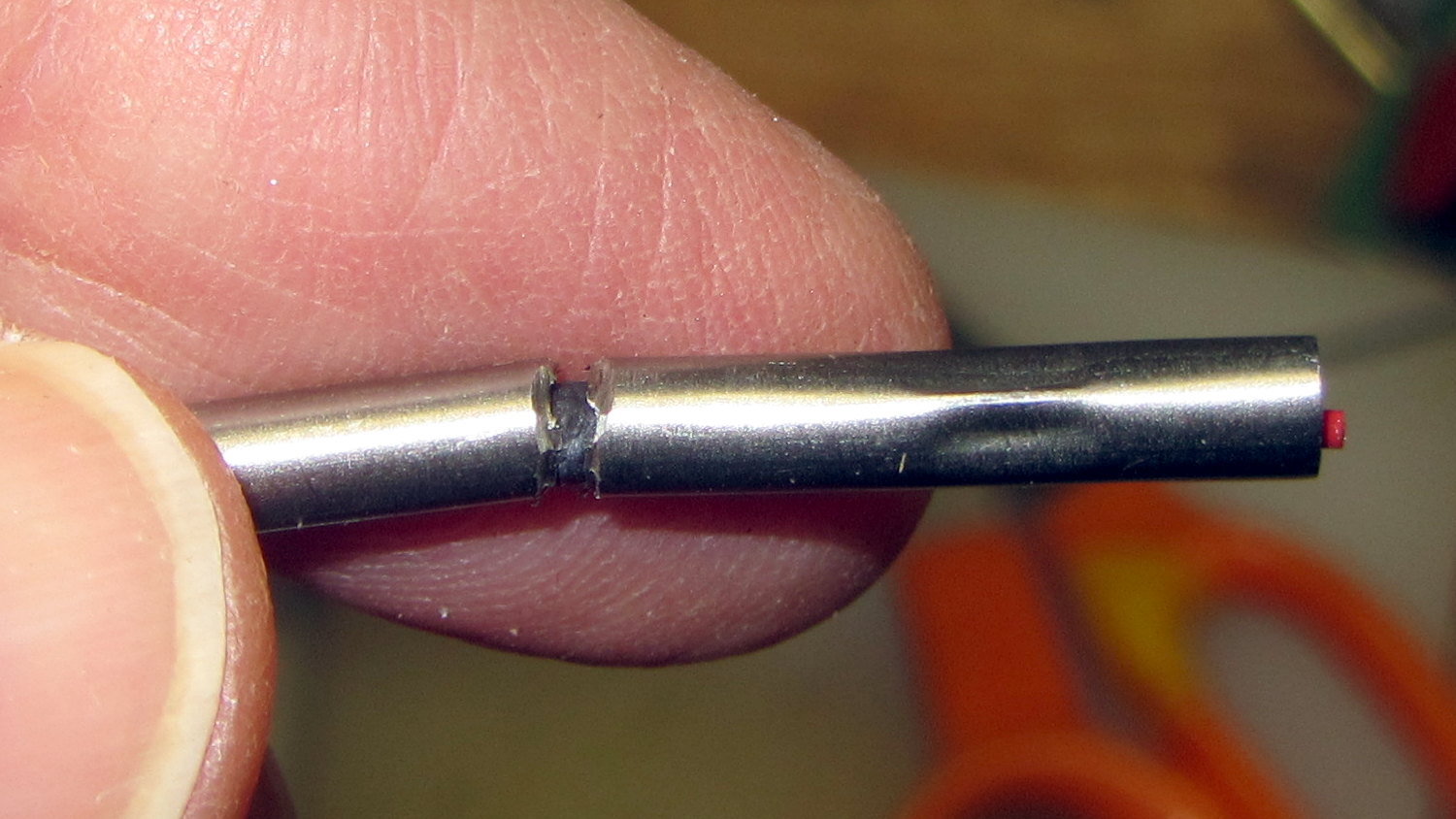
Some deft work with a Dremel cutoff wheel sliced enough off the stainless steel tube that I could splice the wires:
Kitchen thermometer – probe cutting
More cutoff wheel work smoothed the edges of that raw cut end, although the result wasn’t anything to show off.
The spliced and insulated probe definitely don’t win any awards, either:
Kitchen thermometer – probe rebuild
I doubt that the heatshrink tubing or silicone wrap underneath it would be suitable for roasts in the kitchen, but that’s moot: the probe remained intermittent.
If the new probe is also intermittent, then I’ll suspect the crappy 2.5 mm jack in the side of the thermometer…
(*) It’s not clear that a replacement probe for a 1470N thermometer will work with a 1478 thermometer. I’m gambling that Taylor wouldn’t be so stupidannoying deliberately obtuse as to use different probe thermistors, but that’s surely a bad bet. There’s no reason to believe Taylor actually makes any of this stuff, which means different models may come from entirely different designers / factories with entirely different supply chains.
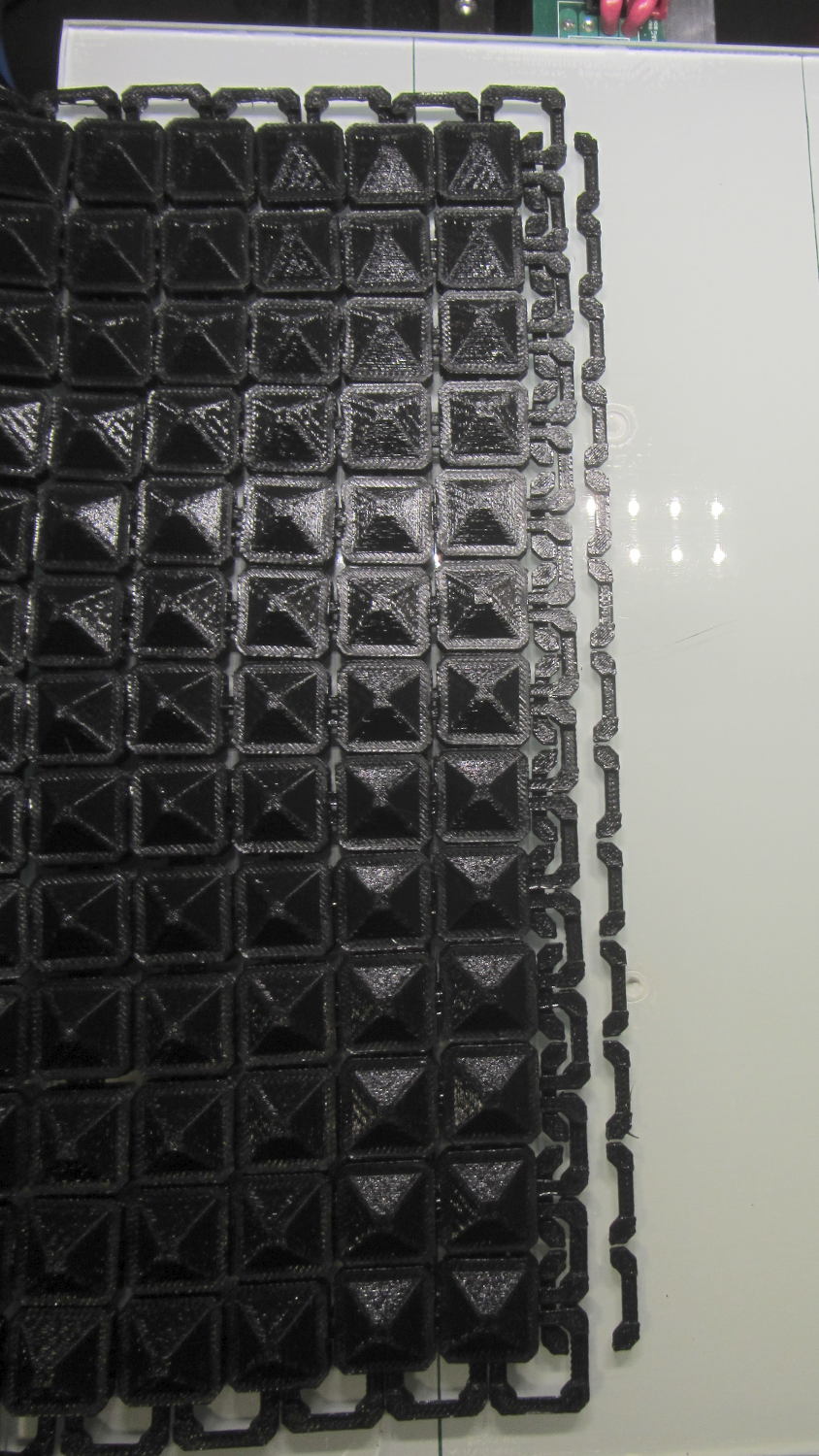
Another nine hours of printing produced a second 9×13 link chain mail armor sheet that simply begged to be joined with the first. Snipping a connecting link on one sheet and attempting to thread it through the armor button on the other didn’t work nearly as well as I expected, because the pillars on the open links don’t quite pass through the slot in the side of the armor button links:
Chain Mail Armor – 4 sided
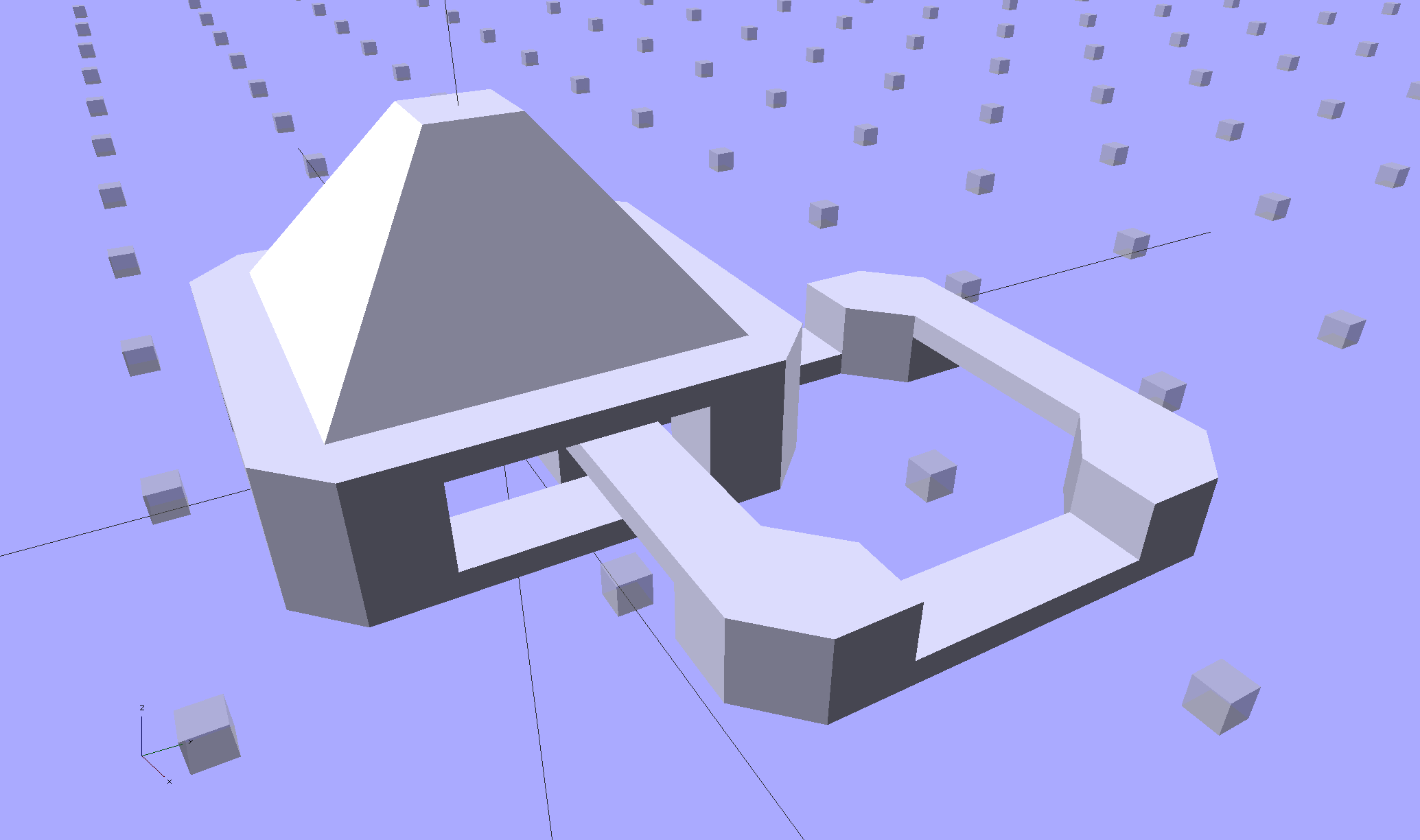
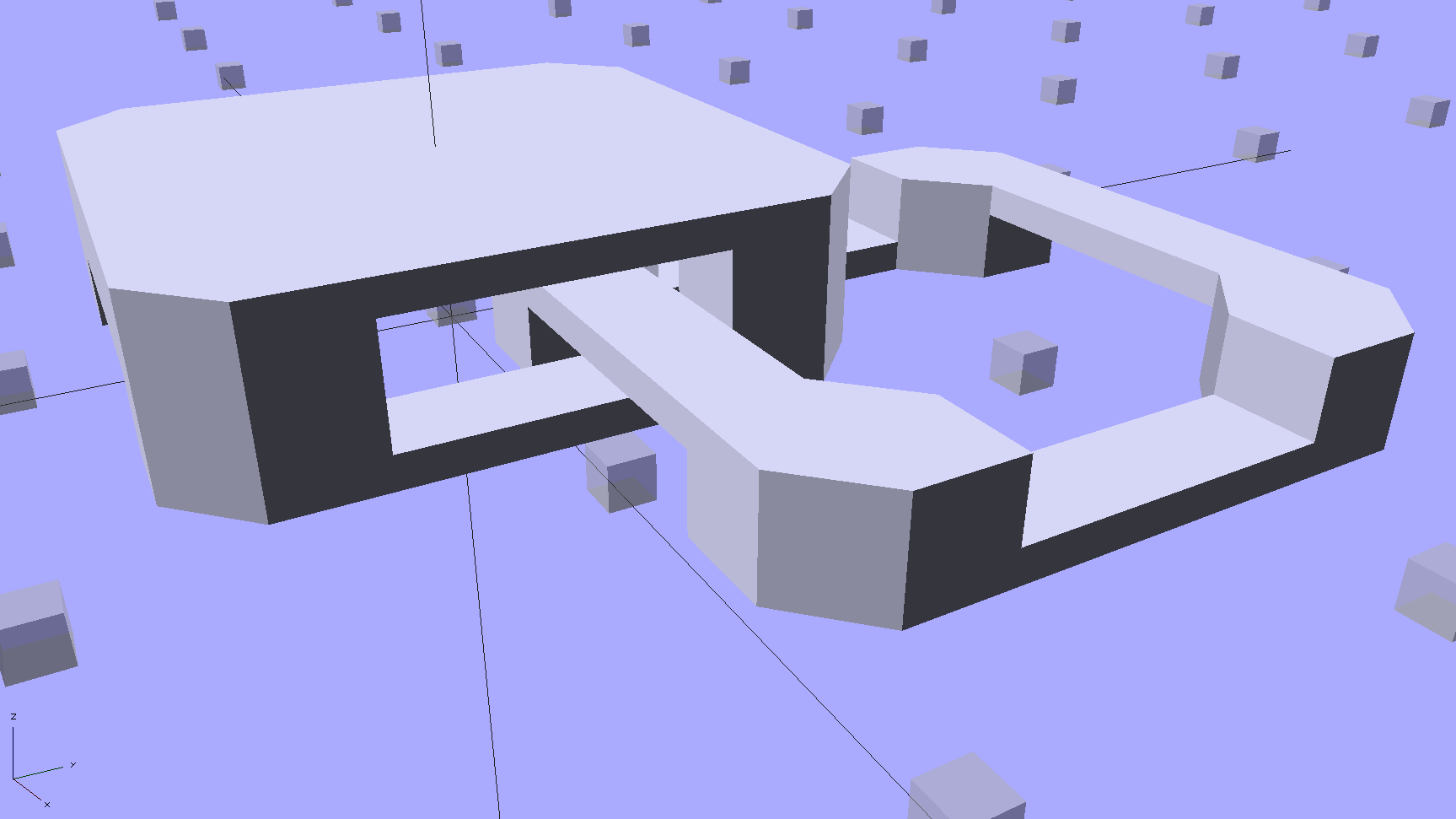
So I summoned joiner links from the digital deep:
Chain Mail Armor – Sheet Joiners
Those are standard armor button links, split at the cross bar level, then laid out along the Y axis. The cap bridges across the link just as it does on the chain mail sheets, so, when they’re glued back together, the result should be exactly like a solid link. There’s no room for alignment pins and, frankly, I wouldn’t fiddle with two dozen filament snippets anyway.
The OpenSCAD code below produces joiners that work for the square arrangement, not the diamond, but that’s in the nature of fine tuning.
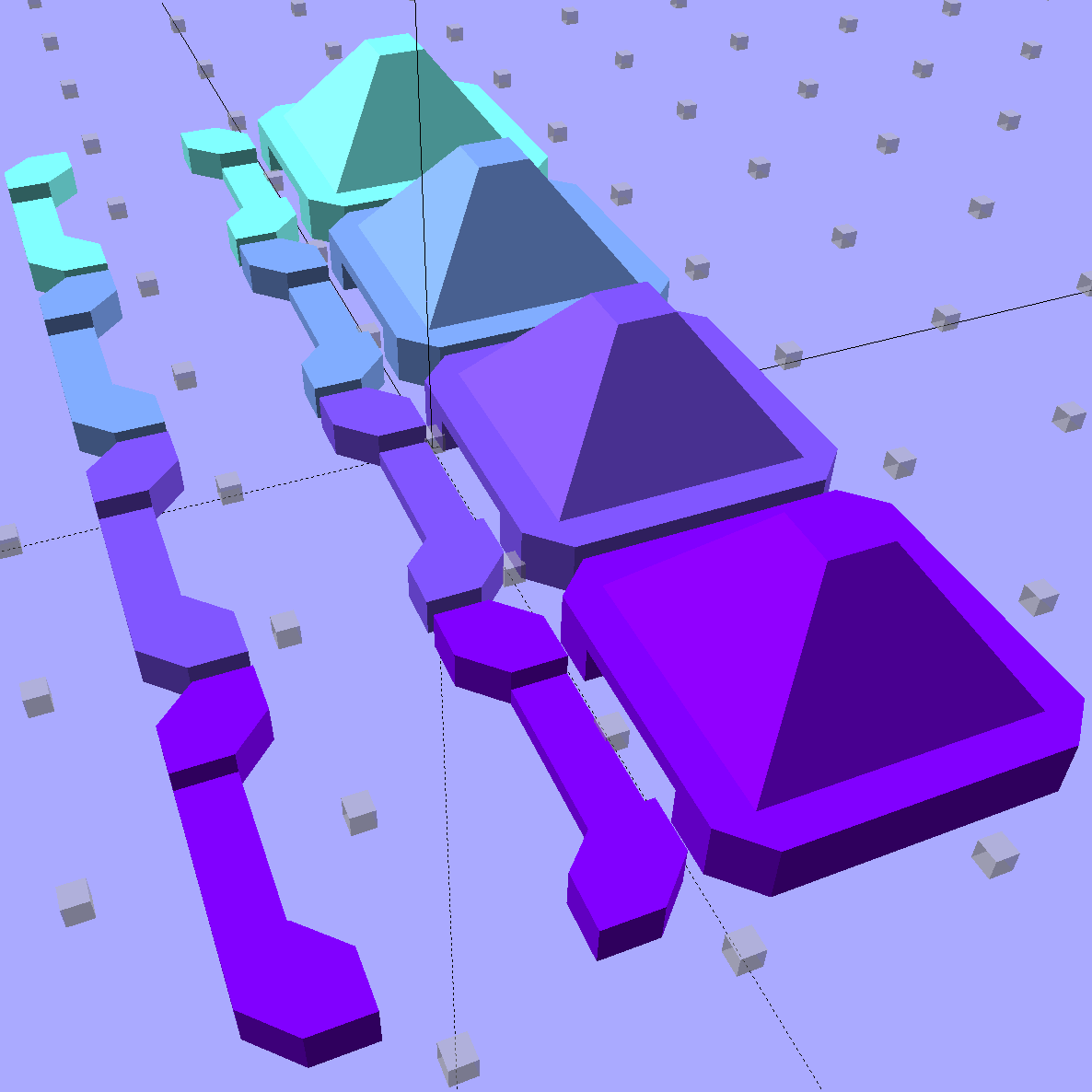
When I saw them pasted to the platform, just like the model:
Chain Mail Armor – joiners on platform
It occurred to me that I could pop the caps off, then lay the sheets in position, aligned on the underlying joiner half-links. Here’s the first sheet over the left set of bars:
Chain Mail Armor – sheet and joiners on platform
Then glue the armor caps in place:
Chain Mail Armor – joiner with solvent glue
Four dots of IPS #4 solvent glue, dispensed from a fine copper tube serving as a pipette, wet the four pillars of the joiner’s two bottom bars. I dotted each pillar to begin softening the PLA, paused for a breath, wet them again to leave enough solvent to bite into the bottom of the armor cap, pressed the cap in place, tweaked the alignment with tweezers, then pressed downward for maybe five seconds. Although the joiner link has no inherent alignment features, there’s also not much room to slide around and it worked surprisingly well.
Repeat that trick dozen times and you’re done. The aggravation scales as the square root of the overall sheet size, so it’s not as awful as assembling every single link, but it’s definitely a task for the low-caffeine part of the day.
One bottom bar came loose when I showed the result at the MHVLUG meeting, but the bar reappeared and I glued it again easily enough. I’ve now printed several spare joiners, Just In Case.
The bottom bars aren’t firmly affixed to the platform after it cools and they dislodge fairly easily: that’s how I get larger models off: let everything cool, then simply lift the plastic off. If I were joining sheets on a regular basis, I’d conjure a fixture to hold the sheets and joiner caps in position, probably with the sheets upside down, then glue the bars atop the inverted caps. That could get messy.
Perhaps a special holder to capture the bars in the proper alignment, maybe with pins matching the square openings at the corners, would help?
This is a trial fit before gluing that’s visually indistinguishable from the final product:
Chain Mail Armor – joined sheets on platform
It’s not actually fabric, but it’s sufficiently bendy to cover a hand:
Chain Mail Armor – joined sheet draped on hand
The thing just cries out to be fondled…
There’s a quarter kilogram of plastic in that 8×12 inch = 200×310 mm sheet that almost used up the last of the black PLA spool.
Remember: you must tweak the OpenSCAD code to match your extruder settings, export a suitable STL file, get really compulsive about platform alignment, use hairspray / glue stick to boost platform adhesion, and have no qualms about an all-day print run. You can’t just slice a random STL file produced for a different printer, because the link dimensions come directly from the printer’s capabilities: one size does not fit all.
The OpenSCAD source code [Update: This is the refactored version.]:
// Chain Mail Armor Buttons
// Ed Nisley KE4ZNU - December 2014

Layout = "Build";			// Link Button LB Joiner Joiners Build

//-------
//- Extrusion parameters must match reality!
//  Print with 1 shell and 2+2 solid layers

ThreadThick = 0.20;
ThreadWidth = 0.40;

HoleWindage = 0.2;

Protrusion = 0.1*ThreadThick;			// make holes end cleanly

function IntegerMultiple(Size,Unit) = Unit * ceil(Size / Unit);

//-------
// Dimensions

//- Set maximum sheet size

SheetSizeX = 50;	// 170 for full sheet on M2
SheetSizeY = 60;	// 230

//- Diamond or rectangular sheet?

Diamond = false;					// true = rotate 45 degrees, false = 0 degrees for square

BendAround = "X";					// X or Y = maximum flexibility *around* designated axis

Cap = true;										// true = build bridge layers over links

Armor = true && Cap;							// true = build armor button atop (required) cap
ArmorThick = IntegerMultiple(6,ThreadThick);	// height above cap surface

// Link bar sizes

BarWidth = 6 * ThreadWidth;
BarThick = 4 * ThreadThick;

BarClearance = 5*ThreadThick;		// vertical clearance above & below bars

//-- Compute link sizes from those values

// Absolute minimum base link: bar width + corner angle + build clearance around bars
//  rounded up to multiple of thread width to ensure clean filling
BaseSide = IntegerMultiple((4*BarWidth + 2*BarWidth/sqrt(2) + 3*(2*ThreadWidth)),ThreadWidth);

BaseHeight = 2*BarThick + BarClearance;           // both bars + clearance

echo(str("BaseSide: ",BaseSide," BaseHeight: ",BaseHeight));
echo(str(" Base elements: ",4*BarWidth,", ",2*BarWidth/sqrt(2),", ",3*(2*ThreadWidth)));
echo(str(" total: ",(4*BarWidth + 2*BarWidth/sqrt(2) + 3*(2*ThreadWidth))));

BaseOutDiagonal = BaseSide*sqrt(2) - BarWidth;
BaseInDiagonal = BaseSide*sqrt(2) - 2*(BarWidth/2 + BarWidth*sqrt(2));

echo(str("Outside diagonal: ",BaseOutDiagonal));

//- On-center distance measured along coordinate axis
//   the links are interlaced, so this is half of what you think it should be...

LinkOC = BaseSide/2 + ThreadWidth;

LinkSpacing = Diamond ? (sqrt(2)*LinkOC) : LinkOC;
echo(str("Base spacing: ",LinkSpacing));

//- Compute how many links fit in sheet

MinLinksX = ceil((SheetSizeX - (Diamond ? BaseOutDiagonal : BaseSide)) / LinkSpacing);
MinLinksY = ceil((SheetSizeY - (Diamond ? BaseOutDiagonal : BaseSide)) / LinkSpacing);
echo(str("MinLinks X: ",MinLinksX," Y: ",MinLinksY));

NumLinksX = ((0 == (MinLinksX % 2)) && !Diamond) ? MinLinksX + 1 : MinLinksX;
NumLinksY = ((0 == (MinLinksY % 2) && !Diamond)) ? MinLinksY + 1 : MinLinksY;
echo(str("Links X: ",NumLinksX," Y: ",NumLinksY));

//- Armor button base

CapThick = 4 * ThreadThick;						// at least 3 layers for solid bridging

ButtonHeight = BaseHeight + BarClearance + CapThick;
echo(str("ButtonHeight: ",ButtonHeight));

//- Armor ornament size & shape
//		Fine-tune OD & ID to suit the number of sides...

ArmorSides = 4;
ArmorAngle = true ? 180/ArmorSides : 0;			// true -> rotate half a side for best alignment

TotalHeight = ButtonHeight + ArmorThick;
echo(str("Overall Armor Height: ",TotalHeight));

ArmorOD = 1.1 * BaseSide;						// tune for best base fit
ArmorID = 10 * ThreadWidth;						// make the tip blunt & strong

//-------

module ShowPegGrid(Space = 10.0,Size = 1.0) {

  RangeX = floor(95 / Space);
  RangeY = floor(125 / Space);

	for (x=[-RangeX:RangeX])
	  for (y=[-RangeY:RangeY])
		translate([x*Space,y*Space,Size/2])
		  %cube(Size,center=true);

}

//-------
// Create link with armor button as needed

module Link(Topping = false) {

LinkHeight = (Topping && Cap) ? ButtonHeight : BaseHeight;

render(convexity=3)
	rotate((BendAround == "X") ? 90 : 0)
	rotate(Diamond ? 45 : 0)
		union() {
			difference() {
				translate([0,0,LinkHeight/2])	// outside shape
					intersection() {
						cube([BaseSide,BaseSide,LinkHeight],center=true);
						rotate(45)
							cube([BaseOutDiagonal,BaseOutDiagonal,LinkHeight],center=true);
					}
				translate([0,0,(BaseHeight + BarClearance - Protrusion)/2])
					intersection() {		// inside shape
						cube([(BaseSide - 2*BarWidth),
								(BaseSide - 2*BarWidth),
								(BaseHeight + BarClearance + Protrusion)],
								center=true);
						rotate(45)
							cube([BaseInDiagonal,
									BaseInDiagonal,
									(BaseHeight + BarClearance + Protrusion)],
									center=true);
				}

				translate([0,0,((BarThick + 2*BarClearance)/2 + BarThick)])		// openings for bars
					cube([(BaseSide - 2*BarWidth - 2*BarWidth/sqrt(2)),
						(2*BaseSide),
						BarThick + 2*BarClearance],
						center=true);

				translate([0,0,(BaseHeight/2 - BarThick)])
					cube([(2*BaseSide),
						(BaseSide - 2*BarWidth - 2*BarWidth/sqrt(2)),
						BaseHeight],
						center=true);

			}

			if (Topping && Armor)
				translate([0,0,(ButtonHeight - Protrusion)])		// sink slightly into the cap
					rotate(ArmorAngle)
					cylinder(d1=ArmorOD,
							 d2=ArmorID,
							 h=(ArmorThick + Protrusion),
							 $fn=ArmorSides);
		}
}

//-------
// Create split buttons to join sheets

module Joiner() {

	translate([-LinkSpacing,0,0])
		difference() {
			Link(false);
			translate([0,0,BarThick + BarClearance + TotalHeight/2 - Protrusion])
				cube([2*LinkSpacing,2*LinkSpacing,TotalHeight],center=true);
		}

	translate([LinkSpacing,0,0])
		intersection() {
			translate([0,0,-(BarThick + BarClearance)])
				Link(true);
			translate([0,0,TotalHeight/2])
				cube([2*LinkSpacing,2*LinkSpacing,TotalHeight],center=true);
		}

}

//-------
// Build it!

ShowPegGrid();

if (Layout == "Link") {
	Link(false);
}

if (Layout == "Button") {
	Link(true);
}

if (Layout == "LB") {
	Link(true);
	translate([LinkSpacing,LinkSpacing,0])
		Link(false);
}

if (Layout == "Build")
	for (ix = [0:(NumLinksX - 1)],
		 iy = [0:(NumLinksY - 1)]) {
			x = (ix - (NumLinksX - 1)/2)*LinkSpacing;
			y = (iy - (NumLinksY - 1)/2)*LinkSpacing;
			translate([x,y,0])
			color([(ix/(NumLinksX - 1)),(iy/(NumLinksY - 1)),1.0])
				if (Diamond)
					Link((ix + iy) % 2);					// armor at odd,odd & even,even points
				else
					if ((iy % 2) && (ix % 2))				// armor at odd,odd points
                        Link(true);
					else if (!(iy % 2) && !(ix % 2))		// connectors at even,even points
						Link(false);
	}

if (Layout == "Joiner")
	Joiner();

if (Layout == "Joiners") {
	NumJoiners = max(MinLinksX,MinLinksY)/2;
	for (iy = [0:(NumJoiners - 1)]) {
		y = (iy - (NumJoiners - 1)/2)*2*LinkSpacing + LinkSpacing/2;
		translate([0,y,0])
			color([0.5,(iy/(NumJoiners - 1)),1.0])
				Joiner();
	}
}
As a reward for reading all the way to the bottom, some further thoughts:
A mask array could control what type of link goes where, which cap style goes on each armor button, and whether to print the link at all. That way, you could produce customized armor buttons in non-rectangular (albeit coarsely pixelized) fabric sheets.
You could produce an armor sheet sporting cubic caps, then intersect the whole sheet with a model built from a height-map image to spread a picture across the sheet. The complexity of that model would probably tie OpenSCAD in knots, but perhaps an external program could intersect two properly aligned STL / AMF files.
The bars could be a thread or two thinner, shaving a few millimeters off the basic link. The printer’s ability to bridge the link to form the flying bars and cap limits making the links much larger.
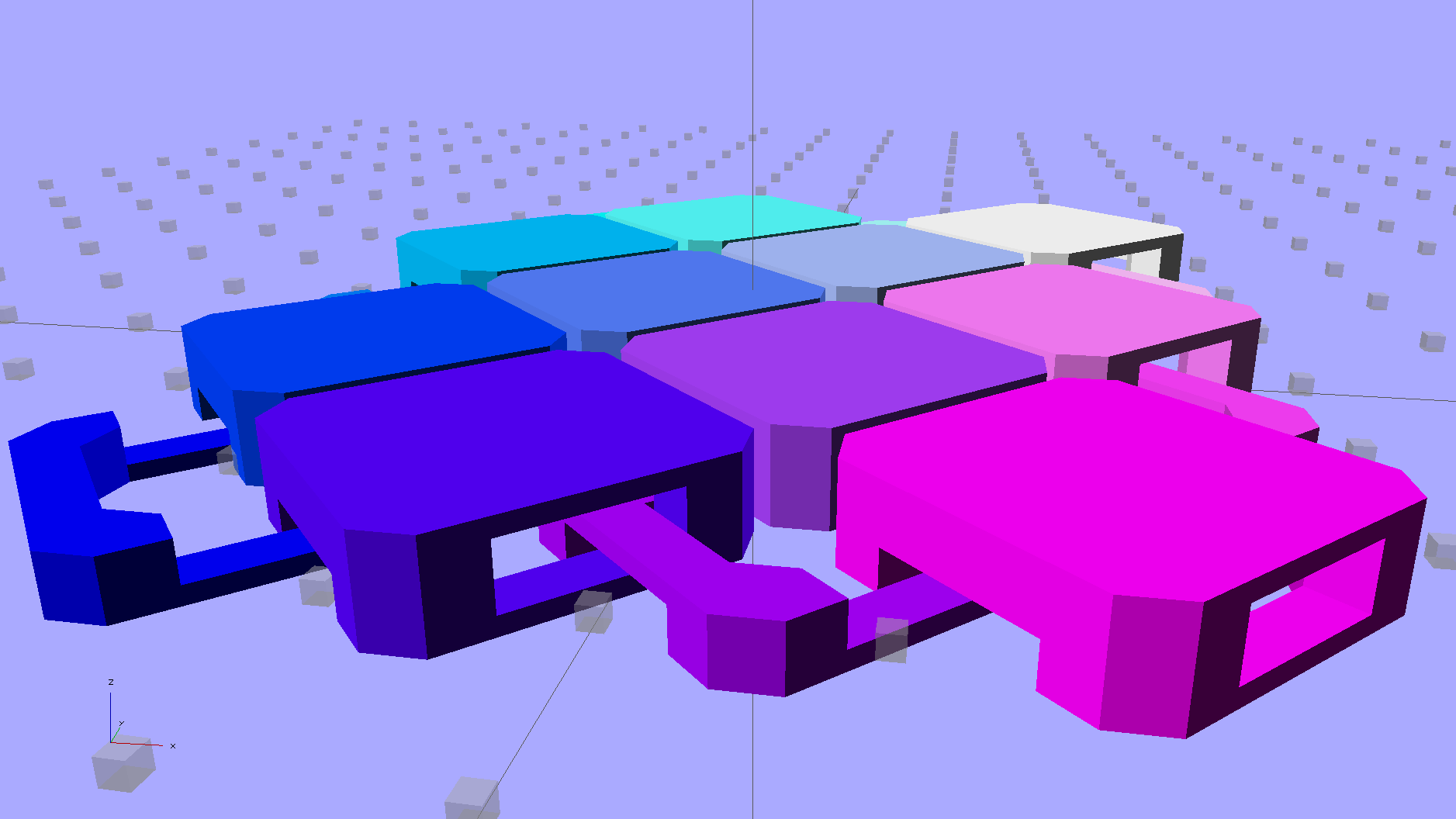
So, with the change of two parameters, the OpenSCAD program can model a 170×230 mm sheet:
Chain Mail Armor – Full Platform Sheet
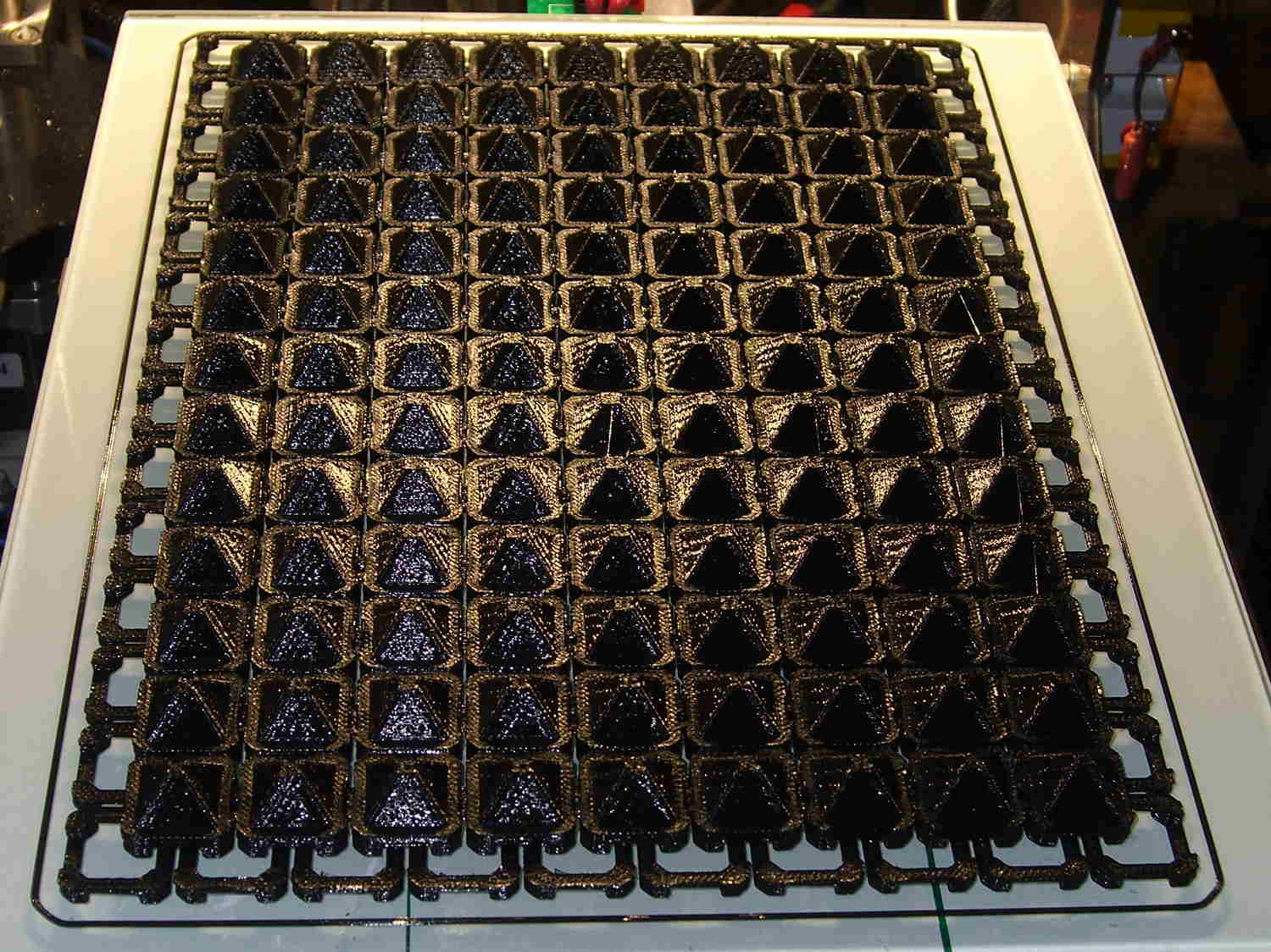
That works out to a 9×13 array of 117 armor buttons sitting amid 140 connecting links, with two threads = 0.8 mm between adjacent links.
It’s quite imposing in black PLA:
Chain Mail Armor Buttons – full sheet on platform
The skirt thickness varies from 0.15 mm in the X-Y+ corner to 0.25 mm at X+Y-. That’s so close I’m not even tempted to adjust the screws.
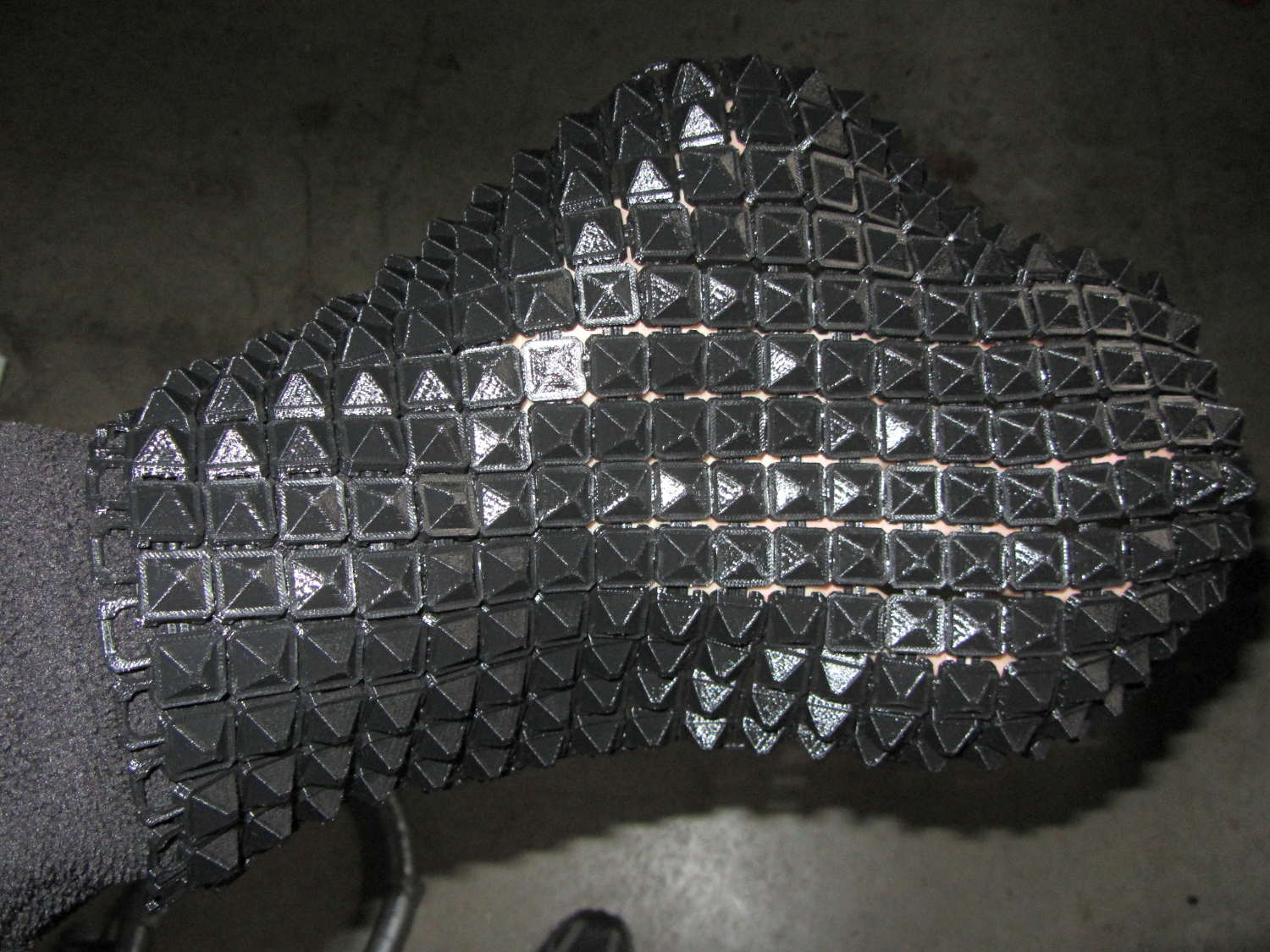
As before, all those links pop off right the cool platform without any fuss; the joints had good clearance, the bridges worked, and nothing required post-processing:
Chain Mail Armor Buttons – full sheet folded
You can’t make this through subtractive machining. You can’t make it using molding, either, because the links have barely a sliver of air on all sides: there’s no room for the mold and no way to extract the sheet of links. You could, I suppose, use lost-wax / lost-plastic casting, but cutting the sprue and vent off every link would get really tedious really fast.
Of course, you’re looking at a 5 MB STL file, 22 MB of G-Code, nine continuous hours of printing, and 120 grams of PLA: it’s the largest “single” object I’ve ever printed…
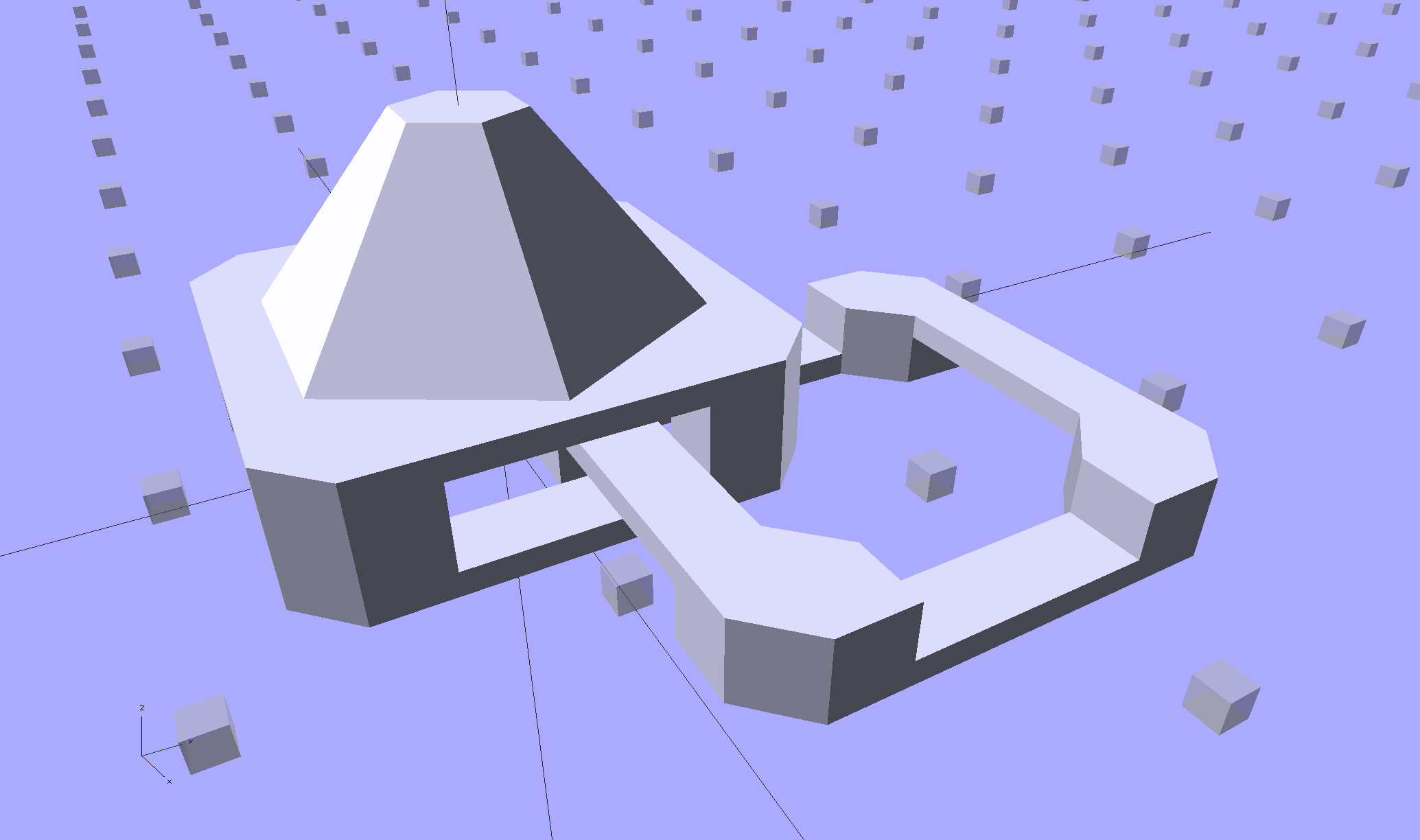
Starting from the improved chain mail link design, extend the top bars enough to clear the cross links, then bridge across them to form a flat cap:
Chain Mail – Armor and Link
The OpenSCAD code makes the links as small as they can possibly be, based on the bar size and clearances, then rounds up to a multiple of the thread width so the flat cap will fill properly. Given the extrusion thread dimensions and the bar sizes, the OpenSCAD code computes everything else: the link model matches the slicer settings that define the printer’s output.
Given:
Thread: 0.4 mm wide x 0.2 mm thick
Bar: 6 thread wide x 4 thread thick = 2.4 x 0.8 mm
Clearances: 2 thread horizontal x 5 thread vertical = 0.8 x 1.0 mm
All the links measure 15.6 mm from side to side, the short connecting links are 2.6 mm tall, and the flat caps are 4.4 mm tall. Interlinked links sit 8.2 mm on center = half the link side plus one thread width clearance, which is 16.4 mm on center for adjacent links.
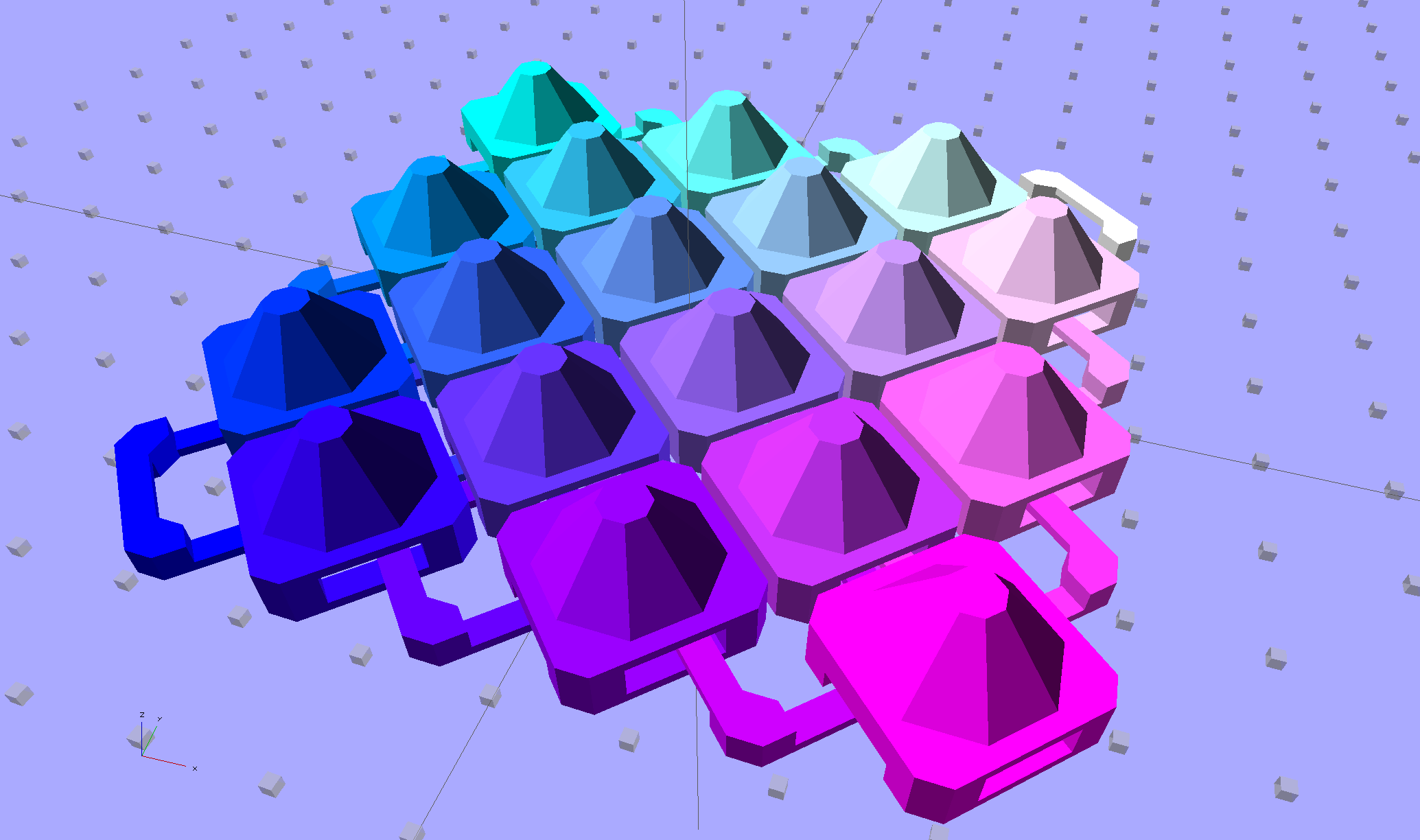
Duplicated appropriately, the caps resemble turtle armor:
Chain Mail – Flat Armor
Which look about the same in real life, minus the cheerful colors:
Armor Buttons – on platform – side
Now, however, you can plunk an armor button atop the cap:
Chain Mail Armor – 4 sided
With any number of sides:
Chain Mail Armor – 6 sided
Up to a truncated cone:
Chain Mail Armor – 24 sided
The flat tip makes the button more durable and user-friendly, but you can make it a bit more pointy if you favor that sort of thing. The button adds 6 mm to the link base, making armor links 10.4 mm tall.
Other printable stuff could fit on that cap: letters, decorations, widgets, whatever.
I think square armor buttons look ever so imposing when they’re arrayed in a sheet:
Chain Mail Armor – square – 4 sided
The general idea being that you could attach the armor sheet to a cloth / leather backing to form a gauntlet or greave; the border of bottom links around the button array should serve for that purpose.
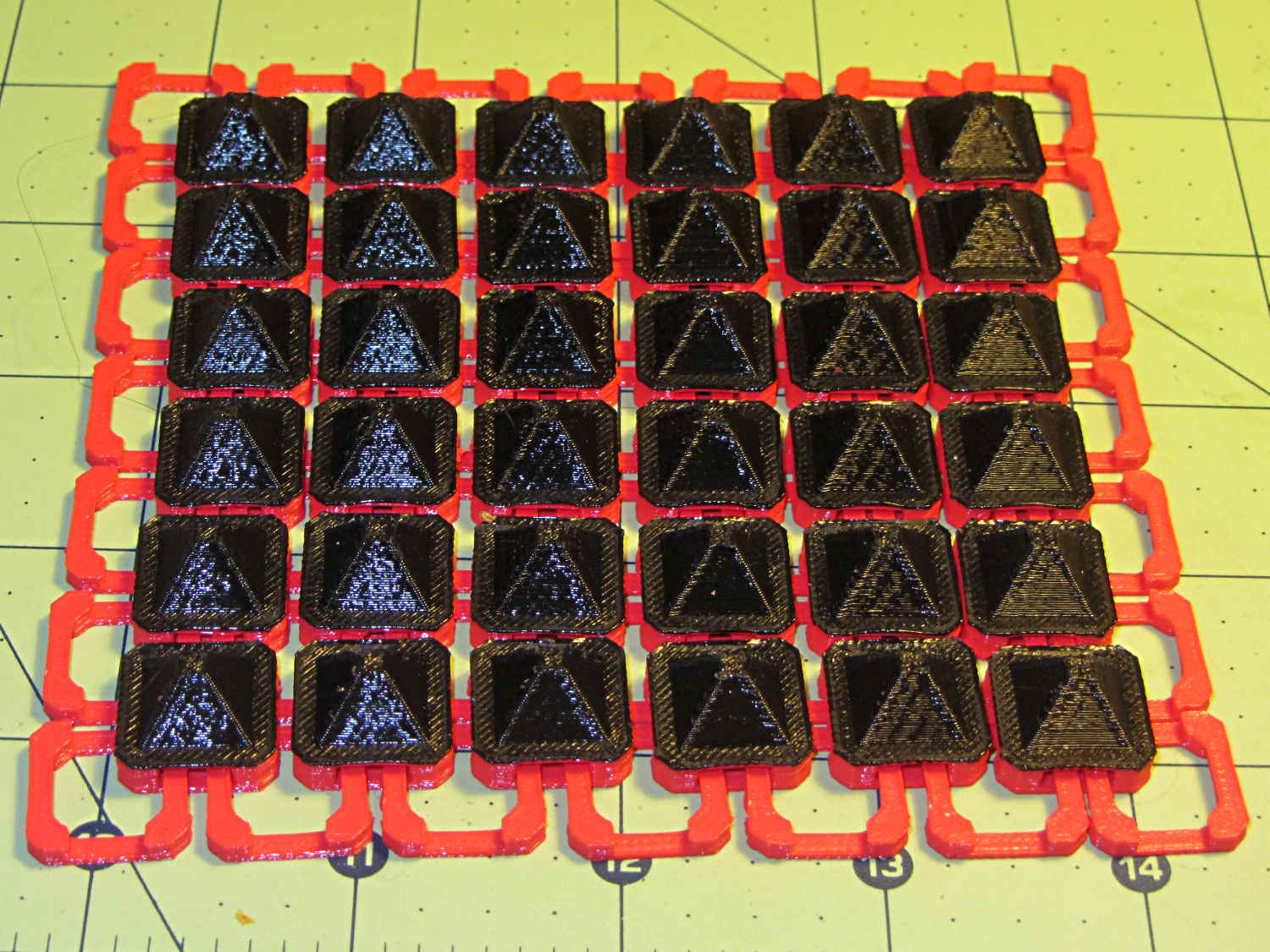
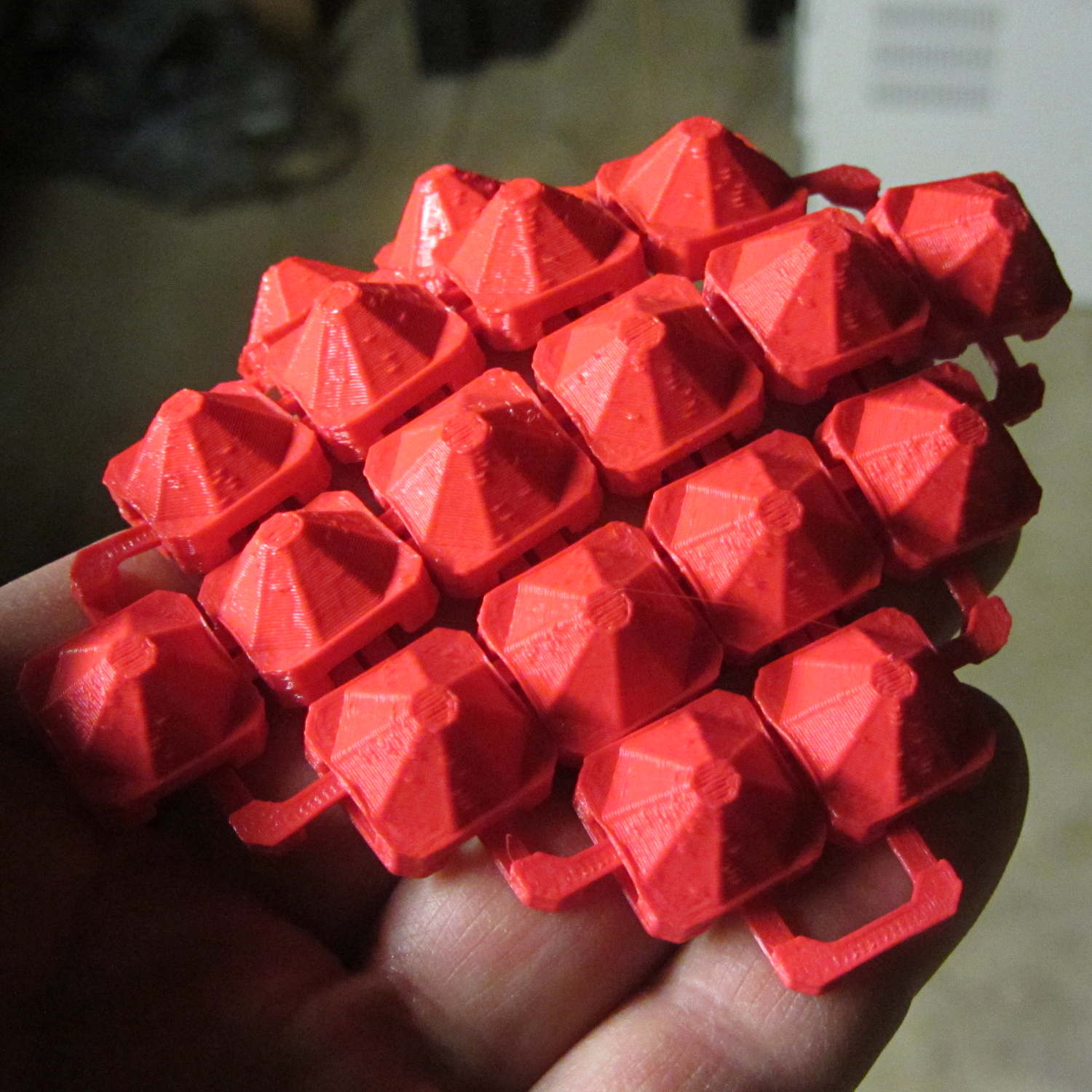
The plastic prints just like the model and pops off the M2’s platform ready to use, with no finishing required:
Chain Mail Armor – square on desk
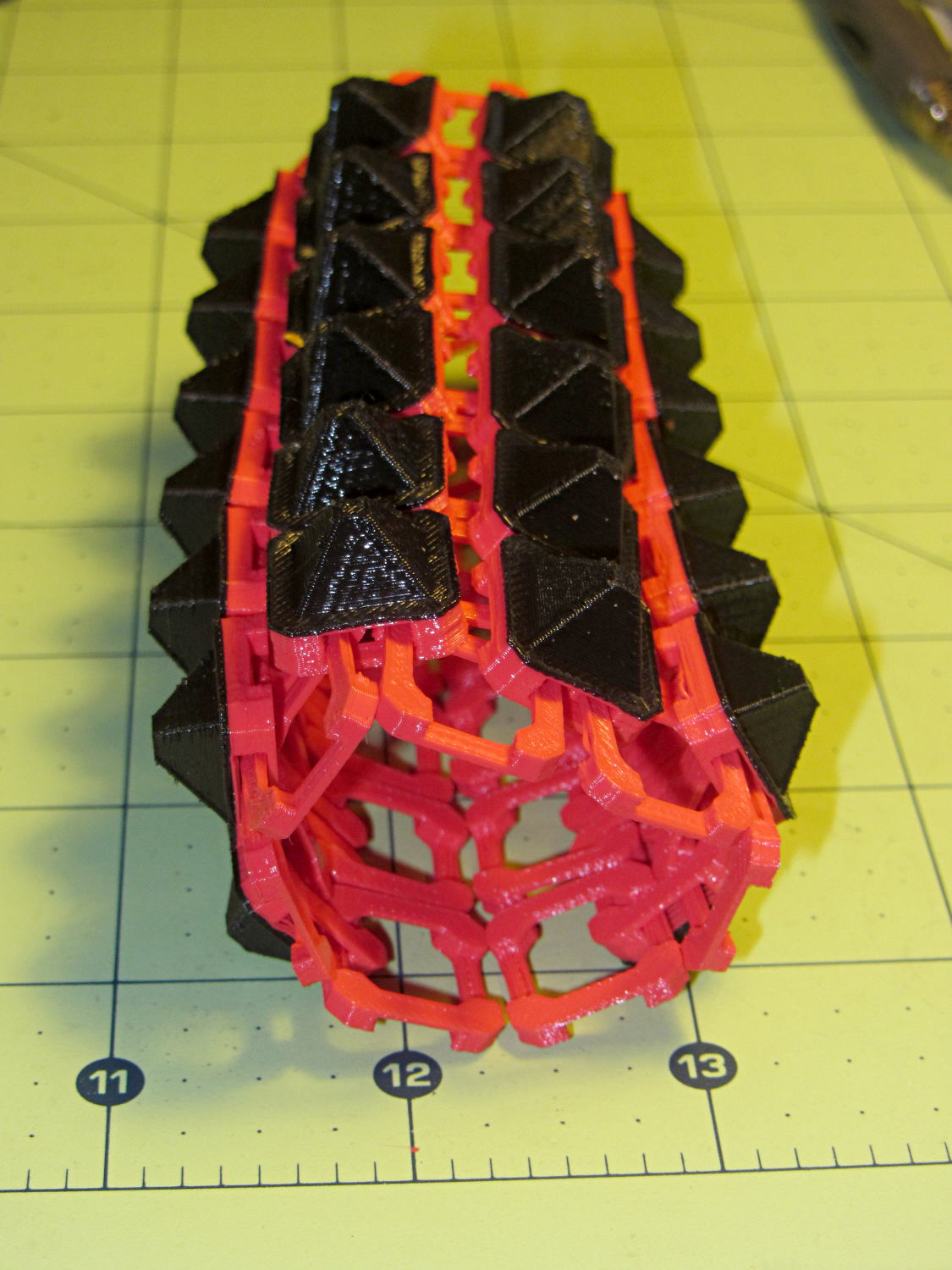
The two-color effect came from hot-swapping black filament as the red PLA ran out. The 6×6 armor button array and the 7×7 connecting link array holding it together required 14 meters of filament and I guesstimated the red spool held 9 meters: I was ready when the last of the red vanished just after completing the bridging layer under the flat caps. Filament swaps work reasonably well; I’d hate to do that on a production basis.
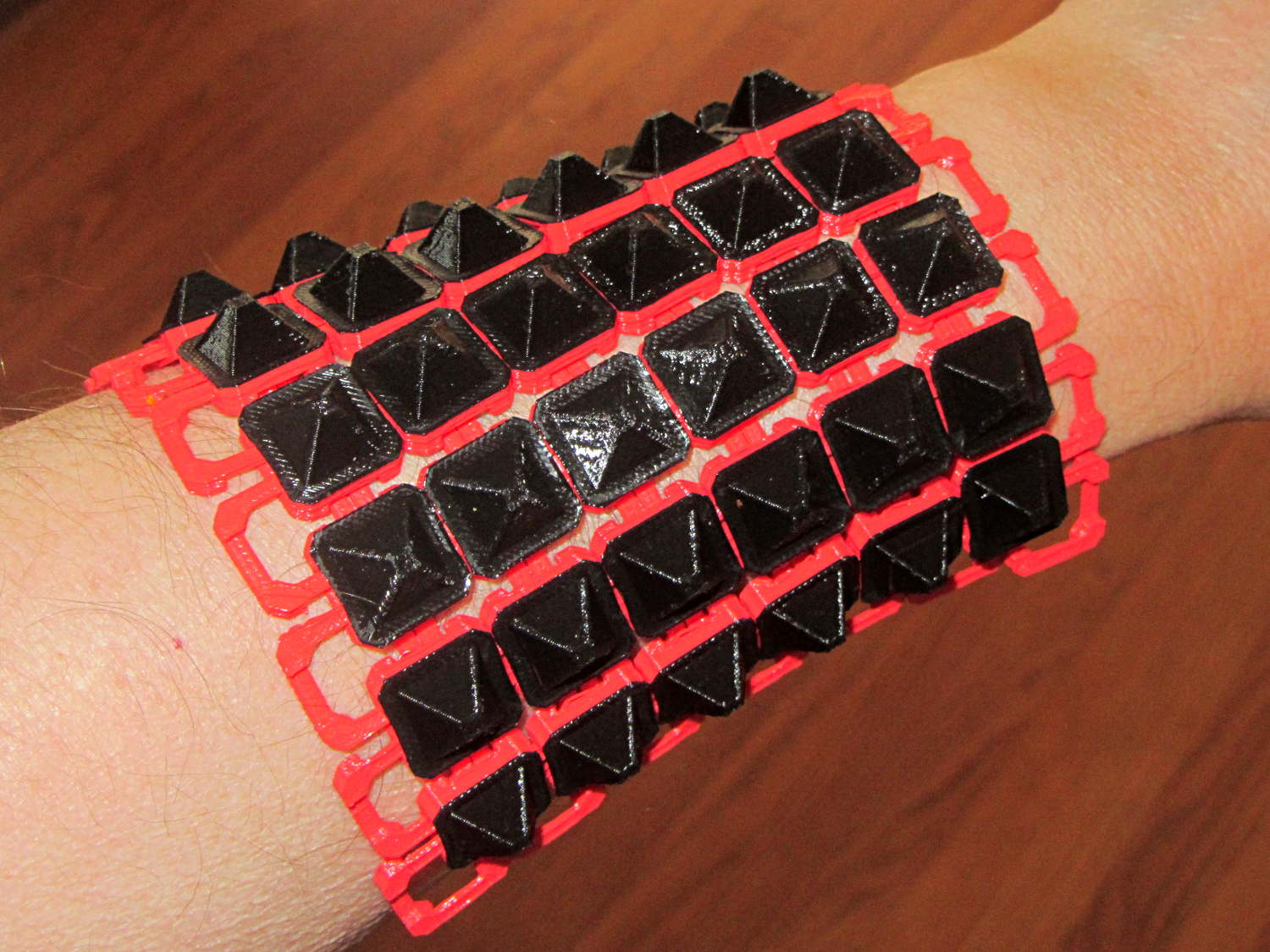
If you don’t mind my saying so, everybody thinks it’s spectacular:
Chain Mail Armor – square on arm
The sheet has a definite “grain” defined by the orientation of the bottom links, making it far more bendy in one direction than the other:
Chain Mail Armor – square rolled
The sheet layout orients the more-bendy direction along the M2’s (longer) Y axis, so that sheets can wrap snugly around your arm (or leg) and extend straight-ish along the bones in the other direction. That should be configurable, I think.
There’s an option to rotate the links by 45° to produce diamond-theme arrays:
Chain Mail Armor – diamond – 8 sided
Which would make good patch armor, if you’re into that sort of thing:
Chain Mail Armor – diamond on hand
Those have octagonal buttons, which IMHO don’t look nearly as crisp as the four-sided version.
Ah! I should generalize the diamond rotation option to select all four useful rotations.
The 6×6 square sheet requires three hours on the M2, with the intial print time estimates being low by nearly a factor of two. The M2 has a 200×250 mm platform and I’ll definitely try a full-size array just to see how it works.
The OpenSCAD source code, which stands badly in need of refactoring:
// Chain Mail Armor Buttons
// Ed Nisley KE4ZNU - November 2014

Layout = "Build";			// Link Button LB Build

//-------
//- Extrusion parameters must match reality!
//  Print with 1 shell and 2+2 solid layers

ThreadThick = 0.20;
ThreadWidth = 0.40;

HoleWindage = 0.2;

Protrusion = 0.1;			// make holes end cleanly

function IntegerMultiple(Size,Unit) = Unit * ceil(Size / Unit);

//-------
// Dimensions

//- Set maximum sheet size

SheetSizeX = 70;
SheetSizeY = 80;

//- Diamond or rectangular sheet?

Diamond = false;					// true = rotate 45 degrees, false = 0 degrees for square
ArmorButton = true;					// true = build button atop cap

// Link bar sizes

BarWidth = 6 * ThreadWidth;
BarThick = 4 * ThreadThick;

BarClearance = 5*ThreadThick;		// vertical clearance above & below bars

//-- Compute link sizes from those values

// Absolute minimum base link: bar width + corner angle + build clearance around bars
//  rounded up to multiple of thread width to ensure clean filling
BaseSide = IntegerMultiple((4*BarWidth + 2*BarWidth/sqrt(2) + 3*(2*ThreadWidth)),ThreadWidth);

BaseHeight = 2*BarThick + BarClearance;           // both bars + clearance

echo(str("BaseSide: ",BaseSide," BaseHeight: ",BaseHeight));

BaseOutDiagonal = BaseSide*sqrt(2) - BarWidth;
BaseInDiagonal = BaseSide*sqrt(2) - 2*(BarWidth/2 + BarWidth*sqrt(2));

echo(str("Outside diagonal: ",BaseOutDiagonal));

//- On-center distance measured along coordinate axis

LinkOC = BaseSide/2 + ThreadWidth;

LinkSpacing = Diamond ? (sqrt(2)*LinkOC) : LinkOC;
echo(str("Base spacing: ",LinkSpacing));

//- Compute how many links fit in sheet

MinLinksX = ceil((SheetSizeX - (Diamond ? BaseOutDiagonal : BaseSide)) / LinkSpacing);
MinLinksY = ceil((SheetSizeY - (Diamond ? BaseOutDiagonal : BaseSide)) / LinkSpacing);
echo(str("MinLinks X: ",MinLinksX," Y: ",MinLinksY));

NumLinksX = ((0 == (MinLinksX % 2)) && !Diamond) ? MinLinksX + 1 : MinLinksX;
NumLinksY = ((0 == (MinLinksY % 2) && !Diamond)) ? MinLinksY + 1 : MinLinksY;
echo(str("Links X: ",NumLinksX," Y: ",NumLinksY," Total: ",NumLinksX*NumLinksY));

//- Armor button base

CapThick = BarThick;

ButtonHeight = BaseHeight + BarClearance + CapThick;
echo(str("ButtonHeight: ",ButtonHeight));

//- Armor ornament size & shape

ArmorSides = 4;
ArmorAngle = true ? 180/ArmorSides : 0;			// rotate half a side?

ArmorThick = IntegerMultiple(6,ThreadThick);	// keep it relatively short

ArmorOD = 1.1 * BaseSide;						// tune for best fit at base

ArmorID = 10 * ThreadWidth;						// make the tip wide & strong

//-------

module ShowPegGrid(Space = 10.0,Size = 1.0) {

  RangeX = floor(95 / Space);
  RangeY = floor(125 / Space);

	for (x=[-RangeX:RangeX])
	  for (y=[-RangeY:RangeY])
		translate([x*Space,y*Space,Size/2])
		  %cube(Size,center=true);

}

//-------
// Create base link

module BaseLink() {

render()
	rotate(Diamond ? 45 : 90)			// 90 = more bendy around X axis
		difference() {
			translate([0,0,BaseHeight/2]) {
				difference(convexity=2) {
					intersection() {		// outside shape
						cube([BaseSide,BaseSide,BaseHeight],center=true);
						rotate(45)
							cube([BaseOutDiagonal,BaseOutDiagonal,BaseHeight],center=true);
					}
					intersection() {		// inside shape
						cube([(BaseSide - 2*BarWidth),
							  (BaseSide - 2*BarWidth),
							  (BaseHeight + 2*Protrusion)],
							 center=true);
						rotate(45)
							cube([BaseInDiagonal,
								  BaseInDiagonal,
								  (BaseHeight +2*Protrusion)],
								 center=true);
					}
				}
			}

			translate([0,0,(BaseHeight/2 + BarThick)])
				cube([(BaseSide - 2*BarWidth - 2*BarWidth/sqrt(2)),
					  (2*BaseSide),
					  BaseHeight],
					 center=true);
			translate([0,0,(BaseHeight - BaseHeight/2 - BarThick)])
				cube([(2*BaseSide),
					  (BaseSide - 2*BarWidth - 2*BarWidth/sqrt(2)),
					  BaseHeight],
					 center=true);
		}
}

//-------
// Create button link

module ButtonLink() {

render()
	rotate(Diamond ? 45 : 90)			// 90 = more bendy around X axis
		union() {
			difference() {
				translate([0,0,ButtonHeight/2])		// outside shape
					intersection() {
						cube([BaseSide,BaseSide,ButtonHeight],center=true);
						rotate(45)
							cube([BaseOutDiagonal,BaseOutDiagonal,ButtonHeight],center=true);
					}
				translate([0,0,(BaseHeight + BarClearance - Protrusion)/2])
					intersection() {		// inside shape
						cube([(BaseSide - 2*BarWidth),
								(BaseSide - 2*BarWidth),
								(BaseHeight + BarClearance + Protrusion)],
								center=true);
						rotate(45)
							cube([BaseInDiagonal,
									BaseInDiagonal,
									(BaseHeight + BarClearance + Protrusion)],
									center=true);
				}

				translate([0,0,((BarThick + 2*BarClearance)/2 + BarThick)])
					cube([(BaseSide - 2*BarWidth - 2*BarWidth/sqrt(2)),
						(2*BaseSide),
						BarThick + 2*BarClearance],
						center=true);

				translate([0,0,(BaseHeight/2 - BarThick)])
					cube([(2*BaseSide),
						(BaseSide - 2*BarWidth - 2*BarWidth/sqrt(2)),
						BaseHeight],
						center=true);

			}

			if (ArmorButton)
				translate([0,0,(ButtonHeight - Protrusion)])		// armor on cap
					rotate(ArmorAngle)
					cylinder(d1=ArmorOD,
							 d2=ArmorID,
							 h=(ArmorThick + Protrusion),
							 $fn=ArmorSides);
		}
}

//-------
// Build it!

ShowPegGrid();

if (Layout == "Link") {
	BaseLink();
}

if (Layout == "Button") {
	ButtonLink();
}

if (Layout == "LB") {
	ButtonLink();
	translate([LinkSpacing,LinkSpacing,0])
		BaseLink();
}

if (Layout == "Build") {
	for (ix = [0:(NumLinksX - 1)],
		 iy = [0:(NumLinksY - 1)])
			assign(x = (ix - (NumLinksX - 1)/2)*LinkSpacing,
				   y = (iy - (NumLinksY - 1)/2)*LinkSpacing)
			translate([x,y,0])
			color([(ix/(NumLinksX - 1)),(iy/(NumLinksY - 1)),1.0])
				if (Diamond)
					if ((ix + iy) % 2)						// armor at odd,odd & even, even points
						ButtonLink();
					else
						BaseLink();							// connectors otherwise
				else
					if ((iy % 2) && (ix % 2))				// armor at odd,odd points
						ButtonLink();
					else if ((!(iy % 2) && !(ix % 2)))		// connectors at even,even points
						BaseLink();
}













 The Smell of Molten Projects in the Morning