Ed Nisley's Blog: Shop notes, electronics, firmware, machinery, 3D printing, laser cuttery, and curiosities. Contents: 100% human thinking, 0% AI slop.
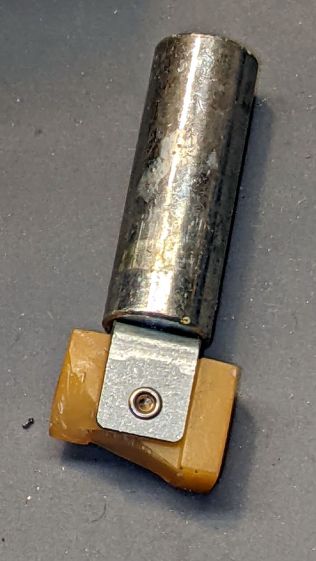
Mary’s folks asked me to figure out why the carousel on their Kodak 750H projector no longer turned. Some initial poking around suggested a problem with the solenoid, which only clunked when the projector was upside-down on the desk. I thought it might just have gummed up after all those years, but disassembling the thing (per the Service Manual and the usual Youtube videos) produced the root cause:
Kodak 750H Projector – broken solenoid link
That explained the yellowish plastic fragments rattling around inside.
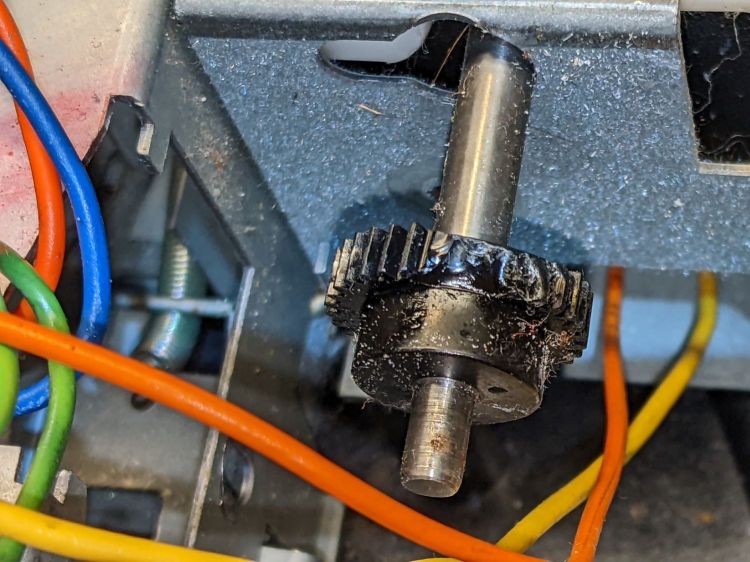
As predicted, it’s impossible to remove the solenoid without breaking the equally brittle focus gear in the process:
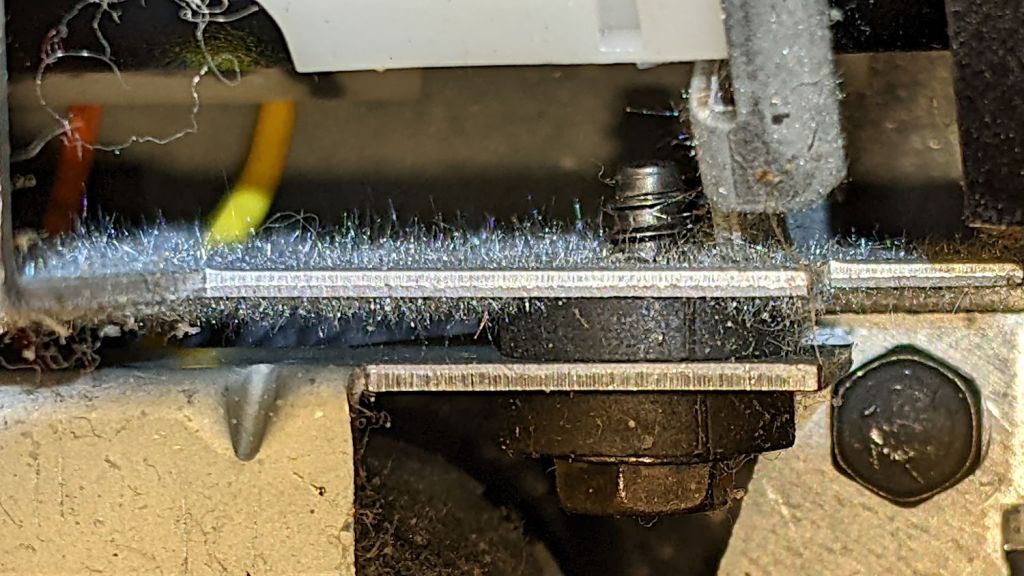
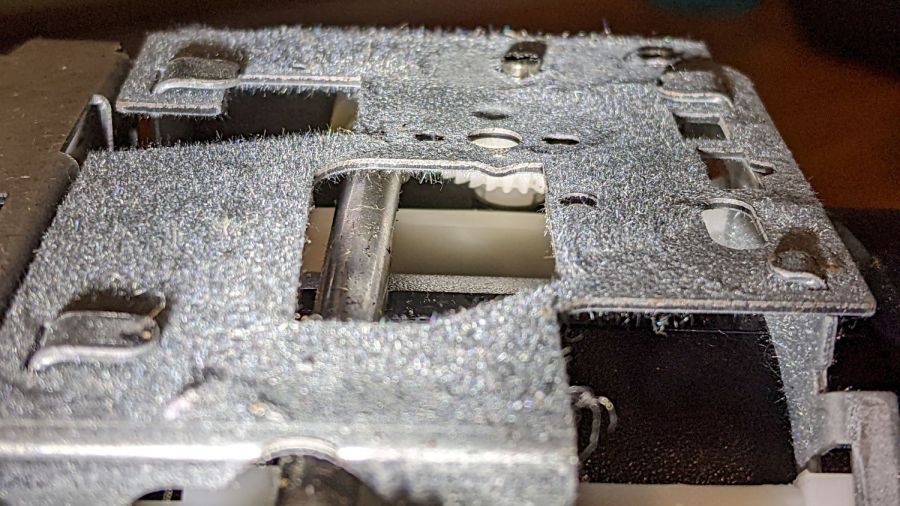
Some of the interior sheet metal has a dark surface, likely heavy tin plating, covered with a thick coat of whiskers:
Kodak 750H Projector – tin whiskers
Kodak 750H Projector – tin whiskers
Kodak 750H Projector – tin whiskers
Kodak 750H Projector – tin whiskers
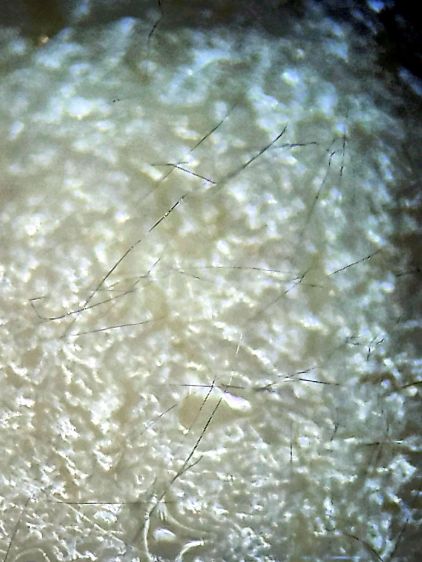
Touching a whiskered surface with masking tape captures the culprits, whereupon zooming the microscope and camera all the way in makes them just barely visible: they’re a few millimeters long and a few atoms wide:
Kodak 750H Projector – tin whiskers – detail
I have surely contaminated the entire Basement Laboratory with tin whiskers. Makes me itchy just thinking about them …
What used to be a “light box” had become a “light pad” powered through a USB Micro-B connector on the side. Unfortunately, the pad’s 5 mm thickness allows for very little mechanical reinforcement around the USB jack, while providing infinite opportunity to apply bending force. Over the course of the last half-dozen years (during which the price has dropped dramatically, despite recent events), the slightest motion flickered the LEDs.
So I squished the jack’s metal shell back into shape, found a short right-angle USB cable, and conjured a reinforcing fixture from the vasty digital deep:
LitUp LED Light Pad
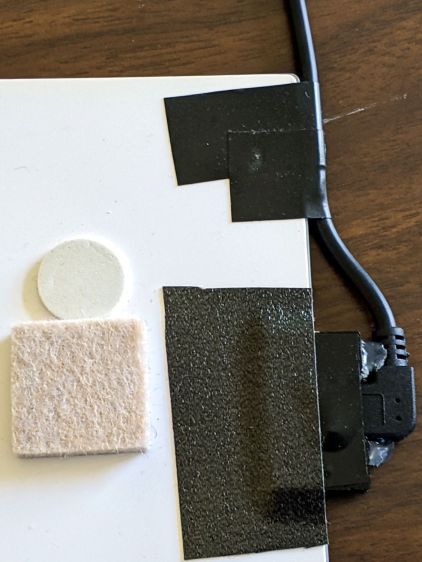
The plate fits under the light pad, where a strip of super-sticky duct tape holds it in place:
LitUp Light Pad USB jack reinforcement – bottom
The USB plug fits between the two blocks with hot-melt glue holding it in place and filling the gap between the plug and the pad.
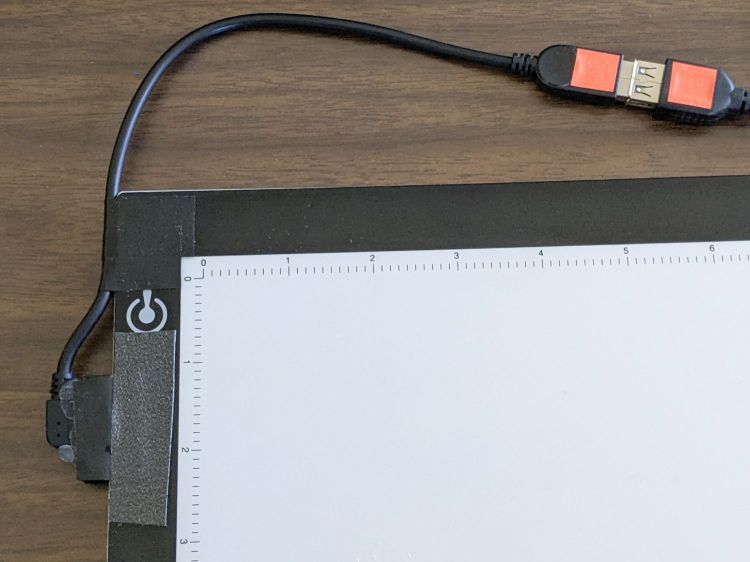
I’d like to say it’s more elegant than the cable redirection for my tablet, but anything involving black electrical tape and hot-melt glue just isn’t in the running for elegant:
LitUp Light Pad USB jack reinforcement – top
On the other paw, that socket ought to last pretty nearly forever, which counts for a whole lot more around here.
The retina-burn orange tape patches on the connector eliminate all the fumbling inherent to an asymmetric connector with invisible surface features. The USB wall wart on the other end of the cable sports similar markings.
This file contains hidden or bidirectional Unicode text that may be interpreted or compiled differently than what appears below. To review, open the file in an editor that reveals hidden Unicode characters.
Learn more about bidirectional Unicode characters
The OMTech laser arrived with a 120 VAC fan blowing air out of the electronics bay on the right side of the cabinet. It runs continuously, because the stepper drivers remain active even when idle, and gave off an annoyingly high-pitched whirrrrr.
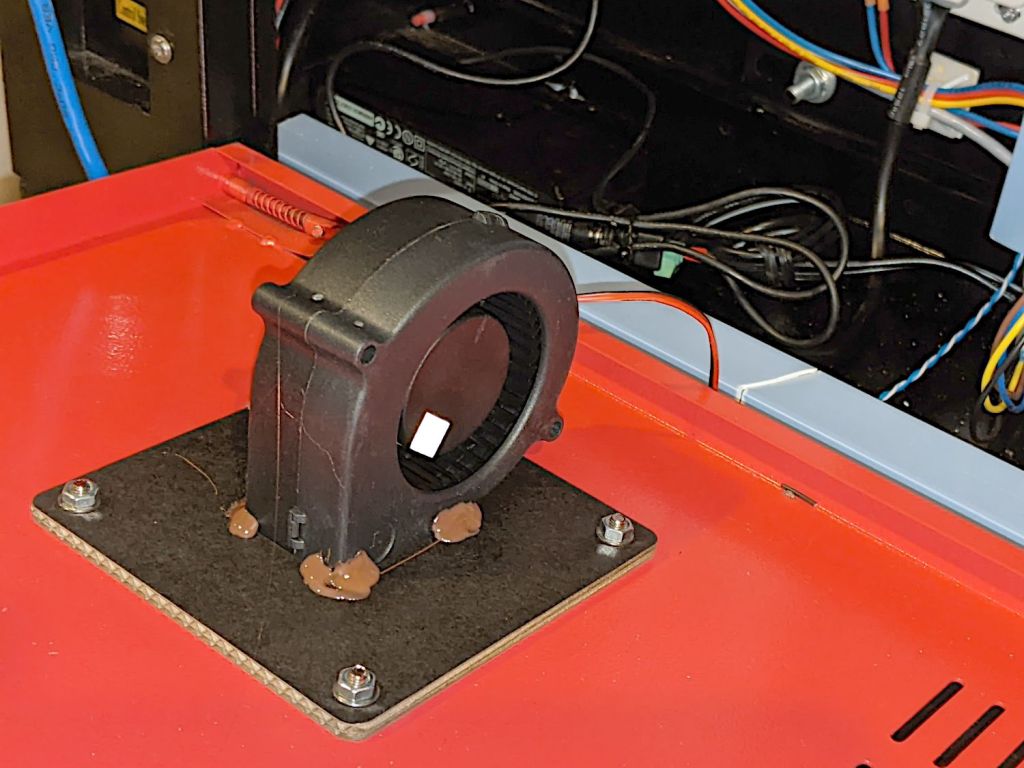
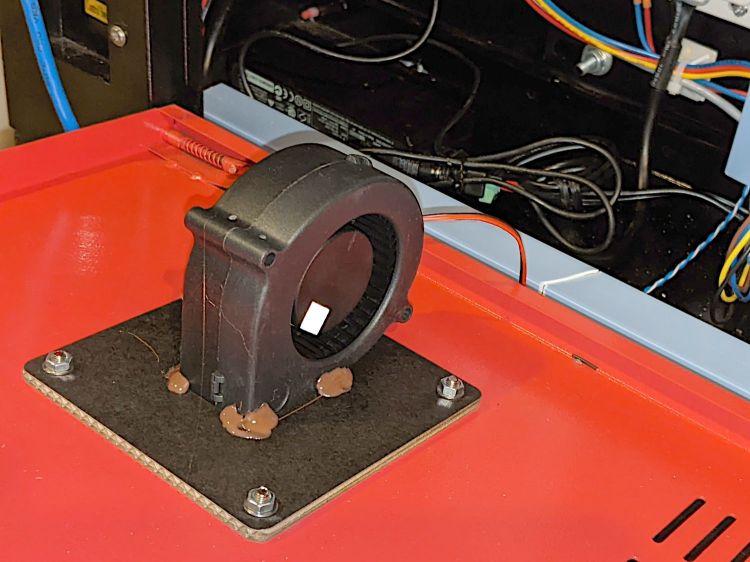
The Big Box o’ Fans produced a 24 V tangential blower which (felt like it) moved about the same amount of air with a quieter and lower-pitched hmmmmmm, so I made an adapter to fit it into the original cabinet opening:
OMTech laser – improved electronics fan – mounting
Yeah, it’s hot-melt glued to a stacked pair of laser-cut cardboard plates. Fight me.
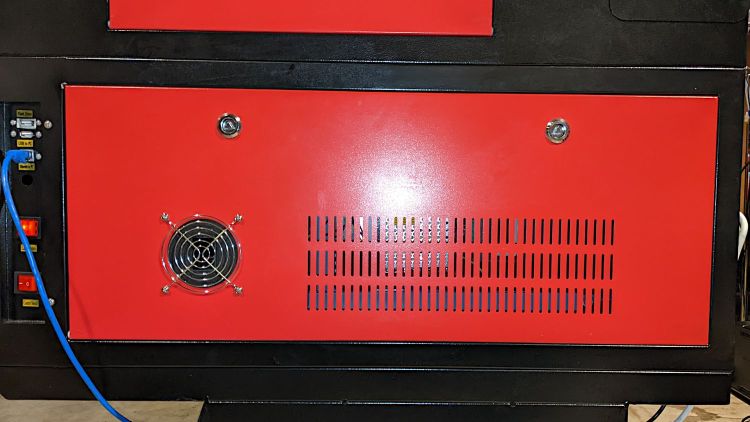
The black cardboard makes it rather low-key from the outside:
OMTech laser – improved electronics fan – grille
I reused the original grille, mostly because otherwise I’d have to put it somewhere else.
The anemometer suggests 5 m/s airflow an inch from the grille. Rounding downward from the 25×35 mm opening says it’s pulling 9 CFM from a compartment with a little over a cubic foot of free volume, which sounds enough good to me. For whatever it’s worth, this airflow calculation disagrees with all of the specs and my handwaving calculation in that old blog post.
The cabinet hatch has slits distributing the incoming air over all the active ingredients (somewhat visible inside behind the flash glare):
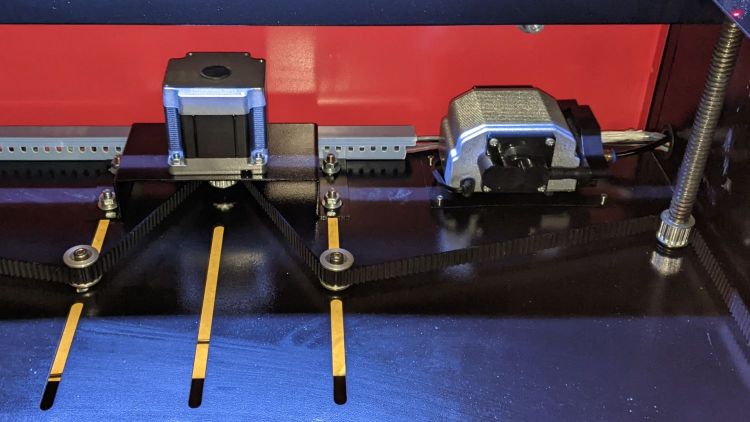
The OMTech 60 W laser gets its air assist from an aquarium-style air pump in the right rear of the cabinet:
OMTech 60W laser – Z motor – air pump
Since that picture, I’ve sealed the slots for the Z-axis belt tensioner pulleys.
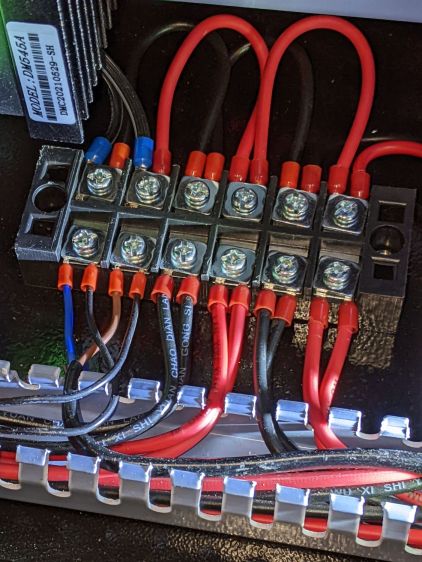
The pump is connected directly to the AC line at the main barrier block (blue and brown on leftmost two terminals):
OMTech 60W laser – AC barrier strip
Even though the pump has very flexy rubber feet, it’s annoyingly noisy and should be off when the laser beam is off.
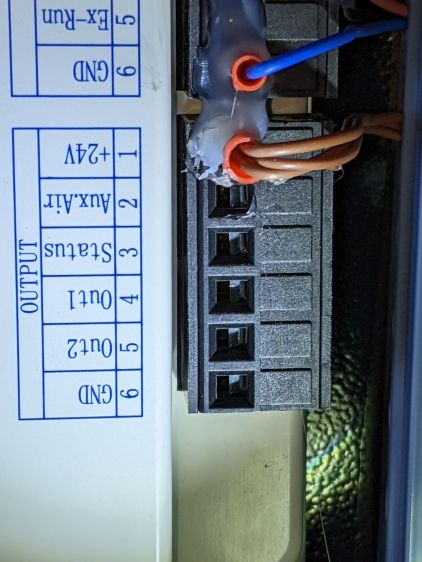
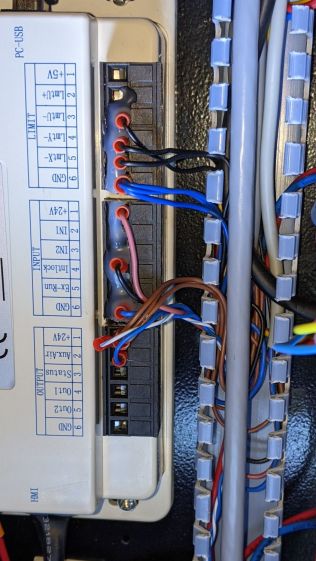
The knockoff RuiDa KT332N controller (possibly by Ryxon, based on a LightBurn forum thread, but without a visible name anywhere on the hardware or in the manual) has an Aux.Air output terminal:
KT332N Controller – output wiring plug- glued
Yes, the controller is mounted that way inside the electronics bay.
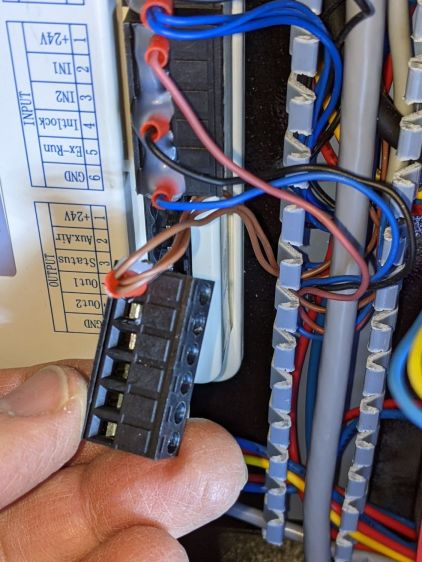
Chipping away the hot-melt glue over the terminals lets you pry the terminal block out of the controller:
KT332N Controller – output wiring plug
The KT332N manual describes the Aux.Air pin 2 function:
Dedicated output. When auxiliary air control is enabled, this port outputs a control signal to control the valve or other relay to release auxiliary air. This port is multiplexed with pen control signal. When auxiliary air control is disabled, this port is assigned as pen control. The output type is open collector. The output can be set to be synchronized with laser or synchronized with work.
Section 4.6 — General and dedicated output
The word “pen” does not occur anywhere else in the manual, so I have no idea what it might mean. Perhaps the controller can also become a pen plotter?
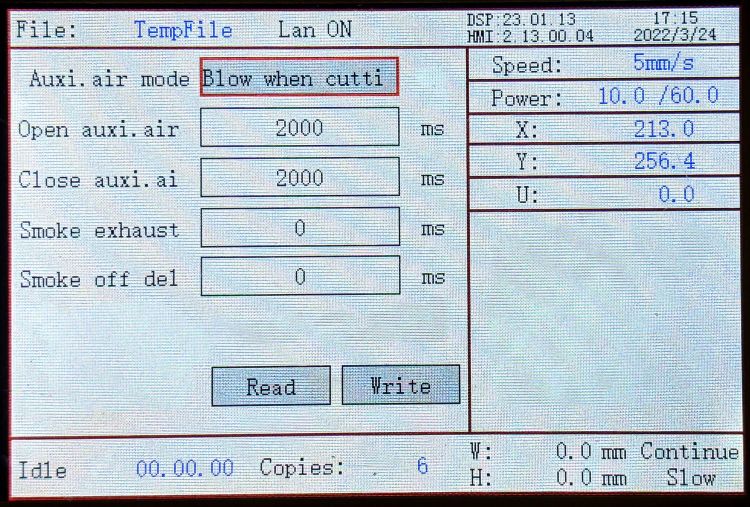
A configuration screen (Menu → Para Setting → Auxi.Air) gives the options:
KT332N Controller – Air Assist Config screen
Section 9.2 of the manual describes the choices, although not quite in the same words:
Blowing method:The way of the air is blown during processing. Can be configured to output fire, process gas, and manual gas.
Blow on delay:Delay time after turning on air blowing
Blow off delay:Delay time before turning off the blow
Section 7.2 gives the electrical parameters:
All output signals of this controller are output based on opto-coupler isolation technology and OC gate output. Its maximum driving capacity is 300mA, which can directly drive 6V / 24V relays, light-emitting indicators, buzzer alarm devices, etc.
Section 7.2 — Output
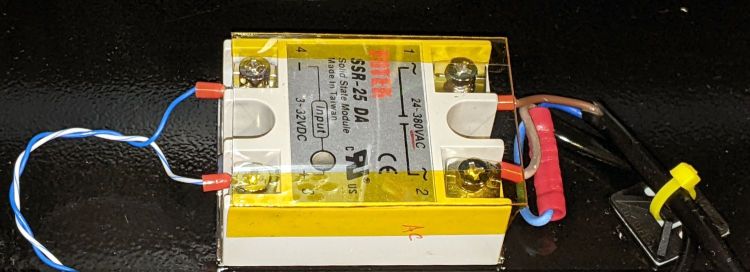
I wired an AC solid state relay (surely a counterfeit Fotek) in series with the pump’s AC Line wire:
KT332N Controller – Air Assist SSR installed
It’s firmly stuck to the bottom of the electronics bay with heatsink tape, not that it gets particularly warm switching a few dozen watts of pump.
Because the output pin is active low, the SSR + input comes from a ferrule jammed into the 24 V supply pin on the controller, along with the original ferrule holding three other wires:
KT332N Controller – Air Assist SSR wiring
With all that in place, I turned it on and … the air pump did not turn on when I ran the next job. I could manually turn the pump on with the front panel Aux Air button, but it shut off as soon as I ran a file.
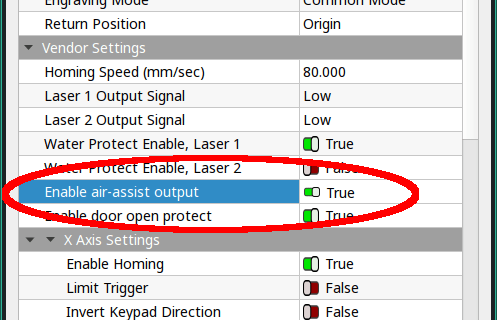
The “enable” setting referred to in Section 4.6 appears in the Vendor Parameters:
Enable the auxiliary air control : If you want to use the Wind signal of the output port to control the fan switch in layers, you must enable this parameter. Otherwise, the Wind signal outputs other signals.
Section 9.1 — Vendor Parameters
The Vendor Settings are protected by a password I don’t know do not appear in the section of settings I assumed they would be in, based on the manual’s wording. It seems an external program connected to the controller by USB or the network provides the only way to access these settings.
Fortunately, LightBurn exposes the Vendor settings after you click through a warning dialog:
LightBurn Vendor Config – Air Assist Enable
And then It Just Works™.
The “Blow when laser” option turns on the pump whenever the laser power supply is producing a beam, so it switches on and off at a furious pace. This is not the option you are looking for.
The OMTech 60 W laser arrived with an LED strip light under the gantry:
OMTech 60W laser – OEM lighting
That works reasonably well, if only because the pool of light travels with the gantry, but it’s always behind the area where you’re (well, I’m) setting up the Thing To Be Cut. An overhead can lamp with a warm-white CFL bulb contributes the yellowish foreground lighting, although I cast a big shadow when leaning into the cutter.
Adding three COB LED strips along the sides definitely improved the situation:
OMTech 60W laser – COB LED strips
The glare will require shades along their top, but that’s in the nature of fine tuning.
I got 24 V COB LEDs to match the cutter’s power supply and reduce the overall current along the strips, but upon further inspection the OEM power supply seems under-specified for its job. The XY stepper drivers each draw 3.5 A peak, the Z (they call it U) axis driver is set for 5.1 A peak, and the knockoff RuiDa controller also runs at 24 V with an unspecified current.
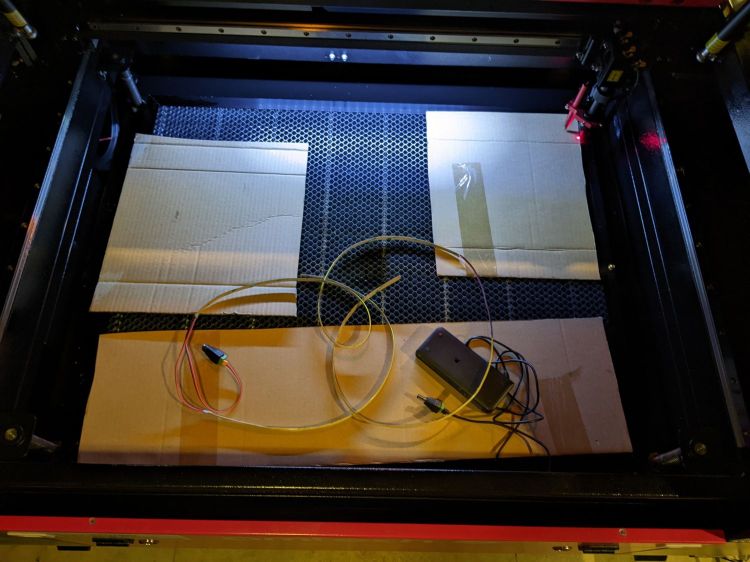
Rather than stress the OEM supply, some rummaging in the Big Box o’ Wall Warts produced the 24 V 2 A power brick shown in the first picture. The previous owner had cut off the no-doubt specialized connector, so I had no qualms about splicing in a 5.1 mm coaxial power plug.
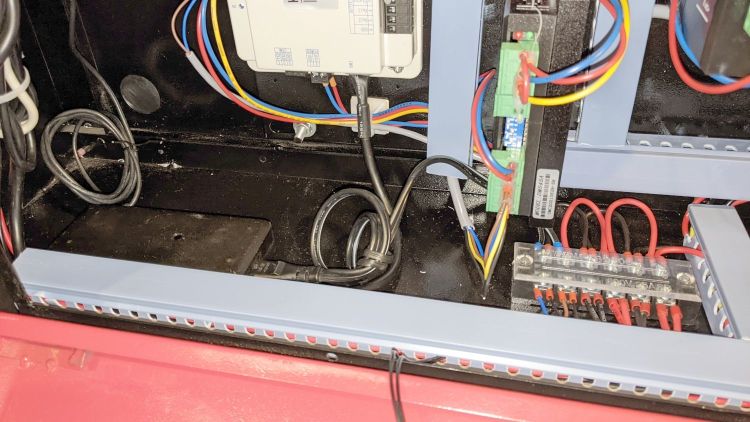
On the other end, I amputated the AC line plug, crimped on a pair of ferrules, and inserted them into the AC power barrier strip inside the electronics bay:
OMTech 60W laser – LED power supply
Yes, that little smudge in the middle of the brick is an Genuine Embossed Apple logo, so you know it’s gotta be good.
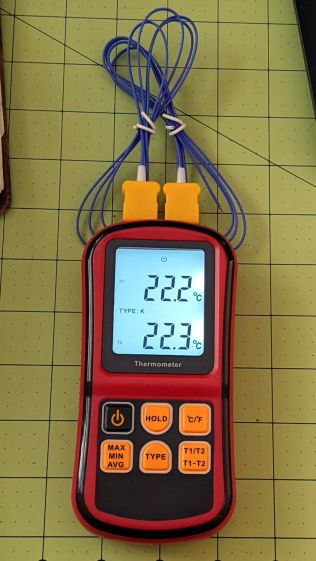
It seems suitable for a semi-permanent laser cooling water monitor, particularly because it can perform arithmetic to show the difference between the inlet and outlet temperatures. The minuscule clock face at the center top of the display shows it’s in auto-power-off mode, which can be defeated by a Vulcan Nerve Pinch while turning it on.
Having a large backlit display was a selling (well, buying) point and the instructions have this to say about its operation:
Dual Thermocouple meter – backlight instructions
The instructions say nothing about defeating the backlight timeout. The description is technically correct, because the two seconds before it goes dark is “within 30 seconds”, but I’d rather have a nicely lit display that’s on all the time.
Five screws hold the back cover in place, with no nasty prying required to pull it apart, and the build quality is about what you’d expect for a cheap meter. The circuitry fits on a single PCB and perhaps the thermistor over on the right serves as the cold junction compensation:
Doodling the backlight circuit layout suggests it’s pretty simple, even without filling in the component values:
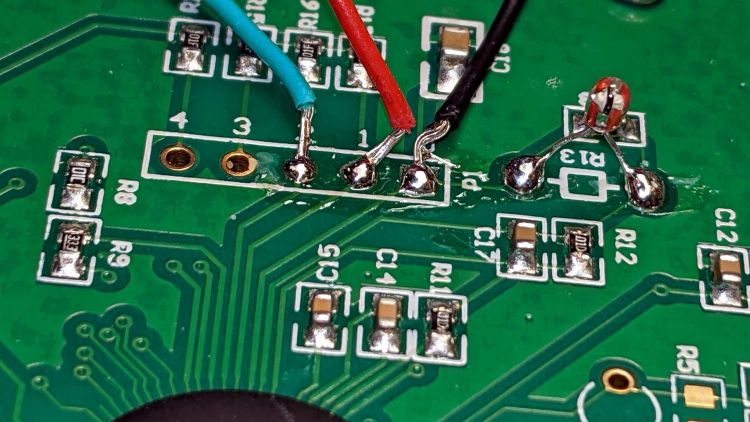
I replaced the transistor base resistor with a somewhat larger 4.7 kΩ SMD part and added a flying wire to jam the transistor on all the time:
The IC is a serial EEPROM with its VCC and ground pins in the usual places, so, when the power to the EEPROM goes on, the backlight turns on and stays on.
The meter draws a bit over 8 mA with the backlight running, which means the trio of AAA cells won’t last all that long. When things settle down, I’ll conjure a simpleminded power supply running from a convenient voltage inside the laser cabinet.












 The Smell of Molten Projects in the Morning
