The Smell of Molten Projects in the Morning

Ed Nisley's Blog: Shop notes, electronics, firmware, machinery, 3D printing, laser cuttery, and curiosities. Contents: 100% human thinking, 0% AI slop.

Category: Electronics Workbench

Electrical & Electronic gadgets

  • Makergear M2: Z Axis Stepper Motor Transplant

    Dan sent me a Kysan 17HD-B8X300-A, a leadscrew-equipped stepper motor with much higher torque than the Makergear Z axis motor. According to the Kysan description, which is all we have to go on: 4.2 V @ 1.5 A means 2.8 Ω, at which current it produces 5.5 kg·cm = 540 mN·m of torque. I measure 3.2 Ω and 3.5 mH, not that that makes much difference.

    I worked out some of the numbers in that post and, if they’re close, then the new motor has twice the torque of the OEM one. What’s more important is that the new motor will work correctly with a microstepping drive and won’t bake while doing so.

    The new motor has more metal to it than the old one:

    M2 Z Axis motors - OEM vs replacement
    M2 Z Axis motors – OEM vs replacement

    The leadscrew follower nut has unthreaded holes, but, mercifully, has the same OD, fits nicely into the Z stage, and those four holes line up perfectly.

    I chopped off most of the wires and spliced a JST plug onto the end; of course, the motor ran backwards. Having foreseen that eventuality, I had not shrunk the tubing over the wires: swap a pair, shrink the tubing, and it’s done:

    M2 Z Axis motor replacement
    M2 Z Axis motor replacement

    Some notes from the operation:

    • Disconnect all the cables
    • Remove HBP + glass plate
    • Lay printer on +X side of the chassis
    • Remove screws holding Z motor to chassis
    • Remove nylock nuts and screws from leadscrew follower nut
    • Remove Z axis home switch
    • Run Z stage to top of rods
    • The leadscrew bearing will probably have fallen out by now
    • Loosen Z rod clamp nuts & bolts (top & bottom of rods)
    • Push Z rods out using a nut driver, pull with a rag for traction
    • Be ready to catch the Z stage when you remove the rods!
    • Angle motor & leadscrew out of the chassis
    • Angle new motor & leadscrew into the chassis
    • Reinstall everything in reverse order
    • Recalibrate everything…

    The Z rod sliders have little balls inside, but they didn’t fall out during this adventure. I don’t know if that’s reliable information or not.

    Now, to see what a better motor can do…

  • Mesa 7i76 vs. Stepper Motor: First Motion

    The cables with their tidy terminations make it a little neater, but all this stuff really needs a permanent home:

    Stepper motor - first motion
    Stepper motor – first motion

    I used the LinuxCNC PNCConf utility to define a minimal system with little more than the X axis parameters filled in:

    PNCConf - X Axis
    PNCConf – X Axis

    Then I could jog the stepper motor using the Axis UI:

    7i76 - First Motion
    7i76 – First Motion

    And it worked!

    Actually, it didn’t. The first motion instantly tripped a Following Error, so I bumped those values up a bit. Then I fiddled with accelerations and speeds and suchlike. Then I adjusted the Axis defaults to not be so nose-pickin’ slow. And then it Just Worked.

    Not much to show, but at least I know the whole LinuxCNC to 5i25 to 7i76 to M542 to motor chain functions pretty much as it should, which is worth knowing. From here on out, it’s a matter of fine tuning…

  • Mesa 7i76 vs. M542 vs. Stepper Motor Wiring

    Both the Mesa 7i76 and the M542 stepper driver boards use Phoenix-style pluggable screw terminals that simplify the connections: just strip the wires, jam them into the holes, and tighten the screw. That works great in an industrial situation where the equipment gets wired up once and stays that way forever, but I expect that I’ll be doing far too much twiddling… which means the stripped wire ends will fray and shed strands across the boards.

    So, while wiring up a stepper motor, I tried soldering the wires to several different terminals I have lying around, just to see how they work.

    The M542 stepper driver brick shows the assortment:

    M542 Stepper Driver Wiring
    M542 Stepper Driver Wiring

    On the far left, the four stepper wires end in right-angle PCB pins harvested from surplus connectors. This didn’t work nearly as well as I’d like, simply because the pins are entirely too bulky. I’m not sure quite how the bricks will be arranged, but I think a right-angle connection won’t work well at all.

    The field power from the 24 VDC supply arrives on some (cheap) 18 AWG speaker zip cord, terminated in straight-line PCB pins. Those worked better, but they do stick out a goodly amount. Methinks the right thing to do with larger wire is just solder the strands together, clean the end, and not bother with pins. That’s not so good for strain relief (it concentrates at the end of the soldered strands), but, with some tubing added, maybe it’ll be Good Enough.

    The 26 AWG input wires from the 7i76 terminate in turret pins originally intended for PCB terminations or test points, back in the day when you (well, I) could actually see such things; I have a bag of 1000 that I’ve been chewing away at for a while. I think these wires are simply too small for the screw terminals, so they really need a pin of some sort and I like the way the turret pins work. The heatstink tubing provides a bit of strain relief, which always comes in handy.

    The two stray wires will eventually go to the “Enable” input. It turns out that these bricks defaults to Enabled with no input signal, so you cannot depend on a wiring fault disabling the motor: a broken Enable wire enables the drive output. This seems flat-out dumb, but I suppose there’s some planet on which it makes sense.

    I snipped a bunch of 3/8 inch (call it 10 mm) lengths of tubing, but that turns out to be slightly too long for the 7i76 terminal layout:

    Mesa 7i76 Wiring
    Mesa 7i76 Wiring

    So the next iteration must be a bit shorter.

    Yes, you can get commercial crimp pin terminations; search eBay for crimp insulated terminal pins, some of which are curving around the planet even as I type. They won’t fit into the tight confines of the 7i76, but they should be better for the M542 bricks. The smallest size fits 22 through 16 AWG wires, so my tiny cable wires may need some steroids to bulk ’em up.

    On the stepper motor end of the cable, I picked up a bunch of JST connectors and crimp pins. Unfortunately, the proper crimp tool runs into the hundreds of dollars, even from the usual eBay suppliers, and I really don’t have that much need for those pins. So I just soldered wires from the cable to the pins and mashed them down with needle nose pliers:

    Stepper wiring - soldered JST pins
    Stepper wiring – soldered JST pins

    The alert reader will notice an egregious wire color coding faceplant. I made a corresponding blunder on the other end and nobody will ever know. Next time, maybe I’ll get it right.

    That makes for a nice connection at the motor:

    Stepper wiring - connector in place
    Stepper wiring – connector in place

    The thin black cable has nine 26 AWG conductors that I’m doubling up for the motors. In round numbers, 26 AWG stranded has about 120 mΩ/m resistance, so two in parallel work out to 60 mΩ/m. Assuming a meter of cable between the driver and the motor, a 1 A winding current will drop 120 mV along the way and dissipate 1/8 W, which seems defensible. It’s obviously Good Enough for signal wiring.

    It is most definitely not good enough for, say, the heaters.

    The motivation for using that cable: it’s thin and super-flexy, not the rigid cylinder you get with larger conductors. Plus, I have a huge supply of the stuff… it originally served as RS-232 cable, with molded connectors on each end of a 30 foot length, with four such cables assembled into a super-cable with nylon padding yarn laid inside a protective outer sheath. Must have cost a fortune to the original buyer; decades ago I got three or five of the assemblies and have been harvesting cable ever since.

  • LinuxCNC + Mesa 7i76: Solid-state Relay Light

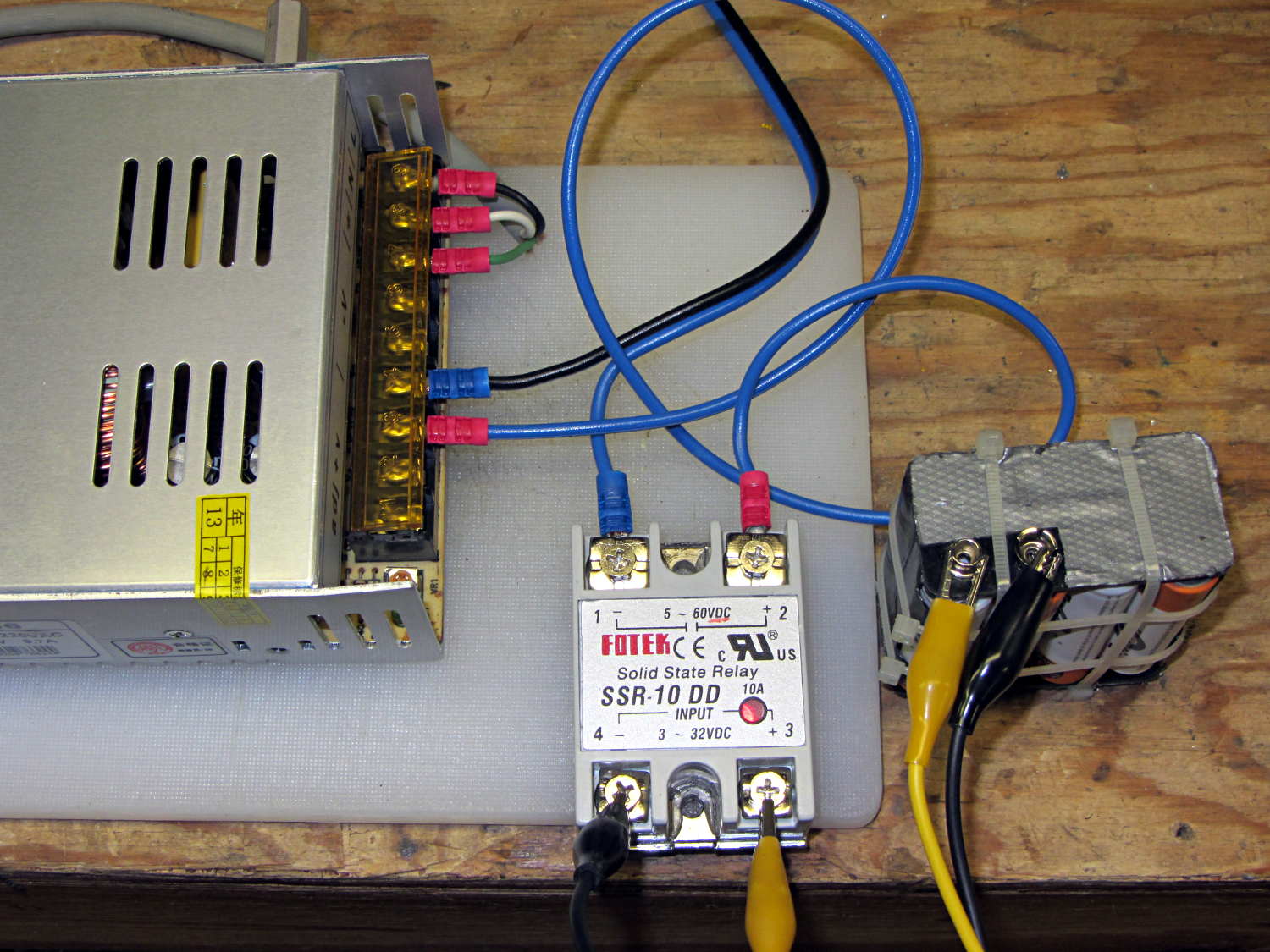
    I intend to use solid-state relays to control things like extruder and platform heaters, so I wired a Fotek SSR-10 DD to the same output bit as the First Light test, with a random 12 V SLA battery providing power for the LED strip:

    Mesa 7i76 with Fotek DC-DC SSR
    Mesa 7i76 with Fotek DC-DC SSR

    Nothing groundbreaking, but it’s always nice to confirm these things.

    Note that the SSR must have a DC output, not the more common AC output, to control DC power. In effect, a DC-DC SSR is just an up-armored power FET with an optically isolated gate terminal.

    Dan reports that the Fotek SSRs have just about exactly the internal build quality you’d expect for a cheap product from halfway around the planet. Although the specs would have you believe they operate from a 5 VDC source, that may not be the case. The 7i76 output pins switch the +24 VDC field power to the SSR, so it’s firmly turned on.

  • USB Current Measurement Taps

    Two quick-and-dirty Arduino Power Current Taps for the Arduino Survival Guide: Workbench Edition class I taught for SqWr a while ago. These give you the current drawn by the entire board + LEDs + whatever, so you can calculate the power dissipation in that poor on-board regulator.

    The USB version:

    USB Current Tap
    USB Current Tap

    The general idea is to cut a USB extension cable (Type A plug on one end, Type A receptacle on the other) in half, splice the two data wires, splice the ground / common wire, but connect the +5 V wires to a dual banana plug that goes into a current meter. The Big Box o’ USB Junk produced a cutoff cable end with a Type A plug and a PC jumper that was supposed to connect an internal USB header to the back panel; the red blob of silicone tape conceals the jumper’s socket strip and a five-pin male header with all the wires soldered to it.

    You could use a Type B plug that would go directly into an Arduino UNO (or similar), but I figured this way everybody can bring whatever cable they need for their particular Arduino, not all of which have bulky Type B receptacles these days.

    The External Power version:

    External Power Current Tap
    External Power Current Tap

    The coaxial power plug goes into the Arduino and whatever you used for power goes into the socket. The Big Box o’ Coaxial Power Stuff actually had a more-or-less properly sized coaxial jack with two wires on it and silicone tape wrapped around it; I regarded that as a Good Omen and pressed it into service as-is.

    These will also replace the horribly rickety collection of alligator clip leads I usually use for such measurements…

  • Mesa 5i25 + 7i76: First Light!

    Rather than start with the stepper, I wired an LED and resistor between output bit 07 and Field Ground at the power supply:

    Mesa 5i26-7i76 with LED
    Mesa 5i26-7i76 with LED

    It’s worth noting that the terminals labeled GND on TB2 and TB3 are isolated from the Field GROUND terminal on TB1. When Mesa says “isolated power supply”, that’s exactly what they mean.

    The digital output bits connect +24 VDC Field Power to the load, which should then connect to Field GROUND. I picked a good-looking 5 V panel LED from the pile, simply because it had wires soldered to it from a previous life, and put a 1 K resistor in series to drop the other 19 V.

    Then you start up HAL, load the Mesa drivers, and twiddle the bit:

    halrun
    halcmd: loadrt threads name1=th period1=1000000
    halcmd: loadrt hostmot2
    halcmd: loadrt hm2_pci
    halcmd: addf hm2_5i25.0.pet_watchdog th
    halcmd: addf hm2_5i25.0.read th
    halcmd: addf hm2_5i25.0.write th
    halcmd: start
    halcmd: setp hm2_5i25.0.7i76.0.0.output-07 true
    halcmd: setp hm2_5i25.0.7i76.0.0.output-07 false
    halcmd: quit
    

    The thread runs with a 1 ms period, mostly because it’s convenient. The .read and .write pins transfer data from and to the 5i25 FPGA each time the thread runs; if you forget those, nothing happens.

    Setting the output bit true activates the output bit, turns on the MOSFET driver, and connects the terminal to Field Power = 24 VDC. The 7i76 outputs do not sink current, they source it.

    A journey of a thousand 3D printed objects starts with a single LED…

    The watchdog timer ought to be connected to something more fragile and UI-related than the main thread, but I haven’t figured out how to do that yet.

  • Arduino Survival Guide: Workbench Edition

    Pullup Voltage Divider
    Pullup Voltage Divider

    Herewith, the slides for the talk + lab session I’m doing today for Squidwrench:

    Arduino Survival Guide – Workbench Edition

    Unlike most Arduino courses, I assume you’re already OK with the programming, but are getting tired of replacing dead Arduinos and want to know how to keep them alive. The course description says it all:

    Learn how to help your Arduino survive its encounter with your project, then live long and prosper. Discover why feeding it the proper voltages, currents, and loads ensures maximum Arduino Love!

    Ed will describe some fundamental electronic concepts, guide you at the workbench while you make vital measurements, then show you how to calculate power dissipation, load current, and more. You’ll understand why Arduinos get hot, what kills output bits, and how you can finally stop buying replacements.

    Among other lab exercises, we’ll measure the value of the ATmega’s internal pullup resistors, which everybody assumes are 20 kΩ, but probably aren’t. Hint: you can apply Ohm’s Law twice to that simple circuit and come up with the right answer, but only if you’ve measured the actual VCC voltage on the board.

    The Mighty Thor will detail how to not prepare Fried Raspberry Pi.

    In the unlikely event you’re in Highland NY, stop by: you’re bound to learn something.