The Smell of Molten Projects in the Morning

Ed Nisley's Blog: Shop notes, electronics, firmware, machinery, 3D printing, laser cuttery, and curiosities. Contents: 100% human thinking, 0% AI slop.

Author: Ed

  • Sony NP-FS11 Battery Rebuild Repair

    One of the battery packs I’d re-rebuilt failed in short order, which I wrote off to a bad cell and tossed it on the heap. Having recently found a small stack of Round Tuits, I’ve been cleaning off the bench and took the pack apart again. Turns out I blundered the solder joint between the positive cell terminal and the protective circuit board: the strap in the foreground joining those two points didn’t make a good connection to the cells.

    I suppose it was just another cold solder joint:

    Rebuilt NP-FS11 battery - Pack A
    Rebuilt NP-FS11 battery – Pack A

    That’s an awkward joint at best, because the protective circuit doesn’t come willingly out of the housing and you (well, I) must solder it without scorching the cells, the plastic case, or the PCB. It can be done, but it’s not easy.

    Charged it up and it’s back in the A/B/C pack rotation again.

    Memo to Self: Tough to find good repairmen these days, eh?

  • Macro Lens Focus Stacking

    Begin by mounting the Canon SX230HS on the macro lens adapter, zooming to about the maximum, fiddling with a ruler to put the end at the closest focus point, and eventually get an overall view like this:

    Ruler - macro mid-focus
    Ruler – macro mid-focus

    The images below were batch cropped from similar views with ImageMagick:

    for f in $(seq 17 22) ; do convert -crop '1500x1126+1900+1800' \
       img_18${f}.jpg img_18${f}-crop.jpg ; done
    

    Yes, I’ve taken a bit over 1800 images since getting that camera… the old DSC-F505V recently rolled over at 10K images.

    Take a set of six identically exposed pictures starting with the focus at infinity (about 95 mm in real life):

    macro far focus
    macro far focus

    And ending with the closest focus at about 1 meter for this zoom setting (and 80 mm in real life):

    macro near focus
    macro near focus

    Then apply enfuse (from the Ubuntu repositories) with a handful of parameters suggested there that combine the sharpest parts of each image into a single image:

    enfuse --verbose --exposure-weight=0 --saturation-weight=0 \
       --contrast-weight=1 --hard-mask --output=stacked.jpg \
       img_18??-crop.jpg
    

    Which produces this nice result:

    Ruler - macro combined focus
    Ruler – macro combined focus

    It’s not perfect, it needs a few more intermediate images, there’s fringing around high-contrast edges, and so forth and so on, but for a first pass it ain’t bad at all.

    I bar-clamped the camera & macro adapter to the desk in order to eliminate all motion. My usual tripod mount for the macro setup isn’t all that stable and the microscope stand isn’t particularly rigid, either, so I must improve a bunch of mechanical structures. In principle, you can post-process the pictures to realign them, although the tolerances seem daunting enough to make mechanical fixturing look downright attractive by comparison.

    Now, if it should turn out that the SX230HS supports the CHDK USB remote trigger, that’d be nice. Or maybe the right way to proceed involves converting the problem to A Simple Matter of Software by writing a CHDK script that tweaks the focus by multiples rather than increments.

  • Canon Hack Development Kit for SX230HS

    Although the macro lens adapter and microscope mount work well enough, the relatively small sensor and lens in my Canon SX230HS make for a razor-thin depth of field:

    Macro lens depth of field
    Macro lens depth of field

    Those are, of course, millimeter divisions on the ruler.

    A bit of rummaging leads to the notion of Focus Stacking, which involves taking a sequence of images with identical exposure settings and different focus points, then compositing the in-focus parts of each image to produce a single image with everything in focus. Although some examples show a manual process involving layers in, say, The GIMP or Photoshop, I think an automated process would be better.

    Given that I have a Canon SX230HS camera, the first step is to download the proper version of the Canon Hack Development Kit, unpack it onto a spare SD card, and get used to it.

    As it turns out, the focus bracketing works exactly as intended, but doesn’t do quite what I need: it changes the focus in linear steps by adding a constant bracketing distance. The macro lens adapter drags the “infinity” focus point inward to maybe 15 mm beyond the innermost focus point, but the camera’s focus range still shows 1 m to ∞. Stepping in 1 m increments generates a bazillion pictures that don’t differ by much at all after 5 m, but you still need a few near the far end.

    However, it seems the only way to get a bazillion pictures is by holding the shutter button down with the drive mode set to Continuous, as the camera’s Custom Timer mode has a 10 shot upper limit. If I must do that, I may as well adjust the focus manually: the assumption being that the camera shall be firmly mounted to keep the pix in alignment, which currently isn’t true in any of my setups and certainly won’t be true with my finger on the button.

    The camera already has exposure bracketing, although not to the extreme range available through CHDK. RAW images (or the roughly equivalent DNG format) might come in handy at some point, but right now they’re just a temping digression available only through CHDK.

    If I’m going to keep using CHDK, I must conjure up an artificial NB-5L battery with an external power source. Those cheap eBay batteries work fine for the usual duty cycle, but constant zooming & focusing & suchlike chew them pretty hard…

  • Gas Flareoff

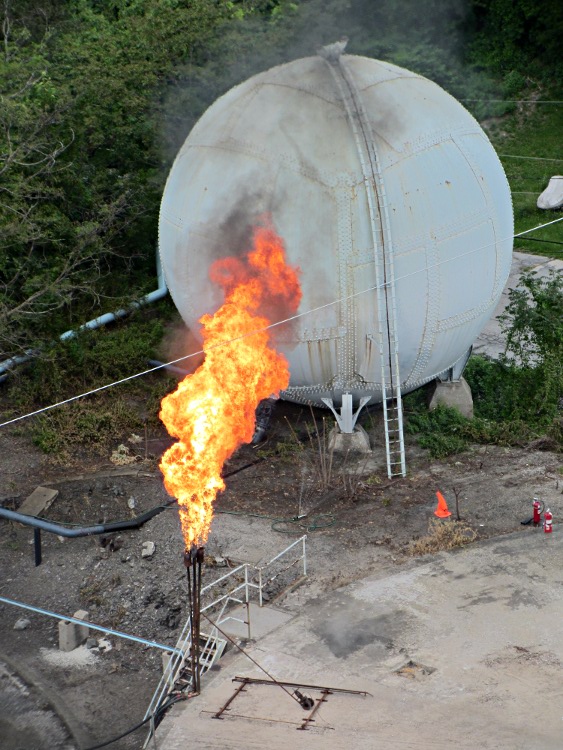
    While I was on that ride, I found this at the bottom of a smoky pillar rising along the Hudson River:

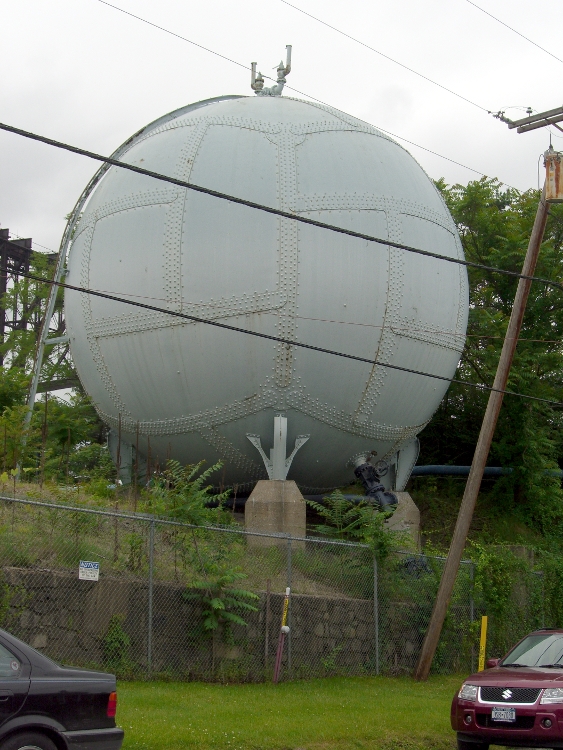
    Turns out Central Hudson Gas & Electric has a pipeline under the Hudson at that point and I’d admired their spherical storage tank from ground level some years back:

    Gas Storage Tank
    Gas Storage Tank

    I don’t know what they’re flaring off, but it looks messier than, say, propane. There’s another flare nozzle just out of the picture on the lower left, both along the edge of the circular concrete pad left over from a cylindrical storage tank, so they do this often enough to have some permanent infrastructure.

  • Toyota Sienna: Hatch Latch Handle Replacement

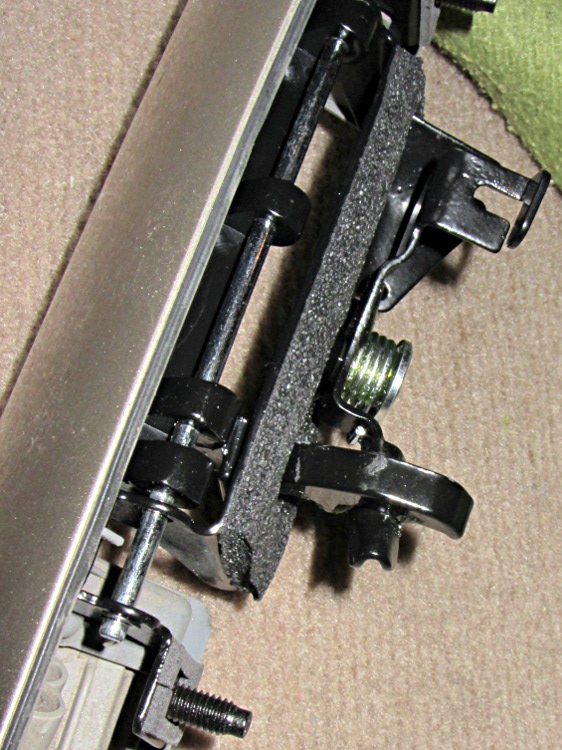
    Sienna hatch - replacement latch
    Sienna hatch – replacement latch

    The replacement metal latch handle fit perfectly and works fine.

    That skinny protruding arm shouldn’t break off, but now it has a metal-to-metal sliding joint that will eventually gall. With any luck, though, it’ll outlast the van… which, admittedly, that kludged repair probably would have, too.

  • Dropbox vs. Little Bobby Tables

    The Android version of the Dropbox interface (on the Kindle, anyway) lets you create a password like this:

    ab&CDef{gHi

    Come to find out that, although the web-based Dropbox interface doesn’t reject that password, it kvetches that your userid and password don’t match. Yes, even if you cut-and-paste from a text file copied through the USB link.

    Fortunately, the web interface has a password reset mechanism that’s missing from the Kindle app.

    Little Bobby Tables rides again!

  • Kindle Fire: Palm Gnukeyring to KeePass

    My Zire 71 stores all my userids, passwords, credit card numbers, and similar sensitive bits in a convenient offline package, using the obsolete Palm gnukeyring app. The KeePass app on my Kindle Fire can, in principle, do the same thing. Minus the convenient and offline parts, that is.

    So the problem becomes how to export about 150 entries, each containing at least one character string carefully chosen for maximum obscurity and typing difficulty, from the Zire to the Kindle. Ideally, there’s no retyping involved and it’d be nice to not leave the unencrypted contents lying around for very long.

    This has a remarkable number of moving parts…

    It turns out gnukeyring can export each entry into an unencrypted Palm Notepad file through a manual operation, but the cough user experience on the Palm goes something like this:

    • Start gnukeyring, select entry-to-export
    • Select Options, pick export to Notepad
    • Notepad automagically starts up with the new note selected, so close it
    • Exit Notepad, return to Home
    • Iterate

    That gets old very quickly, not to mention that the Notepad file uploads to the PC in the Palm’s slightly binary PDB format that’s basically useless without further hackage and exposes the passwords in unencrypted form.

    Inter-app cutting and pasting on the Kindle is exceedingly tedious, because each app runs more-or-less independently in full-screen mode: it is not feasible to manually transfer the database one field at a time. So we’re looking at a PC-based solution.

    There’s a Java utility that can export the whole encrypted Palm file into spreadsheet CSV format, putting each entry into a separate row and each field into a separate column. OpenOffice / LibreOffice can read the resulting file with no problem. Ctrl-A will select the entire Comment field for each entry, which means I can transfer that in one shot.

    It can also export into an XML file, which seems more useful.

    The utility is a command line thing, with an invocation something like this (use .csv to get that type of output):

    java -jar export.jar Keys-Gtkr.pdb ‘password’ output.xml

    As it turns out, my password contains an exclamation mark and Bash requires fancy escaping (the usual single or double quotes don’t work, because the exclamation mark has higher priority):

    java -jar export.jar Keys-Gtkr.pdb Fancy\!PassWord\! output.xml

    The XML files have this overall structure:

    <U+FEFF><?xml version="1.0" encoding="UTF-8"?>
    <pwlist>
    <pwentry>
      <title>A useful name</title>
      <category>Web</category>
      <notes>The collection of
    notes, asides, and suchlike
    in a multi-line format.
    </notes>
      <lastmodtime>2000-01-01</lastmodtime>
    </pwentry>
    </pwlist>
    

    Notice that each entry contains its category, which makes a certain sense.

    On the KeePass side, there exist Windows and Linux versions of KeePass, although one must be careful to use the 1.x level of the database on Windows, because that’s all the Android and Linux versions know about. It can import XML files and turn them into a database with a unique password; it cannot add entries from an XML file to an existing database.

    KeePassX (the Linux version) XML files looks like this:

    <!DOCTYPE KEEPASSX_DATABASE>
    <database>
     <group>
      <title>Internet</title>
      <icon>1</icon>
      <entry>
       <title>The Entry Title</title>
       <username>your userid goes here</username>
       <password>the mystery password</password>
       <url>example.com</url>
       <comment>Presumably multiline comments work OK</comment>
       <icon>0</icon>
       <creation>2012-05-08T18:48:11</creation>
       <lastaccess>2012-05-08T19:00:49</lastaccess>
       <lastmod>2012-05-08T19:00:49</lastmod>
       <expire>2999-12-28T11:59:59</expire>
      </entry>
     </group>
    </database>
    

    KeePass puts the entries within overall groups, the inverse of the Palm gnukeyring structure. I suppose there’s a way to undo that manually, but … drat!

    So, back to CSV. Although OpenOffice Calc can’t export XML directly, there’s an extension for that. Given a spreadsheet like this:

    asdf dfg
    1 2
    3 4
    5 6

    The XML file looks like this:

    <?xml version="1.0" encoding="UTF-8"?>
    <ooo_calc_export scriptVersion="2.2.0" scriptUpdate="2010-12-19"
                     scriptURL="http://www.digitalimprint.com/misc/oooexport/"
                     scriptAuthor="vjl">
       <ooo_sheet num="1" name="Sheet1">
          <ooo_row><asdf>1</asdf><dfg>2</dfg></ooo_row>
          <ooo_row><asdf>3</asdf><dfg>4</dfg></ooo_row>
          <ooo_row><asdf>5</asdf><dfg>6</dfg></ooo_row>
       </ooo_sheet>
    </ooo_calc_export>
    

    Missing entries generate empty <column-name></column-name> sequences and embedded newlines produce multiline comments.

    So the overall plan:

    • Convert Palm database into CSV
    • Import into OpenOffice Calc
    • Change column names to match KeePass fields
    • Add creation field with current timestamp
    • Add expire field to celebrate the next millennium
    • Sort by Category, delete Category column
    • Export to XML, open in text editor
    • Clean up header & footer tags to suit
    • Insert group tags for category
    • Change ooo_row tags to entry tags
    • Import as new KeePass database
    • Transfer to Kindle Fire
    • Iterate until it works

    While I had the file pinned down in the text editor, I cleaned up some cruft and moved userids / passwords from comments to the appropriate fields.

    I hadn’t used the gnukeyring password field to avoid overwriting an existing password by mistake; that disaster always lay just two screen taps away. It’s a little harder to do on the Kindle, but …

    And then it Just Worked…