The Smell of Molten Projects in the Morning

Ed Nisley's Blog: Shop notes, electronics, firmware, machinery, 3D printing, laser cuttery, and curiosities. Contents: 100% human thinking, 0% AI slop.

Author: Ed

  • Sony DSC-H5: Shutter Button Rebuild

    Having extracted the shutter button from the camera body, it’s easy to see why the plunger causes problems:

    DSC-H5 Shutter Button - bottom view
    DSC-H5 Shutter Button – bottom view

    The plunger is basically a pin that eventually deforms the top of the switch membrane. Tee’s DSC-H1 had an exposed switch, although this picture shows that membrane was still in reasonably good condition:

    Shutter Switch Closeup
    Shutter Switch Closeup

    My DSC-H5 has a thin black protective disk atop the switch, but the disk wasn’t particularly protective and developed a dimple that held the contacts closed even with the shutter button released (which is why I’m tearing the camera apart in the first place):

    DSC-H5 Shutter Switch - dimpled protector
    DSC-H5 Shutter Switch – dimpled protector

    The C-clip around the plunger is now plastic, rather than metal, making it less likely to erode the thin plastic shaft. Pulling the clip off while holding the button down releases all the parts:

    DSC-H5 Shutter Button - components
    DSC-H5 Shutter Button – components

    A few measurements from an intact shutter button, which may come in handy if you don’t have one:

    DSC-H5 Shutter Button - plunger measurements
    DSC-H5 Shutter Button – plunger measurements

    Mount three-jaw chuck on the Sherline table, laser-align chuck to spindle, grab shutter button by its shaft in a Jacobs chuck, grab shutter button in three-jaw chuck, release from Jacobs chuck:

    DSC-H5 Shutter Button - in Sherline chuck
    DSC-H5 Shutter Button – in Sherline chuck

    That’s not particularly precise, but it’s close enough for this purpose. I used manual jogging while testing the fit with a paper shim until all three jaws had the same clearance, then tightened the jaws.

    I nicked the plunger at its base with a flush-cutting diagonal cutter, snapped off the plunger, and drilled a #56 hole through the button:
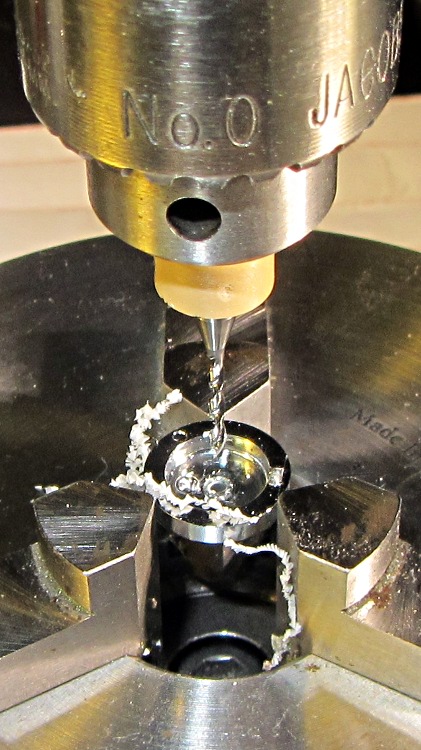
    DSC-H5 Shutter Button - cap drilling
    DSC-H5 Shutter Button – cap drilling

    For reasons that made sense at the time, I repaired Tee’s DSC-H1 with a 1-72 brass screw. This time, I used an 0-80 (which I learned as ought-eighty, if you’re wondering about the indefinite article) screw and nut, because the screw head fit neatly into the bezel recess and I had a better idea of how to smooth out the threads.

    This being plastic, I used the chuck to hold the tap in the proper alignment, then turned the tap through by finger pressure. This trial fit showed it worked:

    DSC-H5 Shutter Button - 0-80 screw
    DSC-H5 Shutter Button – 0-80 screw

    Milling the nut down to a 2.8 mm cylinder required the usual manual CNC, with repeated iterations of this chunk of code in the MDI panel:

    #<r>=[[2.8+3.11]/2]
    g1 x[-#<r>] f50
    g0 z0
    g2 i#<r> f100
    g0 z4
    

    The 2.8 in the first line is the current OD and the 3.11 is the measured diameter of the 1/8 inch end mill. I started from a 5.0 mm OD that just kissed the nut, then worked inward by 0.2 mm at a time for very shallow 0.1 mm cuts:

    DSC-H5 Shutter Button - 0-80 nut milling
    DSC-H5 Shutter Button – 0-80 nut milling

    The alert reader will notice, as did I, that the head isn’t quite centered: the cut trimmed the left side and left the right untouched, with an offset far larger than the centering error. As nearly as I can tell, the heads of those screws aren’t exactly centered on their threaded shafts, but the final result fixed that… and the overall error is a few tenths of a millimeter = maybe 10 mils, tops, so it’s no big deal.

    With all that in hand, I applied a very very thin layer of epoxy to fill the threads below the now-cylindrical nut and convert the screw into a rod:

    DSC-H5 Shutter Button - 0-80 plunger
    DSC-H5 Shutter Button – 0-80 plunger

    My original intent was to use the screw head as-is atop the PET shield (per those instructions) on the switch membrane, but after reassembling enough of the camera to try that out, it didn’t work correctly: the half-pressed switch didn’t activate reliably before the full-pressed switch tripped.

    The PET shield I used came from the side of a 1 liter soda bottle and turned out to be 0.27 mm thick:

    DSC-H5 Shutter Switch - cover removed
    DSC-H5 Shutter Switch – cover removed

    I think the PET shield would work with the original plunger shape concentrating the force in the middle of the shield, but the nice flat screw head spreads the force out over a wider area. As a result, the force required to close the half-pressed switch contacts was roughly the same as that required to close the full-pressed contacts; remember the nub on the bottom of the black plastic tray concentrates the force in the middle of the full-pressed switch membrane.

    So I removed the PET shield, added a dot of epoxy to fill the screw slot and compensate for the missing shield thickness, then filed a flat to make a nice pad:

    DSC-H5 Shutter Button - epoxy on plunger
    DSC-H5 Shutter Button – epoxy on plunger

    Reassembling the camera once more showed it worked exactly the way it should. In fact, the button seems more stable than the OEM version, probably because the slightly enlarged plunger shaft fits better in the bezel. Too bad about those scuffs on that nice shiny button dome, though:

    DSC-H5 - repaired shutter button
    DSC-H5 – repaired shutter button

    Tossing the leftover parts seems entirely appropriate…

    Sony DSC-H5 Shutter Button - leftovers
    Sony DSC-H5 Shutter Button – leftovers
  • Sony DSC-H5: Disassembly

    The half-pressed shutter switch position on my Sony DSC-H5 recently stopped working, which seems to be one of two common failures. The other, a broken switch shaft, happened to Tee’s camera, as described there, and I figured I should preemptively fix that while I was inside my camera.

    This being a common failure, several folks have described how to dismantle the camera; I followed that guide’s English version.

    The DSC-H5 differs slightly from that description. After I got the thing apart, it became obvious that there’s no need to remove the LCD panel, the main control board, and most of the ribbon cables if you have a Philips #0 or #00 screwdriver with a very thin shaft. There’s no way to describe this operation, so take it apart his way, then you’ll see what I mean: the guts can come out as one big lump.

    In any event, all the camera controls eventually emerge from the body:

    DSC-H5 Control Assembly
    DSC-H5 Control Assembly

    Looking back into the camera body reveals the bottom of the shutter button, captured by a static discharge contact and the gray plastic frame of the Focus / Break button caps:

    DSC-H5 Shutter Button - interior view
    DSC-H5 Shutter Button – interior view

    Removing the pushbutton frame and pushing the left button bezel latch with a small flat-blade screwdriver extracts the shutter button; it falls out of the inverted body. This is one of the few intact DSC-H[1-9] shutter buttons you’ll ever see:

    DSC-H5 Shutter Button - bottom view
    DSC-H5 Shutter Button – bottom view

    Those rectangular protrusions lock into the slots in the black plastic cap that appears almost silver in this front view that shows the dimple in the switch membrane:

    DSC-H5 Shutter Button Switch - depressed surface
    DSC-H5 Shutter Button Switch – depressed surface

    You must remove the cap to release the flex PCB with the shutter switches. Two heat-staked pins retain the cap; a scalpel neatly slices off the melted plastic:

    DSC-H5 Shutter Switch - cover removed
    DSC-H5 Shutter Switch – cover removed

    Nota bene: the DSC-H1 button bezel I repaired earlier does not have features that lock into the cap over the switch assembly, which means you can remove and replace it without disassembling the camera. You cannot remove or install the DSC-H5 button without taking the camera apart. I suppose this counts as a continuous product improvement, but …

    The shutter switch has two parts:

    • The full-press switch that takes the picture (the white dot on the blue flex, shown above)
    • The half-press switch that triggers the focus & exposure is in a black plastic tray (seen edge-on above the white dot)

    The bottom of the half-press tray has a small nub that activates the full-press switch, so the force required to activate the half-press switch must be considerably less than the force that activates the full-press switch. This turns out to be a critical part of the repair…

    A closeup of the half-press switch with the protective cover sheet (the “damn confetti” of the disassembly instruction) and the dimple that held the contacts together with the button released:

    DSC-H5 Shutter Switch - dimpled protector
    DSC-H5 Shutter Switch – dimpled protector

    A closeup of the switch through a snippet of PET plastic shows the switch membrane itself is in fine shape:

    DSC-H5 Shutter Switch - cover removed
    DSC-H5 Shutter Switch – cover removed

    However, the new plastic shield did not work out well, for reasons having to do with the new button plunger. That’s the next step: rebuild the plunger…

  • Alarm Controls: The Right Way

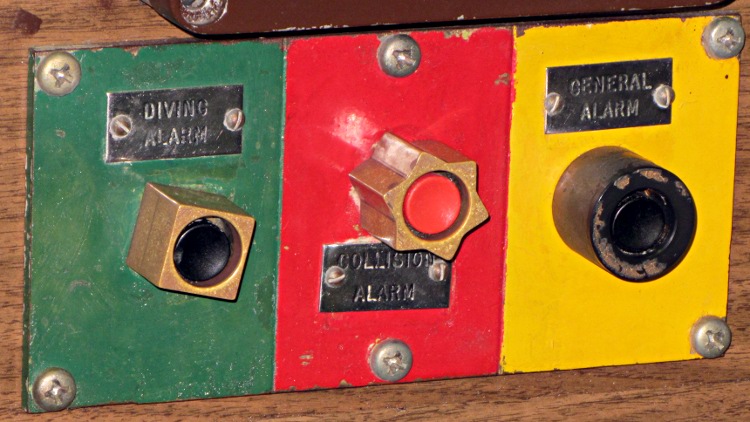
    Those aren’t alarm pushbuttons. These are alarm pushbuttons:

    Submarine Albacore - alarm pushbuttons
    Submarine Albacore – alarm pushbuttons

    They’re in the USS Albacore and obviously intended for use by someone in a hurry: the tactile shapes tell your fingers everything they need to know. If I understand the ship’s history, the Collision Alarm switch contacts closed only during tests, although they did have a close call with the sub towing the (unpowered) Albacore from the Philly boneyard to its final resting site.

    According to the information we saw, the control board was refitted / replaced / redone to remove classified hardware, so the woodgrain Formica background may not be original. On the other hand, this was a sub intended for extensive experimentation, so maybe they used a cheap and easily machined material.

    (Headfake to the Crocodile Dundee knife meme.)

  • Boott Cotton Mills Museum: Along the Line

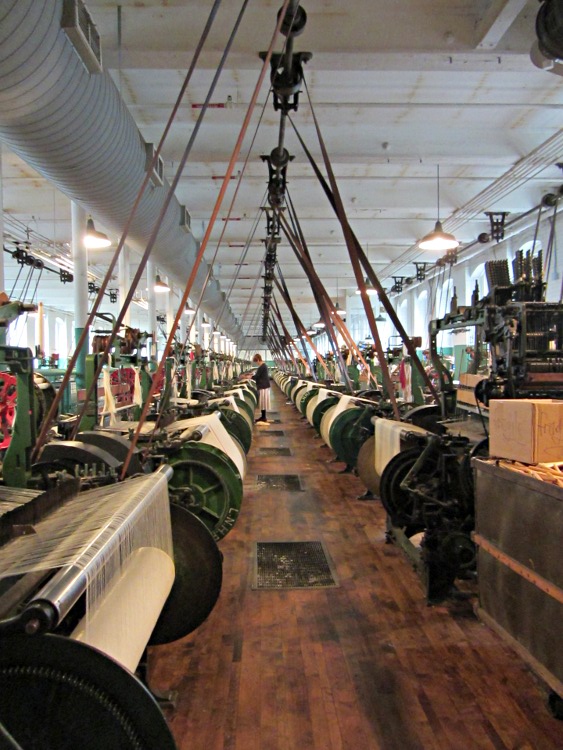
    We stopped at Lowell MA to visit the New England Quilt Museum (photography prohibited) and the Boott Cotton Mills Museum (photography encouraged). The NPS, among others, managed to salvage the buildings and restore some of the machinery, to the extent that one room on one floor of one building has some running cotton mills:

    Boott Cotton Mill Museum
    Boott Cotton Mill Museum

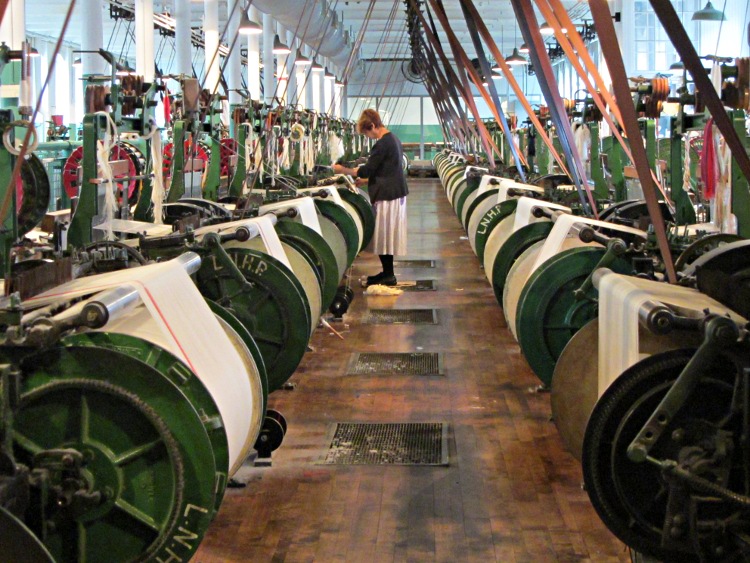
    A bit more detail:

    Boott Cotton Mill Museum - line detail
    Boott Cotton Mill Museum – line detail

    The original mills used water power, as did much of New England’s industry, but moments after Watt worked the bugs out of that newfangled steam engine, water power was history. The museum uses a huge old electric motor, mounted on the ceiling, to drive the line shafts above the mills; the vibration shakes the entire building and they hand out ear plugs at the door, despite having only half a dozen mills operating at any time. The working environment, horrific though it was, attracted employees (largely young women) from across the region; it was a better deal than they had on the family farm.

    Employees were, of course, prohibited from using cotton to plug their ears…

    They sell the cloth in the museum shop and we’ll eventually have some kitchen towels.

  • Xubuntu 12.04: Some Steps Forward, Some Steps Back

    The continuing saga of trying to run a Linux desktop with two monitors (one rotated in portrait mode), separate X sessions, two trackballs, and a Wacom graphics tablet continue with Xubuntu 12.04. KDE continues to not work quite right with dual monitors, Gnome seems to be dead in the water, Unity wants to be a touch-screen UI when it grows up, and Linux Mint introduces yet another not-quite-baked UI. The breathtaking churn in Linux infrastructure continues, rendering everything I’d figured out with respect to FDI / HAL / udev configuration lagely irrelevant.

    For lack of a better alternative, I’ve installed Xubuntu, which is now a deprecated (available, but unsupported) version of Ubuntu. Configuring separate X sessions on two monitors requires the proprietary nVidia driver. The XFCE display configurator falls over dead when confronted with two screens and the xrandr extension seems unworkable. Fortunately, I’d left a bit of commented-out cruft in the xorg.conf file that worked in Xubuntu 10.10 and could copy the whole file over with only one change:

    Section "Screen"
        Identifier     "Portrait"
        Device         "GF9400_1"
        Monitor        "Dell2005FP"
        DefaultDepth    24
        Option         "TwinView" "0"
        Option         "metamodes" "DFP-1: 1680x1050 +0+0"
        Option         "NoLogo" "Off"
    #    Option         "RandRRotation" "On"
        Option         "Rotate" "CCW"
        SubSection     "Display"
            Depth       24
        EndSubSection
    EndSection
    

    Configuring two trackballs with the XFCE utility remains surprisingly easy: the Kensington is left-handed and the Logitech is right-handed.

    Swapping buttons 2 and 3 on the Wacom stylus poses a bit more of a challenge. Doing it on a per-session basis seems straightforward:

    xsetwacom set "Wacom Graphire3 6x8 stylus" button 2 3
    xsetwacom set "Wacom Graphire3 6x8 stylus" button 3 2
    

    You’d put those into a script and tell XFCE to auto-run it when you sign in, but that doesn’t handle hotplugging. I don’t hotplug the tablet, but random static glitches knock the USB hub into a tailspin and cause the same effect, so I jammed the lines that used to be in xorg.conf into /usr/share/X11/xorg.conf.d/50-wacom.conf:

    Section "InputClass"
            Identifier "Wacom class"
            MatchProduct "Wacom|WACOM|Hanwang|PTK-540WL|ISD-V4"
            MatchDevicePath "/dev/input/event*"
            Driver "wacom"
            Option "Button2" "3"
            Option "Button3" "2"
    EndSection
    

    I’m certain there’s a different location for those that fits in with whatever the overall design might be these days, but I’m kinda tired of figuring this stuff out.

    The Wacom drivers in Ubuntu 12.04 no longer permit restricting the tablet’s range to a single X session (xsetwacom set ... MapToOutput "HEAD-0" assumes you’re using xinerama with a single X session across two monitors), which sprawls the tablet’s limited resolution across both screens and leaves a big unusable rectangle in the lower third of the left side. This is not progress in a positive direction, but there’s no workaround.

    That workaround for the upstart Pachinko machine also applies to this box. The minute-long pause while NFS hauls itself to its feet isn’t attractive: you see VT 1 with the bare white-on-black command-line login prompt, but if you actually log in, things get very ugly, very quickly.

    Restoring the usual verbose Unix-oid startup messages requires tweaking /etc/default/grub to set noquiet nosplash, then running update-grub.

    Search the blog with the obvious keywords to get my earlier posts on all these topics…

  • Tour Easy + BOB YAK Trailer = More Cargo Hauling

    A trailer load of 62 pounds of sweet potatoes from the Vassar Farms plot:

    Tour Easy - BOB Yak - sweet potatoes
    Tour Easy – BOB Yak – sweet potatoes

    Followed by 42 pounds of apples from Prospect Hill, a PYO orchard across the Hudson:

    Tour Easy - BOB Yak - with 42 pounds of apples
    Tour Easy – BOB Yak – with 42 pounds of apples

    Folks haul heavier loads than those across the continent and around the world, but … a dozen miles or so is enough for me!

    And, yes, those are rather large sweet potatoes. The biggest one, a Korean Purple, weighed 6 pounds:

    6 pound sweet potato
    6 pound sweet potato
  • Screwdriver Rack

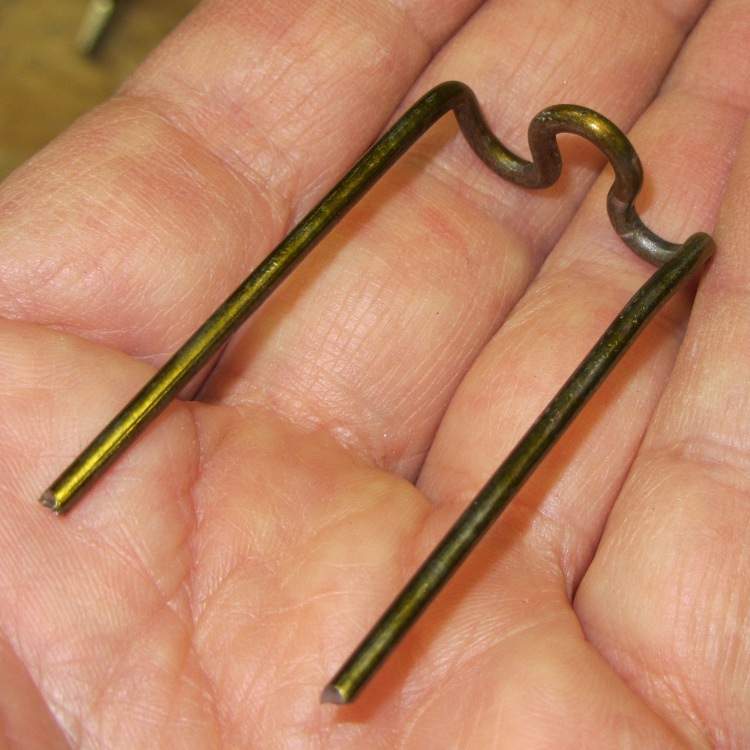
    A while back I picked up one of Harbor Freight’s cheap screwdrivers sets; the largest two drivers far exceed my simple needs, but the smaller screwdrivers work surprisingly well. I couldn’t figure out where to store the things, as they’re used often enough to remain ready to hand, while being too bulky for any of the drawers. Emboldened by my success with those shoe latch springs, I decided to bend some coat hanger wire into simple clips that grab the screwdrivers around their waists:

    Screwdriver clip - rear view
    Screwdriver clip – rear view

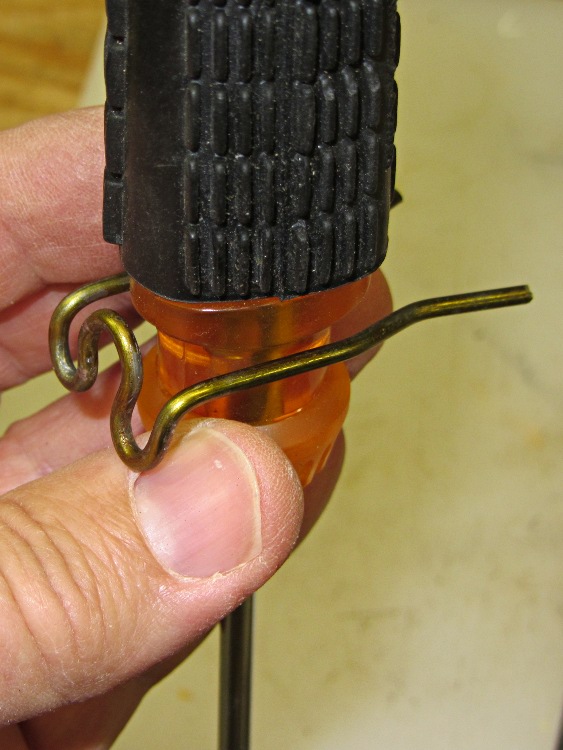
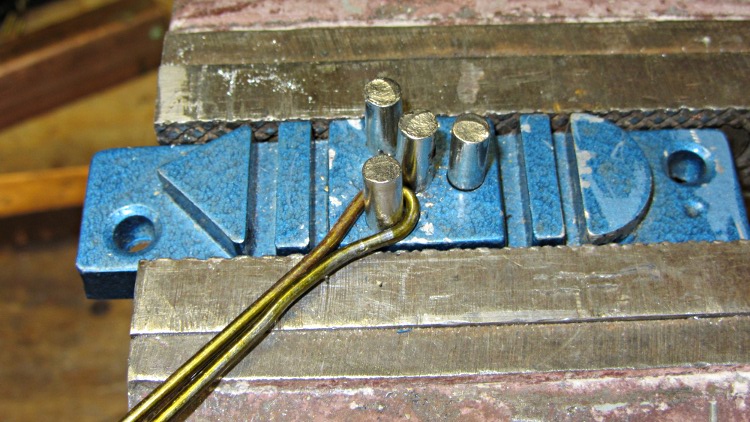
    The first step forms a loop where the mounting screw will go; squeezing the wire around the pin with pliers made a reasonably good imitation of a screw hole:

    Screwdriver clip - screw bend
    Screwdriver clip – screw bend

    The next two bends shape the wire to the arms; I eventually figured out that bending the wire ends to a mutual right angle worked out better than the acute angle you see here:

    Screwdriver clip - second bend
    Screwdriver clip – second bend

    Bending both wires at a right angle formed the arms:

     Screwdriver clip - arm bend
    Screwdriver clip – arm bend

    Two more bends in each arm finished off the clip:

    Screwdriver clip - entry bends
    Screwdriver clip – entry bends

    I chopped up a coat hanger with smaller diameter wire to make clips for the smallest screwdrivers with narrower handles.

    Repeat that a dozen times, drill pilot holes into a ready-to-use bit of scrap lumber, screw the clips with 3/4 inch flat-head screws, add four more holes on the right for finishing nails to hold the red screwdrivers (which have suitable holes in their handles), screw the whole affair to the bottom of the floor joist, and it’s all good:

    Screwdriver rack on floor joist
    Screwdriver rack on floor joist

    After running the first half dozen screws with great effort, I fetched the beeswax and the rest slid right into place.

    The larger driver handles stick up inconveniently far behind the fluorescent lamp fixture that’s barely visible along the top, but (I’m pretty sure) I won’t use those nearly enough for that to be a problem.

    I suppose I should dip the raw ends of the wires in goop to avoid harpooning myself; I think I’ll mostly handle the screwdrivers by their shafts, so maybe that won’t be a problem, either.

    Memo to Self: Use the beeswax!