The Smell of Molten Projects in the Morning

Ed Nisley's Blog: Shop notes, electronics, firmware, machinery, 3D printing, laser cuttery, and curiosities. Contents: 100% human thinking, 0% AI slop.

Author: Ed

  • MPCNC: USB Camera Mount

    The bCNC doc shows a camera mount made from acrylic and aluminum, but the MPCNC tool carrier lacks anywhere to secure such a thing. The camera should be reasonably close to the spindle axis, high enough to clear the work, and stable enough to hold its alignment. There’s a tiny flat spot next to the outer-lower Z-axis bearing supports (along the bottom of the picture), so that’s where it must go:

    MPCNC - Central Assembly - detail
    MPCNC – Central Assembly – detail

    At least for now, anyway.

    The USB camera originally mounted on a spring clip, with a 10 mm ball at the end of a 6 mm OD × 6 mm long stalk. Because we live in the future, building a matching ball socket isn’t particularly difficult:

    MPCNC - USB Camera mount - Slic3r
    MPCNC – USB Camera mount – Slic3r

    3D printing FTW!

    The stalk opening slants downward by 5°, because the camera PCB isn’t quite aligned with the stalk and I couldn’t get the first version to aim the lens directly downward.

    A pair of brass inserts anchor the two M3 SHCS. The clamping force seems barely adequate to the task, but I’ll wait to see what else I don’t like before complexicating the situation.

    A square of Genuine 3M sticky foam tape holds the mount to the MPCNC beside the DeWalt DW660 spindle:
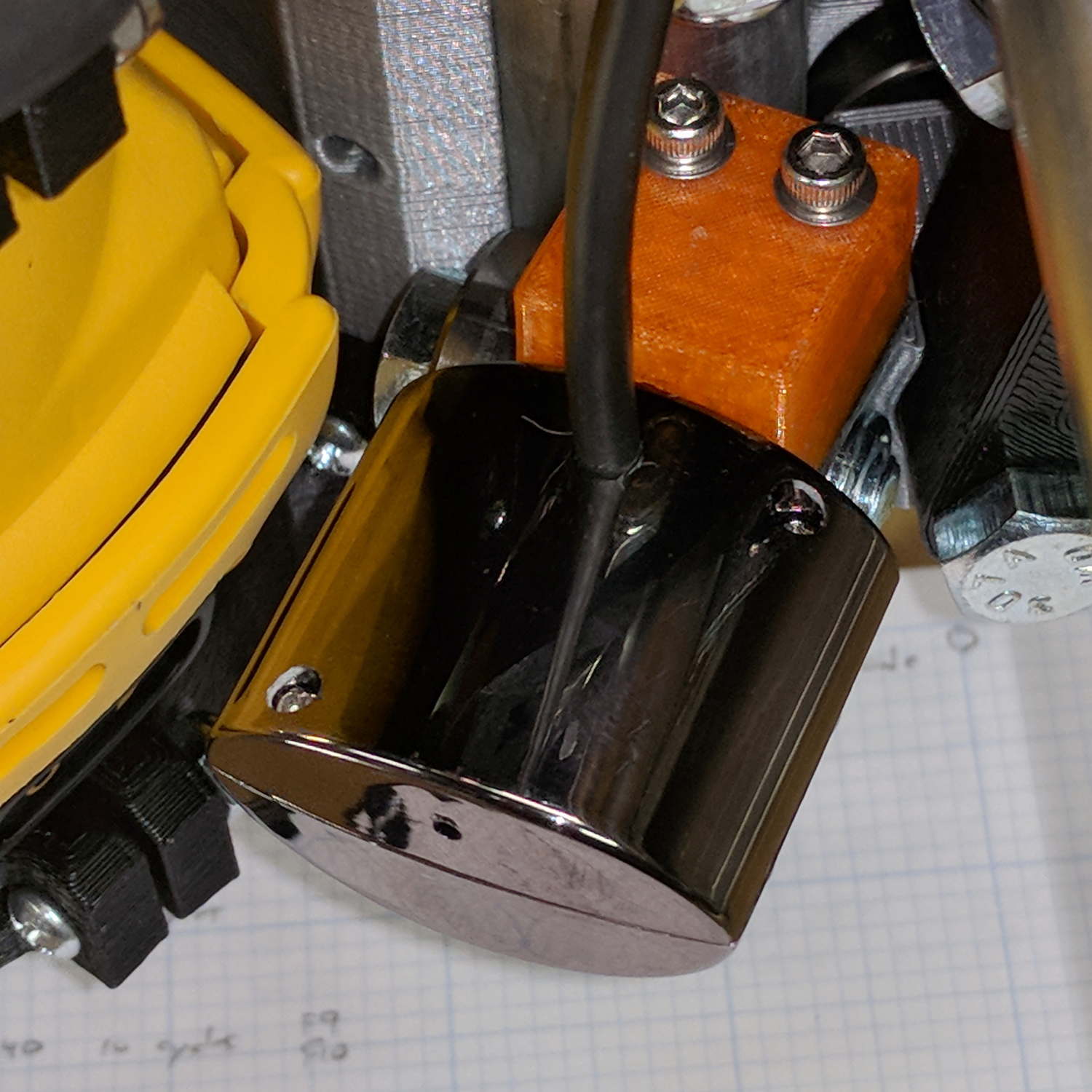
    MPCNC USB Camera - installed
    MPCNC USB Camera – installed

    The MPCNC bearing bracket doesn’t provide much surface area for the foam and it’s a bit more flexy than I’d like, but good practice probably requires verifying the spindle-to-camera offset before trusting the results, so we’ll see how it works.

    The initial camera alignment consists of putting a mirror flat on the (pretty much level) platform:

    MPCNC USB Camera - mirror alignment
    MPCNC USB Camera – mirror alignment

    Then you adjust the camera so its lens looks squarely at itself in the middle of the image:
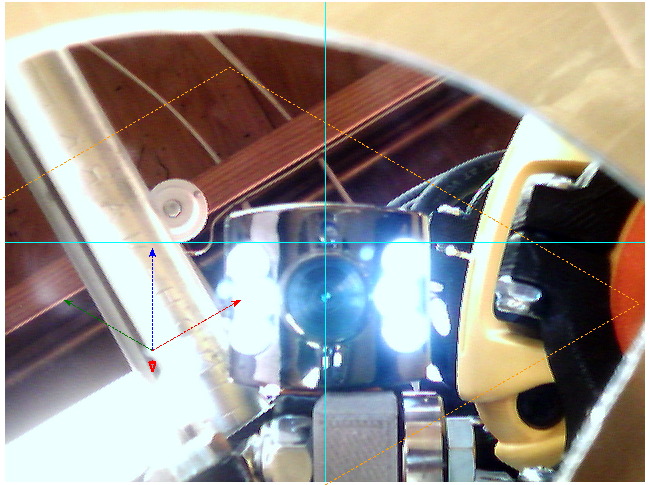
    bCNC - Camera - Mirror Alignment - first mount
    bCNC – Camera – Mirror Alignment – first mount

    The picture shows the camera aligned left-to-right (because the ball can rotate around the shaft axis), but the first mount didn’t allow the stalk to have enough downward tilt to center the lens image on the horizontal crosshair, thus the -5° tilt appearing in the second version.

    With the camera lens centered on its reflection, you know the optical axis is perpendicular to the mirror. Because the mirror is flat on the bench, the optical axis must be perpendicular to the bench, which is parallel to the XY plane. Because we assume the MPCNC Z-axis moves perpendicular to the bench = XY plane, the distance between the spindle axis and the camera axis will remain constant, regardless of the Z-axis position.

    Seems workable to me.

    The OpenSCAD program as a GitHub Gist:

    // MPCNC USB Camera Mount
    // Ed Nisley KE4ZNU – 2018-02-16
    Layout = "Build"; // Build, Show, Mount
    /* [Extrusion] */
    ThreadThick = 0.25; // [0.20, 0.25]
    ThreadWidth = 0.40; // [0.40]
    /* [Hidden] */
    Protrusion = 0.1; // [0.01, 0.1]
    HoleWindage = 0.2;
    inch = 25.4;
    function IntegerMultiple(Size,Unit) = Unit * ceil(Size / Unit);
    ID = 0;
    OD = 1;
    LENGTH = 2;
    //- Adjust hole diameter to make the size come out right
    module PolyCyl(Dia,Height,ForceSides=0) { // based on nophead's polyholes
    Sides = (ForceSides != 0) ? ForceSides : (ceil(Dia) + 2);
    FixDia = Dia / cos(180/Sides);
    cylinder(r=(FixDia + HoleWindage)/2,h=Height,$fn=Sides);
    }
    //- Dimensions
    CameraStalk = [6.0 + 1.0,10.0 + HoleWindage,4.0]; // stalk OD, ball OD, stalk length
    CameraAngle = -5; // stalk tilt, negative = downward
    MountBlock = [24.0,20.0,CameraStalk[OD] + 7.0]; // cube to hold ball, stick to MPCNC frame
    Insert = [3.0,4.4,4.5]; // brass insert
    NumSides = 6*4;
    //—–
    // Define shapes
    // Camera mount, enlongated for E-Z differencing
    // Origin at center of ball, stalk along +X
    module Camera() {
    union() {
    sphere(d=CameraStalk[OD] + HoleWindage,$fn=NumSides);
    rotate([0,90 – CameraAngle,0])
    PolyCyl(CameraStalk[ID],3*CameraStalk[LENGTH],NumSides);
    }
    }
    module Mount(Half="All") {
    Rounding = 2.0;
    ZShift =
    (Half == "Upper") ? -MountBlock.z/2 :
    (Half == "Lower") ? MountBlock.z/2 :
    2*MountBlock.z;
    difference() {
    hull()
    for (i=[-1,1], j=[-1,1], k=[-1,1])
    translate([i*(MountBlock.x – Rounding)/2,j*(MountBlock.y – Rounding)/2,k*(MountBlock.z – Rounding)/2])
    sphere(d=Rounding,$fn=3*4);
    for (j=[-1,1])
    translate([-MountBlock.x/4,j*MountBlock.y/4,-(MountBlock.z/2 + Protrusion)]) {
    PolyCyl(Insert[OD],Insert[LENGTH] + Protrusion,6);
    PolyCyl(Insert[ID],2*MountBlock.z,6);
    }
    translate([MountBlock.x/2 – (CameraStalk[OD]/2 + CameraStalk[LENGTH]),0,0])
    Camera();
    translate([0,0,ZShift])
    cube([2*MountBlock.x,2*MountBlock.y,MountBlock.z],center=true);
    }
    }
    //—–
    // Build it
    if (Layout == "Mount")
    Mount();
    if (Layout == "Show")
    Mount();
    if (Layout == "Build") {
    translate([0,0.75*MountBlock.y,MountBlock.z/2])
    rotate([180,0,0])
    Mount("Upper");
    translate([0,-0.75*MountBlock.y,MountBlock.z/2])
    rotate([0,0,0])
    Mount("Lower");}
  • USB Camera Re-Cabling

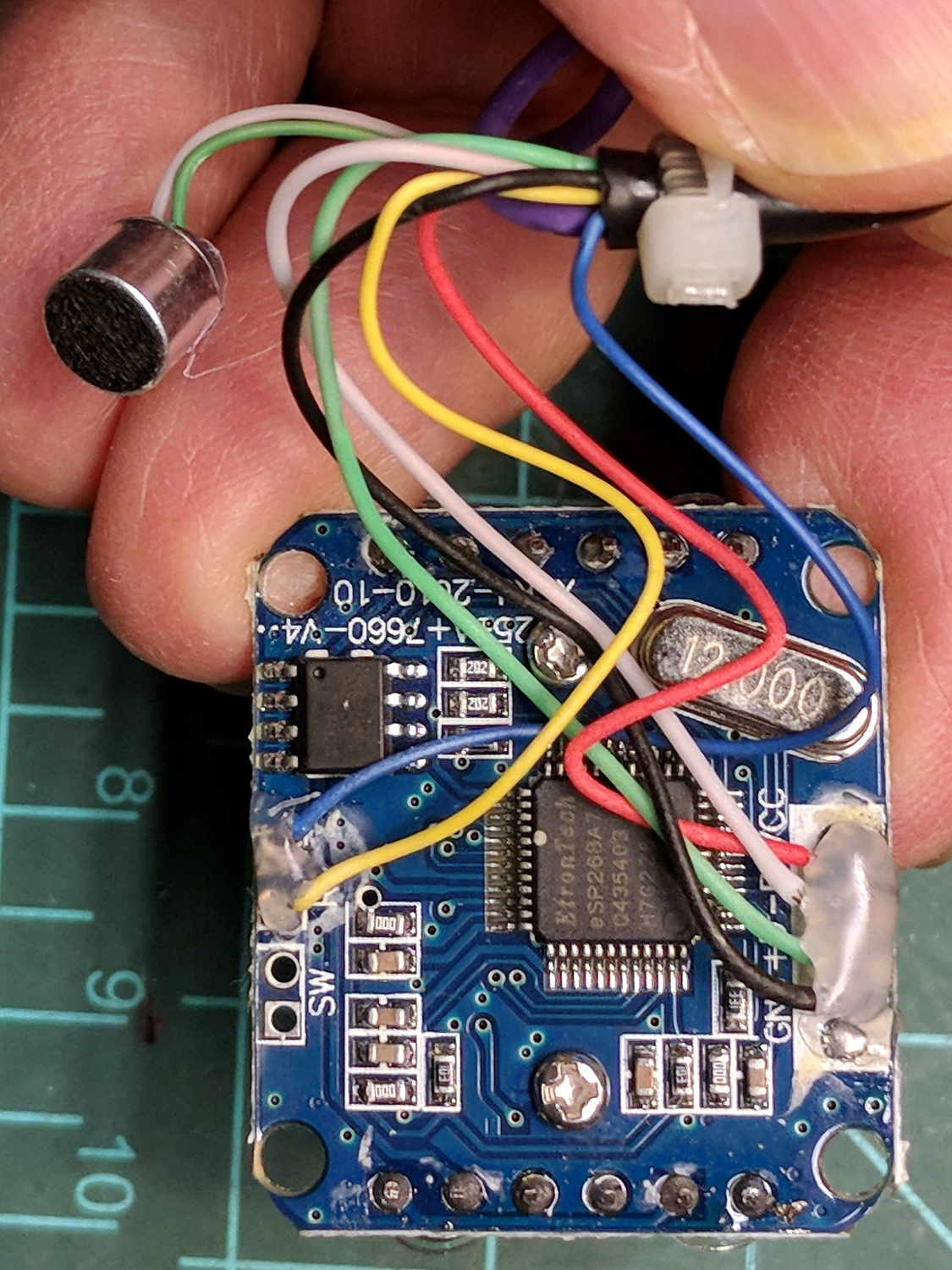
    The bCNC doc shows how to use a USB camera for XY alignment and I want to try it out. The Box o’ USB Cameras emitted a likely candidate with a focusing lens, six (!) white LEDs, and a ball mount attached to an aggressive spring clip, but its thick USB cable included a lumpy brightness pot for the LEDs and sprouted a mic plug (apparently, it predated cheap USB audio):

    USB Camera - OEM wiring
    USB Camera – OEM wiring

    The Box o’ USB Cables emitted a surprisingly long cable amputated from some random hunk of consumer electronics.

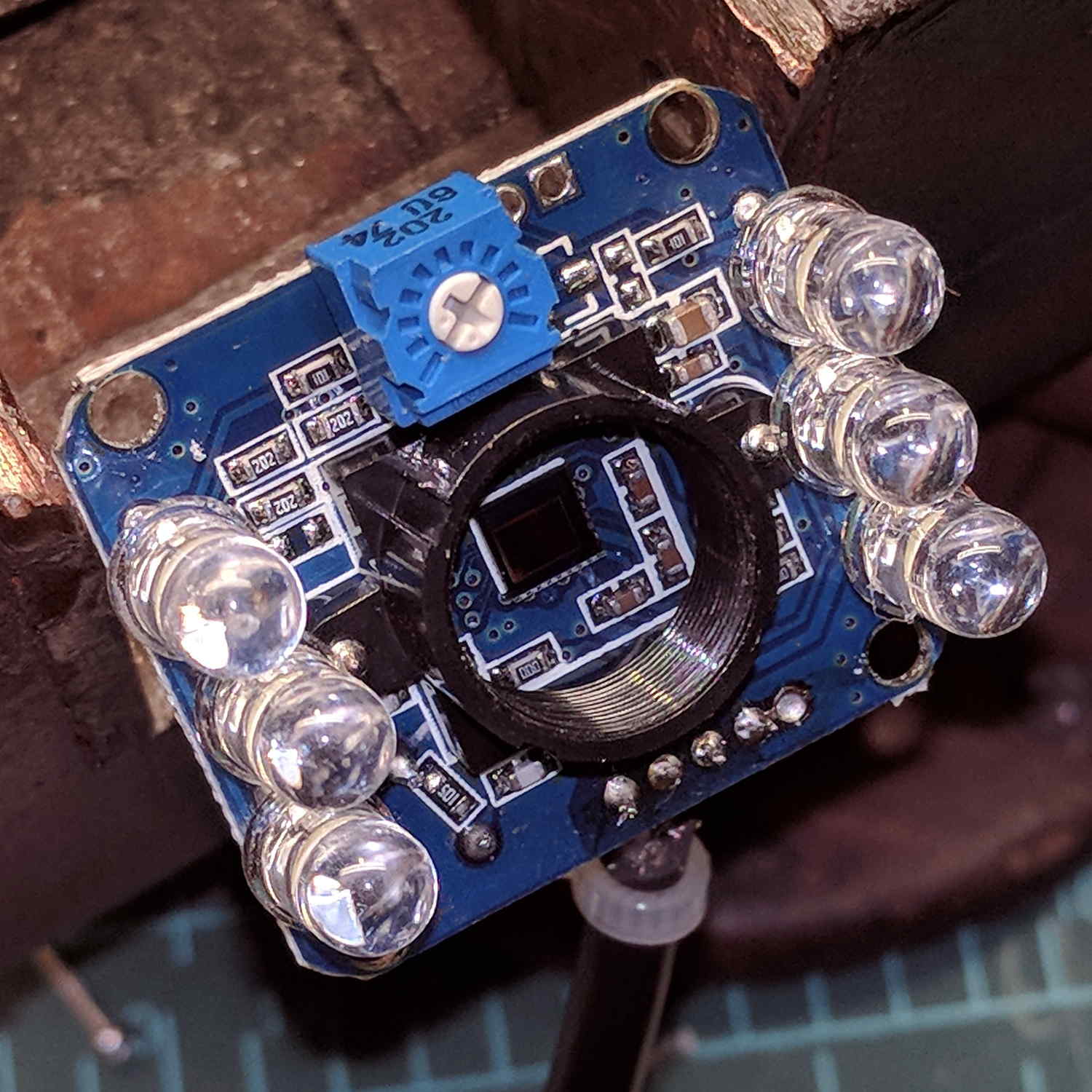
    The LED brightness won’t need much adjustment after the first few minutes. I found a little 2 kΩ trimpot to fit the PCB holes:

    USB Camera - inside - brightness pot
    USB Camera – inside – brightness pot

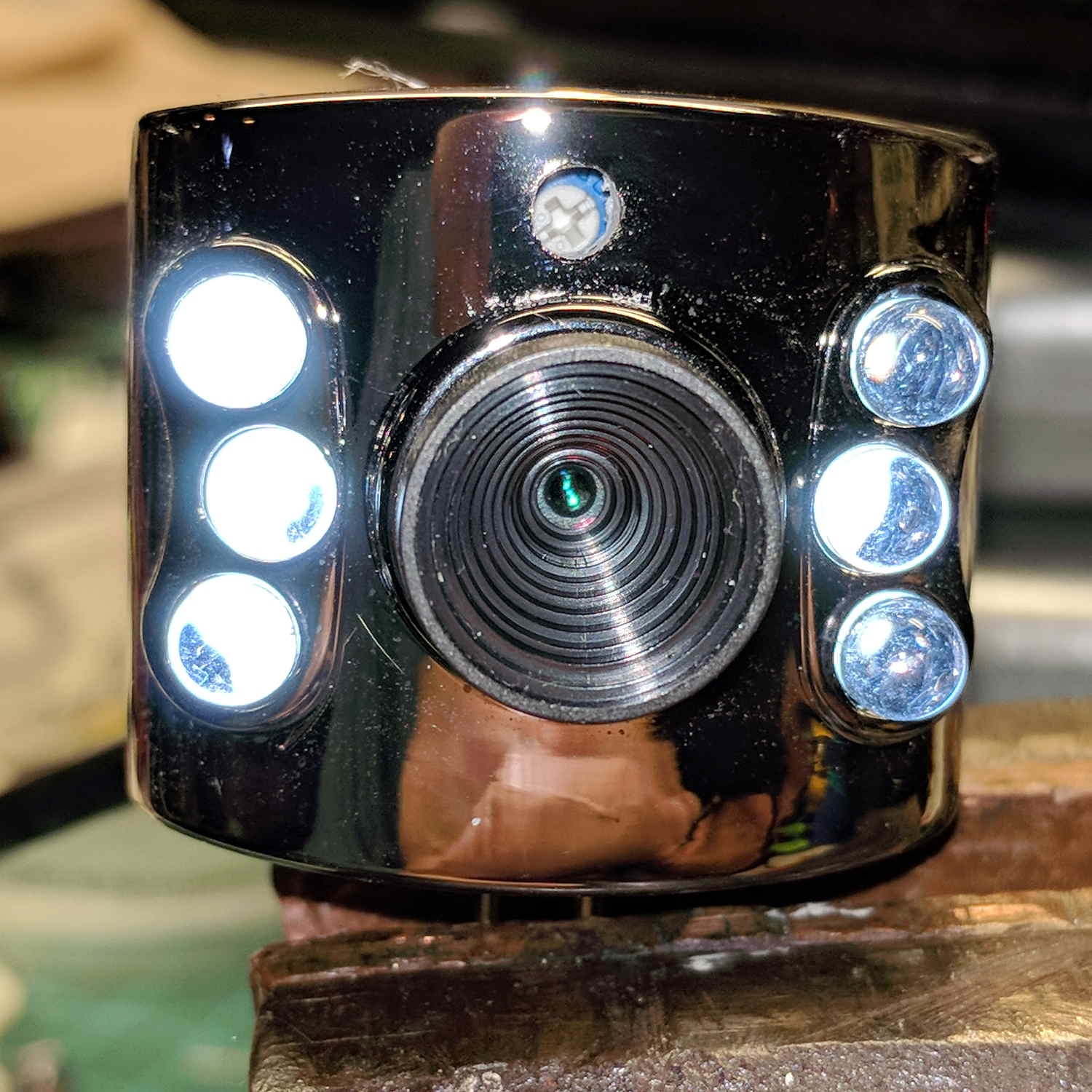
    Miracle of miracles, the dial ended up almost centered behind the original mic pore. A few minutes of gentle filing embiggened the pore and moved it over the trimpot:

    USB Camera - front with brightness pot
    USB Camera – front with brightness pot

    Yeah, the hole may need a plug or tape to keep the dust out, but there’s an even bigger gap around the lens.

    It produces a 640×480 picture with pretty much the expected quality, which should suffice for its intended purpose.

    Next step: stick it somewhere on the MPCNC.

  • MPCNC – Autolevel Probe, Collet Edition

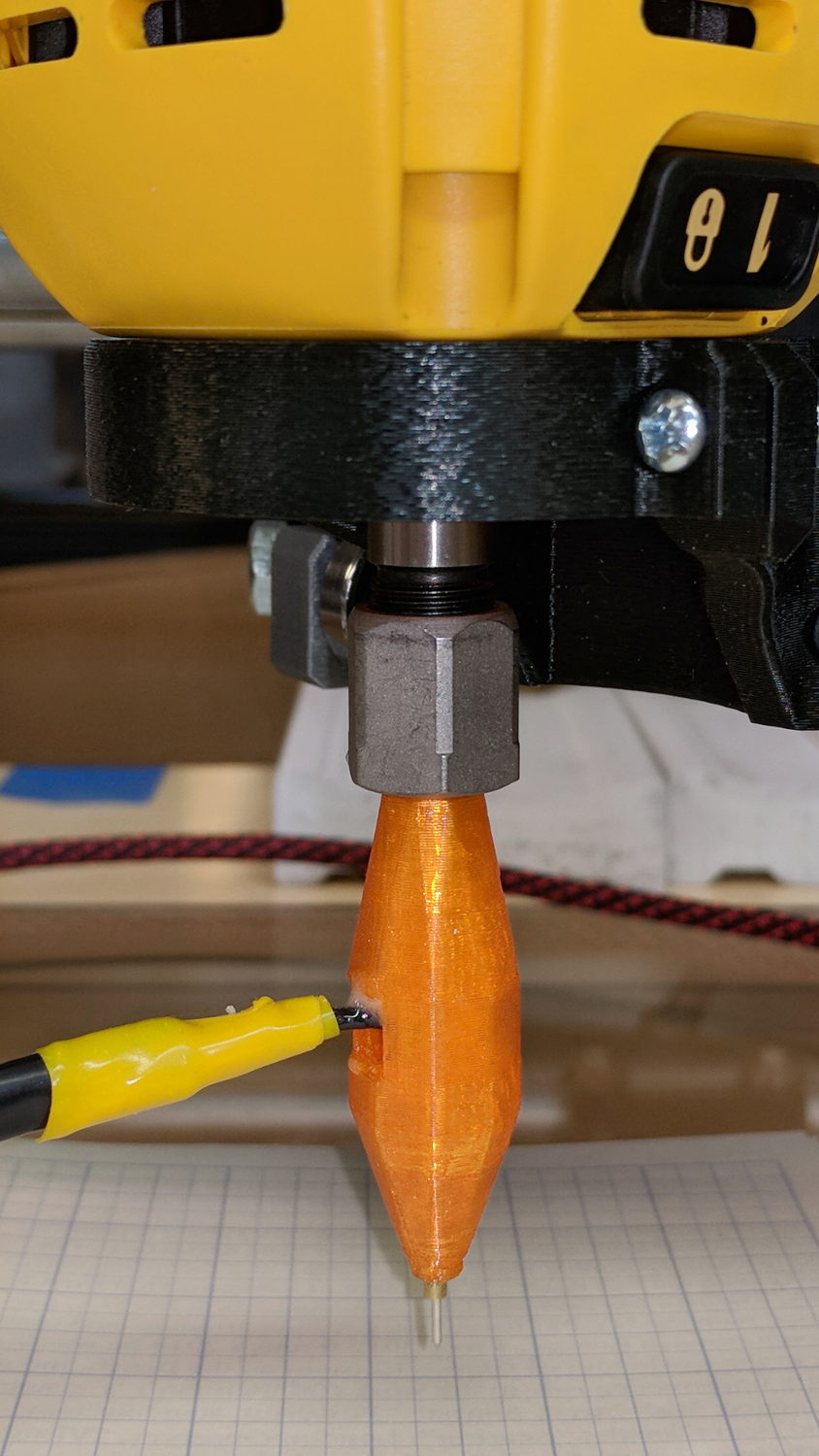
    Although putting a Z-axis height probe in a rigid pen holder worked well enough, it’d be handy to have a probe with a stud suitable for clamping in the DW660 spindle (with the power off!):

    MPCNC - Z probe - DW660 - 0.25 collet
    MPCNC – Z probe – DW660 – 0.25 collet

    Inside, it uses the same pushbutton and pogo pin as the pen holder design, with a similar brass tube around the pogo pin.

    There’s a conspicuous lack of good wire management; we all know where those wires will snap. In practice, you’d secure it to the DW660 power cord, way up on top, to eliminate most of the flexing. Still, it wants better strain relief than its gets from those heatstink tubes.

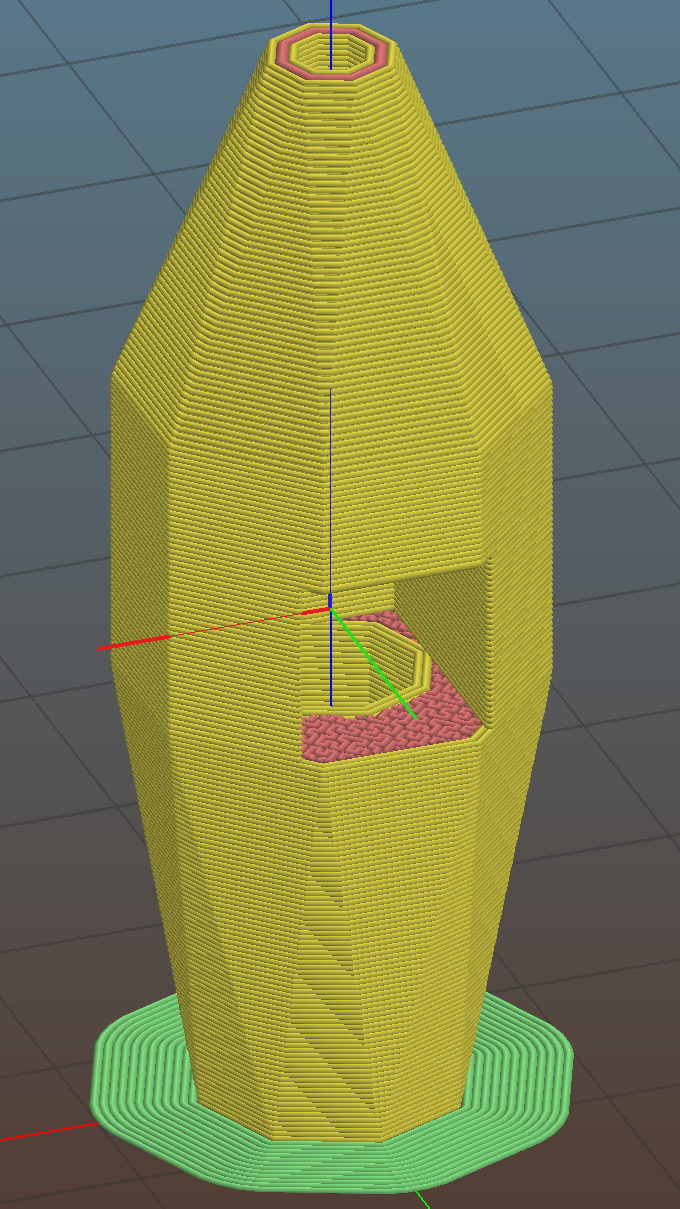
    The solid model looks like a weaving shuttle:

    MPCNC - Autolevel probe - collet - Slic3r preview
    MPCNC – Autolevel probe – collet – Slic3r preview

    It’s sitting upside-down in a 5 mm brim for more platform adhesion.

    The next one will have a 1/8 inch stud to fit the DW660’s other collet and shorten the top by 3/8 inch, because I want the rod inserted three diameters for stability. The bottom can’t get much shorter, because the pogo pin determines the switch-to-tip distance. Maybe a simple membrane switch will work well enough?

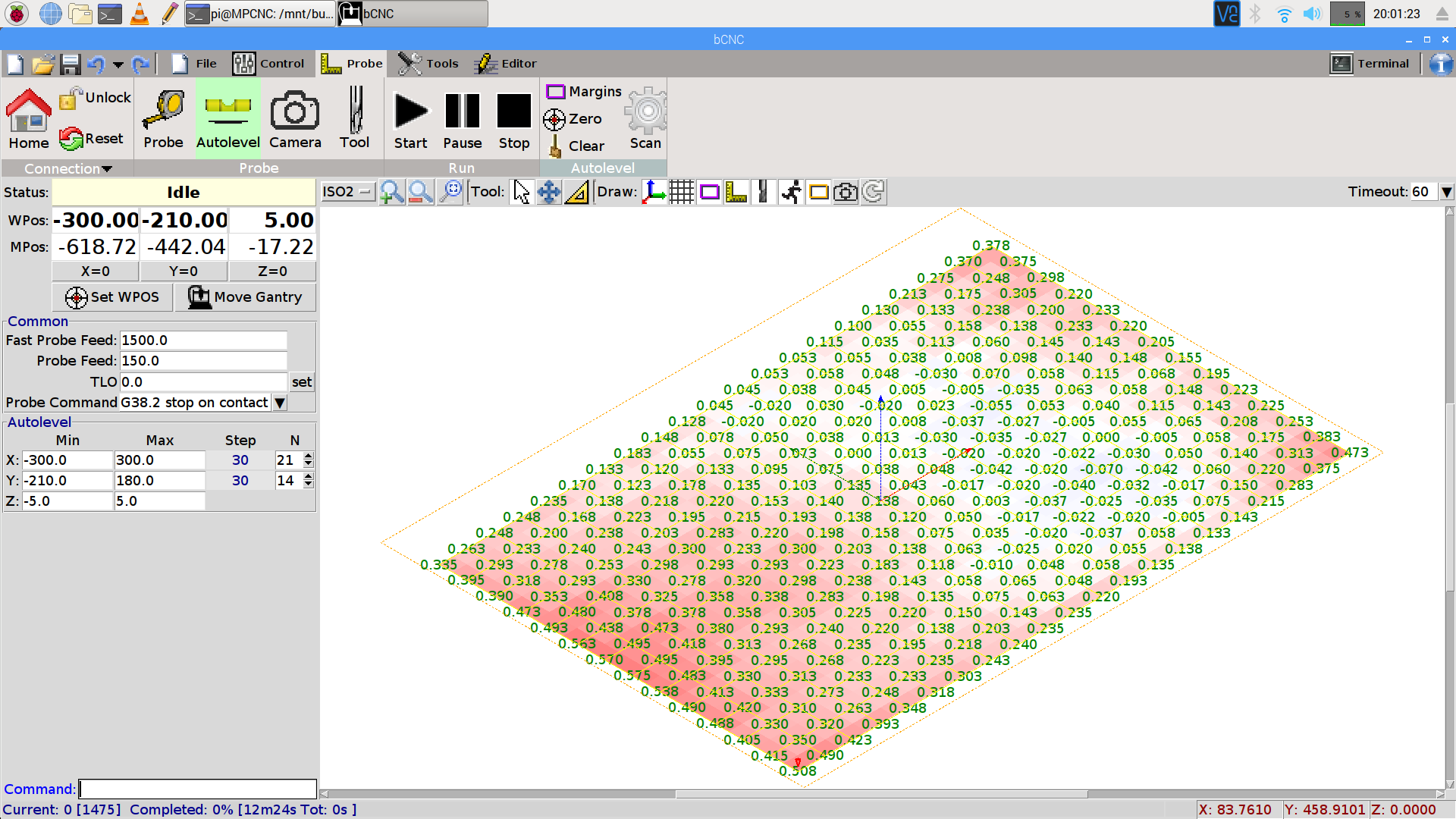
    You can see the depression in the glass sheet pretty clearly in a bCNC Autolevel scan on 30 mm centers (clicky for more dots):

    bCNC - Probe Array - 600x390 30 mm OC - ISO2
    bCNC – Probe Array – 600×390 30 mm OC – ISO2

    The OpenSCAD source code as a GitHub Gist:

    // MPCNC Z Axis Height Probe for router collet
    // Ed Nisley KE4ZNU – 2018-02-14
    Layout = "Build"; // Build, Show
    Section = false;
    /* [Extrusion] */
    ThreadThick = 0.25; // [0.20, 0.25]
    ThreadWidth = 0.40; // [0.40]
    /* [Hidden] */
    Protrusion = 0.1; // [0.01, 0.1]
    HoleWindage = 0.2;
    inch = 25.4;
    function IntegerMultiple(Size,Unit) = Unit * ceil(Size / Unit);
    ID = 0;
    OD = 1;
    LENGTH = 2;
    //- Adjust hole diameter to make the size come out right
    module PolyCyl(Dia,Height,ForceSides=0) { // based on nophead's polyholes
    Sides = (ForceSides != 0) ? ForceSides : (ceil(Dia) + 2);
    FixDia = Dia / cos(180/Sides);
    cylinder(r=(FixDia + HoleWindage)/2,h=Height,$fn=Sides);
    }
    /* [Switch] */
    SwitchBody = [7.8,6.8,7.0]; // PCB mount hardware extends infinitely to +Y
    SwitchButton = [3.5,5.0,1.0]; // OD allows some clearance
    SwitchClear = 5.0; // room for pad atop probe rod
    SwitchZ = SwitchBody.z + SwitchButton.z + SwitchClear;
    Sleeve = [1.5,2.5,15.0]; // tube around pogo pin
    ShankOD = 0.25 * inch; // rod into tool collet
    /* [Hidden] */
    WallThick = 3.0; // basic wall & floor thickness
    ProbeBody = [Sleeve[OD],
    2*WallThick + sqrt(pow(SwitchBody.x,2) + pow(SwitchBody.y,2)),
    3*ShankOD + SwitchZ + Sleeve[LENGTH]];
    echo(str("Probe Body: ",ProbeBody));
    NumSides = 2*4;
    //—–
    // Define shapes
    module Switch() {
    union() {
    translate([0,0,SwitchBody.z/2])
    cube(SwitchBody,center=true);
    translate([0,ProbeBody[OD]/2 – SwitchBody.y/2,(SwitchBody.z + SwitchButton.z)/2])
    cube([SwitchBody.x,ProbeBody[OD],SwitchBody.z + SwitchButton[LENGTH]],center=true);
    translate([0,0,SwitchBody.z])
    PolyCyl(SwitchButton[OD],SwitchButton[LENGTH] + SwitchClear,6);
    }
    }
    module ProbeHolder() {
    difference() {
    hull() {
    PolyCyl(Sleeve[OD] + 6*ThreadWidth,Protrusion,NumSides);
    translate([0,0,Sleeve.z])
    rotate(180/8)
    PolyCyl(ProbeBody[OD],SwitchZ,NumSides);
    translate([0,0,Sleeve.z + SwitchZ + 3*ShankOD – Protrusion])
    PolyCyl(ShankOD + 10*ThreadWidth,Protrusion,NumSides);
    }
    translate([0,0,SwitchZ + Sleeve[LENGTH]])
    rotate([0,180,0])
    Switch();
    translate([0,0,-Protrusion])
    PolyCyl(Sleeve[OD],Sleeve[LENGTH] + 2*Protrusion,NumSides);
    translate([0,0,Sleeve.z + SwitchZ – Protrusion])
    PolyCyl(ShankOD,3*ShankOD + 2*Protrusion,NumSides);
    if (Section)
    translate([ProbeBody[OD]/2,0,ProbeBody[LENGTH]/2])
    cube([ProbeBody[OD],2*ProbeBody[OD],ProbeBody[LENGTH] + 2*Protrusion],center=true);
    }
    }
    //—–
    // Build it
    if (Layout == "Show")
    ProbeHolder();
    if (Layout == "Build") {
    translate([0,0,ProbeBody.z])
    rotate([0,180,0])
    ProbeHolder();
    }
  • Streaming Radio Player: OLED Garble

    Even in the dim light of dawn, it’s obvious slowing the SPI clock to 1 MHz didn’t quite solve the problem:

    RPi OLED display - garbled
    RPi OLED display – garbled

    The display started up fine, became encrypted during the next few hours, and remained garbled as the track information changed. This is almost certainly a bad SPI transfer trashing the OLED module’s control registers.

    Dropping the clock to the absolute minimum of 0.5 MHz didn’t help, either:

    serial = spi(device=0,port=0,bus_speed_hz=500000)
    device = sh1106(serial)
    

    This particular display woke up blank after loading the new code, then worked OK after another reset. The other streamers lit up as expected on the first try, so the slower SPI isn’t making the situation instantly worse.

    Running the clock at 1 MHz definitely reduced the failure rate, which suggests it’s a glitchy thing.

    Good embedded systems practice suggests resetting the entire display from scratch every now and again, but my streamer code has no concept of elapsed time. Opening that particular can o’ worms would almost certainly result in an on-screen clock and I do not want to go there.

    I suppose I must get a new oscilloscope with SPI bus decoding to verify all the SPI setup and hold times …

  • Quilting Ruler Pivot Pin Sharpening

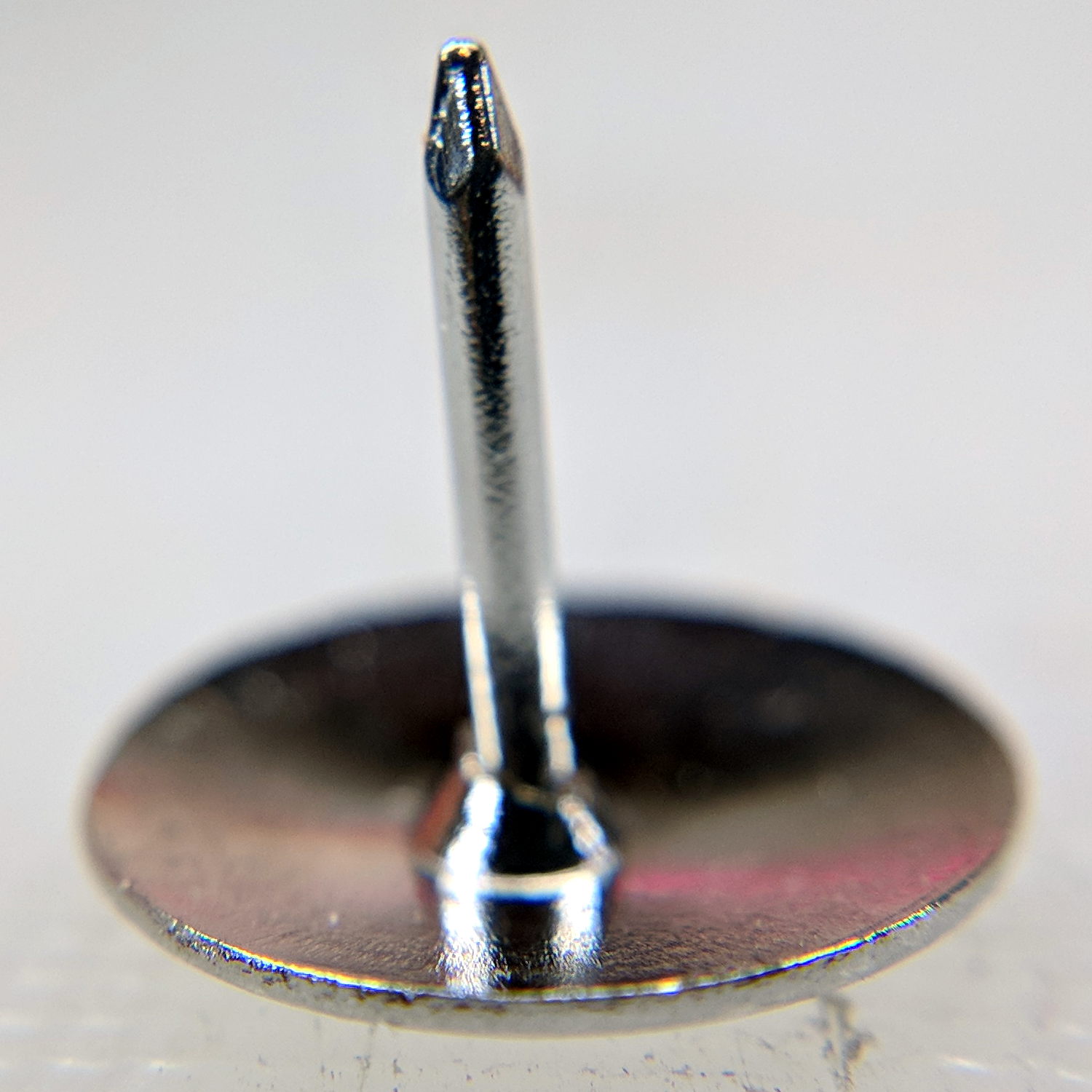
    Mary mentioned the pivot pin supplied with a quilting ruler tended to hang up on the layers of fabric and batting in the quilt squares she’s been making. A quick look showed the pin bore a remarkable resemblance to an ordinary thumb tack:

    Ruler Quilting Pivot Pin - as delivered
    Ruler Quilting Pivot Pin – as delivered

    I reset the pin shaft perpendicular to the head, grabbed a small brass tube in the lathe tailstock, inserted pin in tube, grabbed the head in the chuck, ignored a slight radial offset, and attacked the pin with fine files and sandpaper:

    Ruler Quilting Pivot Pin - sharpened
    Ruler Quilting Pivot Pin – sharpened

    The lathe chuck seemed the easiest way to firmly hold the head; I rotated the chuck by hand while filing.

    Most of the remaining scratches go mostly parallel to the pin, but it really didn’t work much better than before. We decided polishing the pin wouldn’t improve the situation enough to make it worthwhile.

    That’s the difference between sharp and keen, which cropped up with the cheap ceramic knife from a while ago. The point may penetrate the fabric, but the shaft can’t get through the tight weave.

    She’s now using a scary thin and pointy embroidery pin, having successfully rebuffed my offer to mount it in a suitable base.

  • Suet Feeder Temporary Fix

    The neighborhood raccoons made off with our steel-cage suet feeder, leaving a dangling chain, several puzzled woodpeckers, and a potential gap in Mary’s FeederWatch data. A quick Thingiverse search turned up a likely candidate and a few hours of 3D printing produced a replacement:

    3D printed suet feeder
    3D printed suet feeder

    The cheerful party colors just sort of happened after I realized orange wasn’t the new steel.

    I bandsawed the top plate from an acrylic sheet, rather than devote several hours to printing a simple disk with two slots. Said slots came from a bit of freehand work with the drill press, a step drill bit, and a nasty carbide milling bur(r).

    The loops holding the chains won’t last for long, as hairy and red-bellied woodpeckers land with thump.

    It hangs from the stub of a former ski pole, loosely secured to the bracket holding the former feeder, and extending another two feet over the abyss beyond the patio. I doubt the raccoons will remain daunted for long, but maybe they’ll catch a heart attack when it collapses.

  • Kinesis Freestyle2 Keyboard: Linux Fix

    Someone who found my original post about the Freestyle2’s dysfunctional media keys came up with a fix: https://github.com/whereswaldon/kfreestyle2d.

    Kinesis Freestyle2 Media Keys
    Kinesis Freestyle2 Media Keys

    Some notes for the next time this comes up:

    After doing sudo modprobe uinput, lsmod | grep uinp returns nothing at all (Xubuntu 16.04), but evtest seems perfectly happy:

    sudo evtest /dev/input/event17
    Input driver version is 1.0.1
    Input device ID: bus 0x3 vendor 0x58f product 0x9410 version 0x0
    Input device name: "KB800 Kinesis Freestyle"
    Supported events:
      Event type 0 (EV_SYN)
      Event type 1 (EV_KEY)
        Event code 113 (KEY_MUTE)
        Event code 114 (KEY_VOLUMEDOWN)
        Event code 115 (KEY_VOLUMEUP)
        Event code 140 (KEY_CALC)
    Properties:
    Testing ... (interrupt to exit)
    Event: time 1518199358.454619, type 1 (EV_KEY), code 113 (KEY_MUTE), value 1
    Event: time 1518199358.454619, -------------- SYN_REPORT ------------
    Event: time 1518199358.454638, type 1 (EV_KEY), code 113 (KEY_MUTE), value 0
    Event: time 1518199358.454638, -------------- SYN_REPORT ------------
    Event: time 1518199361.014681, type 1 (EV_KEY), code 114 (KEY_VOLUMEDOWN), value 1
    Event: time 1518199361.014681, -------------- SYN_REPORT ------------
    Event: time 1518199361.014699, type 1 (EV_KEY), code 114 (KEY_VOLUMEDOWN), value 0
    Event: time 1518199361.014699, -------------- SYN_REPORT ------------
    Event: time 1518199361.654701, type 1 (EV_KEY), code 115 (KEY_VOLUMEUP), value 1
    Event: time 1518199361.654701, -------------- SYN_REPORT ------------
    Event: time 1518199361.654721, type 1 (EV_KEY), code 115 (KEY_VOLUMEUP), value 0
    Event: time 1518199361.654721, -------------- SYN_REPORT ------------
    Event: time 1518199362.294715, type 1 (EV_KEY), code 140 (KEY_CALC), value 1
    Event: time 1518199362.294715, -------------- SYN_REPORT ------------
    Event: time 1518199362.294733, type 1 (EV_KEY), code 140 (KEY_CALC), value 0
    Event: time 1518199362.294733, -------------- SYN_REPORT ------------
    

    And the keys work without any special configuration on my part. Apparently they’re already built into XFCE, despite the sound keys not showing up in the Keyboard Shortcuts control panel where you assign programs to keys.

    This is wonderful work!

    I’ve never seen so many calculators before! Oops.

    There should be some udev-rule-ish way to automagically figure out which /dev/hidraw? device to use and symlink to a suitable alias, so the program could use it without knowing the actual device. A casual search turns up:

    https://unix.stackexchange.com/questions/105144/udev-rule-for-assigning-known-symlinks-for-identical-usb-serial-devices#105218

    With which I’d produce /dev/input/kinesis0 and kinesis1, then use:

    /home/ed/bin/kinesis/kfreestyle2d /dev/input/kinesis1
    

    If only the Kinesis Fn key was momentary, rather than a push-on / push-off toggle. Le sigh. I can cope.