Ed Nisley's Blog: Shop notes, electronics, firmware, machinery, 3D printing, laser cuttery, and curiosities. Contents: 100% human thinking, 0% AI slop.
Tag: Thing-O-Matic
Using and tweaking a Makerbot Thing-O-Matic 3D printer
Having just tightened the teeny screws that hold the joints in place for the first time since I glued it to the helmet, I’d say it’s working fine. The 2-56 elevation setscrew has worn a slight dent in the arc and the 3-48 azimuth screw worked slightly loose; the mirror didn’t fall apart, but the position wasn’t as stable as it should be.
If I ever re-do the design, I’ll try adding a recessed metal (brass?) strip along the top of that arc, as that’s the most finicky adjustment. Perhaps a shoe under the setscrew would be better?
Two years of road grit show up clearly against the yellow plastic, though:
Bike helmet mirror mount – two years
For the record, those 2-56 setscrews require 35 mil hex keys; as Eks reminds me, any design requiring those screws is just crazy talk.
[Update: The talk went well and took a bit under three hours, although by mutual agreement we didn’t fire up the M2 at the end. I’ll work on a short talk about Design for Printability and we’ll run that with a separate printing session. A good time was had by all!]
The cutter is still attached to the raft that, it seems, is required for passable results on the Afinia’s platform.
Having already figured out how to wrap a cutter around a shape, the most straightforward procedure starts by extracting the cutter’s shape. So, lay the cutter face down on the scanner and pull an image into GIMP:
Afinia Robot – scan
Blow out the contrast to eliminate the background clutter, then posterize to eliminate shadings:
Afinia Robot – scan enhanced
Select the black interior region, grow the selection by a pixel or two, then shrink it back to eliminate (most of) the edge granularity, plunk it into a new image, and fill with black:
Afinia Robot – scan filled
Now the magic happens…
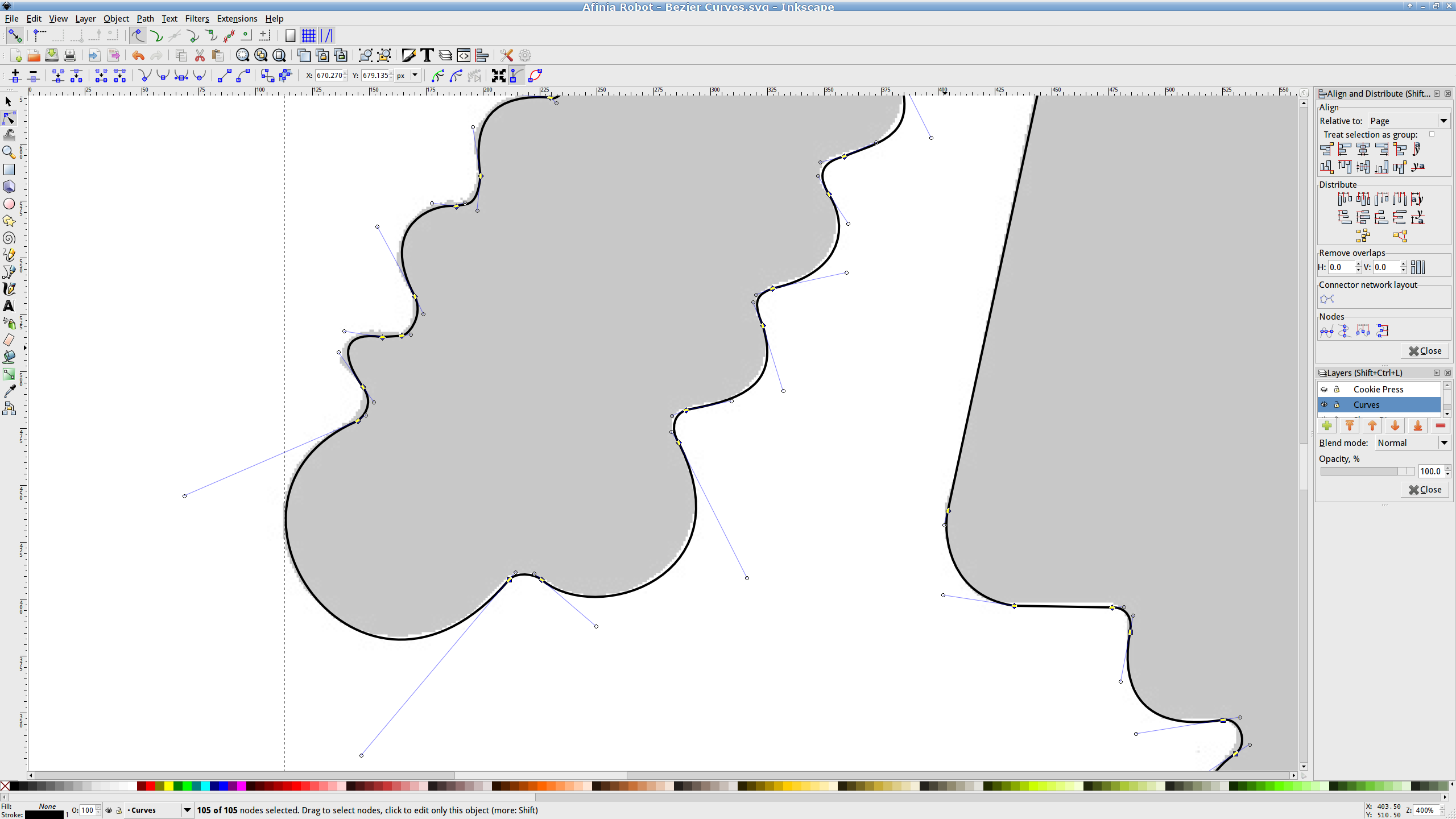
Import the bitmap image into Inkscape. In principle, you can auto-trace the bitmap outline and clean it up manually, but a few iterations of that convinced me that it wasn’t worth the effort. Instead, I used Inkscape’s Bézier Curve tool to drop nodes (a.k.a. control points) at all the inflection points around the image, then warped the curves to match the outline:
Afinia Robot – Bezier spline fitting
If you’re doing that by hand, you could start with the original scanned image, but the auto-trace function works best with a high-contrast image and, after you give up on auto-tracing, you’ll find it’s easier to hand-trace a high-contrast image.
Anyhow, the end result of all that is a smooth path around the outline of the shape, without all the gritty details of the pixelated version. Save it as an Inkscape SVG file for later reference.
OpenSCAD can import a painfully limited subset of DXF files that, it seems, the most recent versions of Inkscape cannot produce (that formerly helpful tutorial being long out of date). Instead, I exported (using “Save as”) the path from Inkscape to an Encapsulated Postscript file (this is a PNG, as WordPress doesn’t show EPS files):
Afinia Robot – Bezier Curves.eps
It’s not clear what the EPS file contains; I think it’s just a list of points around the path that doesn’t include the smooth Bézier goodness. That may account for the grittiness of the next step, wherein the pstoedit utility converts the EPS file into a usable DXF file:
Unfortunately, either the EPS file doesn’t have enough points on each curve or pstoedit automatically sets the number of points and doesn’t provide an override: contrary to what you (well, I) might think, the -splineprecision option doesn’t apply to whatever is in the EPS file. In any event, the resulting DXF file has rather low-res curves, but they were good enough for my purposes and OpenSCAD inhaled the DXF and emitted a suitable STL file:
Afinia Robot – shape slab
To do that, you set the Layout variable to “Slab”, compile the model, and export the STL.
Being interested only in the process and its results, not actually cutting and baking cookies, I tweaked the OpenSCAD parameters to produce stumpy “cutters”:
Afinia Robot – solid model
You do that by setting the Layout variable to “Build”, compile the model, and export yet another STL. In the past, this seemed to be a less fragile route than directly importing and converting the DXF at each stage, but that may not be relevant these days. In any event, having an STL model of the cookie may be useful in other contexts, so it’s not entirely wasted effort.
Run the STL through Slic3r to get the G-Code as usual.
The resulting model printed in about 20 minutes apiece on the M2:
Robot Cutter – stumpy version
As it turns out, the fact that the M2 can produce ready-to-use cutters, minus the raft, is a strong selling point.
Given a workable model, the next step was to figure out the smallest possible two-thread-wide cutter blade, then run variations of the Extrusion Factor to see how that affected surface finish. More on that in a while.
The OpenSCAD source isn’t much changed from the original Tux Cutter; the DXF import required different scale factors:
// Robot cookie cutter using Minkowski sum
// Ed Nisley KE4ZNU - Sept 2011
// August 2013 adapted from the Tux Cutter

Layout = "Build";				// Build Slab

//- Extrusion parameters - must match reality!

ThreadThick = 0.25;
ThreadWidth = 0.40;

function IntegerMultiple(Size,Unit) = Unit * ceil(Size / Unit);

MaxSize = 150;				// larger than any possible dimension ...

Protrusion = 0.1;

//- Cookie cutter parameters

Size = 95;

TipHeight = IntegerMultiple(3.0,ThreadThick);
TipThick = 1.5*ThreadWidth;			// 1.5* = thinnest 2-thread wall, 1.0* thread has gaps

WallHeight = IntegerMultiple(1.0,ThreadThick);
WallThick = 4.5*ThreadWidth;

LipHeight = IntegerMultiple(1.0,ThreadWidth);
LipThick = IntegerMultiple(5,ThreadWidth);

//- Wrapper for the shape of your choice

module Shape(Size) {
  Robot(Size);
}

//- A solid slab of Tux goodness in simple STL format
// Choose magic values to:
//		center it in XY
//		reversed across Y axis (prints with handle on bottom)
//		bottom on Z=0
//		make it MaxSize from head to feet

module Tux(Scale) {
  STLscale = 250;
  scale(Scale/STLscale)
	translate([105,-145,0])
	  scale([-1,1,24])
		import(
		  file = "/mnt/bulkdata/Project Files/Thing-O-Matic/Tux Cookie Cutter/Tux Plate.stl",
		  convexity=5);
}

module Robot(Scale) {
    STLscale = 100.0;
    scale(Scale / STLscale)
			scale([-1,1,10])
				import("/mnt/bulkdata/Project Files/Thing-O-Matic/Pinkie/M2 Challenge/Afinia Robot.stl",
					convexity=10);
}

//- Given a Shape(), return enlarged slab of given thickness

module EnlargeSlab(Scale, WallThick, SlabThick) {

	intersection() {
	  translate([0,0,SlabThick/2])
		cube([MaxSize,MaxSize,SlabThick],center=true);
	  minkowski(convexity=5) {
		Shape(Scale);
		cylinder(r=WallThick,h=MaxSize,$fn=16);
	  }
	}

}

//- Put peg grid on build surface

module ShowPegGrid(Space = 10.0,Size = 1.0) {

  RangeX = floor(100 / Space);
  RangeY = floor(125 / Space);

	for (x=[-RangeX:RangeX])
	  for (y=[-RangeY:RangeY])
		translate([x*Space,y*Space,Size/2])
		  %cube(Size,center=true);

}

//- Build it

ShowPegGrid();

if (Layout == "Slab")
	Shape(Size);

if (Layout == "Build")
	difference() {
	union() {
		translate([0,0,(WallHeight + LipHeight - Protrusion)])
		EnlargeSlab(Size,TipThick,TipHeight + Protrusion);
		translate([0,0,(LipHeight - Protrusion)])
		EnlargeSlab(Size,WallThick,(WallHeight + Protrusion));
		EnlargeSlab(Size,LipThick,LipHeight);
	}
	Shape(Size);					// punch out cookie hole
	}
I put the XY coordinate origin in the middle of the platform, so that laying objects out for printing doesn’t require knowing how large the platform will be: as long as the printer is Big Enough, you (well, I) can print without further attention.
The RepRap world puts the XY coordinate origin in the front left corner of the platform, so that the platform size sets the maximum printable coordinates and all printing happens in Quadrant I. This has the (major, to some folks) advantage of using only positive coordinates, while requiring an offset for each different platform.
Yes, depending on which printer software you use, you can (automagically) center objects on your platform; this is often the only way to find objects created with Trimble (formerly Google) Sketchup. I am a huge fan of knowing exactly what’s going to happen before the printing starts, so I position my solid models exactly where I want them, right from the start. For example, this OpenSCAD model of the bike helmet mirror parts laid out for printing:
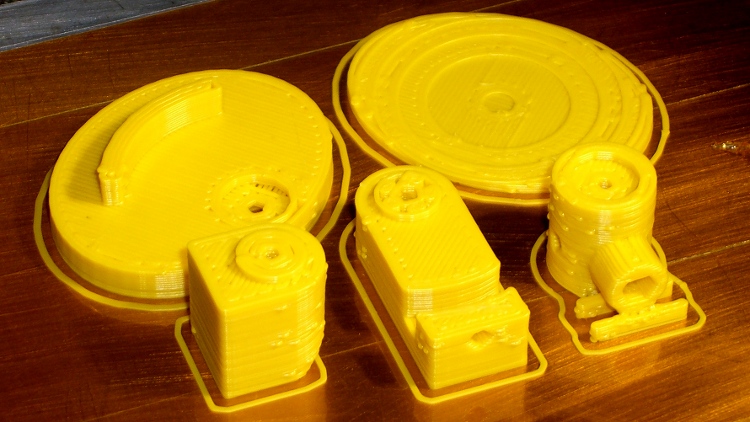
Helmet mirror mount – 3D model – Show layout
… exactly matches the plastic on the Thing-O-Matic’s platform, with the XY origin right down the middle of the platform:
Helmet mirror mount on build platform – smaller mirror shaft
It’d print exactly the same, albeit with more space around the edges, on the M2’s platform.
Similarly, the Z axis origin sits exactly on the surface of the platform. That way, the Z axis coordinate equals the actual height of the current thread extrusion in a measurable way: when you set the Z axis to, say, 2.0 mm, you can measure that exact distance between the extruder nozzle and the platform:
Taper gauge below nozzle
Now, admittedly, I fine-tune that distance by measuring the height of the skirt thread around the printed object, but the principle remains: a thread printed on the platform with Z=0.25 should be exactly 0.25 mm thick.
The start.gcode file handles all that:
;-- Slic3r Start G-Code for M2 starts --
;  Ed Nisley KE4NZU - 15 April 2013
M140 S[first_layer_bed_temperature]	; start bed heating
G90				; absolute coordinates
G21				; millimeters
M83				; relative extrusion distance
M84				; disable stepper current
G4 S3			; allow Z stage to freefall to the floor
G28 X0			; home X
G92 X-95			; set origin to 0 = center of plate
G1 X0 F30000		; origin = clear clamps on Y
G28 Y0			; home Y
G92 Y-127 		; set origin to 0 = center of plate
G1 Y-125 F30000	; set up for prime at front edge
G28 Z0			; home Z
G92 Z1.0			; set origin to measured z offset
M190 S[first_layer_bed_temperature]	; wait for bed to finish heating
M109 S[first_layer_temperature]	; set extruder temperature and wait
G1 Z0.0 F2000		; plug extruder on plate
G1 E10 F300		; prime to get pressure
G1 Z5 F2000		; rise above blob
G1 X5 Y-122 F30000	; move away from blob
G1 Z0.0 F2000		; dab nozzle to remove outer snot
G4 P1			; pause to clear
G1 Z0.5 F2000		; clear bed for travel
;-- Slic3r Start G-Code ends --
The wipe sequence, down near the bottom, positions the extruder at the front center edge of the glass plate, waits for it to reach the extrusion temperature, then extrudes 10 mm of filament to build up pressure behind the nozzle. The blob generally hangs over the edge of the platform and usually doesn’t follow the nozzle during the next short move and dab to clear the mess:
M2 – Wipe blobs on glass platform
I’ve also configured Slic3r to extrude at least 25 mm of filament in at least three passes around the object. After that, the extruder pressure has stabilized and the first layer of the object begins properly.
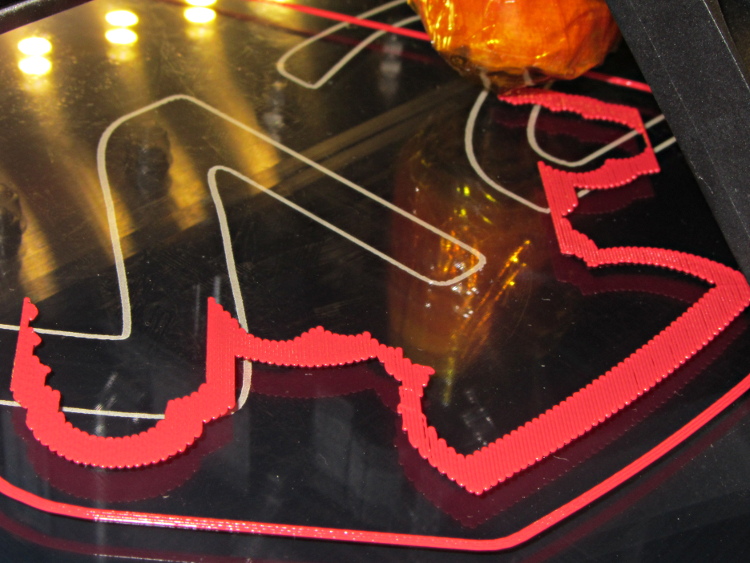
Which brings up another difference: the first layer printed on the platform is exactly like all the others. It’s not smooshed to get better adhesion or overfilled to make the threads stick together:
Robot cookie cutter – printing first layer
I print the first layer at 25 mm/s to give the plastic time to bond to the platform and use hairspray to make PLA stick to glass like it’s glued down.
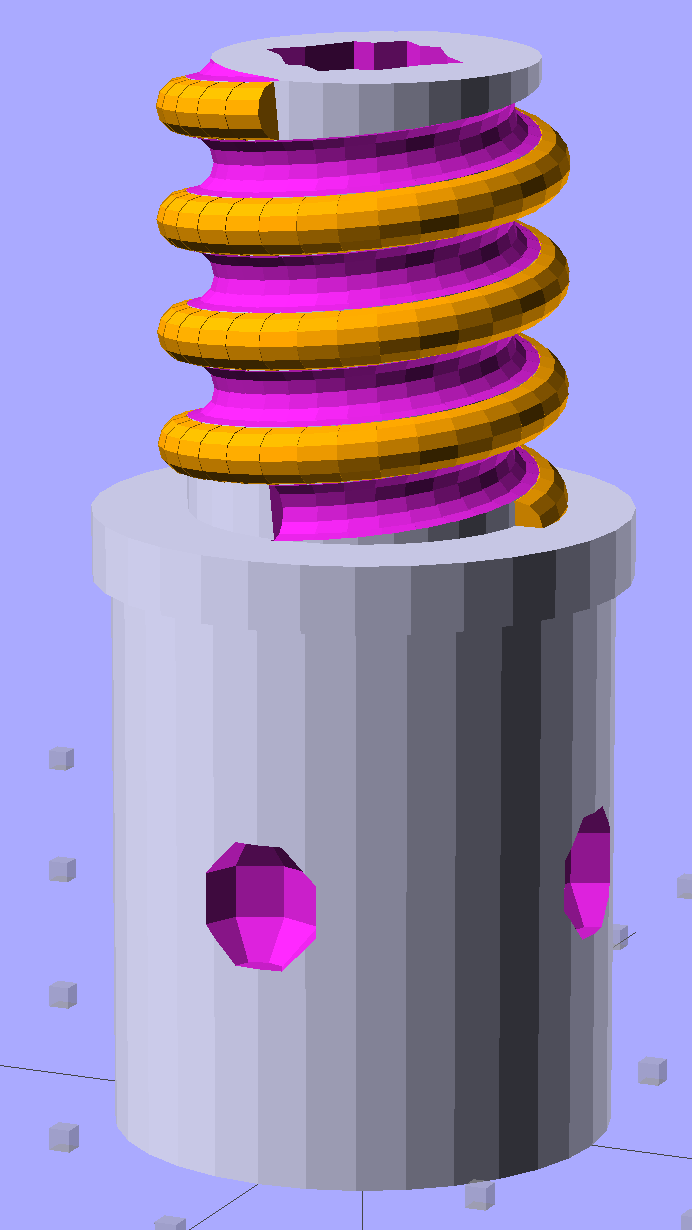
Although I don’t need another threaded plug, the most recent OpenSCAD version can handle a model including the thread dedendum:
Broom Handle Screw – full thread – solid model
This hyper-close view (as always, clicky for more dots) shows the problem: the region where the addendum and dedendum meet at the pitch cylinder consists of a bazillion tiny faces:
Broom Handle Screw – full thread – detail
The previous version simply couldn’t handle that many elements, but the new version has a parameter that I tweaked (to 100,000), allowing it to complete the rendering. Compiling to a solid model requires about 45 minutes, most of which probably involves those unprintably small facets.
The thread elements now taper slightly in the downhill direction, so that each quasi-cylinder nests cleanly inside the next to avoid the tiny slivers that stuck out of the joints in the previous model.
And the new Slic3r version (from GitHub) has better internal support for those indentations around the base, which means that AC vent plug might be build-able, too.
The OpenSCAD source code, with a few tweaks to nest the thread cylinders and properly locate the dedendum:
// Broom Handle Screw End Plug
// Ed Nisley KE4ZNU June 2013

//- Extrusion parameters must match reality!
//  Print with 2 shells and 3 solid layers

HoleWindage = 0.2;

Protrusion = 0.1;			// make holes end cleanly

//----------------------
// Dimensions

PostOD = 22.3;				// post inside metal handle
PostLength = 25.0;

FlangeOD = 24.0;			// stop flange
FlangeLength = 3.0;

PitchDia = 15.5;			// thread center diameter
ScrewLength = 20.0;

ThreadFormOD = 2.5;			// diameter of thread form
ThreadPitch = 5.0;

BoltOD = 7.0;				// clears 1/4-20 bolt
BoltSquare = 6.5;			// across flats
BoltHeadThick = 3.0;

RecessDia = 6.0;			// recesss to secure post in handle

OALength = PostLength + FlangeLength + ScrewLength;

$fn=8*4;					// default cylinder sides

echo("Pitch dia: ",PitchDia);
echo("Root dia: ",PitchDia - ThreadFormOD);
echo("Crest dia: ",PitchDia + ThreadFormOD);

Pi = 3.14159265358979;

//----------------------
// Useful routines

// Wrap cylindrical thread segments around larger plug cylinder

module CylinderThread(Pitch,Length,PitchDia,ThreadOD,PerTurn=32) {

CylFudge = 1.02;				// force overlap

    RotIncr = 1/PerTurn;
    PitchRad = PitchDia/2;

    Turns = Length/Pitch;
    NumCyls = Turns*PerTurn;

    ZStep = Pitch / PerTurn;

    HelixAngle = atan(Pitch/(Pi*PitchDia));
    CylLength = CylFudge * (Pi*(PitchDia + ThreadOD) / PerTurn) / cos(HelixAngle);

	for (i = [0:NumCyls-1]) {
		assign(Angle = 360*i/PerTurn)
			translate([PitchRad*cos(Angle),PitchRad*sin(Angle),i*ZStep])
				rotate([90+HelixAngle,0,Angle])
					cylinder(r1=ThreadOD/2,
							r2=ThreadOD/(2*CylFudge),
							h=CylLength,
							center=true,$fn=12);
	}
}

module PolyCyl(Dia,Height,ForceSides=0) {			// based on nophead's polyholes

  Sides = (ForceSides != 0) ? ForceSides : (ceil(Dia) + 2);

  FixDia = Dia / cos(180/Sides);

  cylinder(r=(FixDia + HoleWindage)/2,
           h=Height,
	   $fn=Sides);
}

module ShowPegGrid(Space = 10.0,Size = 1.0) {

  Range = floor(50 / Space);

	for (x=[-Range:Range])
	  for (y=[-Range:Range])
		translate([x*Space,y*Space,Size/2])
		  %cube(Size,center=true);

}

//-------------------
// Build it...

ShowPegGrid();

difference() {
    union() {
        cylinder(r=PostOD/2,h=PostLength);
        cylinder(r=PitchDia/2,h=OALength);
        translate([0,0,PostLength])
            cylinder(r=FlangeOD/2,h=FlangeLength);
        color("Orange")
        translate([0,0,(PostLength + FlangeLength)])
            CylinderThread(ThreadPitch,(ScrewLength - ThreadFormOD/2),PitchDia,ThreadFormOD);
    }

    translate([0,0,-Protrusion])
        PolyCyl(BoltOD,(OALength + 2*Protrusion),6);
    translate([0,0,(OALength - BoltHeadThick)])
        PolyCyl(BoltSquare,(BoltHeadThick + Protrusion),4);

    translate([0,0,(PostLength + FlangeLength + ThreadFormOD/2)])
		rotate(-90)
        CylinderThread(ThreadPitch,ScrewLength,PitchDia,ThreadFormOD);

	for (i = [0:90:270]) {
		rotate(i)
			translate([PostOD/2,0,PostLength/2])
				sphere(r=RecessDia/2,$fn=8);
	}
}
Now that Google encrypts your search terms (so they can sell the results to their customers), it’s harder to determine where folks come from. WordPress does report whatever search terms it can, though, and a recent search for plastic kitchen sink strainer caught my eye.
Here’s what you get (or, at least, what I got on that day) by feeding those words into Google Image Search:
Search engine optimization like that is to die for, eh?
The related post described a cleanup operation that didn’t really achieve very much in the long run:
Skimming the strainer
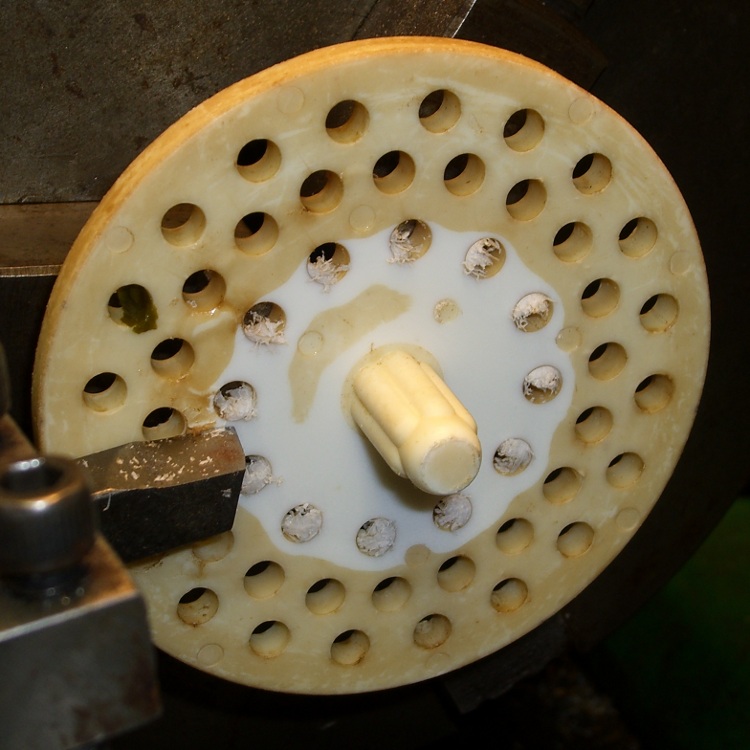
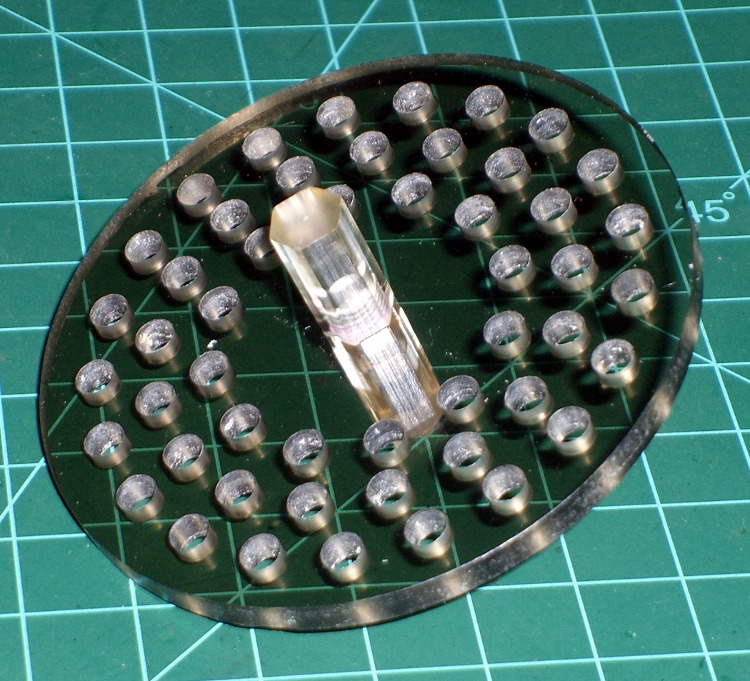
Some years ago I machined a pair of smoke gray acrylic sink strainers (using LinuxCNC / EMC2 loops and trig functions) on the Sherline and wrote it up for my Digital Machinist column. They came out quite nicely:
CNC Sink Strainer
Then I did a 3D printed version on the Thing-O-Matic:
Enthusiasm may get a product out, but engineering makes it work
Plywood and plastic do not produce a stable 3D printer
Measurements matter
8-bit microcontrollers belong in the dustbin of history
With that in mind, I’ve long thought that LinuxCNC (formerly EMC2) would provide a much better basis for the control software required for a 3D printer than the current crop of Arduino-based microcontrollers. LinuxCNC provides:
Hard real time motion control with proven performance
A robust, well-defined hardware interface layer
Ladder-logic machine control
Isolated userspace programming
Access to a complete Linux distro’s wealth of programs / utilities
Access to an x86 PC’s wealth of hardware gadgetry
Rather than (try to) force-fit new functions in an Arduino microcontroller, I decided it would be interesting to retrofit a DIY 3D printer with a LinuxCNC controller, improve the basic hardware control and sensing, instrument the extruder, then take measurements that might shed some light on DIY 3D printing’s current shortcomings.
Rebuild the extruder with temperature and force sensors
Start taking measurements!
My reasons for choosing the Makergear M2 as the basis for this project should be obvious:
All metal: no plywood, no acrylic (albeit a plastic filament drive)
Decent stepper motors (with one notable exception)
Reasonable hot end design
Good reputation
The first step of the overall plan included a meticulously documented M2 build that I figured would take a month or two, what with the usual snafus and gotchas that accompany building any complex mechanism. Quite by coincidence, a huge box arrived on my birthday (the Thing-O-Matic arrived on Christmas Eve, so perhaps this is a tradition), the day when I learned that Mad Phil had entered his final weeks of life.
As the Yiddish proverb puts it: If you wish to hear G*d laugh, tell him of your plans.
So I converted a box of parts into a functional M2 3D printer over the course of four intense days, alternating between our living room floor and a card table in Phil’s home office, showing him how things worked, getting his advice & suggestions, and swapping “Do you remember when?” stories. Another few days sufficed for software installation, configuration, and basic tuneup; I managed to show him some shiny plastic doodads just before he departed consensus reality; as nearly as I can tell, we both benefited from the distractions.
Which means I don’t have many pictures or much documentation of the in-process tweakage that produced a functional printer. The next week or so of posts should cover the key points in enough detail to be useful.
Not to spoil the plot or anything: a stock M2 works wonderfully well.
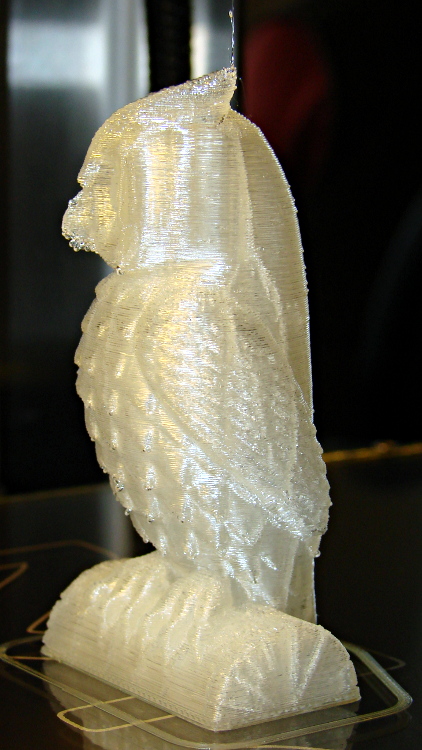
Owl – half size – left
For example, a half-scale cushwa owl printed in PLA at 165 °C with no bed cooling and these Slic3r parameters:
500 mm/s move
300 mm/s infill
200 mm/s solid infill
100 mm/s internal perimeter
50 mm/s bottom layer
30 mm/s external perimeter
1 mm retract @ 300 mm/s
The beak came out slightly droopy and each downward-pointing feather dangles a glittery drop. There’s room for improvement, but that’s pretty good a week after opening a box o’ parts…










 The Smell of Molten Projects in the Morning