Ed Nisley's Blog: Shop notes, electronics, firmware, machinery, 3D printing, laser cuttery, and curiosities. Contents: 100% human thinking, 0% AI slop.
Having recently converted to EMC 2.4 and switched the tool table to the new format, I took the opportunity to add a few useful drills.
Low numbers are random end mills & suchlike. Number drills run from 100 to 180, and I’ll add more as I need ’em. Fraction drills run from 201 through 264, although it’s highly unlikely I’ll ever fit a 64/64-inch drill in a chuck that also fits in the Sherline spindle.
All the Z lengths are exactly 1, because I now have a tool length probe that is absolutely wonderful.
In practice, I use the tool table mostly to tell Axis how to draw the tool cylinder in the backplot, because I feed in most diameters directly in the G-Code. The Axis “manual toolchanger” routine prompt will now serve as a mnemonic for the actual size, but I write the G-Code to emit a (debug, #Drill_Size) message for clarity.
The Sherline.ini file references the tool table with the line:
It turns out that the tool table has an undocumented limit of 50-some-odd entries, at least in EMC2 2.4.1. That puts the kibosh on my plans to add a bunch of entries to cover all the drill sizes Eagle might require for a PCB. More on that in a while …
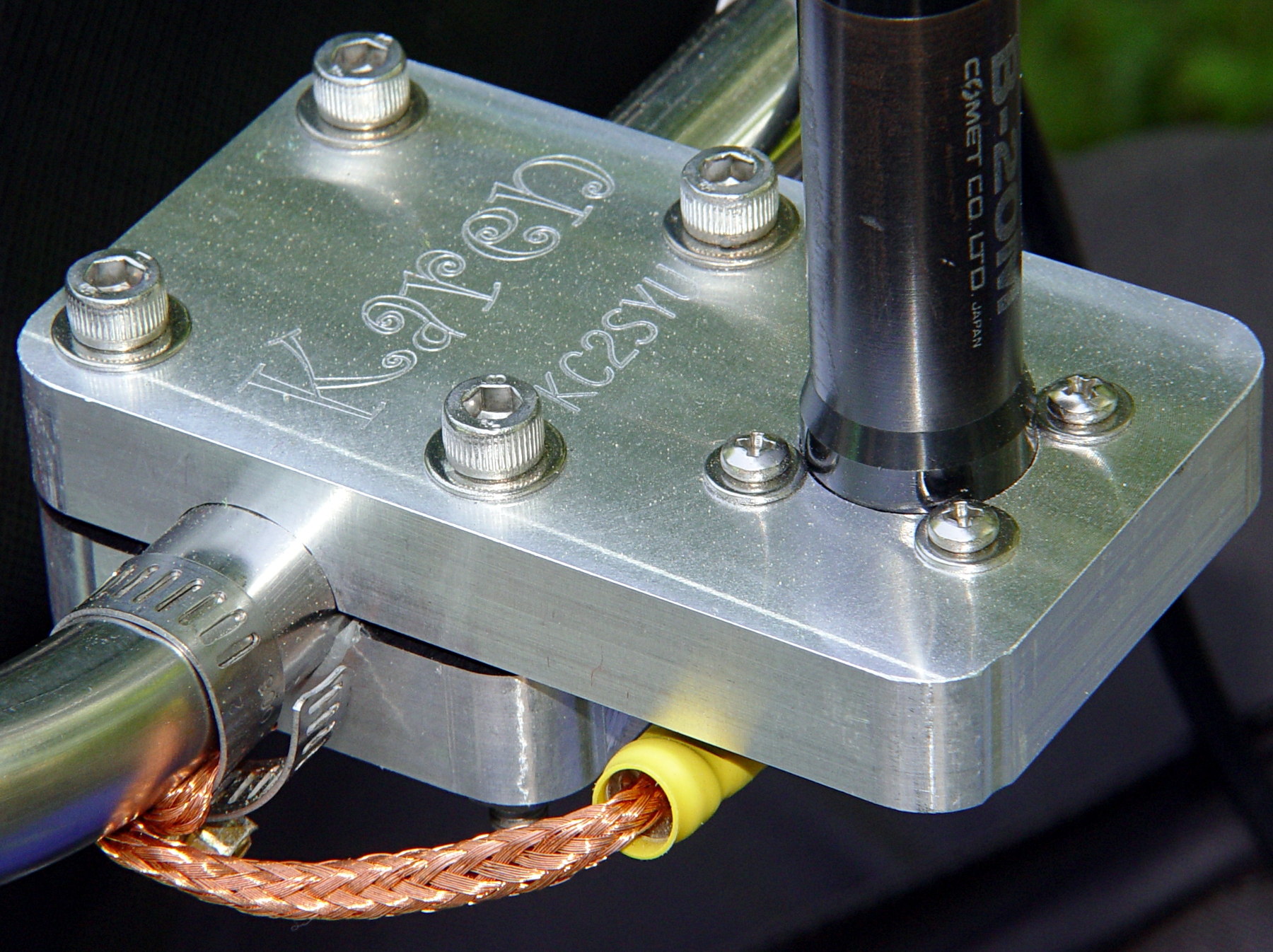
Quite a while ago, I built this slab mount to hold an amateur radio antenna on our daughter’s Tour Easy. It worked fine until the bike blew over and whacked the antenna whip against something solid, at which point the mast cracked.
The antenna screws into an ordinary panel-mount UHF connector secured to the bottom of the slab, with a hole through the slab just large enough to accept the antenna mast. That put all the mechanical stress on the slab, not the connector.
Modified antenna mounting plate
Alas, the new antenna had a slightly different mast outside diameter, so I machined a new adapter to clamp the connector atop the slab. The antenna screws down into the adapter against a brass washer, again keeping the strain on the fitting.
I recently found the commercial mobile antenna cable that I’d been meaning to use on her bike, which required Yet Another Modification to that slab. It turns out that the UHF connector on the cable expects to be secured to sheet metal found in a car body, rather than a half-inch aluminum plate: the threads aren’t long enough!
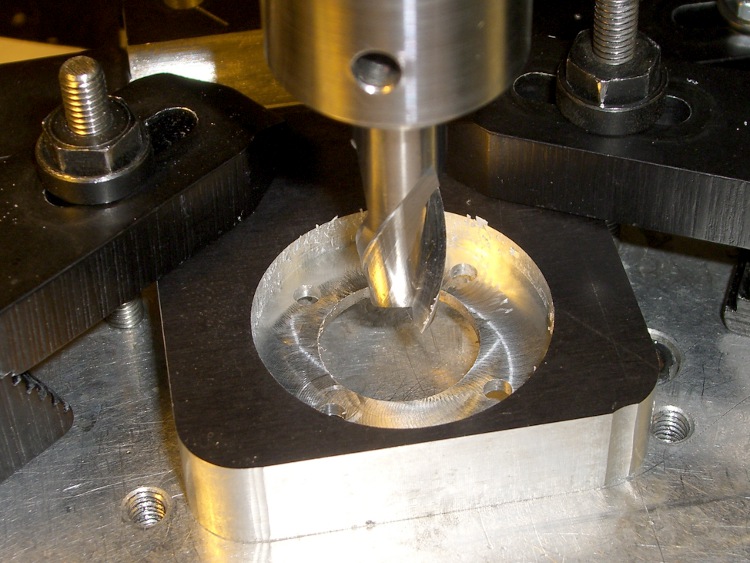
So I machined circular recesses on the top and bottom to hold the mounting nut and washer, respectively, with 2 mm of aluminum remaining in the middle of the slab.
Milling top recess
The recesses are just fractionally larger than the nut & washer, so most of the stress gets transmitted directly to the slab. Even in the high-vibration bicycle environment, I think there’s enough meat in there to prevent fatigue fractures.
Milling bottom recess
I recycled a G-Code routine I’d written to chew out circular recesses. It does a bit of gratuitous (for this application, anyway) spiraling in toward the center, but got the job done without my having to think too much.
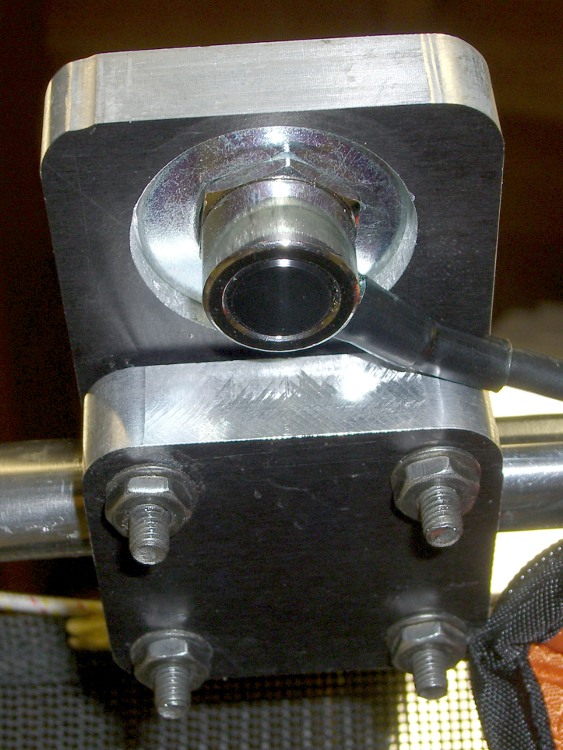
The bottom view shows the washer in action. The recess is deep enough that the cable just barely clears the slab.
Modified mounting plate – bottom
The top view shows the recessed mounting nut. The nut has an O-ring around the connector threads, but the water will probably drain out through the four through-holes left over from the old panel-mount connector.
Modified mounting plate
I turned the top nut down as far as I could with a wrench & (ugh) needle-nose pliers, then tightened the bottom nut about 1/3 turns with a wrench.
You’re not supposed to notice the crispy edges on the PVC bushing holding the reflector to the antenna mast. The high setting on that heat gun is a real toaster…
Having mounted & wired the switches, the next step involves defining the homing sequence & configuration for each axis. All this goes in Sherline.ini and is adapted from the doc there.
The travel limits are somewhat empirical and I think the Y axis will require some adjustment due to the tooling plate switch extender gadget.
The HOME_SEARCH_VEL values may be a bit too high, given the rather lethargic 5.0 in/sec^2 acceleration I’m using for X & Y, with just 3.0 for Z. I’ve heard the occasional thwack as the switch trips, so maybe 20 mils of overtravel isn’t quite enough.
Real men have real CNC milling machines and real CNC milling machines have home switches. I have an itsy Sherline CNC mill, but now my mill has home switches just like a Real Man’s mill.
Sorta, kinda.
Truth is, I really don’t need home switches for the Sherline. I haven’t done any “production” milling with fancy fixtures, so zeroing the coordinate system to the lower-left vertex of the part-to-be-milled works reasonably well. But I figured it’d be fun to see what I was missing…
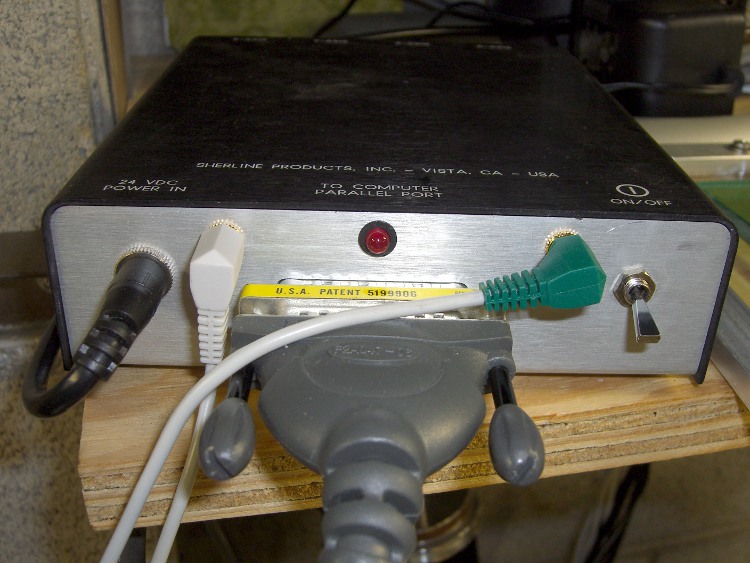
The first step was to hack another jack on the Sherline controller box and connect it to parallel port bit 10. The process is pretty much the same as I used for the probe switch jack documented there. I actually put the jack in the hole used for the power LED and drilled a new hole for the LED smack in the middle above the connector.
Sherline Controller with Probe and Home Jacks
The simplest way to do home switches is to wire them all in parallel using a single port pin. You can even wire the probe switch in parallel with home switches, too, but I figured it’d be nice to have separate jacks… and, besides, the controller still has a few port pins left.
Adding the home switches requires a few lines (adapted from there) in custom.hal that connect the sense inputs in parallel:
net homeswitches <= parport.0.pin-10-in-not
net homeswitches => axis.0.home-sw-in
net homeswitches => axis.1.home-sw-in
net homeswitches => axis.2.home-sw-in
Using the -not suffix flips the sense of the input so the signal is True when the buttons get pushed. I don’t know of any algorithmic way to determine the actual logic states for a given button configuration, so just try it, use Halmeter to see what happens, then flip as needed.
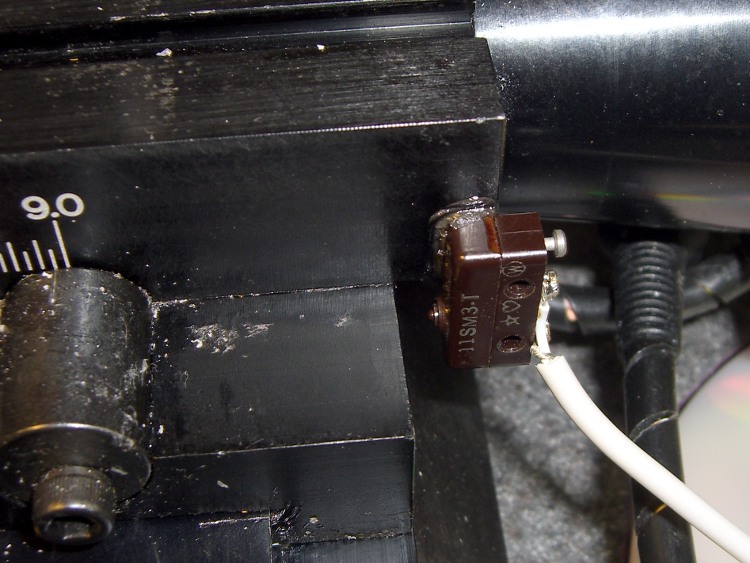
The catch with adding home (or limit) switches is that Sherline mills have an attentuated mechanical structure with no good places to affix switches. I figured a trio of microswitches and a few dollops of JB Quik epoxy would suffice; if I must remove the switches, a quick shot with a chisel should pop the epoxy right off the metal.
The microswitches have about 20 mils of overtravel. I located the switches so the actuator buttons are bottomed out against the cases with the axes at the far limits of their travels. The steppers are puny enough to stall when the mechanical bits hit their hard limits, so there’s no risk of wrecking the machinery or knocking the switches off.
The X-axis home switch goes on the right side of the table, where it contacts the Y-axis slide at the end of travel. Putting it there also means I can remove the table by simply running the leadscrew out of the nut and pulling the whole affair off to the right. I lashed the switch cable to the motor cable with (wait for it) cable ties, which is probably a Bad Idea for larger machines, but seems to be OK in this situation.
X Axis Home Switch
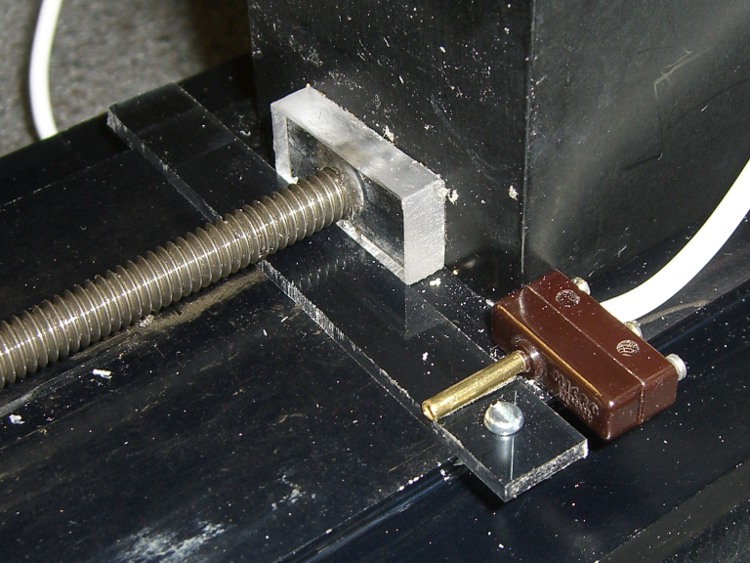
The Y-axis home switch goes at the rear of the machine base, aligned with the plastic bushing I put there to capture the end of the leadscrew. That’s the travel limit for the bare table, but the Sherline tooling plate sticks out another half-inch: the plate hits the column before the table hits the bushing. Alas, I use the plate a lot.
Rather than futz with an adjustable switch position, I made a removable extender. The 3 mm (1/8″ nominal) thick plastic strip has 1 mm milled off the bottom, leaving a tab on the left side that snaps over the dovetail. The screw extends down past the dovetail on the right, so the whole affair slides back & forth just enough to connect the Y-axis slide with the button. The brass tubing exactly fits the tit on the switch actuator and is urethane-glued to the strip.
It’s removable by lifting the left end and sliding the whole affair out under the leadscrew.
Y Axis Home Switch with Extender
The alternative, putting the Y-axis home switch on the very front of the base, would expose the switch & cable to all the slings & arrows of outrageous fortune to be found around the area of the countertop I use most. That may still prove to be a better location: if the back doesn’t work out, it’s easy to move.
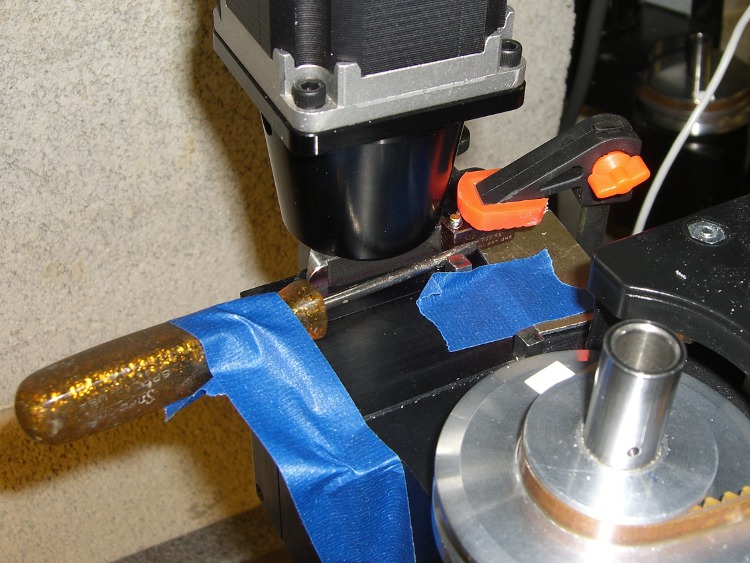
The Z-axis switch had to go at the top-of-column mechanical limit, as homing to the downward limit of travel seemed fraught with peril. I epoxied the switch in place by clamping it to a shim atop the Z-axis slide to align the switch body, then applying gentle sideways pressure with a small screwdriver.
Epoxying the Z Axis Switch
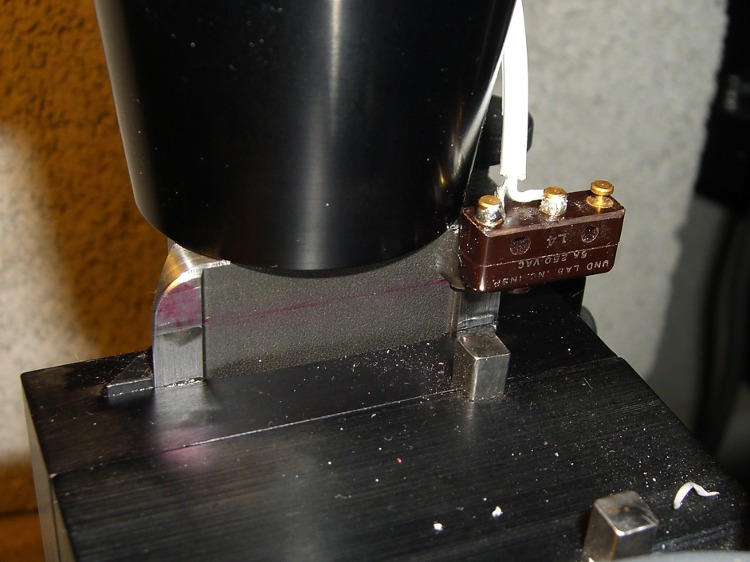
This is what it looks like after the epoxy cured. The square key bar sticking out of the extender block clears the switch with plenty of room to spare, no matter what it looks like.
Z Axis Home Switch
The cables from all three switches go to a common junction where they’re connected in parallel to the cable leading to the green plug in the top picture.
Tomorrow, the configuration file that makes all this work…
My buddy Eks once observed that knurling is something you want to do on somebody else’s lathe, because it puts so much stress on the bearings. As it happens, both Home Shop Machinist and Machinist’s Workshop have run several articles / series on improved knurling, ranging from better clamp knurling tools to a wonderful widget that turns your lathe into something like a shaper with a rotary axis.
I wondered if a touch of G-Code could do the same thing on my Sherline CNC milling machine, using an ordinary end mill…
Pretty much, yes, it can.
The knurled diamonds aren’t raised above the surface, as they are in classical crush-rolled knurling, but my fingers can’t really tell the difference. That’s a chunk of 1-inch PVC pipe, turned smooth in the lathe and knurled with a 2-mm end mill; the fluff is left over from wiping off the swarf with a rag.
The setup mounts the workpiece in the rotary table on the right with the tailstock on the right end. In this case, a little boring (on the lathe) produced a slip fit on the tailstock ram, but you probably should have a plug that supports the tubing with a center-drilled hole for the tailstock’s dead center.
CNC Knurling SetupGeometry Sketch
The general idea is to do the cutting at a 45-degree angle in front of the workpiece, where the end mill will carve a neat 90-degree recess almost like a real 90-degree conical engraving point. This sketch shows the layout, albeit for a very large cutter and a very small workpiece. The YZ origin is at the center of the workpiece, with the X origin at the left edge of the knurled region.
The Z axis remains constant at the level where the bottom of the cutter intersects the 45-degree angle at the proper depth-of-cut. Then you drive Y into the workpiece and drag the end mill along X while twirling A to make a single cut. Move Y out to clear, return X to the start, index A by the angle between the knurls, repeat.
This isn’t perfect, because the bottom of the cutter isn’t parallel to the cut between the knurl diamonds. The leading edge cuts too high / low and the trailing edge cuts too low / high (depending on which way you’re moving X and twirling A), but for small cutters and large workpieces the approximation is probably Close Enough.
Machined Knurl Measurements
The key number is the diametral pitch DP: the number of knurl diamonds around the workpiece divided by the workpiece OD in inches. Machinery’s Handbook suggests that a DP of 48 is coarse and 96 is fine. Measuring some knurled tools lying around the shop shows those values aren’t hard numbers, but they’re a start.
Given an initial DP and the workpiece diameter, figure an actual DP that will produce an integral number of knurl diamonds around the circumference (call it NA):
NA = round (DP * OD) to the nearest integer
Actual DP = NA / OD
Knowing the number of diamonds NA, figure the width of a diamond in degrees (call it the Width-in-Angle):
WA = 360/NA
and also as a fraction of the circumference in inches:
W = π * diameter / NA
Typical knurl diamonds seem to be about twice as long their width, so the nominal aspect ratio is 2. Given the desired length-of-the-knurled-region, figure an actual aspect that will produce an integral number of diamonds along the length (call it NX):
NX = round (length-of-knurl / nominal-aspect) to the nearest integer
Knowing NX, figure the angle to turn (call it TA) while making the cut along X:
TA = WA * NX
Depth of Cut Sketch
This sketch shows the depth-of-cut geometry, with the cutter producing skeletal points where the cut just touches the next knurl over. With a 45 degree angle between the diagonal, all the trig boils down to factors of √2.
The perimeter of an NA-sided polygon inscribed in a circle of radius R (which is just the OD/2 is:
Perimeter = 2 NA R sin (180 / NA)
which simplifies to
Perimeter = NA OD sin (180 / NA)
The length of the chord L from tip to tip for such a polygon:
L = Perimeter / NA
The side of the triangle from the corner of the cut perpendicular to the chord is half the chord length, because it’s an isosceles triangle with angles of 45 and 90 degrees.
The height of the segment above the chord:
(L / 4) tan (WA / 4)
The total depth-of-cut along the diagonal is the sum of those two numbers. Given that, figure the coordinates (Y is negative because it’s out in front):
Z = (radius – depth) / √2
Y = -Z
Now, because the end mill has a nontrivial length along the X axis, it’s doing too much cutting. Reductio ad absurdum, imagine putting a 1-inch knurl along a pencil using a 6-inch end mill: the thing would cut a horizontal swath the entire length of the knurled region, leaving no material behind.
So it makes sense to heave in a Fudge Factor limiting the actual depth-of-cut to some percentage of that value. The knurl above was with that factor set to 0.50, but (as with rolled knurls) be sure to test in an inconspicuous spot before actual use. Subtract the shrunken depth-of-cut from the radius as above to get the YZ coordinates.
Notice the difference between the ends of the cut in that first picture: you can clearly see the shape of the end mill’s cylindrical cut. I ran the cutter at 2500 rpm to avoid overheating the PVC, so you can see the cuts on the top edges of the diamonds: the trailing edge makes neat little swipes. In actual practice, you’d run it much faster to get a smooth cut.
Then it’s just a matter of writing some G-Code…
Knurled Pencil
Herewith, the G-Code that did the pencil, with depth-of-cut set to 0.30. It cuts to the right and cuts to the left, then indexes to the next cut by unwinding the A axis. The nominal DP = 48 makes for a coarse, yet oddly attractive, knurl. The variable names don’t track what you see above, but should be pretty obvious. Also see the notes on optimizations down near the bottom.
(Engraved knurling)
(Ed Nisley - KE4ZNU - May 2010)
(G55 Coordinate Origin: 	X to left of checkering)
(							YZ on centerline of workpiece)
(							A = 0 wherever you like)
(Touch off tool center at Y = workpiece radius)
(				   tip at Z = workpiece radius)

(-- Input dimensions)

#<_Outer_Dia>			= 0.324					(outside dia of workpiece - INCHES)

#<_Knurl_Start_X>		= 0.0					(X offset to start of kurling)
#<_Knurl_Length>		= 1.0					(length of knurled section)

#<_Diamet_Pitch>		= 48					(96 = fine 48 = coarse)
#<_Depth_Fraction>		= 0.3					(fraction of max cut depth)
#<_Aspect_Nominal>		= 2.0					(desired knurl diamond length-to-width ratio)

#<_Tool_Dia>			= 0.078					(end mill diameter)
#<_Feed>				= 20					(cutting speed, inch/min)

#<_Traverse_Clear>		= 0.050					(clearance for traverse moves)

(-- Calculated dimensions)

#<_PI>					= 3.14159265358979323

#<_Outer_Radius>		= [#<_Outer_Dia> / 2]
#<_Tool_Radius>			= [#<_Tool_Dia> / 2]

#<_Num_Points_A>		= ROUND [#<_Diamet_Pitch> * #<_Outer_Dia>]	(points around circumference)
#<_Point_Width_Deg>		= [360 / #<_Num_Points_A>]					(degrees per point)
#<_Point_Width>			= [#<_PI> * #<_Outer_Dia> / #<_Num_Points_A>]

#<_Num_Points_X>		= ROUND [#<_Knurl_Length> / [#<_Aspect_Nominal> * #<_Point_Width>]]
#<_Rotation_Per_Cut>	= [#<_Point_Width_Deg> * #<_Num_Points_X>]
#<_Point_Length>		= [#<_Knurl_Length> / #<_Num_Points_X>]		(actual point length)
#<_Aspect>				= [#<_Point_Length> / #<_Point_Width>]		(actual aspect ratio)

#<_Perimeter>			= [2 * #<_Num_Points_A> * #<_Outer_Radius> * SIN [180 / #<_Num_Points_A>]]
#<_Chord>				= [#<_Perimeter> / #<_Num_Points_A>]		(across one point)
#<_Segment_Height>		= [[#<_Chord> / 2] * TAN [#<_Point_Width_Deg> / 4]]

#<_Cut_Depth_Max>		= [#<_Segment_Height> + #<_Chord> / 2]
#<_Cut_Depth>			= [#<_Depth_Fraction> * #<_Cut_Depth_Max>]

#<_Cut_Z>				= [[#<_Outer_Radius> - #<_Cut_Depth>] / SQRT [2]]	(corner of cut)
#<_Cut_Y>				= [0 - #<_Cut_Z>]

#<_Tool_Z>				= #<_Cut_Z>									(tool bottom)
#<_Tool_Y>				= [#<_Cut_Y> - #<_Tool_Radius>]				(tool centerline)

#<_Safe_Z>				= [#<_Outer_Radius> + #<_Traverse_Clear>]	(clear workpiece top)
#<_Safe_Y>				= [0 - #<_Safe_Z> - #<_Tool_Radius>]		(clear workpiece side)

#<_Retract_Y>			= [0 - [#<_Safe_Z> / SQRT [2]] - #<_Tool_Radius>]	(clear cut)

(-- Start cutting!)

G40 G49 G80 G90 G94 G97 G98		(reset many things)

G55					(working coord system)
G20					(inch!)

F#<_Feed>			(set cutting speed)

(debug,Num points AX: #<_Num_Points_A> #<_Num_Points_X>)
(debug,Pt Width Deg Len: #<_Point_Width> #<_Point_Width_Deg> #<_Point_Length>)
(debug,Aspect: #<_Aspect>)
(debug,Cut Depth: #<_Cut_Depth>)
(debug,Cut YZ: #<_Cut_Y> #<_Cut_Z>)
(debug,Tool YZ Retract: #<_Tool_Y> #<_Tool_Y> #<_Retract_Y>)

(msg,Press [Resume])
M0

G0 Z#<_Safe_Z>					(get air)
G0 Y#<_Safe_Y>					(move to cutting side)

G0 X#<_Knurl_Start_X> A0		(get to knurl XA start)

G0 Y#<_Retract_Y> Z#<_Tool_Z>	(get to clearance point)

#<This_Point> = 0				(loop setup)
#<This_Angle> = 0

O1000 DO

;(debug,Angle: #<This_Angle>)

#<Far_A> = [#<This_Angle> + #<_Rotation_Per_Cut>]
#<Near_A> = [#<This_Angle> + 2 * #<_Rotation_Per_Cut>]

G1 Y#<_Tool_Y>					(cut into workpiece)
G1 X[#<_Knurl_Start_X> + #<_Knurl_Length>] A#<Far_A>	(cut right)

G1 X[#<_Knurl_Start_X>] A#<Near_A>						(cut left)

G0 Y#<_Retract_Y>				(get air)

#<This_Point> = [#<This_Point> + 1]
#<This_Angle> = [#<This_Point> * #<_Point_Width_Deg>]

G0 A#<This_Angle>				(index to next cut)

O1000 WHILE [#<This_Point> LT #<_Num_Points_A>]

G0 Y#<_Safe_Y> Z#<_Safe_Z> A0	(get big air)

M2
Some obvious improvements:
Use G92.whatever to whack A appropriately or
Fiddle the angle variable to track the actual A windup and
Figure the shortest direction to unwind A & tweak the variable
Cut in only one direction to reduce backlash or
Make all the cuts with common endpoints in one pass
Knurl along a known taper by interpolating Y & Z along X
Offset the workpiece axis to match the knurl angle (ugh!)
Although I find it hard to believe I’m the first person to figure this out, a search on CNC knurling using an end mill doesn’t provide any meaningful hits. If you get rich using this idea, send me a generous donation…
Given the overall slovenliness of the recently kludged tool length probe switch on my Sherline CNC mill, you have to have to ask yourself… does that thing actually work?
This boils down to a simple test: repeatedly poke the switch and record the Z-axis trip point. If it’s the same every time, then the switch is repeatable and life is good. If not, then the switch is moving: not good.
One good measurement being worth a thousand expert opinions, I devoted some Quality Shop Time to measuring the switch. The picture shows the simpleminded setup.
There’s a broken carbide cutter (I have a disturbing number of these) held in a collet, with its blunt end downward. The spindle isn’t turning, for obvious reasons.
The probe switch is as far in the -X direction as I can conveniently put it, screwed down to one of the T-nuts holding the tooling plate in place. The G30.1 tool change position is a few inches directly above the switch position.
The dial test indicator grabbed in the vise has 0.5 mil graduations, so it’s eyeballable to more-or-less 0.1 mil, although I have my doubts about the mechanical repeatability in that range. The arm is horizontal, with the XYZ origin set to the top of the ball.
The G-Code (shown below) probes the switch to establish & display the tool’s reference length. Actually, what we’re displaying is the Z-axis coordinate where the switch trips, then computing the new tool length from those values.
Then it does these steps 10 times:
Go XY=0.0 Z=5, just above the indicator ball
Go to Z=0.0. The indicator should read 0.0, too.
Prompt me to write down the indicator reading
G30 to the tool change location
Probe the (unchanged) tool & display the new Z-axis value
So I did that and here’s the result. The second column is the indicator reading in mils, with negative numbers being further down toward the tooling plate. The third column is the Z-axis coordinate of the probe switch trip in mm.
Iteration
Z @ Origin (mils)
Tool Z @ Probe (mm)
0
0.0
-50.008042
1
0.0
-50.008873
2
0.0
-50.010536
3
0.0
-50.012032
4
-0.1
-50.013526
5
0.0
-50.014193
6
-0.2
-50.014857
7
-0.1
-50.016686
8
-0.1
-50.016852
9
-0.1
-50.017185
10
-0.1
-50.018514
Probe drift
-0.010472
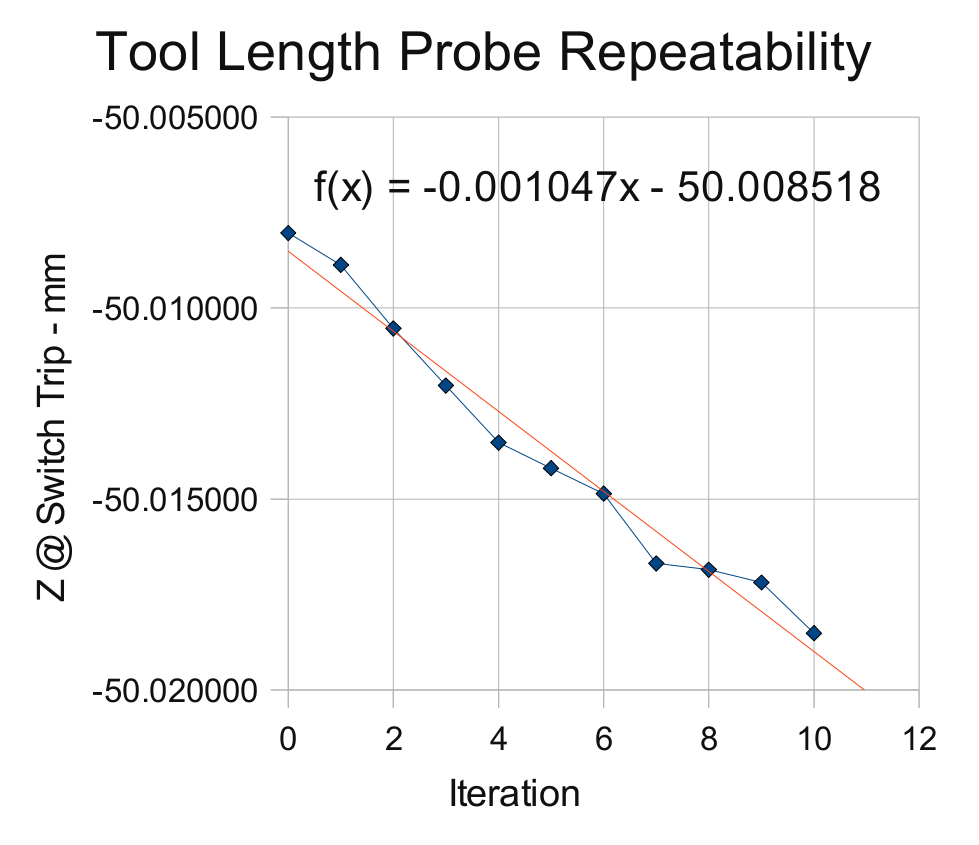
Now, that just cries out for a graph, doesn’t it?
Probe Switch Repeatability
The slope of the regression line says the switch is tripping about one wavelength of infrared light (1 micron) further down at each probe. Well, now, that’s not too bad, is it?
After ten probes, it’s descended about 10 microns, call it 0.3 mils, which is somewhat more than what the dial test indicator reports: 0.1 mil or just slightly more than the width of the indicator’s needle away from the 0.0 line.
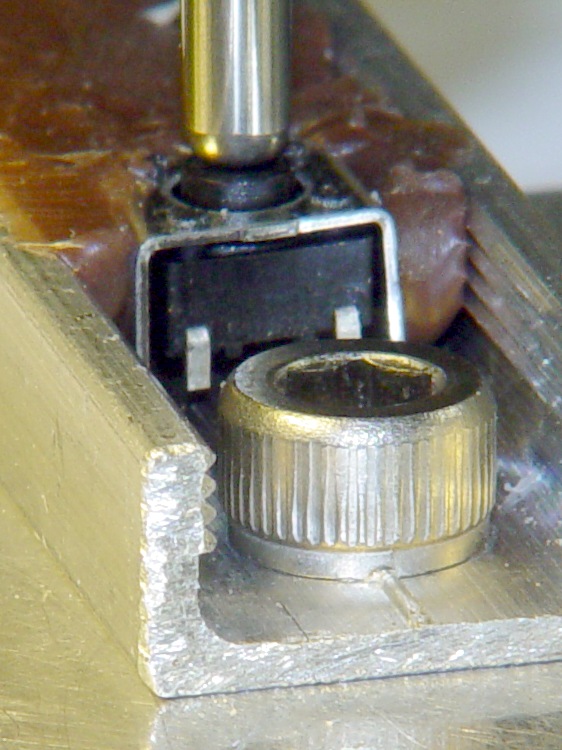
It turns out that the switch doesn’t have any mechanical overtravel whatsoever, so when the switch contacts close, the button is already pretty much bottomed out.
Switch ReleasedSwitch Over-pushed
The left picture shows the tool a few millimeters over the switch. Notice that the top of the black plastic switch body is snug against the metal frame. Although you can’t see it here, there’s nothing but air below the body; the brown hot-melt glue secures the sides and submerges the terminals & wiring.
The right pictures shows the situation after probing the switch at 300 mm/min. The switch body is pushed slightly downward from the metal shell, showing that the Z axis drive didn’t screech to an instant halt after the switch tripped.
My back of the envelope said it’d stop in about 7 mils from 12 in/min (call it 0.2 mm from 300 mm/min, which is what I actually used here). Turns out it’s more like 15 mils, about 0.4 mm. So much for the back of the envelope…
On the other hand, what’s a binary order of magnitude among friends?
The routines below do an initial probe at 300 mm/min, back off about 1 mm, then probe again at 10 mm/min. The theory was that the switch overtravel would soak up the initial probe and the second, more gentle, probe would always trip at the same Z-axis level.
Another good theory all shot to hell…
I should do the initial probe at, say, 100 mm/min and (to speed things up) put the tool change location as close to the switch as the longest tool will allow. That should cut the overtravel down to 5 mils, which ought not be a real problem.
However, I think the switch is usable as-is. It’s certainly more accurate than my manual tool height adjustment and I really don’t do many jobs that require more than a few tool changes, separated by long periods of chewing away at the part.
I suspect the switch gradually oozes back to its original position after being rudely poked, but I ought to check that, too.
The G-Code to make the tests happen:
(Tool length probing test)

(--------------------)
( Initialize first tool length at probe switch)
( assumes metric units!)

O<Probe_Init> SUB

G49					( clear tool length compensation)
G30					( to probe switch)
G91					( relative mode for probing)

G38.2 Z-90 F300		( trip switch on the way down)

G0 Z1				( back off the switch)
G38.2 Z-10 F10		( trip switch slowly)

#<_ToolRefZ> = #5063	( save trip point)

G90					( absolute mode)
G30					( return to safe level)

O<Probe_Init> ENDSUB

(--------------------)
( Initialize new tool length at probe switch)
( assumes metric units!)

O<Probe_Tool> SUB

G49					( clear tool length compensation)
G30					( to probe switch)
G91					( relative mode for probing)

G38.2 Z-90 F300		( trip switch on the way down)

G0 Z1				( back off the switch)
G38.2 Z-10 F10		( trip switch slowly)

#<_ToolZ> = #5063				( save new tool length)

G43.1 K[#<_ToolZ> - #<_ToolRefZ>]	( set new length)

G90					( absolute mode)
G30					( return to safe level)

O<Probe_Tool> ENDSUB

(--------------------)
( Set up first tool)

G21					( metric units)

(msg,Verify origin at indicator ball, hit Resume)
M0
(msg,Verify G30.1 above tool change switch, hit Resume)
M0
(msg,Verify blunt tool installed, hit Resume)
M0

O<Probe_Init> CALL

(debug,Initial tool length = #<_ToolRefZ>)

O100 REPEAT [10]

G0 X0 Y0
G0 Z0
(msg,Record indicator Z-axis reading, hit Resume)
M0

G0 Z5				(get air)
G30					(to tool change position)

O<Probe_Tool> CALL
(debug,Tool length offset = #<_ToolZ>)

O100 ENDREPEAT

M2
And here you thought that switch was a total piece of crap, didn’t you?








 The Smell of Molten Projects in the Morning