The Smell of Molten Projects in the Morning

Ed Nisley's Blog: Shop notes, electronics, firmware, machinery, 3D printing, laser cuttery, and curiosities. Contents: 100% human thinking, 0% AI slop.

Tag: RPi

Raspberry Pi

  • Raspberry Pi Model B+ Reset Connector

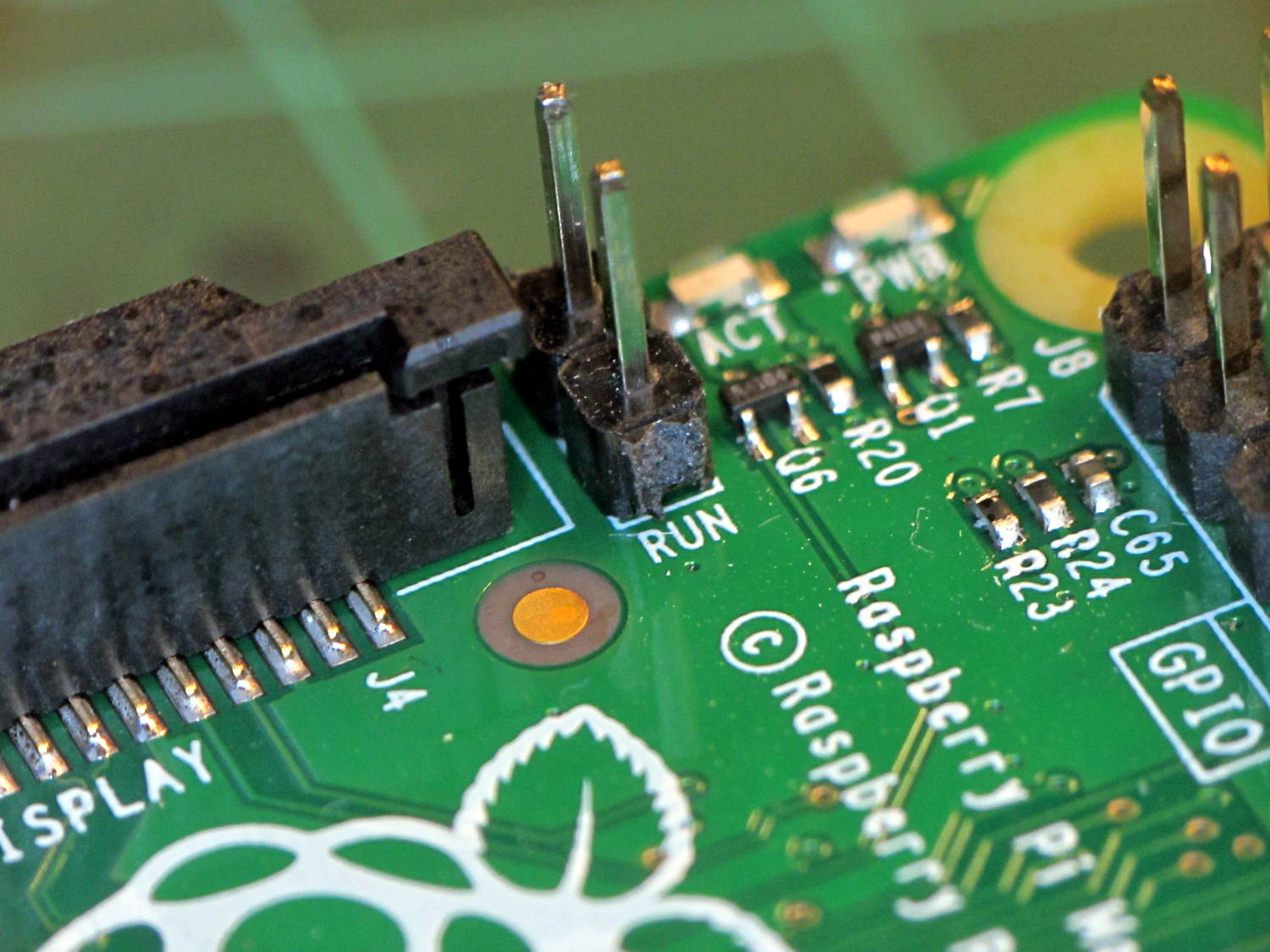
    Turns out Raspberry Pi boards have provision for a Reset switch, but you gotta dig for it. On the Model B+, it’s labeled RUN:

    Raspberry Pi BPlus - RUN header
    Raspberry Pi BPlus – RUN header

    Soldering in that 2-pin header and plugging a pushbutton switch on a short cable will suffice until I get around to thinking of / scrounging a suitable case.

    Poking the button forces a power-on reset, which you shouldn’t do with the RPi running, lest you trash the filesystem. After shutting down with sudo halt, however, the switch does exactly what’s needed: restarts the CPU from scratch.

    The RPi draws little enough power that there’s no point in actually pulling the plug; stressing that Micro-B connector is definitely a Bad Idea.

  • No Affordance for Pulling

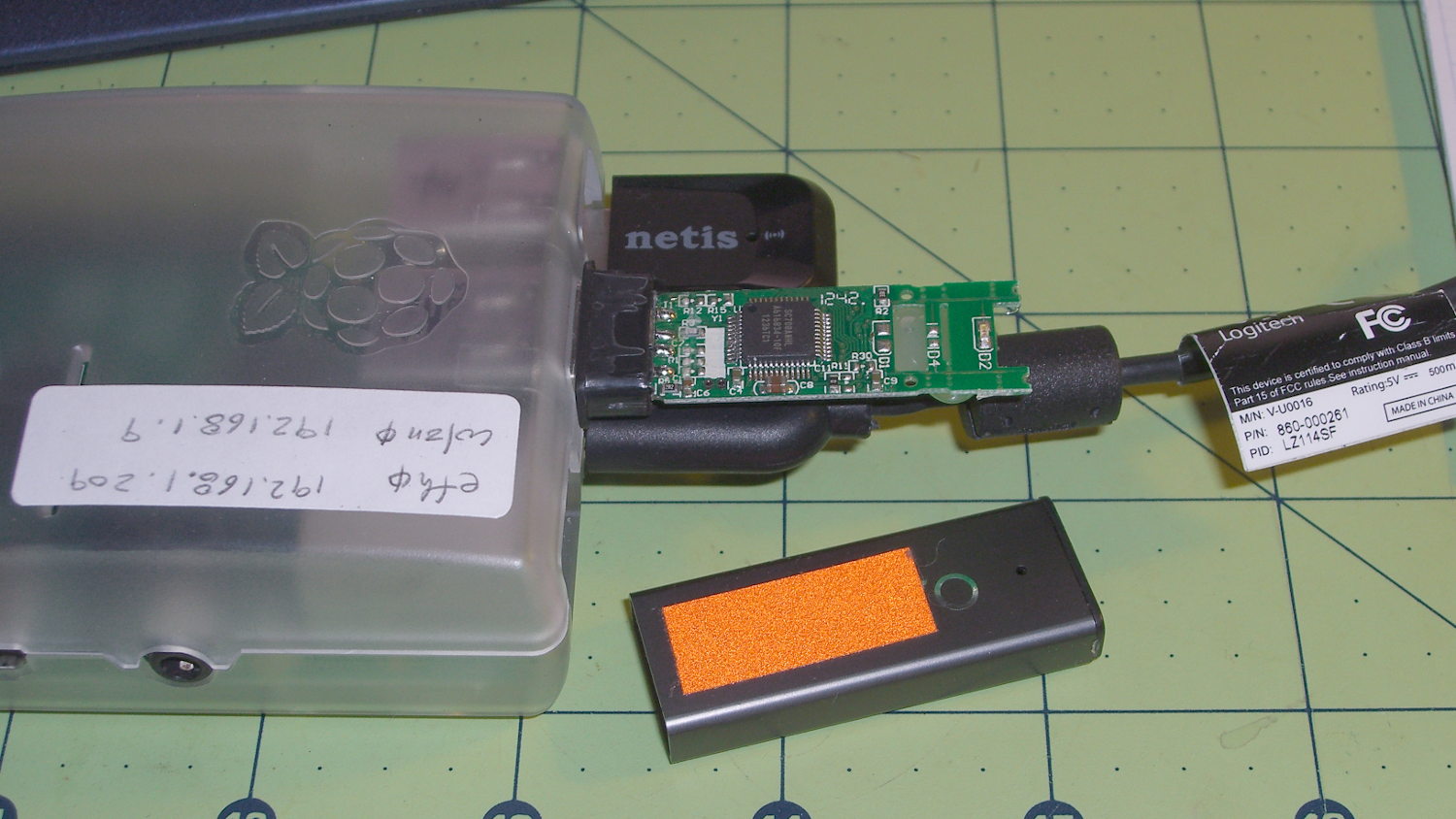
    Well, I didn’t expect this:

    Unsleeved USB memory
    Unsleeved USB memory

    Turns out the only thing holding that case in place was a blob of hot-melt glue on the bottom of the PCB. Hot-melt glue doesn’t bond well to anodized aluminum, the RPi had been sitting outside on a winter day taking time-lapse bird feeder pictures, and the USB connector seemed a bit more snug than usual.

    So I slobbered more hot-melt glue on the end of the PCB, jammed the case back in place, and that was that.

    The PCB has two snap lines to accommodate shorter cases, with corresponding activity LED locations; it seems I got the long-case version.

  • RPi: Time-lapse Photos

    The Raspberry Pi doc provides a recipe for the simplest possible time-lapse webcam: fire fswebcam once a minute from a cron job.

    The crontab entry looks much like their example:

    * * * * * /home/ed/bin/grabimg.sh 2>&1
    

    I put all the camera details in the ~/.config/fswebcam.conf config file:

    # Logitech C130 / C510 camera
    device v4l2:/dev/video0
    input 0
    resolution 1280x720
    set sharpness=128
    jpeg 95
    set "power line frequency"="60 hz"
    #no-banner
    

    That simplifies the ~/bin/grabimg.sh script:

    #!/bin/bash
    DATE=$(date +"%Y-%m-%d_%H.%M.%S")
    fswebcam -c /home/ed/.config/fswebcam.conf /mnt/samba/webcam/$DATE.jpg
    

    The output directory lives on a Samba-shared USB stick jammed in the back of the Asus router, so I need not putz with a Samba server on the RPi.

    Manually mounting the share, which for the moment is the /testfolder/webcam directory on the USB stick:

    sudo mount -t cifs -o user=ed //gateway/testfolder/webcam /mnt/samba
    

    I’m pretty sure automagically mounting the share will require the same workarounds as on my desktop box, but this fstab entry is a start:

    #-- ASUS router Samba share
    //gateway/testfolder/webcam	/mnt/samba	cifs	auto,uid=ed,credentials=/root/.gateway-id 0 0
    

    That requires a corresponding credentials file with all the secret info:

    domain=WHATSMYNET
    username=ed
    password=pick-your-own
    

    This is mostly a test to see how long it takes before something on the RPi goes toes-up enough to require a manual reboot. Disabling the WiFi link’s power saving mode seems to keep the RPi on the air all the time, which is a start.

  • RPi: Logitech QuickCam for Notebook vs. fswebcam

    Combining the camera data I collected a while ago with a few hours of screwing around with this old Logitech camera:

    Logitech QuickCam for Notebook Plus - front
    Logitech QuickCam for Notebook Plus – front

    I’m convinced it’s the worst camera I’d be willing to use in any practical application.

    The camera offers these controls:

    fswebcam --list-controls
    --- Opening /dev/video0...
    Trying source module v4l2...
    /dev/video0 opened.
    No input was specified, using the first.
    Available Controls Current Value Range
    ------------------ ------------- -----
    Brightness 128 (50%) 0 - 255
    Contrast 128 (50%) 0 - 255
    Gamma 4 1 - 6
    Exposure 2343 (8%) 781 - 18750
    Gain, Automatic True True | False
    Power Line Frequency Disabled Disabled | 50 Hz | 60 Hz
    Sharpness 2 0 - 3
    Adjusting resolution from 384x288 to 320x240.
    

    Putting the non-changing setup data into a fswebcam configuration file:

    cat ~/.config/fswebcam.conf
    # Logitech QuickCam for Notebook Plus -- 046d:08d8
    device v4l2:/dev/video0
    input gspca_zc3xx
    resolution 320x240
    scale 640x480
    set sharpness=1
    #jpeg 95
    set "power line frequency"="60 hz"
    

    Trying to use 640×480 generally produces a Corrupt JPEG data: premature end of data segment error, which looks no better than this and generally much worse:

    Logtech 08d8 - 640x480
    Logtech 08d8 – 640×480

    The top of the picture looks pretty good, with great detail on those dust particles, but at some point the data transfer coughs and wrecks the rest of the image. I could crop the top half to the hipster 16:9 format of 640×360, but the transfer doesn’t always fail that far down the image.

    The -R flag that specifies using direct reads instead of mmap, whatever that means, doesn’t help. In fact, the camera generally crashes hard enough to require a power cycle.

    Delaying a second with -D1 and / or skipping a frame with -S1 don’t help, either.

    The camera works perfectly at 640×480 using fswebcam under Xubuntu 14.04 on a Dell Latitude E6410 laptop, so I’m pretty sure this is a case of the Raspberry Pi being a bit underpowered for the job / the ARM driver taking too long / something totally obscure. A random comment somewhere observed that switching from Raspbian to Arch Linux (the ARM version) solved a similar video camera problem, so there’s surely room for improvement.

    Dragorn of Kismet reports that the Raspberry Pi USB hardware doesn’t actually support USB 2.0 data rates, which also produces problems with Ethernet throughput. The comments in that slashdot thread provide enough details: the boat has many holes and it’s not a software problem.

    For lack of anything more adventurous, the config file takes a 320×240 image and scales it up to 640×480, which looks about as crappy as you’d expect:

    Logtech 08d8 - 320x240 scaled
    Logtech 08d8 – 320×240 scaled

    Even that low resolution will occasionally drop a few bytes along the way, but much less often.

    The picture seems a bit blown out, so set the exposure to the absolute minimum:

    fswebcam -c ~/.config/fswebcam.conf --set exposure=781 "Logitech 08d8 - expose 781.jpg"
    

    Which looks like this:

    Logitech 08d8 - expose 781
    Logitech 08d8 – expose 781

    Given that’s happening a foot under a desk lamp aimed well away from the scene, the other end of the exposure scale around 18000 produces a uselessly burned out image. I think a husky neutral-density filter would be in order for use with my M2’s under-gantry LED panels. The camera seems to be an early design targeting the poorly illuminated Youtube / video chat market segment (I love it when I can talk like that).

    There’s probably a quick-and-dirty Imagemagick color correction technique, although Fred’s full-blown autocorrection scripts seem much too heavy-handed for a Raspberry Pi…

  • RPi: Static WiFi Addressing

    Having configured ssh on the Raspberry Pi for public keys, the next step is to cut the cord by configuring the USB WiFi dongle to automagically come up with a static IP.

    [Update: As of 2017, set a static IP by tweaking /etc/dhcpcd.conf instead. Search the blog for that to find recent descriptions. ]

    Make /etc/network/interfaces look like this:

    auto lo
    
    iface lo inet loopback
    
    #iface eth0 inet dhcp
    
    auto eth0
    #iface eth0 inet static
    iface eth0 inet manual
     address 192.168.1.209
     gateway 192.168.1.1
     netmask 255.255.255.0
     network 192.168.1.0
     broadcast 192.168.1.255
    
    allow-hotplug wlan0
    
    #iface wlan0 inet manual
    iface wlan0 inet static
     address 192.168.1.9
     gateway 192.168.1.1
     netmask 255.255.255.0
     network 192.168.1.0
     broadcast 192.168.1.255
    
    #wpa-roam /etc/wpa_supplicant/wpa_supplicant.conf
    wpa-conf /etc/wpa_supplicant/wpa_supplicant.conf
    
    iface default inet dhcp
    

    Then set up /etc/wpa_supplicant/wpa_supplicant.conf thusly:

    ctrl_interface=DIR=/var/run/wpa_supplicant GROUP=netdev
    update_config=1
    
    network={
    	ssid="whatever it might be"
    	psk="choose your own password"
    }
    

    You want different IP addresses for the eth0 and wlan0 devices, because you never know when you’ll be forced to use them at the same time.

    Using wpa-conf rather than wpa-roam prevents the machinery from automagically doing things when you’re not watching.

    The router can hand out IP addresses based on MACs, but that means bottling up all that configuration in a single device that might go toes up. Forcibly configuring each device to a static IP adds a bit of resilience to the network, right up to the point where you must change all of them at once.

    Alas, the router seemed to lose track of the Pi after a day. Pinging from my desktop box reported Destination Host Unreachable, even though signing on through the USB keyboard showed the USB WiFi link (a netis WF2123) was still up. Signing on to the router and refreshing the DHCP list (even though the RPi has a static IP) knocked things loose: suddenly the RPi became pingable.

    It seems the WiFi link turns itself off after a while, which can be averted by tweaking the options:

    sudo nano /etc/modprobe.d/8192cu.conf
    # Disable power saving
    options 8192cu rtw_power_mgnt=0 rtw_enusbss=0


    The WordPress sourcecode tag seems to turn underscores into blanks [Update: on the last line of a sourcecode block, which I’ve now forced to be a blank line; the options should read rtw_power_mgmt and rtw_enusbss, respectively.

    Anyhow, the rtw_enusbss option prevents the USB interface from going down. It was already zero in the default configuration, but I presume there’s no harm in clearing it again.

  • RPi: Logitech Camera Data

    After installing things like imagemagick and mjpg_streamer on the Raspberry Pi, I exhumed a quartet of Logitech cameras from the heap to see how they worked. None bear any identification, apart from a tag on the cable, so here’s what I found out for later reference.

    They’re all reasonably good for still pictures, if you don’t mind terrible initial exposures. The default program works OK:

    fswebcam -d /dev/video0 -r 320x240 image.jpg
    

    On the other hand, getting any streaming video requires searching through the parameter space, which wasn’t helped by the total lack of documentation. The Arch Linux wiki has a useful summary of camera & drivers, with pointers to additional lists-of-lists. The OctoPrint repo documents the mjpg-streamer plugin parameters.

    So, we begin…

    This camera, one of two identical cameras in the heap, has a clip that used to fit on the upper edge of a laptop display:

    Logitech QuickCam for Notebook Plus - front
    Logitech QuickCam for Notebook Plus – front

    One has a tag:

    Logitech QuickCam for Notebook Plus - tag
    Logitech QuickCam for Notebook Plus – tag

    To make the tag data more useful for search engine inquiries:

    • M/N: V-UBG35
    • P/N: 861228-0000
    • PID: CE64105

    From lsusb:

    Bus 001 Device 008: ID 046d:08d8 Logitech, Inc. QuickCam for Notebook Deluxe
    

    With Raspbian on the RPi, 640×480 video tears and stutters, leaving 320×240 as the least-worst alternative:

    mjpg_streamer -i "/usr/local/lib/input_uvc.so -r 320x240" -o "/usr/local/lib/output_http.so -w /usr/local/www"
    

    The cameras don’t support YUYV at all and the video quality is mediocre, at best, but they do have a manual focus ring that lets you snuggle the camera right up against the subject.

    This ball camera:

    Logitech QuickCam Pro 5000 - on tripod
    Logitech QuickCam Pro 5000 – on tripod

    Has a tag:

    Logitech QuickCam Pro 5000 - tag
    Logitech QuickCam Pro 5000 – tag

    Which reads:

    • M/N: V-UAX16
    • P/N: 861306-0000
    • PID: LZ715BQ

    From lsusb:

    Bus 001 Device 009: ID 046d:08ce Logitech, Inc. QuickCam Pro 5000
    

    It requires YUYV at 320×240 (on the Pi) and nothing else works at all:

    mjpg_streamer -i "/usr/local/lib/input_uvc.so -r 320x240 -y" -o "/usr/local/lib/output_http.so -w /usr/local/www"
    

    It produces even worse video than the Notebook camera.

    This HD 720p camera has C130 scrawled on the front in my handwriting:

    Logitech HD Webcam C510 - front
    Logitech HD Webcam C510 – front

    And a tag:

    Logitech HD Webcam C510 - tag
    Logitech HD Webcam C510 – tag

    Bearing this text:

    • M/N: V-U0016
    • P/N: 860-000261
    • PID: LZ114SF

    The scrawled C130 doesn’t match up with what lsusb reports:

    Bus 001 Device 010: ID 046d:081d Logitech, Inc. HD Webcam C510
    

    It produces very nice results in many resolutions, using YUYV mode, although I think its native resolution is 1280×720 and that works perfectly on the Pi:

    mjpg_streamer -i "/usr/local/lib/input_uvc.so -r 1280x720 -y" -o "/usr/local/lib/output_http.so -w /usr/local/www"
    

    Video over USB is mysterious…

  • Raspberry Pi Setup Tweaks

    Things to remember during Raspberry Pi setups…

    You can do some of this through raspi-config.

    The NOOBS setup configures the HDMI video parameters to work with the worst possible display, so edit the /boot/config.txt (per the Official Doc):

    • Comment out all the NOOBS auto-configuration entires at the bottom
    • Set disable_overscan=1

    The highest mutually compatible setting for the U2711 monitor was 1920×1080@60Hz, which turned out to be CEA Mode 16 and was automagically selected as the monitor’s “native” mode. Disabling overscan lets the X session use the entire monitor screen, rather than being confined within the (huge) black overscan borders.

    That requires a power off-on cycle to take effect. Shut down properly with sudo shutdown -H now or just sudo halt.

    To set the default size of the lxterminal window so that it’s big enough to be useful, edit the Exec entry (down near the bottom) in /usr/share/raspi-ui-overrides/applications/lxterminal.desktop to read:

    Exec=lxterminal --geometry=80x60
    

    The Droid font family seems more readable than the default selection.

    Create a user for yourself, just so SSH will eventually work the way it does for all the other boxes. The group list comes from the default pi user:

    sudo adduser ed
    sudo usermod -a -G pi,adm,dialout,cdrom,sudo,audio,video,plugdev,games,users,netdev,input,spi,gpio ed
    

    Regrettably, the default pi user has the same numeric ID as the one I use on all the other boxes, which leads to problems with file sharing permissions. I may need to swap numeric IDs to make this work out correctly.

    To set a static IP, edit /etc/network/interfaces thusly:

    #iface eth0 inet dhcp     <-- comment this out to stop DHCP
    
    auto eth0
    iface eth0 inet static
     address 192.168.1.9      <-- obviously, pick your own
     gateway 192.168.1.1
     netmask 255.255.255.0
     network 192.168.1.0
     broadcast 192.168.1.255
    

    Change the hostname in /etc/hostname and /etc/hosts.

    Set up SSH for public-key access on an unusual port by editing /etc/ssh/sshd_config:

    1. Port 12345 <— choose your own
    2. PermitRootLogin no
    3. PasswordAuthentication no

    Create the ~/.ssh directory and put your own public key in it, which you can do from the remote system:

    scp ~/.ssh/id_rsa.pub octopi-1:.ssh/authorized_keys
    # a dummy line to reveal underscores in the previous line
    

    Twiddle ~/.ssh/config on the remote box to include the Pi and specify the unusual port:

    Host octopi-1 thisone thatone anotherone
    	ForwardX11	yes
    	Port	12345   <--- pick your own
    	User	ed
    

    Using ssh-agent -t 4h helps relieve the tedium of typing your passphrase all the time. Then sudo service ssh restart on the pi will require you to use your key passphrase; it’s a Good Idea to remain signed in through Port 22 with the original authorization while you fiddle with this stuff, then sign out when it all works.

    Update with the usual routine:

    sudo apt-get update
    sudo apt-get upgrade
    sudo apt-get dist-upgrade    <-- for system-level update
    sudo apt-get clean           <-- flushes /var/cache/apt/archives to save space