Ed Nisley's Blog: Shop notes, electronics, firmware, machinery, 3D printing, laser cuttery, and curiosities. Contents: 100% human thinking, 0% AI slop.
Quite some years ago I installed miniblinds on the southern windows in the living room, which keep the afternoon sun off my upstairs desk. Time passes, they collect a generous layer of dust, and it’s easier to just replace them than to give them the thorough cleaning they deserve; they’re under $10 each.
Miniblind center clip
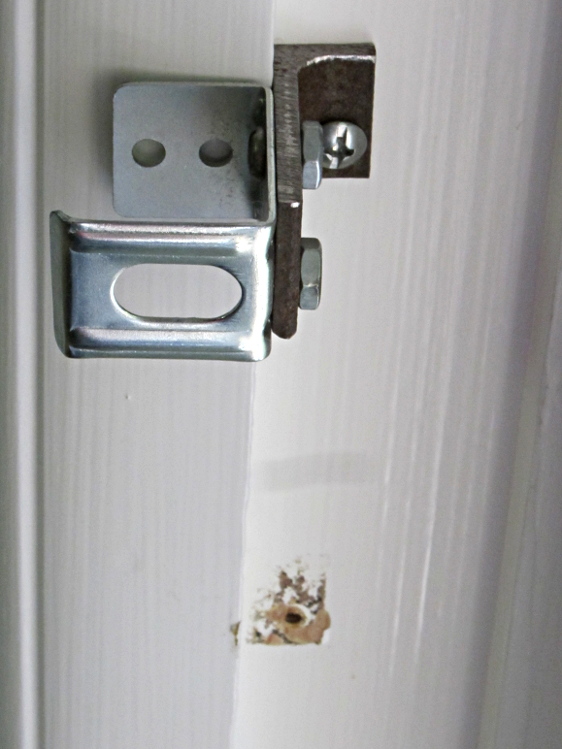
With the new blinds in hand, the job turned out to be not quite as simple as one might expect(*). The new blinds have their middle support bracket on the right side of the central ladder, which means they’re not a drop-in replacement for the old blinds with their support on the left. That’s OK, I can just unscrew the adapter I made that fits the intended-for-a-flat-window-frame bracket to our mid-1950s curved moulding frames, drill another hole in the right spot, and screw it back in place.
Too bad about that paint, but we agreed that because it’s invisible from inside, we’re just not going to worry about it.
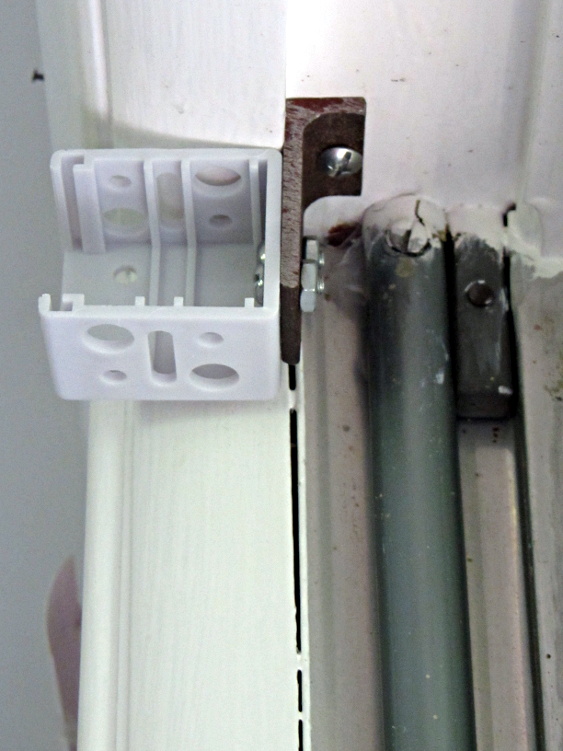
The adapter is a slice of bed frame steel that turned out to have exactly the right length for the job.
Of course, the new bracket has a completely different and incompatible screw hole pattern than the old one, but due to some bizarre slipup, the old bracket fits into the slot in the new blind. I have no explanation for that.
Miniblind mount adapter bracket
I also replaced the sun-faded end brackets, which were essentially identical to the new ones and perfectly fit the existing screw holes.
We had to return and replace the first two blinds, though, as I’d managed to pick up two identical packages with different manufacturing dates. They both had white miniblinds inside and sported the same SKU, but one blind was definitely white and the other a very light gray. This wouldn’t normally matter, but when they’re installed in windows just a few inches apart, the mismatch became painfully obvious.
The new-new blinds come from the same manufacturing lot and had a slightly different shade from both of old blinds and each of the old-new blinds.
(*) Full disclosure: I knew it wasn’t going to be simple, but hope springs eternal.
We put the new furnace (replacing the old one) closer to the wall with the flue pipe, displacing an ancient slop sink (which vanished from the end of the driveway in about an hour) in the process. I “plugged” the drain with a twist of paper towel until the installation was done:
Corroded sink drain nut
The overexposed blue-hot glow comes from the LED worklight on the right.
Despite being chrome-plated brass, the nut at the base of that vertical chrome pipe was firmly corroded to the short nipple emerging from the iron tee. After a few minutes of fruitless wrenching, I deployed a Dremel cutting wheel, slit the nut, gave it a shot with a chisel, and it popped loose. A rubber cap clamped around the nipple finished the job:
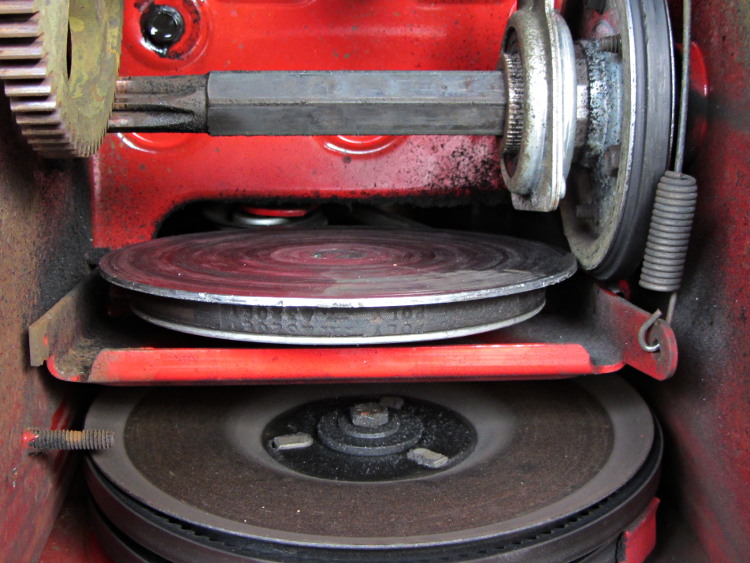
During the next-to-last snowfall, the gearshift on our MTD snowthrower jammed in high gear, but the wheels turned much more slowly than usual. Slightly before the last snowfall, I removed the cover over the transmission and discovered what went wrong:
MTD Snowthrower – transmission failure
That rubber wheel should be resting on the circular transmission plate, but somehow it slid off the far right edge. The spring-loaded clutch cable then pulled the plate upward, so that the side of the wheel drove the edge of the plate. Ouch.
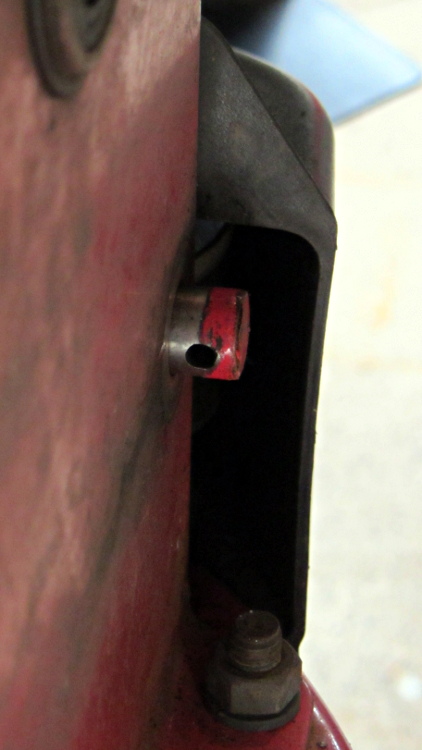
The plate rotates on a bearing around a post on the folded red steel support structure underneath it, which pivots on a rod across the transmission housing behind everything that’s visible here. That rod used to protrude through the housing, but it had slipped inside and moved the plate to the left enough to let the wheel fall off. Some awkward maneuvering got it back through the hole, which made the real problem obvious:
MTD Snowthrower – missing hitch pin clip
There’s supposed to be a cotter pin or hitch pin clip through that hole, with a washer matching the obvious wear marks:
MTD Snowthrower – replacement cotter pin
That’s actually a spacing shim from a collection that I’ve used rather infrequently over the years, but it’s exactly the right thickness to make the answer come out right.
A few weeks later, we found the missing washer on the driveway at about the point where I first noticed the transmission wasn’t working. It’s in the box of parts, waiting for the new cotter pin to wear out.
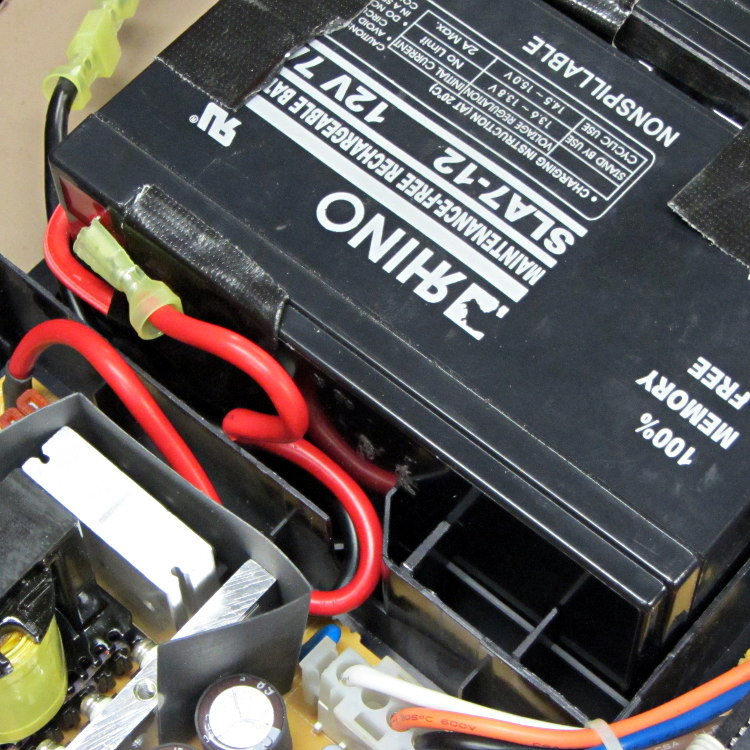
Given the length of the battery wires inside a Belkin F6C1500 UPS, you might think any arrangement will work. Not so. The wires from the guts of the UPS must exit to the batteries exactly like this:
F6C1500 Battery wires from UPS
There’s a black wire tucked under the red wire, both of which must exit though the angled slot and run toward the front of the battery compartment.
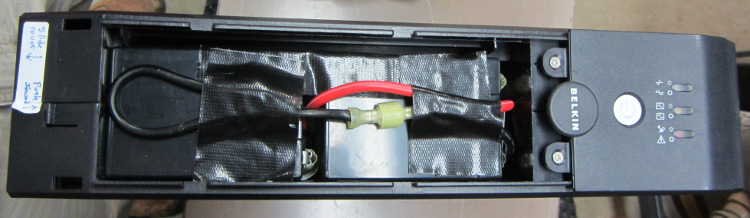
Seen from the front, the red wire connects the positive terminal of the lower (left) battery to the negative terminal of the top (right) battery and the black wire connects the negative terminal of the lower battery to the UPS circuitry:
F6C1500 Battery interconnect wires
Trust me on this: there is no other arrangement of those wires that will simultaneously connect everything properly and fit within the case.
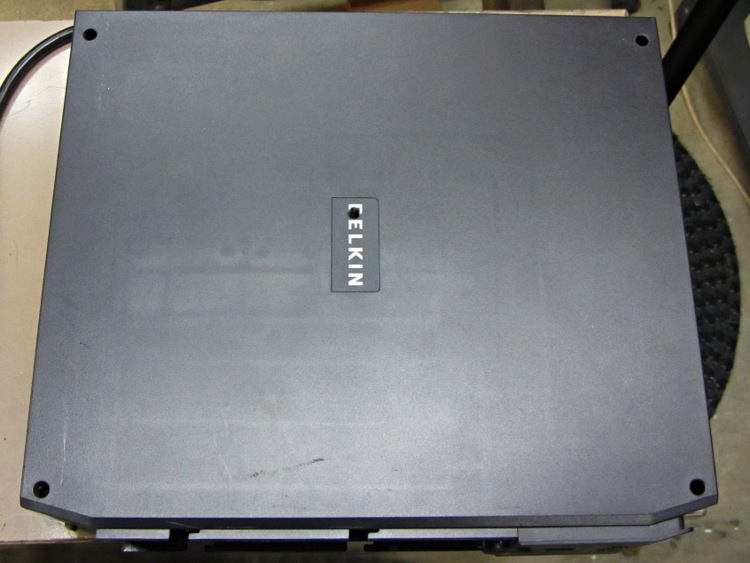
As for disassembly, the small tab on the left end of the case holds the front panel in place. Press that inward with a flat screwdriver, then slide the cover toward the tab. Four locking slots along the sides will disengage and you can then lift the panel off.
With that out of the way, there’s a screw hidden under the BELKIN label in the middle of the removable cover:
Somehow, we wound up with a broom handle and a broom head, the former missing a threaded stub that was firmly lodged in the latter. A few minutes of Quality Shop Time sawed off the end of the handle and unscrewed the stub to produce this array of fragments:
Broken broom handle thread
It’s a cylindrical Thing tailor-made for (or, back in the day, by!) a lathe. My lathe has quick-change gears that can actually cut a 5 TPI thread, but that seems like a lot of work for such a crude fitting. Instead, an hour or so of desk work produced this:
Broom Handle Screw – solid model – overview
Some after-the-fact search-fu revealed that the thread found on brooms and paint rollers is a 3/4-5 Acme. Machinery’s Handbook has 13 pages of data for various Acme screw threads, making a distinction between General Purpose Acme threads and Stub Acme Threads: GP thread depth = 0.5 × pitch, Stub = 0.3 × pitch. For a 5 TPI thread = 0.2 inch pitch, that’s GP = 0.1 inch vs. Stub = 0.06 inch.
I measured a 5.0 mm pitch (which should be 5.08 mm = 0.2 inch exactly) and a crest-to-root depth of 1.4 mm = 0.055 inch, which makes them look like 3/4-5 Stub Acme threads. But, I didn’t know that at the time; a simple half-cylinder 2.5 mm wide and 1.25 mm tall was a pretty close match to what I saw on the broken plastic part.
Although OpenSCAD’s MCAD library has some screw forms, they’re either machine screws with V threads or ball screws with spheres. The former obviously weren’t appropriate and the latter produced far too many facets, so I conjured up a simpler shape: 32 slightly overlapping cylinders per turn, sunk halfway in the shaft at their midpoint, and tilted at the thread’s helix angle.
Broom Handle Screw – thread model closeup
The OpenSCAD source code has a commented-out section that removes a similar shape from the shaft between the raised thread, but that brought the rendering to its knees. Fortunately, it turned out to be unnecessary, but it’s there if you want it.
With the shaft diameter set to the “root diameter” of the thread and the other dimensions roughly matching the broken plastic bits, this emerged an hour later:
Broom handle screw plug – as built
The skirt thread was 0.25 to 0.30 mm thick, so the first-layer height tweak and packing density adjustments worked fine and all the dimensions came out perfectly. The cylindrical thread form doesn’t have much overhang and the threads came out fine; I think the correct straight-sided form would have more problems.
The hole down the middle accommodates a 1/4-20 bolt that applies enough clamping force to keep the shaft in compression, which ought to prevent it from breaking in normal use. I intended to use a hex bolt, but found a carriage bolt that was exactly the right length and had a head exactly the same diameter as the shaft, so I heated it with a propane torch and mushed its square shank into the top of the hexagonal bolt hole (the source code now includes a square recess):
Broom handle screw plug – in handle
The dimples on the side duplicate the method that secured the original plastic piece: four dents punched into the metal handle lock the plastic in place. It seems to work reasonably well, though, and is certainly less conspicuous than the screws I’d use.
Screwing it in place shows that it’s slightly too long (I trimmed the length in the source code):
Broom handle installed
It’s back in service, ready for use…
The OpenSCAD source code:
// Broom Handle Screw End Plug
// Ed Nisley KE4ZNU March 2013

// Extrusion parameters must match reality!
//  Print with +1 shells and 3 solid layers

ThreadThick = 0.25;
ThreadWidth = 2.0 * ThreadThick;

HoleWindage = 0.2;

function IntegerMultiple(Size,Unit) = Unit * ceil(Size / Unit);

Protrusion = 0.1;			// make holes end cleanly

//----------------------
// Dimensions

PI = 3.14159265358979;

PostOD = 22.3;              // post inside metal handle
PostLength = 25.0;

FlangeOD = 24.0;            // stop flange
FlangeLength = 3.0;

PitchDia = 15.5;            // thread center diameter
ScrewLength = 20.0;

ThreadFormOD = 2.5;         // diameter of thread form
ThreadPitch = 5.0;

BoltOD = 7.0;               // clears 1/4-20 bolt
BoltSquare = 6.5;          	// across flats
BoltHeadThick = 3.0;

RecessDia = 6.0;			// recesss to secure post in handle

OALength = PostLength + FlangeLength + ScrewLength; // excludes bolt head extension

$fn=8*4;

echo("Pitch dia: ",PitchDia);
echo("Root dia: ",PitchDia - ThreadFormOD);
echo("Crest dia: ",PitchDia + ThreadFormOD);

//----------------------
// Useful routines

module Cyl_Thread(pitch,length,pitchdia,cyl_radius,resolution=32) {

Cyl_Adjust = 1.25;                      // force overlap

    Turns = length/pitch;
    Slices = Turns*resolution;
    RotIncr = 1/resolution;
    PitchRad = pitchdia/2;
    ZIncr = length/Slices;
    helixangle = atan(pitch/(PI*pitchdia));
    cyl_len = Cyl_Adjust*(PI*pitchdia)/resolution;

    union() {
        for (i = [0:Slices-1]) {
            translate([PitchRad*cos(360*i/resolution),PitchRad*sin(360*i/resolution),i*ZIncr])
                rotate([90+helixangle,0,360*i/resolution])
                    cylinder(r=cyl_radius,h=cyl_len,center=true,$fn=12);
        }
    }
}

module PolyCyl(Dia,Height,ForceSides=0) {			// based on nophead's polyholes

  Sides = (ForceSides != 0) ? ForceSides : (ceil(Dia) + 2);

  FixDia = Dia / cos(180/Sides);

  cylinder(r=(FixDia + HoleWindage)/2,
           h=Height,
	   $fn=Sides);
}

module ShowPegGrid(Space = 10.0,Size = 1.0) {

  Range = floor(50 / Space);

	for (x=[-Range:Range])
	  for (y=[-Range:Range])
		translate([x*Space,y*Space,Size/2])
		  %cube(Size,center=true);

}

//-------------------
// Build it...

ShowPegGrid();

difference() {
    union() {
        cylinder(r=PostOD/2,h=PostLength);
        cylinder(r=PitchDia/2,h=OALength);
        translate([0,0,PostLength])
            cylinder(r=FlangeOD/2,h=FlangeLength);
        translate([0,0,(PostLength + FlangeLength)])
            Cyl_Thread(ThreadPitch,(ScrewLength - ThreadFormOD/2),PitchDia,ThreadFormOD/2);
    }

    translate([0,0,-Protrusion])
        PolyCyl(BoltOD,(OALength + 2*Protrusion),6);
    translate([0,0,(OALength - BoltHeadThick)])
        PolyCyl(BoltSquare,(BoltHeadThick + Protrusion),4);

//    translate([0,0,(PostLength + FlangeLength + ThreadFormOD)])
//        Cyl_Thread(ThreadPitch,(ScrewLength - ThreadFormOD/2),PitchDia,ThreadFormOD/2);

	for (i = [0:90:270]) {
		rotate(i)
			translate([PostOD/2,0,PostLength/2])
				sphere(r=RecessDia/2,$fn=8);
	}
}
While extricating the sawhorses from the garage, one of the bright yellow cap strips fell off. Whether by coincidence or not, it was the same one I’d previously repaired after sawing completely through the poor thing, but this time the failure came from what’s called inherent vice in the molded bracket-and-pin feature that holds the cap in place:
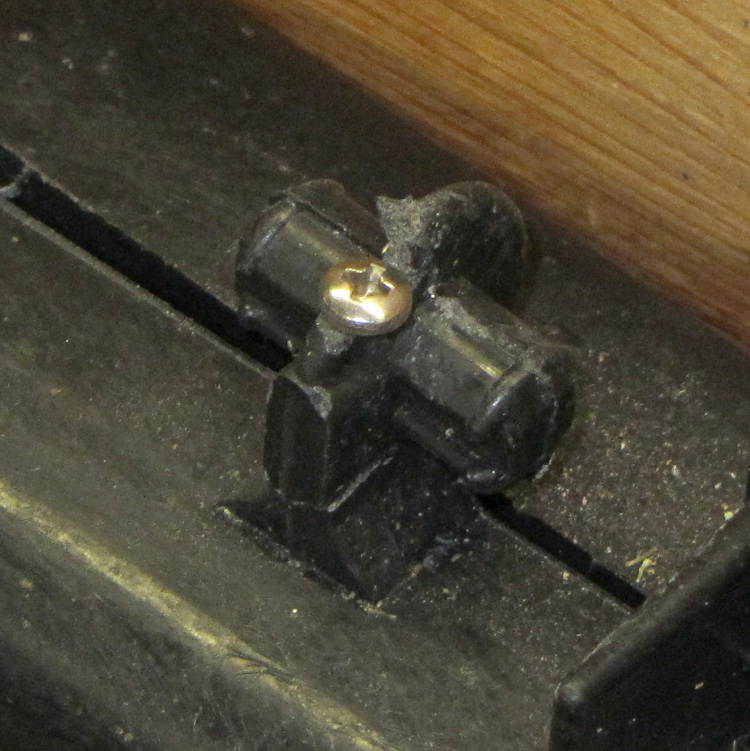
Fractured sawhorse top pin
I filed a flat on the top of the bracket, drilled a 4-40 clearance hole, and then held everything in place while drilling a 4-40 tapping hole into the sawhorse. There was just enough plastic to make all that work, at least for the not very strenuous conditions it should experience around here:
Fractured sawhorse top pin – with screw
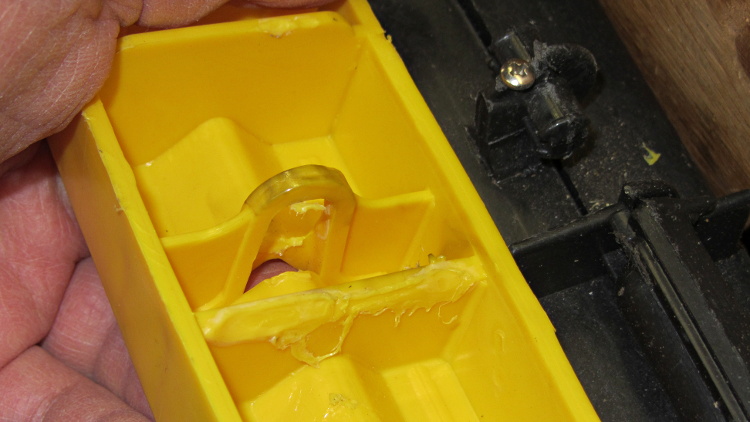
While trying to reassemble the cap, I discovered why the bracket broke. The yellow cap has a bulkhead with an opening for the pin, plus a solid bulkhead that butts against the hinge along the top of the sawhorse. The bulkheads lie too close together: you simply cannot get the opening over the pin on this end with the cap parallel to the top of the sawhorse, which you must do in order to get the pin in the corresponding hole on that end.
Evidently they had the same problem at the factory and “solved” it by melting the bulkhead with a hot blade:
Sawhorse top cover – factory bodge
That didn’t really help me, but I carved off a few more slices to weaken the solid bulkhead enough to bend it around the hinge. I think the strain involved in the original assembly, plus what happened when I had to take it apart to fix the sawed-off end, weakened the bracket enough to snap off at some point over the winter.
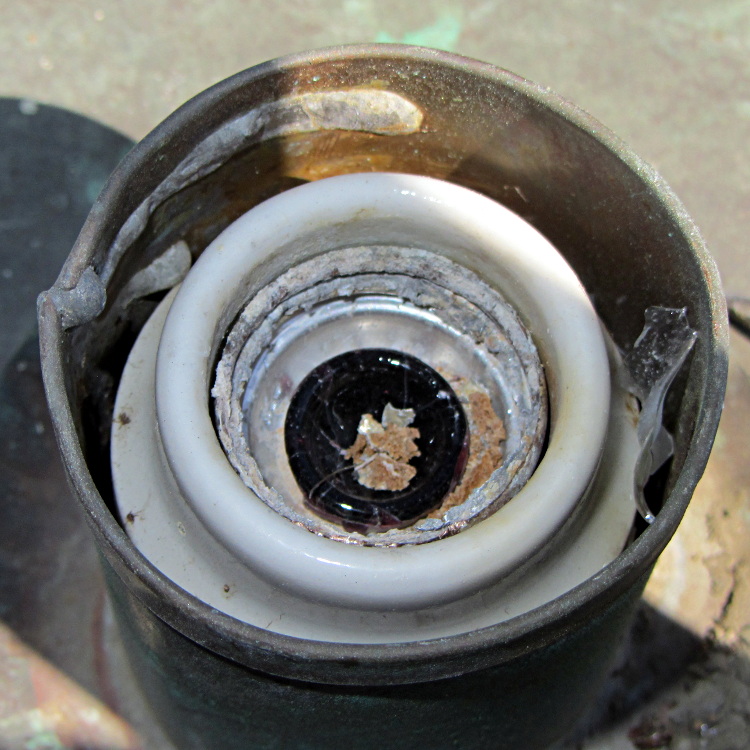
Mad Phil asked me to replace the bulb in a lamp along the walkway to their garage, which turned into a bit of a circus: the bulb had shattered, leaving only the base in the socket. After clearing away the rubble, I was confronted with this:
Corroded lamp socket
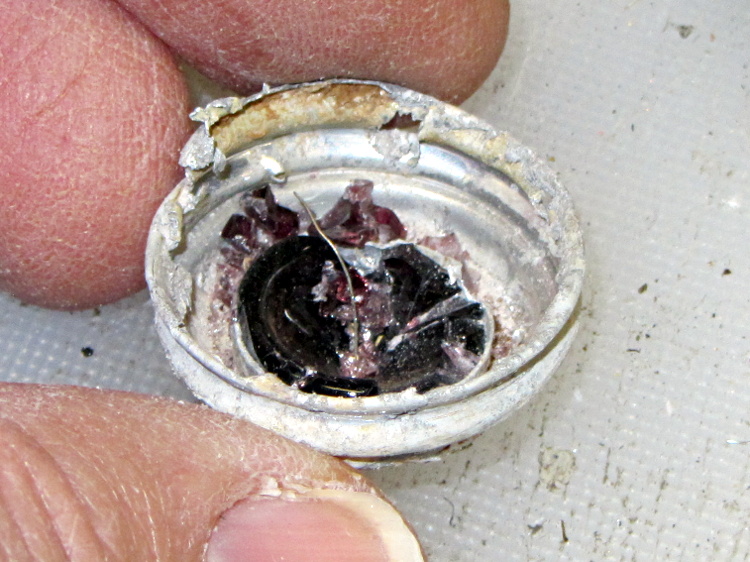
I removed the entire lamp housing, laid it out on my workbench, and eventually resorted to jamming needle-nose pliers into the base and forcibly unscrewing it. That worked:
Corroded lamp base
Fortunately, the aluminum lamp base had corroded against the brass socket, not the other way around, so buffing the socket with a brass wheel in a Dremel handset and polishing the base contacts brought it back to life.




 The Smell of Molten Projects in the Morning