The Smell of Molten Projects in the Morning

Ed Nisley's Blog: Shop notes, electronics, firmware, machinery, 3D printing, laser cuttery, and curiosities. Contents: 100% human thinking, 0% AI slop.

Tag: MK4

Prusa Mk 4 3D printer with MMU3 feeder

  • Monitor Mount: USB Hub Clamp

    Monitor Mount: USB Hub Clamp

    Along with the Beelink PC, putting the Anker USB hub on the monitor mount pole helped tidy the cables just a little bit:

    Monitor pole clamp - Anker USB hub
    Monitor pole clamp – Anker USB hub

    It’s still jumbled, but at least the cables aren’t wagging the hub.

    This clamp needs only one M6 screw into a square nut:

    Monitor Pole box clamp - solid model
    Monitor Pole box clamp – solid model

    Again better seen in cross-section:

    Monitor Pole clamp - PrusaSlicer preview
    Monitor Pole clamp – PrusaSlicer preview

    The OpenSCAD code extrudes the shape from a 2D arrangement, then punches the screw through the side:

    // Monitor Pole box clamp
    // Ed Nisley - KE4ZNU
    // 2025-01-23
    
    include <BOSL2/std.scad>
    
    /* [Hidden] */
    
    ID = 0;
    OD = 1;
    LENGTH = 2;
    
    Protrusion = 0.1;
    
    Box = [22.5,45.5,25.0];         // Z is clamp height
    BoxGrip = 5.0;                  // on outer side clearing connectors
    
    PoleOD = 30.5;
    
    WallThick = 5.0;
    
    Kerf = 3.0;                     // clamping space
    Clearance = 2*0.2;              // space around objects
    
    Washer = [6.0,12.0,1.5];        // M6 washer
    Nut = [6.0,10.0,5.0];           // M6 square nut
    
    MidSpace = 35.0;                // pole to box spacing
    
    ClampOAL = Box.x + MidSpace + PoleOD + 2*WallThick;
    
    //----------
    // Build it
    
            difference() {
                linear_extrude(height=Box.z,convexity=5)
                    difference() {
                        hull() {
                            right(MidSpace/2 + Box.x/2)
                                rect(Box + 2*[WallThick,WallThick],rounding=WallThick);
                            left(MidSpace/2 + PoleOD/2)
                                circle(d=PoleOD + 2*WallThick);
                        }
                        right(MidSpace/2 + Box.x/2)
                            square(Box + [Clearance,Clearance],center=true);
                        right(MidSpace/2 + Box.x)
                            square([Box.x,Box.y - 2*BoxGrip],center=true);
                        left(MidSpace/2 + PoleOD/2)
                            circle(d=PoleOD + Clearance);
                        square([2*ClampOAL,Kerf],center=true);
                    }
                up(Box.z/2) {
                    xrot(90)
                        cylinder(d=Washer[ID] + Clearance,h=2*Box.y,center=true,$fn=6);
                    fwd(Box.y/2 - Washer[LENGTH])
                        xrot(90) zrot(180/12)
                            cylinder(d=Washer[OD] + Clearance,h=Box.y,center=false,$fn=12);
                    back(Box.y/2 + Nut[LENGTH]/2)
                        xrot(90)
                            cube([Nut[OD],Nut[OD],2*Nut[LENGTH]],center=true);
                }
            }
    

    The alert reader will have noticed I didn’t peel the protective film off the hub, which tells you how fresh this whole lashup is.

  • Monitor Mount: Beelink Clamp

    Monitor Mount: Beelink Clamp

    Clearing the clutter off the top of the laser put the monitors up on mounts clamped to its wings, which required an adapter between the monitor and the mount’s standard VESA bracket:

    Acer monitor VESA adapter
    Acer monitor VESA adapter

    The Beelink PC has an adapter plate intended to put it on that VESA bracket, too, but a quick test showed the power button pointed downward in an inaccessible spot. I eventually realized the Beelink would fit neatly on the monitor mount’s pole:

    Monitor pole Beelink clamp - front
    Monitor pole Beelink clamp – front

    The view from the other side:

    Monitor pole Beelink clamp - rear
    Monitor pole Beelink clamp – rear

    The clamps have recesses for an M6 square nut and an M4 brass insert:

    Monitor Pole BeeLink clamp - solid model
    Monitor Pole BeeLink clamp – solid model

    Which is better seen in a cross-section:

    Monitor Pole Beelink clamp - PrusaSlicer preview
    Monitor Pole Beelink clamp – PrusaSlicer preview

    The M6 screw uses the same hex wrench as the rest of the monitor mount and the M4 screw fits the VESA bracket. Sometimes, you just gotta go with the flow.
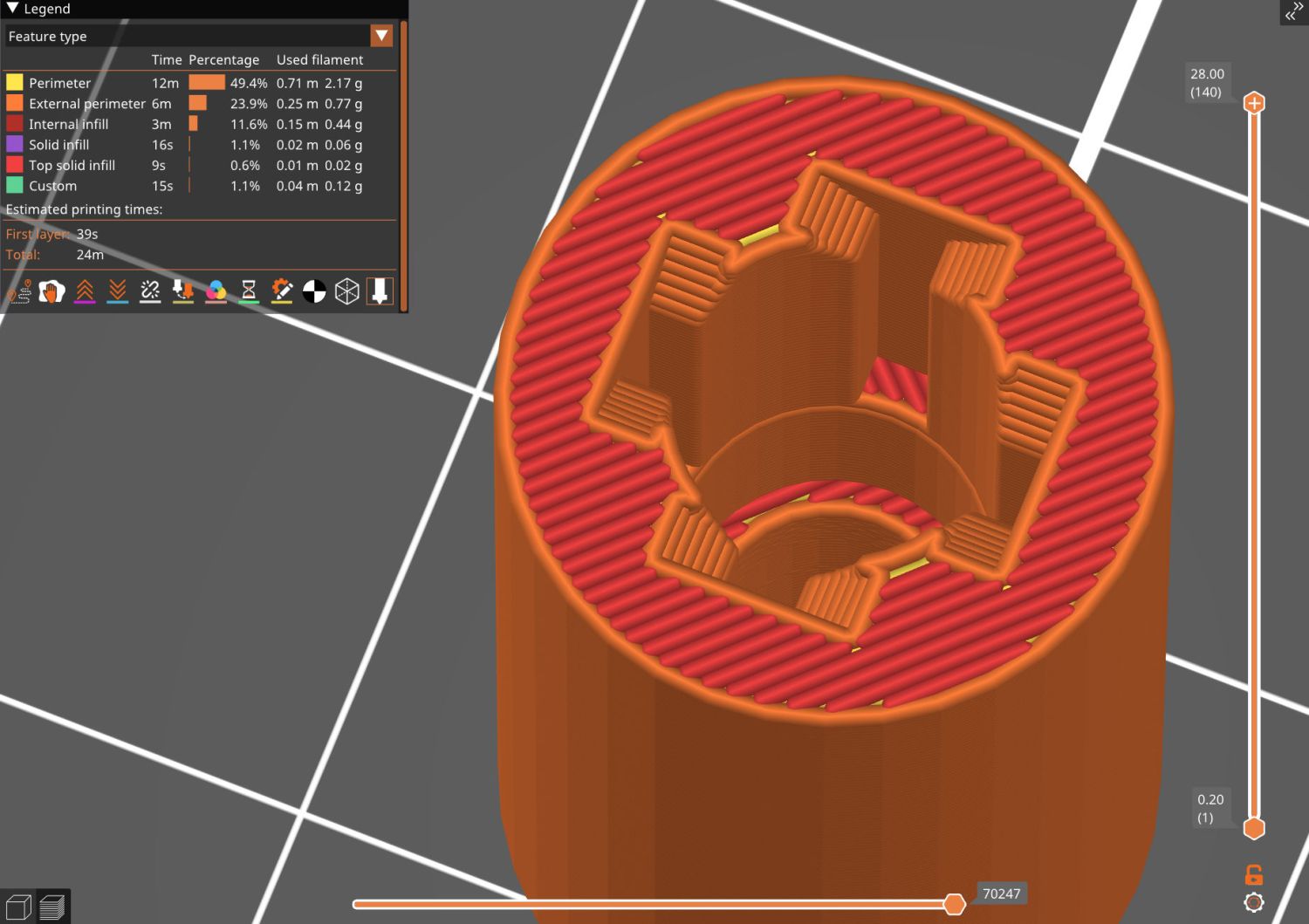
    Pondering those pictures will show why the nut and insert must be on opposite sides. I came that close to building one to throw away.

    The OpenSCAD source code extrudes the overall shape upward, then punches the screw holes & fittings horizontally:

    // Monitor Pole Beelink clamp
    // Ed Nisley - KE4ZNU
    // 2025-01-23
    
    include <BOSL2/std.scad>
    
    /* [Hidden] */
    
    ID = 0;
    OD = 1;
    LENGTH = 2;
    
    Protrusion = 0.1;
    
    PoleOD = 30.3;
    
    WallThick = 5.0;
    
    Kerf = 3.0;                     // clamping space
    Clearance = 2*0.2;              // space around objects
    
    Screw = [6.0,10.0,6.0];         // M6 SHCS, LENGTH = head
    Washer = [6.0,12.0,1.5];        // M6 washer
    Nut = [6.0,10.0,5.0];           // M6 square nut
    
    Insert = [4.0,5.8,10.0];        // M4 insert
    
    ScrewSpace = Washer[OD];        // pole edge to screw center spacing
    
    Block = [4*ScrewSpace + PoleOD + 2*WallThick,PoleOD + 2*WallThick,2*Washer[OD]];       // Z = clamp thickness
    
    //----------
    // Build it
    
            difference() {
                linear_extrude(height=Block.z,convexity=5)
                    difference() {
                        rect([Block.x,Block.y],rounding=WallThick);
                        circle(d=PoleOD + Clearance);
                        square([2*Block.x,Kerf],center=true);
                    }
                up(Block.z/2) {
                    right(PoleOD/2 + ScrewSpace){
                        xrot(90)
                            cylinder(d=Washer[ID] + Clearance,h=2*Block.y,center=true,$fn=6);
                        fwd(Block.y/2 - Washer[LENGTH])
                            xrot(90) zrot(180/12)
                                cylinder(d=Washer[OD] + Clearance,h=Block.y,center=false,$fn=12);
                        back(Block.y/2)
                            xrot(90)
                                cube([Nut[OD],Nut[OD],2*Nut[LENGTH]],center=true);
                    }
                    left(PoleOD/2 + ScrewSpace) {
                        xrot(-90)
                            cylinder(d=Insert[ID] + Clearance,h=2*Block.y,center=true,$fn=6);
                        fwd(Block.y/2 - 1.25*Insert[LENGTH])
                            xrot(90)
                                cylinder(d=Insert[OD] + Clearance,h=Block.y,center=false,$fn=6);
                    }
                }
            }
    

    It’s done in PETG-CF, which looks surprisingly good in a chonky sort of way. I’ll find out how well it withstands moderate clamping forces.

  • HQ Sixteen: Thread Spool Adapter

    HQ Sixteen: Thread Spool Adapter

    The HQ Sixteen consumes thread at a prodigious rate, so it’s set up for large thread cones. Mary sometimes uses ordinary thread spools (leftovers from sewing projects) for short practice sessions and wanted an adapter to hold the little things in place:

    Thread spool adapter - installed
    Thread spool adapter – installed

    Those of long memory should recall previous adapters for both sizes and their notes about how thread should peel off spools & cones. I considered an adapter with a horizontal spool axis, but contemporary machines apparently don’t bother with such niceties. We may need a right-angle adapter to let the thread pull off from the side, but we’ll start simple and fix it if needs be.

    Update: It needed fixing.

    The solid model looks about like you’d expect:

    HQ Sixteen - thread spool adapter - solid model
    HQ Sixteen – thread spool adapter – solid model

    The small crosswise hole in the hub gets an M3 setscrew pushing a rubber pellet slightly into the central bore for a friction fit. The OpenSCAD code can distribute any number of such holes, but one seemed entirely adequate.

    The code shrinkwraps a hull() around two cylinders to create the tapered sides, thus giving the thread less surface to drag across. I have PrusaSlicer set to produce scarf joints around the perimeter and the edges came out surprisingly smooth, with only one rough spot requiring deft Xacto knife work. It’s made from white PETG for a smoother finish than PETG-CF.

    The OpenSCAD code consists mostly of constants defining the various physical measurements and a few lines assembling the model:

    // HQ Sixteen - thread spool adapter
    // Ed Nisley - KE4ZNU
    // 2025-01-21
    
    include <BOSL2/std.scad>
    
    /* [Hidden] */
    
    PinOD = 0.25*INCH;
    
    RingOD = 50.0;      // outer perimeter of thread ring
    RingEdge = 3.0;     // height of ring edge & tapers
    RingAngle = 45;     // upper & lower tapers wrt vertical
    
    RingOAH = 3*RingEdge;
    
    ScrewOD = 2.5;      // tap for setscrew compressing rubberdraulic piston
    NumScrews = 1;
    
    HubOD = 25.0;
    HubThick = 2*ScrewOD;
    HubSides = 12;
    
    ScrewCL = RingOAH + HubThick/2;
    
    AdapterOAH = HubThick + RingOAH;
    
    Protrusion = 0.1;
    
    NumSides = 12*3*4;   // smooth outer perimeter
    
    //----------
    // Build it
    
    
    difference() {
        union() {
    
            hull() {
                linear_extrude(RingOAH)
                    circle(r=RingOD/2 - RingEdge*tan(RingAngle),$fn=NumSides);
    
                up(RingEdge)
                    linear_extrude(RingEdge)
                        circle(d=RingOD,$fn=NumSides);
            }
    
            linear_extrude(HubThick + RingOAH)
                rotate(180/HubSides)
                    circle(d=HubOD,$fn=HubSides);
    
        }
    
        down(Protrusion)
            rotate(180/HubSides)
                cylinder(d=PinOD,h=2*AdapterOAH,$fn=HubSides);
    
       for (i=[0:NumScrews-1]) {
            a = i*360/NumScrews;
            zrot(a)
                up(ScrewCL)
                    yrot(90)
                        zrot(180/6)
                            cylinder(d=ScrewOD,h=HubOD,$fn=6);
        }
    
    }
    

    Putting the adapter in the light box revealed the same problem as photographing white dogs in snowstorms:

    Thread spool adapter - white on white
    Thread spool adapter – white on white

    There was no contrast to be enhanced anywhere, although the rubber pellet definitely stands out.

  • Clothes Dryer Inlet Filter Holder

    Clothes Dryer Inlet Filter Holder

    It has always seemed like a Bad Idea™ to run indoor air through the clothes dryer and dump it overboard, particularly during days when the indoor air has been painstakingly (perhaps expensively) heated or cooled. The dryer now lives in a separate room with two doors, so we can close it off from the rest of the house and let it inhale outdoor air through the screen on the storm door.

    Except in winter, when a glass pane covers the screen. Propping the door open just a bit is unattractive, because an open door seems like an invitation to any field mouse looking to upgrade its domicile.

    Given that the dryer exhausts through a length of 4 inch flexible duct, I figured a similar vent, facing inward, mounted on the storm door would admit enough air to keep it happy. Keeping insects and adroit mice out requires a screen:

    Dryer Inlet Vent - filter retainer
    Dryer Inlet Vent – filter retainer

    After taking that picture, I rammed four threaded brass inserts into the holes, thereby eliminating the need for a handful of washers and nuts, some of which were absolutely certain to disappear through gaps in the deck.

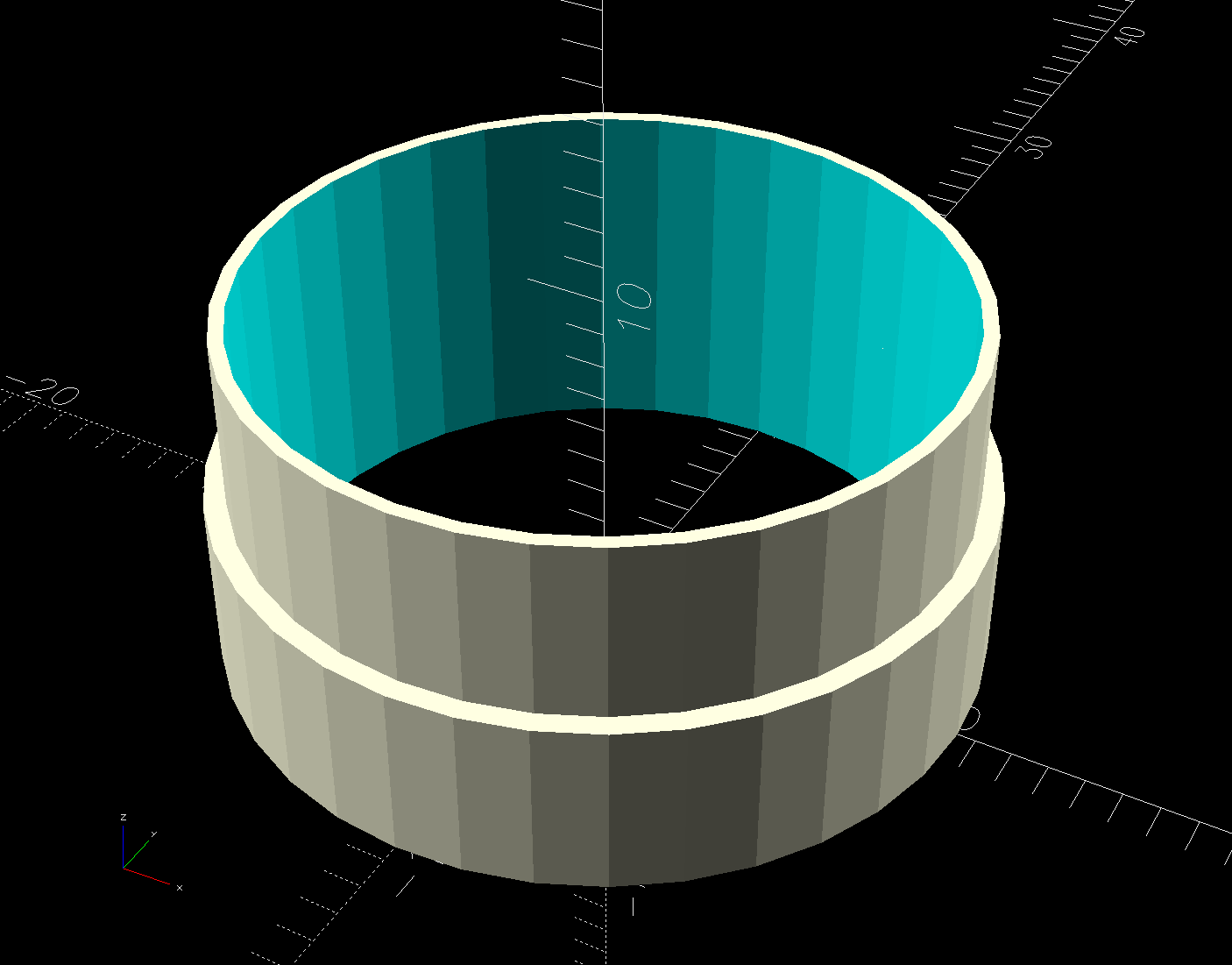
    The two blue-gray rings are PETG-CF:

    Dryer Inlet Vent Filter Retainer - solid model
    Dryer Inlet Vent Filter Retainer – solid model

    The small split makes the inner retainer just springy enough to fit over the two small tabs normally locking a dryer hose in place.

    The OpenSCAD code gloms a few shapes together:

    include <BOSL2/std.scad>
    
    /* [Hidden] */
    
    VentID = 102.0;     // diameter at base of vent opening
    VentOD = 107.5;
    
    OpenAngle = 3;
    
    LipWidth = 3.0;         // lip around vent opening
    LipThick = 7.5;
    
    StrutWidth = 2.5;       // wide enough to hold filter
    StrutThick = 3.0;       // tall enough to be rigid
    NumStruts = 3;
    
    Protrusion = 0.1;
    
    NumSides = 360/6;
    
    $fn=NumSides;
    
    //----------
    // Build it
    
    union() {
    
        linear_extrude(LipThick)
            ring(NumSides,d1=VentID - 2*LipWidth,d2=VentID,angle=[OpenAngle/2,360-OpenAngle/2],spin=270);
    
        linear_extrude(StrutThick) {
            circle(r=StrutWidth);
    
            for (i=[0:(NumStruts-1)]) {
                a = 90 + i*360/NumStruts;
                zrot(a)
                    right(VentID/4)
                        square([VentID/2 - LipWidth/2,StrutWidth],center=true);
            }
        }
    
        linear_extrude(LipThick)                // outside trim ring
            ring(NumSides,d1=VentOD,d2=VentOD+2*LipWidth);
    }
    

    The overall union() keeps PrusaSlicer from identifying the thing as a multi-material model. Apparently, it still looks enough like a logo to qualify for special treatment, but I fought it to a standstill.

    Installation awaits an above-freezing day …

  • Stack Light: EL817 Optoisolator Case

    Stack Light: EL817 Optoisolator Case

    Rather than let the boosted optoisolators flop around:

    Stack Light - controller hairball wiring
    Stack Light – controller hairball wiring

    A small case seemed like a Good Idea™:

    Optoisolator Case - OpenSCAD
    Optoisolator Case – OpenSCAD

    The little hex standoffs have M3 threads, although 6 mm screws are about as much as they’ll take. The recesses have clearance for the boost transistor underneath the PCB, but it’s your responsibility to not let random wires get in trouble with the exposed circuitry:

    Optoisolator case
    Optoisolator case

    A strip of good foam tape sticks it to the controller:

    Stack Light - controller wiring
    Stack Light – controller wiring

    Admittedly, the stack light wiring remains something of a hairball, but it’s in a good cause.

    The OpenSCAD code can build as many cavities as you need:

    Optoisolator Case - x5 - OpenSCAD
    Optoisolator Case – x5 – OpenSCAD

    The OpenSCAD source code as a GitHub Gist:

    // Optoisolator case
    // Ed Nisley – KE4ZNU
    // 2025-01-09
    include <BOSL2/std.scad>
    include <BOSL2/threading.scad>
    // Number of isolator mounts
    NumMounts = 2;
    /* [Hidden] */
    Protrusion = 0.1;
    PCB = [40.5,15.5,1.6]; // optoisolator PCB
    LipWidth = 0.8; // support lip under PCB
    Margin = [8.0,3.0,4.5]; // clearance around PCB
    BaseThick = 3.0; // underneath
    Block = PCB + [2*Margin.x, 2*Margin.y, (Margin.z + BaseThick)];
    echo(Block = Block);
    HolesOC = [9.5,10.0]; // M3 mounting holes (upper left / lower right)
    $fn = 3*4;
    //———-
    // Construct one mount
    module Mount() {
    union() {
    difference() {
    cube(Block,anchor=BOTTOM);
    up(Block.z – PCB.z)
    cube(PCB + [0,0,Protrusion],anchor=BOTTOM);
    up(BaseThick)
    cube(PCB – 2*[LipWidth,LipWidth,0] + [0,0,Block.z],anchor=BOTTOM);
    }
    for (i=[-1,1])
    translate([i*HolesOC.x/2,-i*HolesOC.y/2,BaseThick])
    threaded_nut(5.0,3.1,Margin.z,0.5, // flat size, root dia, height, pitch
    bevel=false,ibevel=false,anchor=BOTTOM);
    }
    }
    //———-
    // Mash together as many mounts as needed
    union()
    for (j=[0:(NumMounts – 1)])
    back(j*(Block.y – Margin.y))
    Mount();

  • Stack Light Base

    Stack Light Base

    Having external indications for the laser cutter’s internal status signals seemed like a good idea and, rather than build the whole thing, I got a five-layer stack light:

    Stack Light - disassembly
    Stack Light – disassembly

    It arrives sans instructions, apart from the data plate / wiring diagram label on the housing, so the first puzzle involves taking it apart to see what’s inside. My motivation came from a tiny chip of blue plastic on the kitchen table where I’d opened the unpadded bag. Apparently, a mighty force had whacked the equally unpadded box with enough force to crack the blue lens, but I have no idea how the sliver escaped the still-assembled stack.

    Anyhow, hold the blue/green lenses in one hand and twist the red/yellow lenses counterclockwise as seen looking at the cap over the red layer. Apply more force than you think appropriate and the latches will reluctantly give way. Do the same to adjacent layers all the way down, then glue the blue chip in place while contemplating other matters.

    A switch on each layer selects either steady (the default and what I wanted) or blinking (too exciting for my needs). Reassemble in reverse order.

    A Stack Light generally mounts on a production-line machine which might have a suitable cutout for exactly that purpose. I have no such machine and entirely too much clutter for a lamp, so I screwed it to a floor joist over the laser:

    Stack Light - installed
    Stack Light – installed

    The tidy blue PETG-CF base started as a scan of the lamp’s base to serve as a dimension reference:

    Stack Light - base scan
    Stack Light – base scan

    Import into LightBurn:

    • Draw a 70 mm square centered on the workspace
    • Round the corners until they match the 13 mm radius
    • Draw one 5.6 mm circle at the origin
    • Move the circle 52/2 mm left-and-down
    • Turn it into a 4 element array on 52 mm centers
    • Verify everything matches the image
    • Export as SVG

    Import into Inkscape:

    • Put the perimeter on one layer
    • Put the four holes on another
    • Center around an alignment mark at a known coordinate
    • Save as an Inkscape SVG

    Import into OpenSCAD, extrude into a solid model, and punch the holes:

    Stack Light Mount base - solid model
    Stack Light Mount base – solid model

    The lip around the inner edge aligns the lamp base.

    If I ever make another one, I’ll add pillars in the corners to put the threaded brass inserts close to the top for 10 mm screws instead of the awkward 30 mm screws in this one. More than a single screw hole in the bottom would align it on whatever you’re indicating.

    Now, to wire the thing up …

    The OpenSCAD source code as a GitHub Gist:

    Loading
    Sorry, something went wrong. Reload?
    Sorry, we cannot display this file.
    Sorry, this file is invalid so it cannot be displayed.
    // Stack Light mount
    // Ed Nisley – KE4ZNU
    // 2025-01-03
    include <BOSL2/std.scad>
    /* [Hidden] */
    ID = 0;
    OD = 1;
    LENGTH = 2;
    BaseCenter = [100,100,0];
    Base = [70,70]; // nominal, for figuring holes
    Insert = [4.9,5.9,6.0];
    PlateThick = Insert[LENGTH];
    HolderTall = 24.0;
    WallThick = 2.7; // outer wall of light base
    LipThick = 1.5; // alignment lip inside light base
    LipTall = 0.75;
    CableOD = 5.0;
    Protrusion = 0.1;
    difference() {
    translate(-BaseCenter)
    linear_extrude(height=HolderTall + LipTall)
    import("Stack Light – base layout.svg",layer="Base Perimeter");
    up(Insert[LENGTH])
    translate(-BaseCenter)
    linear_extrude(height=HolderTall – LipTall)
    offset(delta=-(WallThick + LipThick))
    import("Stack Light – base layout.svg",layer="Base Perimeter");
    up(HolderTall)
    linear_extrude(height=HolderTall,convexity=5)
    translate(-BaseCenter)
    difference() {
    offset(delta=WallThick) // avoid glitches on perimeter edge
    import("Stack Light – base layout.svg",layer="Base Perimeter");
    offset(delta=-WallThick)
    import("Stack Light – base layout.svg",layer="Base Perimeter");
    }
    down(Protrusion)
    translate(-BaseCenter)
    linear_extrude(height=2*HolderTall,convexity=5)
    import("Stack Light – base layout.svg",layer="Base Holes");
    up(HolderTall/2)
    yrot(90) zrot(180/6)
    cylinder(d=CableOD,h=Base.x,$fn=6);
    }

  • Quick-n-Easy Window Shade End Cap

    Quick-n-Easy Window Shade End Cap

    While tracking down an air leak in a living room window, I noticed one of the cellular blinds was missing an end cap, so I scanned a pair of surviving caps:

    Living Room shade end caps - level adjust
    Living Room shade end caps – level adjust

    Blow out the contrast, save as a JPG.

    Import into LightBurn:

    • Trace the outlines into paths
    • Use LightBurn’s shape optimization tool to dramatically reduce the number of nodes & smooth the outlines
    • Overlay & align the shapes
    • Export as an SVG file

    Import into Inkscape:

    • Put the paths on named layers
    • Center around an alignment mark
    • Save as an Inkscape SVG
    Living Room shade end caps - Inkscape alignment
    Living Room shade end caps – Inkscape alignment

    It is slightly tilted, but that doesn’t matter. You could devote more time to smoothing / reverse-engineering the shapes, but that doesn’t make much difference, either.

    Inkscape exports the SVG coordinates with respect to the overall page origin in the lower left corner, so when OpenSCAD imports the SVG the paths end up far away from the origin. The trick is to put a 2 mm diameter circle at a known location, center the paths around it, then have OpenSCAD use the circle’s location to recenter the paths.

    Because Inkscape uses the lower left corner of each shape as its origin, you must put the circle at (99,99) to have its center at (100,100). That is one of the many reasons you (well, I) can’t use Inkscape as a CAD program.

    Import into OpenSCAD, recenter, and extrude the shapes:

    CapCenter = [100,100];
    
    PlateThick = 1.8;       // thickness of visible end cap
    
    HolderTall = 10.0 + PlateThick;
    
    union() {
      linear_extrude(height=PlateThick)
          translate(-CapCenter)
                import("Living Room shade end caps - Inkscape.svg",layer="Exterior");
      linear_extrude(height=HolderTall)
          translate(-CapCenter)
                import("Living Room shade end caps - Inkscape.svg",layer="Retainer");
    }
    

    Which produces a solid model:

    Living Room shade end caps - solid model
    Living Room shade end caps – solid model

    Save the model as 3mf, import into PrusaSlicer, and slice:

    Living Room shade end caps - PrusaSlicer preview
    Living Room shade end caps – PrusaSlicer preview

    Making the retainer shape a little wider would be a good idea to get better infill, but it’s a slip fit into the blind (surely why it fell out long ago) and need not withstand any stress.

    Print as usual:

    Living Room shade end cap - on platform
    Living Room shade end cap – on platform

    And then It Just Works™:

    Living Room shade end cap - installed
    Living Room shade end cap – installed

    It’s sitting atop a bookcase while I finish tinkering with its window.

    All that seems like a lot of fiddling around, but it uses each program to its best advantage and it’s surprisingly easy after the first few models.