The Smell of Molten Projects in the Morning

Ed Nisley's Blog: Shop notes, electronics, firmware, machinery, 3D printing, laser cuttery, and curiosities. Contents: 100% human thinking, 0% AI slop.

Tag: Laser Cutter

  • Subpixel Zoo: Capturing the Specimens

    Subpixel Zoo: Capturing the Specimens

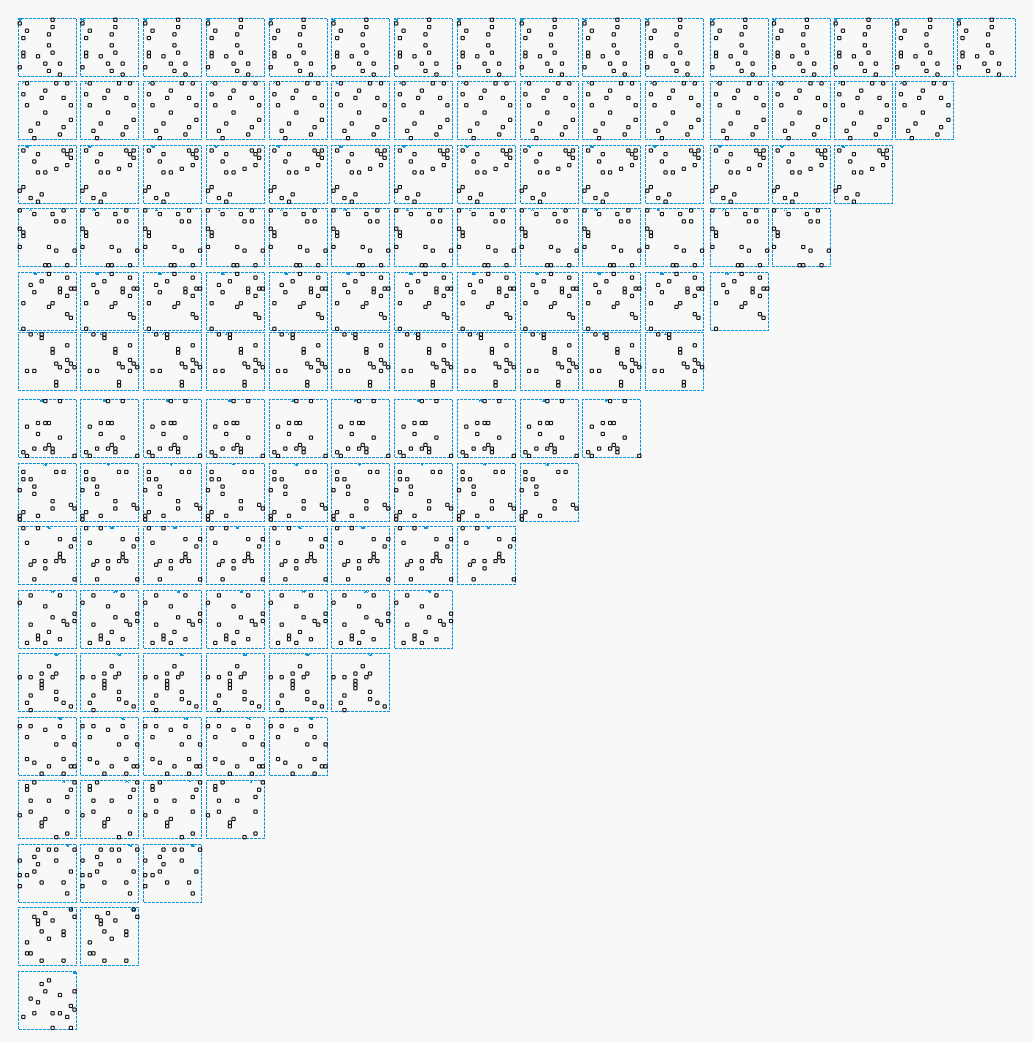
    A Hacker News discussion led to the Subpixel Zoo, which led to thinking the patterns might make interesting layered “art”. After fetching the *.webp images and figuring out how to persuade Thunar to display them, the next step was converting them into paths suitable for laser cutting.

    Although the images are algorithmically generated in a common layout, figuring out how to get the outlines as paths seemed to require a journey into the depths of the Pygame library and that would turn into a major digression.

    Instead, start with one of the webp images:

    sq_RGBY
    sq_RGBY

    The deliberate blurring apparently simulates what you see in real life.

    Import the image into LightBurn, which converts it to grayscale under the plausible assumption you’re going to engrave the image on something. Then:

    • Create a rounded rectangle overlaying the lower-left-most subpixel to good eyeballometric accuracy
    • Turn it into a four-element rectangular array, twiddling the center-to-center spacing to match the subpixel layout
    • Duplicate those four upward in another array to create a subpixel block, as marked in the upper-left corner of the original image
    • Slam another array across the bottom row and upward, twiddling the spacing to match the subpixel block spacing along both axes

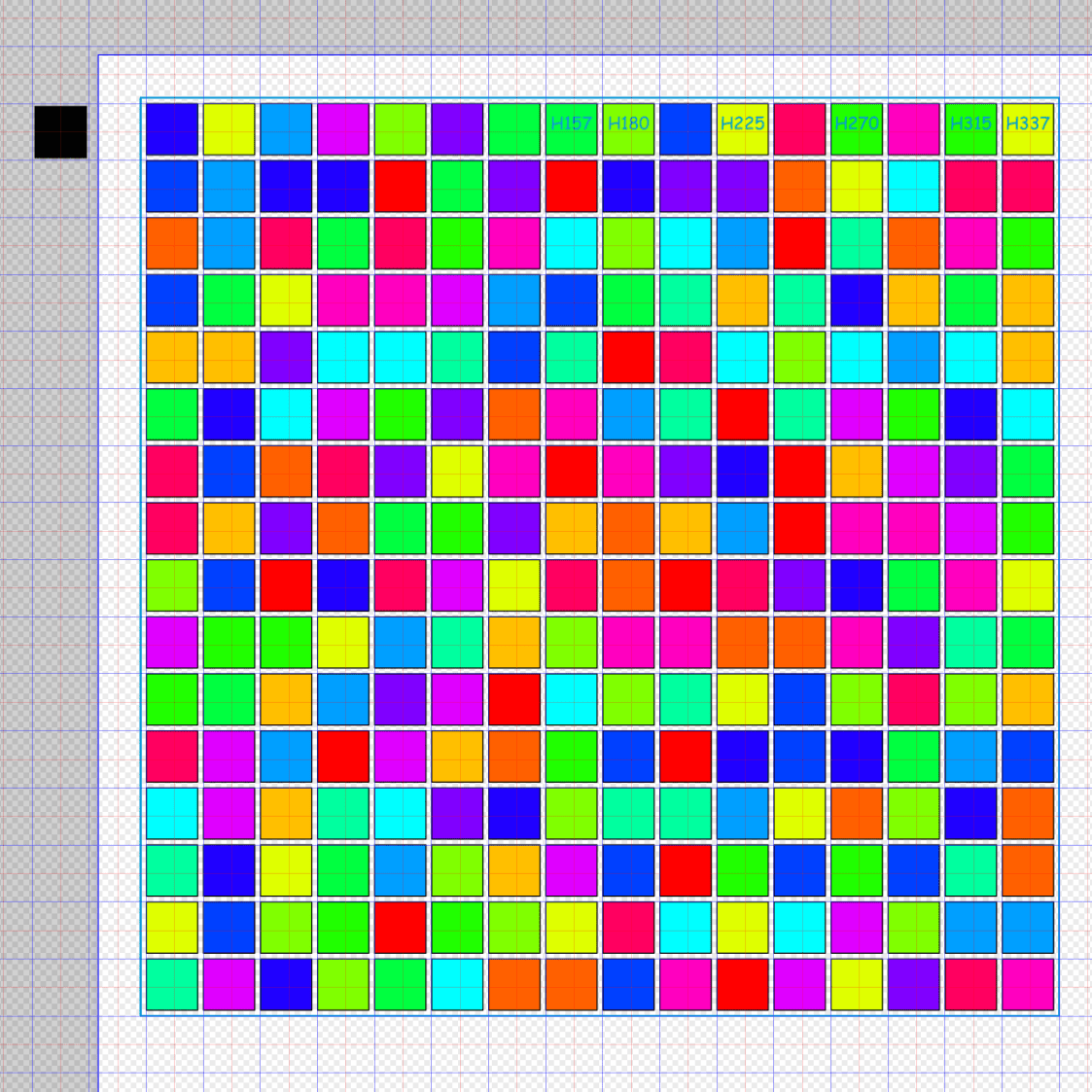
    Which eventually looks like this:

    SubPixels - LightBurn vector overlay
    SubPixels – LightBurn vector overlay

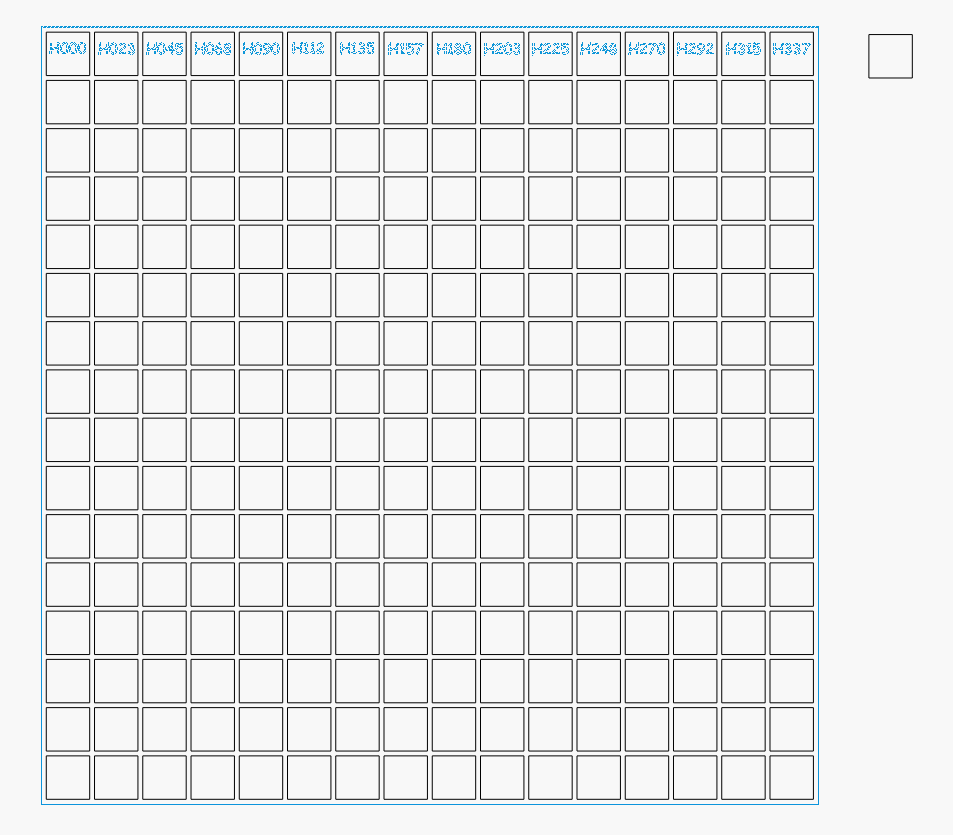
    I made the final array absurdly large, cropped it with a square to match the template I used for the layered paper patterns, resized the result to be 170 mm on a side, then dropped the square into the middle of the template:

    Subpixel Zoo - Quattron RGBY - LightBurn black mask layer
    Subpixel Zoo – Quattron RGBY – LightBurn black mask layer

    One gotcha: crop the subpixels on a Fill layer so LightBurn will close the truncated edges, then put them on a Line layer for cutting. The doc explains why, although it’s not obvious at first, as is the fact that you must delete the group of shapes outside the square before it looks like anything happened during the cut operation.

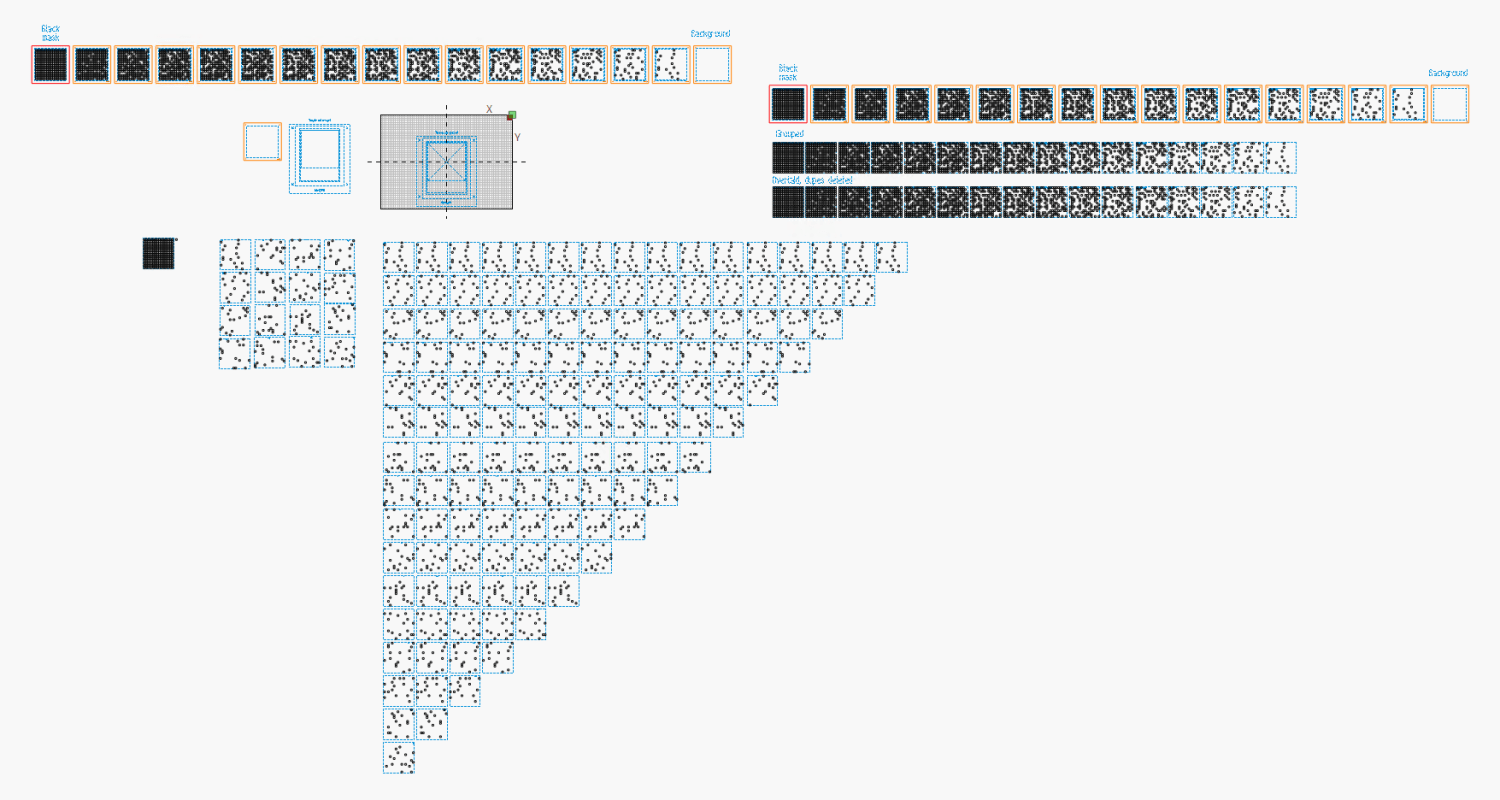
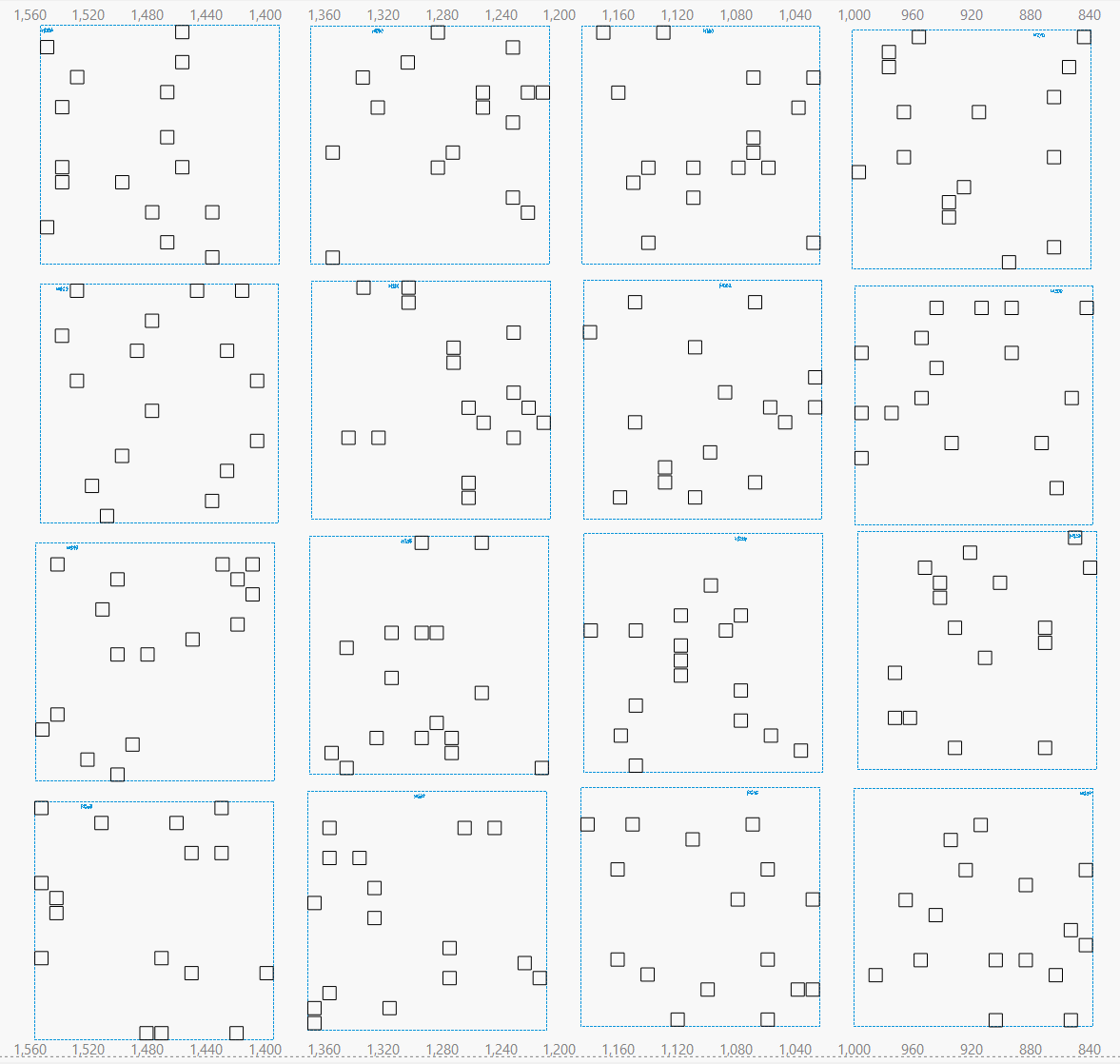
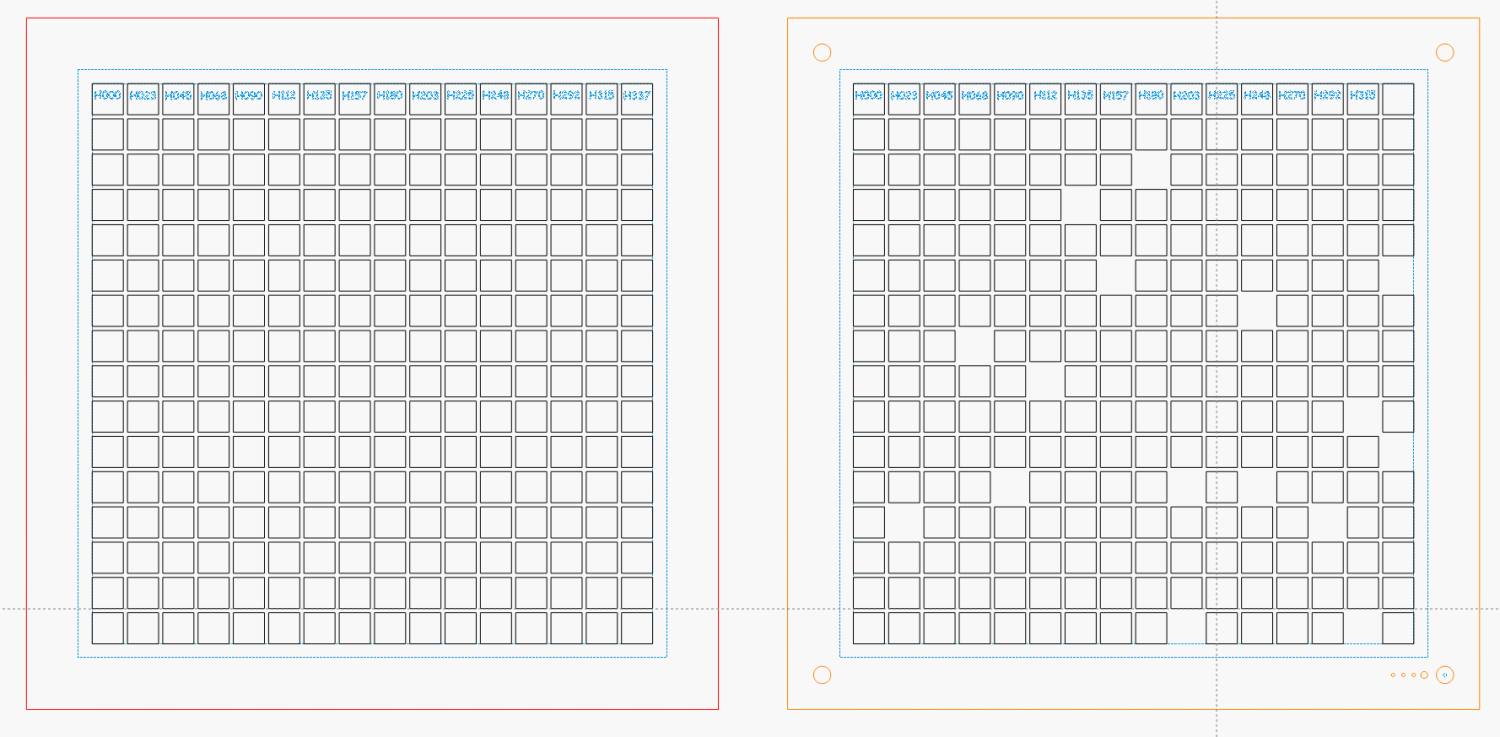
    The resulting layout contains all the subpixel rectangles, so it’s what you want for the top black mask layer. Duplicate the pattern and delete the subpixels corresponding to each color, until you have one template for each of the Red / Green / Blue layers:

    Subpixel Zoo - Quattron RGBY - LightBurn layers
    Subpixel Zoo – Quattron RGBY – LightBurn layers

    The blank over on the right is the Yellow layer, which does get a quartet of layer ID holes cut in the lower right corner.

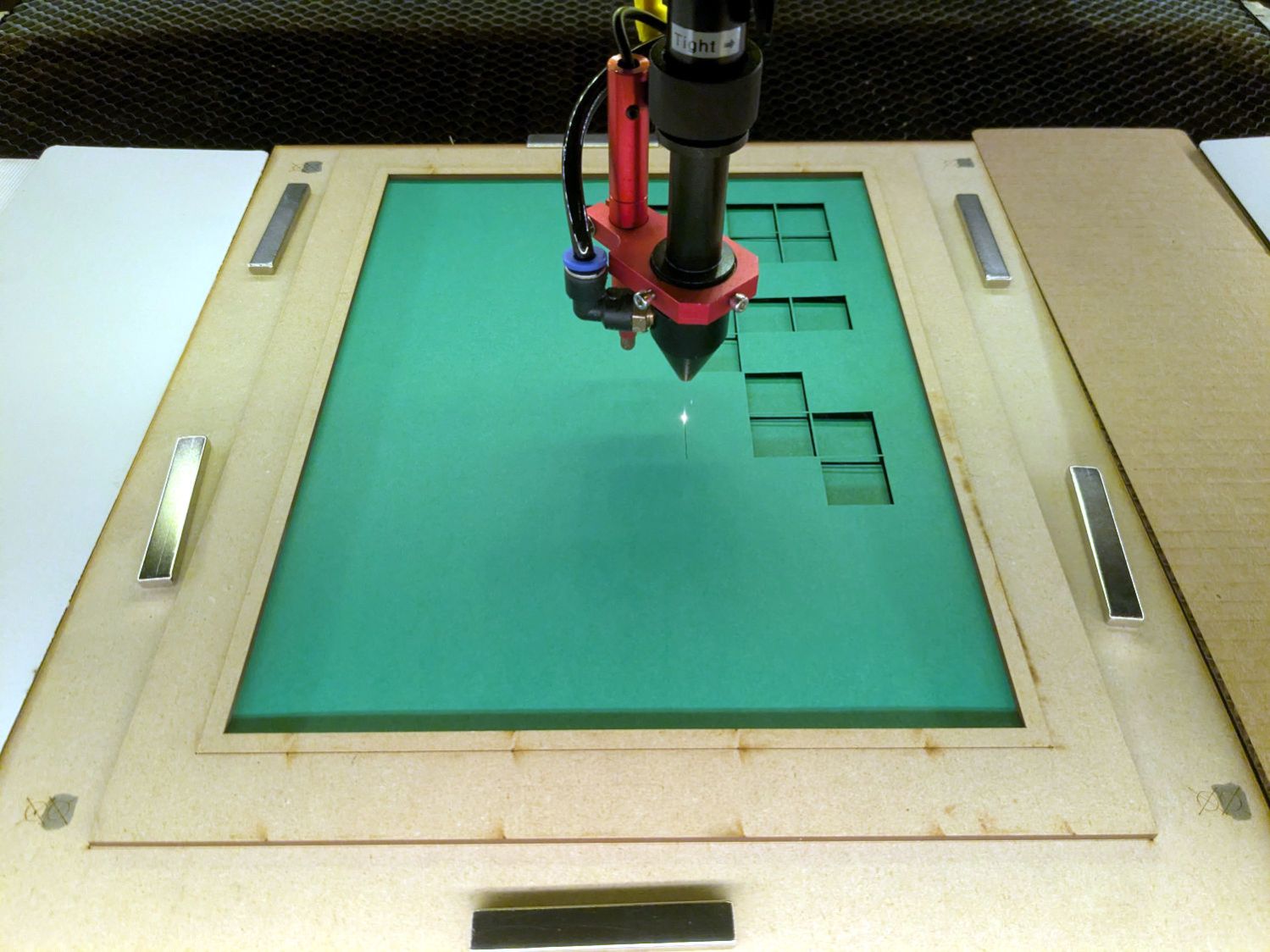
    Then it’s just a matter of cutting the blanks, locating the fixture on the platform, dropping the appropriate color sheet in place, cutting it, then assembling the stack in the gluing fixture:

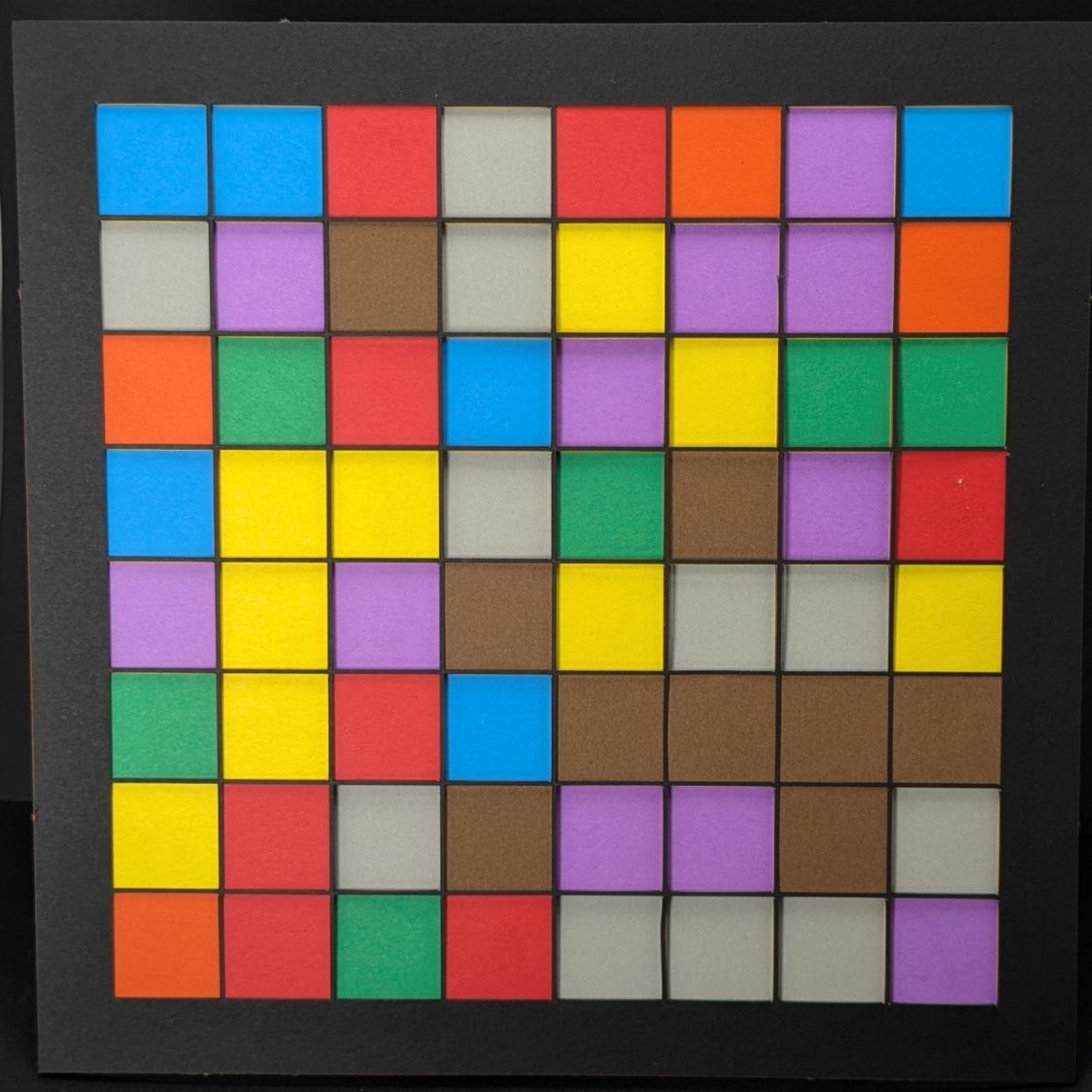
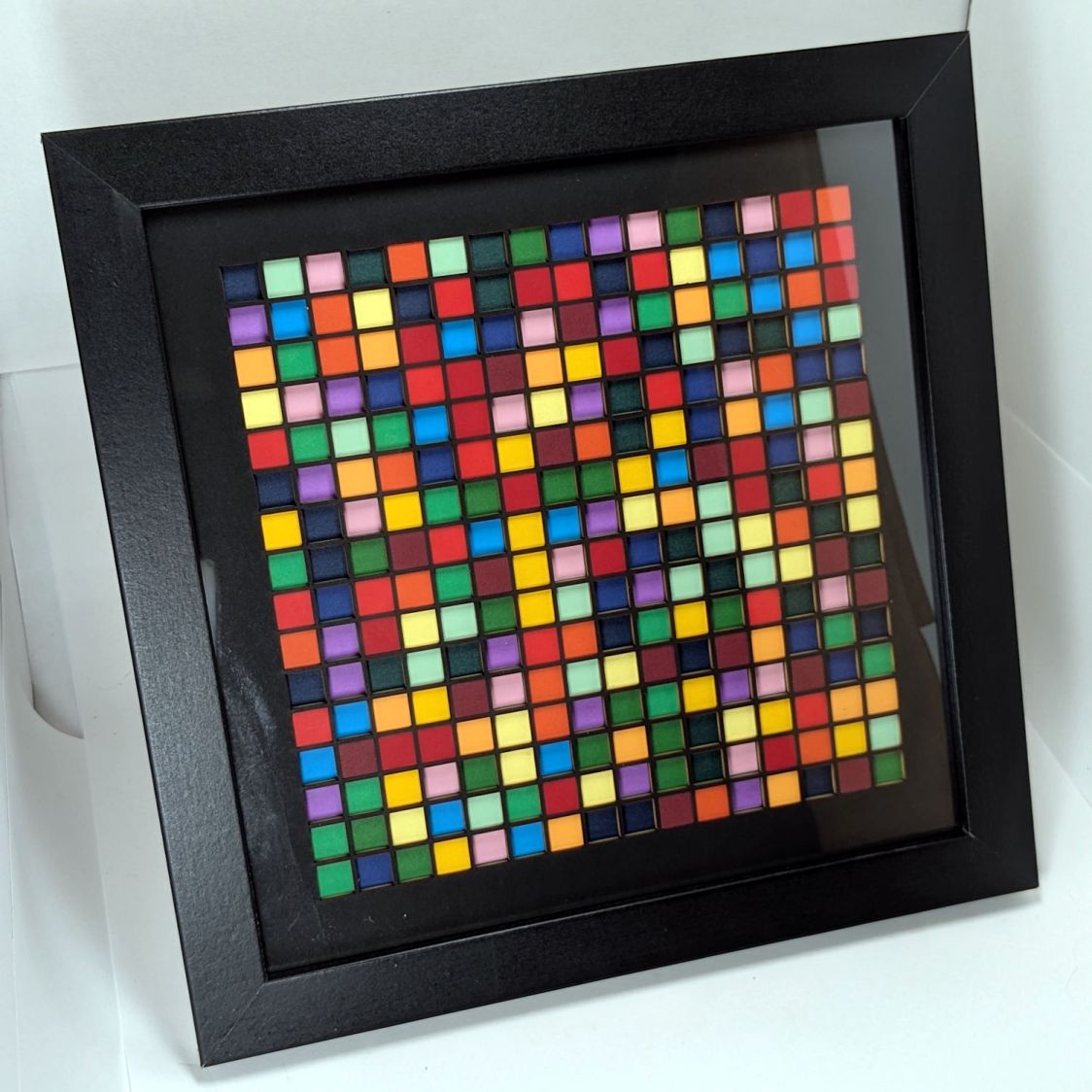
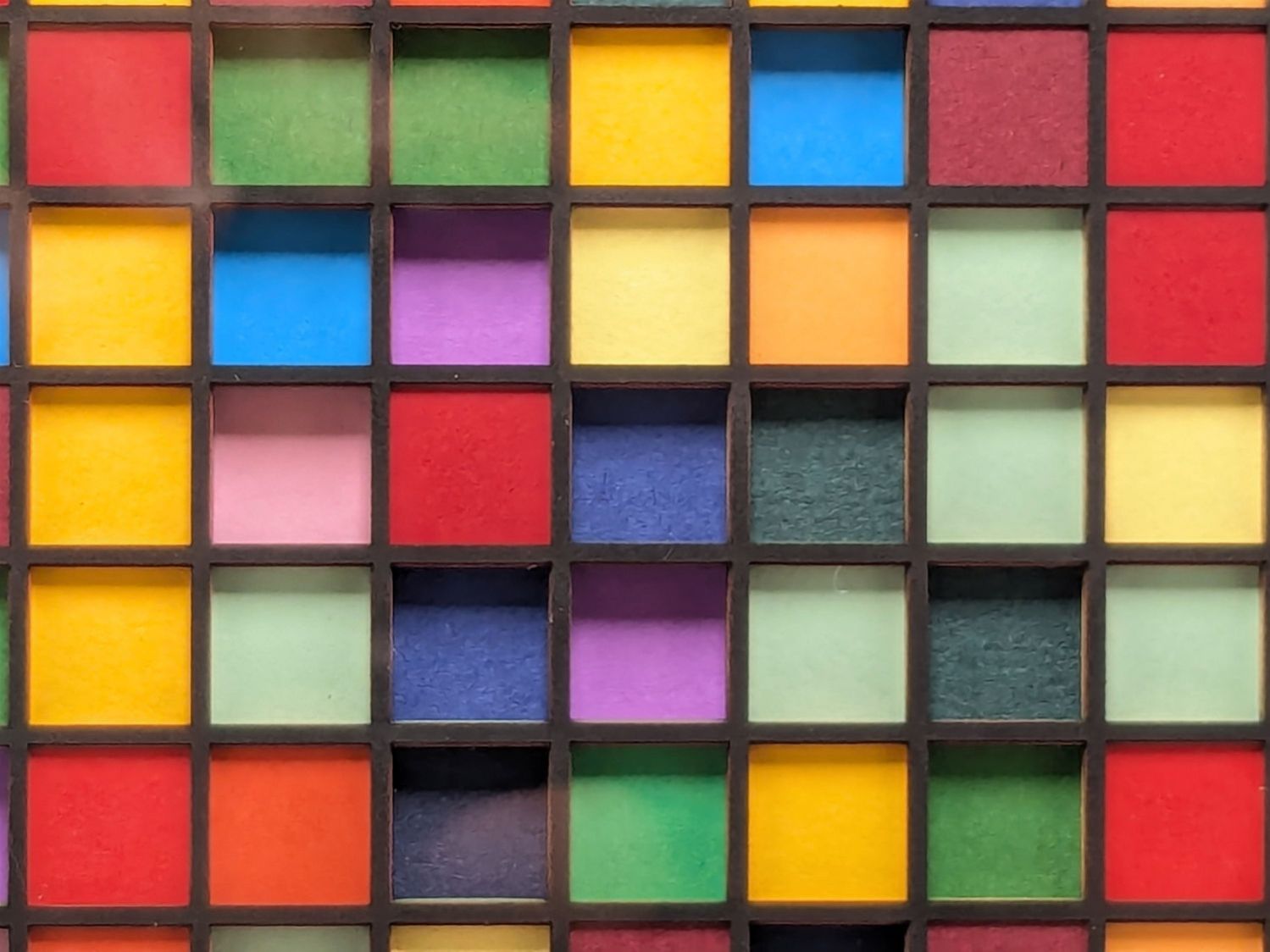
    Subpixel Zoo - Quattron RGBY
    Subpixel Zoo – Quattron RGBY

    It’s kinda cute, in a techie way.

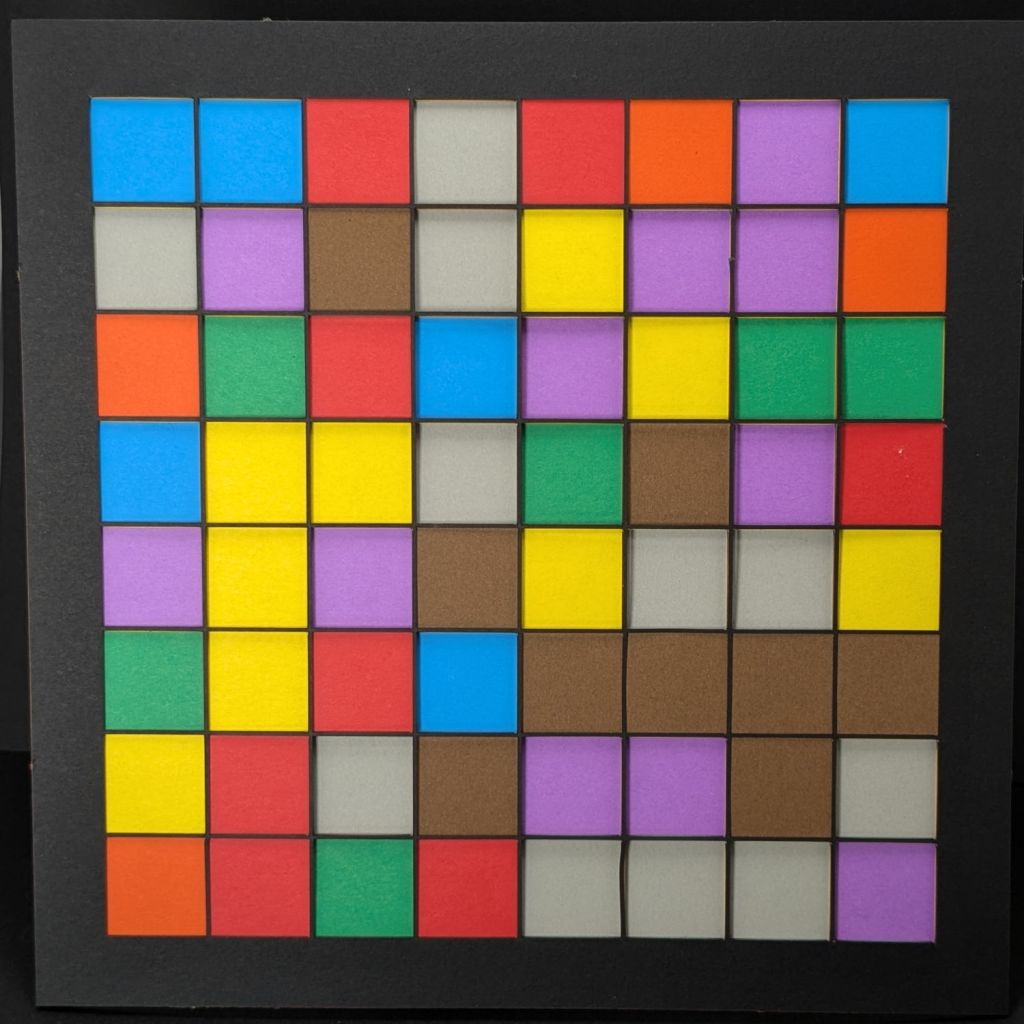
    I did a bunch of layouts, just to see what they looked like:

    Subpixel Zoo - 8x8 layouts
    Subpixel Zoo – 8×8 layouts

    In person, the RGBY patterns look bright and the RGB patterns seem dull by comparison. I’m using cardstock paper, rather than fancy art paper, which surely makes all the difference.

  • Trivial Laser Projects

    Trivial Laser Projects

    A nubbly knob on the M4 screws securing the honeycomb to the laser’s platform:

    Honeycomb screw knob
    Honeycomb screw knob

    Leveling feet for the HQ Sixteen long-arm machine’s table for the high side of the floor:

    HQ Sixteen - table leg leveler - short
    HQ Sixteen – table leg leveler – short

    And 12 mm taller on the low side:

    HQ Sixteen - table leg leveler - tall
    HQ Sixteen – table leg leveler – tall

    Both of those “projects”, which may be too grand a term, went from “I need a thing” to having one in hand over the course of a few minutes yesterday. Neither required a great deal of thought, having previously worked out the proper speed / power settings to cut 3 mm MDF and 1 mm cork.

    Other folks may lead you to believe lasers are all about fancy artwork and elaborate finished products. Being the type of guy who mostly fixes things, I’d say lasers are all about making small and generally simple parts, when and where they’re needed, to solve a problem nobody else has.

    Perhaps I should devote more attention to using fancy wood with a hand-rubbed wax finish, but MDF fills my simple needs.

    With a laser and a 3D printer, shop tools have definitely improved since the Bad Old Days!

  • OMTech 60 W Laser: Engraving Wobbulation

    OMTech 60 W Laser: Engraving Wobbulation

    Continuing the experiments on Y axis wobbling produced this shaky engraving:

    Engraving - 100mm-s 0.25mm interval 9pct
    Engraving – 100mm-s 0.25mm interval 9pct

    The rectangle is 30×10 mm, with lines spaced 0.25 mm apart to simplify estimating distances (although I also have a measuring magnifier) and run at 100 mm/s to simplify converting distance to time. The lines alternate in direction, beginning with a left-to-right line at the bottom (which is bar-straight from the initial positioning move). The wobbles occur at the start of each line.

    A closer look with blown contrast:

    Engraving - 100mm-s 0.25mm interval 9pct - detail
    Engraving – 100mm-s 0.25mm interval 9pct – detail

    The maximum error in the Y axis direction looks like 0.12 mm and damps out after 3 cycles. Each cycle covers 2.8 mm = 28 ms = 35 Hz.

    The LightBurn Preview shows a 1.5 mm overscan distance and extrapolating the wobbulations leftward suggests the gantry starts the scan line with an overshoot due to the Y axis motion. The cycle-to-cycle damping is about 50%, so the initial overshoot (invisible in the overscan region) might be 0.25 mm, agreeing reasonably well with the 0.2 mm seen while cutting small squares.

    The results above come from these settings:

    • Layer speed: 100 mm/s
    • Line interval: 0.25 mm
    • Y acceleration: 2000 mm/s²
    • Y start speed: 20 mm/s

    I then made single-variable changes to the Engraving Parameters settings:

    Line shift speed

    • 500 mm/s
    • 10 mm/s

    Y Acceleration

    • 200 mm/s²

    Y start speed

    • 30 mm/s

    Today I Learned: The Y Start Speed (in mm/s) for engraving is capped by the Y Axis Jumpoff Speed (in mm/s², so perhaps the maximum change in speed), which is, in turn, capped at 80 mm/s.

    Each of the variations produced a result visually indistinguishable from the image you see above: the error magnitude and oscillation frequency were identical.

      One possible reason: None of those settings have any effect, because LightBurn doesn’t do whatever the Ruida controller defines as Engraving. However, changing both the Y start speed and the Jumpoff speed should have made at least a little change to the results and did not.

      Another possible reason: Each 0.25 mm Y axis change requires 20.8 motor steps (either 20 or 21 at 12 µm/step), so the fancy tweaks lack space to take effect, the motor thumps 20-ish steps, and the gantry shakes the same way every time.

      The closer you look, the worse it gets …

    • OMTech 60 W Laser: Speed vs. Corner Radius Wobbulation

      OMTech 60 W Laser: Speed vs. Corner Radius Wobbulation

      Experimenting with little squares showed the Y axis has a definite wobble:

      Subpixel Zoo - Quattron RGBY Shifted - detail
      Subpixel Zoo – Quattron RGBY Shifted – detail

      Which suggested a simple test:

      Cornering - overview
      Cornering – overview

      I adjusted the laser power to compensate for the speed, with the result being a line burned into white cardboard. The lines are a bit under 0.2 mm wide, roughly the width of the focused spot.

      The controller settings for the X and Y axes:

      KT332N - X Y Axis Parameters - 2025-02-18
      KT332N – X Y Axis Parameters – 2025-02-18

      The acceleration values may be affected by the limits in this section:

      KT332N - Cut Engraving Parameters - 2025-02-18
      KT332N – Cut Engraving Parameters – 2025-02-18

      Assuming the Y axis acceleration is 3000 mm/s², the RepRap calculator shows the Y axis speeds within the 30 mm distance along the vertical sides:

      RepRap Accel Calculator - 3000mm-s2 30mm
      RepRap Accel Calculator – 3000mm-s2 30mm

      Extracting the useful bits and lining them up for comparison:

      Cornering - detail
      Cornering – detail

      The first column in the test results shows perfectly square corners have no problem at any speed, because the controller decelerates to nearly a stop before changing direction.

      Rounding the corner to 0.5 mm introduces a distinct wobble in the Y axis that doesn’t change much, probably because the controller still decelerates as it approaches the corner.

      The 1 mm radius corners show a distinct overshoot at all speeds. The peak overshoot doesn’t change much between 250 and 500 mm/s, because the RepRap calculator shows the machine barely reaches 250 mm/s by the middle of the side, so 500 mm/s isn’t any faster.

      The first overshoot is about 0.2 mm, the first undershoot is a little over 0.1 mm, and the rest are barely visible.

      The 2 and 4 mm radius corners have barely visible wobbles. Whether that is due to the head not flexing as much due to the lower acceleration around the larger radius I cannot say.

      The machine may not follow the simple RepRap acceleration profile when approaching a corner, let alone a rounded corner.

      I think attempting to reduce the overshoot by fiddling with the belt tension / hardware fasteners / whatever will be unavailing. The laser head runs on a linear rail along the gantry with plenty of unbalanced mass hanging off the bottom:

      OMTech 60W beam alignment - head X plane
      OMTech 60W beam alignment – head X plane

      Moving the beam 0.2 mm on the platform by pivoting around the rail 6 inch = 150 mm above amounts to only 0.08°, far less than anything I can measure while adjusting the mechanics.

      Slowing down doesn’t help nearly as much as I expected and rounding the corners makes it worse.

      Word has it that much spendier machines behave better, which is both comforting and unhelpful.

    • Laser-Engraved CD Stress Cracking

      Laser-Engraved CD Stress Cracking

      Given the cracking caused by vector patterns on CDs and DVDs, seeing stress cracks open up on large-area engravings came as no surprise:

      Laser engraved CD cracking - D
      Laser engraved CD cracking – D

      They start smaller in the more closely engraved areas:

      Laser engraved CD cracking - A
      Laser engraved CD cracking – A

      But eventually spread over the entire surface:

      Laser engraved CD cracking - C
      Laser engraved CD cracking – C

      They’re not always straight:

      Laser engraved CD cracking - B
      Laser engraved CD cracking – B

      And aren’t aligned with the engraving path:

      Laser engraved CD cracking - B detail
      Laser engraved CD cracking – B detail

      My threat model says those discs are definitely unreadable …

    • Thunar WEBP Thumbnails

      Thunar WEBP Thumbnails

      For whatever reason, the Thunar file browser in XFCE does not automagically show thumbnails for webp images. Some searching produced a recipe, although the displayed webp.xml file needs the last two lines to close the tags:

      <?xml version="1.0" encoding="UTF-8"?>
      <mime-info xmlns="http://www.freedesktop.org/standards/shared-mime-info">
          <mime-type type="image/webp">
              <comment>WebP file</comment>
              <icon name="image"/>
              <glob-deleteall/>
              <glob pattern="*.webp"/>
          </mime-type>
      </mime-info>
      

      The magic copy-to-clipboard button includes those tags, so I suppose it’s another case of being careful what you believe on the Intertubes.

      Going through the steps displayed images of the Subpixel Zoo:

      Thunar - webp previews
      Thunar – webp previews

      They’ll turn into layered paper patterns:

      Subpixel Zoo - Quattron RGBY Shifted - detail
      Subpixel Zoo – Quattron RGBY Shifted – detail
    • HQ Sixteen: Thread Cone Locating Disk

      HQ Sixteen: Thread Cone Locating Disk

      After installing (if that’s not too fancy a term) the horizontal thread spool adapter on the HQ Sixteen, I laser-cut an acrylic disk to keep thread cones centered on the other vertical spool pin:

      HQ Sixteen - thread cone base locator - installed
      HQ Sixteen – thread cone base locator – installed

      It’s trivial: an 11 mm circle to clear the washer and a 55 mm circle to locate the cone.

      However, I cut that disk with a 56 mm OD, because that’s what I measured on half a dozen cones. Come to find out at least some cone bases are juuust slightly oval and they latched onto that disk like they were gonna be best buddies forever.

      Rather than cut another acrylic disk, I laser-cut a friction ring from a scrap of stamp-pad rubber and jammed the disk against the chuck with a live center:

      HQ Sixteen - thread cone base locator - turning
      HQ Sixteen – thread cone base locator – turning

      A few minutes of sissy cuts made the disk nicely round and concentric with the inner hole, with a little file work knocking the edges off the rim.

      Done!