The Smell of Molten Projects in the Morning

Ed Nisley's Blog: Shop notes, electronics, firmware, machinery, 3D printing, laser cuttery, and curiosities. Contents: 100% human thinking, 0% AI slop.

Tag: Laser Cutter

  • Bird Box: Rotating T-Nuts

    Bird Box: Rotating T-Nuts

    A bird box from long ago emerged from the heap and took its place in an upstairs window:

    Bird Box window mount - installed
    Bird Box window mount – installed

    That big open back held an acrylic sheet letting us watch wrens raise their family; snugging it against the window makes that sheet superfluous. We’re hoping to lure the Wreath Finches from their preferred spot by the front door, but we’re open to any birds in need of a nesting spot.

    The aluminum angle formerly securing the box to various wood window frames wasn’t going to work here, so I conjured a pair of rotating T-nuts to fit the track in the plastic window frame:

    Bird Box window mount - nuts
    Bird Box window mount – nuts

    They’re made from a 5/16-18 T-nut and two layers of 3 mm plywood, all glommed together with E6000-Plus adhesive because it did not scamper out of the way when I opened the Adhesives Cabinet.

    Some doodling convinced me a pair of quarter-circles welded back-to-back, minus cutouts for the metal T-nuts, would suffice:

    Bird Box window mount - nuts
    Bird Box window mount – nuts

    The radius must be a little less than the width of the opening into the channel (20 mm) and the diameter must be a little more than the width of the channel behind that opening (32-ish mm), so I picked 17 mm. The metal T-nut flange is just over 20 mm, but the spike cutouts (omitted from the LightBurn layout) let it slip through the opening.

    A random block of wood positions the box away from the frame enough to clear the outermost flange carrying the screen. Drilling oversize ⅜ inch holes countersunk the top of the T-nut into the block and eliminated excessive alignment fussiness.

    Slicing 20 mm off the bolts fit them into the space available, with a pair of stainless washers covering the gaps.

    A doodle with measurements you won’t need, but surely handy for mounting something else around here:

    Bird Box window mount - size doodles
    Bird Box window mount – size doodles

    Now, to see who takes up residence …

  • Champion Hose Nozzle: Needs a Washer?

    Champion Hose Nozzle: Needs a Washer?

    An email discussion suggested the Champion hose nozzle might, once upon a time, have had a washer between the conical and cylindrical sections.

    So I made one:

    Champion hose nozzle - rubber washer
    Champion hose nozzle – rubber washer

    The details:

    • OD = ½ inch
    • ID = 9/32 inch
    • 2.5 mm stamp pad rubber

    It sealed perfectly, but, just before shutting off, the washer vibrated in the water flow and gave off an ear-shattering (even to my deflicted hearing) howl.

    Perhaps a stiffer and thinner washer with a slightly larger OD would work better.

    A quick check of similar nozzles in the Box o’ Hydraulics shows none of them feel like they have a compliant washer in there, but any sufficiently old rubber will have long since fossilized.

    This seems like a good job for a 3D printed washer with a conical face, made from slightly squishy TPU plastic to ease it past the nozzle’s internal threads. All I need is the ability to print TPU …

  • HQ Sixteen: Handlebar Control Button Labels

    HQ Sixteen: Handlebar Control Button Labels

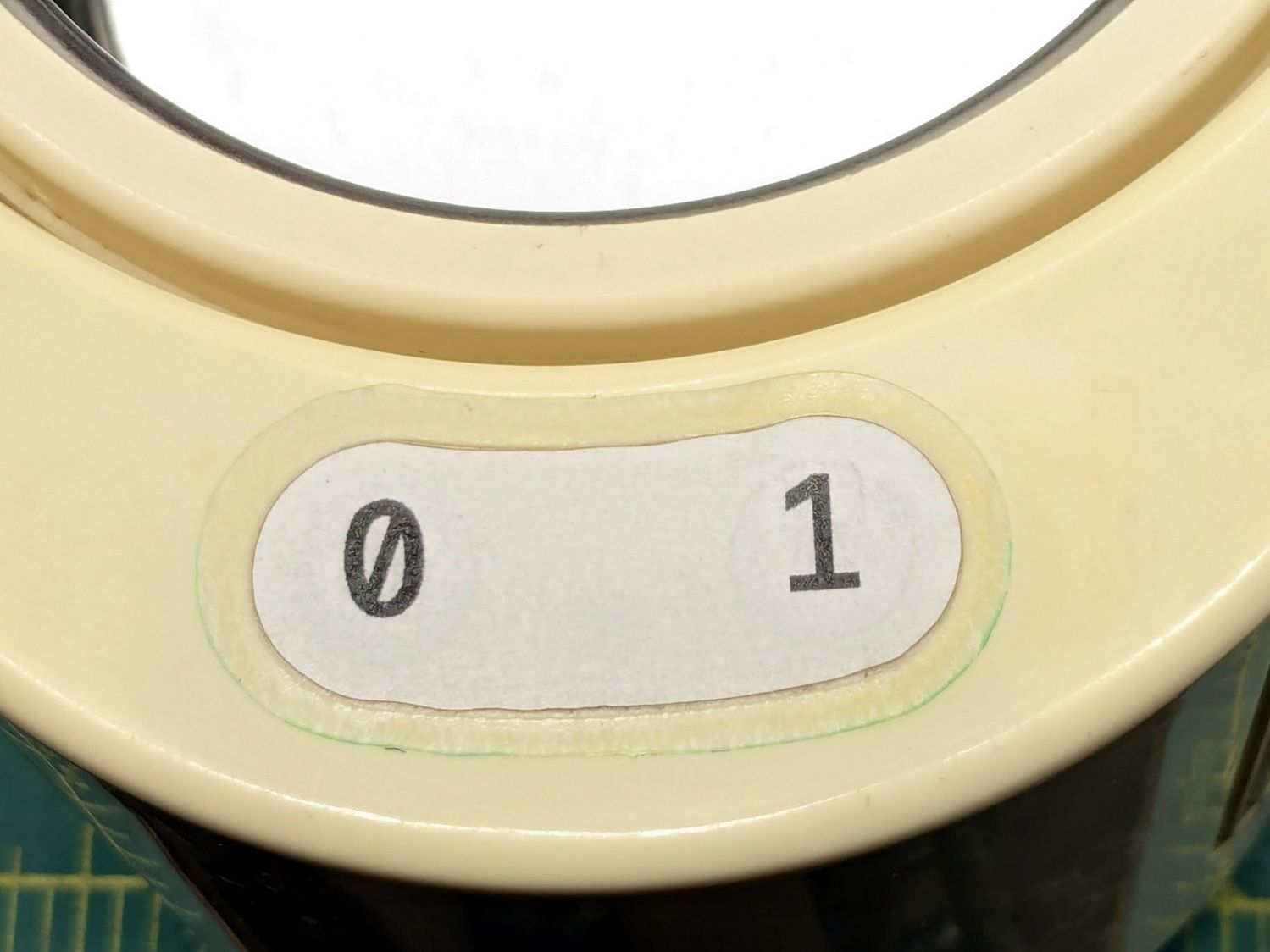
    The recessed faceplate on the new handlebar control caps for Mary’s HQ Sixteen puts the label flush with the rim:

    Control Button Caps - solid model - show view assembled
    Control Button Caps – solid model – show view assembled

    The current version of the labels isn’t much to look at:

    HQ Sixteen control caps - new caps
    HQ Sixteen control caps – new caps

    The OpenSCAD code produces an SVG outline of the faceplate, surrounded by four alignment targets:

    Control Button Caps - solid model - face view
    Control Button Caps – face view

    Import the SVG into Inkscape and tart it up:

    Control Button Caps - Inkscape
    Control Button Caps – Inkscape

    The alert reader will note the labels are swapped left-for-right.

    The black characters on the left get printed on heavy white paper and laminated; feel free to add artistic embellishments. You must delete the cyan-ish shapes showing the faceplate and switch openings, which just show where the characters will end up, but you must print the four corner targets for alignment.

    The red and orange shapes on the right define the outlines for laser-cutting the laminated paper and adhesive sheet after you import the Inkscape SVG file into LightBurn. The Inkscape colors will automagically put the shapes on separate LightBurn layers, with the cyan-ish shapes going onto non-cutting Tool Layer T2.

    Set the cutting speed & feed to match your machine, lay the laminated labels on the platform, use Print and Cut to align two diagonal corner targets with the corresponding printed targets, then Fire. The. Laser.

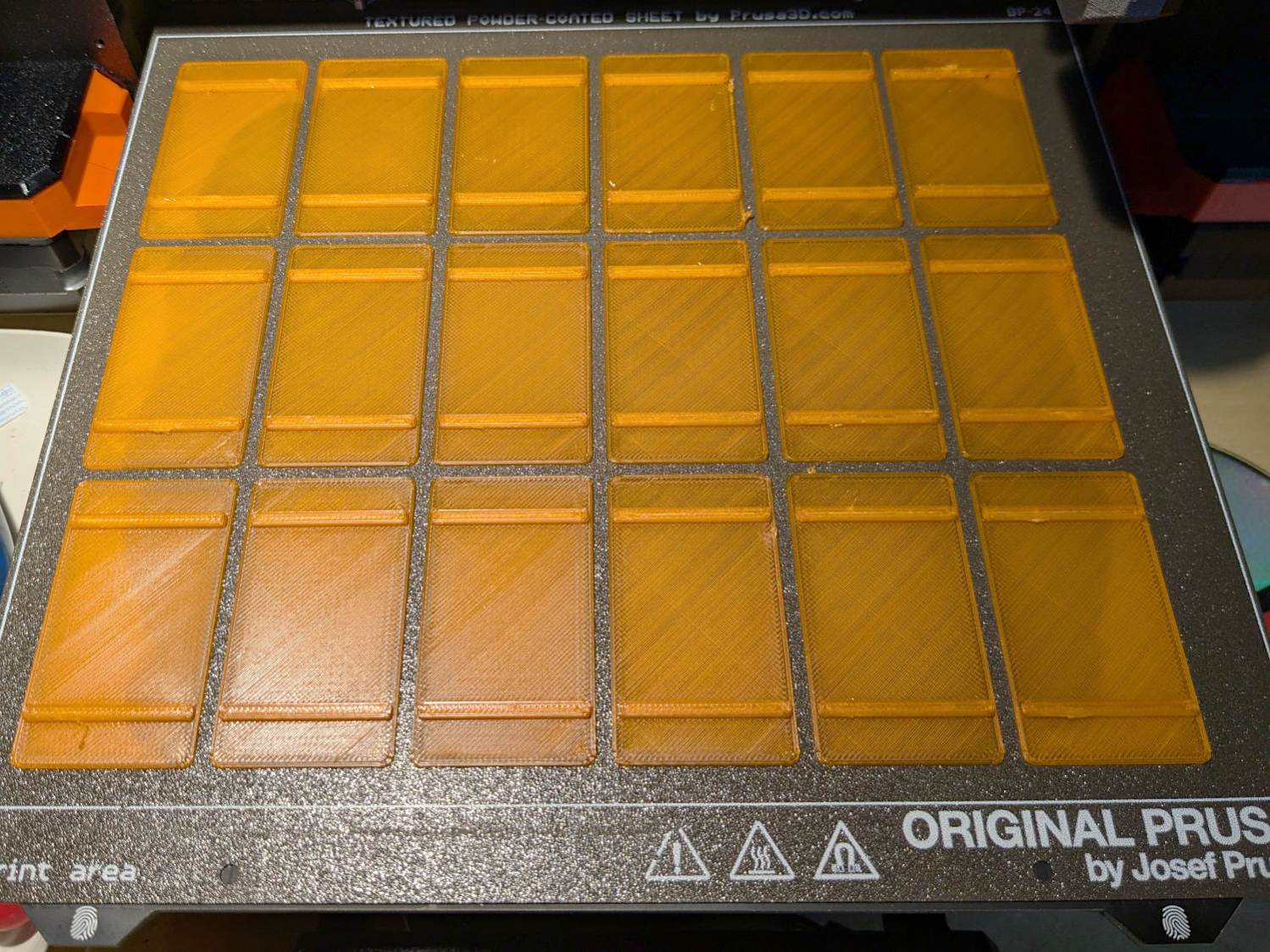
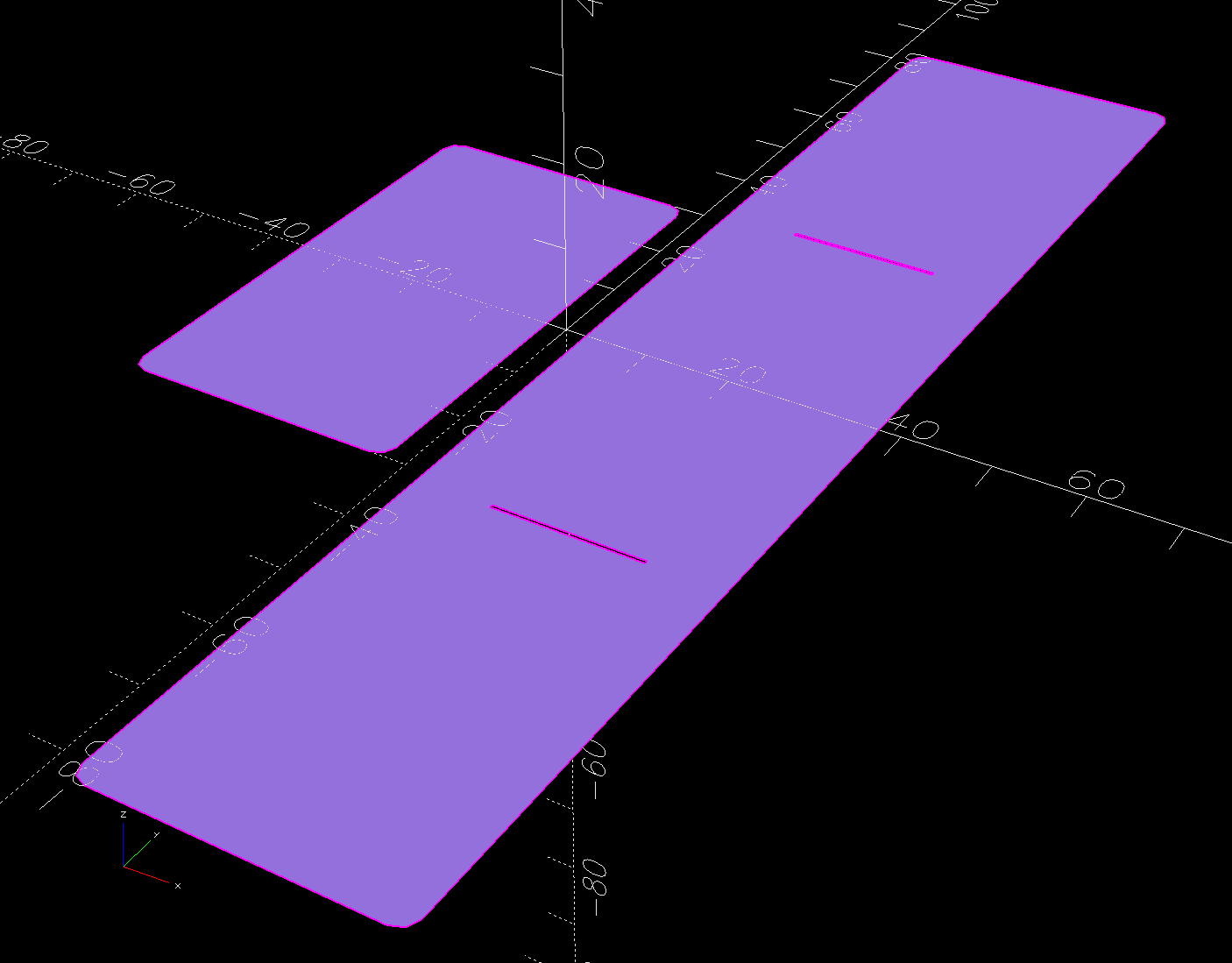
    The orange shapes have half a millimeter inset to leave a slight non-sticky margin around the edges:

    HQ Sixteen control caps - adhesive layer
    HQ Sixteen control caps – adhesive layer

    Although those shapes have the same four targets, you align the adhesive by hand and eye. Cut them out, peel one side, stick adhesive to the label, peel the other side, stick adhesive to the faceplate, and you’re done.

    Now, to figure out the switch wiring …

  • Inkscape: LightBurn Layer Color Palette

    Inkscape: LightBurn Layer Color Palette

    Inkscape is not a CAD program (neither is LightBurn), but for my simple needs it works well enough, with the compelling advantage that OpenSCAD can import named layers and extrude them into solid models.

    LightBurn can import Inkscape SVG images to define the patterns for laser cutting / engraving and will automatically put the vectors into layers corresponding to their colors if and only if the SVG image uses colors from the LightBurn palette. Regrettably, picking those colors from the default Inkscape palette is essentially impossible, but you can have Inkscape use a palette file that displays only the LightBurn colors corresponding to its layers.

    I conjured this GIMP / Inkscape palette file based on the table in a LightBurn forum post, plus tool layer colors from another post:

    GIMP / Inkscape Palette
    Name: LightBurn Layers
    #
      0   0   0 BLACK
    255 255 255 WHITE
      0   0   0 LBRN #0
      0   0 255 LBRN #1
    255   0   0 LBRN #2
      0 224   0 LBRN #3
    208 208   0 LBRN #4
    255 128   0 LBRN #5
      0 224 224 LBRN #6
    255   0 255 LBRN #7
    180 180 180 LBRN #8
      0   0 160 LBRN #9
    160   0   0 LBRN #10
      0 160   0 LBRN #11
    160 160   0 LBRN #12
    192 128   0 LBRN #13
      0 160 255 LBRN #14
    160   0 160 LBRN #15
    128 128 128 LBRN #16
    125 135 185 LBRN #17
    187 119 132 LBRN #18
     74 111 227 LBRN #19
    211  63 106 LBRN #20
    140 215 140 LBRN #21
    240 185 141 LBRN #22
    246 196 225 LBRN #23
    250 158 212 LBRN #24
     80  10 120 LBRN #25
    180  90   0 LBRN #26
      0  71  84 LBRN #27
    134 250 136 LBRN #28
    255 219 102 LBRN #29
    243 105  38 LBRN T1
     12 150 217 LBRN T2
    

    Plunk that file (which I named Lightburn.gpl) into /home/ed/.config/inkscape/palettes/, restart Inkscape, then select it (the Name line defines its mmm name):

    Inkscape - selecting LightBurn palette
    Inkscape – selecting LightBurn palette

    Which lays a row of the LightBurn layer colors along the the Inkscape window:

    Inkscape - LightBurn palette
    Inkscape – LightBurn palette

    The text after the RGB triplet in each file line appears as the tool tip for the color swatch:

    Inkscape - LightBurn palette tooltip
    Inkscape – LightBurn palette

    Because LightBurn uses only the vector Stroke and ignores its Fill, you (well, I) must become accustomed to Shift-clicking palette colors.

    You can fetch a similar palette file directly from the LightBurn doc, although minus the tool tips. GIMP and Inkscape have many palettes available, should you make artsy drawings where subtle color shading matters.

    I generally use only a few cheerful primary colors, because I have trouble distinguishing (heck, in some cases even seeing) the more subtle colors against LightBurn’s light (or dark) workspace background. I assign the layer cut settings using the Material Library: reds for cutting, blues for marking, and grays for engraving.

    When I need more than maybe half a dozen colors, I (eventually) realize I’m trying to be too clever and split the project into separate LightBurn files.

  • HQ Sixteen: Front Horizontal Spool Adapter

    HQ Sixteen: Front Horizontal Spool Adapter

    Mary wanted a horizontal spool adapter mounted closer to the front of her HQ Sixteen, in the M5 threaded hole where the Official Horizontal Adapter would go:

    HQ Sixteen - front spool adapter - installed
    HQ Sixteen – front spool adapter – installed

    Yes, the pin through the spool is fluorescent edge-lit orange acrylic that looks wonderful in sunlight and is much more amusing than the black rod in the adapter atop the power supply pod.

    The top of the machine case is not flat, level, or easy to model, so I deployed the contour gauge again, with some attention to keeping the edge pins parallel & snug along the machine sides:

    HQ Sixteen - machine profile measurement
    HQ Sixteen – machine profile measurement

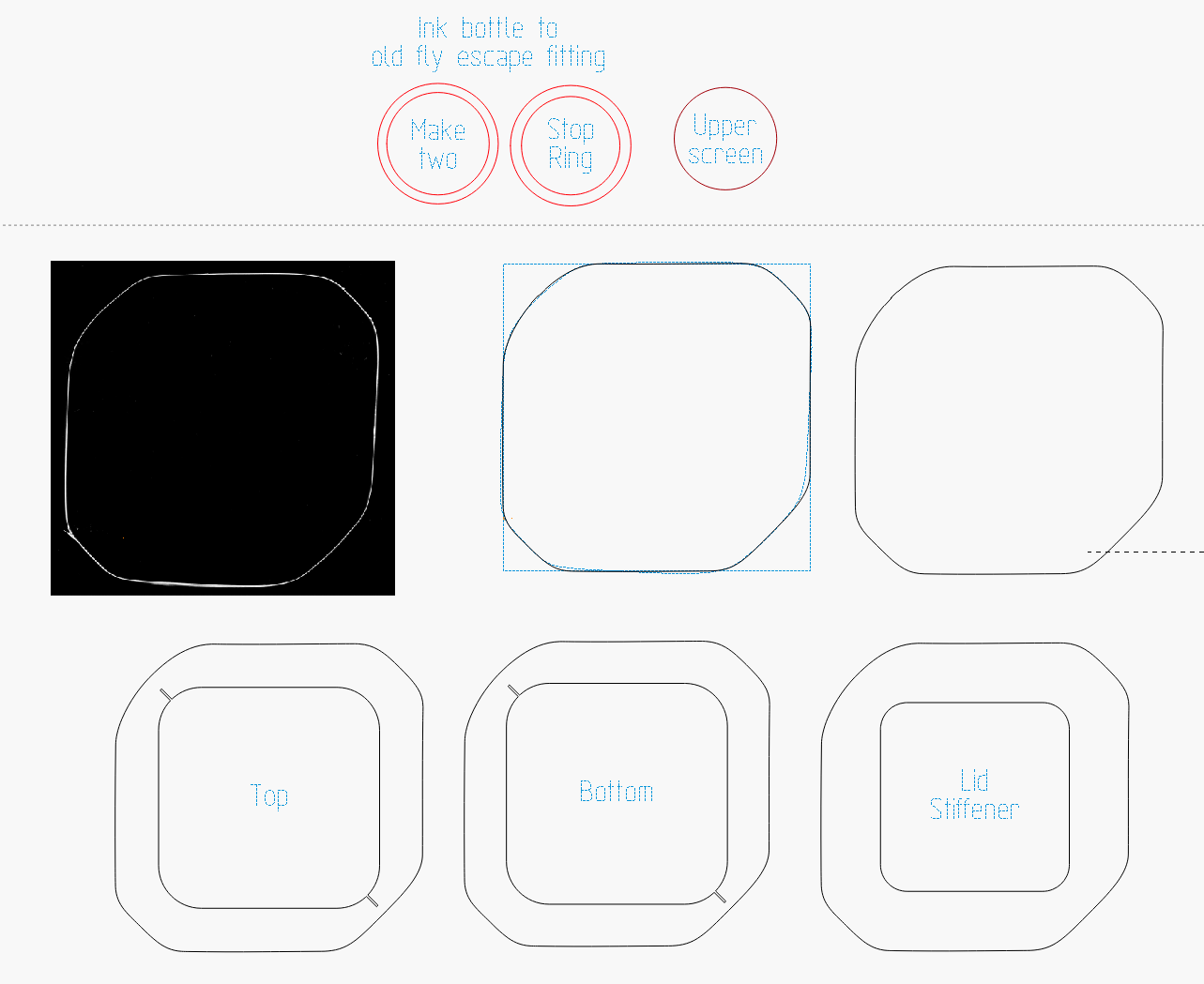
    Tracing the edge of the pins onto paper, scanning, and feeding it into Inkscape let me lay a few curves:

    HQ Sixteen - top profile curve - Inkscape fitting
    HQ Sixteen – top profile curve – Inkscape fitting

    The laser-cut chipboard test pieces show the iterations producing closer and closer fits to the machine.

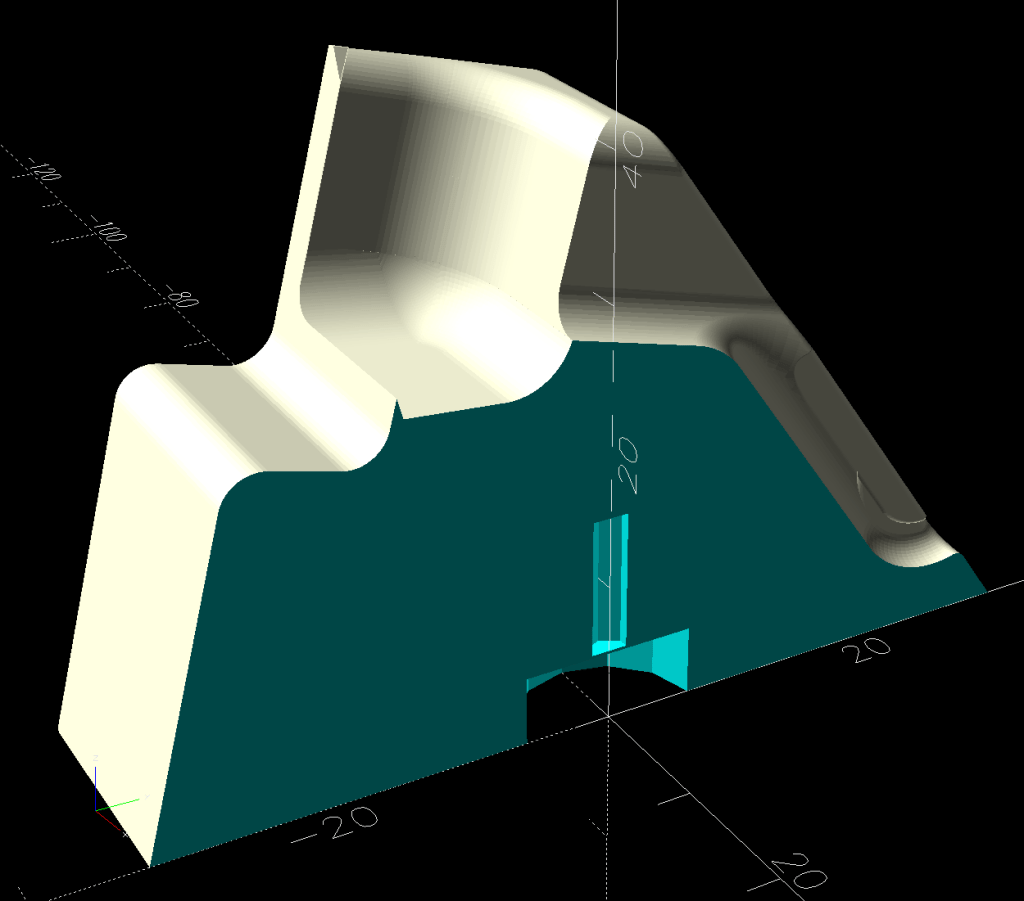
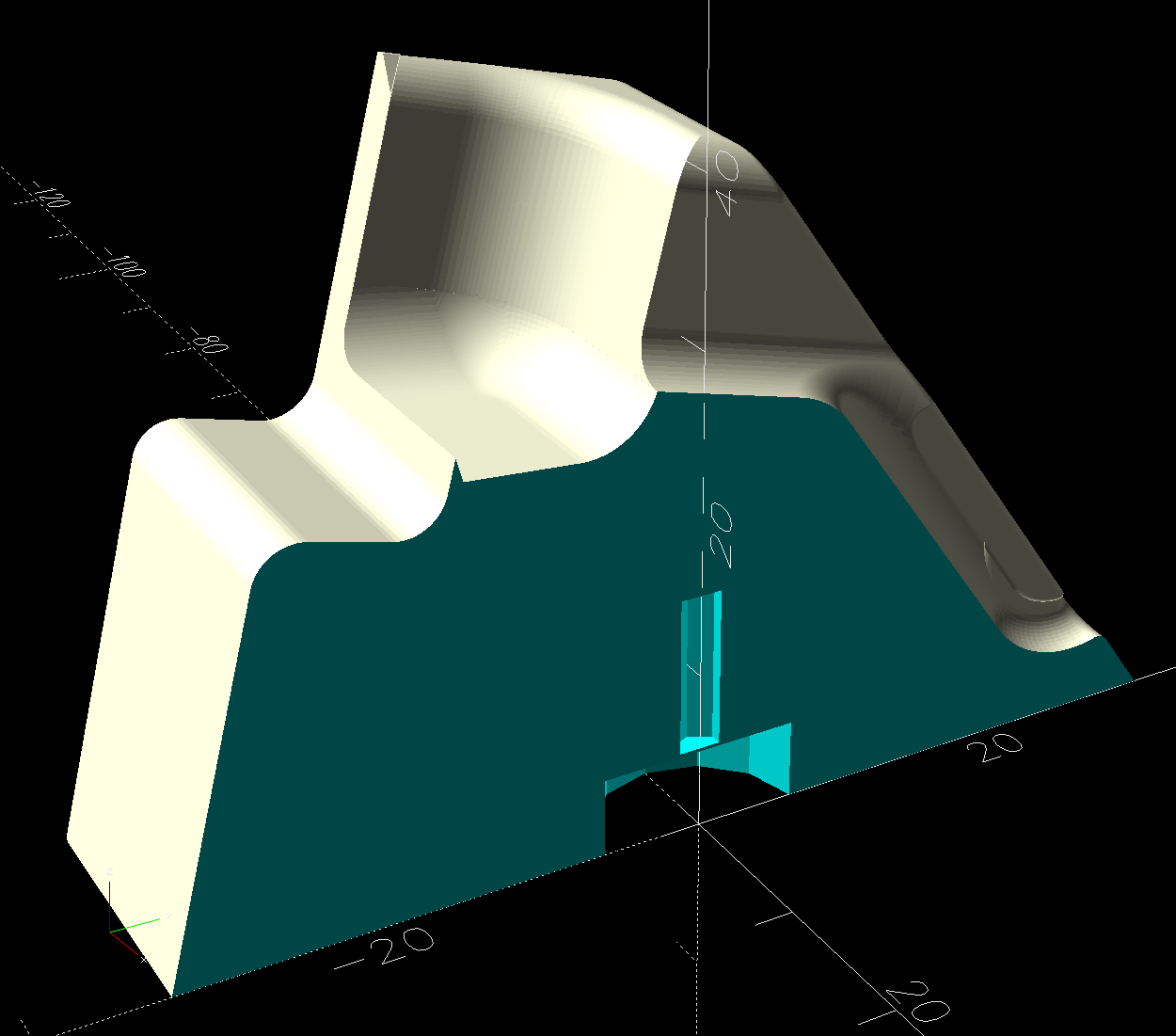
    Importing the final SVG image into OpenSCAD and extruding it produced a suitable solid model of the machine’s case:

    HQ Sixteen - machine solid model
    HQ Sixteen – machine solid model

    Subtract that shape from the bottom of the adapter to get a perfect fit atop the machine:

    HQ Sixteen - horizontal thread spool adapter - front pin - solid model - show
    HQ Sixteen – horizontal thread spool adapter – front pin – solid model – show

    Early results are encouraging, although the cheap polyester thread Mary got from a friend’s pile and is using for practice untwists itself after passing through the tension disks on its way to the needle. She’ll load much better thread for the real quilt.

    The OpenSCAD source code and SVG of the HQ Sixteen’s top profile as a GitHub Gist:

    // HQ Sixteen – horizontal thread spool adapter for front pin
    // Ed Nisley – KE4ZNU
    // 2025-04-07
    include <BOSL2/std.scad>
    Layout = "Show"; // [Show,Build,Base,Wall,Frame]
    /* [Hidden] */
    Protrusion = 0.1;
    HoleWindage = 0.2;
    ID = 0;
    OD = 1;
    LENGTH = 2;
    WallThick = 8.0;
    BaseThick = 12.0;
    Washer = [5.0,10.0,1.0]; // M5 washer
    Spool = [0.25*INCH,50.0,55.0]; // maximum thread spool
    SpoolClearance = [2.0,5.0,5.0]; // spool pin pointed to +X axis
    SpoolPin = [Spool[ID],Spool[ID],Spool[LENGTH] + WallThick + SpoolClearance.x];
    BasePlate = [WallThick + SpoolClearance.x + 13.0, // X flush with side of machine
    Spool[OD]/2 + 2*SpoolClearance.y,
    BaseThick];
    BaseOffset = [-(BasePlate.x – Washer[OD]),-Washer[OD],0.0]; // left front corner w.r.t. pin
    SpoolOC = [0, // relative to left front top of Base
    BasePlate.y/2,
    SpoolClearance.z + Spool[OD]/2 + BaseThick/2];
    //———-
    // Construct the pieces
    // HQ Sixteen top frame profile
    // Aligned with hole somewhere along X=0, front edge at Y=0
    // Lengthened slightly to cut cleanly
    module MachineFrame(Length=BasePlate.y + 2*Protrusion) {
    back(BasePlate.y + Protrusion) xrot(90)
    linear_extrude(height=Length,convexity=5,center=false)
    import("HQ Sixteen – top profile curve.svg",layer="Top Profile");
    }
    // Baseplate
    // Aligned with hole one washer diameter in from corner
    module Base() {
    $fn=18;
    difference() {
    fwd(Washer[OD])
    difference() {
    right(Washer[OD])
    cuboid(BasePlate,anchor=RIGHT+FRONT+CENTER,rounding=BaseThick/2,edges=RIGHT);
    MachineFrame();
    }
    down(BasePlate.z)
    cylinder(d=SpoolPin[OD] + HoleWindage,h=2*BasePlate.z);
    up(BasePlate.z/2 – Washer[LENGTH])
    cylinder(d=Washer[OD] + HoleWindage,h=2*Washer[LENGTH]);
    }
    }
    // Wall holding spool pin
    module Wall() {
    $fn=36;
    translate(BaseOffset) {
    difference() {
    union() {
    translate(SpoolOC)
    right(WallThick)
    cylinder(SpoolClearance.x,d=Spool[OD]/2,orient=RIGHT);
    hull() {
    translate(SpoolOC)
    cylinder(WallThick,d=Spool[OD]/2,orient=RIGHT);
    up(BasePlate.z/2 – 1)
    cube([WallThick,BasePlate.y,1],center=false);
    }
    }
    translate(SpoolOC) left(Protrusion)
    cylinder(SpoolPin[LENGTH],d=SpoolPin[OD],orient=RIGHT);
    }
    }
    }
    module Adapter() {
    Base();
    Wall();
    }
    //———-
    // Show & build the results
    if (Layout == "Base")
    Base();
    if (Layout == "Wall")
    Wall();
    if (Layout == "Frame")
    MachineFrame();
    if (Layout == "Show") {
    Adapter();
    color("Gray",0.5)
    MachineFrame(60);
    color("Green",0.75)
    translate(BaseOffset)
    translate(SpoolOC)
    cylinder(SpoolPin[LENGTH],d=SpoolPin[OD],orient=RIGHT,$fn=18);
    }
    if (Layout == "Build")
    up(-BaseOffset.x)
    yrot(-90)
    Adapter();
    Loading
    Sorry, something went wrong. Reload?
    Sorry, we cannot display this file.
    Sorry, this file is invalid so it cannot be displayed.

  • Vole Trap Boxes: Deluxe Edition

    Vole Trap Boxes: Deluxe Edition

    The larger vole trap boxes didn’t survive the early spring rainfall, so we decided to upgrade the fleet with more durable boxes:

    Vole Box - finished
    Vole Box – finished

    I obviously need a larger light box.

    The trap boxes come in 7 quart and 3.5 quart sizes, although we expect either will comfortably accommodate a single vole.

    They’re made of polypropylene plastic eminently suited for laser cuttery, so I borrowed the holes from the cardboard box setup:

    Vole Box - hole cutting
    Vole Box – hole cutting

    The clamps on the knife bars held the angle block and boxes in pretty much the same position, so I didn’t realign anything after figuring out a pair of magnets would hold the lid to the angle:

    Vole Box - lid fixture magnets
    Vole Box – lid fixture magnets

    The box side is slightly sloped, so I probably should have angled the block to tilt the lid, but this isn’t a precision job:

    Vole Box - lid fixture
    Vole Box – lid fixture

    The white smudges on the lid come from vaporized polypropylene:

    Vole Box - fume deposits
    Vole Box – fume deposits

    The body count thus far is just one field mouse, but the season is yet young.

  • Potato Garage

    Potato Garage

    Ordinary potatoes are photosensitive and turn green & bitter when exposed to light, so Mary stores them in a paper bag in the pantry. I recently re-found the cupcake / bread box previously used for battery storage and we decided it would make a great potato storage box:

    Potato Garage - installed
    Potato Garage – installed

    It does look like a little garage with a roll-up door, doesn’t it?

    The engraving on the top came from the New Garden Encyclopedia:

    Garden Encyclopedia - Potatoes - engraving scan
    Garden Encyclopedia – Potatoes – engraving scan

    The larger spud definitely has The Stink Eye! Also: tusks!

    Threshold the scanned image, edit out a few blemishes, and engrave it atop the box:

    Potato Garage - engraved
    Potato Garage – engraved

    The result looks rather pallid, but this is not the place for fancy wood finishes.

    The alert reader will note a purple sweet potato parked in there, but it’s close to the spirit of the thing.