The Smell of Molten Projects in the Morning

Ed Nisley's Blog: Shop notes, electronics, firmware, machinery, 3D printing, laser cuttery, and curiosities. Contents: 100% human thinking, 0% AI slop.

Tag: Improvements

Making the world a better place, one piece at a time

  • Vermiculture Insect Control

    Fly Escape - overview
    Fly Escape – overview

    A few months after shaking off the previous fruit fly infestation, the worm compost bin has succumbed to another species of fruit fly that’s probably Drosophila melanogaster: much larger, breeds faster, and seems far more tenacious. Even though they’re completely innocuous, Something Must Be Done, but alas there are no insecticides suitable for a worm bin that produces vegetable garden compost. That reduces the situation to the Siege of Stalingrad: cut off their supplies and let them fight it out.

    It seems that fruit flies and their progeny die slightly faster than worms; after three or six weeks without feeding, the flies will should be history and the worms will be eating the dead. Temperatures in the Basement Laboratory Vermiculture Wing will remain in the 60 °F range for the next month or two, so the fly egg-to-adult time will be longer than the usual eight days and this may not work as well as we’d like.

    Assuming that succeeds, however, we’ll be freezing all the kitchen scraps that go into the bin to kill off the fruit fly eggs that arrive here from around the world. There seems no way to get fruits without fruit fly eggs, even with non-organic produce. Organic stuff, well, it’s worse than that.

    I conjured up a Fruit Fly Escape trap that should I hope will lure flies out of the bin to their death, while keeping the worms inside.This won’t help much with the current extreme infestation, but may help dry the bin’s upper layer and, when we get the population knocked down, should exterminate the more adventurous survivors. Obviously, we’re breeding for stay-at-home fruit flies and, given their rapid-prototyping life cycle, they may evolve into tiny couch potatoes.

    Anyhow.

    Flies like heat and light, while worms vastly prefer cool and dark, so the general idea is to drill a hole in the bin lid, fit a long tube over it, put an LED ring light at the base, and run a flypaper spiral up the tube to a vent cap near the top. The first picture gives an overview, although it’s tough to see the vertical tube against the clutter: it’s clear with two red spirals, having started life as some weird-ass holiday decoration for the previous owners of our house.

    Anyhow, the more interesting plastic bits look like this:

    Fly Escape - solid model
    Fly Escape – solid model

    The top ring is the vent cap, with a hole in the middle for a string supporting the sticky tape strip. The middle ring holds three sections of LED strip light that dissipate about 2 W from a 12 V wall wart; that’s enough heat around the tube to produce a slight upward draft. The riser tube at the bottom has an angled rim that compensates for the bin lid angle and holds the long tube vertical. The ring around the riser has a matching angle.

    They fit into the lid thusly:

    Fly Escape - Riser trial fit
    Fly Escape – Riser trial fit

    Two beads of hot-melt glue, top and bottom, hold them in place and make an air- / worm- / fly-tight seal.

    The inner tube holds the fly paper container and has a slight inward taper toward the top to wedge it in place:

    Fly Escape - solid model - bottom
    Fly Escape – solid model – bottom

    A similar view from inside the actual lid:

    Fly Escape - Riser trial fit - bottom
    Fly Escape – Riser trial fit – bottom

    That was the first pass at the dimensions; the tube walls didn’t quite join because I forgot to force the number of polygonal sides to be equal. It’s deliberately thin to make the walls springy, but everything must be Just Right to get both no fill and no space between the two perimeter threads.

    The riser and LED ring, combined with festive spiral stripes along the tube and some silicone tape sealing the tubes together, produce a cheery nuclear glow that’s enhanced by the victims mired in the adjacent flypaper strips. A third strip runs up the middle of the tube:

    Fly Escape in action
    Fly Escape in action

    The vent cap on the top of the tube has a small hole in the middle to hold the string supporting the flypaper spiral exactly in the middle of the tube. This view is upside-down from the mounted orientation :

    Fly Escape - Vent Cap
    Fly Escape – Vent Cap

    The alert reader will notice a red top plug in place of the vent cap in the first picture. This whole project happened over the course of a frantic afternoon, evening, and morning, with progressive product improvements along the way. For example, it turns out that some flies went pedestrian and walked up the inside of the tube, so there’s now a circle of screening inside that nice vented cap.

    Having a 3D printer to hammer out custom plastic widgetry on a short schedule = win.

    The OpenSCAD source code:

    // Worm bin fly escape
    // Ed Nisley KE4ZNU - March 2012
    
    Layout = "Show";						// Build.. Show Riser Ring Cap
    
    //- Extrusion parameters - must match reality!
    
    ThreadThick = 0.25;
    ThreadWidth = 2.0 * ThreadThick;
    
    HoleFinagle = 0.3;
    HoleFudge = 1.00;
    
    function HoleAdjust(Diameter) = HoleFudge*Diameter + HoleFinagle;
    
    Protrusion = 0.1;						// make holes end cleanly
    
    //-- Dimensions
    
    RiserID = 47.0;							// ID = transparent riser tube OD
    RiserOD = 51.0;							// OD = hole in lid (matches hole saw OD)
    RiserHeight = 50.0;						// wall height from lid
    
    RiserSides = 4*8;						// for consistency & symmetry
    
    RiserBaseHeight = IntegerMultiple(5.0,ThreadThick);			// stop ring height
    RiserBaseID = RiserID - 2*1.0;								// stop ring ID
    
    LipOD = 59.0;							// OD of lip mounted on lid around tube
    LipAngle = 3.0;							// angle for lip to make tube vertical
    LipMinThick = IntegerMultiple(3.0,ThreadThick);		// min lip thickness
    LipAngleThick = LipOD*tan(LipAngle);				// angled section thickness
    LipThick = LipMinThick + LipAngleThick;				// total lip thickness
    
    RingClearance = 0.5;								// space between ring and tube
    
    TrapID = 23.0;							// sticky tape container OD
    TrapIDTaper = 2.0;						// taper to hold container in place
    TrapHeight = 45.0;						//  ... height
    TrapWallThickness = 2*ThreadWidth;
    TrapSides = 4*4;
    
    TrapFlanges = 3;						// number of support flanges
    TrapFlangeThick = IntegerMultiple(3.5,ThreadWidth);
    
    LEDThick = 2.5;							// LED strip thickness
    LEDWidth = 11.0;						//  ... width
    LEDWireOD = 3.0;						// power cable dia
    LightID = RiserID + 2*LEDThick;			// ID of LED collar
    LightOD = LightID + 2*4*ThreadWidth;		//  ... OD
    LightFlangeThick = IntegerMultiple(2.0,ThreadThick);
    
    CapID = RiserID;
    CapRingID = CapID - 2*1.5;
    CapOD = CapID + 2*4*ThreadWidth;
    CapBaseHeight = RiserBaseHeight;
    CapHeight = 10.0 + CapBaseHeight;
    CapSides = RiserSides;
    CapFlanges = 3;
    CapFlangeThick = TrapFlangeThick;
    CapGuideID = 3.0;
    CapGuideOD = CapGuideID + 6*ThreadWidth;
    
    //-- Sticky tape container holder
    
    module TrapMount() {
    
      ODBot = TrapID + 2*TrapWallThickness;
      ODTop = TrapID - TrapIDTaper + 2*TrapWallThickness;
    
      difference() {
    	union() {
    	  cylinder(r1=ODBot/2,r2=ODTop/2,h=TrapHeight,$fn=TrapSides);
    	  for (i=[0:TrapFlanges-1])
    		rotate(i*(360/TrapFlanges) + 90)			// align leg with thick side
    		  translate([RiserOD/4,0,RiserBaseHeight/2])
    			cube([(RiserOD/2 - 4*Protrusion),TrapFlangeThick,RiserBaseHeight],center=true);
    	}
    	translate([0,0,-Protrusion])
    	  cylinder(r1=HoleAdjust(TrapID)/2,
    			   r2=HoleAdjust(TrapID - TrapIDTaper)/2,
    			   h=(TrapHeight + 2*Protrusion),
    			   $fn=TrapSides);
      }
    
    }
    
    //-- Riser tube
    
    module RiserTube() {
    
      TotalHeight = RiserHeight + RiserBaseHeight;
    
      difference() {
    	cylinder(r=RiserOD/2,h=TotalHeight,$fn=RiserSides);
    	translate([0,0,RiserBaseHeight])
    	  PolyCyl(RiserID,TotalHeight,RiserSides);
    	translate([0,0,-Protrusion])
    	  cylinder(r=RiserBaseID/2,h=TotalHeight,$fn=RiserSides);
      }
    
    }
    
    //-- Angled lip around ring
    //		aligned with flat side downward at Z=0
    
    module LipRing(Clearance = 0.0) {
    
      difference() {
    	cylinder(r=LipOD/2,h=LipThick);
    	translate([0,0,-Protrusion])
    	  cylinder(r=(RiserOD/2 + Clearance),
    			   h=(LipThick + 2*Protrusion),
    			   $fn=RiserSides);
    	rotate([LipAngle,0,0])
    	  translate([-LipOD,-LipOD,(LipMinThick + LipOD/2*tan(LipAngle))])
    		cube([2*LipOD,2*LipOD,LipAngleThick],center=false);
      }
    }
    
    //-- Collar to hold LED strip light
    
    module LEDCollar() {
    
      difference() {
    	PolyCyl(LightOD,(LEDWidth + LightFlangeThick));
    	translate([0,0,LightFlangeThick])
    	  PolyCyl(LightID,(LEDWidth + Protrusion));
    	translate([0,0,-Protrusion])
    	  PolyCyl(RiserID,(LightFlangeThick + 2*Protrusion));
    	translate([0,0,(LightFlangeThick + LEDWidth/2)])
    	  rotate([0,90,90])
    		PolyCyl(LEDWireOD,LightOD);
      }
    }
    
    //-- Cap to hold trap string and vent the tube
    
    module VentCap() {
    
    	union() {
    	  difference() {
    		cylinder(r=CapOD/2,h=CapHeight,$fn=CapSides);
    		translate([0,0,-Protrusion])
    		  cylinder(r=CapRingID/2,h=(CapHeight +2*Protrusion),$fn=CapSides);
    		translate([0,0,CapBaseHeight])
    		  cylinder(r=CapID/2,h=CapHeight,$fn=CapSides);
    	  }
    	  difference() {
    		union() {
    		  for (i=[0:TrapFlanges-1])
    			rotate(i*(360/CapFlanges))
    			  translate([CapOD/4,0,CapBaseHeight/2])
    				cube([(CapOD/2 - 4*Protrusion),CapFlangeThick,CapBaseHeight],center=true);
    		  cylinder(r=CapGuideOD,h=CapBaseHeight);
    		}
    		translate([0,0,-Protrusion])
    		  PolyCyl(CapGuideID,CapHeight);
    	  }
    	}
    
    }
    
    //-- Handy routines
    
    function IntegerMultiple(Size,Unit) = Unit * ceil(Size / Unit);
    
    module PolyCyl(Dia,Height,ForceSides=0) {           // based on nophead's polyholes
    
      Sides = (ForceSides != 0) ? ForceSides : (ceil(Dia) + 2);
    
      FixDia = Dia / cos(180/Sides);
    
      cylinder(r=(FixDia + HoleFinagle)/2,h=Height,$fn=Sides);
    }
    
    //-- Put peg grid on build surface
    
    module ShowPegGrid(Space = 10.0,Size = 1.0) {
    
      Range = floor(50 / Space);
    
    	for (x=[-Range:Range])
    	  for (y=[-Range:Range])
    		translate([x*Space,y*Space,Size/2])
    		  %cube(Size,center=true);
    
    	for (z=[1:10])
    	  translate([0,0,z*Space])
    		  %cube(Size,center=true);
    }
    
    //- Build it
    
    ShowPegGrid();
    
    if (Layout == "Ring")
      LipRing();
    
    if (Layout == "Riser")
      RiserTube();
    
    if (Layout == "Cap")
      VentCap();
    
    if (Layout == "Show") {
      color("SkyBlue") {
    	TrapMount();
    	RiserTube();
    	LipRing();
      }
      color("Salmon")
    	translate([0,0,2*LipThick])
    	  rotate([180,0,0])
    		LipRing(RingClearance);
      color("Chocolate")
    	translate([0,0,(1.25*RiserHeight)])
    	  LEDCollar();
      color("Sienna")
    	translate([0,0,2*RiserHeight])
    	  rotate([180,0,0])
    		VentCap();
    }
    
    if (Layout == "Build1") {
      TrapMount();
      RiserTube();
      LipRing();
    }
    
    if (Layout == "Build2") {
    	LipRing(RingClearance);
    }
    
    if (Layout == "Build3") {
    	LEDCollar();
    }
    
    if (Layout == "Build4") {
    	VentCap();
    }
    
  • Peltier PWM Temperature Control: Power Supply Improvement

    Adding a touch of bulk local capacitance dramatically improved the Peltier power supply’s transient performance when the MOSFET turns on:

    Peltier Supply - 30 uF
    Peltier Supply – 30 uF

    That’s a 33 uF 300 V electrolytic that started life as a surface-mount kludge, simply soldered to the Peltier supply’s screw terminal pins on the bottom of the board.

    With the cap in place, the supply drops to 4 V at turn-on and bumps to 6 V at turn-off, with the transients much better-behaved now.

    Those spikes at the turn-off transient are also somewhat better, even if the MOSFET drain rings for another cycle before dying out. The peak is down to 35 V, which I think comes from the other end of the circuit being more reluctant to instantly jump 70 V, and the width has decreased, too:

    Peltier Drain Ringing - 30 uF Supply
    Peltier Drain Ringing – 30 uF Supply

    The ringing jumped to 15 MHz, rather than 5 MHz, which means it’s over faster even if there’s another cycle. If it were any worse, I’d be forced to re-figure the snubber RC numbers…

    The Miller capacitance effect still shows up clearly on the gate drive in the lower trace. There’s a reason why you really need higher-performance drivers for faster circuits!

  • EAGLE Library: 10 W Aluminum Power Resistor

    It appears there are at least two different 10 W aluminum resistor sizes: the one used by Dale and the one used by everybody else. It’s either that or the EAGLE HS10 symbol is wrong…

    Using those dimensions, here’s a part that more closely fits the resistors in my heap. EAGLE 6 uses an XML file format, so you can stuff some ASCII text into the appropriate sections of your custom.lbr file (or whatever).

    The EAGLE package, which remains HS10 as in the resistor-power library, should produce something that looks like this:

    EAGLE 10 W Resistor package
    EAGLE 10 W Resistor package

    The XML code includes top-keepout rectangles under the body footprint:

    <package name="HS10">
    <description>DALE Power Resistor 10W</description>
    <wire x1="9.525" y1="5.461" x2="9.525" y2="10.3378" width="0.2032" layer="21"/>
    <wire x1="9.525" y1="10.3378" x2="4.6482" y2="10.3378" width="0.2032" layer="21"/>
    <wire x1="-9.525" y1="-5.461" x2="-4.6482" y2="-5.461" width="0.2032" layer="21"/>
    <wire x1="-4.6482" y1="-5.461" x2="9.525" y2="-5.461" width="0.2032" layer="21"/>
    <wire x1="9.525" y1="-5.461" x2="9.525" y2="5.461" width="0.2032" layer="21"/>
    <wire x1="9.525" y1="5.461" x2="4.6482" y2="5.461" width="0.2032" layer="21"/>
    <wire x1="4.6482" y1="5.461" x2="-9.525" y2="5.461" width="0.2032" layer="21"/>
    <wire x1="-9.525" y1="5.461" x2="-9.525" y2="-5.461" width="0.2032" layer="21"/>
    <wire x1="4.6482" y1="5.461" x2="4.6482" y2="10.3378" width="0.2032" layer="21"/>
    <wire x1="-9.525" y1="-5.461" x2="-9.525" y2="-10.3378" width="0.2032" layer="21"/>
    <wire x1="-9.525" y1="-10.3378" x2="-4.6482" y2="-10.3378" width="0.2032" layer="21"/>
    <wire x1="-4.6482" y1="-5.461" x2="-4.6482" y2="-10.3378" width="0.2032" layer="21"/>
    <wire x1="-9.47" y1="0.5" x2="-17.78" y2="0.5" width="0.2032" layer="51"/>
    <wire x1="-17.78" y1="0.5" x2="-17.78" y2="-0.5" width="0.2032" layer="51"/>
    <wire x1="-17.78" y1="-0.5" x2="-9.47" y2="-0.5" width="0.2032" layer="51"/>
    <wire x1="9.47" y1="-0.5" x2="17.78" y2="-0.5" width="0.2032" layer="51"/>
    <wire x1="17.78" y1="-0.5" x2="17.78" y2="0.5" width="0.2032" layer="51"/>
    <wire x1="17.78" y1="0.5" x2="9.47" y2="0.5" width="0.2032" layer="51"/>
    <pad name="1" x="-15.24" y="0" drill="1.3" shape="octagon"/>
    <pad name="2" x="15.24" y="0" drill="1.3" shape="octagon"/>
    <text x="-6.35" y="1.27" size="1.27" layer="25">&gt;NAME</text>
    <text x="-6.35" y="-2.54" size="1.27" layer="27">&gt;VALUE</text>
    <rectangle x1="-9.779" y1="-5.715" x2="9.779" y2="5.715" layer="43"/>
    <rectangle x1="4.318" y1="5.715" x2="9.779" y2="10.668" layer="43"/>
    <rectangle x1="-9.779" y1="-10.668" x2="-4.318" y2="-5.715" layer="43"/>
    <hole x="-7.1374" y="-7.9375" drill="2.3876"/>
    <hole x="7.1374" y="7.9375" drill="2.3876"/>
    </package>
    

    The EAGLE symbol looks just an ordinary schematic resistor:

    <symbol name="RESISTOR">
    <wire x1="-2.54" y1="0" x2="-2.159" y2="1.016" width="0.2032" layer="94"/>
    <wire x1="-2.159" y1="1.016" x2="-1.524" y2="-1.016" width="0.2032" layer="94"/>
    <wire x1="-1.524" y1="-1.016" x2="-0.889" y2="1.016" width="0.2032" layer="94"/>
    <wire x1="-0.889" y1="1.016" x2="-0.254" y2="-1.016" width="0.2032" layer="94"/>
    <wire x1="-0.254" y1="-1.016" x2="0.381" y2="1.016" width="0.2032" layer="94"/>
    <wire x1="0.381" y1="1.016" x2="1.016" y2="-1.016" width="0.2032" layer="94"/>
    <wire x1="1.016" y1="-1.016" x2="1.651" y2="1.016" width="0.2032" layer="94"/>
    <wire x1="1.651" y1="1.016" x2="2.286" y2="-1.016" width="0.2032" layer="94"/>
    <wire x1="2.286" y1="-1.016" x2="2.54" y2="0" width="0.2032" layer="94"/>
    <text x="-3.81" y="1.4986" size="1.778" layer="95">&gt;NAME</text>
    <text x="-3.81" y="-3.302" size="1.778" layer="96">&gt;VALUE</text>
    <pin name="2" x="5.08" y="0" visible="off" length="short" direction="pas" swaplevel="1" rot="R180"/>
    <pin name="1" x="-5.08" y="0" visible="off" length="short" direction="pas" swaplevel="1"/>
    </symbol>
    

    And then the EAGLE resistor device lashes everything together:

    <deviceset name="R" prefix="R" uservalue="yes">
    <description>Resistors</description>
    <gates>
    <gate name="R" symbol="RESISTOR" x="0" y="0"/>
    </gates>
    <devices>
    ... many more devices...
    <device name="ALUM-10W" package="HS10">
    <connects>
    <connect gate="R" pin="1" pad="1"/>
    <connect gate="R" pin="2" pad="2"/>
    </connects>
    <technologies>
    <technology name=""/>
    </technologies>
    </device>
    ... many more devices ...
    </devices>
    </deviceset>
    

    Update the libraries and then it should Just Work.

    It would have been much better had I discovered this before drilling & etching the board with one of those resistors…

  • Tweezer Tip Alignment & Shaping

    During a recent rainstorm I grabbed the fiberglass marker pole at the end of the drain pipe to clear a wad of leaves out of the driveway gutters. Unfortunately, that left me with a finger full of glass fibers; it seems the top of the pole has deteriorated. The first tweezer I plucked from the stash around the pencil-oid tool holder hadn’t had its jaws aligned, so after I plucked (most of) the glass using those tweezers, I did a bit of filing and sandpapering:

    Tweezer tips
    Tweezer tips

    That’s a millimeter scale in the background: these really are needle-tip tweezers.

    A closer view:

    Aligned and shaped tweezer tip
    Aligned and shaped tweezer tip

    It still has a bit of overbite, but it grabs hairs from the bench with no hassle. Given that you can’t get all the glass fibers on the first pass, it’ll come in handy…

  • Relocated Sherline Tool Length Probe Switch

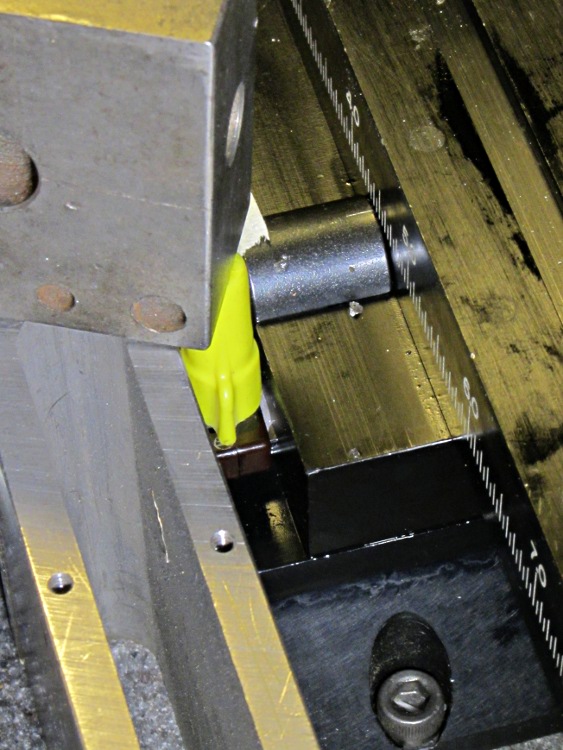
    Putting the tool length switch atop the tooling plate has the advantage that it’s higher than most of the workpieces, but it also soaks up a bit of precious real estate. Moving it off the plate to the table puts it nearly level with the top of the plate, but at least now I have room for clamp blocks and suchlike:

    Relocated tool length switch
    Relocated tool length switch

    It turns out that Sherline T-nuts protrude just an itsy above the top of the table (which lets them locate the tooling plate to the slot, for example), so I shortened one by filing it down to size:

    Original and shortened Sherline T-nuts
    Original and shortened Sherline T-nuts

    Now, I’d like to front as if all that happened in a rational and well-thought-out manner, but the fact of the matter is that I completely used up one 10-32 stainless socket-head cap screw while thinking it was somehow still bottoming out in the slot, before realizing that the T-nut was sticking up. Drat!

  • Soldering Third Hand Alligator Clip Improvement

    The third hand grabbers I have all put bare alligator clip ferrules in the adjustable sockets with a thumbscrew to secure them. Over time, that thumbscrew crunches the ferrule and makes the clip hard to adjust. This has become enough of an annoyance that I rummaged around in the brass tubing cutoffs to find some that fit into the ferrules:

    Alligator clip with brass tube insert
    Alligator clip with brass tube insert

    Given the sorry state of the ferrules, they required quite a bit of squeezing and shaping until that tube fit inside, but after that they rounded up nicely.

    I suppose I should solder the tubes in place, but …

  • Basement Safe Humidity: Sealing the Door

    My assumption that the basement document safe had an effective door seal turned out to be wrong, so I replaced the bagged desiccant with a tray of granules, sealed the door with masking tape, and tried again:

    Basement Safe Humidity - 2012-01-12
    Basement Safe Humidity – 2012-01-12

    The jagged black curve shows the Basement Laboratory temperature trending toward the usual mid-50s winter level. The dead-flat horizontal blue line at 15% RH shows the tray of desiccant can keep up with whatever air leakage might occur around the tape and through the floor bolts.

    I cannot find the table (that I once had and know exists somewhere) which lists various desiccants and their terminal humidity levels in a sealed container.  I’m pretty sure the low humidity means it’s one of the clay-based desiccants, not silica gel.