The Smell of Molten Projects in the Morning

Ed Nisley's Blog: Shop notes, electronics, firmware, machinery, 3D printing, laser cuttery, and curiosities. Contents: 100% human thinking, 0% AI slop.

Tag: Improvements

Making the world a better place, one piece at a time

  • Clothes Dryer Inlet Filter Holder

    Clothes Dryer Inlet Filter Holder

    It has always seemed like a Bad Idea™ to run indoor air through the clothes dryer and dump it overboard, particularly during days when the indoor air has been painstakingly (perhaps expensively) heated or cooled. The dryer now lives in a separate room with two doors, so we can close it off from the rest of the house and let it inhale outdoor air through the screen on the storm door.

    Except in winter, when a glass pane covers the screen. Propping the door open just a bit is unattractive, because an open door seems like an invitation to any field mouse looking to upgrade its domicile.

    Given that the dryer exhausts through a length of 4 inch flexible duct, I figured a similar vent, facing inward, mounted on the storm door would admit enough air to keep it happy. Keeping insects and adroit mice out requires a screen:

    Dryer Inlet Vent - filter retainer
    Dryer Inlet Vent – filter retainer

    After taking that picture, I rammed four threaded brass inserts into the holes, thereby eliminating the need for a handful of washers and nuts, some of which were absolutely certain to disappear through gaps in the deck.

    The two blue-gray rings are PETG-CF:

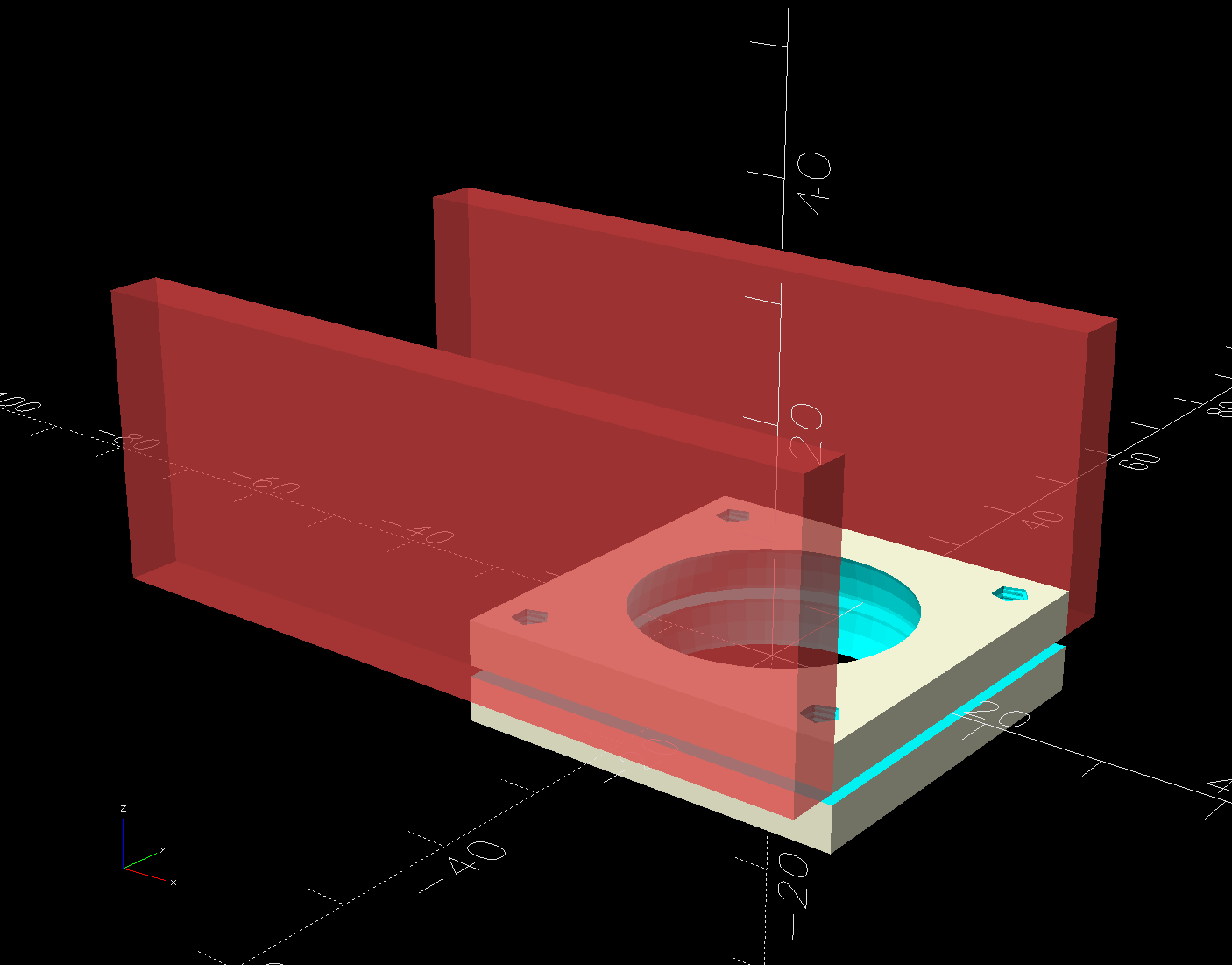
    Dryer Inlet Vent Filter Retainer - solid model
    Dryer Inlet Vent Filter Retainer – solid model

    The small split makes the inner retainer just springy enough to fit over the two small tabs normally locking a dryer hose in place.

    The OpenSCAD code gloms a few shapes together:

    include <BOSL2/std.scad>
    
    /* [Hidden] */
    
    VentID = 102.0;     // diameter at base of vent opening
    VentOD = 107.5;
    
    OpenAngle = 3;
    
    LipWidth = 3.0;         // lip around vent opening
    LipThick = 7.5;
    
    StrutWidth = 2.5;       // wide enough to hold filter
    StrutThick = 3.0;       // tall enough to be rigid
    NumStruts = 3;
    
    Protrusion = 0.1;
    
    NumSides = 360/6;
    
    $fn=NumSides;
    
    //----------
    // Build it
    
    union() {
    
        linear_extrude(LipThick)
            ring(NumSides,d1=VentID - 2*LipWidth,d2=VentID,angle=[OpenAngle/2,360-OpenAngle/2],spin=270);
    
        linear_extrude(StrutThick) {
            circle(r=StrutWidth);
    
            for (i=[0:(NumStruts-1)]) {
                a = 90 + i*360/NumStruts;
                zrot(a)
                    right(VentID/4)
                        square([VentID/2 - LipWidth/2,StrutWidth],center=true);
            }
        }
    
        linear_extrude(LipThick)                // outside trim ring
            ring(NumSides,d1=VentOD,d2=VentOD+2*LipWidth);
    }
    

    The overall union() keeps PrusaSlicer from identifying the thing as a multi-material model. Apparently, it still looks enough like a logo to qualify for special treatment, but I fought it to a standstill.

    Installation awaits an above-freezing day …

  • Stack Light: Controller Wiring

    Stack Light: Controller Wiring

    A stack light above the laser cutter makes the controller’s input and output status easily visible:

    Stack Light - all on
    Stack Light – all on

    Which will be especially valuable while I’m bypassing safety interlocks and poking around inside the cabinet.

    The light is unavoidably upside-down from the industrial standard, because I can’t don’t want to mount it on the laser cabinet, and my use of color does not match the industrial convention. Neither of which matter for my simple needs.

    In order from top to bottom:

    The blue and orange lights turn on when their inputs are active, so they positively show sensor satisfaction, rather than laser-disabling dissatisfaction. The entire stack lights up while the controller runs a job with assist air turned on, which is usually the case.

    (See below for a slipstream update.)

    The wiring diagram on the case is the only documentation enclosed with the stack light:

    Stack Light - label diagram
    Stack Light – label diagram

    Any power supply between 12 VDC and 24 VDC will work and, contrary to the label, the COM lead can be either polarity: the light works in either common-anode or common-cathode configuration. Because the laser controller inputs and outputs are all low-active, I wired the COM terminal to +24 V, so pulling the other leads to GND turns on their lights.

    The overall connection diagram, in order from easy to hard:

    Stack Light - wiring diagram
    Stack Light – wiring diagram

    Some of the details behind the diagram explain what’s going on.

    Stack Light - water protect wiring diagram
    Stack Light – water protect wiring diagram

    The water flow sensor is wired in series with the chiller, with a GND connection on the far end pulling the WP controller terminal low when both sensors are happy; the switches can handle another 50 mA of LED current with no problem.

    Stack Light - L-ON wiring diagram
    Stack Light – L-ON wiring diagram

    The HV power supply has an internal pullup to +5 V on its L terminal, which means the L-ON output terminal sits at +5 V when the laser tube is off. Connecting the stack light directly to the L-ON terminal dumps the LED current into the 5 V supply through the pullup resistor, producing a somewhat weak glow in the LED when it should be off.

    Running the optoisolator input from 5 V solves that problem, as its diode will be off when the L-ON output is high. When it’s low, the diode turns on, the isolator’s output transistors conduct, and the stack light gets the full 24 V it expects.

    Stack Light - lid sensor wiring diagram
    Stack Light – lid sensor wiring diagram

    The lid sensor normally goes only to the IntLock controller terminal, but I also ran it to the otherwise unused P terminal on the HV power supply, in the possibly misguided belief it would prevent the supply from firing with the lid up if it failed like the first one. Those two inputs have 5 V pullups, so the optoisolator handles the stack light’s 24 V supply.

    Stack Light - status and assist air wiring diagram
    Stack Light – status and assist air wiring diagram

    When I added the dual-path air assist plumbing, diode D1 turned on the air pump when either the Status or the AuxAir output turned on. When the job calls for assist air, the AuxAir output opens a valve to increase the air flow.

    The Status output is active when the controller is running a job and that’s generally the only time the AuxAir output will be active, but the machine console has an Air button that manually activates it, so diode D2 isolates the Status output in that unusual situation.

    Slipstream update: I realized swapping the green & orange lights would make more sense:

    Done!

  • Stack Light: EL817 Optoisolator Case

    Stack Light: EL817 Optoisolator Case

    Rather than let the boosted optoisolators flop around:

    Stack Light - controller hairball wiring
    Stack Light – controller hairball wiring

    A small case seemed like a Good Idea™:

    Optoisolator Case - OpenSCAD
    Optoisolator Case – OpenSCAD

    The little hex standoffs have M3 threads, although 6 mm screws are about as much as they’ll take. The recesses have clearance for the boost transistor underneath the PCB, but it’s your responsibility to not let random wires get in trouble with the exposed circuitry:

    Optoisolator case
    Optoisolator case

    A strip of good foam tape sticks it to the controller:

    Stack Light - controller wiring
    Stack Light – controller wiring

    Admittedly, the stack light wiring remains something of a hairball, but it’s in a good cause.

    The OpenSCAD code can build as many cavities as you need:

    Optoisolator Case - x5 - OpenSCAD
    Optoisolator Case – x5 – OpenSCAD

    The OpenSCAD source code as a GitHub Gist:

    // Optoisolator case
    // Ed Nisley – KE4ZNU
    // 2025-01-09
    include <BOSL2/std.scad>
    include <BOSL2/threading.scad>
    // Number of isolator mounts
    NumMounts = 2;
    /* [Hidden] */
    Protrusion = 0.1;
    PCB = [40.5,15.5,1.6]; // optoisolator PCB
    LipWidth = 0.8; // support lip under PCB
    Margin = [8.0,3.0,4.5]; // clearance around PCB
    BaseThick = 3.0; // underneath
    Block = PCB + [2*Margin.x, 2*Margin.y, (Margin.z + BaseThick)];
    echo(Block = Block);
    HolesOC = [9.5,10.0]; // M3 mounting holes (upper left / lower right)
    $fn = 3*4;
    //———-
    // Construct one mount
    module Mount() {
    union() {
    difference() {
    cube(Block,anchor=BOTTOM);
    up(Block.z – PCB.z)
    cube(PCB + [0,0,Protrusion],anchor=BOTTOM);
    up(BaseThick)
    cube(PCB – 2*[LipWidth,LipWidth,0] + [0,0,Block.z],anchor=BOTTOM);
    }
    for (i=[-1,1])
    translate([i*HolesOC.x/2,-i*HolesOC.y/2,BaseThick])
    threaded_nut(5.0,3.1,Margin.z,0.5, // flat size, root dia, height, pitch
    bevel=false,ibevel=false,anchor=BOTTOM);
    }
    }
    //———-
    // Mash together as many mounts as needed
    union()
    for (j=[0:(NumMounts – 1)])
    back(j*(Block.y – Margin.y))
    Mount();

  • Stack Light: Optoisolator Boost Transistor

    Stack Light: Optoisolator Boost Transistor

    The LEDs in each stack light layer require a current sink handling about 50 mA, far above the ability of cheap optoisolators based on the EL817 photocoupler:

    Optoisolator - OEM schematic
    Optoisolator – OEM schematic

    I’ll go into the motivation for optocouplers along with the laser controller wiring details.

    As delivered, the PCB has:

    • R1 = 1 kΩ (a convenient 1 V/mA current sense)
    • R2 = 10 kΩ (a rather high-value pullup)

    The idea is to add an able-bodied transistor to the output in a Darlington configuration:

    Optoisolator - Darlington output
    Optoisolator – Darlington output

    Some rummaging produced a small bag of 2N3904 transistors, although nearly any small NPN transistor will suffice. Removing R2 cleared the field for modification:

    Optoisolator modification - top
    Optoisolator modification – top

    The 2N3904 transistor (with the usual EBC pinout) fits face-down under the PCB:

    Stack Light - optoisolator transistor
    Stack Light – optoisolator transistor

    The cross-legged layout conceals the emitter and base leads being soldered snugly to the former OUT and GND terminals, respectively, with the collector going to the VCC terminal. The terminals thus become:

    • VCC → Collector
    • OUT → Emitter
    • GND→ X (no connection)

    Although I have little reason to believe the EL817 chips are anything other than what they claim to be, their topmarks seemed rather casual:

    EL817 optocoupler - top view
    EL817 optocoupler – top view

    The other four chips carried C333 rank + date codes.

    The datasheet says the C means the Current Transfer Ratio is 200% to 400%: the output current should be 2× to 4× the diode current. The test condition are 5 mA into the diode and 5 V across the transistor terminals. A quick test:

    • 2 mA → 4 mA = 2×
    • 5 mA → 15 mA = 3×
    • 10 mA → 35 mA = 3.5×
    • 12 mA → 40 mA = 3.3×

    The output transistor is rated only to 50 mA, so I stopped at 40 mA. The CTR is between 200% and 350% over that range, suggesting the parts are really real.

    The 2N3904 should have an hFE above 60 in that current range and multiply the EL817 gain by about that amount. Another quick test in the Darlington configuration, now with the 5 V supply across the 2N3904:

    • 100 µA → 8.1 mA = 81×
    • 250 µA → 43 mA = 172×
    • 500 µA → 83 mA = 166×

    The overall current gain is 40× to 50×, less than the estimate, but plenty high enough for my purposes. If you cared deeply, you’d run a circuit simulation to see what’s going on.

    Knowing I needed only 50-ish mA, stopping with the transistor burning half a watt (because VCE is held at 5 V) seemed reasonable. In actual use, VCE will be on the order of 1 V and the dissipation will be under 100 mW.

    A quick test shows they work as intended:

    Stack Light - controller hairball wiring
    Stack Light – controller hairball wiring

    But, yeah, talk about hairballs. Those things cry for little housings to keep them out of trouble.

    The chonky lumps with orange stripes are Wago Lever-Nut connectors: highly recommended.

  • Stack Light Base

    Stack Light Base

    Having external indications for the laser cutter’s internal status signals seemed like a good idea and, rather than build the whole thing, I got a five-layer stack light:

    Stack Light - disassembly
    Stack Light – disassembly

    It arrives sans instructions, apart from the data plate / wiring diagram label on the housing, so the first puzzle involves taking it apart to see what’s inside. My motivation came from a tiny chip of blue plastic on the kitchen table where I’d opened the unpadded bag. Apparently, a mighty force had whacked the equally unpadded box with enough force to crack the blue lens, but I have no idea how the sliver escaped the still-assembled stack.

    Anyhow, hold the blue/green lenses in one hand and twist the red/yellow lenses counterclockwise as seen looking at the cap over the red layer. Apply more force than you think appropriate and the latches will reluctantly give way. Do the same to adjacent layers all the way down, then glue the blue chip in place while contemplating other matters.

    A switch on each layer selects either steady (the default and what I wanted) or blinking (too exciting for my needs). Reassemble in reverse order.

    A Stack Light generally mounts on a production-line machine which might have a suitable cutout for exactly that purpose. I have no such machine and entirely too much clutter for a lamp, so I screwed it to a floor joist over the laser:

    Stack Light - installed
    Stack Light – installed

    The tidy blue PETG-CF base started as a scan of the lamp’s base to serve as a dimension reference:

    Stack Light - base scan
    Stack Light – base scan

    Import into LightBurn:

    • Draw a 70 mm square centered on the workspace
    • Round the corners until they match the 13 mm radius
    • Draw one 5.6 mm circle at the origin
    • Move the circle 52/2 mm left-and-down
    • Turn it into a 4 element array on 52 mm centers
    • Verify everything matches the image
    • Export as SVG

    Import into Inkscape:

    • Put the perimeter on one layer
    • Put the four holes on another
    • Center around an alignment mark at a known coordinate
    • Save as an Inkscape SVG

    Import into OpenSCAD, extrude into a solid model, and punch the holes:

    Stack Light Mount base - solid model
    Stack Light Mount base – solid model

    The lip around the inner edge aligns the lamp base.

    If I ever make another one, I’ll add pillars in the corners to put the threaded brass inserts close to the top for 10 mm screws instead of the awkward 30 mm screws in this one. More than a single screw hole in the bottom would align it on whatever you’re indicating.

    Now, to wire the thing up …

    The OpenSCAD source code as a GitHub Gist:

    Loading
    Sorry, something went wrong. Reload?
    Sorry, we cannot display this file.
    Sorry, this file is invalid so it cannot be displayed.
    // Stack Light mount
    // Ed Nisley – KE4ZNU
    // 2025-01-03
    include <BOSL2/std.scad>
    /* [Hidden] */
    ID = 0;
    OD = 1;
    LENGTH = 2;
    BaseCenter = [100,100,0];
    Base = [70,70]; // nominal, for figuring holes
    Insert = [4.9,5.9,6.0];
    PlateThick = Insert[LENGTH];
    HolderTall = 24.0;
    WallThick = 2.7; // outer wall of light base
    LipThick = 1.5; // alignment lip inside light base
    LipTall = 0.75;
    CableOD = 5.0;
    Protrusion = 0.1;
    difference() {
    translate(-BaseCenter)
    linear_extrude(height=HolderTall + LipTall)
    import("Stack Light – base layout.svg",layer="Base Perimeter");
    up(Insert[LENGTH])
    translate(-BaseCenter)
    linear_extrude(height=HolderTall – LipTall)
    offset(delta=-(WallThick + LipThick))
    import("Stack Light – base layout.svg",layer="Base Perimeter");
    up(HolderTall)
    linear_extrude(height=HolderTall,convexity=5)
    translate(-BaseCenter)
    difference() {
    offset(delta=WallThick) // avoid glitches on perimeter edge
    import("Stack Light – base layout.svg",layer="Base Perimeter");
    offset(delta=-WallThick)
    import("Stack Light – base layout.svg",layer="Base Perimeter");
    }
    down(Protrusion)
    translate(-BaseCenter)
    linear_extrude(height=2*HolderTall,convexity=5)
    import("Stack Light – base layout.svg",layer="Base Holes");
    up(HolderTall/2)
    yrot(90) zrot(180/6)
    cylinder(d=CableOD,h=Base.x,$fn=6);
    }

  • PrusaSlicer Scarf Joints

    PrusaSlicer Scarf Joints

    The release notes for PrusaSlicer 2.9 mention the addition of scarf joints on outer perimeters. Smooth joints seem like a Good Idea™, so I turned it on for comparison with a recent object:

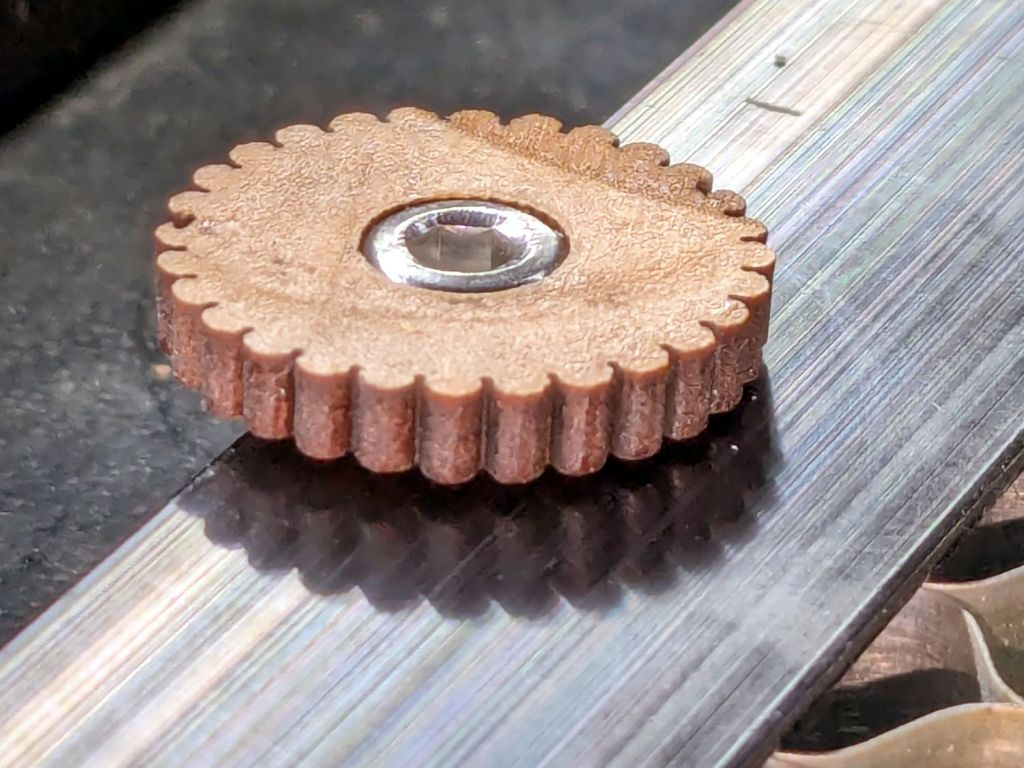
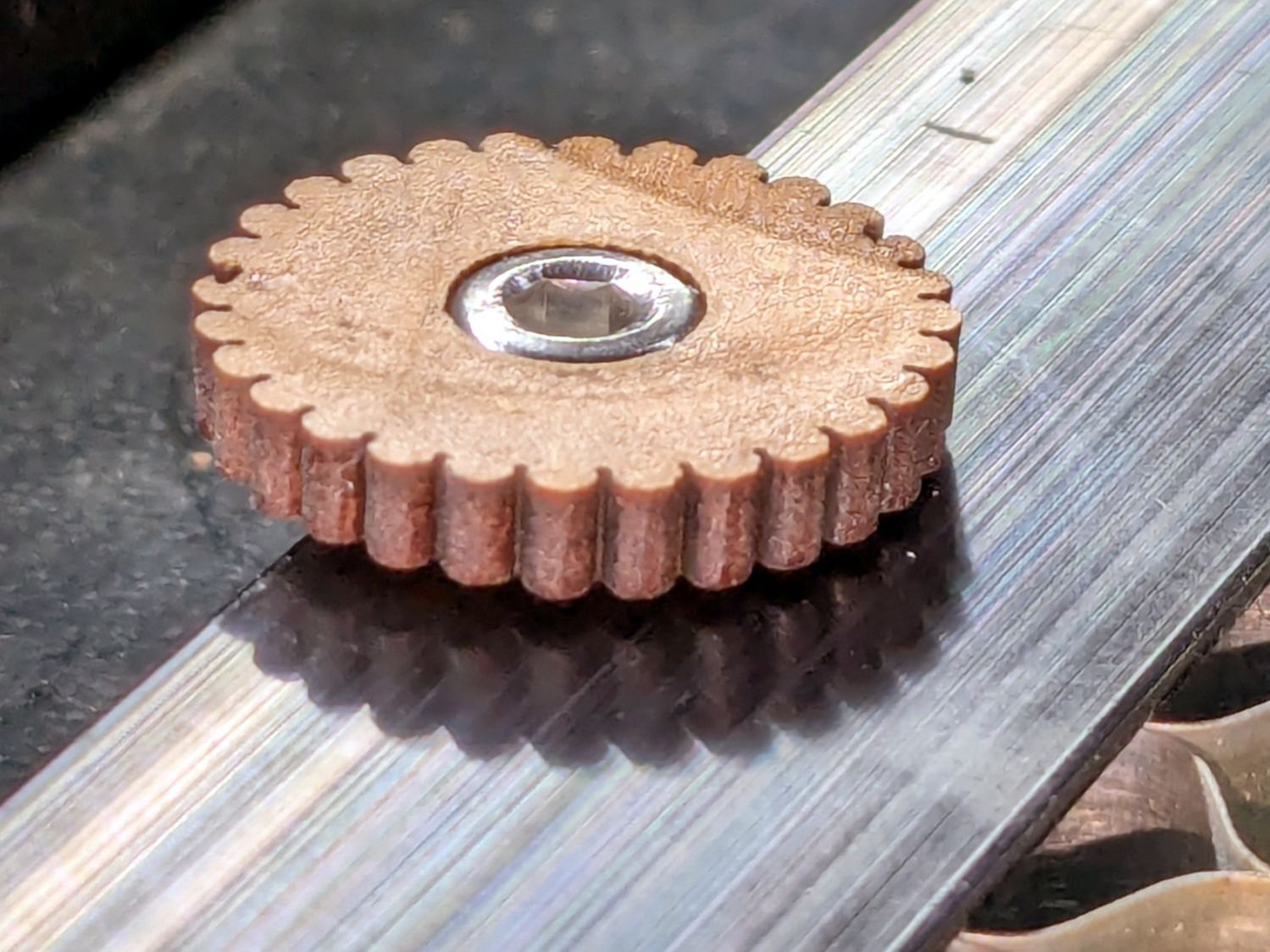
    Double Gear fidget toy - scarf vs normal
    Double Gear fidget toy – scarf vs normal

    Those are flipped from the as-printed orientation: the orange ring builds upward, starting with two concentric threads on the platform.

    The normal aligned joint is on the right above, with a closer look here:

    Double Gear fidget toy - normal joInt
    Double Gear fidget toy – normal joInt

    The scarf joint has a offset between layers:

    Double Gear fidget toy - scarf joint
    Double Gear fidget toy – scarf joint

    The PrusaSlicer visualization shows the effect, looking up from below the platform:

    Double Gear fidget toy - scarf joint visualization
    Double Gear fidget toy – scarf joint visualization

    The blue PETG-CF parts have no visible seams anywhere with either setting, probably because the stuff swells slightly and obliterates any subtle differences.

    Scarf joints don’t make much difference for a fidget toy, but should improve the outcome for more critical circular / spherical models.

  • OMTech 60 W Laser: Manual Pulse Button

    OMTech 60 W Laser: Manual Pulse Button

    I want to put the HLP-200B Laser Power Meter at the tube’s exit, just upstream from Mirror 1, where it can measure the laser’s power output before the mirrors get into the act. Reaching the Pulse button on the machine console requires much longer arms than any normal human can deploy, plus a certain willingness to lean directly over a laser tube humming with 15 kV at one end.

    Perusing the KT332N doc brings up a hint, blocked in red so you can make some sense of it:

    KT332N Input bits
    KT332N Input bits

    A few minutes with boxes.py produces a simple two-compartment box and a few minutes with LightBurn adds two holes:

    Remote Switch Box - LightBurn layout
    Remote Switch Box – LightBurn layout

    Another few minutes produces the box from Trocraft Eco, which is not quite thin enough for the switch (from my Box o’ Clicky Buttons) to snap into place, but a few dabs of hot melt glue hold it down:

    Laser remote pulse button - installed
    Laser remote pulse button – installed

    Double-sided foam tape sticks the box to the laser frame and the red-n-black cable snakes all the way across the back of the machine and through the electronics bay to the IN2 and GND terminals of the KT332N INPUT block:

    Laser remote pulse button - Ruida KT332N wiring
    Laser remote pulse button – Ruida KT332N wiring

    With the laser head parked at a safe spot and all interlocks happy, it works:

    Laser remote pulse button - demo
    Laser remote pulse button – demo

    That is a re-enactment, because I lack sufficient dexterity to handle a phone with my left hand, poke the button with my right finger, and not damage anything important.

    The general idea is to make it very difficult to inadvertently press that button: you must want to fire the laser with the tube compartment hatch up (it has no interlocks) and the control panel out of sight on the top-front of the machine.

    Setting the power to 30% and putting the meter in harm’s way:

    HLP-200B - Laser tube exit
    HLP-200B – Laser tube exit

    Again, a reenactment based on actual events.

    Five pulses later:

    40.8W
    42.4
    42.3
    41.2
    40.7
    41.5W avg
    0.82W std dev

    For the record, those five pulses dumped about 5 × 42 W × 10 x ≅ 2000 W·s = 2 kJ into the meter, raising it from “chilly basement ambient” to “be careful where you hold it”, thus making the meter’s aluminum case the least-efficient handwarmer in existence.

    The 30% PWM measurements at the center of the platform came out slightly lower: 38.5 W average with a sample standard deviation of 2.2 W.

    The large standard deviations prevent firm conclusions, but, yeah, the power at the tube exit seems about right, before two mirrors and ≅800 mm of path length take their toll.

    The LightBurn SVG layout as a GitHub Gist:

    Loading
    Sorry, something went wrong. Reload?
    Sorry, we cannot display this file.
    Sorry, this file is invalid so it cannot be displayed.