Ed Nisley's Blog: Shop notes, electronics, firmware, machinery, 3D printing, laser cuttery, and curiosities. Contents: 100% human thinking, 0% AI slop.
Tag: Improvements
Making the world a better place, one piece at a time
It turns out that keeping the garage door remote clipped to the starboard underseat pack on my Tour Easy attenuated its RF enough that even the directed receiver antenna couldn’t grab enough signal until I rolled onto the end of the driveway.
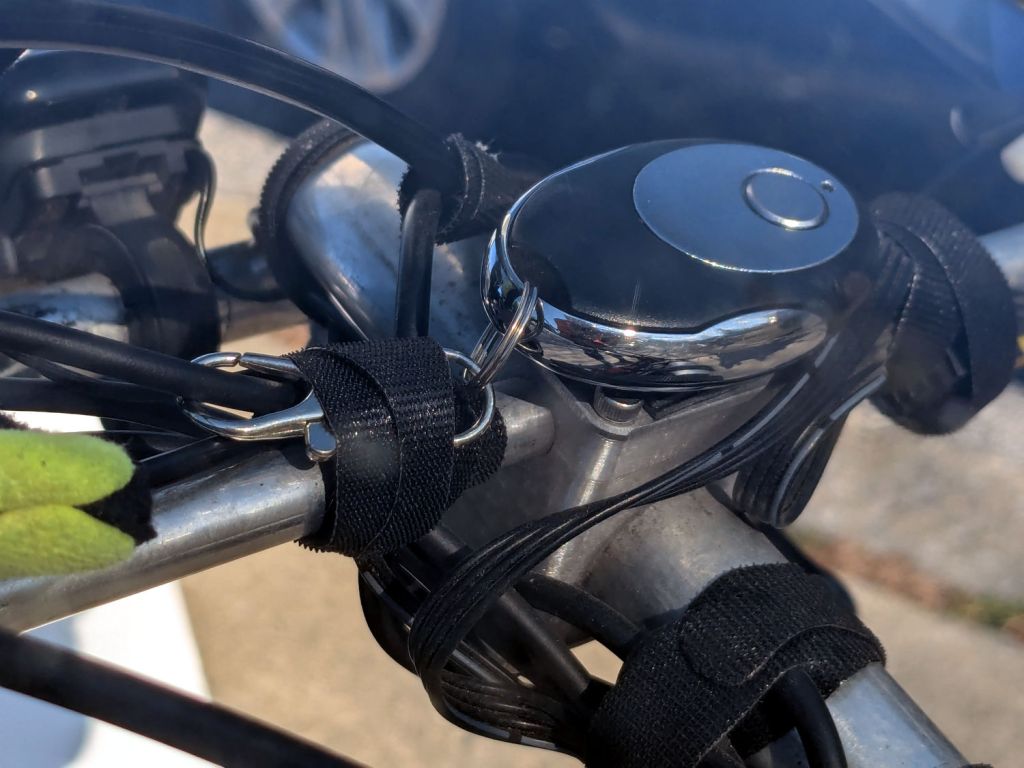
While contemplating what’s involved in making a 3D model of the remote’s curved backside, I realized the bike already had a perfect spot:
Tour Easy Zzipper Fairing – block mount
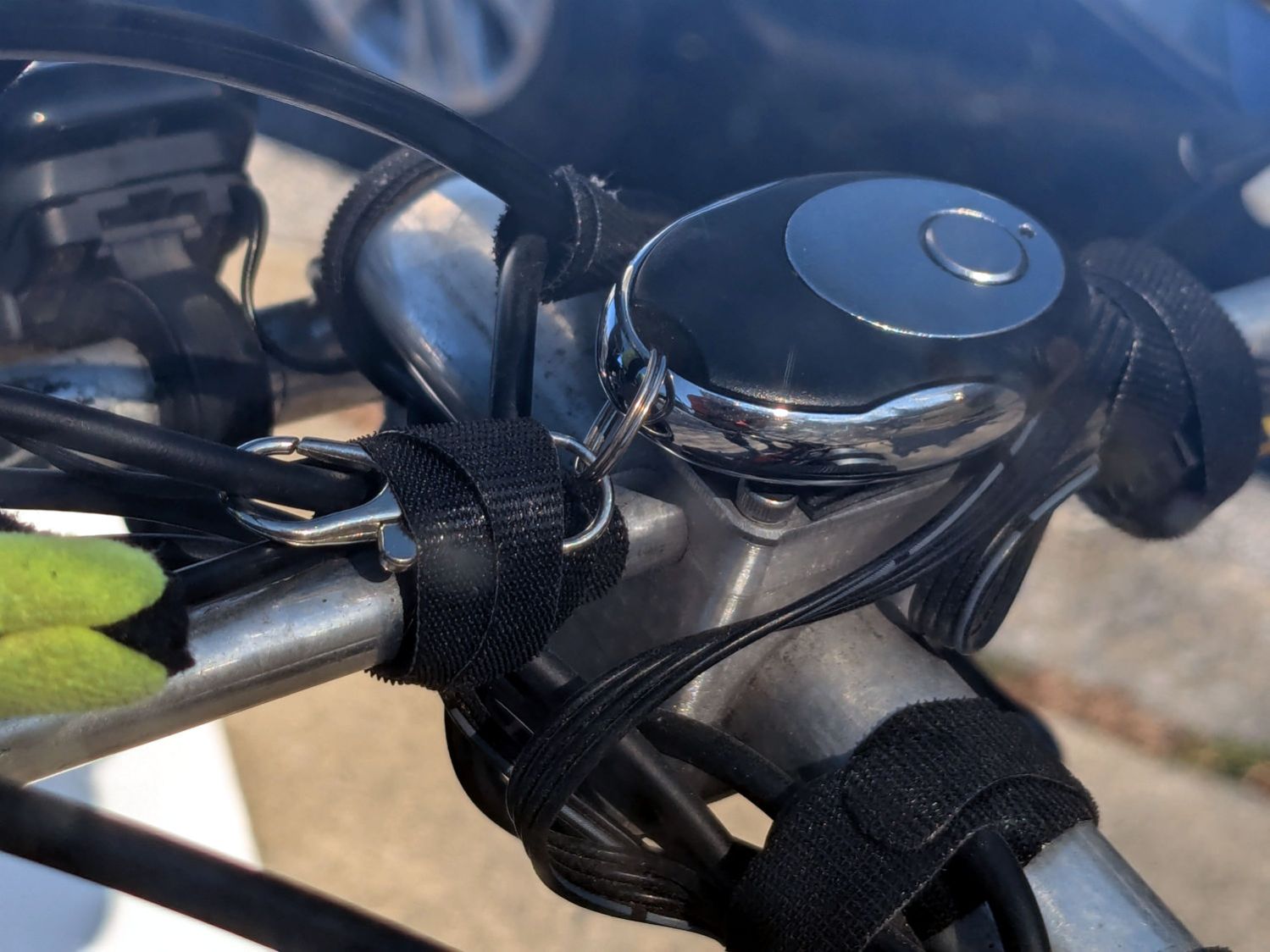
A few strips of good outdoor-rated foam tape later:
Tour Easy – garage door opener mount
Believe it or not, the camera is looking through the year-old and unwashed fairing on my bike.
Stipulated: aligning the PCB antenna flat against a small aluminum plate atop a bunch of aluminum bars isn’t perfect. However, enough RF wriggles out to trigger our opener from four houses down the hill, giving it plenty of time to haul the door out of my way.
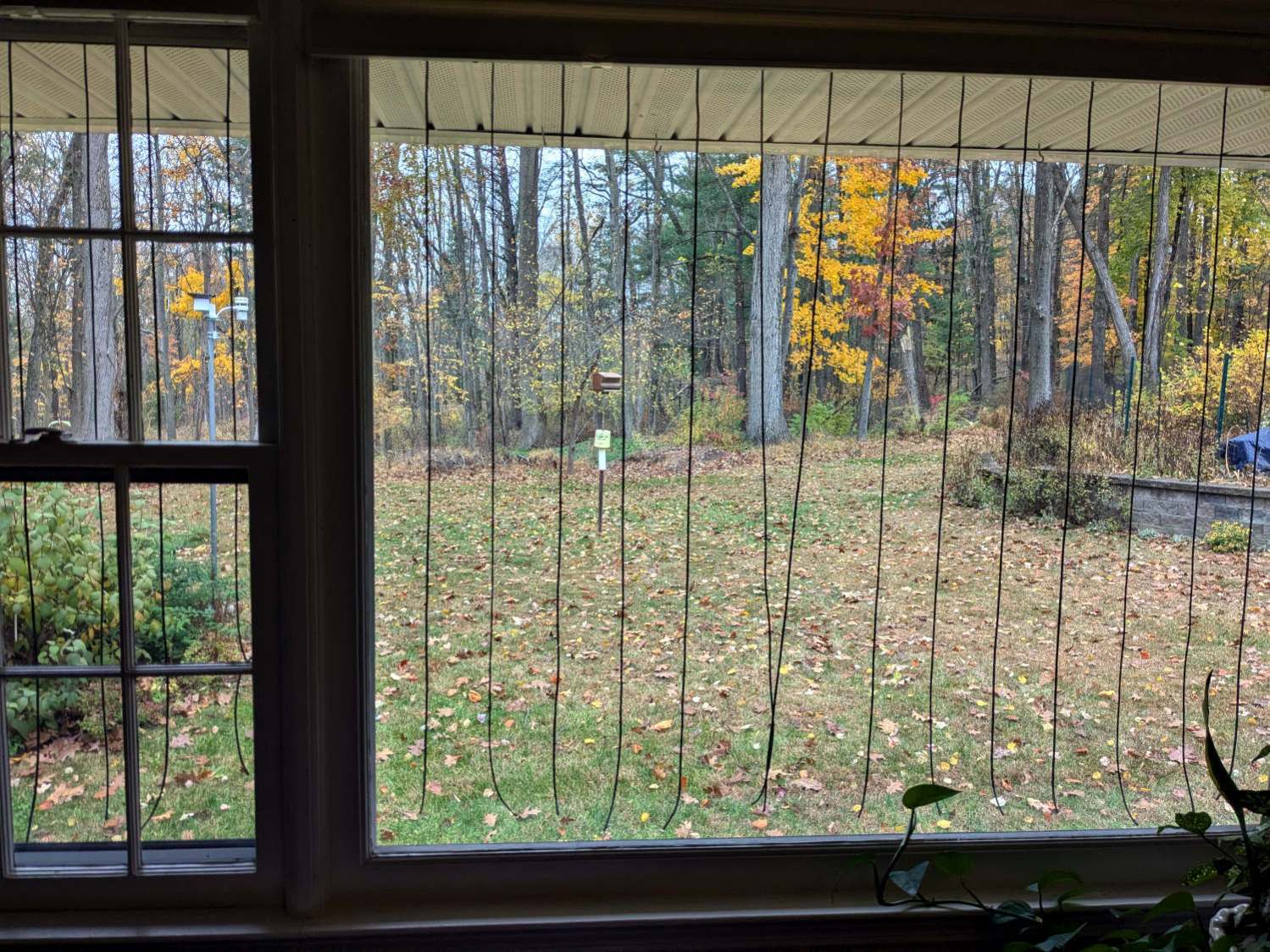
Mary counts birds for Project Feederwatch and the feeder goes up at Halloween, whereupon birds begin smashing against the windows. Having bought a lifetime supply of paracord for this purpose on our previous house, I made a DIY Birdsaver for the rear windows:
DIY Birdsavers – interior view
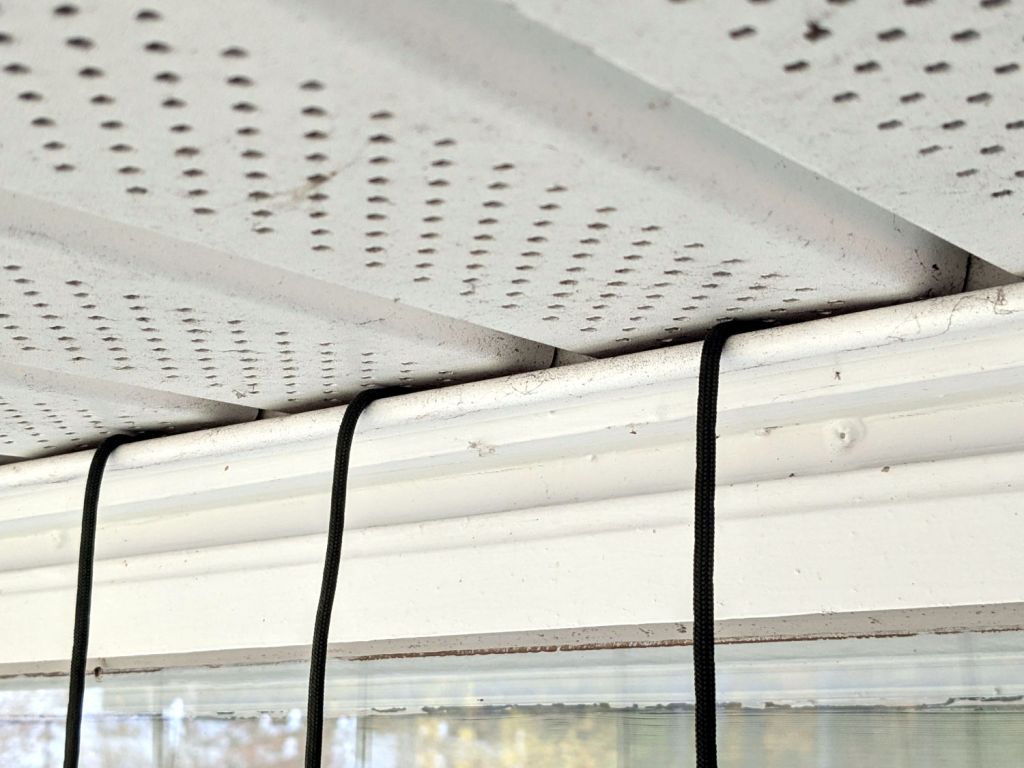
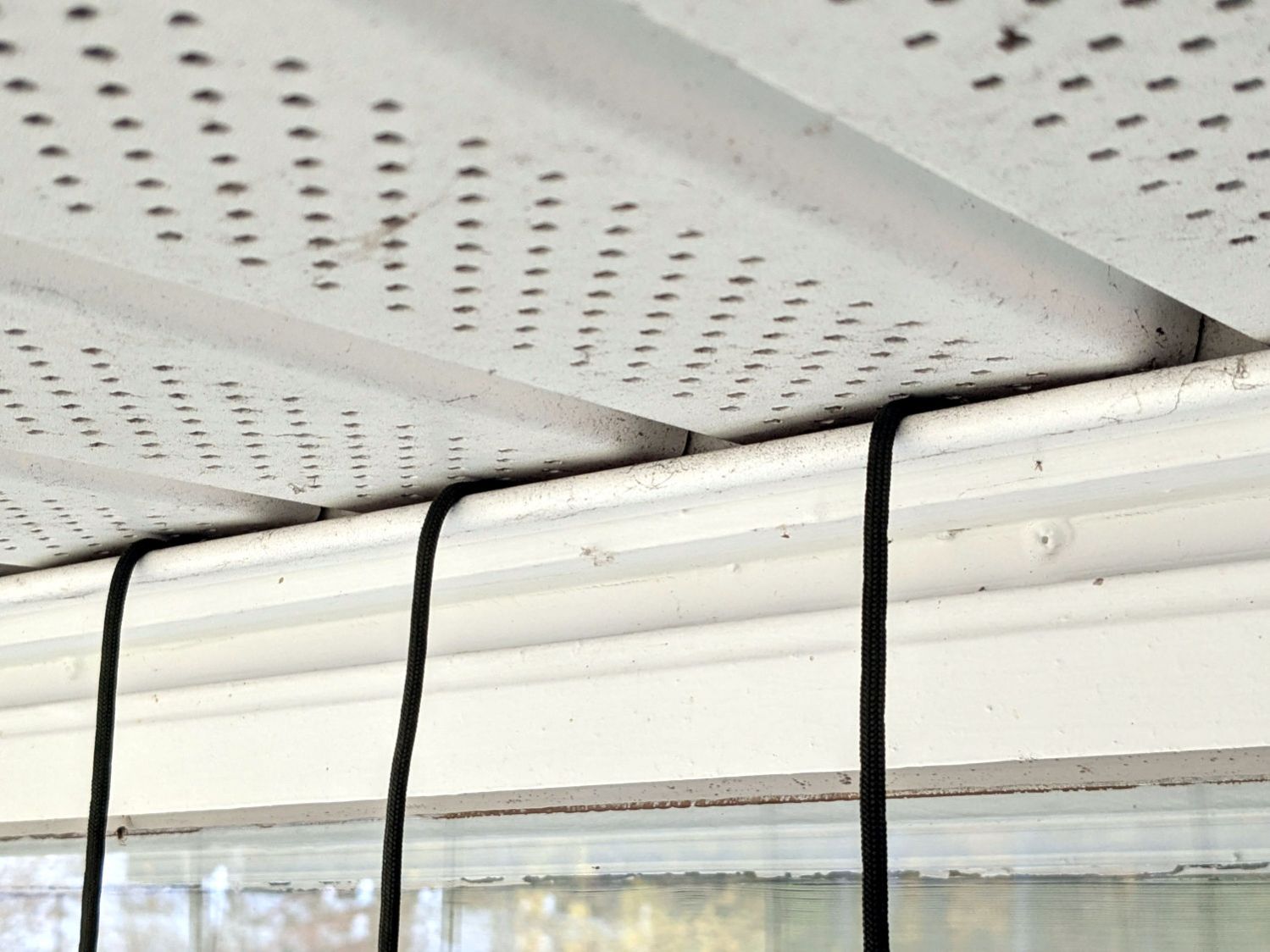
This project was tremendously simplified by discovering the soffits consist of molded PVC sheets having exactly the proper 4 inch spacing and a convenient lip perfectly suited to capture the knot:
Part of the Autumn festivities around here involves blowing leaves into piles, then shredding them into garden mulch. Given that I have a plug-in electric leaf blower / wind stick, I use this as an excuse to exercise the emergency generator (similar to that one) with a (relatively) short extension cord.
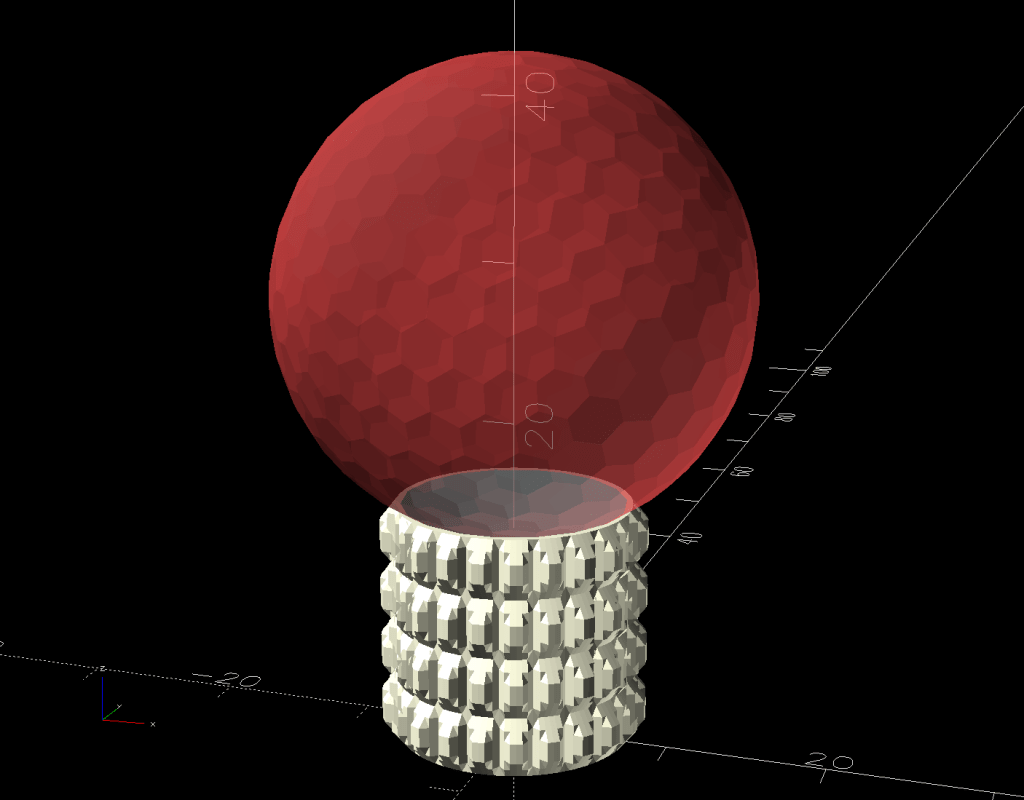
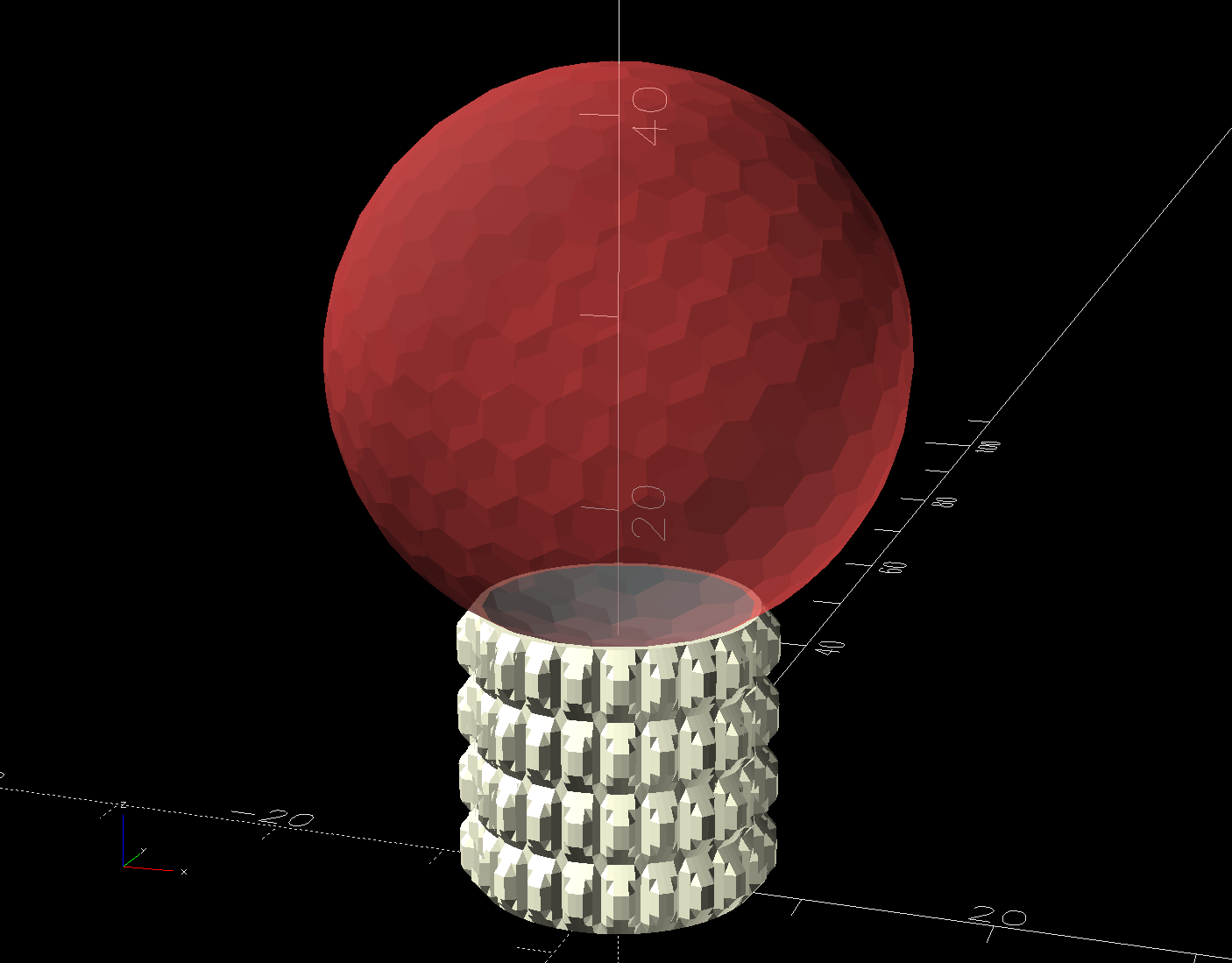
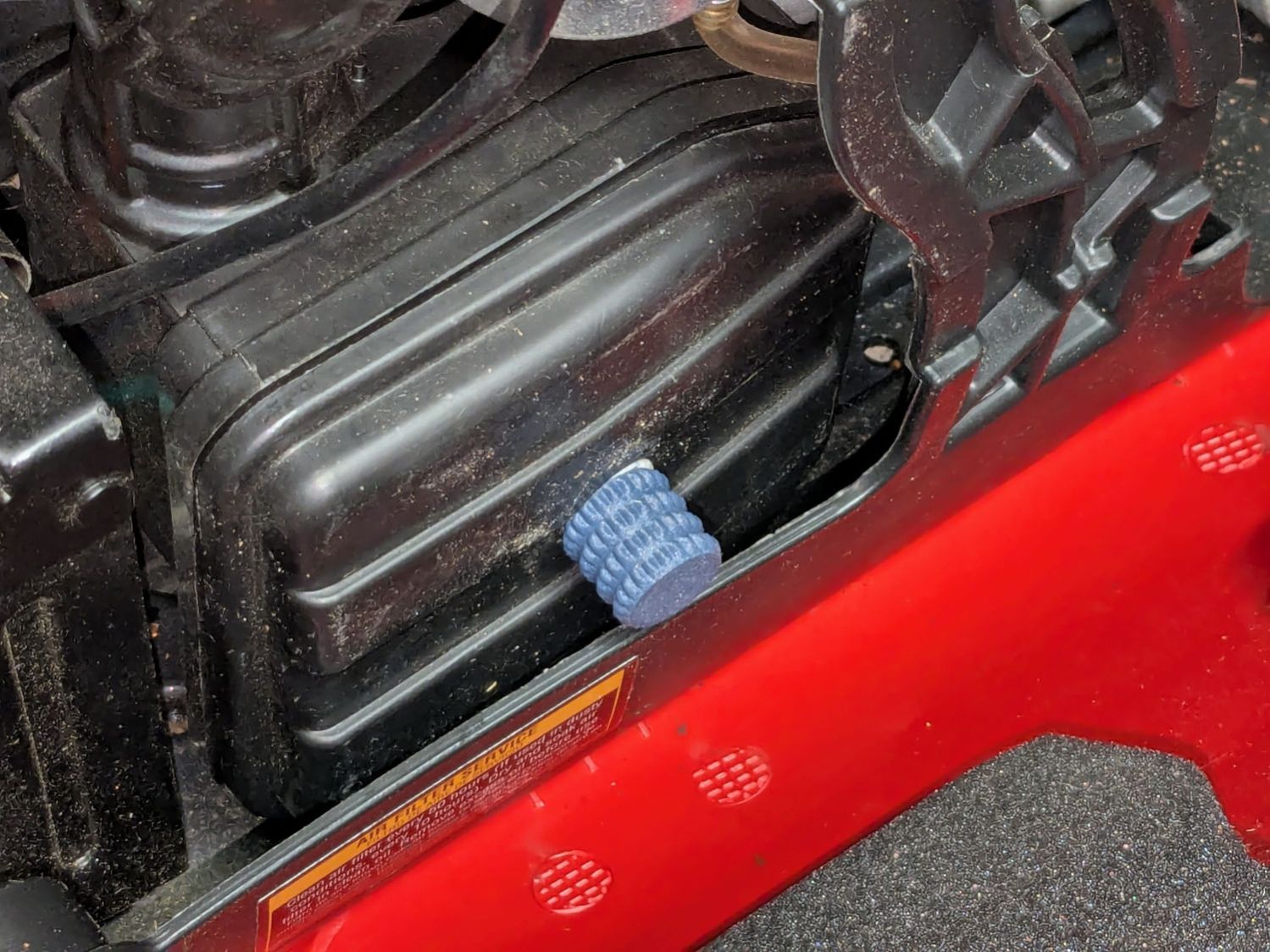
As with all small gasoline engines, I fire a shot of starting fluid into the air cleaner to reduce the number of engine-start yanks, which means I must remove the generator’s side panel and unscrew the filter cover. For years I have sworn mighty oaths on the bones of my ancestors to knobify that screw, thus eliminating fiddling with a screwdriver.
Mary’s zero-mph crash loosened the starboard handlebar plug enough to let it eventually decamp for parts unknown. Its replacement, a somewhat fancier aluminum plug with an expanding cone retainer using an actual M3 nut, worked fine for the last year, but Mary recently noticed the socket head screw had worked loose.
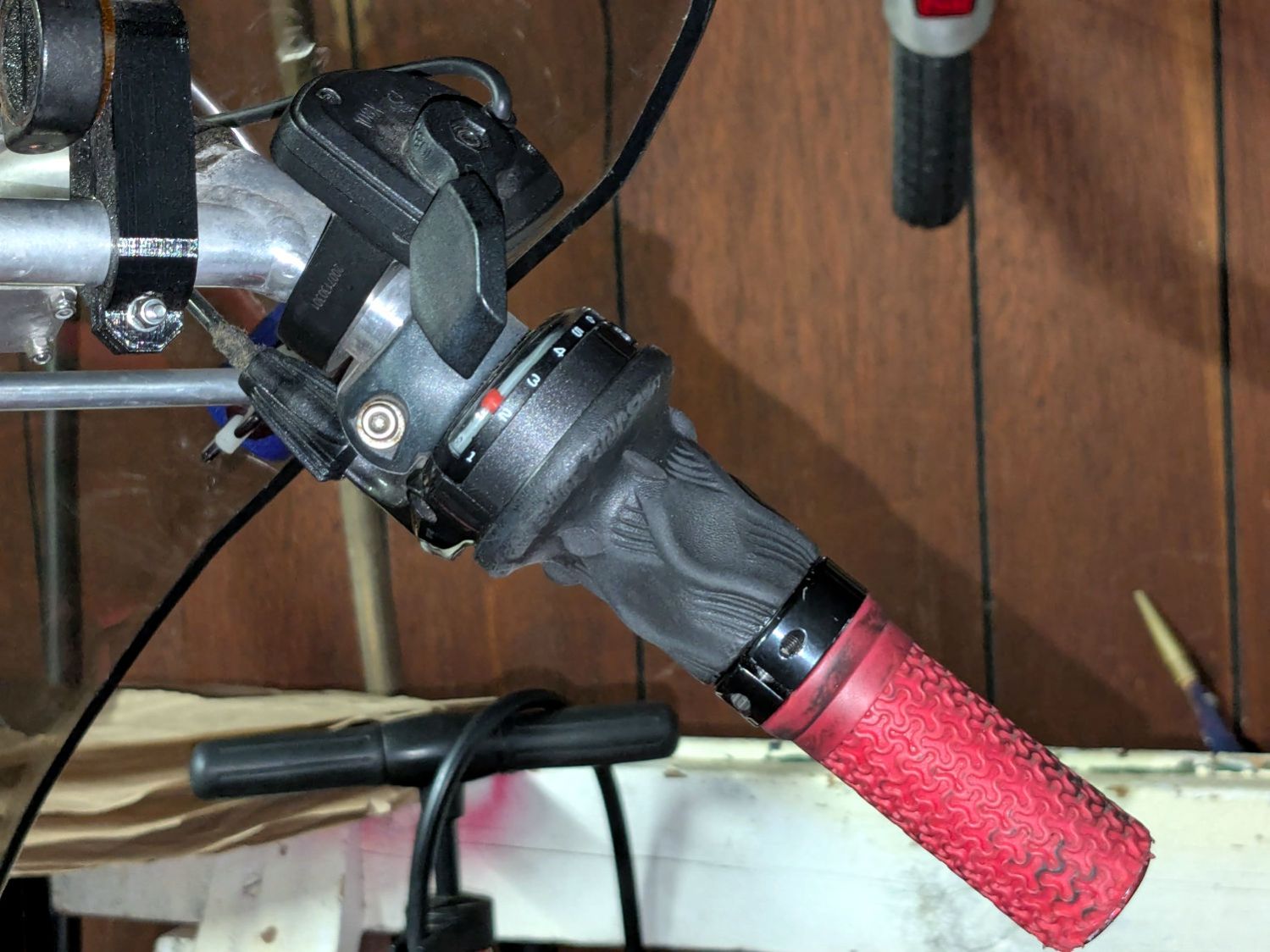
In the interim, I’d moved the Bafang thumb control from its original position on the crossbar to just above the rear shifter:
Tour Easy – right handlebar control stack
Which moved the clamp on the shortened grip off the end of the handlebar tube, so I flipped the grip around, tightened the clamp, and installed the plug.
Unfortunately, the grip ID is 4 mm larger than the tube ID, which meant the plug’s cone retainer was struggling to hold on in there. Perhaps the plastic cone has relaxed bit, but I figured giving it more traction would be a Good Idea™ before I declared victory:
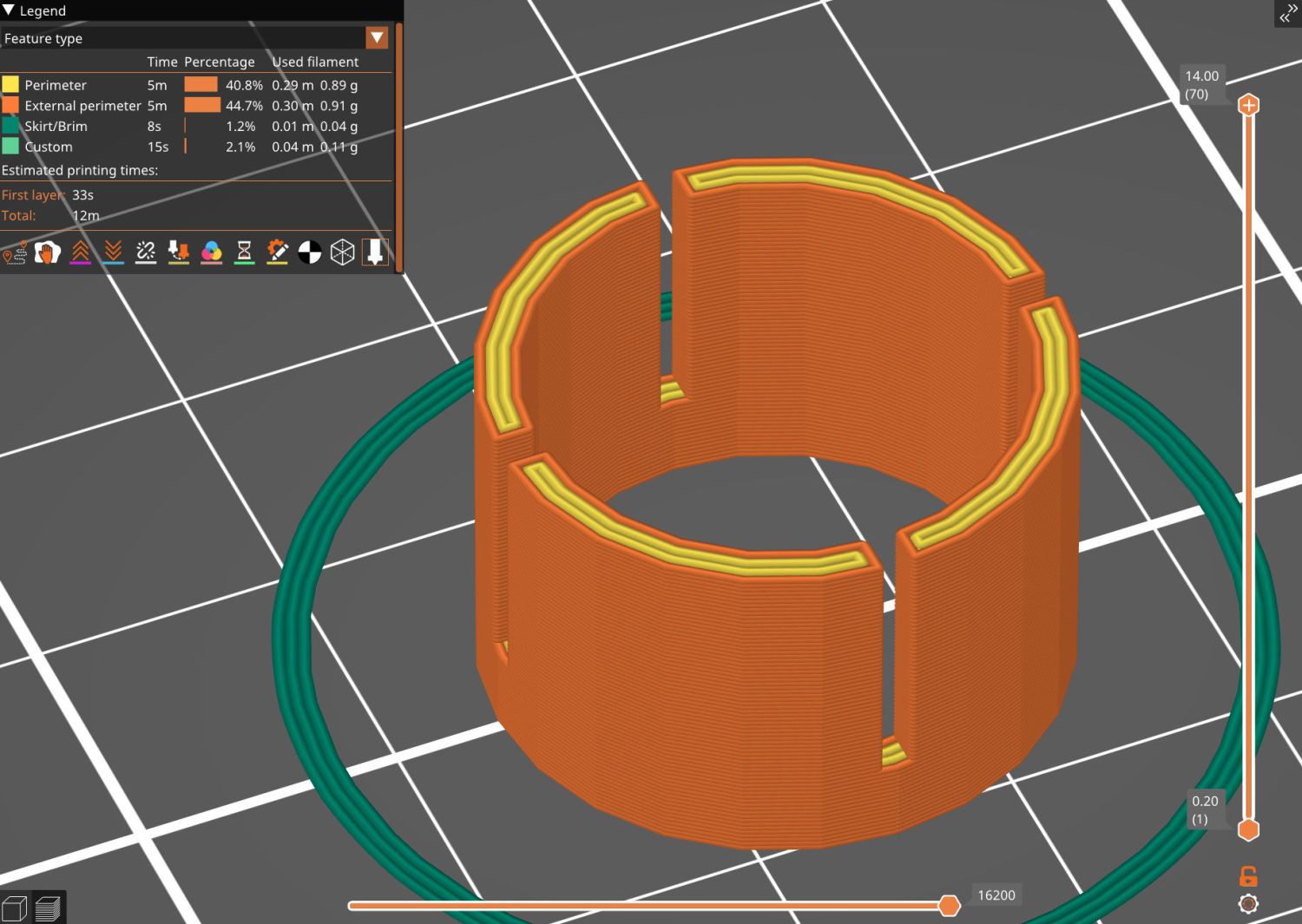
Handlebar Grip Sleeve – PrusaSlicer
It’s a little plastic sleeve with slots to let it expand against the inside of the grip:
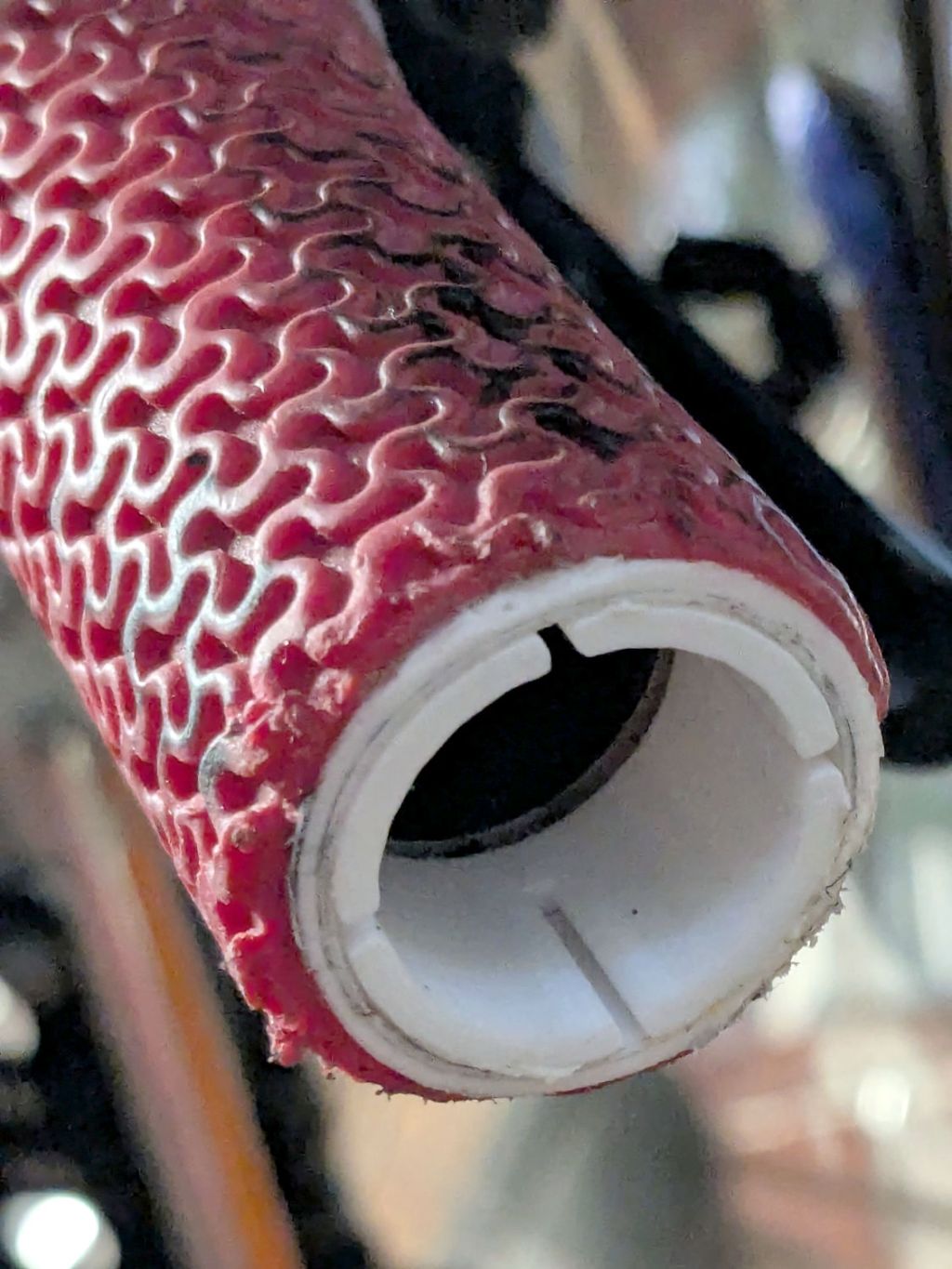
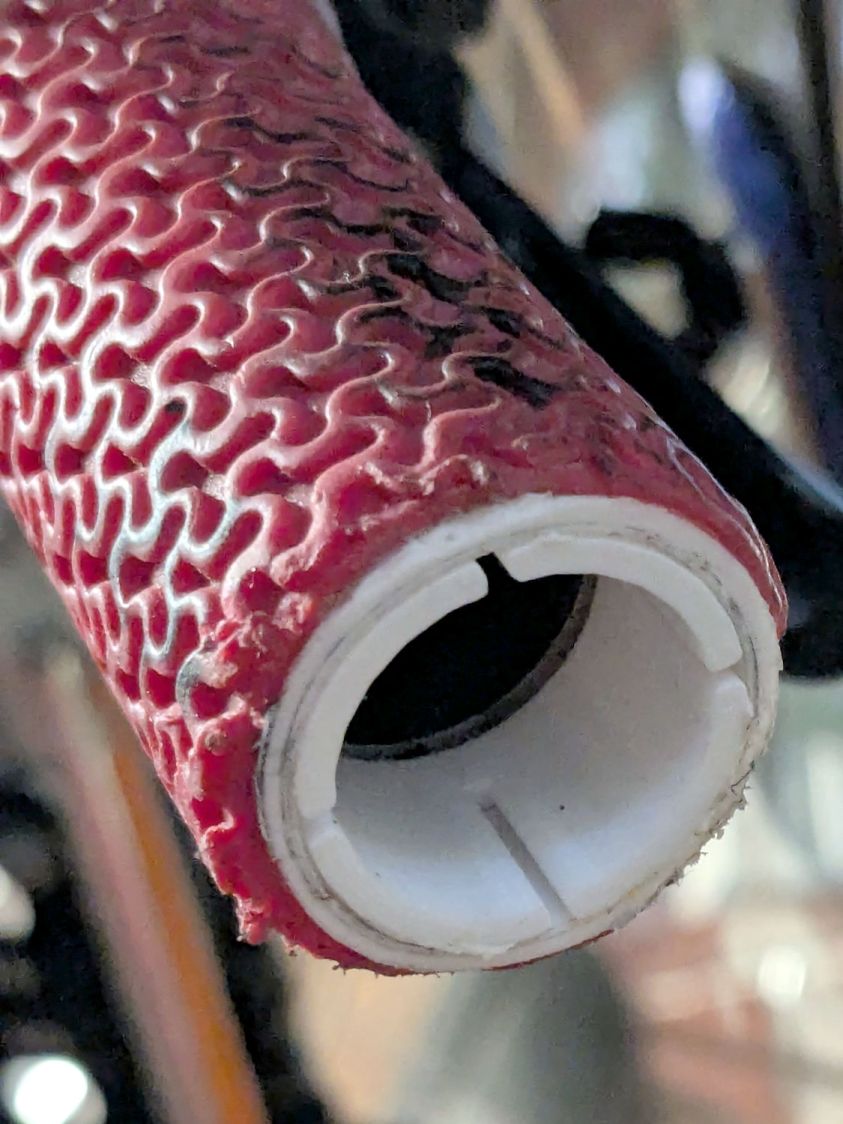
Handlebar grip sleeve – installed
Yes, it’s sticking out slightly; you can see the corresponding gap up inside next to the tube.
A wrap of double-sided sticky tape glues it in place as the retainer presses it against the grip ID and a dot of low-strength Loctite should keep the screw from loosening again.
The OpenSCAD source code:
// Handlebar grip sleeve
// Ed Nisley - KE4ZNU
// 2025-10-25

include <BOSL2/std.scad>

/* [Hidden] */

ID = 0;
OD = 1;
LENGTH = 2;

HoleWindage = 0.2;
Protrusion = 0.1;
NumSides = 3*2*4;

$fn=NumSides;

Sleeve = [18.5,22.0,14.0];
Kerf = 1.0;

  difference() {
    tube(Sleeve[LENGTH],id=Sleeve[ID],od=Sleeve[OD],anchor=BOTTOM);
    for (a=[0,90])
      zrot(a)
        up(Sleeve[LENGTH]/4)
          cuboid([2*Sleeve[OD],Kerf,Sleeve[LENGTH]],anchor=BOTTOM);
  }
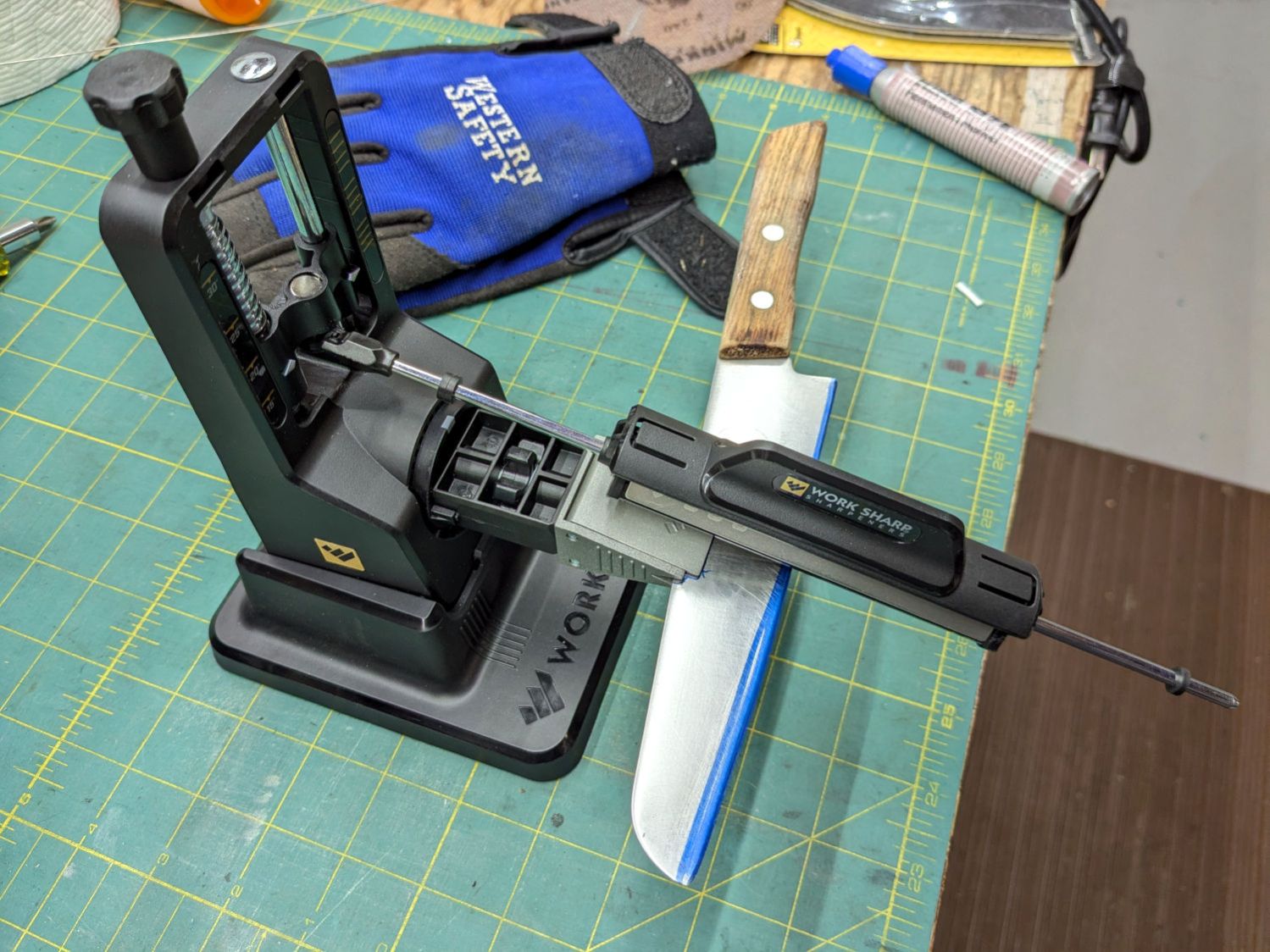
Protip: Wear gloves, because you’re working in front of an unprotected and eventually very sharp blade.
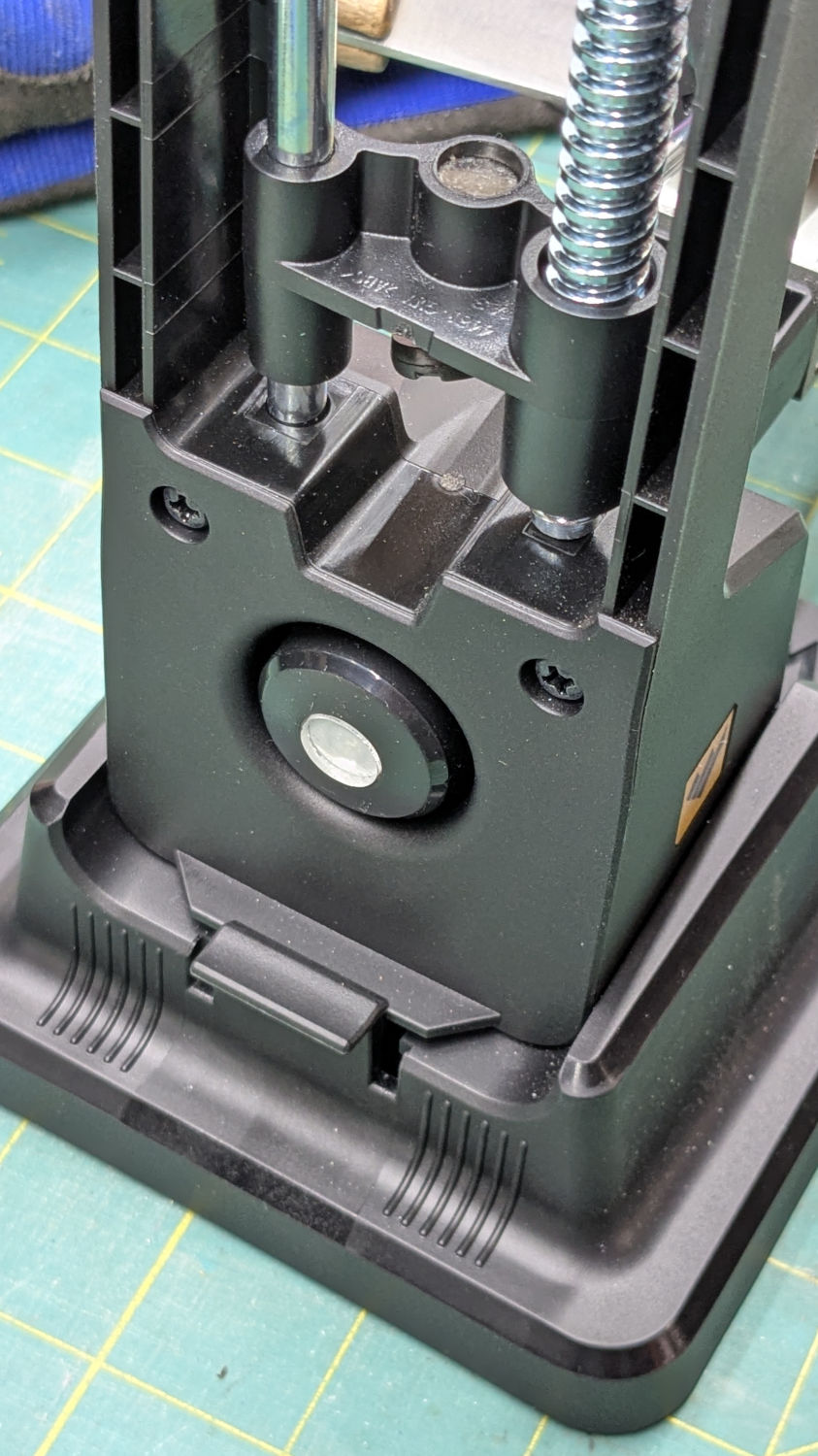
The blade-holding clamp snaps magnetically into a rotating chuck so you can flip the knife over, at least if it’s not quite as long as that one. The chuck index has a spring-loaded release button:
Work Sharp Knife Sharpener – rear view
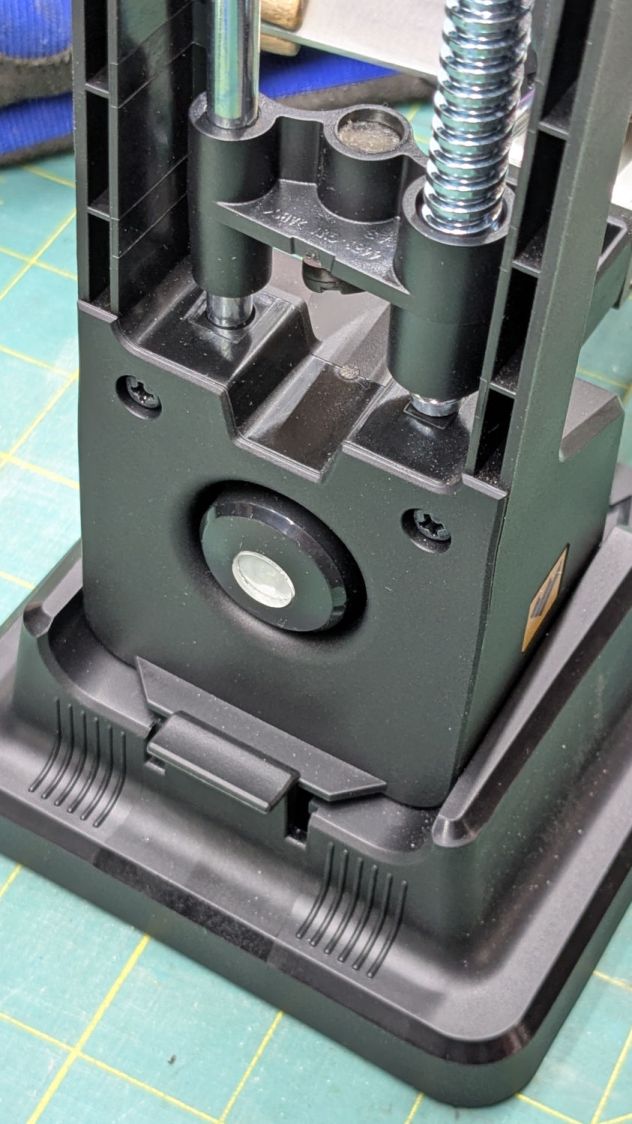
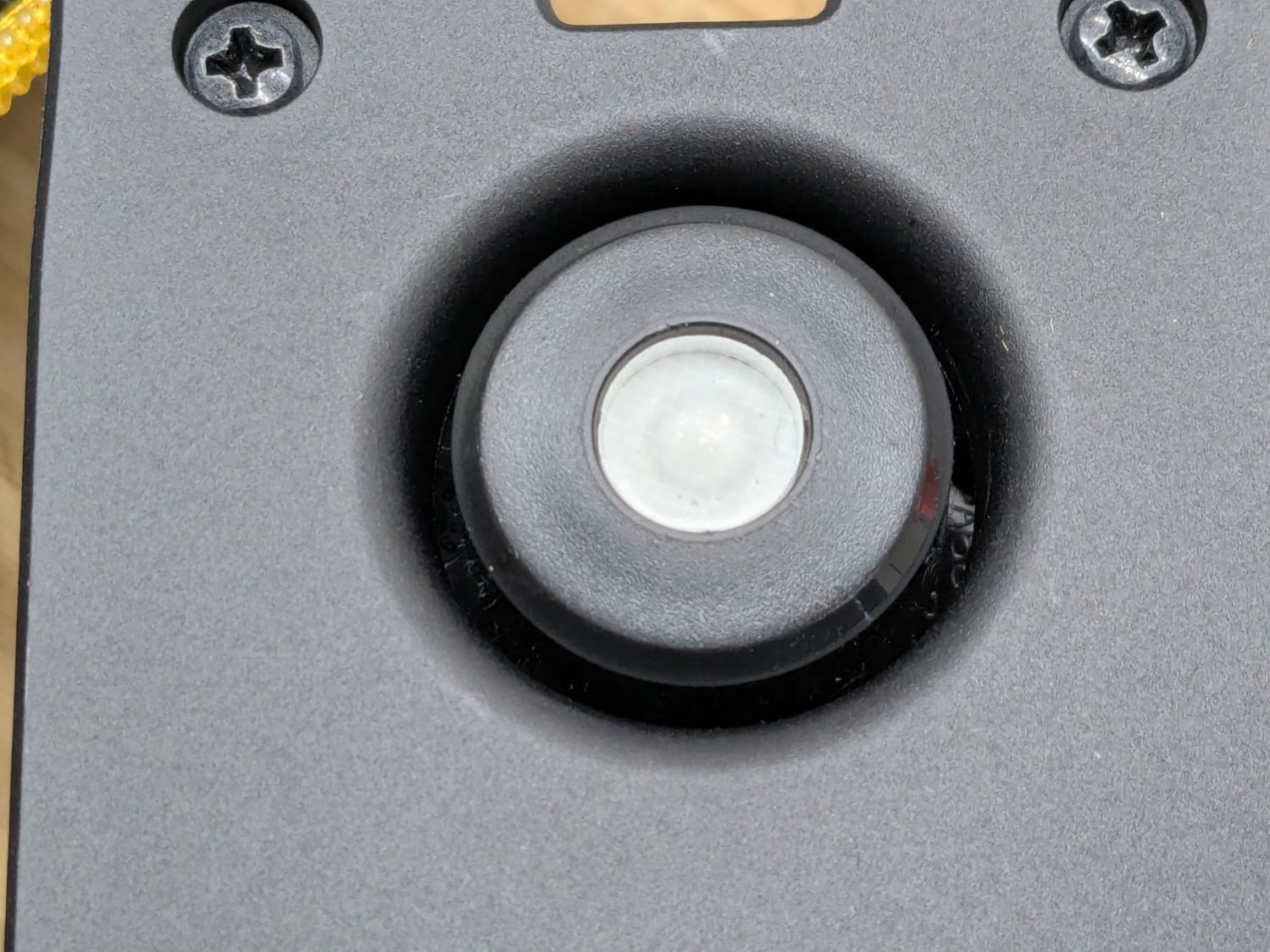
The spring is powerful and the button arrived with a recess around the screw holding the chuck together:
Work Sharp Knife Sharpener clamp button – as received
Pressing the button hard enough to release the chuck hurt my index finger, but their Tech Support said it’s like that and that’s the way it is. Turning the screw adjusts the spring compression, but I think this situation calls for “more secure” rather than “easy to push”.
Fortunately, I have a laser cutter and know how to use it:
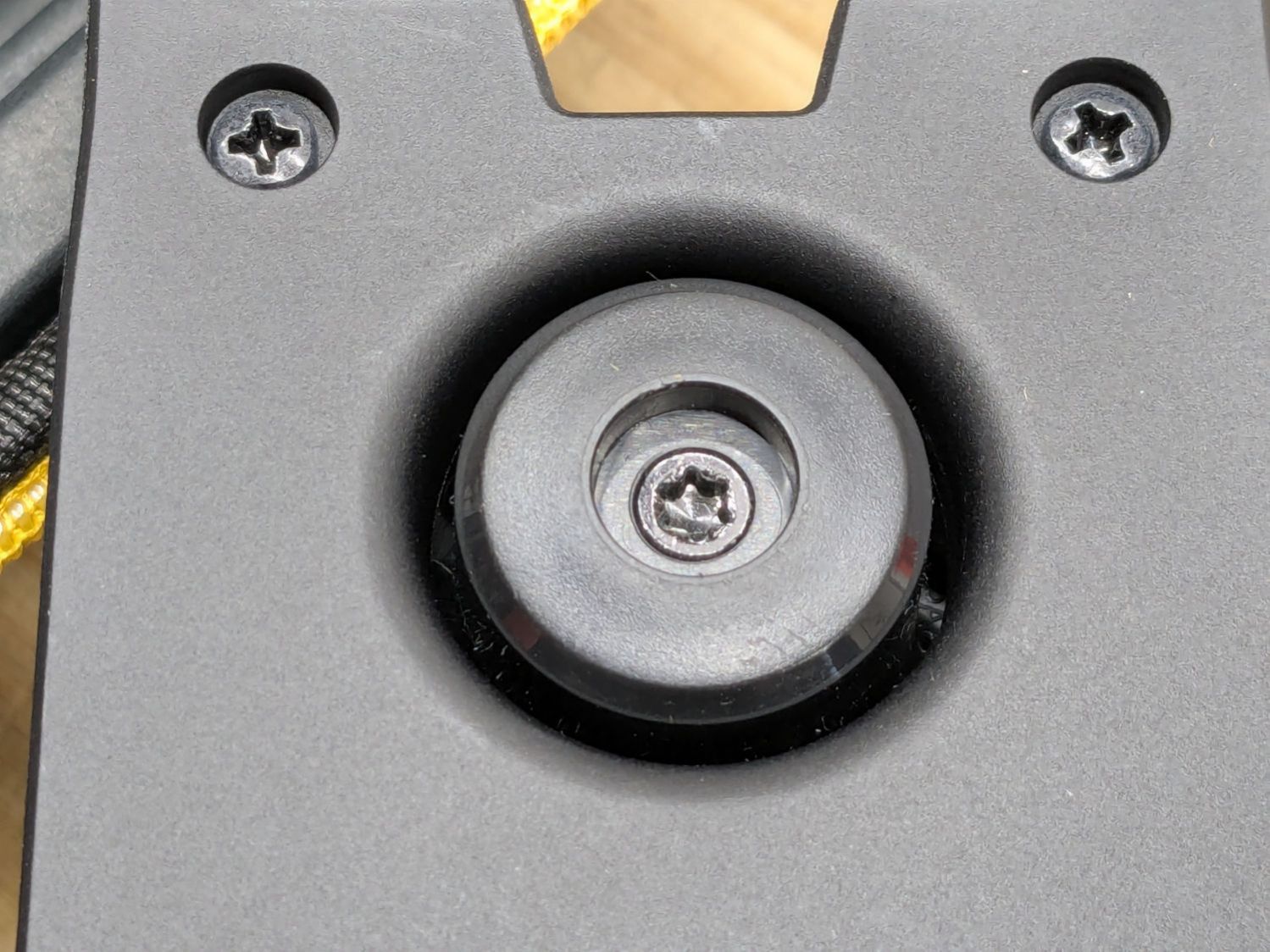
Work Sharp Knife Sharpener clamp button – filled
Despite appearances, it’s a 10 mm disk of 4.3 mm clear acrylic stuck to the screw head with a snippet of white double-sided tape and flush with the surrounding plastic surface.
A smooth button makes my index finger much happier …
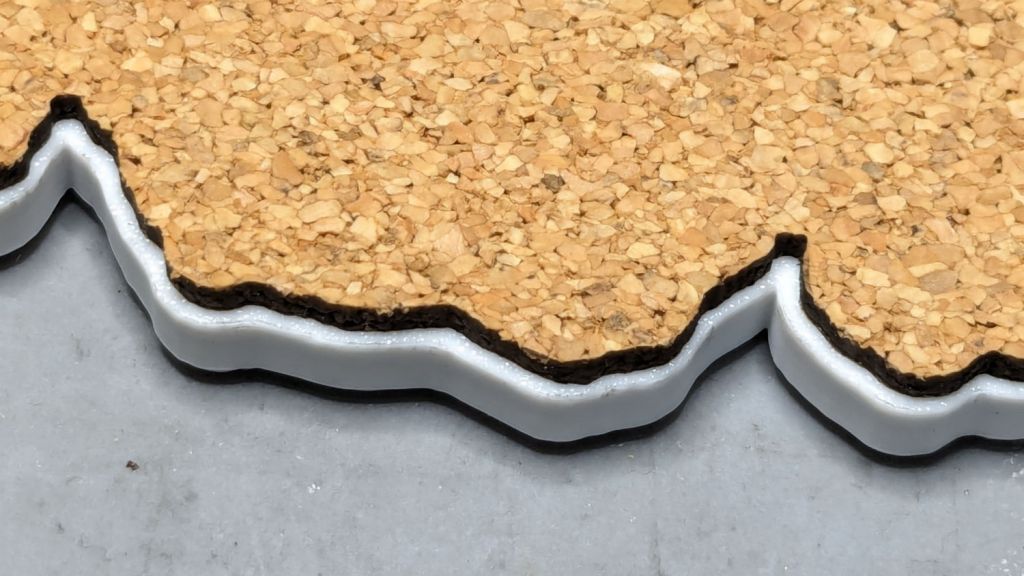
A sheet of craft adhesive holds them together; stick a generous rectangle of adhesive on the cork, then cut them at the same time. However, given the irregular perimeter, it’s basically impossible (for me, anyway) to align the cork + adhesive with the printed frame.
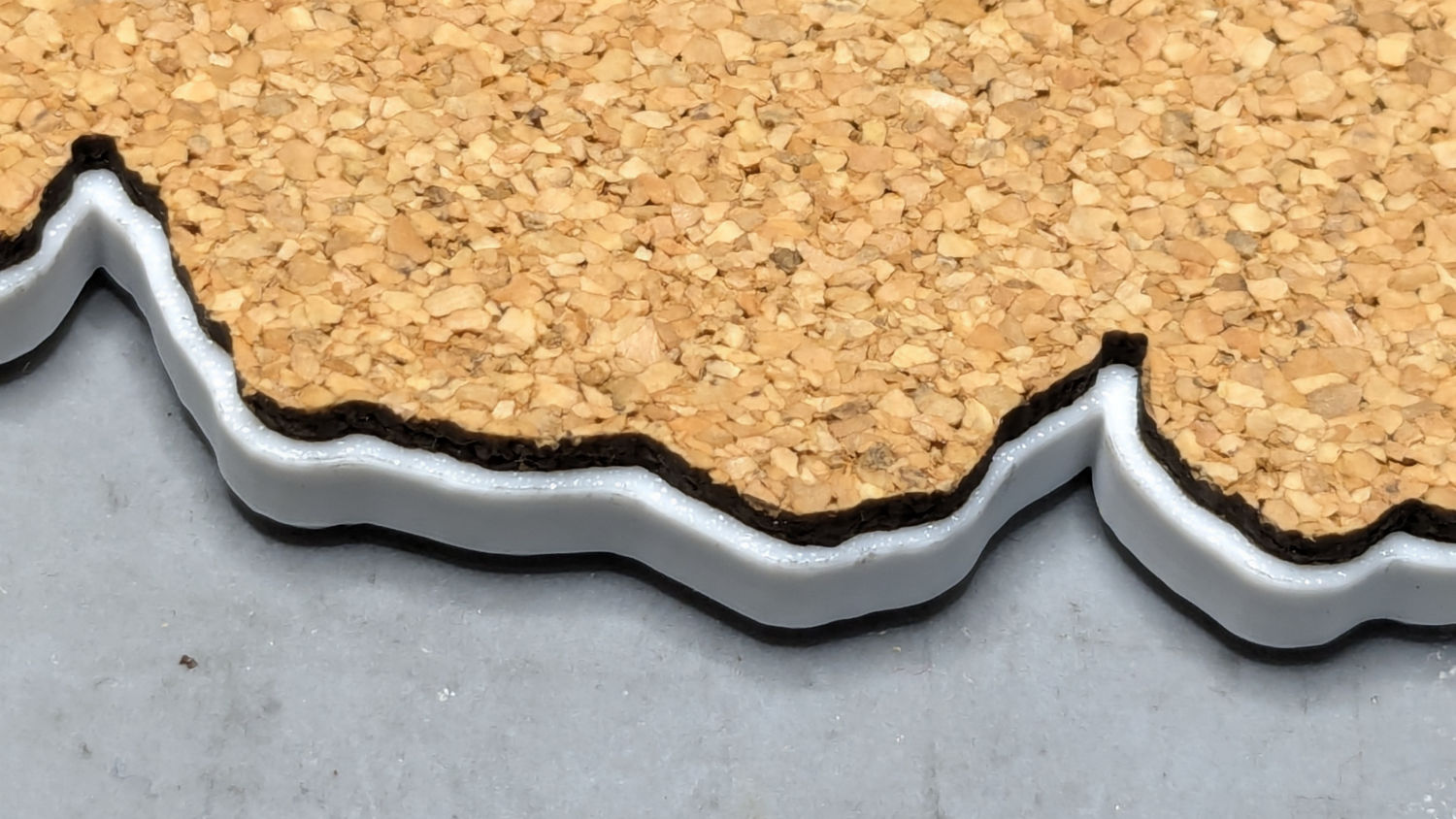
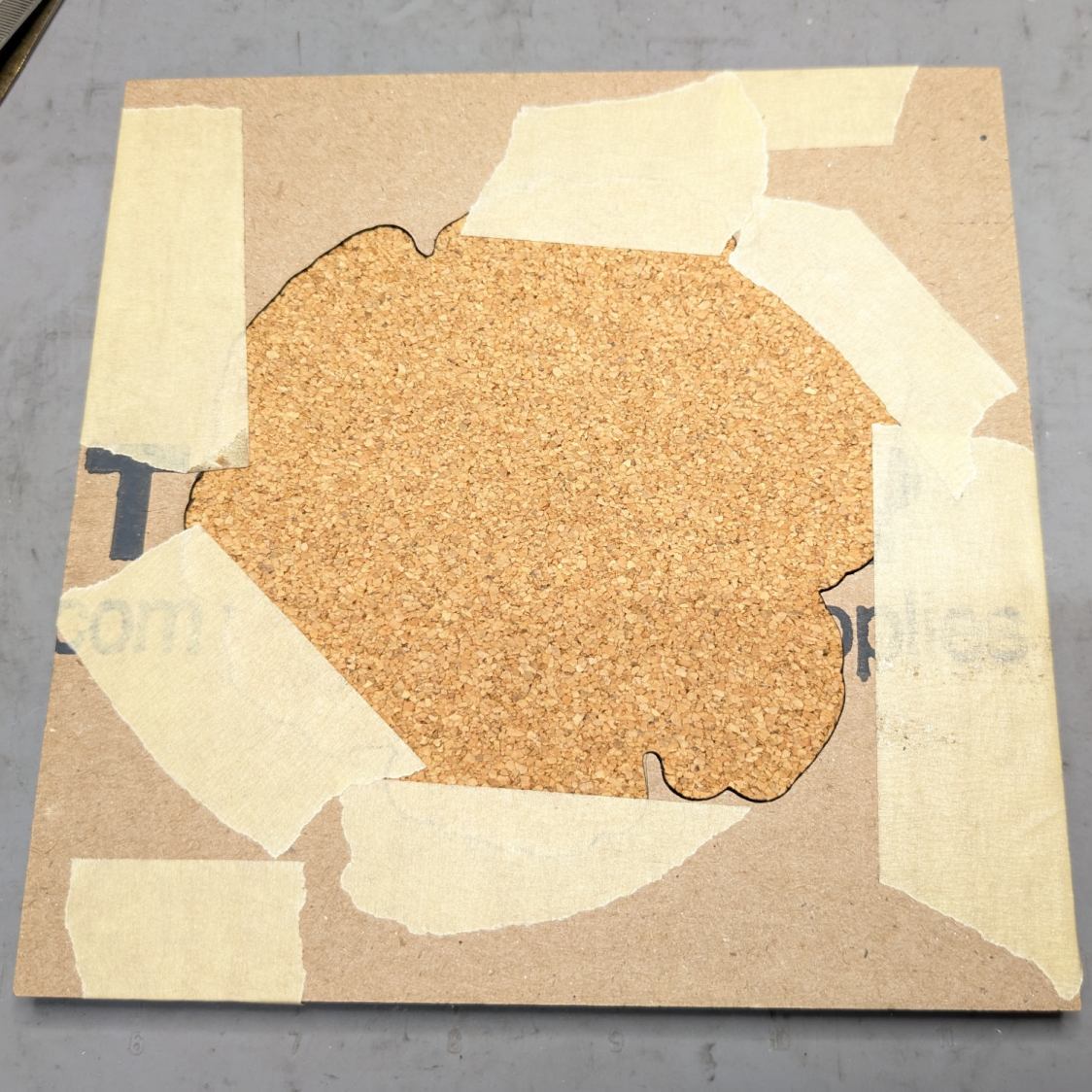
A single-use fixture made from corrugated cardboard make that task trivially easy:
Printed Coaster – cork alignment fixture – detail
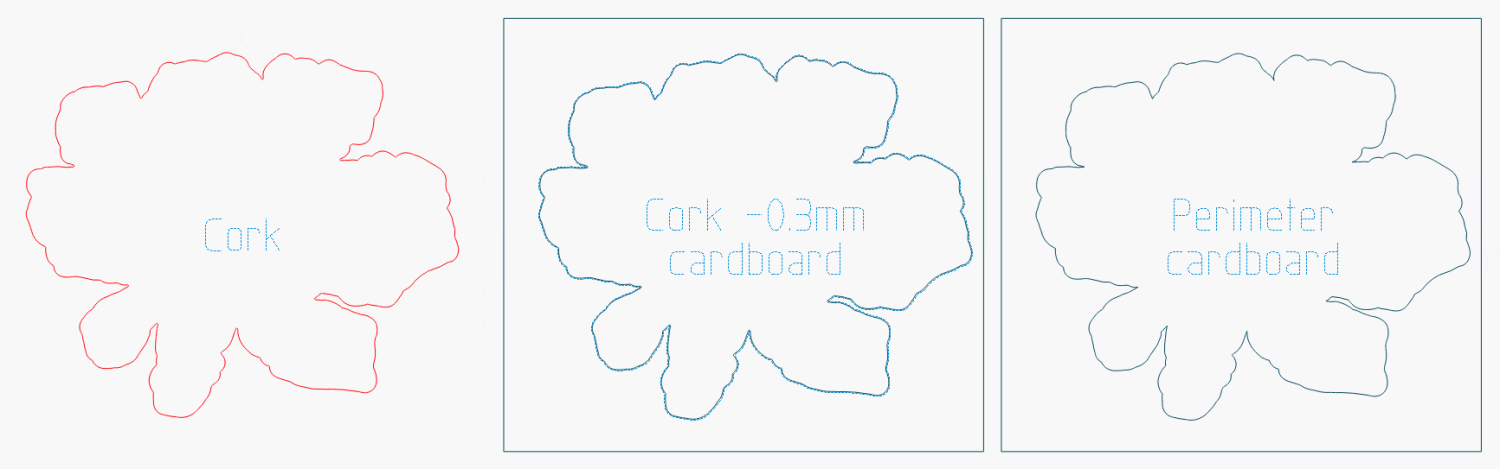
The LightBurn layout shows the cork layer and the two fixture pieces:
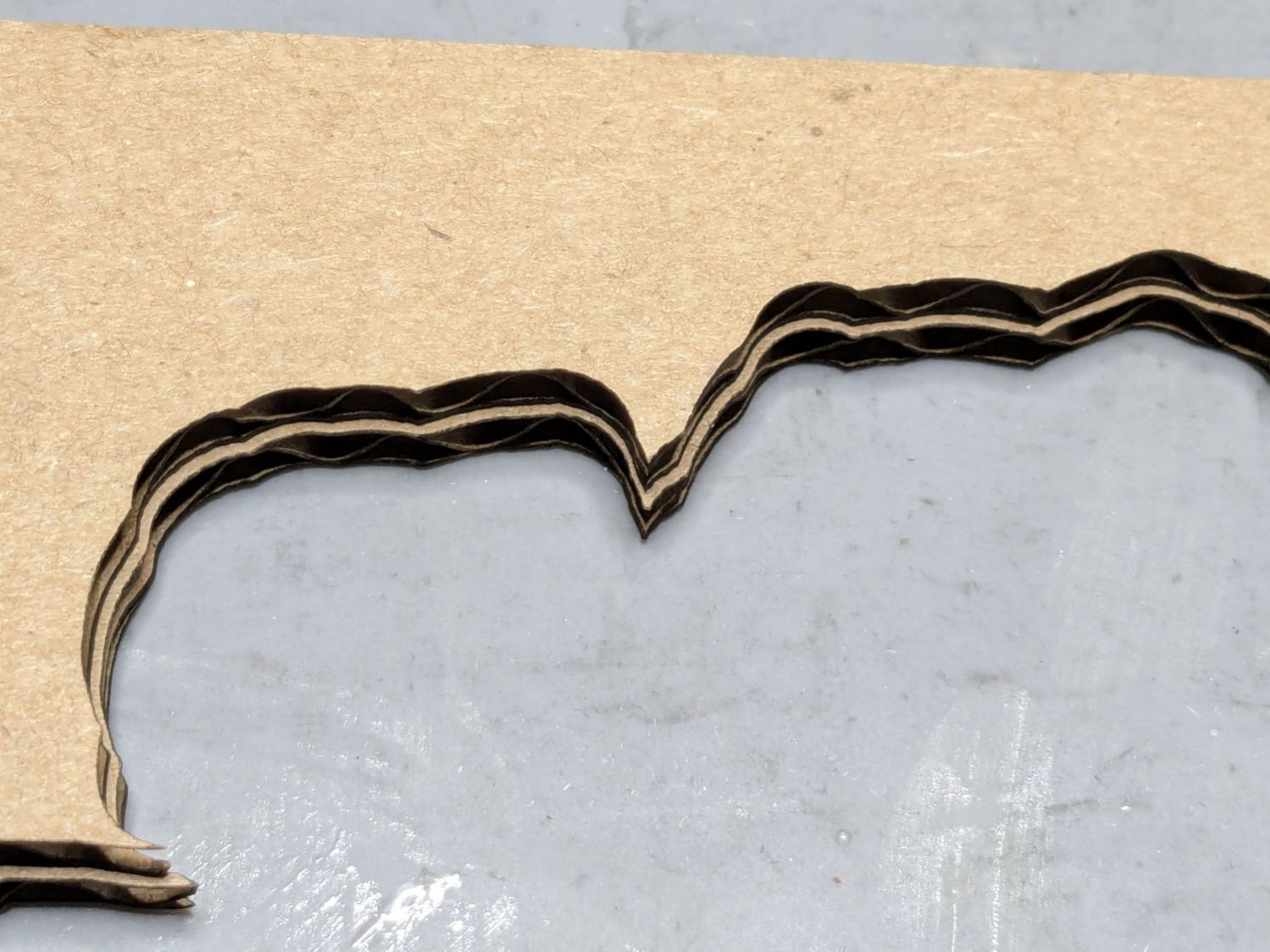
The cork shape is offset 0.5 mm inward from the Perimeter shape, but I found offsetting the cardboard cut by only 0.3 mm inward produced a snug fit around the cork. The other piece of cardboard gets cut with the exact Perimeter shape and no offset, with the laser kerf providing just enough clearance for a very snug fit on the printed shape.
Align the two pieces of cardboard by eye to match their inner shapes as shown in the picture, tape them together, and the fixture is ready. In principle, the outer edges should exactly coincide: Trust, but verify.
Peel off the craft adhesive paper and put the cork in the bottom of the fixture. The cork comes off a roll and really wants to roll up again, making the masking tape holding it flat mandatory:
Printed Coasters – cork alignment template
Yes, that’s a different coaster.
Flip the fixture over, drop the coaster in place, press firmly together, peel the tape, and pull out the finished coaster:
Printed Coasters – white PETG finished
The fixture goes in the recycling bin, as those fragments will never pass this way again.
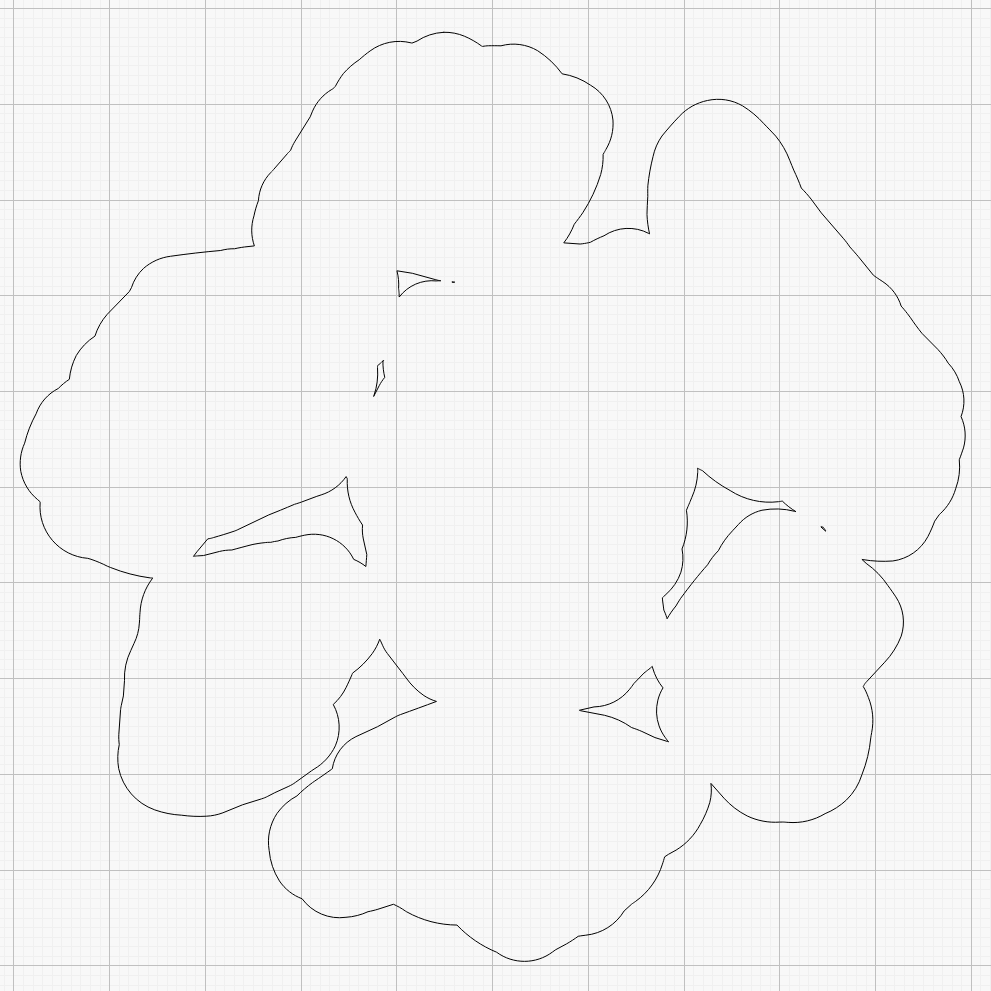
Create the perimeter path as an offset around all the fragments in LightBurn
Because the fragments have irregular shapes and spacing, creating the perimeter path may also produce small snippets of orphaned geometry which must be manually selected and deleted. I also edit the path to remove very narrow channels between adjacent fragments.
Which is why you can’t generate that path automatically:
Printed Coaster Layout – 100 mm Set G – LightBurn perimeter geometry
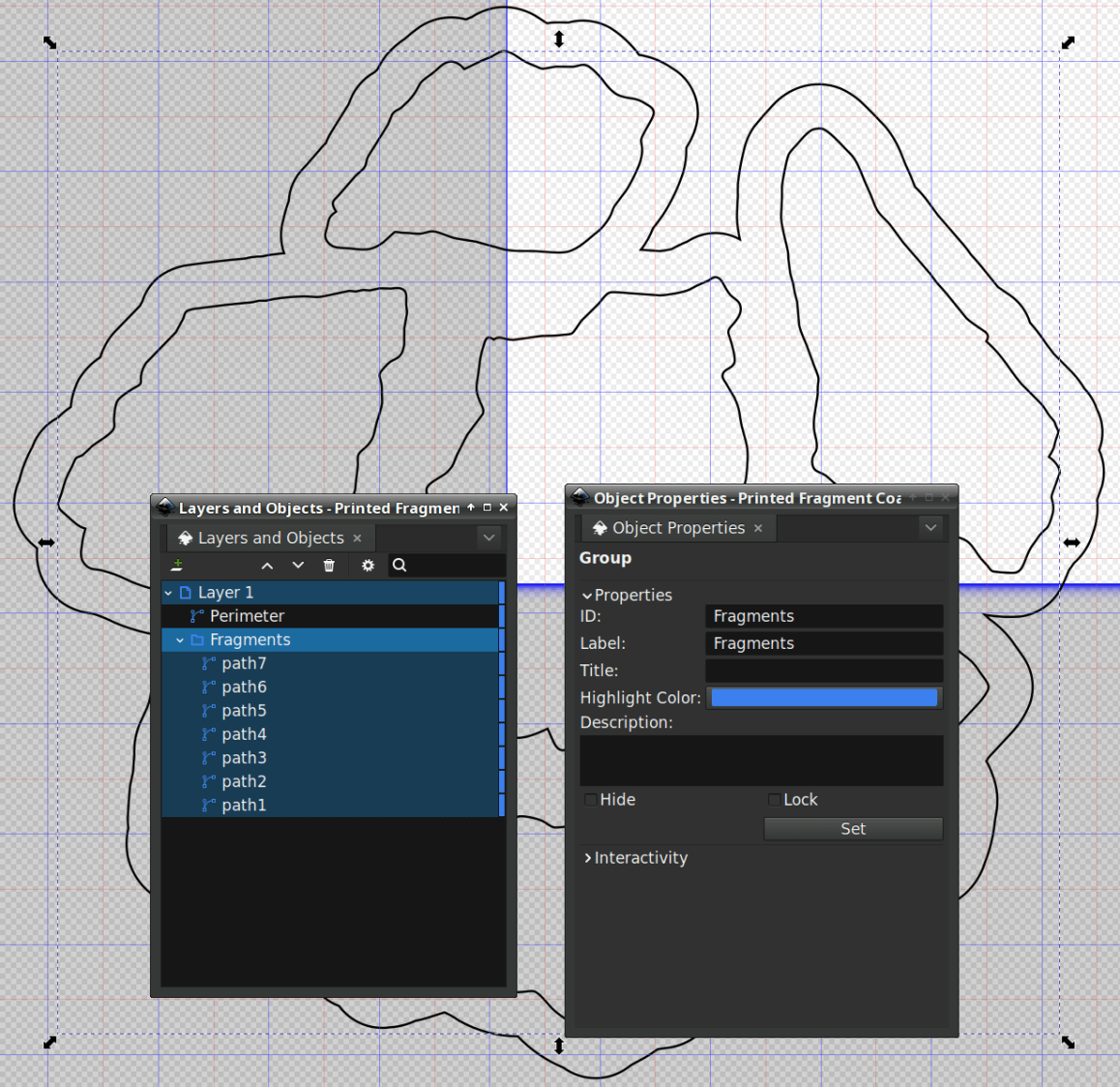
Because LightBurn doesn’t have the ability to name the various paths, the next step requires Inkscape. After importing the LightBurn paths saved as an SVG, group all the fragments and name the group Fragments, then name the perimeter path Perimeter:
Printed Coaster Layout – 100 mm Set G – Inkscape layer and IDs
Inkscape still crashes unpredictably while doing what seems to be a simple process, which may be due to the tremendous number of points in the hand-traced fragment outlines. Unfortunately, simplifying the curves in either LightBurn or Inkscape tends to round off the extreme points and increases the likelihood of the fragment not fitting into its recess.
OpenSCAD generates all the other features in the solid model with paths plucked from that file:
include <BOSL2/std.scad>

fn = "Printed Fragment Coaster - 100 mm Set G - Inkscape paths.svg";

FragmentThick = 3.8;

BaseThick = 1.0;
RimHeight = 1.0;

union() {

  linear_extrude(h=BaseThick)
    import(fn,id="Perimeter");

   color("Green")
  up(BaseThick)
    linear_extrude(h=FragmentThick)
      difference() {
        import(fn,id="Perimeter");
        offset(delta=0.2)
          import(fn,id="Fragments");
      }

  color("Red")
  up(BaseThick)
    linear_extrude(h=FragmentThick + RimHeight)
      difference() {
        offset(delta=2.5)
          import(fn,id="Fragments");
        offset(delta=1.2)
          import(fn,id="Fragments");
      }


}
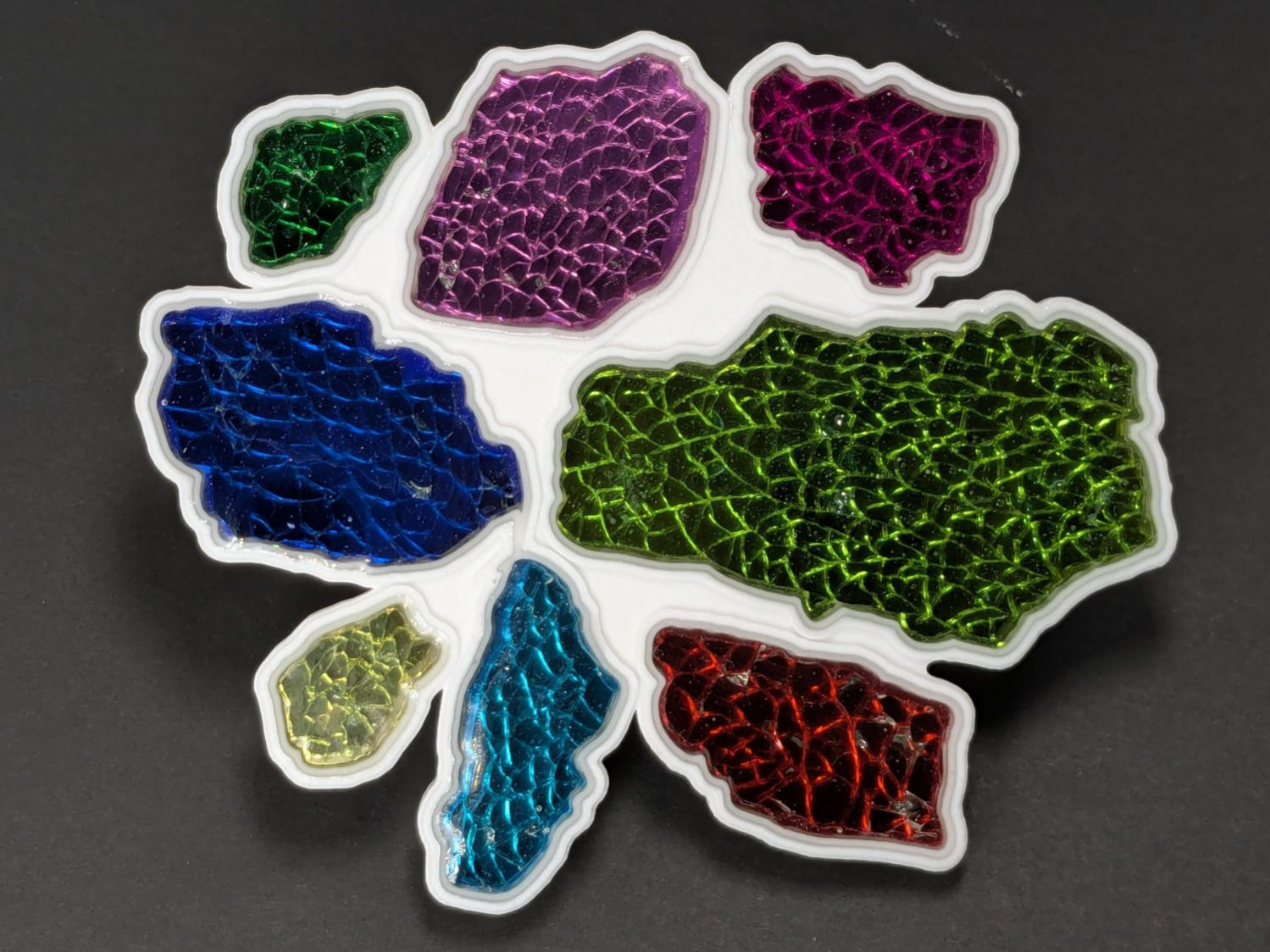
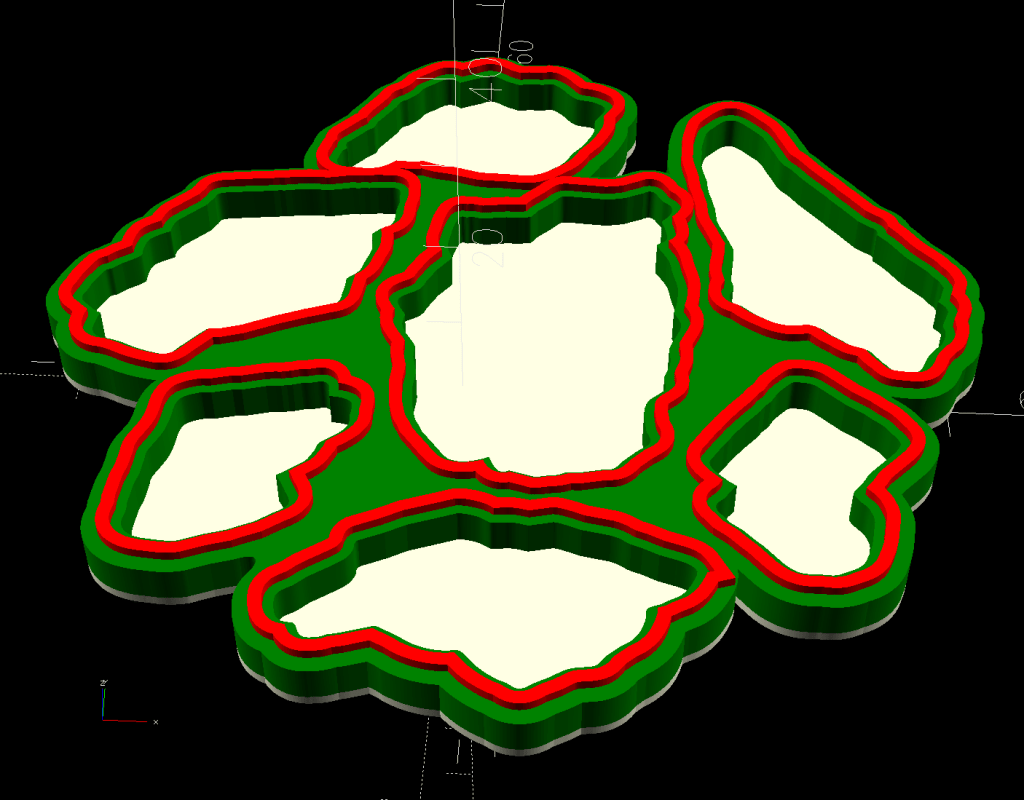
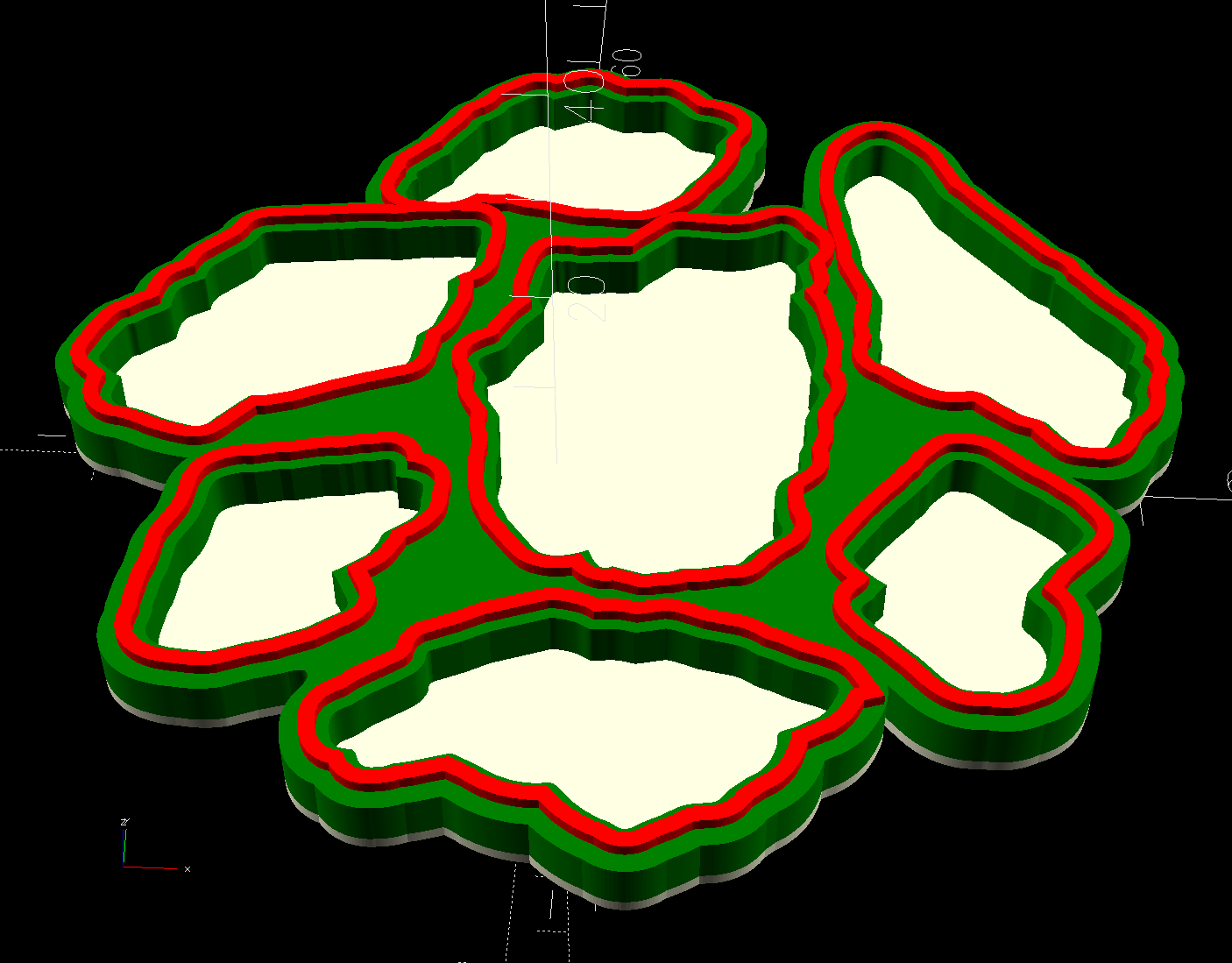
The Perimeter path defines the overall shape of the coaster as a 1.0 mm thick slab, visible as the white-ish line around the edge and at the bottom of all the fragment recesses.
Atop that, the green shape is the same Perimeter shape, with the Fragment shapes removed after the offset() operation enlarges them by 0.2 mm to ensure enough clearance.
Finally, the red walls containing the epoxy above each fragment are 1.3 mm wide, the difference of the two offset() operations applied to the Fragments.
Because the outer edge of the wall is 2.5 mm away from the edge of its fragment:
The Perimeter path must be offset at least 2.5 mm from the Fragments in LightBurn. I used 4.0 mm to produce a small lip around the outside edge of the coaster.
The fragment shapes must be placed at least 5.0 mm apart to prevent the walls from overlapping. I set Deepnest to exactly 5.0 mm spacing, but you can see a few places where the fragments come too close together. I think this happens due to an approximation deepnest uses while rotating the paths, but it may be better to manually adjust the errant fragments than increase the average space.
While this still requires manually tracing the glass fragments and fiddling a bit with Inkscape, the overall process isn’t nearly as burdensome as getting all the offsets correct every time.
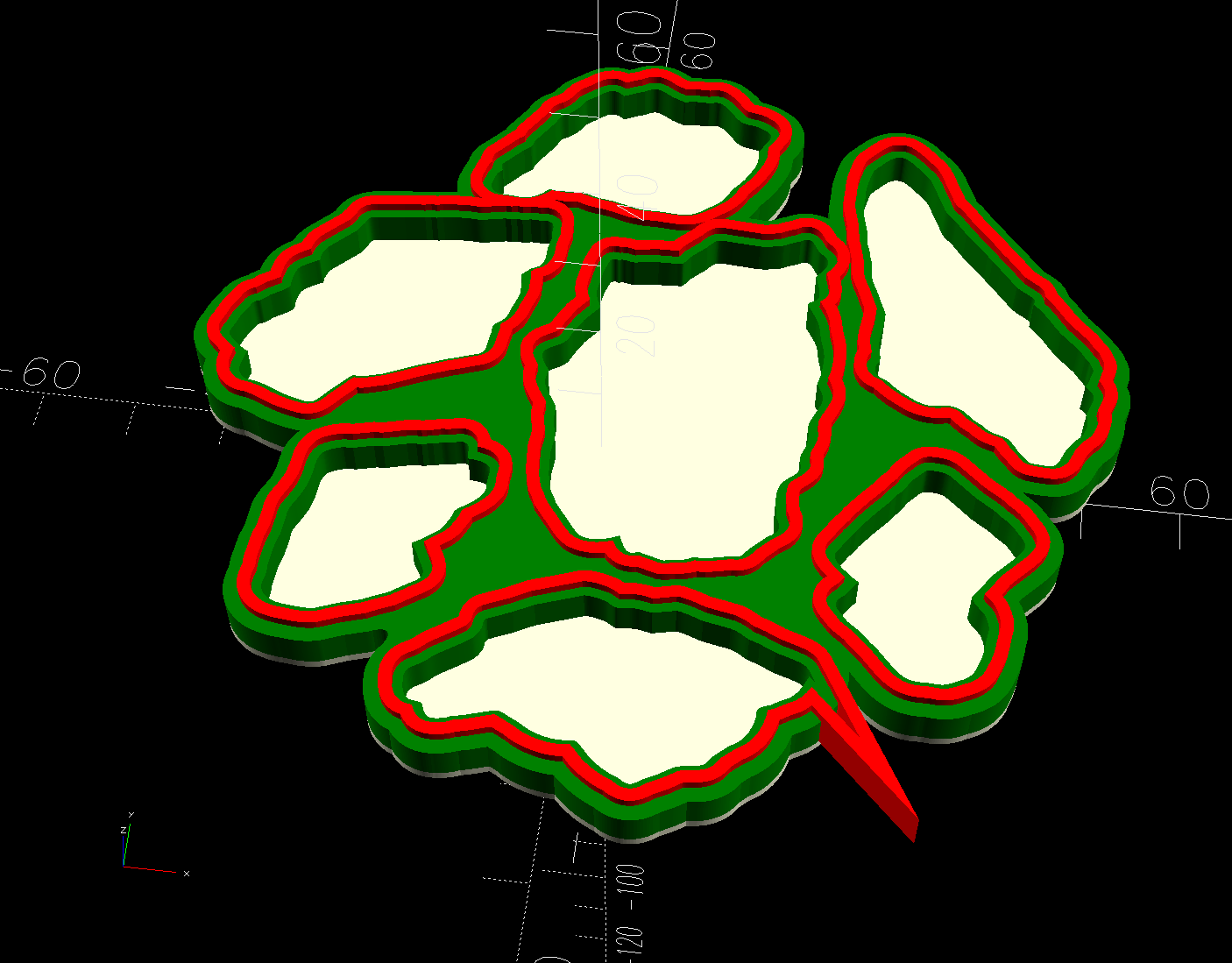
However, some oddities remain. OpenSCAD produced this result during the first pass through the process for this coaster:
Printed Coaster Layout – 100 mm Set G – spurious point
As far as I can tell, the spurious point came from a numeric effect, because telling Inkscape to store only five decimal places in the SVG file reduced the spike to the small bump seen in the first picture. I cannot replicate that effect using the same files and have no explanation.