|
/** |
|
* Marlin 3D Printer Firmware |
|
* Copyright (C) 2016 MarlinFirmware [https://github.com/MarlinFirmware/Marlin] |
|
* |
|
* Based on Sprinter and grbl. |
|
* Copyright (C) 2011 Camiel Gubbels / Erik van der Zalm |
|
* |
|
* This program is free software: you can redistribute it and/or modify |
|
* it under the terms of the GNU General Public License as published by |
|
* the Free Software Foundation, either version 3 of the License, or |
|
* (at your option) any later version. |
|
* |
|
* This program is distributed in the hope that it will be useful, |
|
* but WITHOUT ANY WARRANTY; without even the implied warranty of |
|
* MERCHANTABILITY or FITNESS FOR A PARTICULAR PURPOSE. See the |
|
* GNU General Public License for more details. |
|
* |
|
* You should have received a copy of the GNU General Public License |
|
* along with this program. If not, see <http://www.gnu.org/licenses/>. |
|
* |
|
*/ |
|
|
|
/** |
|
* Configuration.h |
|
* |
|
* Basic settings such as: |
|
* |
|
* – Type of electronics |
|
* – Type of temperature sensor |
|
* – Printer geometry |
|
* – Endstop configuration |
|
* – LCD controller |
|
* – Extra features |
|
* |
|
* Advanced settings can be found in Configuration_adv.h |
|
* |
|
*/ |
|
#ifndef CONFIGURATION_H |
|
#define CONFIGURATION_H |
|
|
|
#include "boards.h" |
|
#include "macros.h" |
|
|
|
//=========================================================================== |
|
//============================= Getting Started ============================= |
|
//=========================================================================== |
|
|
|
/** |
|
* Here are some standard links for getting your machine calibrated: |
|
* |
|
* http://reprap.org/wiki/Calibration |
|
* http://youtu.be/wAL9d7FgInk |
|
* http://calculator.josefprusa.cz |
|
* http://reprap.org/wiki/Triffid_Hunter%27s_Calibration_Guide |
|
* http://www.thingiverse.com/thing:5573 |
|
* https://sites.google.com/site/repraplogphase/calibration-of-your-reprap |
|
* http://www.thingiverse.com/thing:298812 |
|
*/ |
|
|
|
//=========================================================================== |
|
//============================= DELTA Printer =============================== |
|
//=========================================================================== |
|
// For a Delta printer replace the configuration files with the files in the |
|
// example_configurations/delta directory. |
|
// |
|
|
|
//=========================================================================== |
|
//============================= SCARA Printer =============================== |
|
//=========================================================================== |
|
// For a Scara printer replace the configuration files with the files in the |
|
// example_configurations/SCARA directory. |
|
// |
|
|
|
// @section info |
|
|
|
#if ENABLED(USE_AUTOMATIC_VERSIONING) |
|
#include "_Version.h" |
|
#else |
|
#include "Default_Version.h" |
|
#endif |
|
|
|
// User-specified version info of this build to display in [Pronterface, etc] terminal window during |
|
// startup. Implementation of an idea by Prof Braino to inform user that any changes made to this |
|
// build by the user have been successfully uploaded into firmware. |
|
#define STRING_CONFIG_H_AUTHOR "(Ed Nisley KE4ZNU)" // Who made the changes. |
|
#define SHOW_BOOTSCREEN |
|
#define STRING_SPLASH_LINE1 SHORT_BUILD_VERSION // will be shown during bootup in line 1 |
|
//#define STRING_SPLASH_LINE2 STRING_DISTRIBUTION_DATE // will be shown during bootup in line 2 |
|
|
|
// @section machine |
|
|
|
// SERIAL_PORT selects which serial port should be used for communication with the host. |
|
// This allows the connection of wireless adapters (for instance) to non-default port pins. |
|
// Serial port 0 is still used by the Arduino bootloader regardless of this setting. |
|
// :[0,1,2,3,4,5,6,7] |
|
#define SERIAL_PORT 0 |
|
|
|
// This determines the communication speed of the printer |
|
// :[2400,9600,19200,38400,57600,115200,250000] |
|
#define BAUDRATE 115200 |
|
|
|
// Enable the Bluetooth serial interface on AT90USB devices |
|
//#define BLUETOOTH |
|
|
|
// The following define selects which electronics board you have. |
|
// Please choose the name from boards.h that matches your setup |
|
#ifndef MOTHERBOARD |
|
#define MOTHERBOARD BOARD_RAMBO |
|
#endif |
|
|
|
// Optional custom name for your RepStrap or other custom machine |
|
// Displayed in the LCD "Ready" message |
|
#define CUSTOM_MACHINE_NAME "Hotrod M2" |
|
|
|
// Define this to set a unique identifier for this printer, (Used by some programs to differentiate between machines) |
|
// You can use an online service to generate a random UUID. (eg http://www.uuidgenerator.net/version4) |
|
//#define MACHINE_UUID "00000000-0000-0000-0000-000000000000" |
|
|
|
// This defines the number of extruders |
|
// :[1,2,3,4] |
|
#define EXTRUDERS 1 |
|
|
|
// Offset of the extruders (uncomment if using more than one and relying on firmware to position when changing). |
|
// The offset has to be X=0, Y=0 for the extruder 0 hotend (default extruder). |
|
// For the other hotends it is their distance from the extruder 0 hotend. |
|
//#define EXTRUDER_OFFSET_X {0.0, 20.00} // (in mm) for each extruder, offset of the hotend on the X axis |
|
//#define EXTRUDER_OFFSET_Y {0.0, 5.00} // (in mm) for each extruder, offset of the hotend on the Y axis |
|
|
|
//// The following define selects which power supply you have. Please choose the one that matches your setup |
|
// 1 = ATX |
|
// 2 = X-Box 360 203Watts (the blue wire connected to PS_ON and the red wire to VCC) |
|
// :{1:'ATX',2:'X-Box 360'} |
|
|
|
#define POWER_SUPPLY 1 |
|
|
|
// Define this to have the electronics keep the power supply off on startup. If you don't know what this is leave it. |
|
//#define PS_DEFAULT_OFF |
|
|
|
// @section temperature |
|
|
|
//=========================================================================== |
|
//============================= Thermal Settings ============================ |
|
//=========================================================================== |
|
// |
|
//–NORMAL IS 4.7kohm PULLUP!– 1kohm pullup can be used on hotend sensor, using correct resistor and table |
|
// |
|
//// Temperature sensor settings: |
|
// -3 is thermocouple with MAX31855 (only for sensor 0) |
|
// -2 is thermocouple with MAX6675 (only for sensor 0) |
|
// -1 is thermocouple with AD595 |
|
// 0 is not used |
|
// 1 is 100k thermistor – best choice for EPCOS 100k (4.7k pullup) |
|
// 2 is 200k thermistor – ATC Semitec 204GT-2 (4.7k pullup) |
|
// 3 is Mendel-parts thermistor (4.7k pullup) |
|
// 4 is 10k thermistor !! do not use it for a hotend. It gives bad resolution at high temp. !! |
|
// 5 is 100K thermistor – ATC Semitec 104GT-2 (Used in ParCan & J-Head) (4.7k pullup) |
|
// 6 is 100k EPCOS – Not as accurate as table 1 (created using a fluke thermocouple) (4.7k pullup) |
|
// 7 is 100k Honeywell thermistor 135-104LAG-J01 (4.7k pullup) |
|
// 71 is 100k Honeywell thermistor 135-104LAF-J01 (4.7k pullup) |
|
// 8 is 100k 0603 SMD Vishay NTCS0603E3104FXT (4.7k pullup) |
|
// 9 is 100k GE Sensing AL03006-58.2K-97-G1 (4.7k pullup) |
|
// 10 is 100k RS thermistor 198-961 (4.7k pullup) |
|
// 11 is 100k beta 3950 1% thermistor (4.7k pullup) |
|
// 12 is 100k 0603 SMD Vishay NTCS0603E3104FXT (4.7k pullup) (calibrated for Makibox hot bed) |
|
// 13 is 100k Hisens 3950 1% up to 300°C for hotend "Simple ONE " & "Hotend "All In ONE" |
|
// 20 is the PT100 circuit found in the Ultimainboard V2.x |
|
// 60 is 100k Maker's Tool Works Kapton Bed Thermistor beta=3950 |
|
// 70 is the 100K thermistor found in the bq Hephestos 2 |
|
// |
|
// 1k ohm pullup tables – This is not normal, you would have to have changed out your 4.7k for 1k |
|
// (but gives greater accuracy and more stable PID) |
|
// 51 is 100k thermistor – EPCOS (1k pullup) |
|
// 52 is 200k thermistor – ATC Semitec 204GT-2 (1k pullup) |
|
// 55 is 100k thermistor – ATC Semitec 104GT-2 (Used in ParCan & J-Head) (1k pullup) |
|
// |
|
// 1047 is Pt1000 with 4k7 pullup |
|
// 1010 is Pt1000 with 1k pullup (non standard) |
|
// 147 is Pt100 with 4k7 pullup |
|
// 110 is Pt100 with 1k pullup (non standard) |
|
// 998 and 999 are Dummy Tables. They will ALWAYS read 25°C or the temperature defined below. |
|
// Use it for Testing or Development purposes. NEVER for production machine. |
|
//#define DUMMY_THERMISTOR_998_VALUE 25 |
|
//#define DUMMY_THERMISTOR_999_VALUE 100 |
|
// :{ '0': "Not used", '4': "10k !! do not use for a hotend. Bad resolution at high temp. !!", '1': "100k / 4.7k – EPCOS", '51': "100k / 1k – EPCOS", '6': "100k / 4.7k EPCOS – Not as accurate as Table 1", '5': "100K / 4.7k – ATC Semitec 104GT-2 (Used in ParCan & J-Head)", '7': "100k / 4.7k Honeywell 135-104LAG-J01", '71': "100k / 4.7k Honeywell 135-104LAF-J01", '8': "100k / 4.7k 0603 SMD Vishay NTCS0603E3104FXT", '9': "100k / 4.7k GE Sensing AL03006-58.2K-97-G1", '10': "100k / 4.7k RS 198-961", '11': "100k / 4.7k beta 3950 1%", '12': "100k / 4.7k 0603 SMD Vishay NTCS0603E3104FXT (calibrated for Makibox hot bed)", '13': "100k Hisens 3950 1% up to 300°C for hotend 'Simple ONE ' & hotend 'All In ONE'", '60': "100k Maker's Tool Works Kapton Bed Thermistor beta=3950", '55': "100k / 1k – ATC Semitec 104GT-2 (Used in ParCan & J-Head)", '2': "200k / 4.7k – ATC Semitec 204GT-2", '52': "200k / 1k – ATC Semitec 204GT-2", '-3': "Thermocouple + MAX31855 (only for sensor 0)", '-2': "Thermocouple + MAX6675 (only for sensor 0)", '-1': "Thermocouple + AD595", '3': "Mendel-parts / 4.7k", '1047': "Pt1000 / 4.7k", '1010': "Pt1000 / 1k (non standard)", '20': "PT100 (Ultimainboard V2.x)", '147': "Pt100 / 4.7k", '110': "Pt100 / 1k (non-standard)", '998': "Dummy 1", '999': "Dummy 2" } |
|
#define TEMP_SENSOR_0 1 |
|
#define TEMP_SENSOR_1 0 |
|
#define TEMP_SENSOR_2 0 |
|
#define TEMP_SENSOR_3 0 |
|
#define TEMP_SENSOR_BED 1 |
|
|
|
// This makes temp sensor 1 a redundant sensor for sensor 0. If the temperatures difference between these sensors is to high the print will be aborted. |
|
//#define TEMP_SENSOR_1_AS_REDUNDANT |
|
#define MAX_REDUNDANT_TEMP_SENSOR_DIFF 10 |
|
|
|
// Actual temperature must be close to target for this long before M109 returns success |
|
#define TEMP_RESIDENCY_TIME 5 // (seconds) |
|
#define TEMP_HYSTERESIS 3 // (degC) range of +/- temperatures considered "close" to the target one |
|
#define TEMP_WINDOW 1 // (degC) Window around target to start the residency timer x degC early. |
|
|
|
// The minimal temperature defines the temperature below which the heater will not be enabled It is used |
|
// to check that the wiring to the thermistor is not broken. |
|
// Otherwise this would lead to the heater being powered on all the time. |
|
#define HEATER_0_MINTEMP 5 |
|
#define HEATER_1_MINTEMP 5 |
|
#define HEATER_2_MINTEMP 5 |
|
#define HEATER_3_MINTEMP 5 |
|
#define BED_MINTEMP 5 |
|
|
|
// When temperature exceeds max temp, your heater will be switched off. |
|
// This feature exists to protect your hotend from overheating accidentally, but *NOT* from thermistor short/failure! |
|
// You should use MINTEMP for thermistor short/failure protection. |
|
#define HEATER_0_MAXTEMP 295 |
|
#define HEATER_1_MAXTEMP 275 |
|
#define HEATER_2_MAXTEMP 275 |
|
#define HEATER_3_MAXTEMP 275 |
|
#define BED_MAXTEMP 125 |
|
|
|
// If you want the M105 heater power reported in watts, define the BED_WATTS, and (shared for all extruders) EXTRUDER_WATTS |
|
//#define EXTRUDER_WATTS (12.0*12.0/6.7) // P=U^2/R |
|
//#define BED_WATTS (12.0*12.0/1.1) // P=U^2/R |
|
|
|
//=========================================================================== |
|
//============================= PID Settings ================================ |
|
//=========================================================================== |
|
// PID Tuning Guide here: http://reprap.org/wiki/PID_Tuning |
|
|
|
// Comment the following line to disable PID and enable bang-bang. |
|
#define PIDTEMP |
|
#define BANG_MAX 255 // limits current to nozzle while in bang-bang mode; 255=full current |
|
#define PID_MAX BANG_MAX // limits current to nozzle while PID is active (see PID_FUNCTIONAL_RANGE below); 255=full current |
|
#if ENABLED(PIDTEMP) |
|
//#define PID_AUTOTUNE_MENU // Add PID Autotune to the LCD "Temperature" menu to run M303 and apply the result. |
|
//#define PID_DEBUG // Sends debug data to the serial port. |
|
//#define PID_OPENLOOP 1 // Puts PID in open loop. M104/M140 sets the output power from 0 to PID_MAX |
|
//#define SLOW_PWM_HEATERS // PWM with very low frequency (roughly 0.125Hz=8s) and minimum state time of approximately 1s useful for heaters driven by a relay |
|
//#define PID_PARAMS_PER_EXTRUDER // Uses separate PID parameters for each extruder (useful for mismatched extruders) |
|
// Set/get with gcode: M301 E[extruder number, 0-2] |
|
#define PID_FUNCTIONAL_RANGE 10 // If the temperature difference between the target temperature and the actual temperature |
|
// is more then PID_FUNCTIONAL_RANGE then the PID will be shut off and the heater will be set to min/max. |
|
#define PID_INTEGRAL_DRIVE_MAX PID_MAX //limit for the integral term |
|
#define K1 0.95 //smoothing factor within the PID |
|
|
|
// If you are using a pre-configured hotend then you can use one of the value sets by uncommenting it |
|
// Ultimaker |
|
// #define DEFAULT_Kp 22.2 |
|
// #define DEFAULT_Ki 1.08 |
|
// #define DEFAULT_Kd 114 |
|
|
|
// MakerGear |
|
//#define DEFAULT_Kp 7.0 |
|
//#define DEFAULT_Ki 0.1 |
|
//#define DEFAULT_Kd 12 |
|
|
|
// Mendel Parts V9 on 12V |
|
//#define DEFAULT_Kp 63.0 |
|
//#define DEFAULT_Ki 2.25 |
|
//#define DEFAULT_Kd 440 |
|
|
|
// Hodrod M2 with V4 hot end |
|
#define DEFAULT_Kp 17.41 |
|
#define DEFAULT_Ki 1.02 |
|
#define DEFAULT_Kd 74.44 |
|
|
|
#endif // PIDTEMP |
|
|
|
//=========================================================================== |
|
//============================= PID > Bed Temperature Control =============== |
|
//=========================================================================== |
|
// Select PID or bang-bang with PIDTEMPBED. If bang-bang, BED_LIMIT_SWITCHING will enable hysteresis |
|
// |
|
// Uncomment this to enable PID on the bed. It uses the same frequency PWM as the extruder. |
|
// If your PID_dT is the default, and correct for your hardware/configuration, that means 7.689Hz, |
|
// which is fine for driving a square wave into a resistive load and does not significantly impact you FET heating. |
|
// This also works fine on a Fotek SSR-10DA Solid State Relay into a 250W heater. |
|
// If your configuration is significantly different than this and you don't understand the issues involved, you probably |
|
// shouldn't use bed PID until someone else verifies your hardware works. |
|
// If this is enabled, find your own PID constants below. |
|
//#define PIDTEMPBED |
|
|
|
//#define BED_LIMIT_SWITCHING |
|
|
|
// This sets the max power delivered to the bed, and replaces the HEATER_BED_DUTY_CYCLE_DIVIDER option. |
|
// all forms of bed control obey this (PID, bang-bang, bang-bang with hysteresis) |
|
// setting this to anything other than 255 enables a form of PWM to the bed just like HEATER_BED_DUTY_CYCLE_DIVIDER did, |
|
// so you shouldn't use it unless you are OK with PWM on your bed. (see the comment on enabling PIDTEMPBED) |
|
#define MAX_BED_POWER 255 // limits duty cycle to bed; 255=full current |
|
|
|
#if ENABLED(PIDTEMPBED) |
|
|
|
//#define PID_BED_DEBUG // Sends debug data to the serial port. |
|
|
|
#define PID_BED_INTEGRAL_DRIVE_MAX MAX_BED_POWER //limit for the integral term |
|
|
|
//120V 250W silicone heater into 4mm borosilicate (MendelMax 1.5+) |
|
//from FOPDT model – kp=.39 Tp=405 Tdead=66, Tc set to 79.2, aggressive factor of .15 (vs .1, 1, 10) |
|
#define DEFAULT_bedKp 10.00 |
|
#define DEFAULT_bedKi .023 |
|
#define DEFAULT_bedKd 305.4 |
|
|
|
//120V 250W silicone heater into 4mm borosilicate (MendelMax 1.5+) |
|
//from pidautotune |
|
//#define DEFAULT_bedKp 97.1 |
|
//#define DEFAULT_bedKi 1.41 |
|
//#define DEFAULT_bedKd 1675.16 |
|
|
|
// FIND YOUR OWN: "M303 E-1 C8 S90" to run autotune on the bed at 90 degreesC for 8 cycles. |
|
#endif // PIDTEMPBED |
|
|
|
// @section extruder |
|
|
|
//this prevents dangerous Extruder moves, i.e. if the temperature is under the limit |
|
//can be software-disabled for whatever purposes by |
|
#define PREVENT_DANGEROUS_EXTRUDE |
|
//if PREVENT_DANGEROUS_EXTRUDE is on, you can still disable (uncomment) very long bits of extrusion separately. |
|
#define PREVENT_LENGTHY_EXTRUDE |
|
|
|
#define EXTRUDE_MINTEMP 170 |
|
#define EXTRUDE_MAXLENGTH (X_MAX_LENGTH+Y_MAX_LENGTH) //prevent extrusion of very large distances. |
|
|
|
//=========================================================================== |
|
//======================== Thermal Runaway Protection ======================= |
|
//=========================================================================== |
|
|
|
/** |
|
* Thermal Protection protects your printer from damage and fire if a |
|
* thermistor falls out or temperature sensors fail in any way. |
|
* |
|
* The issue: If a thermistor falls out or a temperature sensor fails, |
|
* Marlin can no longer sense the actual temperature. Since a disconnected |
|
* thermistor reads as a low temperature, the firmware will keep the heater on. |
|
* |
|
* If you get "Thermal Runaway" or "Heating failed" errors the |
|
* details can be tuned in Configuration_adv.h |
|
*/ |
|
|
|
#define THERMAL_PROTECTION_HOTENDS // Enable thermal protection for all extruders |
|
#define THERMAL_PROTECTION_BED // Enable thermal protection for the heated bed |
|
|
|
//=========================================================================== |
|
//============================= Mechanical Settings ========================= |
|
//=========================================================================== |
|
|
|
// @section machine |
|
|
|
// Uncomment this option to enable CoreXY kinematics |
|
//#define COREXY |
|
|
|
// Uncomment this option to enable CoreXZ kinematics |
|
//#define COREXZ |
|
|
|
// Enable this option for Toshiba steppers |
|
//#define CONFIG_STEPPERS_TOSHIBA |
|
|
|
// @section homing |
|
|
|
// coarse Endstop Settings |
|
#define ENDSTOPPULLUPS // Comment this out (using // at the start of the line) to disable the endstop pullup resistors |
|
|
|
#if DISABLED(ENDSTOPPULLUPS) |
|
// fine endstop settings: Individual pullups. will be ignored if ENDSTOPPULLUPS is defined |
|
//#define ENDSTOPPULLUP_XMAX |
|
//#define ENDSTOPPULLUP_YMAX |
|
//#define ENDSTOPPULLUP_ZMAX |
|
//#define ENDSTOPPULLUP_XMIN |
|
//#define ENDSTOPPULLUP_YMIN |
|
//#define ENDSTOPPULLUP_ZMIN |
|
//#define ENDSTOPPULLUP_ZMIN_PROBE |
|
#endif |
|
|
|
// Mechanical endstop with COM to ground and NC to Signal uses "false" here (most common setup). |
|
const bool X_MIN_ENDSTOP_INVERTING = true; // set to true to invert the logic of the endstop. |
|
const bool Y_MIN_ENDSTOP_INVERTING = true; // set to true to invert the logic of the endstop. |
|
const bool Z_MIN_ENDSTOP_INVERTING = true; // set to true to invert the logic of the endstop. |
|
const bool X_MAX_ENDSTOP_INVERTING = true; // set to true to invert the logic of the endstop. |
|
const bool Y_MAX_ENDSTOP_INVERTING = true; // set to true to invert the logic of the endstop. |
|
const bool Z_MAX_ENDSTOP_INVERTING = true; // set to true to invert the logic of the endstop. |
|
const bool Z_MIN_PROBE_ENDSTOP_INVERTING = true; // set to true to invert the logic of the endstop. |
|
#define DISABLE_MAX_ENDSTOPS |
|
//#define DISABLE_MIN_ENDSTOPS |
|
|
|
//=========================================================================== |
|
//============================= Z Probe Options ============================= |
|
//=========================================================================== |
|
|
|
// Enable Z_MIN_PROBE_ENDSTOP to use _both_ a Z Probe and a Z-min-endstop on the same machine. |
|
// With this option the Z_MIN_PROBE_PIN will only be used for probing, never for homing. |
|
// |
|
// *** PLEASE READ ALL INSTRUCTIONS BELOW FOR SAFETY! *** |
|
// |
|
// To continue using the Z-min-endstop for homing, be sure to disable Z_SAFE_HOMING. |
|
// Example: To park the head outside the bed area when homing with G28. |
|
// |
|
// To use a separate Z probe, your board must define a Z_MIN_PROBE_PIN. |
|
// |
|
// For a servo-based Z probe, you must set up servo support below, including |
|
// NUM_SERVOS, Z_ENDSTOP_SERVO_NR and SERVO_ENDSTOP_ANGLES. |
|
// |
|
// – RAMPS 1.3/1.4 boards may be able to use the 5V, GND, and Aux4->D32 pin. |
|
// – Use 5V for powered (usu. inductive) sensors. |
|
// – Otherwise connect: |
|
// – normally-closed switches to GND and D32. |
|
// – normally-open switches to 5V and D32. |
|
// |
|
// Normally-closed switches are advised and are the default. |
|
// |
|
// The Z_MIN_PROBE_PIN sets the Arduino pin to use. (See your board's pins file.) |
|
// Since the RAMPS Aux4->D32 pin maps directly to the Arduino D32 pin, D32 is the |
|
// default pin for all RAMPS-based boards. Some other boards map differently. |
|
// To set or change the pin for your board, edit the appropriate pins_XXXXX.h file. |
|
// |
|
// WARNING: |
|
// Setting the wrong pin may have unexpected and potentially disastrous consequences. |
|
// Use with caution and do your homework. |
|
// |
|
//#define Z_MIN_PROBE_ENDSTOP |
|
|
|
// Enable Z_MIN_PROBE_USES_Z_MIN_ENDSTOP_PIN to use the Z_MIN_PIN for your Z_MIN_PROBE. |
|
// The Z_MIN_PIN will then be used for both Z-homing and probing. |
|
#define Z_MIN_PROBE_USES_Z_MIN_ENDSTOP_PIN |
|
|
|
// To use a probe you must enable one of the two options above! |
|
|
|
// This option disables the use of the Z_MIN_PROBE_PIN |
|
// To enable the Z probe pin but disable its use, uncomment the line below. This only affects a |
|
// Z probe switch if you have a separate Z min endstop also and have activated Z_MIN_PROBE_ENDSTOP above. |
|
// If you're using the Z MIN endstop connector for your Z probe, this has no effect. |
|
//#define DISABLE_Z_MIN_PROBE_ENDSTOP |
|
|
|
// For Inverting Stepper Enable Pins (Active Low) use 0, Non Inverting (Active High) use 1 |
|
// :{0:'Low',1:'High'} |
|
#define X_ENABLE_ON 0 |
|
#define Y_ENABLE_ON 0 |
|
#define Z_ENABLE_ON 0 |
|
#define E_ENABLE_ON 0 // For all extruders |
|
|
|
// Disables axis stepper immediately when it's not being used. |
|
// WARNING: When motors turn off there is a chance of losing position accuracy! |
|
#define DISABLE_X false |
|
#define DISABLE_Y false |
|
#define DISABLE_Z false |
|
// Warn on display about possibly reduced accuracy |
|
//#define DISABLE_REDUCED_ACCURACY_WARNING |
|
|
|
// @section extruder |
|
|
|
#define DISABLE_E false // For all extruders |
|
#define DISABLE_INACTIVE_EXTRUDER true //disable only inactive extruders and keep active extruder enabled |
|
|
|
// @section machine |
|
|
|
// Invert the stepper direction. Change (or reverse the motor connector) if an axis goes the wrong way. |
|
#define INVERT_X_DIR true |
|
#define INVERT_Y_DIR false |
|
#define INVERT_Z_DIR true |
|
|
|
// @section extruder |
|
|
|
// For direct drive extruder v9 set to true, for geared extruder set to false. |
|
#define INVERT_E0_DIR false |
|
#define INVERT_E1_DIR false |
|
#define INVERT_E2_DIR false |
|
#define INVERT_E3_DIR false |
|
|
|
// @section homing |
|
//#define MIN_Z_HEIGHT_FOR_HOMING 4 // (in mm) Minimal z height before homing (G28) for Z clearance above the bed, clamps, … |
|
// Be sure you have this distance over your Z_MAX_POS in case. |
|
|
|
// ENDSTOP SETTINGS: |
|
// Sets direction of endstops when homing; 1=MAX, -1=MIN |
|
// :[-1,1] |
|
#define X_HOME_DIR -1 |
|
#define Y_HOME_DIR -1 |
|
#define Z_HOME_DIR -1 |
|
|
|
#define min_software_endstops true // If true, axis won't move to coordinates less than HOME_POS. |
|
#define max_software_endstops true // If true, axis won't move to coordinates greater than the defined lengths below. |
|
|
|
// @section machine |
|
|
|
// Travel limits after homing (units are in mm) |
|
#define X_MIN_POS -100 |
|
#define Y_MIN_POS -127 |
|
#define Z_MIN_POS 0 |
|
#define X_MAX_POS 136 |
|
#define Y_MAX_POS 125 |
|
#define Z_MAX_POS 175 |
|
|
|
//=========================================================================== |
|
//========================= Filament Runout Sensor ========================== |
|
//=========================================================================== |
|
//#define FILAMENT_RUNOUT_SENSOR // Uncomment for defining a filament runout sensor such as a mechanical or opto endstop to check the existence of filament |
|
// In RAMPS uses servo pin 2. Can be changed in pins file. For other boards pin definition should be made. |
|
// It is assumed that when logic high = filament available |
|
// when logic low = filament ran out |
|
#if ENABLED(FILAMENT_RUNOUT_SENSOR) |
|
const bool FIL_RUNOUT_INVERTING = true; // Should be uncommented and true or false should assigned |
|
#define ENDSTOPPULLUP_FIL_RUNOUT // Uncomment to use internal pullup for filament runout pins if the sensor is defined. |
|
#define FILAMENT_RUNOUT_SCRIPT "M600" |
|
#endif |
|
|
|
//=========================================================================== |
|
//============================ Mesh Bed Leveling ============================ |
|
//=========================================================================== |
|
|
|
//#define MESH_BED_LEVELING // Enable mesh bed leveling. |
|
|
|
#if ENABLED(MESH_BED_LEVELING) |
|
#define MESH_MIN_X 10 |
|
#define MESH_MAX_X (X_MAX_POS – (MESH_MIN_X)) |
|
#define MESH_MIN_Y 10 |
|
#define MESH_MAX_Y (Y_MAX_POS – (MESH_MIN_Y)) |
|
#define MESH_NUM_X_POINTS 3 // Don't use more than 7 points per axis, implementation limited. |
|
#define MESH_NUM_Y_POINTS 3 |
|
#define MESH_HOME_SEARCH_Z 4 // Z after Home, bed somewhere below but above 0.0. |
|
|
|
//#define MANUAL_BED_LEVELING // Add display menu option for bed leveling. |
|
|
|
#if ENABLED(MANUAL_BED_LEVELING) |
|
#define MBL_Z_STEP 0.025 // Step size while manually probing Z axis. |
|
#endif // MANUAL_BED_LEVELING |
|
|
|
#endif // MESH_BED_LEVELING |
|
|
|
//=========================================================================== |
|
//============================ Bed Auto Leveling ============================ |
|
//=========================================================================== |
|
|
|
// @section bedlevel |
|
|
|
//#define AUTO_BED_LEVELING_FEATURE // Delete the comment to enable (remove // at the start of the line) |
|
//#define DEBUG_LEVELING_FEATURE |
|
#define Z_MIN_PROBE_REPEATABILITY_TEST // If not commented out, Z Probe Repeatability test will be included if Auto Bed Leveling is Enabled. |
|
|
|
#if ENABLED(AUTO_BED_LEVELING_FEATURE) |
|
|
|
// There are 2 different ways to specify probing locations: |
|
// |
|
// – "grid" mode |
|
// Probe several points in a rectangular grid. |
|
// You specify the rectangle and the density of sample points. |
|
// This mode is preferred because there are more measurements. |
|
// |
|
// – "3-point" mode |
|
// Probe 3 arbitrary points on the bed (that aren't collinear) |
|
// You specify the XY coordinates of all 3 points. |
|
|
|
// Enable this to sample the bed in a grid (least squares solution). |
|
// Note: this feature generates 10KB extra code size. |
|
#define AUTO_BED_LEVELING_GRID |
|
|
|
#if ENABLED(AUTO_BED_LEVELING_GRID) |
|
|
|
#define LEFT_PROBE_BED_POSITION 15 |
|
#define RIGHT_PROBE_BED_POSITION 170 |
|
#define FRONT_PROBE_BED_POSITION 20 |
|
#define BACK_PROBE_BED_POSITION 170 |
|
|
|
#define MIN_PROBE_EDGE 10 // The Z probe minimum square sides can be no smaller than this. |
|
|
|
// Set the number of grid points per dimension. |
|
// You probably don't need more than 3 (squared=9). |
|
#define AUTO_BED_LEVELING_GRID_POINTS 2 |
|
|
|
#else // !AUTO_BED_LEVELING_GRID |
|
|
|
// Arbitrary points to probe. |
|
// A simple cross-product is used to estimate the plane of the bed. |
|
#define ABL_PROBE_PT_1_X 15 |
|
#define ABL_PROBE_PT_1_Y 180 |
|
#define ABL_PROBE_PT_2_X 15 |
|
#define ABL_PROBE_PT_2_Y 20 |
|
#define ABL_PROBE_PT_3_X 170 |
|
#define ABL_PROBE_PT_3_Y 20 |
|
|
|
#endif // AUTO_BED_LEVELING_GRID |
|
|
|
// Z Probe to nozzle (X,Y) offset, relative to (0, 0). |
|
// X and Y offsets must be integers. |
|
// |
|
// In the following example the X and Y offsets are both positive: |
|
// #define X_PROBE_OFFSET_FROM_EXTRUDER 10 |
|
// #define Y_PROBE_OFFSET_FROM_EXTRUDER 10 |
|
// |
|
// +– BACK —+ |
|
// | | |
|
// L | (+) P | R <– probe (20,20) |
|
// E | | I |
|
// F | (-) N (+) | G <– nozzle (10,10) |
|
// T | | H |
|
// | (-) | T |
|
// | | |
|
// O– FRONT –+ |
|
// (0,0) |
|
#define X_PROBE_OFFSET_FROM_EXTRUDER 10 // X offset: -left [of the nozzle] +right |
|
#define Y_PROBE_OFFSET_FROM_EXTRUDER 10 // Y offset: -front [of the nozzle] +behind |
|
#define Z_PROBE_OFFSET_FROM_EXTRUDER 0 // Z offset: -below [the nozzle] (always negative!) |
|
|
|
#define XY_TRAVEL_SPEED 8000 // X and Y axis travel speed between probes, in mm/min. |
|
|
|
#define Z_RAISE_BEFORE_PROBING 15 // How much the Z axis will be raised before traveling to the first probing point. |
|
#define Z_RAISE_BETWEEN_PROBINGS 5 // How much the Z axis will be raised when traveling from between next probing points. |
|
#define Z_RAISE_AFTER_PROBING 15 // How much the Z axis will be raised after the last probing point. |
|
|
|
//#define Z_PROBE_END_SCRIPT "G1 Z10 F12000\nG1 X15 Y330\nG1 Z0.5\nG1 Z10" // These commands will be executed in the end of G29 routine. |
|
// Useful to retract a deployable Z probe. |
|
|
|
// Probes are sensors/switches that need to be activated before they can be used |
|
// and deactivated after the use. |
|
// Allen Key Probes, Servo Probes, Z-Sled Probes, FIX_MOUNTED_PROBE, … . You have to activate one of these for the AUTO_BED_LEVELING_FEATURE |
|
|
|
// A fix mounted probe, like the normal inductive probe, must be deactivated to go below Z_PROBE_OFFSET_FROM_EXTRUDER |
|
// when the hardware endstops are active. |
|
//#define FIX_MOUNTED_PROBE |
|
|
|
// A Servo Probe can be defined in the servo section below. |
|
|
|
// An Allen Key Probe is currently predefined only in the delta example configurations. |
|
|
|
//#define Z_PROBE_SLED // Enable if you have a Z probe mounted on a sled like those designed by Charles Bell. |
|
//#define SLED_DOCKING_OFFSET 5 // The extra distance the X axis must travel to pickup the sled. 0 should be fine but you can push it further if you'd like. |
|
|
|
// If you've enabled AUTO_BED_LEVELING_FEATURE and are using the Z Probe for Z Homing, |
|
// it is highly recommended you leave Z_SAFE_HOMING enabled! |
|
|
|
#define Z_SAFE_HOMING // Use the z-min-probe for homing to z-min – not the z-min-endstop. |
|
// This feature is meant to avoid Z homing with Z probe outside the bed area. |
|
// When defined, it will: |
|
// – Allow Z homing only after X and Y homing AND stepper drivers still enabled. |
|
// – If stepper drivers timeout, it will need X and Y homing again before Z homing. |
|
// – Position the Z probe in a defined XY point before Z Homing when homing all axis (G28). |
|
// – Block Z homing only when the Z probe is outside bed area. |
|
|
|
#if ENABLED(Z_SAFE_HOMING) |
|
|
|
#define Z_SAFE_HOMING_X_POINT ((X_MIN_POS + X_MAX_POS) / 2) // X point for Z homing when homing all axis (G28). |
|
#define Z_SAFE_HOMING_Y_POINT ((Y_MIN_POS + Y_MAX_POS) / 2) // Y point for Z homing when homing all axis (G28). |
|
|
|
#endif |
|
|
|
#endif // AUTO_BED_LEVELING_FEATURE |
|
|
|
|
|
// @section homing |
|
|
|
// The position of the homing switches |
|
#define MANUAL_HOME_POSITIONS // If defined, MANUAL_*_HOME_POS below will be used |
|
#define BED_CENTER_AT_0_0 // If defined, the center of the bed is at (X=0, Y=0) |
|
|
|
// Manual homing switch locations: |
|
// For deltabots this means top and center of the Cartesian print volume. |
|
#if ENABLED(MANUAL_HOME_POSITIONS) |
|
#define MANUAL_X_HOME_POS -100 |
|
#define MANUAL_Y_HOME_POS -127 |
|
#define MANUAL_Z_HOME_POS -2.15 |
|
//#define MANUAL_Z_HOME_POS 402 // For delta: Distance between nozzle and print surface after homing. |
|
#endif |
|
|
|
// @section movement |
|
|
|
/** |
|
* MOVEMENT SETTINGS |
|
*/ |
|
|
|
#define HOMING_FEEDRATE {120*60, 120*60, 60*60, 0} // set the homing speeds (mm/min) |
|
|
|
// default settings |
|
|
|
#define DEFAULT_AXIS_STEPS_PER_UNIT {88.88,88.88,400,476.9} // default steps per unit for Ultimaker |
|
#define DEFAULT_MAX_FEEDRATE {450, 450, 100, 95} // (mm/sec) |
|
#define DEFAULT_MAX_ACCELERATION {5000,2500,2000,10000} // X, Y, Z, E maximum start speed for accelerated moves. E default values are good for Skeinforge 40+, for older versions raise them a lot. |
|
|
|
#define DEFAULT_ACCELERATION 10000 // X, Y, Z and E acceleration in mm/s^2 for printing moves |
|
#define DEFAULT_RETRACT_ACCELERATION 10000 // E acceleration in mm/s^2 for retracts |
|
#define DEFAULT_TRAVEL_ACCELERATION 2500 // X, Y, Z acceleration in mm/s^2 for travel (non printing) moves |
|
|
|
// The speed change that does not require acceleration (i.e. the software might assume it can be done instantaneously) |
|
#define DEFAULT_XYJERK 25 // (mm/sec) |
|
#define DEFAULT_ZJERK 10 // (mm/sec) |
|
#define DEFAULT_EJERK 100 // (mm/sec) |
|
|
|
|
|
//============================================================================= |
|
//============================= Additional Features =========================== |
|
//============================================================================= |
|
|
|
// @section more |
|
|
|
// Custom M code points |
|
#define CUSTOM_M_CODES |
|
#if ENABLED(CUSTOM_M_CODES) |
|
#if ENABLED(AUTO_BED_LEVELING_FEATURE) |
|
#define CUSTOM_M_CODE_SET_Z_PROBE_OFFSET 851 |
|
#define Z_PROBE_OFFSET_RANGE_MIN -20 |
|
#define Z_PROBE_OFFSET_RANGE_MAX 20 |
|
#endif |
|
#endif |
|
|
|
// @section extras |
|
|
|
// EEPROM |
|
// The microcontroller can store settings in the EEPROM, e.g. max velocity… |
|
// M500 – stores parameters in EEPROM |
|
// M501 – reads parameters from EEPROM (if you need reset them after you changed them temporarily). |
|
// M502 – reverts to the default "factory settings". You still need to store them in EEPROM afterwards if you want to. |
|
//define this to enable EEPROM support |
|
#define EEPROM_SETTINGS |
|
|
|
#if ENABLED(EEPROM_SETTINGS) |
|
// To disable EEPROM Serial responses and decrease program space by ~1700 byte: comment this out: |
|
#define EEPROM_CHITCHAT // Please keep turned on if you can. |
|
#endif |
|
|
|
// |
|
// Host Keepalive |
|
// |
|
// By default Marlin will send a busy status message to the host |
|
// every 10 seconds when it can't accept commands. |
|
// |
|
#define DISABLE_HOST_KEEPALIVE // Enable this option if your host doesn't like keepalive messages. |
|
|
|
// |
|
// M100 Free Memory Watcher |
|
// |
|
//#define M100_FREE_MEMORY_WATCHER // uncomment to add the M100 Free Memory Watcher for debug purpose |
|
|
|
// @section temperature |
|
|
|
// Preheat Constants |
|
#define PLA_PREHEAT_HOTEND_TEMP 180 |
|
#define PLA_PREHEAT_HPB_TEMP 70 |
|
#define PLA_PREHEAT_FAN_SPEED 0 // Insert Value between 0 and 255 |
|
|
|
#define ABS_PREHEAT_HOTEND_TEMP 240 |
|
#define ABS_PREHEAT_HPB_TEMP 110 |
|
#define ABS_PREHEAT_FAN_SPEED 0 // Insert Value between 0 and 255 |
|
|
|
//==============================LCD and SD support============================= |
|
// @section lcd |
|
|
|
// Define your display language below. Replace (en) with your language code and uncomment. |
|
// en, pl, fr, de, es, ru, bg, it, pt, pt_utf8, pt-br, pt-br_utf8, fi, an, nl, ca, eu, kana, kana_utf8, cn, cz, test |
|
// See also language.h |
|
#define LANGUAGE_INCLUDE GENERATE_LANGUAGE_INCLUDE(en) |
|
|
|
// Choose ONE of these 3 charsets. This has to match your hardware. Ignored for full graphic display. |
|
// To find out what type you have – compile with (test) – upload – click to get the menu. You'll see two typical lines from the upper half of the charset. |
|
// See also https://github.com/MarlinFirmware/Marlin/wiki/LCD-Language |
|
#define DISPLAY_CHARSET_HD44780_JAPAN // this is the most common hardware |
|
//#define DISPLAY_CHARSET_HD44780_WESTERN |
|
//#define DISPLAY_CHARSET_HD44780_CYRILLIC |
|
|
|
//#define ULTRA_LCD //general LCD support, also 16×2 |
|
//#define DOGLCD // Support for SPI LCD 128×64 (Controller ST7565R graphic Display Family) |
|
//#define SDSUPPORT // Enable SD Card Support in Hardware Console |
|
// Changed behaviour! If you need SDSUPPORT uncomment it! |
|
//#define SPI_SPEED SPI_HALF_SPEED // (also SPI_QUARTER_SPEED, SPI_EIGHTH_SPEED) Use slower SD transfer mode (not normally needed – uncomment if you're getting volume init error) |
|
//#define SD_CHECK_AND_RETRY // Use CRC checks and retries on the SD communication |
|
//#define ENCODER_PULSES_PER_STEP 1 // Increase if you have a high resolution encoder |
|
//#define ENCODER_STEPS_PER_MENU_ITEM 5 // Set according to ENCODER_PULSES_PER_STEP or your liking |
|
//#define REVERSE_MENU_DIRECTION // When enabled CLOCKWISE moves UP in the LCD menu |
|
//#define ULTIMAKERCONTROLLER //as available from the Ultimaker online store. |
|
//#define ULTIPANEL //the UltiPanel as on Thingiverse |
|
//#define SPEAKER // The sound device is a speaker – not a buzzer. A buzzer resonates with his own frequency. |
|
//#define LCD_FEEDBACK_FREQUENCY_DURATION_MS 100 // the duration the buzzer plays the UI feedback sound. ie Screen Click |
|
//#define LCD_FEEDBACK_FREQUENCY_HZ 1000 // this is the tone frequency the buzzer plays when on UI feedback. ie Screen Click |
|
// 0 to disable buzzer feedback. Test with M300 S<frequency Hz> P<duration ms> |
|
// PanelOne from T3P3 (via RAMPS 1.4 AUX2/AUX3) |
|
// http://reprap.org/wiki/PanelOne |
|
//#define PANEL_ONE |
|
|
|
// The MaKr3d Makr-Panel with graphic controller and SD support |
|
// http://reprap.org/wiki/MaKr3d_MaKrPanel |
|
//#define MAKRPANEL |
|
|
|
// The Panucatt Devices Viki 2.0 and mini Viki with Graphic LCD |
|
// http://panucatt.com |
|
// ==> REMEMBER TO INSTALL U8glib to your ARDUINO library folder: https://github.com/olikraus/U8glib_Arduino |
|
//#define VIKI2 |
|
//#define miniVIKI |
|
|
|
// This is a new controller currently under development. https://github.com/eboston/Adafruit-ST7565-Full-Graphic-Controller/ |
|
// |
|
// ==> REMEMBER TO INSTALL U8glib to your ARDUINO library folder: https://github.com/olikraus/U8glib_Arduino |
|
//#define ELB_FULL_GRAPHIC_CONTROLLER |
|
//#define SD_DETECT_INVERTED |
|
|
|
// The RepRapDiscount Smart Controller (white PCB) |
|
// http://reprap.org/wiki/RepRapDiscount_Smart_Controller |
|
//#define REPRAP_DISCOUNT_SMART_CONTROLLER |
|
|
|
// The GADGETS3D G3D LCD/SD Controller (blue PCB) |
|
// http://reprap.org/wiki/RAMPS_1.3/1.4_GADGETS3D_Shield_with_Panel |
|
//#define G3D_PANEL |
|
|
|
// The RepRapDiscount FULL GRAPHIC Smart Controller (quadratic white PCB) |
|
// http://reprap.org/wiki/RepRapDiscount_Full_Graphic_Smart_Controller |
|
// |
|
// ==> REMEMBER TO INSTALL U8glib to your ARDUINO library folder: https://github.com/olikraus/U8glib_Arduino |
|
//#define REPRAP_DISCOUNT_FULL_GRAPHIC_SMART_CONTROLLER |
|
|
|
// The RepRapWorld REPRAPWORLD_KEYPAD v1.1 |
|
// http://reprapworld.com/?products_details&products_id=202&cPath=1591_1626 |
|
//#define REPRAPWORLD_KEYPAD |
|
//#define REPRAPWORLD_KEYPAD_MOVE_STEP 10.0 // how much should be moved when a key is pressed, eg 10.0 means 10mm per click |
|
|
|
// The Elefu RA Board Control Panel |
|
// http://www.elefu.com/index.php?route=product/product&product_id=53 |
|
// REMEMBER TO INSTALL LiquidCrystal_I2C.h in your ARDUINO library folder: https://github.com/kiyoshigawa/LiquidCrystal_I2C |
|
//#define RA_CONTROL_PANEL |
|
|
|
// The MakerLab Mini Panel with graphic controller and SD support |
|
// http://reprap.org/wiki/Mini_panel |
|
//#define MINIPANEL |
|
|
|
/** |
|
* I2C Panels |
|
*/ |
|
|
|
//#define LCD_I2C_SAINSMART_YWROBOT |
|
|
|
//#define LCM1602 // LCM1602 Adapter for 16×2 LCD |
|
|
|
// PANELOLU2 LCD with status LEDs, separate encoder and click inputs |
|
// |
|
// This uses the LiquidTWI2 library v1.2.3 or later ( https://github.com/lincomatic/LiquidTWI2 ) |
|
// Make sure the LiquidTWI2 directory is placed in the Arduino or Sketchbook libraries subdirectory. |
|
// (v1.2.3 no longer requires you to define PANELOLU in the LiquidTWI2.h library header file) |
|
// Note: The PANELOLU2 encoder click input can either be directly connected to a pin |
|
// (if BTN_ENC defined to != -1) or read through I2C (when BTN_ENC == -1). |
|
//#define LCD_I2C_PANELOLU2 |
|
|
|
// Panucatt VIKI LCD with status LEDs, integrated click & L/R/U/P buttons, separate encoder inputs |
|
//#define LCD_I2C_VIKI |
|
|
|
// SSD1306 OLED generic display support |
|
// ==> REMEMBER TO INSTALL U8glib to your ARDUINO library folder: https://github.com/olikraus/U8glib_Arduino |
|
//#define U8GLIB_SSD1306 |
|
|
|
// Shift register panels |
|
// ——————— |
|
// 2 wire Non-latching LCD SR from: |
|
// https://bitbucket.org/fmalpartida/new-liquidcrystal/wiki/schematics#!shiftregister-connection |
|
// LCD configuration: http://reprap.org/wiki/SAV_3D_LCD |
|
//#define SAV_3DLCD |
|
|
|
// @section extras |
|
|
|
// Increase the FAN PWM frequency. Removes the PWM noise but increases heating in the FET/Arduino |
|
//#define FAST_PWM_FAN |
|
|
|
// Use software PWM to drive the fan, as for the heaters. This uses a very low frequency |
|
// which is not as annoying as with the hardware PWM. On the other hand, if this frequency |
|
// is too low, you should also increment SOFT_PWM_SCALE. |
|
//#define FAN_SOFT_PWM |
|
|
|
// Incrementing this by 1 will double the software PWM frequency, |
|
// affecting heaters, and the fan if FAN_SOFT_PWM is enabled. |
|
// However, control resolution will be halved for each increment; |
|
// at zero value, there are 128 effective control positions. |
|
#define SOFT_PWM_SCALE 0 |
|
|
|
// Temperature status LEDs that display the hotend and bet temperature. |
|
// If all hotends and bed temperature and temperature setpoint are < 54C then the BLUE led is on. |
|
// Otherwise the RED led is on. There is 1C hysteresis. |
|
//#define TEMP_STAT_LEDS |
|
|
|
// M240 Triggers a camera by emulating a Canon RC-1 Remote |
|
// Data from: http://www.doc-diy.net/photo/rc-1_hacked/ |
|
//#define PHOTOGRAPH_PIN 23 |
|
|
|
// SkeinForge sends the wrong arc g-codes when using Arc Point as fillet procedure |
|
//#define SF_ARC_FIX |
|
|
|
// Support for the BariCUDA Paste Extruder. |
|
//#define BARICUDA |
|
|
|
//define BlinkM/CyzRgb Support |
|
//#define BLINKM |
|
|
|
/*********************************************************************\ |
|
* R/C SERVO support |
|
* Sponsored by TrinityLabs, Reworked by codexmas |
|
**********************************************************************/ |
|
|
|
// Number of servos |
|
// |
|
// If you select a configuration below, this will receive a default value and does not need to be set manually |
|
// set it manually if you have more servos than extruders and wish to manually control some |
|
// leaving it undefined or defining as 0 will disable the servo subsystem |
|
// If unsure, leave commented / disabled |
|
// |
|
//#define NUM_SERVOS 3 // Servo index starts with 0 for M280 command |
|
|
|
// Servo Endstops |
|
// |
|
// This allows for servo actuated endstops, primary usage is for the Z Axis to eliminate calibration or bed height changes. |
|
// Use M851 to set the Z probe vertical offset from the nozzle. Store that setting with M500. |
|
// |
|
//#define X_ENDSTOP_SERVO_NR 1 |
|
//#define Y_ENDSTOP_SERVO_NR 2 |
|
//#define Z_ENDSTOP_SERVO_NR 0 |
|
//#define SERVO_ENDSTOP_ANGLES {{0,0}, {0,0}, {70,0}} // X,Y,Z Axis Extend and Retract angles |
|
|
|
// Servo deactivation |
|
// |
|
// With this option servos are powered only during movement, then turned off to prevent jitter. |
|
//#define DEACTIVATE_SERVOS_AFTER_MOVE |
|
|
|
#if ENABLED(DEACTIVATE_SERVOS_AFTER_MOVE) |
|
// Delay (in microseconds) before turning the servo off. This depends on the servo speed. |
|
// 300ms is a good value but you can try less delay. |
|
// If the servo can't reach the requested position, increase it. |
|
#define SERVO_DEACTIVATION_DELAY 300 |
|
#endif |
|
|
|
/**********************************************************************\ |
|
* Support for a filament diameter sensor |
|
* Also allows adjustment of diameter at print time (vs at slicing) |
|
* Single extruder only at this point (extruder 0) |
|
* |
|
* Motherboards |
|
* 34 – RAMPS1.4 – uses Analog input 5 on the AUX2 connector |
|
* 81 – Printrboard – Uses Analog input 2 on the Exp1 connector (version B,C,D,E) |
|
* 301 – Rambo – uses Analog input 3 |
|
* Note may require analog pins to be defined for different motherboards |
|
**********************************************************************/ |
|
// Uncomment below to enable |
|
//#define FILAMENT_WIDTH_SENSOR |
|
|
|
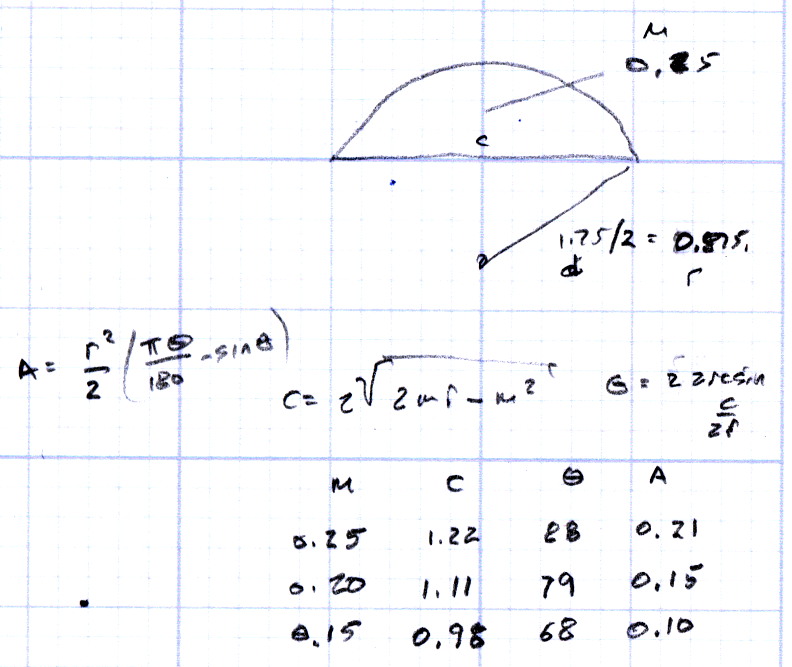
#define DEFAULT_NOMINAL_FILAMENT_DIA 1.75 |
|
//Enter the diameter (in mm) of the filament generally used (3.0 mm or 1.75 mm) – this is then used in the slicer software. Used for sensor reading validation |
|
|
|
#if ENABLED(FILAMENT_WIDTH_SENSOR) |
|
#define FILAMENT_SENSOR_EXTRUDER_NUM 0 //The number of the extruder that has the filament sensor (0,1,2) |
|
#define MEASUREMENT_DELAY_CM 14 //measurement delay in cm. This is the distance from filament sensor to middle of barrel |
|
|
|
#define MEASURED_UPPER_LIMIT 2.00 //upper limit factor used for sensor reading validation in mm |
|
#define MEASURED_LOWER_LIMIT 1.50 //lower limit factor for sensor reading validation in mm |
|
#define MAX_MEASUREMENT_DELAY 20 //delay buffer size in bytes (1 byte = 1cm)- limits maximum measurement delay allowable (must be larger than MEASUREMENT_DELAY_CM and lower number saves RAM) |
|
|
|
#define DEFAULT_MEASURED_FILAMENT_DIA DEFAULT_NOMINAL_FILAMENT_DIA //set measured to nominal initially |
|
|
|
//When using an LCD, uncomment the line below to display the Filament sensor data on the last line instead of status. Status will appear for 5 sec. |
|
//#define FILAMENT_LCD_DISPLAY |
|
#endif |
|
|
|
#include "Configuration_adv.h" |
|
#include "thermistortables.h" |
|
|
|
#endif //CONFIGURATION_H |



 The Smell of Molten Projects in the Morning