The Smell of Molten Projects in the Morning

Ed Nisley's Blog: Shop notes, electronics, firmware, machinery, 3D printing, laser cuttery, and curiosities. Contents: 100% human thinking, 0% AI slop.

Tag: Improvements

Making the world a better place, one piece at a time

  • Improved Sony AS30V Helmet Mount Adapter Plate

    Improved Sony AS30V Helmet Mount Adapter Plate

    Last week a wind gust blew my Tour Easy over while resting on its kickstand at Mary’s garden; I rarely depend on the kickstand for that very reason, but some days are like that. Anyhow, the mount for the Sony AS30V helmet camera did exactly what it should by releasing the camera, rather than grinding it into the ground.

    Calling it a “mount” may be overstating the case:

    Sony HDR-AS30V camera on bike helmet - inverted
    Sony HDR-AS30V camera on bike helmet – inverted

    I was still using that helmet, albeit with a better mirror mount, but it was getting rather crusty and the hook-n-loop straps were definitely sun-faded, so I built a better mount with an adapter plate matching a new-old-stock helmet from the stash:

    Sony AS30V Helmet mount - side view
    Sony AS30V Helmet mount – side view

    The white slab atop the helmet curves to match the helmet contour, with the ridge fitting into the vent slot:

    AS30 helmet mount - solid model - show view
    AS30 helmet mount – solid model – show view

    OK, the helmet isn’t orange, but you get the idea. The sphere has a 153 mm radius, calculated from the Official Sony helmet mount’s bottom curve, minus a ring shaping the central groove:

    AS30 helmet mount - solid model - tab ring
    AS30 helmet mount – solid model – tab ring

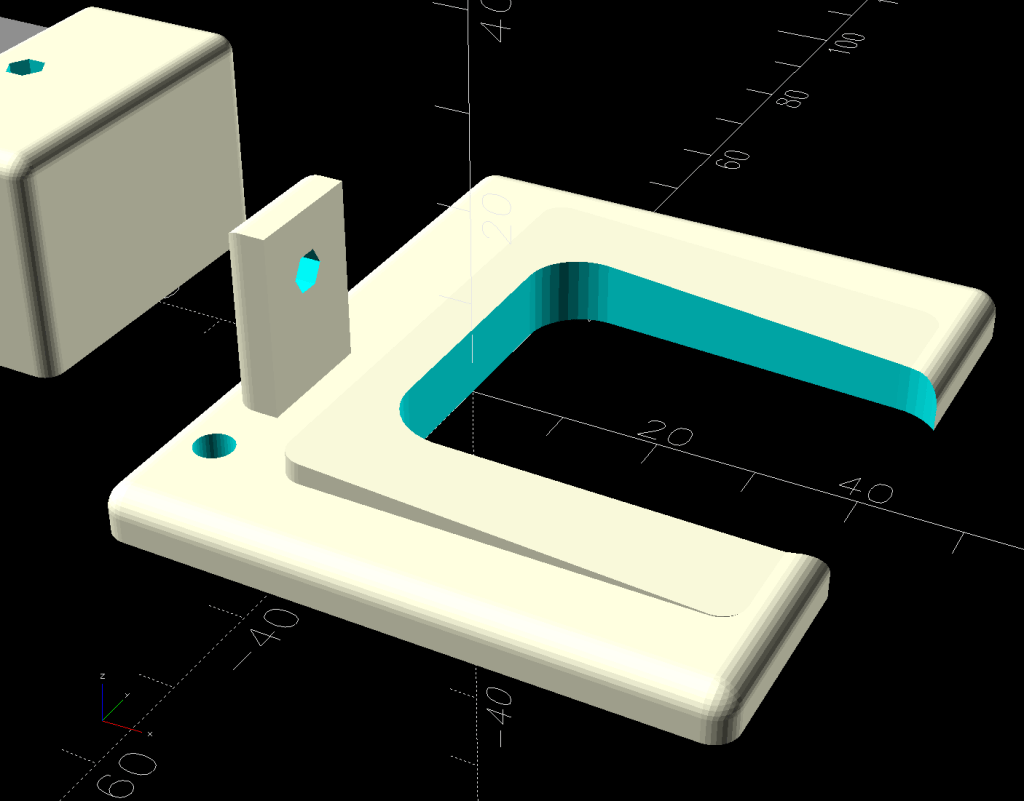
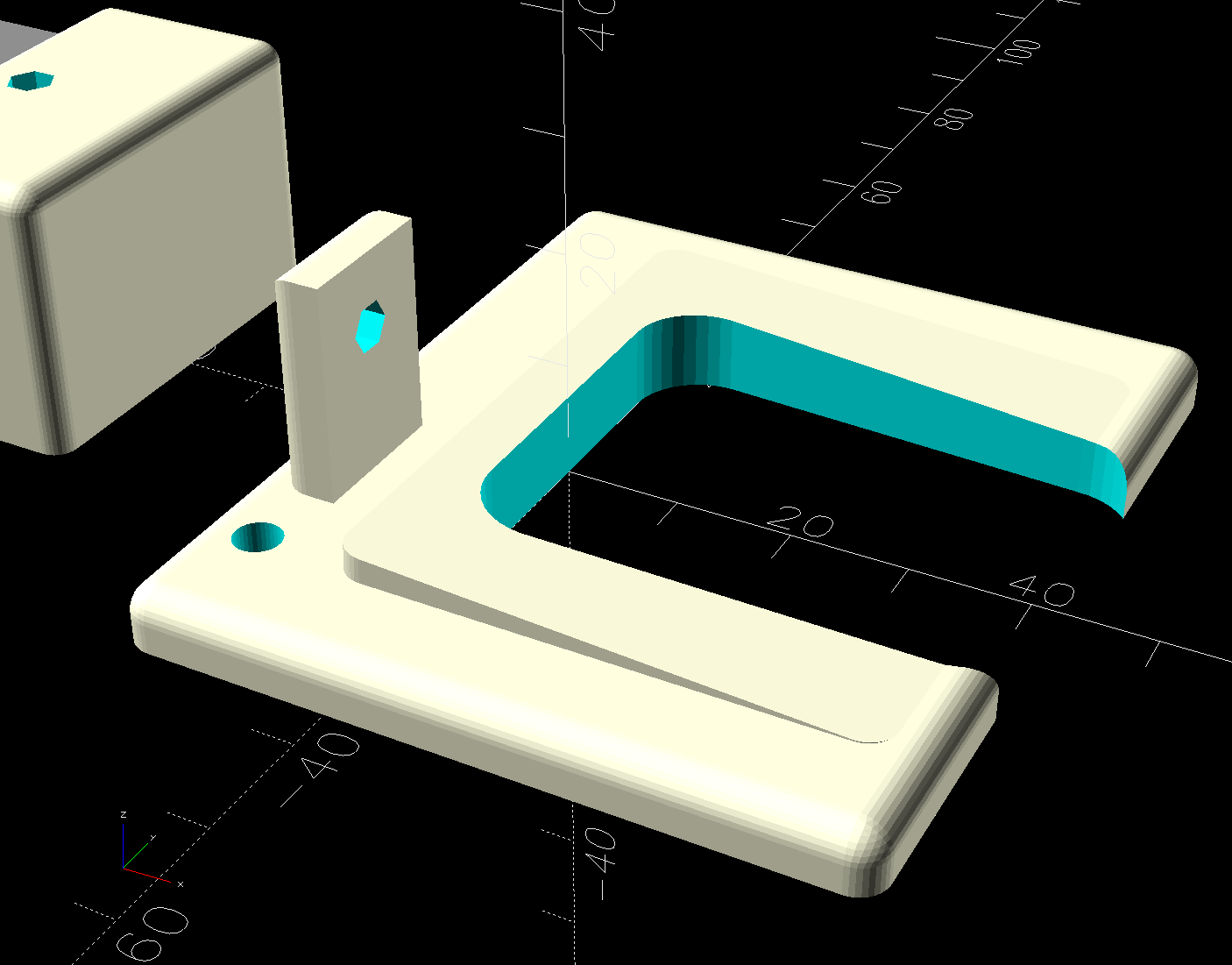
    This upside-down view shows the interesting parts:

    AS30 helmet mount - solid model
    AS30 helmet mount – solid model

    The flat side sticks to the camera’s holder with a custom-cut sheet of craft adhesive shaped like this:

    AS30 helmet mount - glue
    AS30 helmet mount – glue

    The overall outline of those things comes from a scan of the bottom of the Sony camera holder, passed through Inkscape and LightBurn to generate the curves:

    AS30 Baseplate scan
    AS30 Baseplate scan

    The large notches in the sides pass hook-n-loop straps intended to break away when the helmet hits the ground again. The front tunnel (of two, because symmetry) passes a cable tie preventing the camera from parting company with the mount during normal riding and holding the yellow latch in the Locked position:

    Sony AS30V Helmet mount - rear view
    Sony AS30V Helmet mount – rear view

    It is just barely possible to slide the cable tie over the front of the camera to release the latch.

    The camera rides upside-down to protect the lens from scuffs and scrapes. Fortunately, there’s a setting to invert the picture.

    For completeness, the front view:

    Sony AS30V Helmet mount - front view
    Sony AS30V Helmet mount – front view

    The furry patch covers the microphone pores to kill (most of) the wind noise.

    The sharp ventral angle matches the helmet’s midline ridge in the back, but obviously isn’t needed over the vent hole in the front. I decided to not bother making a comprehensive model of the hole, not least because I didn’t really know the camera’s exact front-to-back location.

    Works fine where it sits, though:

    Burnett Signal Timing - 2025-04-23
    Burnett Signal Timing – 2025-04-23

    NYSDOT’s signal timing at Burnett Blvd and Rt 55 remains bicycle-hostile, same as it ever was.

    The OpenSCAD source code and baseplate shape as a GitHub Gist:

    // Sony AS30 helmet mount
    // Ed Nisley – KE4ZNU
    // 2025-04-20
    include <BOSL2/std.scad>
    Layout = "Show"; // [Show,Build,Ball,Tab,Glue]
    Gap = 5; // [0:5:20]
    /* [Hidden] */
    HoleWindage = 0.2;
    Protrusion = 0.1;
    WallThick = 1.0; // enough stiffness against flat pad
    HelmetRadius = 153.0; // from chord equation on curved pad = magic number
    Groove = [30.0,100,3.0,]; // roughly the groove along helmet midline
    Pad = [38,53,10]; // baseplate size, thick enough without fancy trig
    Strap = [3.0,15.0,10*Pad.z]; // hook-n-loop strap holes, double-thick
    Tie = [100,6.0,2.0 + Protrusion]; // cable tie around camera
    TieOffset = 14.0; // … from end of pad
    $fn=96;
    //———-
    // Define shapes
    module Ball() {
    difference() {
    sphere(r=HelmetRadius);
    Tab();
    }
    }
    // Rough approximation of the helmet groove
    module Tab() {
    m = 2.0; // roughly the chord height beyond the tab
    rotate_extrude(convexity=10) {
    right(HelmetRadius)
    zrot(180)
    polygon([
    [0,0],
    [0,Groove.x/2],[Groove.z + m,Groove.x/2],[m,0],
    [Groove.z + m,-Groove.x/2],[0,-Groove.x/2],
    [0,0]
    ],convexity=10);
    }
    }
    // Baseplate with all the cutouts
    module BasePlate() {
    difference() {
    linear_extrude(height=Pad.z,convexity=10)
    import("AS30 Baseplate layout.svg",layer="Baseplate");
    up(WallThick + HelmetRadius)
    yrot(90)
    Ball();
    for (i = [-1,1]) // strap clearance at edge of helmet hole
    right(i*Groove.x/2)
    cube([(Pad.x – Groove.x)/2,Strap.y,Strap.z],center=true);
    for (i = [-1,1]) // cut through edge of pad
    right(i*Pad.x/2)
    cube([(Pad.x – Groove.x),Strap.y,Strap.z],center=true);
    for (j = [-1,1])
    fwd(j*(Pad.y/2 – TieOffset)) up(WallThick)
    cuboid(Tie,anchor=BOTTOM);
    }
    }
    //———-
    // Build things
    if (Layout == "Glue")
    projection(cut=true)
    BasePlate();
    if (Layout == "Tab")
    Tab();
    if (Layout == "Show") {
    xrot(180)
    BasePlate();
    down(WallThick + HelmetRadius + Gap)
    yrot(90)
    color("Orange",0.75) Ball();
    }
    if (Layout == "Build")
    BasePlate();
    if (Layout == "Ball")
    Ball();
    <?xml version="1.0" encoding="UTF-8" standalone="no"?>
    <!– Created with Inkscape (http://www.inkscape.org/) –>
    <svg
    width="11in"
    height="8.5in"
    viewBox="0 0 279.40056 215.90043"
    version="1.1"
    id="SVGRoot"
    inkscape:version="1.4.1 (93de688d07, 2025-03-30)"
    sodipodi:docname="AS30 Baseplate layout.svg"
    xml:space="preserve"
    xmlns:inkscape="http://www.inkscape.org/namespaces/inkscape&quot;
    xmlns:sodipodi="http://sodipodi.sourceforge.net/DTD/sodipodi-0.dtd&quot;
    xmlns:xlink="http://www.w3.org/1999/xlink&quot;
    xmlns="http://www.w3.org/2000/svg&quot;
    xmlns:svg="http://www.w3.org/2000/svg&quot;
    xmlns:rdf="http://www.w3.org/1999/02/22-rdf-syntax-ns#&quot;
    xmlns:cc="http://creativecommons.org/ns#"><sodipodi:namedview
    id="namedview7"
    pagecolor="#ffffff"
    bordercolor="#0000ff"
    borderopacity="1"
    inkscape:pageshadow="0"
    inkscape:pageopacity="0"
    inkscape:pagecheckerboard="1"
    inkscape:document-units="mm"
    showgrid="true"
    units="mm"
    gridtolerance="9.9"
    guidetolerance="10.4"
    inkscape:snap-perpendicular="true"
    inkscape:snap-tangential="true"
    width="700mm"
    borderlayer="false"
    inkscape:showpageshadow="true"
    viewbox-width="700"
    guidecolor="#ff00e3"
    guideopacity="0.49803922"
    inkscape:zoom="1.6945884"
    inkscape:cx="86.451671"
    inkscape:cy="111.82656"
    inkscape:window-width="1780"
    inkscape:window-height="1091"
    inkscape:window-x="0"
    inkscape:window-y="0"
    inkscape:window-maximized="0"
    inkscape:current-layer="layer1"
    objecttolerance="31"
    inkscape:deskcolor="#d1d1d1"
    showguides="true"><inkscape:grid
    type="xygrid"
    id="grid9"
    units="mm"
    spacingx="5"
    spacingy="5"
    dotted="false"
    empspacing="2"
    originx="148.5"
    originy="127.29919"
    color="#ff0000"
    opacity="0.18431373"
    empcolor="#4040ff"
    empopacity="0.49411765"
    visible="true" /><sodipodi:guide
    position="157.7549,120.64599"
    orientation="1,0"
    id="guide1"
    inkscape:locked="false" /></sodipodi:namedview><defs
    id="defs2" /><g
    inkscape:label="Baseplate"
    inkscape:groupmode="layer"
    id="layer1"
    transform="translate(0,5.4354331)"><path
    id="path1"
    style="fill:none;fill-rule:evenodd;stroke:#0c96d9;stroke-width:0.0998686;stroke-linejoin:round"
    d="m -18.99969,190.42075 3.09576,-6.45581 h 32.08112 l 2.82285,6.45581 -10e-6,40.00473 -3.02778,6.53957 -31.33905,-0.14658 -3.63324,-6.39299 z"
    sodipodi:nodetypes="ccccccccc"
    inkscape:label="Aligned path" /></g><g
    inkscape:groupmode="layer"
    id="layer2"
    inkscape:label="Original"><image
    width="57.658115"
    height="65.193459"
    preserveAspectRatio="none"
    xlink:href="AS30%20Baseplate%20scan.jpg"
    id="image1"
    x="112.42073"
    y="67.772316"
    transform="rotate(0.87516737,-355.84202,2.7177945)"
    style="display:inline" /><path
    id="rect1"
    style="fill:none;fill-rule:evenodd;stroke:#0c96d9;stroke-width:0.0998686;stroke-linejoin:round"
    d="m 120.39572,83.160307 3.09576,-6.45581 h 32.08112 l 2.82285,6.45581 -1e-5,40.004733 -3.02778,6.53957 -31.33905,-0.14658 -3.63324,-6.39299 z"
    sodipodi:nodetypes="ccccccccc"
    transform="translate(0,5.4354331)" /></g><metadata
    id="metadata11"><rdf:RDF><cc:Work
    rdf:about=""><cc:license
    rdf:resource="http://creativecommons.org/licenses/by-nc-sa/4.0/&quot; /></cc:Work><cc:License
    rdf:about="http://creativecommons.org/licenses/by-nc-sa/4.0/"><cc:permits
    rdf:resource="http://creativecommons.org/ns#Reproduction&quot; /><cc:permits
    rdf:resource="http://creativecommons.org/ns#Distribution&quot; /><cc:requires
    rdf:resource="http://creativecommons.org/ns#Notice&quot; /><cc:requires
    rdf:resource="http://creativecommons.org/ns#Attribution&quot; /><cc:prohibits
    rdf:resource="http://creativecommons.org/ns#CommercialUse&quot; /><cc:permits
    rdf:resource="http://creativecommons.org/ns#DerivativeWorks&quot; /><cc:requires
    rdf:resource="http://creativecommons.org/ns#ShareAlike&quot; /></cc:License></rdf:RDF></metadata></svg>
    view raw gistfile1.txt hosted with ❤ by GitHub
  • Bird Box: Rotating T-Nuts

    Bird Box: Rotating T-Nuts

    A bird box from long ago emerged from the heap and took its place in an upstairs window:

    Bird Box window mount - installed
    Bird Box window mount – installed

    That big open back held an acrylic sheet letting us watch wrens raise their family; snugging it against the window makes that sheet superfluous. We’re hoping to lure the Wreath Finches from their preferred spot by the front door, but we’re open to any birds in need of a nesting spot.

    The aluminum angle formerly securing the box to various wood window frames wasn’t going to work here, so I conjured a pair of rotating T-nuts to fit the track in the plastic window frame:

    Bird Box window mount - nuts
    Bird Box window mount – nuts

    They’re made from a 5/16-18 T-nut and two layers of 3 mm plywood, all glommed together with E6000-Plus adhesive because it did not scamper out of the way when I opened the Adhesives Cabinet.

    Some doodling convinced me a pair of quarter-circles welded back-to-back, minus cutouts for the metal T-nuts, would suffice:

    Bird Box window mount - nuts
    Bird Box window mount – nuts

    The radius must be a little less than the width of the opening into the channel (20 mm) and the diameter must be a little more than the width of the channel behind that opening (32-ish mm), so I picked 17 mm. The metal T-nut flange is just over 20 mm, but the spike cutouts (omitted from the LightBurn layout) let it slip through the opening.

    A random block of wood positions the box away from the frame enough to clear the outermost flange carrying the screen. Drilling oversize ⅜ inch holes countersunk the top of the T-nut into the block and eliminated excessive alignment fussiness.

    Slicing 20 mm off the bolts fit them into the space available, with a pair of stainless washers covering the gaps.

    A doodle with measurements you won’t need, but surely handy for mounting something else around here:

    Bird Box window mount - size doodles
    Bird Box window mount – size doodles

    Now, to see who takes up residence …

  • Champion Hose Nozzle: Needs a Washer?

    Champion Hose Nozzle: Needs a Washer?

    An email discussion suggested the Champion hose nozzle might, once upon a time, have had a washer between the conical and cylindrical sections.

    So I made one:

    Champion hose nozzle - rubber washer
    Champion hose nozzle – rubber washer

    The details:

    • OD = ½ inch
    • ID = 9/32 inch
    • 2.5 mm stamp pad rubber

    It sealed perfectly, but, just before shutting off, the washer vibrated in the water flow and gave off an ear-shattering (even to my deflicted hearing) howl.

    Perhaps a stiffer and thinner washer with a slightly larger OD would work better.

    A quick check of similar nozzles in the Box o’ Hydraulics shows none of them feel like they have a compliant washer in there, but any sufficiently old rubber will have long since fossilized.

    This seems like a good job for a 3D printed washer with a conical face, made from slightly squishy TPU plastic to ease it past the nozzle’s internal threads. All I need is the ability to print TPU …

  • HQ Sixteen: Handlebar Control Button Labels

    HQ Sixteen: Handlebar Control Button Labels

    The recessed faceplate on the new handlebar control caps for Mary’s HQ Sixteen puts the label flush with the rim:

    Control Button Caps - solid model - show view assembled
    Control Button Caps – solid model – show view assembled

    The current version of the labels isn’t much to look at:

    HQ Sixteen control caps - new caps
    HQ Sixteen control caps – new caps

    The OpenSCAD code produces an SVG outline of the faceplate, surrounded by four alignment targets:

    Control Button Caps - solid model - face view
    Control Button Caps – face view

    Import the SVG into Inkscape and tart it up:

    Control Button Caps - Inkscape
    Control Button Caps – Inkscape

    The alert reader will note the labels are swapped left-for-right.

    The black characters on the left get printed on heavy white paper and laminated; feel free to add artistic embellishments. You must delete the cyan-ish shapes showing the faceplate and switch openings, which just show where the characters will end up, but you must print the four corner targets for alignment.
    The red and orange shapes on the right define the outlines for laser-cutting the laminated paper and adhesive sheet after you import the Inkscape SVG file into LightBurn. The Inkscape colors will automagically put the shapes on separate LightBurn layers, with the cyan-ish shapes going onto non-cutting Tool Layer T2.

    Set the cutting speed & feed to match your machine, lay the laminated labels on the platform, use Print and Cut to align two diagonal corner targets with the corresponding printed targets, then Fire. The. Laser.

    The orange shapes have half a millimeter inset to leave a slight non-sticky margin around the edges:

    HQ Sixteen control caps - adhesive layer
    HQ Sixteen control caps – adhesive layer

    Although those shapes have the same four targets, you align the adhesive by hand and eye. Cut them out, peel one side, stick adhesive to the label, peel the other side, stick adhesive to the faceplate, and you’re done.

    Now, to figure out the switch wiring …

  • HQ Sixteen: Handlebar Control Button Caps

    HQ Sixteen: Handlebar Control Button Caps

    Each of the HQ Sixteen’s handlebars has a cap with control buttons:

    HQ Sixteen control caps - side view
    HQ Sixteen control caps – side view

    The left cap:

    HQ Sixteen control caps - left
    HQ Sixteen control caps – left

    The right cap:

    HQ Sixteen control caps - OEM right
    HQ Sixteen control caps – OEM right

    The membrane switch overlay has textured bumps, although both of us have trouble finding them.

    The Start / Stop switch gets the most use and, as you’d expect, has become intermittent after two decades of use.

    Mary thinks a Start / Stop switch on both caps would be an improvement, letting her position quilting rulers with her right hand and run the machine with her left hand & thumb. I don’t know how the switches are wired, but the wiring suggests either simple single-bit inputs or a small matrix.

    She also finds membrane switches difficult to press, so I’m in the process of replacing the control caps with something more to her liking.

    The current concept goes a little something like this:

    HQ Sixteen control caps - new caps
    HQ Sixteen control caps – new caps

    Stipulated: my art hand is weak.

    Those are little bitty SMD switches:

    HQ Sixteen control caps - new caps overview
    HQ Sixteen control caps – new caps overview

    They’re easy to locate by touch, with a stem length chosen to “feel right” when pushed.

    They have been grievously misapplied:

    HQ Sixteen control caps - switches
    HQ Sixteen control caps – switches

    The solid model has three main pieces and a lock for the ribbon cable:

    Control Button Caps - solid model - build view
    Control Button Caps – solid model – build view

    Those pockets keep the switches oriented while the glue cures.

    Two screws through the handlebar secure each cap. Handi-Quilter drove sheet metal screws into their OEM caps, distorting them enough to jam solidly into the handlebars. I’ve been reluctant to apply enough force to loosen them, so they remain frozen in place until the current quilt is done.

    The new plugs have recesses for M3 square nuts to make them easily removable. As with the handlebar angle adapters, I’ll glue the plugs into the caps.

    A slightly exploded view shows how the pieces fit together:

    Control Button Caps - solid model - show view gapped
    Control Button Caps – solid model – show view gapped

    The switch plate sits recessed into the cap to allow room for the label (about which, more later):

    Control Button Caps - solid model - show view assembled
    Control Button Caps – solid model – show view assembled

    The OpenSCAD source code as a GitHub Gist:

    // Handiquilter HQ Sixteen handlebar control button caps
    // Ed Nisley – KE4ZNU
    // 2025-04-05
    include <BOSL2/std.scad>
    Layout = "Show"; // [Show,Build,Grip,Body,Face,FaceBack,Plug,CableLock]
    // Angle w.r.t. handlebar
    FaceAngle = 30; // [10:45]
    // Separation in Show display
    Gap = 5; // [0:20]
    /* [Hidden] */
    HoleWindage = 0.2;
    Protrusion = 0.1;
    NumSides = 2*3*4;
    WallThick = 3.0;
    ID = 0;
    OD = 1;
    LENGTH = 2;
    Grip = [19.7,22.4,15.0]; // (7/8)*INCH = 22.2 mm + roughness, LENGTH=OEM insertion depth
    GripRadius = Grip[OD]/2;
    FoamOD = 34.0; // handlebar foam
    FoamRadius = FoamOD/2;
    SwitchBody = [6.3,6.3,4.0]; // does not include SMD leads
    SwitchStemOD = 3.5 + 2*HoleWindage;
    SwitchOC = 10.0; // center-to-center switch spacing
    LabelThick = 0.5; // laminated overlay
    FaceRim = 2.0; // rim around faceplate
    FaceThick = 2.0; // … plate thickness
    FaceDepth = FaceThick + LabelThick; // inset allowing for faceplate label
    CapOD = 38.0; // overall cap diameter
    CapTrim = FoamRadius; // flat trim on front
    CapBase = 5.0; // bottom thickness
    Cap = [FoamOD – FaceRim,CapOD,CapBase + CapOD*tan(FaceAngle)];
    echo(Cap=Cap);
    TargetSize = 4.0; // laser alignment targets
    TargetsOC = [40.0,40.0];
    Cable = [10.0,2.0,WallThick]; // aperture for cable lock
    ScrewAngles = [-45,45]; // mounting screws
    Screw = [2.0,3.0,7.0]; // OEM = sheet metal screw
    ScrewOffset = 6.0; // from top of grip tube
    SquareNut = [3.0,5.5,2.3 + 0.4]; // M3 square nut OD = side, LENGTH + inset allowance
    NutInset = GripRadius – sqrt(pow(GripRadius,2) – pow(SquareNut[OD],2)/4);
    PlugOA = [(Grip[ID] – 2*WallThick),(Grip[ID] – 1.0),(CapBase + ScrewOffset + 10.0)];
    echo(PlugOA=PlugOA);
    //———-
    // Define objects
    //—–
    // Handlebar tube
    module GripTube() {
    difference() {
    tube(3*Grip[LENGTH],GripRadius,Grip[ID]/2,anchor=TOP);
    for (a = ScrewAngles) {
    down(ScrewOffset) zrot(a-90)
    right(GripRadius)
    yrot(90) cylinder(d=Screw[OD],h=Screw[LENGTH],center=true,$fn=6);
    }
    }
    }
    //—–
    // SVG outline of faceplate for laser cuttery
    module FaceShape(Holes=true,Targets=false) {
    difference() {
    scale([1,1/cos(FaceAngle)])
    difference() {
    circle(d=(Cap[OD] – 2*FaceRim),$fn=144);
    fwd(CapTrim – FaceRim)
    square(Cap[OD],anchor=BACK);
    }
    if (Holes)
    for (i=[-1:1]) // arrange switch stem holes
    right(i*SwitchOC)
    zrot(180/8) circle(d=SwitchStemOD,$fn=32);
    }
    if (Targets)
    for (i = [-1,1], j = [-1,1])
    translate([i*TargetsOC.x/2,j*TargetsOC.y/2])
    square(2.0,center=true);
    }
    //—–
    // Faceplate backing sheet
    // Switch bodies indented into bottom, so flip to build
    module FacePlate(Thick=FaceThick,Holes=true) {
    difference() {
    linear_extrude(height=Thick,convexity=5)
    FaceShape(Holes);
    up(SwitchBody.z/4)
    for (i = [-1:1])
    right(i*SwitchOC)
    cube(SwitchBody,anchor=TOP);
    }
    }
    //—–
    // Cap body
    module CapBody() {
    $fn=48;
    up(CapBase + (Cap[OD]/2)*tan(FaceAngle)) xrot(FaceAngle)
    difference() {
    xrot(-FaceAngle)
    down(CapBase + (Cap[OD]/2)*tan(FaceAngle))
    difference() {
    cylinder(d=Cap[OD],h=Cap[LENGTH]);
    fwd(CapTrim) down(Protrusion)
    cube(2*Cap[LENGTH],anchor=BACK+BOTTOM);
    up(CapBase)
    difference() {
    cylinder(d=Cap[ID],h=Cap[LENGTH]);
    fwd(CapTrim – 2*FaceRim)
    cube(2*Cap[LENGTH],anchor=BACK+BOTTOM);
    }
    down(Protrusion)
    cylinder(d=Grip[ID],h=Cap[LENGTH]);
    }
    cube(2*Cap[OD],anchor=BOTTOM);
    down(FaceDepth)
    FacePlate(FaceDepth + Protrusion,Holes=false);
    }
    }
    //—–
    // Plug going into grip handlebar
    module CapPlug() {
    $fn=48;
    difference() {
    tube(PlugOA[LENGTH],id=PlugOA[ID],od=PlugOA[OD],anchor=BOTTOM)
    position(TOP)
    tube(CapBase,id=PlugOA[ID],od=Grip[ID],anchor=TOP);
    for (a = ScrewAngles)
    up(PlugOA.z – CapBase – ScrewOffset) zrot(a-90)
    right(PlugOA[ID]/2)
    yrot(90) {
    cube([SquareNut[OD],SquareNut[OD],SquareNut[LENGTH] + NutInset],center=true);
    zrot(180/6)
    cylinder(d=(SquareNut[ID] + 2*HoleWindage),h=PlugOA[ID],center=true,$fn=6);
    }
    }
    }
    //—–
    // Lock plate for ribbon cable
    module CableLock() {
    difference() {
    cuboid([2*Cable.x,PlugOA[ID],WallThick],rounding=WallThick/2,anchor=BOTTOM);
    for (j = [-1,1])
    back(j*Cable.y) down(Protrusion)
    cube(Cable + [0,0,2*Protrusion],anchor=BOTTOM);
    }
    }
    //———-
    // Build things
    if (Layout == "Grip") {
    color("Silver",0.5)
    GripTube();
    }
    if (Layout == "Face")
    FaceShape(Targets=true);
    if (Layout == "FaceBack")
    FacePlate();
    if (Layout == "Body")
    CapBody();
    if (Layout == "Plug")
    CapPlug();
    if (Layout == "CableLock")
    CableLock();
    if (Layout == "Show") {
    color("Green")
    up(CapBase)
    CableLock();
    color("Orange")
    down(Gap)
    down(PlugOA[LENGTH] – CapBase)
    CapPlug();
    color("Cyan",(Gap > 4)? 1.0 : 0.2)
    CapBody();
    color("White",(Gap > 4)? 1.0 : 0.5)
    up(Gap*cos(FaceAngle)) fwd(Gap*sin(FaceAngle))
    up(CapBase + (Cap[OD]/2)*tan(FaceAngle) – FaceDepth)
    back(FaceDepth*sin(FaceAngle)) xrot(FaceAngle)
    FacePlate();
    down(3*Gap) {
    color("Silver",0.5)
    GripTube();
    down(Gap)
    color("Gray",0.5)
    tube(3*Grip[LENGTH],FoamRadius,Grip[OD]/2,anchor=TOP);
    }
    }
    if (Layout == "Build") {
    right((Gap + Cap[OD])/2)
    CapBody();
    left((Gap + Cap[OD])/2)
    zrot(180) up(FaceThick) xrot(180)
    FacePlate();
    fwd(Gap + Cap[OD])
    up(PlugOA[LENGTH]) xrot(180) zrot(180)
    CapPlug();
    fwd(Cap[OD]/2)
    zrot(90)
    CableLock();
    }

  • Inkscape: LightBurn Layer Color Palette

    Inkscape: LightBurn Layer Color Palette

    Inkscape is not a CAD program (neither is LightBurn), but for my simple needs it works well enough, with the compelling advantage that OpenSCAD can import named layers and extrude them into solid models.

    LightBurn can import Inkscape SVG images to define the patterns for laser cutting / engraving and will automatically put the vectors into layers corresponding to their colors if and only if the SVG image uses colors from the LightBurn palette. Regrettably, picking those colors from the default Inkscape palette is essentially impossible, but you can have Inkscape use a palette file that displays only the LightBurn colors corresponding to its layers.

    I conjured this GIMP / Inkscape palette file based on the table in a LightBurn forum post, plus tool layer colors from another post:

    GIMP / Inkscape Palette
    Name: LightBurn Layers
    #
      0   0   0 BLACK
    255 255 255 WHITE
      0   0   0 LBRN #0
      0   0 255 LBRN #1
    255   0   0 LBRN #2
      0 224   0 LBRN #3
    208 208   0 LBRN #4
    255 128   0 LBRN #5
      0 224 224 LBRN #6
    255   0 255 LBRN #7
    180 180 180 LBRN #8
      0   0 160 LBRN #9
    160   0   0 LBRN #10
      0 160   0 LBRN #11
    160 160   0 LBRN #12
    192 128   0 LBRN #13
      0 160 255 LBRN #14
    160   0 160 LBRN #15
    128 128 128 LBRN #16
    125 135 185 LBRN #17
    187 119 132 LBRN #18
     74 111 227 LBRN #19
    211  63 106 LBRN #20
    140 215 140 LBRN #21
    240 185 141 LBRN #22
    246 196 225 LBRN #23
    250 158 212 LBRN #24
     80  10 120 LBRN #25
    180  90   0 LBRN #26
      0  71  84 LBRN #27
    134 250 136 LBRN #28
    255 219 102 LBRN #29
    243 105  38 LBRN T1
     12 150 217 LBRN T2
    

    Plunk that file (which I named Lightburn.gpl) into /home/ed/.config/inkscape/palettes/, restart Inkscape, then select it (the Name line defines its mmm name):

    Inkscape - selecting LightBurn palette
    Inkscape – selecting LightBurn palette

    Which lays a row of the LightBurn layer colors along the the Inkscape window:

    Inkscape - LightBurn palette
    Inkscape – LightBurn palette

    The text after the RGB triplet in each file line appears as the tool tip for the color swatch:

    Inkscape - LightBurn palette tooltip
    Inkscape – LightBurn palette

    Because LightBurn uses only the vector Stroke and ignores its Fill, you (well, I) must become accustomed to Shift-clicking palette colors.

    You can fetch a similar palette file directly from the LightBurn doc, although minus the tool tips. GIMP and Inkscape have many palettes available, should you make artsy drawings where subtle color shading matters.

    I generally use only a few cheerful primary colors, because I have trouble distinguishing (heck, in some cases even seeing) the more subtle colors against LightBurn’s light (or dark) workspace background. I assign the layer cut settings using the Material Library: reds for cutting, blues for marking, and grays for engraving.

    When I need more than maybe half a dozen colors, I (eventually) realize I’m trying to be too clever and split the project into separate LightBurn files.

  • Piping Yubikey TOTP To xclip

    Piping Yubikey TOTP To xclip

    Rather than fiddle with the GUI program for my Yubikey, I use the ykman CLI program for TOTP authentication, because there’s always a command prompt / terminal open on the portrait monitor:

    ykman oath accounts code -s ama
    161413
    

    Double-click to select the number in the terminal, then either copy-n-paste or middle-click into the target field of whatever needs convincing I am truly me, myself, and I.

    I finally got a Round Tuit and piped the output into xclip to put the number into the clipboard:

    ykman oath accounts code -s ama | xclip
    

    Which lets me go directly to pasting or middle-clicking.

    The command history is big enough that I now type only:

    Ctrl-R ama
    

    Which brings up the most recent version of the command, whereupon I whack Enter to execute it. Similar abbreviations extract the commands for dozen-odd companies / banks / institutions / whatever I deal with.

    When I need a hint:

    ykman oath accounts list
    

    Should’a done that long ago.

    For reference, a treatise on Yubikey config and usage.

    Bonus! A cat:

    Gray Cat - 2023-05-23
    Gray Cat – 2023-05-23

    Because SEO demands a picture.