The Smell of Molten Projects in the Morning

Ed Nisley's Blog: Shop notes, electronics, firmware, machinery, 3D printing, laser cuttery, and curiosities. Contents: 100% human thinking, 0% AI slop.

Tag: Improvements

Making the world a better place, one piece at a time

  • EMC2 Gamepad Pendant: Joystick Axis Lockout

    Nothing like sleeping on a problem. It turns out that a chunk of HAL code can do a nice job of locking out an inactive joystick axis.

    The general idea:

    • A priority encoder selects one axis when both go active simultaneously
    • The prioritized outputs set flipflops that remember the active axis
    • The active axis locks out the other one until they’re both inactive

    That way, you can start to jog either axis on a knob without worrying about accidentally jogging the other axis by moving the knob at a slight diagonal. I hate it when that happens.

    The other tweak is that the quartet of buttons on the right act as a “hat” for the Z and A axes, jogging them at the current maximum speed.

    Because it’s tough to accidentally push two buttons at once, there’s no need to lock them out. So you can jog diagonally by deliberately pushing adjoining buttons, but you must want to do that.

    Rather than dumping the whole program again, here are the key parts…

    Figuring out if a joystick axis is active uses the window comparators. It seems the idle counts value varies slightly around 127, so I relaxed the window limits. Should the window comparator go active with the knob centered, the buttons for that axis won’t produce any motion.

    net		x-jog-count-int	input.0.abs-x-counts	conv-s32-float.0.in
    net		x-jog-count-raw	conv-s32-float.0.out	wcomp.0.in
    setp	wcomp.0.min		125
    setp	wcomp.0.max		130
    net		X-inactive		wcomp.0.out				not.0.in
    net		X-active		not.0.out
    

    The priority encoder is just a gate that prevents Y (or A) from being selected if X (or Z) is simultaneously active. Here’s a sketch for the ZA knob:

    Axis priority encoder
    Axis priority encoder

    The active and inactive signals come from the window detectors. The sketch gives the K-map layout, although there’s not a whole lot of optimization required.

    The corresponding code:

    net		Z-inactive		and2.5.in0
    net		A-active		and2.5.in1
    net		A-select		and2.5.out				# select A only when Z inactive
    
    net		Z-inactive		and2.6.in0
    net		A-inactive		and2.6.in1
    net		ZA-Deselect		and2.6.out				# reset flipflops when both inactive
    
    net		Z-active		and2.7.in0				# set Z gate when knob is active
    net		A-gate-not		and2.7.in1				# and A is not already gated
    net		Z-set			and2.7.out					flipflop.2.set
    
    net		ZA-Deselect		flipflop.2.reset		# reset when neither is active
    net		Z-gate			flipflop.2.out				not.6.in
    net		Z-gate-not		not.6.out
    
    net		A-select		and2.8.in0				# set A gate when knob is active
    net		Z-gate-not		and2.8.in1				# and Z is not already gated
    net		A-set			and2.8.out					flipflop.3.set
    
    net		ZA-Deselect		flipflop.3.reset		# reset flipflop when both inactive
    net		A-gate			flipflop.3.out				not.7.in
    net		A-gate-not		not.7.out
    

    The flipflops remember which axis went active first and lock out the other one. When both axes on a knob return to center, the flipflops reset.

    The quartet of buttons produce binary outputs, rather than the floats from the Hat, so a pair of multiplexers emit -1.0, 0.0, or +1.0, depending on the state of the buttons, for each axis.

    setp	mux2.6.in0	0.0
    setp	mux2.6.in1	-1.0
    net		A-btn-neg		input.0.btn-trigger		mux2.6.sel
    net		A-btn-neg-value	mux2.6.out				sum2.1.in0
    
    setp	mux2.7.in0	0.0
    setp	mux2.7.in1	1.0
    net		A-btn-pos		input.0.btn-thumb2		mux2.7.sel
    net		A-btn-pos-value	mux2.7.out				sum2.1.in1
    
    net		A-jog-button	sum2.1.out
    
    net		A-btn-neg		or2.1.in0
    net		A-btn-pos		or2.1.in1
    
    net		A-btn-any		or2.1.out				or2.2.in0
    net		A-gate			or2.2.in1
    net		A-motion		or2.2.out
    

    The A-motion signal is true when either of the A jog buttons or the A joystick axis is active. That gates the MAX_ANGULAR_VELOCITY value to halui.jog-speed, rather than the default MAX_LINEAR_VELOCITY. Or, depending on the state of the toggle from the two joystick push switches, 5% of that maximum. A mere 5% may be too slow for the A axis, but it’ll take some experience to determine that.

    With that in hand, the final step is gating either the knob or the button values to halui.jog.*.analog.

    net		Z-jog-button	mux2.8.in0
    net		Z-jog-knob-inv	mux2.8.in1
    net		Z-gate			mux2.8.sel
    net		Z-jog			mux2.8.out				halui.jog.2.analog
    
    net		A-jog-button	mux2.9.in0
    net		A-jog-knob		input.0.abs-z-position	mux2.9.in1
    net		A-gate			mux2.9.sel
    net		A-jog			mux2.9.out				halui.jog.3.analog
    

    The complete source file (Logitech Dual Action Gamepad – joystick axis lockout – custom_postgui-hal.odt) is over on the G-code and Suchlike page, so you can download it as one lump. It’s an OpenOffice document because WordPress doesn’t allow plain text files.

    I loves me my new joggy thing!

  • Improved Sherline Way Bellows

    What with all the milling going on lately, I decided to replace the crusty bellows on the Sherline mill. The previous design worked reasonably well, but I’ve had a few tweaks in mind for a while.

    Herewith, a PDF file with some Sherline Bellows – Improved:

    • Color coded lines so you know which way to fold them!
    • Unlined side up for a neat look
    • Fits on Letter and A4 sheets
    • Taping cuts and hints

    The PDF page size is about 8×10 inches; call it 204×280 mm. Print it without scaling and it should just barely squeak onto the sheet. If you don’t have a full-bleed printer, the tips of the sides may get cropped off, but you can extrapolate easily enough.

    Some assembly required:

    • Cut it out
    • Fold the central valleys (red) first, flatten it out again
    • Fold the central ridges (blue) next
    • Pleat the whole thing into a half-inch tall stack
    • Squash it into a neat package to harden the folds
    • Fold the tips along one side
    • Fold the tips along the other side
    • Squash the folds again
    • Make the saddle cuts & fold the tabs
    • Apply double-stick tape as noted (some on back)
    • Install on your cleaned-up mill
    • Admire!

    The tip folding is the trickiest part. Basically, flip the first tip from a ridge to a valley, then chase the little transition folds into place. Repeat for each tip along that side, then do the other side.

    It gets easier after you fumble around for a while.

    My nimble-fingered daughter has offered to fold ’em for you. Stick a few bucks in an envelope and mail it to me; we’ll mail back two folded sets (two each, front and rear bellows) for your amusement. Kid’s gotta earn her college money somehow…

    Address? Go to the QRZ.com database and search for my amateur radio callsign: KE4ZNU. Cut, paste, that was easy.

    For the do-it-yourselfers, start with the PDF file in the link above. That’s the easiest way to get the correct scaling. The tabs on the ends should be 4.0 inches across on the printed page.

    Rear Bellows
    Rear Bellows
    Front Bellows
    Front Bellows

    Here are some 300 dpi PNG files, but you’re on your own for scaling.

    If you want the original Inkscape SVG files, drop me a note.

  • TLC5916 Minimum LED Current

    The TLC5916 datasheet seems to say that the minimum regulated LED current is 5 mA, but that’s painfully bright at, say, 12:08 in the early morning. Indeed, those 3-inch blue LED digits lit up the entire house from the living room… sometimes, a high-efficiency LED isn’t what you need.

    This graph from the datasheet suggests that the current can be somewhat lower:

    TLC5916 Current vs Rext
    TLC5916 Current vs Rext

    With that in mind, I replaced the 1 KΩ resistors with 3.9 KΩ parts.

    The graph says the maximum current should be around 5 mA and, indeed, the formulas indicate 4.7 mA. The minimum current is a paltry 0.4 mA: lo and behold, the early morning illumination became bearable. After I put the LEDs behind some dark-gray polycarbonate, it’ll be just about perfect.

    If it’s too dark, I can always solder another SMD resistor atop the 3.9 KΩ chips.

    I figured out how to compute Rext somewhat more easily than the datasheet would have you believe and documented the process there.

  • WWVB Receiver Shield Enclosure

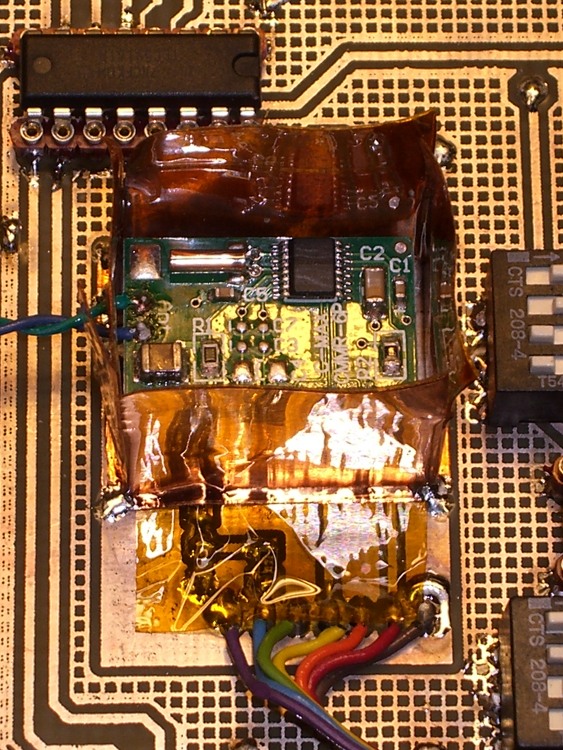
    Kapton tape over traces
    Kapton tape over traces

    The little C-Max CMMR-6P-60 WWVB receiver board is somewhat sensitive to its surroundings: putting it too close to fast-switching digital signals is a Bad Idea. Of course, when there’s an antenna connected to the thing, it’s hard to separate the effects, but I’ve been testing reception with the antenna at the end of a two-foot twisted pair: far enough away to eliminate most problems.

    Just to see what happens, I built a little shield enclosure around the receiver board. The clock board has a pair of solid planes isolated from everything else, with a header matching the receiver’s pinout, for this very purpose. The receiver has a fairly solid ground plane on the bottom, but it’s quite sensitive being snuggled up against other objects; the header holds it about 5 mm above the circuit board.

    The dark amber square is Kapton tape across the traces. If I ever do this again, I’ll put the traces on the bottom so the board is entirely shielded and the tape isn’t needed.

    Shield soldered to base
    Shield soldered to base

    Some 1-inch copper tape with adhesive on one side serves as the shield enclosure, with a layer of Kapton tape covering all but about 2 mm of the adhesive near the bottom to insulate the copper from the receiver. Bent those 2 mm strips outward, with the adhesive on the bottom, stuck it to the shield plane, and soldered it in place at the corners.

    The antenna leads poke out through one side; it’s not very elegant, but I think it’s about as good as is needed for this sort of thing.

    I cut the tape at the corners and folded it down to make a little box, stuck a square of copper tape over the top flaps, soldered the corners, and it’s cute. Admittedly, it doesn’t have perfect conduction around the joints; the next time it’s on the bench I’ll add a few solder dots at the midpoints.

    Completed shield enclosure
    Completed shield enclosure

    The immediate effect was to raise the receiver’s Glitchiness score by a factor of about four. However, that’s not entirely a bad thing; it turns out that the reciever is much less Glitchy when it’s subject to high noise levels: the receiver AGC cranks the gain down so low that only heroic pulses get through and the number of glitches drops dramatically.

    As nearly as I can tell, when there’s no WWVB signal, as during the day, a low Glitchiness count means there’s extremely high noise. Thus, a higher count means less noise and better sensitivity.

    More data collection is in order, but the receiver’s LED showing data pulses now tracks the Alpha Geek Clock‘s display almost perfectly.

  • Arduino Pro: Ceramic Resonator Frequency Compensation

    The Arduino Pro gets its 16-MHz CPU clock from a ceramic resonator, rather than a quartz crystal, which means the frequency accuracy is ±0.5% rather than pretty much spot on. I’m building one into a WWVB-based clock, so it knows the exact elapsed time between synch events.

    My clock uses a 20-ms timebase: 16 MHz prescaled by 8, then divided by (nominally) 40000 using Timer1.

    Knowing the exact time between WWVB updates, the firmware compares that with the local time interval to find the offset, finds the fractional error, and then tweaks the Timer1 period to make the answer come out right the next time.

    Here’s what three days in the life of that algorithm look like:

    Drift: TS   5268489 UTC 10006.040959 Elapsed 13920 Offset 0 Corr +0 ICR1 39840
    Drift: TS   5268805 UTC 10006.092559 Elapsed 18960 Offset 1 Corr +2 ICR1 39842
    Drift: TS   5269711 UTC 10007.003159 Elapsed 54360 Offset 0 Corr +0 ICR1 39842
    Drift: TS   5269966 UTC 10007.044659 Elapsed 15300 Offset 0 Corr +0 ICR1 39842
    Drift: TS   5270079 UTC 10007.063959 Elapsed  4920 Offset -1 Corr -8 ICR1 39834
    Drift: TS   5271157 UTC 10008.003759 Elapsed 61440 Offset 12 Corr +7 ICR1 39841
    Drift: TS   5271833 UTC 10008.115359 Elapsed 39780 Offset 1 Corr +1 ICR1 39842
    

    The UTC field is YYDDD.HHMMSS. The TS value is a simple monotonic timestamp: UTC brutally converted to minutes assuming a year is 365.25 days.

    I set ICR1 to 39840 when the program starts, having already determined the actual oscillator frequency for this particular Arduino Pro. That’s not necessary, because the firmware will adjust it automatically, but it does eliminate the first big step that would compensate the resonator’s -0.4% initial frequency error.

    As nearly as I can tell, the corrections are tracking room temperature changes, as it’s been really cold around here lately and the clock is atop a bookcase in an outside corner of the room.

    After the first +2 change, it ran for 19 hours with less than one second of error: 14 ppm. The -8 change was probably an overcorrection, as the synch interval was just over an hour, but so it goes. That caused 195 ppm error over the next 17 hours, then it’s back on track.

    There’s an obvious conflict between getting quick updates as conditions change and minimizing long-term free-run drift. The firmware currently insists on a minimum of 60 minutes between synchs, but (given an initial preset) I think I can dramatically increase that without losing anything.

    This code does the Timer1 setup:

    #define TIMER1COUNTS            39841l
    
    TCCR1B    = B00011000;            // Timer1: CTC mode = 12 high bits, TOP=ICR1, stopped with no clock source
    TCNT1 = 0;            // force count to start from scratch, CTC mode low bits
    TCCR1A = 0;            // no compare outputs to OC1A OC1B, WGM1 1:0 = 00
    TCCR1C = 0;            // no forced compares
    TIMSK1 = 1 << ICIE1;            // allow interrupt on capture event (TCNT == ICF)
    SetICR1(TIMER1COUNTS - 1);            // total counts - 1, start running
    

    The SetICR1 function makes sure the new ICR1 isn’t below the current TCNT1 value, which would cause a horrible timekeeping blip. As it is, there’s a microsecond (more or less) glitch during the update.

    
    void SetICR1(word NewICR1) {
    TCCR1B &= ~B00000111;     // turn off Timer1 by removing the clock source
    ICR1 = NewICR1;
     if (TCNT1 > NewICR1) {     // force counter below new TOP value
     TCNT1 = NewICR1 - 1;
     }
    TCCR1B |= B00000010;     // turn on clock with prescaler
    }
    

    When the firmware does a WWVB synch, it then checks to see if enough time has passed since the last synch and, if so, tweaks ICR1. The variables hold what you’d expect and are all long ints to hold the expected values…

    if ((UTCRightNow.SyncAge != SYNC_UNSYNC) && (UTCRightNow.SyncAge > SYNC_MINDRIFT)) {
     WWVB_Elapsed = 60l * (WWVBToMinutes(&WWVB_Time_Predicted) - WWVBToMinutes(&WWVB_Time_Sync));
     TimeOffset = (60l * (long int)(UTCRightNow.SyncAge - 1)) + (long int)UTCRightNow.Second - WWVB_Elapsed;
     DriftTicks = (int)((FetchICR1() * TimeOffset) / WWVB_Elapsed);
     if (DriftTicks) {
      SetICR1(FetchICR1() + DriftTicks);
     }
    }
    

    The FetchICR1 function reads ICR1 without disabling interrupts, doing it twice to be sure nothing’s whacked the magic hardware that allows atomic two-byte register reads.

    One failure mode: if something goes badly wrong, ICR1 can become so far off the correct value that the clock will never synch again. I must add a bit of defensive code to SetICR1 that ensures the new value is never more than, say, 1% off the nominal value.

    All in all, this works a whole lot better than I expected…

    The catch is that most Arduino applications don’t know the exact time interval and, without that, there’s no way to tweak the oscillator on an ongoing basis. However, for any particular Arduino Pro, I think you could very accurately compensate the initial frequency error by measuring the actual oscillator frequency and then hardcoding the adjustment value.

  • Sears Craftsman Radial Saw Elevation Knob Handle

    Broken Knob
    Broken Knob

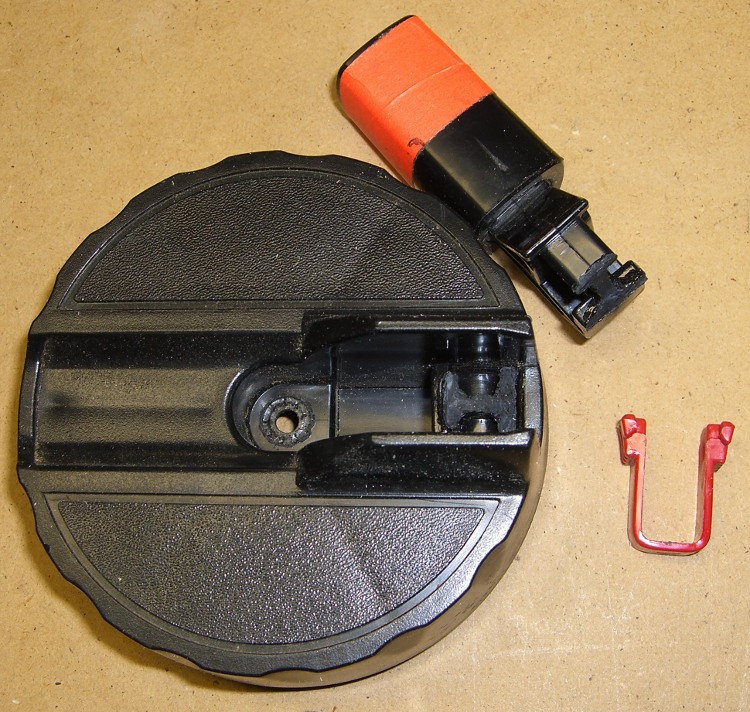
    Mary’s folks visited us for Christmas and her father brought along a shelf that needed cutting; their apartment doesn’t have room for his shop equipment, alas. I cleared the crap off the radial saw, grabbed the elevation knob to crank the blade up to get it set for ripping, and … the handle broke off.

    That’s not the first time this has happened, so I wasn’t entirely surprised. The knob is large enough that I could complete the mission just by grabbing the rim, but it was a near thing.

    The handle is made of some wonderful engineering plastic that doesn’t solvent-bond well with anything in my armory, although Plastruct had enough bite to make me think it would work. That repair actually lasted several years of admittedly low-duty-cycle use, but obviously this couldn’t continue.

    Stress raiser
    Stress raiser

    The problem seems to be built into the handle design. This pic shows that the fracture spans a high-stress part of the handle: between the inside right-angle corner (upper left) that rests on the outside of the knob, across the handle’s web, to the corner of the recess in the flange at the bottom of the picture.

    The red hoodickie is the latch that secures the handle in its deployed position, wherein it sticks out at exactly crotch height for average human males. That accounts for the fluorescent red tape around the handle.

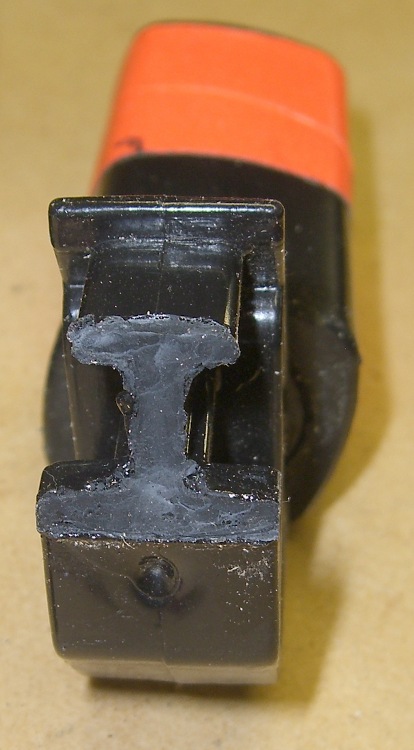
    Broken surface
    Broken surface

    You can see how the latch recess triggered the crack: that notch where the latch wraps around must be the highest-stress part of the handle. I suspect the original design didn’t have the latch (or had something different) and the fat web near the round feature on the left extended all the way to the angled flange on the right.

    That would work!

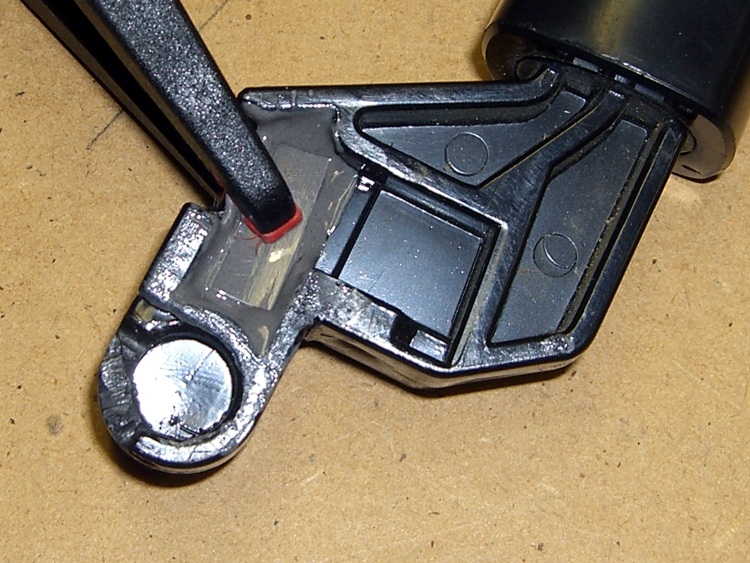
    I epoxied a pair of rectangular brass tubes across the fracture inside the web, where they fit neatly below the latch. I roughed up the web with an awl to give the epoxy more surface to grab.

    Incidentally, this is one of those cases where you might think a cyanoacrylate adhesive would work. It won’t: too much shock, too much pressure. I used it to hold the parts together while the epoxy cured, but that’s about as far as I’d trust it.

    I’d like to add something to the notch, but I’m not convinced a right-angle brass flange and some epoxy will have enough grip to make any difference. It would certainly require changing the latch, perhaps by thinning the left side, which would make that weaker. On the other paw, I can probably eke out a miserable existence without the latch.

    Brass internal reinforcement
    Brass internal reinforcement

    The picture shows the clamping in operation. A snippet of polypropylene (from some random consumer packaging) under the tip of the clamp prevents it from becoming one with the project; the clamp tip is slippery plastic, but you never know.

    Perhaps this fix will last for a few more years…

    Y’know, I’m beginning to believe that finite-element analysis will be the death of us all. Obviously this handle was modeled to a fare-thee-well, with only enough material to meet the expected stresses in the expected directions. Unfortunately, the real world doesn’t cooperate: the forces are always larger, the conditions always worse, and the materials always weaker than the design anticipated. A “safety factor” of three or four or maybe even ten just isn’t enough!

  • HP54602 Oscilloscope Trace Conversion Tweakage

    The script (writeups there and there) I use to convert the HPGL screen dumps from my HP54602 into PNG images produced a transparent background. I put the files into an OpenOffice mockup of my Circuit Cellar columns and the background turns white, so I figured it worked OK.

    Turns out that the workflow at Circuit Cellar Galactic HQ turns the background black. A bit of digging showed that the ImageMagick convert program produced an alpha channel that selected only the traces and left everything else unselected. Why that produces white here and black there is a mystery, but there’s no point in putting up with such nonsense.

    Another wrestling match produced this revision (the two changed lines are highlighted), which has no alpha channel and a white background. That ought to simplify things: an image shouldn’t depend on where it’s dropped to look right.

    #!/usr/bin/kermit +
    # Fetches screen shot from HP54602B oscilloscope
    # Presumes it's set up for plotter output...
    # Converts HPGL to PNG image
    
    set modem none
    set line /dev/ttyUSB0
    set speed 19200
    set flow rts/cts
    set carrier-watch off
    
    # Make sure we have a param
    if not defined \%1 ask \%1 {File name? }
    
    set input echo off
    set input buffer-length 200000
    
    # Wait for PRINT button to send the plot
    echo Set HP54602B for HP Plotter, FACTORS ON, 19200, DTR
    echo Press PRINT SCREEN button on HP54602B...
    
    log session "\%1.hgl"
    
    # Factors On
    input 480 \x03
    
    close session
    close
    
    echo Converting HPGL in
    echo --\%1.hgl
    echo to PNG in
    echo --\%1.png
    
    # Factors Off
    #run hp2xx -q -m png -a 1.762 -h 91 -c 14 "\%1.hgl"
    #run mogrify -density 300 -resize 200% "\%1.png"
    
    # Factors On
    run sed '/lb/!d' "\%1.hgl" > "\%1-1.hgl"
    run hp2xx -q -m eps -r 270 -a 0.447 -c 14 -f "\%1.eps" "\%1-1.hgl"
    run rm "\%1-1.hgl"
    run convert "\%1.eps" -alpha off -resize 675x452 "\%1.png"
    
    echo Finished!
    
    exit 0