The Smell of Molten Projects in the Morning

Ed Nisley's Blog: Shop notes, electronics, firmware, machinery, 3D printing, laser cuttery, and curiosities. Contents: 100% human thinking, 0% AI slop.

Tag: Improvements

Making the world a better place, one piece at a time

  • Wyze Cam vs. Xiamoi-Dafang Hacks

    The Wyze Cam is a surprisingly inexpensive camera firmly lashed to the Wyze app, with no provision for ordinary IP camera streaming. It seems to be a generic camera with custom firmware and, unsurprisingly, one can commandeer the bootloader with different firmware from a MicroSD card, thereby adding missing functions and suppressing undesired actions.

    Oddly, buying a genuine Wyze Cam directly from Wyze isn’t significantly more expensive than a generic from the usual eBay / Amazon sellers. Bonus: the legit camera arrives next week rather than in a month or two.

    I found one of my few remaining 2 GB MicroSD cards, formatted it with a 512 MB (!) FAT32 partition (per the suggestions), set up the “custom firmware” bootloader, and installed it with no issues.

    Installing the new firmware requires copying a directory tree, configuring the WiFi SSID and password in the usual wpa_supplicant, and rebooting. Works fine and, yeah, the camera now runs Linux.

    I told the router to assign a known IP address to the camera’s MAC address, set up port forwarding for port 8554 to that IP address, put the camera against the storm window in the kitchen, and rebooted everything to get it working:

    Wyze Cam in kitchen window
    Wyze Cam in kitchen window

    Unfortunately, while it works more-or-less well with browsers on the local network, it’s apparently inaccessible from outside. The router manages a DDNS name-to-IP mapping to make itself findable, the port is open, the forwarding seems correct, no image data arrives to browsers outside, and they eventually time out.

    Changing to port 8080 doesn’t help, nor does using MJPEG instead of H264 encoding.

    Even more unfortunately, the router doesn’t do hairpin connections (inside to outside to inside), so I can’t debug this mess from the Comfy Chair.

    This is a placeholder for what I’ve done while I accumulate more knowledge …

  • MPCNC: Re-Relocated Probe Camera

    Although the camera doesn’t hit anything, it seemed entirely too exposed out in front:

    MPCNC - relocated camera - front view
    MPCNC – relocated camera – front view

    So I moved it to the back, where I can’t see it and maybe won’t clobber it:

    MPCNC Re-Relocated USB Camera
    MPCNC Re-Relocated USB Camera

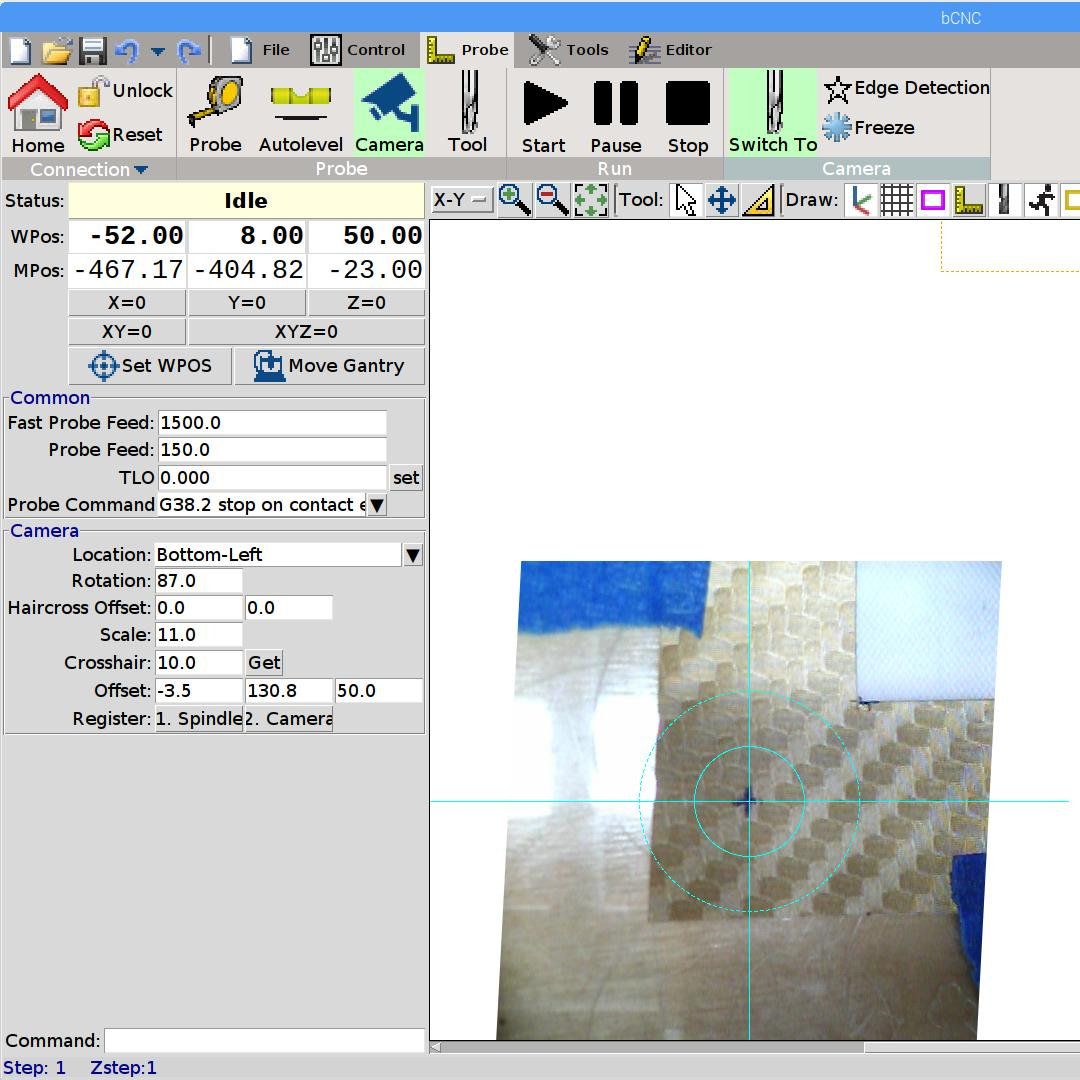
    The camera sensor is now almost exactly aligned with the XY axes, so the goofy rotation is gone and the offsets look better:

    bCNC - Rear-mount Camera Probe Config
    bCNC – Rear-mount Camera Probe Config

    The size of the “10 mm” inner circle at the crosshair depends on the target distance, so it’ll be smaller for surfaces clamped onto and thus rising above the table. Depending on how much that matters, I can tweak the camera focus and scale factor to make the answer come out right.

    The setup at the home position looked like this from a different perspective:

    MPCNC - Rear-mounted USB Camera
    MPCNC – Rear-mounted USB Camera

    No operational change, just a cleanup.

  • Troubles in PC Land

    So this happened:

    Dell Optiplex - SSD failure
    Dell Optiplex – SSD failure

    As far as I can tell, the Crucial M5500 SSD in that PC (an off-lease Dell Optiplex 760) stopped being a SATA hard drive, although it seems to work OK when jammed in a USB adapter.

    So I picked up a new-to-me Optiplex 9020 with Windows 8.1 on an SSD, shrank the partition, tried to install Xubuntu 18.04, fat-fingered the UEFI password dance, reinstalled Windows from the SSD’s recovery partition, and got this display after a while (clicky for more dots):

    Dell Optiplex - recovery disk stall
    Dell Optiplex – recovery disk stall

    After letting it stew in its own juices during supper, I forced it off (pushed the power button until it died), restarted, got through the UEFI dance, and it now seems All Good. I made recovery DVDs (remember DVDs?), both before and after the fumbled Xubuntu installation, but didn’t need them.

    I expect we’ll never boot Windows 8.1 again, but it’s there Just In Case.

  • Streamripper Setup

    The Intertubes occasionally clog up while streaming low-bit-rate audio, for no reason I can fathom, leading to discontent in the User Community when it affects quiet classical music played in the dead of night. Given that the stream from far-off Switzerland consists entirely of public-domain performances, I set up Raspbian Lite on a headless Raspberry Pi 1 Model B+ in a spot where it won’t be disturbed:

    Raspberry Pi 1 for streamripper
    Raspberry Pi 1 for streamripper

    Connecting to the Pi with a screen session, so as to allow disconnection & reconnection without anguish, I fired streamripper thusly:

    streamripper http://relay.publicdomainproject.org/classical.mp3.m3u -xs2 -o larger -u "MPlayer2" -m 30 -r -R 6 --with-id3v1
    

    The -r -R 6 options set up a relay stream on http://ripper.local:8000 for the benefit of my local streamers, so only one trickle of bits crosses the Atlantic.

    The total CPU load amounts to a percent or two, tops, so a single-core 700 MHz Pi has no trouble keeping up.

    Because streamripper slings bits in more-or-less real time, the local servers don’t get any track title data when they start up, so the OLED display doesn’t update immediately. This is less of a problem than you might think, as we’re generally not hanging on the display to find out exactly which Vivaldi bassoon concerto is playing.

    Given a suitable collection of tracks, I’ll set up an icecast server as the classical music “station” for the streamers, but that’s an adventure for another day. I also want to splice separate movements back into continuous symphonies, the way they’re suppose to be heard.

  • Refurbished LED Panels

    A recent Squidwrench meeting produced a treasure trove of discarded LED lighting, including a shoplight-style fixture in a narrow, finned aluminum extrusion. It was in “known-bad” condition, so I extracted the four LED panels, connected each one to a widowmaker cord, and determined I had two good ones, a mostly working one sporting some dead LEDs, and a corpse.

    The working panels showed the power supplies produced about 19 V across two parallel strings of six LEDs, with each string running at 350 mA for a total of 700 mA = 13 W. I wired up a quartet of 6 Ω power resistors to check out the power supplies from the suspect panels:

    LED Panel - power supply test setup
    LED Panel – power supply test setup

    The supply in the background is truly dead. I can’t tell whether it killed the LEDs or the gaggle of failing LEDs dragged it down with them.

    Some multimeter probing revealed enough live LEDs to restore the partially working panel. A rather sweaty interlude at the SqWr hot-air rework station transplanted the good LEDs, whereupon combining it with the live supply gave me a third fully functional panel:

    LED Panel - restored
    LED Panel – restored

    I did the test firing in the Basement Laboratory, because I’m nowhere near crazy enough to deploy a widowmaker line cord on the SqWr Operating Table in public.

    I bandsawed the last working LED from the gutted donor panel:

    LED Panel - single LED test
    LED Panel – single LED test

    The SMD LEDs mount on traces applied to and electrically insulated from the aluminum sheet, so unsoldering them required way more heat than you (well, I) might expect at first glance. A snap-on condenser lens over each LED concentrates the light into a nice cone, producing a narrow sheet of light from each panel.

    The elaborate aluminum extrusion seems much too heavy for the individual panels, but those open-frame supplies definitely need more than casual protection. Now that LEDs are more common than when these panels came off the assembly line, I should probably replace the supplies with enclosed constant-current drivers and be done with it.

  • GIMP Menu Verbiage

    GIMP seems to set up its menu structure during installation, with sensible, if lengthy, hardcoded addresses and menu names for your remote (network) scanner based on its host and USB port location:

    (proc-def "xsane-net-3a-plex760-2e-local-3a-genesys-3a-libusb-3a-002-3a-002" 2
    … snippage …
    (menu-path "<Image>/File/Create/Acquire/XSane/net:plex760.local:genesys:libusb:002:002")
    

    Should you happen to plug the scanner into a different PC or USB port, perhaps while replacing a failed system, then you must change those hideous strings all by yourself.

    So, for example, plugging the aforementioned scanner into a randomly chosen USB port on a new-to-me Dell Optiplex 9020 showing up as plex9020.local on the network produces this identification string:

    [ed@shiitake ~]$ scanimage -L
    device `net:plex9020.local:genesys:libusb:003:003' is a Canon LiDE 120 flatbed scanner
    

    GIMP’s ~/.gimp-2.8/pluginrc file defines the device address:

    (proc-def "xscanimage-net-3a-plex9020-2e-local-3a-genesys-3a-libusb-3a-003-3a-003" 2
    

    The -3a- string seem to be an escape sequence for the colon symbol separating parts of the address. Why we need so many different escape sequence standards mmm escapes me at the moment.

    The menu-path string defines the text appearing in the GIMP UI, so you can use a somewhat more readable generic name:

    (menu-path "<Image>/File/Create/Acquire/xscanimage/Plex9020-scanner")
    

    The ~/.gimp-2.8/menurc file contains GIMP’s keyboard accelerators, which (apparently) must match the revised proc-def strings:

    ; (gtk_accel_path "<Actions>/plug-in/xscanimage-net-3a-plex9020-2e-local-3a-genesys-3a-libusb-3a-003-3a-003" "")
    

    A keyboard accelerator for the scanner wouldn’t save any appreciable amount of time or effort, so (I think) the semicolon marks it as Disabled in the UI.

    It is remarkably easy to make a one-character typo while doing this, particularly if you’re using sed to change All. The. Strings. at once.

    There is, AFAICT, no documentation, which almost certainly means I don’t know where to look.

  • SANE Scanner vs. Xubuntu 18.04

    I recently bumped the desktop PC with the scanner from an old Mint to Xubuntu 18.04, which killed a day with all the system and UI tweakage.

    The old guides for setting up a networked SANE scanner became inoperative with systemd ruling the configurations, so, after some flailing around, I found a newer guide referencing a guide for USB scanners and pointing to a deeper guide for network sharing in the age of systemd.

    The USB guide points out the existence of Access Control Lists for the various device files, which I didn’t know was a thing. AFAICT, you must still be in the scanner group for remote access to happen.

    I lost track of the changes during all the flailing around, but it definitely didn’t Just Work.

    I’m sure all this will change before I must do it again.