The Smell of Molten Projects in the Morning

Ed Nisley's Blog: Shop notes, electronics, firmware, machinery, 3D printing, laser cuttery, and curiosities. Contents: 100% human thinking, 0% AI slop.

Tag: Arduino

All things Arduino

  • Hall Effect LED Current Control: First Light

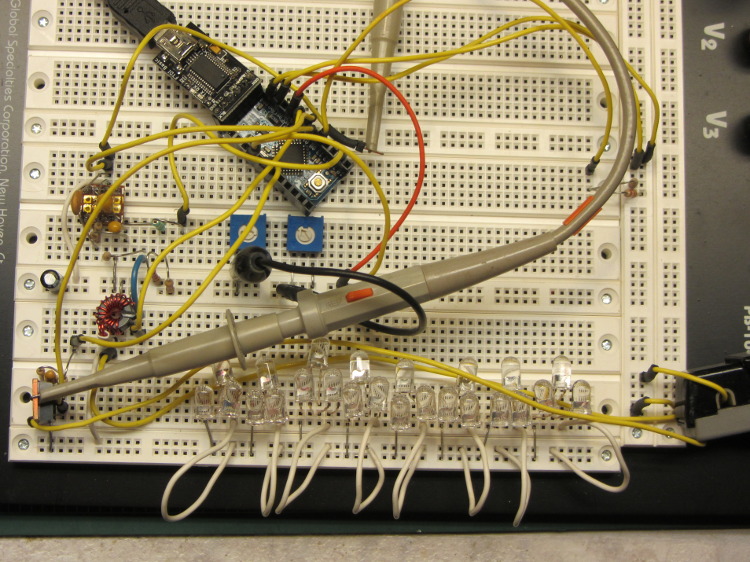
    This hideous proof-of-concept lashup gathers a bunch of stuff I’ve been investigating into what’s definitely in the running for the most over-the-top LED blinky light ever:
    Hall Effect LED Current Control - breadboard overview
    Hall Effect LED Current Control – breadboard overview

    The general idea:

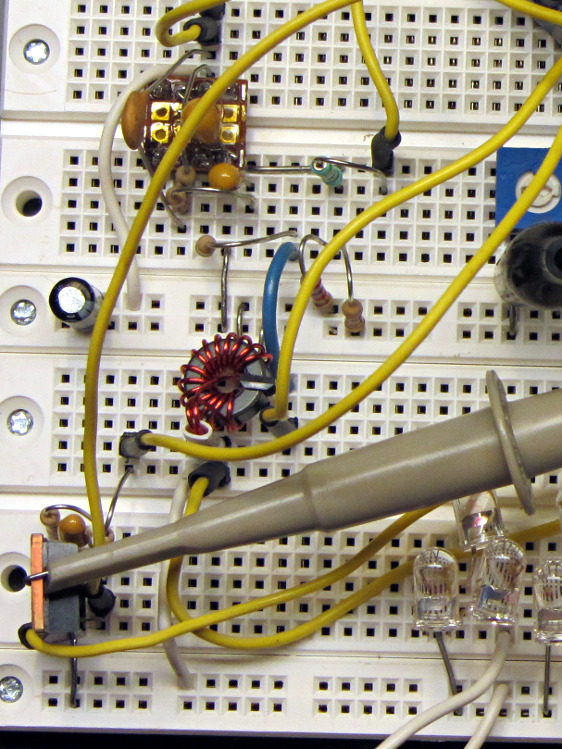
    A closer look at the key analog parts:
    Hall Effect LED Current Control - breadboard detail
    Hall Effect LED Current Control – breadboard detail

    The ferrite toroid near the middle surrounds that same “49E” Hall effect sensor. The ZVNL14 logic-level MOSFET in the lower right runs with about 2.4 V on the gate to put 120 mA through the LEDs. The cluster of parts just above it are the RC low-pass PWM filter, with the PWM running at 32 kHz. The snippet of perfboard near the top adapts a MAX4330 op amp to DIP pins. I used the twiddlepots to bring up the op amp and MOSFET circuitry by force-feeding bias and gate voltages.

    The Arduino Pro Mini closes the feedback loop from current sensor to MOSFET gate. A knockoff Arduino Pro Mini is a $5 component, in onesies, delivered halfway around the planet. For low-volume stuff like this, you just build it right in and move on; there’s no reason to lay out a PCB with an ATmega328 chip and a handful of other parts. Unless you’re worried about power consumptions, as described below.

    The schematic:

    Hall Effect Current Feedback LED Driver - prototype schematic
    Hall Effect Current Feedback LED Driver – prototype schematic

    The MAX4330 removes the Hall effect sensor’s VCC/2 bias, but it turns out the offset varies by enough from part to part and over temperature that a single twiddlepot setting won’t suffice. The RC filter near the middle of the schematic converts an Arduino PWM output into a voltage between 2.0 and 3.0 V, which puts more PWM resolution where it matters; the default 0.4% PWM steps are just too coarse. I think 16 bit PWM resolution would be A Very Good Thing here.

    The first-pass program nulls the offset once, during the startup routine, but nulling whenever the LEDs turn off would be a Good Idea. The offset steps are 8 mV, about what you’d expect from 2/5 of the nominal 20 mV PWM increments. It ramps the offset up from zero, but you’d probably want to use a binary search.

    The op amp has a voltage gain of about 28 that scales the toroid-plus-Hall-sensor output so that 500 mA in the winding produces 5 V. That gain isn’t quite high enough for the 120 mA I’m using for this collection of LEDs , but it makes the coefficient a nice round 0.10. It’d be good to have a calibrated current load, something around 100 mA, that would allow auto-calibration.

    A 50% voltage divider lets the Arduino measure the nominal 7.4 V battery voltage and decide when to lower the current or change the blink pattern or kvetch about imminent blackout or something. Knowing both the battery voltage and the resistance of the current calibration load would let the program calculate the actual current for calibration. Given two calibration loads, then you could derive both the gain and the remaining offset; that’s likely too much trouble.

    The Pro Mini board has a voltage regulator that provides +5 V for everything else in the circuit, which means putting the microcontroller into sleep mode won’t save any battery power. I think a p-channel MOSFET switch and a suicide output from the Arduino will be in order. A vibration sensor would give you auto power on and off, which would be a nice touch; MEMS sensors seem to want 3.3-ish V for supply and logic.

    The entire lashup runs at about 60 mA with the LEDs turned off, which is way too high and may include some breadboard screwups; considerable reduction will be in order before this circuit makes any sense. The Hall effect sensor costs about 4 mA all by itself, plus another milliamp in the load resistor. The microcontroller should be around 10 – 20 mA, but the datasheet makes some assumptions that aren’t true for the Arduino runtime.

    The program brute-forces the pulse timing, just to get this thing working. The main loop stalls while the LEDs are on, which is obviously a Bad Thing. The ADC conversions do some averaging, but I’m not confident it works well enough. The PWM output routine includes an entirely empirical delay to cover the filter time constants.

    The blink pattern should be in a table. Given linear current control, you can have variable brightness; a “night taillight” mode that isn’t so shatteringly bright would be a Good Idea. The table might contain gate voltages for each current level, updated during the last pulse, so that the output would be Pretty Close at the beginning; you’d measure those values during startup.

    A button or two for mode selection might be in order. Sealing buttons is always a problem, but this thing might not be totally waterproof anyway.

    But it blinks!

  • USB Current Measurement Taps

    Two quick-and-dirty Arduino Power Current Taps for the Arduino Survival Guide: Workbench Edition class I taught for SqWr a while ago. These give you the current drawn by the entire board + LEDs + whatever, so you can calculate the power dissipation in that poor on-board regulator.

    The USB version:

    USB Current Tap
    USB Current Tap

    The general idea is to cut a USB extension cable (Type A plug on one end, Type A receptacle on the other) in half, splice the two data wires, splice the ground / common wire, but connect the +5 V wires to a dual banana plug that goes into a current meter. The Big Box o’ USB Junk produced a cutoff cable end with a Type A plug and a PC jumper that was supposed to connect an internal USB header to the back panel; the red blob of silicone tape conceals the jumper’s socket strip and a five-pin male header with all the wires soldered to it.

    You could use a Type B plug that would go directly into an Arduino UNO (or similar), but I figured this way everybody can bring whatever cable they need for their particular Arduino, not all of which have bulky Type B receptacles these days.

    The External Power version:

    External Power Current Tap
    External Power Current Tap

    The coaxial power plug goes into the Arduino and whatever you used for power goes into the socket. The Big Box o’ Coaxial Power Stuff actually had a more-or-less properly sized coaxial jack with two wires on it and silicone tape wrapped around it; I regarded that as a Good Omen and pressed it into service as-is.

    These will also replace the horribly rickety collection of alligator clip leads I usually use for such measurements…

  • Arduino Survival Guide: Workbench Edition

    Pullup Voltage Divider
    Pullup Voltage Divider

    Herewith, the slides for the talk + lab session I’m doing today for Squidwrench:

    Arduino Survival Guide – Workbench Edition

    Unlike most Arduino courses, I assume you’re already OK with the programming, but are getting tired of replacing dead Arduinos and want to know how to keep them alive. The course description says it all:

    Learn how to help your Arduino survive its encounter with your project, then live long and prosper. Discover why feeding it the proper voltages, currents, and loads ensures maximum Arduino Love!

    Ed will describe some fundamental electronic concepts, guide you at the workbench while you make vital measurements, then show you how to calculate power dissipation, load current, and more. You’ll understand why Arduinos get hot, what kills output bits, and how you can finally stop buying replacements.

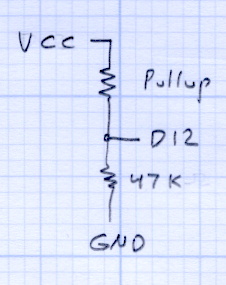
    Among other lab exercises, we’ll measure the value of the ATmega’s internal pullup resistors, which everybody assumes are 20 kΩ, but probably aren’t. Hint: you can apply Ohm’s Law twice to that simple circuit and come up with the right answer, but only if you’ve measured the actual VCC voltage on the board.

    The Mighty Thor will detail how to not prepare Fried Raspberry Pi.

    In the unlikely event you’re in Highland NY, stop by: you’re bound to learn something.

  • Marlin Firmware: Stepper Interrupt Timing

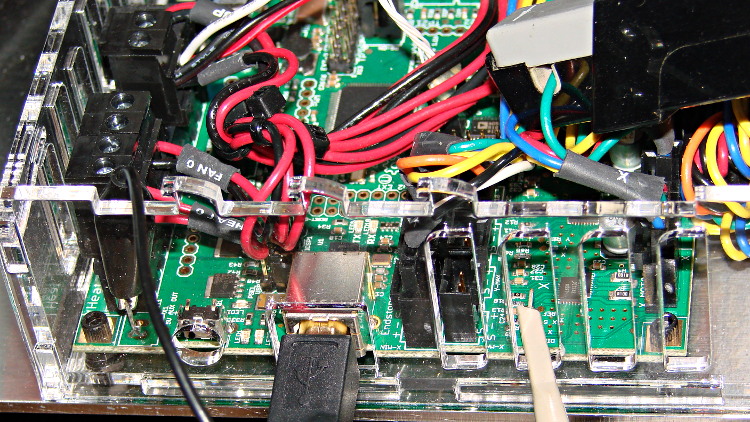
    Based on the discussion attached to the post on Z axis numbers, I wanted to take a look at the points where Marlin switches from one step per interrupt to two, then to four, just to see what the timing looks like. The RAMBo board has neatly labeled test points, to which I tack-soldered a pin for the scope probe poked through one of the ventilation slots, and an unused power connector on the left edge of the PCB that provided a ground point (admittedly, much too far away for good RF grounding, but it suffices for CMOS logic signals). The Tek Hall-effect current probe leaning in from the top right captures the current in one of the X axis windings:

    X axis Step and Current probes
    X axis Step and Current probes

    I’ve reset the Marlin constants based on first principles, per the notes on distance, speed, and acceleration, so they’re not representative of the as-shipped M2 firmware. Recapping the XY settings:

    • Distance: 88.89 step/mm
    • Speed: 450 mm/s = 27000 mm/min
    • Acceleration: 5000 mm/s2, with the overall limit at 10 m/s2

    The maximum interrupt frequency is about 10 kHz and the handler can issue zero, one, two, or four steps per axis per interrupt as required by the speed along each axis, up to a maximum of step rate of 40 kHz. There are complexities involved which I do not profess to understand.

    The maximum 10 kHz step rate for one-step-per-interrupt motion corresponds to a speed of:

    112.5 mm/s = (10000 step/s) / (88.89 step/mm)

    The maximum 40 kHz step rate produces, naturally enough, four times that speed:

    450 mm/s = (40000 step/s) / (88.89 step/mm)

    Assuming constant acceleration, the distance required to reach a given speed from a standing start or to decelerate from that speed to a complete stop is:
    x = v2 / (2 * a)

    The time required to reach that speed is:
    t = v/a

    Accelerating at 5000 mm/s2:

    • 112.5 mm/s = 6700 mm/min → 1.27 mm, 22.5 ms
    • 150 mm/s = 9000 mm/min → 2.25 mm, 30 ms
    • 450 mm/s = 27000 mm/min → 20.3 mm and 90 ms

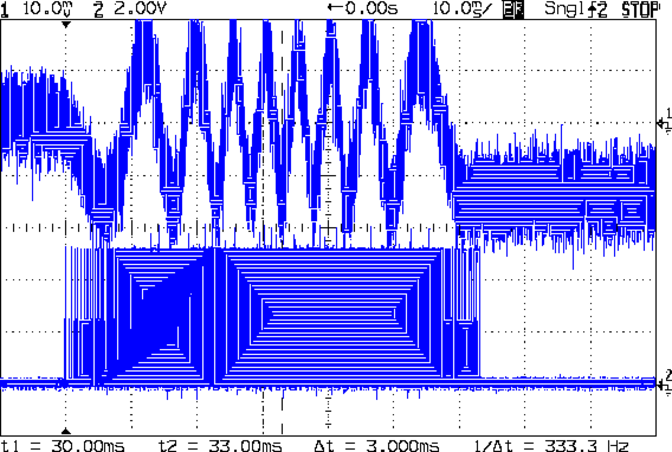
    An overview of a complete 6 mm move at 150 mm/s shows the acceleration and deceleration at each end, with a constant-speed section in the middle:

    X Axis 150 mm-s 6 mm - overview
    X Axis 150 mm-s 6 mm – overview

    The bizarre patterns in the traces come from hp2xx‘s desperate attempts to discern the meaning of the scope’s HPGL graphic data where the trace forms a solid block of color; take it as given that there’s no information in the pattern. I described the trace conversion process there.

    The upper trace shows the X axis motor winding current at a scale of 500 mA/div, with far more hash than one would expect. The RAMBo drivers evidently produce much more current noise than the brick drivers I intend to use.

    The lower trace is the X axis step signal produced by the Arduino microcontroller. You can barely make out the individual step signals at each end, but there’s not enough horizontal resolution to show them when the motor moves at a reasonable pace.

    In round numbers, the acceleration and deceleration should require about 30 ms each. The overall move takes 63 ms, so the constant-speed section in the middle must be about 3 ms long. That’s probably not right…

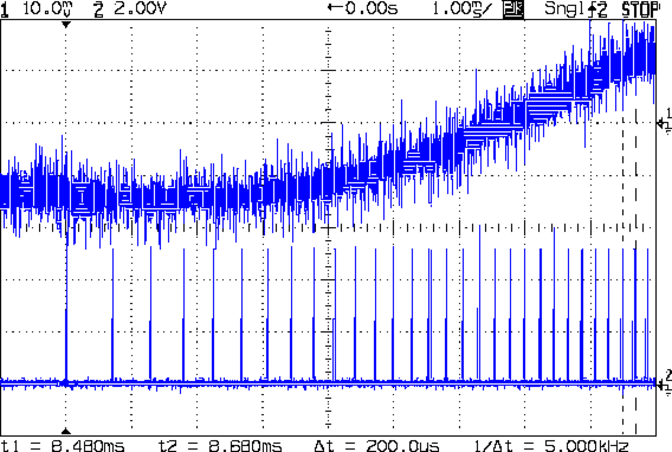
    Here’s a closer look at the step pulses as the motion starts from zero on the way to 150 mm/s:

    X Axis 150 mm-s 6 mm - 1 ms-div 0 ms dly
    X Axis 150 mm-s 6 mm – 1 ms-div 0 ms dly

    Over on the right, the 5 kHz step rate after 8.5 ms suggests a speed of 56 mm/s and counting 28 pulses says it moved 0.32 mm. Plugging those numbers into the equations:

    • a = v/t = 6600 mm/s2
    • a = (2 * x)/t2 = 8900 mm/s2

    It’s not clear (to me, anyway) whether:

    • The firmware accelerates faster than the alleged 5000 mm/s2 limit
    • It’s accelerating near the overall limit of 10000 mm/s2
    • The acceleration isn’t constant: starts high, then declines
    • The measurement accuracy doesn’t support any conclusions
    • I understand what’s happening

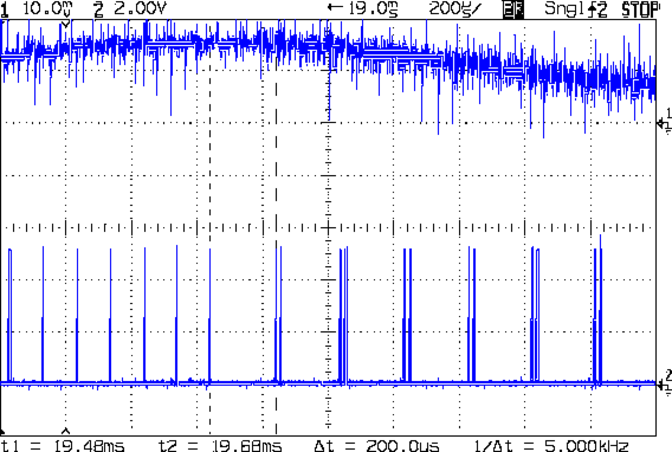
    In order to see the double- and quad-step outputs, here’s a 50 mm move at 450 mm/s, with a 19 ms delay to the point where the interrupt handler transitions from single-step to double-step output:

    X Axis 450 mm-s 50 mm - 200 us-div 19 ms dly
    X Axis 450 mm-s 50 mm – 200 us-div 19 ms dly

    The interrupt frequency drops from just under 10 kHz to a bit under 5 kHz, with the doubled pulses about 16 μs apart. At the transition, the axis speed is 112.5 mm/s, pretty much as predicted.

    If that’s the case, the overall acceleration to the transition works out to:

    5800 mm/s2 = (113 mm/s) / (19.5 ms)

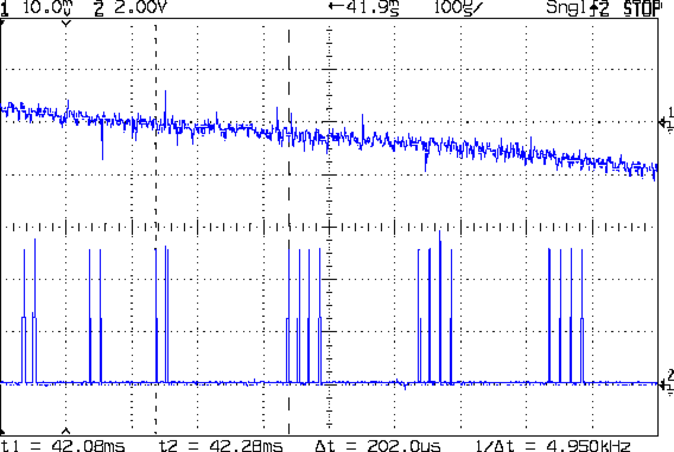
    Delaying the traces to 41.9 ms after the motion starts shows the double-to-quad step transition:

    X Axis 450 mm-s 50 mm - 100 us-div 41.9 ms dly
    X Axis 450 mm-s 50 mm – 100 us-div 41.9 ms dly

    Once again, the pulse frequency drops from 10 kHz down to 5 kHz. The speed is now 225 mm/s, half the maximum possible speed, which also makes sense: at top speed, the pulses will be essentially continuous at 40 kHz.

    The average acceleration from the start of the motion:

    5300 mm/s2 = (225 mm/s) / (42.1 ms)

    That implies the initial acceleration starts higher than the limit, but it evens out on the way to the commanded speed.

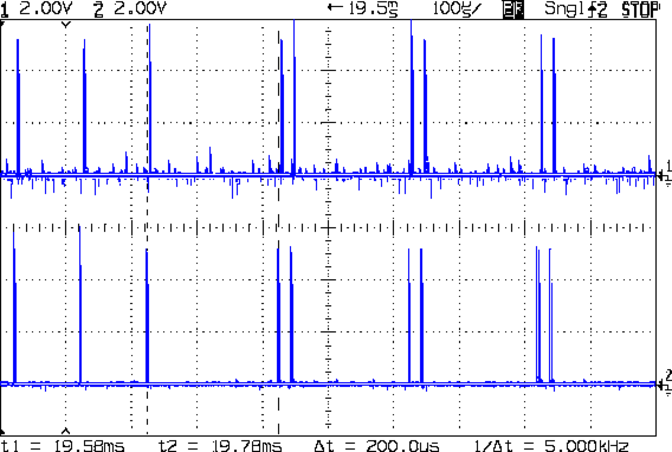
    Those scope shots come from moving only the X axis. Moving both the X and Y axes, with Trace 1 now showing the Y axis output, for 50 mm at 450 mm/s, produces similar results; the Y axis output lags the X axis by a few microseconds:

    XY 450 mm-s 50 mm - 100 us-div 19.5 ms dly
    XY 450 mm-s 50 mm – 100 us-div 19.5 ms dly

    Once again, that’s at the single- to double-step transition at 19+ ms. The overall timing doesn’t depend on how many axes are moving, as long as they can accelerate at the same pace; otherwise, the firmware must adjust the accelerations to make both axes track the intended path.

    None of this is too surprising.

    For a motor running at a constant speed just beyond the single-to-double step transition at 112.5 mm/s or the double-to-quad transition at 225 mm/s, the rotor motion should have a 5 kHz perturbation around its nominal position: it coasts for nearly the entire period, then a pair of steps kicks it toward the proper position. At those transitions, the rotor turns at:

    3.2 rev/s = (10000 step/s) / (3200 step/rev)
    6.4 rev/s = (20000 step/s) / (3200 step/rev)

    The perturbation should look like a 5 kHz oscillation (not exactly sinusoidal, maybe triangular?) superimposed on the nominal position, which is changing more-or-less parabolically as a function of time. I expect that the overall inertia damps it out pretty well, but I’d like to attach a rotary encoder to the motor shaft (or a linear encoder to the axis) to show the actual outcome, but I don’t have the machinery for that.

    In any event, LinuxCNC’s step outputs should behave better, which is why I’m doing this whole thing in the first place…

  • LED Driver + Zero-bias Photodiode Amplifier

    This may come in handy for something, like measuring LED output:

    LED Output Tester - Schematic
    LED Output Tester – Schematic

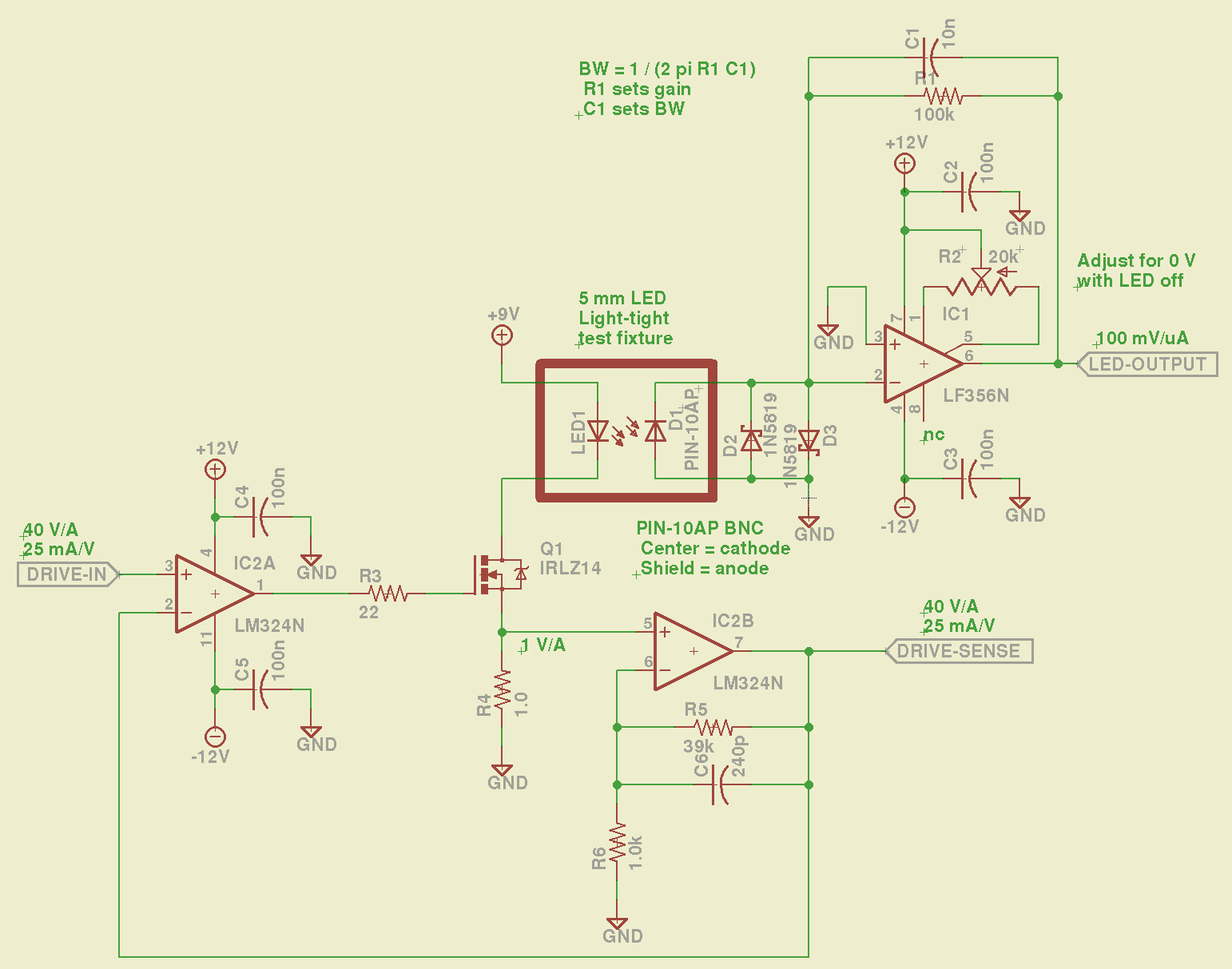
    The LM324 converts the input voltage to an LED drive current, scaled by the sense resistor and the gain of IC2B to 25 mA/V. The feedback loop closes through the MOSFET and C6 rolls off the response, so there’s a nasty overshoot on the leading edge of input pulses where the current increases faster than the op amp can tamp it down:

    Red LED - 25 mA 14 uA
    Red LED – 25 mA 14 uA

    The LM356 acts as a transimpedance amplifer to convert the photodiode current to voltage. The PIN-10AP specs say it should operate in photovoltaic mode with zero bias and that more than -3V of bias will kill the photodiode; the LM356 should hold its inverting input at virtual ground, but the two 1N5819 Schottky diodes enforce that limit. There being zero volts across the diodes, they don’t leak in either direction, so it’s all good.

    The circuit is an embarrassing hairball on solderless breadboard, so use your imagination…

    You could mash this together with the LED Curve Tracer, although you’d want better low-current resolution from the Arduino output.

  • Makergear M2 vs. LinuxCNC: Project Overview

    M2 - cushwa Owl - half scale
    M2 – cushwa Owl – half scale

    During the course of my Makerbot Thing-O-Matic experience, I concluded:

    • Enthusiasm may get a product out, but engineering makes it work
    • Plywood and plastic do not produce a stable 3D printer
    • Measurements matter
    • 8-bit microcontrollers belong in the dustbin of history

    With that in mind, I’ve long thought that LinuxCNC (formerly EMC2) would provide a much better basis for the control software required for a 3D printer than the current crop of Arduino-based microcontrollers. LinuxCNC provides:

    • Hard real time motion control with proven performance
    • A robust, well-defined hardware interface layer
    • Ladder-logic machine control
    • Isolated userspace programming
    • Access to a complete Linux distro’s wealth of programs / utilities
    • Access to an x86 PC’s wealth of hardware gadgetry

    Rather than (try to) force-fit new functions in an Arduino microcontroller, I decided it would be interesting to retrofit a DIY 3D printer with a LinuxCNC controller, improve the basic hardware control and sensing, instrument the extruder, then take measurements that might shed some light on DIY 3D printing’s current shortcomings.

    The overall plan looks like this:

    • Start with a Makergear M2
    • See what the stock hardware can do
    • Replace the RAMBo controller with LinuxCNC
    • See what the hardware can do with better drivers
    • Adapt the G-Code / M-Code processing to use more-or-less stock Marlin G-Code
    • Add useful controllers along the lines of the Joggy Thing
    • Improve the platform height / level sensing
    • Rebuild the extruder with temperature and force sensors
    • Start taking measurements!

    My reasons for choosing the Makergear M2 as the basis for this project should be obvious:

    • All metal: no plywood, no acrylic (albeit a plastic filament drive)
    • Decent stepper motors (with one notable exception)
    • Reasonable hot end design
    • Good reputation

    The first step of the overall plan included a meticulously documented M2 build that I figured would take a month or two, what with the usual snafus and gotchas that accompany building any complex mechanism. Quite by coincidence, a huge box arrived on my birthday (the Thing-O-Matic arrived on Christmas Eve, so perhaps this is a tradition), the day when I learned that Mad Phil had entered his final weeks of life.

    As the Yiddish proverb puts it: If you wish to hear G*d laugh, tell him of your plans.

    So I converted a box of parts into a functional M2 3D printer over the course of four intense days, alternating between our living room floor and a card table in Phil’s home office, showing him how things worked, getting his advice & suggestions, and swapping “Do you remember when?” stories. Another few days sufficed for software installation, configuration, and basic tuneup; I managed to show him some shiny plastic doodads just before he departed consensus reality; as nearly as I can tell, we both benefited from the distractions.

    Which means I don’t have many pictures or much documentation of the in-process tweakage that produced a functional printer. The next week or so of posts should cover the key points in enough detail to be useful.

    Not to spoil the plot or anything: a stock M2 works wonderfully well.

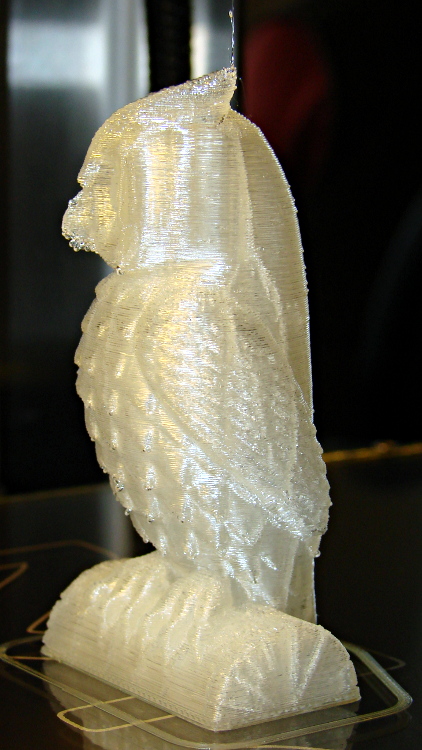
    Owl - half size - left
    Owl – half size – left

    For example, a half-scale cushwa owl printed in PLA at 165 °C with no bed cooling and these Slic3r parameters:

    • 500 mm/s move
    • 300 mm/s infill
    • 200 mm/s solid infill
    • 100 mm/s internal perimeter
    • 50 mm/s bottom layer
    • 30 mm/s external perimeter
    • 1 mm retract @ 300 mm/s

    The beak came out slightly droopy and each downward-pointing feather dangles a glittery drop. There’s room for improvement, but that’s pretty good a week after opening a box o’ parts…

  • LED Forward Voltages vs. Color

    Running a random set of colored LEDs from the Basement Laboratory Parts Warehouse Wing through the LED Curve Tracer produced this pleasant plot:

    ROYGBUIW

    The white LED doesn’t match up with either the blue or the UV LED. Perhaps the blue LED uses a completely different chemistry that shoves further to the right than seems proper? I suppose I should run a handful of white, blue, and UV LEDs through the thing just to see what’s going on…

    The Bash / Gnuplot source code:

    #!/bin/sh
    numLEDs=8
    #-- overhead
    export GDFONTPATH="/usr/share/fonts/truetype/"
    base="${1%.*}"
    echo Base name: ${base}
    ofile=${base}.png
    echo Input file: $1
    echo Output file: ${ofile}
    #-- do it
    gnuplot << EOF
    #set term x11
    set term png font "arialbd.ttf" 18 size 950,600
    set output "${ofile}"
    set title "${base}"
    set key noautotitles
    unset mouse
    set bmargin 4
    set grid xtics ytics
    set xlabel "Forward Voltage - V"
    set format x "%4.1f"
    set xrange [0.5:4.5]
    #set xtics 0,5
    set mxtics 2
    #set logscale y
    #set ytics nomirror autofreq
    set ylabel "Current - mA"
    set format y "%3.0f"
    set yrange [0:35]
    set mytics 2
    #set y2label "right side variable"
    #set y2tics nomirror autofreq 2
    #set format y2 "%3.0f"
    #set y2range [0:200]
    #set y2tics 32
    #set rmargin 9
    set datafile separator whitespace
    set label 1 "IR" at 1.32,32 center
    set label 2 "R"  at 1.79,32 center
    set label 3 "O"  at 2.10,32 center
    set label 4 "Y"  at 2.65,32 center
    set label 5 "G"  at 2.42,32 center
    set label 6 "B"  at 4.05,32 center
    set label 7 "UV" at 3.90,32 center
    set label 8 "W"  at 3.25,32 center
    #set arrow from 2.100,32 to 2.125,31 lt 1 lw 2 lc 0
    plot \
     "$1" index 0 using (\$5/1000):(\$2/1000) with linespoints pt 1 lw 2 lc rgb "red" ,\
     "$1" index 1 using (\$5/1000):(\$2/1000) with linespoints pt 1 lw 2 lc rgb "orange" ,\
     "$1" index 2 using (\$5/1000):(\$2/1000) with linespoints pt 1 lw 2 lc rgb "dark-yellow" ,\
     "$1" index 3 using (\$5/1000):(\$2/1000) with linespoints pt 1 lw 2 lc rgb "green" ,\
     "$1" index 4 using (\$5/1000):(\$2/1000) with linespoints pt 1 lw 2 lc rgb "blue" ,\
     "$1" index 5 using (\$5/1000):(\$2/1000) with linespoints pt 1 lw 2 lc rgb "purple" ,\
     "$1" index 6 using (\$5/1000):(\$2/1000) with linespoints pt 1 lw 2 lc rgb "magenta" ,\
     "$1" index 7 using (\$5/1000):(\$2/1000) with linespoints pt 1 lw 2 lc rgb "dark-gray"
    EOF
    

    And the raw data file:

    # LED Curve Tracer
    # Ed Nisley - KE4ZNU - March 2013
    # VCC at LED: 4897 mV
    # Bandgap reference voltage: 1041 mV
    
    # Insert LED, press button 1 to start...
    # INOM	ILED		VccLED	VD	VLED		VG	VS	VGS VDS <--- LED 1
    0	0	4892		3889		1002		0	0	0	3889
    5	4613		4892		3264		1627		1990		48	1942		3216
    10	10148	4892		3216		1675		2092		106 1985		3109
    15	15223	4892		3182		1709		2199		159 2039		3022
    20	19836	4892		3148		1743		2271		208 2063		2940
    25	24910	4897		3129		1767		2354		261 2092		2867
    30	30446	4897		3104		1792		2431		319 2111		2785
    
    # Insert LED, press button 1 to start...
    # INOM	ILED		VccLED	VD	VLED		VG	VS	VGS VDS <--- LED 2
    0	0	4892		3884		1007		0	0	0	3884
    5	4613		4892		3124		1767		1985		48	1937		3075
    10	9687		4897		3037		1860		2111		101 2010		2935
    15	14761	4897		2964		1932		2189		155 2034		2809
    20	19836	4897		2906		1990		2271		208 2063		2697
    25	24910	4897		2848		2048		2349		261 2087		2586
    30	30446	4892		2794		2097		2431		319 2111		2475
    
    # Insert LED, press button 1 to start...
    # INOM	ILED		VccLED	VD	VLED		VG	VS	VGS VDS <--- LED 3
    0	0	4892		3826		1065		0	0	0	3826
    5	4613		4897		2862		2034		1990		48	1942		2814
    10	10148	4897		2688		2208		2097		106 1990		2581
    15	15223	4897		2552		2344		2194		159 2034		2392
    20	19836	4892		2436		2455		2276		208 2068		2228
    25	24910	4897		2349		2547		2354		261 2092		2087
    30	29985	4897		2257		2639		2426		314 2111		1942
    
    # Insert LED, press button 1 to start...
    # INOM	ILED		VccLED	VD	VLED		VG	VS	VGS VDS <--- LED 4
    0	0	4892		3734		1157		0	0	0	3734
    5	5074		4892		2935		1956		1976		53	1922		2882
    10	10148	4897		2823		2073		2102		106 1995		2717
    15	15223	4892		2722		2170		2199		159 2039		2562
    20	20297	4897		2649		2247		2276		213 2063		2436
    25	24910	4897		2567		2329		2349		261 2087		2305
    30	29985	4897		2489		2407		2426		314 2111		2174
    
    # Insert LED, press button 1 to start...
    # INOM	ILED		VccLED	VD	VLED		VG	VS	VGS VDS <--- LED 5
    0	0	4892		4485		406 0	0	0	4485
    5	4613		4897		1724		3172		1990		48	1942		1675
    10	10148	4892		1443		3448		2097		106 1990		1336
    15	15223	4897		1249		3647		2199		159 2039		1089
    20	19836	4892		1099		3792		2276		208 2068		891
    25	24910	4897		983 3913		2354		261 2092		721
    30	29985	4892		862 4030		2426		314 2111		547
    
    # Insert LED, press button 1 to start...
    # INOM	ILED		VccLED	VD	VLED		VG	VS	VGS VDS <--- LED 6
    0	0	4892		4165		726 0	0	0	4165
    5	5074		4892		1448		3443		1985		53	1932		1395
    10	10148	4897		1322		3574		2102		106 1995		1215
    15	15223	4892		1220		3671		2194		159 2034		1060
    20	20297	4892		1147		3744		2276		213 2063		934
    25	25372	4892		1075		3816		2354		266 2087		808
    30	29985	4892		1002		3889		2426		314 2111		687
    
    # Insert LED, press button 1 to start...
    # INOM	ILED		VccLED	VD	VLED		VG	VS	VGS VDS <--- LED 7
    0	0	4892		4247		644 0	0	0	4247
    5	5074		4892		3647		1244		1981		53	1927		3594
    10	10148	4892		3618		1273		2107		106 2000		3511
    15	14761	4892		3603		1288		2170		155 2015		3448
    20	20297	4892		3584		1307		2271		213 2058		3371
    25	25372	4892		3574		1317		2354		266 2087		3308
    30	29523	4892		3565		1327		2412		310 2102		3255
    
    # Insert LED, press button 1 to start...
    # INOM	ILED		VccLED	VD	VLED		VG	VS	VGS VDS <--- LED 8
    0	0	4892		4945		-53 0	0	0	4945
    5	5074		4892		2160		2731		1985		53	1932		2107
    10	10148	4892		2034		2857		2097		106 1990		1927
    15	15223	4897		1927		2969		2194		159 2034		1767
    20	19836	4892		1826		3066		2271		208 2063		1617
    25	25372	4897		1734		3162		2349		266 2082		1467
    30	29523	4892		1666		3225		2412		310 2102		1356
    
    # Insert LED, press button 1 to start...