The Smell of Molten Projects in the Morning

Ed Nisley's Blog: Shop notes, electronics, firmware, machinery, 3D printing, laser cuttery, and curiosities. Contents: 100% human thinking, 0% AI slop.

Tag: Arduino

All things Arduino

  • Cheap WS2812 LEDs: Another Failure

    A few days after epoxying a replacement WS2812 RGB LED into the base of the 21HB5A and, en passant, soldering a 3.5 mm plug-and-jack into the plate lead for EZ removal, the top LED failed.

    21HB5A - Audio plug cable
    21HB5A – Audio plug cable

    In this case, it also failed the Josh Sharpie test with bad encapsulation sealing:

    WS2812 LED failure - ink test patterns
    WS2812 LED failure – ink test patterns

    Here’s a view from another angle, with a warm-white desk lamp for a bit of color:

    WS2812 LED failure - ink test patterns - 2
    WS2812 LED failure – ink test patterns – 2

    Those patterns took a few days to appear and also showed up in some, but not all, of the previous failing LEDs.

    Although I have no idea what’s going on, it’s certainly distinctive!

    An envelope of RGBW LEDs, allegedly with SK2812 controllers, has arrived from a different eBay supplier, so it’s time for an upgrade.

  • Cheap WS2812 LEDs: Test Fixture Failure 1

    Well, that didn’t take long:

    WS2812 array - failure 1
    WS2812 array – failure 1

    The red spot in the next-to-bottom row of the test fixture (*) marks a failed WS2812 LED. All of the LEDs above it, plus the LED just to its left, are in pinball panic mode: random colors flicker across the panel as the LED’s controller transmits garbled data and the downstream LEDs pass it on.

    This failure provides several bits of information:

    • The LED sees the same power supply as all the rest, so it’s not a power thing
    • The LED gets data from the adjacent WS2812, so it’s not an Arduino output thing
    • It failed after about four days = 100 hours of continuous operation

    I connected the previous LED’s output (#6) to the next one’s input (#8), so the failed LED (#7, now with output disconnected) continues to flicker, but doesn’t influence any of the downstream LEDs.

    (*) The LEDs are daisy-chained from lower right to upper left, row by row, so that’s LED #7 of 28.

  • Cheap WS2812 LEDs: Test Fixture Current

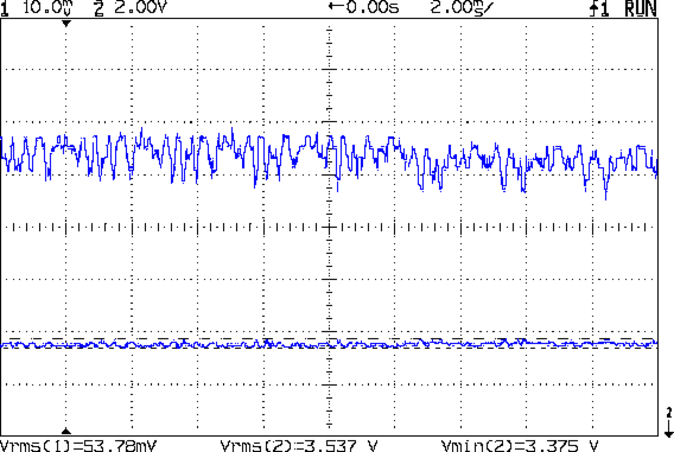
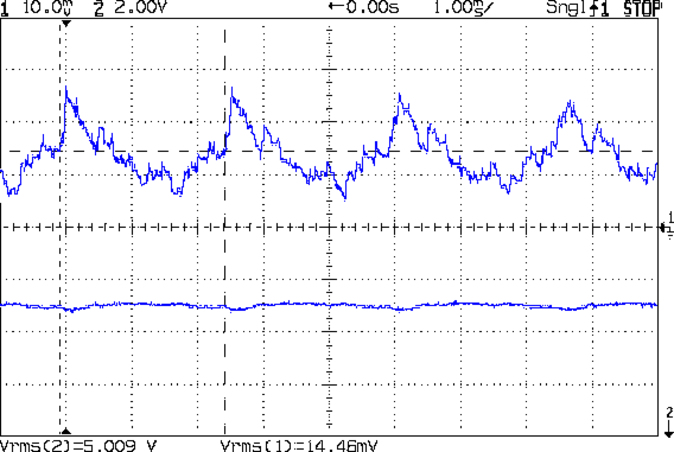
    With the WS2812 test fixture neatly mounted, I plugged it into a six-port USB charger allegedly capable of supplying 2.4 A per port and captured a trace with nearly all 28 LEDs displaying full white:

    WS2812 4x7 array - 200 mA VCC - all on
    WS2812 4×7 array – 200 mA VCC – all on

    At 200 mA/div, the top trace shows a bit under 1.2 A, a bit under the 1.68 A = 28 × 60 mA you’d expect; in round numbers, each RGB pixel draws 43 mA. Actually, the WS2812 specs don’t specify the maximum / typical LED current and, on belief and evidence, I doubt these units meet any particular specs you’d care to cite.

    Also, the supply voltage (measured across the LED array “bus bar” wires) hits 3.37 V, well under the 5 V you’d expect from a USB charger and less than the 3.5 V called for by the WS2812 specs. Although the WS2812 nominally limits the LED current, there’s no telling how it varies with supply voltage.

    A cheap USB 1 A wall-wart charger produced far more hash:

    WS2812 4x7 array - 200 mA VCC - all on - cheap 1A wart - 20 uF
    WS2812 4×7 array – 200 mA VCC – all on – cheap 1A wart – 20 uF

    That’s with an additional 20 µF of tantalum capacitance across the power bus bars. The peak current looks like 1.4 A, with marginally more supply voltage at 3.56 V.

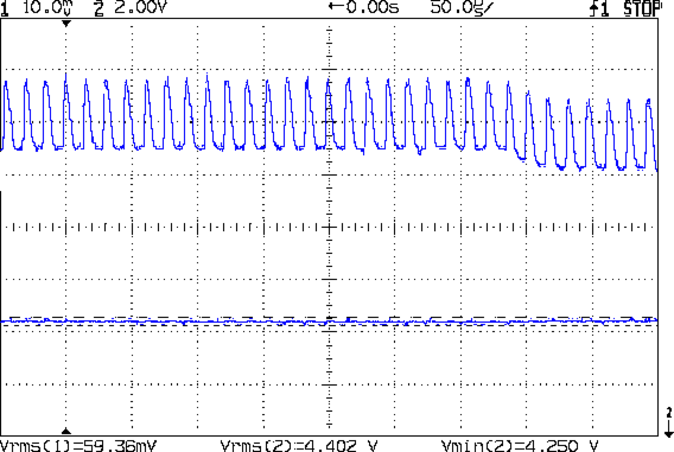
    Bumping the trace speed shows the wall wart produces nasty current spikes, at what must be the poor thing’s switching speed, as it desperately tries to produce enough juice for the LEDs:

    WS2812 4x7 array - 200 mA VCC 50 us - all on - cheap 1A wart - 20 uF
    WS2812 4×7 array – 200 mA VCC 50 us – all on – cheap 1A wart – 20 uF

    The step over on the right looks like a single RGB LED going dark, as it’s about 50 mA tall.

    The output voltage doesn’t show the same spikes, so the LED array acts like a constant-voltage load. Given that the WS2812 probably connects all the LEDs pretty much straight across the supply, that’s not far from the truth: we’re looking at the forward drop of those blue LEDs.

    Now, to let it cook away in the cool and the dark of the Basement Laboratory…

  • Cheap WS2812 LEDs: Test Fixture Mount

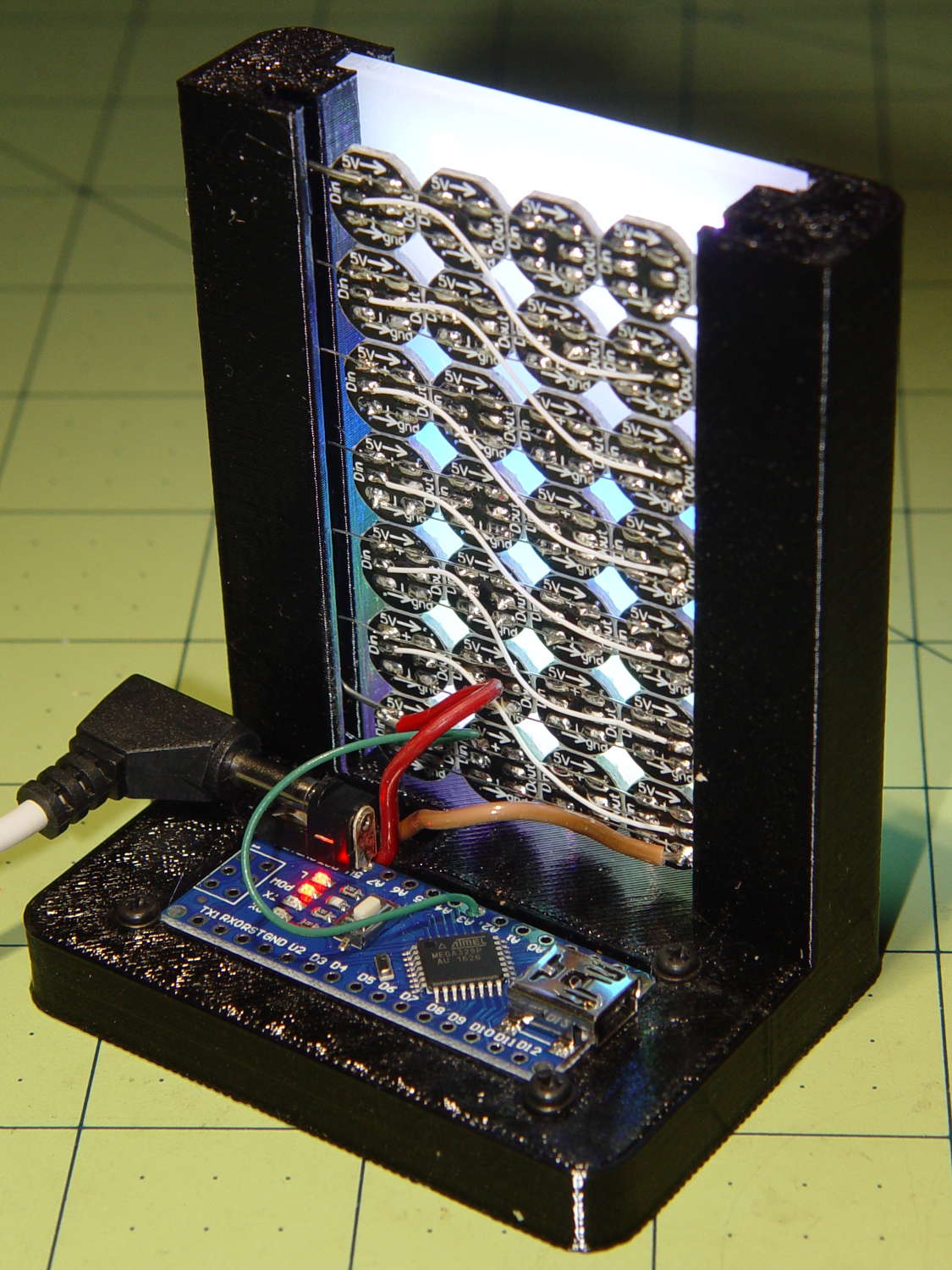
    Mounting the ungainly WS2812 LED test fixture seemed like a Good Idea to keep the electricity out of the usual conductive litter:

    WS2812 array test fixture - rear
    WS2812 array test fixture – rear

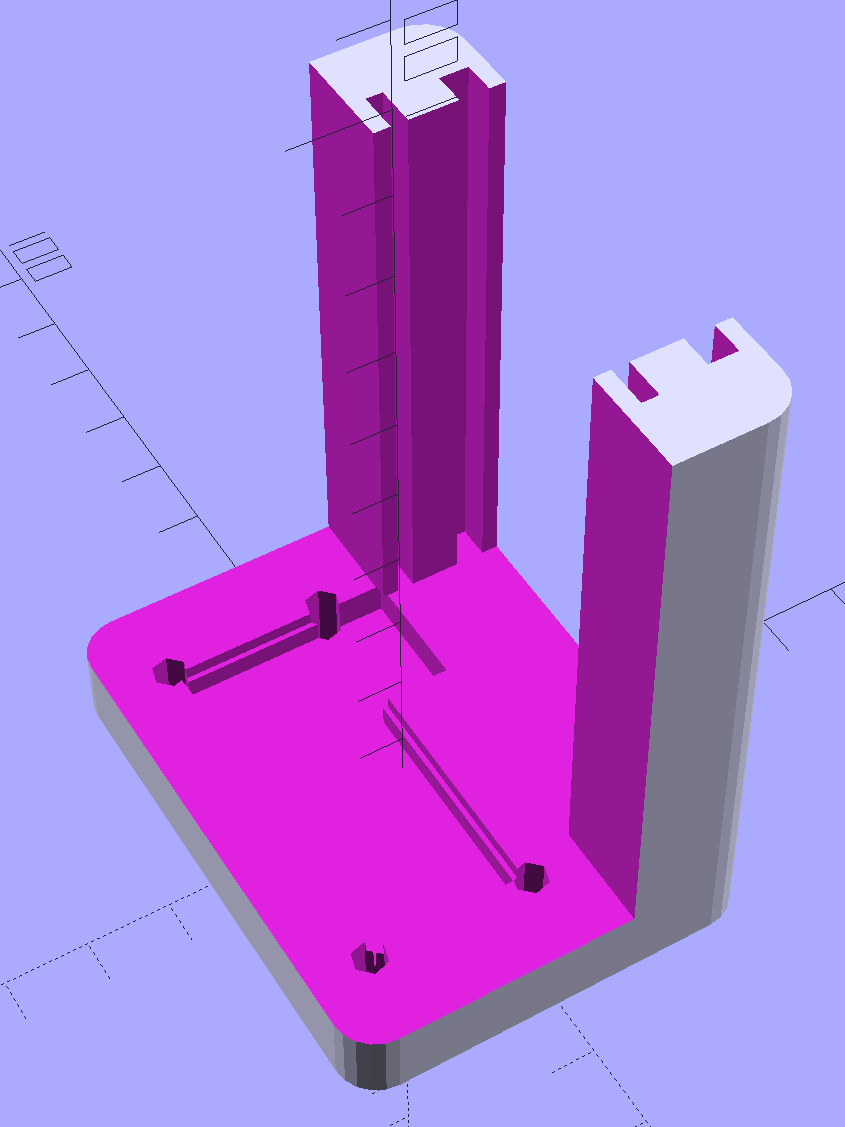
    The solid model shows more details:

    LED Test Fixture - solid model
    LED Test Fixture – solid model

    The power wires along the array edges slide into the rear (thinner) slot, with enough friction from a few gentle bends to hold the whole mess in place.

    The knockoff Arduino Nano rests on the recessed ledge in the pit, with M2 screws and washers at the corners holding it down (the PCB’s built-in holes might work with 1 mm or 0-90 screws, but that’s just crazy talk). I soldered the power wires directly to the coaxial jack pins under the PCB; they snake out to the LEDs through the little trench. There should be another cutout around the USB connector for in-situ programming, although the existing code works fine.

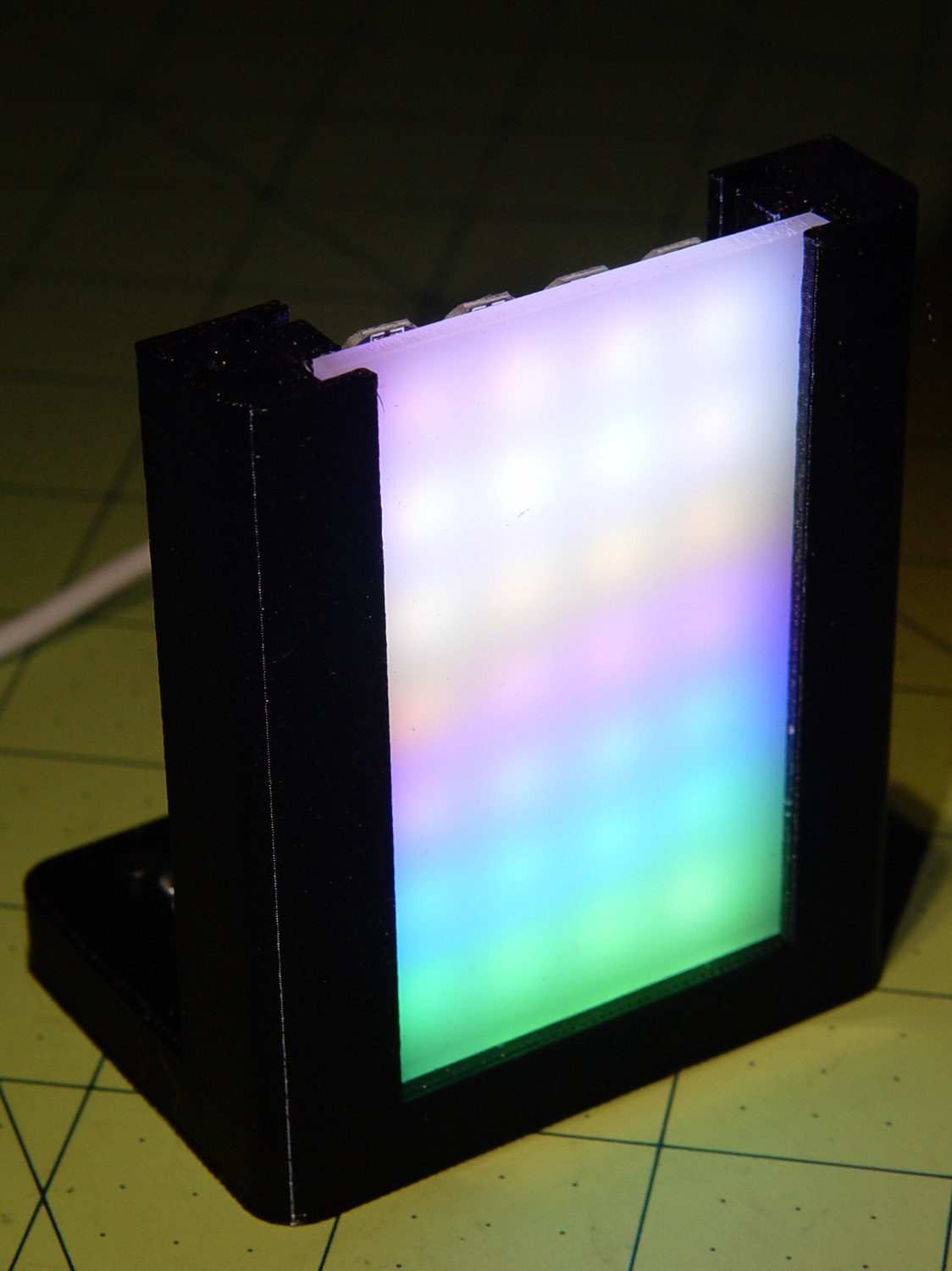
    The front (wider) slot holds a piece of translucent white acrylic to diffuse the light:

    WS2812 array test fixture - front flash
    WS2812 array test fixture – front flash

    It’s painfully bright: a few layers of neutral density filter would be appropriate for a desk toy.

    The array runs hot enough at MaxPWM = 255 to produce a gentle upward breeze.

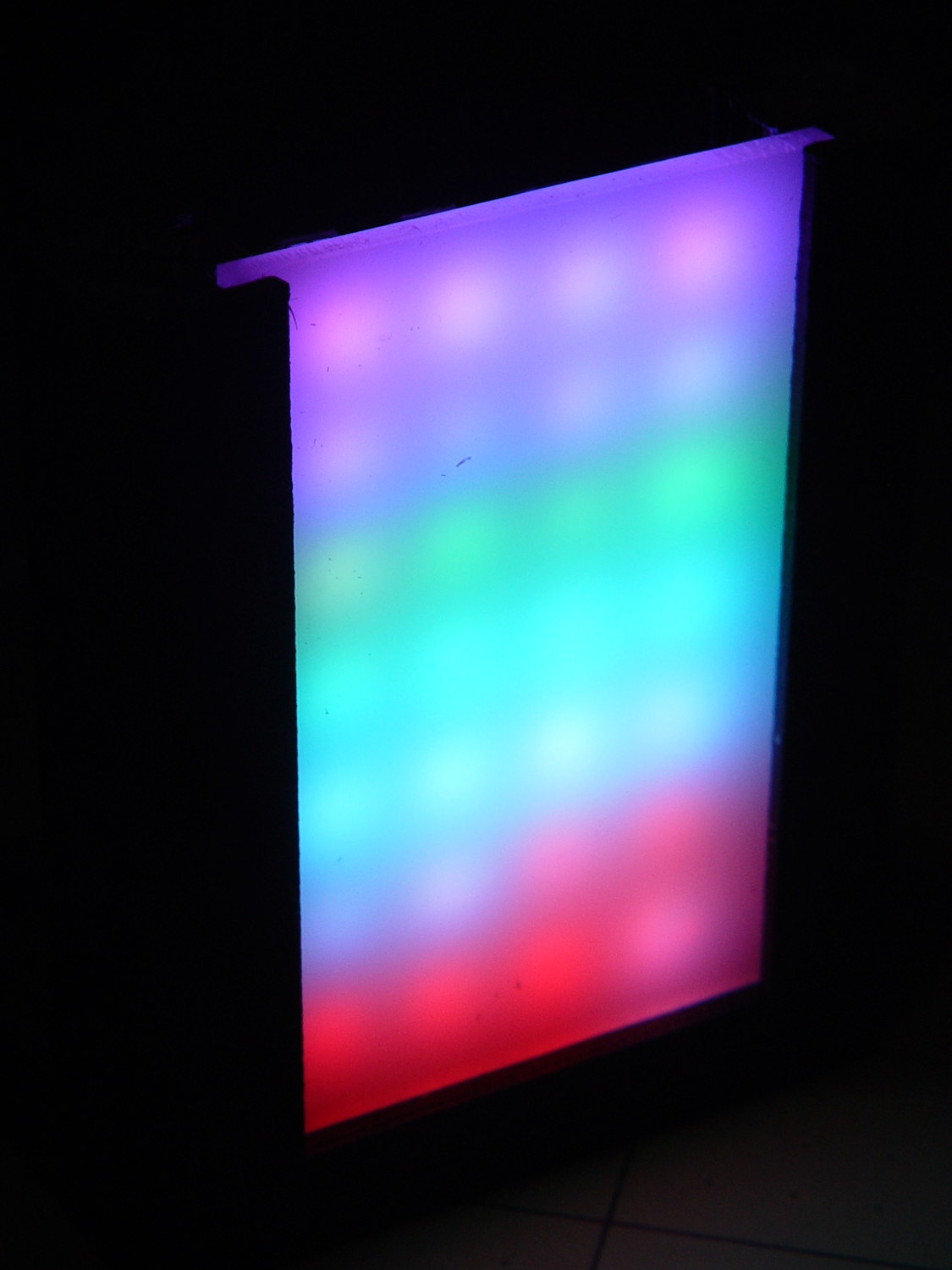
    It looks even better without the flash:

    WS2812 array test fixture - front dark
    WS2812 array test fixture – front dark

    You’ll find many easier ways to get RGB LED panels, but that’s not the point here; I’m waiting for these things to die an unnatural death.

    The OpenSCAD source code as a GitHub Gist:

    // LED Test Fixture
    // Ed Nisley KE4ZNU – February 2017
    ClampFlange = true;
    Channel = false;
    //- Extrusion parameters – must match reality!
    ThreadThick = 0.25;
    ThreadWidth = 0.40;
    function IntegerMultiple(Size,Unit) = Unit * ceil(Size / Unit);
    Protrusion = 0.1;
    HoleWindage = 0.2;
    //- Screw sizes
    ID = 0;
    OD = 1;
    LENGTH = 2;
    Insert = [2.8,3.5,4.0]; // M2 threaded insert
    ScrewOD = 2.0;
    WasherOD = 5.0;
    //- Component sizes
    PCBSize = [18.0,43.5,1.6]; // microcontroller PCB
    PCBClear = 2*[ThreadWidth,ThreadWidth,0]; // clearance around board
    PCBShelf = [ThreadWidth,ThreadWidth,0]; // shelf under perimeter
    PCBCavity = PCBSize – PCBShelf + [0,0,2.5]; // support shelf around bottom parts
    LEDPanel = [70,40,4.0]; // lying flat, LEDs upward
    LEDWire = [LEDPanel[0],LEDPanel[1] + 2*5.0,2.0]; // power wires along sides
    Diffuser = [LEDPanel[0],LEDPanel[1] + 2*4.0,3.5];
    echo(str("Diffuser panel: ",Diffuser));
    WallThick = 8.0;
    BaseThick = 3*ThreadThick + Insert[LENGTH] + PCBCavity[2];
    Block = [3*WallThick + PCBSize[0] + LEDPanel[2] + Diffuser[2],
    2*WallThick + IntegerMultiple(max(PCBSize[1],LEDWire[1]),5),
    BaseThick + LEDPanel[0]];
    echo(str("Block: ",Block));
    CornerRadius = 5.0;
    NumSides = 4*5;
    //- Adjust hole diameter to make the size come out right
    module PolyCyl(Dia,Height,ForceSides=0) { // based on nophead's polyholes
    Sides = (ForceSides != 0) ? ForceSides : (ceil(Dia) + 2);
    FixDia = Dia / cos(180/Sides);
    cylinder(r=(FixDia + HoleWindage)/2,h=Height,$fn=Sides);
    }
    //- Build it
    difference() {
    hull() // main block with rounded corners
    for (i=[-1,1], j=[-1,1])
    translate([i*(Block[0]/2 – CornerRadius),j*(Block[1]/2 – CornerRadius),,0])
    cylinder(r=CornerRadius,h=Block[2],$fn=NumSides);
    translate([2*WallThick + PCBSize[0] – Block[0],
    0,
    (Block[2]/2 + BaseThick)])
    cube(Block + [0,2*Protrusion,0],center=true); // cut out over PCB
    translate([WallThick + (PCBSize + PCBClear)[0]/2 – Block[0]/2,
    0,
    0]) {
    translate([0,0,(BaseThick + (Protrusion – PCBSize[2])/2)])
    cube(PCBSize + PCBClear + [0,0,Protrusion],center=true); // PCB recess
    translate([0,0,(BaseThick + (Protrusion – PCBCavity[2])/2)])
    cube(PCBCavity + [0,0,Protrusion],center=true); // cavity under PCB
    translate([PCBSize[0]/2 + WallThick/2 – Protrusion/2,PCBSize[1]/2 – 15/2,BaseThick – PCBCavity[2]/2 + Protrusion/2])
    cube([WallThick + PCBShelf[0] + Protrusion,
    15,PCBCavity[2] + Protrusion],center=true); // wiring cutout
    for (i=[-1,1], j=[-1,1]) // screw inserts
    translate([i*(PCBSize[0] + ScrewOD)/2,j*(PCBSize[1] + ScrewOD)/2,-Protrusion])
    rotate(180/(2*6))
    PolyCyl(Insert[OD],BaseThick + 2*Protrusion,6);
    }
    resize([2*Block[0],0,LEDPanel[0] + Protrusion]) // LED panel outline
    translate([0,0,BaseThick])
    rotate([0,-90,0])
    translate([(LEDPanel[0] + Protrusion)/2,0,0])
    cube(LEDPanel + [Protrusion,0,0],center=true);
    translate([-Block[0]/2 + 2*WallThick + PCBSize[0] + LEDWire[2]/2 + 5*ThreadWidth,
    0,BaseThick]) // LED wiring recess
    rotate([0,-90,0])
    translate([(LEDWire[0] + Protrusion)/2,0,0])
    cube(LEDWire + [Protrusion,0,0],center=true);
    translate([Block[0]/2 – Diffuser[2]/2 – 5*ThreadWidth,0,BaseThick]) // diffuser
    rotate([0,-90,0])
    translate([(Diffuser[0] + Protrusion)/2,0,0])
    cube(Diffuser + [Protrusion,0,0],center=true);
    }
  • Cheap WS2812 LEDs: Test Fixture

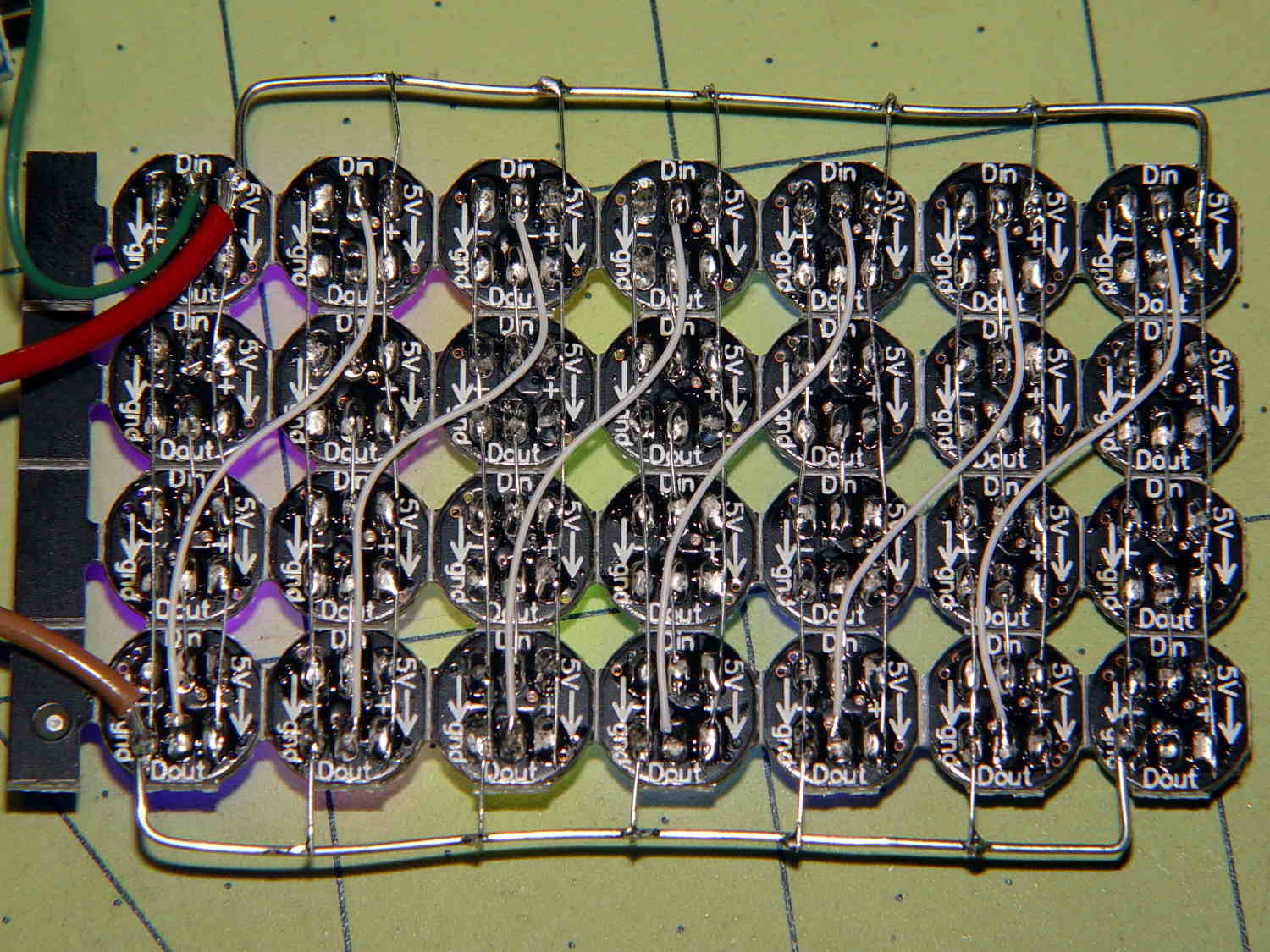
    Given that I no longer trust any of the knockoff Neopixels, I wired the remaining PCB panel into a single hellish test fixture:

    WS2812 4x7 LED test fixture - wiring
    WS2812 4×7 LED test fixture – wiring

    The 22 AWG wires deliver +5 V and Common, with good old-school Wire-Wrap wire passing to the four LEDs betweem them. The data daisy chain snakes through the entire array.

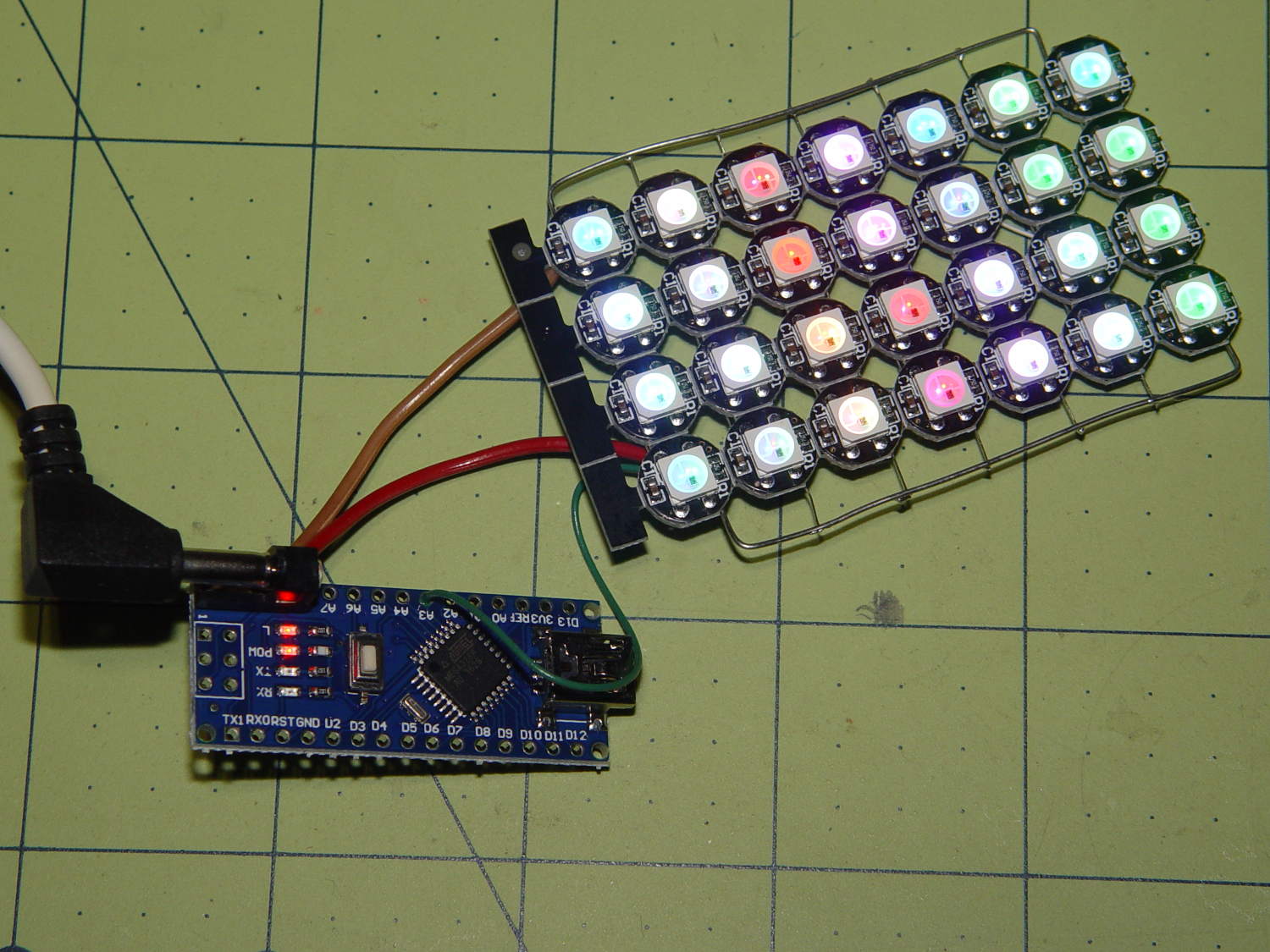
    It seems only fitting to use a knockoff Arduino Nano as the controller:

    WS2812 4x7 LED test fixture - front
    WS2812 4×7 LED test fixture – front

    The code descends from an early version of the vacuum tube lights, gutted of all the randomizing and fancy features. It updates the LEDs every 20 ms and, with only 100 points per cycle, the colors tick along fast enough reassure you (well, me) that the thing is doing something: the pattern takes about 20 seconds from one end of the string to the other.

    At full throttle the whole array draws 1.68 A = 60 mA × 28 with all LEDs at full white, which happens only during the initial lamp test and browns out the supply (literally: the blue LEDs fade out first and produce an amber glow). The cheap 5 V 500 mA power supply definitely can’t power the entire array at full brightness.

    The power supply current waveform looks fairly choppy, with peaks at the 400 Hz PWM frequency:

    WS2812 4x7 array - 200 mA VCC
    WS2812 4×7 array – 200 mA VCC

    With the Tek current probe set at 200 mA/div, the upper trace shows 290 mA RMS. That’s at MaxPWM = 127, which reduces the average current but doesn’t affect the peaks. At full brightness the average current should be around 600 mA, a tad more than the supply can provide, but maybe it’ll survive; the bottom trace shows a nice average, but the minimum hits 4.6 V during peak current.

    Assuming that perversity will be conserved as usual, none of the LEDs will fail for as long as I’m willing to let them cook.

    The Arduino source code as a GitHub Gist:

    // WS2812 LED array exerciser
    // Ed Nisley – KE4ANU – February 2017
    #include <Adafruit_NeoPixel.h>
    //———-
    // Pin assignments
    const byte PIN_NEO = A3; // DO – data out to first Neopixel
    const byte PIN_HEARTBEAT = 13; // DO – Arduino LED
    //———-
    // Constants
    #define UPDATEINTERVAL 20ul
    const unsigned long UpdateMS = UPDATEINTERVAL – 1ul; // update LEDs only this many ms apart minus loop() overhead
    // number of steps per cycle, before applying prime factors
    #define RESOLUTION 100
    // phase difference between LEDs for slowest color
    #define BASEPHASE (PI/16.0)
    // LEDs in each row
    #define NUMCOLS 4
    // number of rows
    #define NUMROWS 7
    #define NUMPIXELS (NUMCOLS * NUMROWS)
    #define PINDEX(row,col) (row*NUMCOLS + col)
    //———-
    // Globals
    // instantiate the Neopixel buffer array
    Adafruit_NeoPixel strip = Adafruit_NeoPixel(NUMPIXELS, PIN_NEO, NEO_GRB + NEO_KHZ800);
    uint32_t FullWhite = strip.Color(255,255,255);
    uint32_t FullOff = strip.Color(0,0,0);
    struct pixcolor_t {
    byte Prime;
    unsigned int NumSteps;
    unsigned int Step;
    float StepSize;
    float TubePhase;
    byte MaxPWM;
    };
    // colors in each LED
    enum pixcolors {RED, GREEN, BLUE, PIXELSIZE};
    struct pixcolor_t Pixels[PIXELSIZE]; // all the data for each pixel color intensity
    unsigned long MillisNow;
    unsigned long MillisThen;
    //– Figure PWM based on current state
    byte StepColor(byte Color, float Phi) {
    byte Value;
    Value = (Pixels[Color].MaxPWM / 2.0) * (1.0 + sin(Pixels[Color].Step * Pixels[Color].StepSize + Phi));
    // Value = (Value) ? Value : Pixels[Color].MaxPWM; // flash at dimmest points
    // printf("C: %d Phi: %d Value: %d\r\n",Color,(int)(Phi*180.0/PI),Value);
    return Value;
    }
    //– Helper routine for printf()
    int s_putc(char c, FILE *t) {
    Serial.write(c);
    }
    //——————
    // Set the mood
    void setup() {
    pinMode(PIN_HEARTBEAT,OUTPUT);
    digitalWrite(PIN_HEARTBEAT,LOW); // show we arrived
    Serial.begin(57600);
    fdevopen(&s_putc,0); // set up serial output for printf()
    printf("WS2812 array exerciser\r\nEd Nisley – KE4ZNU – February 2017\r\n");
    /// set up Neopixels
    strip.begin();
    strip.show();
    // lamp test: run a brilliant white dot along the length of the strip
    printf("Lamp test: walking white\r\n");
    strip.setPixelColor(0,FullWhite);
    strip.show();
    delay(250);
    for (int i=1; i<NUMPIXELS; i++) {
    digitalWrite(PIN_HEARTBEAT,HIGH);
    strip.setPixelColor(i-1,FullOff);
    strip.setPixelColor(i,FullWhite);
    strip.show();
    digitalWrite(PIN_HEARTBEAT,LOW);
    delay(250);
    }
    strip.setPixelColor(NUMPIXELS – 1,FullOff);
    strip.show();
    delay(250);
    // fill the array, row by row
    printf(" … fill\r\n");
    for (int i=0; i < NUMROWS; i++) { // for each row
    digitalWrite(PIN_HEARTBEAT,HIGH);
    for (int j=0; j < NUMCOLS; j++) {
    strip.setPixelColor(PINDEX(i,j),FullWhite);
    strip.show();
    delay(100);
    }
    digitalWrite(PIN_HEARTBEAT,LOW);
    }
    // clear to black, column by column
    printf(" … clear\r\n");
    for (int j=NUMCOLS-1; j>=0; j–) { // for each column
    digitalWrite(PIN_HEARTBEAT,HIGH);
    for (int i=NUMROWS-1; i>=0; i–) {
    strip.setPixelColor(PINDEX(i,j),FullOff);
    strip.show();
    delay(100);
    }
    digitalWrite(PIN_HEARTBEAT,LOW);
    }
    delay(1000);
    // set up the color generators
    MillisNow = MillisThen = millis();
    printf("First random number: %ld\r\n",random(10));
    Pixels[RED].Prime = 11;
    Pixels[GREEN].Prime = 7;
    Pixels[BLUE].Prime = 5;
    printf("Primes: (%d,%d,%d)\r\n",Pixels[RED].Prime,Pixels[GREEN].Prime,Pixels[BLUE].Prime);
    unsigned int PixelSteps = (unsigned int) ((BASEPHASE / TWO_PI) *
    RESOLUTION * (unsigned int) max(max(Pixels[RED].Prime,Pixels[GREEN].Prime),Pixels[BLUE].Prime));
    printf("Pixel phase offset: %d deg = %d steps\r\n",(int)(BASEPHASE*(360.0/TWO_PI)),PixelSteps);
    Pixels[RED].MaxPWM = 127;
    Pixels[GREEN].MaxPWM = 127;
    Pixels[BLUE].MaxPWM = 127;
    for (byte c=0; c < PIXELSIZE; c++) {
    Pixels[c].NumSteps = RESOLUTION * (unsigned int) Pixels[c].Prime;
    Pixels[c].Step = (3*Pixels[c].NumSteps)/4;
    Pixels[c].StepSize = TWO_PI / Pixels[c].NumSteps; // in radians per step
    Pixels[c].TubePhase = PixelSteps * Pixels[c].StepSize; // radians per tube
    printf("c: %d Steps: %5d Init: %5d",c,Pixels[c].NumSteps,Pixels[c].Step);
    printf(" PWM: %3d Phi %3d deg\r\n",Pixels[c].MaxPWM,(int)(Pixels[c].TubePhase*(360.0/TWO_PI)));
    }
    }
    //——————
    // Run the mood
    void loop() {
    MillisNow = millis();
    if ((MillisNow – MillisThen) > UpdateMS) {
    digitalWrite(PIN_HEARTBEAT,HIGH);
    unsigned int AllSteps = 0;
    for (byte c=0; c < PIXELSIZE; c++) { // step to next increment in each color
    if (++Pixels[c].Step >= Pixels[c].NumSteps) {
    Pixels[c].Step = 0;
    printf("Color %d steps %5d at %8ld delta %ld ms\r\n",c,Pixels[c].NumSteps,MillisNow,(MillisNow – MillisThen));
    }
    AllSteps += Pixels[c].Step; // will be zero only when all wrap at once
    }
    if (0 == AllSteps) {
    printf("Grand cycle at: %ld\r\n",MillisNow);
    }
    for (int k=0; k < NUMPIXELS; k++) { // for each pixel
    byte Value[PIXELSIZE];
    for (byte c=0; c < PIXELSIZE; c++) { // … for each color
    Value[c] = StepColor(c,-k*Pixels[c].TubePhase); // figure new PWM value
    // Value[c] = (c == RED && Value[c] == 0) ? Pixels[c].MaxPWM : Value[c]; // flash highlight for tracking
    }
    uint32_t UniColor = strip.Color(Value[RED],Value[GREEN],Value[BLUE]);
    strip.setPixelColor(k,UniColor);
    }
    strip.show();
    MillisThen = MillisNow;
    digitalWrite(PIN_HEARTBEAT,LOW);
    }
    }
    view raw ArrayTest.ino hosted with ❤ by GitHub
  • Vacuum Tube Lights: Poughkeepsie Day School Mini Maker Faire 2016

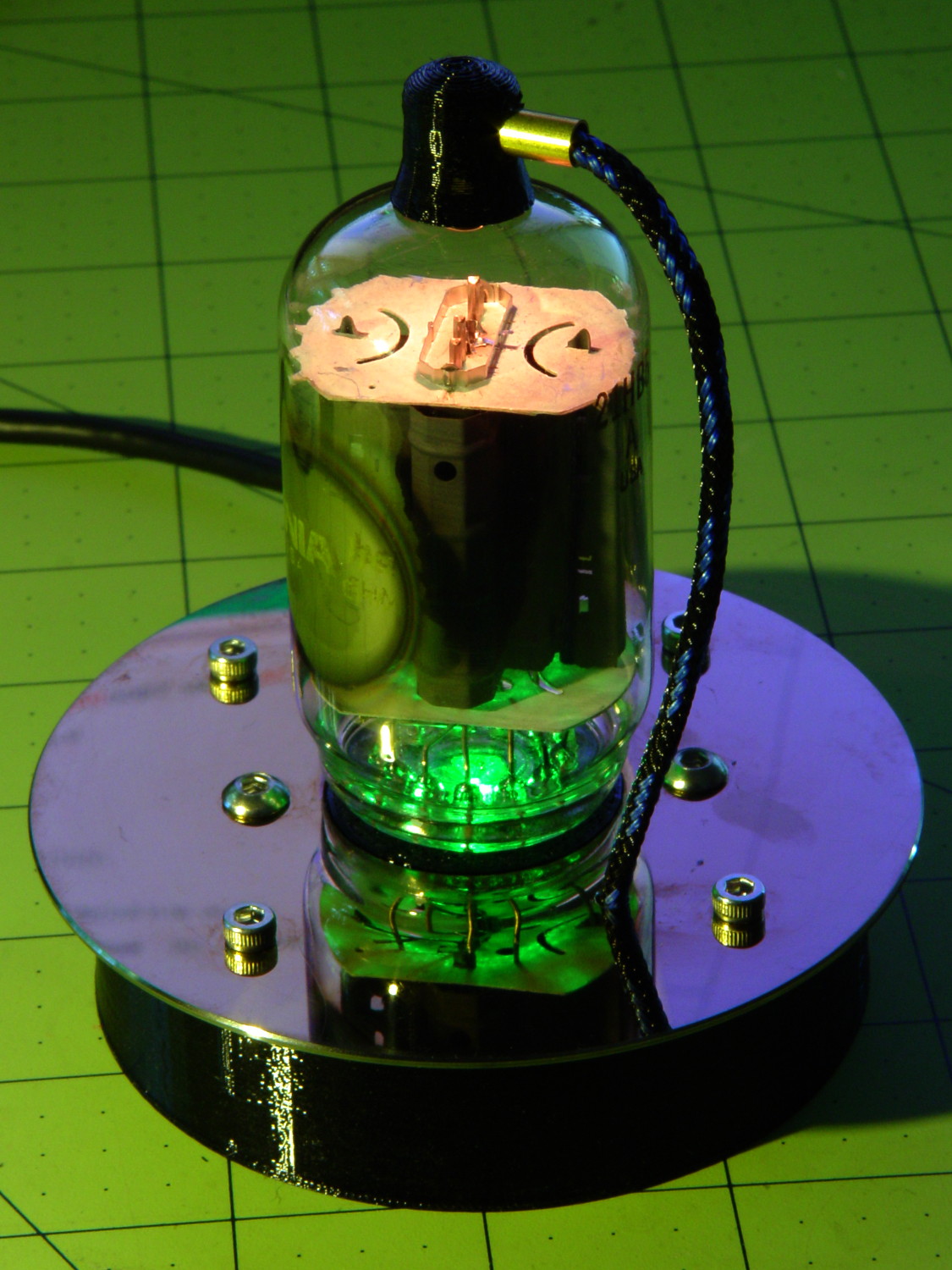
    Should you be around Poughkeepsie today, drop in on the Poughkeepsie Day School’s Mini Maker Faire, where I’ll be showing off some glowy LED goodness:

    21HB5A on platter - orange green
    21HB5A on platter – orange green

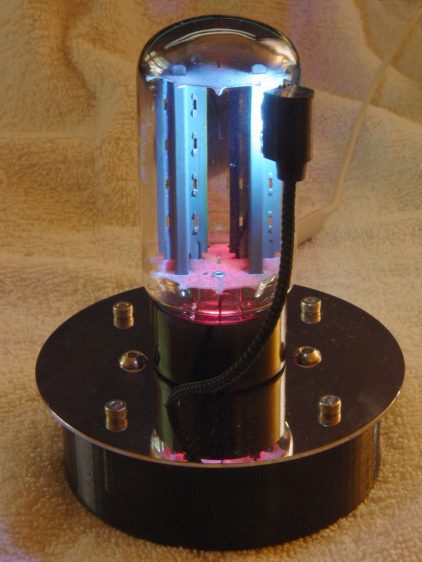
    The 5U4GB side lighted dual rectifier looks pretty good after I increased the phase between the two LEDs:

    5U4GB Full-wave vacuum rectifier - cyan red phase
    5U4GB Full-wave vacuum rectifier – cyan red phase

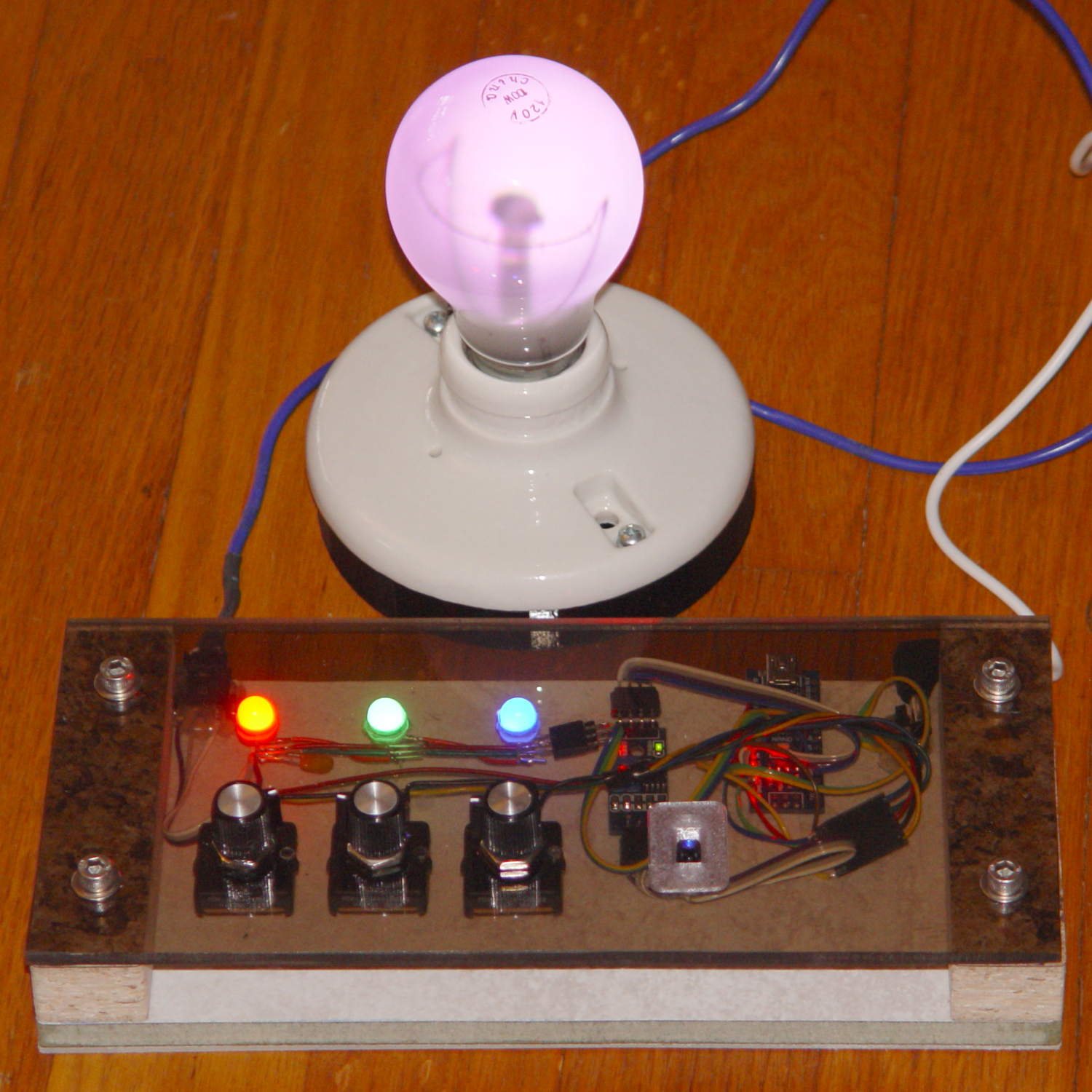
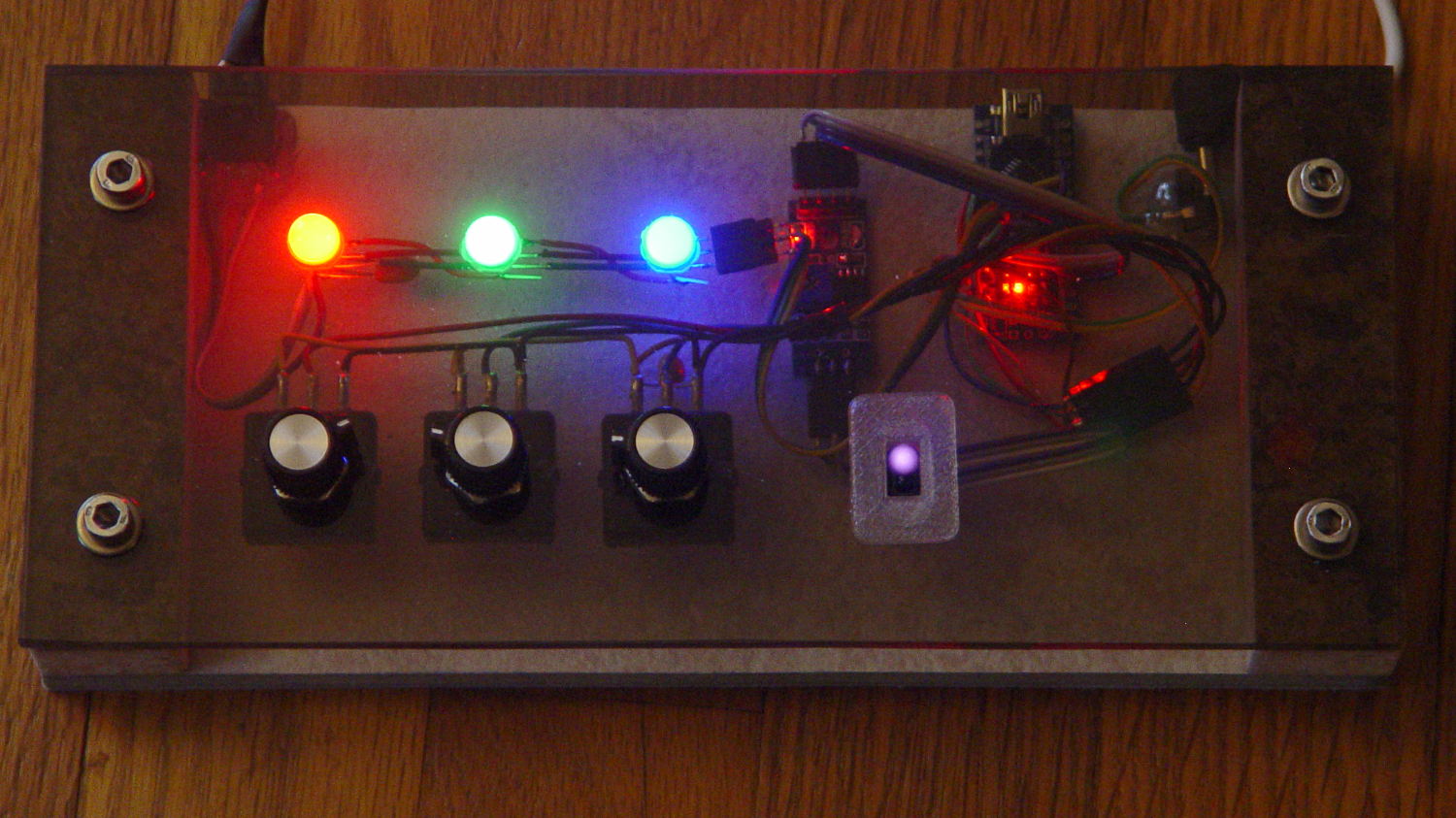
    A gaggle of glowing vacuum tubes makes for a rather static display, though, so I conjured a color mixer so folks could play with the colors:

    Color mixer - overview
    Color mixer – overview

    Three analog potentiometers set the intensity of the pure RGB colors on the 8 mm Genuine Adafruit Neopixels. A closer look at the circuitry shows it’s assembled following a freehand “the bigger the blob, the better the job” soldering technique:

    Color mixer - controls
    Color mixer – controls

    The blended RGB color from a fourth Neopixel backlights the bulb to project a shadow of the filament on the front surface:

    Color mixer - bulb detail
    Color mixer – bulb detail

    It’s worth noting that the three Genuine Adafruit 8 mm Neopixels have a nonstandard RGB color layout, while the knockoff 5050 SMD Neopixel on the bulb has the usual GRB layout. You can’t mix-n-match layouts in a single Neopixel string, so a few lines of hackage rearrange the R and G values to make the mixed colors come out right.

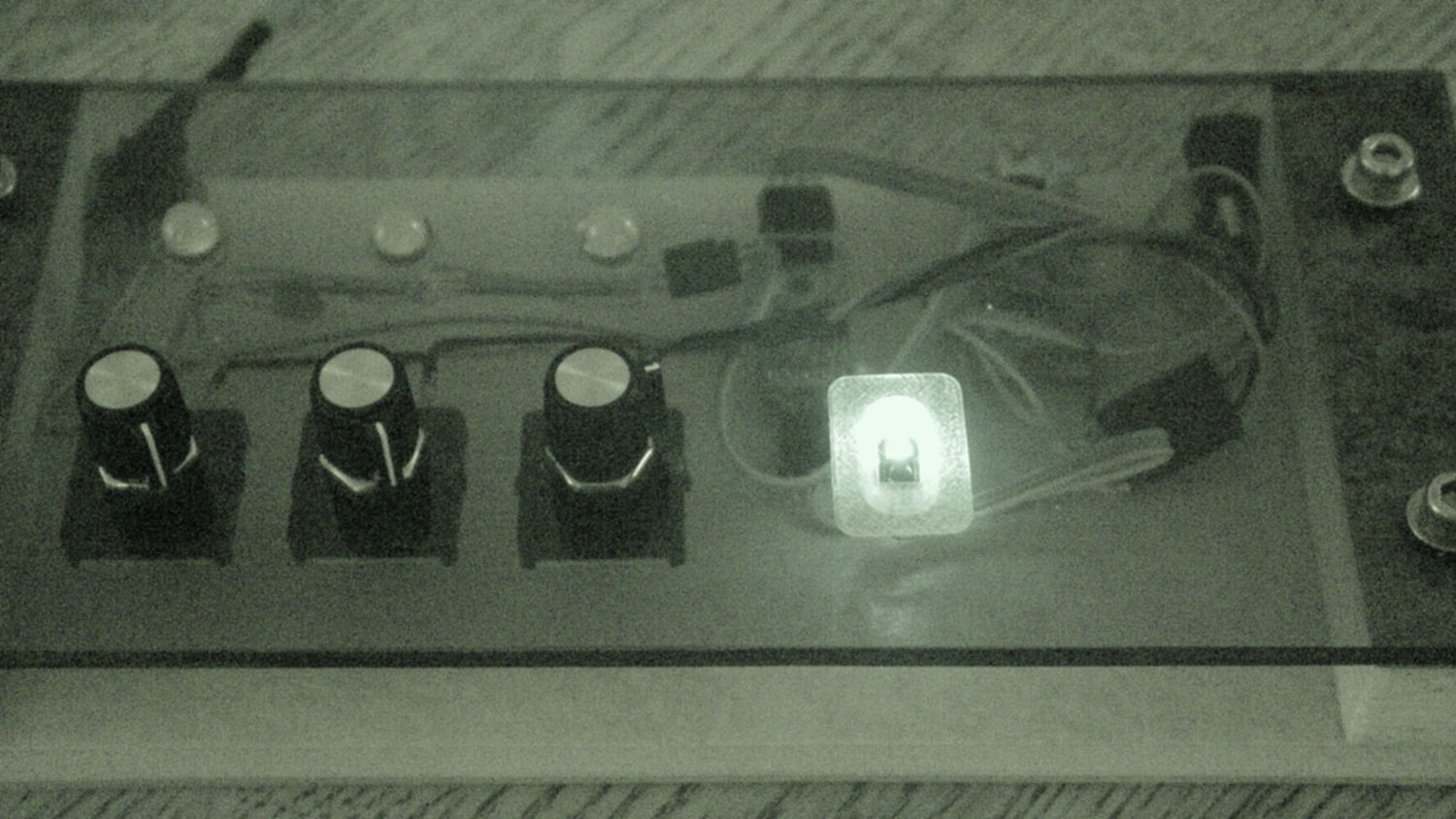
    An IR proximity sensor lets you invert the colors with the wave of a fingertip to send Morse code in response to (some of) the vacuum tubes on display nearby. The sensor glows brightly in pure IR, with all the other LEDs going dark:

    Color mixer - controls - IR image
    Color mixer – controls – IR image

    The switch sits in a little printed bezel to make it big enough to see. The slight purple glow in the visible-light picture comes from the camera’s IR sensitivity; you can’t see anything with your (well, my) unaided eyes.

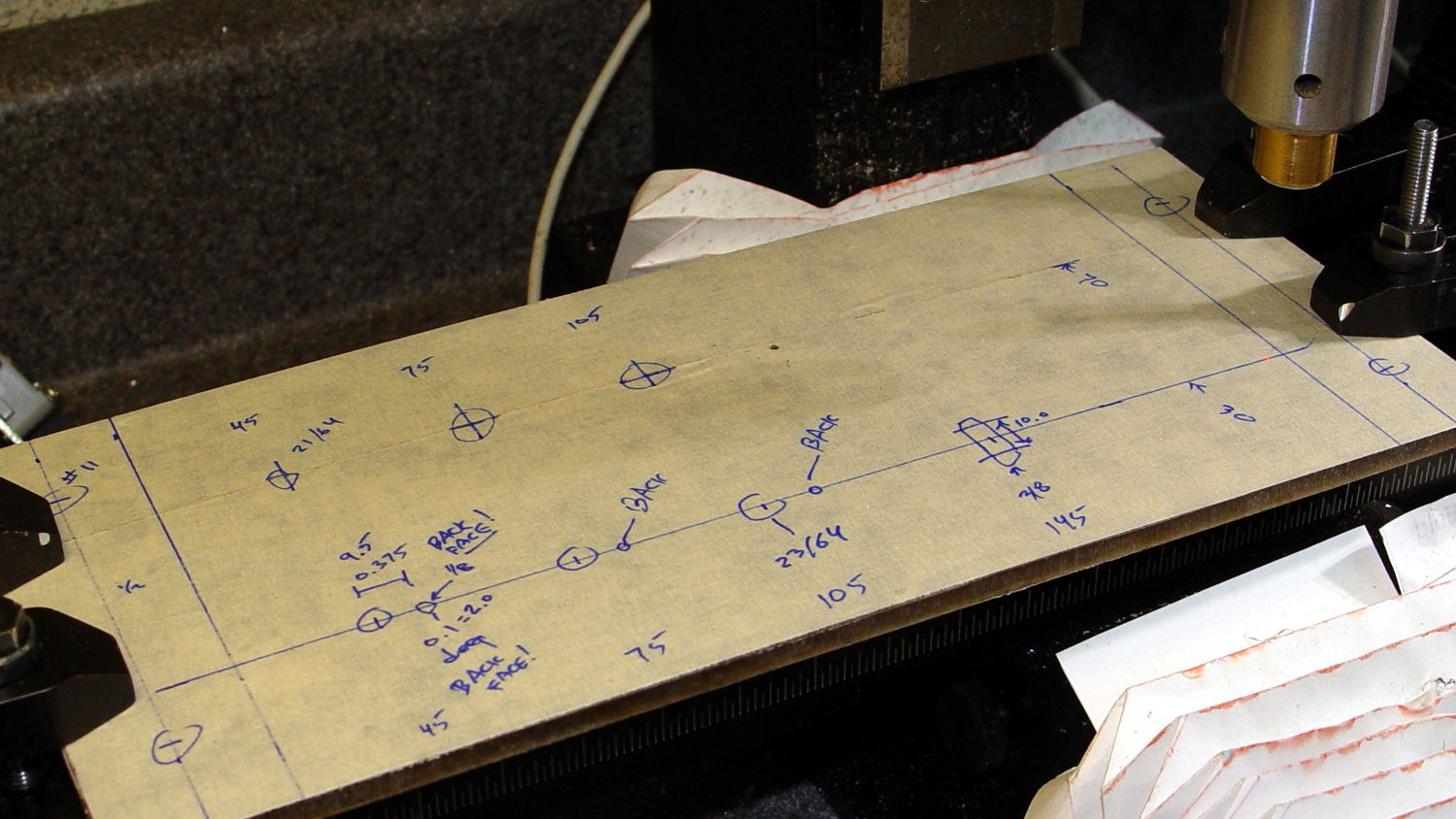
    The “chassis” emerged from the wood pile: a slab of laminate flooring and two strips of countertop, with a slab of bronze-tint acrylic from a Genuine IBM PC Printer Stand that had fallen on hard times quite a while ago. Bandsaw to size, belt-sand to smooth; nothing particularly precise, although I did use the Sherline for coordinate drilling:

    Color mixer panel - drill setup
    Color mixer panel – drill setup

    That’s laying it all out by hand to get a feel for what it’ll look like and drilling the holes at actual coordinates to make everything line up neatly.

    Hot melt glue and epoxy hold everything together, with foam tape securing the two PCBs. Those cap screws go into 10-32 brass inserts hammered into the laminate flooring strip.

    There’s no schematic. Connect the pots to A0 through A2, wire the Neopixels in series from D8 with the bulb LED last in the string, wire the prox sensor to D9, and away you go.

    It’s fun to play with colors!

    The Arduino source code as a GitHub Gist:

    // Color mixing demo for Mini Maker Faire
    // Ed Nisley – KE4ANU – November 2016
    #include <Adafruit_NeoPixel.h>
    //———-
    // Pin assignments
    #define PIN_NEO 8 // DO – data out to first Neopixel
    #define PIN_HEARTBEAT 13 // DO – Arduino LED
    #define PIN_FLASH 9 // DI – flash button
    #define PIN_POTRED A0 // AI – red potentiometer
    #define PIN_POTGREEN A1 // AI – green potentiometer
    #define PIN_POTBLUE A2 // AI – blue potentiometer
    //———-
    // Constants
    #define PIXELS 4 // number of pixels
    #define PIXEL_RED 2 // physical channel layout
    #define PIXEL_GREEN 1
    #define PIXEL_BLUE 0
    #define PIXEL_MIX (PIXELS – 1) // pixel with mixed color
    #define PIXEL_FLASH (PIXELS – 1) // pixel that flashes
    // update LEDs only this many ms apart (minus loop() overhead)
    #define UPDATEINTERVAL 25ul
    #define UPDATEMS (UPDATEINTERVAL – 1ul)
    //———-
    // Globals
    // instantiate the Neopixel buffer array
    // color order is RGB for 8 mm diffuse LEDs, GRB for mixed 5050 LED at end
    Adafruit_NeoPixel strip = Adafruit_NeoPixel(PIXELS, PIN_NEO, NEO_RGB + NEO_KHZ800);
    uint32_t FullWhite = strip.Color(255,255,255);
    uint32_t FullOff = strip.Color(0,0,0);
    // colors in each LED
    enum pixcolors {RED, GREEN, BLUE, PIXELSIZE};
    uint32_t PotColors[PIXELSIZE];
    uint32_t UniColor;
    unsigned long MillisNow;
    unsigned long MillisThen;
    //– Helper routine for printf()
    int s_putc(char c, FILE *t) {
    Serial.write(c);
    }
    //——————
    // Set the mood
    void setup() {
    pinMode(PIN_HEARTBEAT,OUTPUT);
    digitalWrite(PIN_HEARTBEAT,LOW); // show we arrived
    Serial.begin(57600);
    fdevopen(&s_putc,0); // set up serial output for printf()
    printf("Color Mixer Demo for Mini Maker Faire\r\nEd Nisley – KE4ZNU – November 2016\r\n");
    // set up pixels
    strip.begin();
    strip.show();
    // lamp test: a brilliant white flash on all pixels
    // pixel color layout doesn't matter for a white flash
    printf("Lamp test: flash white\r\n");
    for (byte i=0; i<5 ; i++) {
    for (int j=0; j < strip.numPixels(); j++) { // fill LEDs with white
    strip.setPixelColor(j,FullWhite);
    }
    strip.show();
    delay(500);
    for (int j=0; j < strip.numPixels(); j++) { // fill LEDs with black
    strip.setPixelColor(j,FullOff);
    }
    strip.show();
    delay(500);
    }
    // lamp test: walk a white flash along the string
    printf("Lamp test: walking white\r\n");
    strip.setPixelColor(0,FullWhite);
    strip.show();
    delay(500);
    for (int i=1; i<strip.numPixels(); i++) {
    digitalWrite(PIN_HEARTBEAT,HIGH);
    strip.setPixelColor(i-1,FullOff);
    strip.setPixelColor(i,FullWhite);
    strip.show();
    digitalWrite(PIN_HEARTBEAT,LOW);
    delay(500);
    }
    strip.setPixelColor(strip.numPixels() – 1,FullOff);
    strip.show();
    delay(500);
    MillisNow = MillisThen = millis();
    }
    //——————
    // Run the mood
    void loop() {
    MillisNow = millis();
    if ((MillisNow – MillisThen) >= UPDATEMS) { // time for color change?
    digitalWrite(PIN_HEARTBEAT,HIGH);
    PotColors[RED] = strip.Color(analogRead(PIN_POTRED) >> 2,0,0);
    PotColors[GREEN] = strip.Color(0,analogRead(PIN_POTGREEN) >> 2,0);
    PotColors[BLUE] = strip.Color(0,0,analogRead(PIN_POTBLUE) >> 2);
    strip.setPixelColor(PIXEL_RED,PotColors[RED]); // load up pot indicators
    strip.setPixelColor(PIXEL_GREEN,PotColors[GREEN]);
    strip.setPixelColor(PIXEL_BLUE,PotColors[BLUE]);
    strip.setPixelColor(PIXEL_MIX,strip.getPixelColor(PIXEL_RED) |
    strip.getPixelColor(PIXEL_GREEN) |
    strip.getPixelColor(PIXEL_BLUE));
    if (PIXEL_FLASH != PIXEL_MIX) {
    strip.setPixelColor(PIXEL_FLASH,strip.getPixelColor(PIXEL_MIX));
    }
    if (LOW == digitalRead(PIN_FLASH)) { // if flash input active, overlay flash
    strip.setPixelColor(PIXEL_FLASH,0x00FFFFFF ^ strip.getPixelColor(PIXEL_FLASH));
    strip.setPixelColor(PIXEL_RED, 0x00FF0000 ^ strip.getPixelColor(PIXEL_RED));
    strip.setPixelColor(PIXEL_GREEN,0x0000FF00 ^ strip.getPixelColor(PIXEL_GREEN));
    strip.setPixelColor(PIXEL_BLUE, 0x000000FF ^ strip.getPixelColor(PIXEL_BLUE));
    }
    UniColor = 0x000000ff & strip.getPixelColor(PIXELS – 1); // hack to rearrange colors for 5050 LED
    UniColor |= 0x00ff0000 & (strip.getPixelColor(PIXELS – 1) << 8);
    UniColor |= 0x0000ff00 & (strip.getPixelColor(PIXELS – 1) >> 8);
    strip.setPixelColor(PIXELS – 1,UniColor);
    strip.show(); // send out colors
    MillisThen = MillisNow;
    digitalWrite(PIN_HEARTBEAT,LOW);
    }
    }
    view raw ColorMixer.ino hosted with ❤ by GitHub
  • Vacuum Tube LEDs: Mogul Base for 500 W Incandescent Bulb

    This obviously wasn’t ready for prime time, but it demonstrated feasibility with a socket on a base assembled for something else:

    500 W Incandescent - backlit light
    500 W Incandescent – backlit light

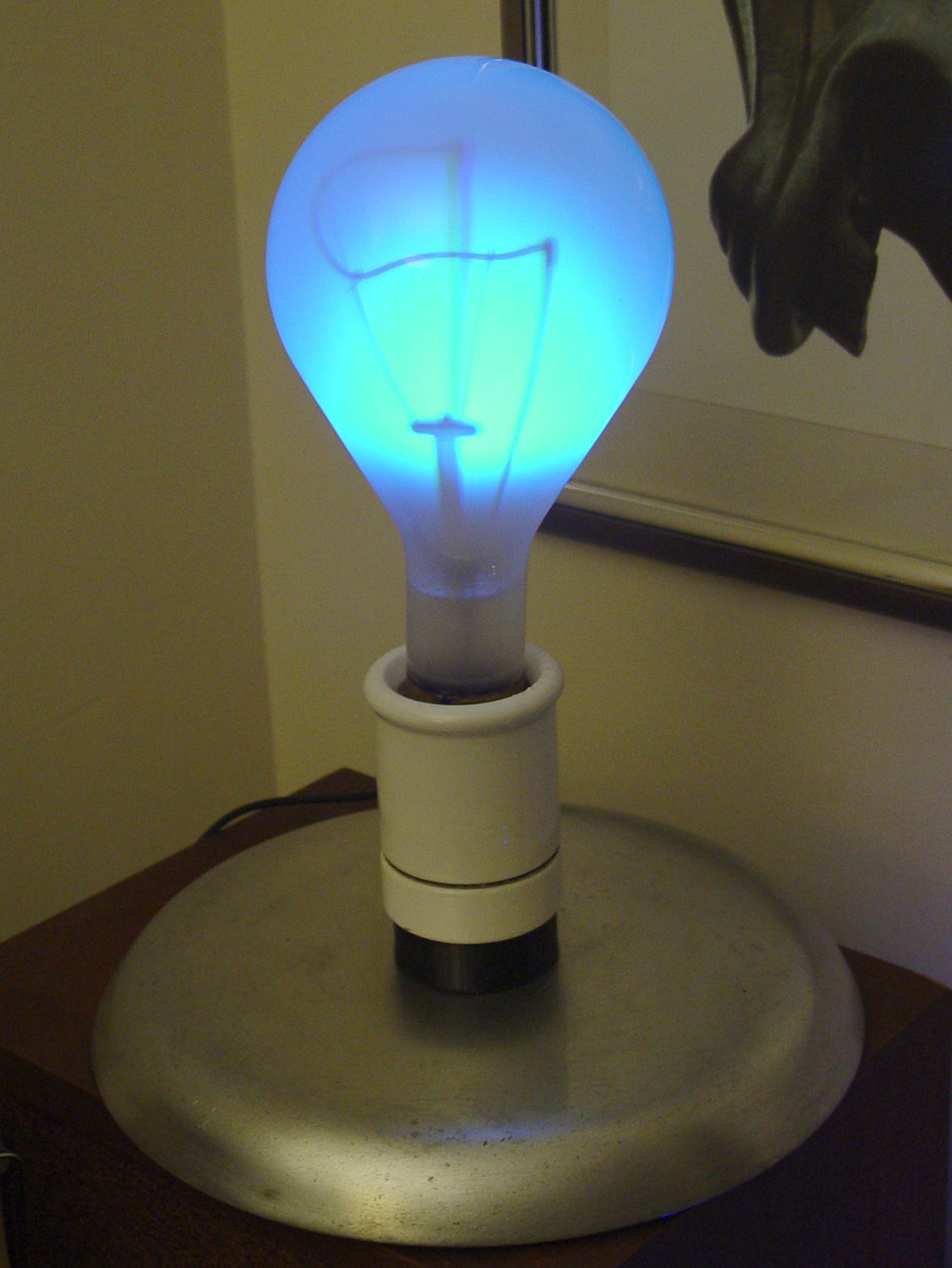
    I recently salvaged a heavy aluminum lid that looked like a perfect complement for that bulb:

    Mogul base - bulb - blue phase
    Mogul base – bulb – blue phase

    The light comes from a rectangular knockoff Neopixel in a sidelight mount:

    Mogul base - sidelight curing
    Mogul base – sidelight curing

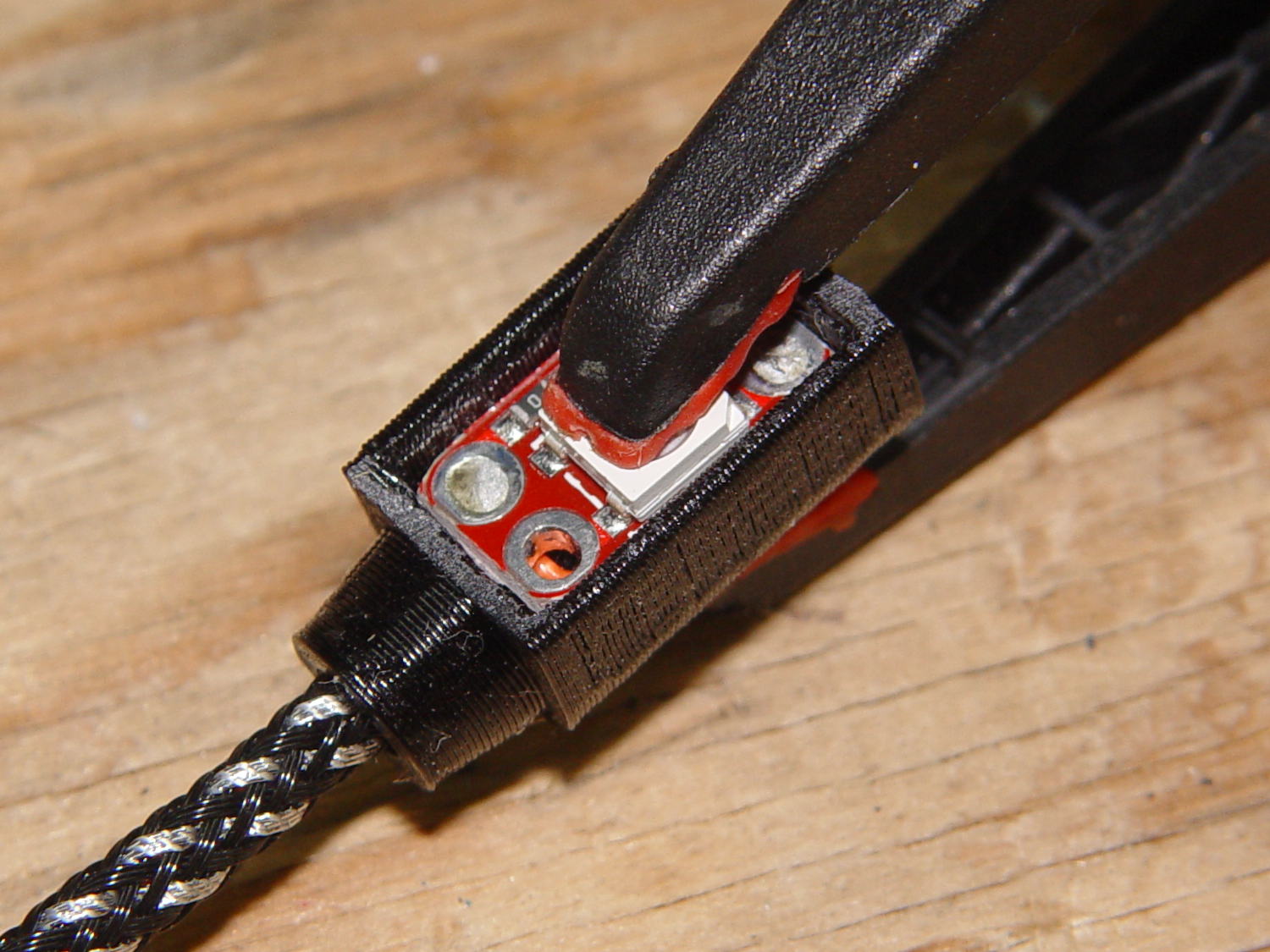
    That’s epoxied to the rear of the bulb, below the equator, where it casts the best-looking shadow of the filament and support structures on the inside of the bulb. Actually, it’s taped in place for a week’s worth of burn-in to see if it survives.

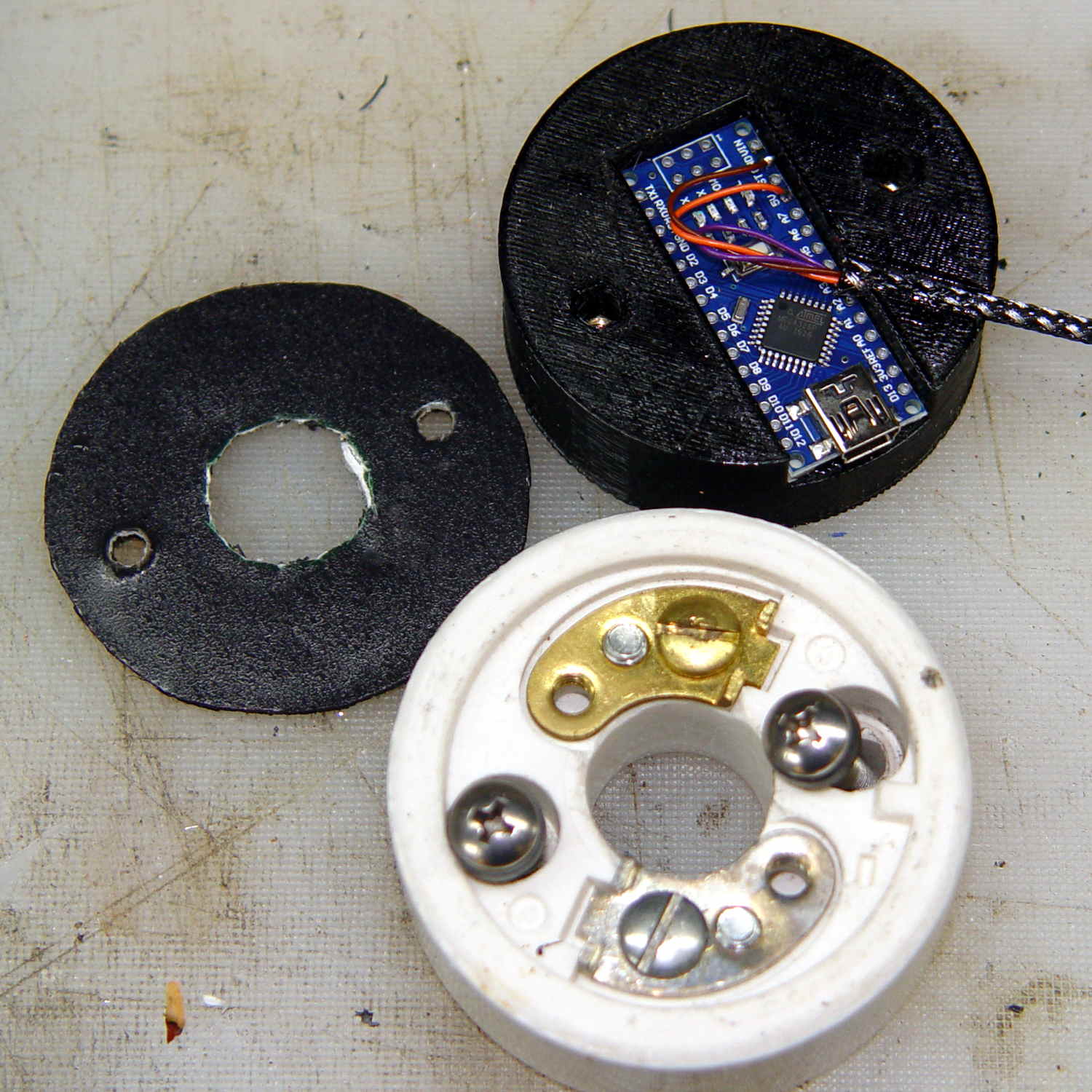
    The Arduino Nano fits inside a small base below the ceramic Mogul socket:

    Mogul base - Arduino Nano holder
    Mogul base – Arduino Nano holder

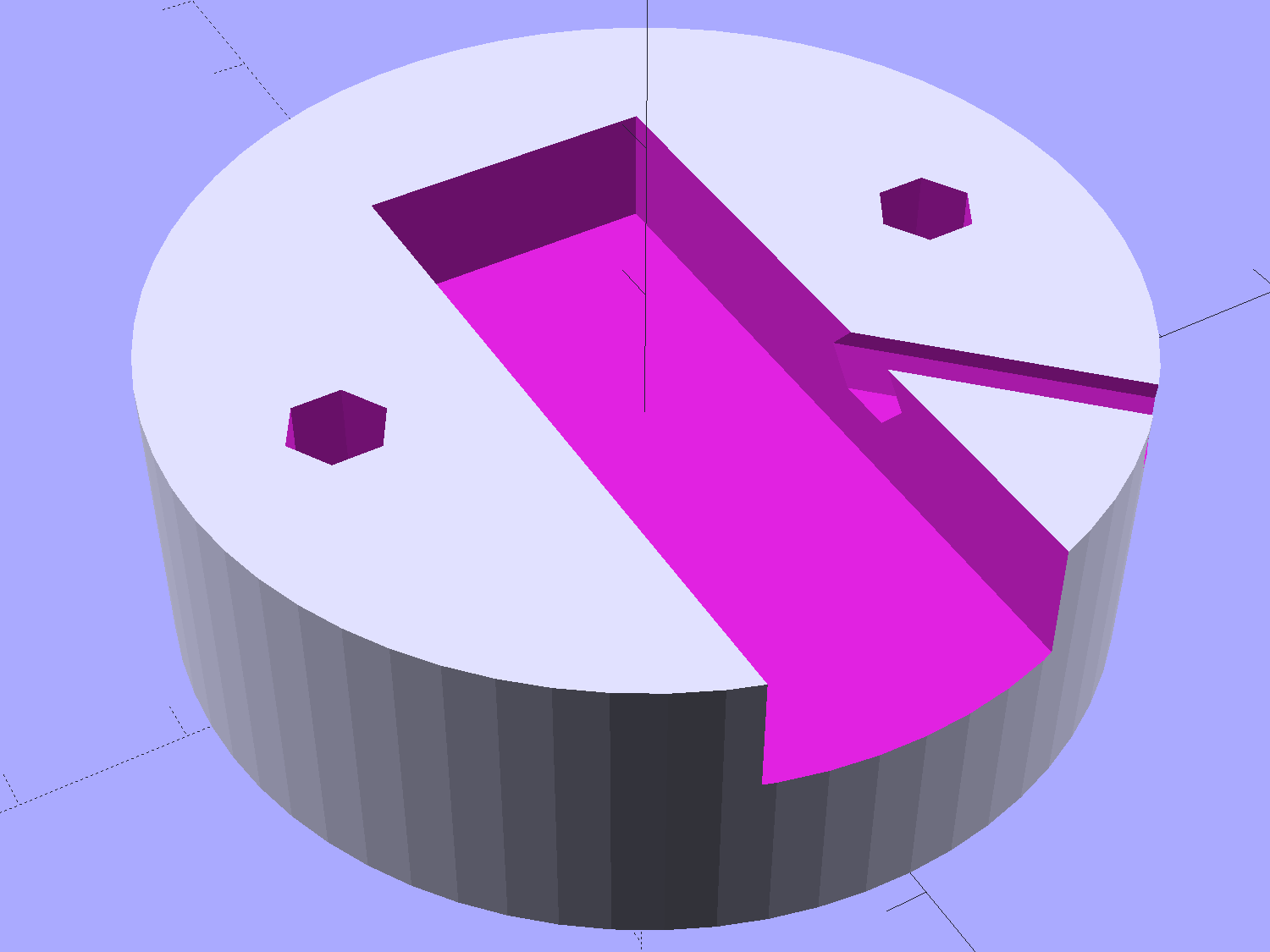
    The braid exits through a hexagonal trench recessed into the top surface, with a dollop of epoxy holding it in place:

    Vacuum Tube Lights - Mogul Base - top - solid model
    Vacuum Tube Lights – Mogul Base – top – solid model

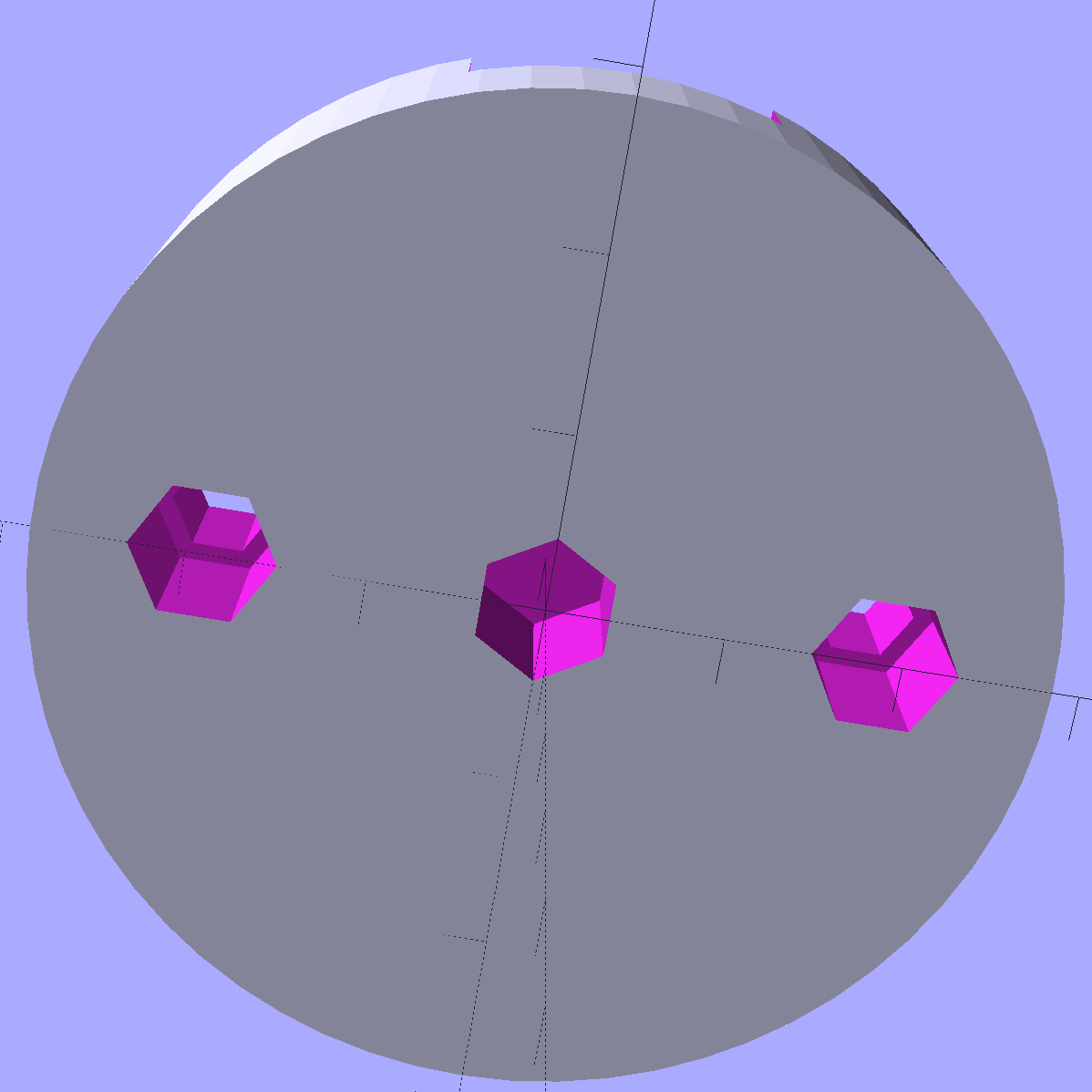
    The underside has holes for three 10-32 brass inserts:

    Vacuum Tube Lights - Mogul Base - bottom - solid model
    Vacuum Tube Lights – Mogul Base – bottom – solid model

    The center insert is the only thing holding the entire assembly to that aluminum base; I’m not convinced that’s enough, but it’ll suffice for now.

    The “computer” certainly gets lost under the ceramic:

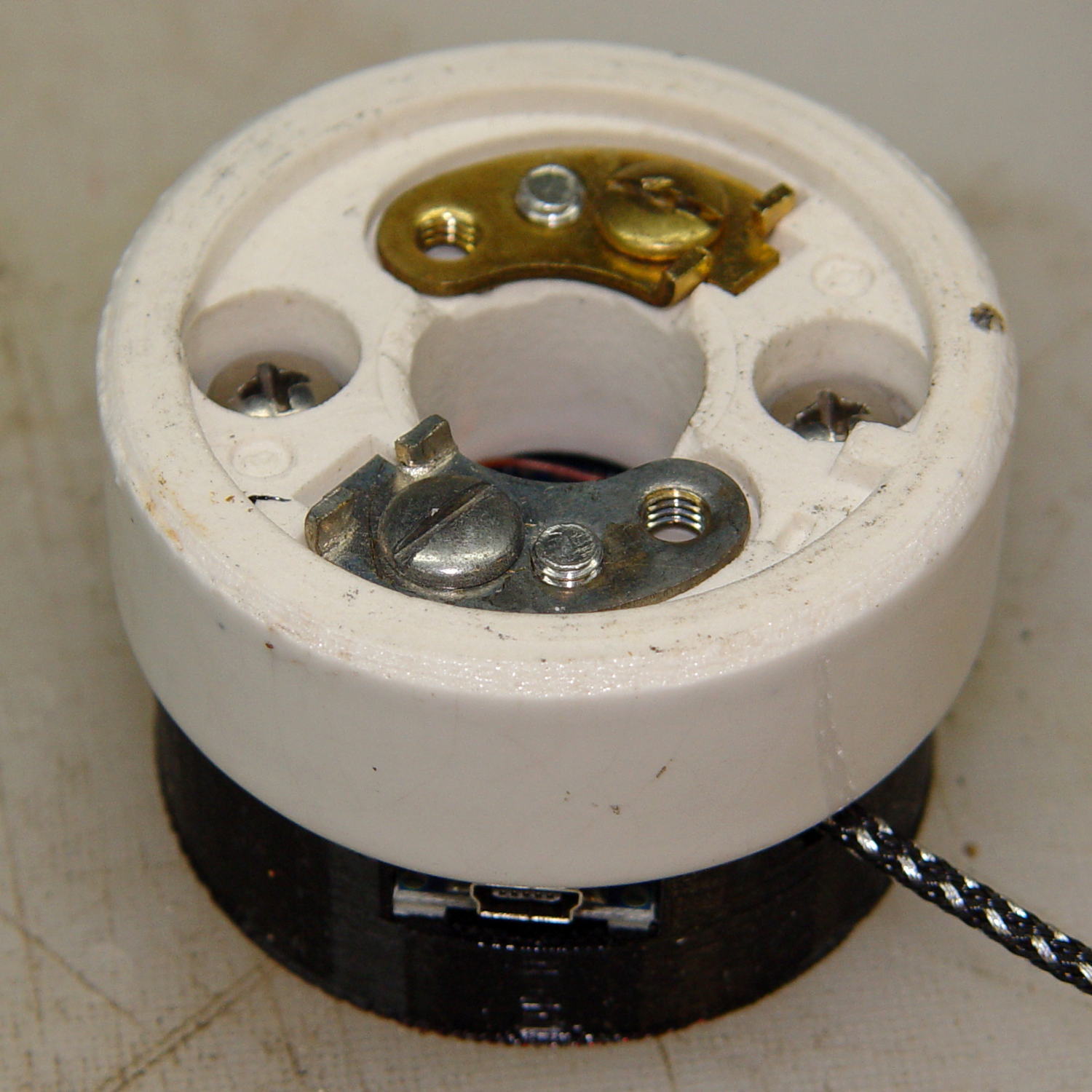
    Mogul base - ceramic socket connector
    Mogul base – ceramic socket connector

    The base is slightly smaller than the ceramic to match the flat part of the lower surface; if it came all the way to the OD, you’d see an unsightly notch.

    The two screw heads buried down in the recesses thread into the outer brass inserts in the printed base. The ceramic Mogul socket mounts atop that connection block, with another pair of screws making both electrical and mechanical connections to the metal plates-with-screws that used to terminate the incoming power wires.

    It’s running the same Morse code firmware as before, with the Morse output turned off, because who needs a giant blinking bulb?

    The OpenSCAD source code of the base as a GitHub Gist:

    //———————-
    // Base for Mogul ceramic socket
    module MogulBase() {
    Insert = [5.0,7.0,10.5]; // 10-32 brass insert, used for socket and chassis mounting
    PCB =
    [45,18,7.5] // Arduino Nano
    ;
    BaseOD = 57.0;
    BaseOAH = Insert[LENGTH] + 3*ThreadThick + PCB[2];
    ScrewOC = 1.5 * inch;
    difference() {
    cylinder(d=BaseOD,h=BaseOAH,$fn=16*4); // overall shape
    translate([0,0,-Protrusion]) // central mounting insert
    PolyCyl(Insert[OD],Insert[LENGTH] + Protrusion,6);
    for (a=[90,-90]) // socket studs
    rotate(a)
    translate([ScrewOC/2,0,-Protrusion]) {
    PolyCyl(Insert[OD],Insert[LENGTH] + Protrusion,6);
    PolyCyl(Insert[ID],2*BaseOAH,6);
    }
    translate([(BaseOD – PCB[0])/2,0,BaseOAH – PCB[2]/2 + Protrusion/2])
    cube(PCB + [0,0,Protrusion],center=true); // Arduino PCB
    rotate(45)
    translate([0,0,BaseOAH – Ferrule[ID]/2 + Protrusion/2])
    rotate([0,90,0]) rotate(180/6)
    PolyCyl(Ferrule[ID],BaseOD,6);
    }
    }

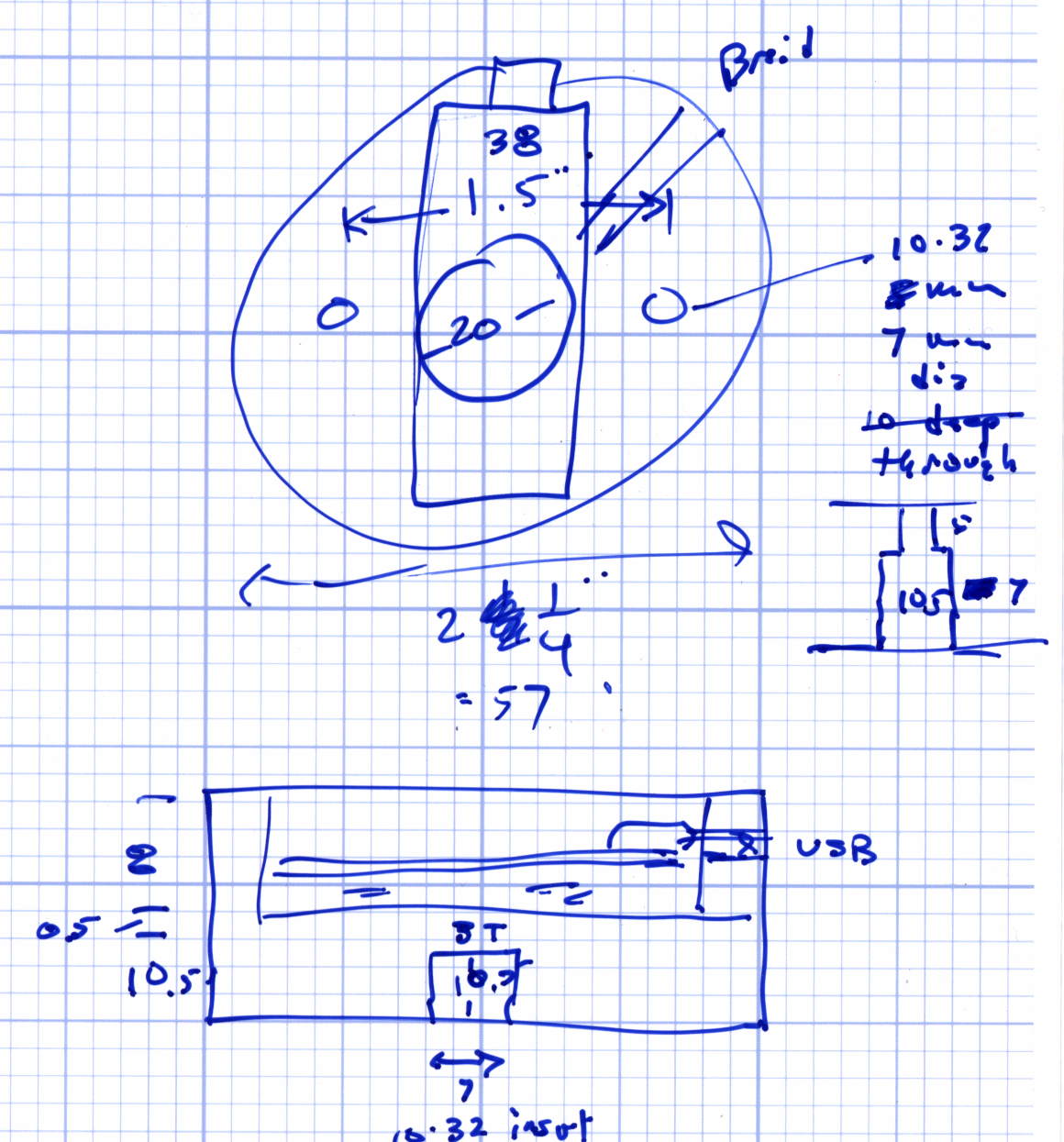
    The original doodles with some dimensions:

    Mogul base - dimension doodles
    Mogul base – dimension doodles