-
Input-Remapper Key Macros
Having gotten the Huion H610Pro V2 tablet buttons working again, I must document the
input-remappersettings I use for all the UI devices under my fingers.Button 3 on the tablet fills in the fields for WordPress media images:
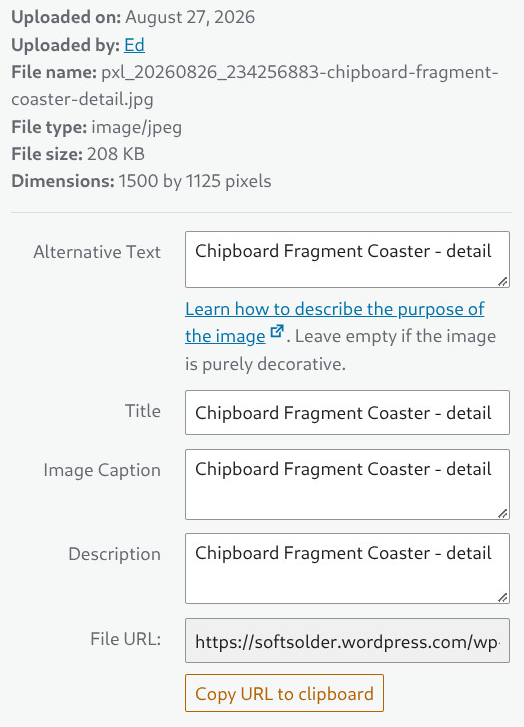
WordPress Media Fields Which start out with only the
Titlefield prefilled with the name I created when I saved the file:PXL_20260826_234256883 - Chipboard Fragment Coaster - detail.jpg
I highlight everything to the left of “Chipboard” and tap Button 3 to fire this series of keystrokes into the browser to cut the highlighted file name, then copy-n-paste everything else into the other three fields:
modify(KEY_LEFTCTRL,key(x)).
modify(KEY_LEFTCTRL,key(a)).
modify(KEY_LEFTCTRL,key(c)).
key(KEY_TAB).
modify(KEY_LEFTCTRL,key(v)).
key(KEY_TAB).
modify(KEY_LEFTCTRL,key(v)).
modify(KEY_RIGHTSHIFT,key(key_tab)).
modify(KEY_RIGHTSHIFT,key(key_tab)).
modify(KEY_RIGHTSHIFT,key(key_tab)).
modify(KEY_RIGHTSHIFT,key(key_tab)).
modify(KEY_LEFTCTRL,key(v))
Part of creating those image files in GIMP involves cropping the file to a standard aspect ratio (4:3, 16:9, rarely 32:9 for really skinny images), then scaling to make the widest / tallest edge 1500 pixels with this dialog (invoked by the
*key on the numeric keypad):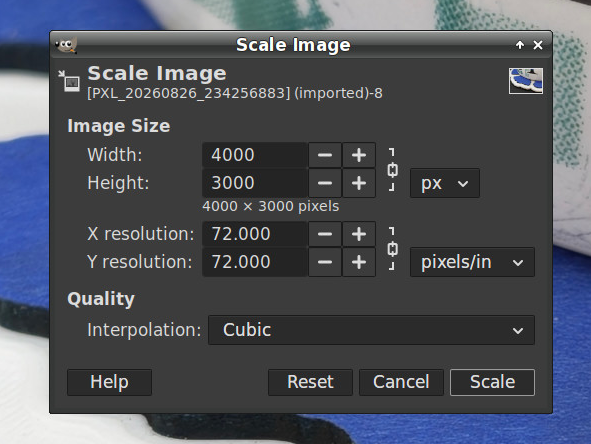
GIMP Scale Image fields For unknown reasons, Pixel 10a phone cameras have reverted to 72 DPI images, rather then the previous 300 DPI. Because some programs / browsers / whatever set the physical image size by dividing the number of pixels by the DPI, I prefer to set those fields to 300 DPI.
So click to put the cursor in the widest field, then hit Button 4 to fill in the rest with these keystrokes:
modify(KEY_LEFTCTRL,key(a)).
key(KEY_1).key(KEY_5).key(KEY_0).key(KEY_0).
key(KEY_TAB).key(KEY_TAB).key(KEY_TAB).key(KEY_TAB).
key(3).key(0).key(0).
key(KEY_TAB).key(KEY_TAB)
Fortunately, the
Resolutionfields are locked, so filling in either one sets the other to match, and the keystrokes work correctly in either theWidthorHeightfield.For unknown reasons, the Huion tablet appears once in the
lsusblisting:Bus 001 Device 017: ID 256c:006d HUION Huion Tablet
But
dmesgshows many variations:[ 2.826523] input: HUION Huion Tablet Pen as /devices/pci0000:00/0000:00:14.0/usb1/1-4/1-4.2/1-4.2:1.0/0003:256C:006D.0004/input/input15 [ 2.826632] input: HUION Huion Tablet Pad as /devices/pci0000:00/0000:00:14.0/usb1/1-4/1-4.2/1-4.2:1.0/0003:256C:006D.0004/input/input16 [ 2.826723] input: HUION Huion Tablet Touch Strip as /devices/pci0000:00/0000:00:14.0/usb1/1-4/1-4.2/1-4.2:1.0/0003:256C:006D.0004/input/input17 [ 2.826816] input: HUION Huion Tablet Dial as /devices/pci0000:00/0000:00:14.0/usb1/1-4/1-4.2/1-4.2:1.0/0003:256C:006D.0004/input/input18 [ 2.826941] uclogic 0003:256C:006D.0004: input,hidraw11: USB HID v1.11 Keypad [HUION Huion Tablet] on usb-0000:00:14.0-4.2/input0 [ 2.834767] uclogic 0003:256C:006D.0005: hidraw4: USB HID v1.11 Device [HUION Huion Tablet] on usb-0000:00:14.0-4.2/input1
Those devices (endpoints, whatever) change as various other USB devices get plugged / unplugged / enumerated:
12986.011937] usb 1-4.2: USB disconnect, device number 16
[12986.359640] usb 1-4.2: new full-speed USB device number 17 using xhci_hcd
[12986.579858] usb 1-4.2: New USB device found, idVendor=256c, idProduct=006d, bcdDevice= 1.00
[12986.579876] usb 1-4.2: New USB device strings: Mfr=1, Product=2, SerialNumber=3
[12986.579882] usb 1-4.2: Product: Huion Tablet
[12986.579887] usb 1-4.2: Manufacturer: HUION
[12986.642042] input: HUION Huion Tablet Pen as /devices/pci0000:00/0000:00:14.0/usb1/1-4/1-4.2/1-4.2:1.0/0003:256C:006D.0014/input/input50
[12986.642609] input: HUION Huion Tablet Pad as /devices/pci0000:00/0000:00:14.0/usb1/1-4/1-4.2/1-4.2:1.0/0003:256C:006D.0014/input/input51
[12986.643357] input: HUION Huion Tablet Touch Strip as /devices/pci0000:00/0000:00:14.0/usb1/1-4/1-4.2/1-4.2:1.0/0003:256C:006D.0014/input/input52
[12986.643699] input: HUION Huion Tablet Dial as /devices/pci0000:00/0000:00:14.0/usb1/1-4/1-4.2/1-4.2:1.0/0003:256C:006D.0014/input/input53
[12986.644245] uclogic 0003:256C:006D.0014: input,hidraw0: USB HID v1.11 Keypad [HUION Huion Tablet] on usb-0000:00:14.0-4.2/input0
[12986.707886] uclogic 0003:256C:006D.0015: hidraw1: USB HID v1.11 Device [HUION Huion Tablet] on usb-0000:00:14.0-4.2/input1
[14148.081803] input: HUION Huion Tablet Pad as /devices/virtual/input/input55
On some occasions, based on no events I understand,
input-remapperwill recognize the tablet as any one of:drwxr-xr-x 2 ed ed 4.0K Feb 18 2025 'HUION Huion Tablet'/ drwxr-xr-x 2 ed ed 4.0K Sep 1 10:43 'HUION Huion Tablet Pad'/ drwxr-xr-x 2 ed ed 4.0K Apr 3 2024 'HUION Huion Tablet Pen'/
The dates show it’s been ‘HUION Huion Tablet Pad’ for a while, but ya never know what tomorrow will bring.
The Elecom Deft Pro trackball at my right hand has seven buttons (three hidden around the ball) and a scroll wheel with up-down switches (called
Wheel RightandWheel Leftfrom their horizontal mouse ancestry):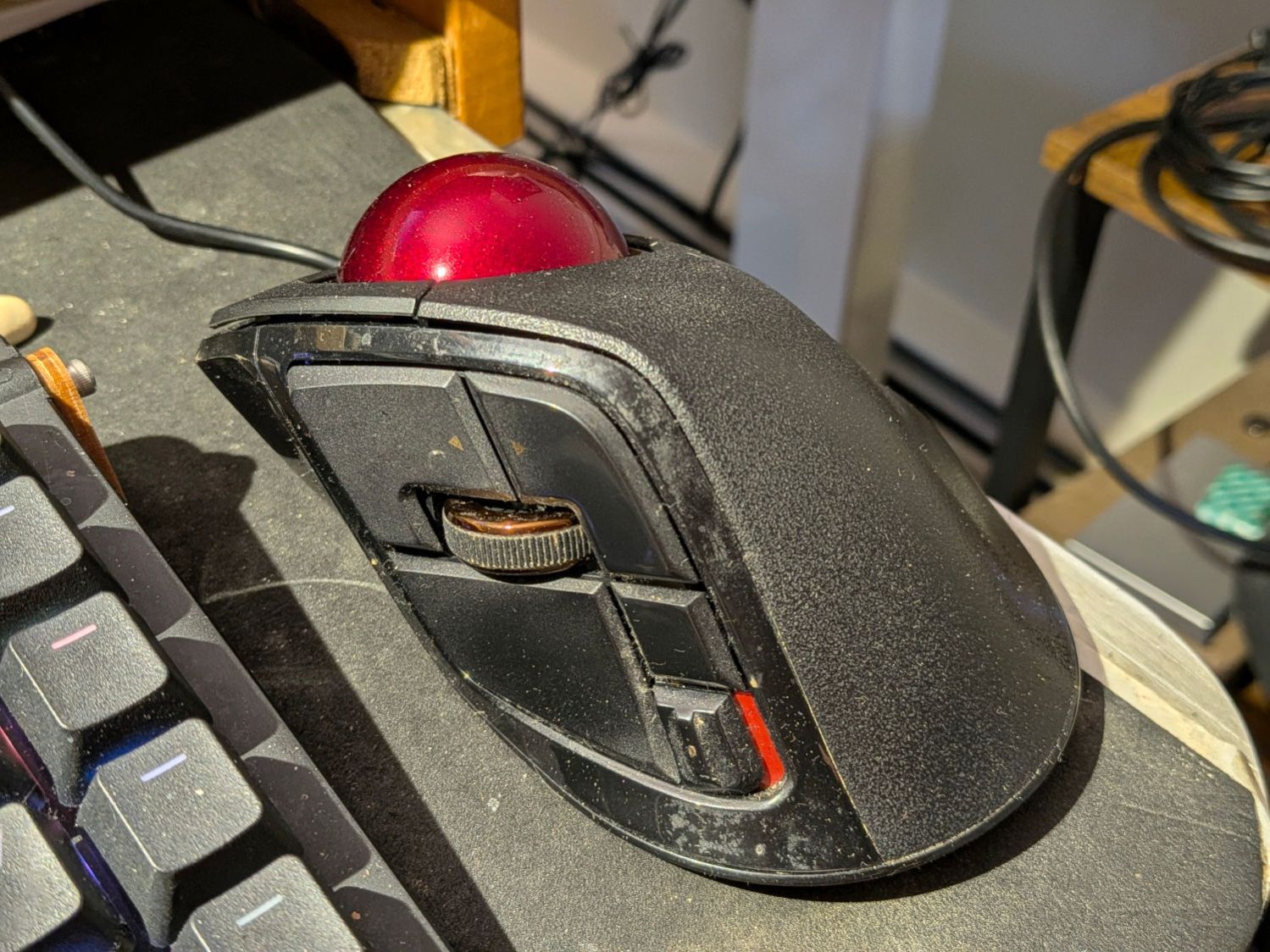
Elecom Deft Pro trackball Yeah, I oughta scrub that puppy more often.
The wheel up-down switches map to the
HomeandEndkeys with theCtrlkey held down to jump to the beginning and end of the page:KEY_LEFTCTRL+KEY_HOME KEY_LEFTCTRL+KEY_END
The wheel also has a push switch (the
Middlemouse button) that I find inconvenient, soButton 6(labeledFn1on the button) under my forefinger does that:BTN_MIDDLE
Closing a browser tab happens so often it’s mapped to the small square button just over the resolution slide switch where my thumb can hit it:
KEY_LEFTCTRL+w
The Kensington Expert Mouse trackball (which continues to work!) under my left hand:
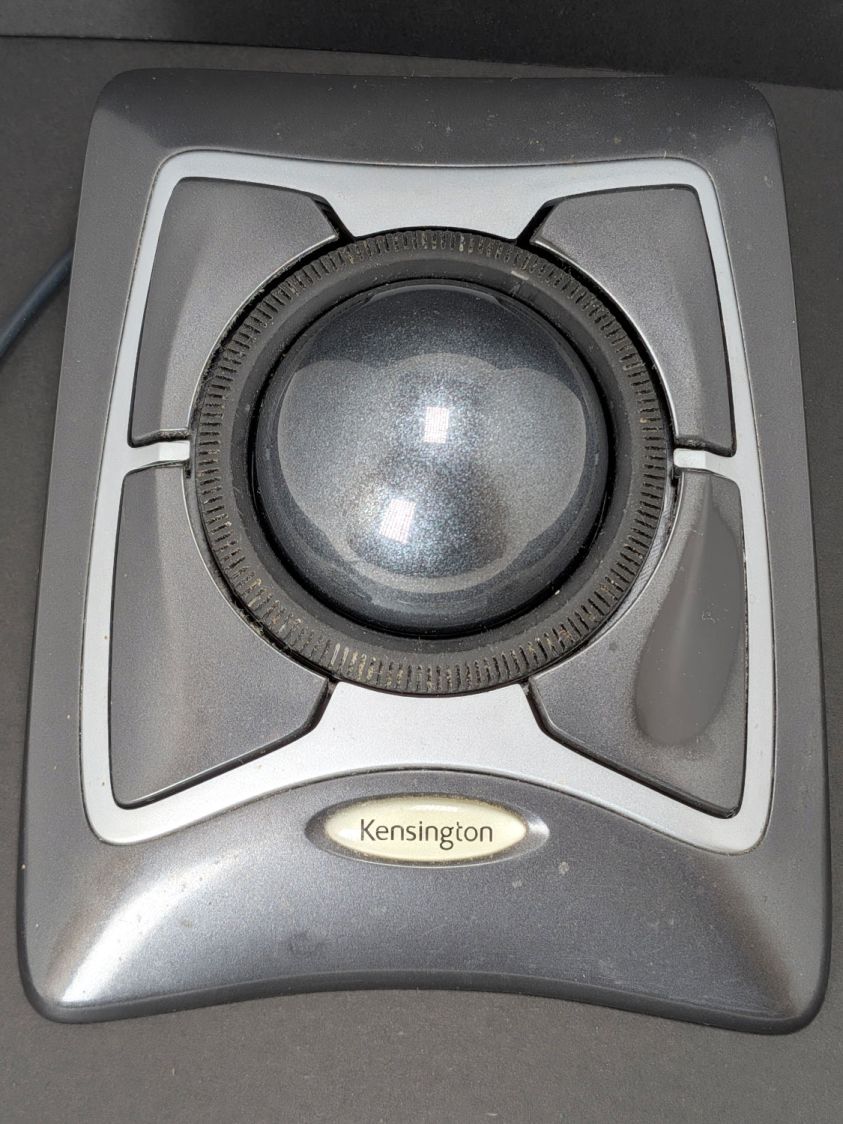
Kensington Expert Mouse Trackball – worn button Has had its buttons thoroughly rearranged:
LL = Mouse Button LEFT → BTN_RIGHT
UL = Mouse Button MIDDLE → XF86Back
LR = Mouse Button RIGHT → BTN_LEFT
UR = Mouse Button 4 → BTN_MIDDLE
Your mileage will most certainly be different.
-
Subscribe
Subscribed
Have a WordPress.com account? Log in now.

