Ed Nisley's Blog: Shop notes, electronics, firmware, machinery, 3D printing, laser cuttery, and curiosities. Contents: 100% human thinking, 0% AI slop.
Category: Software
General-purpose computers doing something specific
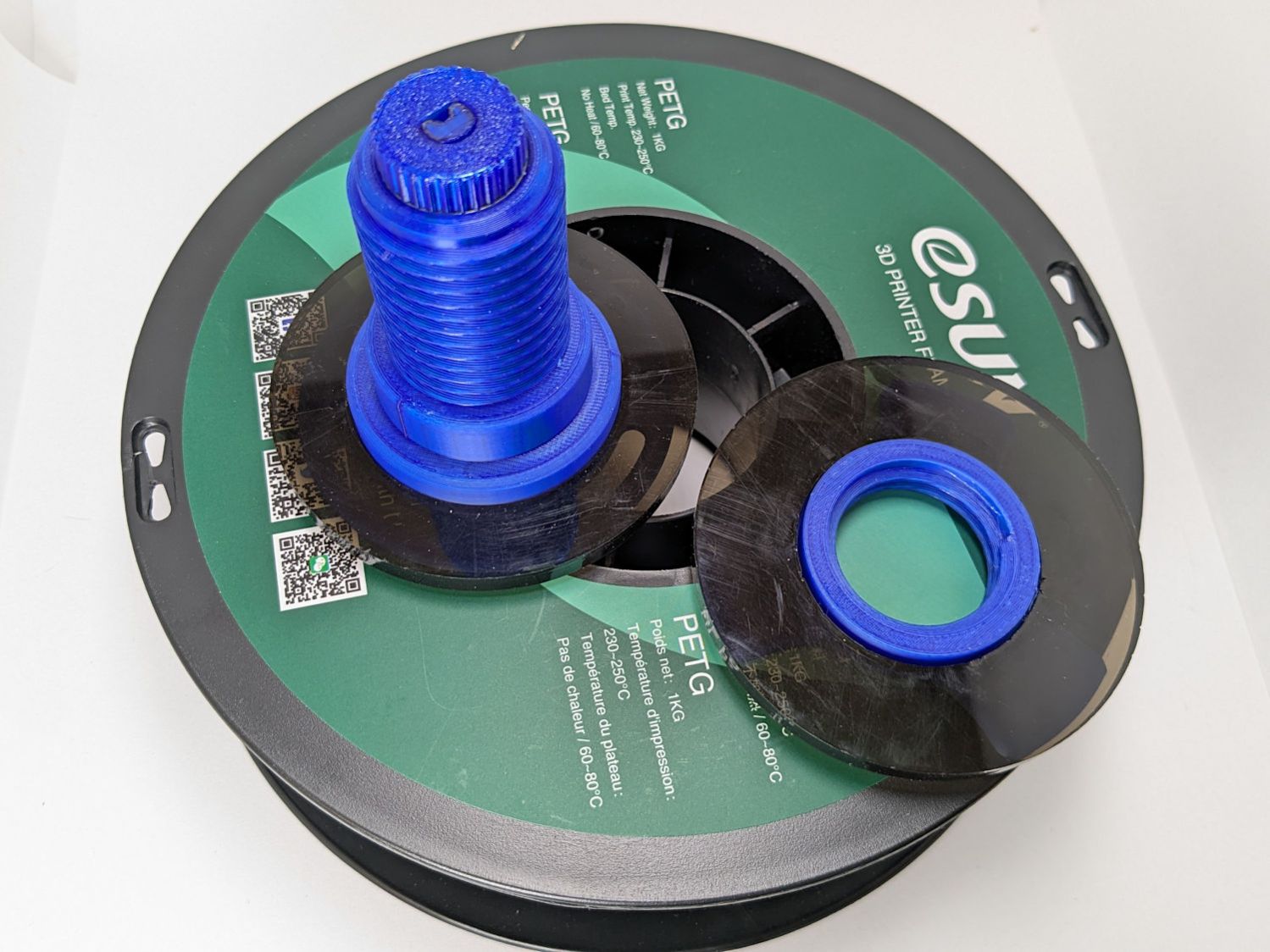
The auto-rewind spindles for PolyDryer boxes fit a variety of spools, but recessed hubs like this require a pair of washers to center the spindles:
Filament spool washers – recessed hub
They’re laser-cut, although you could print them easily enough:
Filament spool washers – recessed hub – installed
The size for that particular spool:
OD = 80 mm
Flange side ID = 51 mm
Nut side ID = 43
Thickness = ¼ inch, near enough
Other spools required a 3 mm shim on the flange side to sit centered in the PolyDryer boxes. Those are basically identical what you see above, with a 72 mm OD matching the flange.
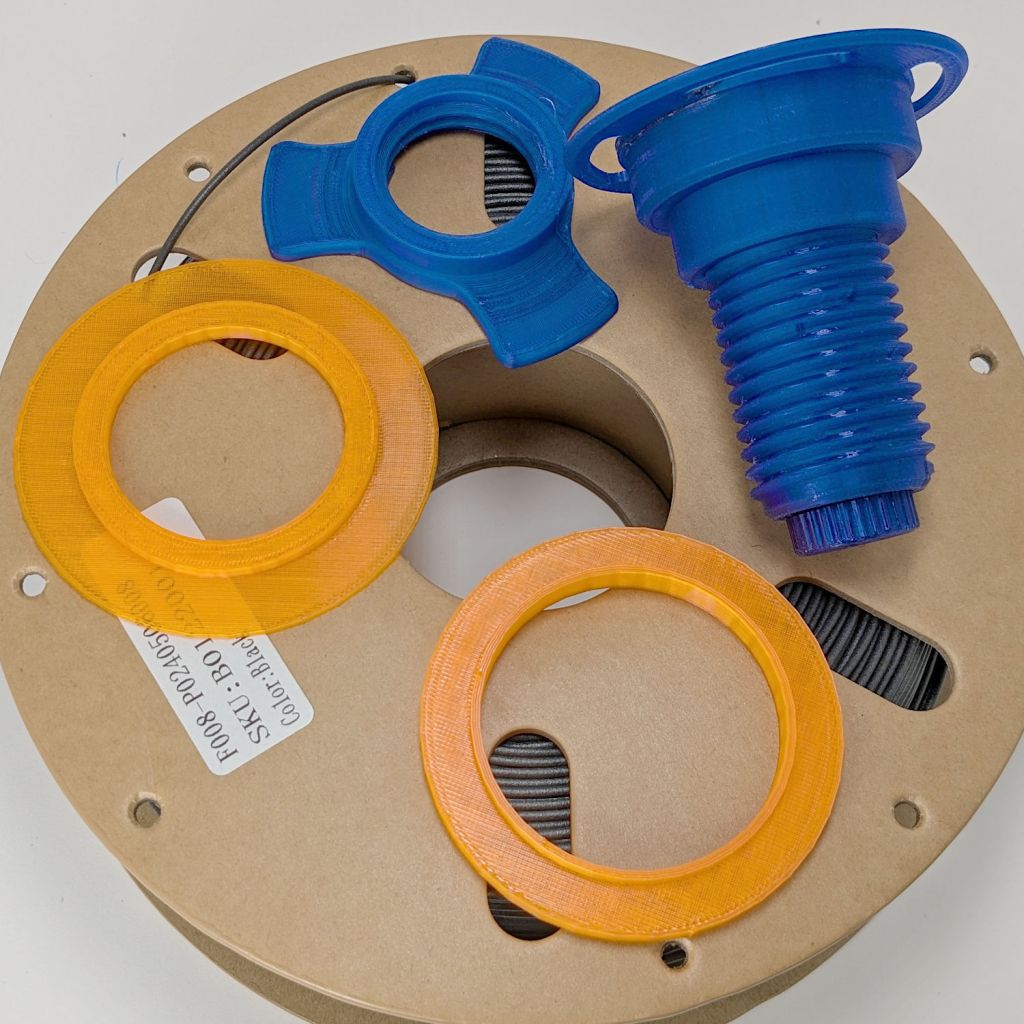
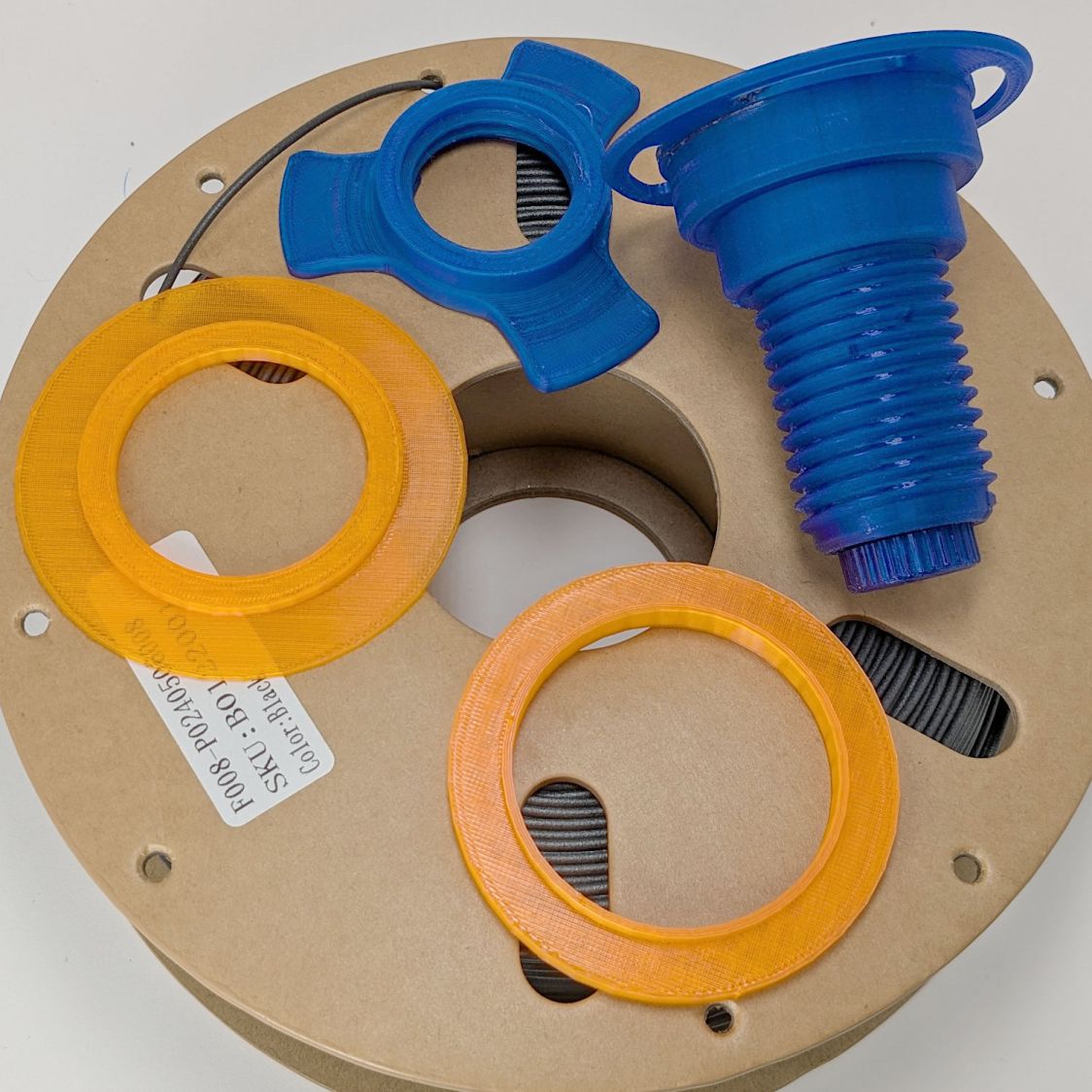
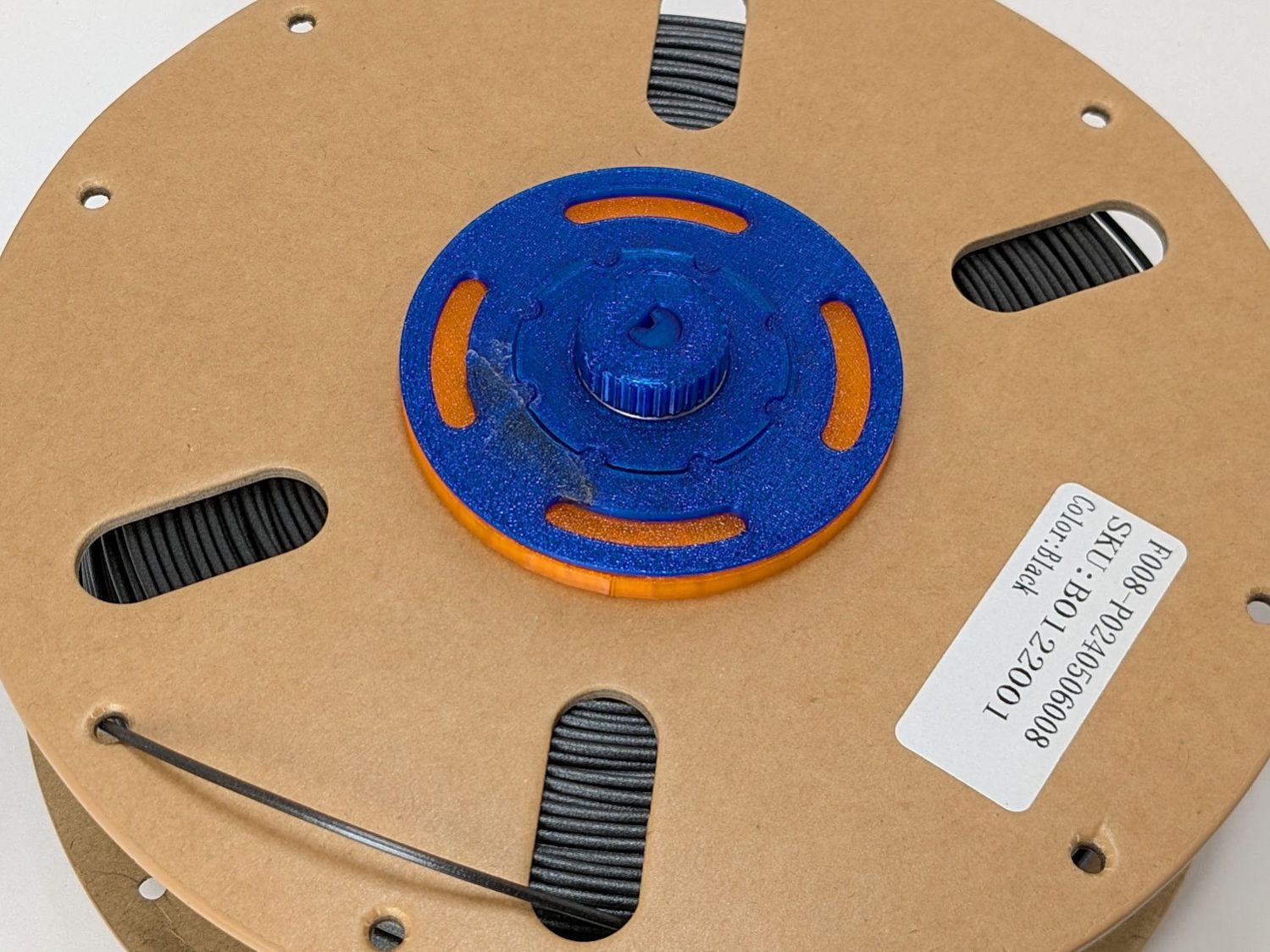
The PETG-CF filament arrived on cardboard spools, which are apparently the new hotness:
Filament spool washers – printed
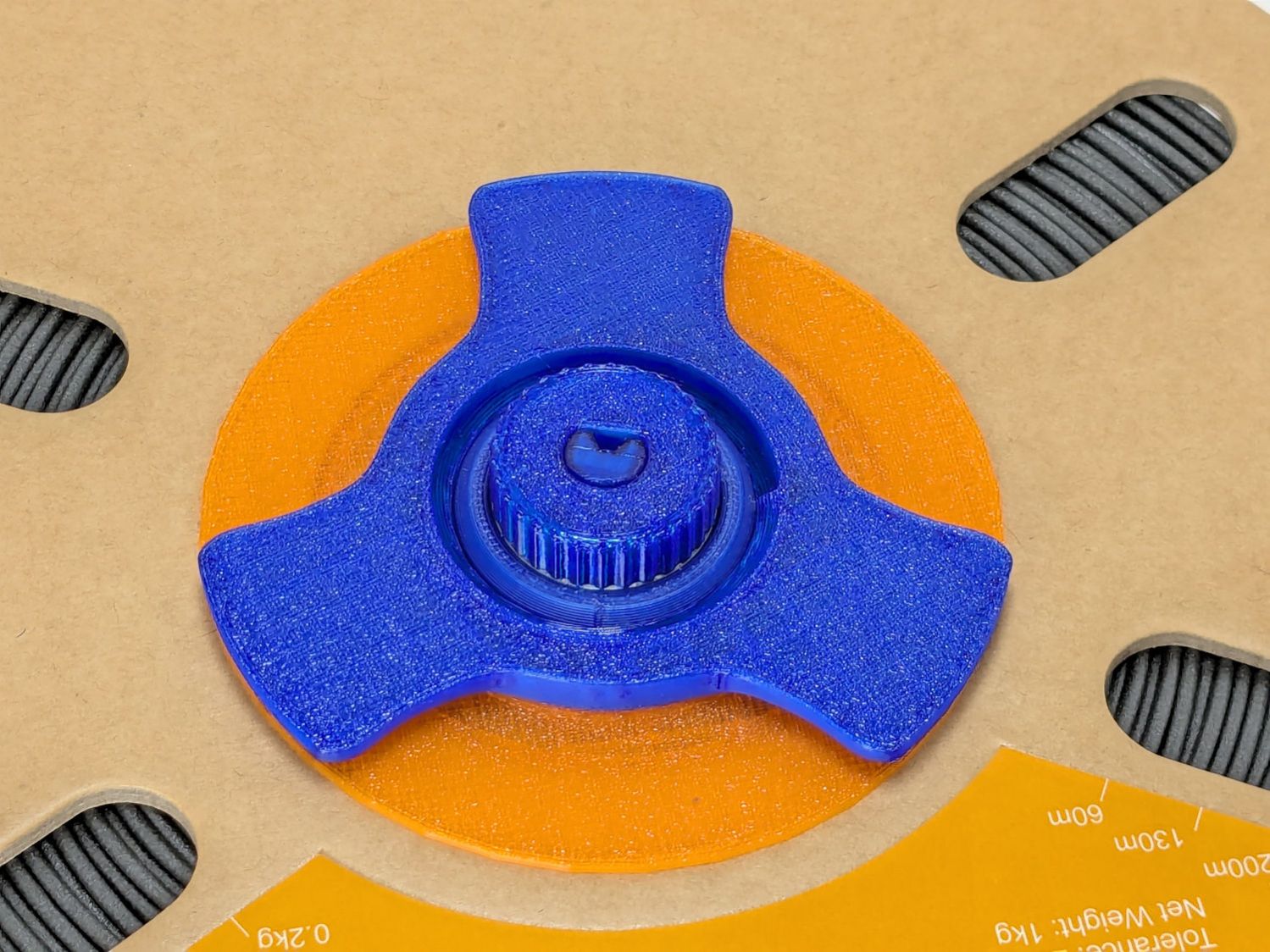
The 56 mm spool ID requires adapters on both sides, with the flange side getting a 4 mm shim:
Filament spool washers – printed shim – flange side
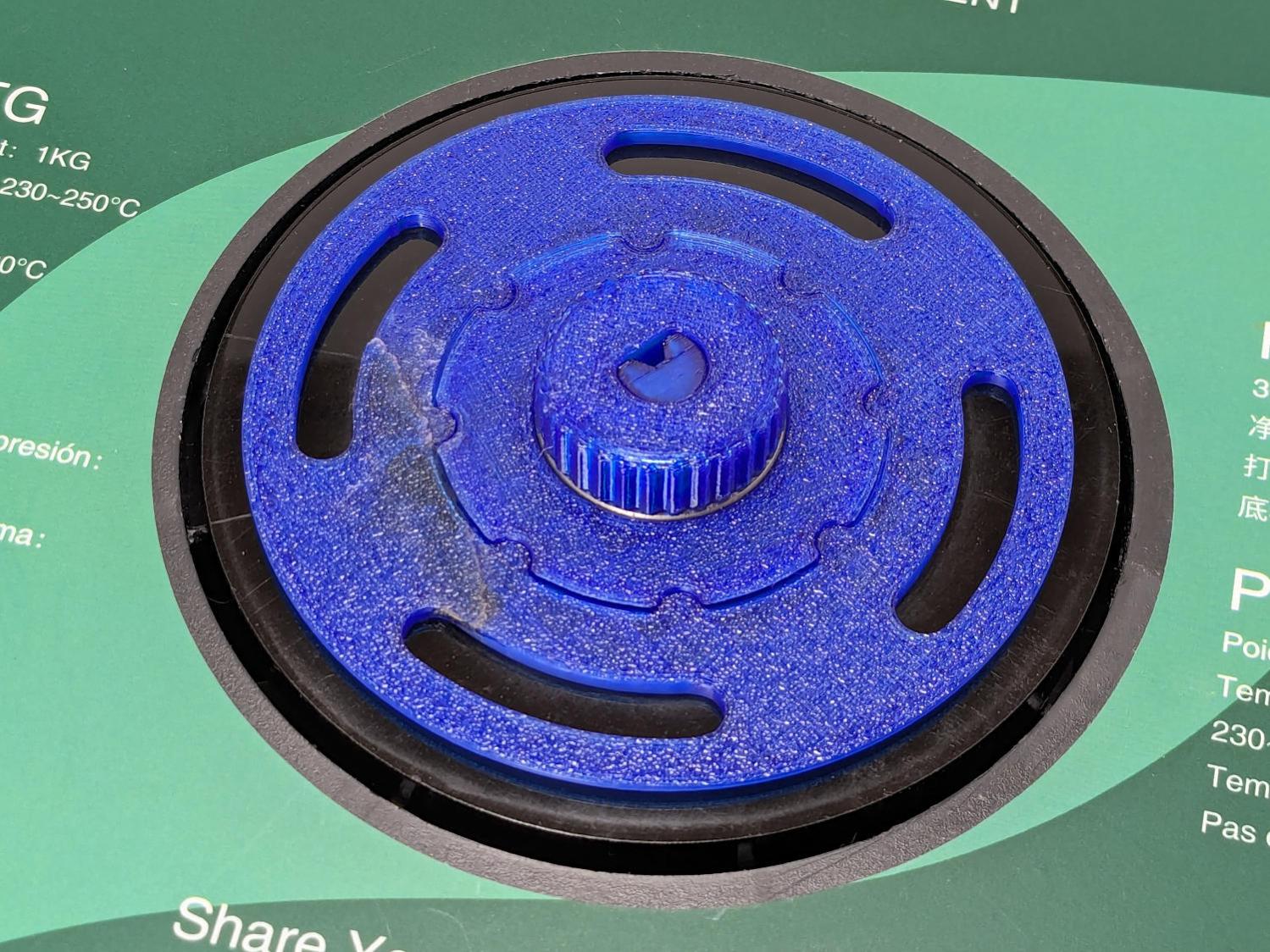
That skootches the spool over against the 1 mm shim on the nut side:
Filament spool washers – printed – nut side
It would be possible to modify the auto-rewind spindle diameters to suit, if you were a dab hand with Fusion360, but the variety of hubs around here tells me a set of cheap adapters & shims makes more sense.
You should not assume anything will fit the spools you have, no matter how much they resemble what you see above.
This file contains hidden or bidirectional Unicode text that may be interpreted or compiled differently than what appears below. To review, open the file in an editor that reveals hidden Unicode characters.
Learn more about bidirectional Unicode characters
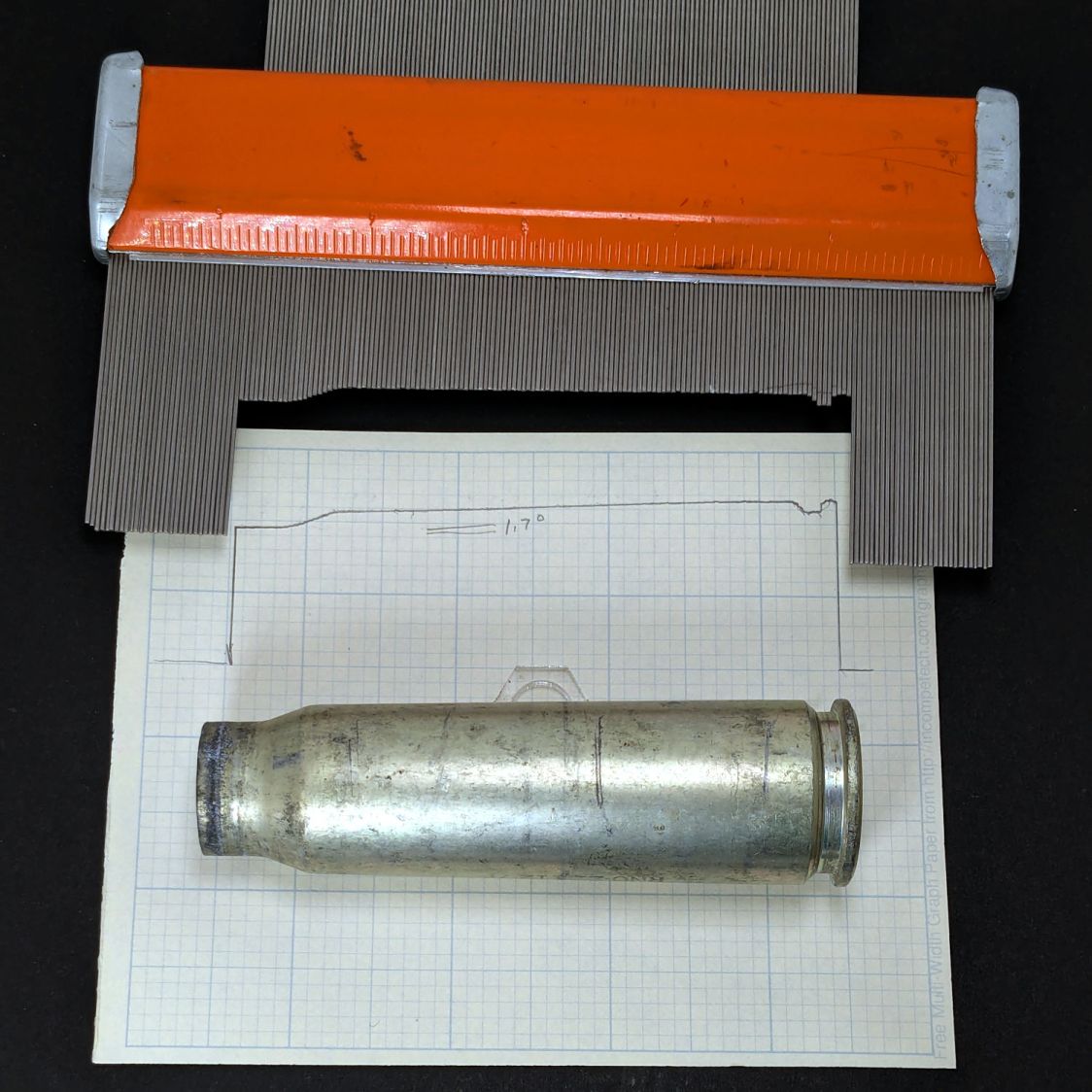
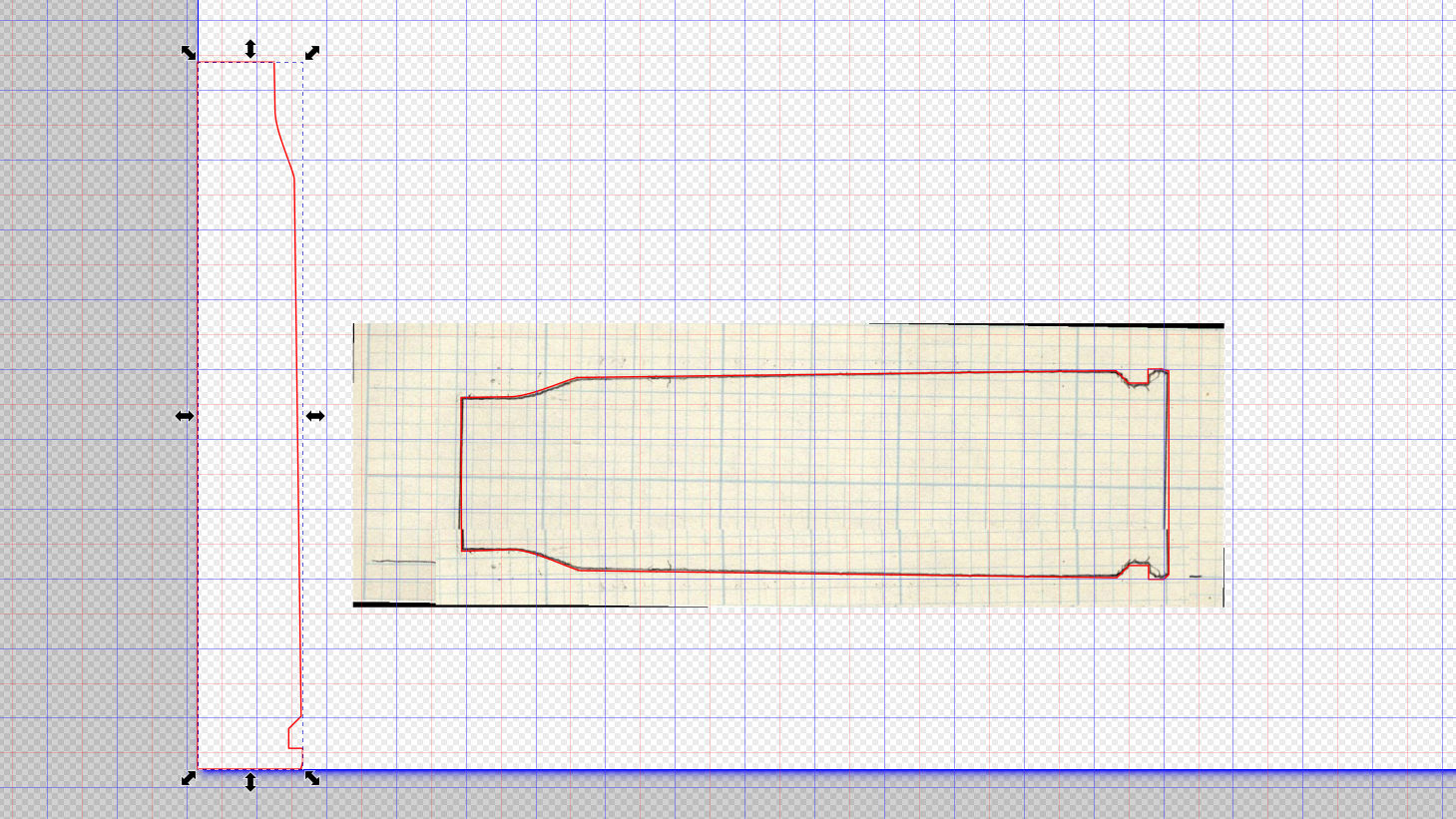
Scan the sketch, import into Inkscape, rotate the image to correct the case taper angle vs. the page, lay lines & curves around the perimeter, align half of it at the page origin to work with OpenSCAD, export as SVG:
Cartridge – 20x102mm outline – Inkscape layout
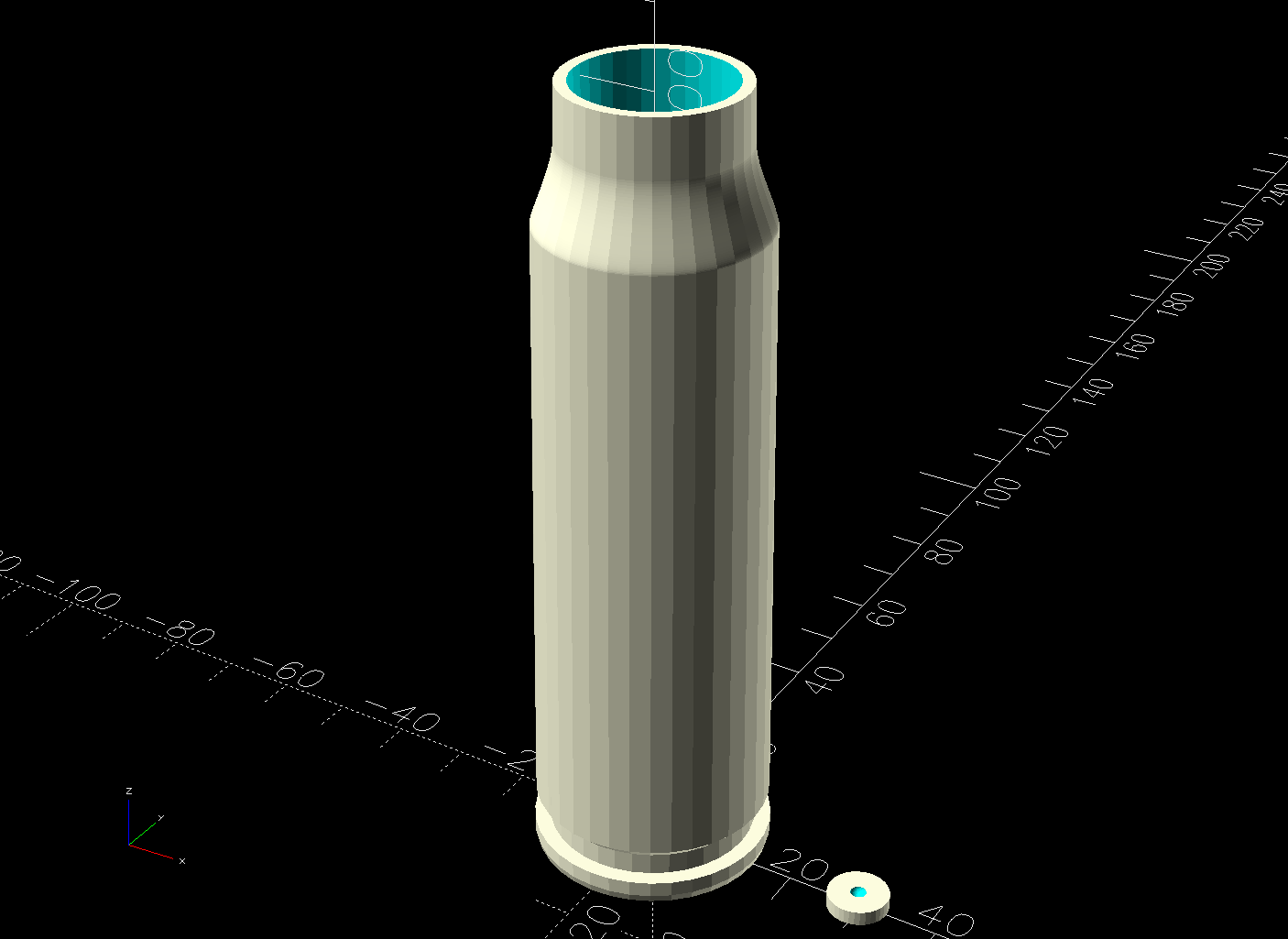
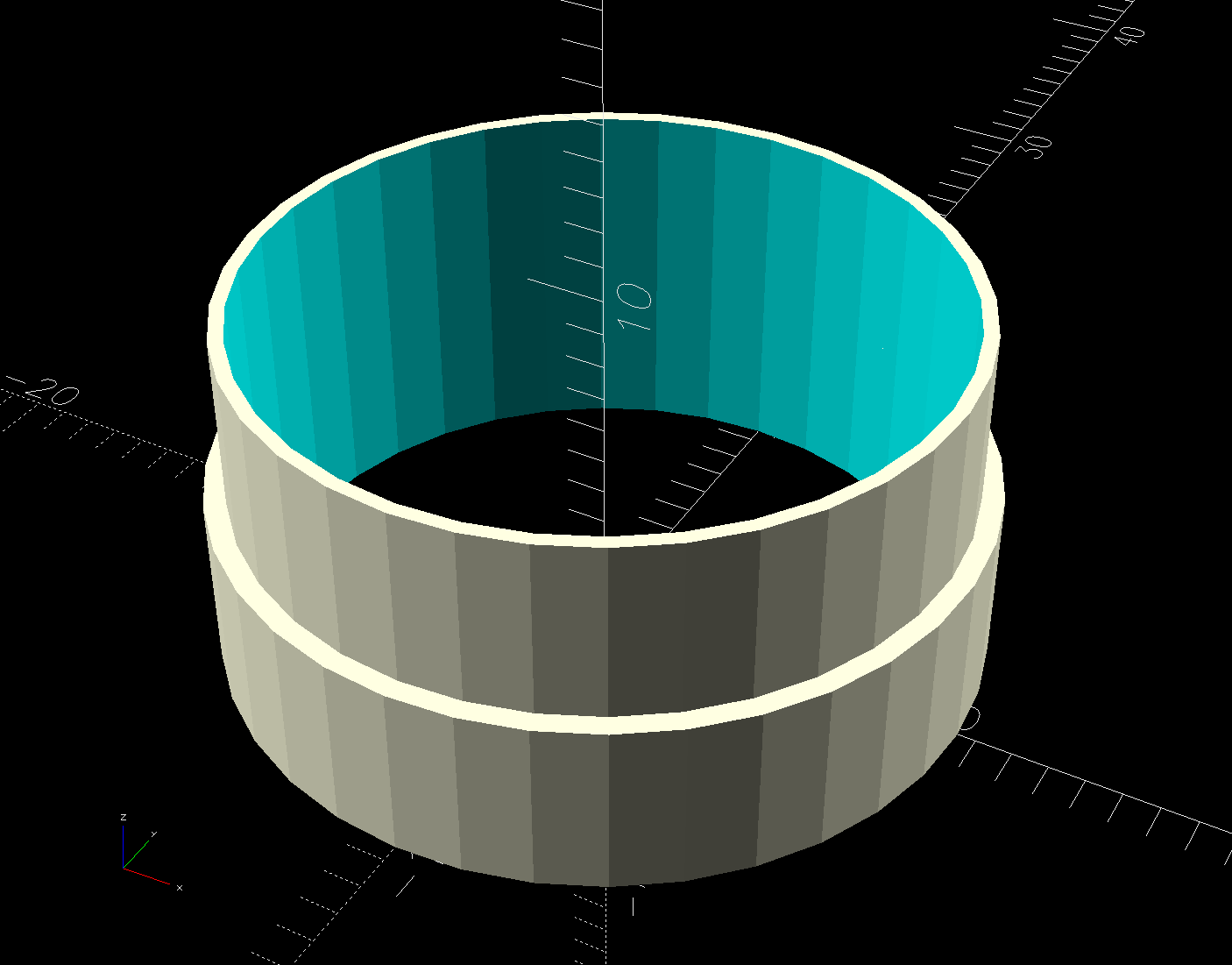
Import into OpenSCAD, let rotate_extrude do the heavy lifting, and remove some pieces:
Cartridge Case – build view solid model
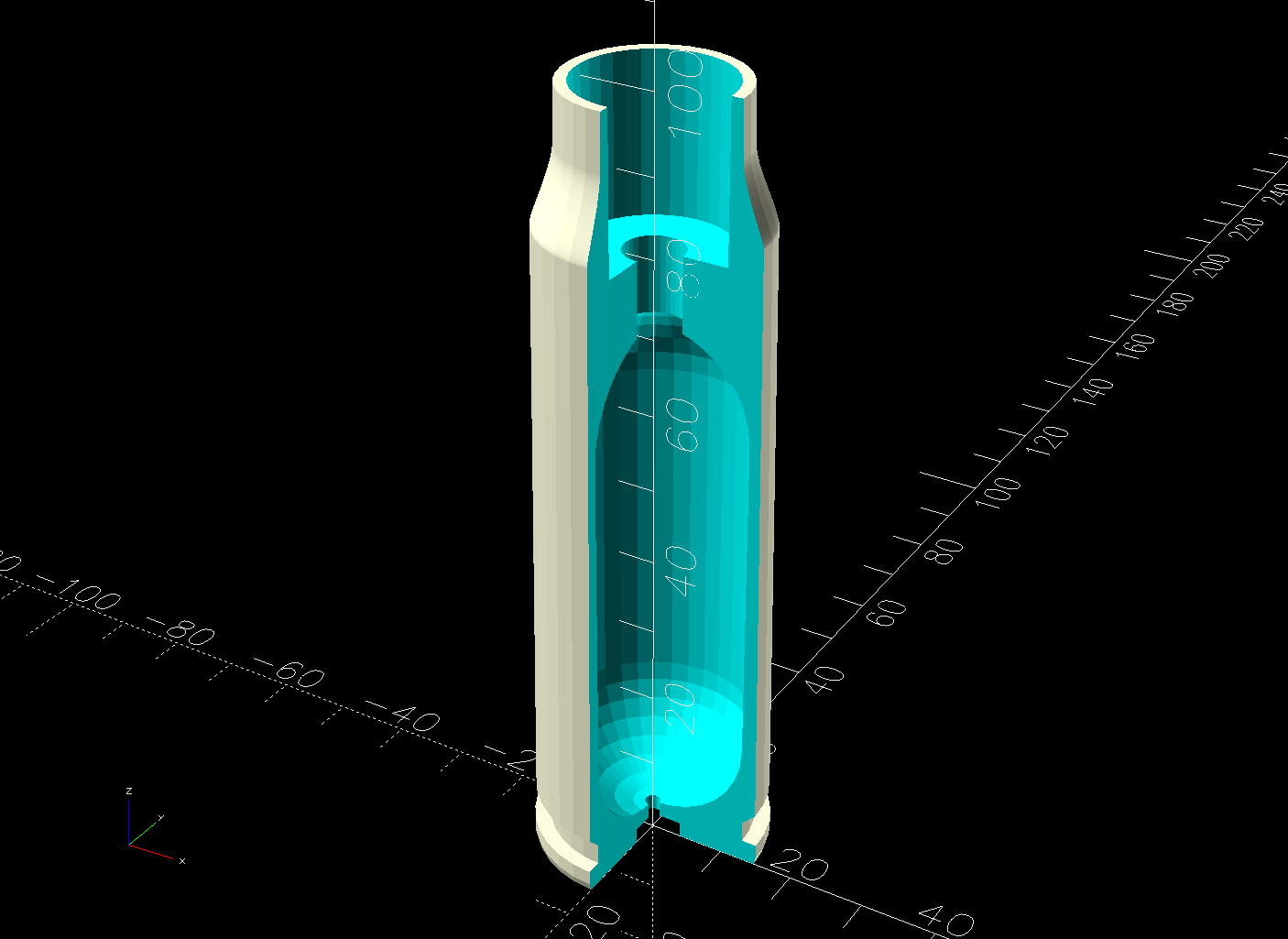
The little disk represents a fired primer you’d print separately in a different color and glue into the pocket shown in this cutaway view:
Cartridge Case – cutaway solid model
The interior void could hold sand for additional heft, as the whole thing is obviously nose-heavy; that’s certainly in the nature of fine tuning. Obviously, we are not dealing with anything that could go bang.
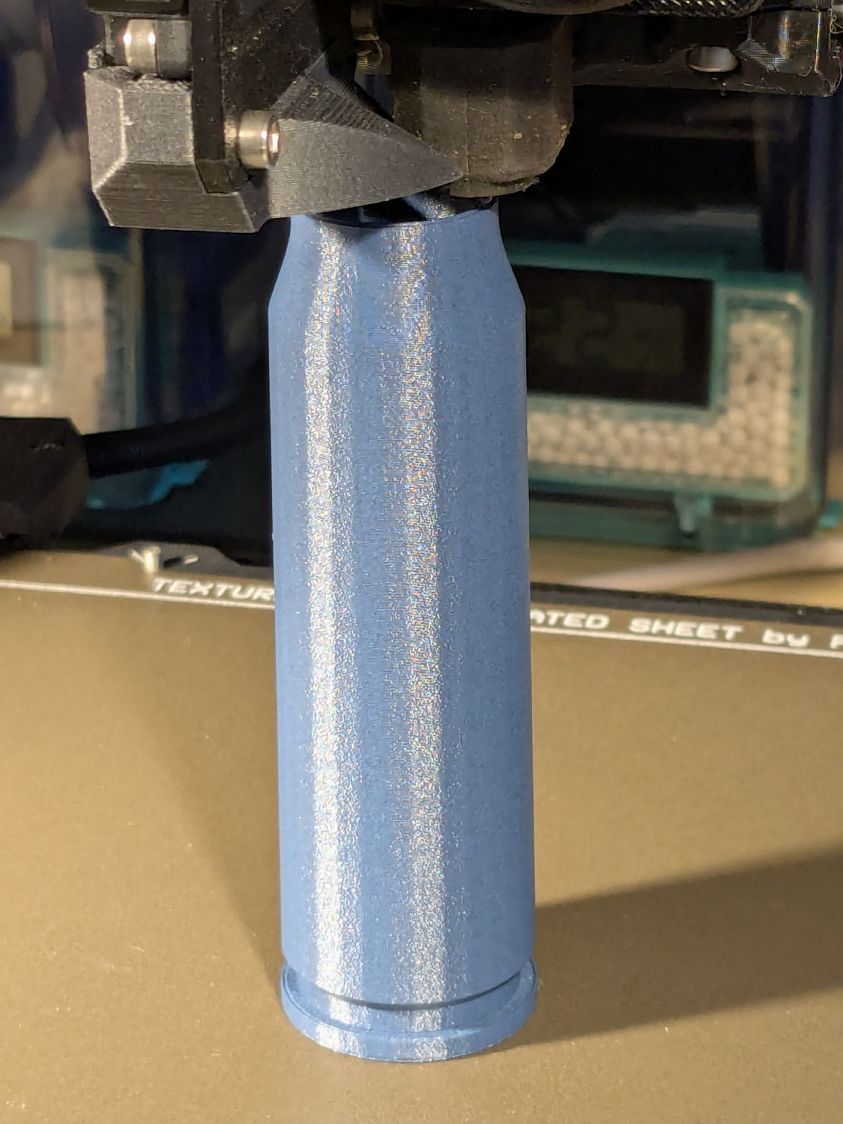
It builds just like you’d expect:
20x102mm cartridge – printing
Dab some adhesive on the capsule tip, ditto for the primer, stick them in place, and it’s all good.
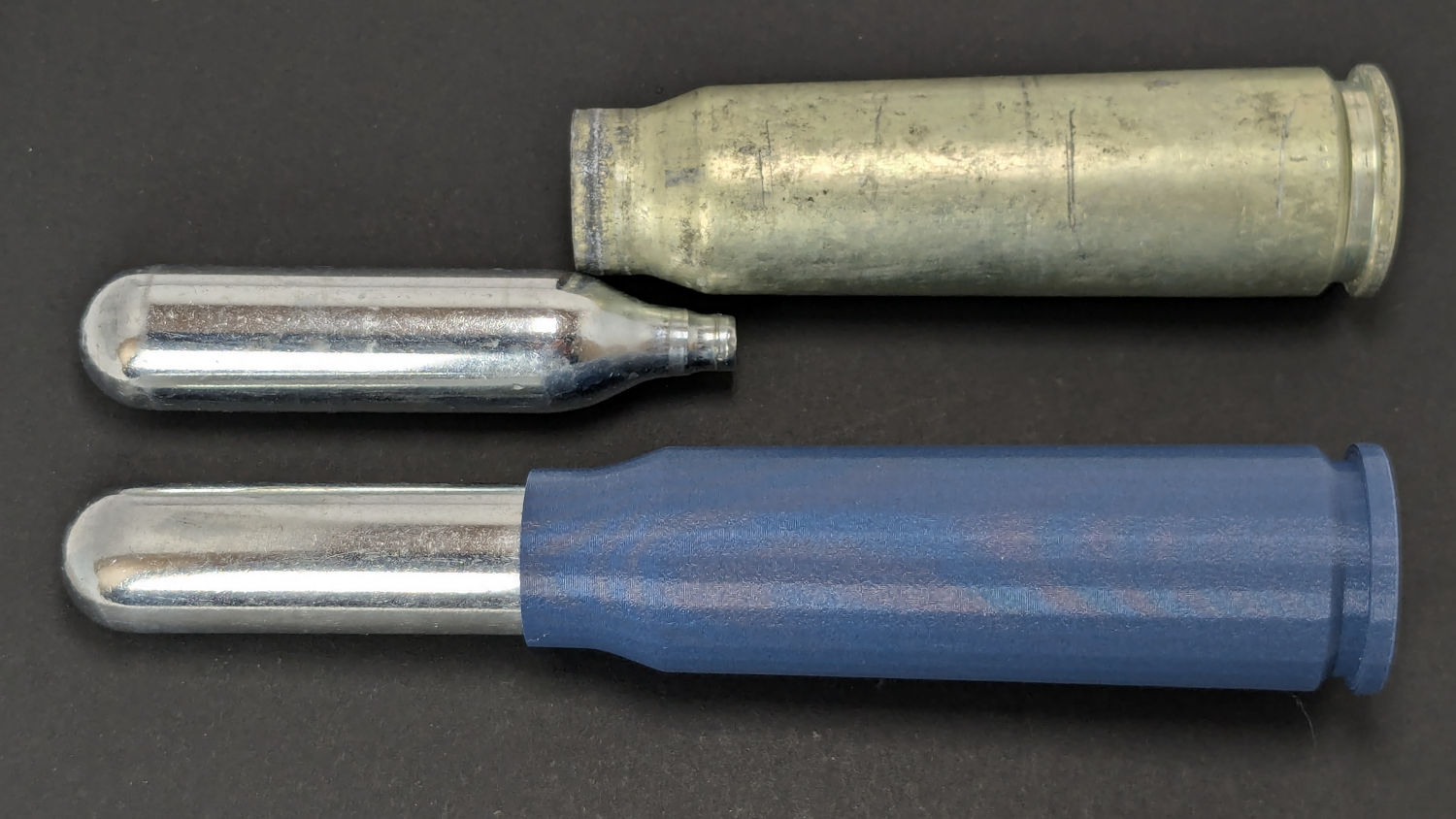
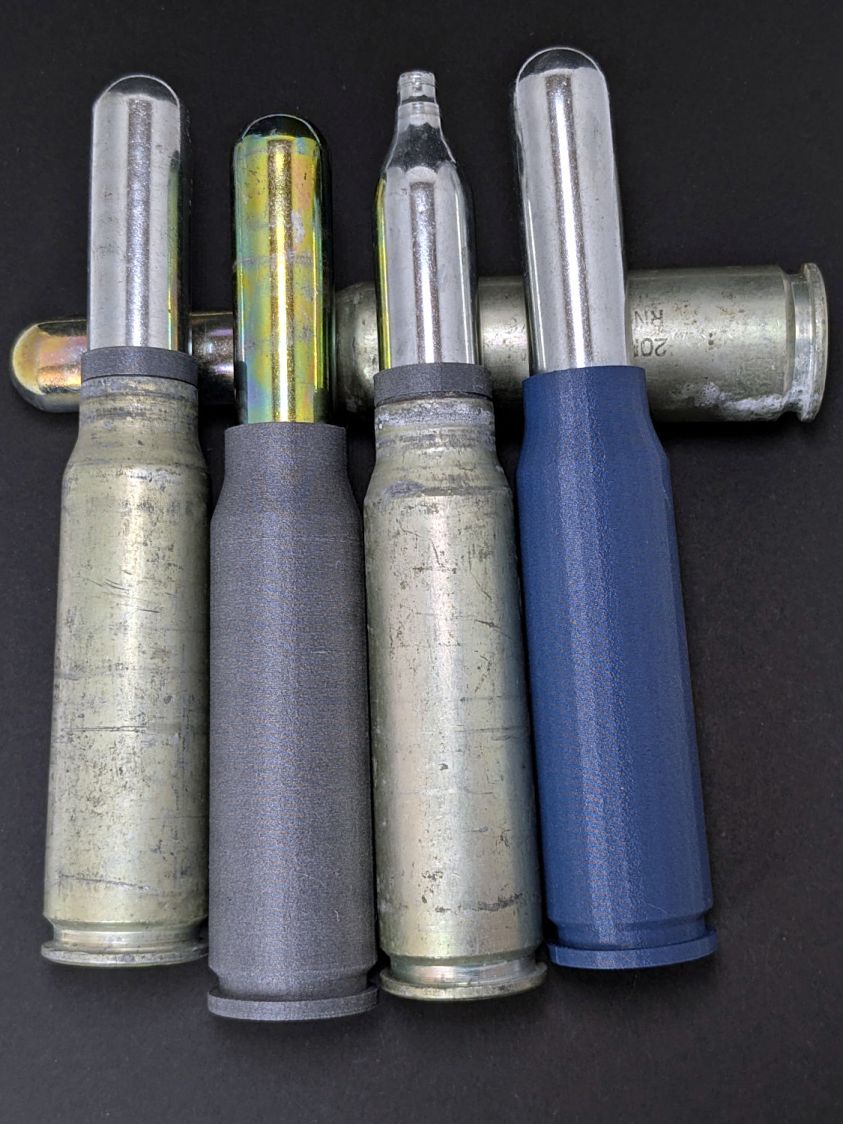
I like the gray PETG-CF version:
20x102mm cartridges – blue gray PETG-CF
Maybe not such a good idea in this day & age. Print responsibly, as they say.
Update
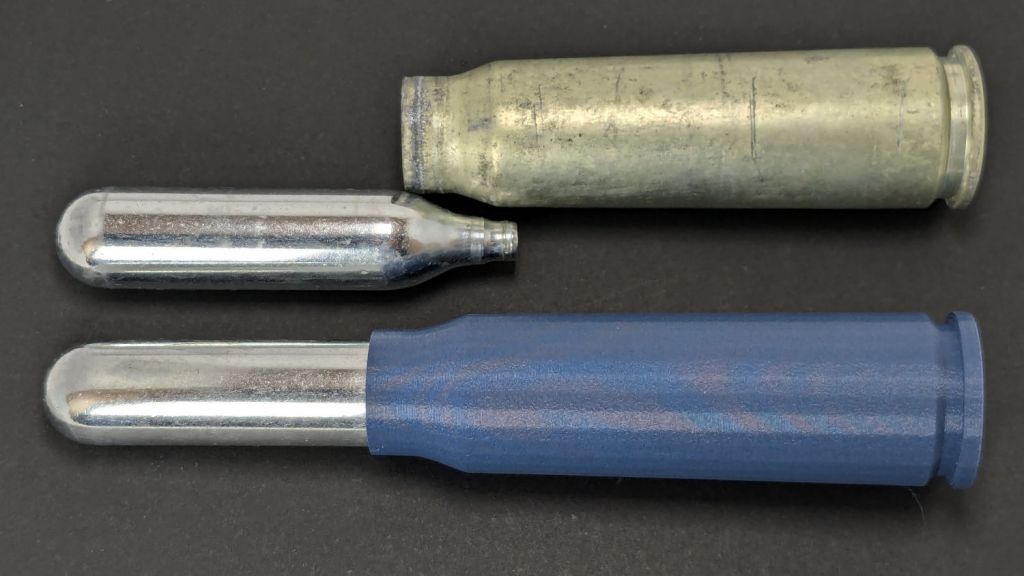
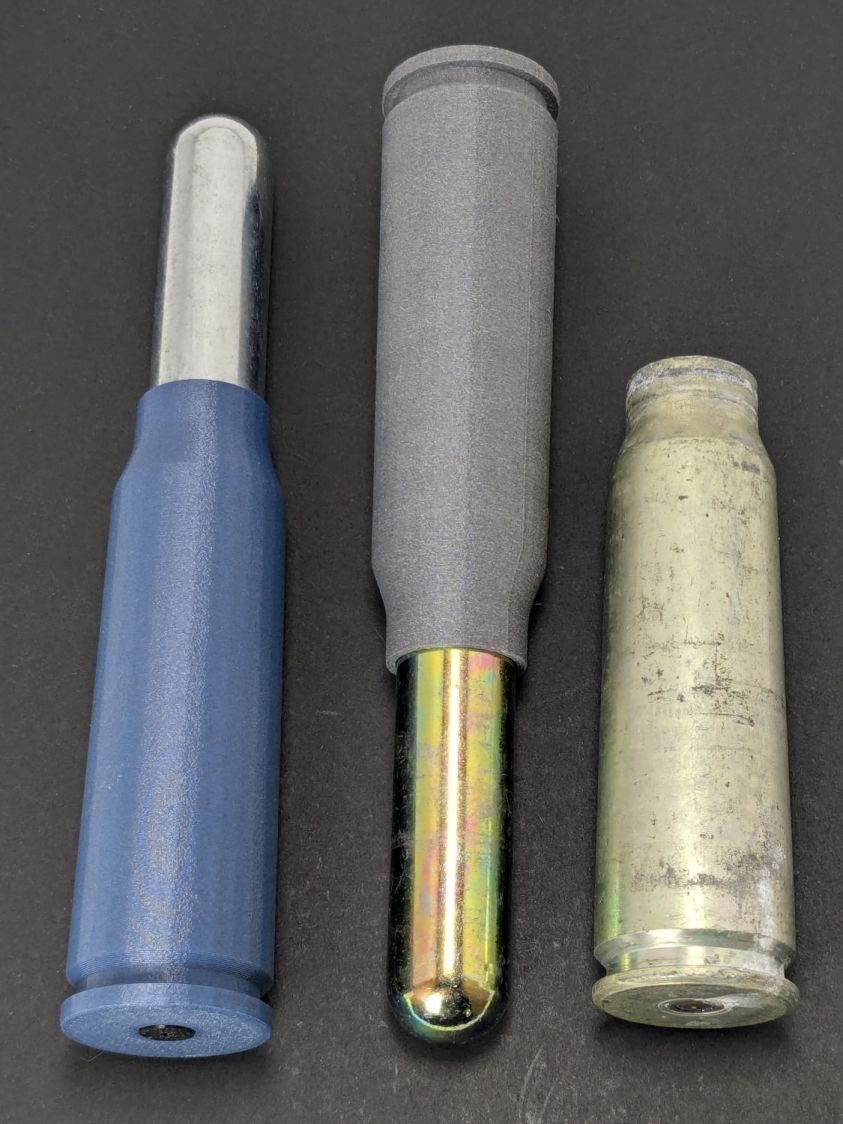
Print a sabot to fit a CO₂ capsule into a genuine steel cartridge.
This file contains hidden or bidirectional Unicode text that may be interpreted or compiled differently than what appears below. To review, open the file in an editor that reveals hidden Unicode characters.
Learn more about bidirectional Unicode characters
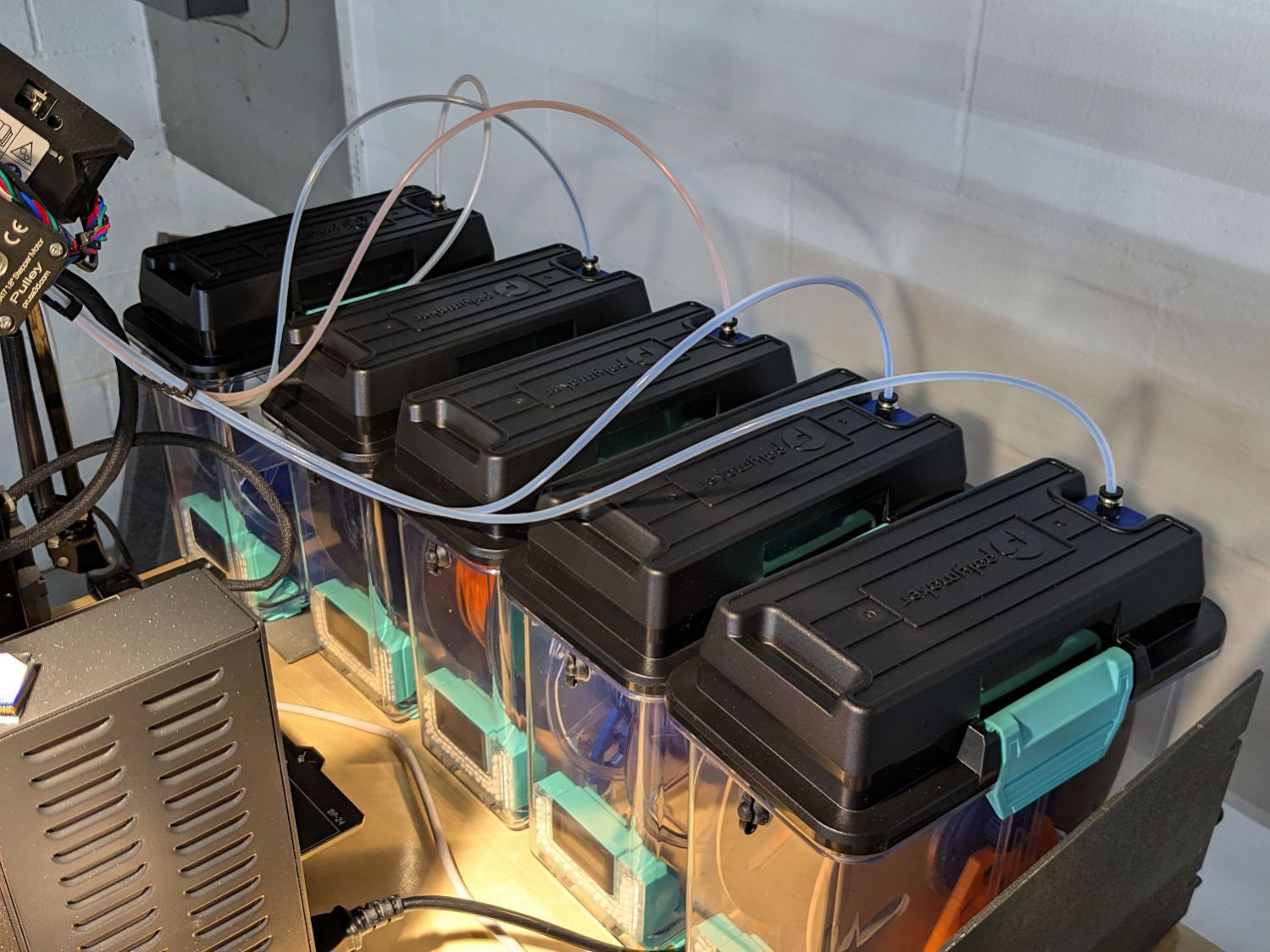
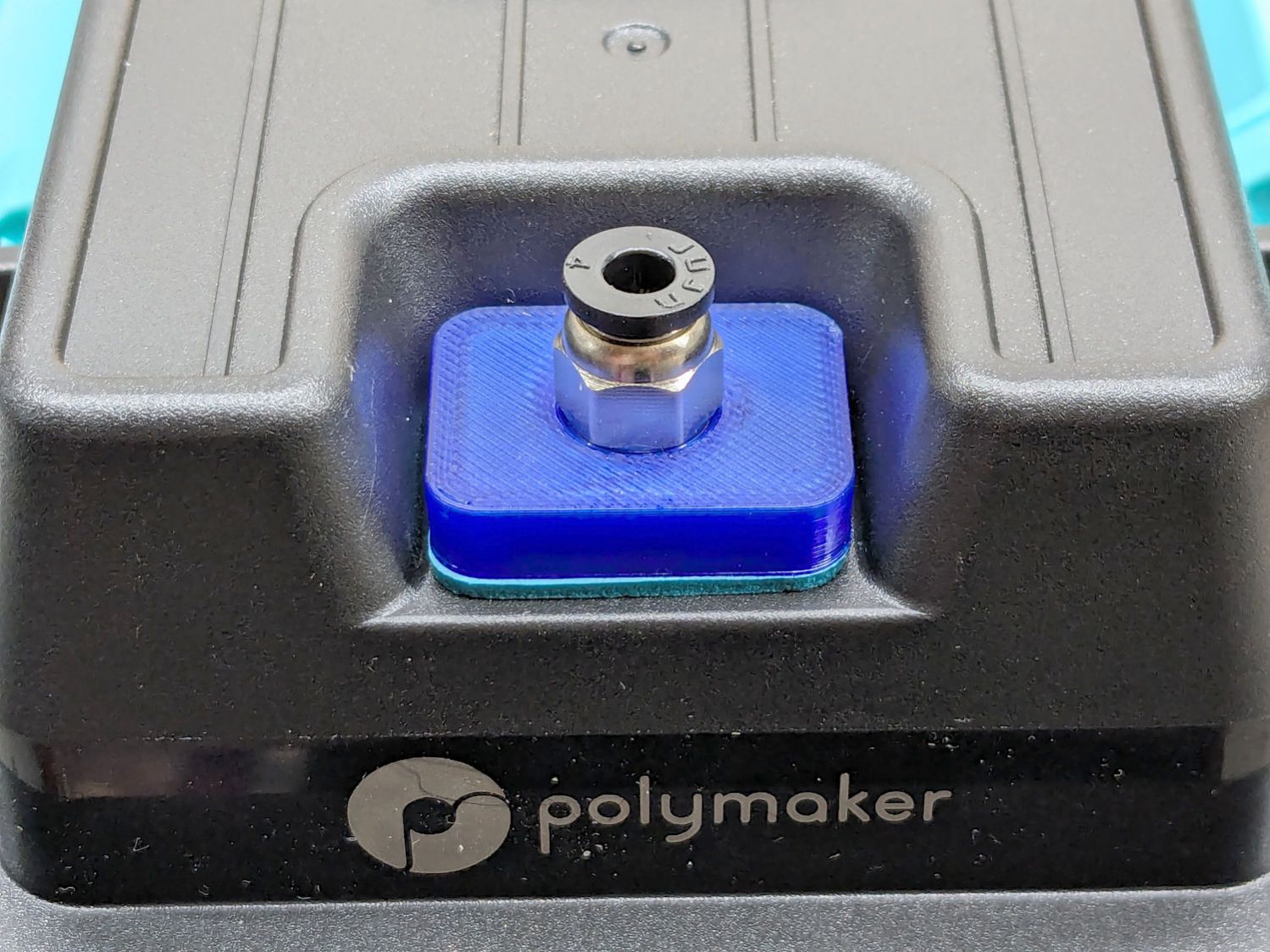
Their rubbery port covers work best with 6 mm OD PTFE tubes, but let the MMU3’s 4 mm tubes slide into / out of the boxes under normal filament extrusion / retraction forces, so I conjured an adapter for PC4-M10 pneumatic fittings:
PolyDryer PC4 Fitting – installed
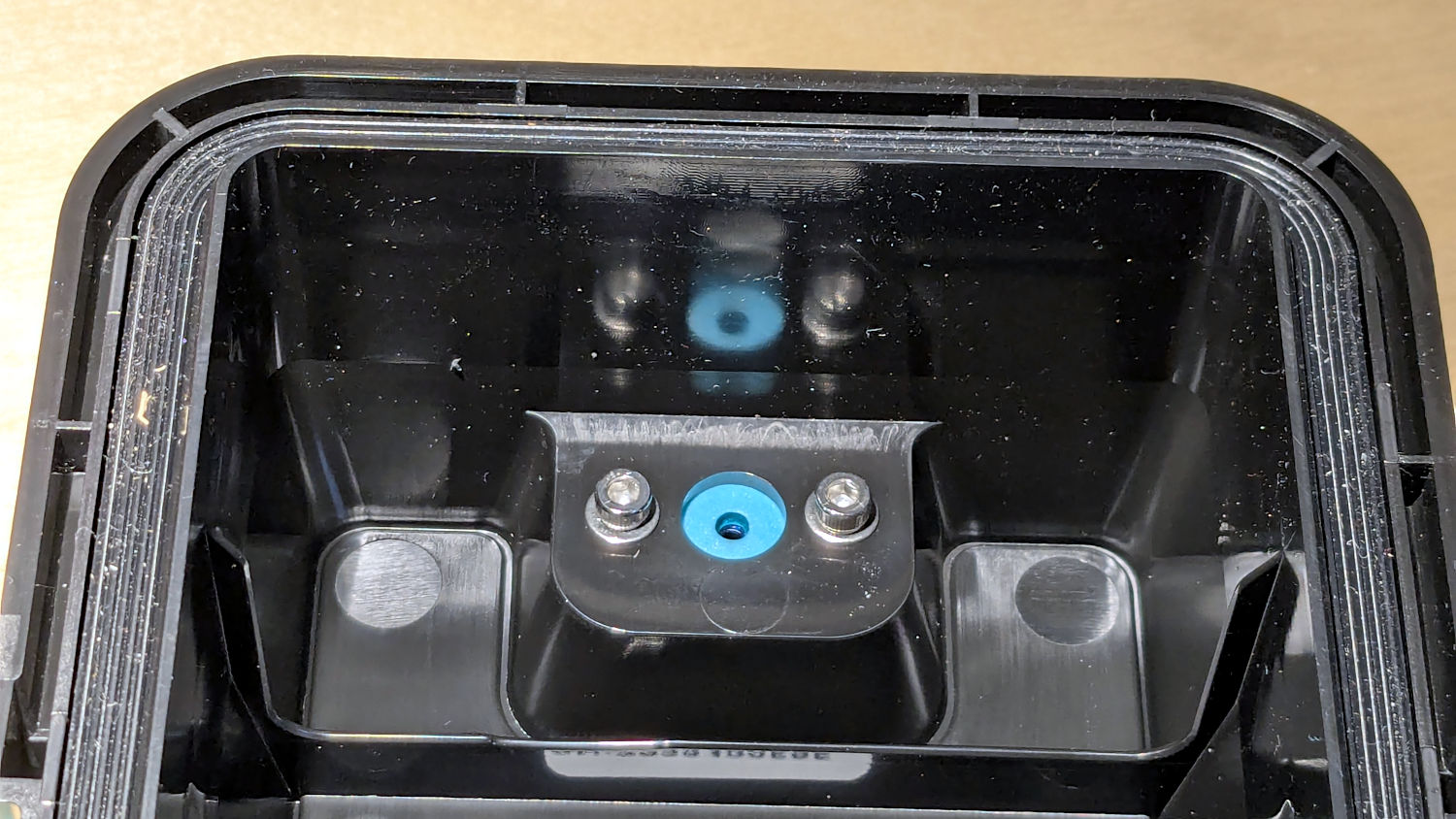
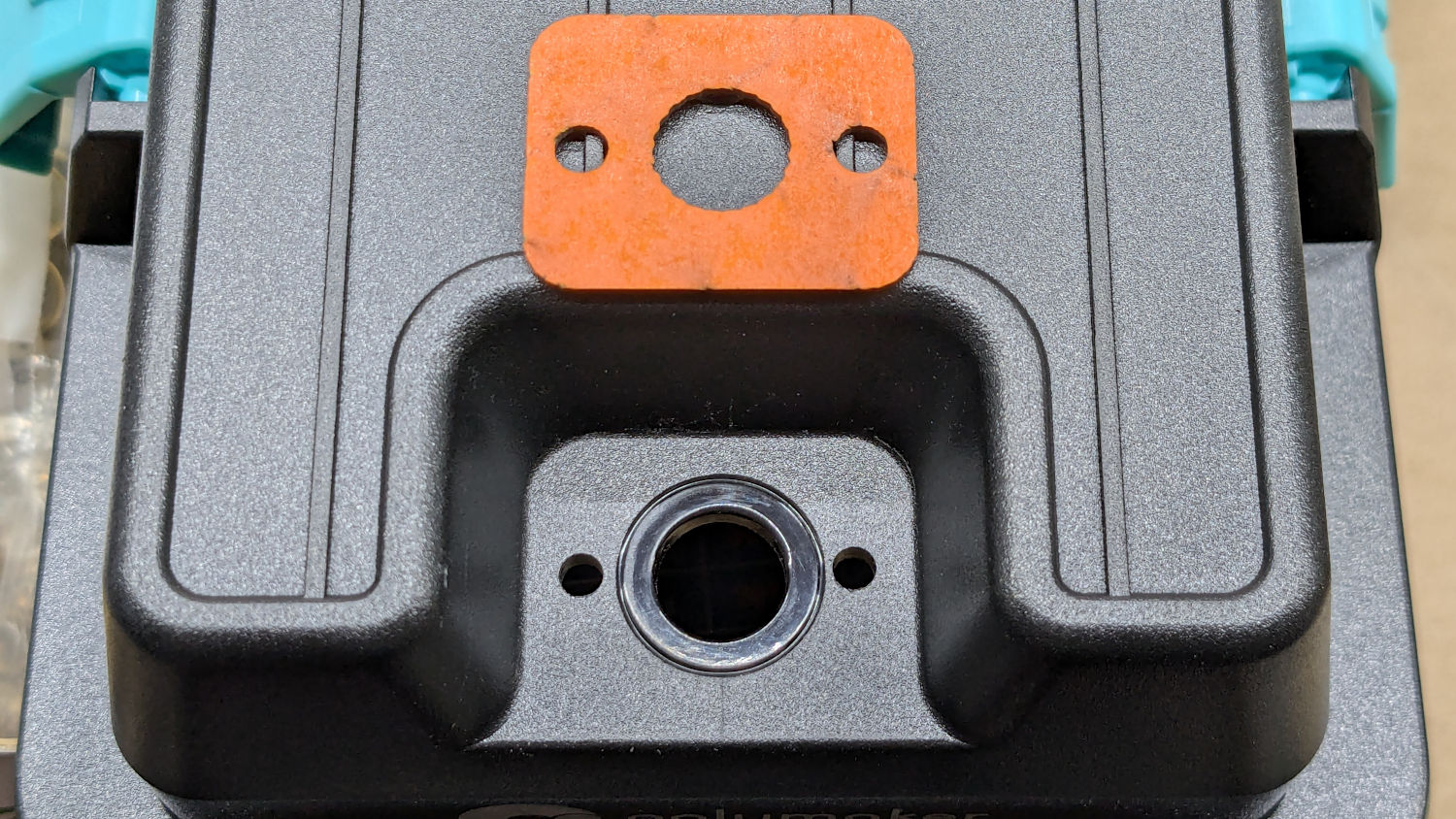
A pair of M3 screws hold the adapter plate in place, with an EVA foam gasket sealing against the cover:
PolyDryer PC4 Fitting – interior view
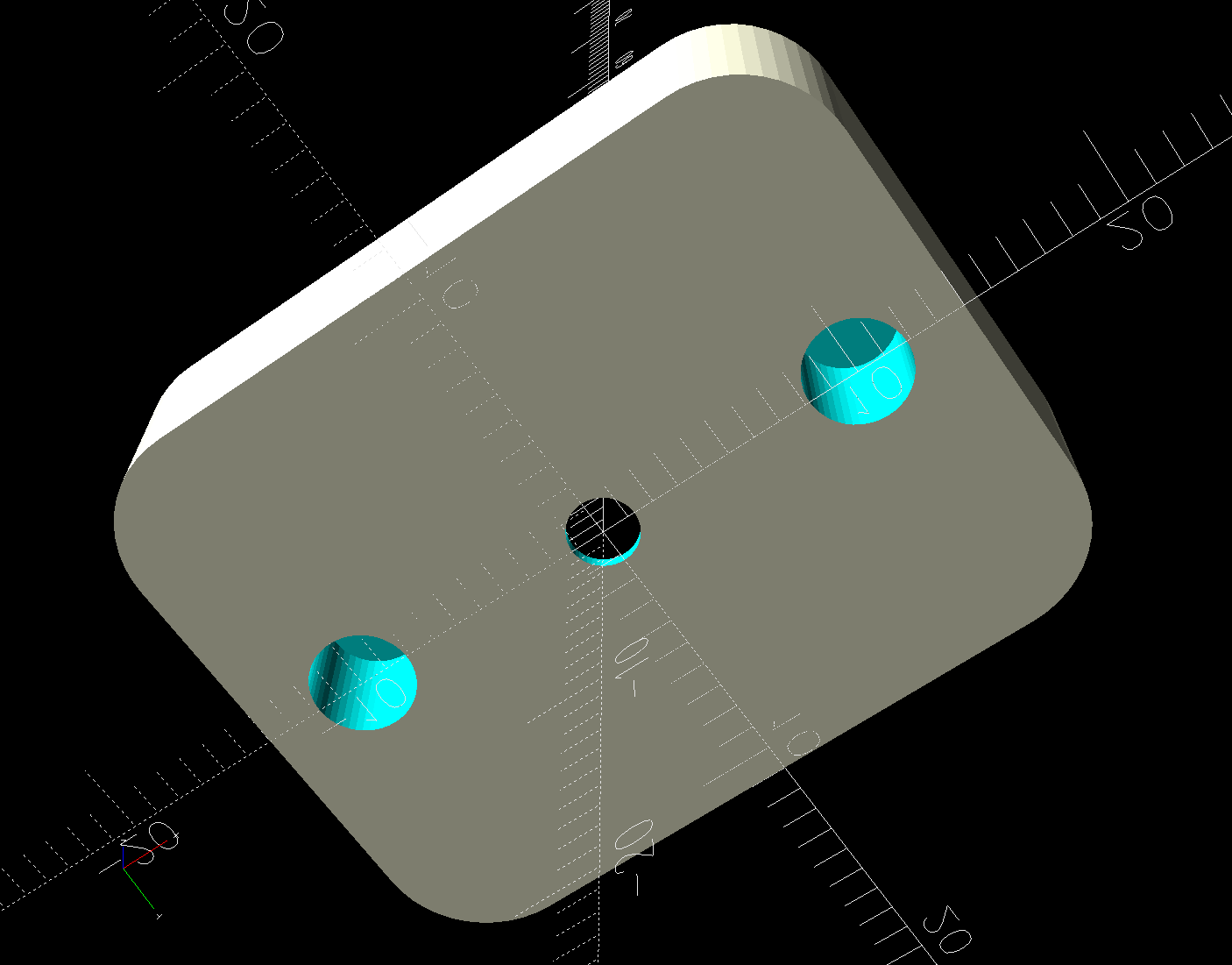
The PC4-M10 fittings let the 4 mm tubing slide right through, so the adapter has a 0.5 mm bottom sheet to block the tube, with a small hole for the filament:
PC4 Fitting Plates – bottom – solid model
You could use PC4-M6 fittings to block the tubing, but the 2 mm lumen on the fittings I have barely pass 1.75 mm nominal filament. Comments found elsewhere suggest identical PC4-M6 fittings have smaller lumens that snag the filament as it moves in one direction or the other.
The two blind holes get heat-staked 4×4mm M3 brass inserts.
The top has a threaded hole for the fitting:
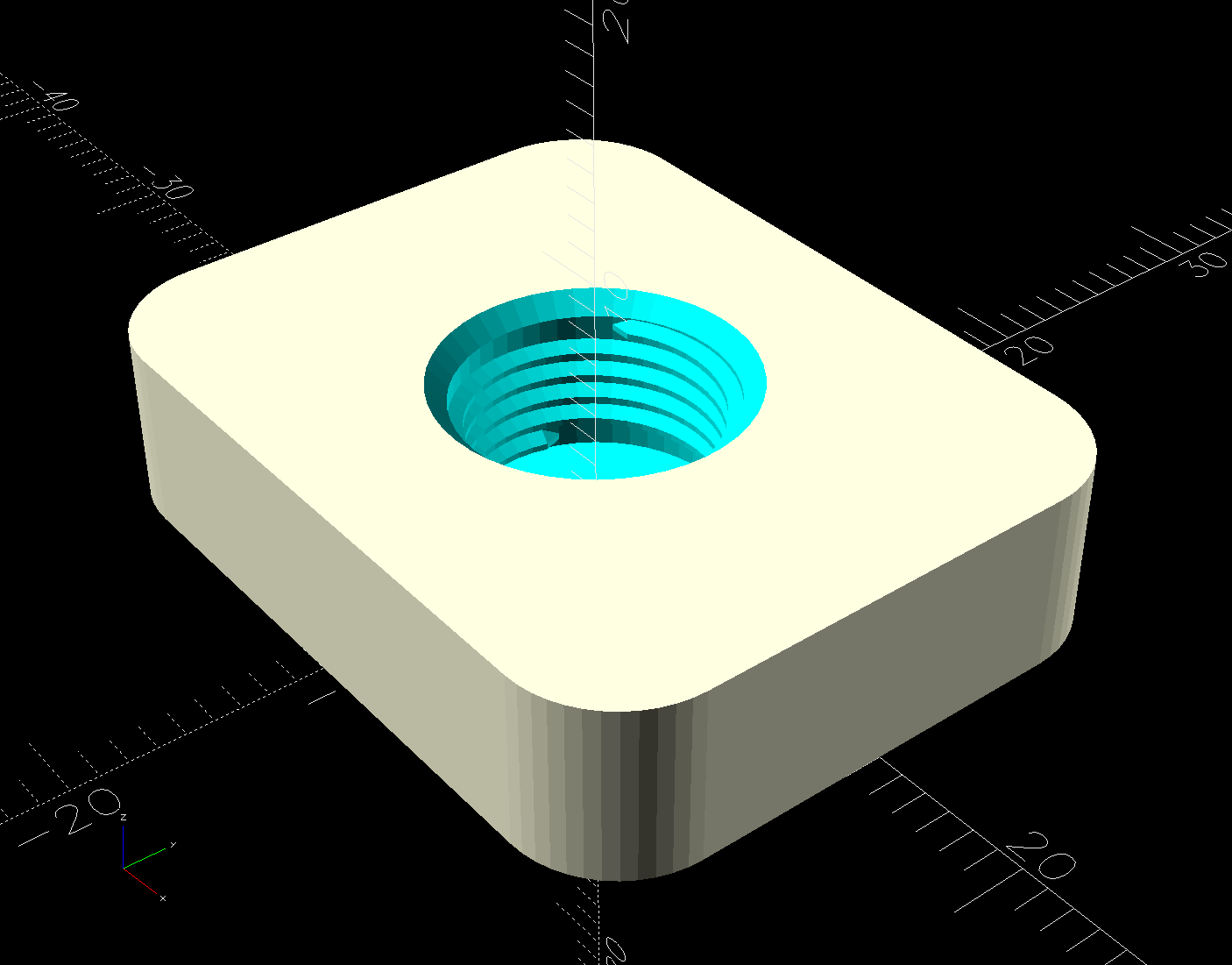
PC4 Fitting Plates – top – solid model
Despite what the description says, the thread is not an M10 metric straight thread: it is a tapered pipe thread used for gas- and liquid-tight fittings. Considerable measurement & searching suggested a ⅛BSP-28 thread, because:
British Standard Pipe threads are used everywhere in the world except the USA
Both my metric tap sets have a ⅛BSP-28 tap along with all their hard-metric straight taps
The thread is painfully close to ⅛NPT-27, which would probably work in a pinch if it was the only tap you had.
Those PC4-M6 fittings might sport 1/16BSP-28 threads, but you’re on your own.
Further searching suggests nobody uses the corresponding tapered female pipe threads and everybody goes with a straight internal thread, so I conjured a stumpy threaded rod using the BOSL2 library and removed it from the adapter plate:
The 9.7 mm diameter is the ⅛BSP-28 “major diameter”, rather than its “gauge diameter”, simply because it produced a good fit. The beveled top guides the fitting into the hole, but I still managed to cross-thread one.
The OpenSCAD code also produces SVG files to laser-cut the foam gasket and a drill template:
PolyDryer PC4 Fitting – drill template
The holes were step-drilled to ⅛ inch (which has a historic relation to the ⅛BSP-28 size, because iron pipe) for a generous fit around the M3 screws.
That was way more complicated than I expected and I’m really glad to live in the future where this is a 3D printer project, not a metalworking project involving an actual tap in, say, steel.
This file contains hidden or bidirectional Unicode text that may be interpreted or compiled differently than what appears below. To review, open the file in an editor that reveals hidden Unicode characters.
Learn more about bidirectional Unicode characters
The switch on the Anker LC-40 flashlight serving as a running light on my Tour Easy became slightly intermittent before I replaced it with a 1 W amber LED, but it was still good enough to become the troubleshooting flashlight in the tray next to the Prusa Mk 4 printer. Eventually, of course, it failed completely and Something Had To Be Done.
Although I knew an exact replacement switch had to be available from the usual sources, I could not come up with a set of keywords capable of pulling them out of the chaff.
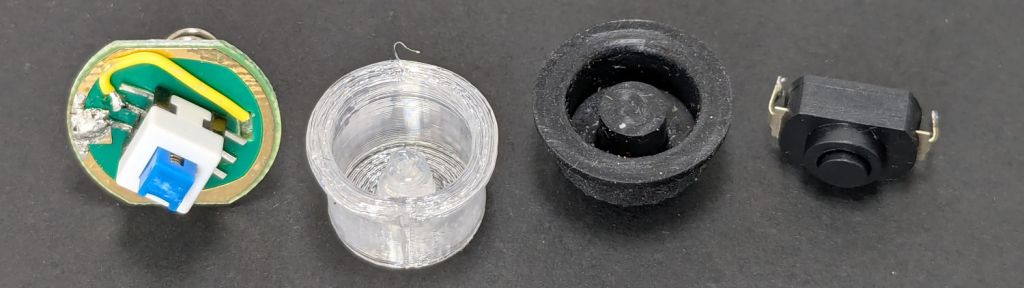
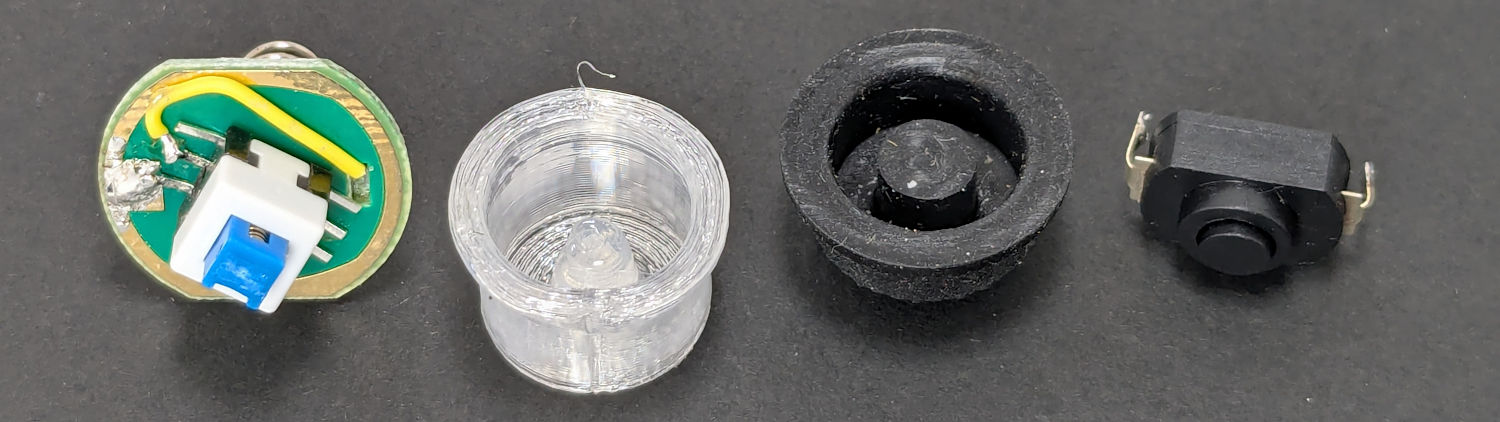
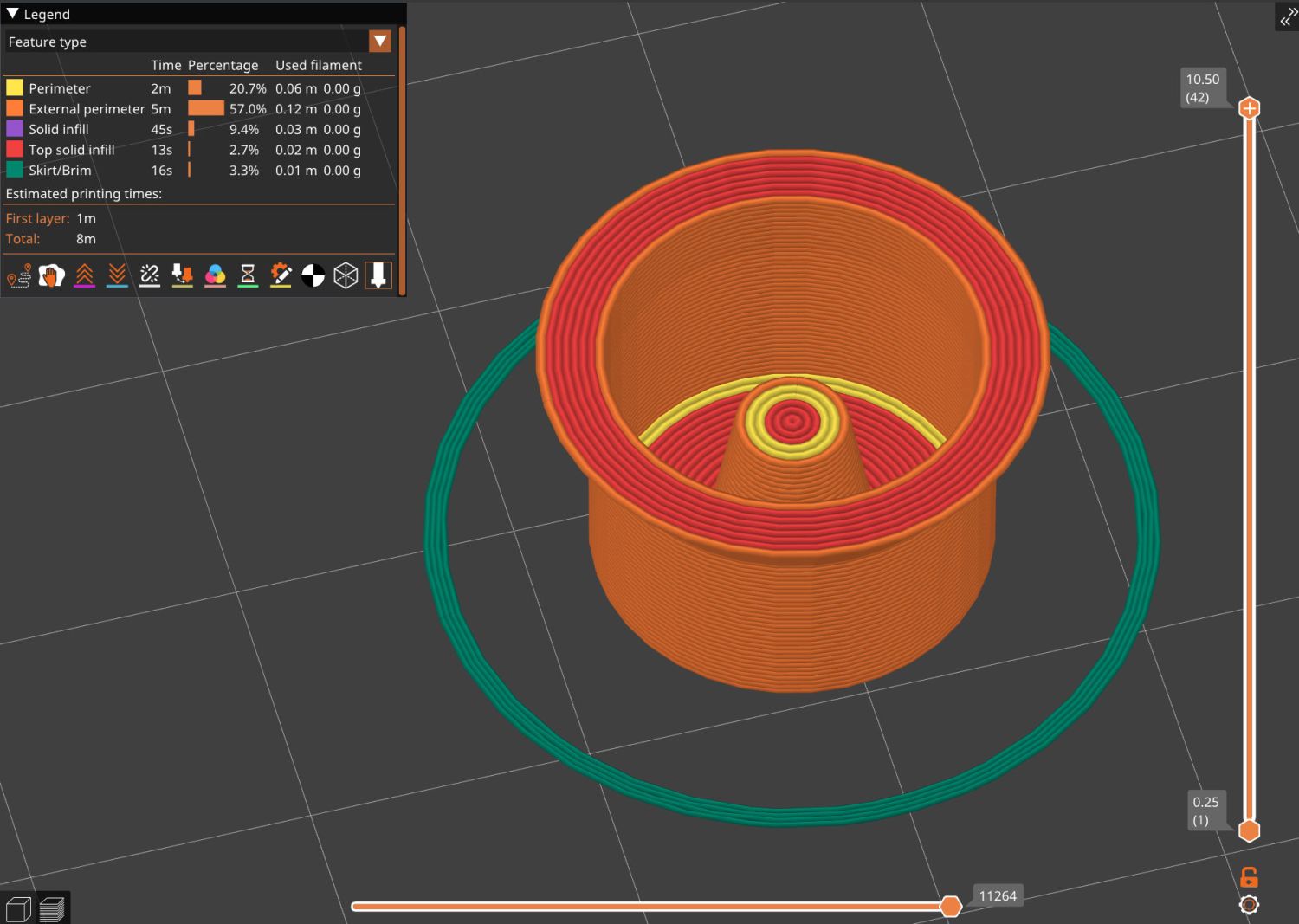
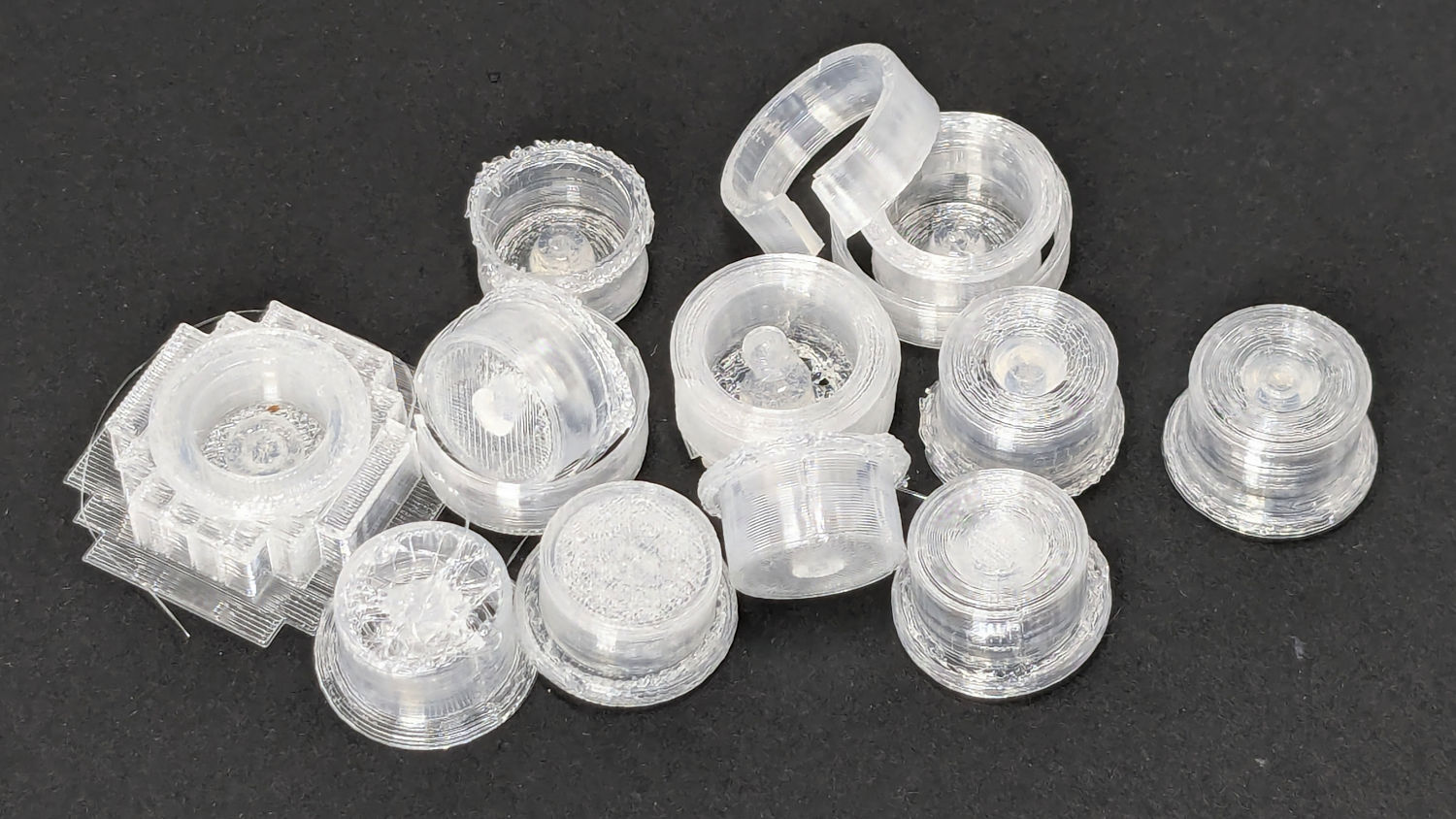
Which turned into a multi-dimensional search over cap geometry, TPU extrusion speeds & feeds, and various impossible-to-directly-measure sizes:
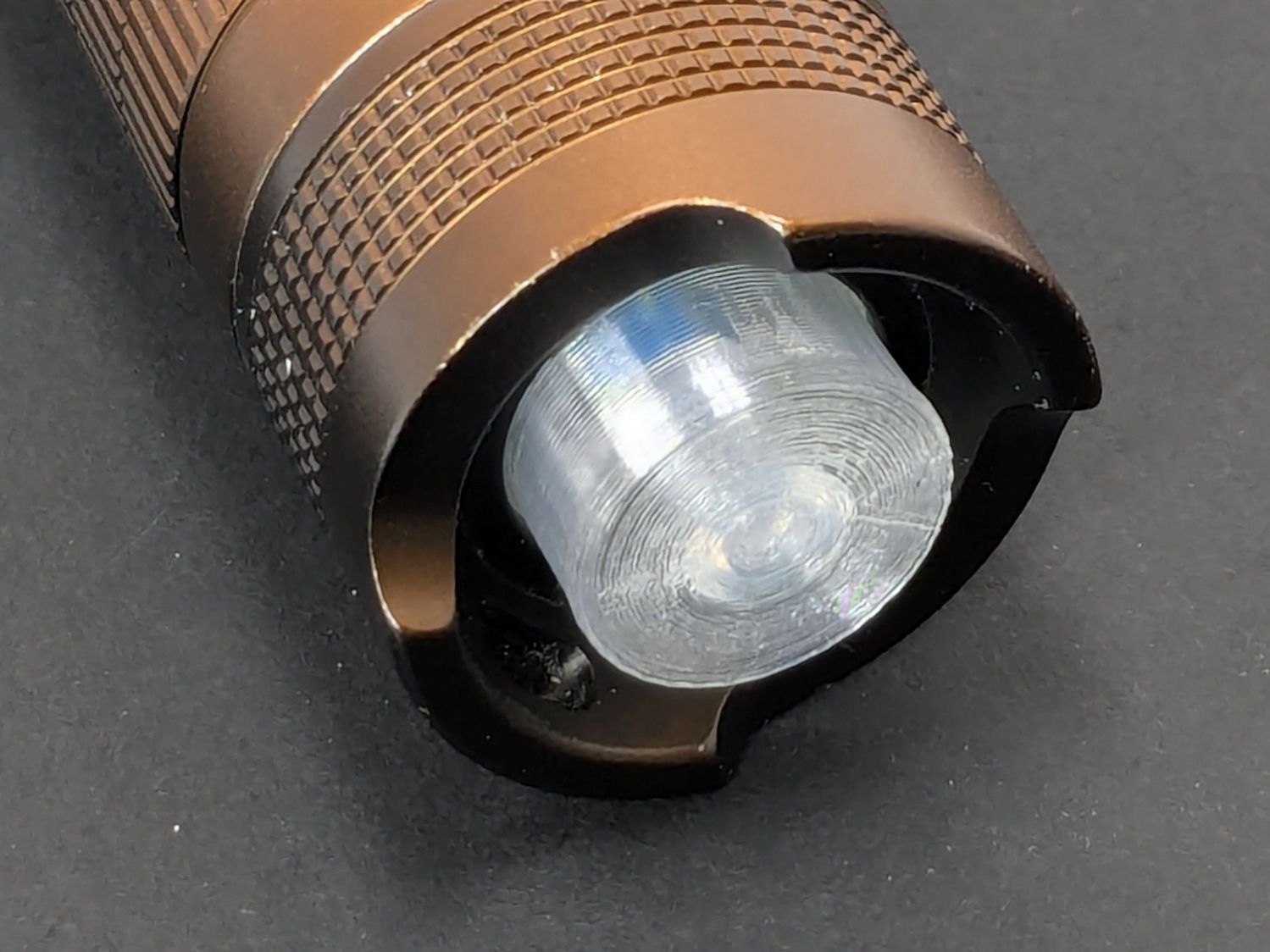
Anker LC-40 Flashlight – TPU cap iterations
The squarish block over on the left is PrusaSlicer’s version of a support structure wrapped around the first cap version; if human lives depended on it, I could surely extract the cap, but it would take a while.
The remaining debris samples occured while discovering:
An extruder temperature of 230 °C, not 250 °C, works well
A conical shape of the lip around the open end to eliminate the support structure
TPU doesn’t bridge well, so the closed end must be down
Length of the central pillar to barely touch the switch stem when released
Cap length and wall thickness so the TPU shell can collapse enough to actuate and release the switch stem
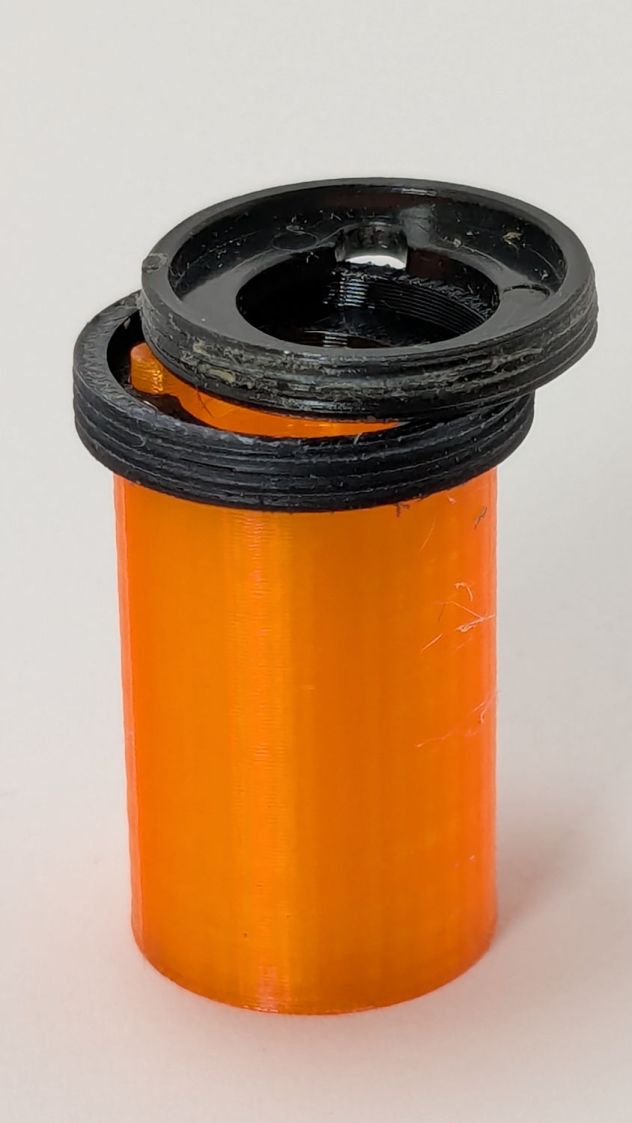
Because I expected this would be an easy job, I used snap ring pliers to unscrew and rescrew the threaded retaining ring holding the switch PCB in place. Because the pliers didn’t have a stable grip on the ring, the threads eventually became just a bit goobered.
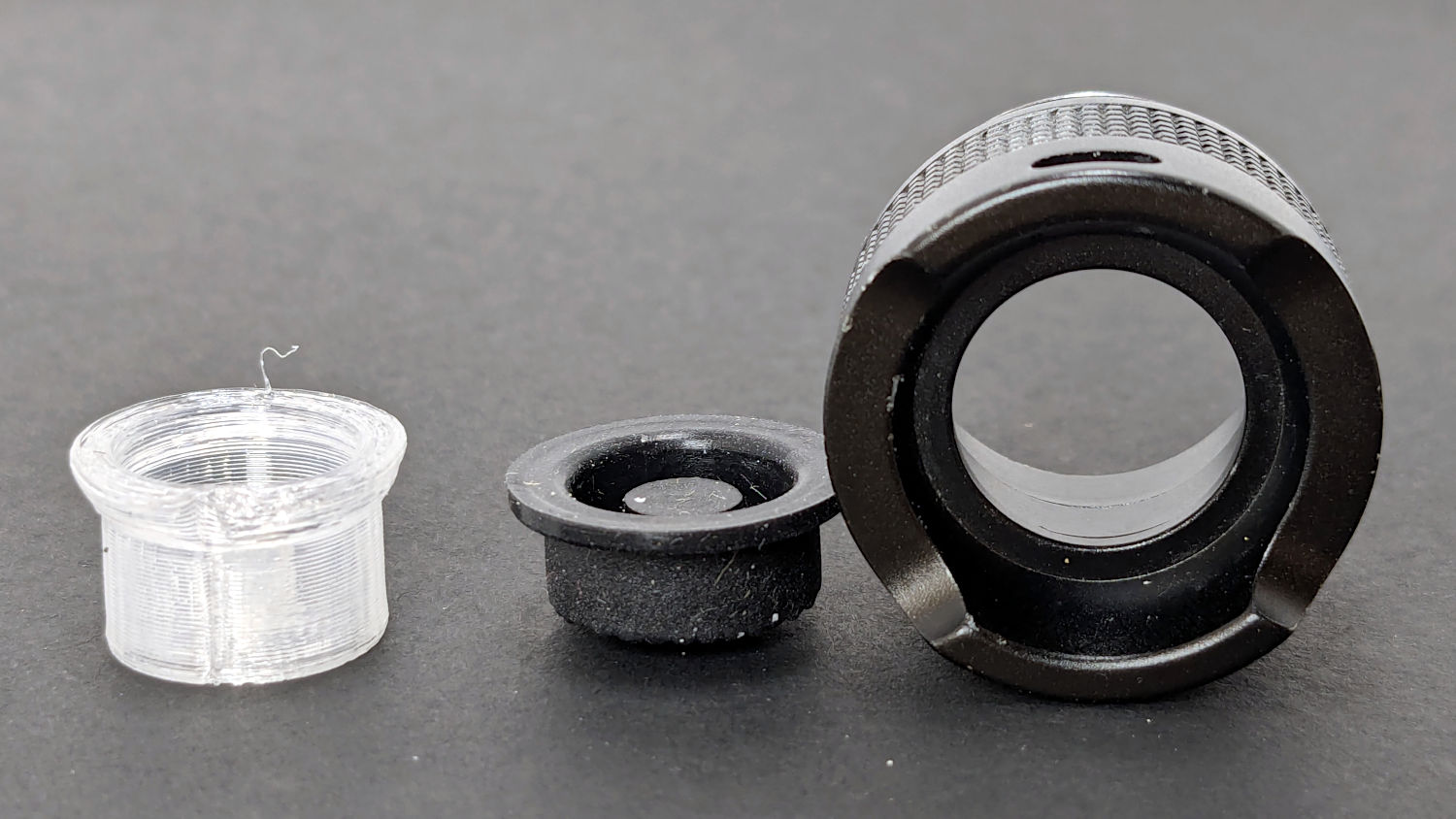
This was not a problem, because I have a(nother) 3D printer:
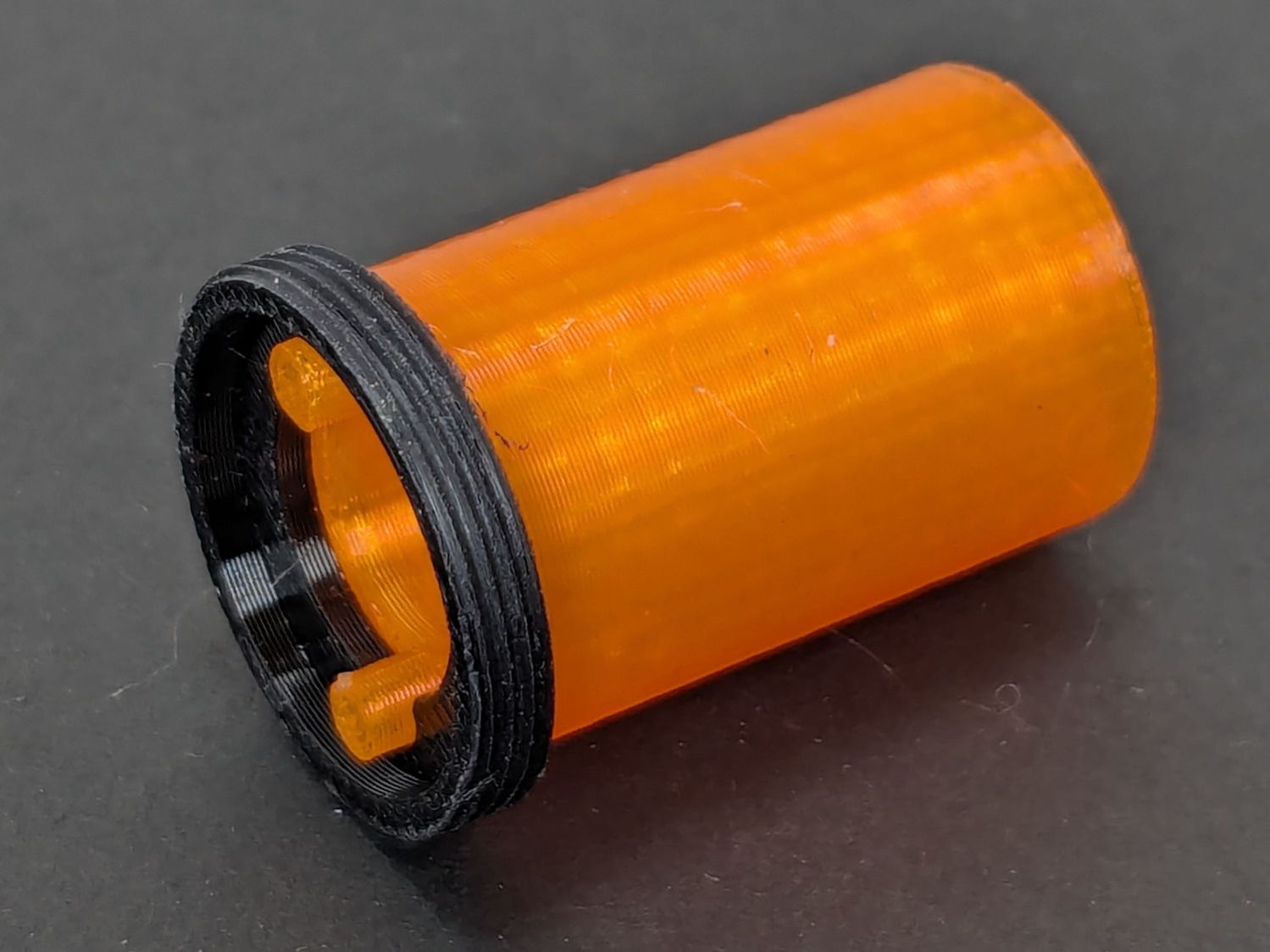
Anker LC-40 Flashlight Retainer – show view
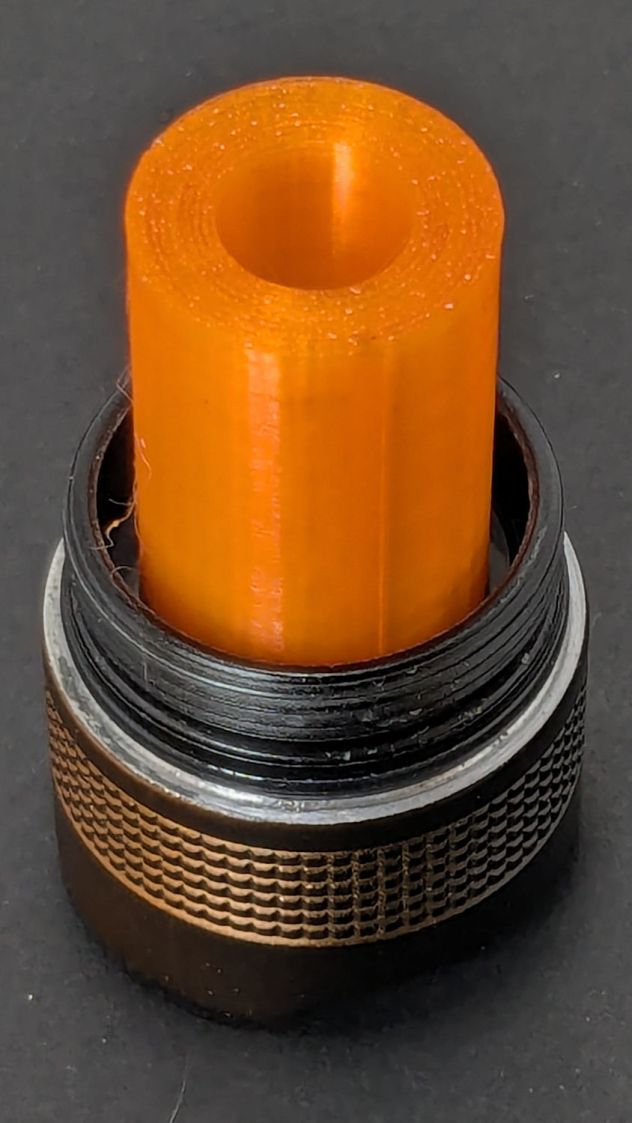
The gray thing on the right is a simple pin wrench fitting both the original and the replacement retaining rings, so I can orient the rings properly while unscrewing & rescrewing:
Anker LC-40 Flashlight – pin wrench in place
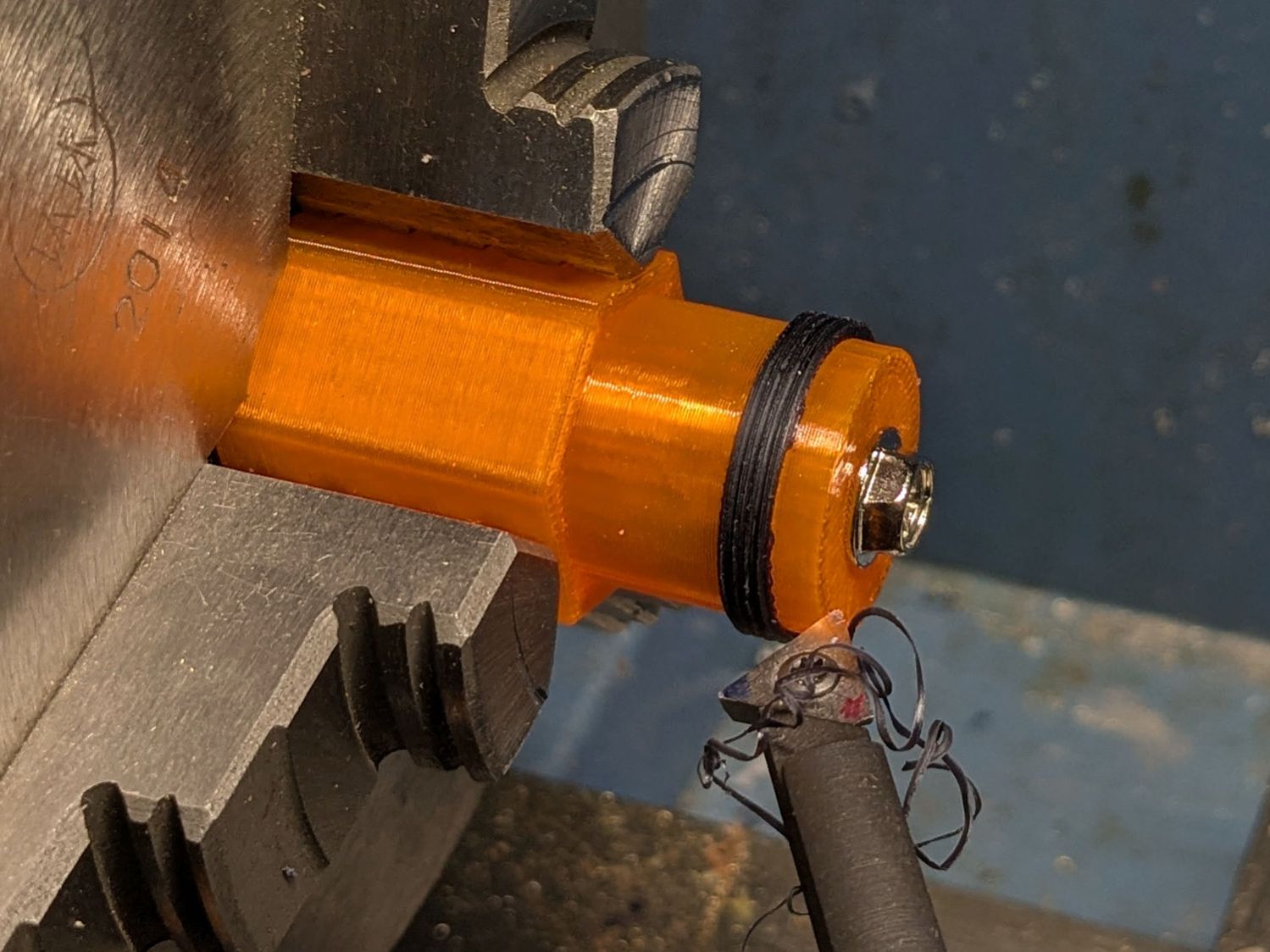
The threads have a 0.75 mm pitch and, while it’s possible to print screw threads, even a tedious 0.1 mm layer height would define each turn of the thread with only 7-½ layers.
This was not a problem, because I have a mini-lathe:
Anker LC-40 Flashlight – thread cutting
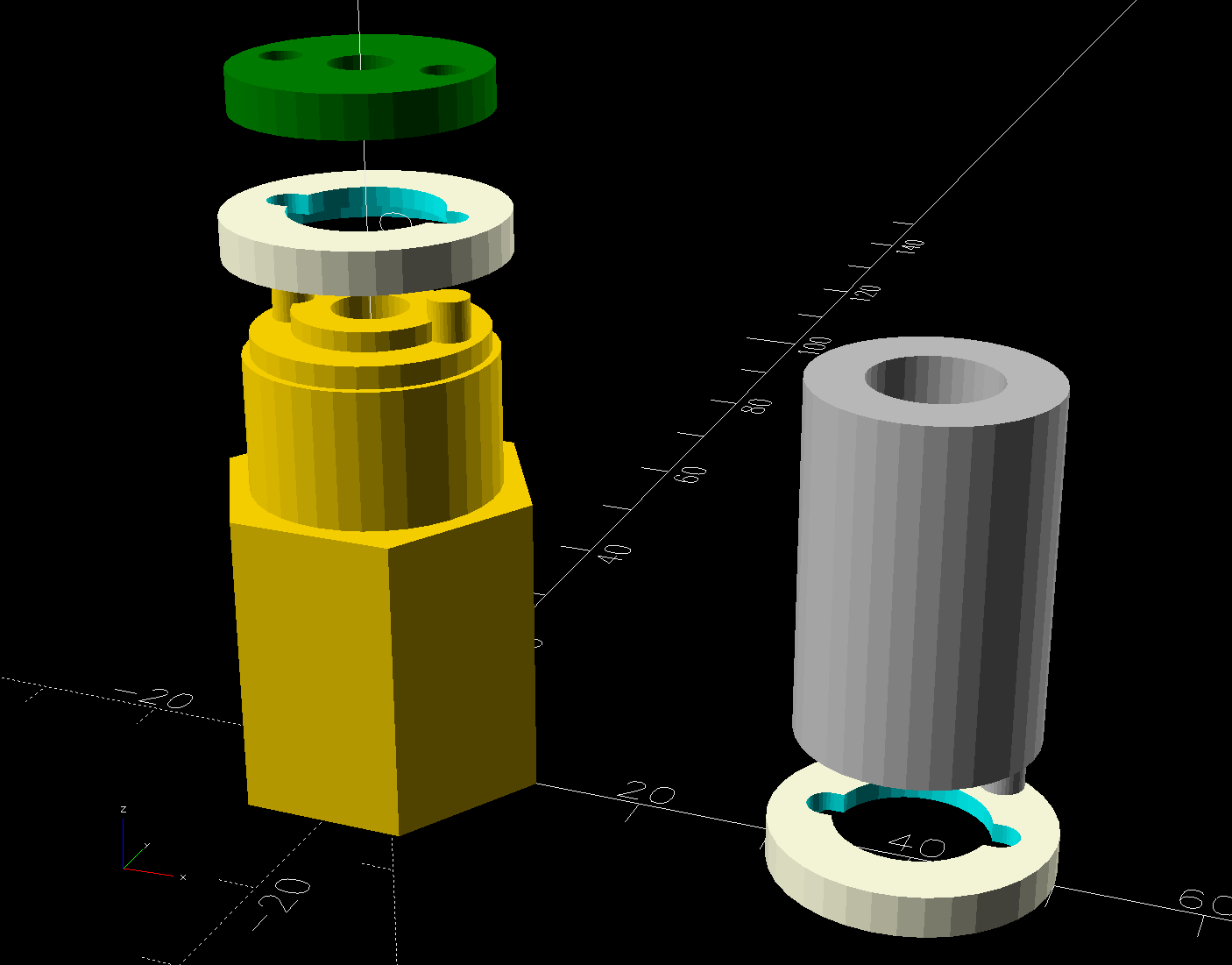
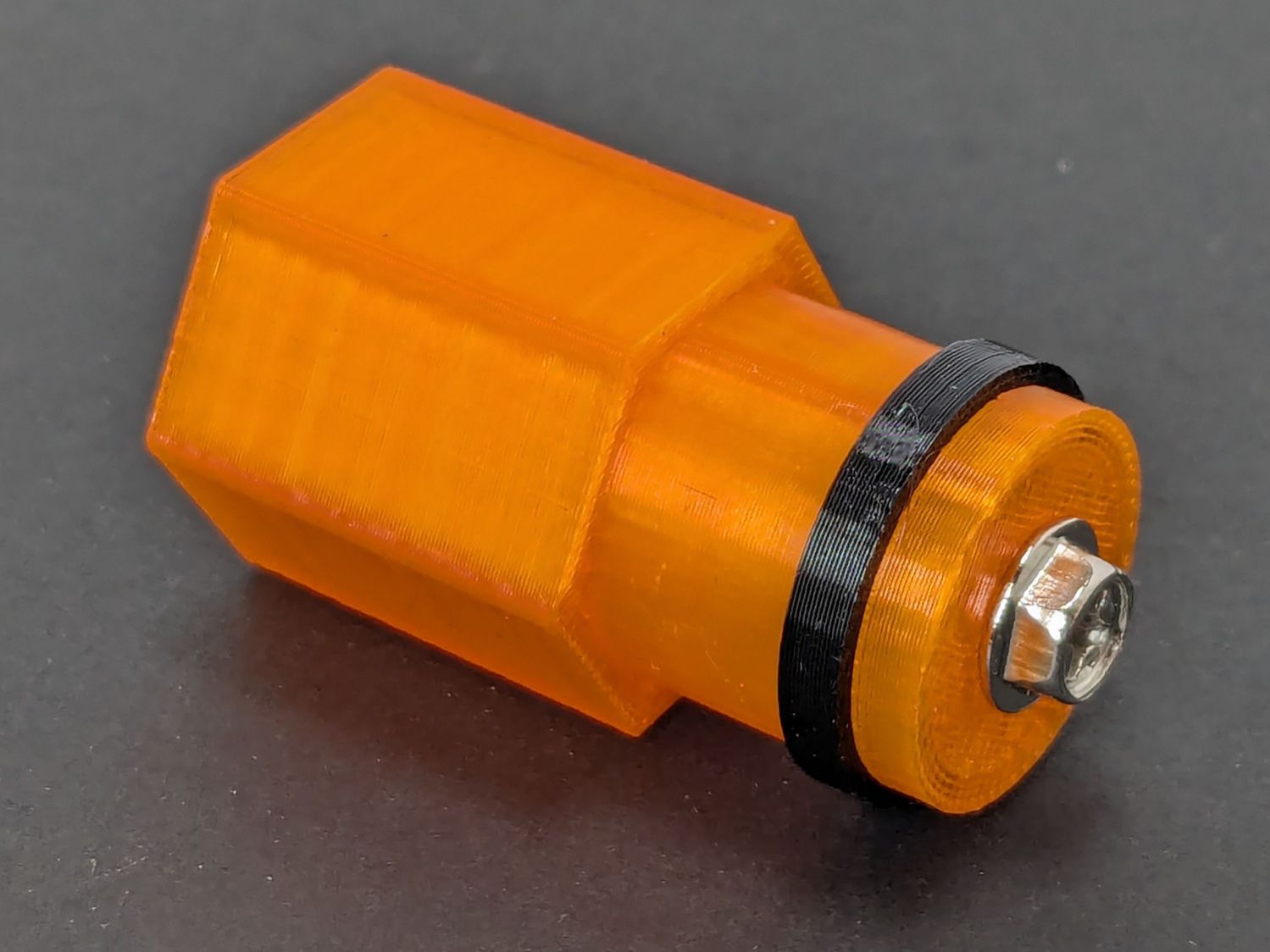
The yellow & green things on the left of those solid models are the fixture holding a retaining ring for threading and the washer applying pressure to keep the ring in place:
Anker LC-40 Flashlight – lathe fixture – detail
The alert reader will note that washer lacks holes for the alignment pins I added after seeing the washer sit not quite concentric on the fixture. I could call it continuous product improvement, although I doubt I’ll print another one.
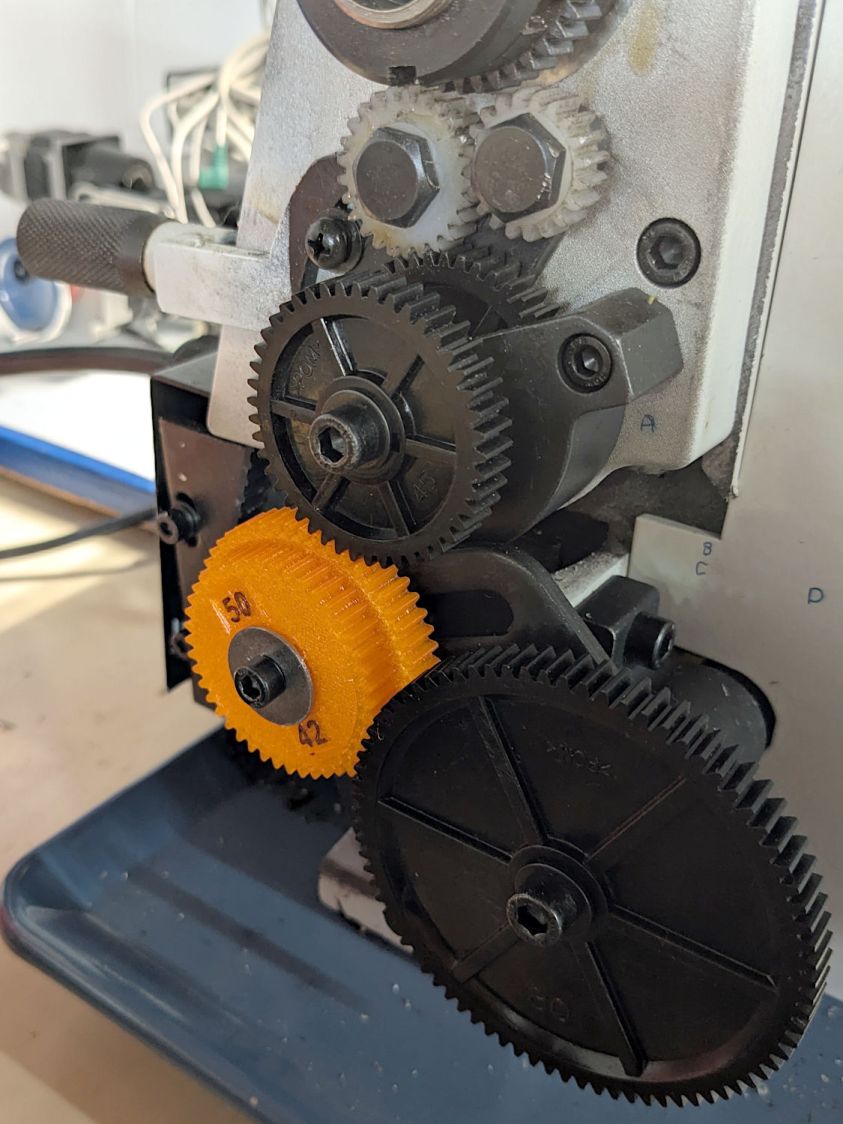
Setting up the lathe involved finding the proper set of change gears, including the vital 42-50 stacked gear I made a while ago to print metric threads on a hard-inch lathe:
Anker LC-40 Flashlight – lathe change gear train
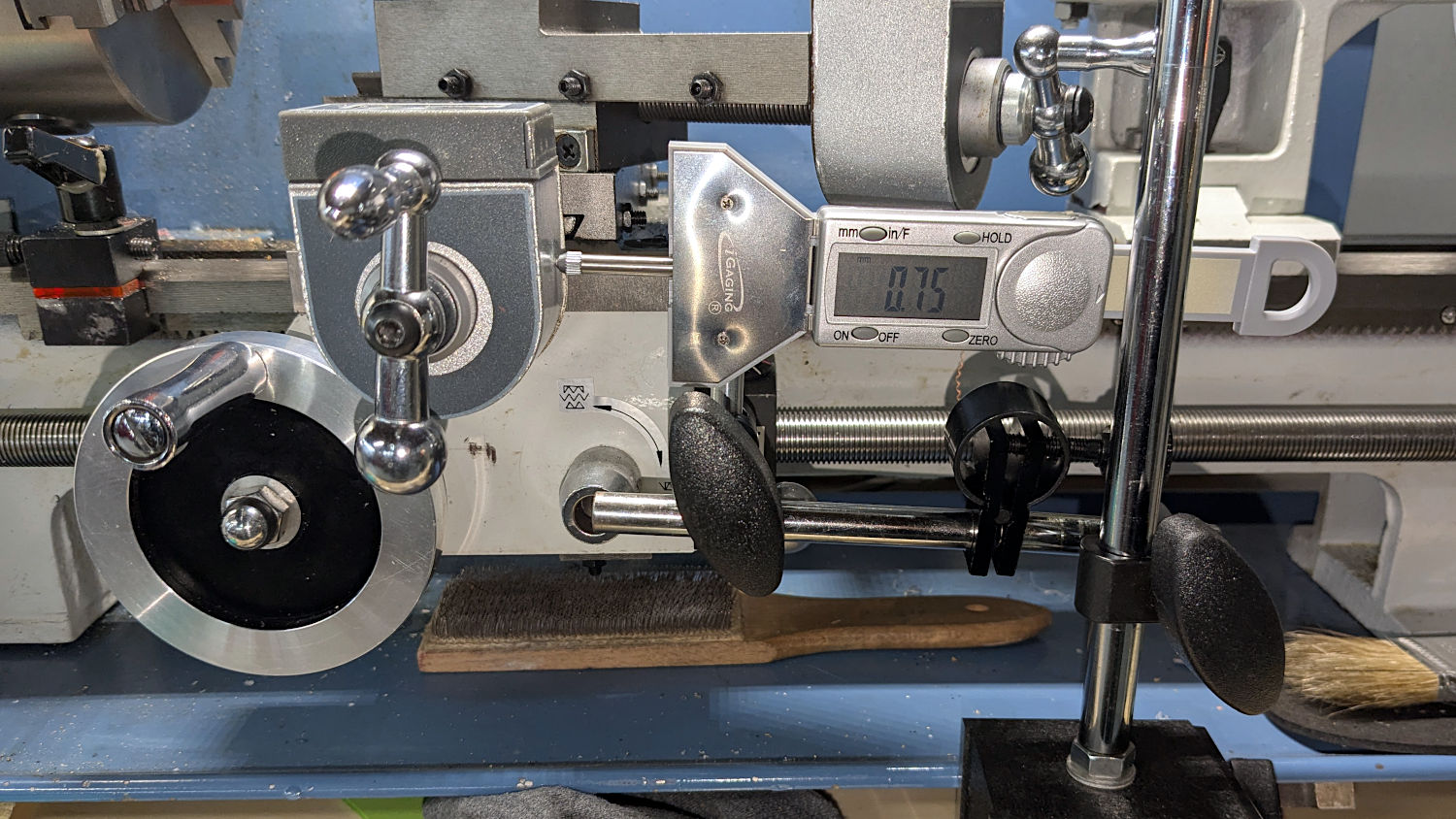
Although you’re supposed to measure the thread spacing on a skim pass, I find it’s easier to just measure the carriage movement for one spindle rotation:
Anker LC-40 Flashlight – lathe gear check
A few passes produced a fine retaining ring:
Anker LC-40 Flashlight – OEM vs lathe-cut threads
Sporting much nicer looking threads than the goobered original:
Anker LC-40 Flashlight – OEM vs lathe-cut threads
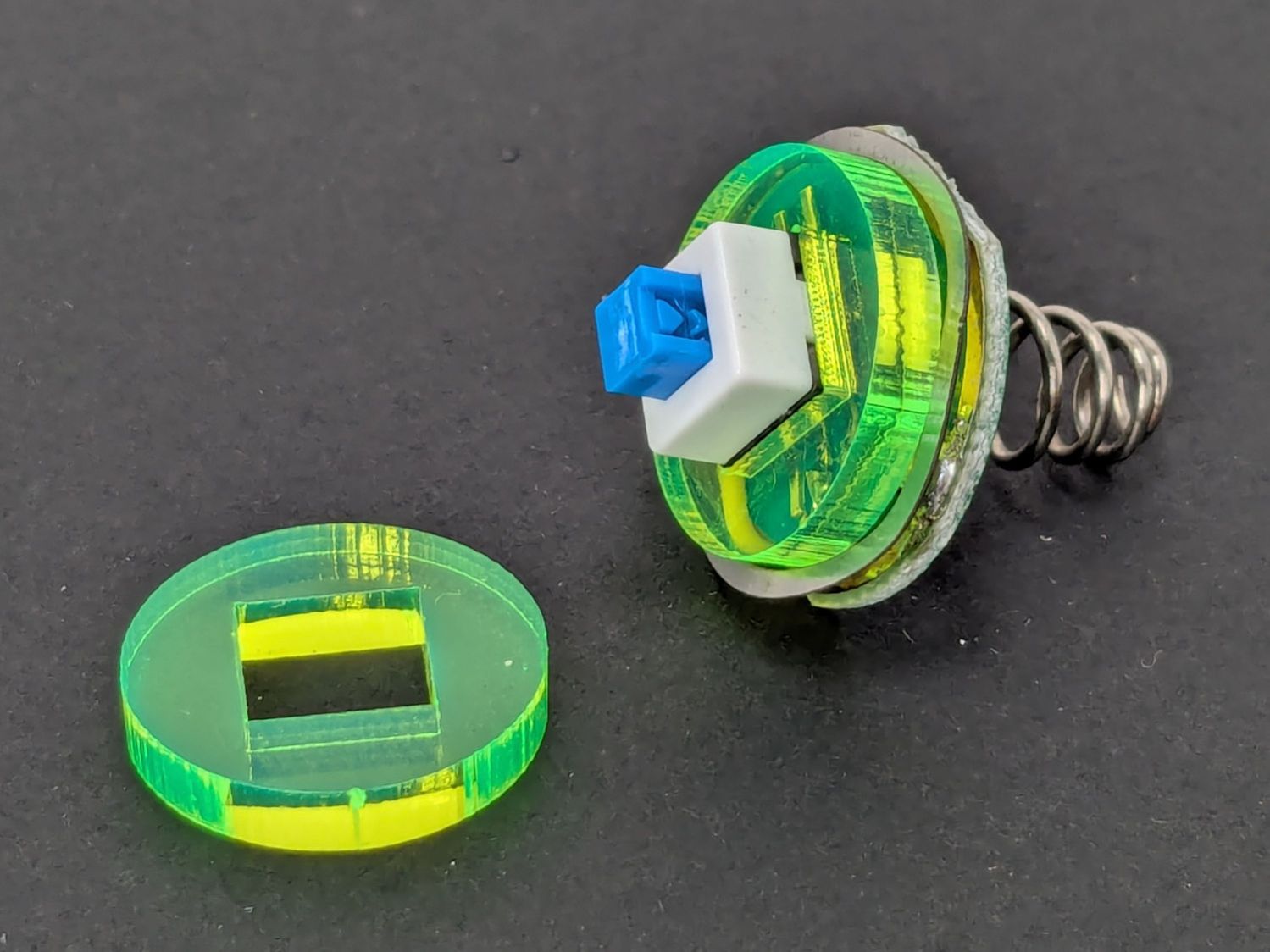
The original switch had a stabilizing ring around the body to prevent it from wobbling under the original rubber cap.
This was not a problem, because I have a laser cutter:
Anker LC-40 Flashlight – new switch in stabilizer
Those came from a scrap of fluorescent acrylic.
The wave washer behind the acrylic stabilizer improves the contact between the PCB trace around the rim and the flashlight tailcap, with the current passing through the body to the “light engine” up front. The retaining ring provides enough pressure to compress the wave washer, which is why it’s so easily goobered without a close-fitting pin wrench.
With everything assembled in reverse order, the flashlight worked pretty much as it did back when it was new:
Anker LC-40 Flashlight – TPU cap installed
However, after describing this during a recent SquidWrench meeting, I discovered that adding “latching” to my keywords surfaced a bodacious assortment of flashlight switches, so (a few days later) I removed the not-quite-right switch and replaced it with an identical twin of the OEM switch requiring just a little lead forming to fit the PCB.
Even better, using the 3D printed pin wrench to screw the original retaining ring into the flashlight’s aluminum threads a few times re-formed (unrelated to recent electrolytic capacitor reforming) its goobered threads well enough to fit and work perfectly again.
So I have:
… reassembled the flashlight with more-or-less original components
… a repair tool kit ready when another LC-40 fails
… re-learned the lesson that any time spent making a fixture or a special tool is not deducted from one’s allotment
This file contains hidden or bidirectional Unicode text that may be interpreted or compiled differently than what appears below. To review, open the file in an editor that reveals hidden Unicode characters.
Learn more about bidirectional Unicode characters
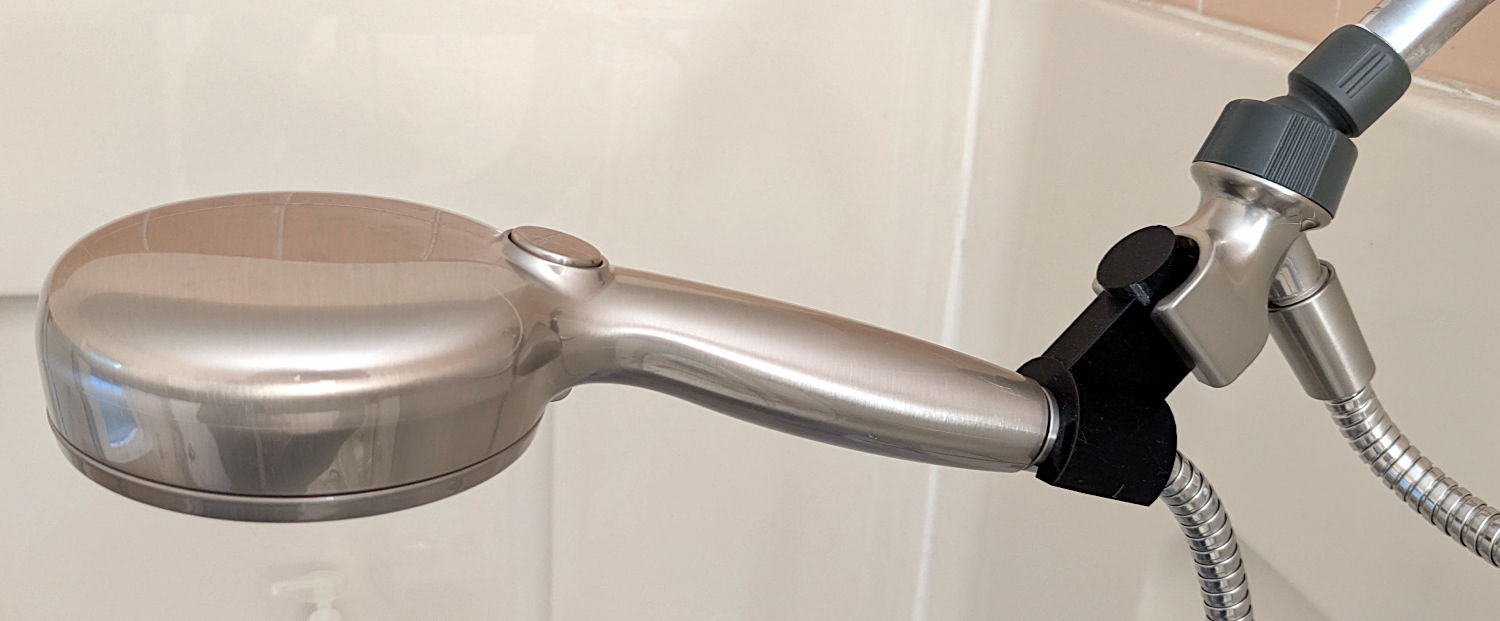
The original shower head being too far overhead for Mary’s reach, I installed a Delta ProClean Shower Head which would also be too high. It has a hose, which means I can adjust the height:
Delta shower head holder extension – installed
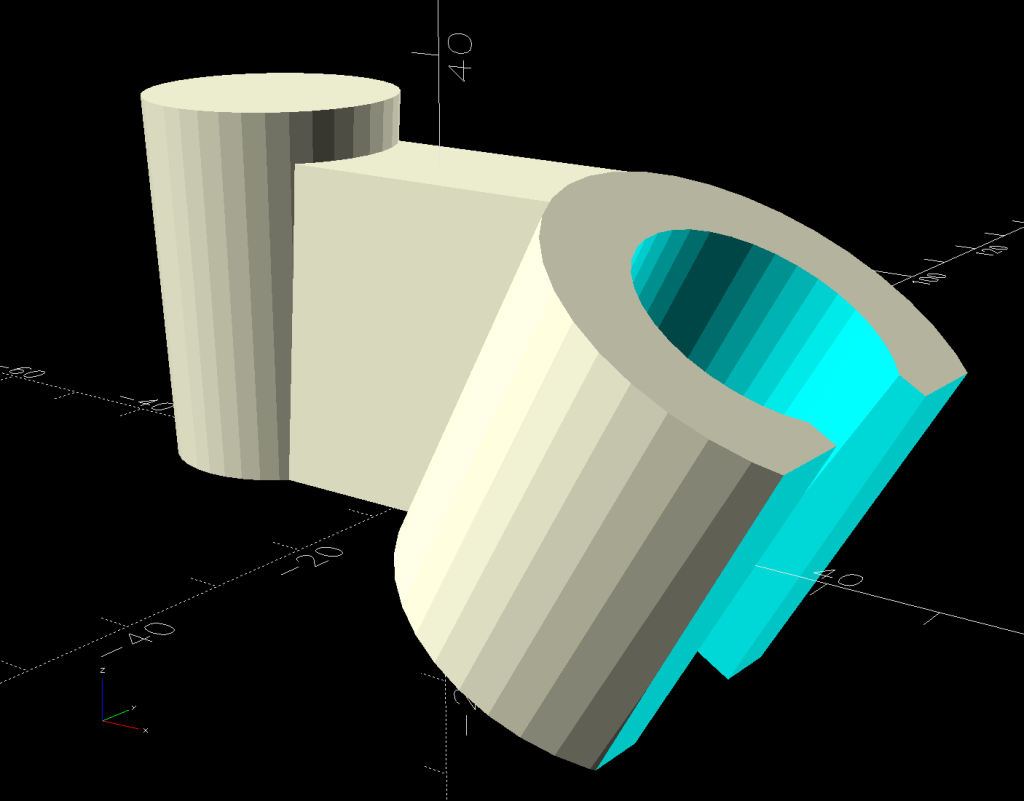
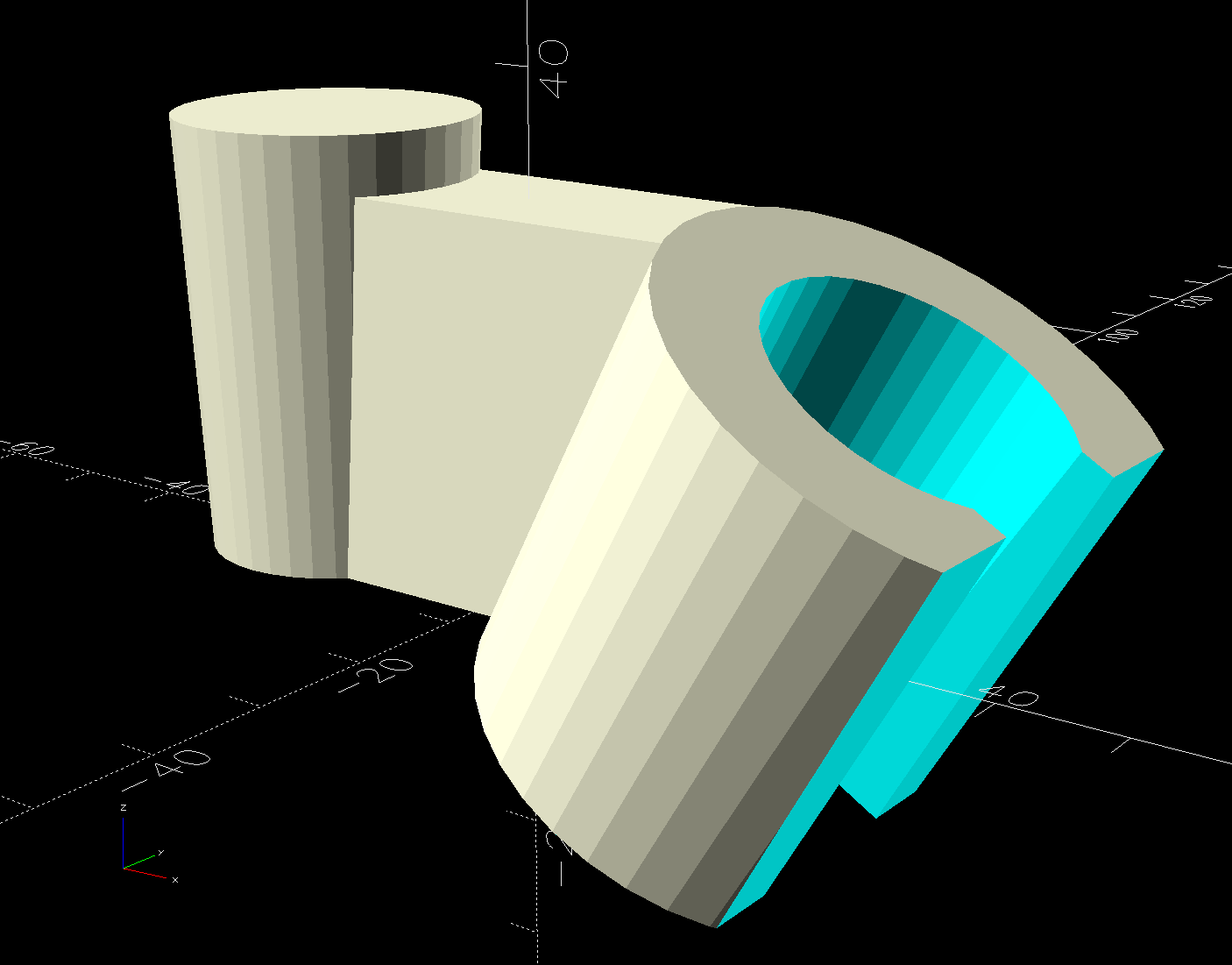
The InterWebs offer several 3D-printable versions of such a thing, but Delta offers many different shower heads, some of which are visually (to my eyes, anyway) indistinguishable from the 75740SN you see here. The model I tried did not fit the holder I have, so I conjured one from the vasty digital deep:
Delta shower head holder extension – solid model
It builds standing on that tidy cutoff:
Delta shower head holder extension – PrusaSlicer warning
Despite PrusaSlicer’s kvetching about the “collapsing overhang” inside the socket, it came out fine.
The shower head is still slightly too high for her, but now I can print another one with a longer offset and a slightly smaller plug to fit deeper in the OEM socket.
Worst case, there’s a wall-mounted holder to put the shower head at shoulder height.
This file contains hidden or bidirectional Unicode text that may be interpreted or compiled differently than what appears below. To review, open the file in an editor that reveals hidden Unicode characters.
Learn more about bidirectional Unicode characters
Setting up the Makergear M2 to print TPU (eSun 95A) involved a cold pull to get the remaining PETG out of the nozzle, some manual flushing, then printing test cubes to figure out a reasonable speed / temperature combination:
Makergear M2 – first TPU test cube
A 10 mm solid cube came out overstuffed and the first 20 mm cube lacked enough infill to hold its top up, but the third cube looked surprisingly good at 230 °C and 30 mm/s with 15% 3D Honeycomb infill:
Makergear M2 – TPU test cubes
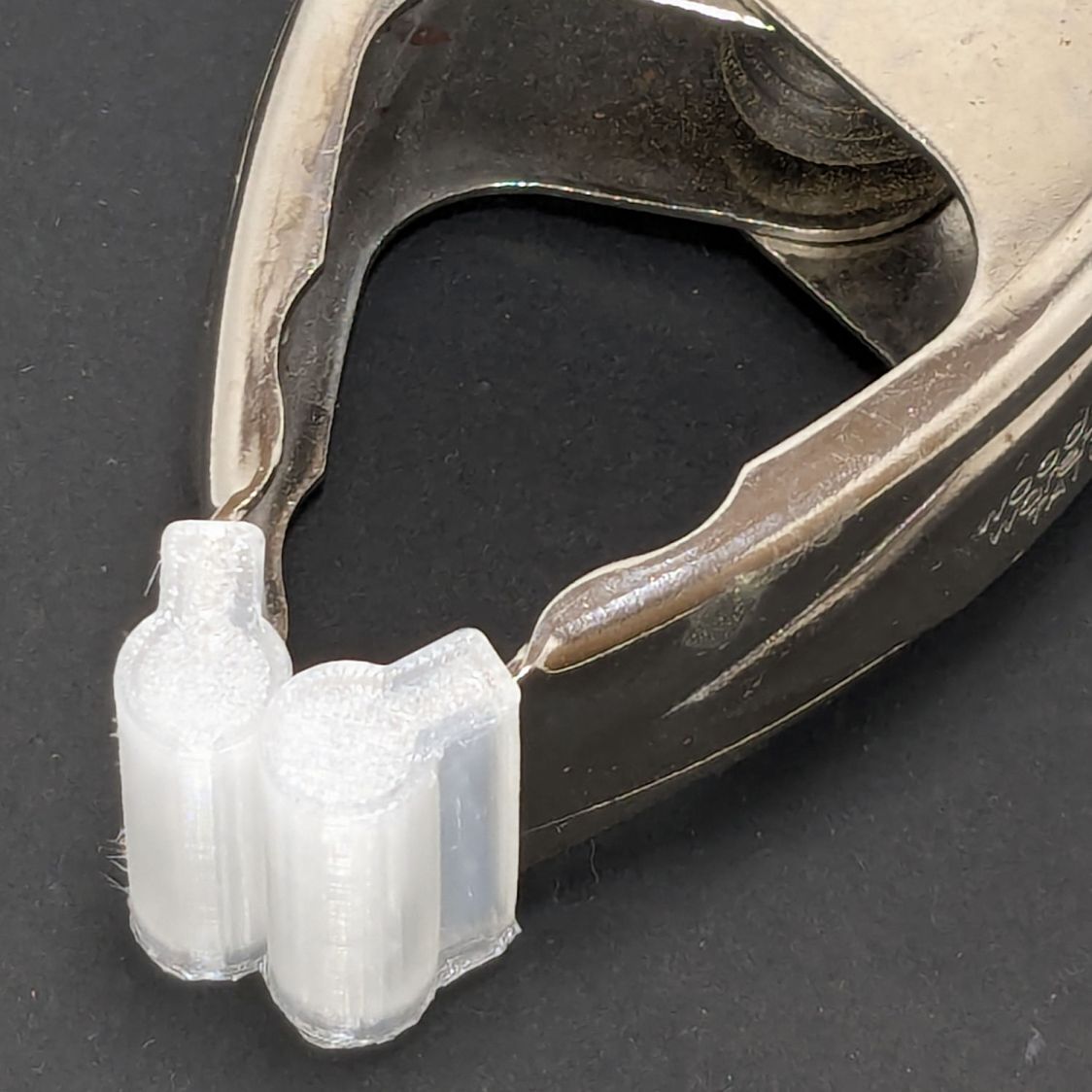
With that settled, I conjured pairs of soft (-ish) jaw pads for the far-too-many metal spring clamps having worn out their vinyl pads:
Spring clamp jaws – installed
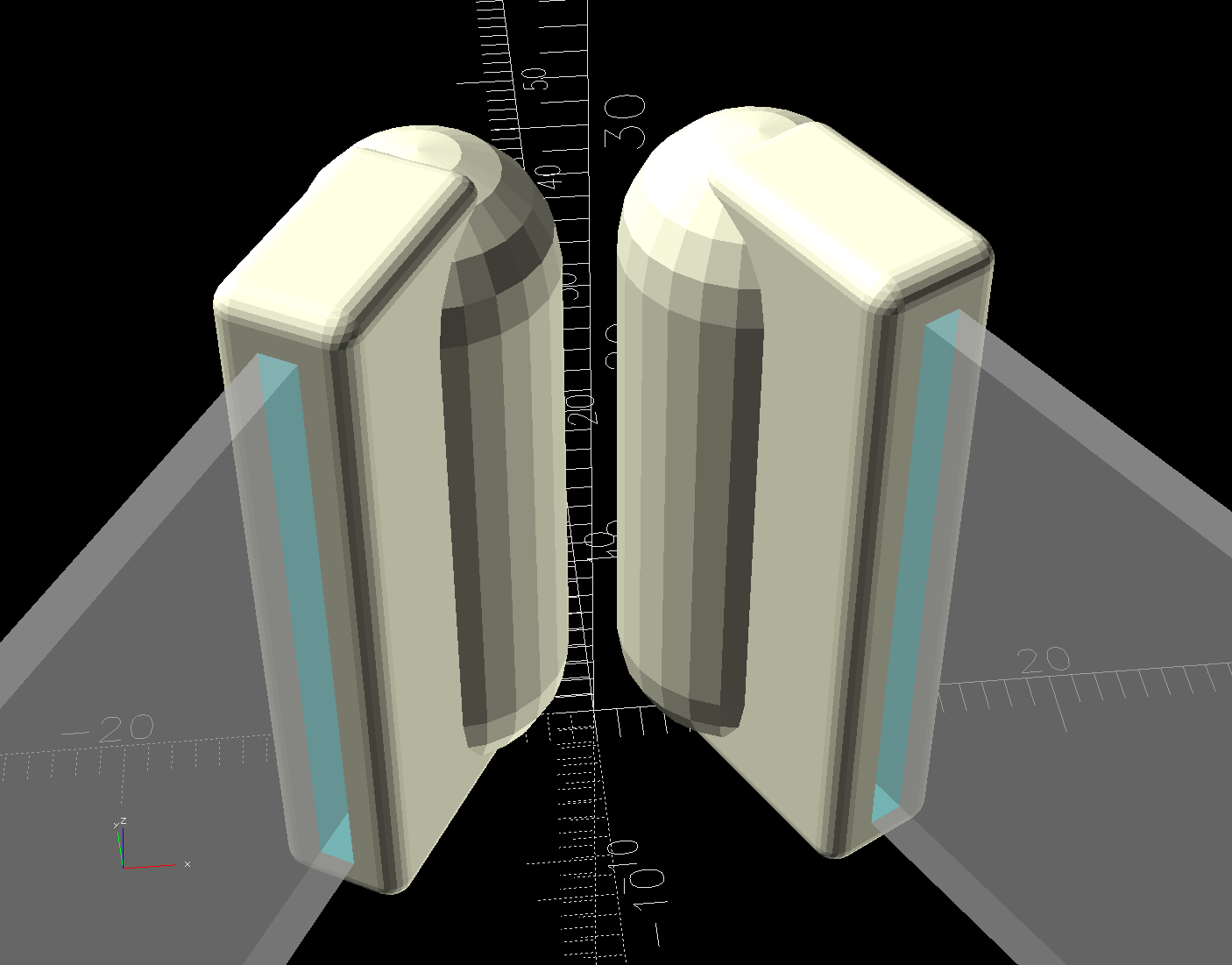
Those were the first attempt and worked well enough to suggest nicely rounded endcaps instead of flat cylinders:
Spring Clamp Jaws – show view
Unlike the first version, they now build standing on their rectangular clamp jaw opening:
Spring Clamp Jaws – show view
Those two groups have different lengths (1 inch and 1-⅛ inch) with PrusaSlicer combining the OpenSCAD program’s output.
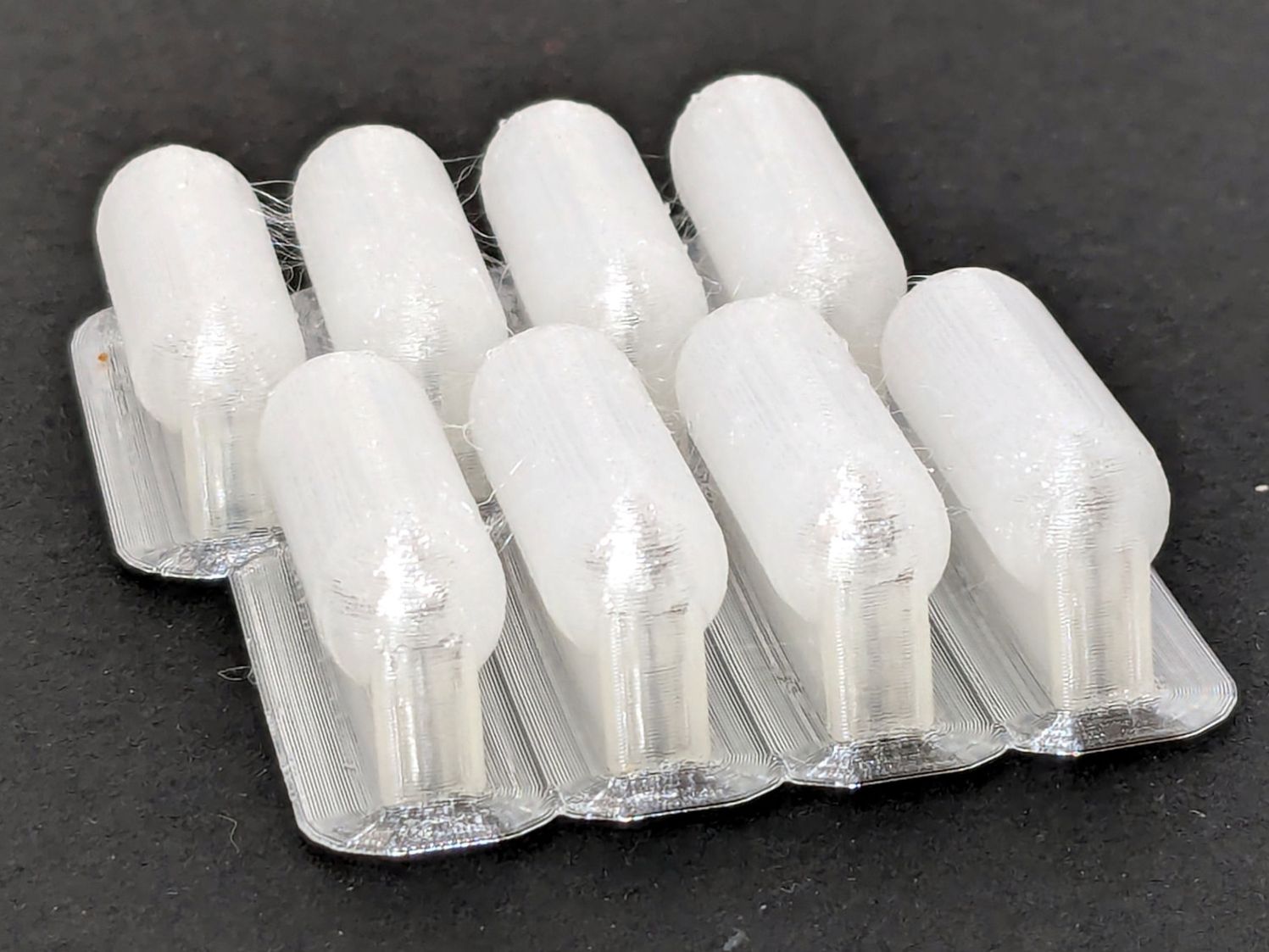
The as-built pads are essentially un-photographable:
Spring clamp jaws – group build
TPU is tough enough to make the single-layer brim un-tearable, but they’re easy enough to separate & trim with scissors. Even the 5 mm brim has a tenuous grip on glass + Suave hair “spray” applied from a dropper bottle, so I should try a BuildTak sheet that’s been on the to-do pile for far too many years.
Similarly, TPU is flexy enough to make a precise fit unnecessary: push firmly to force the pads onto the jaws and you’re done.
This file contains hidden or bidirectional Unicode text that may be interpreted or compiled differently than what appears below. To review, open the file in an editor that reveals hidden Unicode characters.
Learn more about bidirectional Unicode characters
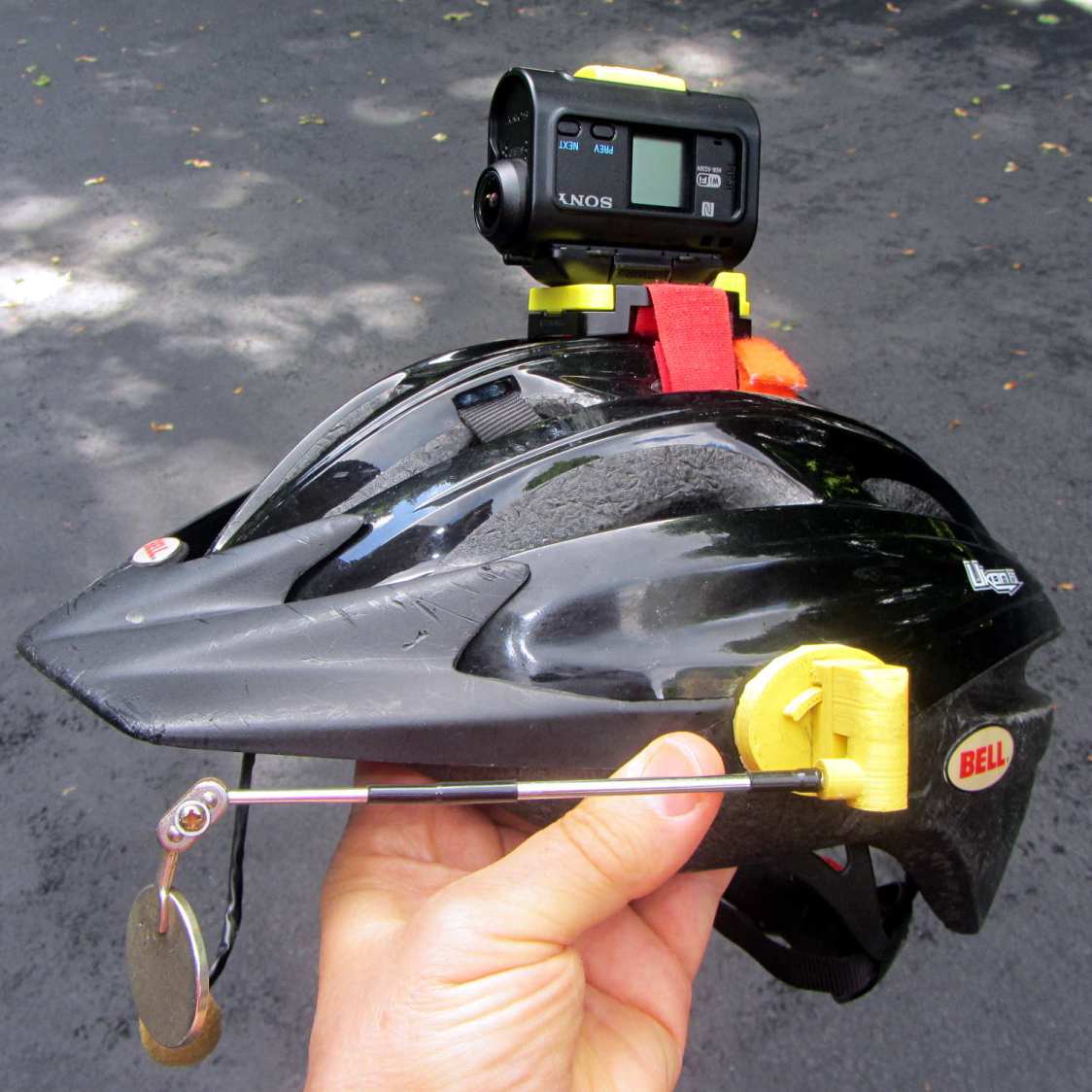
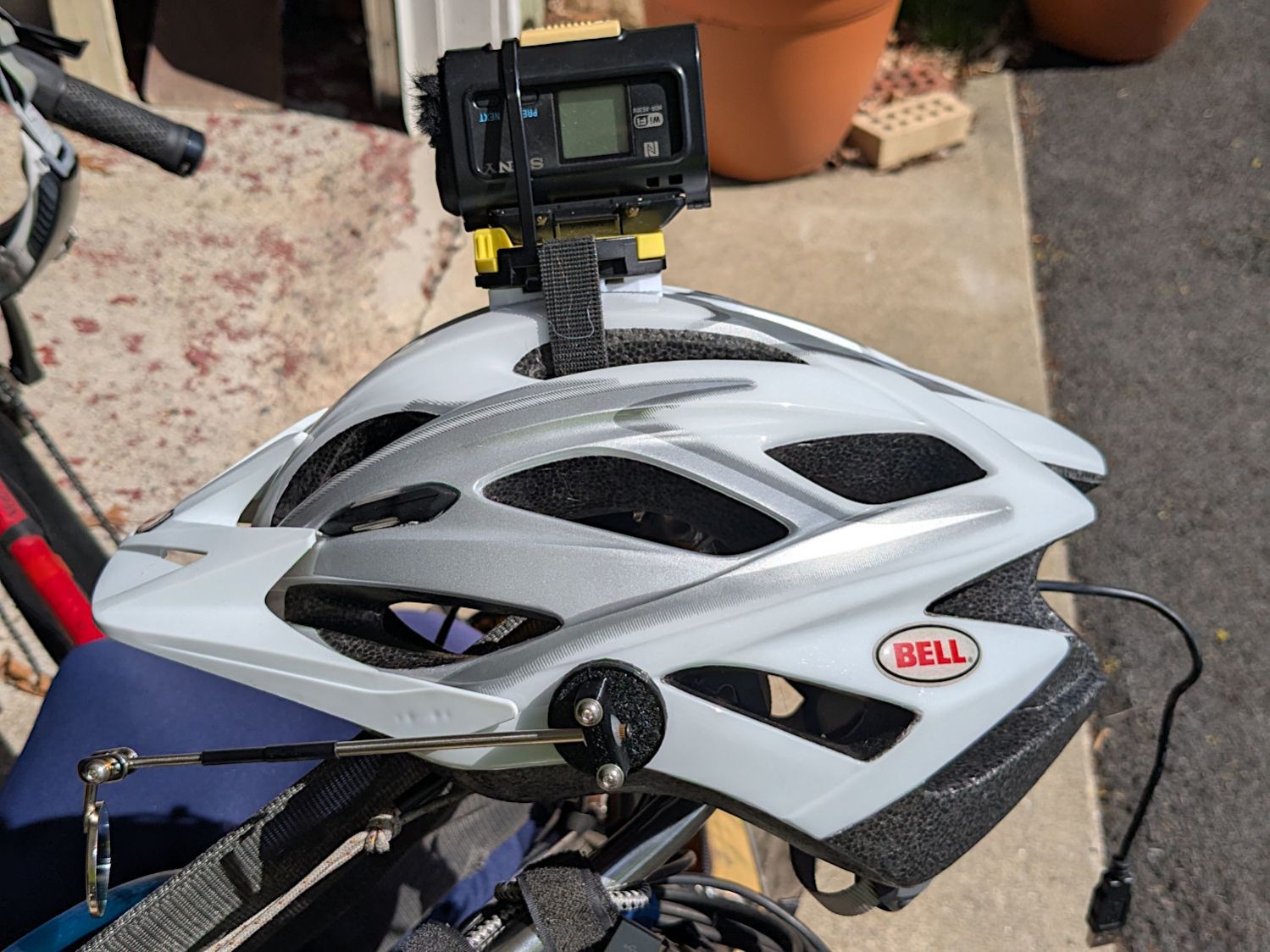
Last week a wind gust blew my Tour Easy over while resting on its kickstand at Mary’s garden; I rarely depend on the kickstand for that very reason, but some days are like that. Anyhow, the mount for the Sony AS30V helmet camera did exactly what it should by releasing the camera, rather than grinding it into the ground.
I was still using that helmet, albeit with a better mirror mount, but it was getting rather crusty and the hook-n-loop straps were definitely sun-faded, so I built a better mount with an adapter plate matching a new-old-stock helmet from the stash:
Sony AS30V Helmet mount – side view
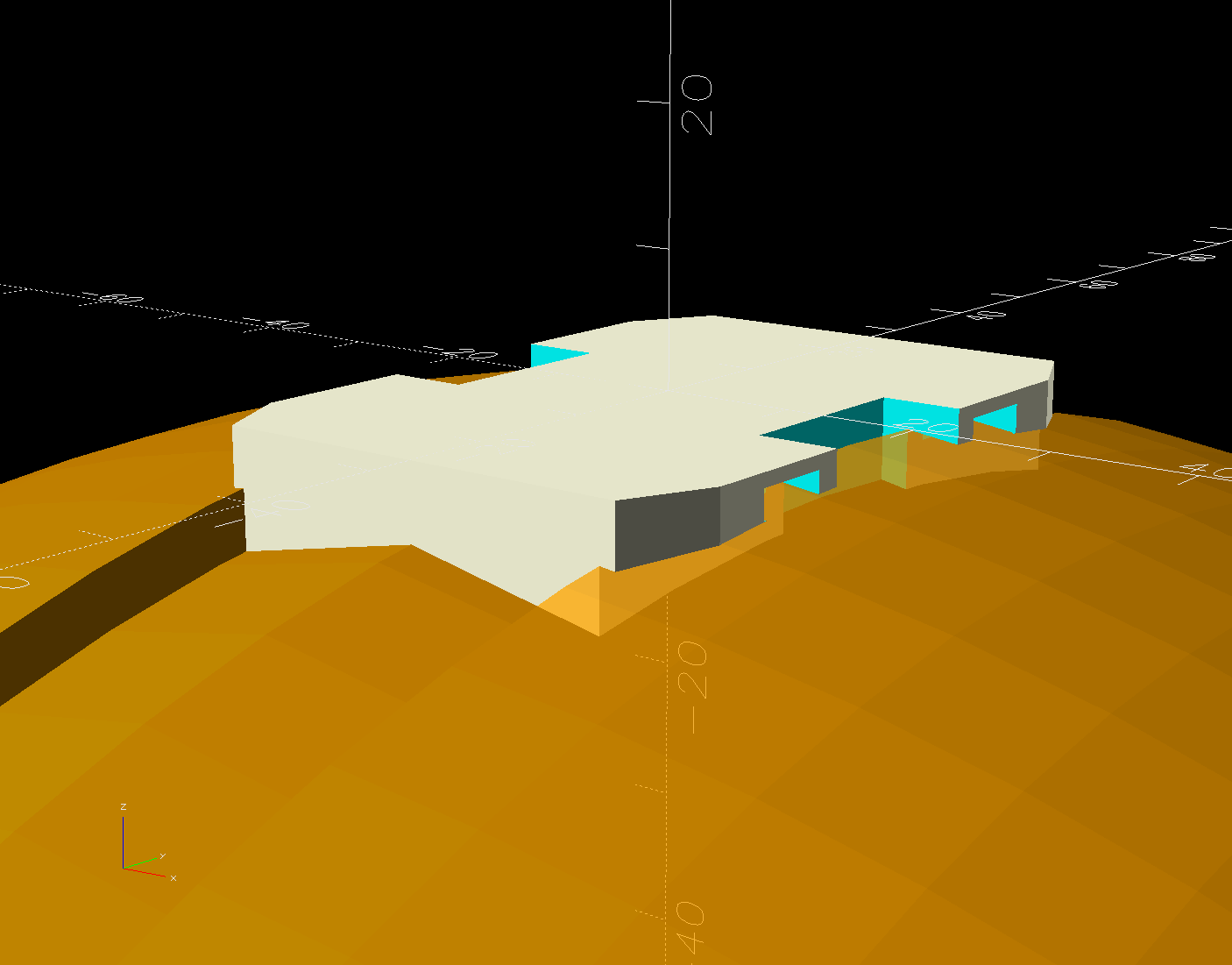
The white slab atop the helmet curves to match the helmet contour, with the ridge fitting into the vent slot:
AS30 helmet mount – solid model – show view
OK, the helmet isn’t orange, but you get the idea. The sphere has a 153 mm radius, calculated from the Official Sony helmet mount’s bottom curve, minus a ring shaping the central groove:
AS30 helmet mount – solid model – tab ring
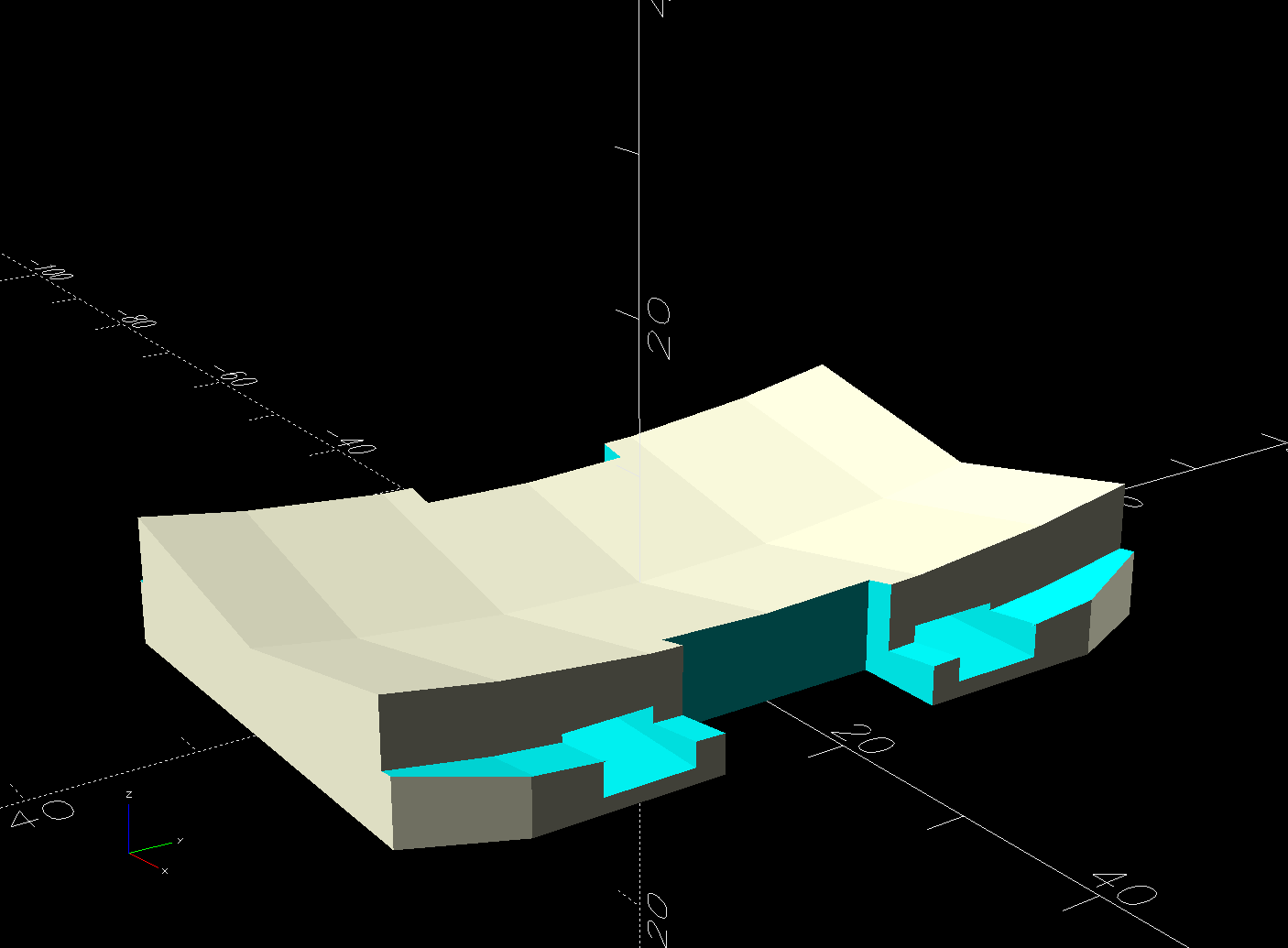
This upside-down view shows the interesting parts:
AS30 helmet mount – solid model
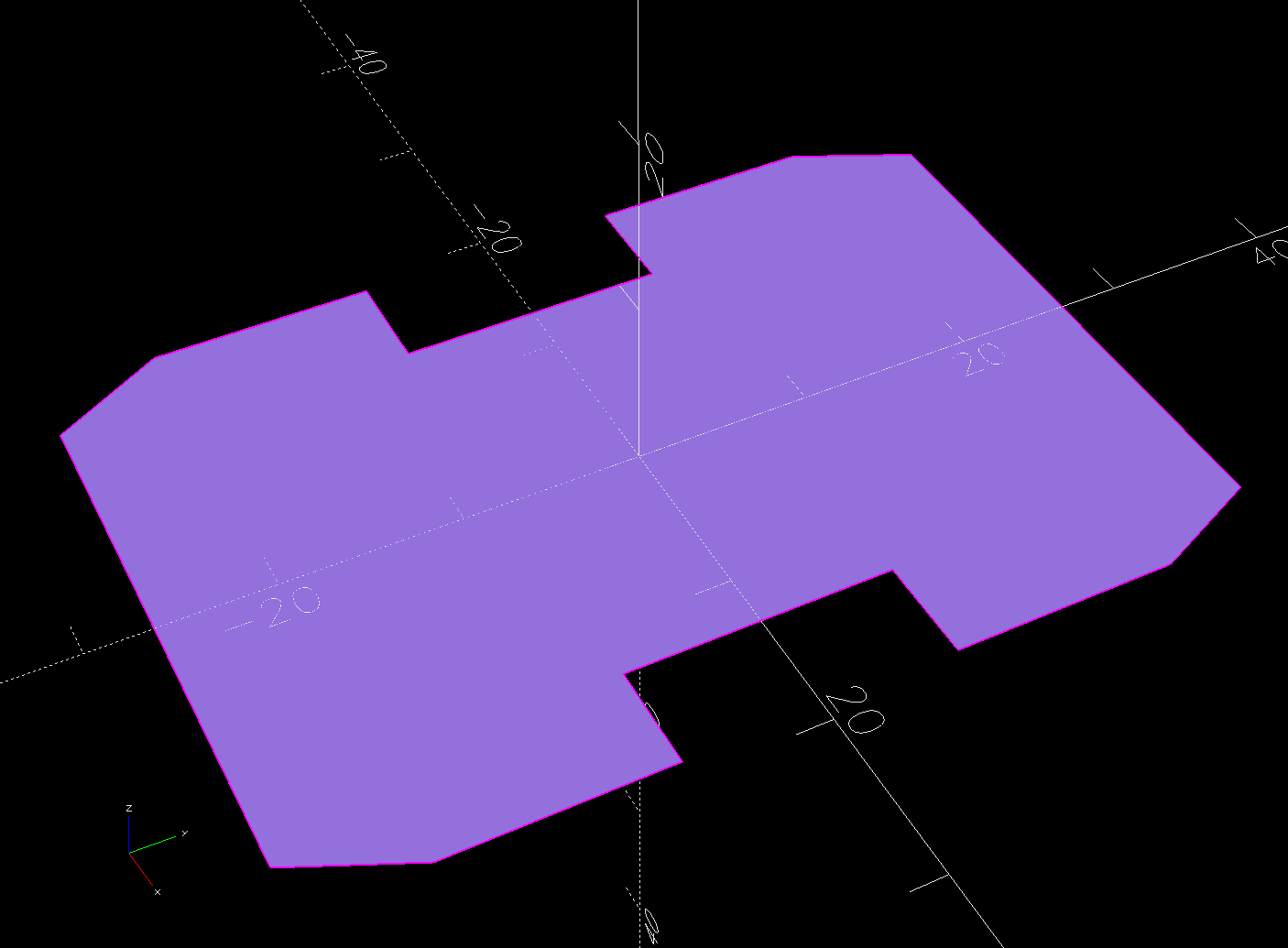
The flat side sticks to the camera’s holder with a custom-cut sheet of craft adhesive shaped like this:
AS30 helmet mount – glue
The overall outline of those things comes from a scan of the bottom of the Sony camera holder, passed through Inkscape and LightBurn to generate the curves:
AS30 Baseplate scan
The large notches in the sides pass hook-n-loop straps intended to break away when the helmet hits the ground again. The front tunnel (of two, because symmetry) passes a cable tie preventing the camera from parting company with the mount during normal riding and holding the yellow latch in the Locked position:
Sony AS30V Helmet mount – rear view
It is just barely possible to slide the cable tie over the front of the camera to release the latch.
The camera rides upside-down to protect the lens from scuffs and scrapes. Fortunately, there’s a setting to invert the picture.
For completeness, the front view:
Sony AS30V Helmet mount – front view
The furry patch covers the microphone pores to kill (most of) the wind noise.
The sharp ventral angle matches the helmet’s midline ridge in the back, but obviously isn’t needed over the vent hole in the front. I decided to not bother making a comprehensive model of the hole, not least because I didn’t really know the camera’s exact front-to-back location.
The OpenSCAD source code and baseplate shape as a GitHub Gist:
This file contains hidden or bidirectional Unicode text that may be interpreted or compiled differently than what appears below. To review, open the file in an editor that reveals hidden Unicode characters.
Learn more about bidirectional Unicode characters
This file contains hidden or bidirectional Unicode text that may be interpreted or compiled differently than what appears below. To review, open the file in an editor that reveals hidden Unicode characters.
Learn more about bidirectional Unicode characters









 The Smell of Molten Projects in the Morning
