Ed Nisley's Blog: Shop notes, electronics, firmware, machinery, 3D printing, laser cuttery, and curiosities. Contents: 100% human thinking, 0% AI slop.
Category: Software
General-purpose computers doing something specific
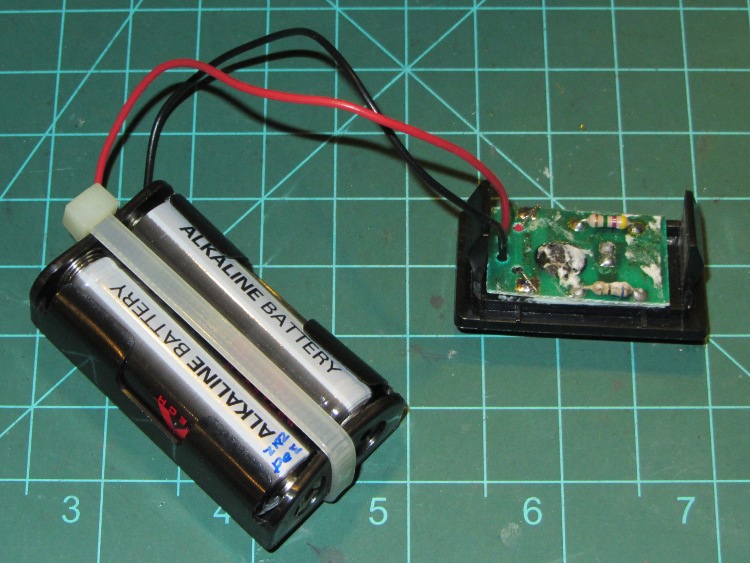
Our Toyota Sienna arrived with a blank cover plate where a fancier model would have a switch. It seemed a shame to let that space go to waste, so I popped the plate out, rummaged around in the heap, found a small circuit board with a blinky LED that just exactly fit the space available, and drilled a suitable hole:
Sienna anti-theft blinker – inside
When it’s installed in the van, it looks and acts just like the security system we don’t have. For all I know, that plate was for the security system control, so perhaps it’s an exact match!
Sienna anti-theft blinker – bezel
The batteries last about two years, a few months later I notice the lack of blinkiness (it’s hidden behind the steering wheel in my normal driving position), and eventually I replace the corroded batteries. This time, I had to replace the entire battery holder; things got pretty nasty in there.
As I recall, the PCB came from a fancy “greeting card” mailed to me by the Business Software Alliance, with the implied threat that if all my paperwork wasn’t up to par, my use of potentially unlicensed software would blow up in my face. That was back in the day when mailing something that pretended to be a bomb was considered a cute joke and when I actually ran more than one Windows PC.
One of the motels we stayed at had a new (to me, at least) approach to the ubiquitous Free WiFi offering, which involved a small card with scratch-off fields:
Being the curious sort, I checked their website to see what they were up to. The main heading, across the top of the page, read:
Bringing wireless Internet capabilities to your property
Visus, in vut eu in auctor mus sit odio ac habitasse non! Vut et ac ultricies urna, mauris enim magna mus ac urna arcu, etiam vel,
Huh.
The rest of the page has Lorem ipsum filler under every heading, including:
24/7 Support
Tincidunt ultricies magnis adipiscing. Natoque, augue mattis pid placerat mattis pellentesque adipiscing dis, habitasse scelerisque aliquet, ultricies lundium, lectus cras mus, sit? Magna turpis duis placerat massa in integer porta, sit, phasellus, nec, elementum, scelerisque in? Read More
Clicking that attractive Read More link produces pretty much what you’d expect by now:
Error 404 – Page not found!
The page you trying to reach does not exist, or has been moved. Please use the menus or the search box to find what you are looking for.
All the other links behaved the same way, including the Support header.
Oddly, the Contact Us item hidden in the About us pulldown produced a form, so I sent off a message. Haven’t gotten anything back yet and really don’t expect to, either.
It does give one pause to consider what happens to the bitstream between one’s tablet and the website. I make it a practice to not sign in to vital accounts while traveling…
Someone asked about how to convert a PNG file to a cookie cutter; she was stymied by some of the terminology and didn’t have a good overview of the process. I thought my reply might be useful to someone else.
trying to understand how to create an STL file
The key to understanding 3D printing is to realize that an STL file is just an intermediate step along the way from an idea to a plastic object. The real challenge is to create a 3D (aka “solid”) model of the object you want; after that, the rest follows more or less automatically.
The overall process goes like this:
1. Create a solid model (more on this below)
2. Export the model as an STL file, usually by a menu selection
3. Convert the STL file to G-Code using the printer control program
4. Extrude plastic!
Now, each step has many sub-steps, but that’s the Big Picture.
You really don’t care about the STL or G-Code files, because they’re generated from the 3D model.
take a png clipart image
Because a PNG image represents a 2D (flat) drawing, it can contain grayscale (or color!) information that you may not want. Let’s start with just a simple black-and-white outline drawing that shows the outline of the cutter.
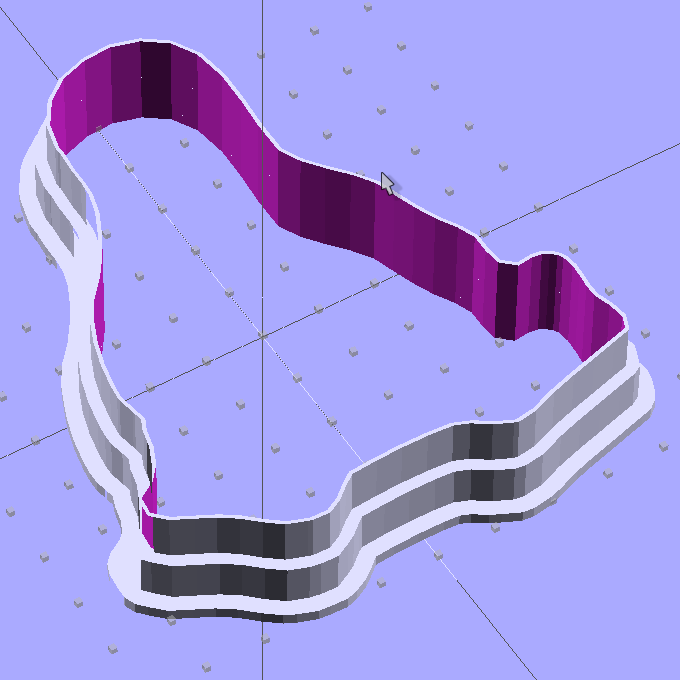
The CAD program then “extrudes” that flat image into a 3D shape with a known height; I use OpenSCAD, but any 3D program should be able to do that trick. If you started with a PNG file of a circle, the extrusion will produce a 3D ring. If you start with an outline of Tux, you end up with an oddly shaped 3D ring.
(Note that the term “extrusion” has two meanings. The CAD program extrudes the flat 2D image into a 3D model and the printer extrudes molten plastic to form the object. Gotta love the language!)
Now that you have a basic 3D shape, you can fancy it up with thicker areas and handles and whatnot, but you could just print the shape and have a simple cookie cutter.
Dr Who Cookie Cutters
If you’re making a cookie press, similar to those in the Dr Who cutters, then you start with a grayscale PNG (or JPG) and create a “height map” where the grayscale intensity determines the extrusion height: black = high and white = low (or the other way around). Again, any CAD program should be able to create a height map from a grayscale image.
In fact, a black-and-white outline is just a simple version of a height map: it’s either tall (black) or short (white), with no levels in between.
The height map becomes a 3D rectangle with one wavy side corresponding to the image. You join it with another rectangle to set the minimum thickness (you don’t want holes where the image was white), then add handles and suchlike.
That’s how the Dr Who cutters work: a height map generated the flat press part and an outline generated the hollow cutter surrounding the press. The settings I used to print my copy may be helpful.
The process had far more complexity than it should, mostly because that old version of OpenSCAD had a few bugs that prevented me from using 2D-to-3D extrusion as I described above. The overall process was similar, though: start with a 2D shape, convert it into a long 3D rod, slice off a suitable length, then punch a hole in the middle.
So, by and large, in order to make cookie cutters, you must master the “extrusion” part of 3D modeling. After you get a suitable 3D model of the cutter, then the rest will be easy! [grin]
After our Larval Engineer tweaked the code to track the maximum speed for the current run, so that the color always hits pure blue at top speed and red near standstill, we can prove it happened: we have a video! It’s much less awful than the First Light video, but with plenty of cinéma-vérité camera shake, lousy focus, and bloopers:
Longboard In Action
That’s a frame extracted from one of the raw videos files using ffmpegthumbnailer:
for t in `seq 0 10 100` ; do ffmpegthumbnailer -i mov07117.mpg -o Longboard-$t.jpg -t $t% -q 10 -s 640 ; done
This view of the 3D printed case shows the power switch and the Hall effect sensor cable snaking out of the truck just below the near axle:
Longboard RGB LED Electronics – right front view
She filled the case corners that pulled up from the build platform with a thin layer of epoxy, getting a plane surface by curing it atop waxed paper on the shop’s surface plate, to keep the polycarbonate sheet flat. I didn’t have any acorn nuts to top those nylon lock nuts, alas.
The 4-cell Li-ion battery lives in the slice between the white aluminum plates, where it takes about four hours to charge from 3.0 V/cell. The Arduino Pro Mini lives behind the smoked polycarb sheet, where its red LED adds a mysterious touch. Maybe, some day, she’ll show the 1/rev pulse on the standard Arduino LED for debugging.
A view from the other side shows the hole for the charger above the circuit board, with the Hall sensor out of sight below the far axle:
Longboard RGB LED Electronics – left front view
Yes, the cable to the LEDs deserves better care. She learned that you must provide strain relief at cable-to-component junctions, which we achieved by pasting the wires to the board beside the LED strip with double-stick tape. The rest of the LED strip interconnections live atop similar tape strips. There’s nothing much protecting the LEDs or their delicate SMD resistors, butit works!
Actually, one red LED in an RGB package went toes-up and wasn’t revived by resoldering its leads. So we jumpered around the package, subjecting the remaining two red LEDs in that string to a bit more current than they’d prefer, and that’s that.
There’s a whole bunch not to like one could improve in both the mechanics and electronics, butit works! If you’ll grant it alpha prototype status, then I’d say it’s Good Enough; this is her project and she’ll learn a lot from how it works and how it fails, just like we all do.
Quite some time ago I picked up a trio of IBM Thinkpad 560Z laptops from the usual eBay suppliers as part of a DDJ column project. One turned into a digital picture frame, our Larval Engineer has another (because it was maxed out with 128 MB of RAM), and I just fired up the third (96 MB!) to discover whether it could serve as a text-only terminal without too much trouble.
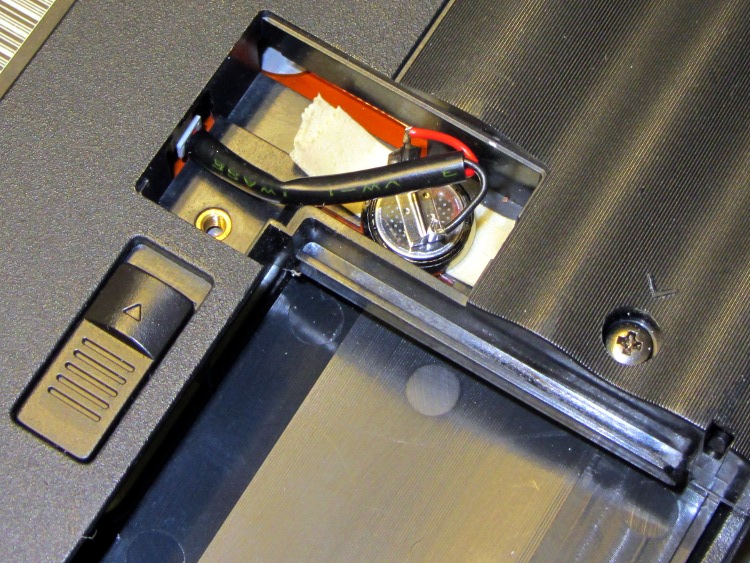
Alas, the BIOS battery was dead. I’d replaced the dead OEM cell some years back with a (surplus) lithium cell that’s a bit too small, so it only lasted a few years rather than a decade, but the cells were on the shelf. Soooo, I put in another one, just like the other one:
Thinkpad 560Z BIOS battery
After nudging the date & time into the current millennium, it then failed to boot Ubuntu 8.04: evidently the mighty 4 GB CompactFlash drive (jammed into a CF-to-IDE adapter) has bit rot.
It’s a prime candidate for the text-only version of Tiny Core Linux, except that a 560Z can’t boot from either USB or CD-ROM, which means getting the files on the “hard drive” requires extraordinary fiddling. Drat!
FWIW, when this battery fails, I think the (empty) main battery compartment has room for a CR123A cell that should outlast the rest of the hardware. I could blow two bucks on a replacement from eBay, but what fun is that?
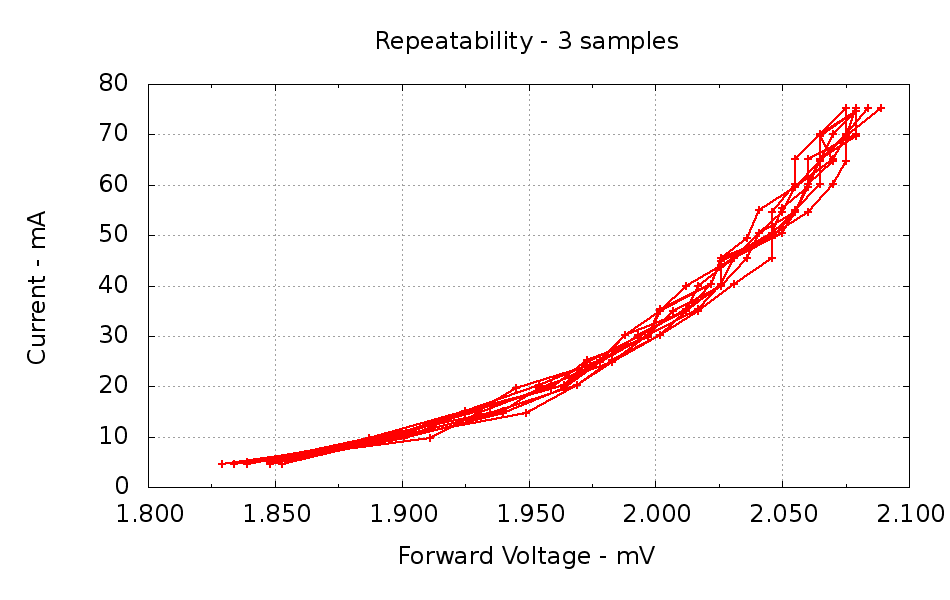
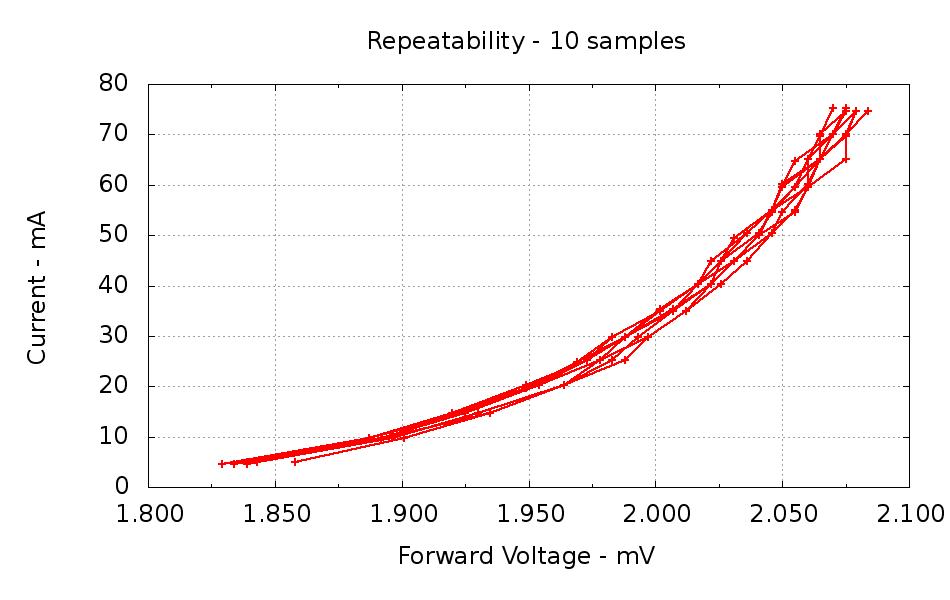
Measuring the same LED many times should produce the same data every time. Here’s an LED measured ten times in quick succession, with each data point consisting of the average of three ADC conversions:
Repeatability – 3 samples
Ten more measurements of the same LED, but with each data point being the average of ten ADC conversions:
Repeatability – 10 samples
Not much to choose between the two, although averaging more readings does reduce the scatter just a bit. The ADC resolution is 5 mV, which is painfully obvious along the X axis. The Y axis has a smaller spread because it’s the independent variable: the firmware sets the MOSFET gate voltage to produce a given current and the ADC steps are relatively larger (the input voltage is only 75 mA × 10.5 Ω = 800 mV, tops).
I think it’s close enough for my simple needs.
The ADC code looks like this:
//-- Read AI channel
// averages several readings to improve noise performance
// returns value in mV assuming VCC ref voltage

#define NUM_T_SAMPLES 10

float ReadAI(byte PinNum) {
  word RawAverage;

  digitalWrite(PIN_SYNC,HIGH); // scope sync

  RawAverage = analogRead(PinNum); // prime the averaging pump

  for (int i=2; i <= NUM_T_SAMPLES; i++) {
    RawAverage += (word)analogRead(PinNum);
  }

  digitalWrite(PIN_SYNC,LOW);

  RawAverage /= NUM_T_SAMPLES;
  return Vcc * (float)RawAverage / 1024.0;
}
And the Gnuplot routine that produces the graphs, including a bit of cruft that reminds me how to make two Y axis scales:
#!/bin/sh
#-- overhead
export GDFONTPATH="/usr/share/fonts/truetype/"
base="${1%.*}"
echo Base name: ${base}
ofile=${base}.png
echo Output file: ${ofile}
#-- do it
gnuplot << EOF
#set term x11
set term png font "arialbd.ttf" 18 size 950,600
set output "${ofile}"
set title "${base}"
set key noautotitles
unset mouse
set bmargin 4
set grid xtics ytics
set xlabel "Forward Voltage - mV"
set format x "%6.3f"
set xrange [1.8:2.1]
#set xtics 0,5
set mxtics 2
#set logscale y
#set ytics nomirror autofreq
set ylabel "Current - mA"
set format y "%4.0f"
#set yrange [0:${rds_max}]
#set mytics 2
#set y2label "right side variable"
#set y2tics nomirror autofreq 2
#set format y2 "%3.0f"
#set y2range [0:200]
#set y2tics 32
#set rmargin 9
set datafile separator "\t"
#set label 1 "Comment" at 0.90,0.35 font "arialbd,18"
plot	\
    "$1" using (\$5/1000):((\$1>0)?\$2/1000:NaN) with linespoints lt 3 lw 2 lc 1
EOF







 The Smell of Molten Projects in the Morning