Ed Nisley's Blog: Shop notes, electronics, firmware, machinery, 3D printing, laser cuttery, and curiosities. Contents: 100% human thinking, 0% AI slop.
Category: Software
General-purpose computers doing something specific
Attaching a linear Hall effect sensor to an Arduino doesn’t require much effort at all:
Linear Hall Sensor
Despite what I observed on that breadboard lashup, the output will need a load resistor (output-to-ground, across pins 3 and 2) if there’s no internal constant-current sink; anything around 10 kΩ should suffice. The one I have works fine with or without the resistor; I added a 10 KΩ resistor that’s not shown here. The output voltage does, as you’d expect, change slightly with the resistor in place.
The sensor lives on a different part of the same breadboard now:
49E Linear Hall Effect Sensor – breadboard
The test code drives the RGB LED strip: red for positive field strength and blue for negative. The maximum and minimum values track the extremes, for plenty of color regardless of how weak a magnet it sees. It works great with the one on my fingernail… and random screwdrivers, digital calipers, scissors, and suchlike.
The OpenSCAD source code:
// Hall sensor
// Ed Nisley - KE4ANU - November 2012

//----------
// Pin assignments

const byte PIN_RED = 9;				// PWM - LED driver outputs +active
const byte PIN_GREEN = 10;
const byte PIN_BLUE = 11;

const byte PIN_FIELD = A0;			// Hall sensor input, 0 field = 2.5 v, more or less

const byte PIN_HEARTBEAT = 13;		// DO - Arduino LED

//----------
// Constants

const int UPDATEMS = 5;					// update LEDs only this many ms apart

#define TCCRxB 0x02						// Timer prescaler

//----------
// Globals

float FieldHigh, FieldLow, FieldRange, FieldBase, Field;

byte Red,Blue,Green;

unsigned long MillisNow;
unsigned long MillisThen;

//-- Helper routine for printf()

int s_putc(char c, FILE *t) {
  Serial.write(c);
}

int sign_float(float val) {
	if (val < 0.0)
		return -1;
	else if (val > 0.0)
		return 1;

	return 0;
}

//-- Sample magnetic field with a dab of averaging

#define FIELDAVERAGE 5

float ReadSensor(byte Pin) {
float Field;

	Field = (float)analogRead(Pin);
	for (byte i = 1; i < FIELDAVERAGE; i++)
		Field += (float)analogRead(Pin);

	return Field / (FIELDAVERAGE * 1024.0);
}

//------------------
// Set things up

void setup() {
  pinMode(PIN_HEARTBEAT,OUTPUT);
  digitalWrite(PIN_HEARTBEAT,LOW);	// show we arrived

  TCCR1B = TCCRxB;					// set frequency for PWM 9 & 10
  TCCR2B = TCCRxB;					// set frequency for PWM 3 & 11

  pinMode(PIN_RED,OUTPUT);
  analogWrite(PIN_RED,0);			// force gate voltage = 0

  pinMode(PIN_GREEN,OUTPUT);
  analogWrite(PIN_GREEN,0);

  pinMode(PIN_BLUE,OUTPUT);
  analogWrite(PIN_BLUE,0);

  Serial.begin(9600);
  fdevopen(&s_putc,0);				// set up serial output for printf()

  printf("Hall effect sensor\r\nEd Nisley - KE4ZNU - November 2012\r\n");

  Field = ReadSensor(PIN_FIELD);	// prime the field sensor pump
  FieldBase = Field;
  FieldHigh = 1.1 * Field;
  FieldLow = 0.9 * Field;
  FieldRange = FieldHigh - FieldLow;

  printf("Average field: %d\n",(int)(1024.0 * Field));

  MillisThen = millis();

}

//------------------
// Run the test loop

void loop() {

	MillisNow = millis();

	if ((MillisNow - MillisThen) > UPDATEMS) {
		digitalWrite(PIN_HEARTBEAT,HIGH);

		Field = ReadSensor(PIN_FIELD);
		FieldHigh = max(FieldHigh,Field);
		FieldLow = min(FieldLow,Field);
		FieldRange = FieldHigh - FieldLow;

//		printf("Field: %d\n",(int)(1024.0 * Field));

		switch (sign_float(Field - FieldBase)) {
			case -1:
				Blue = (byte)(255.0*(FieldBase - Field)/FieldRange);
				Red = 0;
				break;
			case 1:
				Red = (byte)(255.0*(Field - FieldBase)/FieldRange);
				Blue = 0;
				break;
			case 0:
				Red = Blue = 0;
				break;
			default:
				printf("Whoops!\n");
				delay(1000);
		}
		Green = 0;

		analogWrite(PIN_RED, Red);
		analogWrite(PIN_BLUE,Blue);
		analogWrite(PIN_GREEN,Green);

		digitalWrite(PIN_HEARTBEAT,LOW);

		MillisThen = MillisNow;
	}

}
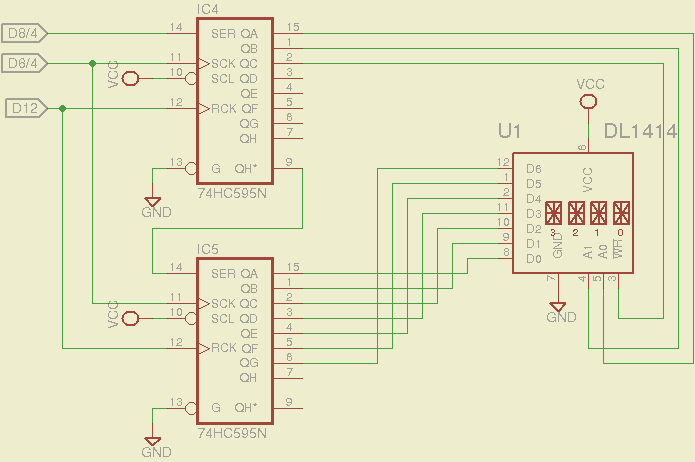
OK, I couldn’t help myself… running two more ‘595 shift registers in parallel with the ones for the LED bargraph provides enough bits for a DL1414 four character ASCII display:
LED Character Display
The serial data input (SER) and serial clock (SCK) lines drive both shift register strings with the same values at the same time. The two strings have different parallel register clocks (RCK), so you twiddle only the one you want; the other string gets the same data, but it never reaches those parallel outputs.
This being a breadboard lashup, there’s no red filter to boost the contrast; :
The DL1414 datasheet seems very hard to find; that’s a clean version I fetched from datasheetarchive.com.
They’ve also become insanely expensive these days and you don’t want to use them for a new design, but if you happen to have a NOS tube lying around and hadn’t thought of monetizing your assets, well…
To simplify debugging, the test code blips both RCK lines after shifting the data out, which means the LED bargraph shows the actual bits driving the DL1414. Slow down the update rate, un-comment the delay(1000) statements, and you can watch the DL1414 pins in “real time”. Cheaper than a logic analyzer…
The test routine displays HELO, then shows the low word of the running millis() value in hex every 100 ms, for lack of anything smarter.
You could use a single shift register string with two ‘595 chips driving both the LED bargraph and the DL1414; the bars would flicker briefly when updating the DL1414, but that might not be even slightly objectionable for some geek-chic projects.
You could put the two shift registers in series, which means you must shift twice as many bits to update the DL1414 display; you’d need only one RCK line for both sets if you shifted the unchanging bits every time. That might not be such a big deal, even though writing each character requires three complete shift sequences.
I used a union to overlay a word variable with a bitfield structure:
union DL1414_ {
	word ShiftWord;				// word overlay
	struct {					// bitfield sent to the display
		unsigned int Addr:2;
		unsigned int NotWrite:1;
		unsigned int Ctl3_7:5;			// unused bits
		unsigned int Data:7;
		unsigned int Data7:1;			// unused bit
	} ShiftBits;
};
Bit-twiddling operations then work on the bitfield elements and shifting uses byte-wide chunks:
union DL1414_ DL1414;

	DL1414.ShiftBits.Data = Char & 0x7F;
	DL1414.ShiftBits.Addr = ~CharID & 0x03;		// reverse order of chars

	DL1414.ShiftBits.NotWrite = 1;				// set up data and address

	shiftOut(PIN_MOSI,PIN_SCK,MSBFIRST,DL1414.ShiftWord >> 8);
	shiftOut(PIN_MOSI,PIN_SCK,MSBFIRST,DL1414.ShiftWord & 0x00ff);
I briefly thought about overlaying two bytes instead of a word, but came to my senses. I assume the compiler can optimize those byte-sized shifts out of existence, but it doesn’t really matter.
The DL1414 address layout puts character 0 on the right, but we want it on the left to match the string subscript; just invert the address bits and move on.
The complete Arduino source code:
// LED Character Display
// Ed Nisley - KE4ANU - November 2012
// Uses obsolete DL1414 LED displays
// Display pinout:
// https://softsolder.com/2009/08/05/arduino-using-ancient-litronix-dl-1414-led-displays/
// https://softsolder.com/2012/12/07/arduino-snippets-dl1414-led-character-display/
//----------
// Pin assignments
// These are *software* pins for shiftOut(), not the *hardware* SPI functions

const byte PIN_MOSI = 8;			// data to shift reg
const byte PIN_SCK  = 6;			// shift clock to shift reg

const byte PIN_RCKC  = 12;			// latch clock for LED character shift reg

const byte PIN_RCKB  = 7;			// latch clock for LED bar bits shift reg

const byte PIN_SYNC = 13;			// scope sync

//----------
// Constants

const int UPDATEMS = 100;				// update LEDs only this many ms apart

#define TCCRxB 0x02						// Timer prescaler

#define LED_SIZE		4				// chars per LED
#define LED_DISPLAYS	1				// number of displays
#define LED_CHARS		(LED_DISPLAYS * LED_SIZE)

//----------
// Globals

char LEDCharBuffer[LED_CHARS + 1] = "HELO";		// raw char buffer, can be used as a string

union DL1414_ {
	word ShiftWord;				// word overlay
	struct {					// bitfield sent to the display
		unsigned int Addr:2;
		unsigned int NotWrite:1;
		unsigned int Ctl3_7:5;			// unused bits
		unsigned int Data:7;
		unsigned int Data7:1;			// unused bit
	} ShiftBits;
};

unsigned long MillisNow;
unsigned long MillisThen;

//-- Helper routine for printf()

int s_putc(char c, FILE *t) {
  Serial.write(c);
}

//-- Write single char to DL1414

void WriteLEDChar(char Char,char CharID) {

union DL1414_ DL1414;

	DL1414.ShiftBits.Data = Char & 0x7F;
	DL1414.ShiftBits.Addr = ~CharID & 0x03;		// reverse order of chars

	DL1414.ShiftBits.NotWrite = 1;				// set up data and address

	shiftOut(PIN_MOSI,PIN_SCK,MSBFIRST,DL1414.ShiftWord >> 8);
	shiftOut(PIN_MOSI,PIN_SCK,MSBFIRST,DL1414.ShiftWord & 0x00ff);
	digitalWrite(PIN_RCKC,HIGH);
	digitalWrite(PIN_RCKC,LOW);
	digitalWrite(PIN_RCKB,HIGH);
	digitalWrite(PIN_RCKB,LOW);

//	delay(1000);

	DL1414.ShiftBits.NotWrite = 0;				// write the character

	shiftOut(PIN_MOSI,PIN_SCK,MSBFIRST,DL1414.ShiftWord >> 8);
	shiftOut(PIN_MOSI,PIN_SCK,MSBFIRST,DL1414.ShiftWord & 0x00ff);
	digitalWrite(PIN_RCKC,HIGH);
	digitalWrite(PIN_RCKC,LOW);
	digitalWrite(PIN_RCKB,HIGH);
	digitalWrite(PIN_RCKB,LOW);

//	delay(1000);

	DL1414.ShiftBits.NotWrite = 1;				// disable write

	shiftOut(PIN_MOSI,PIN_SCK,MSBFIRST,DL1414.ShiftWord >> 8);
	shiftOut(PIN_MOSI,PIN_SCK,MSBFIRST,DL1414.ShiftWord & 0x00ff);
	digitalWrite(PIN_RCKC,HIGH);
	digitalWrite(PIN_RCKC,LOW);
	digitalWrite(PIN_RCKB,HIGH);
	digitalWrite(PIN_RCKB,LOW);

//	delay(1000);

}

//------------------
// Set things up

void setup() {
	pinMode(PIN_SYNC,OUTPUT);
	digitalWrite(PIN_SYNC,LOW);	// show we arrived

//	TCCR1B = TCCRxB;					// set frequency for PWM 9 & 10
//	TCCR2B = TCCRxB;					// set frequency for PWM 3 & 11

	pinMode(PIN_MOSI,OUTPUT);
	digitalWrite(PIN_MOSI,LOW);

	pinMode(PIN_SCK,OUTPUT);
	digitalWrite(PIN_SCK,LOW);

	pinMode(PIN_RCKC,OUTPUT);
	digitalWrite(PIN_RCKC,LOW);

	pinMode(PIN_RCKB,OUTPUT);
	digitalWrite(PIN_RCKB,LOW);

	Serial.begin(9600);
	fdevopen(&s_putc,0);				// set up serial output for printf()

	printf("LED Character Display - DL1414\r\nEd Nisley - KE4ZNU - November 2012\r\n");

	for (byte i=0; i < LED_CHARS; ++i)
		WriteLEDChar(LEDCharBuffer[i],i);
	delay(1000);

	MillisThen = millis();

}

//------------------
// Run the test loop

void loop() {

	MillisNow = millis();

	if ((MillisNow - MillisThen) > UPDATEMS) {

		digitalWrite(PIN_SYNC,HIGH);
		sprintf(LEDCharBuffer,"%04X",(word)MillisNow);
		for (byte i=0; i < LED_CHARS; ++i)
			WriteLEDChar(LEDCharBuffer[i],i);

		digitalWrite(PIN_SYNC,LOW);

		MillisThen = MillisNow;
	}


}
Update: A question arrived about power for those displays …
In your older post about driving ancient DL1414s from Arduino, did you manage to drive these solely from a USB-powered Arduino, or did they need some external power supply help?
I got a couple of 2416s from A1, Toronto’s last surviving major surplus store. For the life of me, they won’t light. Looking back at the failure, I’m guessing the total current draw is hitting the Uno’s USB “MaxPower” [sic; it’s what lsusb says] of 100 mA.
Still looking out for the rare DL3422, which now commands utterly pointless pricing. It can do lower case, though …
As it happens, those displays suck juice like nothing else around!
I have two datasheets offering either 65 or 130 mA for a DL-1414 with all the lights on; the HP datasheet says their HPDL-2416 displays cook at 170 mA and 232 mA (!) when showing four block cursors. Take your pick, any of those will drain a piddly Pi USB port dry.
Having been burned often enough, I run Arduinos from the wall wart that also powers whatever gimmick I’m building. If the gimmick requires a relatively high voltage (9-ish V and up), I put a 7 V pre-regulator in front of the Arduino’s SMD regulator to reduce its power dissipation.
For the vacuum tube lights I’m using now, I jam +5 V into the Nano’s VCC pin, straight into the regulator’s /output/, and just hold my nose. It works well enough for my simple needs, even if I’d have a hard time justifying that sort of thing as “common engineering practice”.
So, yeah, you’re gonna need a separate supply for those puppies.
An LED bargraph display comes in handy for displaying a tuning center point, monitoring a sensor above-and-below a setpoint, and suchlike.
Given the number of output bits, this requires a pair of ‘595 shift registers. There’s no particular need for speed, so the shiftOut() function will suffice. That means the register control bits don’t need the dedicated SPI pins and won’t soak up the precious PWM outputs required by, say, the RGB LED strip drivers.
LED Bargraph Display
It’s Yet Another Solderless Breadboard Hairball:
LED Bargraph Display – breadboard
The upper LED bargraph is an HPSP-4836 RRYYGGYYRR block, the lower one is an all-green GBG1000. The bottom four LEDs aren’t connected; you could add another ‘595 shift register, but then you’d have four bits left over and you’d be forced to add more LEDs. Four bricks and five ‘595 chips would come out even, if you’re into that.
The LEDs run at about 4 mA, which would be enough for decoration in a dim room and seems about the maximum the poor little 74HC595 chips can supply. If you need more juice, you need actual LED drivers with dimming and all that sort of stuff.
You need not use LED bargraphs, of course, and discrete LEDs for the lower six bits make more sense. They’ll be good for mode indicators & suchlike.
The demo code loads & shifts out alternating bits, then repeatedly scans a single bar upward through the entire array. Note that the bar is just a bit position in the two bytes that get shifted out every time the array updates (which is every 100 ms); the array is not just shifting a single position to move the bar. Verily, the bar moves opposite to the register shift direction to demonstrate that.
The Arduino source code:
// LED Bar Light
// Ed Nisley - KE4ANU - November 2012

//----------
// Pin assignments
// These are *software* pins for shiftOut(), not the *hardware* SPI functions

const byte PIN_MOSI = 8;			// data to shift reg
const byte PIN_SCK  = 6;			// shift clock to shift reg
const byte PIN_RCK  = 7;			// latch clock

const byte PIN_SYNC = 13;			// scope sync

//----------
// Constants

const int UPDATEMS = 100;				// update LEDs only this many ms apart

#define TCCRxB 0x02						// Timer prescaler

//----------
// Globals

word LEDBits;

unsigned long MillisNow;
unsigned long MillisThen;

//-- Helper routine for printf()

int s_putc(char c, FILE *t) {
  Serial.write(c);
}

//-- Send bits to LED bar driver register

void SetBarBits(word Pattern) {

	shiftOut(PIN_MOSI,PIN_SCK,MSBFIRST,Pattern >> 8);
	shiftOut(PIN_MOSI,PIN_SCK,MSBFIRST,Pattern & 0x00ff);

	digitalWrite(PIN_RCK,HIGH);
	digitalWrite(PIN_RCK,LOW);

}

//------------------
// Set things up

void setup() {
	pinMode(PIN_SYNC,OUTPUT);
	digitalWrite(PIN_SYNC,LOW);	// show we arrived

//	TCCR1B = TCCRxB;					// set frequency for PWM 9 & 10
//	TCCR2B = TCCRxB;					// set frequency for PWM 3 & 11

	pinMode(PIN_MOSI,OUTPUT);
	digitalWrite(PIN_MOSI,LOW);

	pinMode(PIN_SCK,OUTPUT);
	digitalWrite(PIN_SCK,LOW);

	pinMode(PIN_RCK,OUTPUT);
	digitalWrite(PIN_RCK,LOW);

	Serial.begin(9600);
	fdevopen(&s_putc,0);				// set up serial output for printf()

	printf("LED Bar Light\r\nEd Nisley - KE4ZNU - November 2012\r\n");

	LEDBits = 0x5555;
	SetBarBits(LEDBits);
	delay(1000);

	MillisThen = millis();

}

//------------------
// Run the test loop

void loop() {

	MillisNow = millis();

	if ((MillisNow - MillisThen) > UPDATEMS) {

		digitalWrite(PIN_SYNC,HIGH);
		SetBarBits(LEDBits);
		digitalWrite(PIN_SYNC,LOW);

		LEDBits = LEDBits >> 1;
		if (!LEDBits) {
			LEDBits = 0x8000;
			printf("LEDBits reset\n");
		}

		MillisThen = MillisNow;
	}

}
The MOSFETs must have logic-level gates for this to work, of course. The tiny ZVNL110A MOSFETs have a channel resistance of about 3 Ω that limits their maximum current to around 300 mA, so the LED strip can have maybe a dozen segments, tops. If you use logic-level power MOSFETs, then the sky’s the limit. This also works with a single RGB LED on the +5 V supply with dropping resistors; you probably shouldn’t drive it directly from the port pins, though, particularly with an Arduino Pro Mini’s tiny regulator, because 60-ish mA will toast the regulator.
You may want gate pulldown resistors, 10 kΩ or so, to prevent the gates from drifting high when the outputs aren’t initialized. No harm will come with the single LED segment I’m using, but if the MOSFET gates float half-on with a dozen segments, then the transistor dissipation will get out of hand.
The usual LED test code seems pretty boring, so I conjured up a mood light that drives the PWM outputs with three raised sinusoids having mutually prime periods: 9, 11, and 13 seconds. That makes the pattern repeat every 21 minutes, although, being male, I admit most of the colors look the same to me. The PdBase constant scales milliseconds of elapsed time to radians for the trig functions:
const double PdBase = 1.00 * 2.0 * M_PI / 1000.0;
For an even more mellow mood light, change the leading 1.00 to, say, 0.01: the basic period becomes 100 seconds and the repeat period covers 1.5 days. You (well, I) can’t see the color change at that rate, but it’s never the same when you look at it twice.
All the pins / periods / intensity limits live in matching arrays, so a simple loop can do the right thing for all three colors. You could put the data into structures or classes or whatever, then pass pointers around, but I think it’s obvious enough what’s going on.
Rather than bothering with scaling integer arithmetic and doping out CORDIC trig functions again, I just used floating point. Arduinos are seductive that way.
The main loop runs continuously and updates the LEDs every 10 ms. There’s no good reason for that pace, but it should fit better with the other hardware I’m conjuring up.
You can see the individual intensity steps at low duty cycles, because the 8 bit PWM step size is 0.4%. So it goes.
Despite my loathing of solderless breadboards, it works OK:
RGB LED Strip Driver – breadboard
The MOSFETs stand almost invisibly between the drain wires to the LEDs and the gate wires to the Arduino.
The Arduino source code:
// RGB LED strip mood lighting
// Ed Nisley - KE4ANU - November 2012

//#include <stdio.h>
//#include <math.h>

//----------
// Pin assignments

const byte PIN_RED = 9;				// PWM - LED driver outputs +active
const byte PIN_GREEN = 10;
const byte PIN_BLUE = 11;

const byte PIN_HEARTBEAT = 13;		// DO - Arduino LED

//----------
// Constants

const int UPDATEMS = 10;						// update LEDs only this many ms apart

const double PdBase = 1.00 * 2.0 * M_PI / 1000.0;		// scale time in ms to radians

const byte Pins[] = {PIN_RED,PIN_GREEN,PIN_BLUE};
const float Period[] = {(1.0/9.0) * PdBase,(1.0/11.0) * PdBase,(1.0/13.0) * PdBase};
const float Intensity[] = {255.0,255.0,255.0};

#define TCCRxB 0x02						// Timer prescaler

//----------
// Globals

unsigned long MillisNow;
unsigned long MillisThen;

//-- Helper routine for printf()

int s_putc(char c, FILE *t) {
  Serial.write(c);
}

byte MakePWM(float MaxValue,double SineWave) {
	return trunc((SineWave + 1.0) * MaxValue/2.0);
}

//------------------
// Set things up

void setup() {
  pinMode(PIN_HEARTBEAT,OUTPUT);
  digitalWrite(PIN_HEARTBEAT,LOW);	// show we arrived

  TCCR1B = TCCRxB;					// set frequency for PWM 9 & 10
  TCCR2B = TCCRxB;					// set frequency for PWM 3 & 11

  pinMode(PIN_RED,OUTPUT);
  analogWrite(PIN_RED,0);			// force gate voltage = 0

  pinMode(PIN_GREEN,OUTPUT);
  analogWrite(PIN_GREEN,0);

  pinMode(PIN_BLUE,OUTPUT);
  analogWrite(PIN_BLUE,0);

  Serial.begin(9600);
  fdevopen(&s_putc,0);				// set up serial output for printf()

  printf("RGB LED Mood Lighting\r\nEd Nisley - KE4ZNU - November 2012\r\n");
}

//------------------
// Run the test loop

void loop() {

	MillisNow = millis();

	if ((MillisNow - MillisThen) > UPDATEMS) {
		digitalWrite(PIN_HEARTBEAT,HIGH);

		for (byte i = 0; i < 3; i++)
			analogWrite(Pins[i],MakePWM(Intensity[i],sin(MillisNow * Period[i])));

		digitalWrite(PIN_HEARTBEAT,LOW);

		MillisThen = MillisNow;
	}
}
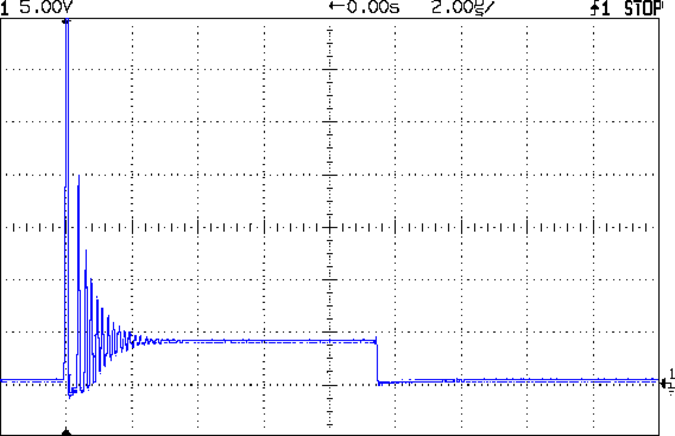
The tech reviewer for my Circuit Cellar columns on the MOSFET tester commented that the 32 kHz PWM frequency I used for the Peltier module temperature controller was much too high:
Peltier Noise – VDS – PWM Shutdown
He thought something around 1 Hz would be more appropriate.
Turns out we were both off by a bit. That reference suggests a PWM frequency in the 300-to-3000 Hz range. The lower limit avoids thermal cycling effects (the module’s thermal time constant is much slower) and, I presume, the higher limit avoids major losses from un-snubbed transients (they still occur, but with a very low duty cycle).
Peltier Turn-Off Transient
The Peltier PWM drive comes from PWM 10, which uses Timer 1. The VDS and ID setpoints come from PWM 11 and PWM 3, respectively, which use Timer 2. So I can just not tweak the Timer 1 PWM frequency, take the default 488 Hz, and it’s all good. That ever-popular post has the frequency-changing details.
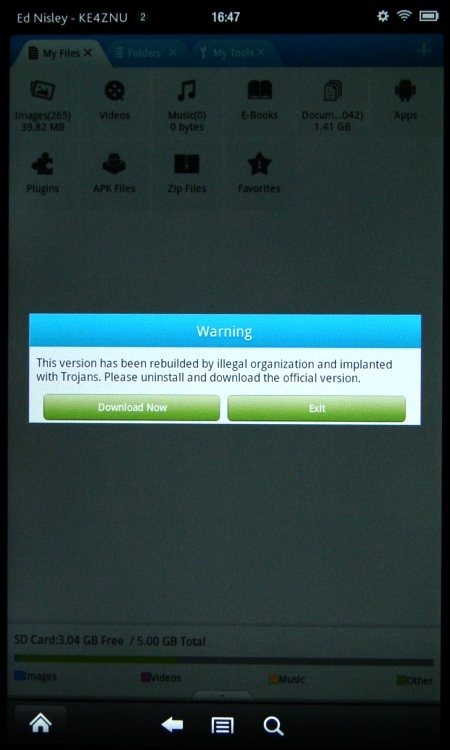
My Kindle Fire automagically updates itself whenever Amazon decides it should. Sometimes an update produces a notice that an app (why don’t we call them “programs” these days?) needs more permissions, but the process generally goes unremarked.
This one wasn’t subtle at all:
Kindle Fire – File Expert Trojan warning
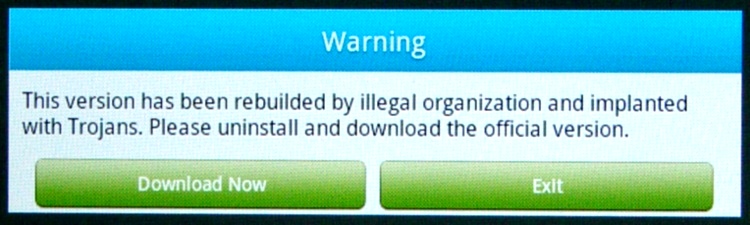
I had just fired up File Expert, which immediately dimmed the screen and presented a dialog box with only two unpalatable choices. Here’s a closeup:
Kindle Fire – File Expert Trojan warning – detail
Well, what would you do?
Needless to say, I didn’t press the Download Now button; it probably wouldn’t have worked anyway, because I turned off the Allow Installation of Applications from Unknown Sources option a long time ago. Pressing Exit bails out of the program app and returns to the Home screen.
Some questions immediately spring to mind:
If the app has been compromised, exactly how did it regain control and complain about the situation?
If this is truly a compromised app, why wouldn’t the Trojan just download malware without asking?
How did this pass the ahem QC and auditing that allegedly justifies having a sole-source Amazon App Store? After all, I can load random crap from the Interweb onto a PC all by myself.
How does one validate the origin of those random security questions that regularly appear on various computer screens? Why wouldn’t malware just pop up a random dialog box asking for the password, any password, and gleefully use whatever you type?
This appears to be a false positive, as explained there. I assume that any malware worth its salt would also kill off any built-in integrity checking, but what do I know? It’s gone missing from the storefront, probably cast forth into the outer darkness away from the light of Kindle Fires…
With the Bash script and OpenSCAD source in hand, here’s how you go about producing a grayscale image that works as the height map file to produce a cookie press and matching cookie cutter.
The Big Picture description: the grayscale height map image looks a lot like a photo of the final cookie on a plate in front of you. The darkest regions mark the thinnest parts of the cookie: black lines emboss deep trenches. Gray regions denote thicker sections and very light gray will be thickest. Because image files are rectangular, a pure white area surrounds the region that will become the cookie press and acts as a mask to remove the rectangular border.
If you start by hand-drawing the shape of the cookie press at full size inside a 5 inch square (chosen to match the 3D printer’s build platform and in inches because that’s how it got measured; it’s not my printer) with a 1.5 or 2 mm black marker, then the marker lines will be just about exactly the right width to ensure good plastic fill (for a printer producing a 0.5 mm thread width, anyway) and printable walls. You can scale the drawing for smaller (my Thing-O-Matic) or larger (M2, Series One) platforms, but the thread width and minimum wall thickness do not scale: a tiny 1 inch push mold must still have 2 mm walls.
The workflow looks like this:
Draw cookie press lines at full scale with fat black marker on white paper
Scan a 5×5 inch (127×127 mm) square around the image at 300-ish dpi → 1500×1500 pixel image
Convert a full-color scan to grayscale now (better to scan in grayscale)
Resize image to 317×317 pixel, optionally set 2.5 pixel/mm = 63.5 dpi for proper display size
Set color levels to blow out the contrast; auto probably works fine
Threshold to reduce to just two colors: 0% = black and 100% = white
Clean up the image: remove specks and single-pixel bumps, fill small gaps
Some sample images to show what happens along the way…
A hand-drawn image, derived from The Original Tux by crudely tracing the outline with a fat Sharpie, including some areas outside the box for pedagogic purposes:
TuxTrace – raw scan
The interior edge of the black box is exactly 5×5 inches. I created a 5×5 inch blank white image at 300 dpi, enlarged the canvas to 5.2×5.2 inches with the blank white image centered in the middle, set a black background, flattened the image to fill the border, and printed it out. That produces a piece of blank paper with a black square suitable for full-scale drawing.
It does not, however, confer any artistic eptitude whatsoever, so for this drawing I imported one of the Tux drawings, isolated the edges with one of The GIMP’s edge detectors, and traced over the thin lines with the aforementioned fat Sharpie. You can draw whatever you want, however you want it. If you already have an image file, you need not print it out and scan it back in; just resize it appropriately.
Pro tip: Ensuring that the drawing doesn’t touch the black square will greatly simplify the next half hour of your life.
A note on Sharpies. I used a Fine Point Marker, which is much fatter than a Fine Point Pen. The whole, uh, point is to produce a line about 2 mm wide that will become an actual plastic wall; you can’t print anything much finer than that.
A note on blackness. There’s no requirement for any black lines whatsoever. For most cookie presses, however, you want distinct walls that emboss lines into the dough, which is what the black lines will do. If you want to mold a cookie (or anything else, like a butter pat), you can produce a gently curved push mold by using only grayscale areas. For example, a circular area with a radial fill going from very light gray on the exterior to very dark gray in the center will produce a round cookie with a conical dent in the middle.
Given a drawn image, scan the area just inside the black square at 300 dpi to produce a nominally 1500×1500 pixel image, then resize it to 317×317 pixel at 63.5 dpi:
TuxTrace – crop resize
The magic number 317 comes from not wanting OpenSCAD to fall over dead after chewing on a larger image for an hour or two. Given the restriction to maybe 330×330 pixels, max, I picked a nice round 2.5 pixel/mm scaling factor that converts a 5 inch = 127 mm distance into 317 pixels:
317 pixel = 127 mm x 2.5 pixel/mm
The magic number 63.5 comes from wanting the image to print (on paper) and display (on screen) at the proper size:
5 inch = 317 pixel / 63.5 pixel/inch
Given a properly sized image, blow out the contrast so the background is mostly white and the lines are mostly black. This gets rid of background cruft:
TuxTrace – color levels
Then apply a threshold to get rid of all the gray levels. The threshold level determines the line width (the edges shade from black to gray to white), so you can tune for best width. The result doesn’t look much different than the blown contrast version, but the lines will become thinner and more jagged. Remember that you want the lines to be at least three pixels wide:
TuxTrace – threshold
Do whatever cleanup is required; eliminate single-pixel bunps and dents, fatten (or, rarely, thin) lines as needed. If you draw with a 3 pixel wide pen, the line will print just over 1 mm wide, which is about the thinnest possible wall and may encounter problems at corners. Use pure 0% black and pure 100% white.
If you possess powerful art-fu, you can draw that kind of image directly in the graphics program. Those of us with weak art-fu must rescale a found image of some sort. Should you draw a new image or rescale an old one, then:
Start with a 317×317 pixel grayscale canvas in 100% white
Draw lines with a 3 pixel (probably a square) 0% black pen
Now you have a clean black and white image of the cookie press lines; it’s still a grayscale image, but using only two colors.
Use color levels to reduce the white to about 95% gray; this avoids interior islands
Bucket-fill the exterior with 100% white (interior remains 95%): no anti-aliasing or blending
Fill interior regions with grays to set cookie press depths: dark = low, light = high, no 100% white, no anti-aliasing
Save as PNG to avoid compression artifacts
By reducing the overall white level to 95%, you get rid of all that pure white in the whole interior. Remember that pure white marks the area outside of the press, so any white inside the press will produce bizarre islands. You could pour 95% white into all the interior areas, but if you miss one, you have an island.
Having reduced all the whites, pouring pure 100% white around the press restores the exterior mask color. Turn off the anti-aliasing / blending / feathering options, because you want crisp edges rather than nice-looking gray transitions.
If all you want is a press with lines, you’re done. Save the image and proceed to make the cutter & press.
If you want a press that produces a cookie with different thicknesses, do some gray pours. For example:
TuxTrace – grayscale height map
That’s obviously contrived, but the general idea is that the feet and beak will be the thickest part of the cookie, the tummy next, and the body will be the thinnest part. The glint above one eye will become a bizarre peak, but that’s to show why you probably don’t want to do that. It’s not obvious, but the eyeball pupil and sclera areas will be recessed into the body.
If you’re doing a push mold, elaborate grayscaling will make a lot more sense. For a cookie press, black is where it’s at.
That process produces a clean grayscale image. Save it as a PNG file to avoid JPEG image compression artifacts: you want crisp lines and flat areas that define heights, not a small file. It’ll be small enough, anyway, compared to the eventual STL files.
To review, the grayscale height map image must satisfy this checklist:
Maximum 317×317 pixels: smaller is OK and will print at 2.5 pixel/mm; larger may not work
Exterior pure white: 100% = 255/255
Four corners must be 100% white to allow proper auto-cropping
No interior pixels are 100%: at most 99.6% = 254/255 will be fine
All lines at least 3 pixels wide: will print at 1.2 mm = (3 pixel / 2.5 pixel/mm)
No speckles or stray dots
Clean lines with no single-pixel bumps or dents: they’re hard to print
Saved as PNG to preserve crisp lines and areas
Then hand the file to the MakeCutter.sh Bash script, do something else for an hour, and get a pair of STL files.
To get higher resolution, you could use Shapeways’s online 2D-to-3D Converter, although it seems to produce STL files with many reversed normals. The press and cutter would require different height map images, of course, but I betcha ImageMagick could produce them for you. The PNG23D project may be of more than passing interest. Note that their recommended resolution matches up just about exactly with my 2.5 pixel/mm default, so higher resolution may not pay off the way you think.
In any event, for this example the height map file shown above is TuxTrace.png and all the output files use TuxTrace as a prefix.
The cookie press (TuxTrace-press.stl):
TuxTrace-press – solid model
Notice that Tux has been reversed from left-to-right, the darkest parts of the original image correspond to the tallest lines, and that glint over the eye became a triangular depression. All that makes sense when you imagine pressing this shape onto a layer of dough rolled out over the kitchen cutting board.
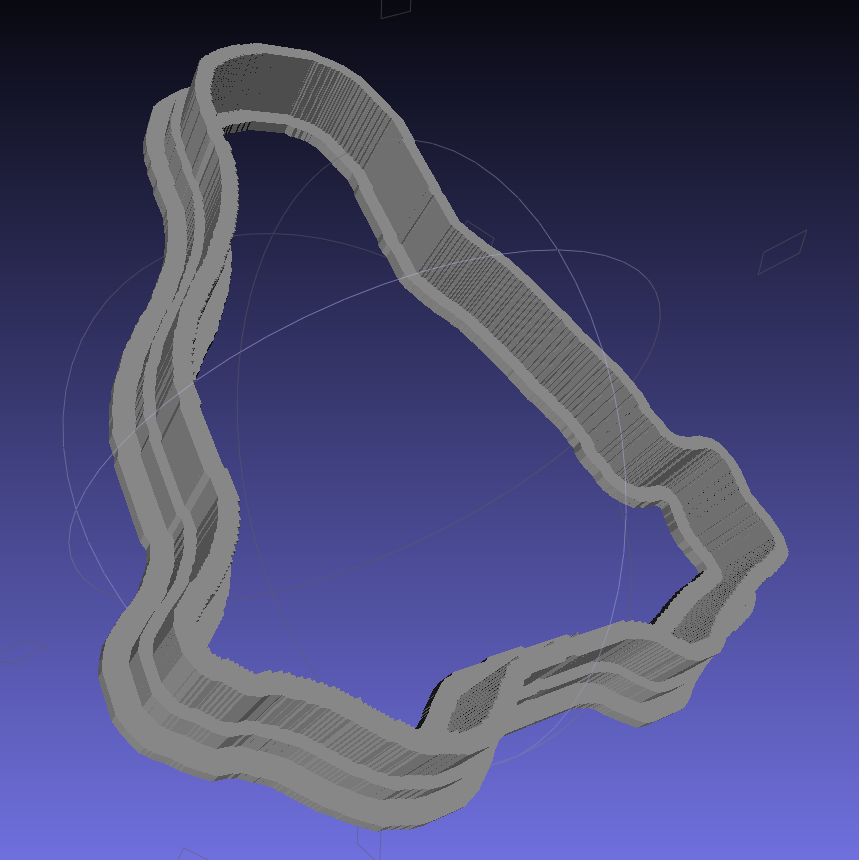
The cookie cutter (TuxTrace-cutter.stl), with a stiffening lip extending on both sides of the cutting blade:
TuxTrace-cutter – solid model
The press probably won’t slide into the cutter, because I set things up to use the same dimensions, and certainly won’t fit inside the inner lip on the build platform. Another Minkowski around the press to add half a millimeter or so would let them nest together, at the cost of even more computation time.
Those nicely shaded blue images come from MeshLab screenshots, which you can (and should!) install on your Linux box without any hassle at all.
The “blade” isn’t particularly sharp, due to the fact that we’re printing blocky pixels. I produced a very thin blade for the original Tux Cutter by using a finicky collection of settings, but that won’t produce a corresponding press.
The surface that OpenSCAD builds from the height map image has slightly tapering walls, because that’s how it ensures a 2-manifold 3D object. The base of the walls will be slightly wider than the grayscale line width and the top will be slightly narrower. This produces a tapered edge, which is probably what you want for a cookie cutter, but it means you must make the lines wide enough to ensure good fill along the top of the wall.
The G-Code produced from the height map image above looks like this at the base of the walls on the press (as always, clicky for more dots):
TuxTrace-press – G-Code Layer 27
The same walls become much thinner on the top layer, including a few single-thread sections:
TuxTrace-press – G-Code Layer 35
Moral of the story: draw with a chunky marker!
Bonus lesson: always analyze the G-Code before you build anything…
The Bash script produces several intermediate images and data files along the way; delete them if you like.
A cropped / rotated / de-commented / contrast-stretched image (TuxTrace_prep.png):
TuxTrace_prep
An image (TuxTrace_plate.pgm and .dat) that defines the outside edge, with no interior detail, to shape the cutter outline:
TuxTrace_plate
An image (TuxTrace_map.pgm and .dat) that defines the height map for the press surface:
TuxTrace_map
That one is actually identical to the incoming PNG file, just converted to an ASCII image file format.