The Smell of Molten Projects in the Morning

Ed Nisley's Blog: Shop notes, electronics, firmware, machinery, 3D printing, laser cuttery, and curiosities. Contents: 100% human thinking, 0% AI slop.

Category: Software

General-purpose computers doing something specific

  • Laser Cutter: Focus Ramp Tests

    Laser Cutter: Focus Ramp Tests

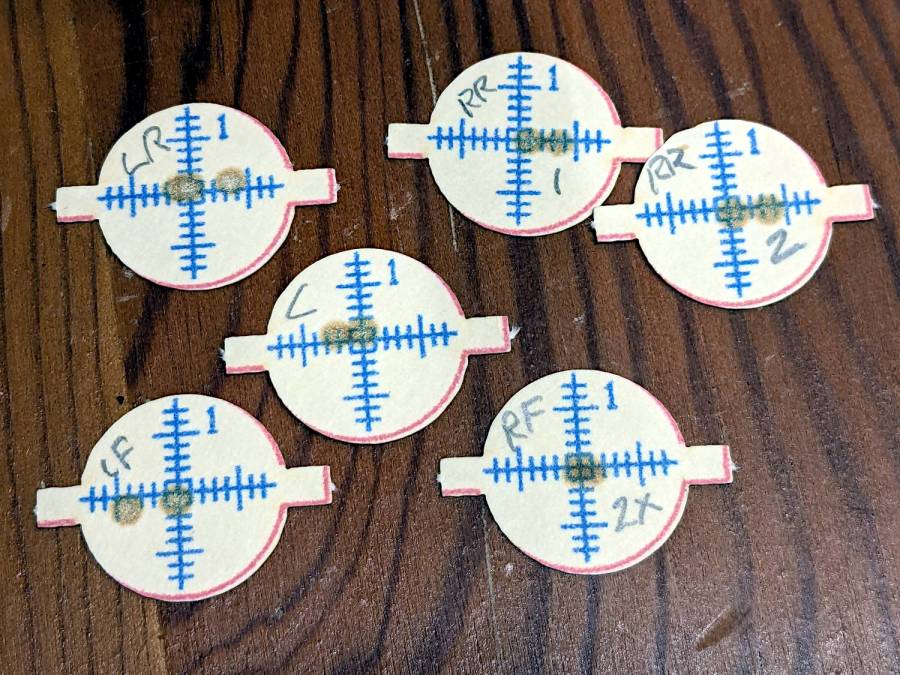
    A few ramp tests with various Focus Distance + Home Offset settings as noted:

    Ramp Test Targets - 14-17 mm
    Ramp Test Targets – 14-17 mm

    The bottom test was at 15 mm, which (contrary to previous estimates) seems to center the narrow band round 0.0 mm. Given the depth of field, a millimeter one way or the other likely doesn’t matter, particularly given the mmm lack of flatness in many materials.

    The controller settings making it happen:

    KT332N Autofocus settings
    KT332N Autofocus settings

    What they mean:

    • Home Offset = distance to retract after the autofocus “pen” = switch activates so the tip of the pen clears the material
    • Focus Distance = distance beyond Home Offset to put the focal point at the surface of the material (or wherever you want)
    • Enable Homing = makes autofocus work at the push of a button
    • Homing Speed = how fast the platform moves while focusing

    Getting the focus right really makes the laser cut like it should!

  • Laser Cutter: Focus Ramp Fixture

    Laser Cutter: Focus Ramp Fixture

    After figuring out the Ruida focus settings, a focus ramp fixture seemed like a good thing to have around:

    Ramp Test Fixture - setup
    Ramp Test Fixture – setup

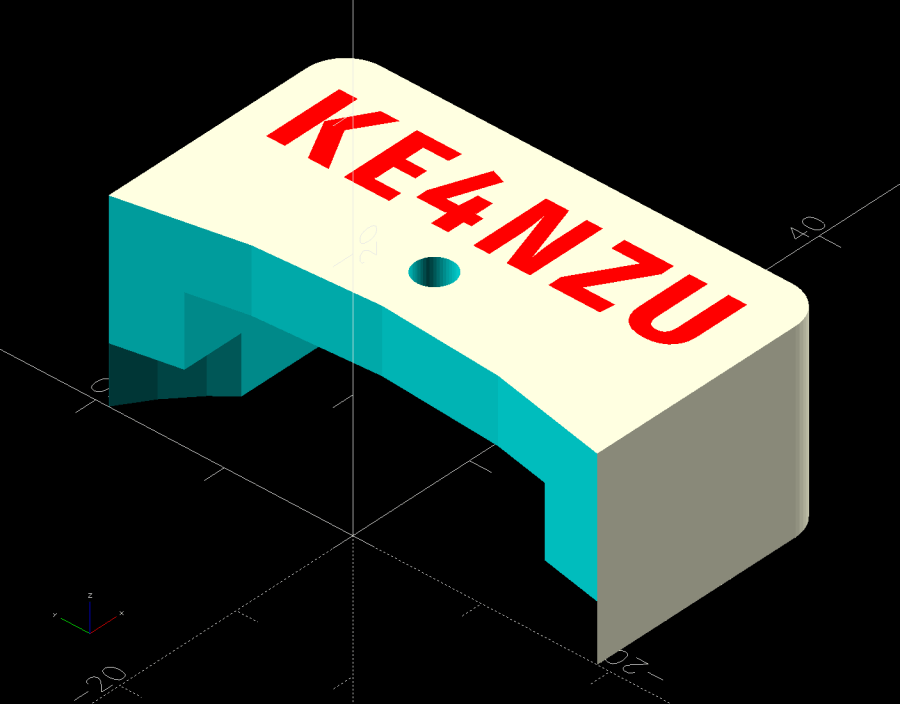
    The solid model shows a bit more detail:

    Laser Focus Ramp Fixture - solid model
    Laser Focus Ramp Fixture – solid model

    Centering the autofocus “pen” = switch on the peg in the back puts the beam dead-center in the fixture, with the notches as comfort marks. The top of the peg is flush with the center notch, so the machine should be properly focused at that level after a focus operation.

    Obviously, your laser has a different pen location, as will this one the next time I fiddle with anything around the nozzle.

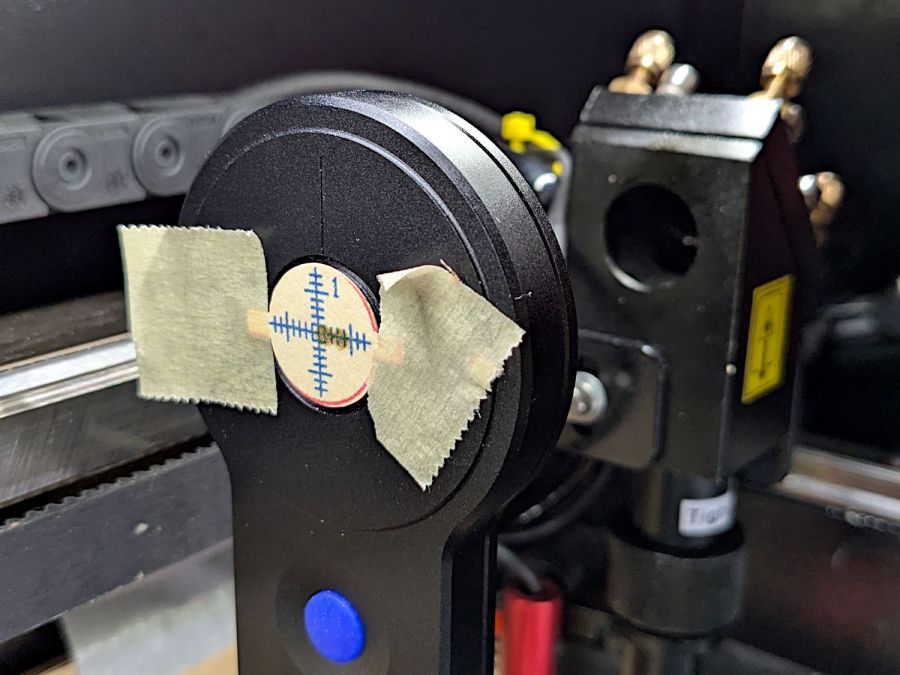
    The general idea is to tape a target to the ramp, with some attention to flattening the paper (tape the edges in critical spots as needed) & putting its zero at the center marks, align the fixture to the laser path along the X axis & secure it with a few magnets, then burn a single line at low power along the length of the scale:

    Ramp Test Fixture - laser line
    Ramp Test Fixture – laser line

    The mark will be thinnest in the region with the best focus, which should be centered around the 0.0 mark in the middle. In that photo, the thinnest section runs from about -2.0 to +1.0, although (at least for me) it does take some squinting to be sure.

    The ramp has a 1:10 = 5.71° slope to spread 1 mm of vertical focus across 10 mm of horizontal distance. If you’re being finicky, you should rescale the targets to correct the 0.5% cosine error, but IMO it’s irrelevant for this purpose.

    A few more tests varying the focus distance by a millimeter:

    Ramp Test Targets - 15 16 mm
    Ramp Test Targets – 15 16 mm

    AFAICT, setting the controller’s Focus Distance to 16 mm is about right. That puts the focal point 18 mm below the nozzle, as shown in the earlier post, and is pretty much what I’ve been using all along.

    The OpenSCAD code as a GitHub Gist, along with a simplified target layout in SVG format:

    // Laser Cutter Focus Ramp Fixture
    // Ed Nisley KE4ZNU
    // 2024-10-10
    FocusPenOffset = [-19,23,0];
    FocusPenOD = 10.0;
    RampHeight = 16.0;
    RampScale = 10;
    RampLength = RampScale * RampHeight;
    Magnet = [5.0,60.0,10.0];
    NumSides = 3*4;
    Protrusion = 0.1;
    RampAngle = atan(RampHeight/RampLength);
    echo(RampAngle=RampAngle);
    Slot = [(RampLength + 2*5.0),10.0,8*RampHeight]; // very tall to cut through everything
    Body = [(Slot.x + 2*10.0),30.0,3*RampHeight]; // extend Z to reach baseplate
    FocusPillarHeight = (RampHeight/2) + Body.z/3; // match Z at center of body
    BasePlate = [(Body.x + 2*Magnet.x + 2*5.0),max(Magnet.y,FocusPenOffset.y + 2*5.0),3.0];
    BaseRound = 5.0;
    //—– Build it
    difference() {
    union() {
    translate(FocusPenOffset)
    cylinder(d=FocusPenOD,h=FocusPillarHeight,$fn=NumSides);
    difference() {
    union() {
    rotate([0,RampAngle,0])
    cube(Body,center=true);
    linear_extrude(height=BasePlate.z)
    hull()
    for (i=[-1,1], j=[-1,1])
    translate([i*(BasePlate.x/2 – BaseRound),j*(BasePlate.y/2 – BaseRound)])
    circle(r=BaseRound,$fn=NumSides);
    }
    cube(Slot,center=true);
    translate([0,0,FocusPillarHeight]) {
    cube([0.5,2*Body.y,1.0],center=true);
    rotate([0,RampAngle,0])
    cube([2*Slot.x,0.5,1.0],center=true);
    }
    }
    }
    translate([0,0,-Body.z])
    cube(2*[BasePlate.x,BasePlate.y,Body.z],center=true);
    }
    Loading
    Sorry, something went wrong. Reload?
    Sorry, we cannot display this file.
    Sorry, this file is invalid so it cannot be displayed.

    Contrary to what you might think, the targets are not laser cut, although you could use the crosshairs for LightBurn’s Print and Cut alignment.

  • Seasonally Appropriate Teapot Knob

    Seasonally Appropriate Teapot Knob

    Long years ago, the Bakelite (or some such) lid on our rarely used teapot disintegrated, whereupon I replaced it with an aluminum sheet and metal knob. Admittedly, a metal knob was not the brightest idea I ever had, but it sufficed for a few uses over the intervening decades.

    Mary hosted this month’s quilting bee and, after having someone else bring a larger teapot for the occasion, suggested I Make. A. Better. Knob. After a bit of searching, this statue seemed appropriate for the season:

    Skull teapot knob
    Skull teapot knob

    It’s printed with PETG filament that should easily withstand the no-more-than-boiling-water temperatures found atop a teapot.

    I imported the original model into PrusaSlicer, shrank it to 50 mm tall and simplified the mesh, exported it as an OBJ file, imported it into OpenSCAD, mashed it together with a 1/4-20 threaded_nut from BOSL2, added the finger protector, and got a suitable model:

    Teapot Knob - solid model bottom view
    Teapot Knob – solid model bottom view

    The as-printed threads were a bit snug with $slop=0, but running the screw in with a dot of silicone grease to ease the way worked fine.

    I should rebuild the whole lid in PETG-CF sometime.

    The OpenSCAD code stitches the parts together:

    // Teapot Knob
    // Ed Nisley - KE4ZNU
    // 2024-10-11
    
    include <BOSL2/std.scad>
    include <BOSL2/threading.scad>
    
    StackHeight = 50.0;
    ThreadLength = 25.0;
    HeatbreakOD = 40.0;
    HeatbreakThick = 3.0;
    
        intersection() {
            union() {
                cylinder(d=HeatbreakOD,h=HeatbreakThick,$fn=2*4*9);
                up(HeatbreakThick)
                    translate([-121,-105])      // totally eyeballometric
                        import("stackofskulls - 50mm.obj",convexity=10);
            }
    
            union() {
                threaded_nut(100,INCH/4,ThreadLength,INCH/20,        // flat size, root dia, height, pitch
                                         bevel=false,ibevel=false,anchor=BOTTOM);
                up(ThreadLength)
                    cylinder(d=100,h=StackHeight);
            }
        }


  • Ruida Laser Controller: Home Offset vs. Focus Distance Settings

    Ruida Laser Controller: Home Offset vs. Focus Distance Settings

    The Ruida KT332N controller on my OMTech laser cutter has two settings affecting the final position of the U axis (which controls the platform’s position) after pushing the Focus button on the machine console:

    KT332N Laser Controller display
    KT332N Laser Controller display

    After turning the machine on or pressing the Reset button, the U axis does not automatically home and reports its position as 1000 mm. This allows manual control in either direction with the U↑ and U↓ buttons.

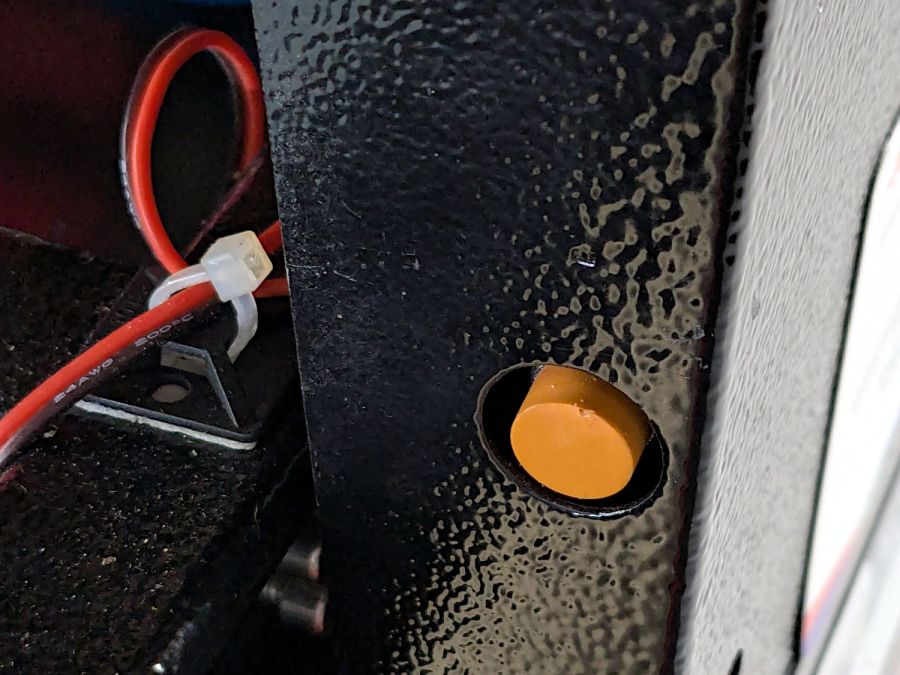
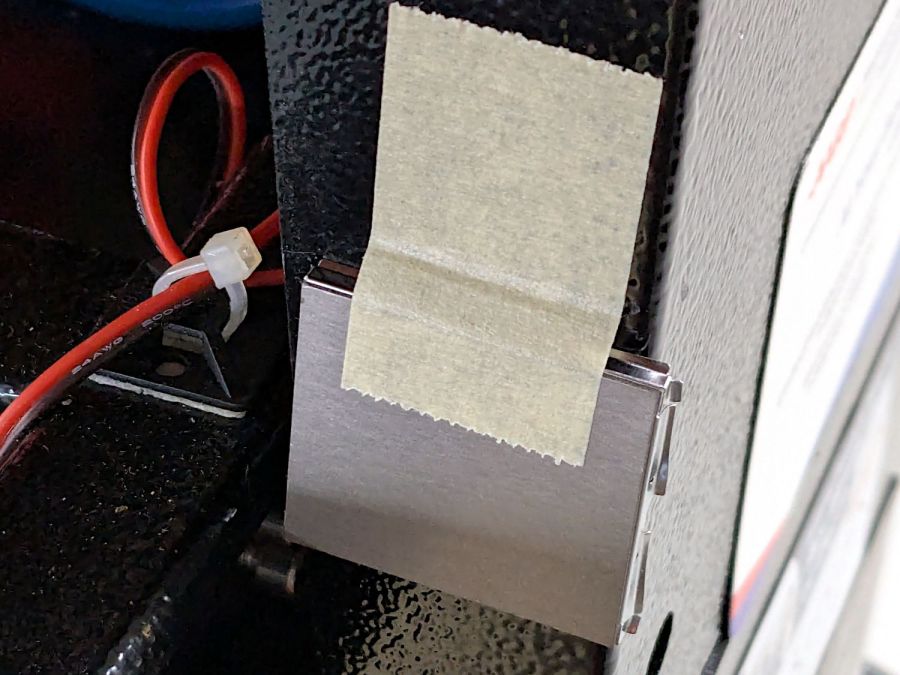
    Pushing the Focus button (then confirming the action by pressing the Ent⏎ button) causes the controller to raise the platform until the focus “pen” (which is really a switch) trips, presumably on the material you intend to cut / engrave. This picture shows the pen and its attachment to the laser nozzle:

    OMTech laser focus pen-switch
    OMTech laser focus pen-switch

    The pen’s position in its clamp has no relation to the laser beam focal point below the nozzle: loosening either of the clamp screws lets you move the pen vertically. You must tell the controller how much to move the platform after the switch trips to properly set the focus, which means you must measure that distance. More on that later.

    The vertical position of the platform when the “pen” switch trips is its Home position. The controller then lowers the platform by the distance in the Home Offset setting and defines that position as U = 0.0 mm.

    The Home Offset can be zero:

    KT332N Home Offset Setting
    KT332N Home Offset Setting

    In which case the platform does not move after the switch trips:

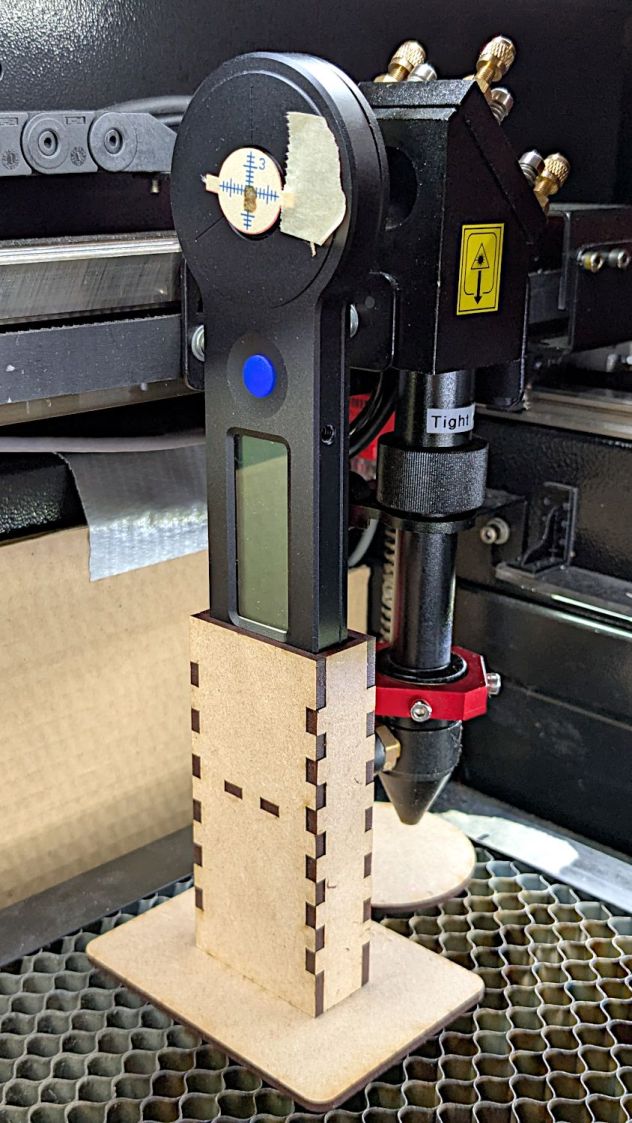
    Focus step gauge - 3 mm
    Focus step gauge – 3 mm

    The step gauge shows the nozzle is 3.0 mm above the material (the first step is 2 mm, because a 1 mm acrylic tab is crazy talk) when the switch trips. Although you can’t quite see the switch plunger through the gauge, it has about 5 mm of travel before tripping, which means it’s firmly pressed against the material and you must not move the nozzle in X or Y to avoid scraping the plunger across the material.

    Setting Home Offset to 15.0 mm lowers the platform by 15 mm after the switch trips, putting the nozzle 18 mm above the material:

    Focus step gauge - 18 mm
    Focus step gauge – 18 mm

    You can (and I have) set the Home Offset so the platform lowers by exactly enough to put the focused beam at the top of the material: push the Focus button and the machine automatically focuses on the material and sets U=0.0 mm at that level.

    Unfortunately, the controller will subsequently not move the platform above that position, corresponding to U axis coordinates below zero. That means you (well, I) cannot move the platform upward to put the focus point into the material, as is sometimes required for a good cut through thicker material.

    The Focus Distance setting defines an additional distance from wherever the Home Offset leaves the platform:

    KT332N Focus Distance Setting
    KT332N Focus Distance Setting

    It’s not 15 mm, because I was fiddling with the focus.

    That value will position the platform 16 mm below the switch trip point. Because Home Offset = 0.0 sets the U axis coordinate to zero at the trip point, the U axis will be at 16 mm when the platform stops moving.

    The key difference is that the controller will now allow the platform to move upward, with decreasing U axis coordinates, until it reaches the switch trip position at U=0. The last 5 mm of travel will occur with the switch actuator pressing against the material, so it’s pretty much useless for actual cutting or engraving.

    So I think the way to go involves setting:

    • Home Offset to the 5-ish mm required for full switch release
    • Focus Distance to the remaining 10-ish mm with the focal point on the material surface

    I hadn’t done that before, because I hadn’t thought this through.

    The Home Offset depends only on the switch travel before it actuates and won’t change when (not if) the pen position changes with respect to the nozzle.

    The Focus Distance defines the additional travel for proper focus at the material surface, so that’s where all the variations due to pen position will go. Unfortunately, that distance cannot be directly measured, because it corresponds to the difference between two positions.

    Today I Learned, etc.

  • Dumbbell Nuts

    Dumbbell Nuts

    Being an Old Guy, I lift dumbbell weights after bike rides for load-bearing upper-body exercise, but need a few more dumbbell nuts (a.k.a. “collars”) to simplify adjusting the weights for each set. Such things are commercially available, but the reviews suggest abysmally bad thread QC and a high return rate.

    Given that I treat my toys carefully, this should suffice:

    Dumbbell Nut - finished
    Dumbbell Nut – finished

    Start with a scan of a steel nut in GIMP:

    Dumbbell Nut - scan
    Dumbbell Nut – scan

    Blow out the contrast, trace it, smooth out some irregularities, get a mask:

    Dumbbell Nut - mask
    Dumbbell Nut – mask

    Select by color, convert the selection to a path, save as SVG, import into OpenSCAD, add a nut with threads from the incomparably useful BOSL2 library, extrude a few features, and this pops out:

    Dumbbell Nut - solid model
    Dumbbell Nut – solid model

    Run it through PrusaSlicer, print on the MK4, and iterate a few times to get everything right:

    Dumbbell Nut - test pieces
    Dumbbell Nut – test pieces

    I naively thought the threads were something standard like Acme, but they’re full-frontal custom trapezoidal. I knew the first pass would be wrong, so the small hex nut on the left started the whole process. Upper left is a revised Acme thread with all the other features, lower middle is the custom trapezoidal thread, and the nut on the upper right worked. Make three more, just like the first one, enjoying the magic of 3D printing.

    Draw the bumper washer in LightBurn based on the dimensions in the OpenSCAD code, cut a set from stamp-pad rubber & adhesive sheet, then assemble:

    Dumbbell Nut - assembly
    Dumbbell Nut – assembly

    As the saying goes, we got nuts:

    Dumbbell Nut - installed
    Dumbbell Nut – installed

    The gray PETG-CF looks black against a white background and gray against black iron.

    With a set of precisely fitting nuts in hand, I discovered one of the four bars in my weight sets is slightly larger than the others, so the code now produces an embiggened root diameter and I have two spares.

    The OpenSCAD code assembles a nut:

    // Dumbbell nut
    // Ed Nisley - KE4ZNU
    // 2024-10-04
    
    include <BOSL2/std.scad>
    include <BOSL2/threading.scad>
    
    ID = 0;
    OD = 1;
    THICK = 2;
    
    NutOAH = 20.0;
    BossOD = 45.0;
    Bumper = [33.0,40.0,2.5];
    
    NumSides = 4*9;
    
    difference() {
        intersection() {
            union() {
                down(NutOAH/2)
                    linear_extrude(height=NutOAH/2,convexity=2)
                        import("Dumbbell Nut - path.svg",
                                center=true);
                linear_extrude(height=NutOAH/2,convexity=2)
                    circle(d=BossOD,$fn=NumSides);
            }
            rotate(180/6)
                trapezoidal_threaded_nut(100.0,26.5,20.0,INCH/4,        // flat size, root dia, height, pitch
                                        bevel=false,ibevel=false,
                                        flank_angle=30,thread_depth=1.8);
        }
    
        up(NutOAH/2 - Bumper[THICK]/2)
            linear_extrude(height=2*Bumper[THICK],convexity=2) {
                difference() {
                    circle(d=Bumper[OD],$fn=NumSides);
                    circle(d=Bumper[ID],$fn=NumSides);
                }
            }
    
    }
    
    
  • Garden Hose Fitting Grip: MVP

    Garden Hose Fitting Grip: MVP

    The garden hose leading from the standpipe / hose bibs outside Mary’s garden to her drip irrigation plumbing has an octagonal fitting requiring more torque than her hand can easily produce. I offered to make a larger grip for the fitting, which amounts to a disk with a grippy rim sized to her hand and an interior opening suitable for gluing to the fitting.

    A couple of laser-cut MDF sizing prototypes accompanied me to the garden:

    Hose Fitting Grip - MDF prototype
    Hose Fitting Grip – MDF prototype

    The springy fingers around the fitting soak up the inevitable distortions found in a battered hose and will eventually be filled with adhesive to lock the grip in place.

    MDF being obviously the wrong material for a permanent installation, the final grip will be 3D printed, with the LightBurn layout modified to produce the internal structure:

    Hose Fitting Grip - LightBurn layers
    Hose Fitting Grip – LightBurn layers

    From left to right:

    • The stacked pieces in order of printing
    • Main grip with springy fingers
    • Spacer keeping the fingers away from the narrower opening
    • Support layer
    • Narrow opening to align the grip with the end of the fitting

    Exporting the SVG images and making a bank shot off Inkscape to create layer names:

    Hose Fitting Grip - Inkscape layers
    Hose Fitting Grip – Inkscape layers

    The ascending layer name + numbers allow a simple OpenSCAD program to extract the SVG shapes by name, extrude them to the proper thickness, put them at the proper height, then combine the result:

    Recenter = [-140,-108,0];
    
    Thick = [0,8.0,1.0,0.2,1.0];
    Level = [0,
             Thick[1],
             Thick[1]+Thick[2],
             Thick[1]+Thick[2]+Thick[3],
             Thick[1]+Thick[2]+Thick[3]+Thick[4]];
    Colors = ["Black","Red","Gray","Yellow","Green"];
    
    union()
        for (i = [1:len(Thick)-1]) {
            color(Colors[i])
                translate(Recenter + [0,0,Level[i-1]])
                    linear_extrude(height=Thick[i],convexity=10)
                        import("/mnt/bulkdata/Project Files/Laser Cutter/Gardening/Hose Fitting Grip/Hose Fitting Grip - Inkscape layout.svg",
                               layer=str("Layer ",i));
        }
    

    The hideous mess generating the Level vector happens because OpenSCAD does not have mutable variables and I hate retyping numbers. One can use a recursive function to add the values, but copypasta makes more sense in this case.

    Which produces this solid model, with garish colors for pedagogic purposes:

    Hose Fitting Grip - top - solid model
    Hose Fitting Grip – top – solid model

    The thin yellow band will be one thread thick to provide support for the green layer with a smaller ID than the springs below it. The gray layer below the yellow is the air gap above the springs.

    Peering inside the bottom shows the (gray) layer providing clearance between the springs and the (yellow) support layer:

    Hose Fitting Grip - bottom interior - solid model
    Hose Fitting Grip – bottom interior – solid model

    Exporting the model as a 3mf file, importing it into PrusaSlicer, and slicing it with suitable parameters (Extrusion Multipler = 0.8) does what you’d expect. This top view shows the internal structure just below the support bridge across the middle:

    Hose Fitting Grip - spring detail - PrusaSlicer
    Hose Fitting Grip – spring detail – PrusaSlicer

    Printing it in gray PETG-CF was uneventful, with the bridging layer coming out surprisingly well:

    Hose Fitting Grip - as printed
    Hose Fitting Grip – as printed

    The springs definitely have an air gap in there:

    Hose Fitting Grip - printed interior
    Hose Fitting Grip – printed interior

    And the support layer cuts out neatly with an Xacto knife:

    Hose Fitting Grip - support removed
    Hose Fitting Grip – support removed

    We’ve had enough rain over the last few days (something to do with a continental-scale storm) to keep me and my adhesives out of the garden, but it hasn’t needed any watering, either.

  • Bathtub Soap Tray V2

    Bathtub Soap Tray V2

    As expected, the adhesive foam strips I used on the bathtub soap tray didn’t survive continued exposure to hot soapy water, so Version 2 includes hooks securing it to the ceramic soap tray and a few other tweaks:

    Bathtub Soap Tray - V2 - LightBurn layout
    Bathtub Soap Tray – V2 – LightBurn layout

    The view from the top:

    Soap Tray V2 - top
    Soap Tray V2 – top

    The hooks are more visible from the bottom, as is the 10 AWG copper wire preventing the whole affair from rotating around the ceramic handle from the weight of the soap bar:

    Soap Tray V2 - bottom
    Soap Tray V2 – bottom

    Ignore the usual crud you’ll find on your ceramic soap tray, too.

    This time I glued things together with Weld-On IPS #3 acrylic solvent.

    The LightBurn layout as a GitHub Gist:

    Loading
    Sorry, something went wrong. Reload?
    Sorry, we cannot display this file.
    Sorry, this file is invalid so it cannot be displayed.