The Smell of Molten Projects in the Morning

Ed Nisley's Blog: Shop notes, electronics, firmware, machinery, 3D printing, laser cuttery, and curiosities. Contents: 100% human thinking, 0% AI slop.

Category: Software

General-purpose computers doing something specific

  • HQ Sixteen: Electronics Pod Solid Model

    HQ Sixteen: Electronics Pod Solid Model

    The HQ Sixteen came with a small red-dot laser pointer attached to a threaded pin:

    HQ Sixteen - Stylus LED Mount - OEM version
    HQ Sixteen – Stylus Laser Mount – OEM version

    The pin can go into either of a pair of threaded holes in the machine castings or the laser + clamp can, as in the picture, attach to a spool pin.

    With a “pantograph” pattern laid along the rear of the table, you can stitch that design (at full size, hence “pantograph” seems aspirational) by guiding the red dot along the lines. The laser’s flimsy clamp mount seems prone to move at the worst possible moment, so neither of us liked the idea.

    Mary is good at free-motion quilting and says she’s unlikely to use the laser, but I figured staying slightly ahead of the curve would be a Good Idea. Bonus: 3D printing.

    The general idea is to tuck a (similar) red-dot laser module under the overhang of the electronics pod, with a ball mount for easy aiming and stable setting, something like this:

    HQ Sixteen - Stylus LED Mount - solid model - show
    HQ Sixteen – Stylus Laser Mount – solid model – show

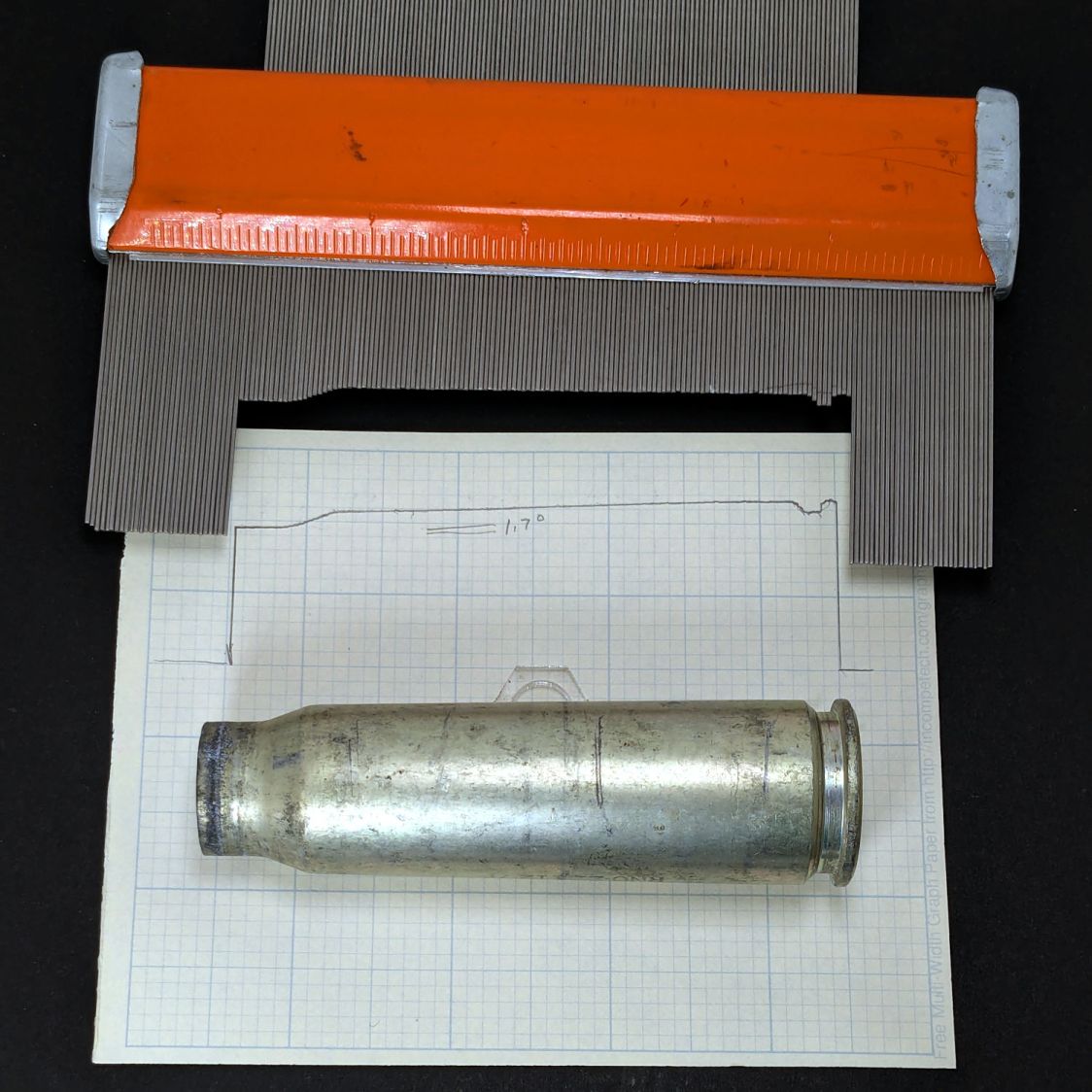
    Fitting the mount into that curved corner requires a model of the electronics pod, so I held a pad of paper against the pod and traced the outline:

    HQ Sixteen - pod profile trace
    HQ Sixteen – pod profile trace

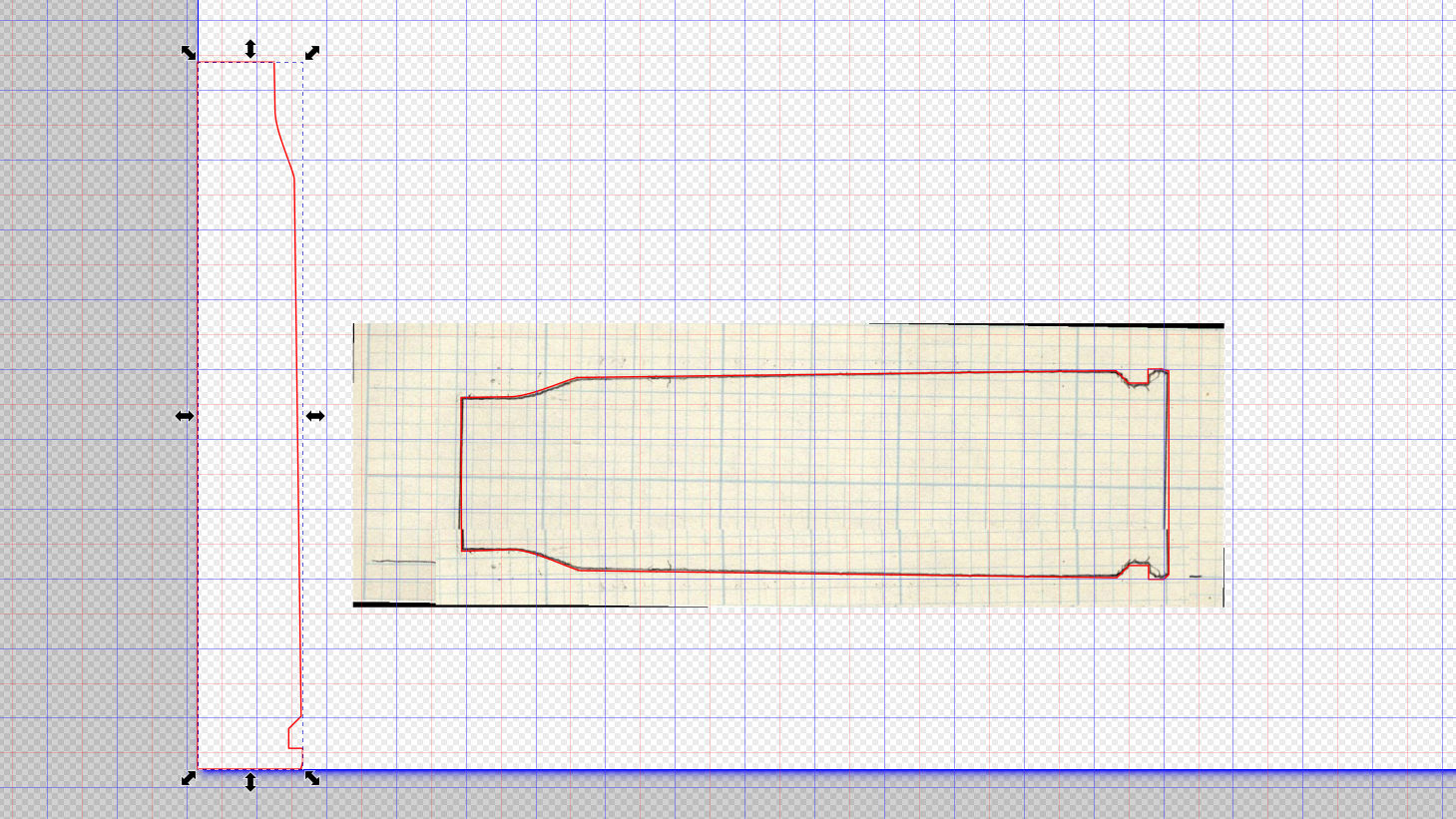
    Scan it, import the image into Inkscape, fit lines and curves around the shape:

    HQ Sixteen - pod outline - Inkscape
    HQ Sixteen – pod outline – Inkscape

    I only needed the top of the pod, so the bottom is truncated from the actual 250 mm height.

    Save the SVG, import into OpenSCAD, extrude to match the pod’s 110 mm width:

    module Pod() {
    
        xrot(90)
        down(PodWidth/2)
            linear_extrude(height=PodWidth,convexity=5)
                translate(PodRecenter)
                    import("HQ Sixteeen - pod profile.svg",
                            layer="Pod Profile");
    }
    

    The model origin is where the upper lip meets the slightly sloped top surface in the middle of the extrusion, because that’s the only easy-to-locate feature:

    HQ Sixteen - Stylus LED Mount - electronics pod - solid model
    HQ Sixteen – Stylus Laser Mount – electronics pod – solid model

    Something Has Changed in the Inkscape SVG → OpenSCAD model chain, because the parts of an Inkscape drawing lying outside the page boundary are no longer cropped from the OpenSCAD model. Now, simply putting a feature at the Inkscape origin at the lower-left corner of the document’s Page produces a complete OpenSCAD 2D shape with that feature at the 3D coordinate origin.

    For reference:

    The Inkscape layout with the entire shape off the page:

    HQ Sixteeen - pod profile - Inkscape origin
    HQ Sixteeen – pod profile – Inkscape origin

    The 2D imported shape in OpenSCAD with a matching origin:

    HQ Sixteeen - pod profile - OpenSCAD origin
    HQ Sixteeen – pod profile – Inkscape origin

    I do not know what changed or if, in fact, my misunderstanding of how things worked required the previous workaround, but this is much better. The OpenSCAD code includes a [0,0] offset value, should you need it.

    More on the mount tomorrow …

  • HQ Sixteen: Track Lock Blocks

    HQ Sixteen: Track Lock Blocks

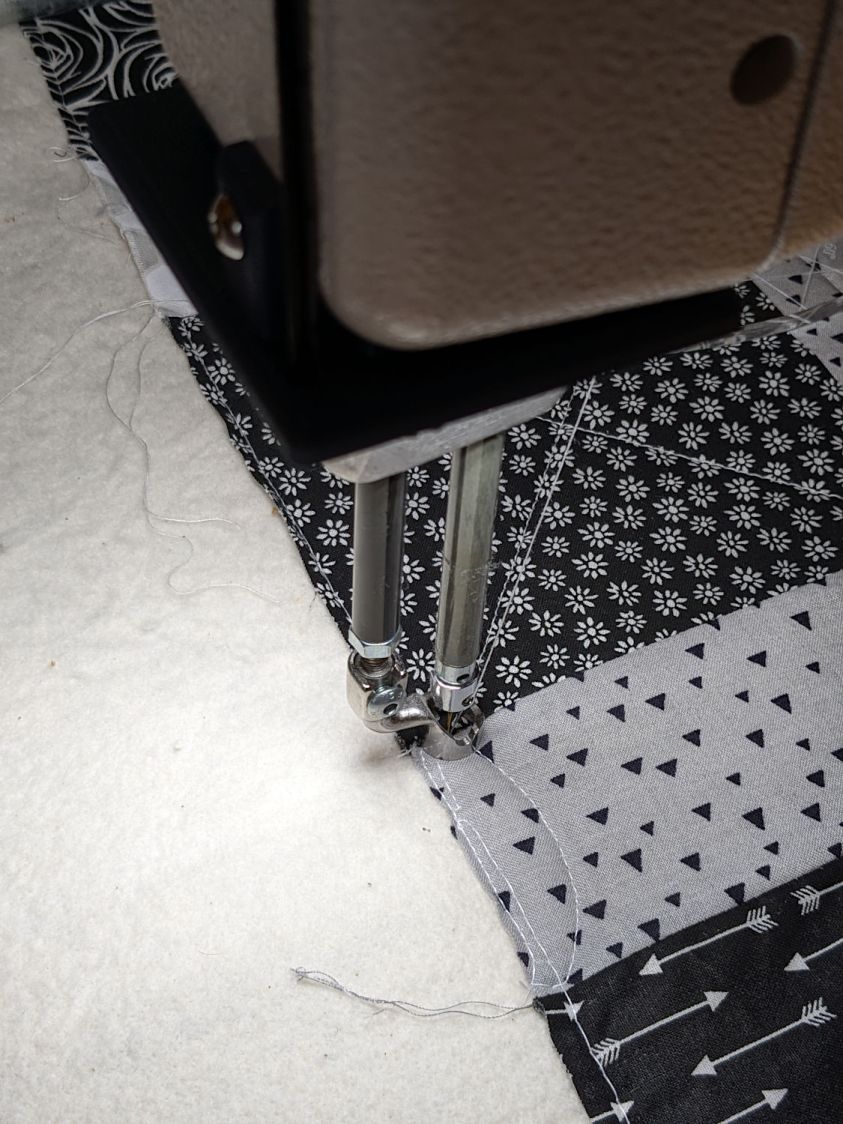
    Mary’s practice quilts on the HQ Sixteen suggest locking the machine’s wheels will simplify sewing a line parallel to the long edge of a quilt parallel to the table, but contemporary “Channel Locks” fit newer machines with larger wheels than on this one.

    Duplicating those rings in a smaller size seemed both difficult and not obviously functional, so I built a pair of blocks to capture the wheel on its track:

    HQ Sixteen - track lock - engaged
    HQ Sixteen – track lock – engaged

    The wheel sits in a recess holding it just barely above the track surface, so the (considerable) weight of the machine holds the block in place.

    Because lines on quilts have precise placement and Mary has quilting rulers within reach, the block measures exactly two inches from the point where it first touches the wheel to the center of the recess:

    HQ Sixteen - track lock - setup
    HQ Sixteen – track lock – setup

    She can then lay a ruler on the quilt, roll the machine front or back two inches, slide a block against each wheel, then roll the machine up a slight incline until the wheel drops into the recess:

    HQ Sixteen - track lock block - solid model
    HQ Sixteen – track lock block – solid model

    The spacing looks like this:

    HQ Sixteen - track lock block - solid model - show view
    HQ Sixteen – track lock block – solid model – show view

    The usual 3D printing process puts 0.2 mm steps along the ramp, but they’re almost imperceptible while rolling the machine:

    HQ Sixteen - track lock block - PrusaSlicer preview
    HQ Sixteen – track lock block – PrusaSlicer preview

    The ramp slope is all of 1:20 = 2.5°, so pulling / pushing the machine requires very little oomph.

    I put thin cloth tape (approximately friction tape, but with real adhesive) on the bottom of the block by the simple expedient of sticking it to the block and scissoring off the excess. A little compliance between the block and the track prevents the hard plastic shapes from sliding more easily than I’d like. If your tape is thicker than mine, knock a little off the WheelZ value.

    The OpenSCAD code can produce shapes to laser-cut an adhesive sheet, although stacking a foam sheet will definitely require height adjustment :

    HQ Sixteen - track lock block - glue sheet
    HQ Sixteen – track lock block – glue sheet

    The OpenSCAD source code as a GitHub Gist:

    // HQ Sixteen – wheel track lock block
    // Ed Nisley – KE4ZNU
    // 2025-02-14
    include <BOSL2/std.scad>
    Layout = "Show"; // [Show,Build,Glue,Track,Block,Wheel]
    /* [Hidden] */
    ID = 0;
    OD = 1;
    LENGTH = 2;
    Protrusion = 0.1;
    Windage = 0.1;
    WallThick = 5.0; // minimum wall thickness
    RailOD = 5.5; // rounded top of rail
    RailHeight = RailOD; // … flange to top
    RailBase = [100,2*15.7 + RailOD,3]; // … Y = flange width, arbitrary X & Z
    WheelOD = 38.0; // rail roller
    WheelMinor = 6.2; // … rail recess
    WheelWidth = 8.3 + 2*Windage; // … outer sides
    WheelZ = RailHeight + (WheelOD – WheelMinor)/2; // axle centerline wrt rail flange
    LockOC = 2.0*INCH; // engagement to lock recess
    GripLength = 20.0;
    BlockOA = [GripLength + WheelOD/2 + LockOC,WheelWidth + 2*WallThick,2*RailHeight];
    BlockRadius = 2.0;
    $fn = 12*3*4; // smooth outer perimeters
    //———-
    // Construct the pieces
    module Track(Len = 2*BlockOA.x) {
    zrot(90) back(Len/2) down(RailBase.z) xrot(90)
    linear_extrude(height=Len,convexity=5)
    rect([RailBase.y,RailBase.z],anchor=FRONT)
    attach(BACK,FRONT) rect([RailOD,RailHeight – RailOD/2])
    attach(BACK) circle(d=RailOD);
    }
    module Wheel(Len = WheelWidth) {
    xrot(90)
    difference() {
    cylinder(d=WheelOD,h=Len,center=true);
    torus(r_maj=WheelOD/2,d_min=WheelMinor);
    }
    }
    module Block() {
    difference() {
    left(GripLength + WheelOD/2)
    cuboid(BlockOA,anchor=LEFT + BOTTOM,rounding=BlockRadius,except=BOTTOM);
    Track();
    up(WheelZ) xrot(90)
    cylinder(d=WheelOD,h=WheelWidth,center=true);
    right(LockOC)
    up(WheelZ – WheelOD/2) yrot(atan((RailHeight – WheelMinor/2)/LockOC))
    cuboid([LockOC,WheelWidth,BlockOA.z],anchor=RIGHT+BOTTOM);
    }
    }
    //———-
    // Show & build the results
    if (Layout == "Block" || Layout == "Build")
    Block();
    if (Layout == "Track")
    Track();
    if (Layout == "Wheel")
    Wheel();
    if (Layout == "Glue")
    projection(cut=true)
    Block();
    if (Layout == "Show") {
    color("SteelBlue")
    Block();
    for (i=[0,1])
    right(i*LockOC)
    color("Silver",0.7)
    up(WheelZ) Wheel();
    color("White",0.5)
    Track();
    }

  • Thunar WEBP Thumbnails

    Thunar WEBP Thumbnails

    For whatever reason, the Thunar file browser in XFCE does not automagically show thumbnails for webp images. Some searching produced a recipe, although the displayed webp.xml file needs the last two lines to close the tags:

    <?xml version="1.0" encoding="UTF-8"?>
    <mime-info xmlns="http://www.freedesktop.org/standards/shared-mime-info">
        <mime-type type="image/webp">
            <comment>WebP file</comment>
            <icon name="image"/>
            <glob-deleteall/>
            <glob pattern="*.webp"/>
        </mime-type>
    </mime-info>
    

    The magic copy-to-clipboard button includes those tags, so I suppose it’s another case of being careful what you believe on the Intertubes.

    Going through the steps displayed images of the Subpixel Zoo:

    Thunar - webp previews
    Thunar – webp previews

    They’ll turn into layered paper patterns:

    Subpixel Zoo - Quattron RGBY Shifted - detail
    Subpixel Zoo – Quattron RGBY Shifted – detail
  • HQ Sixteen: Horizontal Thread Spool Adapter

    HQ Sixteen: Horizontal Thread Spool Adapter

    After watching the thread pull off the spool around the vertical spool adapter in an increasingly tight helix, I built a horizontal adapter:

    HQ Sixteen - horizontal thread spool adapter - installed
    HQ Sixteen – horizontal thread spool adapter – installed

    The thread now pulls off perpendicular to the axis, the way we thought it should, and the helix is gone.

    The adapter base plate fits snugly over the vertical pin, with the lip over the edge stabilizing the whole thing. The spool fits on a ¼ inch acrylic rod tightly press-fit into the side wall and, although it’s not shown here, the vertical adapter press-fits onto the end of the rod to keep the spool from wandering off.

    The solid model shows the arrangement:

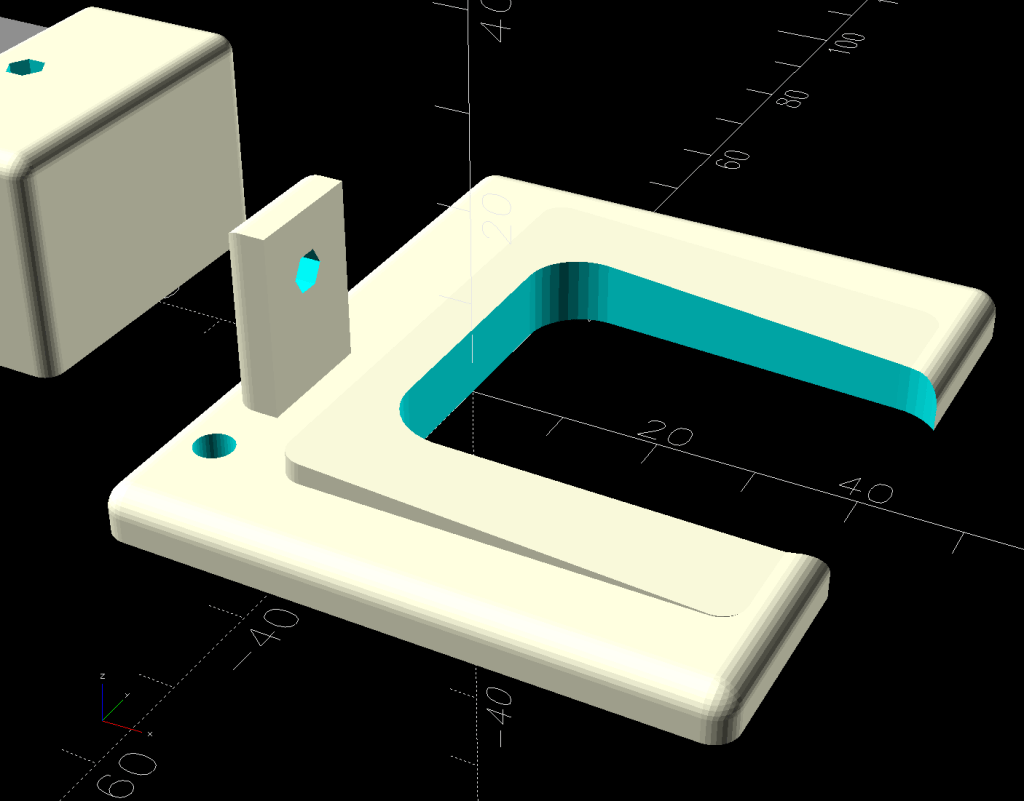
    HQ Sixteen - horizontal thread spool adapter - solid model
    HQ Sixteen – horizontal thread spool adapter – solid model

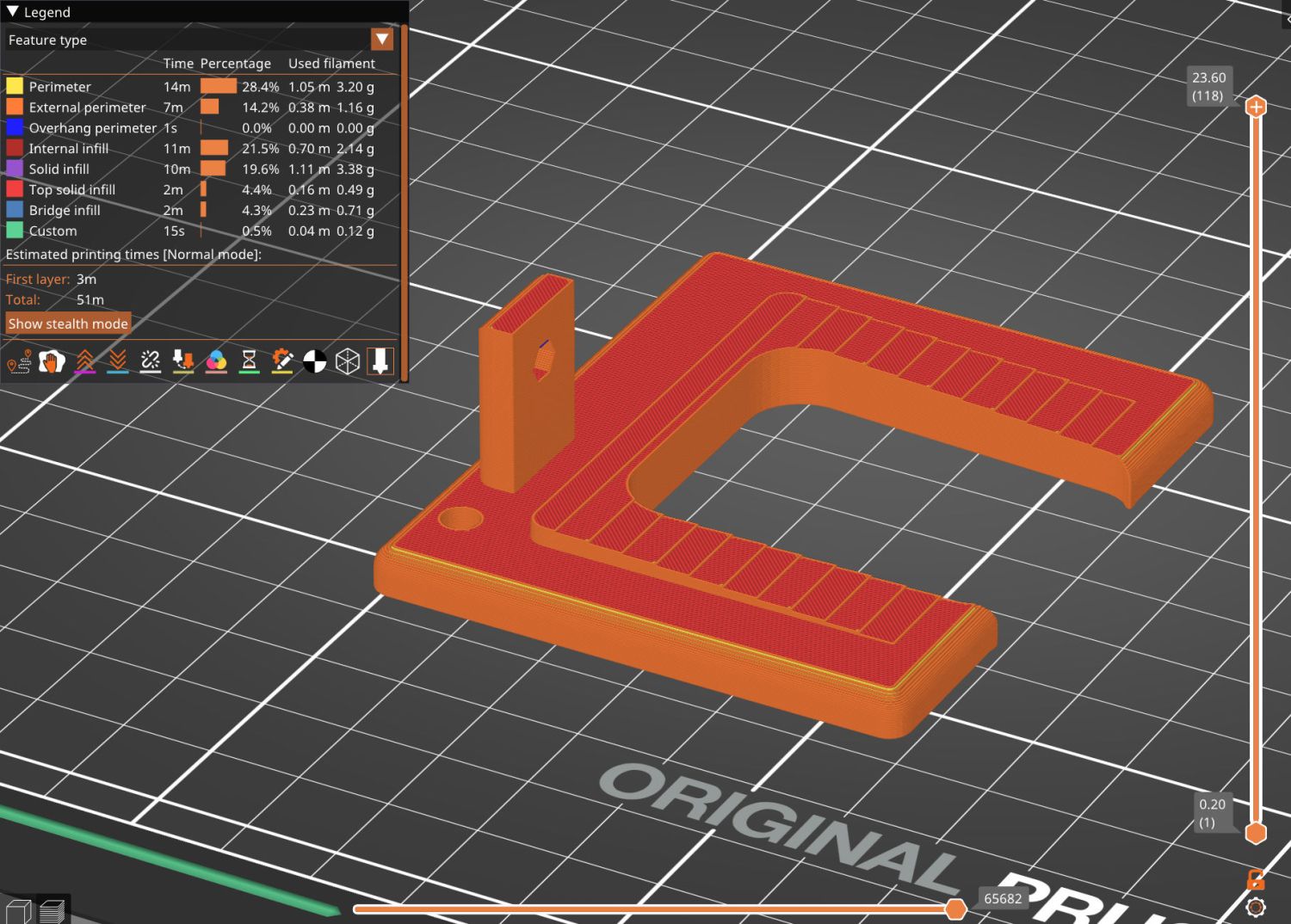
    It builds standing on the wall to prevent any significant overhang:

    HQ Sixteen - horizontal thread spool adapter - PrusaSlicer
    HQ Sixteen – horizontal thread spool adapter – PrusaSlicer

    So we’ve reconfirmed our original knowledge that ordinary thread spools must feed off the side, not over the top. Living in the future with rapid prototyping and simple production is good!

    You can buy a Horizontal Spool Pin Clamp, but what’s the fun in that?

    Fun fact: although the vertical pins on the machine are ¼ inch in diameter, the thread on the end is neither the obvious ¼-20 nor the second-guess 10-32. Instead, it’s M5×0.8, perilously close to the 10-32 thread used in the handlebar setscrews. Don’t apply brute force when this thing doesn’t screw neatly into that hole.

    The OpenSCAD source code as a GitHub Gist:

    // HQ Sixteen – horizontal thread spool adapter
    // Ed Nisley – KE4ZNU
    // 2025-01-26
    include <BOSL2/std.scad>
    Layout = "Show"; // [Show,Build,Base,Wall]
    /* [Hidden] */
    ID = 0;
    OD = 1;
    LENGTH = 2;
    WallThick = 10.0;
    BaseThick = 5.0;
    PinOD = 0.25*INCH; // vertical spool pin
    PinWasher = [PinOD,11.0,2.0]; // pin base washer
    PinOffset = 49.0; // pin center to edge of platform
    Spool = [0.25*INCH,50.0,55.0]; // maximum thread spool
    echo(Spool=Spool);
    SpoolClearance = [5.0,2.0,5.0];
    SpoolOC = [-PinOffset + PinOD/2 + SpoolClearance.x + Spool[OD]/2,
    Spool[LENGTH]/2,
    BaseThick + SpoolClearance.z + Spool[OD]/2];
    BasePlate = [PinWasher[OD] + PinOffset + BaseThick,
    Spool[LENGTH] + SpoolClearance.y + WallThick,
    BaseThick];
    Protrusion = 0.1;
    $fn = 12*3*4; // smooth outer perimeters
    //———-
    // Construct the pieces
    module Base() {
    difference() {
    union() {
    left(BasePlate.x/2 – BaseThick) back((SpoolClearance.y + WallThick)/2)
    cuboid(BasePlate,rounding=BaseThick,edges=[FWD+LEFT,FWD+RIGHT],anchor=BOTTOM);
    back((SpoolClearance.y + WallThick)/2)
    cuboid([BaseThick,BasePlate.y,BaseThick],
    rounding=BaseThick,edges=[FWD+BOTTOM,FWD+RIGHT,BACK+BOTTOM],anchor=LEFT+TOP);
    }
    left(PinOffset) down(Protrusion) {
    cylinder(PinWasher[LENGTH],d=PinWasher[OD]); // washer clearance
    cylinder(2*BaseThick,d=PinOD);
    }
    }
    }
    module Wall() {
    difference() {
    union() {
    hull() {
    right(BaseThick)
    cube([BasePlate.x,BaseThick,WallThick],anchor=FWD+RIGHT+BOTTOM);
    back(SpoolOC.z) right(SpoolOC.x)
    cylinder(d=Spool[OD]/2,h=WallThick);
    }
    back(SpoolOC.z) right(SpoolOC.x)
    cylinder(d=Spool[OD]/2,h=WallThick + SpoolClearance.y);
    }
    back(SpoolOC.z) right(SpoolOC.x) down(Protrusion) zrot(180/8)
    cylinder(d=Spool[ID],h=2*WallThick,$fn=8);
    }
    }
    module Adapter() {
    union() {
    Base();
    back(SpoolOC.y + SpoolClearance.y + WallThick)
    xrot(90)
    Wall();
    }
    }
    //———-
    // Show & build the results
    if (Layout == "Base")
    Base();
    if (Layout == "Wall")
    Wall();
    if (Layout == "Show") {
    Adapter();
    left(PinOffset)
    color("Gray") {
    cylinder(d=PinOD,h=2*SpoolOC.z);
    cylinder(d=PinWasher[OD],h=PinWasher[LENGTH]);
    }
    up(SpoolOC.z) right(SpoolOC.x) back(SpoolOC.y)
    xrot(90)
    color("Green")
    cylinder(d=Spool[ID],h=Spool[LENGTH]);
    }
    if (Layout == "Build")
    up(SpoolOC.y + SpoolClearance.y + WallThick)
    xrot(-90)
    Adapter();

  • Monitor Mount: USB Hub Clamp

    Monitor Mount: USB Hub Clamp

    Along with the Beelink PC, putting the Anker USB hub on the monitor mount pole helped tidy the cables just a little bit:

    Monitor pole clamp - Anker USB hub
    Monitor pole clamp – Anker USB hub

    It’s still jumbled, but at least the cables aren’t wagging the hub.

    This clamp needs only one M6 screw into a square nut:

    Monitor Pole box clamp - solid model
    Monitor Pole box clamp – solid model

    Again better seen in cross-section:

    Monitor Pole clamp - PrusaSlicer preview
    Monitor Pole clamp – PrusaSlicer preview

    The OpenSCAD code extrudes the shape from a 2D arrangement, then punches the screw through the side:

    // Monitor Pole box clamp
    // Ed Nisley - KE4ZNU
    // 2025-01-23
    
    include <BOSL2/std.scad>
    
    /* [Hidden] */
    
    ID = 0;
    OD = 1;
    LENGTH = 2;
    
    Protrusion = 0.1;
    
    Box = [22.5,45.5,25.0];         // Z is clamp height
    BoxGrip = 5.0;                  // on outer side clearing connectors
    
    PoleOD = 30.5;
    
    WallThick = 5.0;
    
    Kerf = 3.0;                     // clamping space
    Clearance = 2*0.2;              // space around objects
    
    Washer = [6.0,12.0,1.5];        // M6 washer
    Nut = [6.0,10.0,5.0];           // M6 square nut
    
    MidSpace = 35.0;                // pole to box spacing
    
    ClampOAL = Box.x + MidSpace + PoleOD + 2*WallThick;
    
    //----------
    // Build it
    
            difference() {
                linear_extrude(height=Box.z,convexity=5)
                    difference() {
                        hull() {
                            right(MidSpace/2 + Box.x/2)
                                rect(Box + 2*[WallThick,WallThick],rounding=WallThick);
                            left(MidSpace/2 + PoleOD/2)
                                circle(d=PoleOD + 2*WallThick);
                        }
                        right(MidSpace/2 + Box.x/2)
                            square(Box + [Clearance,Clearance],center=true);
                        right(MidSpace/2 + Box.x)
                            square([Box.x,Box.y - 2*BoxGrip],center=true);
                        left(MidSpace/2 + PoleOD/2)
                            circle(d=PoleOD + Clearance);
                        square([2*ClampOAL,Kerf],center=true);
                    }
                up(Box.z/2) {
                    xrot(90)
                        cylinder(d=Washer[ID] + Clearance,h=2*Box.y,center=true,$fn=6);
                    fwd(Box.y/2 - Washer[LENGTH])
                        xrot(90) zrot(180/12)
                            cylinder(d=Washer[OD] + Clearance,h=Box.y,center=false,$fn=12);
                    back(Box.y/2 + Nut[LENGTH]/2)
                        xrot(90)
                            cube([Nut[OD],Nut[OD],2*Nut[LENGTH]],center=true);
                }
            }
    

    The alert reader will have noticed I didn’t peel the protective film off the hub, which tells you how fresh this whole lashup is.

  • Monitor Mount: Beelink Clamp

    Monitor Mount: Beelink Clamp

    Clearing the clutter off the top of the laser put the monitors up on mounts clamped to its wings, which required an adapter between the monitor and the mount’s standard VESA bracket:

    Acer monitor VESA adapter
    Acer monitor VESA adapter

    The Beelink PC has an adapter plate intended to put it on that VESA bracket, too, but a quick test showed the power button pointed downward in an inaccessible spot. I eventually realized the Beelink would fit neatly on the monitor mount’s pole:

    Monitor pole Beelink clamp - front
    Monitor pole Beelink clamp – front

    The view from the other side:

    Monitor pole Beelink clamp - rear
    Monitor pole Beelink clamp – rear

    The clamps have recesses for an M6 square nut and an M4 brass insert:

    Monitor Pole BeeLink clamp - solid model
    Monitor Pole BeeLink clamp – solid model

    Which is better seen in a cross-section:

    Monitor Pole Beelink clamp - PrusaSlicer preview
    Monitor Pole Beelink clamp – PrusaSlicer preview

    The M6 screw uses the same hex wrench as the rest of the monitor mount and the M4 screw fits the VESA bracket. Sometimes, you just gotta go with the flow.

    Pondering those pictures will show why the nut and insert must be on opposite sides. I came that close to building one to throw away.

    The OpenSCAD source code extrudes the overall shape upward, then punches the screw holes & fittings horizontally:

    // Monitor Pole Beelink clamp
    // Ed Nisley - KE4ZNU
    // 2025-01-23
    
    include <BOSL2/std.scad>
    
    /* [Hidden] */
    
    ID = 0;
    OD = 1;
    LENGTH = 2;
    
    Protrusion = 0.1;
    
    PoleOD = 30.3;
    
    WallThick = 5.0;
    
    Kerf = 3.0;                     // clamping space
    Clearance = 2*0.2;              // space around objects
    
    Screw = [6.0,10.0,6.0];         // M6 SHCS, LENGTH = head
    Washer = [6.0,12.0,1.5];        // M6 washer
    Nut = [6.0,10.0,5.0];           // M6 square nut
    
    Insert = [4.0,5.8,10.0];        // M4 insert
    
    ScrewSpace = Washer[OD];        // pole edge to screw center spacing
    
    Block = [4*ScrewSpace + PoleOD + 2*WallThick,PoleOD + 2*WallThick,2*Washer[OD]];       // Z = clamp thickness
    
    //----------
    // Build it
    
            difference() {
                linear_extrude(height=Block.z,convexity=5)
                    difference() {
                        rect([Block.x,Block.y],rounding=WallThick);
                        circle(d=PoleOD + Clearance);
                        square([2*Block.x,Kerf],center=true);
                    }
                up(Block.z/2) {
                    right(PoleOD/2 + ScrewSpace){
                        xrot(90)
                            cylinder(d=Washer[ID] + Clearance,h=2*Block.y,center=true,$fn=6);
                        fwd(Block.y/2 - Washer[LENGTH])
                            xrot(90) zrot(180/12)
                                cylinder(d=Washer[OD] + Clearance,h=Block.y,center=false,$fn=12);
                        back(Block.y/2)
                            xrot(90)
                                cube([Nut[OD],Nut[OD],2*Nut[LENGTH]],center=true);
                    }
                    left(PoleOD/2 + ScrewSpace) {
                        xrot(-90)
                            cylinder(d=Insert[ID] + Clearance,h=2*Block.y,center=true,$fn=6);
                        fwd(Block.y/2 - 1.25*Insert[LENGTH])
                            xrot(90)
                                cylinder(d=Insert[OD] + Clearance,h=Block.y,center=false,$fn=6);
                    }
                }
            }
    

    It’s done in PETG-CF, which looks surprisingly good in a chonky sort of way. I’ll find out how well it withstands moderate clamping forces.

  • HQ Sixteen: Thread Spool Adapter

    HQ Sixteen: Thread Spool Adapter

    The HQ Sixteen consumes thread at a prodigious rate, so it’s set up for large thread cones. Mary sometimes uses ordinary thread spools (leftovers from sewing projects) for short practice sessions and wanted an adapter to hold the little things in place:

    Thread spool adapter - installed
    Thread spool adapter – installed

    Those of long memory should recall previous adapters for both sizes and their notes about how thread should peel off spools & cones. I considered an adapter with a horizontal spool axis, but contemporary machines apparently don’t bother with such niceties. We may need a right-angle adapter to let the thread pull off from the side, but we’ll start simple and fix it if needs be.

    Update: It needed fixing.

    The solid model looks about like you’d expect:

    HQ Sixteen - thread spool adapter - solid model
    HQ Sixteen – thread spool adapter – solid model

    The small crosswise hole in the hub gets an M3 setscrew pushing a rubber pellet slightly into the central bore for a friction fit. The OpenSCAD code can distribute any number of such holes, but one seemed entirely adequate.

    The code shrinkwraps a hull() around two cylinders to create the tapered sides, thus giving the thread less surface to drag across. I have PrusaSlicer set to produce scarf joints around the perimeter and the edges came out surprisingly smooth, with only one rough spot requiring deft Xacto knife work. It’s made from white PETG for a smoother finish than PETG-CF.

    The OpenSCAD code consists mostly of constants defining the various physical measurements and a few lines assembling the model:

    // HQ Sixteen - thread spool adapter
    // Ed Nisley - KE4ZNU
    // 2025-01-21
    
    include <BOSL2/std.scad>
    
    /* [Hidden] */
    
    PinOD = 0.25*INCH;
    
    RingOD = 50.0;      // outer perimeter of thread ring
    RingEdge = 3.0;     // height of ring edge & tapers
    RingAngle = 45;     // upper & lower tapers wrt vertical
    
    RingOAH = 3*RingEdge;
    
    ScrewOD = 2.5;      // tap for setscrew compressing rubberdraulic piston
    NumScrews = 1;
    
    HubOD = 25.0;
    HubThick = 2*ScrewOD;
    HubSides = 12;
    
    ScrewCL = RingOAH + HubThick/2;
    
    AdapterOAH = HubThick + RingOAH;
    
    Protrusion = 0.1;
    
    NumSides = 12*3*4;   // smooth outer perimeter
    
    //----------
    // Build it
    
    
    difference() {
        union() {
    
            hull() {
                linear_extrude(RingOAH)
                    circle(r=RingOD/2 - RingEdge*tan(RingAngle),$fn=NumSides);
    
                up(RingEdge)
                    linear_extrude(RingEdge)
                        circle(d=RingOD,$fn=NumSides);
            }
    
            linear_extrude(HubThick + RingOAH)
                rotate(180/HubSides)
                    circle(d=HubOD,$fn=HubSides);
    
        }
    
        down(Protrusion)
            rotate(180/HubSides)
                cylinder(d=PinOD,h=2*AdapterOAH,$fn=HubSides);
    
       for (i=[0:NumScrews-1]) {
            a = i*360/NumScrews;
            zrot(a)
                up(ScrewCL)
                    yrot(90)
                        zrot(180/6)
                            cylinder(d=ScrewOD,h=HubOD,$fn=6);
        }
    
    }
    

    Putting the adapter in the light box revealed the same problem as photographing white dogs in snowstorms:

    Thread spool adapter - white on white
    Thread spool adapter – white on white

    There was no contrast to be enhanced anywhere, although the rubber pellet definitely stands out.