The Smell of Molten Projects in the Morning

Ed Nisley's Blog: Shop notes, electronics, firmware, machinery, 3D printing, laser cuttery, and curiosities. Contents: 100% human thinking, 0% AI slop.

Category: Software

General-purpose computers doing something specific

  • Patient Sign-In App: Human Factors FAIL

    It used to be we “signed in” at the dentist by exchanging pleasantries with the folks behind the desk, but that was so 20th Century. Now we’re confronted with an iPad sporting a form:

    Patient Sign-in Tablet Form
    Patient Sign-in Tablet Form

    Pop Quiz: Assuming you filled in your birthdate and remembered how their files have recorded your name, where do you tap to proceed onward?

    Reasoning by analogy from my Kindle Fire’s keyboard, I assumed the conspicuous bright blue Go button would do the trick.

    Nope. That’s not it.

    After a bit of fumbling around, it turns out to be the dark blue Next button (on the non-contrasting light gray title bar) at the right edge of the title bar.

    I betcha I could have fun with some of those little icons…

    In fact, the next time we showed up, the iDingus sported a popup asking if I wanted to update the firmware (or some such). Of course, I gave the receptionist an evil grin and tapped “Hit me!”

    Word: this app nonsense isn’t ready for prime time.

  • Sony HDR-AS30V GPS Time vs. File Timestamps

    Faced with the utter confusion caused by trying to figure out the interactions of the Sony HDR-AS30V time settings, I set it to local time, Time Zone GMT+0, DST off, enabled the GPS receiver, disabled the auto-off battery saver, and parked it outside with a nice view of the sky.

    About ten minutes later it achieved GPS lock, which suggested the time wasn’t terribly wrong. After locking, the camera set itself to the current local time +1 hr, TZ = GMT-5, DST off; it apparently runs an embedded Linux distro, so it can convert from geographic location to time zone easily enough. It cannot know about DST, so I set DST on, the time jumped -1 hr, and it’s now set to local time, TZ = GMT-5, DST on.

    A short movie produces this metadata:

    exiftool MAH00046.MP4 | grep -i date
    File Modification Date/Time     : 2014:09:02 17:58:49-04:00
    File Access Date/Time           : 2014:09:02 16:59:51-04:00
    File Inode Change Date/Time     : 2014:09:02 16:59:51-04:00
    Create Date                     : 2014:09:02 20:58:41
    Modify Date                     : 2014:09:02 20:58:48
    Track Create Date               : 2014:09:02 20:58:41
    Track Modify Date               : 2014:09:02 20:58:48
    Media Create Date               : 2014:09:02 20:58:41
    Media Modify Date               : 2014:09:02 20:58:48
    
    exiftool MAH00046.MP4 | grep -i zone
    Time Zone                       : -04:00
    
    ll MAH00046.*
    -rwxr-xr-x 1 ed ed 18M 2014-09-02 17:58 MAH00046.MP4
    -rwxr-xr-x 1 ed ed 11K 2014-09-02 17:58 MAH00046.THM
    
    ll -c MAH00046.*
    -rwxr-xr-x 1 ed ed 18M 2014-09-02 16:59 MAH00046.MP4
    -rwxr-xr-x 1 ed ed 11K 2014-09-02 16:59 MAH00046.THM
    
    ll -u MAH00046.*
    -rwxr-xr-x 1 ed ed 18M 2014-09-02 16:59 MAH00046.MP4
    -rwxr-xr-x 1 ed ed 11K 2014-09-02 16:59 MAH00046.THM
    
    date
    Tue Sep  2 17:13:44 EDT 2014
    
    date -u
    Tue Sep  2 21:13:47 UTC 2014
    

    The camera quickly achieves GPS lock with DST on (so it’s still able to use its recent GPS ephemeris data) and doesn’t change any of the current time, Time Zone, or DST values (so it’s happy with all that).

    Based on that short experiment:

    • Internal Exif timestamp values are UTC
    • Time Zone Exif value is (Actual Time Zone + DST)
    • File modification is (local ending time +1 hour)

    Some poking about shows that I misunderstood the “create” time, which actually holds the time when the file metadata changed, meaning there’s no way to tell when the file was created. I did know that the “access” time tracks the last time the file was opened: reading the Exif data will update the access time.

    The +1 hr offset in the modification timestamp will (probably) vanish when DST goes off in the fall.

    The Exif data contains the correct UTC times for the video’s Create and Modify dates, as well as the net Time Zone offset, which means I (well, a script using exiftool) can calculate the (UTC or local) time corresponding to the beginning & end of the video file. Indeed, exiftool can whack the file’s modification time directly from the Exif data:

    exiftool '-FileModifyDate<ModifyDate' MAH00046.MP4
    1 image files updated
    

    Extracting still images proceeds from a time relative to the start, so the number of frames plus the calculated start time gives the actual time for that frame, modulo converting frames into hh:mm:ss.ff format and getting the addition correct.

    Perhaps it makes more sense to set the modification time to the starting time of the video, thus simplifying the calculations:

    exiftool '-FileModifyDate<CreateDate' MAH00046.MP4
    1 image files updated
    

    Both of those times are the UTC values, so a further adjustment based on the time zone would be in order. It’s not clear whether exiftool can perform that calculation internally or if it must be a two-step process.

    A cheat may be in order: the thumbnail file modification timestamp matches the starting time of the corresponding video file. The script can base its calculations on the thumbnail timestamp. Of course, both of those are subject to the FAT-vs-DST problem.

    More pondering is obviously in order.

    For what it’s worth, the raw GPS log data from the camera lives in the PRIVATE/SONY/GPS/ directory, with a YYMMDDnn.LOG file name. It relentlessly accumulates two records every second:

    @Sonygps/ver5.0/wgs-84/20140902205841.000/
    @Sonygpsoption/0/20140902205842.000/20140902205842.000/
    $GPGGA,205842.000,4139.5196,N,7352.4515,W,1,0,,,M,,M,,*5B
    $GPRMC,205842.000,A,4139.5196,N,7352.4515,W,8.89,,020914,,,A*5E
    $GPGGA,205843.000,4139.5177,N,7352.4501,W,1,0,,,M,,M,,*50
    $GPRMC,205843.000,A,4139.5177,N,7352.4501,W,8.86,,020914,,,A*5A
    $GPGGA,205844.000,4139.5160,N,7352.4488,W,1,0,,,M,,M,,*51
    $GPRMC,205844.000,A,4139.5160,N,7352.4488,W,8.54,,020914,,,A*54
    $GPGGA,205845.000,4139.5148,N,7352.4476,W,1,0,,,M,,M,,*5B
    $GPRMC,205845.000,A,4139.5148,N,7352.4476,W,7.77,,020914,,,A*50
    $GPGGA,205846.000,4139.5143,N,7352.4467,W,1,0,,,M,,M,,*53
    $GPRMC,205846.000,A,4139.5143,N,7352.4467,W,6.61,,020914,,,A*5E
    $GPGGA,205847.000,4139.5145,N,7352.4461,W,1,0,,,M,,M,,*52
    $GPRMC,205847.000,A,4139.5145,N,7352.4461,W,5.17,,020914,,,A*5D
    $GPGGA,205848.000,4139.5156,N,7352.4458,W,1,0,,,M,,M,,*55
    $GPRMC,205848.000,A,4139.5156,N,7352.4458,W,3.31,,020914,,,A*58
    

    The battery life is so terrible with the GPS on that I don’t plan to use it much at all, but at least now I know how to set the clock’s time…

  • Sony HDR-AS30V vs. ExFAT vs. Ext2 Times: Total Bafflement

    I’d like to overlay a timestamp on still images extracted from Sony HDR-AS30V camera videos, ideally including the frame number, to record exactly when the incident occurred. Movie players use relative time, with 00:00:00 at the beginning of the file, so we’ll need either the file timestamp or the timestamp recorded in the image’s Exif data, plus the frame number modulo 60 (or, shudder, 59.94 for NTSC).

    The ExFAT format used on 64 GB MicroSD cards stores the file’s creation time, its modification time (writing data), and the most recent access time (reading data). That’s similar to the Linux ext2/3/4 filesystem time and unlike plain old FAT, which omits the access time.

    The various FAT formats store local time, with no regard for time zones, Daylight Saving Time, or anything else. Linux stores times as UTC and converts to local time on the fly. This has catastrophic consequences for getting any of this right.

    It helps to have alias ls='ls -h --color=auto --time-style=long-iso' in your .bashrc file.

    The HDR-AS30V has a year-month-day calendar, a 24-hour clock, a Time Zone value, and a separate DST on/off setting.

    Turning DST on adds 1 hr to the Time Zone value, turning it off subtracts 1 hr. That has the side effect of changing the clock time: not what I expected. You must, therefore, set the TZ first, then DST, then the clock, which does not follow the menu’s natural order of things.

    The camera sets file timestamps as it creates the files, but Linux also meddles with the values while displaying them. Some doc suggests that Linux regards FAT file timestamps as UTC and applies DST correction, which seems to match what I see. There’s a mount option (-o tz=UTC) that seems to have no effect, as well as an undocumented time offset (-o time_offset=60) that also has no effect.

    Setting the TZ to GMT+0 (Sony uses GMT, not UTC) for simplicity, setting the clock to the correct local time, and twiddling DST shows that:

    • Rebooting (remove /insert battery) doesn’t change anything
    • Metadata in file = clock setting – DST setting (-1 on, +0 off)
    • MP4 / THM file create / modify times = always clock +1 hour
    • MP4 / THM file access times = as create / modify until next Linux access

    Under those conditions, with the clock set to (locally accurate) 1908, UTC+1, and DST off, then the Exif timestamp metadata for a movie created at that time look like this:

    exiftool /mnt/part/MP_ROOT/100ANV01/MAH00036.MP4 | grep -i date
    File Modification Date/Time     : 2014:09:01 20:08:09-04:00
    File Access Date/Time           : 2014:09:01 19:10:14-04:00
    File Inode Change Date/Time     : 2014:09:01 20:08:09-04:00
    Create Date                     : 2014:09:01 19:08:03
    Modify Date                     : 2014:09:01 19:08:08
    Track Create Date               : 2014:09:01 19:08:03
    Track Modify Date               : 2014:09:01 19:08:08
    Media Create Date               : 2014:09:01 19:08:03
    Media Modify Date               : 2014:09:01 19:08:08
    

    The corresponding filesystem values:

    ll /mnt/part/MP_ROOT/100ANV01/
    total 146M
    ... snippage ...
    -rwxr-xr-x 1 ed root  14M 2014-09-01 20:08 MAH00036.MP4
    -rwxr-xr-x 1 ed root 8.5K 2014-09-01 20:08 MAH00036.THM
    
    ll -c /mnt/part/MP_ROOT/100ANV01/
    total 146M
    ... snippage ...
    -rwxr-xr-x 1 ed root  14M 2014-09-01 20:08 MAH00036.MP4
    -rwxr-xr-x 1 ed root 8.5K 2014-09-01 20:08 MAH00036.THM
    
    ll -u /mnt/part/MP_ROOT/100ANV01/
    total 146M
    ... snippage ...
    -rwxr-xr-x 1 ed root  14M 2014-09-01 19:10 MAH00036.MP4
    -rwxr-xr-x 1 ed root 8.5K 2014-09-01 20:08 MAH00036.THM
    

    The THM file contains a 160×120 pixel JPG thumbnail image taken from the first frame of the corresponding MP4 file. For longer movies, it’s more obvious that the MP4 file creation date is the start of the movie and its modification date is the end. The maximum 4 GB file size of corresponds to exactly 22:43 of 1920×1080 movie @ 60 frame/sec (the metadata says 59.94).

    The +1 hour offset in the file create / modify times comes from the FAT timestamp being (incorrectly) adjusted by the Linux DST setting. When exiftool reads the MP4 file, that resets its access time to the actual time as seen by Linux, thereby crushing the bogus FAT time.

    Doing the seemingly sensible thing of setting the camera to have the correct local time (roughly 1930), the correct time zone, and the correct DST setting produces this jumble:

    exiftool /mnt/part/MP_ROOT/100ANV01/MAH00037.MP4 | grep -i date
    File Modification Date/Time     : 2014:09:01 20:33:15-04:00
    File Access Date/Time           : 2014:09:01 20:33:14-04:00
    File Inode Change Date/Time     : 2014:09:01 20:33:15-04:00
    Create Date                     : 2014:09:01 23:33:11
    Modify Date                     : 2014:09:01 23:33:14
    Track Create Date               : 2014:09:01 23:33:11
    Track Modify Date               : 2014:09:01 23:33:14
    Media Create Date               : 2014:09:01 23:33:11
    Media Modify Date               : 2014:09:01 23:33:14
    
    ll /mnt/part/MP_ROOT/100ANV01/MAH00037*
    -rwxr-xr-x 1 ed root  11M 2014-09-01 20:33 /mnt/part/MP_ROOT/100ANV01/MAH00037.MP4
    -rwxr-xr-x 1 ed root 8.2K 2014-09-01 20:33 /mnt/part/MP_ROOT/100ANV01/MAH00037.THM
    
    ll -c /mnt/part/MP_ROOT/100ANV01/MAH00037*
    -rwxr-xr-x 1 ed root  11M 2014-09-01 20:33 /mnt/part/MP_ROOT/100ANV01/MAH00037.MP4
    -rwxr-xr-x 1 ed root 8.2K 2014-09-01 20:33 /mnt/part/MP_ROOT/100ANV01/MAH00037.THM
    
    ll -u /mnt/part/MP_ROOT/100ANV01/MAH00037*
    -rwxr-xr-x 1 ed root  11M 2014-09-01 19:34 /mnt/part/MP_ROOT/100ANV01/MAH00037.MP4
    -rwxr-xr-x 1 ed root 8.2K 2014-09-01 20:33 /mnt/part/MP_ROOT/100ANV01/MAH00037.THM
    

    The only correct time in that mess is in the next-to-last line: the access time for the MP4 file. Every other timestamp comes out wrong, with the internal metadata values being off by +4 hours; that suggests the camera sets the internal timestamps to UTC.

    As nearly as I can figure, the only way to make this work requires setting the clock to the local time, TZ to UTC+0, and DST off. That will screw up the filesystem timestamps, but at least the Exif metadata will be correct, for some value of correct.

    The camera’s GPS receiver depends on the clock for its initial synchronization. I don’t know how the TZ and DST settings affect the clock’s correctness for that purpose.

    I do not know if / how / when the displayed times have been altered by the programs that display them.

    I think exiftool can extract the times from the internal metadata and fix up the filesystem times, but that’ll take more tinkering.

    Sheesh & similar remarks…

  • Booklet Printing

    Most technical papers intended for publication in Refereed Journals have huge margins. When I print them up as pamphlets for E-Z reading in the Comfy Chair, the text becomes an unreadably small block in the middle of the page.

    Having tried various simple hacks that don’t work, the best solution so far involves a bit of PostScript magic…

    pdfcrop --margins 36 whatever.pdf
    pdftops -level3 -origpagesizes whatever-crop.pdf
    ps2book.pl -f 1 whatever-crop.ps
    ps2pdf whatever-crop_book.ps
    

    Which will emit whatever-crop_book.pdf. Print the odd pages, reinsert the stack, print the even pages, then either fold or slice/bind as appropriate.

    The --margins 36 puts a little whitespace around the text, which may be needed to get the text block out of the gutter if you’re binding the booklet. For those documents, --margins "36 0 18 0" may be more useful; note the blanks, not commas. This requires tuning for best picture, depending on the incoming PDF layout.

    The -origpagesizes prevents the next step from assuming an incorrect page size. This is definitely necessary, at least in my experience so far.

    The -f 1 enlarges the source text to fill the output page, which is the key step making the whole thing work for small incoming page sizes. However, there’s a weird interaction between this and the pdfcrop margins that I haven’t figured out yet; a zero-width incoming margin [may | may not] jam some line ends against the right edge of the output sheet.

    That’s all derived from some booklet-printing hints in the Scribus wiki. A working link (as of today, anyhow) for the ps2book.pl script:

    http://www.capca.ucalgary.ca/wdobler/utils/ps2book.xhtml

    The R380 emits pages bassackwards for reading, but in the proper order for duplexing: the blank side of the first sheet is on the bottom of the stack, so it becomes the top of the flipped stack, ready to go back into the printer as the first sheet again.

    Conversely, the HPLJ1200 produces output in normal reading order, with the blank side of the last sheet on top of the stack: flip and print the back sides in reverse order.

  • Verifying a 64 GB MicroSD Card

    Having just acquired a pair of 64 GB MicroSD cards for the HDR-AS30V camera, I found that I don’t have enough free disk space for 64 GB of white noise and, thus, can’t use the same technique as for the 32 GB card. I now, however, have a stockpile of helmet camera video files that are close enough to white noise for my purposes and come in convenient chunks.

    Start by copying enough big video files to nearly fill the card:

    sudo mount /dev/sdb1 /mnt/backup
    sudo mount -o uid=ed /dev/sdc1 /mnt/part
    FUSE exfat 1.0.1
    cd /mnt/backup/Video
    find -iname MAH*MP4 -size +3G | head -16 | xargs -I{} rsync -vrt --progress {} /mnt/part
    sending incremental file list
    MAH00122.MP4
      4,275,755,727 100%   11.94MB/s    0:05:41 (xfr#1, to-chk=0/1)
    
    sent 4,276,799,695 bytes  received 35 bytes  12,487,006.51 bytes/sec
    total size is 4,275,755,727  speedup is 1.00
    ... snippage ...
    

    The head -16 ensures that you won’t waste a lot of time copying too many files. The card has about 59 GB free, so 16 x 4 GB is about right.

    The -vrt adds verbosity and omits permission settings that ExFAT doesn’t understand; otherwise, you’d just use -va and be done with it.

    Then tuck some smaller files into the remaining nooks and crannies:

    find -iname MAH*MP4 -size -400M | head -16 | xargs -I{} rsync -vrt --progress {} /mnt/part
    ... snippage ...
    

    Some fiddling with the -size -400M and head -16 values may be in order, depending on how many snippets of video data you may have.

    Compare the copies with the original files:

    cd /mnt/part
    for f in * ; do find /mnt/backup/Video/ -name $f | xargs diff $f ; done
    

    If you don’t see anything, then they’re all good!

    There’s probably an algorithmic solution that would eliminate the guesstimation, but very nearly all of the time goes to copying and comparing, so it can’t make much difference.

  • Image File Recovery Redux

    Took a picture of the sewing machine setup with the Sony DSC-F717, transferred it into DigiKam, got the “done transferring, you can disconnect the camera” message, believed it, disconnected the camera, deleted the image file, and then discovered that DigiKam mislaid the image file.

    Rather than re-set-up and re-take the shot, I followed my own directions and recovered the image from the Memory Stick:

    dmesg | tail
    [43176.079853] usb 2-1.6.3: New USB device strings: Mfr=1, Product=2, SerialNumber=0
    [43176.079855] usb 2-1.6.3: Product: Sony PTP
    [43176.079856] usb 2-1.6.3: Manufacturer: Sony
    [43198.073652] usb 2-1.6.3: USB disconnect, device number 22
    [43333.788533] sd 9:0:0:0: [sdc] 1947648 512-byte logical blocks: (997 MB/951 MiB)
    [43333.803292] sd 9:0:0:0: [sdc] No Caching mode page found
    [43333.803299] sd 9:0:0:0: [sdc] Assuming drive cache: write through
    [43333.824681] sd 9:0:0:0: [sdc] No Caching mode page found
    [43333.824688] sd 9:0:0:0: [sdc] Assuming drive cache: write through
    [43333.825491]  sdc: sdc1
    sudo dd if=/dev/sdc of=/tmp/pix.bin bs=1M
    ^C615+0 records in
    614+0 records out
    643825664 bytes (644 MB) copied, 38.5841 s, 16.7 MB/s
    strings -t x pix.bin | grep Exif | head
      68006 Exif
     208006 Exif
     3f8005 _Exif
     7b8006 Exif
    13d8006 Exif
    15b0005 wExif
    1798005 CExif
    19c0006 Exif
    1b90006 Exif
    1f98005 %Exif
    dd if=pix.bin of=image03.jpg bs=$((16#1000)) count=1K skip=$((16#3f8))
    1024+0 records in
    1024+0 records out
    4194304 bytes (4.2 MB) copied, 0.0121431 s, 345 MB/s
    display image03.jpg
    convert image03.jpg dsc00656.jpg
    

    Obviously, there was a bit more flailing around than you see here, but that’s the gist of the adventure. For what it’s worth, image01 was a random blurred shot and image02 is the ID picture I keep on all my cameras.

    The convert step discards all the junk after the end of the image, so the dsc00656.jpg file doesn’t include anything unexpected.

    The picture isn’t all that much to look at, even after cropping out the background, but …

    Kenmore 158 - stepper drive test
    Kenmore 158 – stepper drive test

    The advantage of the manual method: renewing one’s acquaintance with tools that come in handy for other tasks.

  • Generating Button Images With ImageMagick

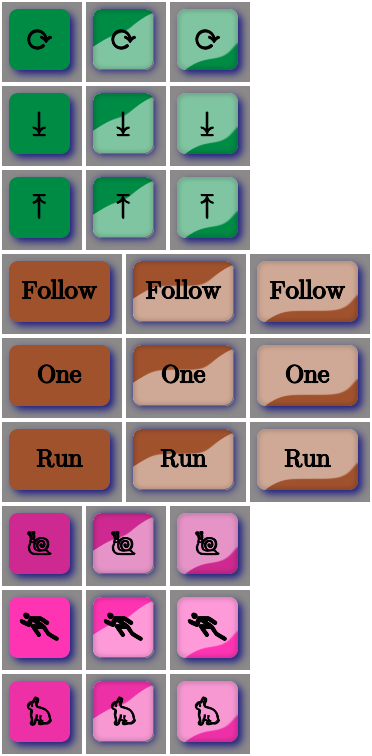
    Starting with the hints and commands at ImageMagick Advanced Techniques for Gel Effects, I came up with a script that spits out colorful gel-flavored buttons:

    convert -size 120x64 xc:none -fill red -draw "roundrectangle 10,10 110,54 8,8" \
      gel_shape.png
    #display gel_shape.png
    convert gel_shape.png \
      \( +clone -alpha extract -blur 0x12 -shade 110x0 \
      -normalize -sigmoidal-contrast 16,60% -evaluate multiply .5\
      -roll +4+8 +clone -compose Screen -composite \) \
      -compose In  -composite \
      gel_highlight.png
    #display gel_highlight.png
    convert gel_highlight.png \
      \( +clone -alpha extract  -blur 0x2 -shade 0x90 -normalize \
      -blur 0x2  +level 60,100%  -alpha On \) \
      -compose Multiply -composite \
       gel_border.png
    #display gel_border.png
    convert gel_border.png \
      -font Verdana-Bold  -pointsize 20  -fill white  -stroke black \
      -gravity Center  -annotate 0 "Jelly"  -trim -repage 0x0+7+7 \
      \( +clone -background navy -shadow 80x4+4+4 \) +swap \
      -background snow4  -flatten \
      gel_button.png
    convert gel_button.png -type truecolor Gelly24.bmp
    display -resize 300% Gelly24.bmp
    

    I could not ever figure that stuff out on my own.

    For some reason, WordPress chokes when uploading the starting shape as a PNG file, so here it is as a JPG with a black border replacing the original transparency:


    gel_shape
    gel_shape

    With the gel highlight:

    gel_highlight
    gel_highlight

    Adding a border:

    gel_border
    gel_border

    Adding text, shadow, and background:

    gel_button
    gel_button

    Adding the drop shadow may increase the image size ever so slightly, so the -repage 0x0+7+7 operation may require resetting the exact image size.

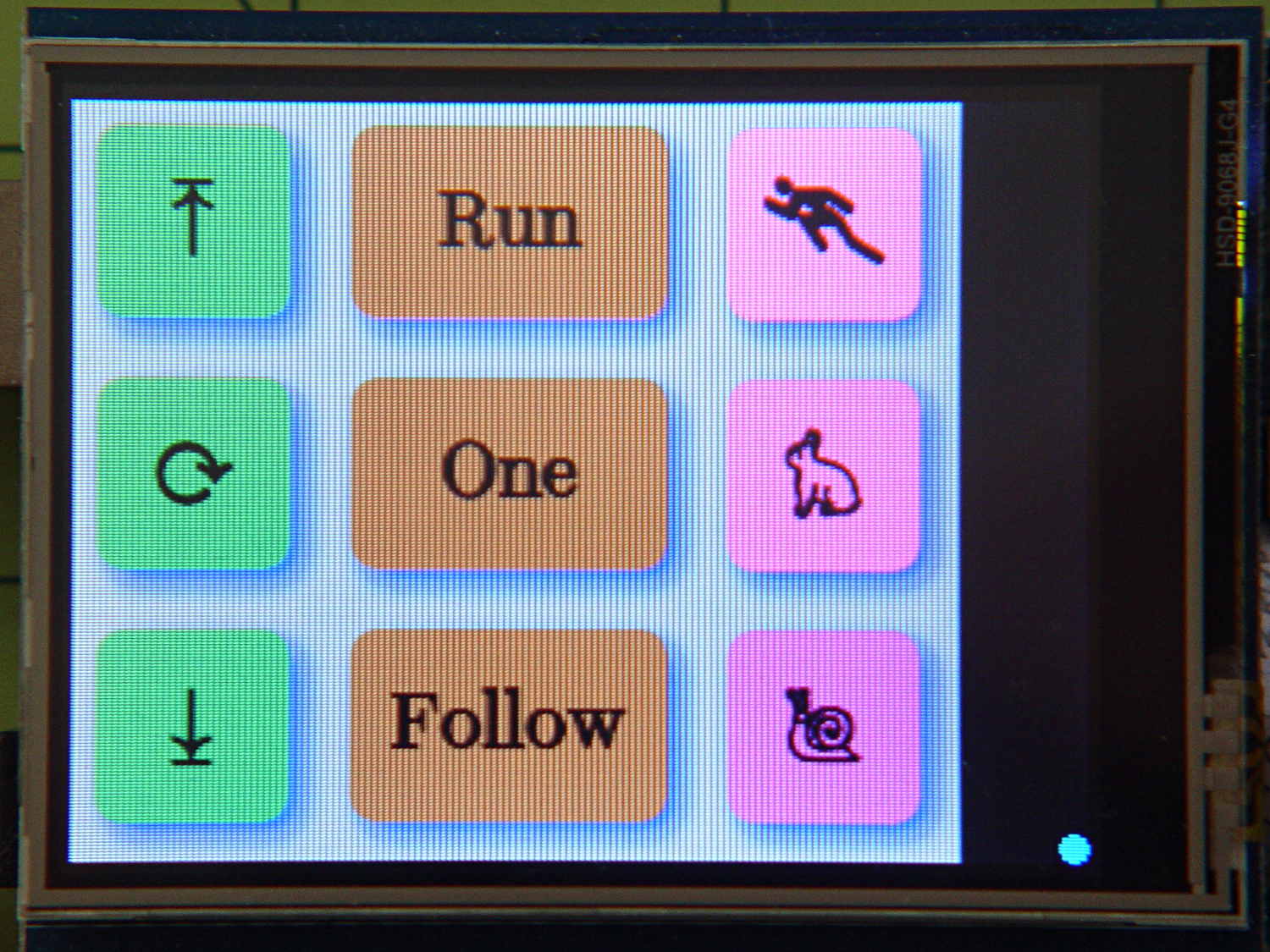
    The final step converts the PNG image into the 24-bit uncompressed BMP format required by the Adafruit routine that slaps it into the TFT display:

    Adafruit TFT display - timing demo
    Adafruit TFT display – timing demo

    The smaller buttons came directly from The GIMP, with full-frontal manual control over everything. Obviously, that doesn’t scale well for many buttons that should all look pretty much the same, because you want to get your fingers out of the loop.

    But, obviously, when you do this on a mass scale, you want better control over the colors and text and suchlike; that’s in the nature of fine tuning when it’s needed.

    I’m not entirely convinced I want gel-flavored buttons, but it was a fun exercise.