The Smell of Molten Projects in the Morning

Ed Nisley's Blog: Shop notes, electronics, firmware, machinery, 3D printing, laser cuttery, and curiosities. Contents: 100% human thinking, 0% AI slop.

Category: Software

General-purpose computers doing something specific

  • Quick-n-Easy Window Shade End Cap

    Quick-n-Easy Window Shade End Cap

    While tracking down an air leak in a living room window, I noticed one of the cellular blinds was missing an end cap, so I scanned a pair of surviving caps:

    Living Room shade end caps - level adjust
    Living Room shade end caps – level adjust

    Blow out the contrast, save as a JPG.

    Import into LightBurn:

    • Trace the outlines into paths
    • Use LightBurn’s shape optimization tool to dramatically reduce the number of nodes & smooth the outlines
    • Overlay & align the shapes
    • Export as an SVG file

    Import into Inkscape:

    • Put the paths on named layers
    • Center around an alignment mark
    • Save as an Inkscape SVG
    Living Room shade end caps - Inkscape alignment
    Living Room shade end caps – Inkscape alignment

    It is slightly tilted, but that doesn’t matter. You could devote more time to smoothing / reverse-engineering the shapes, but that doesn’t make much difference, either.

    Inkscape exports the SVG coordinates with respect to the overall page origin in the lower left corner, so when OpenSCAD imports the SVG the paths end up far away from the origin. The trick is to put a 2 mm diameter circle at a known location, center the paths around it, then have OpenSCAD use the circle’s location to recenter the paths.

    Because Inkscape uses the lower left corner of each shape as its origin, you must put the circle at (99,99) to have its center at (100,100). That is one of the many reasons you (well, I) can’t use Inkscape as a CAD program.

    Import into OpenSCAD, recenter, and extrude the shapes:

    CapCenter = [100,100];
    
    PlateThick = 1.8;       // thickness of visible end cap
    
    HolderTall = 10.0 + PlateThick;
    
    union() {
      linear_extrude(height=PlateThick)
          translate(-CapCenter)
                import("Living Room shade end caps - Inkscape.svg",layer="Exterior");
      linear_extrude(height=HolderTall)
          translate(-CapCenter)
                import("Living Room shade end caps - Inkscape.svg",layer="Retainer");
    }
    

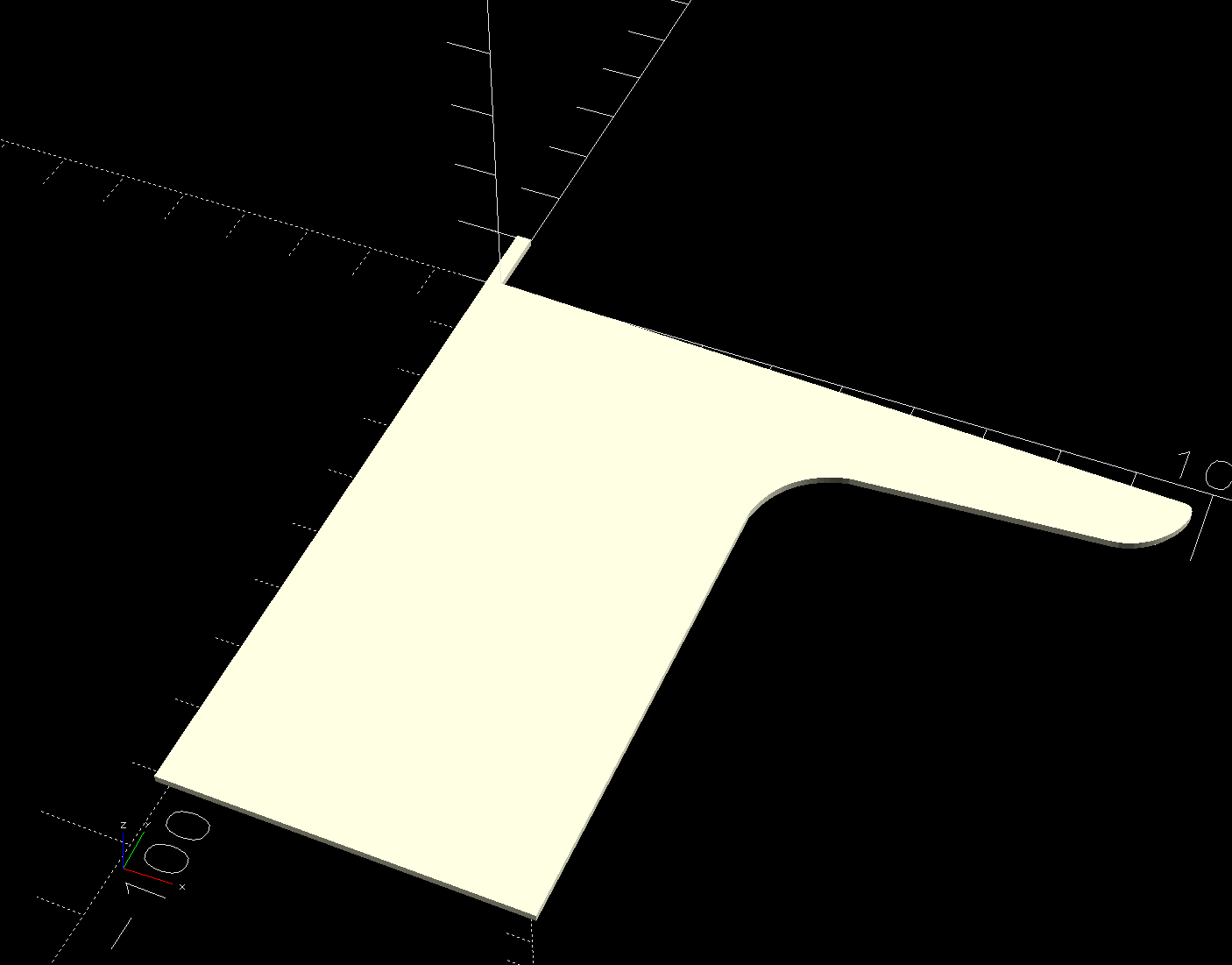
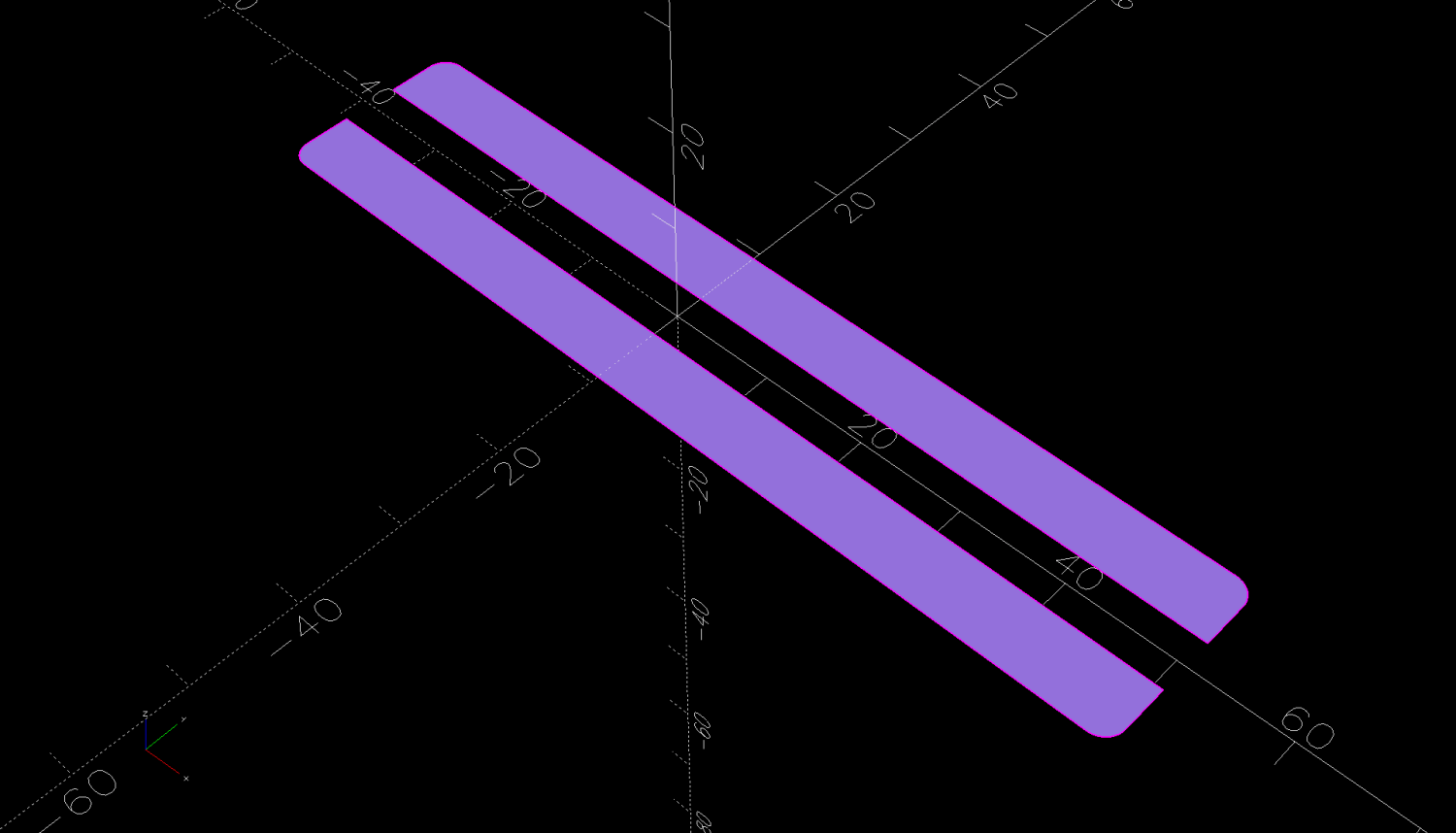
    Which produces a solid model:

    Living Room shade end caps - solid model
    Living Room shade end caps – solid model

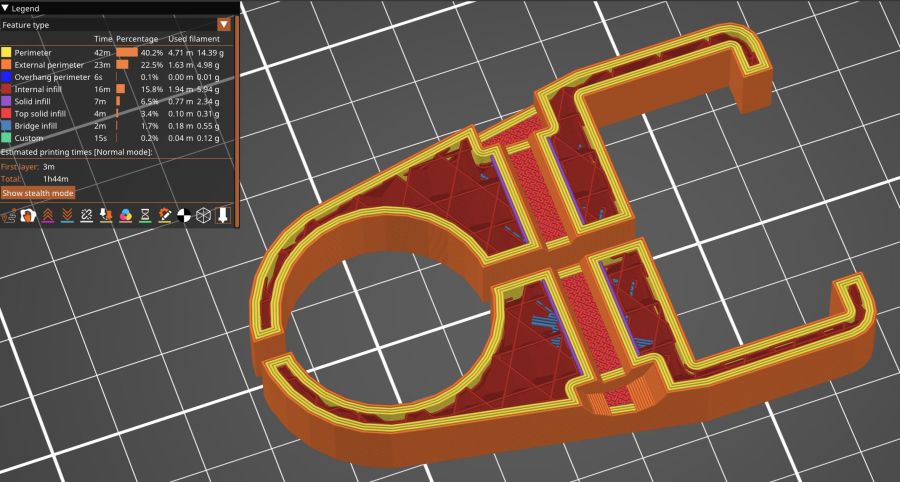
    Save the model as 3mf, import into PrusaSlicer, and slice:

    Living Room shade end caps - PrusaSlicer preview
    Living Room shade end caps – PrusaSlicer preview

    Making the retainer shape a little wider would be a good idea to get better infill, but it’s a slip fit into the blind (surely why it fell out long ago) and need not withstand any stress.

    Print as usual:

    Living Room shade end cap - on platform
    Living Room shade end cap – on platform

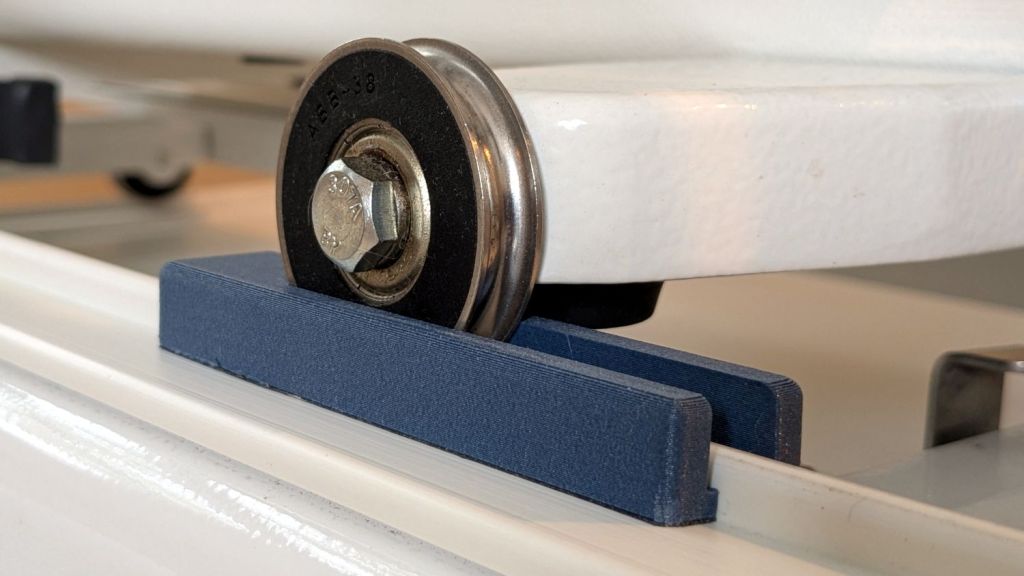
    And then It Just Works™:

    Living Room shade end cap - installed
    Living Room shade end cap – installed

    It’s sitting atop a bookcase while I finish tinkering with its window.

    All that seems like a lot of fiddling around, but it uses each program to its best advantage and it’s surprisingly easy after the first few models.

  • PrusaSlicer Scarf Joints

    PrusaSlicer Scarf Joints

    The release notes for PrusaSlicer 2.9 mention the addition of scarf joints on outer perimeters. Smooth joints seem like a Good Idea™, so I turned it on for comparison with a recent object:

    Double Gear fidget toy - scarf vs normal
    Double Gear fidget toy – scarf vs normal

    Those are flipped from the as-printed orientation: the orange ring builds upward, starting with two concentric threads on the platform.

    The normal aligned joint is on the right above, with a closer look here:

    Double Gear fidget toy - normal joInt
    Double Gear fidget toy – normal joInt

    The scarf joint has a offset between layers:

    Double Gear fidget toy - scarf joint
    Double Gear fidget toy – scarf joint

    The PrusaSlicer visualization shows the effect, looking up from below the platform:

    Double Gear fidget toy - scarf joint visualization
    Double Gear fidget toy – scarf joint visualization

    The blue PETG-CF parts have no visible seams anywhere with either setting, probably because the stuff swells slightly and obliterates any subtle differences.

    Scarf joints don’t make much difference for a fidget toy, but should improve the outcome for more critical circular / spherical models.

  • OMTech 60 W Laser: Manual Pulse Button

    OMTech 60 W Laser: Manual Pulse Button

    I want to put the HLP-200B Laser Power Meter at the tube’s exit, just upstream from Mirror 1, where it can measure the laser’s power output before the mirrors get into the act. Reaching the Pulse button on the machine console requires much longer arms than any normal human can deploy, plus a certain willingness to lean directly over a laser tube humming with 15 kV at one end.

    Perusing the KT332N doc brings up a hint, blocked in red so you can make some sense of it:

    KT332N Input bits
    KT332N Input bits

    A few minutes with boxes.py produces a simple two-compartment box and a few minutes with LightBurn adds two holes:

    Remote Switch Box - LightBurn layout
    Remote Switch Box – LightBurn layout

    Another few minutes produces the box from Trocraft Eco, which is not quite thin enough for the switch (from my Box o’ Clicky Buttons) to snap into place, but a few dabs of hot melt glue hold it down:

    Laser remote pulse button - installed
    Laser remote pulse button – installed

    Double-sided foam tape sticks the box to the laser frame and the red-n-black cable snakes all the way across the back of the machine and through the electronics bay to the IN2 and GND terminals of the KT332N INPUT block:

    Laser remote pulse button - Ruida KT332N wiring
    Laser remote pulse button – Ruida KT332N wiring

    With the laser head parked at a safe spot and all interlocks happy, it works:

    Laser remote pulse button - demo
    Laser remote pulse button – demo

    That is a re-enactment, because I lack sufficient dexterity to handle a phone with my left hand, poke the button with my right finger, and not damage anything important.

    The general idea is to make it very difficult to inadvertently press that button: you must want to fire the laser with the tube compartment hatch up (it has no interlocks) and the control panel out of sight on the top-front of the machine.

    Setting the power to 30% and putting the meter in harm’s way:

    HLP-200B - Laser tube exit
    HLP-200B – Laser tube exit

    Again, a reenactment based on actual events.

    Five pulses later:

    40.8W
    42.4
    42.3
    41.2
    40.7
    41.5W avg
    0.82W std dev

    For the record, those five pulses dumped about 5 × 42 W × 10 x ≅ 2000 W·s = 2 kJ into the meter, raising it from “chilly basement ambient” to “be careful where you hold it”, thus making the meter’s aluminum case the least-efficient handwarmer in existence.

    The 30% PWM measurements at the center of the platform came out slightly lower: 38.5 W average with a sample standard deviation of 2.2 W.

    The large standard deviations prevent firm conclusions, but, yeah, the power at the tube exit seems about right, before two mirrors and ≅800 mm of path length take their toll.

    The LightBurn SVG layout as a GitHub Gist:

    Loading
    Sorry, something went wrong. Reload?
    Sorry, we cannot display this file.
    Sorry, this file is invalid so it cannot be displayed.
  • PrusaSlicer Flatpak: Adding an NFS Filesystem

    PrusaSlicer Flatpak: Adding an NFS Filesystem

    PrusaSlicer V 2.9.0 for Linux arrives as a Flatpak, instead of the previous AppImage, which wouldn’t matter except that the Flatpak sandbox prohibits access to anything outside each user’s home directory. I long ago set up access to the fileserver in the basement through filesystems mounted on /mnt, which is now inaccessible.

    Obviously, I’m not the first person to hit this issue, as some diligent searching turned up a hint leading to a description of Flatpak permissions, which eventually produced:

    sudo flatpak override com.prusa3d.PrusaSlicer --filesystem="/mnt/bulkdata"
    

    Overall, 2.9.0 seems significantly more sluggish and uglier than the 2.8.x series, but at least Prusa still supports Linux.

    Just to show PrusaSlicer can fetch files from the server and to have some pictures enhancing this post’s negligible SEO, I built a couple of Gear Fidget Toys:

    Double Gear fidget toy - on platform
    Double Gear fidget toy – on platform

    Which pop off the platform ready to roll:

    Double Gear fidget toy - finished
    Double Gear fidget toy – finished

    A trace of silicone grease eased between the pieces on a slip of paper makes the spinning action so smooth.

    As usual, the multi-material version takes twice as long to build due to all the filament swapping. I think I must improve the MMU3’s spoolholders, because the MMU3 (very) occasionally fails to ram the filament into the extruder, seemingly due to the force required to pull filament from the recalcitrant spools.

  • HLP-200B Laser Power Meter: Holder / Stand

    HLP-200B Laser Power Meter: Holder / Stand

    The overall measurement process for the HLP-200B laser power meter requires more coordination than I can muster on a dependable basis, so a third hand seemed in order:

    HLP-200B Power Meter - target setup
    HLP-200B Power Meter – target setup

    In actual use, a pair of finger-crushingly strong magnets laid on the base hold it firmly to the honeycomb.

    Because a CO₂ laser beam is invisible, the only way to know where it hits is to char a bit of paper:

    HLP-200B Power Meter - target detail
    HLP-200B Power Meter – target detail

    With that evidence, I can jog the platform up-and-down and the gantry front-and-back to center the beam on the paper target and, thus, on the sensor behind it. That process happens at each test position across the platform:

    HLP-200B Power Meter - targets
    HLP-200B Power Meter – targets

    The meter shuts down a mere six seconds after completing each measurement, which means I must keep the lid open, listen carefully, and react quickly. Firing the laser thus requires defeating the lid interlock specifically wired to prevent that from happening:

    Laser lid interlock sensor
    Laser lid interlock sensor

    Rather than install a switch to bypass the interlock, I taped a steel cover harvested from defunct electronics over the sensor:

    Laser lid interlock sensor - bypassed
    Laser lid interlock sensor – bypassed

    Which has the useful side effect of preventing me from closing the lid with the interlock defeated.

    The holder is just slightly larger than the meter’s handle and some clamps produced a snug fit while the glue cured:

    HLP-200B Power Meter - holder gluing
    HLP-200B Power Meter – holder gluing

    The holder keeps the meter sensor at the same position vertically and within about a millimeter horizontally. The laser beam seems to be around 5 mm in diameter (the scorches above come from the hottest central part), so the beam should hit the same position on the sensor during successive measurements, making them far more repeatable than my waving it around by hand.

    The LightBurn SVG layout as a GitHub Gist:

    Loading
    Sorry, something went wrong. Reload?
    Sorry, we cannot display this file.
    Sorry, this file is invalid so it cannot be displayed.
  • HQ Sixteen: Chin Light

    HQ Sixteen: Chin Light

    Setting the Handi-Quilter HQ Sixteen handlebars at a useful angle aimed the main PCB’s white LEDs at the front of the arm, rather than down at the needle:

    HQ Sixteen Chin Light - off
    HQ Sixteen Chin Light – off

    Having caused the problem, I must fix it:

    HQ Sixteen Chin Light - results
    HQ Sixteen Chin Light – results

    The light comes from a small chip-on-board LED affixed under the chin of the machine arm with heatsink tape:

    HQ Sixteen Chin Light - detail
    HQ Sixteen Chin Light – detail

    Yes, the pool of warm white COB LED light clashes horribly with the cool white 5 mm LEDs lighting the background (not to mention wintry daylight from the windows), but it’s sufficiently OK.

    I intended to run the wiring inside the machine arm, but all the pre-existing holes I wanted to use were oiling access points or blocked by whirling shafts inside, so the wire runs along the outside:

    HQ Sixteen Chin Light - wiring
    HQ Sixteen Chin Light – wiring

    The Handi-Quilter control & lighting goes through the bare gray ribbon cable to the handlebars, so I’m not too far down the stylin’ scale. The next version of the machine has round external cables, but this machine is what it is.

    I mounted the 12 VDC supply to the back panel of the machine’s power box with five 3 mm holes:

    HQ Sixteen Chin Light - power supply
    HQ Sixteen Chin Light – power supply

    A bag of right-angle barrel connectors will arrive shortly.

    The exposed wiring at the top (the white wires carry switched 120 VAC from the PCB inside the box) seemed … unaesthetic, so I conjured a cover from the vasty digital deep:

    Power Supply Cover - solid model
    Power Supply Cover – solid model

    Which fit neatly into place on the first try:

    HQ Sixteen Chin Light - supply cover fit test
    HQ Sixteen Chin Light – supply cover fit test

    That’s a trial fit, because I am not pulling the machine apart again until there’s more work to do inside.

    The blurry rocker switch below the Chin Light supply controls the machine power: turn it on and everything lights up as it should.

    The OpenSCAD source code as a GitHub Gist:

  • HQ Sixteen: Grip Angle Caps

    HQ Sixteen: Grip Angle Caps

    The stock Handi-Quilter HQ Sixteen has serviceable black rubber caps covering the holes for the grips:

    HQ Sixteen - original front handlebar mount
    HQ Sixteen – original front handlebar mount

    Because we live in the future, I can do better than that:

    HQ Sixteen - grip cap left
    HQ Sixteen – grip cap left

    In truth, the plastic grip plug now sticks up into the hole just beyond the top setscrews, leaving not enough room for the black plugs, so I had to make new covers.

    They’re a multi-material print using white PETG to kinda-sorta match the machine and blue PETG-CF to match the other plastic parts. The colors in the solid model just distinguish the two materials:

    Handlebar Grip Mount - plug caps - solid model
    Handlebar Grip Mount – plug caps – solid model

    The white covers have recesses exactly fitting the text:

    Handlebar Grip Mount - cap text recess - solid model
    Handlebar Grip Mount – cap text recess – solid model

    In some cases that’s not needed, but I’m unsure how PrusaSlicer knows what I intend and chopping the text out was easy, so that’s how I did it.

    I did not realize applying a transformation, like translate() or BOSL2’s syntactic sugar left(), to both the cover and the text implicitly joins them into a single “object”, so the slicer can’t distinguish them as separate materials. As a result, the OpenSCAD code must move the pieces separately:

    if (Layout == "Covers") {
         left(Plug[OD]) GripCover(LEFT,"Cover");
         left(Plug[OD]) GripCover(LEFT,"Text");
    
         right(Plug[OD]) GripCover(RIGHT,"Cover");
         right(Plug[OD]) GripCover(RIGHT,"Text");
    }
    

    Which is awkward, but not insurmountable.

    Export the model as a 3mf file, import it into PrusaSlicer, and you get separate objects for the cover and the text. Assign different materials and slice to produce a multi-material result, with the Wipe Tower in the background:

    Handlebar Grip Mount - cap first layer - PrusaSlicer
    Handlebar Grip Mount – cap first layer – PrusaSlicer

    They must print face down to merge the two colors into a single flat surface with a nubbly texture from the steel sheet’s coating.

    Disks of adhesive sheet will eventually stick them atop the plugs, but for now they’re just dropped into the holes.

    The OpenSCAD source code as a GitHub Gist:

    // Handiquilter HQ Sixteen front handlebar grip angle mount
    // Ed Nisley – KE4ZNU
    // 2024-11-29
    include <BOSL2/std.scad>
    Layout = "Show"; // [Show,Build,Plug,Block,Covers,Cover]
    Material = "All"; // [All,Cover,Text]
    // Angle w.r.t. base
    GripAngle = 20; // [10:30]
    // Plug glued, not screwed
    PlugGlue = true;
    // Square nuts, not inserts
    SquareNuts = true;
    // Additional length of bottom
    AddLength = 0; // [0:20]
    // Separation in Show display
    Gap = 5; // [0:20]
    /* [Hidden] */
    HoleWindage = 0.1;
    Protrusion = 0.1;
    NumSides = 2*3*4;
    ID = 0;
    OD = 1;
    LENGTH = 2;
    Grip = [19.7,22.4,20.0]; // (7/8)*INCH = 22.2 mm + roughness, LENGTH=OEM insertion depth
    GripRadius = Grip[OD]/2; // used everywhere
    Plug = [15.0,Grip[OD],45.0]; // inserts into handlebar base
    PlugRim = [Plug[ID],25.0,10.0]; // … sits against handlebar base
    BaseScrewPositions = [[11.0,12.0],[27.0,29.0]]; // setscrew offsets from rim top: side,rear
    BaseCutout = [Plug[OD]/2,Plug[ID],10]; // cable cutout into base
    BaseCutoutOffset = 18.0; // … centerline position w.r.t. rim
    WallThick = 7.0; // should at least fit insert length
    SupportSag = 0.4; // vertical sag over support structure
    MidLength = AddLength + 3.0; // total length allowing for grip tube stop
    TopOD = PlugRim[OD] + 2*WallThick;
    BotOD = Grip[OD] + 2*WallThick;
    BaseScrew = [4.0,4.8 + HoleWindage,1.0]; // HQ 10-32 screws, LENGTH=capture dent
    Insert = [5.4,6.0,6.0]; // M4 inserts in plug rim
    //Insert = [4.0,5.0,5.0]; // M4 inserts in plug rim
    Screw = [3.5,4.0,1]; // M4 screws through angle block to inserts
    ScrewHeadOD = 7.4 + 0.4; // M4 BHCS head + comfort
    SquareNut = [4.0,7.0,3.0 + 0.4]; // M4 square nut LENGTH + inset allowance
    NutInset = GripRadius – sqrt(pow(GripRadius,2) – pow(SquareNut[OD],2)/4);
    PinOD = 1.2; // plug reinforcing pins
    NumPins = 5;
    CoverThick = [3.5,9.5]; // low and high sides of grip covers
    CoverAngle = atan((CoverThick[1] – CoverThick[0])/Plug[OD]);
    LogoText = ["Sew","Fine"];
    LogoFont = "Fira Sans Condensed:style=SemiBold";
    LogoSize = 7.5;
    LogoColor = "Red";
    LogoThick = 0.8;
    //———-
    // Simulator for aluminum plug replacing handlebar in base
    module BasePlug() {
    difference() {
    union() {
    tube(Plug[LENGTH],(Plug[OD] – HoleWindage)/2,Plug[ID]/2,anchor=DOWN);
    tube(PlugRim[LENGTH],PlugRim[OD]/2,PlugRim[ID]/2,anchor=DOWN);
    }
    up(BaseCutoutOffset + PlugRim[LENGTH])
    left(Plug[OD]/4)
    resize(BaseCutout)
    yrot(90) zrot(180/8)
    cylinder(d=1,h=1,$fn=8,center=true);
    up(PlugRim[LENGTH])
    right(PlugRim[OD]/2 – 1.0)
    cube([2.0,1.0,1.0],center=true);
    for (i = [0:NumPins – 1])
    zrot(i*360/NumPins + 180/NumPins)
    down(Protrusion)
    right((Plug[OD] + Plug[ID])/4)
    zrot(180/6)
    cylinder(d=PinOD,h=2*PlugRim[LENGTH],$fn=6);
    for (k = [0:1]) // recesses in plug to capture base setscrews
    for (a = [0:1])
    up(PlugRim[LENGTH] + BaseScrewPositions[k][a])
    zrot(a*90)
    right(Plug[OD]/2)
    yrot(90) zrot(180/8)
    cylinder(d=BaseScrew[OD],h=2*BaseScrew[LENGTH],$fn=8,center=true);
    if (!PlugGlue)
    for (a = [0:1]) // inserts for angle block screws
    up(PlugRim[LENGTH]/2)
    zrot(a*90)
    yrot(90) zrot(180/8)
    cylinder(d=Insert[OD],h=2*PlugRim[OD],$fn=8,center=true);
    }
    }
    //———-
    // Block fitting against handlebar base with handlebar angle
    module AngleBlock() {
    difference() {
    hull() {
    up((TopOD/2)*sin(GripAngle))
    xrot(GripAngle)
    cylinder(d=TopOD,h=PlugRim[LENGTH],$fn=NumSides);
    for (a = [1:2:GripAngle+1])
    up((TopOD/2)*sin(a-1))
    hull() {
    xrot(a)
    cylinder(d=TopOD,h=0.1,$fn=NumSides);
    xrot(a-1)
    cylinder(d=TopOD,h=0.1,$fn=NumSides);
    }
    down(Grip[LENGTH] + MidLength)
    cylinder(d=(Grip[OD] + 2*WallThick),h=0.1,$fn=NumSides);
    }
    up((TopOD/2)*sin(GripAngle))
    xrot(GripAngle)
    down(SupportSag)
    cylinder(d=(PlugRim[OD] + HoleWindage),
    h=PlugRim[LENGTH] + SupportSag + Protrusion,
    $fn=NumSides);
    up((TopOD/2)*sin(GripAngle))
    sphere(d=PlugRim[ID],$fn=NumSides);
    cylinder(d=PlugRim[ID],h=(TopOD/2)*sin(GripAngle),$fn=NumSides);
    down(MidLength + Protrusion)
    cylinder(d=(Grip[ID] – 2.0),h=(MidLength + 2*Protrusion),$fn=NumSides);
    down(Grip[LENGTH] + MidLength + Protrusion)
    cylinder(d=(Grip[OD] + HoleWindage),h=(Grip[LENGTH] + Protrusion),$fn=NumSides);
    up((TopOD/2)*sin(GripAngle))
    xrot(GripAngle)
    up(PlugRim[LENGTH])
    right(PlugRim[OD]/2 + 0.9)
    cube([2.0,1.0,1.0],center=true);
    if (!PlugGlue) {
    for (a = [0:1])
    up((TopOD/2)*sin(GripAngle))
    xrot(GripAngle)
    up(PlugRim[LENGTH]/2)
    zrot(a*90)
    yrot(90) zrot(180/8)
    cylinder(d=Screw[OD],h=3*PlugRim[OD],$fn=8,center=true);
    for (a = [0:3])
    up((TopOD/2)*sin(GripAngle))
    xrot(GripAngle)
    up(PlugRim[LENGTH]/2)
    zrot(a*90)
    right(TopOD/2 – 2.0)
    yrot(90) zrot(180/8)
    cylinder(d=ScrewHeadOD,h=TopOD,$fn=8,center=false);
    }
    if (SquareNuts) {
    for (a = [0:1])
    for (k = [1,3])
    down(k*Grip[LENGTH]/4 + MidLength)
    zrot(a*90)
    right(BotOD/2)
    yrot(90) zrot(180/8)
    cylinder(d=SquareNut[ID],h=BotOD,$fn=8,center=true);
    for (a = [0:1])
    for (k = [1,3])
    down(k*Grip[LENGTH]/4 + MidLength)
    zrot(a*90)
    right(GripRadius + SquareNut[LENGTH]/2 – NutInset/2)
    yrot(90)
    cube([SquareNut[OD],SquareNut[OD],SquareNut[LENGTH] + NutInset],center=true);
    }
    else {
    for (a = [0:1])
    for (k = [1,3])
    down(k*Grip[LENGTH]/4 + MidLength)
    zrot(a*90)
    right(BotOD/2)
    yrot(90) zrot(180/8)
    cylinder(d=Insert[OD],h=BotOD,$fn=8,center=true);
    }
    }
    }
    //———-
    // Chip fitting against handlebar base matching top angle
    // Text will be invisible until sliced
    module GripCover(loc=LEFT,matl="Cover") {
    if (matl == "Text" || matl == "All")
    color(LogoColor)
    down(matl == "All" ? 0.01 : 0.0)
    text3d(LogoText[loc == LEFT ? 0 : 1],LogoThick,LogoSize,LogoFont,
    orient=DOWN,anchor=TOP,atype="ycenter");
    if (matl == "Cover" || matl == "All")
    difference() {
    intersection() {
    yrot(loc == RIGHT ? -CoverAngle : CoverAngle)
    cylinder(d=Plug[OD],h=(CoverThick[0] + CoverThick[1]),anchor=CENTER);
    cube(2*Plug[OD],anchor=BOTTOM);
    }
    text3d(LogoText[loc == LEFT ? 0 : 1],LogoThick,LogoSize,LogoFont,
    orient=DOWN,anchor=TOP,atype="ycenter");
    }
    }
    //———-
    // Build things
    if (Layout == "Cover") {
    GripCover(LEFT,Material);
    }
    if (Layout == "Covers") {
    left(Plug[OD]) GripCover(LEFT,"Cover");
    left(Plug[OD]) GripCover(LEFT,"Text");
    right(Plug[OD]) GripCover(RIGHT,"Cover");
    right(Plug[OD]) GripCover(RIGHT,"Text");
    }
    if (Layout == "Plug")
    BasePlug();
    if (Layout == "Block")
    AngleBlock();
    if (Layout == "Show") {
    up((TopOD/2)*sin(GripAngle) + Protrusion)
    xrot(GripAngle)
    up(Plug[LENGTH] + CoverThick[1] + Gap)
    yrot(180 + CoverAngle)
    GripCover(RIGHT,"All");
    up((TopOD/2)*sin(GripAngle) + Protrusion)
    xrot(GripAngle)
    up(Gap)
    color("Lime",0.75)
    BasePlug();
    render()
    difference() {
    AngleBlock();
    back(50) right(50)
    cube(100,center=true);
    }
    color("Silver",0.5)
    down(MidLength + Gap)
    tube(3*Grip[LENGTH],GripRadius,Grip[ID]/2,anchor=TOP);
    }
    if (Layout == "Build") {
    mirror_copy([1,0,0]) {
    right(BotOD) {
    up((TopOD/2)*sin(GripAngle) + PlugRim[LENGTH]*cos(GripAngle) + Protrusion)
    xrot(180 – GripAngle)
    AngleBlock();
    back(1.5*max(TopOD,BotOD))
    BasePlug();
    }
    }
    fwd(60) {
    left(Plug[OD]) GripCover(LEFT,"Cover");
    right(Plug[OD]) GripCover(RIGHT,"Cover");
    }
    fwd(60) {
    left(Plug[OD]) GripCover(LEFT,"Text");
    right(Plug[OD]) GripCover(RIGHT,"Text");
    }
    }