Ed Nisley's Blog: Shop notes, electronics, firmware, machinery, 3D printing, laser cuttery, and curiosities. Contents: 100% human thinking, 0% AI slop.
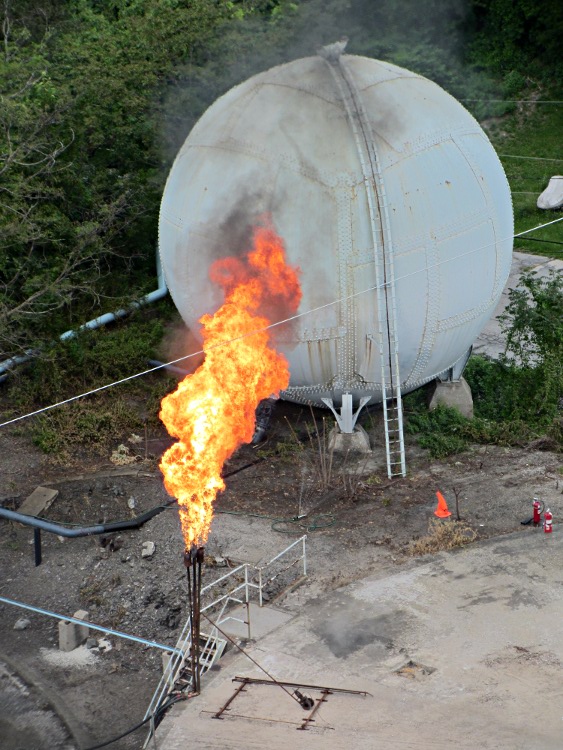
While I was on that ride, I found this at the bottom of a smoky pillar rising along the Hudson River:
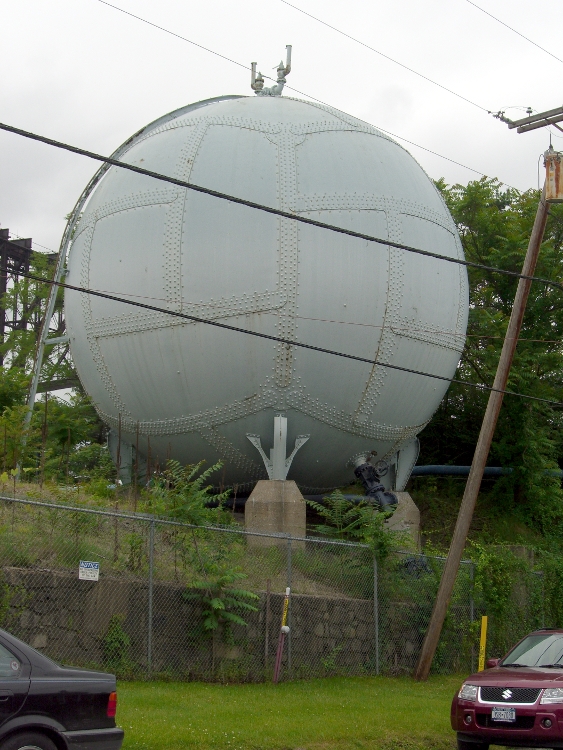
Turns out Central Hudson Gas & Electric has a pipeline under the Hudson at that point and I’d admired their spherical storage tank from ground level some years back:
Gas Storage Tank
I don’t know what they’re flaring off, but it looks messier than, say, propane. There’s another flare nozzle just out of the picture on the lower left, both along the edge of the circular concrete pad left over from a cylindrical storage tank, so they do this often enough to have some permanent infrastructure.
Back in the old days, the Hudson was clogged with sailing ships; now only a few carefully tended reproductions remain:
Sailing ship under Walkway Over the Hudson
That’s the Sloop Clearwater as seen from the middle of the Poughkeepsie Bridge on an overcast day that brings out the vignetting in the long telephoto image.
A bit earlier I was westbound on the Walkway Over the Hudson while the Clearwater was headed northbound:
Sloop Clearwater
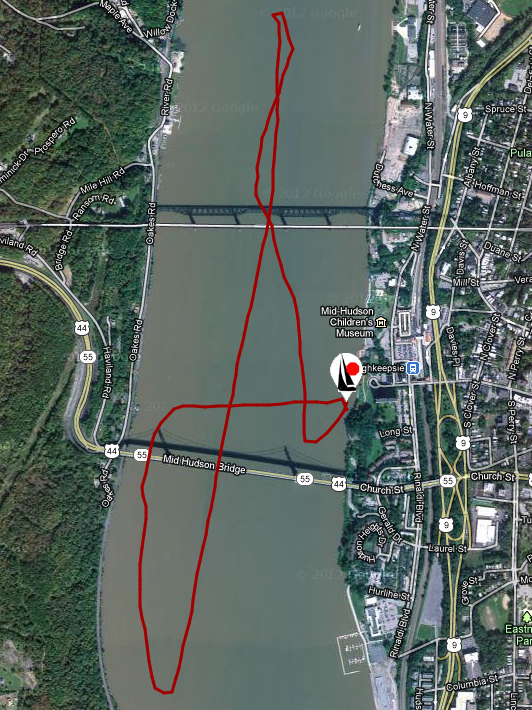
Turns out they carry a GPS tracker (accessible from a link on their site):
Kai and Yen stayed with us over the weekend; they’re about 18 months into a two-year trip around the world. Kai was pulling an interesting single-wheel T2 trailer. Unlike my BOB Yak, the rear wheel has what looks like an active torsion-spring suspension:
T2 trailer suspension
They’re taking the northern route across the US and Canada on their way back to Taiwan:
Kai and Yen – ready to roll
They make our bicycling adventures fade to pale gray… which is OK with us!
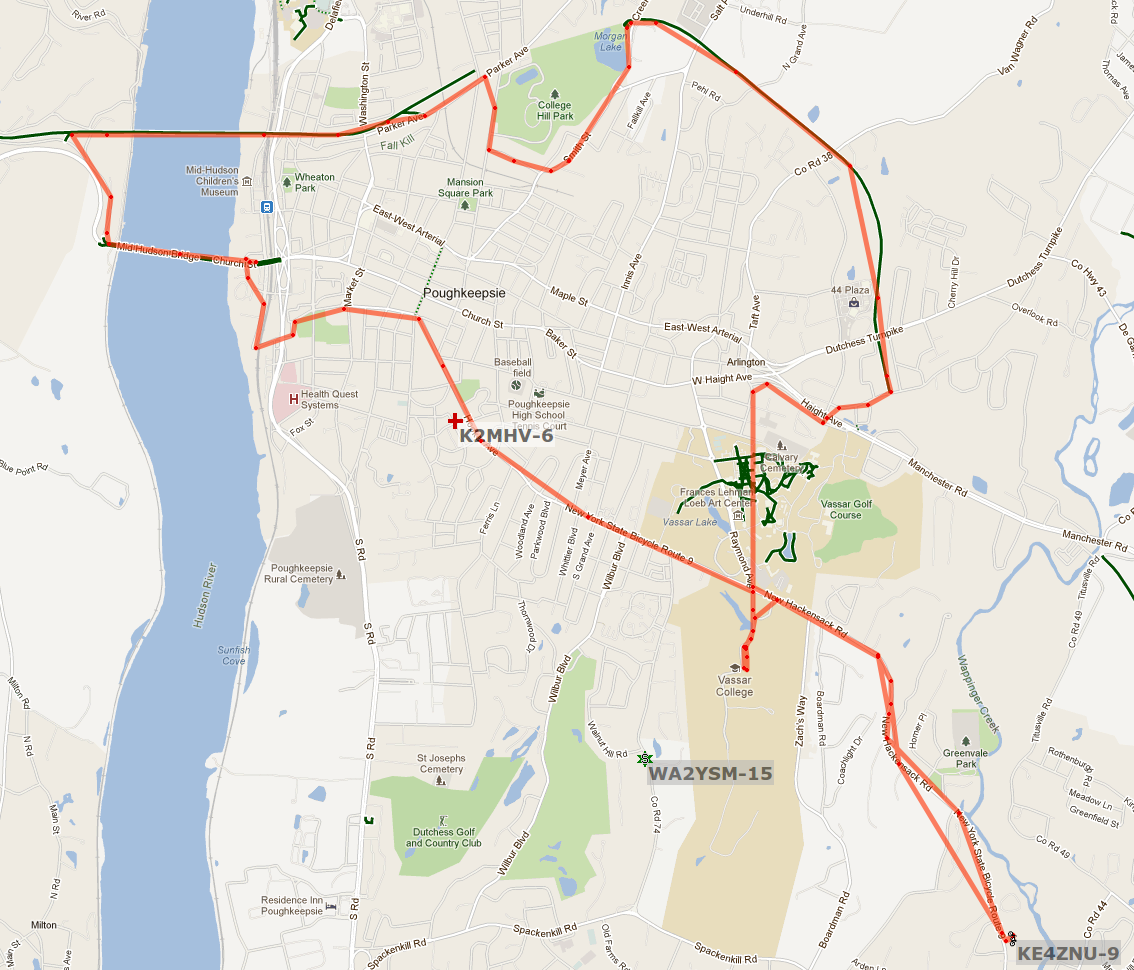
That circuit works pretty well for APRS tracking, I’d say, based on a 23 mile out-and-back ride over the Walkway:
KE4ZNU – Wouxun KG-UV3D – first ride
Had I gone further westward along Rt 299, however, the track would end: the bluffs on the east side of the Wallkill River Valley block much of the RF and Illinois Mountain (just to the west of Poughkeepsie) finishes the job. Evidently, nobody runs an APRS iGate or digipeater anywhere within sight of New Paltz…
FWIW, the Walkway’s hand-scrawled notice boards now entreat “Bicyclists: ride SLOW and YIELD to pedestrians.” OK, fair enough, but how about equal time: “WALKERS: keep RIGHT, remove earbuds, and PAY ATTENTION”. It’s amazing how four people can block nearly the entire width of a 25 foot path, then look startled after not hearing a bicycle bell that’s been dinging steadily for 15 seconds…
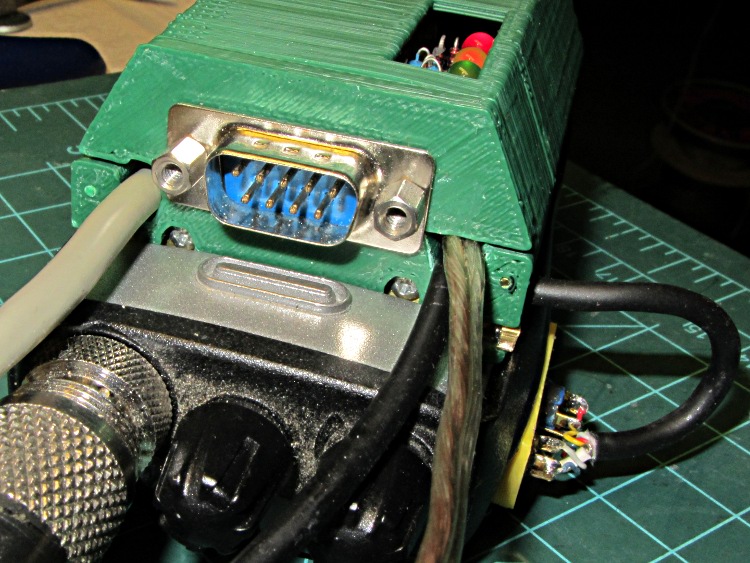
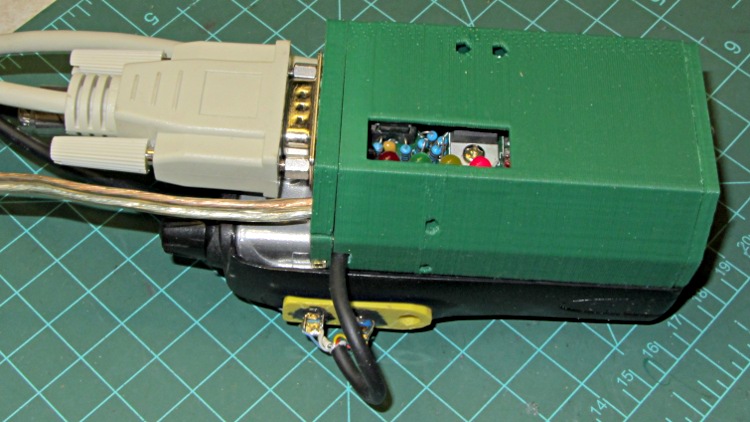
The robust wire I used for the external battery connection required a bit of diagonal cutter work to enlarge the hole in the top plate, but eventually everything fit together and the GPS interface box latched neatly onto the radio:
HT-GPS Case – cabled top view
The skein of cables:
Antenna: reverse SMA to UHF adapter = RG58 coax
GPS: TTL serial data from Byonics GPS2 receiver = DB-9 (OK, DE-9)
After a few rides to verify that this whole affair works, I must print up another case with slightly modified dimensions, add a plastic window over those cheerful LEDs on the TinyTrak3+ board, and mush an epoxy putty blob over the earphone and mic connections on that bright yellow plug plate. I’ve given up on the idea of having a cover for the top part of the battery compartment; there just isn’t enough space for such a thing and it’d be an impossibly delicate shell.
The radio seems happy enough being fed 9 V from a bench supply (to match the upconverted lithium packs I’ve been using on the bikes), rather than 7.4 V from its standard lithium pack. A freshly charged battery comes pretty close to 9 V, so they can’t be too fussy. It idles at about 100 mA, with periodic blips to 140 mA when (I think) the TinyTrak3+ tickles the GPS receiver, regardless of the supply voltage. Goosing it with 13.8 V surely wouldn’t have a happy outcome…
Lashed up like that on the bench, with the GPS receiver hanging out the basement window and the coax hitched to a bicone scanner antenna sitting inside the window, it generated APRS spots and the audio sounds OK, so the innards look good, too.
2012-04-11 20:09:08 EDT: KE4ZNU-9>APT311,WA2YSM-15,WIDE1*,WIDE2-1,qAR,K2MHV-6:>Ed - Bike PL100 UV3D
One downside: the TinyTrak3+ blurts its initial ID message instantly after being powered on, but the radio takes a few seconds to haul itself to its feet. As a result, the ID message never reaches the antenna. So it goes…
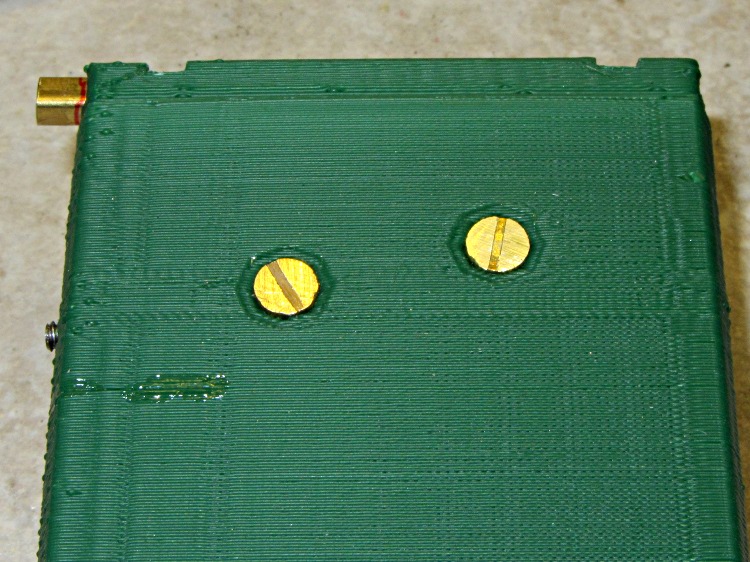
After considerable stalling, I filed the heads of two brass 4-40 screws down to about 1 mm, leaving just a hint of the slots in place. They’re a bit over 5 mm in diameter, smaller than the 7 mm I wanted to use, but have the compelling advantage of being Close Enough to get the rest of the hardware working. The gap between the interface PCB and the case is 3 mm, which turns out to be just about exactly the thickness of a 4-40 nut and flat washer, so I soldered a pair of them together as threaded spacers:
HT-GPS Case – radio battery contacts
The soldering looks worse than it really is; they’re secured all the way around.
For the external battery connectors on the top, I ran a #33 drill through a pair of miniature crimp ring lugs to get a slip fit, then soldered them atop a pair of nickel-plated nuts. In normal use they’d be captured by the nuts, but I can’t figure out how to assemble them inside the case:
HT-GPS Case – external power lugs
Those are stainless steel 4-40 screw cutoffs, which I used because solder doesn’t adhere to stainless… I tinned the nuts and connectors, clamped the screws in a small vise, heated the nuts with a soldering iron, and applied the contacts with a tweezer. They snapped right into place and the solder fillet wrapped neatly around the entire lug.
The heat from the soldering iron relaxed the insulator sleeves enough to remove nearly all trace of the crimping.
With all that in hand, I ran the brass screws through the case, into the spacer nut+washer combo, through the PCB, and into the battery contact nuts. A bit of tedious pliers work snugged the screws and got everything lined up, then I tightened the spacers against the PCB and battery nuts on the other side. That’s completely invisible inside the case, so there aren’t any pictures, but the idea is that the studs sit flush inside their case recesses and clamping the PCB between the nuts shouldn’t put any stress on the PCB. We shall see.
HT-GPS Case – radio contacts in place
The slots became so shallow that a screwdriver doesn’t get any traction…
The latch is about the same as before, but the top endplate now has two cable ports and locating pins to take the force from the battery contact springs:
HT-GPS Case – latch detail
The bottom endplate has a hole for the TinyTrak3 Mode switch, plus two locating pins that hold the plate in place:
HT-GPS Case – Wouxun KG-UV3D base view
A detail shot of the two endplates shows the new holes:
HT-GPS Case – endplate detail
Snippets of brass rod became locating pins, each slipped into a hole atop a dab of epoxy to lock it in place:
HT-GPS Case – locating pin detail
The boards slide in pretty much the way you’d expect:
HT-GPS Case – Trial fit – rear view
The OpenSCAD code punches a third cable hole in the case for the HT wiring. I had high hopes that it would fit through the endplate, but …
Seen from the other end, there’s not much to see. The next case will have a slightly narrower LED opening:
HT-GPS Case – Trial fit – base view
The imperfection running down the side comes from a brief pause in the proceedings while the support plate fell out of the opening. As a consequence, I discovered that the LED window doesn’t need any support at all.
This view shows one of the battery contacts peeking through the hole for a yet-to-be-made stud:
HT-GPS Case – Wouxun KG-UV3D rear view
The solid model show some additional revisions, but it’s pretty close to the green plastic versions:
HT-GPS Case – holes and pins – solid model
The OpenSCAD source code:
// Wouxun KB-UV3D Battery Pack Case
// Ed Nisley KE4ZNU April 2012
include </home/ed/Thing-O-Matic/lib/MCAD/units.scad>
include </home/ed/Thing-O-Matic/Useful Sizes.scad>
// Layout options
Layout = "Fit";
// Overall layout: Fit Show
// Printing plates: Build1 .. Buildn (see bottom!)
// Parts: TT3 Audio DSub Shell Base Top
// Shapes: RadioBase Contact
// Speaker-mic mount: PlugPlate
ShowGap = 20; // spacing between parts in Show layout
//- Extrusion parameters must match reality!
// Print with +1 shells and 3 solid layers
ThreadThick = 0.25;
ThreadWidth = 2.0 * ThreadThick;
HoleWindage = 0.2;
function IntegerMultiple(Size,Unit) = Unit * ceil(Size / Unit);
Protrusion = 0.1; // make holes end cleanly
//----------------------
//- Dimensions
CaseOverallHeight = 31.5; // from battery surface, must clear PCBs!
CaseOverallWidth = 56;
CaseOverallLength = 80.25; // inside of base to end of compartment
BatteryClearance = 1.5; // contact seal height = air gap to compartment
// Interface to radio battery contacts
// Length = shell length
// calculated after everything else, so as to fill the compartment
PlateWidthMin = 53.0;
PlateWidthMax = 54.5;
PlateThick = IntegerMultiple(2.0,ThreadThick);
PlateAngle = atan(PlateThick/(PlateWidthMax/2 - PlateWidthMin/2));
ContactDia = 7.0; // use rounded contact for simplicity
ContactRecess = IntegerMultiple(0.5,ThreadThick); // recess for contact plate
ContactGapX = 10.5; // X space between contacts
Contact1Y = 52.5; // offset from base to edge of contact
Contact2Y = 56.5;
ContactStudDia = Clear4_40;
ContactStudHead = Head4_40;
ContactStudHeadThick = Head4_40Thick;
// Offsets from battery surface to PCB centerlines
// TT3 must be above HT back shell for DB9 clearance
// These must cooperate with the numbers in the case shell module
TT3Offset = 17.5 + PlateThick;
AudioOffset = 4.0 + PlateThick;
// Plate interface to base alignment holes and notches
BaseWidthInner = PlateWidthMin;
BaseWidthOuter = CaseOverallWidth;
BaseLength = CaseOverallHeight; // perpendicular to battery surface
BaseThick = IntegerMultiple(1.0,ThreadThick); // minimum sheet thickness below teeth
BaseWidthTaper = 5.0; // ramp across entire width
BaseOpeningMax = 43.0;
BaseOpeningMin = 33.0;
BaseOpeningY = 5.3;
BaseOpeningDepth = IntegerMultiple(2.25,ThreadThick);
BaseTotalThick = BaseThick + BaseOpeningDepth;
echo("Base min thick: ",BaseThick," total: " ,BaseTotalThick);
BaseTabWidth = 6.0;
BaseTabThick = 2.0;
BaseTabGap = 7.0;
BaseTabOC = BaseTabWidth + BaseTabGap;
BaseToothSection = 3*BaseTabWidth + 2*BaseTabGap;
BaseToothBase = 5.8;
BaseToothTip = 2.8;
BaseToothThick = 2.0;
BaseToothAngle = atan(BaseOpeningDepth/0.6);
BaseToothOC = BaseTabOC;
WedgeAngle = atan(BaseWidthTaper/((BaseWidthOuter - BaseWidthInner)/2));
BaseEndLip = ThreadThick; // should be 0.25 mm or so
BaseEndWidth = (PlateWidthMin - 3*BaseToothBase - 2*BaseToothTip)/2;
BaseEndAngle = atan((BaseOpeningDepth - BaseEndLip)/BaseOpeningY);
SwitchBody = [8.6,3.7,3.3]; // mode switch
// Plate interface to HT battery latch, cables, and connectors
TopThick = IntegerMultiple(5.5,ThreadThick); // plate thickness for stiffness behind latch bar
echo("Top plate thick: ",TopThick);
DB9Recess = TopThick - 4.0; // recess to max TT3 PCB clearance behind DB9 plate
TabEngageLength = 1.6; // tab engaging surface length
TabWidth = 3.0; // ... width
TabEngageHeight = 4.5; // ... above battery compartment floor
TabHeight = 7.5; // tab ramp top above battery compartment floor
TabOC = 40.0;
LatchBarWidth = 3.4; // sliding latch mechanism (brass L stock)
LatchBarDepth = 3.4;
LatchBarThick = 0.35;
echo(" ... minimum: ",TopThick - LatchBarDepth);
SplitOffset = TT3Offset - 3.5;
TopBevel = 1.0; // bevel at top of battery compartment
TopBevelAngle = 45;
PinOffsetWidth = 2.5; // choose to center in sides of case shell
PinOffsetHeight = 12.0; // above baseplate bottom
PinDepth = 7.0; // into case shell
PinDia = 1.2;
ShellLength = CaseOverallLength - BaseThick - TopThick;
echo("Shell length: ",ShellLength);
// Speaker-mic plug plate
PlugBaseThick = 2.5; // recess depth
PlugFillThick = 3.0; // outer plate thickness
//----------------------
// Useful routines
module PolyCyl(Dia,Height,ForceSides=0) { // based on nophead's polyholes
Sides = (ForceSides != 0) ? ForceSides : (ceil(Dia) + 2);
FixDia = Dia / cos(180/Sides);
cylinder(r=(FixDia + HoleWindage)/2,
h=Height,
$fn=Sides);
}
module ShowPegGrid(Space = 10.0,Size = 1.0) {
Range = floor(50 / Space);
for (x=[-Range:Range])
for (y=[-Range:Range])
translate([x*Space,y*Space,Size/2])
%cube(Size,center=true);
}
//-------------------
// Component parts
//-----
// TinyTrak3+ PCB and component envelope
// Some dimensions should feed into the case shell, but don't
module TinyTrak3(Length = 1.0) {
PCBThick = 1.6;
PCBWide = 36.5;
TopHigh = 9.5;
TopWide = PCBWide - 1.5;
BotHigh = 2.5;
BotWide = 35.0;
PCBx = PCBWide/2;
PCBy = (PCBThick + HoleWindage)/2;
URx = TopWide/2;
URy = PCBy + TopHigh;
LRx = BotWide/2;
LRy = PCBy + BotHigh;
linear_extrude(height=Length,center=false,convexity=2) {
polygon(points=[[URx,URy],[URx,PCBy],[PCBx,PCBy],[PCBx,-PCBy],[LRx,-PCBy],[LRx,-LRy],
[-LRx,-LRy],[-LRx,-PCBy],[-PCBx,-PCBy],[-PCBx,PCBy],[-URx,PCBy],[-URx,URy]
]);
}
}
//-----
// Interface PCB and component envelope
// Some dimensions should feed into the case shell, but don't
module AudioInterface(Length = 1.0) {
PCBThick = 2.0;
PCBWide = 49.5;
TopHigh = 9.0 + Protrusion;
TopWide = 46.0;
BotHigh = 3.0;
BotWide = 44.0;
PCBx = PCBWide/2;
PCBy = (PCBThick + HoleWindage)/2;
URx = TopWide/2;
URy = PCBy + TopHigh;
LRx = BotWide/2;
LRy = PCBy + BotHigh;
linear_extrude(height=Length,center=false,convexity=2) {
polygon(points=[[URx,URy],[URx,PCBy],[PCBx,PCBy],[PCBx,-PCBy],[LRx,-PCBy],[LRx,-LRy],
[-LRx,-LRy],[-LRx,-PCBy],[-PCBx,-PCBy],[-PCBx,PCBy],[-URx,PCBy],[-URx,URy]
]);
}
}
//-----
// DB-9 (DE-9) panel opening
// http://www.interfacebus.com/Connector_D-Sub_Mechanical_Dimensions.html
// DB-9 shell mounts on outside surface of case
// This is for the solder terminal side
module DSubMin9(Length = 1.0) {
Holex = 0.984/2 * inch;
HoleDia = Tap4_40;
URx = 0.769/2 * inch;
URy = 0.432/2 * inch;
linear_extrude(height=Length,center=false,convexity=3) {
polygon(points=[[URx,URy],[URx,-URy],[-URx,-URy],[-URx,URy]]);
for (x = [-1,1]) {
translate([x*Holex,0,0])
rotate(45) circle(r=(HoleDia + HoleWindage)/2,$fn=4);
}
}
}
//-----
// Central case shape
// This *should* depend directly on the circuit board sizes, but doesn't
// The "Offset" parameters attempt to bottle up all the board sizes
// Support in LED window must be hand-fit to work correctly... and isn't needed!
module CaseShell(Length=(ShellLength),Holes="true") {
// Polygon coordinates are in XY plane
URx = 40.0/2;
URy = CaseOverallHeight;
MRx = CaseOverallWidth/2;
MRy = 15.0;
LRx = CaseOverallWidth/2;
LRy = (LRx - PlateWidthMin/2)*tan(PlateAngle);
BRx = PlateWidthMax/2;
BRy = PlateThick - 0*Protrusion;
PRx = PlateWidthMin/2; // combined battery plate
PRy = 0;
ScrewOffset = 20.0; // from top end of case
LEDWindow = [30.0,5.0,6]; // with case aligned vertically
LEDOffset = [15,URy,(Length + TopThick - 25.0)];
TrimPot1 = [-14,TT3Offset,(Length + TopThick - 30)];
TrimPot2 = [-14,TT3Offset,(Length + TopThick - 37.5)];
HTCableDia = 3.2;
HTCableOffset = AudioOffset + HTCableDia/2 + 1.0;
rotate([90,0,180])
union() {
difference() {
linear_extrude(height=Length,center=false,convexity=5)
polygon(points=[[URx,URy],[MRx,MRy],[LRx,LRy],[BRx,BRy],[PRx,PRy],
[-PRx,PRy],[-BRx,BRy],[-LRx,LRy],[-MRx,MRy],[-URx,URy]]);
if (Holes) {
translate([0,AudioOffset,-Protrusion])
AudioInterface(Length + 2*Protrusion);
translate([0,TT3Offset,-Protrusion])
TinyTrak3(Length + 2*Protrusion);
for (y = [TT3Offset,AudioOffset])
translate([-CaseOverallWidth,y,(Length - ScrewOffset)])
rotate([0,90,0])
rotate(0) // Z rotation puts point upward for printing
PolyCyl(Tap4_40,CaseOverallWidth);
translate(LEDOffset)
rotate([90,90,0])
translate([-LEDWindow[0]/2,-LEDWindow[1]/2,-Protrusion])
cube(LEDWindow,center=false);
for (p = [TrimPot1,TrimPot2])
translate(p)
rotate([-90,90,0]) // Y rotation puts point upward for printing
PolyCyl(3.0,URy);
for (x=[-1,1]) {
translate([x*(CaseOverallWidth/2 - PinOffsetWidth),
PinOffsetHeight,
(Length - PinDepth)])
rotate(45) // align hole sides with case sides
PolyCyl(PinDia,2*TopThick);
translate([x*(CaseOverallWidth/2 - PinOffsetWidth),
PinOffsetHeight,
-PlateThick])
rotate(45) // align hole sides with case sides
PolyCyl(PinDia,(PlateThick + PinDepth));
}
translate([-(ContactGapX/2 + ContactDia/2),0,(Contact1Y + ContactDia/2)])
rotate([90,0,0])
Contact();
translate([+(ContactGapX/2 + ContactDia/2),0,(Contact2Y + ContactDia/2)])
rotate([90,0,0])
Contact();
translate([CaseOverallWidth/2,HTCableOffset,(Length - HTCableDia/2)])
rotate([0,90,0])
cube([(HTCableDia + Protrusion),HTCableDia,CaseOverallWidth],center=true);
}
}
if (false)
if (Holes)
translate(LEDOffset) // support plug in LED window
rotate([90,90,0])
translate([-0.95*LEDWindow[0]/2,-0.80*LEDWindow[1]/2,ThreadWidth/2])
cube([0.95*LEDWindow[0],0.80*LEDWindow[1],2*ThreadWidth],center=false);
}
}
//-----
// Battery contact recess
// This gets subtracted from the bottom plate in two places
// Align points to print upward
module Contact() {
if (true)
union() { // vertical printing with case
translate([0,0,-(ContactRecess + Protrusion)/2])
PolyCyl(ContactDia,(ContactRecess + Protrusion),8);
translate([0,0,-(PlateThick + Protrusion)])
rotate(60/2)
PolyCyl(ContactStudDia,PlateThick,6);
translate([0,0,-(ContactRecess + ContactStudHeadThick/3)])
PolyCyl(ContactStudHead,ContactStudHeadThick,8); // allow for solder blob
}
else
union() { // horizontal printing alone
translate([0,0,-(ContactRecess - Protrusion)/2])
PolyCyl(ContactDia,(ContactRecess + Protrusion),8);
translate([0,0,-(PlateThick + Protrusion)])
PolyCyl(ContactStudDia,(PlateThick + 2*Protrusion));
translate([0,0,-(ContactRecess + ContactStudHeadThick/3)])
PolyCyl(ContactStudHead,ContactStudHeadThick,8); // allow for solder blob
}
}
//-----
// Radio bottom locating feature
// This polygon gets subtracted from the battery pack base
module RadioBase() {
linear_extrude(height=(BaseOpeningDepth + Protrusion),center=false,convexity=5)
polygon(points=[
[-BaseOpeningMax/2,-Protrusion],
[-BaseOpeningMin/2,BaseOpeningY],
[-(BaseToothOC/2 + BaseToothBase/2),BaseOpeningY],
[-(BaseToothOC/2 + BaseToothTip/2),(BaseOpeningY - BaseToothThick)],
[-(BaseToothOC/2 - BaseToothTip/2),(BaseOpeningY - BaseToothThick)],
[-(BaseToothOC/2 - BaseToothBase/2),BaseOpeningY],
[ (BaseToothOC/2 - BaseToothBase/2),BaseOpeningY],
[ (BaseToothOC/2 - BaseToothTip/2),(BaseOpeningY - BaseToothThick)],
[ (BaseToothOC/2 + BaseToothTip/2),(BaseOpeningY - BaseToothThick)],
[ (BaseToothOC/2 + BaseToothBase/2),BaseOpeningY],
[ BaseOpeningMin/2,BaseOpeningY],
[ BaseOpeningMax/2,-Protrusion],
[ (BaseTabOC + BaseTabWidth/2),-Protrusion],
[ (BaseTabOC + BaseTabWidth/2),BaseTabThick],
[ (BaseTabOC - BaseTabWidth/2),BaseTabThick],
[ (BaseTabOC - BaseTabWidth/2),-Protrusion],
[ BaseTabWidth/2,-Protrusion],
[ BaseTabWidth/2,BaseTabThick],
[-BaseTabWidth/2,BaseTabThick],
[-BaseTabWidth/2,-Protrusion],
[-(BaseTabOC + BaseTabWidth/2),-Protrusion],
[-(BaseTabOC + BaseTabWidth/2),BaseTabThick],
[-(BaseTabOC - BaseTabWidth/2),BaseTabThick],
[-(BaseTabOC - BaseTabWidth/2),-Protrusion],
],
convexity=5
);
}
//-----
// Battery pack base
module Base() {
difference() {
rotate([-90,180,0])
CaseShell(BaseTotalThick,false);
translate([0,0,BaseThick])
RadioBase();
translate([-BaseWidthOuter,-(BaseThick + BaseEndLip)/tan(BaseEndAngle),0])
rotate([BaseEndAngle,0,0])
difference() {
cube([2*BaseWidthOuter,3*BaseOpeningY,BaseOpeningDepth],center=false);
translate([(BaseWidthOuter - (BaseToothSection + 2*Protrusion)/2),0,0])
cube([(BaseToothSection + 2*Protrusion),1.2*BaseOpeningY,BaseOpeningDepth],center=false);
}
translate([0,0,BaseThick])
rotate([(-90 + BaseToothAngle),0,0])
translate([0,-0.5,0])
cube([(BaseToothSection + 2*Protrusion),1.0,10],center=true);
for (x=[-1,1])
translate([x*(CaseOverallWidth/2 - PinOffsetWidth),PinOffsetHeight,-Protrusion])
rotate(45) // align hole side with plate side
PolyCyl(PinDia,2*TopThick);
translate([(-SwitchBody[0]/2),TT3Offset,-SwitchBody[2]/2])
scale([1,1,2])
cube(SwitchBody);
}
}
//-----
// Top plate with latch
// Split around TinyTrak3 serial connector
// ... which must be at the same height as in the shell!
// The cable hole sizes & locations are entirely ad-hoc
module TopPlate() {
Cable1Dia = 5.0;
Cable2Dia = 5.0;
CableHoleLength = TopThick + 2*Protrusion;
CableHoleZ = -Protrusion;
DB9Plate = [32.0,13.5,1.25]; // plate surrounding connector body
difference() {
rotate([-90,180,180])
CaseShell(TopThick,false);
translate([0,-TT3Offset,-Protrusion])
DSubMin9(TopThick + 2*Protrusion);
translate([0,-TT3Offset,(TopThick - DB9Plate[2]/2)])
cube([DB9Plate[0],DB9Plate[1],(DB9Plate[2] + Protrusion)],center=true);
translate([-CaseOverallWidth,-SplitOffset,-2*Protrusion]) // split the plate
cube([2*CaseOverallWidth,4*Protrusion,(TopThick + 2*Protrusion)]);
translate([0,0,(TopThick - TopBevel)])
rotate([-TopBevelAngle,0,0])
translate([-CaseOverallWidth,-TopThick,0])
cube([2*CaseOverallWidth,2*TopThick,2*TopThick],center=false);
for (x=[-1,1])
translate([(x*TabOC/2),
(-TabHeight/2 + Protrusion),
(TopThick - TabEngageLength/2 + Protrusion/2)])
rotate([90,0,0])
cube([TabWidth,
(TabEngageLength + Protrusion),
(TabHeight + Protrusion)],center=true);
translate([-CaseOverallWidth,
-(TabEngageHeight + LatchBarWidth - BatteryClearance),
(TopThick - LatchBarDepth)])
cube([2*CaseOverallWidth,(LatchBarWidth + LatchBarThick),(LatchBarDepth + Protrusion)]);
for (x=[-1,1])
translate([(x*CaseOverallWidth/4),
-(TabEngageHeight + LatchBarWidth + Clear2_56/2 - BatteryClearance + Protrusion),
0]) {
translate([0,0,-Protrusion])
rotate(45) // align sides with slot
PolyCyl(Tap2_56,(TopThick + 2*Protrusion));
translate([0,0,(TopThick - LatchBarDepth)])
rotate(60) // align sides with slot
PolyCyl((Head2_56 + Protrusion),TopThick,6); // extra extra clearance
}
for (x=[-1,1])
translate([x*(CaseOverallWidth/2 - PinOffsetWidth),-PinOffsetHeight,-Protrusion])
rotate(45) // align hole side with plate side
PolyCyl(PinDia,2*TopThick);
for (x=[-1,1]) // coincidentally line up with latch tabs
translate([(x*TabOC/2),-(SplitOffset - 3.0),-Protrusion])
scale([1,1.7,1])
PolyCyl(Cable1Dia,CableHoleLength,6);
}
}
//-----
// Speaker-Mic plug mounting plate
module PlugPlate() {
JackOC = 11.20; // 14.25 OD - (3.58 + 2.58)/2
JackScrewDia = 4.6;
JackScrewOffsetX = 1.00;
JackScrewOffsetY = 5.25; // mounting screw to edge of lower recess
PlugBaseWidth = 9.25; // lower section of plate
PlugBaseLength = 22.0;
PlugBaseRadius = 1.75;
Plug3Offset = 5.25; // edge of base recess to 3.5 mm jack
Plug2BezelDia = 7.1; // 2.5 mm plug
Plug2BezelThick = 1.04;
Plug2ScrewDia = 6.0;
Plug3ScrewLength = 3.0;
Plug3BezelDia = 8.13; // 3.5 mm plug
Plug3BezelThick = 1.6;
Plug3ScrewDia = 7.95;
Plug3ScrewLength = 4.0;
PlugFillOffsetX = JackScrewOffsetX - 0.5; // base recess CL to fill CL
PlugFillOffsetY = -10.5; // ... to edge of fill plate
PlugFillWidth = 11.0;
PlugFillLength = 34.00;
PlugFillRadius1 = 1.5;
PlugFillRadius2 = 4.5;
PlugFillOffsetYTotal = 0;
BaseX = PlugBaseWidth/2 - PlugBaseRadius;
BaseY = PlugBaseLength/2 - PlugBaseRadius;
difference() {
union() {
linear_extrude(height=PlugBaseThick,center=false,convexity=3)
hull() {
translate([-BaseX,-BaseY,0])
circle(r=PlugBaseRadius,$fn=8);
translate([-BaseX, BaseY,0])
circle(r=PlugBaseRadius,$fn=8);
translate([ BaseX, BaseY,0])
circle(r=PlugBaseRadius,$fn=8);
translate([ BaseX,-BaseY,0])
circle(r=PlugBaseRadius,$fn=8);
}
translate([PlugFillOffsetX,
(PlugFillLength/2 - PlugBaseLength/2 + PlugFillOffsetY),
PlugBaseThick])
linear_extrude(height=PlugFillThick,center=false,convexity=5)
hull() {
translate([0,-(PlugFillLength/2 - PlugFillRadius2),0])
circle(r=PlugFillRadius2,$fn=10);
translate([-(PlugFillWidth/2 - PlugFillRadius1),-PlugBaseLength/2,0])
circle(r=PlugFillRadius1,$fn=8);
translate([-(PlugFillWidth/2 - PlugFillRadius1),
(PlugFillLength/2 - PlugFillRadius1),0])
circle(r=PlugFillRadius1,$fn=8);
translate([(PlugFillWidth/2 - PlugFillRadius1),
(PlugFillLength/2 - PlugFillRadius1),0])
circle(r=PlugFillRadius1,$fn=8);
translate([(PlugFillWidth/2 - PlugFillRadius1),-PlugBaseLength/2,0])
circle(r=PlugFillRadius1,$fn=8);
}
}
translate([0,-JackOC/2,-Protrusion])
rotate(360/16) {
PolyCyl(Plug3BezelDia,(Plug3BezelThick + Protrusion),8);
PolyCyl(Plug3ScrewDia,(PlugBaseThick + PlugFillThick + 2*Protrusion),8);
}
translate([0,+JackOC/2,-Protrusion])
rotate(360/16) {
PolyCyl(Plug2BezelDia,(Plug2BezelThick + Protrusion),8);
PolyCyl(Plug2ScrewDia,(PlugBaseThick + PlugFillThick + 2*Protrusion),8);
}
translate([JackScrewOffsetX,-(PlugBaseLength/2 + JackScrewOffsetY),0])
PolyCyl(JackScrewDia,(PlugBaseThick + PlugFillThick + Protrusion));
}
}
//-------------------
// Build things...
ShowPegGrid();
if (Layout == "TT3")
TinyTrak3();
if (Layout == "Audio")
AudioInterface();
if (Layout == "DSub")
DSubMin9();
if (Layout == "Shell")
CaseShell(CaseOverallLength);
if (Layout == "Top")
TopPlate();
if (Layout == "Base")
Base();
if (Layout == "RadioBase")
RadioBase();
if (Layout == "PlugPlate")
PlugPlate();
if (Layout == "Contact")
rotate([180,0,0])
Contact();
if (Layout == "Show" || Layout == "Fit") {
translate([0,-ShellLength/2,0]) {
translate([0,(Layout == "Show")?-ShowGap:0,0])
rotate([90,0,0])
color("SandyBrown") Base();
translate([0,0,0])
color("Olive") render() CaseShell();
translate([-(CaseOverallWidth/2 + 10),50,CaseOverallHeight/2])
rotate([0,-90,0])
color("Brown") PlugPlate();
translate([0,((Layout == "Show")?(ShellLength + ShowGap):ShellLength),0])
rotate([-90,0,0])
color("Chocolate") TopPlate();
}
}
if (Layout == "Build1") {
translate([0,-CaseOverallHeight/2,ShellLength])
rotate([-90,0,0])
CaseShell();
}
if (Layout == "Build2") {
translate([5 + CaseOverallHeight,0,0])
rotate([0,0,90])
Base();
translate([-(5 + CaseOverallHeight),0,0])
rotate(90)
TopPlate();
}
if (Layout == "Build3") {
translate([0,0,(PlugBaseThick + PlugFillThick)])
rotate([180,0,0])
PlugPlate();
}