|
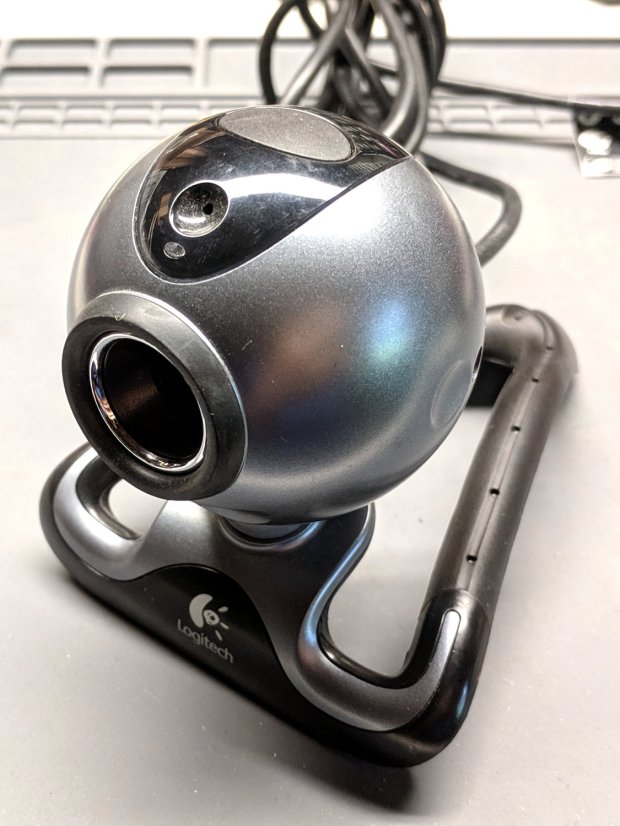
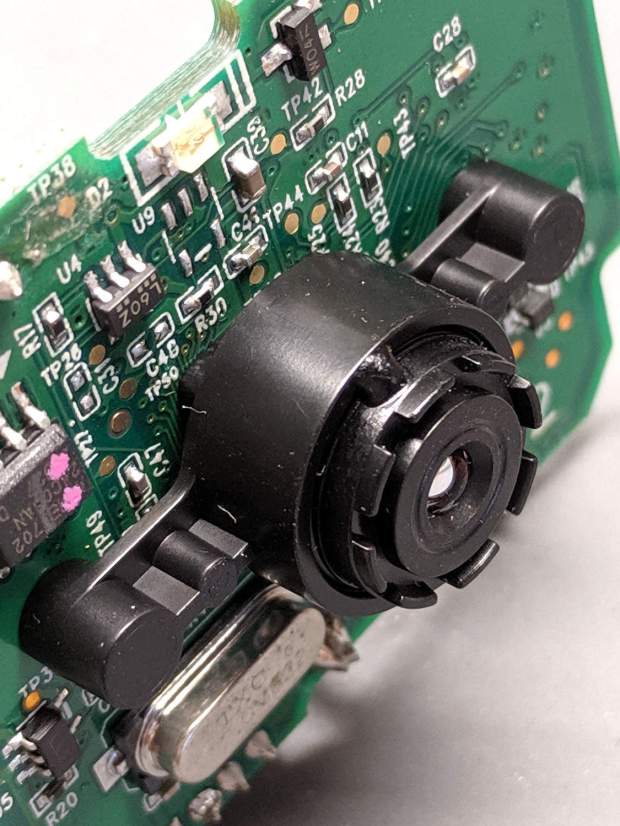
// CNC 3018-Pro Probe Camera mount for anonymous USB camera |
|
// Ed Nisley KE4ZNU – August 2019 |
|
|
|
Layout = "Show"; // [Show, Build, Ball, Clamp, Bracket, Mount] |
|
|
|
//——- |
|
//- Extrusion parameters must match reality! |
|
// Print with 2 shells |
|
|
|
/* [Hidden] */ |
|
|
|
ThreadThick = 0.25; |
|
ThreadWidth = 0.40; |
|
|
|
HoleWindage = 0.2; |
|
|
|
Protrusion = 0.1; // make holes end cleanly |
|
|
|
function IntegerMultiple(Size,Unit) = Unit * ceil(Size / Unit); |
|
|
|
inch = 25.4; |
|
|
|
ID = 0; |
|
OD = 1; |
|
LENGTH = 2; |
|
|
|
//——- |
|
// Dimensions |
|
|
|
//– Camera |
|
|
|
PCBThick = 1.2; |
|
PCBDia = 25.0; |
|
|
|
KeySize = [28.0,8.5,IntegerMultiple(PCBThick,ThreadThick)]; |
|
KeyOffset = [0.0,2.0,0.0]; |
|
|
|
KeyRadius = IntegerMultiple(sqrt(pow(KeySize.y – KeyOffset.y,2) + pow(KeySize.x/2,2)),0.01); |
|
echo(str("Key radius: ",KeyRadius)); |
|
|
|
Lens = [14.0,18.0,25.0]; |
|
|
|
BallID = PCBDia; |
|
BallOD = IntegerMultiple(2*KeyRadius,5.0); |
|
echo(str("Ball OD: ",BallOD)); |
|
|
|
WallThick = 3.0; |
|
|
|
CableOD = 3.75; |
|
|
|
NumPins = 3; |
|
Pin = [1.75,1.8,5.0]; |
|
|
|
Screw = [ |
|
3.0,6.8,25.0 // M3 ID=thread, OD=washer, LENGTH=below head |
|
]; |
|
|
|
RoundRadius = IntegerMultiple(Screw[OD]/2,1.0); // corner rounding |
|
|
|
ClampSize = [BallOD + 2*WallThick,BallOD + 2*WallThick,20.0]; |
|
echo(str("Clamp: ",ClampSize)); |
|
|
|
MountSize = [5.0,BallOD,25.0]; |
|
MountClearance = 1.0; // distance between clamp and mount |
|
|
|
Kerf = 2*ThreadThick; |
|
|
|
ScrewOC = [ClampSize.x – 2*RoundRadius,ClampSize.y – 2*RoundRadius]; |
|
echo(str("Screw OC: ",ScrewOC)); |
|
|
|
Insert = [ // brass insert: body, knurl,length |
|
3.9,4.9,8.0 |
|
]; |
|
UseInsert = false; |
|
|
|
NumSides = 12*4; |
|
|
|
//——- |
|
|
|
module PolyCyl(Dia,Height,ForceSides=0) { // based on nophead's polyholes |
|
Sides = (ForceSides != 0) ? ForceSides : (ceil(Dia) + 2); |
|
FixDia = Dia / cos(180/Sides); |
|
cylinder(r=(FixDia + HoleWindage)/2, |
|
h=Height, |
|
$fn=Sides); |
|
} |
|
|
|
|
|
//——- |
|
// Components |
|
|
|
module CamBall(Section="Both") { |
|
|
|
Offset = (Section == "Both") ? 0 : |
|
(Section == "Upper") ? BallOD/2 : |
|
(Section == "Lower") ? -BallOD/2 : |
|
0; |
|
|
|
render(convexity=4) |
|
intersection(convexity = 3) { |
|
difference() { |
|
sphere(d=BallOD,$fn=NumSides); |
|
|
|
sphere(d=BallID,$fn=NumSides); // interior |
|
|
|
PolyCyl(CableOD,2*BallOD,8); // cable & lens holes |
|
translate([0,0,-Lens[LENGTH]]) |
|
PolyCyl(Lens[OD],Lens[LENGTH],NumSides); |
|
|
|
translate([0,0,-PCBThick]) |
|
PolyCyl(PCBDia,PCBThick,NumSides); |
|
|
|
translate(KeyOffset + [0,-KeySize.y/2,-PCBThick/2]) // PCB key |
|
cube(KeySize,center=true); |
|
|
|
for (i=[0:NumPins – 1]) |
|
rotate(i*360/NumPins) |
|
translate([0,-(BallID + BallOD)/4,-Pin[LENGTH]/2]) |
|
PolyCyl(Pin[OD],Pin[LENGTH],6); |
|
} |
|
translate([0,0,Offset]) |
|
cube([BallOD,BallOD,BallOD] + 2*[Protrusion,Protrusion,0],center=true); |
|
} |
|
} |
|
|
|
module Clamp(Section="Both") { |
|
|
|
Offset = (Section == "Both") ? 0 : |
|
(Section == "Upper") ? ClampSize.z/2 : |
|
(Section == "Lower") ? -ClampSize.z/2 : |
|
0; |
|
|
|
render(convexity=4) |
|
intersection() { |
|
difference() { |
|
hull() |
|
for (i=[-1,1], j=[-1,1]) |
|
translate([i*ScrewOC.x/2,j*ScrewOC.y/2,0]) |
|
cylinder(r=RoundRadius,h=ClampSize.z,$fn=NumSides,center=true); |
|
|
|
sphere(d=BallOD + 2*HoleWindage,$fn=NumSides); // space around camera ball |
|
|
|
for (i=[-1,1], j=[-1,1]) // screws |
|
translate([i*ScrewOC.x/2,j*ScrewOC.y/2,-ClampSize.z]) |
|
PolyCyl(Screw[ID],2*ClampSize.z,6); |
|
|
|
if (UseInsert) |
|
for (i=[-1,1], j=[-1,1]) // inserts |
|
translate([i*ScrewOC.x/2,j*ScrewOC.y/2,-(ClampSize.z/2 + Protrusion)]) |
|
PolyCyl(Insert[OD],Insert[LENGTH] + Protrusion,8); |
|
|
|
cube([2*ClampSize.x,2*ClampSize.y,Kerf],center=true); // clamping gap |
|
|
|
} |
|
translate([0,0,Offset]) |
|
cube([ClampSize.x,ClampSize.y,ClampSize.z] + 2*[Protrusion,Protrusion,0],center=true); |
|
|
|
} |
|
} |
|
|
|
module Bracket() { |
|
|
|
translate([ClampSize.x/2 + MountSize.x/2 + MountClearance,0,MountSize.z/2 – ClampSize.z/2]) |
|
cube(MountSize,center=true); |
|
|
|
translate([ClampSize.x/2 + MountClearance/2,0,-(ClampSize.z + Kerf)/4]) |
|
cube([MountClearance + 2*Protrusion,MountSize.y,(ClampSize.z – Kerf)/2],center=true); |
|
|
|
} |
|
|
|
|
|
module Mount() { |
|
|
|
union() { |
|
Clamp("Lower"); |
|
Bracket(); |
|
} |
|
|
|
} |
|
|
|
|
|
|
|
//——- |
|
// Build it! |
|
|
|
if (Layout == "Ball") |
|
CamBall(); |
|
|
|
if (Layout == "Clamp") |
|
Clamp(); |
|
|
|
if (Layout == "Bracket") |
|
Bracket(); |
|
|
|
if (Layout == "Mount") |
|
Mount(); |
|
|
|
if (Layout == "Show") { |
|
difference() { |
|
union() { |
|
color("Purple") |
|
Clamp("Upper"); |
|
Mount(); |
|
color("LimeGreen") |
|
CamBall(); |
|
} |
|
rotate([0,0,45]) |
|
translate([-ClampSize.x,0,0]) |
|
cube(2*ClampSize,center=true); |
|
} |
|
} |
|
|
|
if (Layout == "Build") { |
|
Gap = 0.6; |
|
translate([-Gap*BallOD,Gap*BallOD,0]) |
|
CamBall("Upper"); |
|
|
|
translate([-Gap*BallOD,-Gap*BallOD,0]) |
|
rotate([0,180,0]) |
|
CamBall("Lower"); |
|
|
|
translate([Gap*ClampSize.x,-Gap*ClampSize.y,ClampSize.z/2]) |
|
rotate([0,180,0]) |
|
Clamp("Upper"); |
|
|
|
translate([Gap*ClampSize.x,Gap*ClampSize.y,ClampSize.z/2]) { |
|
rotate(180) |
|
Mount(); |
|
} |
|
} |