The Smell of Molten Projects in the Morning

Ed Nisley's Blog: Shop notes, electronics, firmware, machinery, 3D printing, laser cuttery, and curiosities. Contents: 100% human thinking, 0% AI slop.

Category: Photography & Images

Taking & making images.

  • Xiaomi Dafang Hacks: Timelapse Images

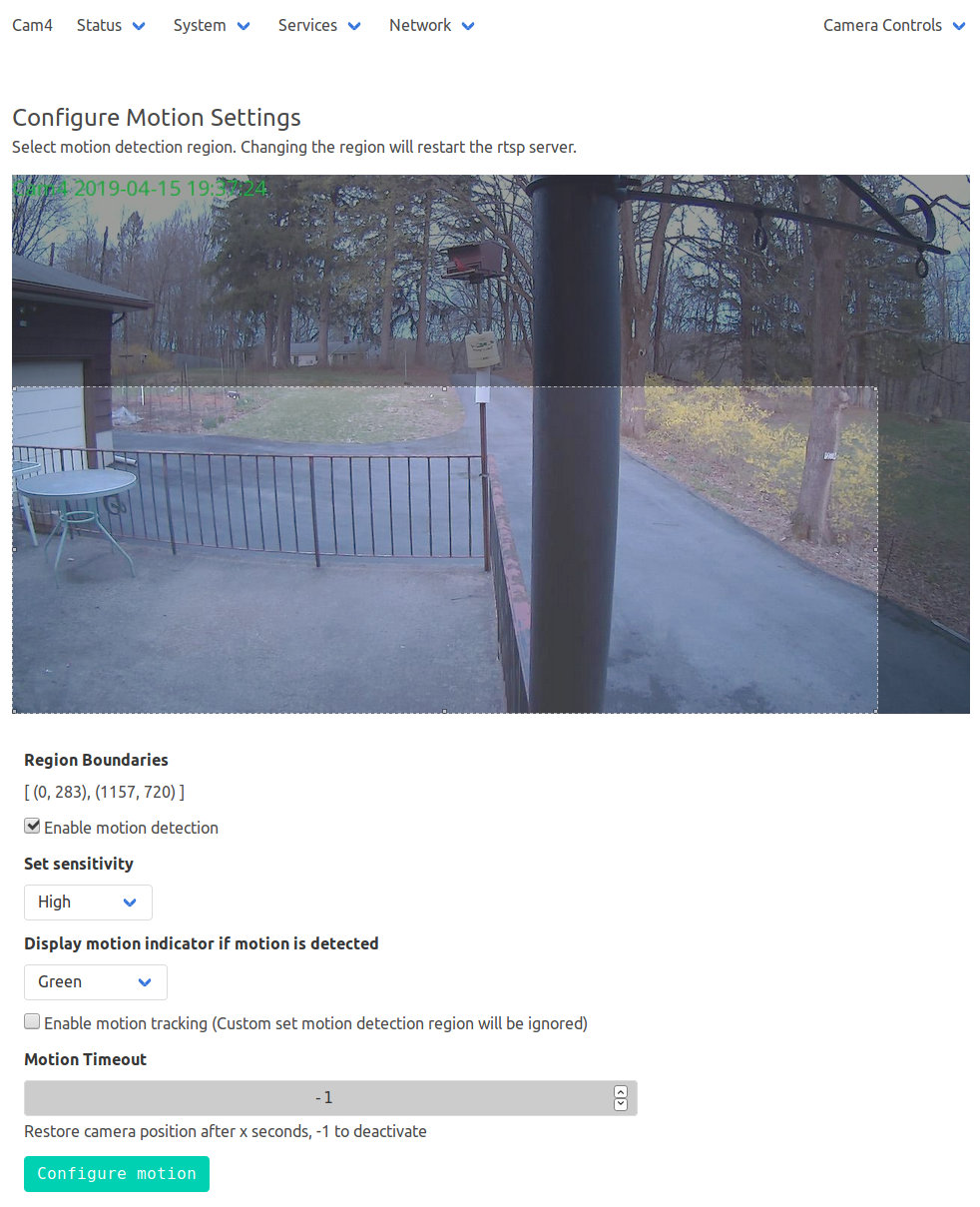
    With the Wyze and Xiamoi Dafang cameras running the Xiaomi-Dafang Hacks firmware and software, I tried the timelapse functions on the yard camera.

    The config/timelapse.conf file:

    # Interval between snaps, in seconds
    TIMELAPSE_INTERVAL=10
    # Duration of the script should run, in minutes, set to 0 for unlimited
    TIMELAPSE_DURATION=60
    # Save dir config
    SAVE_DIR_PER_DAY=1
    # Enable compression
    COMPRESSION_QUALITY=100

    The images, named along the lines of 13-04-2019_191810_001.jpg, appear in the DCIM/timelapse directory, tucked into daily directories with names like 2019-04-13, a mismatch obviously in need of tweaking. There’s also a time_lapse directory which seems like cruft from an earlier revision; you can configure the target directory in scripts/timelapse.sh.

    Start the script manually or from a crontab entry, wait until it’s done, then transfer the images to somewhere more convenient with a Bash one-liner:

    find /system/sdcard/DCIM/timelapse/ -name \*jpg -exec curl -s -n -T {} ftp://192.168.1.10/Timelapse/ \; 

    The -s silences all curl output; omit it until you’re sure the lashup works as you expect. I always forget the backslash before the semicolon terminating the -exec command.

    The -n pulls the userID and password from the ~/.netrc file you previously set up for manual ftp sessions:

    machine 192.168.1.10
    login ftp-user-id
    password secret-password

    The IP address corresponds to my ancient NAS drive; your mileage may vary.

    From my desktop box, mount the NAS drive:

    sudo mount -t cifs -o "credentials=/root/.nas-id,vers=1.0,uid=ed" "//nasty/Timelapse" /mnt/part

    The drive’s credentials aren’t particularly secret, but tucking them into /root/.nas-id means you could automount the drive with no hassle. The NAS drive requires the oldest possible CIFS version, of course.

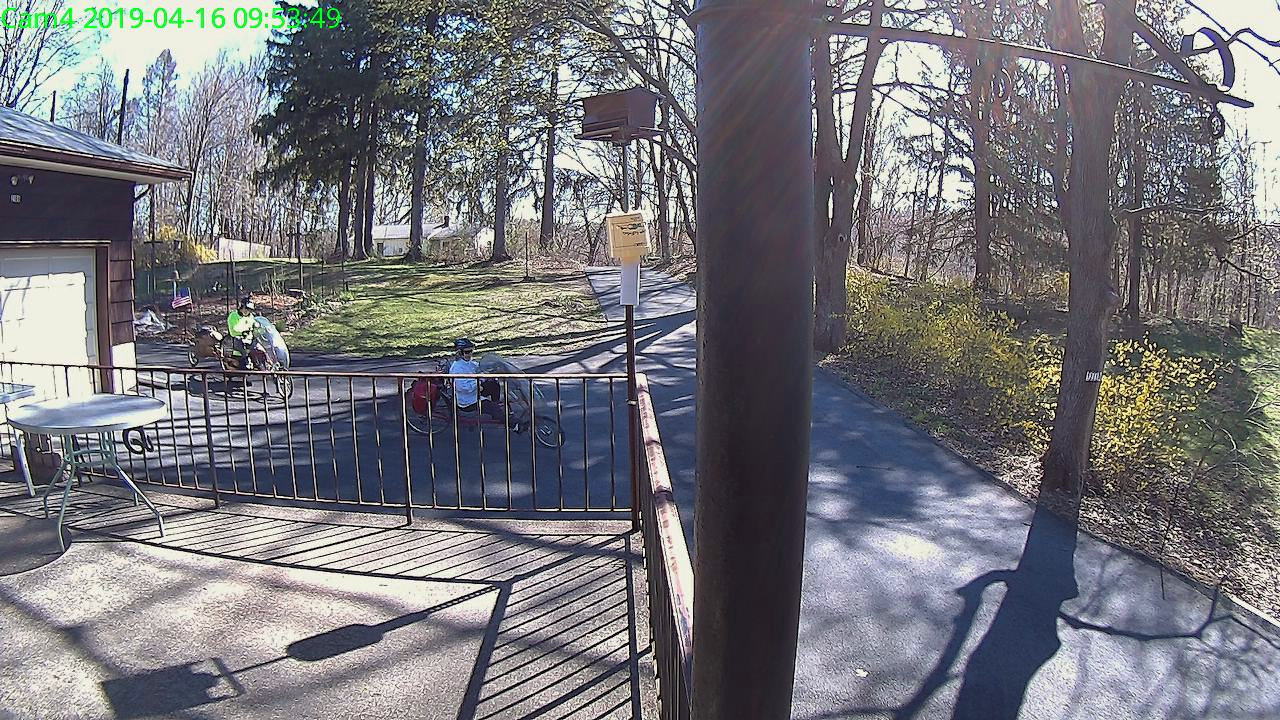
    Then view the pix:

    Xiaomi Dafang - 15-04-2019_13.26.18
    Xiaomi Dafang – 15-04-2019_13.26.18

    You could set up the camera as an NFS share, but having all the cameras deposit their pix in a common location seems more convenient, particularly after I get around to automating the image transfer. Regrettably, the NAS drive doesn’t support subdirectories.

  • Sony NP-FM50 Battery Rebuild

    With six new 18500 lithium cells in hand, I rebuilt the three weakest NP-FM50 packs.

    The Sherline CNC mill setup for sawing around the midline:

    Sony NP-FM50 battery - Sherline saw setup
    Sony NP-FM50 battery – Sherline saw setup

    Adjust the saw to cut along the seam, set X=0 at the surface, jog to about X+0.7 mm, jog the saw along the seam, then repeat for the other three sides. No real CNC involved, but it’s much easier than sawing or breaking through the seam by hand.

    These two packs came with the camera:

    Sony NP-FM50 battery - 2003-era cells
    Sony NP-FM50 battery – 2003-era cells

    The cells have only lot numbers, no manufacturer ID. Wikipedia sayeth Sony Fukushima started in 2000; perhaps these were early production units with no branding.

    The center strap running the length of the pack didn’t seem long enough, because I mistakenly thought I’d straightened its end while unsoldering it. As it happens, the end was straight and secured to the PCB by structural solder:

    Sony NP-FM50 battery - PCB center tab joint
    Sony NP-FM50 battery – PCB center tab joint

    Moral of the story: pay attention, dammit!

    The other end of the center strap required a snippet of tin strip to reach the tabs:

    Sony NP-FM50 battery - rebuilt center strap
    Sony NP-FM50 battery – rebuilt center strap

    Aligning the cells that way allowed me to just bend the other tabs over the PCB pads and solder them in place:

    Sony NP-FM50 battery - rebuilt PCB contacts
    Sony NP-FM50 battery – rebuilt PCB contacts

    Then a strip of Kapton tape across the kerf holds the case together well enough to survive our gentle usage:

    Sony NP-FM50 battery - Kapton belly band
    Sony NP-FM50 battery – Kapton belly band

    The battery packs require a brief stay in the charger to reset the PCB’s lockout circuitry, after which they work fine:

    Sony NP-FM50 - 2019-04-12
    Sony NP-FM50 – 2019-04-12

    The two oldest batteries (OEM 2003 A and OEM 2003 B) have new identities to suit their new innards: 2019 E and 2019 F. The DOA eBay battery retains its 2019 D label after the rebuild, as there’s little room for confusion.

    Admittedly, it’d be easier / cheaper / faster to buy third-party NP-FM50 packs directly from eBay or Amazon, but this way I know the cells aren’t complete crap and I get some Quality Shop Time™ out of the deal.

    What’s not to like?

  • Monthly Image: Terrifying Playground

    The newly built Capital Region Welcome Center on the Thruway has a small playground for small children, featuring appropriately small signage:

    NYS Thruway rest area playground
    NYS Thruway rest area playground

    Here’s the world we live in (clicky for more dots):

    Playground warning sign - detail
    Playground warning sign – detail

    Fortunately, we lack a small child at risk of damage.

    You (well, I) just can’t make this stuff up.

    [Update: I could get behind Adventure Playgrounds!]

  • Anker MicroSD Card Adapter Speeds

    According to its description, the Anker USB 3.0 card reader can handle both a MicroSD and a standard SD card at once:

    Simultaneously read and write on two cards to save yourself the effort of constant unplugging and re-plugging.

    Which looks like this:

    Anker USB Reader - dual card
    Anker USB Reader – dual card

    After you get used to inserting the SD card downside-up, it fits perfectly. The Kapton tape on the MicroSD card eases extraction from the still finger-dent-less M20 camera mount on the back of my Tour Easy ‘bent.

    Plugged into a USB 3.0 port, my file extractor script chugs along at 25.9 MB/s, taking about 18 minutes to transfer 28 GB of video data.

    Splurging another eleven bucks for a second reader produces this setup:

    Anker USB Reader - single card
    Anker USB Reader – single card

    After plugging both readers into adjacent USB 3.0 ports, the script transfers files at 46.6 MB/s and copies 28 GB in 10 minutes.

    So, yes, the reader can handle two cards at once, but at half the speed.

    Not life-changing, but it shows why I like measurements so much …

  • Wyze V2 Camera: Tear-In

    One of my Wyze V2 cameras either arrived with dead IR hardware or failed early on in its tenure here, but it simply didn’t work in night-vision mode: the IR LEDs didn’t turn on and the IR-cut filter didn’t move. Neither the Official Wyze App nor the Xiaomi-Dafang Hacks firmware had any effect, so I expected a (possibly simple) hardware problem.

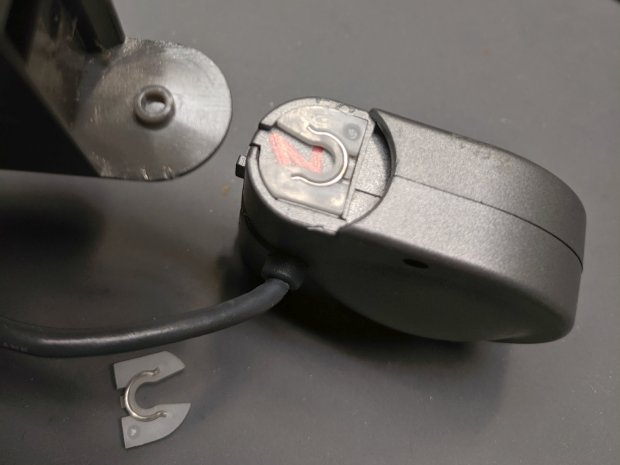
    The first hint of trouble was finding the case had only one of the two screws securing its bottom lid, with the missing screw having never been installed. Removing the single screw and prying a bit popped the lid, revealing the innards:

    Wyze V2 - interior bottom view
    Wyze V2 – interior bottom view

    The rear panel (on the right) comes off after abusing the snaps holding it to the main case:

    Wyze V2 - rear panel snaps
    Wyze V2 – rear panel snaps

    That’s best done with a small, designated Prydriver, rather than a screwdriver to which you have a deep emotional attachment.

    The corresponding part of the main body shows less abuse:

    Wyze V2 - case snaps - WiFi antenna
    Wyze V2 – case snaps – WiFi antenna

    The black patch is the WiFi antenna, which you must unplug from the top board before going much further.

    The small blue wedge below the antenna gave me hope I’d found the root of the IR problem:

    Wyze V2 - mis-closed ribbon cable
    Wyze V2 – mis-closed ribbon cable

    Everybody has trouble with those delicate ribbon cable socket clamps!

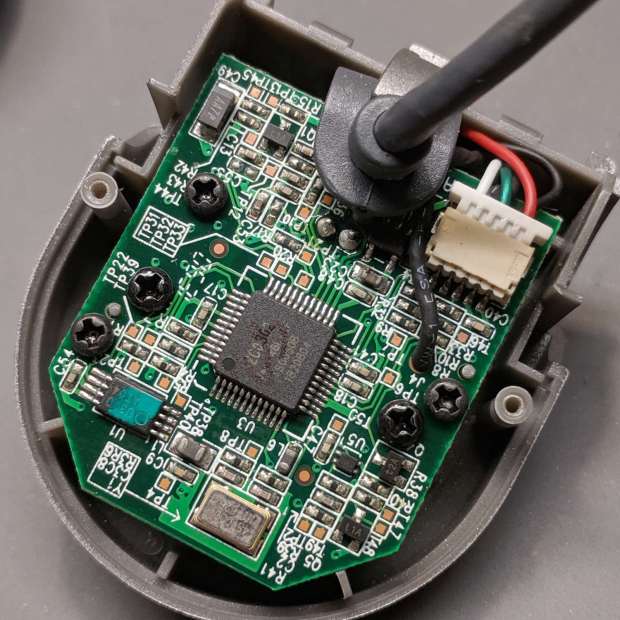
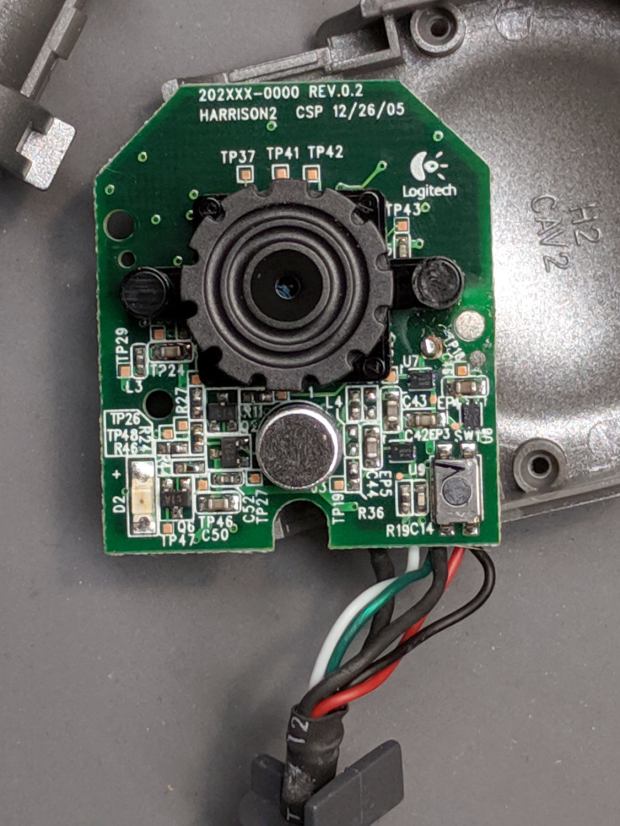
    While I had the case open, I extracted everything and looked it over:

    Wyze V2 - front PCB - LED pin soldering
    Wyze V2 – front PCB – LED pin soldering

    The IR LED soldering left a bit to be desired, so I touched up those joints and washed off most of the flux.

    Alas, the IR hardware still didn’t work with everything stuffed back in the case. There are worse things than having a small daylight-only IP camera, though.

    So it goes …

  • Wyze V2 Cameras: Xiaomi-Dafang Hacks, Round 2

    Another attempt at replacing the Wyze camera firmware went much more smoothly, producing a pair of small cameras with better network manners:

    Wyze Camera hacks - Cam 1 overhead workbench
    Wyze Camera hacks – Cam 1 overhead workbench

    That’s a VLC screen capture from the RTSP stream; obviously, I must up my clutter control game.

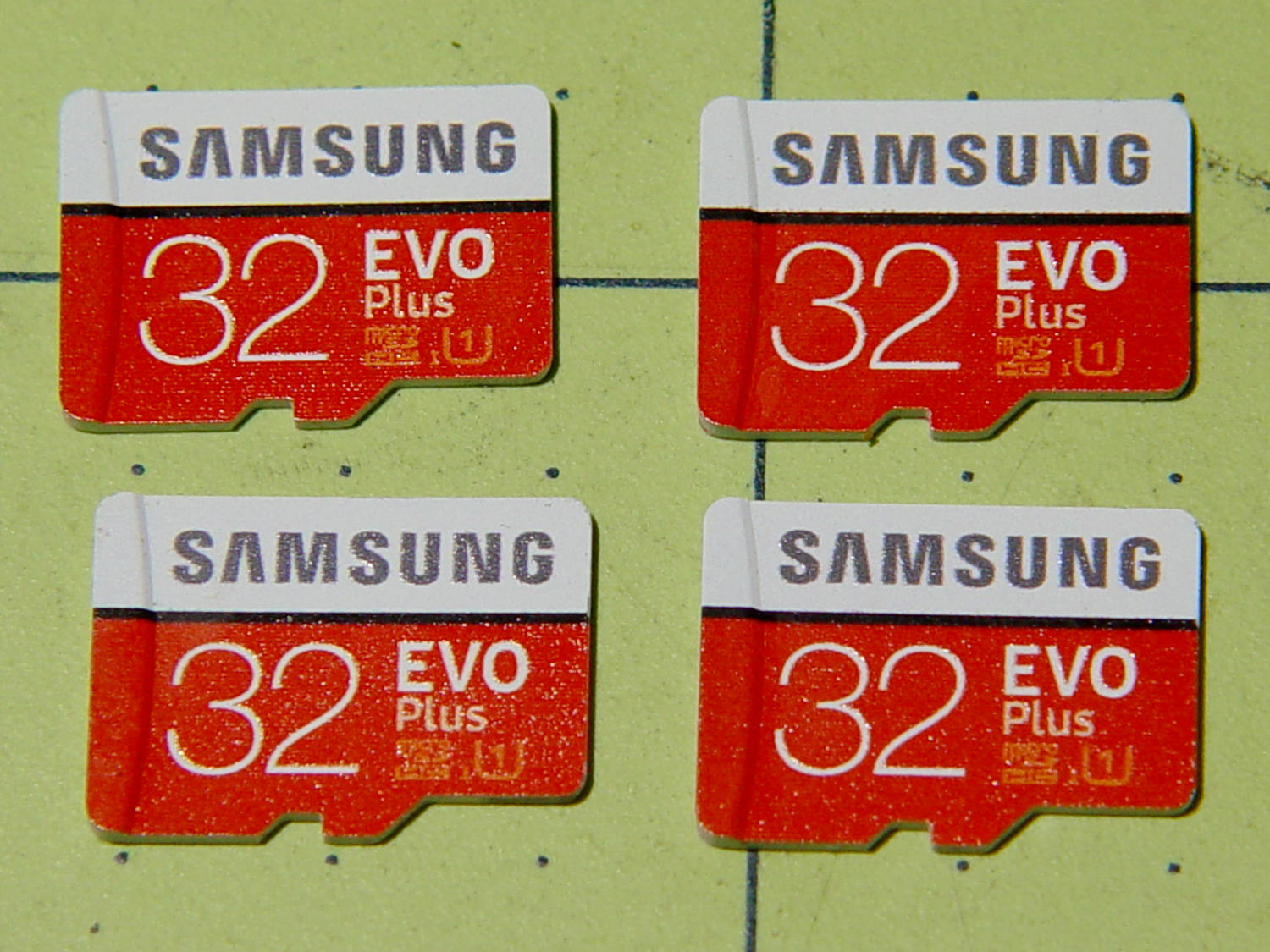
    I formatted a 32 GB MicroSD card with a 512 MB partition, which may not be strictly necessary, copied the MicroSD CFW bootloader (as demo.bin, sheesh), and it installed without drama.

    I resized the partition to 32 GB, installed the firmware (per the FAQ) into the root directory, tweaked the configuration files to match my situation, popped it in the camera, plugged the power cable, and It Just Worked™.

    Herewith, a checklist of config directory files requiring tweakage:

    • wpa_supplicant – WiFi SSID and password
    • timezone.conf – America/New_York for us
    • osd.conf – can be tweaked through the Web interface
    • staticip.conf – 192.168.1.11x, as you like
    • resolve.confpihole or router IP, as needed
    • defaultgw.conf – router IP
    • rtspserver.conf – different ports for additional cameras

    It would be possible to have the pihole’s DHCP server assign a fixed IP address to each camera, based on its MAC address, but this way the camera knows who it is right from the start and what it’s supposed to be doing.

    The router isn’t bright enough to route different port numbers on its Internet side to different LAN IP addresses with the same port address, so each camera must stream from a different port number. I don’t plan many world-available video streams, but a friend does enjoy watching the birds during feeder season.

    With the RTSP stream up & running, I flashed the U-Boot bootloader (again, minus drama) and tweaked its uEnv.txt configuration file:

    • Change the memory layout to allow 1920×1080 video
    • ethaddr – set to match hardware MAC address
    • gateway – router IP
    • ipaddr – match the staticip.conf value
    • serverip – router IP (unclear what this does)

    The cameras now produce no objectionable network activity, dramatically down from the Wyze firmware’s desperate attempts to contact various servers, every five minutes, around the clock. I have no way of tracking connections made with direct dotted-quad IP addresses, rather than through the pihole, but … this is a distinct improvement.

  • Sony NP-FM50 Battery Disassembly

    Having won an eBay action for a known-dead Sony DSC-F717 at $0.99 (plus $15 shipping, the seller being no fool), I now have a possibly salvageable camera, a Genuine Sony AC supply, and two more NP-FM50 batteries for about the price of any one of the components.

    One battery arrived stone-cold dead, suggesting the camera had been put away with the battery installed for a very long time and they died companionably. The camera still charges a (good) battery, even though it doesn’t turn on, and perusing the schematics suggests checking the power switch, because it’s always the switch contacts. That’s for another day, though.

    For the record, the battery status:

    NP-FM50 - 2019-03-30
    NP-FM50 – 2019-03-30

    The red and green traces come from the two batteries I’ve been cycling through the camera since, um, 2003, so they’re getting on in years and correspondingly low in capacity.

    The fourth battery (2019 D, the date showing when it arrived, not its manufacturing date) went from “fully charged” to “dead” in about three seconds with a 500 mA load, producing the nearly invisible purple trace dropping straight down along the Y axis.

    Sawing the dead battery case around its welded joint at a depth of 0.75 mm, then prying with a small chisel, exposed the contents without histrionics:

    Sony NP-FM50 battery - cell label
    Sony NP-FM50 battery – cell label

    Now, there’s a name to conjure with. Turns out Sony sold off its Fukushima battery business a while back, so these must be collectibles. Who knew?

    The lower cell is lifeless, the upper cell may still have some capacity. Three pairs of 18500 lithium cells are on their way, in the expectation of rebuilding the weakest packs.

    After desoldering the battery tab on the right from the PCB, it occurred to me I needed pictures:

    Sony NP-FM50 battery - PCB exposed
    Sony NP-FM50 battery – PCB exposed

    Yeah, that’s a nasty melted spot on the case, due to inept solder-wickage.

    Unsoldering the three tabs closest to the case releases the cells + PCB from confinement:

    Sony NP-FM50 battery - PCB overview
    Sony NP-FM50 battery – PCB overview

    I’m still bemused by battery packs with a microcontroller, even though all lithium packs require serious charge controllers. At least this is an Atmel 8-bitter, rather than 32-bit ARM hotness with, yo, WiFi.

    The cells have shaped tabs which will require some gimmicking to reproduce:

    Sony NP-FM50 battery - cell tabs
    Sony NP-FM50 battery – cell tabs

    Now, if only I could reboot the camera …