Ed Nisley's Blog: Shop notes, electronics, firmware, machinery, 3D printing, laser cuttery, and curiosities. Contents: 100% human thinking, 0% AI slop.
While I’m thinking about instrument screen shots, this is the script for my Hewlett-Packard 8591E Spectrum Analyzer.
You’ll need C-Kermit, ImageMagick, and hp2xx for this one, too.
The cable must cross-connect RTS/CTS for hardware flow control.
Set the spectrum analyzer to
print-to-plotter
19200 b/s (limited by USB-to-RS-232 converter)
One plot per page
Turning menus off doesn’t seem to have any effect on screen captures from the serial port, so the script crops off that part of the image.
Copy-n-paste the following text into a file (gethp8591), make it executable (chmod u+x gethp8591), and run it with a file name (./gethp8591 test).
Unlike the (well, my) 54602 ‘scope, the 8591 responds to serial commands just like the Fine Manual says. So before you run this script, make sure the screen shows what you want.
#!/usr/bin/kermit +
# Fetches screen shot from HP8591E spectrum analyzer
# Presumes it's set up for plotter output...
# Converts HPGL to PNG image

set modem none
set line /dev/ttyUSB0
set speed 19200
set flow rts/cts
set carrier-watch off

# Make sure we have a param
if not defined \%1 ask \%1 {File name? }

set input echo off
set input buffer-length 200000

# Tell it what size to plot
echo Triggering plot output...
output plot 0,0,60000,40000;

log session "\%1.hgl"

# Wait for end of data stream
input 400 SP;

echo ... HPGL data captured

close session
close

echo Converting HPGL in
echo --\%1.hgl
echo to PNG in
echo --\%1.png

run hp2xx -m png -c 143 "\%1.hgl"

echo Cropping and resizing
run mogrify -crop "515x395+0+0!" "\%1.png"
run mogrify -density 300 -resize 200% "\%1.png"

echo Finished!

exit 0
Here’s a picture of the FM broadcast band, as seen from the Basement Laboratory. The marker looks a bit off from 104.7 MHz, but that’s a combination of broad span and skinny peaks.
Back in the early 90s I bought a Hewlett Packard 54602B digital oscilloscope: 150 MHz bandwidth, 4 channels. By and large, a fine piece of gear that’s been worth every penny.
Over the objections of the HP sales force, I got the HP 54651A RS-232 interface rather than the HP 54650A HPIB (aka GPIB, aka IEEE-488) interface. Reasoning: I’d need a matching interface on the PC side and PC architecture is anything but stable. Turns out that was a good decision, as you’ll realize if you count up the number of different buses since those days and factor in the cost of an IEEE-488 interface for each iteration. RS-232 is slow and not well-suited for complex arrays of test gear, but mostly I needed the scope for screen shots to go with my Circuit Cellar columns.
Here’s how that works…
Configure the scope by poking the RS-232 softkey in Print/Utility:
Connect to: HP Plot
Factors: On (this is absolutely vital)
Resolution: High
Baud Rate: 19200 (yes, “baud rate” is an oxymoron)
Handshake: DTR
Now the scope will dump HPGL to what it thinks is a plotter, so the trick is to make the PC look like a plotter. Turns out that’s not particularly difficult.
Despite the name, DTR handshaking does not use the scope’s DTR pin. The relevant manual section looks like this (click the thumbnail for full-size image):
HP54602B Oscilloscope Serial Port Pin Functions
So DTR remains high and the flow-control signaling actually uses the RTS/CTS pins. The cable I’ve been is basically a null modem connection with the appropriate gender on each end:
PC RS-232
HP 54602B Oscilloscope
9-pin F
Signal
25-pin M
Signal
1
DCD
20
DTR
2
RxD
2
TxD
3
TxD
3
RxD
4
DTR
6
DSR
also->
8
DCD
5
Gnd
7
GND
6
DSR
20
DTR
7
RTS
5
CTS
8
CTS
4
RTS
9
RI
n/c
Note:
PC 1 and 6 <- scope 20
PC 4 -> scope 6 and 8
I wired the cable like that mostly because I have a lifetime supply of nice 9-conductor shielded cable lying around. You could connect the scope’s DTR to its own DSR and DCD pins, apply similar trickery on the PC end, and everybody would be perfectly happy with 5-conductor cable, maybe even 4-conductor if you ran the ground through the shield.
Using XON/XOFF flow control seems to not work well, although I admit to not trying too hard to figure it out.
These days, I use a USB-to-RS-232 converter with the now-standard 9-pin connector. The port identifier may be nearly anything after udev/hotplug has its way with the hardware, but it usually works out to /dev/ttyUSB0.
The script requires C-Kermit (likely the ckermit package), ImageMagick, sed, and hp2xx (yes, spelled exactly like that), all of which should be packages in your favorite Linux distro. Haven’t a clue how this might work with Windows.
With all that in hand, copy-n-paste the following text into a file (I used gethp54602, for lack of anything more original), make it executable (chmod u+x gethp54602) and run it with a file name (./gethp54602 test). Poke the Print Screen softkey on the scope and settle back for a bit. The scope can’t keep up a steady flow of data at 19200 b/s, so the whole affair takes a minute or three for the 50-ish kB of text in a dual-trace image.
You’ll end up with three files:
test.hgl — raw HPGL text from the ‘scope
test.eps — raster conversion from HPGL
test.png — bitmapped screen-capture image
The magic script…
#!/usr/bin/kermit +
# Fetches screen shot from HP54602B oscilloscope
# Presumes it's set up for plotter output...
# Converts HPGL to PNG image

set modem none
set line /dev/ttyUSB0
set speed 19200
set flow rts/cts
set carrier-watch off

# Make sure we have a param
if not defined \%1 ask \%1 {File name? }

set input echo off
set input buffer-length 200000

# Wait for PRINT button to send the plot
echo Set HP54602B for HP Plotter, FACTORS OFF, 19200, DTR
echo Press PRINT SCREEN button on HP54602B...

log session "\%1.hgl"

# Wait for final character
input 480 \x03

close session
close

echo Converting HPGL in
echo --\%1.hgl
echo to PNG in
echo --\%1.png

# Without factors
#run hp2xx -m png -a 1.762 -h 91 -c 14 "\%1.hgl"
#run mogrify -density 300 -resize 200% "\%1.png"

# With factors
run sed '/lb/!d' "\%1.hgl" > "\%1-1.hgl"
run hp2xx -q -m eps -r 270 -a 0.447 -d 300 -w 130 -c 14 -p 34 -f "\%1.eps" "\%1-1.hgl"
run rm "\%1-1.hgl"
run convert -density 300 -resize 675x452+2+2 "\%1.eps" "\%1.png"

echo Finished!
exit 0
[Update: WordPress unpredictably and ruthlessly mangles source code by incorrectly escaping some symbols. The line with sed should have a greater-than symbol to pipe the result into the .hgl file. A more recent version (albeit using my SENA PS410 serial server) hosted as a GitHub gist may help.]
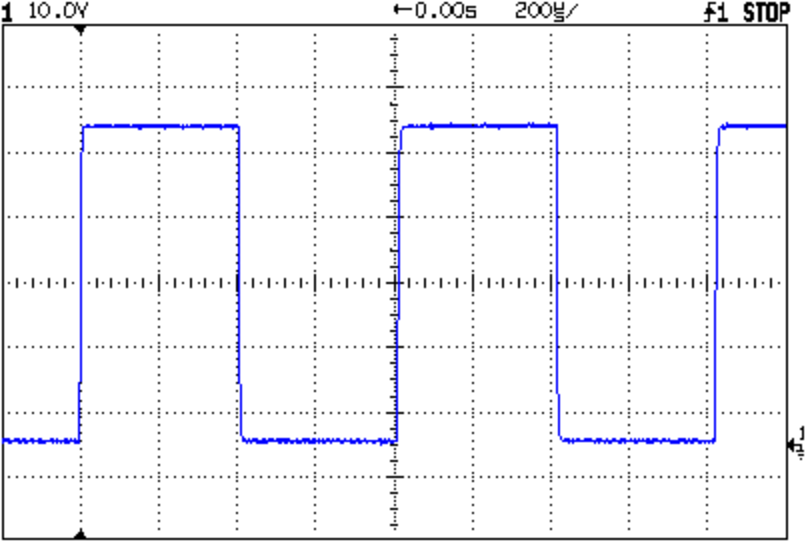
Here’s a sample of what pops out; it’s the scope’s own calibrator waveform, nothing exciting, but you get the general idea.
Screen Capture of Calibrator Signal
The commented-out section labeled “Without Factors” converts the format you get with Factors Off. Turns out that there’s no unique ending string without factors, which puts a real crimp in getting the data. The advantage is that the HPGL converts directly to PNG and looks good. The only way I’ve found to capture the scope data is to just time out after a while.
With Factors On, however, the image data has a unique ending character (ASCII ETX, 0x03) after the label text, but the layout is rotated to plot in landscape mode. A direct conversion to PNG looks awful, perhaps because hp2xx must do software character generation, and I eventually figured out that making a bank shot off EPS vector format produced much better results.
However, hp2xx dutifully renders the text into the EPS image, but it doesn’t inject a carriage return after each linefeed: the text dribbles off to the far right of the actual screen image. To fix that, the sed editor hacks off the label text following the lb command. Mercifully, hp2xx doesn’t choke on the incomplete command.
And then convert does its usual magic. The image size is just right to drop into my Circuit Cellar columns; you may want something different for your purposes.
[Update: The PNG has an alpha channel that selects only the traces, so the background color depends on where you put it. A small tweak is there.]
For reasons that I absolutely do not understand, I cannot control the oscilloscope through the serial interface. The scope sends data to the PC just fine and I can get the scope to complain about the character format if I send truly bogus junk (like, mismatching the baud settings), but it simply will not respond to commands. Maybe the interface is broken or, more likely, I’m screwing something up. Hasn’t been a problem, though, for my simple needs.
Memo to Self: One of these days, eBay will have a 54652B serial/parallel interface that might work better.
For obscure reasons, I have a pair of headsets attached to the PC: one USB that’s used for phone calls and one plugged into a sound card for everything else.
They’ve been cluttering up the corner of the desk for far too long, so I bent up a rack from a surplus coat hanger. Nothing critical, as long as it’s tall enough to hold the mics off the desk and wide enough they don’t clunk together.
The trick is to just drill a hole in the top of the desk and poke the end of the rod into it. That works because my desk has a notch along the edge just exactly the right width to hide the hole!
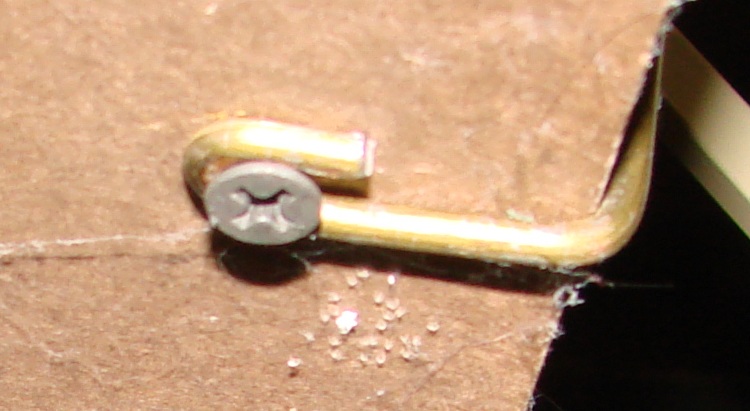
Hanger Mounted Under Desk
Maybe you don’t want to do this to the top of your desk, in which case maybe you can bend the hanger around the edge and put a screw in the bottom or the desktop. If you don’t look under there very often, the spiders will take over; this one is from the basement desk that I haven’t used for far too long.
Details of the hanger, not that you can’t figure it out on your own:
While trying to persuade a Windows program to run under Wine, I stumbled across this useful script: winetricks.
Basically, it downloads & installs the myriad runtime libraries / DLLs / programs that Windows programs generally assume are installed. Those are the things you don’t know are missing and generally can’t figure out how to install on your own.
It didn’t actually help get the program in question running. As nearly as I can tell, if at first you can’t get a program installed & running under Wine, just give up…
The oddly named Kensington “Expert Mouse” (it’s a trackball) sits to the left of my keyboard, where it serves as my main pointer controller; I’m right-handed, but have used a left-hand mouse / trackball for years.
Also, search for Kensington scroll to find other posts. There may be no good fix for scroll ring problems.]
Recently the scroll ring has become balky, stuttering upward & downward rather than actually scrolling. It’s an optical device, so I suspected it had ingested a wad of fuzz that blocked the beam path.
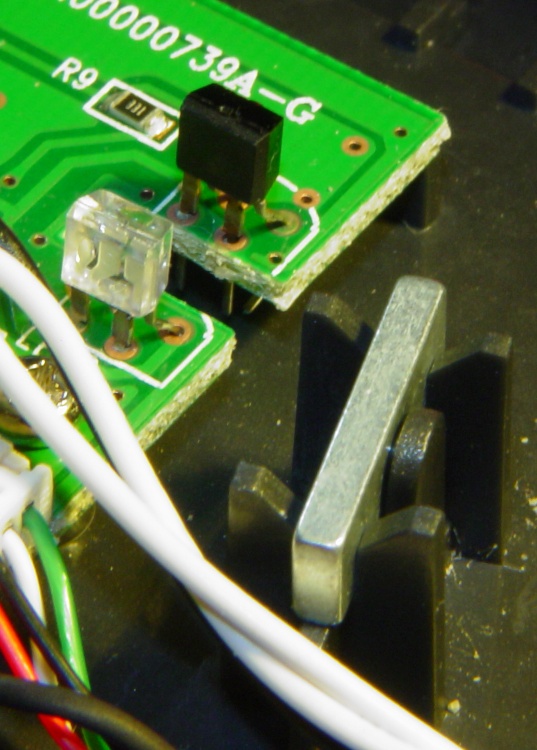
The top photo shows the infra-red emitter adjacent to the scroll ring’s slotted rim. The silver bar to the right of the emitter is the magnet that provides those soft detents. There’s no obvious fuzz.
Disassembly is straightforward.
Tip the ball out into your hand and put it where it can’t possibly roll off the desk.
Peel the four rubber feet off the bottom, remove four screws, and the top half of the body pops off.
Remove three screws from each of the two button cap assemblies and pry the button caps off the case bottom.
Remove two screws from the ball socket, pull it off, and clean any fuzz from the openings.
Surprisingly, I didn’t find much crud at all.
Scroll Ring Emitter and Detector
This photo shows the IR emitter and detector, peering at each other across the electrical isolation gap in the circuit board. Nothing obviously wrong here, either…
They both seem to be dual elements, which makes sense for a quadrature position encoder. Unfortunately, replacing them seems to be really difficult; they don’t look like stock items.
So I put it back together, plugged the USB cable in, restarted the X server (this being Xubuntu 8.10), and it pretty much works again.
Kensington replaced a previous Expert Mouse under warranty when one of the three minuscule red bearing balls that support the trackball went walkaround, but that gadget had been getting erratic, too.
I’m not sure what’s going on, but I have a bad feeling about this.
Scenario: You install the latest Firefox update, restart as requested, and then get stuck in a loop where the popup window at the top of the browser keeps telling you to restart.
That bug (270303 “your browser has been updated and needs to be restarted”) and its ilk have been repeatedly fixed, on every version since about 3.0.2, and (it seems) to no avail.
What worked for me after updating to Firefox 3.0.11 was to close the browser and then:





 The Smell of Molten Projects in the Morning