The Smell of Molten Projects in the Morning

Ed Nisley's Blog: Shop notes, electronics, firmware, machinery, 3D printing, laser cuttery, and curiosities. Contents: 100% human thinking, 0% AI slop.

Category: PC Tweakage

Remembering which tweaks worked

  • Force-fitting a PCI-E Video Card in an Optiplex 780 SFF

    I bought an off-lease Optiplex 780 in the Small Form Factor (SFF) version to replace my ancient Pentium D; it’s also available in Small Desktop Tower (SDT) and Ultra-SFF variations. The SFF box has two PCI slots and one PCI-E slot, which let me install a half-height dual-output video card, with results described yesterday. I innocently believed the PCI-E slot would have enough clearance for the video card, what with these things being standardized and all.

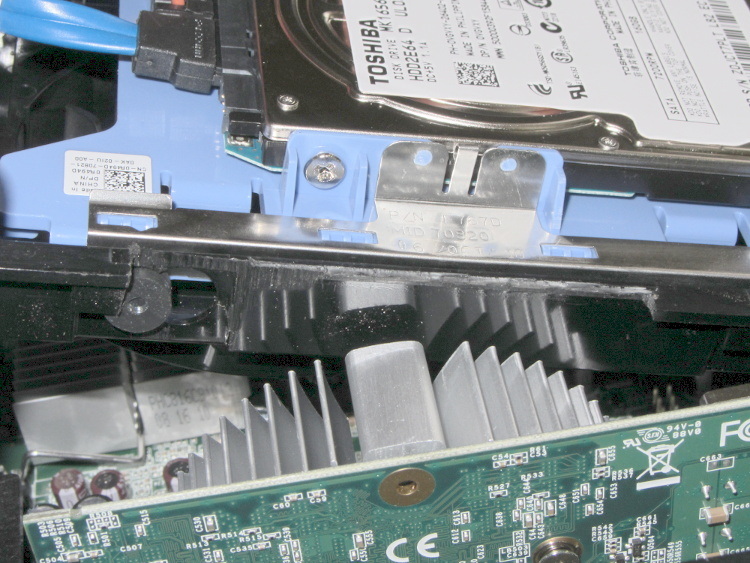
    Turns out that the heatsink collided with a flange on the hard drive carrier, with about 5 mm of overlap. Fortunately, the bracket is plastic and I have no qualms about chopping up the hardware. A few minutes of Quality Shop Time removed a section of the offending flange and gave the video card just enough clearance:

    Optiplex 780 SFF drive bracket
    Optiplex 780 SFF drive bracket

    The heatsink reflects in the shiny surface of the carrier, with the scar from the missing flange just above that. The small dark-gray disk on the far left is a grommet holding a pin that supports the drive; it installs through the larger circular opening and snaps leftward.

    You must install the video card and then snap the drive carrier into place. The heatsink protrudes above the flange, with the left side just barely clearing that grommet.

  • Xubuntu 12.10 vs. Dual Monitors: Regression

    It used to be that using two monitors with two separate X sessions in Linux actually worked. Then they improved things so it stopped working out of the box, but you could force it to work with a bit of effort. Further improvements made the workarounds more difficult. Now, with Xubuntu 12.10, it seems impossible.

    This. Is. Not. Progress.

    Experimenting will require considerable restarting of the X server, which nowadays requires, by default, rebooting the box. In the Bad Old Days, you could hit Ctrl-Alt-Backspace to restart the X server (and, en passant, blow away all unsaved data in your session). My suggestions about re-enabling it no longer work and, worse, the suggestions there about:

    • Pressing Right-Alt + Sysreq + K
    • Enabling DontZap

    do not work, either. I’m no longer surprised by any of this.

    Fortunately, as suggested at the same spot, this works:

    • Create if missing: ~/.xprofile
    • Add: setxkbmap -option terminate:ctrl_alt_bksp
    • Make it executable: chmod u+x .xprofile

    But it’s per-user, so it works only while you’re logged in, which means you can’t restart X from the login screen. This is marginally OK.

    So. We begin.

    This box (an off-lease Dell Optiplex 780, Core 2 Duo E8400 3.0 GHz) now has a Jaton GeForce GT430 nVidia video card with two DVI outputs.

    In order to get decent performance, you must use the nVidia proprietary driver. Installing the nvidia-current package pulls in, as of this writing, 304. The nVidia driver now ignores the rotate option and the randrrotation option in xorg.conf. Adding the {Rotation=Left} meta-option to the portrait monitor or enabling Xinerama kills xrandr.

    Not having xrandr used to not be fatal, but now OpenSCAD (among others) requires xrandr to be both present and active. Any solution that doesn’t allow xrandr isn’t feasible.

    Despite notes suggesting that nVidia’s TwinView kills xrandr, it doesn’t (perversely, Xinerama should allow it and doesn’t; perhaps I misunderstand what’s going on). Add another line to .xprofile:
    xrandr --output DVI-I-3 --rotate left
    You discover which output to use by parsing the output of xrandr without any parameters:

    $ xrandr
    Screen 0: minimum 8 x 8, current 2650 x 1680, maximum 16384 x 16384
    DVI-I-0 disconnected (normal left inverted right x axis y axis)
    DVI-I-1 disconnected (normal left inverted right x axis y axis)
    DVI-I-2 connected 1600x1200+0+0 (normal left inverted right x axis y axis) 367mm x 275mm
       1600x1200      60.0*+
       1280x1024      75.0     60.0
       1152x864       75.0
       1024x768       75.0     60.0
       800x600        75.0     60.3
       640x480        75.0     59.9
    DVI-I-3 connected 1050x1680+1600+0 left (normal left inverted right x axis y axis) 434mm x 270mm
       1680x1050      59.9*+
       1280x1024      75.0     60.0
       1152x864       75.0
       1024x768       75.0     60.0
       800x600        75.0     60.3
       640x480        75.0     59.9
    HDMI-0 disconnected (normal left inverted right x axis y axis)
    

    Why DVI-I-0 and DVI-I-1 are disconnected is not explained. There is an HDMI jack that I’m not using, so that one does make sense. The output shows the portrait monitor on DVI-I-3 as rotated.

    This is a single X session, so the two monitors show sections of a larger workspace. The cursor moves freely across the junction, it doesn’t vanish below the landscape montitor, and windows maximize properly to fill the single monitor they start in.

    This is not what I want, because I cannot independently flip the workspaces on the two monitors. It’s possible to force one of the windows on the portrait monitor to “always on top”, but that means I have only one program accessible on that monitor, which isn’t usually the case.

    This. Is. Not. Progress.

    But it seems to be as good as it gets these days…

  • XFCE Window Manager Recovery

    The XFCE window manager, at least in its Xubuntu incarnation, seems surprisingly fragile. Every now and again, it won’t start up: all the auto-starting application windows pile atop each other on a single workspace, with no title bar or window decorations, with no way to move them around or change focus. In some cases, the mouse will be active and the keyboard will be dead. This is Not Good.

    Rebooting that sucker isn’t productive, as the failure seems to occur most often after a normal system update that, inexplicably, clobbers the window manager’s state information. After that, the window manager will wake up dead every time.

    The usual recovery technique involves activating a terminal window and entering xfwm4 --replace to forcibly restart the XFCE window manager, clear the state, and ensure it’s the default. That is remarkably difficult with a nonfunctional keyboard and can’t be accomplished remotely without access to the jammed user’s X session.

    What has worked is to SSH in from another PC and delete the XFCE caches for the affected user:

    cd ~/.cache
    rm -rf xfce4
    rm -rf sessions
    

    You can blow away the entire .cache subdirectory if you prefer.

    That this should not be necessary goes without saying. Remember that XFCE is currently the least-awful Linux Desktop Environment; all the rest have even greater complexity and much larger problems.

  • Sanitizing A PC: Another Item For The Checklist

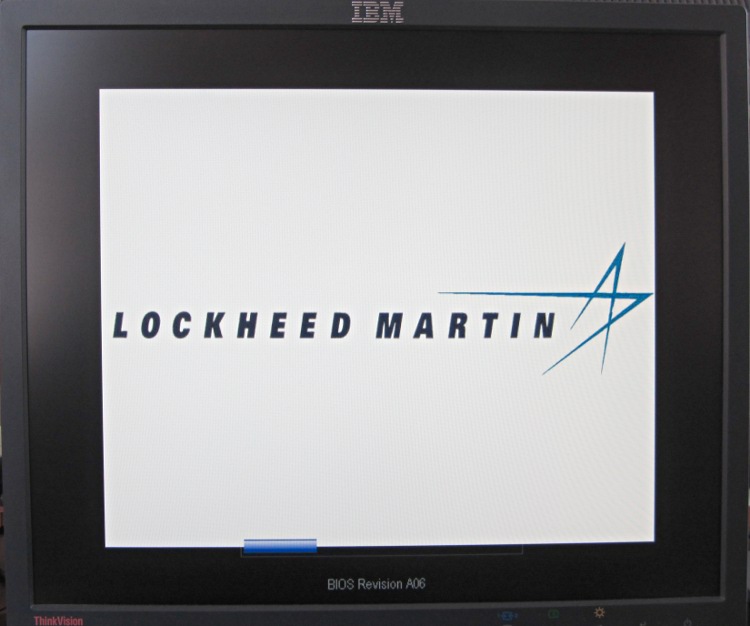
    Just got another off-lease Dell, fired it up for the first time, and the BIOS presented this splash screen:

    Optiplex 780 BIOS A06 Splash
    Optiplex 780 BIOS A06 Splash

    Updating the BIOS from A06 to A13 restored the default Dell logo, but I really miss having a Genuine Lockheed Martin PC.

    The Windows 7 Professional installed on the disk started up in “first time” mode, so they did scrub the drive. It does have RAID enabled, though, which may confuse the Linux installation I have yet to do.

    I wish I could put my logo on the BIOS splash screen…

  • Better GIMPS Startup

    No, not GIMP, but GIMPS: the Great Internet Mersenne Prime Search.

    I’d been starting mprime from rc.local, but this time I used crontab, as suggested in that thread, to reduce the program’s privileges.

    Start the crontab editor:

    crontab -e

    Then add this line:

    @reboot ( /opt/Primenet/mprime & )

    It starts every time the box boots and run until you hit shutdown, which is exactly the way things should work.

    Power dissipation looks like this:

    • Idle: 40 W
    • mprime running: 88 W

    They estimate an additional 40 W, which comes out slightly low for this box. Their system info dump looks like this:

    CPU Information:
    Intel(R) Core(TM)2 Duo CPU     E8400  @ 3.00GHz
    CPU speed: 2992.40 MHz, 2 cores
    CPU features: Prefetch, SSE, SSE2, SSE4
    L1 cache size: 32 KB
    L2 cache size: 6 MB
    
  • SANE: Network Access to a USB Scanner in Xubuntu 12.04

    The missing link turns out to be assigning a device node with the proper owner, group, and permissions to let saned share the scanner over the network. IIRC, this worked right out of the box in previous versions of Xubuntu, but now requires manual tweakage.

    That post gives the steps for my old SCSI scanner. It turns out that the udev rule is not optional for USB scanners… at least not in 12.04, anyway.

    In order to build the udev rule, you start with lsusb:

    Bus 001 Device 001: ID 1d6b:0002 Linux Foundation 2.0 root hub
    Bus 002 Device 001: ID 1d6b:0002 Linux Foundation 2.0 root hub
    Bus 003 Device 001: ID 1d6b:0001 Linux Foundation 1.1 root hub
    Bus 004 Device 001: ID 1d6b:0001 Linux Foundation 1.1 root hub
    Bus 005 Device 001: ID 1d6b:0001 Linux Foundation 1.1 root hub
    Bus 006 Device 001: ID 1d6b:0001 Linux Foundation 1.1 root hub
    Bus 007 Device 001: ID 1d6b:0001 Linux Foundation 1.1 root hub
    Bus 008 Device 001: ID 1d6b:0001 Linux Foundation 1.1 root hub
    Bus 002 Device 002: ID 0424:2504 Standard Microsystems Corp. USB 2.0 Hub
    Bus 002 Device 005: ID 0d8c:000c C-Media Electronics, Inc. Audio Adapter
    Bus 002 Device 006: ID 046d:c52f Logitech, Inc. Wireless Mouse M305
    Bus 008 Device 006: ID 04a9:220e Canon, Inc. CanoScan N1240U/LiDE 30
    Bus 008 Device 003: ID 413c:1003 Dell Computer Corp. Keyboard Hub
    Bus 008 Device 004: ID 413c:2010 Dell Computer Corp. Keyboard
    

    That gives you the bus and device numbers, which means the corresponding device is, at least right now:

    /dev/bus/usb/008/006

    The udevinfo command I used a while ago has Gone Away, replaced by udevadm with even more syntactic sugar:

    udevadm info --query=all --attribute-walk --name=/dev/bus/usb/008/006

    Which produces a ton of information, starting with:

      looking at device '/devices/pci0000:00/0000:00:1d.2/usb8/8-1':
        KERNEL=="8-1"
        SUBSYSTEM=="usb"
        DRIVER=="usb"
        ATTR{configuration}==""
        ATTR{bNumInterfaces}==" 1"
        ATTR{bConfigurationValue}=="1"
        ATTR{bmAttributes}=="a0"
        ATTR{bMaxPower}=="500mA"
        ATTR{urbnum}=="18658"
        ATTR{idVendor}=="04a9"
        ATTR{idProduct}=="220e"
        ATTR{bcdDevice}=="0100"
        ATTR{bDeviceClass}=="ff"
        ATTR{bDeviceSubClass}=="00"
        ATTR{bDeviceProtocol}=="ff"
        ATTR{bNumConfigurations}=="1"
        ATTR{bMaxPacketSize0}=="8"
        ATTR{speed}=="12"
        ATTR{busnum}=="8"
        ATTR{devnum}=="6"
        ATTR{devpath}=="1"
        ATTR{version}==" 1.10"
        ATTR{maxchild}=="0"
        ATTR{quirks}=="0x0"
        ATTR{avoid_reset_quirk}=="0"
        ATTR{authorized}=="1"
        ATTR{manufacturer}=="Canon"
        ATTR{product}=="CanoScan"
    

    Extracting the two highlighted values lets you create a udev rule. If your udev-fu is strong, you can pluck them directly from the lsusb output.

    I created a new file:
    /etc/udev/rules.d/60-scanner.rules

    Which contains this rule:

    # Canon LiDE 30 scanner
    ATTRS{idVendor}=="04a9",ATTRS{idProduct}=="220e",SYMLINK+="scanner",MODE="0660",OWNER="root",GROUP="saned"
    

    Based on the advice there, I added the port number to the /etc/xinetd.d/saned stanza, but I’m not sure it’s needed:

    service sane-port
                {
                  port = 6566
                  socket_type = stream
                  server = /usr/sbin/saned
                  protocol = tcp
                  user = saned
                  group = scanner
                  wait = no
                  disable = no
                }
    

    After doing all the rest of the saned and xinetd setup, unplug and replug the scanner, which should produce these devices:

    ll /dev/bus/usb/008/006 /dev/scan*
    crw-rw----+ 1 root saned 189, 901 Jan  5 21:30 /dev/bus/usb/008/006
    lrwxrwxrwx  1 root root        15 Jan  5 21:14 /dev/scanner -> bus/usb/008/006
    

    And then it should Just Work…

  • Muting the Optiplex 760 Internal Speaker

    The Dell Optiplex 760 that I’m using as a rendering box has an internal “business audio” speaker that is not disabled by plugging an external speaker / earphone into either the front or rear audio output jack. The tiny volume control applet in the Xubuntu 12.04 notifications panel doesn’t provide any control over the sound card; it’s definitely not a mixer and its Sound Settings button calls up the Pulseaudio configuration which is oddly unhelpful.

    So.

    Install xfce4-mixer, add it to the panel, fire it up, select the HDA Intel “sound card”, enable all the controls, slide rightward until Mono appears, click the speaker button under the slider to mute it, and you’re done.

    Memo to Self: there ought to be a BIOS setting for that.