Ed Nisley's Blog: Shop notes, electronics, firmware, machinery, 3D printing, laser cuttery, and curiosities. Contents: 100% human thinking, 0% AI slop.
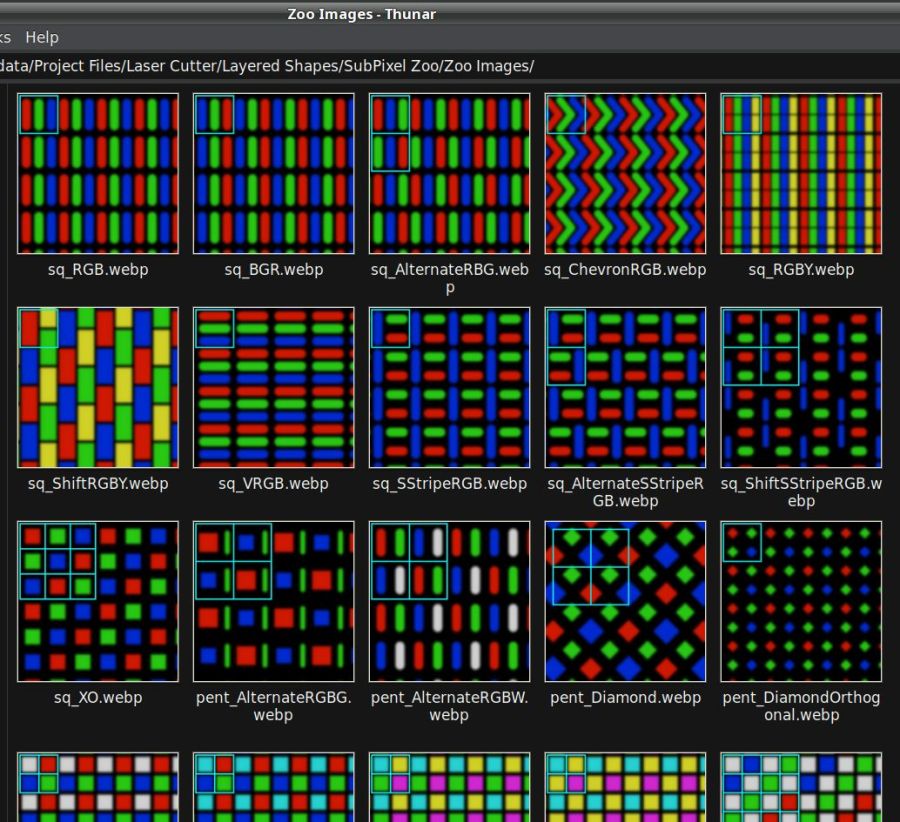
For whatever reason, the Thunar file browser in XFCE does not automagically show thumbnails for webp images. Some searching produced a recipe, although the displayed webp.xml file needs the last two lines to close the tags:
PrusaSlicer V 2.9.0 for Linux arrives as a Flatpak, instead of the previous AppImage, which wouldn’t matter except that the Flatpak sandbox prohibits access to anything outside each user’s home directory. I long ago set up access to the fileserver in the basement through filesystems mounted on /mnt, which is now inaccessible.
Overall, 2.9.0 seems significantly more sluggish and uglier than the 2.8.x series, but at least Prusa still supports Linux.
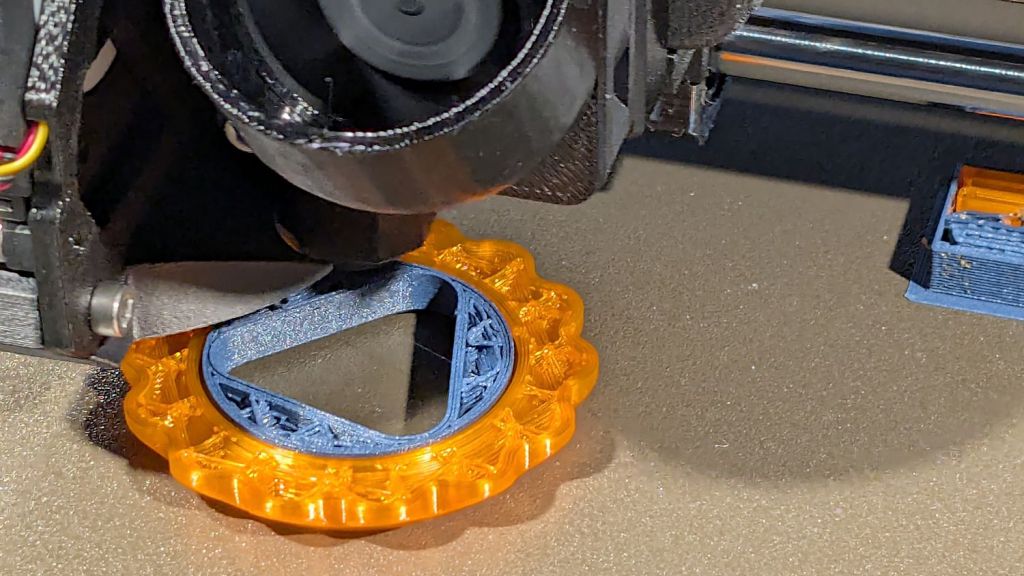
Just to show PrusaSlicer can fetch files from the server and to have some pictures enhancing this post’s negligible SEO, I built a couple of Gear Fidget Toys:
Double Gear fidget toy – on platform
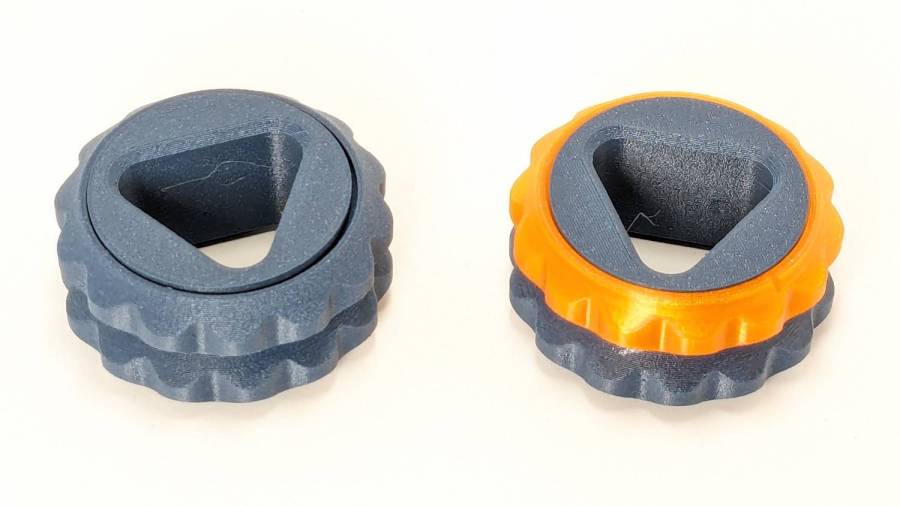
Which pop off the platform ready to roll:
Double Gear fidget toy – finished
A trace of silicone grease eased between the pieces on a slip of paper makes the spinning action so smooth.
As usual, the multi-material version takes twice as long to build due to all the filament swapping. I think I must improve the MMU3’s spoolholders, because the MMU3 (very) occasionally fails to ram the filament into the extruder, seemingly due to the force required to pull filament from the recalcitrant spools.
I wanted to work with that desktop from my Comfy Chair upstairs, because I’m unwilling to stand up a Windows box specifically for another LightBurn installation, along with a nightmare KVM switch tangle for all the displays / keyboards / trackballs I run with Linux.
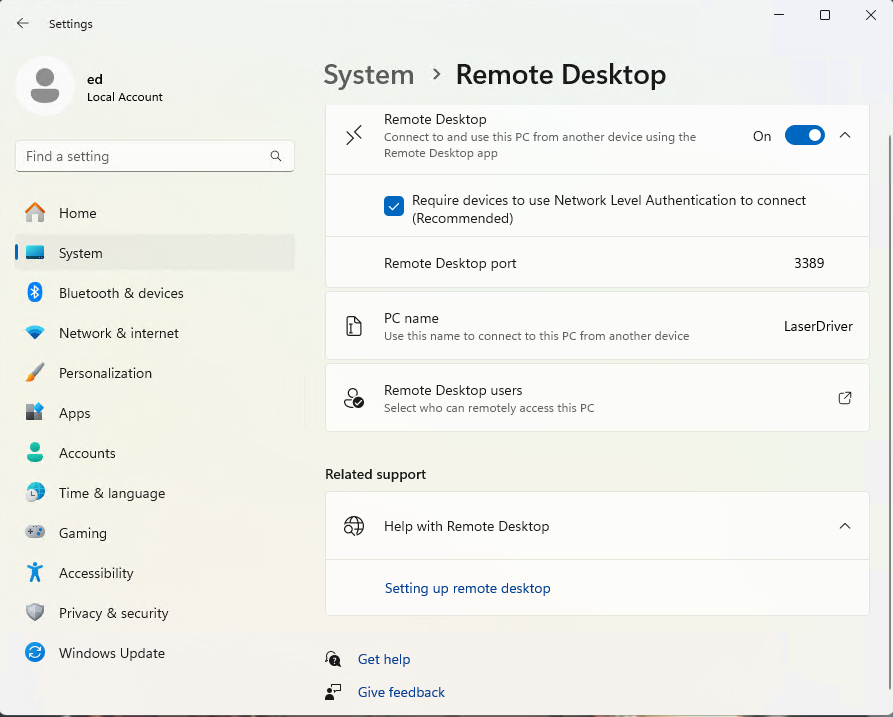
At the Win 11 PC, turn on Remote Desktop connections:
Remote Desktop enable
The Administrator is automatically allowed access, but I also allowed access for my local User (who does not have a Microsoft account), which requires the Administrator’s password. You’ll want to store that in a password manager, because typing line noise gets tedious.
Upstairs on the Comfy Chair at the Linux box, install Remmina from the repository, then tweak some preferences:
Remmina prefs – General
This being a LAN connection, pick the highest quality scaling, although that shouldn’t matter with a fullscreen display. I added a screen resolution matching my desktop landscape monitor:
Remmina config – screen resolutions
Somewhat to my surprise, selecting an RDP screen resolution larger than the HDMI monitor on the Win 11 box worked perfectly.
Because the remote display will fill the entire screen in fullscreen mode, set the toolbar to “Peeking” mode making it barely visible at the top of the screen:
Remmina prefs – Appearance
I have yet to (figure out how to) enable the hotkey turning fullscreen mode on and off, so if the toolbar isn’t readily available there is no way to get out of fullscreen mode.
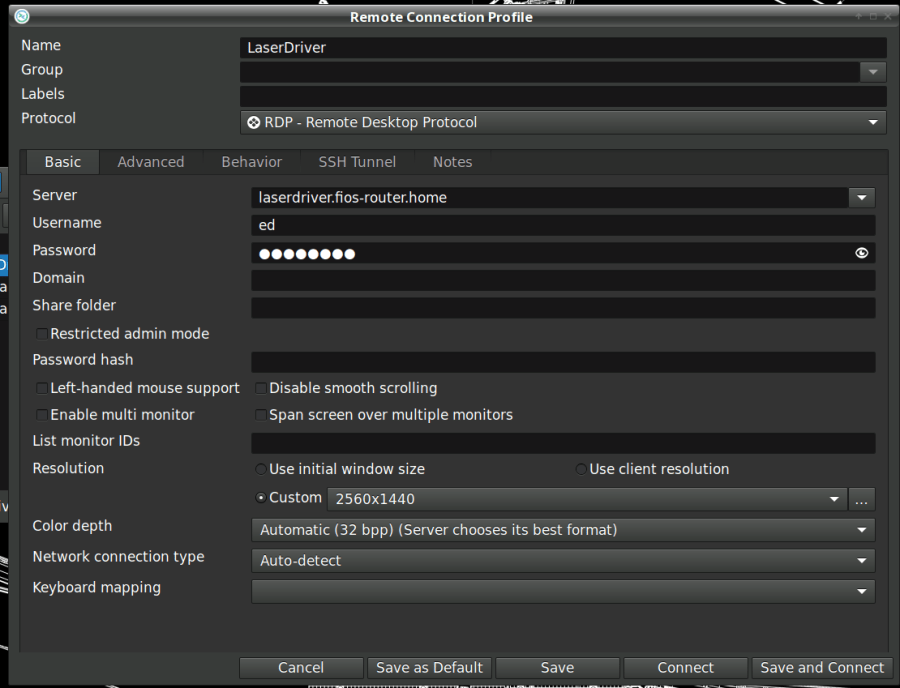
Set up the RDP connection to the Win 11 box, using either the static IP address or whatever name the router assigns:
Remmina config – Basic
I set the Win 11 box for a static IP address, then told the router to assign that IP to the box if it ever woke up asking for an address through a DHCP request. The process differs depending on which router you have and may not be needed. I (try to) nail down all the IP addresses, so anything using DHCP will be obviously in need of attention.
Select the highest quality compression:
Remmina config – Advanced
With all that set up, double-clicking the appropriate line should fire up an RDP connection, perhaps with a peephole view of the Win 11 desktop:
Remmina – small RDP window
Hit the Toggle Fullscreen icon (hollow square, fifth down) to embiggen it:
The thin line along the center top is the Remmina toolbar, peeking over the edge. Move the mouse cursor up there to roll it down into view:
Remmina – fullscreen RDP window – detail
Because this is a fullscreen view, hitting the Toggle Fullscreen icon (highlighted blue) is the only way out. It required a disturbing number of iterations before realizing none of the hotkeys worked, then figuring out how to enable toolbar peeking.
Moving the mouse pointer to the bottom of the screen rolls up the Win 11 Task Bar (which I always set to Hide mode to get it out of the way):
Remmina – fullscreen – task bar
I pinned the LightBurn icon to the task bar where it’s easy to hit, as that’s the whole point of the exercise.
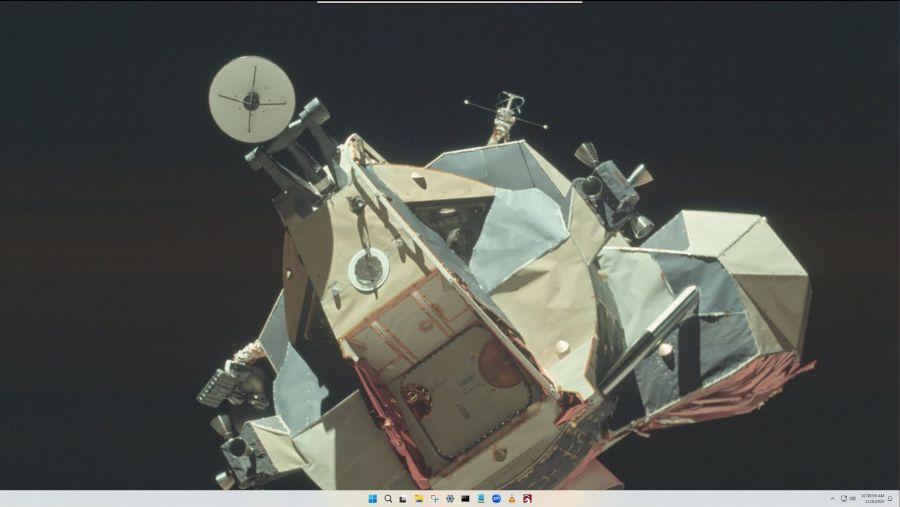
And then It Just Works™:
Remmina – fullscreen LightBurn
Because this is Windows, one user can sign onto the box from either the local keyboard or the RDP connection, but not both.
Being an Old School type of guy, I reflexively save my work before trotting either upstairs or downstairs and signing on wherever I end up, but it’s the same file in the same program on the same hardware.
The performance over the LAN and through Remmina is good enough to make the fullscreen session feels exactly like running LightBurn locally. In truth, LightBurn is not a particularly resource-heavy program.
Then I deleted both Linux installations from the LightBurn license portal …
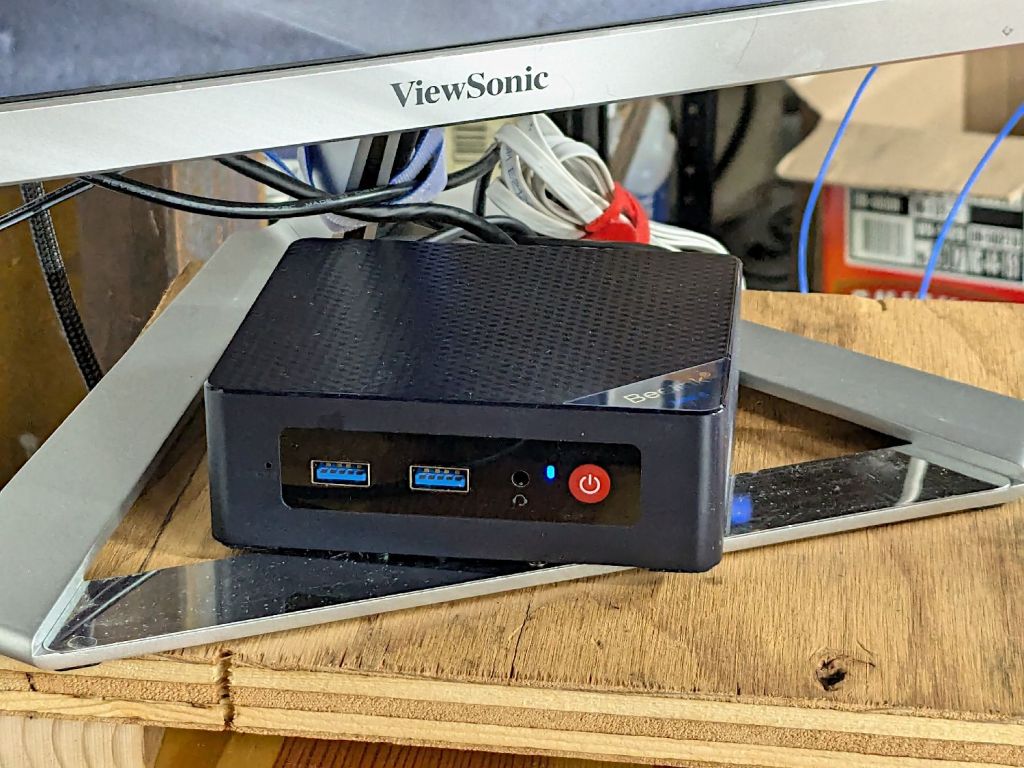
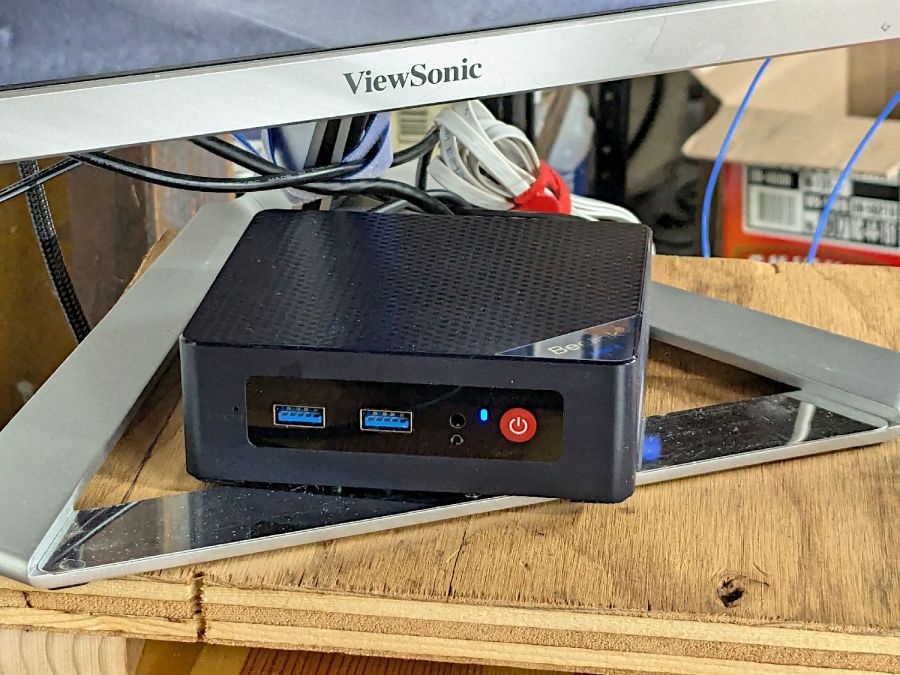
It’s a BeeLink Mini S12 (whatever that means) and squats near the low end of PC performance these days. I chose it based on reports from folks at Squidwrench having used similar units for various purposes without much pain, plus motivation from one of those weird Amazon “coupons” knocking the price down; it now sells for about that same price without the coupon.
It’s advertised as coming with Windows 11, but my advisors recommended a clean installation to get rid of crapware and possible pre-installed malware. I decided to start with the as-delivered system, then use the same product key to blow away the default installation.
The box / packaging did not include a Microsoft Windows Product Key and going through the first boot setup process produced this disconcerting result:
Win 11 license key – not found
More disconcerting: Windows Defender (Microsoft’s antivirus scanner / system integrity checker) was inactive and could not be installed from the MS “Store”. While not conclusive proof of pre-installed malware, the situation certainly seemed suspicious.
The seller sent a key that seemed to be for Windows 10:
BeeLink MS Product Key – Win 10 – redacted
Having been assured this would also validate a Win 11 installation, I did a clean installation using a USB flash drive produced by the MS installer, was never asked for a key, and eventually got to this point:
Win 11 Pro Installed Key – requires Digital License – redacted
Despite the missing OEM key and the footnote, everything seems just ducky:
Win 11 Activation with Digital License
I assume a clean installation blows away any malware resident on the “hard drive” (an M.2 solid state drive, of course), including rootkits and boot sector malware. My threat model does not include malware in the BIOS / UEFI firmware, which may be overoptimistic.
I declined all the optional MS products, refused various MS subscriptions, and generally tried to kill off a myriad invasive / advertising / “customized for you” features along the way. A casual search will produce many helpful guides for that process; I expect the details will change as MS continues to extract information from us. I set up a non-Administrator account for myself specifically to run LightBurn.
With that accomplished, I gave it a static IP address, created network shares to various directories on the “file server” (an ancient off-lease Dell Optiplex) holding the files I previously used with Linux LightBurn, installed Window LightBurn, got its preferences sorted out / restored from backup, and things eventually worked pretty much as intended.
This setup is intended for layout tweaking and laser control, not for protracted design work while standing in what’s now a 57 °F = 14 °C basement.
For what it’s worth, I must run the laser’s water chiller for half an hour to raise the cooling water to the normal 20 °C operating range; it has a water-cooled pump serving as a little heater.
The next step involved enabling Remote Desktop Protocol access so I can access the Windows box from my Comfy Chair at my usual battle station upstairs. More on that tomorrow …
For several decades, a succession of PCs in the basement have served files and shared printers, the former through NFS and the latter through CUPS. When the Epson R380 finally went casters-up, I got an Epson ET-3830 printer with a network interface, leaving only our venerable HP Laserjet 1200 shared through the server.
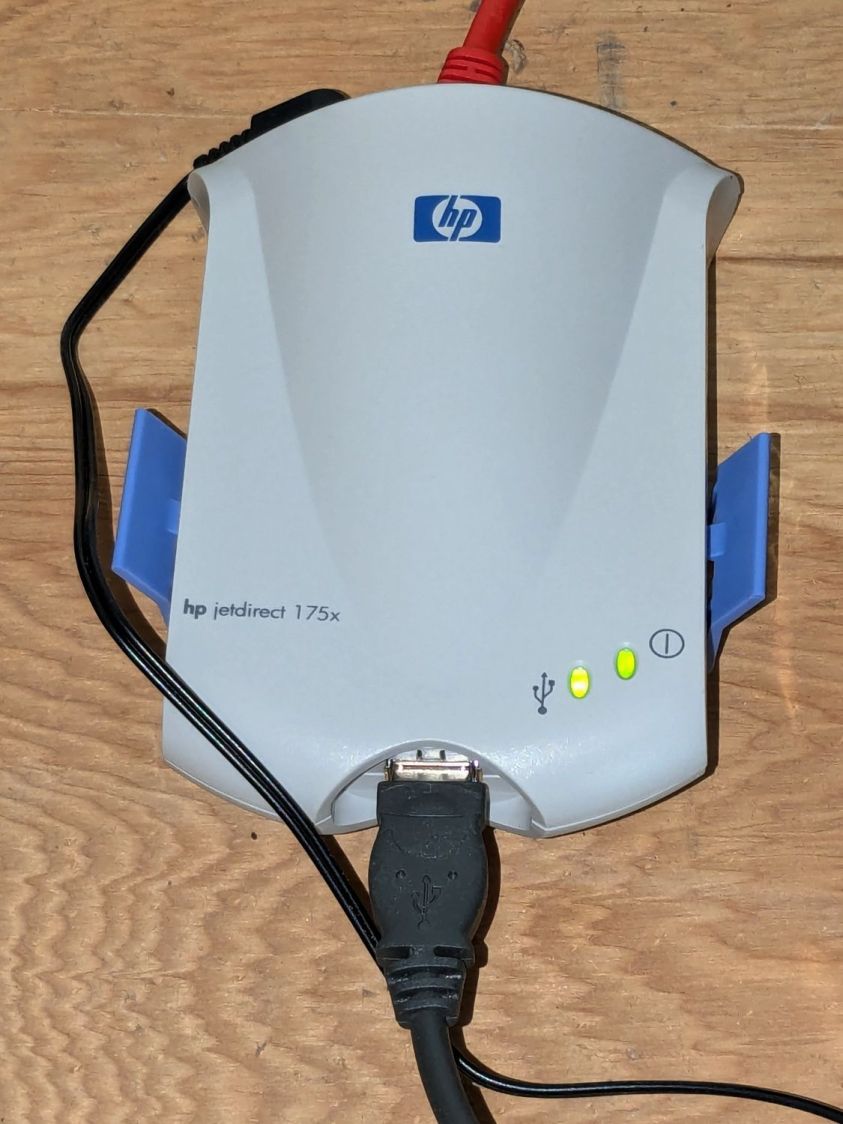
For reasons I do not profess to understand, whatever magic shared the printers rotted away over the last month (or, more likely, software updates), to the extent that we could no longer reliably print to the Laserjet. Various software tinkerings being unavailing, I dropped just under thirteen bucks to make the problem Go Away™:
HP Jetdirect 175x – installed
It’s a new-old-stock HP Jetdirect 175x print server from the turn of the millennium, with an Ethernet jack on the back and a USB 1.0 (yes, one-point-zero) jack on the front. It’s roughly contemporaneous with the Laserjet and designed to work with it.
The thing started up in DHCP mode, so I had to ask the router where it was on the network. Configuration then amounted to putting it in static (“Manual”) IP mode, assigning an address, and restarting it.
Aim the CUPS servers on our desktop PCs at the new address, fire off a test page, It Just Worked™, and we’re once again printing like it’s 1999.
A recent Manjaro update killed whatever magic held the passwords used for public-key ssh access from my desktop box, requiring me to remember the passords and type them correctly.
After considerable thrashing around doing what I thought I knew about ssh_agent (which, yes, was being autostarted to no avail), it seems that thread applies and the fix now requires creating /etc/profile.d/gcr-keyring.sh with this burst of line noise:
Whereupon, after a reboot presumably causing systemd to make the right thing perform the right act at the right time, It Just Worked™.
I used to have some mild sysadmin mojo, but obviously if you don’t do it all the time, everything you think you know becomes wrong.
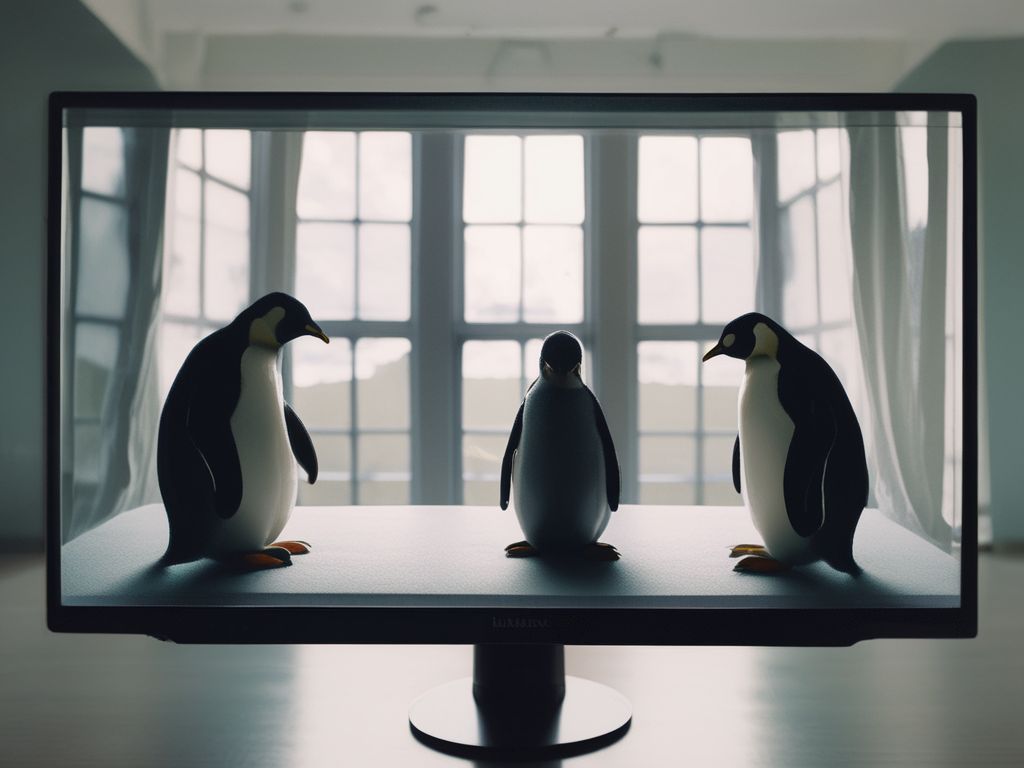
The WordPress AI did generate an image based on the above text and the prompt linux overlapping windows on monitor:
WP AI Image – linux overlapping windows on monitor
Which looks a lot like those stock photos filling otherwise empty space in spammy web pages, doesn’t it? In point of fact, the AI Feedback on Post had this to say:
While the AI-generated image may align with the content, consider using original or more contextually relevant visuals to maintain the professional look of the website.
Couldn’t have put it better myself. Thank you, AI image & text generators, for your help.
The Moonlander keyboard has per-key LEDs that I’ve denatured enough that most show a pale gray, with a few others highlighted in orange. A few weeks ago the LEDs on the right-hand thumb cluster and the N key went nuts, cycling through a surprising assortment before settling on bright red; the obvious resets / firmware reflashing / tapping were all unavailing.
ZSA’s tech support recommended taking the thumb cluster apart to check the ribbon cable connecting it to the main keyboard half:
Moonlander thumb cluster – PCB bottom
Come to find out my unclean personal habits lodged a particularly corrosive nugget of board chow on the cable:
Moonlander – corroded ribbon cable
It’s a more-or-less standard 0.5 mm pitch cable, but only 20-ish mm long, much shorter than the cables carried by the usual sources. ZSA sells them for $2 each, plus $25 courier shipping, so I bought three; they arrived in two days from halfway around the planet.
Because I don’t foresee my personal habits changing any time soon, I tucked a Kapton tape snippet in the gap to serve as a gutter:
Moonlander thumb cluster – tape shield installation
That’s with the two hinge screws out and the cluster eased down-and-away from the keyboard enough to get the tape pressed against the keyboard.
With the screws installed and the cluster at its normal most-downward angle, the gutter closes up:
Moonlander thumb cluster – tape shield folded
With the cluster in its normal operating position (for me, anyway), the gutter is nearly invisible:
Moonlander thumb cluster – normal position
For the record, I tucked the remaining ribbon cables inside the left-hand thumb cluster against future need.