In the process of installing a Bafang BBS02 mid-drive motor on a friend’s diamond-frame bike, I discovered, once again, how little anybody cares about the colors inside cables:
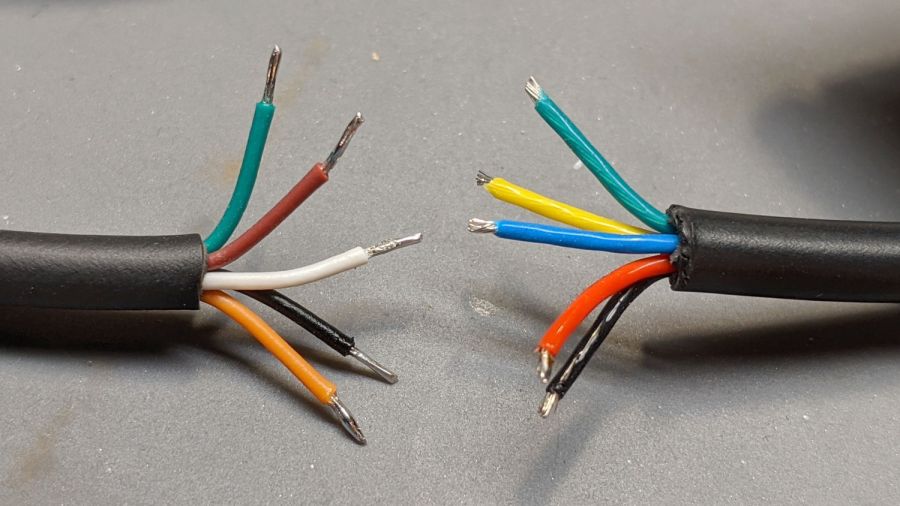
The cheerful rainbow on the right is the stub end of the Bafang display extension cable I built into the previous adapter.
The new cable on the left seemed like it might match the canonical colors:

It comes heartbreakingly close:
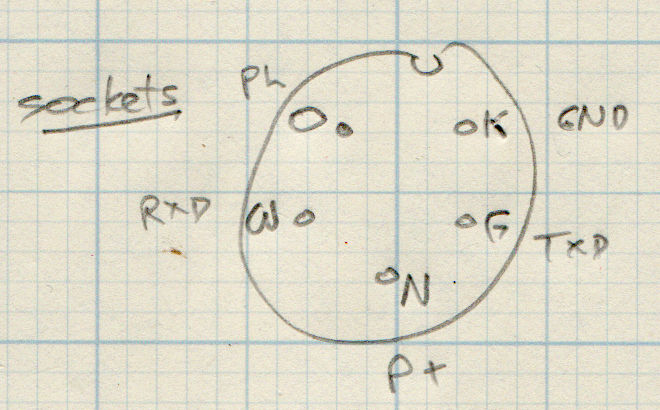
Brown and Orange connect as the naive user might expect, which does reduce the likelihood of incinerating the motor controller / USB adapter / laptop by connecting the 48 V battery directly to the logic-level electronics.
However, White wasn’t on the original menu, Green is now TXD, and Black has become, comfortingly, GND.
Verily, it is written: Hell hath no fury like that of an unjustified assumption.
This socket connector has a watertight shell making it extremely difficult to mate and unmate with the pin connector on the bike. Watertightness being unnecessary, a little razor-knife action seems in order:
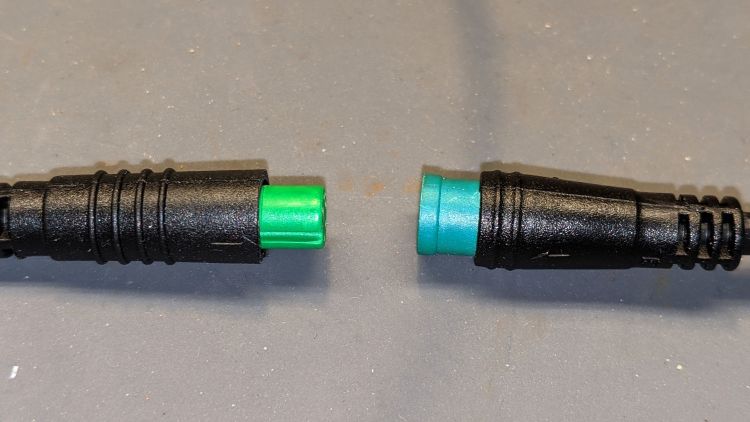
Visually, they’re both green-ish, but sometimes the Pixel camera accentuates any differences.