The Smell of Molten Projects in the Morning

Ed Nisley's Blog: Shop notes, electronics, firmware, machinery, 3D printing, laser cuttery, and curiosities. Contents: 100% human thinking, 0% AI slop.

Category: Electronics Workbench

Electrical & Electronic gadgets

  • Makergear M2: Bed Heating Failure

    From a discussion on the Makergear 3D printer forums

    A Makergear M2 user with an older printer (dating back to 2012) had a bed heater failure:

    all of a sudden I noticed that my bed temps had started dropping

    With a 12 V heater, the most likely problem is at the power input connector on the RAMBo board. The wires from the 12 V power brick generally work loose inside their screw terminals, whereupon the absurdly high current heats up the weak joint and destroys the connector. You can find some hideous pictures somewhere on the forum.

    Next most likely is a broken wire between the RAMBo and the heater, caused by repetitive stress injury from all that back-and-forth motion. You may be able to find this with a ohmmeter and some wiggle-jiggle action on the cable, but if even one strand remains intact, the resistance will remain very low at the meter’s trivial test current. Pulling the wires out of the braided sheath will be more definitive; the insulation will be wrecked at the break.

    Least likely seems to be the connector where the cable from the heater terminates on the RAMBo.

    Start by inspecting the connectors; you may find some seriously charred plastic.

    Depending on what you find, you may have a zero-dollar repair.

    It’s like you’re psychic.

    Suffice it to say you’re not the first person to see charred plastic … [grin]

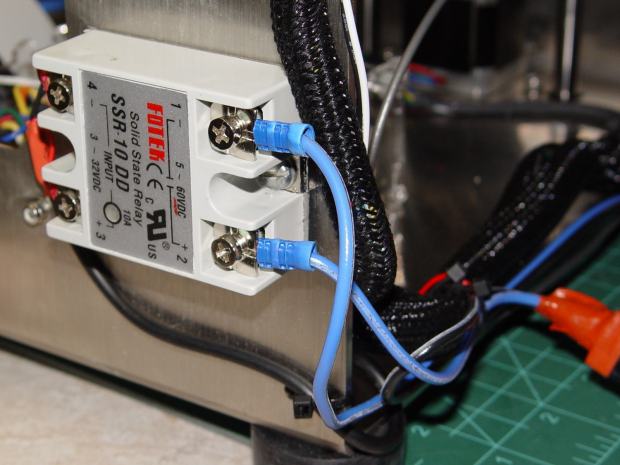
    My solution was to move the high-current switching off the RAMBo board to a solid state relay, with the heater power from a separate 40 VDC supply:

    M2 - SSR for Improved HBP
    M2 – SSR for Improved HBP
  • 3D Printing: Native G-Code?

    From a discussion on the Makergear 3D printer forums

    From a new M2 user disillusioned by the learning curve:

    Is there a 3D CAD software out there that natively creates .g or .gcode files It’s not just a 3D printing thing.

    CAD (computer-aided design) software produces a solid model, which a CAM (computer-aided manufacturing) program then converts into the specific dialect(s) of G-Code required by whatever machine tool(s) will create the widget. You can create the solid model using many different CAD programs and convert it into G-Code with many different CAM programs, each with its own collection of features and warts.

    3D printing calls the CAM program a “slicer”, but it’s a different name for the process of converting geometry into machine instructions.

    Even in subtractive manufacturing using lathes and mills, you absolutely must understand how the G-Code interacts with the production hardware.

    I unfortunately don’t want to learn all the nuances and parameters of the slic3r software

    Then you must use a service like Shapeways: you create the model, send it to them, and get a neat widget a few days later. Their laser-sintered powder process provides much better built-in support than you’ll ever get from consumer-grade fused-filament printers, you can select from a wide variety of materials (including metals!), and, as long as you follow their straightforward design guidelines, you’ll never know how the magic happens.

    If you intend to create more than a trivial number of widgets, though, the cost in both cycle time and money will begin gnawing at you. In round numbers, I’ve been designing and printing one widget a week for the last seven years, so adding a printer to my basement shop and learning how to use it has been a major win.

  • 3D Printing: Slow Hot End Temperature Oscillations

    From a discussion on the Makergear 3D printer forums

    A Makergear M2 user encountered a temperature control problem:

    Problem: Temperature fluctuation on the hotend +/- 7 degrees C when set in the controls. A little more extreme when printing (~+/- 15).

    Slow cycling like that indicates the hot end’s PID loop coefficients don’t match reality.

    Preheat the extruder to maybe 200 °C, run a PID calibration (M303), store the results in EEPROM (M500), and that should do the trick.

    PID coefficients depend on the hot end’s physical condition, so you should re-do the calibration whenever anything changes on the hot end. Even removing & reinstalling the same hardware will change the contact points between, say, the thermistor and its hole in the hot end.

    A dab of good heatsink compound on the thermistor should stabilize its contact with the hot end, although that will change the reported temperature and PID coefficients. Probably doesn’t make any real difference, but I felt better:

    M2 - Thermistor with heatsink compound
    M2 – Thermistor with heatsink compound

    Which prompted a question from a user who regularly swaps entire hot ends to change nozzle diameters:

    run a pid cal when I set my starting height each time I switch?

    Assuming you swap entire hot ends, including their thermistor & heater, then you can calibrate each one, write down its PID values, manually set ’em with M301 when you install it, then use M500 to store ’em in EEPROM.

    Because you bend those fragile thermistor wires every time you swap hot ends, keep a couple thermistors on hand. You’ll need ’em.

  • 3D Printing: Peculiar Octopi Problem

    From a discussion on the Makergear 3D printer forums

    A Makergear M2 user had a strange problem:

    Octopi claims the serial connection went down.

    LED2 was blinking red, rapidly, and LED3 was shining with a steadfast red light.

    LED2 shows the extruder heater PID loop is running and LED3 shows the extruder fan is on:
    https://reprap.org/wiki/Rambo_v1.1

    You just never noticed the blinkiness before … [grin]

    Because the extruder heater is still running, the firmware hasn’t detected a (possibly bogus) thermal runaway or any other fatal problem. It’s just waiting for the next line of G-Code, but Octopi isn’t sending it.

    Casually searching the GitHub issues, there’s a report of intermittent serial problems from last year:
    https://github.com/foosel/OctoPrint/issues/2647

    Which points to the FAQ:
    https://community.octoprint.org/t/octop … eption/228

    Look at the Octopi Terminal log to see if the conversation just before the failure matches those descriptions.

    Assuming you haven’t updated the printer firmware or anything on the Octopi, then something physical has gone wrong.

    First and least obviously, the Pi’s MicroSD card has probably started to fail: they’re not particularly durable when used as a mass storage device and “the last couple of years” is more than you should expect. Download a fresh Octopi image, put it on a shiny-new, good-quality card (*), and see if the situation improves.

    Then I’d suspect the Pi’s power supply, even though you’re using the “official rpi power supply”. All of those things contain the cheapest possible electrolytic capacitors, running right on the edge of madness, and produce bizarre errors when they begin to go bad. Get a good-quality wall wart (**), ideally with a UL rating, and see if the situation improves.

    While you’re buying stuff, get a good-quality USB cable (***) to replace the one that (assuming you’re like me) you’ve been saving for the last decade Just In Case™. Use the shortest cable possible, because longer does not equal better.

    After that, the problems get truly weird. Apply some tweakage and report back.

    (*) This is harder to do than you might think. You may safely assume all cards available on eBay and all “Sold by X, Fulfilled by Amazon” cards will be counterfeit crap. I’ve been using Samsung EVO / EVO+ cards (direct from Samsung) with reasonable success:

    https://softsolder.com/2018/10/16/raspb … sk-memory/
    https://softsolder.com/2017/11/22/samsu … ification/
    https://www.samsung.com/us/computing/me … 22y+zq29p/

    The card in question eventually failed, so having a backup card ready to go was a Good Idea™.

    (**) Top-dollar may not bring top quality, but Canakit has a good rep and costs ten bucks through Prime.

    (***) Amazon Basics cables seems well-regarded and work well for what I’ve needed.

  • Juki TL-2010Q Needle LEDs: Installed!

    The combined illumination from the COB LED bar on the rear of the arm and the (renewed) COB LEDs over the needle does a pretty good job of lighting up the work area:

    Juki TL-2010Q Needle LEDs - cloth illumination
    Juki TL-2010Q Needle LEDs – cloth illumination

    That’s a staged shot with a quilt square from the top of the pile. You’d (well, Mary’d) sew along the lines, not across a finished square.

    The remaining deep shadows under the foot require an LED with an imaging lens on a gooseneck; precise piecing requires feeding fabric into the needle with alignment exactly where those shadows fall.

    The light levels look harsh and shadowy on the bare base:

    Juki TL-2010Q Needle LEDs - front
    Juki TL-2010Q Needle LEDs – front

    The shadow extending leftward from the needle comes from the arm’s shadow of the rear LED bar. The hotspot specular reflections of both LED arrays aren’t quite as glaring in real life, but a matte surface finish would be better.

    The needle LEDs sit on the bottom of the heatsink inside the endcap:

    Juki TL-2010Q Needle LEDs - installed
    Juki TL-2010Q Needle LEDs – installed

    The COB LED PCB has a weird pink tint, perhaps due to the silicone filter passing all the yellow and blue light downward, with red light reflected into the PCB.

    After one iteration, I settled on a 20 Ω 1 W ballast resistor:

    Juki TL-2010Q Needle LEDs - ballast resistor
    Juki TL-2010Q Needle LEDs – ballast resistor

    It drops 3.6 V to provide 180 mA of needle LED current and dissipates 640 mW, with the LEDs burning about 1.5 W to raise the heatsink just above room temperature. The extrusion on the rear arm is pleasantly warm and the resistors seem happy enough.

    Looks good to us and it’s much much much better than the feeble Juki needle LED.

  • Juki TL-2010Q Needle LEDs: Simple Cable Clip

    A straightforward cable clip:

    TL-2010Q Needled COB LED - cable clip
    TL-2010Q Needled COB LED – cable clip

    It looks better than the previous hack bent from a snippet of PET clamshell:

    Juki TL-2010Q Needle LEDs - cable clip
    Juki TL-2010Q Needle LEDs – cable clip

    Ream out the holes with suitable drills, clean out the slot using Tiny Bandsaw™, and it’s all good.

    In retrospect, the slot isn’t worth the effort, because it doesn’t open wide enough to admit the cable and doesn’t provide any clamping force; a simple block with two holes would do as well. If the heatsink didn’t already have a 3 mm screw in play, I’d use an adhesive-backed clip from the early Kenmore LEDs.

    The OpenSCAD source code isn’t much to look at:

    //-----
    // Cable clip
    // Reoriented into build position, because we only need one
    
    ClipWall = 3*ThreadWidth;
    Clip = [15.0,10.0,CableOD + 2*ClipWall];
    
    module CableClip(CableOD = 2.0) {
    
    ClipSides = 4*3;
    ClipRadius = Clip.y/2;
    ScrewOD = 3.0;
    ClipOC = Clip.x - ClipRadius - CableOD/2 - ClipWall;
    
      translate([0,0,Clip.y/2])
        rotate([90,0,90])
          translate([0,0,0*Clip.z/2])
            difference() {
              union() {
                rotate(180/ClipSides)
                  cylinder(d=Clip.y/cos(180/ClipSides),h=Clip.z,$fn=ClipSides,center=true);
                translate([ClipRadius,0,0])
                  cube([Clip.x - ClipRadius,Clip.y,Clip.z],center=true);
              }
              translate([0,0,-(Clip.z/2 + Protrusion)])
                rotate(180/8)
                  PolyCyl(ScrewOD,Clip.z + 2*Protrusion,8);
              rotate([90,0,0])
                translate([ClipOC,0,-Clip.y])
                  rotate(180/8)
                  PolyCyl(CableOD,2*Clip.y,8);
              translate([ClipOC - Clip.x/2,0,0])
                cube([Clip.x,2*Clip.y,2*ThreadWidth],center=true);
            }
    }
    

  • COB LED Autopsy

    The intent was to wire the “5 W” COB LED to the 12 VDC supply grafted on the Juki TL-2010Q, through a suitable resistor around 18 Ω. Unfortunately, the next morning I managed to run 12 V directly to the LEDs, which produced an astonishingly bright flash of blue-white light and an opportunity for some post-mortem analysis.

    A sharp tap with a chisel popped the COB LED PCB off its heatsink:

    Destroyed COB LED - epoxy bond
    Destroyed COB LED – epoxy bond

    That’s a pretty nice thermal joint and ought to transfer as much heat as reaches the back surface. Mechanically, it yanked one of the nickel tabs right off the solder pads; obviously, I must now level up my soldering game.

    Scraping the yellow silicone filter off the PCB reveals the minuscule LEDs:

    Destroyed COB LED - excavated yellow silicone
    Destroyed COB LED – excavated yellow silicone

    You’ll recall they’re arranged in three series sets of six:

    Circular 12V COB 18 LED panel - copper layout
    Circular 12V COB 18 LED panel – copper layout

    Some probing revealed five of six LEDs in one set was still functional:

    Although a few other LEDs across the PCB survived, that’s not the way to bet when you run so much current through the poor things.

    Ah, well, that’s why I always buy a few more parts than I really need …