The Smell of Molten Projects in the Morning

Ed Nisley's Blog: Shop notes, electronics, firmware, machinery, 3D printing, laser cuttery, and curiosities. Contents: 100% human thinking, 0% AI slop.

Category: Electronics Workbench

Electrical & Electronic gadgets

  • Silver-Mica Capacitor Assortment

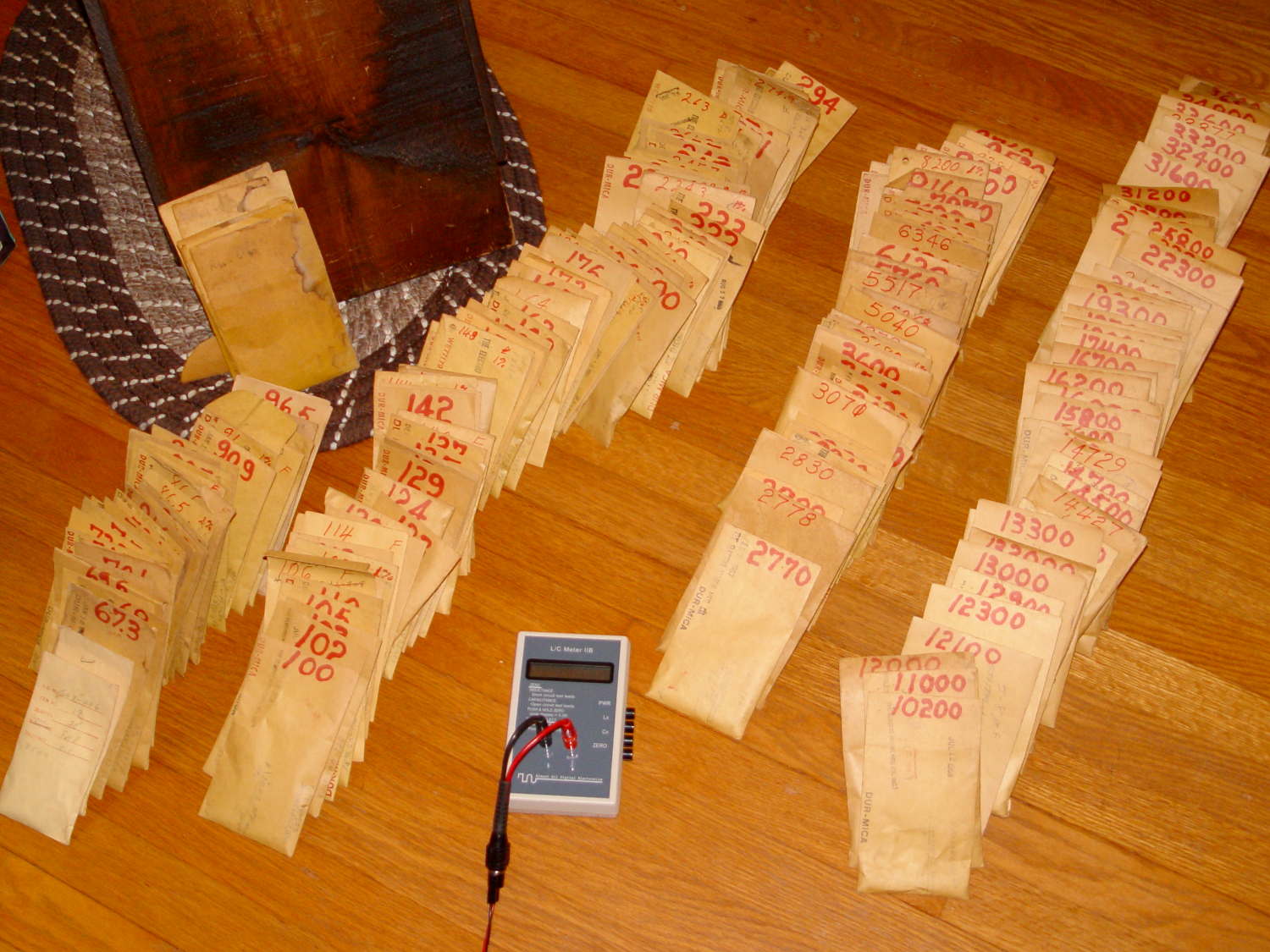
    With RF projects looming on the horizon, now seemed like a good time to restock the silver-mica capacitor supply:

    Silver-mica capacitor - assortment
    Silver-mica capacitor – assortment

    That’s 150-ish little brown envelopes, found on eBay in the lowest-entropy state I can imagine, with about 11 pounds of caps delivered for a bit under $5/pound.

    The envelopes bear date stamps from the mid- to late-60s:

    Silver-mica capacitor - 188 pF 0.5 pct - envelope
    Silver-mica capacitor – 188 pF 0.5 pct – envelope

    I think these came directly from the Electro-Motive Mfg Co production line or QC lab, because some of the envelopes have notes about “WE”, “Bell Labs”, and suchlike. They seem to be special-production items, not the usual caps from your usual distributor.

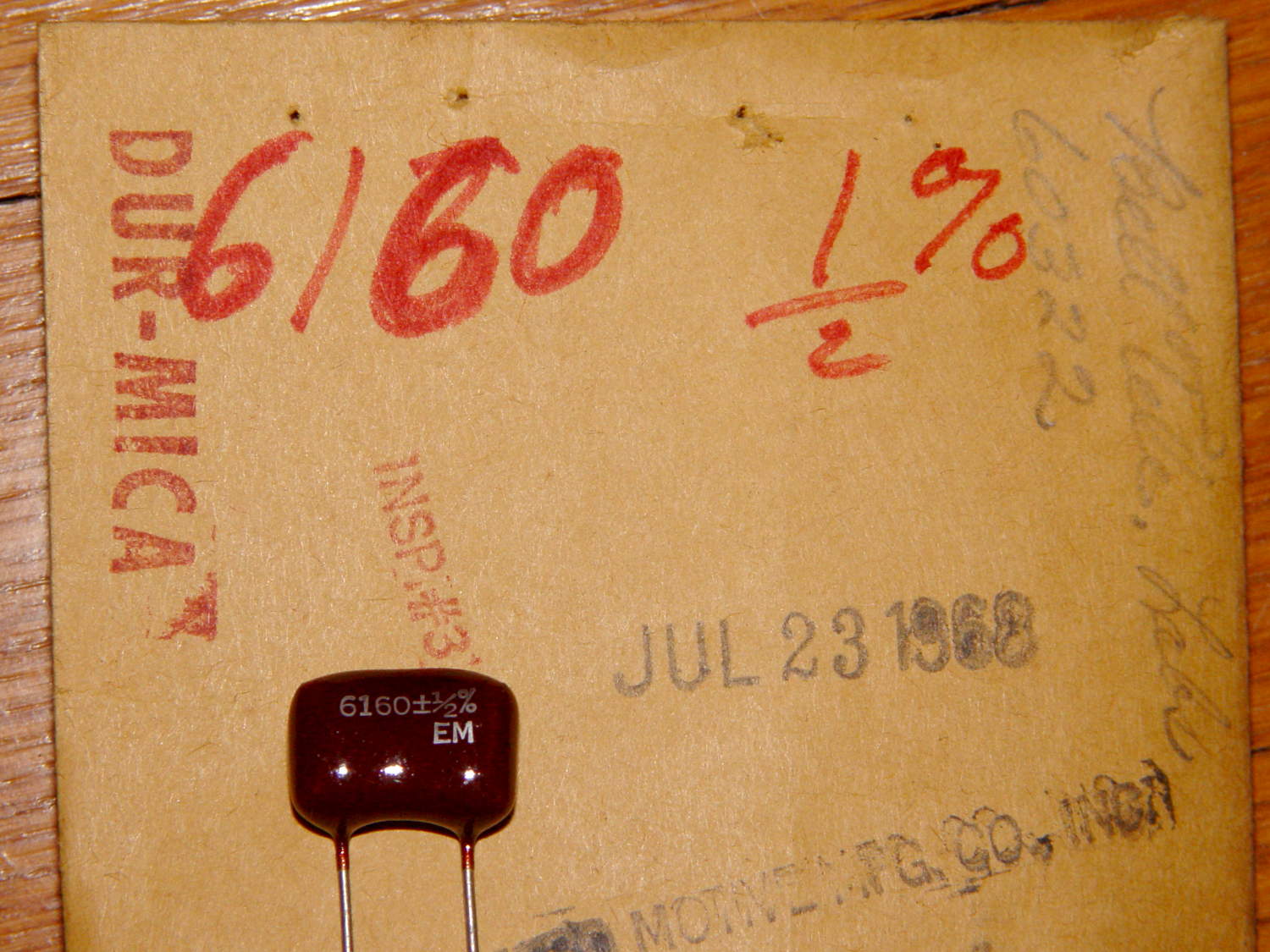
    The values and tolerances are weird beyond belief:

    Silver-mica capacitor - 6160 pF 0.5 pct - on envelope
    Silver-mica capacitor – 6160 pF 0.5 pct – on envelope

    If you’re taking notes, 6160 pF lies halfway between the 6120 and 6190 values in the E192 series.

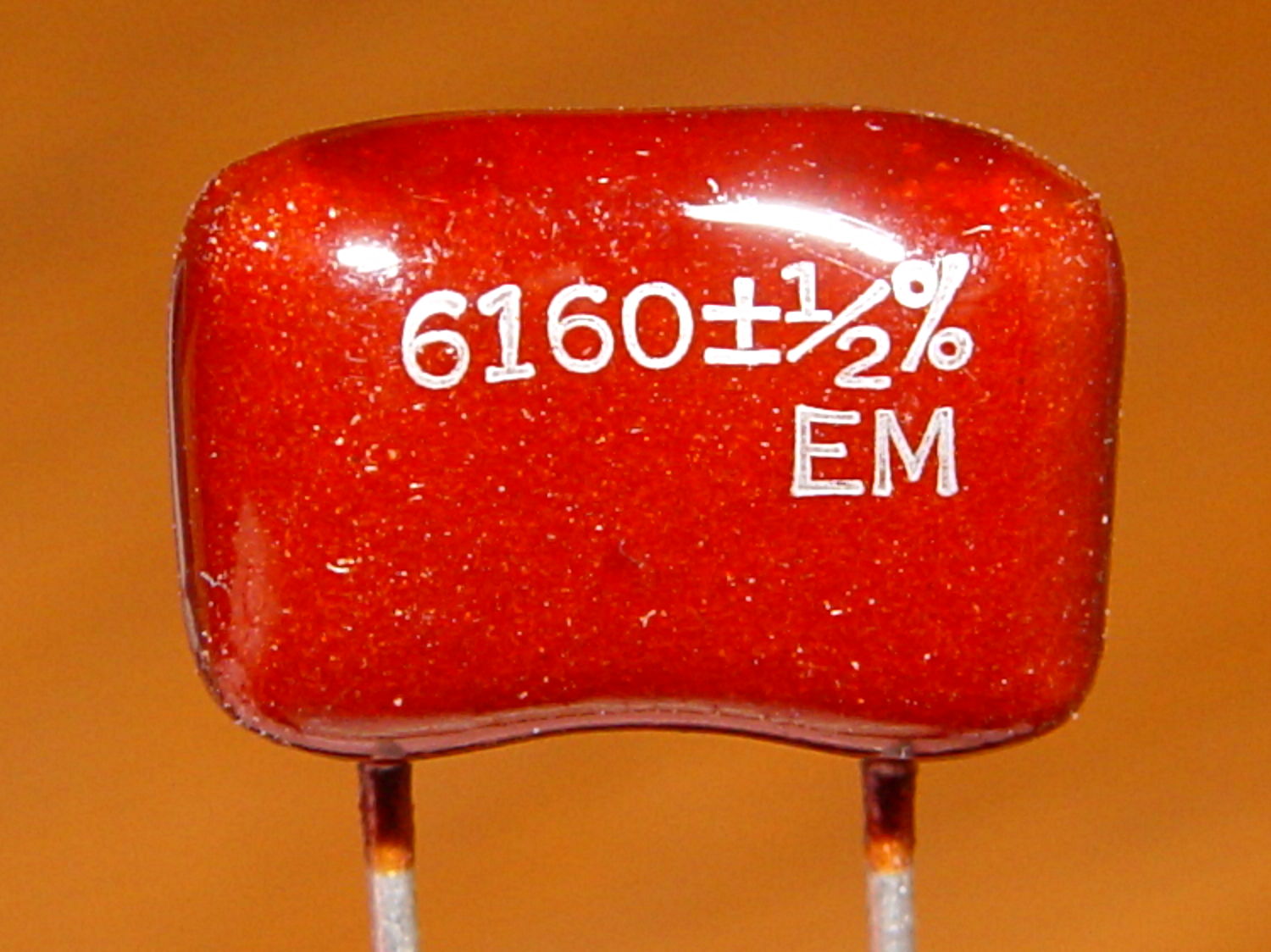
    And, yes, that’s a cap with ½% tolerance (forgive the bright-red color imbalance):

    Silver-mica capacitor - 6160 pF 0.5 pct - detail
    Silver-mica capacitor – 6160 pF 0.5 pct – detail

    Most of the caps are 1%, which is kinda-sorta typical for silver-mica. Then you find something unbelievable:

    Silver-mica capacitor - 22.8 pF 0.1 pct
    Silver-mica capacitor – 22.8 pF 0.1 pct

    Stipulated, I’ve lived a sheltered existence. Have you ever seen a 0.1% tolerance cap? The assortment has more of those, scattered throughout the range.

    Regrettably, the entire decade from just over 300 pF to just under 3000 pF has gone missing: somewhere out there, someone has another box from the room that housed this collection. So it goes; given the plethora of values, I can always make series-parallel combinations to get what’s needed.

  • Discrete LED Aging After Two Decades

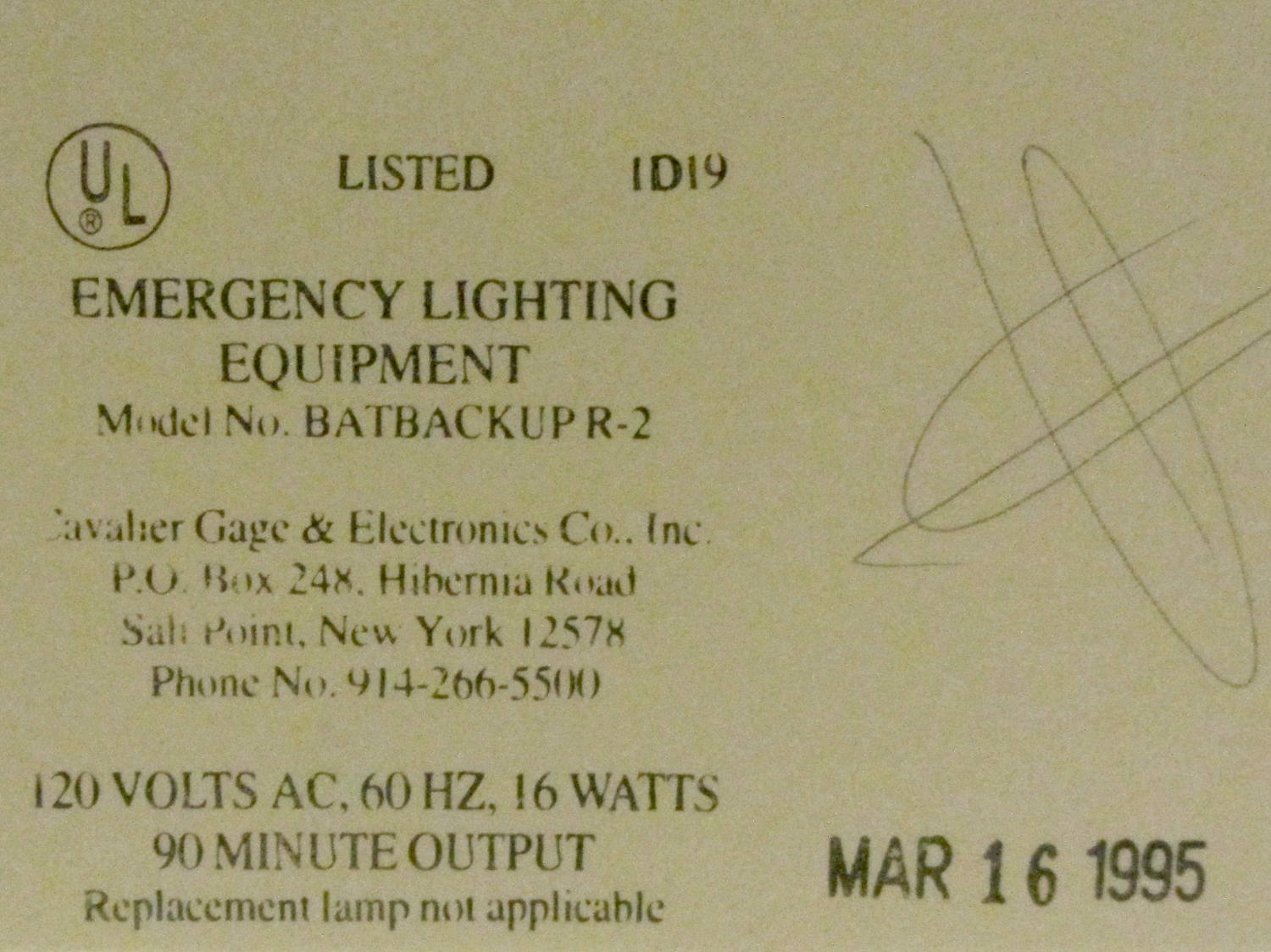
    While at another Vassar concert, I noticed a manufacturing date stamp on one of the LED exit signs in Skinner Hall:

    Exit Sign - Manufacturing date
    Exit Sign – Manufacturing date

    I like the “Replacement lamp not applicable” line. I wonder how recently they’ve tested the battery for the projected 90 minutes of backup time…

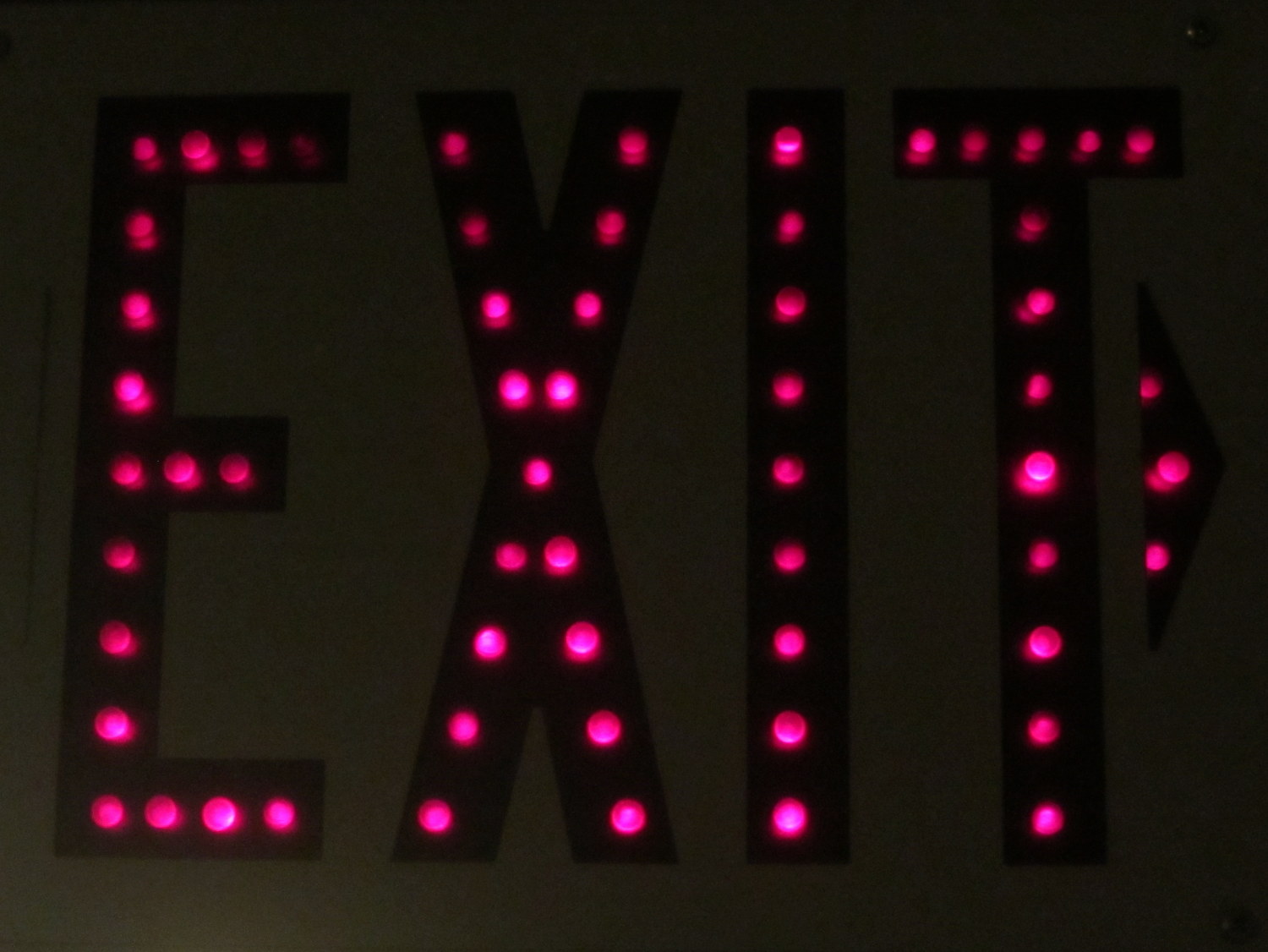
    These old LEDs show the expected brightness variations:

    Exit Sign - LED aging
    Exit Sign – LED aging

    So, now you know what your discrete LEDs will look like after two decades of continuous use. That’s if anybody (else) still uses discrete LEDs, of course.

  • Monthly Science: CR2032 Lithium Cell Life

    One of the Hobo dataloggers asked for a new battery during its most recent data dump. The old battery dates back to January 2015:

    Maxell CR2032 lithium cell - 22 month life
    Maxell CR2032 lithium cell – 22 month life

    That was when a batch of Energizer cells failed in quick succession: it wasn’t the datalogger’s fault. I’ve been handling the cells a bit more carefully, too, although that certainly doesn’t account for the much longer life.

    With batteries, particularly from eBay, you definitely can’t tell what you’re going to get or how long it’ll last; that’s true of many things in life.

  • Inside Another 9 V Battery

    A long time ago, I discovered some quasi-AAAA cells inside 9 V batteries:

    Inside a batteries.com 9V battery
    Inside a batteries.com 9V battery

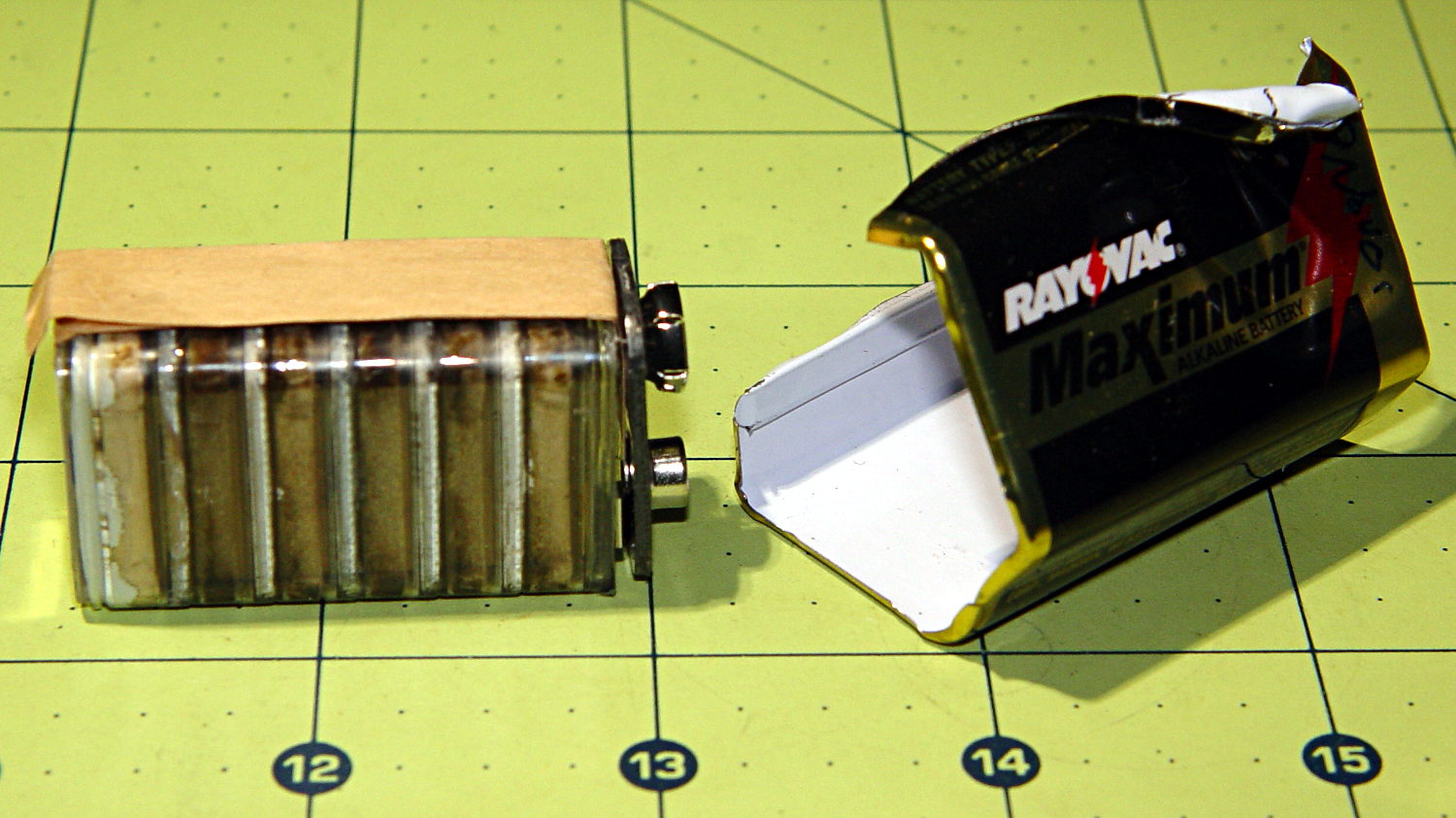
    It occurred to me that I should dismantle a defunct Rayovac Maximum 9 V alkaline battery from the most recent batch (*) to see what it looked like:

    Rayovac Maximum 9V battery - interior
    Rayovac Maximum 9V battery – interior

    Surprise!

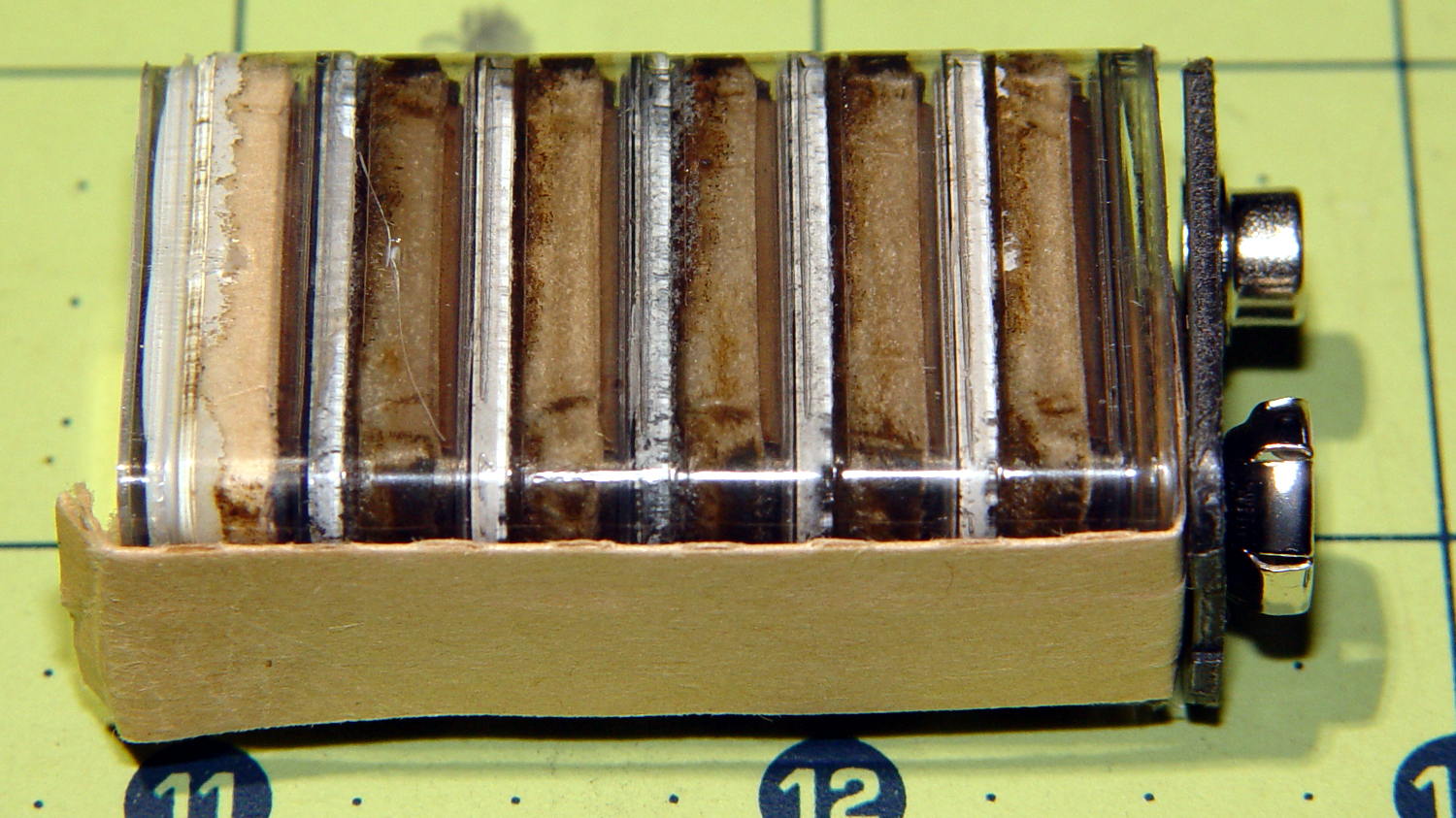
    A closer look at those pancake cells:

    Rayovac Maximum 9V battery - detail
    Rayovac Maximum 9V battery – detail

    They look like separate cells bonded into a stack, although there’s no easy way to probe the inter-cell contacts; the leftmost cell probably died first.

    (*) Which has apparently outlived the Rayovac Maximum brand, as they don’t appear on the Rayovac site.

  • Cast Iron Pan Electrolysis: Anode Fragment

    Sacrificing a scrap EMI shield from a junked PC as the electrolysis anode, I grabbed a tab with the battery charger clamp:

    Cast iron pan electrolysis - bucket
    Cast iron pan electrolysis – bucket

    Turns out it didn’t survive the encounter:

    Cast iron pan electrolysis - anode front
    Cast iron pan electrolysis – anode front

    That white blob extends around to the other side:

    Cast iron pan electrolysis - anode rear
    Cast iron pan electrolysis – anode rear

    Yeah, it got hot enough to melt a blob from the 6 gallon plastic bucket before burning through.

    I tossed that into the garage so I wouldn’t forget it aaaand here we are …

  • Kindle Fire Power Switch Rebuild

    The single moving part on my first-generation (2011) Kindle Fire tablet stopped working: the power switch became erratic, to the point where the only dependable way to turn the thing on required the USB charging cable. Obviously not a long-term solution.

    Having nothing to lose, I consulted the Internet’s vast steaming pile of advice on how to pop the Kindle’s cover, picked one, and ran with it. Basically, you jam a sharp tool into the end with the speakers, then crack the back off along both sides, leading to this:

    Kindle Fire - pre-teardown overview
    Kindle Fire – pre-teardown overview

    Things to note:

    • No need to remove the battery: pull the heavy connector straight out
    • Disconnect the battery first, before unplugging anything else
    • Most of the ribbon cable connectors have a white flip-up latch
    • You will break the ground shield from the flex PCB to the battery along the left edge
    • The antenna must make that 270° turn into the minuscule U.FL connector
    • The four-wire cable to the speakers has a pull-out connector in the lower right corner
    • The PCB backplate on the large video (?) connector in the upper right pulls straight up-and-out

    Remove the six obvious screws, pull the battery edge of the board upward, and rotate the whole affair out of the chassis:

    Kindle Fire - power LED board - in place
    Kindle Fire – power LED board – in place

    Protip: the power switch is not mounted on the tiny PCB (under the ribbon cable with the blue tab) sometimes advertised as the Power Button Board. That tiny PCB suspends an amber/green LED behind the visible button, but a yoke surrounds the LED to transfer the button motion to the power switch soldered to the CPU board. Replacing that board will not cure an erratic power switch; I think the entire CPU board is the FRU.

    Fortunately, I can actually see the power switch and know sorta-kinda what to expect.

    A bit of awkward multimeter probing showed the switch was defunct, with intermittent action and generally high resistance when pressed. I unsoldered the switch, verified that it didn’t work in isolation, and examined some likely candidates from the Big Box o’ Small Switches:

    Kindle Fire - potential power switches
    Kindle Fire – potential power switches

    Some could be made to fit and maybe actually function, with effort ranging from tedious to Really Hard.

    Then it occurred to me that maybe, just maybe, I could refurbish / clean / repair the Kindle’s switch contacts. Shaving off the two heat-staked plastic bumps on the front and prying the side latches outward produced an explosion of small parts:

    Kindle Fire - disassembled power switch
    Kindle Fire – disassembled power switch

    That’s after cleaning the expected grunge from the three contact strips in the body and the innermost of the two (!) buckling-spring contact doodads (bottom left). I scrubbed with the cardboard-ish stem of a cotton swab and, as always, a dot of DeoxIT Red, inserted the unused-and-pristine contact spring doodad (bottom right) first, and reassembled the switch in reverse order.

    The metal shell around the body has two locating tabs that fit in two PCB holes, giving the switch positive alignment and good strain relief. The front view shows the three human-scale components amid a sea of 0201 SMD parts:

    Kindle Fire - repaired power switch - front
    Kindle Fire – repaired power switch – front

    For completeness, the view from the battery side:

    Kindle Fire - repaired power switch - rear
    Kindle Fire – repaired power switch – rear

    It’s worth noting that you can see right through the 3.5 mm headphone jack, which accounts for the remarkable amount of dust & fuzz I blew out of the chassis. The overall dust sealing isn’t great, but after five years of life in my pocket, I suppose that’s to be expected.

    Installing the board requires holding all the cables out of the way (tape the antenna & speaker wires to the battery), aiming the USB connector into its cutout, rotating the battery edge of the board downward, pushing the mesh EMI shield along the battery upward to clear the board edge, not forcing anything, and eventually it slides into place.

    Insert cables, latch latches, plug in the battery, snap the rear cover in place, and It Just Works again. The power switch responds to a light touch with complete reliability; it hasn’t worked this well in a year.

    Bonus: To my utter & complete astonishment, disconnecting the battery for few hours had no effect on the stored data: it powered up just fine with all the usual settings in place. I expected most of the settings to live in the Flash file system, but apparently nothing permanent lives in RAM.

    Take that, entropy!

  • Vacuum Tube LEDs: Now With Morse Code

    Adding Mark Fickett’s non-blocking Morse Arduino library turns the tubes into transmitters:

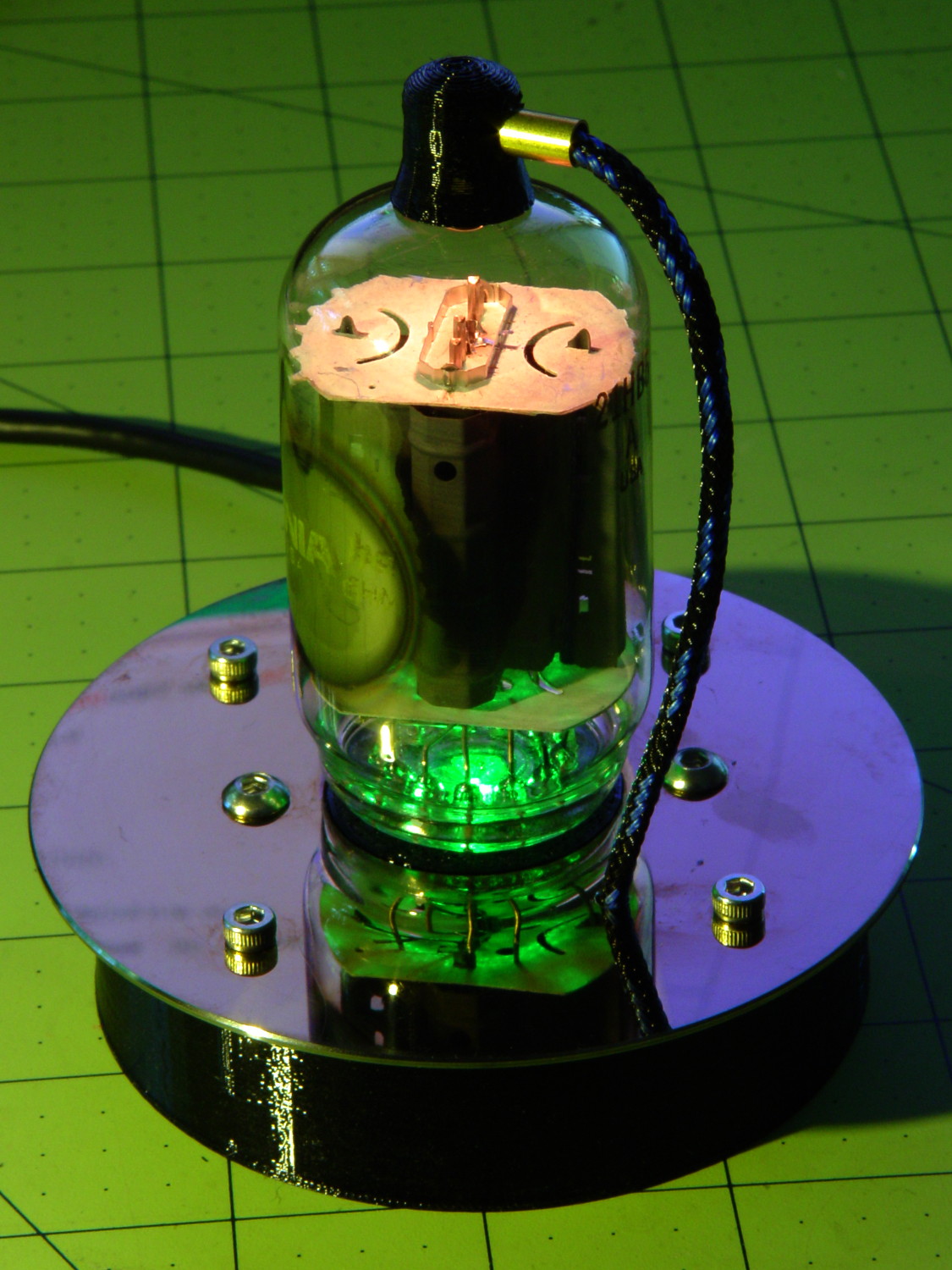
    21HB5A on platter - orange green
    21HB5A on platter – orange green

    The plate cap LED blinks the message in orange, while both LEDs continue to slowly change color as before.

    You define a Morse sender object (C++, yo!) by specifying its output pin and code speed in words per minute, dump a string into it, then call a continuation function fast enough to let it twiddle the output bit for each pulse. Obviously, the rate at which the callback happens determines the timing granularity.

    However, setting a knockoff Neopixel to a given color requires more than just a binary signal on an output pin. The continuation function returns false when it’s done with the message, after which you can initialize and send another message. There’s no obvious (to me, anyhow) way to get timing information out of the code.

    The easiest solution: called the Morse continuation function at the top of the main loop, read its output pin to determine when a dit or dah is active, then set the plate cap color accordingly:

    LEDMorseSender Morse(PIN_MORSE, (float)MORSE_WPM);
    ...
    Morse.setup();
    Morse.setMessage(String("       cq cq cq de ke4znu       "));
    PrevMorse = ThisMorse = digitalRead(PIN_MORSE);
    ...
    if (!Morse.continueSending()) {
      Morse.startSending();
    }
    ThisMorse = digitalRead(PIN_MORSE);
    ...
    if (ThisMorse) {             // if Morse output high, overlay
        strip.setPixelColor(PIXEL_MORSE,MorseColor);
    }
    PrevMorse = ThisMorse;
    strip.show();               // send out precomputed colors
    ...
    <<compute colors for next iteration as usual>>
    

    I use the Entropy library to seed the PRNG, then pick three prime numbers for the sine wave periods (with an ugly hack to avoid matching periods):

    uint32_t rn = Entropy.random();
    ...
    randomSeed(rn);
    ...
    
    Pixels[RED].Prime = PrimeList[random(sizeof(PrimeList))];
    
    do {
      Pixels[GREEN].Prime = PrimeList[random(sizeof(PrimeList))];
    } while (Pixels[RED].Prime == Pixels[GREEN].Prime);
    
    do {
      Pixels[BLUE].Prime = PrimeList[random(sizeof(PrimeList))];
    } while (Pixels[BLUE].Prime == Pixels[RED].Prime ||
            Pixels[BLUE].Prime == Pixels[GREEN].Prime);
    
    printf("Primes: (%d,%d,%d)\r\n",Pixels[RED].Prime,Pixels[GREEN].Prime,Pixels[BLUE].Prime);
    

    In the spirit of “Video or it didn’t happen”: YouTube!

    The Arduino source code as a GitHub Gist:

    // Neopixel mood lighting for vacuum tubes
    // Ed Nisley – KE4ANU – June 2016
    // September 2016 – Add Morse library and blinkiness
    #include <Adafruit_NeoPixel.h>
    #include <morse.h>
    #include <Entropy.h>
    //———-
    // Pin assignments
    const byte PIN_NEO = A3; // DO – data out to first Neopixel
    const byte PIN_HEARTBEAT = 13; // DO – Arduino LED
    #define PIN_MORSE 12
    //———-
    // Constants
    #define PIXELS 2
    #define PIXEL_MORSE 1
    #define MORSE_WPM 10
    #define UPDATEINTERVAL 50ul
    const unsigned long UpdateMS = UPDATEINTERVAL – 1ul; // update LEDs only this many ms apart (minus loop() overhead)
    // number of steps per cycle, before applying prime factors
    #define RESOLUTION 250
    // want to randomize the startup a little?
    #define RANDOMIZE true
    //———-
    // Globals
    // instantiate the Neopixel buffer array
    Adafruit_NeoPixel strip = Adafruit_NeoPixel(PIXELS, PIN_NEO, NEO_GRB + NEO_KHZ800);
    uint32_t FullWhite = strip.Color(255,255,255);
    uint32_t FullOff = strip.Color(0,0,0);
    uint32_t MorseColor = strip.Color(255,191,0);
    struct pixcolor_t {
    byte Prime;
    unsigned int NumSteps;
    unsigned int Step;
    float StepSize;
    byte MaxPWM;
    };
    unsigned int PlatterSteps;
    byte PrimeList[] = {3,5,7,13,19,29};
    // colors in each LED
    enum pixcolors {RED, GREEN, BLUE, PIXELSIZE};
    struct pixcolor_t Pixels[PIXELSIZE]; // all the data for each pixel color intensity
    uint32_t UniColor;
    unsigned long MillisNow;
    unsigned long MillisThen;
    // Morse code
    LEDMorseSender Morse(PIN_MORSE, (float)MORSE_WPM);
    uint8_t PrevMorse, ThisMorse;
    //– Figure PWM based on current state
    byte StepColor(byte Color, float Phi) {
    byte Value;
    Value = (Pixels[Color].MaxPWM / 2.0) * (1.0 + sin(Pixels[Color].Step * Pixels[Color].StepSize + Phi));
    // Value = (Value) ? Value : Pixels[Color].MaxPWM; // flash at dimmest points
    return Value;
    }
    //– Helper routine for printf()
    int s_putc(char c, FILE *t) {
    Serial.write(c);
    }
    //——————
    // Set the mood
    void setup() {
    pinMode(PIN_HEARTBEAT,OUTPUT);
    digitalWrite(PIN_HEARTBEAT,LOW); // show we arrived
    Serial.begin(57600);
    fdevopen(&s_putc,0); // set up serial output for printf()
    printf("Vacuum Tube Mood Light\r\nEd Nisley – KE4ZNU – September 2016\r\n");
    Entropy.initialize(); // start up entropy collector
    // set up Neopixels
    strip.begin();
    strip.show();
    // lamp test: a brilliant white flash
    printf("Lamp test: flash white\r\n");
    for (byte i=0; i<3 ; i++) {
    for (int j=0; j < strip.numPixels(); j++) { // fill LEDs with white
    strip.setPixelColor(j,FullWhite);
    }
    strip.show();
    delay(500);
    for (int j=0; j < strip.numPixels(); j++) { // fill LEDs with black
    strip.setPixelColor(j,FullOff);
    }
    strip.show();
    delay(500);
    }
    // set up real random numbers
    uint32_t rn = Entropy.random();
    if (RANDOMIZE) {
    printf("Preloading LED array with seed: %08lx\r\n",rn);
    randomSeed(rn);
    }
    else {
    printf("Start not randomized\r\n");
    }
    printf("First random number: %ld\r\n",random(10));
    // set up the color generators
    Pixels[RED].Prime = PrimeList[random(sizeof(PrimeList))];
    do {
    Pixels[GREEN].Prime = PrimeList[random(sizeof(PrimeList))];
    } while (Pixels[RED].Prime == Pixels[GREEN].Prime);
    do {
    Pixels[BLUE].Prime = PrimeList[random(sizeof(PrimeList))];
    } while (Pixels[BLUE].Prime == Pixels[RED].Prime ||
    Pixels[BLUE].Prime == Pixels[GREEN].Prime);
    printf("Primes: (%d,%d,%d)\r\n",Pixels[RED].Prime,Pixels[GREEN].Prime,Pixels[BLUE].Prime);
    Pixels[RED].MaxPWM = 255;
    Pixels[GREEN].MaxPWM = 255;
    Pixels[BLUE].MaxPWM = 255;
    for (byte c=0; c < PIXELSIZE; c++) {
    Pixels[c].NumSteps = RESOLUTION * (unsigned int) Pixels[c].Prime;
    Pixels[c].Step = RANDOMIZE ? random(Pixels[c].NumSteps) : (3*Pixels[c].NumSteps)/4;
    Pixels[c].StepSize = TWO_PI / Pixels[c].NumSteps; // in radians per step
    printf("c: %d Steps: %d Init: %d",c,Pixels[c].NumSteps,Pixels[c].Step);
    printf(" PWM: %d\r\n",Pixels[c].MaxPWM);
    }
    // set up Morse generator
    printf("Morse %d wpm\n",MORSE_WPM);
    Morse.setup();
    Morse.setMessage(String(" cq cq cq de ke4znu "));
    PrevMorse = ThisMorse = digitalRead(PIN_MORSE);
    MillisNow = MillisThen = millis();
    }
    //——————
    // Run the mood
    void loop() {
    if (!Morse.continueSending()) {
    Morse.startSending();
    }
    ThisMorse = digitalRead(PIN_MORSE);
    MillisNow = millis();
    if (((MillisNow – MillisThen) > UpdateMS) || // time for color change?
    (PrevMorse != ThisMorse)) { // Morse output bit changed?
    digitalWrite(PIN_HEARTBEAT,HIGH);
    if (ThisMorse) { // if Morse output high, overlay
    strip.setPixelColor(PIXEL_MORSE,MorseColor);
    }
    PrevMorse = ThisMorse;
    strip.show(); // send out precomputed colors
    for (byte c=0; c < PIXELSIZE; c++) { // compute next increment for each color
    if (++Pixels[c].Step >= Pixels[c].NumSteps) {
    Pixels[c].Step = 0;
    printf("Cycle %d steps %d at %8ld delta %ld ms\r\n",c,Pixels[c].NumSteps,MillisNow,(MillisNow – MillisThen));
    }
    }
    byte Value[PIXELSIZE];
    for (byte c=0; c < PIXELSIZE; c++) { // … for each color
    Value[c] = StepColor(c,0.0); // figure new PWM value
    }
    UniColor = strip.Color(Value[RED],Value[GREEN],Value[BLUE]);
    for (int j=0; j < strip.numPixels(); j++) { // fill all LEDs with color
    strip.setPixelColor(j,UniColor);
    }
    MillisThen = MillisNow;
    digitalWrite(PIN_HEARTBEAT,LOW);
    }
    }
    view raw TubeMorse.ino hosted with ❤ by GitHub