Ed Nisley's Blog: Shop notes, electronics, firmware, machinery, 3D printing, laser cuttery, and curiosities. Contents: 100% human thinking, 0% AI slop.
Oh, that Kyocera Marbl from Virgin Mobile I mentioned here? One of its bullet item features is “web browsing“.
The screen is roughly the size of a large postage stamp and displays text amounting to, in round numbers, five lines of three words each. Graphics are not an appropriate use of screen real estate.
I have not signed up for a “data pack” to enable cheaper browsing.
There’s nothing I can say about this that doesn’t sound snarky.
Wireless mice have fairly good power-saving routines; if they’re not moving, they shut down. Alas, if you’re packing a mouse to bring along with your PC, it may stay awake for the whole trip… at least until its battery goes flat.
Isolating tab for storing a mouse
You can remove the cells, but then you’re stuck with a bunch of moving parts: mouse, receiver, a couple of AA cells. Now you need a ziplock baggie. Fooey.
Better to take a strip of thin plastic, like a small plastic Post-It flag, and isolate one cell. Make it long enough to stick out through the slot in the case and you’ll have a reminder that the mouse won’t start up automagically.
Mouse with battery disconnected and tabbed
Some mice actually have a mechanical switch, but if it’s a pushbutton then you may as well insert the plastic strip.
This works for cell phones, too, at least if you’re the sort who can afford to turn the phone off because you’re not expecting any calls.
Basically, we don’t need a cellphone except for the occasional biz trip and to tote along while cycling Just In Case. Paying a buck or two a day for something we don’t need doesn’t sit well with us.
So here’s the cheapest alternative we’ve found…
Go to virginmobileusa.com and buy a $10 phone. Some are free, but as of right now the Kyocera Marbl has the longest battery life and the fewest features. It’ll be obsolete by the time you see this; struggle through their “compare phones” and specs to find the really valuable number: standby battery life.
They strongly encourage a monthly plan. If you actually use the phone, a monthly plan might make sense. If you never do any talking and don’t expect any calls, skip all that.
The key step: sign up for Auto Top-up with either a credit card or PayPal. That reduces the mandatory payment to $15 every three months. Well, it’s really $16.22 after title, taxes, tags, and tip, but you get the idea: five-and-change a month for a phone.
The cost per minute is staggering: 20 cents/minute or some such. That’s 75-ish minutes of air time per month, far more than we ever talk. We must occasionally talk to somebody and burn down the account just to keep it under control.
Text messaging is worse: 10 or 15 cents each. A major ripoff. ‘Nuff said.
Coverage is by Sprint, so you take your chances. It’s marginal in the house, OK outdoors, better elsewhere.
Their Website is choked with gratuitous Flash, difficult to navigate, has no search function, and suffers from terrible layout. Oh, yeah and their customer service is stunningly bad.
I did get an actual competent human when I had to swap out the first Marbl: the hinge spring broke, holding it slightly open. As they say on the website: For everything else, give us a call at 1-888-322-1122.
It’s not obvious that paying more gets you better service, though.
After adding ground connections to the lamp and keyboard / trackball tray (doodling off to the PC case), another disconnect after a day of rising expectations:
[37681.592585] hub 3-0:1.0: port 1 disabled by hub (EMI?), re-enabling...
[37681.592595] usb 3-1: USB disconnect, address 4
[37681.592598] usb 3-1.1: USB disconnect, address 5
[37681.644329] usb 3-1.3: USB disconnect, address 6
[37681.720326] usb 3-1.4: USB disconnect, address 7
[37681.875555] usb 3-1: new full speed USB device using uhci_hcd and address 8
[37682.044444] usb 3-1: configuration #1 chosen from 1 choice
[37682.047403] hub 3-1:1.0: USB hub found
[37682.049363] hub 3-1:1.0: 4 ports detected
[37682.371776] usb 3-1.1: new low speed USB device using uhci_hcd and address 9
[37682.508656] usb 3-1.1: configuration #1 chosen from 1 choice
[37682.511687] input: Wacom Graphire3 6x8 as /devices/pci0000:00/0000:00:1d.2/usb3/3-1/3-1.1/3-1.1:1.0/input/input10
[37682.759115] usb 3-1.3: new low speed USB device using uhci_hcd and address 10
[37682.902996] usb 3-1.3: configuration #1 chosen from 1 choice
[37682.920106] input: Microsoft Comfort Curve Keyboard 2000 as /devices/pci0000:00/0000:00:1d.2/usb3/3-1/3-1.3/3-1.3:1.0/input/input11
[37682.957903] input,hidraw2: USB HID v1.11 Keyboard [Microsoft Comfort Curve Keyboard 2000] on usb-0000:00:1d.2-1.3
[37682.977914] input: Microsoft Comfort Curve Keyboard 2000 as /devices/pci0000:00/0000:00:1d.2/usb3/3-1/3-1.3/3-1.3:1.1/input/input12
[37683.033615] input,hidraw3: USB HID v1.11 Device [Microsoft Comfort Curve Keyboard 2000] on usb-0000:00:1d.2-1.3
[37683.238299] usb 3-1.4: new low speed USB device using uhci_hcd and address 11
[37683.377195] usb 3-1.4: configuration #1 chosen from 1 choice
[37683.398232] input: Kensington      Kensington Expert Mouse as /devices/pci0000:00/0000:00:1d.2/usb3/3-1/3-1.4/3-1.4:1.0/input/input13
[37683.436882] input,hidraw4: USB HID v1.10 Mouse [Kensington      Kensington Expert Mouse] on usb-0000:00:1d.2-1.4
The first thing you do in any CNC milling setup is to locate the part’s origin to the spindle axis. Big mills use homing switches and carefully calibrated fixtures. I used to stick a pointy carbide scribe in a collet, push it finger-tight into the spindle, and align by eyeballometric guesstimation.
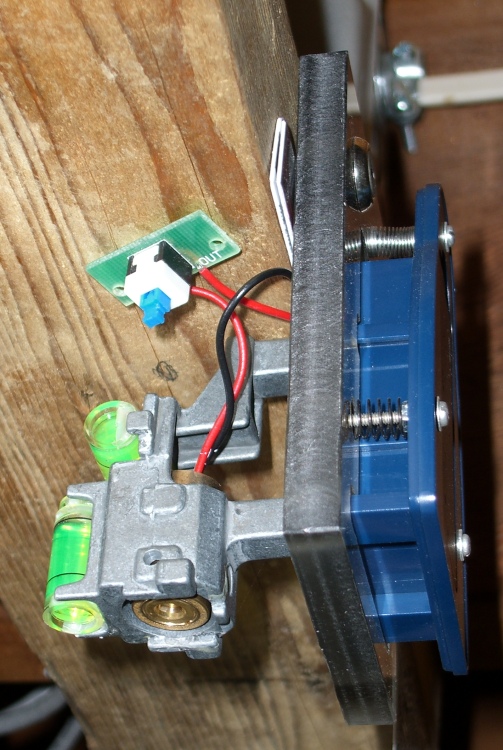
Sears laser level mounted on ceiling
That actually works pretty well for most of my projeects, as a few mils (heck, a few dozen mils) one way or the other doesn’t make much difference.
I kept lusting after an SDA Laser Center / Edge Finder (as advertised in Home Shop Machinist), which a friend says works really well. They have a 1/4″ (6 mm) shank for smaller machines, but it’s still nigh onto three inches long and headroom is a precious commodity in a Sherline mill.
I’ve seen projects using laser pointers as alignment tools, usually with an intricate six-axis gimbal hoodickie to aim the beam in exactly the right direction. If you’ve ever sighted along the body of a hand-held laser pointer, you’ll quickly see that the laser chips and optics project the beam in a generally forward direction, but any alignment is purely coincidental.
Then I had an insight: the spindle always stays aligned along one vertical axis. The mill is firmly bolted to the table, the table to the concrete-block wall, and the floor joists overhead rest on the wall, which means a laser mounted on a floor joist could shine right down the spindle bore. Do all the fiddly alignment once, then just it’ll Just Work forever after.
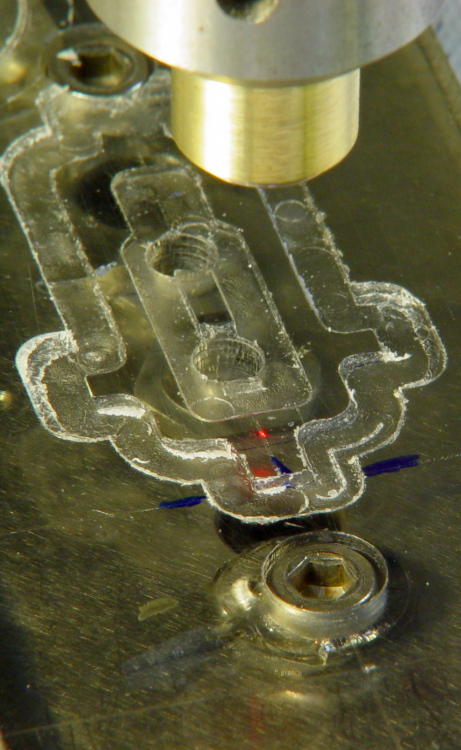
The top picture shows the result. A cheap-after-rebate (ten bucks, tops) Sears carpenter’s laser level provided the guts of the project; it’s no longer available, but you get the general idea. The fancy housing includes a cylindrical lens that converts the dot into a line, but stripping off the housing gets rid of that unwanted feature.
I carved out a plastic base plate and tapped it for 2-56 screws for fine adjustments. They fit directly in the holes that originally held the top of the housing, with springs to hold the level in position.
A plumb bob showed that the level had to live about halfway between two joists, so I screwed a scrap of 2×4″ in place and then screwed the level to that. The cardboard shims reveal the fact that the side of the board isn’t vertical, but I doubt cutting it would have helped much. After that, it’s a matter of sliding it this way & that, tweaking the screws, and fiddling around until the beam falls straight down the middle of the spindle.
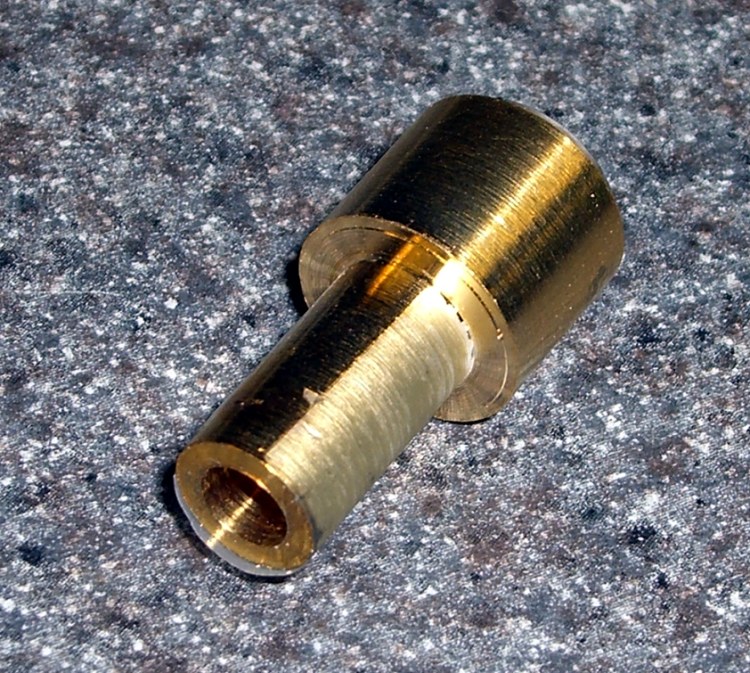
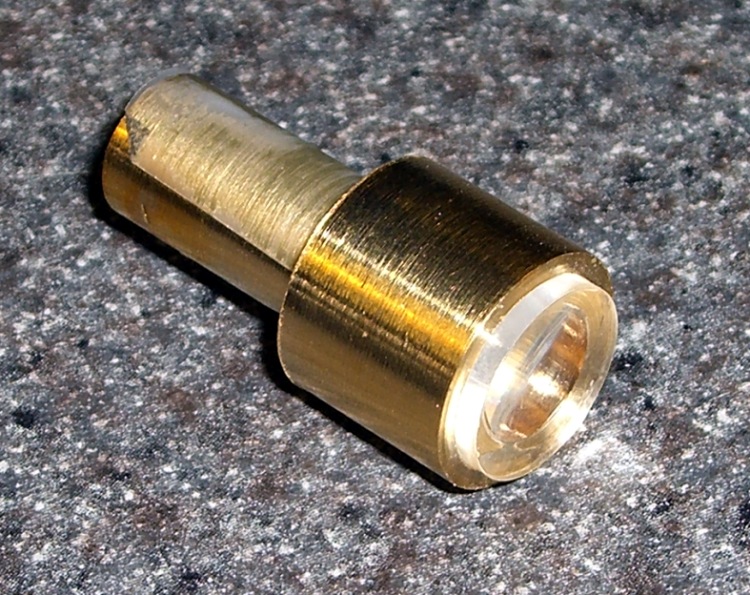
The laser spot is far too large, but a small lens will do the trick. Long ago I got a sack of small lenses from a surplus outlet that included a teeny plastic lens with a 1-inch focal length. A bit of lathe work turned out a holder with a bore just a bit larger than the laser spot.
Lens holder rear viewLens holder front view
The hole trims off all the junk light around the spot itself and cuts it down to a few mm in diameter, well-centered on the spindle axis. You can’t get too skinny here, as diffraction gets in the way, but the holder bore presents a decent spot to the lens.
A dot or three of cyanoacrylate adhesive (I just hate the term “crazy glue”, don’t you?) holds the lens in position. As long as the lens is centered and reasonably perpendicular to the axis, it’ll work fine. The lens is much larger than the spot, so you could use one that’s even smaller than this with impunity.
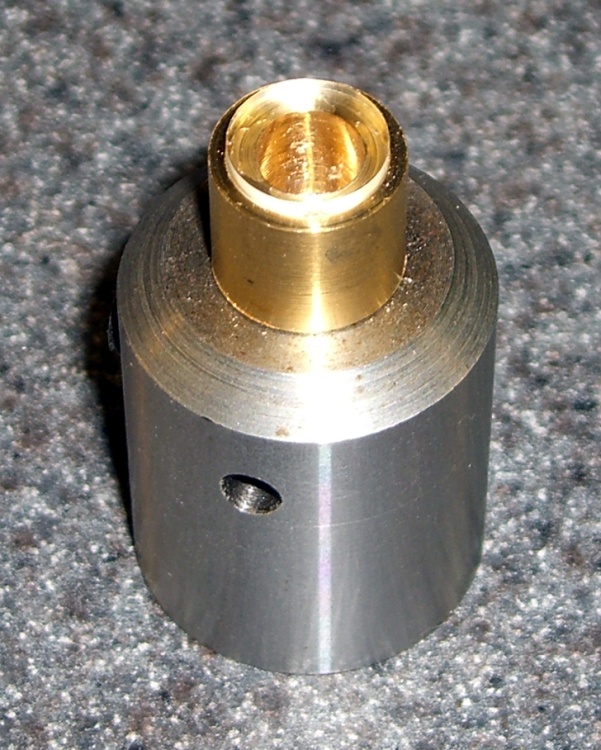
The narrow shank fits into an end mill holder, of which you should have several anyway, and the wrap of tape makes it a snug slip fit. If I hadn’t tried to get clever, the brass would be the right diameter; I keep telling myself to make another one and some day I will.
Lens holder in end mill holder
Because the beam is essentially parallel, the lens focuses it to a brilliant spot about 1 inch below the lens.
Laser alignment spot in action
The maximum angular error (offset from the true spindle axis) is pretty small, no matter how bad a job you do, because the beam must pass through the middle of a 10-mm tube that’s 130 mm long. Assuming it’s slanted off-axis by 1 mm at the top and still makes it into the hole in the lens holder, that’s under half a degree. At the far end of the 1-inch focal length, the spot is off-position by 9 mils, call it 0.2 mm.
However, the lens focuses that beam down by a pretty good factor and reduces the error by the same factor. I don’t have the number, but in practice I think the spot size is larger than the alignment error.
You can do better than that by adding another aperture at the top of the spindle and getting really fussy with alignment.
In any event, it’s closer than I came with the carbide scriber!
Update: I mounted it on a new bracket attached to the new counterweight gantry: much better! Some tips on aligning the thing there.
For the last month I’ve been twiddling it every now & again in preparation for my next visit, plus just letting it run to get some power-on hours under my supervision. You’ll find some of the info on that process earlier in the PC Tweakage category.
So it’s been booting up automagically at 6:15 am every morning, which is easier for Mom, but every now & again it wakes up dead. This is why I’m doing a month or two of burn-in here!
The diagnostic LEDs (the ABCD lights on the back panel) are GYGG, which isn’t listed in their hard-to-find LED reference. [Update: maybe now at Optiplex Diagnostic Indicators]
Dell Optiplex GX270 Auto-On Boot Failure LEDs
I did the usual diagnostic stuff. All the Dell diagnostic tests work fine, replugging the memory doesn’t help, and so forth & so on. Running many passes of memtest86+ (from the invaluable System Rescue CD) shows no problems at all.
Called up 800-891-8595, the DFS warranty service number (which is different from the usual Dell route), told my story, and got a call back (!) from the tech. I related the situation, mentioned that I’d set it for auto-on, and he said “Oh, they never got that BIOS code working, it’s never been released, and I’m surprised it works at all.”
Riiiight…
This is a biz machine, the sort acquired in semitrailer loads by big companies with actual IT departments, the ones that automagically wake up their flock of machines for overnight updates. Maybe they trigger auto-on through the LAN port (that’s another BIOS option) these days, but the BIOS wake-up alarm clock function has been available in pretty nearly every Dell I’ve ever owned… and works fine.
This is not rocket science.
Indeed, if anyone’s ever had the slightest problem with Dell’s auto-on, Google shows no sign of it. There’s nothing on the normally loquacious Dell forums. Nay, verily, the GX270 manual itself touts the “advanced feature” of having it turn on at a preset time and day.
Anyhow, he says the LED code shows the problem has something to do with the memory or video chip not starting up in time. That information is in his “internal” debugging info, which is not available to mere customers. He’s unwilling to swap memory (I tried another stick to no avail), let alone the system board.
Conclusion: his assignment is to make me Go Away without spending any money on warranty repairs.
Seeing as how the GX270 was a whopping 100 bucks delivered, I can sympathize with his marching orders, even if I disagree with their outcome.
So maybe Mom’s going to have to get used to turning the box on in the morning; it seems to work perfectly that way. A straightforward crontab entry turns it off in the evening… at least that part still works.
I’ve bought other off-lease & Dell Outlet boxes; they’ve worked fine. This one is a bit more battered than usual, but it’s otherwise in fine shape. It’s even been re-capped; the larger electrolytic caps aren’t the dreaded Nichicon popcorn caps.
Update: It seems to be booting OK with this burn-in regimen.
The motor driver box on my Sherline mill started out as a stock unit, but I’ve tweaked the circuitry to improve the analog performance. Those adventures formed the basis of my Above the Ground Plane columns in Circuit Cellar magazine columns for August & October 2004.
Because the firmware for the PIC microcontrollers wasn’t available, I wrote a clean-room version so I could show how it all worked for the column. My code won’t run on a stock Sherline board, though, so it’s not a drop-in replacement for the stock firmware.
One of the reasons I attacked the controller was to reduce the audible noise coming from the motors. That’s an inescapable part of chopped-current stepper motor drive circuitry, but the noise was modulated by all manner of things that shouldn’t have affected it; just touching the box shouldn’t make any difference at all. The fact that it did meant the circuit board had some, well, infelicitous layouts.
Although the final result was much more stable, I decided to turn off each motor if it didn’t move for at least five seconds; that’s a simple firmware tweak when you write your own code. As a result, the shop was quiet when I wasn’t actively milling.
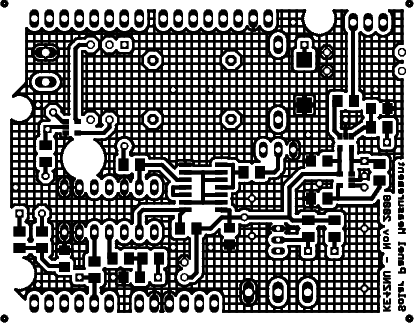
Solar Measurements Circuit Board – Top Side
Now, having a motor be completely turned off while milling is going on isn’t generally a good idea, because milling forces from the other axes can push the table against the leadscrew and, perhaps, turn the screw against the unresisting motor. I figured that on a Sherline mill, what with the sissy little cuts I take, that wouldn’t be a problem.
And I was right for the better part of four years!
A benefit of turning the driver circuitry off was that I could easily twist the knobs by hand to fine-tune the XYZ position during setup. That worked out really well.
However, drilling the seemingly simple circuit board pattern you see here (for my February 2009 CC column) produced exactly the right collection of forces (while drilling? Huh?), vibration (maybe) and motor pauses (for sure) to introduce an absolutely repeatable positioning error that Went Away when I tweaked the firmware to keep the motors enabled at all times.
I’ve since made another tweak that reduces the current to an idle level after five seconds. That both reduces the audible noise and drills the board correctly, so I’ll keep an eye on it for a while before declaring victory.
The PCB has a few unused (in my code, anyway) chip-to-chip connections that I could employ to let them all decide when nobody’s moving. I think turning the motors off 20 seconds after the last axis stops moving should work Just fine; my G-code doesn’t wait around that long except for manual tool changes.



 The Smell of Molten Projects in the Morning