Ed Nisley's Blog: Shop notes, electronics, firmware, machinery, 3D printing, laser cuttery, and curiosities. Contents: 100% human thinking, 0% AI slop.
A friend rides herd on a college data center and reports that one of the hot spares in a drive array started complaining about errors. By the time he got to it, things had gone from bad to worse to worst: the drive was spinning, but its data was gone.
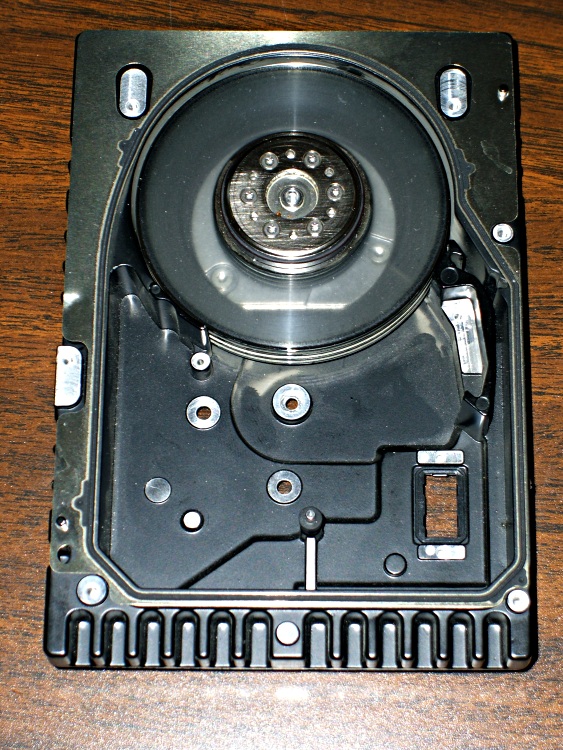
He removed all the head frippery before giving me the carcass, but the platters are exacty as they were when he ripped through those “Warranty Void If Removed” stickers.
Even though disk platters are now made of glass in order to achieve adequate flatness tolerances, you’re not supposed to be able to see through the things. There’s a bare millimeter of untouched plating on the inner and outer rims; everything else is finely ground glass.
Evidently the drive suffered a head crash or some part of the plating peeled off, after which the debris acted as grinding compound under the heads on the rest of the platters. Eventually the internal filters clogged and the ensuing dust storm scrubbed the glass platters clean.
He said the inside of the drive was filled with impalpable silvery dust. Another friend deadpanned “Oh, so all the data was still in the drive, right?
We decided that sorting all those dust grains into the right order would tax even Iranian “students”.
More than you likely want to know about hard drive platters resides there.
Every gadget comes with its own battery charger wall wart, every single one of which dissipates a watt or two even when it’s not charging. Add ’em up, multiply by $2 per watt per year (check your electric bill; that’s closer than you think!), and realize that you could afford some nice new tools just by unplugging the things between charges.
But that’s too much trouble and, really, AC outlets aren’t meant for that many mate/unmate cycles. I had one contact fall loose inside a power strip a while ago and the carnage was spectacular.
What to do?
Recharging Corner
Find an otherwise unoccupied flat spot (or build a shelf near an outlet), buy two or three Power Squid adapters (you don’t need surge suppression for this assignment, so get ’em on sale cheap), plug all your chargers into the Squids, and turn everything off with a single switch when you’re not charging anything.
Bonus: You certainly have some low duty cycle power tools that always have dead batteries when you need them. Plug ’em into the Squid you use most often for other batteries. That way, they’ll get a boost whenever you charge something else, which should keep ’em up to speed.
I set this tangle up before Power Squids existed, so I just plugged a bunch of Y-splitters into an ordinary power strip. It makes for a fearsome tangle of cords, but at least it’s out of the way atop the never-sufficiently-to-be-damned radon air exchanger in the basement.
Given a random transformer, create a decent Spice model… I have to do this rarely enough that I’d better write it down so it’s easy to find. There’s no magic here; it’s all described in ON Semi (nee Motorola) App Note AN-1679/D. See page 4 for the grisly details; I’ve reordered things a bit here.
Go to the basement lab and measure:
Primary & secondary voltages with a sine-wave input: Vp & Vs.
Primary inductance with secondary open: Lps(open)
Primary inductance with secondary shorted: Lps(short)
DC resistance of primary & secondary: Rp & Rs
Then return to the Comfy Chair and calculate:
Turns ratio N = Vp/Vs.
Coupling coefficent k = sqrt(1 – Lps(short)/Lps(open))
A quick trip to the basement lab produces these numbers for this small high-voltage transformer:
Small HV Transformer
Primary
Secondary
Voltage
1.08
27.32
DC resistance
2.03
349
L other open
15.5 mH
9.68 H
L other short
45.0 uH
31.3 mH
You don’t actually need the secondary inductances, but while you have the meter out, you may as well write those down, too. Maybe someday you’ll use the transformer backwards?
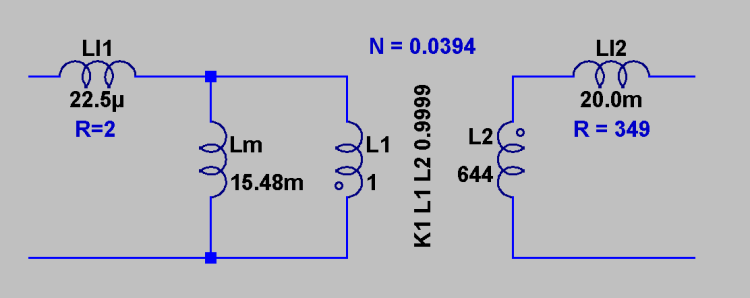
And a session with the calculator produces a Spice model:
N = 1.076 / 27.32 = 0.0394
k = sqrt(1 – 45.0 uH / 15.5 mH) = 0.998
LI1 = (1 – 0.998) ·15.5 mH = 22.5 uH
LI2 = (1 – 0.998) ·15.5 mH / 0.0394^2 = 20.0 mH
Lm = 0.998 ·15.5 mH = 15.48 mH
Note: the value of (1 – k) is the small difference of two nearly equal numbers, so you wind up with a bunch of significant figures that might not be all that significant. The values of LI1 and LI2 depend strongly on how many figures you carry in the calculations; if you don’t get the same numbers I did, that’s probably why.
The coupled inductors L1 & L2 form an ideal transformer with a primary inductance L1 chosen so that its reactance is large with respect to anything else. I picked L1 = 1 H here, which is probably excessive.
The coupling coefficient would be 1.0 if that were allowed in the Spice model, but it’s not, so use 0.9999. Notice that this is not the k you find from the real transformer: it’s as close to 1.0 as you can get. [Update: either I was mistaken about 1.0 not being allowed or something’s changed in a recent release; 1.0 works fine now.]
Spice transformer pi model
The primary inductance and turns ratio determine the secondary inductance according to:
Vp / Vs = N = sqrt(L1 / L2)
So:
L2 = L1 / (N^2) = 1 / 0.0394^2 = 644 H (!)
The models for LI1 and LI2 include the DC resistance, so that’s not visible in the schematic.
And now you can model a high-voltage DC supply…
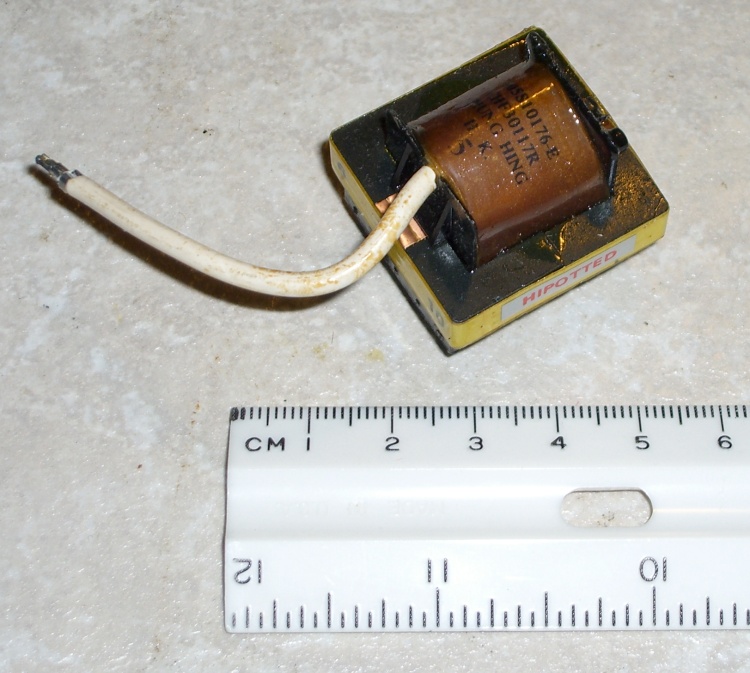
Memo to Self: It’s G16821 from Electronic Goldmine
Primary on pins 2 & 10
HV secondary on pin 8 & flying wire
Electrostatic shield on pin 3
Note: You can compute the turns ratio either way, as long as you keep your wits about you. With any luck, I’ve done so… but always verify what you read!
My mother does email and not much else, so I set up her PC to power on in the morning, shut down in the evening, sign her in automatically, fire up Kontact (which starts in Kmail mode), and (oh by the way) let me do remote admin via SSH from 250 miles away.
Works like a champ.
I’ve tweaked the KDE Window Behavior settings for Kontact so that it runs full-screen (with no border), thus eliminating a bunch of clutter and many opportunities for things to go wrong. To do this, click the small icon on the far left of the window’s title bar and select Configure Window Behavior.
You can also fire up System Settings -> Window Behavior -> Window-Specific Settings, then use the Detect button to load the window ID stuff from the window you’re tweaking. Then select
Geometry tab, Fullscreen -> Force -> checkmark
This differs in some subtle ways, which I don’t understand, from the combination of
Geometry tab: Maximize horizontally -> Force -> checkmark
Geometry tab: Maximize vertically -> Force -> checkmark
Preferences tab: No Border -> Force -> checkmark
Remember this magic keystroke: Alt-F3. This pops up the same menu you get from the small icon in the far left of the title bar, which just ain’t there for borderless windows. You can also wade through System Settings, but Alt-F3 is faster.
I also set the Kontact Composer (why not Komposer?) window to behave the same way, so that the only obvious way out is to either send the message or close the window using the toolbar icons.
Now, I wanted to set up Firefox similarly and it looked like it should work fine.
Alas, there’s a non-obvious interaction with new windows triggered by Javascript. If they’re the sort of pesky windows that suppress the Firefox menu & tab bar, then there’s no way out unless you happen to remember Ctrl-W or Alt-F4 will close the current window. Maybe you know that and use it every day, but it’s not reasonable to expect my mother to remember such trivia.
So I set up Firefox thusly:
Geometry tab: Maximize horizontally -> Force -> checkmark
Geometry tab: Maximize vertically -> Force -> checkmark
By not selecting the No Border option, Firefox and all its subsequent pop-ups fill the screen, but each window also has a normal border with the all-important Close button in the upper-right corner. Thus (desired) popups, like video players, can be killed when they’re done, even if they lack a separate Close This Window option.
Yes, Firefox is running Adblock Plus and all the usual extensions…
A rule of thumb for cameras is that more glass is better, so I’ve always been skeptical of those little bitty chips o’ glass in front of all those pocket-sized camera CCDs.
A while ago I took some shots with my Casio EX-Z850 at various resolutions, chopped out a chunk with some good detail from the middle of the images, and resized (cubic interpolation) the smaller ones to match the 8 MP image. The exposure was automagic: 1/200 sec at f/7.4. Zoomed as far as the optical zoom would go, hand-held ’cause at that shutter speed it’s OK, sharpness and contrast one click higher than the default.
As nearly as I can tell, there’s only a slight difference between 8 & 6 MP, enough to be noticeable at 4 MP, and it’s getting on toward icky at 2 MP. The picture isn’t any bigger because I wanted to preserve the actual dots in the 8 MP image.
Resolution Test – Shield
Notice the weird color gradations in the shields with bright primary colors. This was hand-held, so the camera reached the same image conversion conclusions each time, starting with different physical pixels. A bit of rummaging turns up the Island Coffee Co logo at http://www.islandcoffee.net/.
Just to show that resolution doesn’t matter in real life, check out the snail. Zoomed all the way out, macro focus, 1/125 f/2.8 (wide open), hand held, resized as above.
Resolution Test Images: Snail
As nearly as I can tell, the 2 MP image is the only one that’s noticeably worse and it’s still just fine. The other three are different, but even the 2 MP one isn’t bad.
Moral of the story: lots o’ dots is good, but beyond a few MP it just doesn’t matter. I think 4 MP is the sweet spot, based on an entirely insufficient sample, with 8 MP if you’re planning tight cropping. Otherwise, save 2 MB per image: 8 MP -> 4-5 MB, 4 MP -> 2-3 MB.
The other High Truth: lots of light is a Good Thing. You get really crappy pictures when there’s not enough light, but it seems that’s where all the interesting stuff happens.
Update: Uploaded the PNG version of the shield resolution test, as the JPG was fairly crappy, plus 8 MP overviews of the scenes. The text is antialiased and looks awful when you zoom in, but the whole point is to show the actual dots produced by the camera: there aren’t that many dots for the letters.
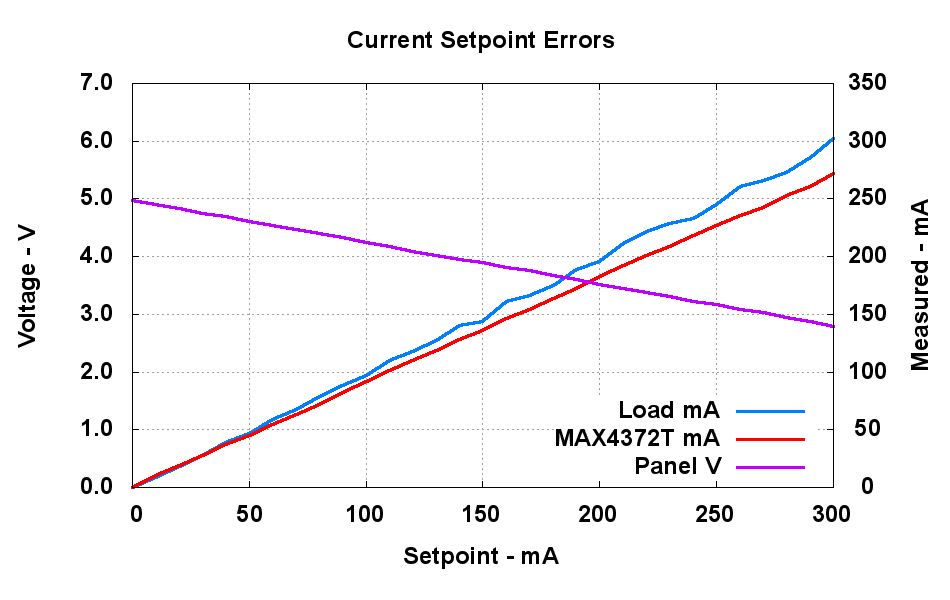
Contrary to what I’d thought, the MAX4372 circuitry has a simple gain error: it’s about 10% low over the full-scale 300 mA current range.
A bench supply produces 5 V through an 8 Ω resistor, although the slope of the purple line is more like 7.3 Ω. Close enough.
The blue line is the current sense voltage, which is exactly the same as the setpoint voltage plus a little PWM noise contributing to the waviness. Unlike the previous solar-powered chart, the bench supply voltage doesn’t drop enough to saturate the current sink, so the result is a nice straight line.
The red line is the MAX4372 output, which is consistently 10% low right up to the end; I can fix that with simple software scaling. The curve doesn’t flatten out, either, because the common-mode voltage across the sense resistor stays well above the it-stops-working-well limit around 2 V.
MAX4372 Schottky Protection Hack
Conspicuous by its absence is any sign of nonlinearity due to the Schottky protection diode across the sense terminal inputs. The full-scale sense voltage is 300 mA x 0.5 Ω = 150 mV, which is sufficiently below the 1N5819 threshold of about 300 mV.
The picture shows the hack-job mod I applied to the circuit board; basically a cut-and-solder job with 10 Ω SMD resistors and a through-hole 1N5819. Yes, I stacked those two chips to get 5 Ω on the -Sense input; it’s a nice way to get good fixed ratios.
Despite what the stripes look like, both of those through-hole resistors are 1.0 Ω: brown-black-gold-gold.
The MAX4372T, the heart of this discussion, is the nearly invisible black rectangle just in front of the diode’s right-hand lead.
Although I should take a look at the high-value resistor / no diode protection circuitry, this one will suffice for now. It’s worth mentioning that I haven’t managed to burn this MAX4372 out, despite perpetrating much the same indignities on it as I did to the others, so the diode protection really is working.
Those “nonmagnetic” tweezers remind me of a story and a useful gadget.
Two years ago a lightning strike blasted a football-sized chunk of concrete out of the garage door apron, blew out a bunch of networking gear, magnetized every ferrous object in the house (including the nails in the hardwood floors), yet didn’t do any damage to anything else.
Including us: we were sleeping about 20 feet from the crater. Whew & similar remarks.
Anyhow, all my machine-shop equipment and tooling was magnetized, too. Suddenly, lathe bits attracted swarf like, well, magnets, endmills sported fur coats, scales snapped onto the workpieces they were supposed to measure, and tweezers picked up screws without any pressure. Not a good situation.
Homebrew Magnetizer-Demagnetizer
Fortunately, I’d built a demagnetizer loosely modeled on one described in the Sept/Oct 2000 Home Shop Machinist. It got plenty of power-on minutes after that strike, returning my tools to their normal condition.
Those flooring nails will be magnetized forever.
The general idea is pretty simple: recycle the motor from a can opener-class gadget. Strip off all the shading coils and other frippery, saw enough from the pole pieces to position tools in the air gap, plug it straight into the wall outlet, and shake the magnetism right out of your steel.
It has another nice trick: a relatively low DC voltage that magnetizes your tools. The transformer has a 35 VAC center-tapped secondary, a pair of stud diodes yields about 24 V DC, and that honking big cap whacks the bumps off the full-wave rectified DC waveform.
Absolutely nothing is critical, but the original article suggests measuring the AC current into the motor winding, then choosing a DC voltage to force that current (Ohm’s Law: E=IR!) through the coil’s DC resistance. I picked a transformer that was close enough to work; anything in the 10-20 VAC range would probably be fine, too.
The small DPDT toggle switch routes either AC or DC to the winding. If I were doing this again, I’d use a bigger switch, but that’s what I had in the junk box at the time.
Use a momentary pushbutton for the main power switch, as you do not want this thing on for more than a few seconds. The motor windings get warm from the abuse; it was designed to run with the back EMF from the now-missing rotor, making the currents far higher than the design spec. Use fairly husky wire, not doorbell stuff, inside the box.
I used 100% junk-box parts for this project and bolted everything to the outside of a recycled aluminum box because the inside was pretty crowded with that husky wiring.
Demagnetizing: feel the buzz, then pull the tool a goodly distance from the pole pieces before you release the pushbutton.
Magnetizing: stroke the tool over one of the pole pieces, repeat as needed.
That should handle any residual magnetism in those tweezers…





 The Smell of Molten Projects in the Morning