The Smell of Molten Projects in the Morning

Ed Nisley's Blog: Shop notes, electronics, firmware, machinery, 3D printing, laser cuttery, and curiosities. Contents: 100% human thinking, 0% AI slop.

Author: Ed

  • Changing the Xubuntu 8.10 GDM Login Splash Screen

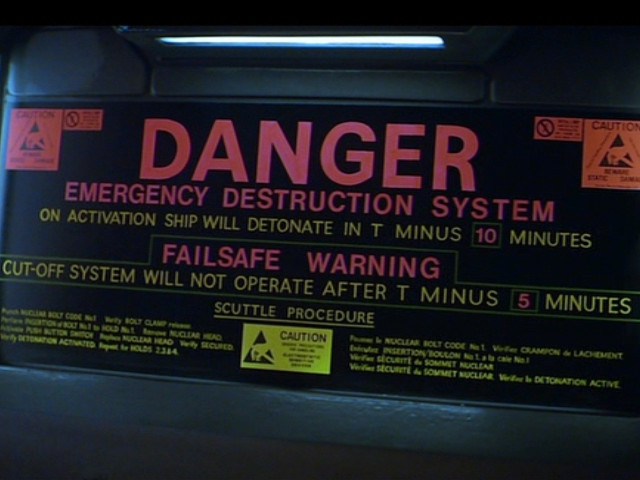
    OK, this is frippery and I admit it, but I vastly prefer my login background to theirs

    My GDM background
    My GDM background

    The right way to change the background is to create a whole new gdm theme and then fiddle gdm to use it. Easier than that: tweak an existing theme’s XML file to point to your image.

    The default Xubuntu theme for gdm is in /usr/share/gdm/themes/xubuntu, so cd there. This is a command-line thing …

    The background is stored in, oddly enough, background.png, a 1680×1500 image that doesn’t mind being stretched or cropped or smushed to fit your screen.

    Copy your favorite background image to that folder, perhaps renaming it on the fly:

    sudo cp /path/to/my-new-background.png danger.png

    I don’t know if JPG images will work, as I just saved that screen capture as a honkin’ big PNG; knock yourself out trying other formats.

    Adjust the first stanza in Xubuntu.xml to point at the new background file:

    <!-- background -->
    −
    <item type="pixmap">
    <normal file="danger.png"/>
    <pos y="0" x="0" width="100%" height="100%"/>
    </item>
    

    Squash the Xubuntu logo (in logo.png) so it’s not so obtrusive and move it out of the way of the background text. Modify the stanza that displays the logo file:

    <!-- ubuntu logo -->
    −
    <item type="pixmap">
    <normal file="<strong>logo.png</strong>" alpha="1.0"/>
    <pos x="<strong>50</strong>%" y="<strong>70</strong>%" width="scale" height="<strong>10%</strong>" anchor="n"/>
    </item>
    

    Log out. Enjoy…

    FWIW, replacing the background is far easier in KDE (3.x, at least), which has an actual GUI interface (System Settings -> Advanced -> Login Manager). But, of course, KDE 4.x is on the outs with this dual-screen box.

    And don’t you love those Beware Static Damage warning stickers on the Nostromo’s scuttling control panel?

    Default Xubuntu GDM background
    Default Xubuntu GDM background
  • UUIDs for External USB Drives

    I use an external USB drive to hold daily file-server backups. My backup scripts mount & unmount the drive around the rsnapshot backup, which allows the drive to spin down for most of the day, plus protecting it from random finger fumbles and possible system breakage. Whether that affects the drive’s long-term reliability or not, I cannot say, but it’s been chugging along for a year so far.

    In any event, hotplugging precludes the usual /dev/sd?? notation notation for disk mounting, because the drive tends to have a different device name depending on what’s plugged in. It turns out one of my printers has a USB port for memory gadgets (from whence it can print directly, not that I ever want to) which looks like an unmounted drive which may come up either before or after the USB backup drive.

    Sooo, I must use the drive’s UUID (Univerally Unique ID). Or, more accurately, the filesystem’s UUID, which has some implications.

    Figure out which drive it is by looking in dmesg

    [   18.436000] scsi 4:0:0:0: Direct-Access     Maxtor   OneTouch         0122 PQ: 0 ANSI: 4
    ... snippage ...
    [   18.444000] sd 4:0:0:0: [sdd] 976773168 512-byte hardware sectors (500108 MB)
    [   18.444000] sd 4:0:0:0: [sdd] Write Protect is off
    [   18.444000] sd 4:0:0:0: [sdd] Mode Sense: 2d 08 00 00
    [   18.444000] sd 4:0:0:0: [sdd] Assuming drive cache: write through
    [   18.448000] sd 4:0:0:0: [sdd] 976773168 512-byte hardware sectors (500108 MB)
    [   18.448000] sd 4:0:0:0: [sdd] Write Protect is off
    [   18.448000] sd 4:0:0:0: [sdd] Mode Sense: 2d 08 00 00
    [   18.448000] sd 4:0:0:0: [sdd] Assuming drive cache: write through
    [   18.448000]  sdd: sdd1 sdd4
    [   18.456000] sd 4:0:0:0: [sdd] Attached SCSI disk
    [   18.456000] sd 4:0:0:0: Attached scsi generic sg4 type 0
    

    The sdd1 partition occupies nearly the entire drive and holds the backup files. The sdd4 partition is a tiny FAT thing for the Maxtor utilities that set the spin-down time and suchlike. Every now and then you do need a Windows box, alas.

    Find the UUID by looking in /dev/disk/by-uuid/

    lrwxrwxrwx 1 root root 10 2009-03-21 08:08 069e50dc-1994-47d2-9c7e-0b5179a89041 -> ../../sdd1
    ... snippage ...
    

    Plunk that in /etc/fstab

    UUID=069e50dc-1994-47d2-9c7e-0b5179a89041 /mnt/backup ext2 defaults,noatime,noauto,nodev,noexec,nosuid 0 0
    

    Then I (and, more importantly, my scripts) can mount the drive with a simple sudo mount /mnt/backup regardless of what drive name it sports today.

    The UUID comes from the filesystem written in the partition, so rebuilding the filesystem with mke2fs gives the partition a new UUID; the old entry in /etc/fstab stops working. You can use tune2fs to copy the old UUID to the new filesystem or do as I do: just plunk the new UUID in /etc/fstab.

    The system reads the partition’s UUID when it boots, so regenerate the /dev/disk/by-uuid entry using sudo udevtrigger or replugging the drive (which is awkward because it’s in the basement and I’m upstairs). That also re-jiggers all the hotpluggable devices, which shouldn’t matter, right?

    The reason I use mke2fs rather than sudo rm -rf /mnt/backup is that it takes basically forever to delete a whole drive full of files.

  • Terabyte Backup for the Backup

    Now that terabyte drives sell for under 100 bucks, there’s no longer any reason to worry about backup space. Just do it, OK?

    My file server runs a daily backup (using rsnapshot, about which more later) just around midnight, copying all the changed files to an external 500 GB USB drive. On the first of each month, it sets aside the current daily backup as a monthly set, so I have a month of days and a year of months.

    Roughly once a quarter, I copy the contents of that drive to another drive, empty the file system, and start over again.

    Right now there’s about 380 GB of files on the server, but rsnapshot maintains only one copy of each changed file on the backup drive and we typically change only a few tens of megabytes each day, sooo a 500 GB drive doesn’t fill up nearly as fast as you might think.

    Our daughter’s doing a science fair project involving ballistics and video recording, so she recently accumulated 36 GB of video files in short order… and re-captured the entire set several times. Of course the external drive filled up, so it’s time for the swap.

    Recently I picked up a 1 TB SATA drive and it’s also time to document that process.

    You will, of course, have already set up SSH and added your public key to that box, so you can do this from your Comfy Chair rather than huddling in the basement. You’ll also use screen so you can disconnect from the box while letting the session run overnight.

    Plug the drive into a SATA-to-USB converter, which will most likely pop up a cheerful dialog asking what you want to do with the FAT/NTFS formatted empty drive. Dismiss that; you’re going to blow it away and use ext2.

    Find out which drive it is

    dmesg | tail
    [25041.488000] sd 8:0:0:0: [sdc] 1953525168 512-byte hardware sectors (1000205 MB)
    [25041.488000] sd 8:0:0:0: [sdc] Write Protect is off
    [25041.488000] sd 8:0:0:0: [sdc] Mode Sense: 00 38 00 00
    [25041.488000] sd 8:0:0:0: [sdc] Assuming drive cache: write through
    [25041.488000]  sdc: sdc1

    Unmount the drive

    sudo umount /dev/sdc1

    Create an empty ext2 filesystem

    sudo mke2fs -v -m 0 -L Backup1T /dev/sdc1

    The -v lets you watch the lengthy proceedings. The -m 0 eliminates the normal 5% of the capacity reserved for root; you won’t be running this as a normal system drive and won’t need emergency capacity for logs and suchlike. The -L gives it a useful name.

    Create a mount point and mount the new filesystem

    sudo mkdir /mnt/part
    sudo mount /dev/sdc1 /mnt/part

    You may have to fight off another automounter intervention in there somewhere.

    The existing backup drive is in /etc/fstab for easy mounting by the the rsync script. Because it’s a USB drive, I used its UUID name rather than a /dev name that depends on what else might be plugged in at the time. To find that out

    ll /dev/disk/by-uuid/
     ... snippage ...
    lrwxrwxrwx 1 root root 10 2009-03-17 09:54 fedcdb1c-ec6e-4edc-be35-22915c82e46a -> ../../sdd1

    So then this gibberish belongs in /etc/fstab

    UUID=fedcdb1c-ec6e-4edc-be35-22915c82e46a /mnt/backup ext3 defaults,noatime,noauto,rw,nodev,noexec,nosuid 0 0

    Mount the existing backup drive and dump its contents to the new one:

    sudo mount /mnt/backup
    sudo rsync -aHu --progress --bwlimit=10000 --exclude=".Trash-1**" /mnt/backup/snapshots /mnt/part

    You need sudo to get access to files from other users.

    Rsync is the right hammer for this job; don’t use cp.

    The -a preserves all the timestamps & attributes & owners, which is obviously a Good Thing.

    The -H preserves hard links, which is what rsnapshot uses to maintain one physical copy in multiple snapshot directories; if you forget this, you’ll get one physical copy for every snapshot directory and run out of space on that 1 TB drive almost immediately.

    The -u does an update, which is really helpful if you must interrupt the process in midstream. Trust me on this, you will interrupt it from time to time.

    You will also want to watch the proceedings, which justifies –progress. There’s a torrent of screen output, but it’s mostly just comfort noise.

    The key parameter is –bwlimit=10000, which throttles the transfer down to a reasonable level and leaves some CPU available for normal use. Unthrottled USB-to-USB transfer ticks along at about 15 MB/s on my system, which tends to make normal file serving and printing rather sluggish. Your mileage will vary; I use –bwlimit=5000 during the day.

    You probably want to exclude the desktop trash files, which is what the –exclude=”.Trash-1**” accomplishes. If your user IDs aren’t in the 1000 range, adjust that accordingly.

    How long will it take? Figure 500 GB / 10 MB/s = 50 k seconds = 14 hours.

    That’s why you use screen: so you can shut down your Comfy Chair system overnight and get some shut-eye while rsync continues to tick along.

    When that’s all done, compare the results to see how many errors happen while shuffling the data around:

    sudo diff -q -r --speed-large-files /mnt/backup/snapshots/ /mnt/part/snapshots/ | tee > diff.log

    The sudo gives diff access to all those files, but the tee just records what it gets into a file owned by me.

    You’ll want to do that overnight, as it really hammers the server for CPU and I/O bandwidth. Batch is back!

    That was the theory, anyway, but it turned out the new drive consistently disconnected during the diff and then emerged with no filesystem. A definite disappointment after a half-day copy operation and something of a surprise given that diff is a read-only operation.

    A considerable amount of fiddling showed that running USB-to-USB copies simply didn’t work, even if the drives were on different inside-the-PC USB controllers, with failures occurring around a third of a terabyte. So, rather than debugging that mess, I wound up making copies directly from the file server’s internal drives, which ran perfectly but also ignored the deep history on the backup drive.

    But, eh, I’ve been stashing a drive in the safe deposit box for the last few years, so there should be enough history to go around…

  • Vital Browser Addition: Readability

    Short version: Go there, read about Readability, set it up, and browse happily ever after.

    Longer version: Readability chops away all the overdesigned Webbish crap around the text you want to read, reformats it in a single block, and lets you read without distractions.

    My configuration:

    • Style: Novel
    • Size: Large
    • Margin: Narrow

    I put it as the top bookmark in the sidebar, where I hit it rather often.

    It also works well for printing: nytimes.com articles now print quite legibly in four-up mode, which saves a ton o’ paper.

    Bonus: you can even print those pesky blogs that don’t print in Firefox.

    Minor disadvantage: if you want to print a whole article, you must get all the text on a single page. Some blogs / news outlets don’t let you do that, for reasons that should be obvious when you consider how nice Readability is.

    Just do it.

    You should, of course, be using the Firefox Adblock Plus Add-On to quiet your browsing even more. There used to be an ethical question about using ad-supported sites while running ad-blocking software, but that seems to have died out with the advent of pop-up/pop-under ads, animated GIFs, and relentless Flash junk.

  • Making ALSA Sort Multiple Sound Cards Properly

    Multiple sound cards pose a problem for ALSA, because they don’t appear in the same order on every boot. This is particularly true for hotplugged USB stuff, but it can also affect PCI and system board audio devices.

    The symptom is that you suddenly don’t hear any sound. The reason is that ALSA is dutifully piping sound through the card that’s not connected to your speakers.

    The fix is straightforward, if not at all obvious: force the proper card to be Card 0, then force the ALSA default PCM output to use that card. Either should work alone, but both together will enforce the decision.

    Find out which drivers are in use:

    cat /proc/asound/cards
     0 [AudioPCI       ]: ENS1371 - Ensoniq AudioPCI
                          Ensoniq AudioPCI ENS1371 at 0xb8c0, irq 16
     1 [Headset        ]: USB-Audio - Logitech USB Headset
                          Logitech Logitech USB Headset at usb-0000:00:1d.3-1, full speed
     2 [Intel          ]: <strong>HDA-Intel</strong> - HDA Intel
                          HDA Intel at 0xfebfc000 irq 16
    

    The system-board sound hardware uses the HDA-Intel driver, which should be Card 0 and the default sound output.

    Add this to the bottom of /etc/modprobe.d/alsa-base, prefixing the module name from the /proc/asound/cards list with snd-

    #--- hack to get sound ordering correct
    options snd-hda-intel index=0
    

    Find out what ALSA thinks is possible:

    aplay -L
     ... snippage ...
    front:CARD=Intel,DEV=0
        HDA Intel, STAC92xx Analog
        Front speakers
     ... snippage ...
    

    Create /etc/asound.conf (because it’s not created by default) and add this, using the name from the appropriate CARD= entry:

    # Hack to order the cards correctly
    pcm.!default front:Intel
    

    This is one of those gotta-reboot events, because removing & reinstalling modules, then restarting ALSA, just isn’t worth the effort for a single-user desktop box.

    Update: Except that sometimes it still doesn’t work. The dmesg report shows

    [   36.779814] ENS1371 0000:05:04.0: PCI INT A -> GSI 16 (level, low) ->IRQ 16
    [   36.922744] cannot find the slot for index 0 (range 0-0), error: -16
    [   36.922808] hda-intel: Error creating card!
    [   36.924631] HDA Intel: probe of 0000:00:1b.0 failed with error -12
    

    From which I infer that the Ensoniq card gets polled first, grabs slot 0, and then the Intel driver can’t get a word in edgewise.

    Next step: another line at the bottom of /etc/modprobe.d/alsa-base:

    options snd-ens1371 index=2

    Update: You’ll probably find that Adobe Flash still plays through the wrong audio device. There’s no obvious was to reconfigure it, so just blow away its own setup and let it start over with the audio cards sorted properly:

    cd ~
    rm -rf .adobe/Flash_Player
    rm -rf .macromedia/Flash_Player
    

    Those of long memory will recall that Macromedia cooked up Flash before getting Borged by Adobe.

    While you’re under the hood, turn off Flash cookies.

  • Wine Menu Font & Size

    Wine, the Windows emulator for Linux, has gotten to the point where it works pretty well for most non-USB-gadget-related Windows programs that I’m still forced to use. For whatever reason, the out-of-the-box Wine system UI fonts are eye-burning tiny.

    Perhaps they’re well suited for 640×480 monitors?

    Anyhow, fire up the Wine configuration editor (which may be a menu entry or just type winecfg at a command prompt), go to the Desktop Integration tab, look in the Appearance section, and scroll down through the various Item entries. Some entries enable the adjacent Font button, a click of which will allow you to whack ’em into sensibility.

    All the fonts defaulted (for my installation, anyway) to 6 point Andale Mono. Not sensible.

    Don’t follow the well-meaning advice you’ll find elsewhere to tweak the Screeen Resolution setting from whatever the default is. That forces Wine to interpolate from Windows dots to X dots and the outcome is not pretty.

  • Quick-and-easy IR-passing / Visible-blocking Optical Filter

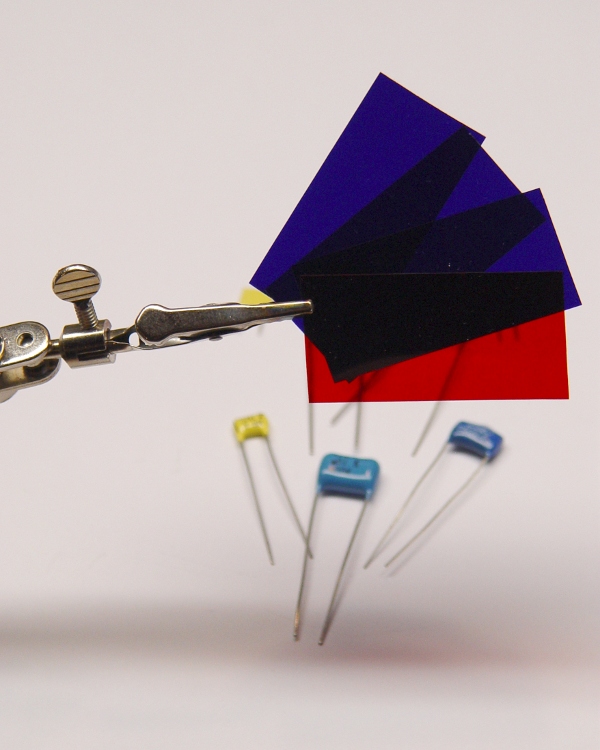
    Gel filters - normal visible light
    Gel filters – normal visible light

    When you don’t need high optical quality for an IR filter, you can superimpose red and blue stage-lighting filters: pure black to the eye, transparent to IR.

    You know they’re IR-transparent because they’re generally snuggled right up against huge incandescent bulbs: if the filter material absorbed any IR, it’d burn right up.

    I’ve used Lee Filters Congo Blue (181) and Primary Red (106) to good effect. They may be available from a stagecraft outlet near you, but around here that stuff is a mailorder deal. You’ll get a lifetime supply, so maybe you can pass some out to your cronies; techies always enjoy odd presents like that.

    A more optically flat (and durable and expensive) option would be a photographic-image-quality glass IR filter suitable for camera mounting. I got one after I dropped a homebrew plastic filter down a sewer grate.

    For examples, go to Adorama, click on Filters in the left column, then select Infra-Red Filters, then maybe refine the search to the cheaper Hoya brand before your budget runs away in fear.

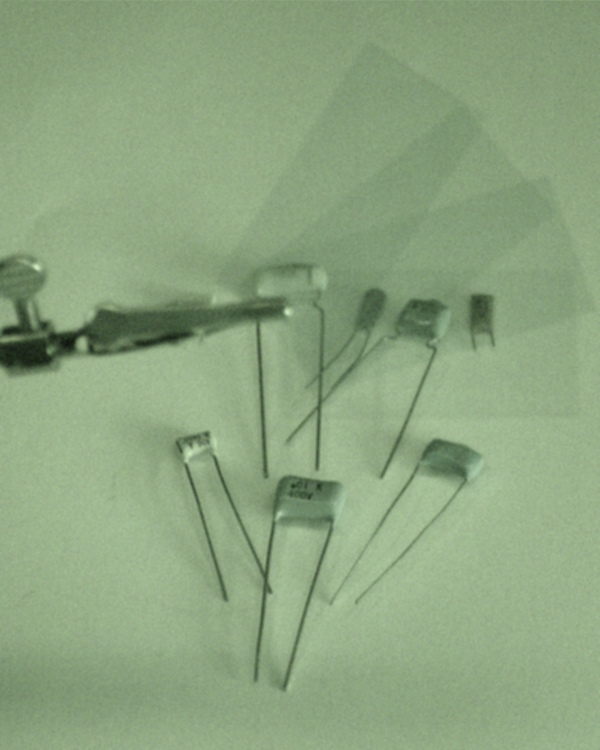
    Gel filters - IR view with visible light
    Gel filters – IR view with visible light

    Make sure your camera doesn’t have an IR blocking filter behind the lens. I think most consumer-grade digital cameras do have an IR-blocking filter and most video cameras don’t, but I’m sure those general rules don’t hold in all cases. Indeed, I bought a Sony DSC-F717 specifically for its IR mode; fortunately, the CCD sensor failed shortly before the factory recall ended.

    The pictures show the same scene under normal lighting, with the camera set to its IR mode, and IR mode with an IR filter in front of the lens.

    The gel filters appear dark-gray in the middle image because the camera sets the exposure (1/60 f2.4 ISO100) based on the visible light entering the lens. They’re transparent in the bottom image because the exposure (1/30 f2.4 ISO1000) is based on only the IR illumination, which is pretty dim. The gratuitous greenish cast is how Sony reminds you that the image was in IR mode

    Gel filters - Pure IR view
    Gel filters – Pure IR view