Ed Nisley's Blog: Shop notes, electronics, firmware, machinery, 3D printing, laser cuttery, and curiosities. Contents: 100% human thinking, 0% AI slop.
Straight up: this is about a stainless steel socket head cap screw I installed eight years ago, not the original Easy Racers screw, so this is not their problem.
I rode out for milk-and-eggs at the corner store, a flat one-mile ride, and stopped at the traffic signal. Light goes green, line of cars accelerates, so do I… and there’s a snap and the left side of the seat sags backwards. I am not a powerhouse rider and it’s March, so I’m not doing leg presses while getting up to cruising speed.
I continued the mission by sitting slightly to the right on the seat and pedaling gingerly, then diagnosed the problem in the corner store’s parking lot. If I’d been further away, I’d have done the repair right there, but I figured it’d hold together until I got home. It did.
The problem turned out to be a broken screw holding the left-side seat strut to the threaded eyelet on the rear dropout. The top picture shows the way I have it set up: seat strut clamp outboard, rack strut inboard, with a socket head cap screw extending all the way through, and secured with a pair of stainless nuts that went missing along with the broken screw end.
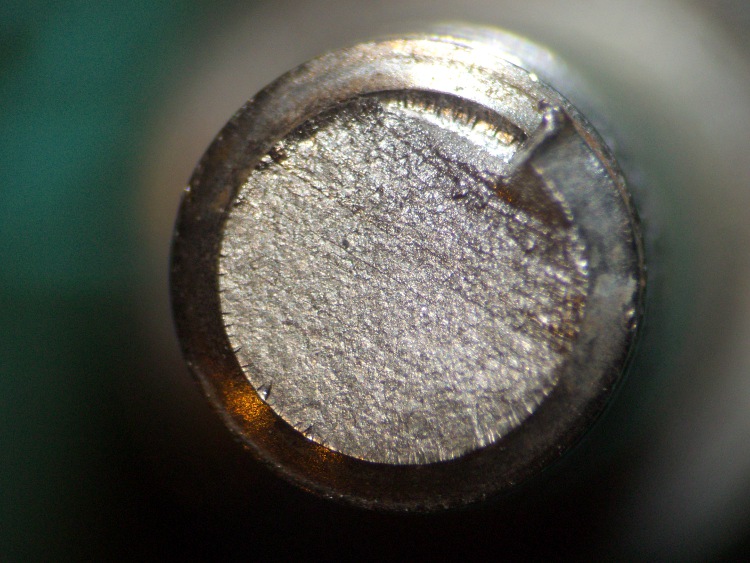
Screw fracture closeup
Here’s the fracture across the end of the screw, which shows no evidence of foul play. As nearly as I can tell, the whole thing snapped off in one event, with none of the crud that would indicate a progressive crack. Compared with that wheel stud, this is in pristine condition.
So it’s time to replace the right-side screw, as well, which means a trip to the Bike Repair Wing of the Basement Laboratory. While I had the bike up in the repair stand, I decided to reshape the head on the right-side screw for better chain clearance.
As nearly as I can tell, the usual practice puts both the seat strut and the rack strut outboard of the threaded eyelet on the dropout, but that seems wrong to me. The seat strut puts a tremendous amount of stress on the screw, so you really want that lever arm as short as possible: put the clamp against the eyelet. While the rack isn’t as heavily loaded, cantilevering it outboard of the clamp just doesn’t look right.
But putting the rack strut inboard of the eyelet means the screw head sticks out rather more than I’d like. Very rarely, the chain will snick against the head and even more rarely it jams between the head and the freewheel. Nothing much happens (it’s a freewheel, after all), but I think reducing the head thickness ought to help.
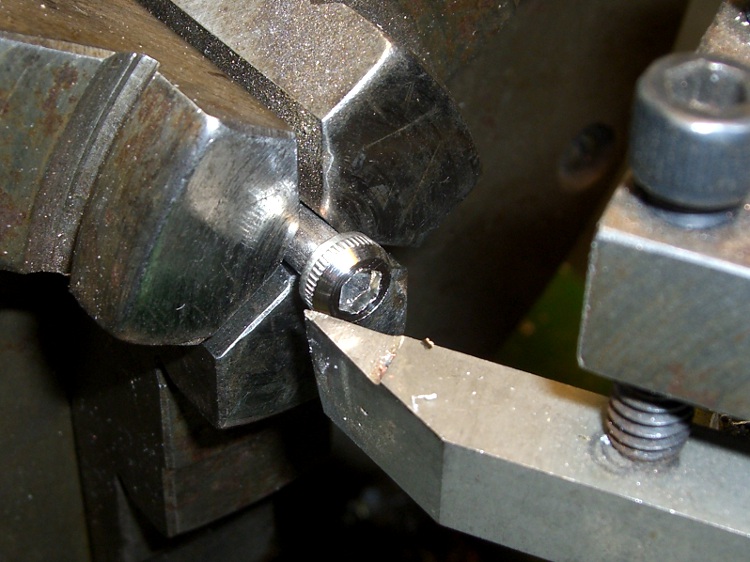
Reshaped socket head cap screw
So I chucked the screw in the lathe, shortened the socket by about half, and put a taper on the head. If I had a stock of round-head cap screws, one of those would be even better.
The shortened socket makes it a bit tricky to get enough bite with the hex key, but this isn’t something that requires much attention after it’s installed… and I get to do all that in the shop.
Dabs of Loctite in the eyelet and nuts, for sure!
By a truly rare coincidence, a standard 1-1/2 inch cap screw is exactly the right length.
Right-side mount
Here’s a view of the installed right-side screw, looking rearward along the upper rear triangle tube. Seat strut to the outside, rack strut to the inside, and reshaped head above the cluster.
Took the bike out for a 16 mile spin today and it’s all good.
A note for the weight weenies in the crowd: a rack on the back of the seat adds a redundant support structure. Without that, a failed seat strut can be a real showstopper. Even if you don’t use your bike as a pack mule, maybe you should add a rack.
This herd, a family unit that’s been traveling around the neighborhood in recent weeks, paused for morning brunch in our neighbor’s yard. They generally cross the road at a dead run, but haven’t gotten themselves or anyone else killed. Yet.
They and their ilk are why our vegetable gardens must have ten-foot fences with robust supports. There are no understory plants left in the wooded areas and precious few young trees; the deer population is literally eating everything in sight.
Vassar College recently culled 60-odd deer on their preserve in about ten hours, much to the dismay of the local animal huggers. It wasn’t a hunt; professional sharpshooters took ’em out.
We have a proposal: if you like deer so much, adopt ’em, haul ’em home, and take care of the things. Let them eat your shrubbery, crap all over your lawn, and infect your children, but keep them off the streets and out of your neighbor’s yards. Fair enough?
And let’s not get started about deer ticks. Dutchess County is the epicenter of Lyme Disease infections, for well and good reason.
Got the replacement X10 controller from the usual eBay source and it works fine, except it has a red LED that’s on unless it’s sending an X10 command.
That’d be OK, except that I’ve spent the last few months associating a red LED at that spot on the dresser with a jammed X10 controller.
Not to mention that red LEDs are sooo 20th Century…
Four screws hold the baseplate in place; it takes a bit of prying to release the stiffening collars around the front screws and remove the baseplate. One more screw holds the circuit board in place.
Surprisingly, they used the same metal-dome switch plates!
Anyhow, with the board out, it’s easy to unsolder the red LED and replace it with a green one from my bag o’ mixed LEDs. It’s not quite the same shape and doesn’t have a big shoulder to keep it in place, but it’s good enough for me.
New green LED
The heat of soldering melted the thermoplastic glue that held the original LED in place. The new one isn’t quite as firmly bonded, but I don’t intend to jam a paperclip into the hole after shoving the LED out of the way.
Nothing like sleeping on a problem. It turns out that a chunk of HAL code can do a nice job of locking out an inactive joystick axis.
The general idea:
A priority encoder selects one axis when both go active simultaneously
The prioritized outputs set flipflops that remember the active axis
The active axis locks out the other one until they’re both inactive
That way, you can start to jog either axis on a knob without worrying about accidentally jogging the other axis by moving the knob at a slight diagonal. I hate it when that happens.
The other tweak is that the quartet of buttons on the right act as a “hat” for the Z and A axes, jogging them at the current maximum speed.
Because it’s tough to accidentally push two buttons at once, there’s no need to lock them out. So you can jog diagonally by deliberately pushing adjoining buttons, but you must want to do that.
Rather than dumping the whole program again, here are the key parts…
Figuring out if a joystick axis is active uses the window comparators. It seems the idle counts value varies slightly around 127, so I relaxed the window limits. Should the window comparator go active with the knob centered, the buttons for that axis won’t produce any motion.
net		x-jog-count-int	input.0.abs-x-counts	conv-s32-float.0.in
net		x-jog-count-raw	conv-s32-float.0.out	wcomp.0.in
setp	wcomp.0.min		125
setp	wcomp.0.max		130
net		X-inactive		wcomp.0.out				not.0.in
net		X-active		not.0.out
The priority encoder is just a gate that prevents Y (or A) from being selected if X (or Z) is simultaneously active. Here’s a sketch for the ZA knob:
Axis priority encoder
The active and inactive signals come from the window detectors. The sketch gives the K-map layout, although there’s not a whole lot of optimization required.
The corresponding code:
net		Z-inactive		and2.5.in0
net		A-active		and2.5.in1
net		A-select		and2.5.out				# select A only when Z inactive

net		Z-inactive		and2.6.in0
net		A-inactive		and2.6.in1
net		ZA-Deselect		and2.6.out				# reset flipflops when both inactive

net		Z-active		and2.7.in0				# set Z gate when knob is active
net		A-gate-not		and2.7.in1				# and A is not already gated
net		Z-set			and2.7.out					flipflop.2.set

net		ZA-Deselect		flipflop.2.reset		# reset when neither is active
net		Z-gate			flipflop.2.out				not.6.in
net		Z-gate-not		not.6.out

net		A-select		and2.8.in0				# set A gate when knob is active
net		Z-gate-not		and2.8.in1				# and Z is not already gated
net		A-set			and2.8.out					flipflop.3.set

net		ZA-Deselect		flipflop.3.reset		# reset flipflop when both inactive
net		A-gate			flipflop.3.out				not.7.in
net		A-gate-not		not.7.out
The flipflops remember which axis went active first and lock out the other one. When both axes on a knob return to center, the flipflops reset.
The quartet of buttons produce binary outputs, rather than the floats from the Hat, so a pair of multiplexers emit -1.0, 0.0, or +1.0, depending on the state of the buttons, for each axis.
setp	mux2.6.in0	0.0
setp	mux2.6.in1	-1.0
net		A-btn-neg		input.0.btn-trigger		mux2.6.sel
net		A-btn-neg-value	mux2.6.out				sum2.1.in0

setp	mux2.7.in0	0.0
setp	mux2.7.in1	1.0
net		A-btn-pos		input.0.btn-thumb2		mux2.7.sel
net		A-btn-pos-value	mux2.7.out				sum2.1.in1

net		A-jog-button	sum2.1.out

net		A-btn-neg		or2.1.in0
net		A-btn-pos		or2.1.in1

net		A-btn-any		or2.1.out				or2.2.in0
net		A-gate			or2.2.in1
net		A-motion		or2.2.out
The A-motion signal is true when either of the A jog buttons or the A joystick axis is active. That gates the MAX_ANGULAR_VELOCITY value to halui.jog-speed, rather than the default MAX_LINEAR_VELOCITY. Or, depending on the state of the toggle from the two joystick push switches, 5% of that maximum. A mere 5% may be too slow for the A axis, but it’ll take some experience to determine that.
With that in hand, the final step is gating either the knob or the button values to halui.jog.*.analog.
net		Z-jog-button	mux2.8.in0
net		Z-jog-knob-inv	mux2.8.in1
net		Z-gate			mux2.8.sel
net		Z-jog			mux2.8.out				halui.jog.2.analog

net		A-jog-button	mux2.9.in0
net		A-jog-knob		input.0.abs-z-position	mux2.9.in1
net		A-gate			mux2.9.sel
net		A-jog			mux2.9.out				halui.jog.3.analog
The Hat jogs X and Y at the current maximum speed.
The Left Knob jogs X and Y proportionally to the Knob displacement.
The Right Knob jogs Z (Up-Down) and A (Left-Right) proportionally to the Knob displacement.
Press either Knob downward to toggle the maximum jog speed between MAX_LINEAR_VELOCITY (as defined in the Sherline.ini file) and 5% of that value. The slow speed is useful for creeping up on alignment points: the first active level of the joysticks runs at a nose-pickin’ pace.
The left little button (labeled 9) switches to Manual mode, although the AXIS display does not update to indicate this. Same as “F3” on keyboard, minus the GUI update.
The right little button (labeled 10) continues a G-Code program by activating the Resume function. Same as “S” on the keyboard.
The Mode button switches the functions of the Hat and Left Knob. That button does not generate an output and the Mode cannot be controlled programmatically. Swapping those functions doesn’t seem particularly useful in this application, so the LED should never be ON.
Buttons 1-4 are not used for anything yet.
On the back:
Pressing the left-hand pair of buttons (labeled 5 and 7) activates E-stop. Yes, I know all about why you shouldn’t have E-stop run through software. This is a Sherline mill. Work with me here.
The right-hand buttons (labeled 6 and 8) do nothing yet.
The code…
In Sherline.ini:
[HAL]
HALUI=halui
In custom.hal:
loadusr -W hal_input -KA Dual
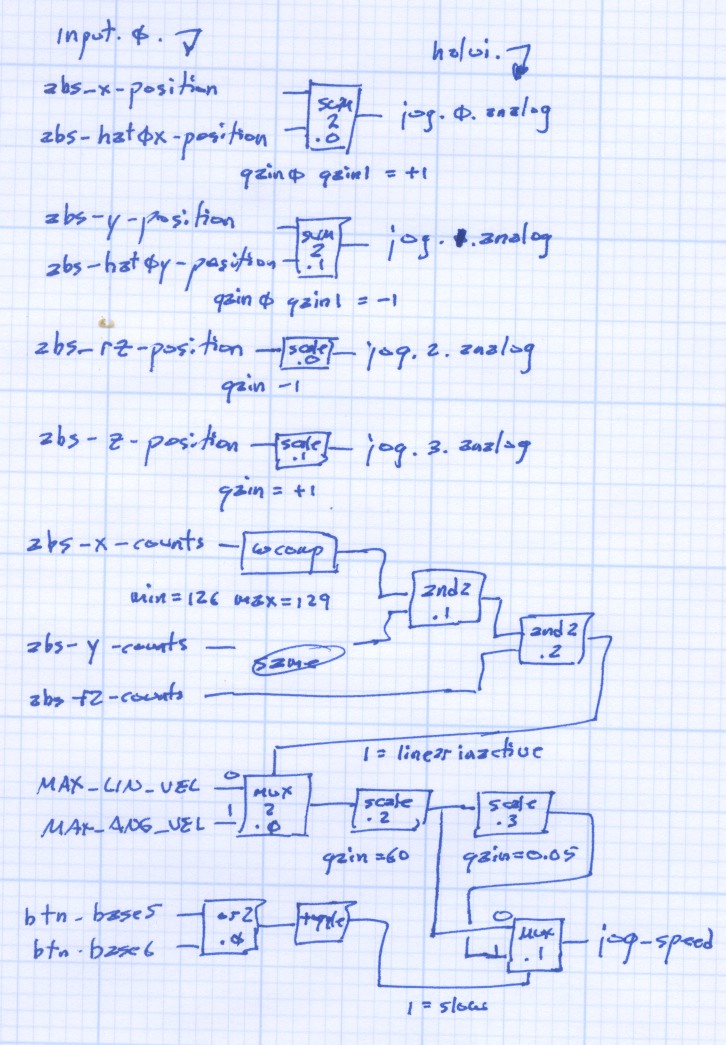
All the heavy lifting happens in custom_postgui.hal. As nearly as I can tell, HAL is basically a write-only language, so there’s block diagram of the major chunks of “circuitry” down at the bottom.
First, some setup and the simple buttons:
#--------------
# Logitech Dual Action joypad

loadrt	and2 count=3
loadrt	conv_s32_float count=3
loadrt	mux2 count=2
loadrt	or2 count=1
loadrt	scale count=4
loadrt	sum2 count=2
loadrt	toggle count=1
loadrt	wcomp count=3

#-- central buttons activate manual mode and restart the program

net 	mode-manual		input.0.btn-base3		halui.mode.manual

net		pgm-resume		input.0.btn-base4		halui.program.resume

#-- left-hand rear buttons active estop

addf	and2.0 servo-thread

net		pgm-estop-0		input.0.btn-base		and2.0.in0
net		pgm-estop-1		input.0.btn-top2		and2.0.in1
net		pgm-estop		and2.0.out				halui.estop.activate
Because the Left Knob and Hat will never be active at the same time, a sum2 block combines the two controls into single value (separate for X and Y, of course). Each sum2 input has a separate gain setting, which is a convenient place to adjust the Y axis sign.
#-- left knob runs XY at variable rate
#   hat runs XY at full throttle

addf	sum2.0 servo-thread

net		x-jog-knob		input.0.abs-x-position		sum2.0.in0
setp	sum2.0.gain0	+1.0
net		x-jog-hat		input.0.abs-hat0x-position	sum2.0.in1
setp	sum2.0.gain1	+1.0
net		x-jog-total		sum2.0.out				halui.jog.0.analog

addf	sum2.1 servo-thread

net		y-jog-knob		input.0.abs-y-position		sum2.1.in0
setp	sum2.1.gain0	-1.0
net		y-jog-hat		input.0.abs-hat0y-position	sum2.1.in1
setp	sum2.1.gain1	-1.0
net		y-jog-total		sum2.1.out				halui.jog.1.analog
The Right Knob values go through scale blocks to adjust the polarity. Note that the Gamepad’s rz axis controls the EMC2 Z axis and Gamepad z controls the EMC2 A axis. Basically, it made more sense to have up-down control Z and left-right control A.
#-- right knob runs Z at variable rate (front-back)
#                   A                 (left-right)

addf	scale.0 servo-thread

net		z-jog-knob		input.0.abs-rz-position		scale.0.in
setp	scale.0.gain	-1

net		z-jog-total		scale.0.out				halui.jog.2.analog

addf	scale.1 servo-thread

net		a-jog-knob		input.0.abs-z-position		scale.1.in
setp	scale.1.gain	+1

net		a-jog-total		scale.1.out				halui.jog.3.analog
There’s only a single halui.jog-speed setting, but the jog speeds for the linear axes and the angular axes differ by so much that Something Had To Be Done. As above, I assumed that only one of the axes would be jogging at any one time, so I could set halui.jog-speed to match the active axis.
A window comparator on each linear axis detects when the joystick is off-center; the output is 1 when the axis is centered and 0 when it’s pushed. Combining those three signals with and2 gates gives a combined linear-inactive signal.
A mux2 block selects the MAX_ANGULAR_VELOCITY from the ini file when linear-inactive = 1 (linear not active) and MAX_LINEAR_VELOCITY when it is 0 (any linear axis off-center).
Done that way, rather than detecting when the angular axis is off-center, means that inadvertently activating the angular axis during a linear jog doesn’t suddenly boost the linear speed. Given that the max linear is about 28 inch/minute and the max angular is 2700 degree/min, it’s a pretty abrupt change.
I’m thinking about adding + shaped gates to at least the Right Knob so I can’t inadvertently activate both Z and A. I’m sure there’s a HAL lashup to do the same thing, though.
#-- set jog speed by toggle from either knob button
#   press any knob button to toggle

addf	and2.1 servo-thread
addf	and2.2 servo-thread
addf	conv-s32-float.0 servo-thread
addf	conv-s32-float.1 servo-thread
addf	conv-s32-float.2 servo-thread
addf	mux2.0 servo-thread
addf	mux2.1 servo-thread
addf	or2.0 servo-thread
addf	scale.2 servo-thread
addf	scale.3 servo-thread
addf	toggle.0 servo-thread
addf	wcomp.0 servo-thread
addf	wcomp.1 servo-thread
addf	wcomp.2 servo-thread

#-- determine if any linear knob axis is active

net		x-jog-count-int	input.0.abs-x-counts	conv-s32-float.0.in
net		x-jog-count-raw	conv-s32-float.0.out	wcomp.0.in
setp	wcomp.0.min		126
setp	wcomp.0.max		128
net		x-jog-inactive	wcomp.0.out				and2.1.in0

net		y-jog-count-int	input.0.abs-y-counts	conv-s32-float.1.in
net		y-jog-count-raw	conv-s32-float.1.out	wcomp.1.in
setp	wcomp.1.min		126
setp	wcomp.1.max		128
net		y-jog-inactive	wcomp.1.out				and2.1.in1

net		xy-active		and2.1.out				and2.2.in0

net		rz-jog-count-int	input.0.abs-rz-counts	conv-s32-float.2.in
net		rz-jog-count-raw	conv-s32-float.2.out	wcomp.2.in
setp	wcomp.2.min		126
setp	wcomp.2.max		128
net		z-jog-inactive	wcomp.2.out				and2.2.in1

#-- convert ini file unit/sec to unit/min and scale for slow jog

setp	mux2.0.in0 [TRAJ]MAX_LINEAR_VELOCITY
setp	mux2.0.in1 [TRAJ]MAX_ANGULAR_VELOCITY
net		linear-inactive	and2.2.out				mux2.0.sel
The ini file velocities are in units/second, so a scale block multiplies by 60 to get units/minute.
Another scale block multiplies by 0.05 to get slow-speed jogging. Obviously, that value is a matter of taste: tune for best picture.
Those two values go into a mux2 driven by the output of a toggle triggered by the or2 of the two buttons under the Knobs. Pushing either Knob down flips the toggle.
setp	scale.2.gain	60
net		jog-per-sec		mux2.0.out				scale.2.in
net		jog-per-min		scale.2.out				mux2.1.in0
net		jog-per-min		scale.3.in

setp	scale.3.gain	0.05
net		jog-per-min-slow scale.3.out			mux2.1.in1

net		xy-button		input.0.btn-base5		or2.0.in0
net		za-button		input.0.btn-base6		or2.0.in1
net		xyza-button		or2.0.out				toggle.0.in

net		xyza-slowmode	toggle.0.out			mux2.1.sel

net		axis-jog-speed	mux2.1.out				halui.jog-speed
When the jog speed is at the maximum allowed, it still gets trimmed by the per-axis limits, so you can’t over-rev the motors no matter how hard you try. Even better, changing the values in the ini file automagically affect the gamepad jog speeds.
Here are the pin names for a Logitech Dual Action USB (wired) gamepad, according to EMC2 2.3.4. You’ll need these to wire it up as a control pendant for your EMC2 CNC milling machine…
There’s no need for -KRAL because it has no programmable LEDs.
Prefix all these with input.0. to get the complete name.
Hat Left-Right
abs-hat0x-counts
abs-hat0x-position
Hat Up-Down
abs-hat0y-counts
abs-hat0y-position
Hat Push
none
Left Knob Left-Right
abs-x-counts
abs-x-position
Left Knob Up-Down
abs-y-counts
abs-y-position
Left Knob Push
btn-base5
Right Knob Left-Right
abs-z-counts
abs-z-position
Right Knob Up-Down
abs-rz-counts
abs-rz-position
Right Knob Push
btn-base6
Button 1
btn-trigger
Button 2
btn-thumb
Button 3
btn-thumb2
Button 4
btn-top
Button 5
btn-top2
Button 6
btn-pinkie
Button 7
btn-base
Button 8
btn-base2
Button 9
btn-base3
Button 10
btn-base4
Mode button
swap Hat & Left Knob
lights red LED
All of the buttons have -not output pins.
The Knob position values run from -1.0 to +1.0 (float) and rest (almost) at 0.0 when centered. Their counts (s32) run from 0 to 255 and rest at 127 when centered.
The Hat button position values are only -1.0 and +1.0, centered at 0.0. The counts are only -1 and +1, with 0 when un-pushed. Although they take on only integer values, the position values are floats.
Both Knobs and the Hat have -Y position values at the top and +Y values at the bottom, exactly backwards from what you want. Expect to reverse the Y axis sign when you write the HAL code.
The -X position values are to the left, where you want them.
Although there’s a tactile click when pushing the Hat straight down, there is no corresponding button output. I don’t know if this is an oversight in the HAL interface or if there’s no actual switch in there.
The Mode button swaps the Hat and Left Knob functions. With the red LED on, both the Hat and Knob axes produce only -1 and +1 position and counts values.
A guide to figuring this stuff out is there, with useful pointers elsewhere on the main doc page.
In the process of pulling together a talk for the Trinity Robotics contest, I rediscovered my spreadsheet of spectral response data. It’s been compiled over the years from myriad sources (utterly without attribution), suffers from gaps & interpolations, and undoubtedly emits a fairly high bogon flux density.
To wit: trust nothing!
Spectral Response
Horizontal scale has UV on the left and IR on the right.
Vertical scale is linear, roughly corresponding to power in or out at a particular wavelength. It should, of course, be logarithmic, but that’s in the nature of fine tuning, as no source data has that much resolution.
Things to note:
Human eyes are tuned to see chlorophyll and not much else. That must’a been important at one time or another…
The nice bumps on the left are visible LEDS: violet blue green orange yellow red. The IR LED over on the right stands alone.
There’s no overlap between human vision and IR LED emission, but you can still see a dim red glow if you stick it right up against your eye.
Don’t do that with a UV LED, though.
White LEDs are just blue LEDs with fancy phosphors. That’s why the spectrum looks like a blue LED with a bump in the yellow-orange neighborhood. They’re not well-balanced at all.
High-pressure sodium lights kill IR sensors stone cold dead. Look at that peak, perfectly aligned with the photodiode response. If you could see in IR, you’d go blind. That’s what made the Trinity contest so challenging for so many years; they recently switched to fluorescent lighting and the complaints dropped dramatically.
Those emission spikes are why camera color correction doesn’t work well: if there’s no energy in a region, you can’t crank the gain up enough to make a difference.
An 87C Wratten filter is great for excluding visible light, but the overlap with that HP-Na spike tells you it won’t do jack with that sort of lighting.
Fluorescent tubes produce intense spikes at 436 and 546, corresponding to mercury emission lines. Their phosphor emissions extend far into the IR, too, but the data I have doesn’t include that region.
Ditto for metal halide bulbs.
To produce the graph, apply this bash script to the CSV file…
#!/bin/sh
export GDFONTPATH="/usr/share/fonts/TTF/"
gnuplot << EOF
#set term x11
set term png font "arialbd.ttf" 24 size 1200,800
set output "Spectral Response.png"
set title "Spectral Response"
#set key 28,-0.75 Left reverse samplen 2 noautotitles
#set key right noautotitles
unset key
unset mouse
set bmargin 4
set grid xtics ytics
set xlabel "Wavelength - nm"
set format x "%3.0f"
#set xrange [0:9]
#set xtics 0,10
#set mxtics 4
set ytics nomirror autofreq
set ylabel "Relative Response"
#set format y "%3.0f"
set yrange [0:1.1]
#set y2label "Panel Power - mW"
#set format y2 "%3.0f"
#set y2range [0:800]
#set y2tics 200
set datafile separator ","
set label 1 "Eye" at 550,1.05 font "arialbd,14" center
set label 2 "White" at 480,1.05 font "arialbd,14" center
set label 3 "IR" at 940,1.05 font "arialbd,14" center
set label 4 "87C Filter" at 1050,0.85 font "arialbd,14" center
set label 5 "Photodiode" at 825,1.05 font "arialbd,14" center
set label 6 "Tungsten" at 1050,1.00 font "arialbd,14" center
set label 7 "Fluor" at 410,0.42 font "arialbd,14" right
set label 8 "Halide" at 680,0.41 font "arialbd,14" left
set label 9 "HP-Na" at 805,0.60 font "arialbd,14" right
set label 10 "Violet" at 410,1.05 font "arialbd,14" center
set label 11 "Red" at 635,1.05 font "arialbd,14" center
plot    "Spectral Response Curves.csv" \
 using 1:2 with lines lt -1  lw 3 title "Eye", \
 "Spectral Response Curves.csv" \
 using 1:3 with lines lt 1 lw 2 lc rgb "light-blue" title "White" , \
 "Spectral Response Curves.csv" \
 using 1:4 with lines lt 1 lw 2 lc rgb "dark-violet" title "Violet" , \
 "Spectral Response Curves.csv" \
 using 1:5 with lines lt 1 lw 2 lc rgb "blue" title "Blue" , \
 "Spectral Response Curves.csv" \
 using 1:6 with lines lt 1 lw 2 lc rgb "green" title "Green" , \
 "Spectral Response Curves.csv" \
 using 1:7 with lines lt 1 lw 2 lc rgb "gold" title "Yellow" , \
 "Spectral Response Curves.csv" \
 using 1:8 with lines lt 1 lw 2 lc rgb "orange" title "Orange" , \
 "Spectral Response Curves.csv" \
 using 1:9 with lines lt 1 lw 2 lc rgb "red" title "Red", \
 "Spectral Response Curves.csv" \
 using 1:10 with lines lt 1 lw 2 lc rgb "magenta" title "IR" , \
 "Spectral Response Curves.csv" \
 using 1:11 with lines lt 1 lw 2 lc rgb "dark-red" title "Photodiode" , \
 "Spectral Response Curves.csv" \
 using 1:12 with lines lt 1 lw 2 lc rgb "dark-gray" title "87C Filter" , \
 "Spectral Response Curves.csv" \
 using 1:13 with lines lt 1 lw 2 lc rgb "dark-yellow" title "Tungsten" , \
 "Spectral Response Curves.csv" \
 using 1:14 with lines lt 1 lw 2 lc rgb "orange-red" title "HP-Na" , \
 "Spectral Response Curves.csv" \
 using 1:15 with lines lt 1 lw 2 lc rgb "brown" title "Halide" , \
 "Spectral Response Curves.csv" \
 using 1:18 with lines lt 1 lw 2 lc rgb "midnight-blue" title "Fluorescent"
EOF
And the data in CSV format because WordPress doesn’t allow spreadsheets…




 The Smell of Molten Projects in the Morning