Ed Nisley's Blog: Shop notes, electronics, firmware, machinery, 3D printing, laser cuttery, and curiosities. Contents: 100% human thinking, 0% AI slop.
An email from Electronic Arts arrived in an email account I haven’t used in over a decade:
Welcome to your EA Account! Your EA Account serves as an all-access pass to everything EA, from websites and mobile apps to console and PC games.
Seconds later:
Your EA Security Code: <<< redacted, not that it matters >>> If you didn’t request this code, please go to your My Account page and change your password right away. For assistance, please contact EA Help.
Thanks for helping us maintain your account’s security.
Not ever having had an EA account nor being in the process of signing up for one, I did nothing.
After a few more seconds:
Dear EA Insider,
Thanks for signing up. We’re looking forward to bringing you the latest news and information on your favorite games.
All the emails look to be genuinely from Electronics Arts, not scam emails routed through the usual sketchy / compromised servers.
Four days later:
Dear Customer,
We are contacting you regarding your EA account.
We wish to notify you that we have found your account to be in violation of our User Agreement or our Terms of Sale, and due to the nature of this violation we are left with no option other than to permanently close your account with immediate effect.
Which looks much more impressive in email HTML:
EA Account Closing
Although I did not respond to the Security Code message, the scammer surely used a phone number under his (it’s always a he) control, because “2FA” really means “pick an authentication method that lets you in”.
Just for the amusement value, I fed that email address into the EA sign-in page, hit the “Forgot my password” button, and got a Security Code just like the scammer didn’t. I suppose I could change the password and discover / change the phone number, but that would put me in full ownership of an account used for nefarious purpose.
I sometimes wonder what else happens using my identity.
A good prosecutor could nail me for Third Party Retro-associative Complicity and, if I didn’t already live in Poughkeepsie, send me up the river.
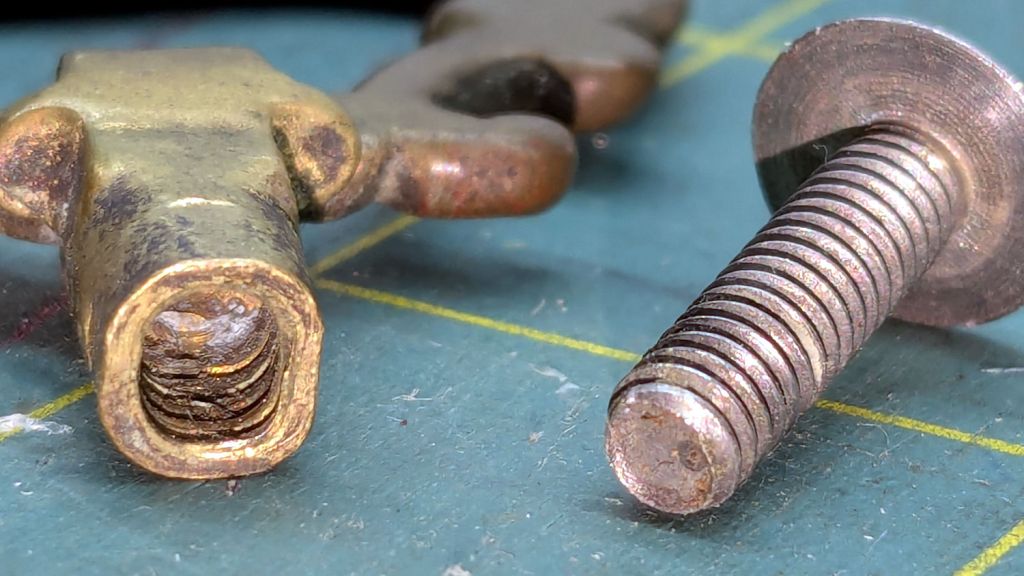
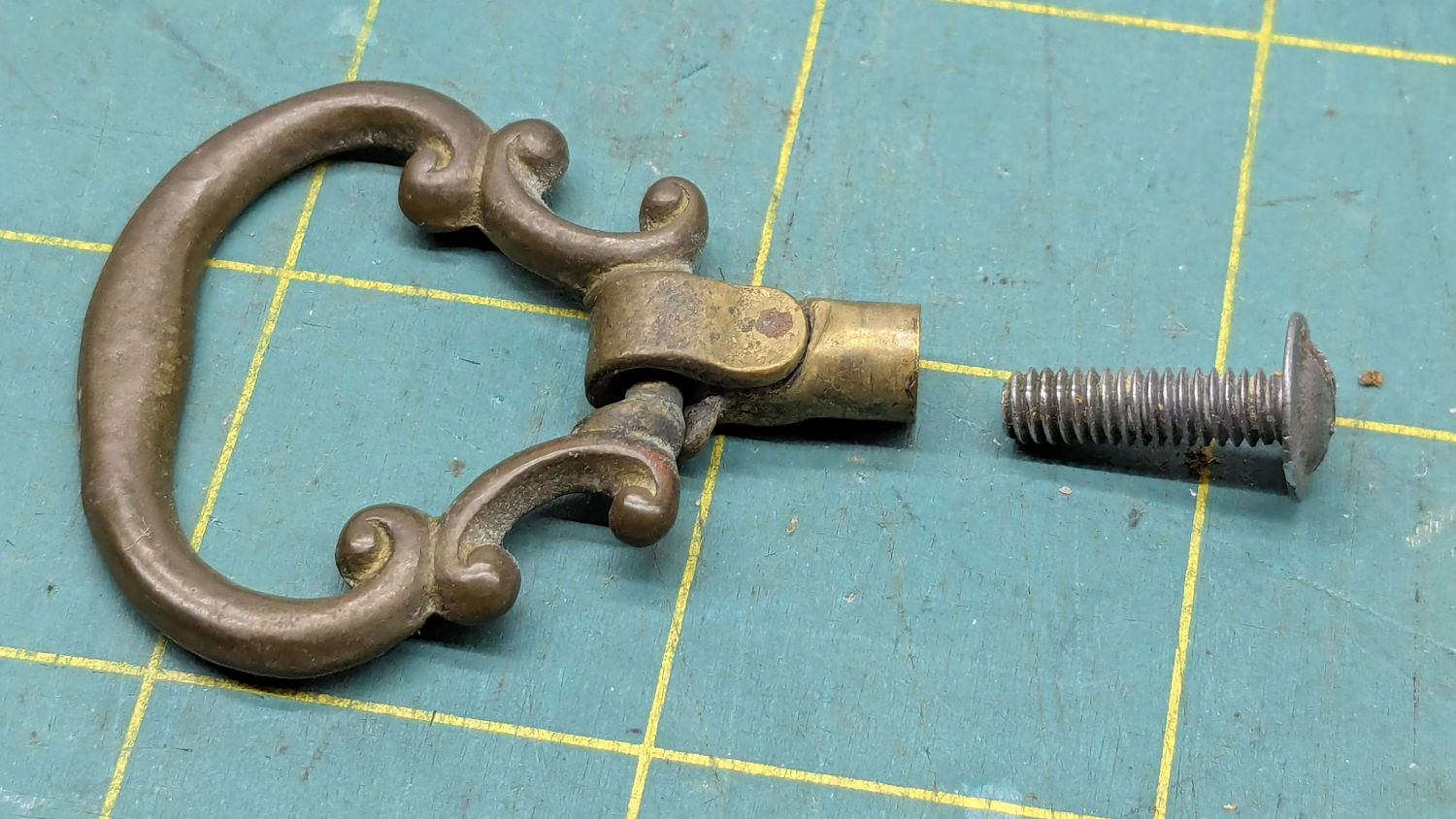
A small sewing notions cabinet, once my mother’s, now holds some of Mary’s supplies and, a few days ago, had one of its drawer pulls fall off. While preemptively tightening all the screws, I found one no longer held onto its pull:
Notions drawer pull – parts
They don’t make drawer pulls like that any more!
As I see things, it can be forgiven for losing its grip after nearly a century.
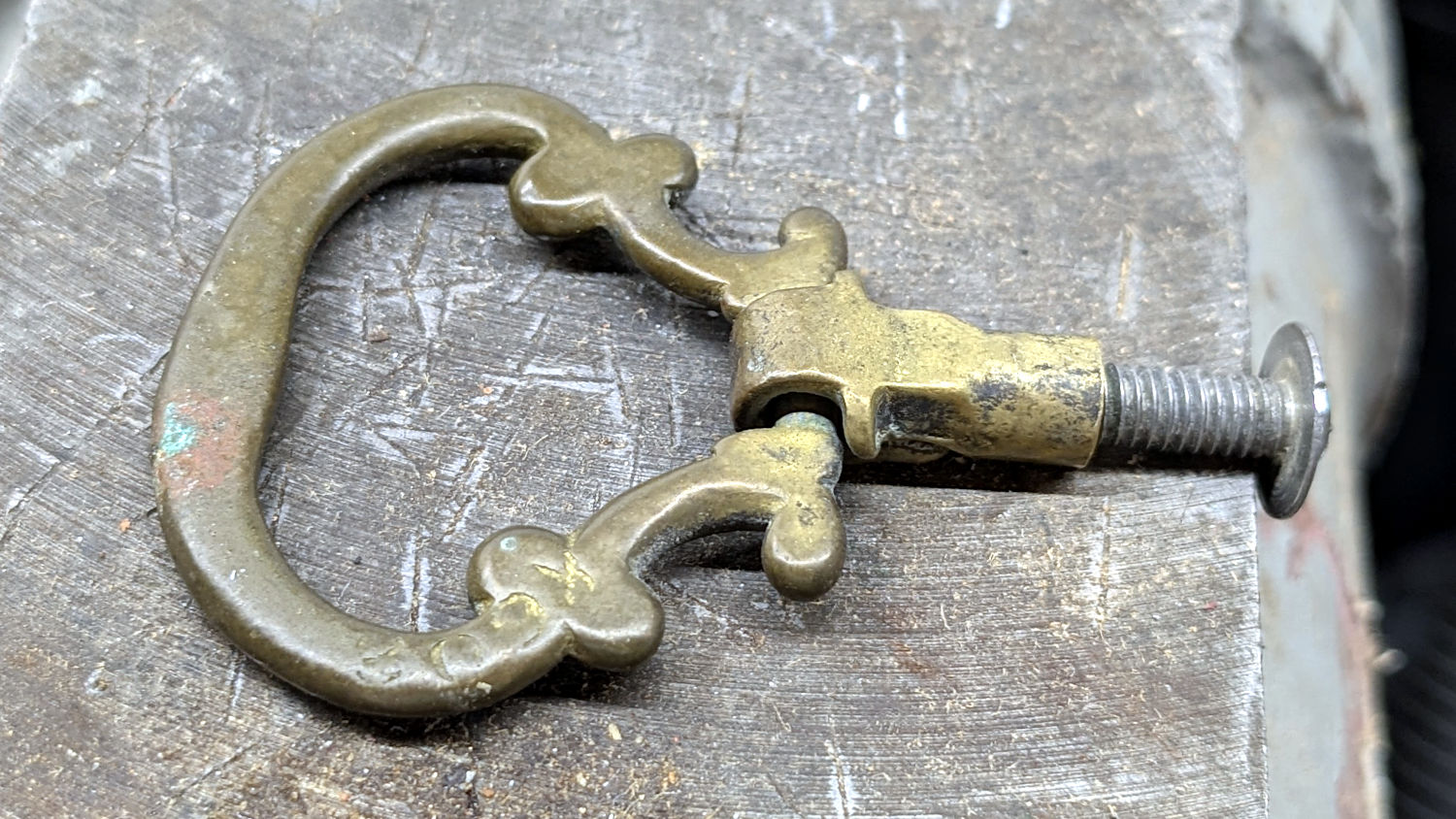
Thread the screw in as far as it will go and lay the pull flat on the bench vise anvil:
Notions drawer pull – hammering setup
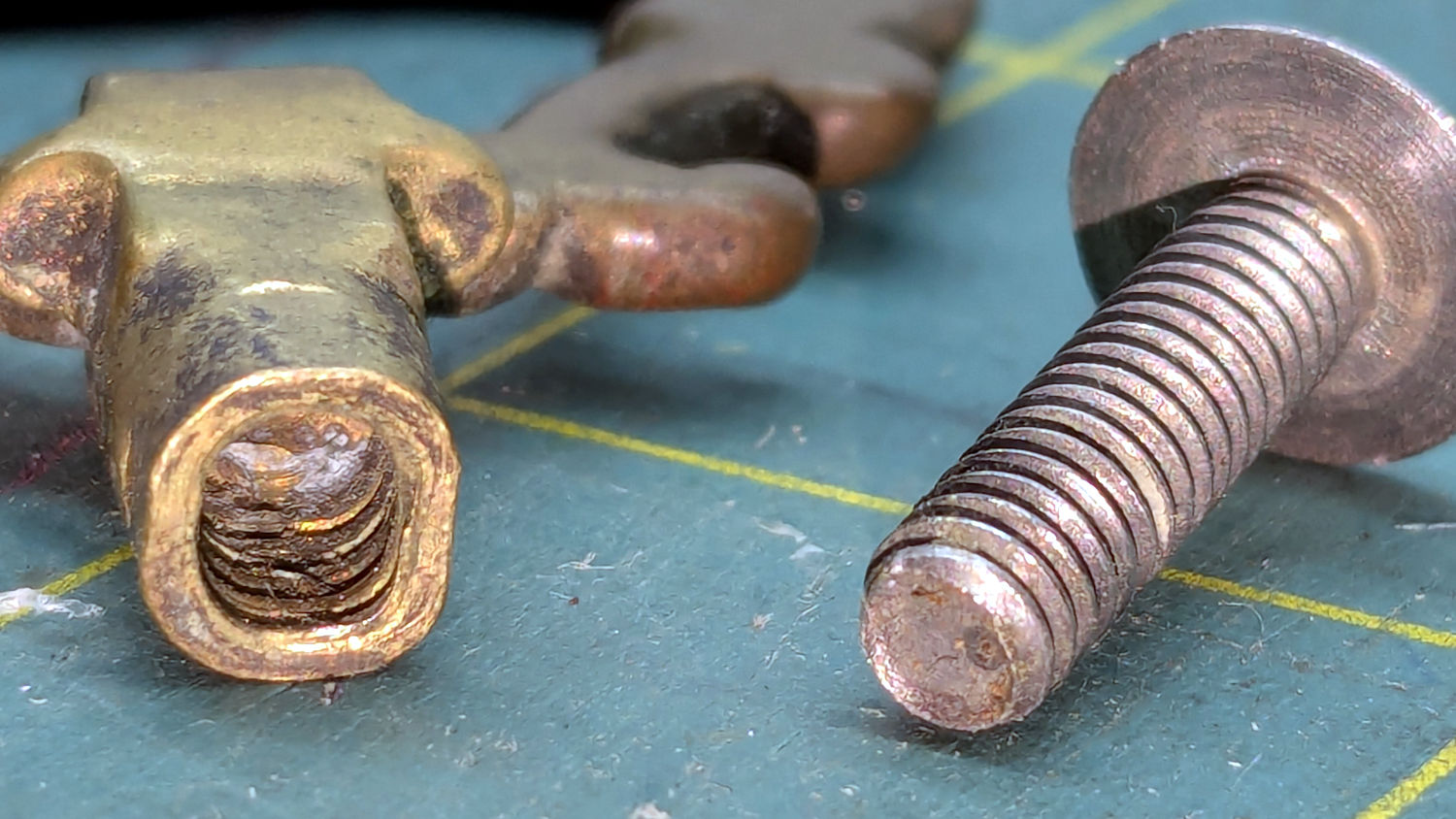
A few gentle whacks with a pin punch on top and bottom, plus a tap on each side, compressed the pull’s remaining threads around & into the screw:
Notions drawer pull – reshaped
Put it back in its drawer, snug the screw, and it’s all good.
That should suffice for at least the remainder of its first century …
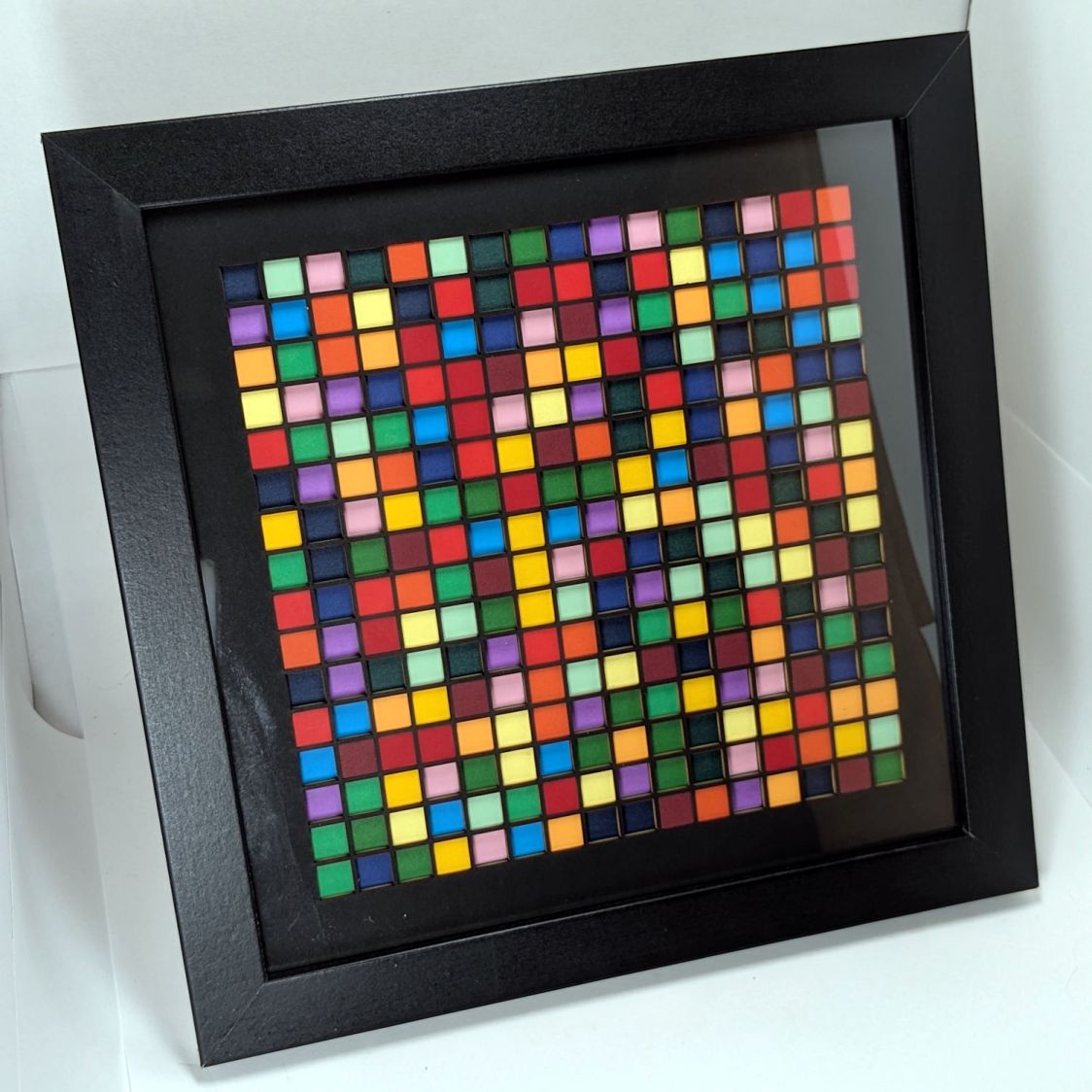
The next step involves creating a corresponding set of LightBurn layouts to burn those holes out of colored paper sheets to produce layered paper art:
Random Blocks – framed
I know it’s art, because that’s what I was thinking when I made it.
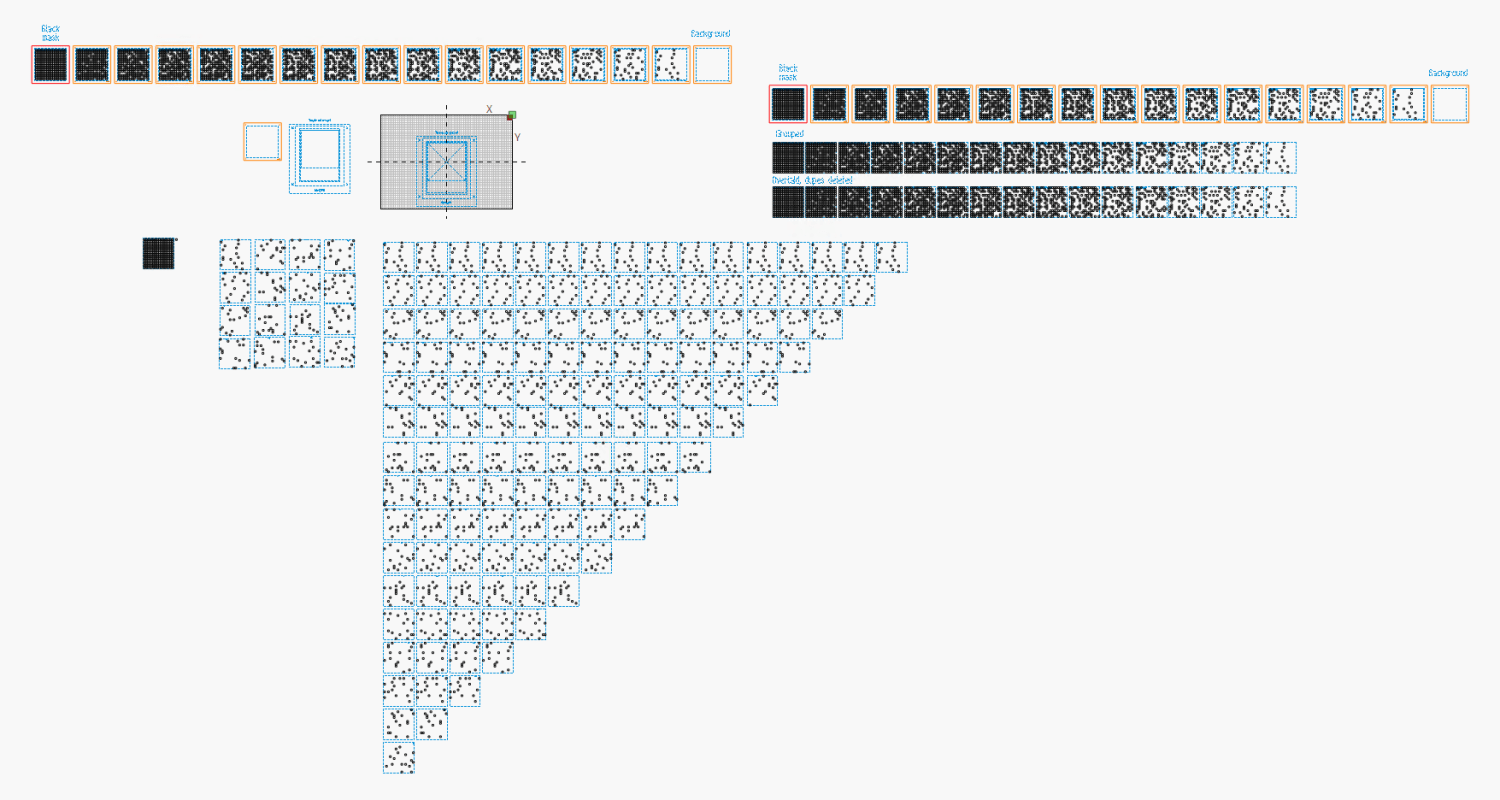
Setting up the LightBurn layouts requires enough manual effort to make the whole thing impractical except as a testcase to see how it all worked out. An overview of the LightBurn workspace:
Random Blocks – 16×16 – LightBurn layout overview
The little bitty grid in the upper left quadrant represents the 700×500 platform of my laser and each of the blue squares is 159 mm on a side. I tend to not delete the intermediate steps, because they serve as some sort of documentation the next time I wonder how I did that thing.
So, we begin.
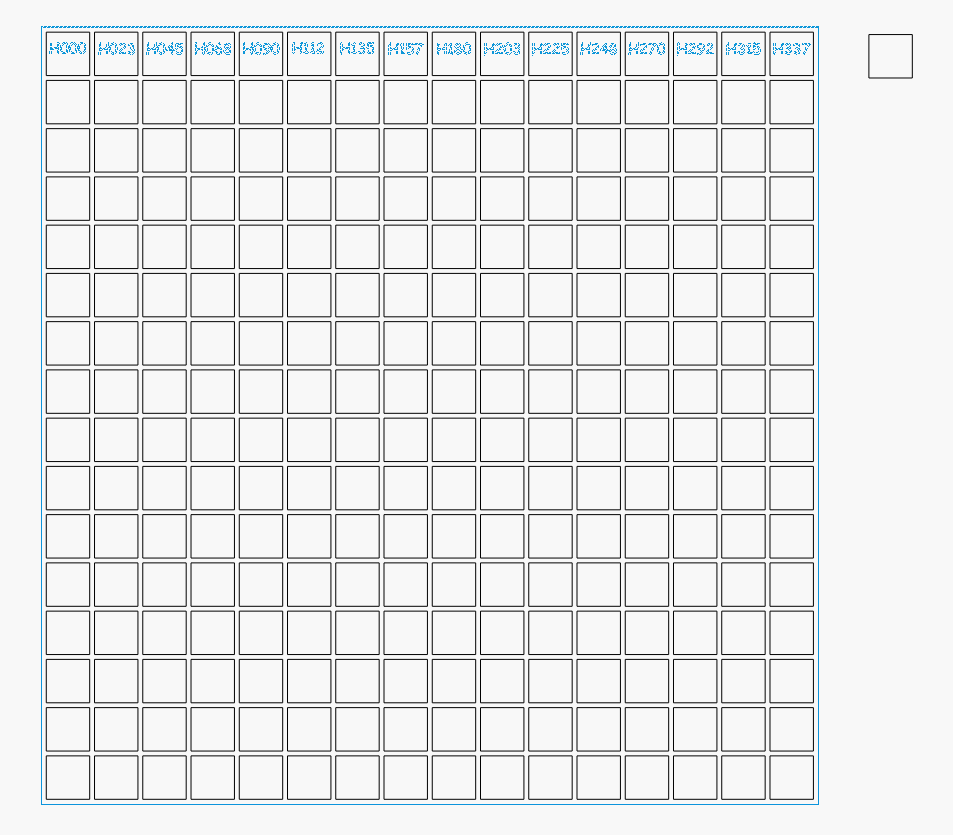
Import the Inkscape SVG file:
Random Blocks – 16×16 – LightBurn SVG import
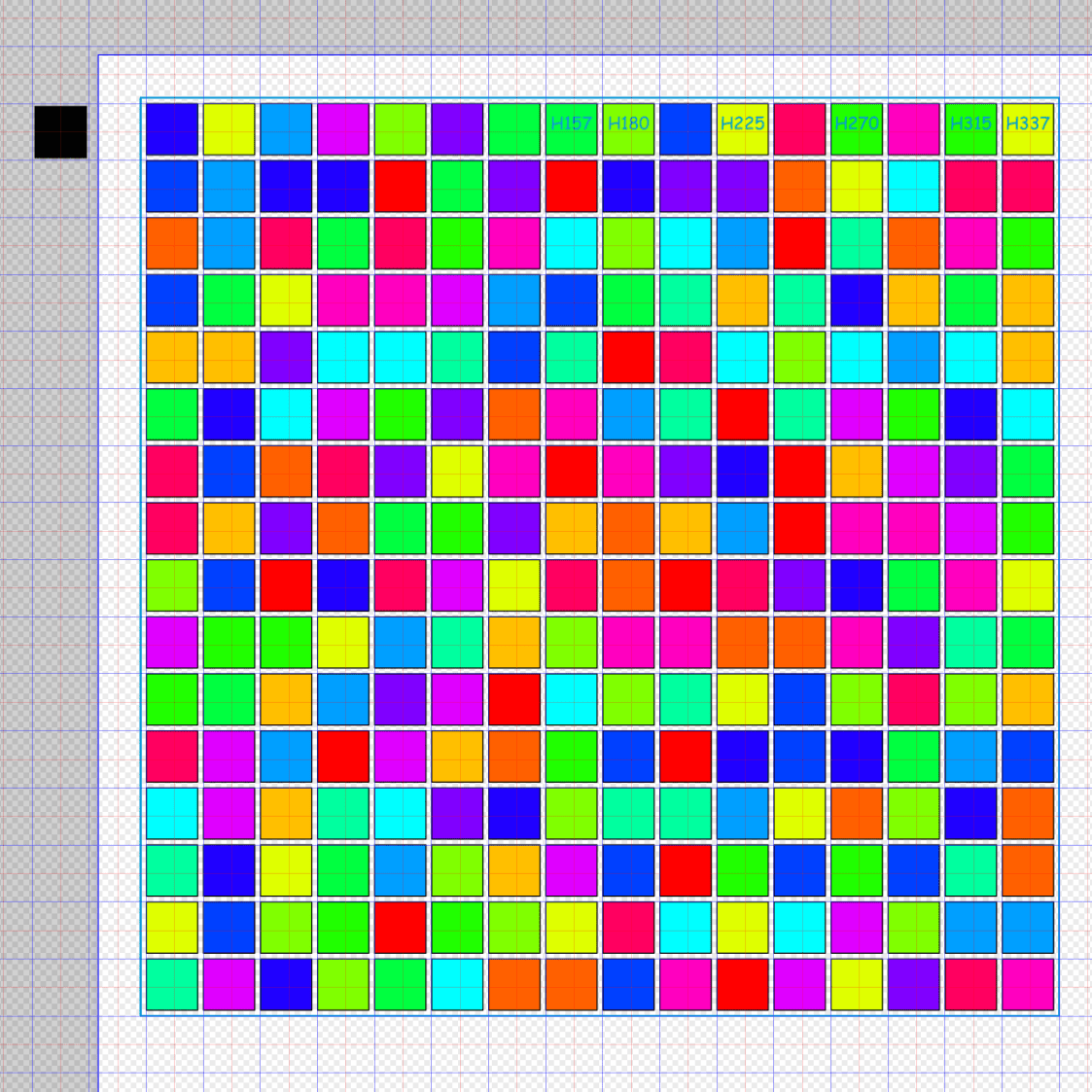
The blue outer square and the blue text identifying it are on LightBurn’s T2 tool layer, with the black squares on the C00 layer. All of that happens automagically, because I used colors from the LightBurn palette in Inkscape.
The lonely square in the upper right is the template from which the other 256 squares were cloned, but it has no further purpose in life.
The 16×16 grid consists of sixteen overlaid groups, which need sorting out for ease of access, so drag each one off into a more useful arrangement:
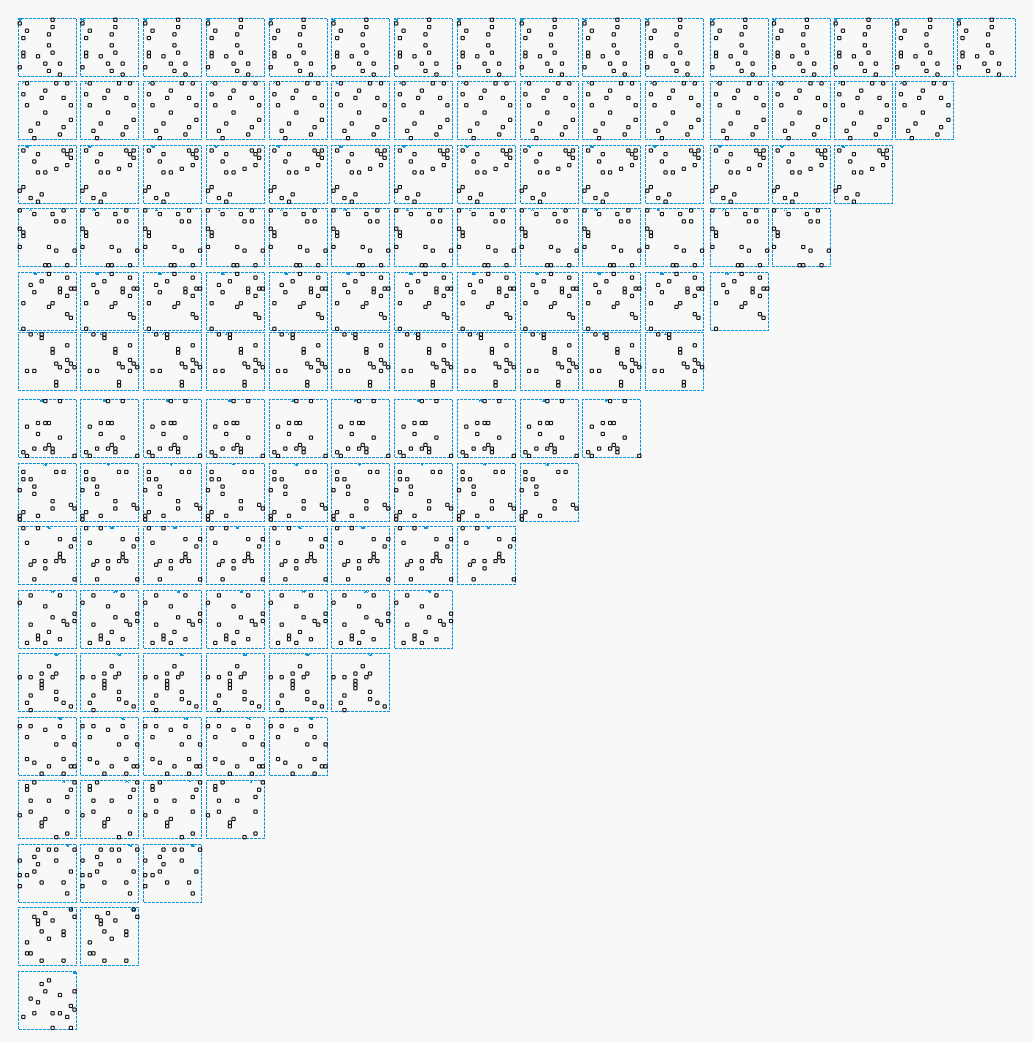
Random Blocks – 16×16 – LightBurn sheet separation
Note that each of the 256 possible positions has a square in only one of those groups.
Each of the 16 groups corresponds to a sheet of paper, with the squares indicating holes exposing the sheet below it. The color of each square, as seen from the top of the stack, comes from the first sheet in the stack without a hole. Perforce, every sheet above the one without a hole must have a hole, which means you must merge all those sheets.
Line up (duplicates of) those 16 groups in the vertical line forming the left column in this arrangement:
Random Blocks – 16×16 – LightBurn array duplication
The top group is the layer I named H000 in Inkscape, with the others in order down to H337 on the bottom. You can see why labeling them is pretty much required.
I should have equalized the vertical spaces between the groups in the left column, but it doesn’t really matter.
The rest of the triangle comes from duplicating each group using LightBurn’s Grid Array tool with a convenient space between each copy. Make 15 copies of the top group for a total of 16 H000 and no copies of the bottom H337.
Hit Delete Duplicates to get rid of all the overlaid outer squares
If you’re fussy, Duplicate the line of blocks and move it up
Group each block individually to keep all the little squares together with the outline
Thusly:
Random Blocks – 16×16 – LightBurn combined layers
Combine each of those blocks with the sheet cutting template, tweak the binary sheet identification holes, and group the result:
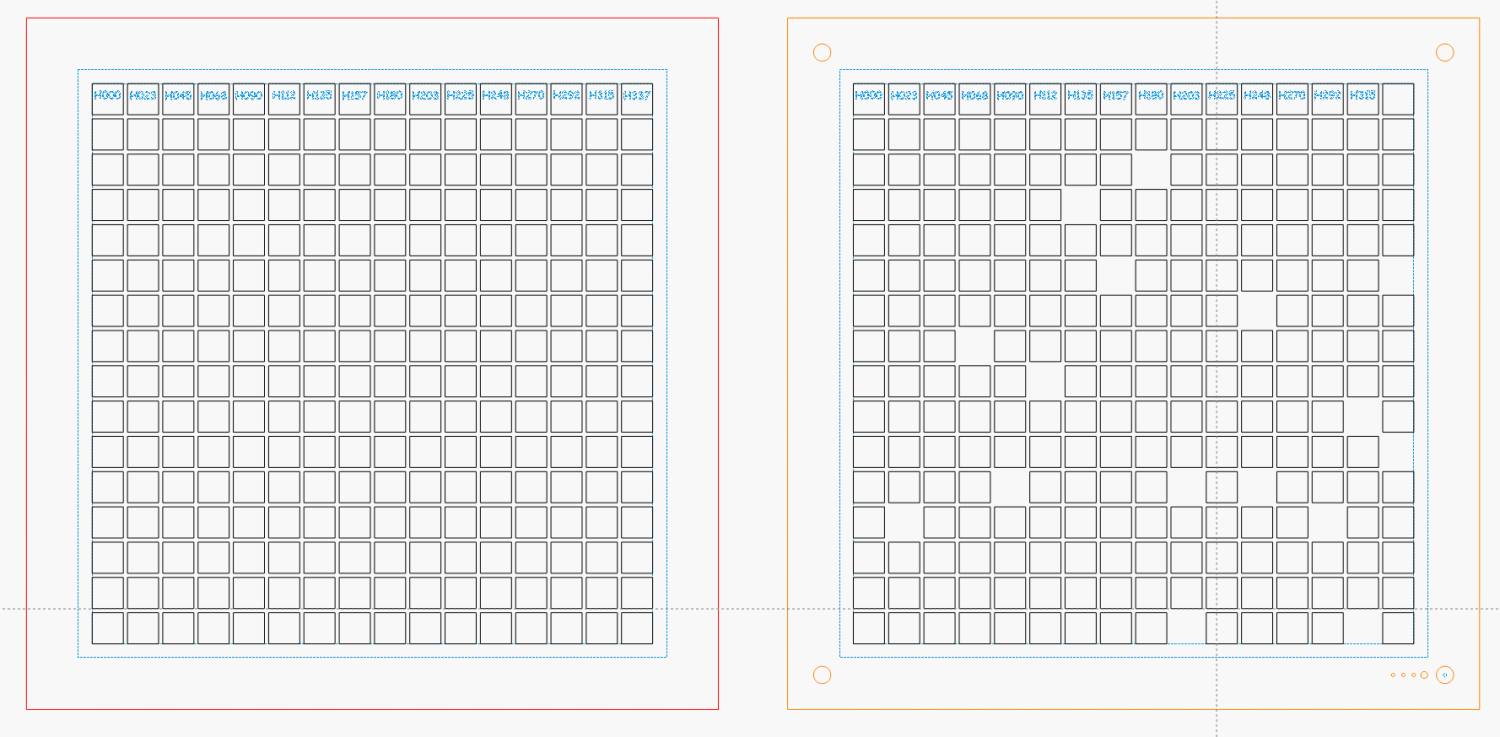
Random Blocks – 16×16 – LightBurn cutting layouts
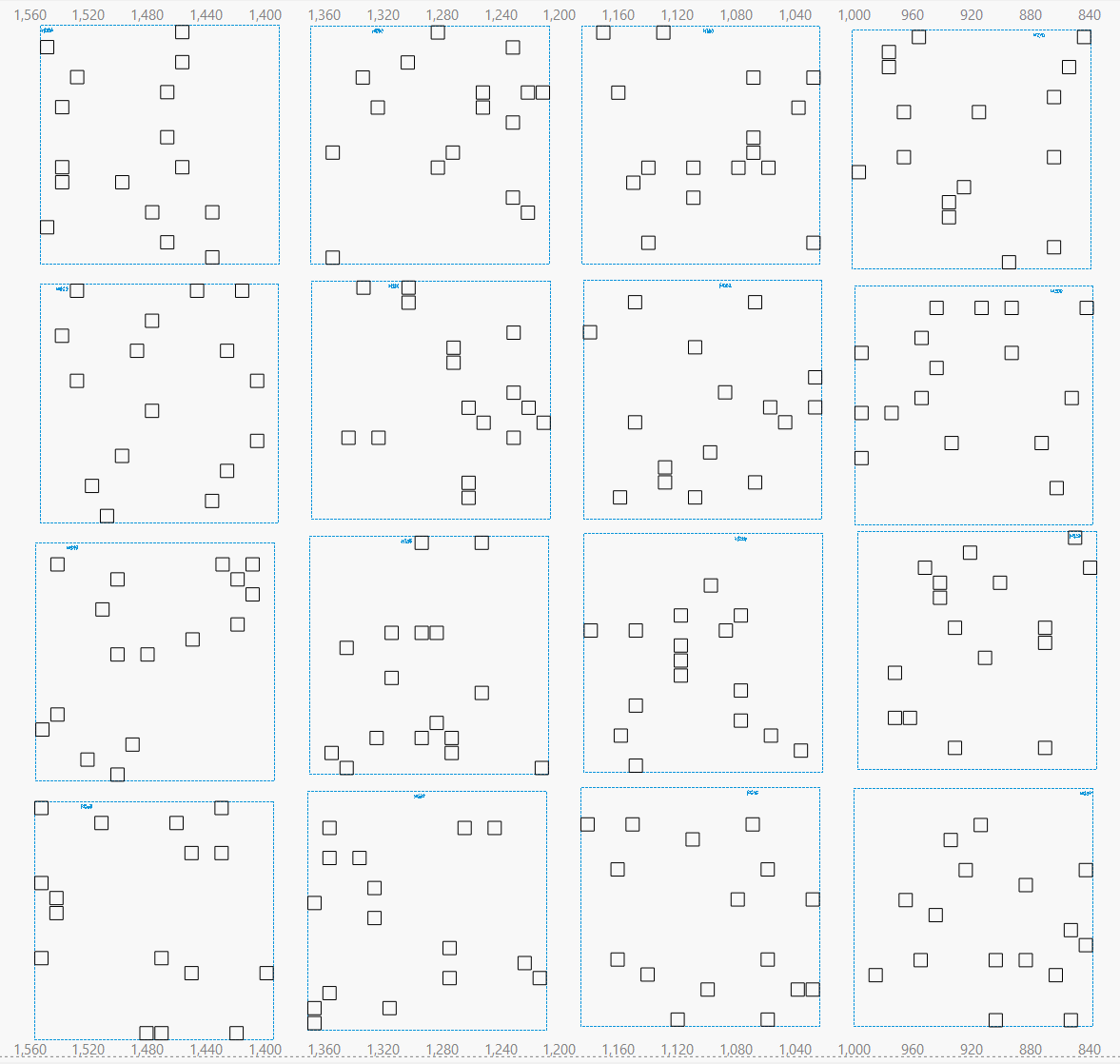
The leftmost block has All The Holes, the next one is missing a few, and so on across the line:
Random Blocks – 16×16 – LightBurn cutting layouts – detail
So the leftmost block corresponds to the black mask atop all the layers. Because it doesn’t have alignment holes in the corners or a binary sheet number, you get to align it by eyeball after gluing up the rest of the stack.
The rightmost block has no cutout squares at all and goes on the bottom of the stack. It also lacks a sheet number, but it’s easy to identify.
Set the LightBurn speed / power values for the layers to cut your stock of colored art paper.
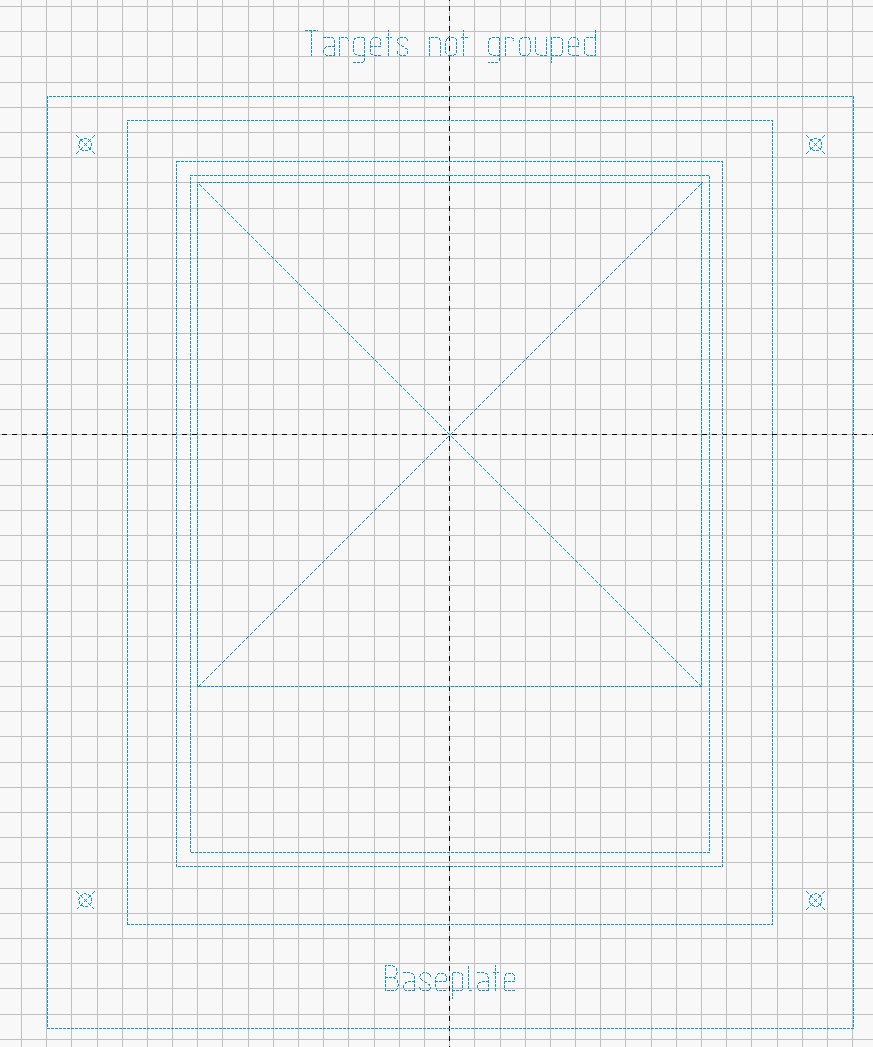
Position the Letter Page Holder template to put the center of the sheet cutout at the center of the platform:
Random Blocks – 16×16 – LightBurn fixture template
Drop the fixture on the platform, use magnets to hold it down, then do a Print and Cut alignment on the corner targets so the template matches the fixture.
Then:
Click to select one of the blocks
Hit Ctrl-D to duplicate it
Hit P to slam it to the middle of the template
Hit Alt-S to Fire The Laser
Hit Del to delete the block
Iterate until done
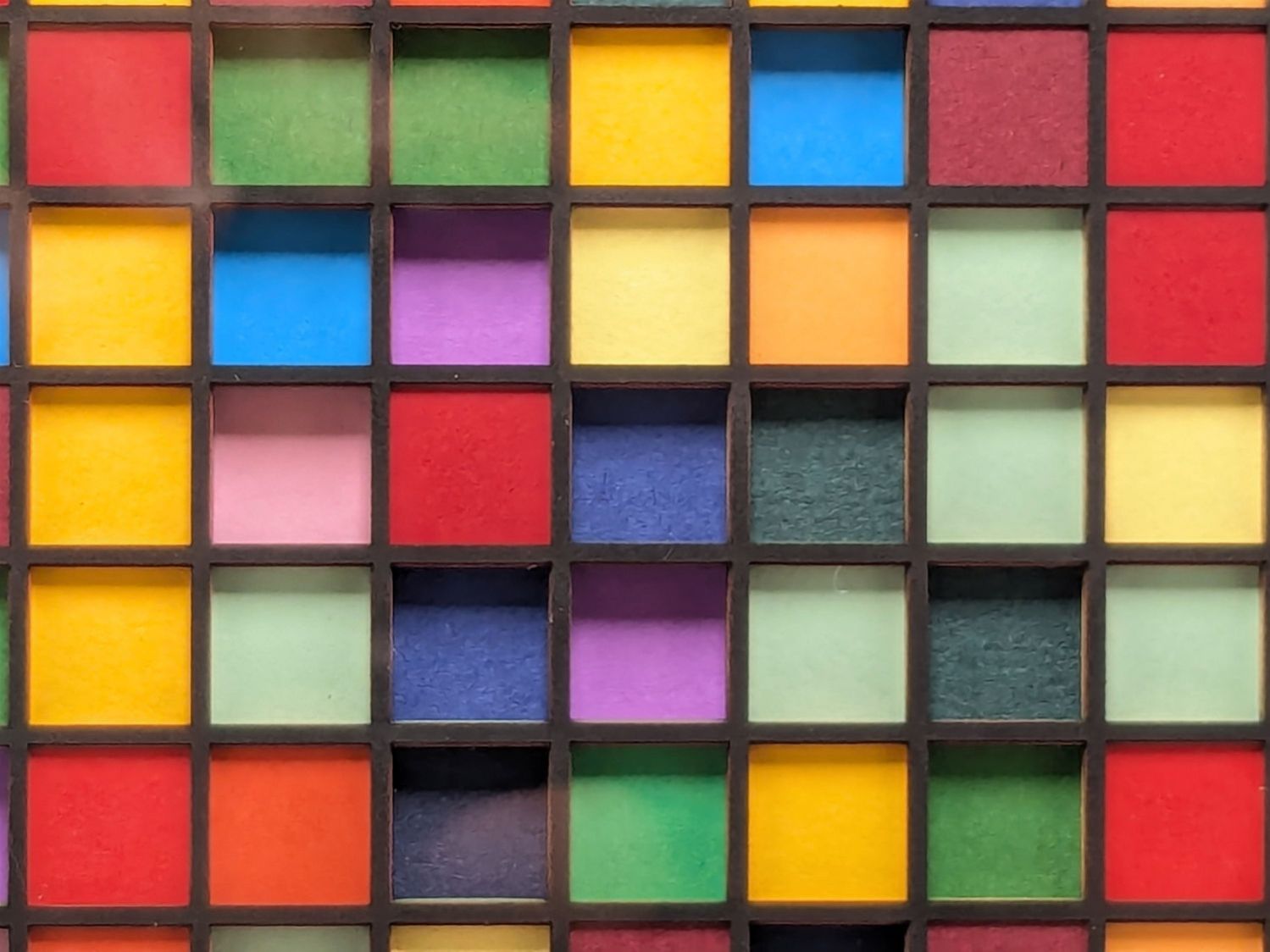
I used a stack of paper in rainbow order roughly corresponding to the Inkscape layer colors, but you could stack them backwards or even use random colors and nobody would ever know:
Random Blocks – framed detail
I kinda like it, but wow that took a lot of prep work …
The random block layered paper design starts as an Inkscape layout, although the amount of manual intervention required to make it happen suggests it’s not really worthwhile. With that in mind, this is how to make it happen …
Draw a 9×9 mm square with these properties:
Undefined fill: each block will become different
Flat color stroke set to black with 100% alpha
0.2 mm stroke width: so LightBurn will see it
Because the squares will be on 10 mm centers, draw a 159 mm square:
Align the big square on the grid, which should have 10 mm spacing because that’s convenient. This will become the way you align the array of squares in the LightBurn layout, so you really want the array to fit neatly and symmetrically inside the 159 mm square.
Iterate 16 times, all in T2 layer color:
Create a layer with a name like H000 through H337
Create a corresponding text string
Align fussily
Duplicate the 159 mm square
Put the block and the text string on the new layer
Lock the square and text so they can’t move
Which will look like this:
Random Blocks – 16×16 159mm – Inkscape layer labels
Unlike LightBurn, the color is not linked directly to the layer, so each of those text strings is on the corresponding named layer and there are 16 duplicates of the large box at exactly the same coordinates. Plus the original 159 mm square, which remains unlabeled and unlocked.
Select the black 9 mm block and create a 16×16 clone army array:
Random Blocks – 16×16 159mm – Inkscape clone setup
The Initial Color is critical:
Random Blocks – 16×16 159mm – Inkscape clone color
The layer names come from the 6.25% hue steps, starting with H=0, which will look like this:
Random Blocks – 16×16 159mm – Inkscape hue steps
Note that LightBurn absolutely does not care about the colors. All it will get is the outlines corresponding to the strokes, with the colors collecting them into separate groups for the paper layers.
Go to the Layers window, select the original block (which is likely on Layer 1 or some such), cut it, and paste it somewhere outside the 159 mm square where it won’t cause any trouble.
Iterate 16 times in the Layers window:
Select one of the 256 clone squares, which will have an automagic name like use1272
Right-click, hit Select Same → Fill Color
Right-click, hit Move to Layer …
Pick the layer name matching the hue
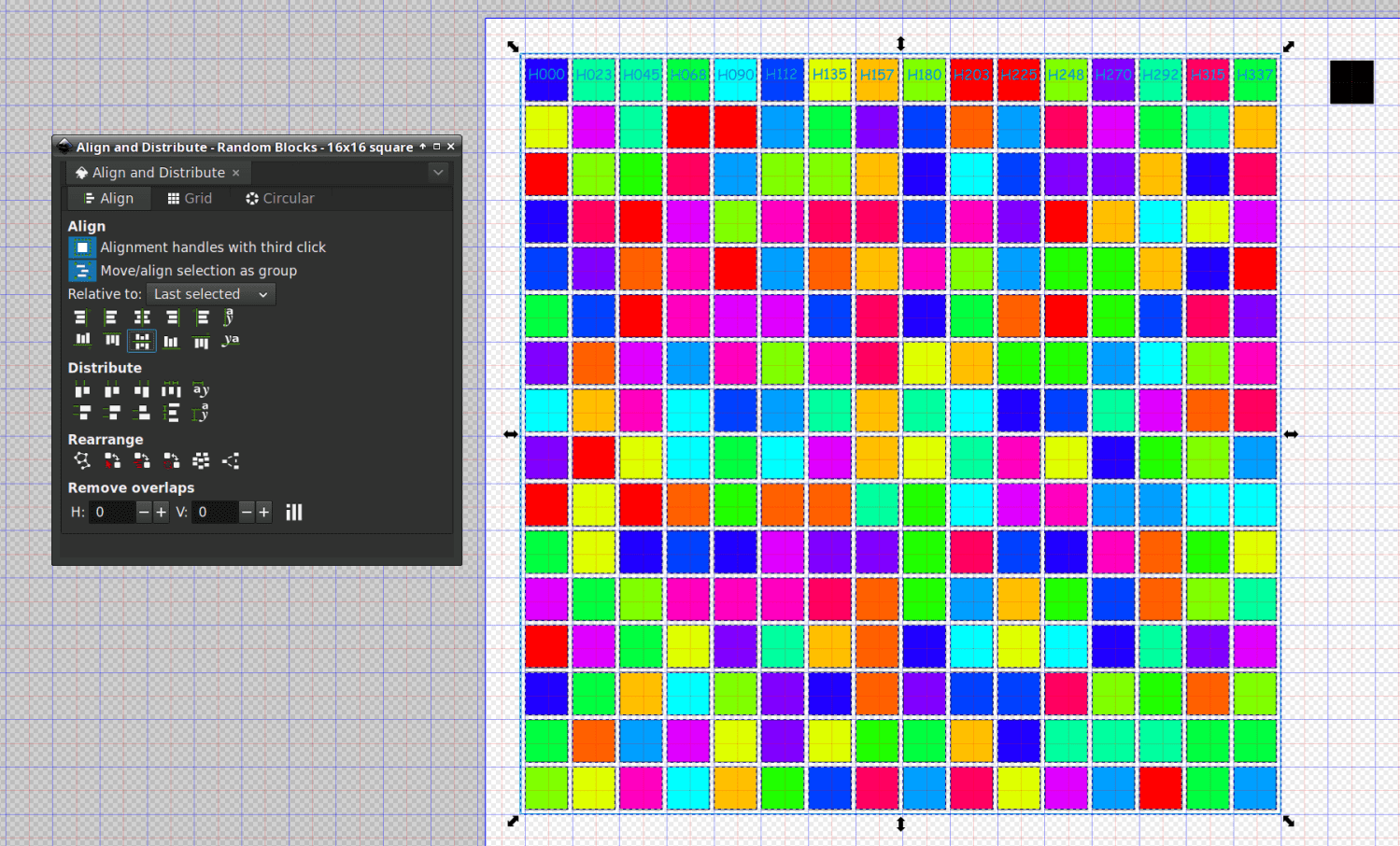
Select all the squares and Distribute randomly:
Random Blocks – 16×16 159mm – Inkscape rearrange
Then Align them in a grid:
Random Blocks – 16×16 159mm – Inkscape grid distribute
The 0.8 mm Spacing is the distance between 9 mm blocks with 0.2 mm strokes.
Shift-click on the 159 mm square to add it to the selection, then hit the two center-align buttons to center the 16×16 array in the square:
Random Blocks – 16×16 159mm – Inkscape center align
Save that sucker as an Inkscape SVG and it’s ready to import into lightBurn.
With all that done, you can generate different random layouts by:
Select the existing 16×16 array (but not the outer 159 mm square; Undo is your friend)
Randomize the array
Align it
Center it
The colored blocks remain in their corresponding layers, so you need not go through all that overhead ever again.
Whether that’s worthwhile is up for grabs, but now I have a faint chance of getting it right the next time.
I wanted to see / feel what 18 paper layers would look & feel like:
Random Blocks – framed
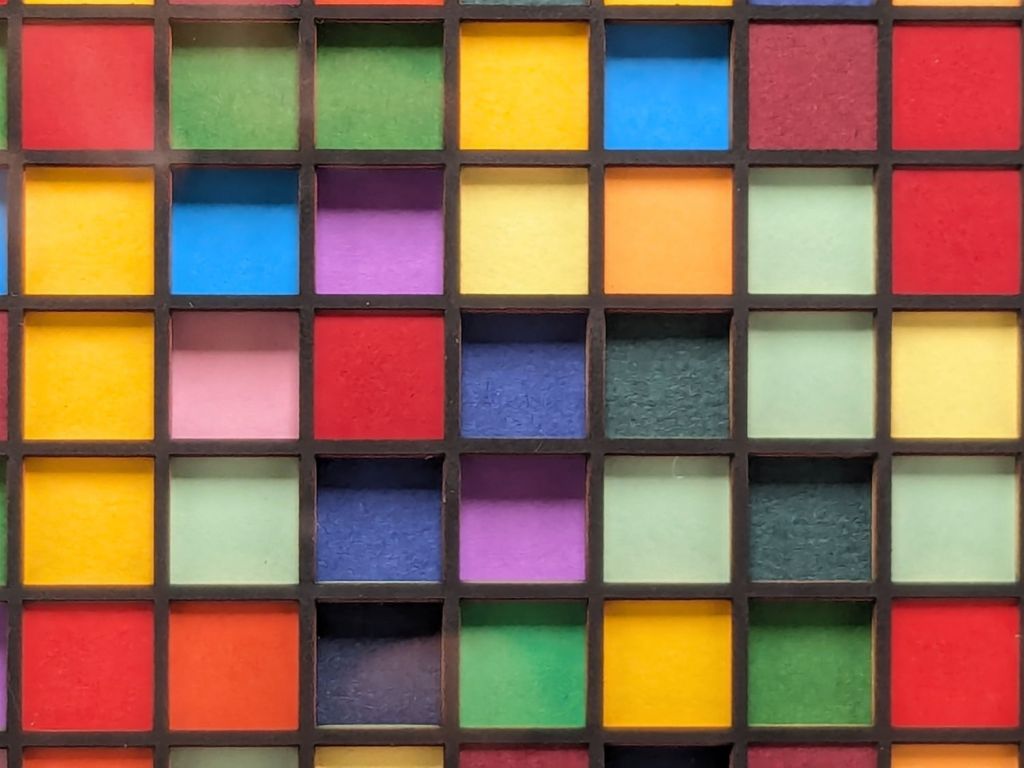
That’s a black mask layer atop 16 cut layers of cheerful colored paper in rainbow order and a solid purple sheet at the bottom:
Random Blocks – framed detail
The layer runs at 100 mm/s with 20% of a 60 W laser. The relatively low speed, combined with right-angle corners, produces very crisp results unlike the rounded-corner Subpixel holes.
The holes form a 16×16 grid and cutting the first few layers with 250-ish holes takes a bit under three minutes apiece:
Random Blocks – cutting red layer
The sheets sit in the Letter sheet fixture and get four round holes in the corners for the assembly fixture, plus a binary sheet ID helping me with the stacking order:
Random Blocks – assembly process
The hole patterns come from Inkscape through LightBurn, in a grindingly intricate manual process crying out for automation. This is a feasibility study to see if the result is worthwhile and, yeah, it looks promising. More about all that later.
If someone had asked Young Me what I’d be doing in half a century, dabbing colored paper with a glue stick would not have been one of my choices and not just because glue sticks hadn’t been invented back then.
Another couple of years and I’ll be ready for the Activity Room at the Olde Folkes Home.
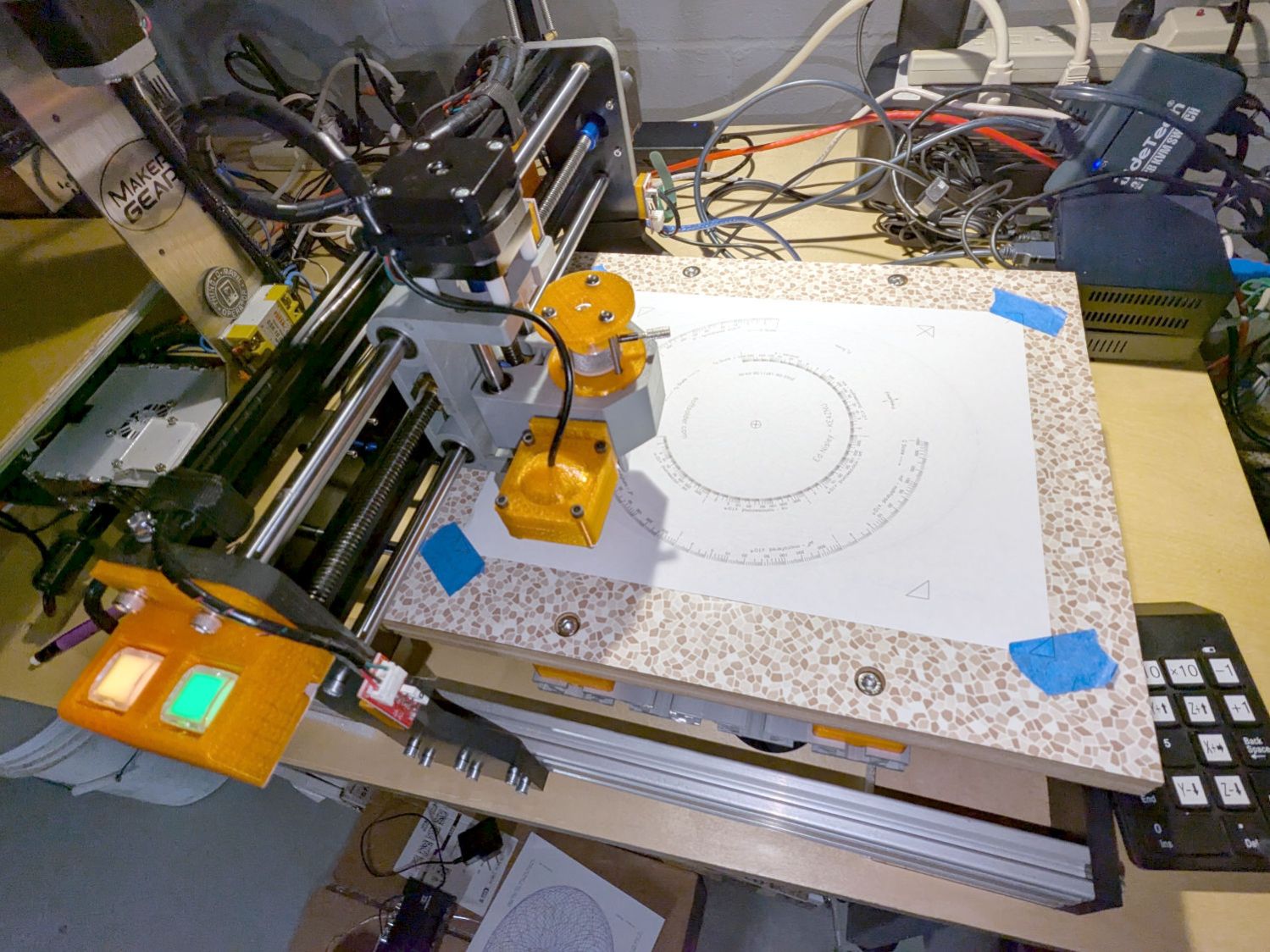
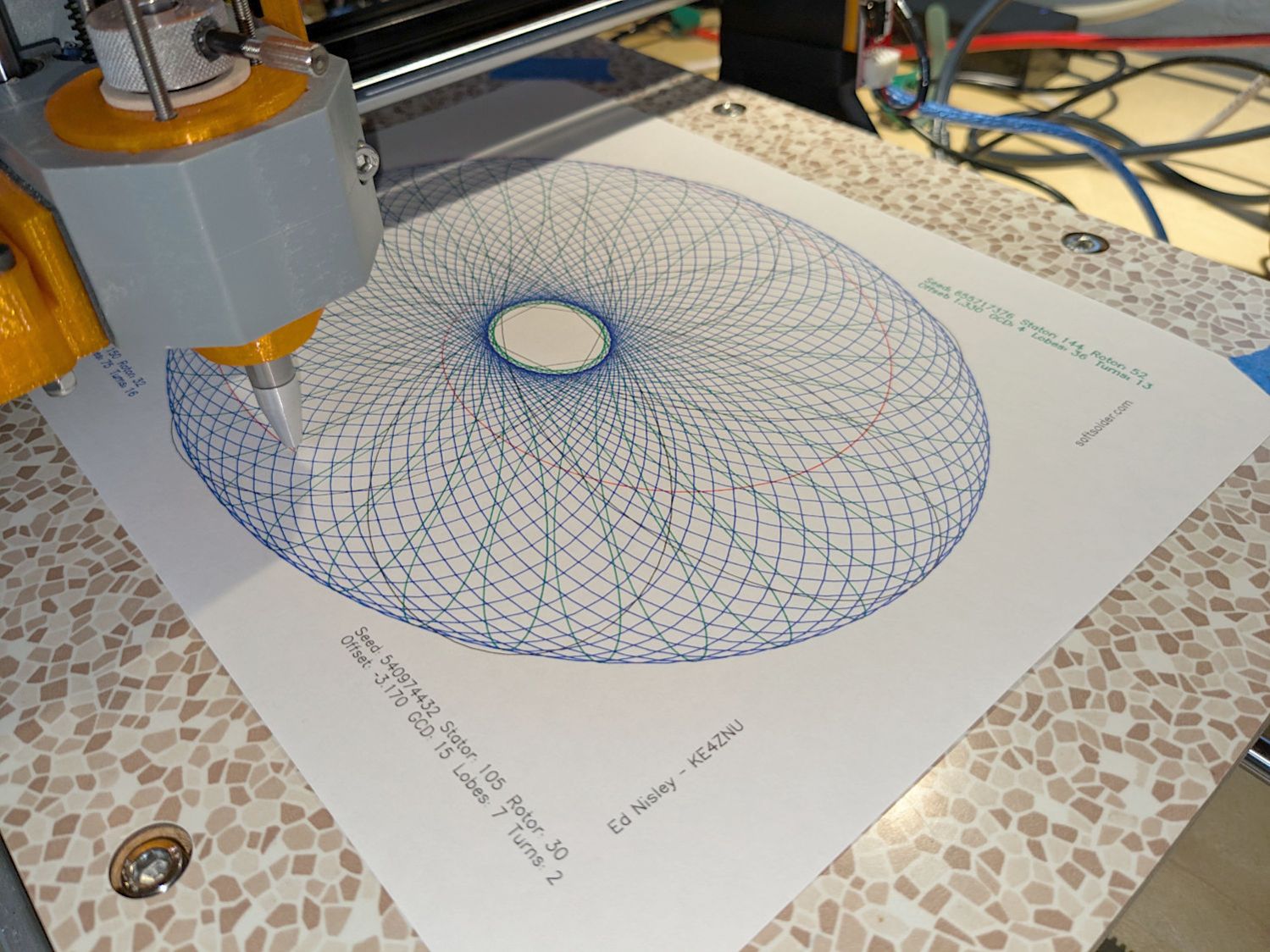
The CNC-3018XL fit into its new home with the Run/Hold buttons toward the front:
3018CNC – new orientation
Which is rotated 180° from its previous orientation, putting Quadrant I and the most-positive coordinates in the left-front corner. Rather than stand on my head while trying to use the jog keypad upside-down, I reversed the axis directions by changing the GRBL Direction port invert mask value from its previous 4:
$3=7
Because the home switch positions haven’t changed, reverse the Homing dir invert mask from 0:
$23=3
The XY origin remains in the center of the platform, so the G54 XY offset didn’t change. The Z offset puts the Pilot pen tip 10 mm above the platform, which will change as you (well, I) touch it off on the paper:
G10 L2 P1 X-169.0 Y-149.5 Z-44.0
Jog to the left rear corner (with Z at the home position) and set the G28 park position:
G28.1
Jog to the right front corner (also Z homed) where (manual) tool changes take place:
G30.1
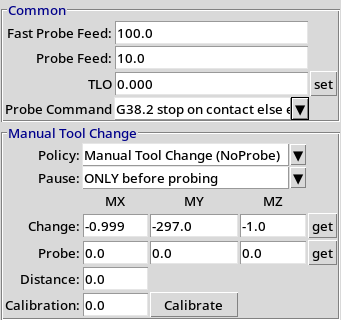
Configure bCNC for manual tool changes without probing at the G30 position:
bCNC probe config
The machine will move to the tool change position at each Tn M6, the operator (that would be me) inserts tool pen n as needed, pokes the Run button, and watches it draw pretty pictures in a resolutely techie manner:









 The Smell of Molten Projects in the Morning