The Smell of Molten Projects in the Morning

Ed Nisley's Blog: Shop notes, electronics, firmware, machinery, 3D printing, laser cuttery, and curiosities. Contents: 100% human thinking, 0% AI slop.

Author: Ed

  • Epson R380 CISS Waste Ink Tank Replacement

    Epson R380 CISS Waste Ink Tank Replacement

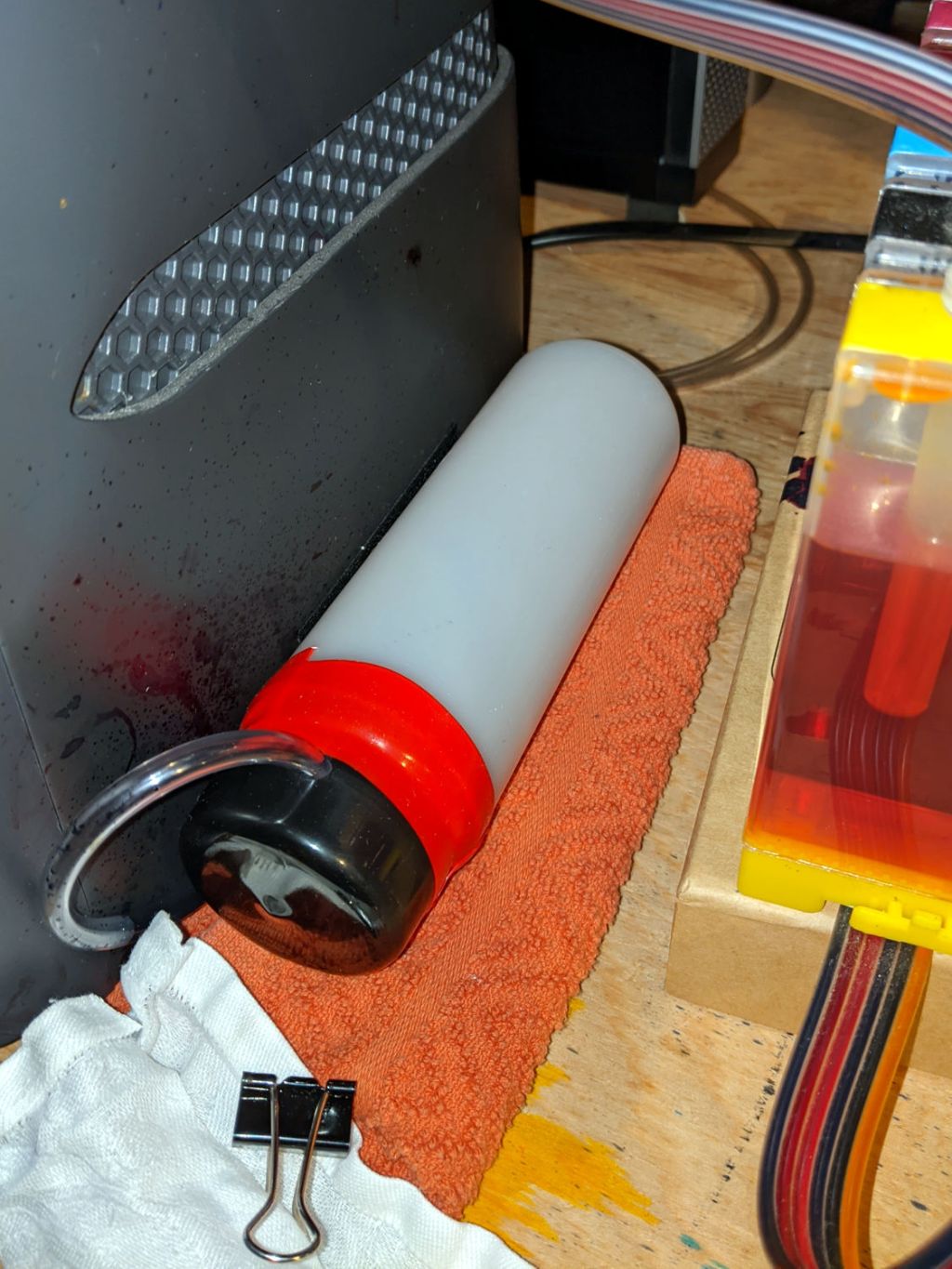
    Transferring the printers to a new “server” provided an opportunity to dump another king’s ransom of waste ink down the drain, whereupon the tank cracked under finger pressure:

    Epson R380 - fractured CISS waste tank
    Epson R380 – fractured CISS waste tank

    The black smudge on the far side is an ink stain on adhesive left over from the hook-n-loop strip formerly holding it to the printer.

    It looks to be an ordinary polypropylene tube, nothing fancy, and, after a decade, it really doesn’t owe me anything.

    Scrounge a suitable bottle from one of the Big Boxes o’ Containers, run a bead of JB Weld Plasticbonder around the shoulder matching the discarded lid, jam on an original waste ink tank cap, and let the urethane goo cure while rotating slowly in the lathe to avoid unsightly dribbles:
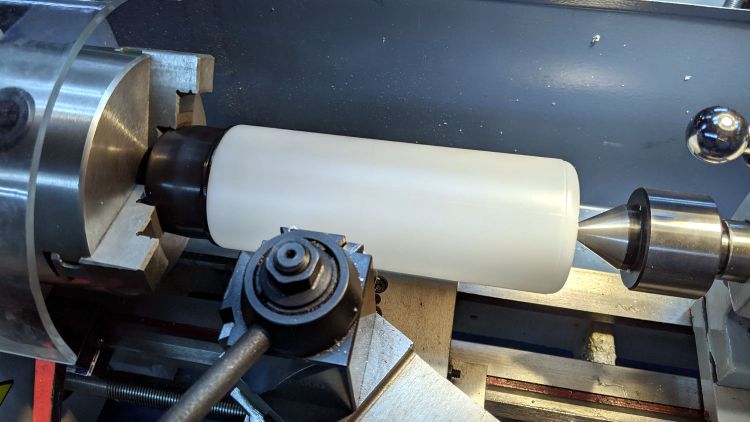
    Epson R380 - DIY waste tank - epoxy curing
    Epson R380 – DIY waste tank – epoxy curing

    The goo surely won’t bond to the polyethylene bottle, but it’s likely better than anything else in my inventory. We shall see.

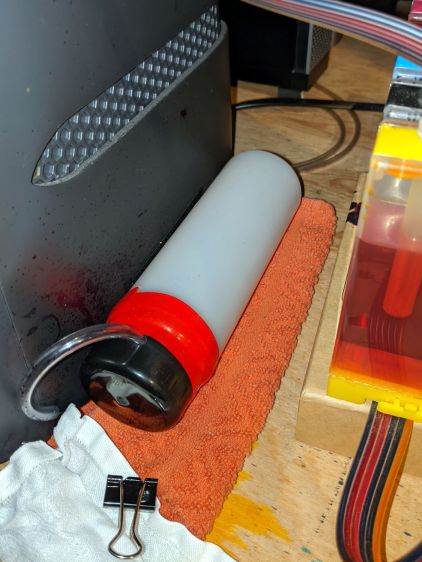
    Drill a hole for the hose, ignore the chips left inside the tank due to a sequence error, stick the original hook-n-loop tape in place, replace the drip-catcher rags, and install:
    Epson R380 - DIY waste tank - installed
    Epson R380 – DIY waste tank – installed

    The red silicone tape encourages the cap to remain in place against the urethane adhesive. One fewer endcap = one less seal.

    The cap need not be removable, as you just squeeze the tube slightly to squirt the aforementioned king’s ransom down the drain.

    It ought to last until I finally scrap out the printer.
  • CUPS Whoopsie

    CUPS Whoopsie

    No CUPS server setup can be considered complete without sending a print job to the wrong printer:

    HPLJ1200 - CUPS Pinball Panic - detail
    HPLJ1200 – CUPS Pinball Panic – detail

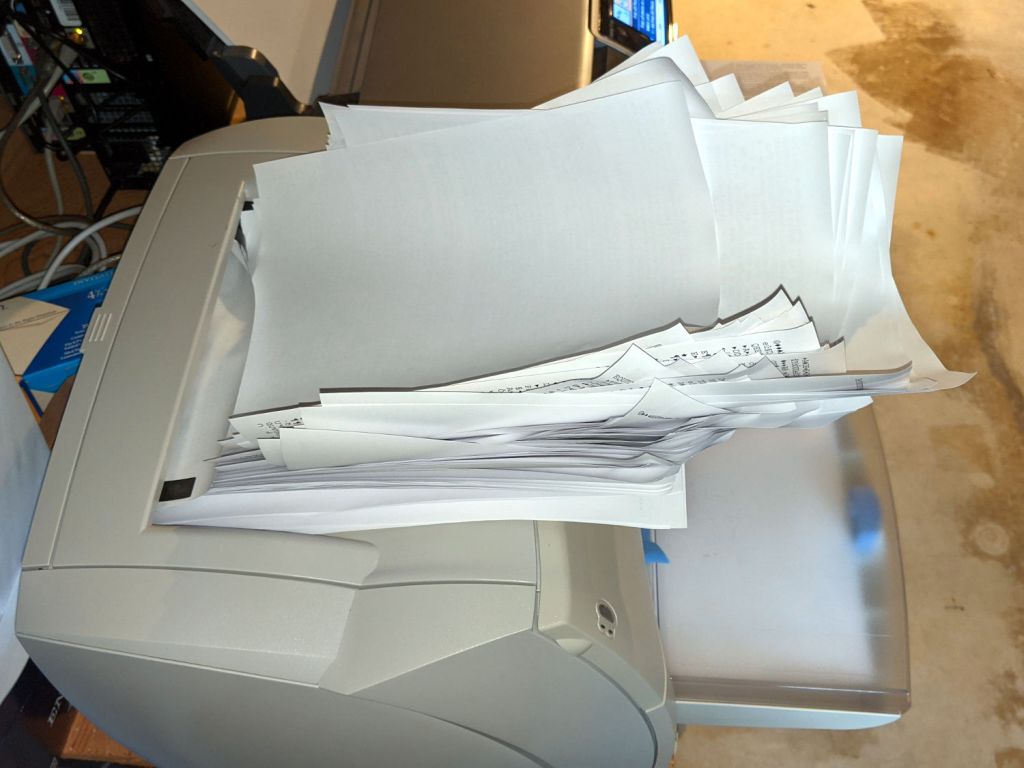
    Which wouldn’t be quite so bad if the printer weren’t ever so much faster than I am:

    HPLJ1200 - CUPS Pinball Panic - output pileup
    HPLJ1200 – CUPS Pinball Panic – output pileup

    It turns out an ordinary clothes iron can flatten those pages. Set it to “silk”, spread packing paper on the ironing board to intercept the toner, iron a few millimeters of pages at a time, and feed them back into the printer.

    Back in the day, laser-specific printer paper came with a grain arranged so it wouldn’t curl when you fed it into the printer with the proper side up. Those days are gone; I’ve tried both ways and they both curl.

    Protip: When CUPS thinks it’s done with the job and the Web interface shows nothing’s going on, it’s handed the job to the server’s printing subsystem, which continues spooling data to the printer. Choking off the bitstream requires one command-line invocation on the server connected to the printer:

    cancel -a
    

    A paper jam gives you enough time to figure all that out.

  • Manjaro 20.1: CUPS Setup

    Tweaking a new Manjaro Linux 20.1 installation to share printers and allow remote administration, done while replacing an aging Optiplex desktop box that’s been running unattended for far too long.

    Start by installing Manjaro’s printer support package:

    pamac install manjaro-printer
    

    In the general section of the default /etc/cups/cupsd.conf file, up near the top:

    Listen *:631       # listen on all interfaces
    DefaultShared Yes  # share the local printers
    BrowseWebIF Yes    # turn on the Web interface
    

    Allow remote admin:

    <Location />
      Allow all
      Order allow,deny
    </Location>
    <Location /admin>
      Allow all
      Order allow,deny
    </Location>


    Restart the CUPS server:

    sudo systemctl restart org.cups.cupsd
    

    And then It Should Just Work.

  • Bicycling For The Fun of It All

    Bicycling For The Fun of It All

    Somewhere out there, you’ll find his video:

    Photo Op - 2020-11-09 - 287
    Photo Op – 2020-11-09 – 287

    Everybody needs a reason to smile!

    Bonus: enough vehicles to keep the signal at Burnett green.

    In the unlikely event you were wondering, 287 is the frame number from the video-to-still conversion:

    ffmpeg -ss 00:03:30 -i /mnt/video/AS30V/2020-11-09/MAH07624.mp4 -t 20 -f image2 -q 1 'Photo Op - 2020-11-09 - '%03d.jpg

    All in all, a fine day for a ride …

  • Huion H610Pro (V2) Tablet vs. USB 3.0

    Huion H610Pro (V2) Tablet vs. USB 3.0

    For reasons that surely made sense at the time, the Huion H610Pro (V2) tablet can recognize when it’s connected to an Android device’s USB port and enter a special mode where the stylus only responds in a phone-shaped portrait rectangle over on the left side:

    Huion H610Pro (V2) Tablet - Android layout
    Huion H610Pro (V2) Tablet – Android layout

    There’s a Vulcan Nerve Pinch button push to force the tablet into Android mode if it doesn’t automagically get there on its own, but AFAICT there’s no way to force it out of Android mode.

    It’s a USB 2.0 device, but I had plugged it into a USB 3.0 port on my desktop box, whereupon it would enter Android mode on pretty nearly every boot. The only way to coerce it back into normal mode was to unplug it, replug it, then manually run the xsetwacom incantation to restrict the coordinates to the portrait monitor.

    I just discovered it works perfectly when plugged into one of the few USB 2.0 ports on the box.

    Apparently, USB 3.0 ports keep the thing powered all the time, whereupon it doesn’t see the proper sequence of events (or, perhaps, sees the Android sequence) during the next boot. USB 2.0 ports don’t do that and it works fine all the time.

    Much better!

  • XFCE vs. Screen Locking

    XFCE vs. Screen Locking

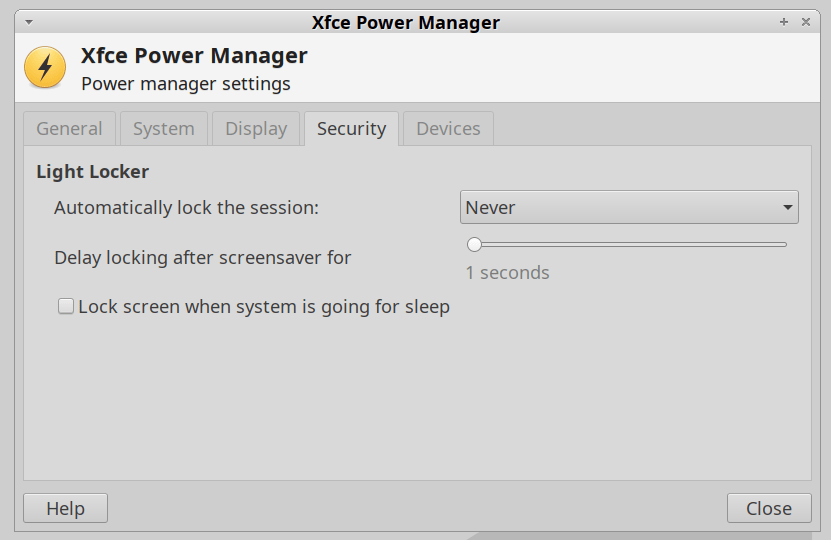
    For reasons not relevant here, I was asked to tweak an XFCE 20.04 installation to not ask for a password after the screen power-saver kicks in. There’s no need for a screensaver with an LCD panel, so this should be straightforward, as per the XFCE 18.04 setup:

    XFCE Power Manager Light Locker settings 18.04
    XFCE Power Manager Light Locker settings 18.04

    Which had no effect.

    For some reason, perhaps having to do with an upgrade from 18.04 to 20.04, Light Locker wasn’t actually handling the screen locking; some dedicated searching suggested this is a problem of long standing.

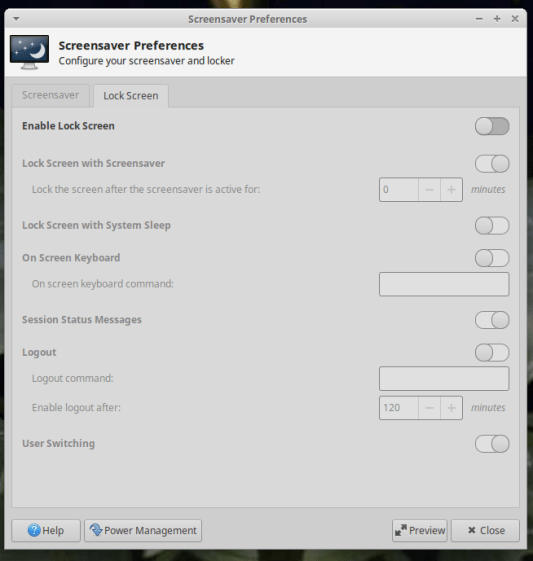
    So tweak the Lock Screen settings of the screen saver that’s not in use:

    XFCE Screensaver Lock Screen Preferences - 20.04
    XFCE Screensaver Lock Screen Preferences – 20.04

    If you’re doing this remotely, adding a stanza to ~/.config/xfce4/xfconf/xfce-perchannel-xml/xfce4-screensaver.xml should suffice:

    <?xml version="1.0" encoding="UTF-8"?>
    
    <channel name="xfce4-screensaver" version="1.0">
      <property name="saver" type="empty">
        <property name="mode" type="int" value="0"/>
      </property>
      <property name="lock" type="empty">
        <property name="enabled" type="bool" value="false"/>
      </property>
    </channel>
    

    The threat model for this particular installation is “minimal”.

  • Hiatus

    ‘Tis the season of leaf shredding and yard cleanup, with a generous helping of home chores and maintenance on the side, so I’ll be posting intermittently for a while.