With Windows 11 and LightBurn running on a little PC perched atop the laser in the basement:

I wanted to work with that desktop from my Comfy Chair upstairs, because I’m unwilling to stand up a Windows box specifically for another LightBurn installation, along with a nightmare KVM switch tangle for all the displays / keyboards / trackballs I run with Linux.
At the Win 11 PC, turn on Remote Desktop connections:
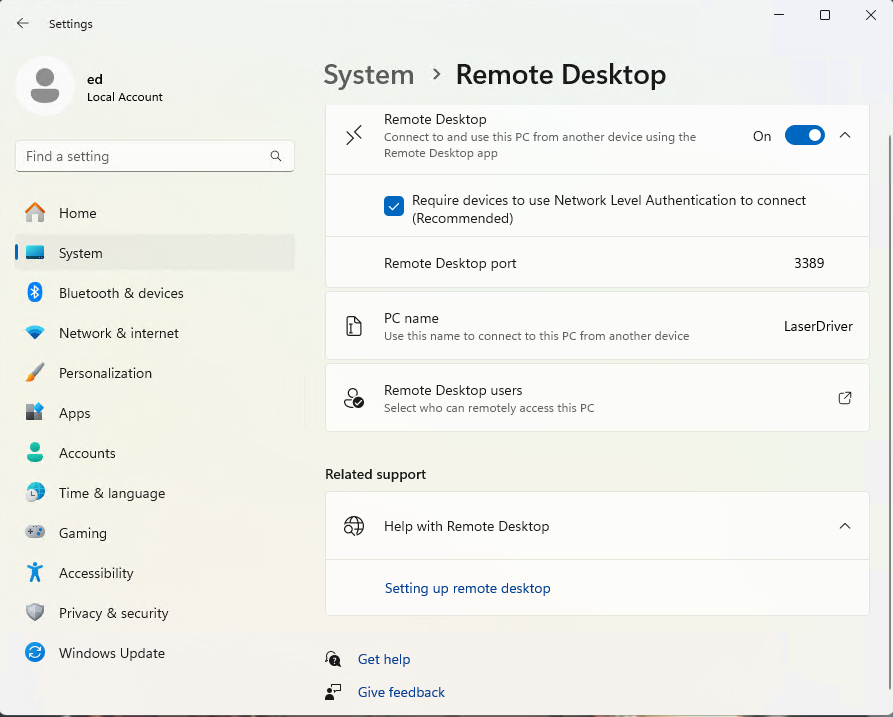
The Administrator is automatically allowed access, but I also allowed access for my local User (who does not have a Microsoft account), which requires the Administrator’s password. You’ll want to store that in a password manager, because typing line noise gets tedious.
Upstairs on the Comfy Chair at the Linux box, install Remmina from the repository, then tweak some preferences:

This being a LAN connection, pick the highest quality scaling, although that shouldn’t matter with a fullscreen display. I added a screen resolution matching my desktop landscape monitor:

Somewhat to my surprise, selecting an RDP screen resolution larger than the HDMI monitor on the Win 11 box worked perfectly.
Because the remote display will fill the entire screen in fullscreen mode, set the toolbar to “Peeking” mode making it barely visible at the top of the screen:

I have yet to (figure out how to) enable the hotkey turning fullscreen mode on and off, so if the toolbar isn’t readily available there is no way to get out of fullscreen mode.
Set up the RDP connection to the Win 11 box, using either the static IP address or whatever name the router assigns:
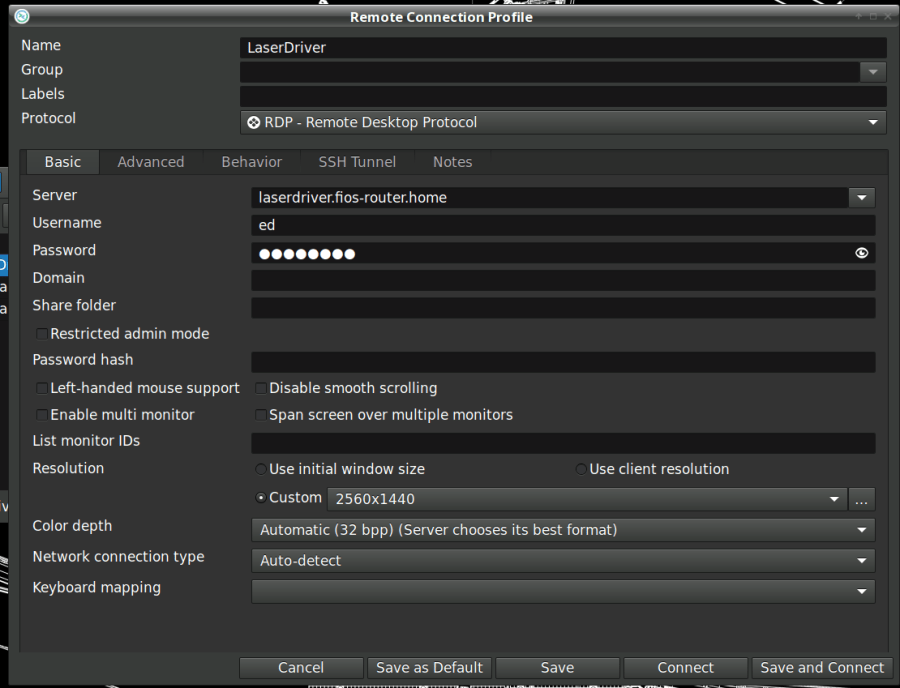
I set the Win 11 box for a static IP address, then told the router to assign that IP to the box if it ever woke up asking for an address through a DHCP request. The process differs depending on which router you have and may not be needed. I (try to) nail down all the IP addresses, so anything using DHCP will be obviously in need of attention.
Select the highest quality compression:

With all that set up, double-clicking the appropriate line should fire up an RDP connection, perhaps with a peephole view of the Win 11 desktop:

Hit the Toggle Fullscreen icon (hollow square, fifth down) to embiggen it:
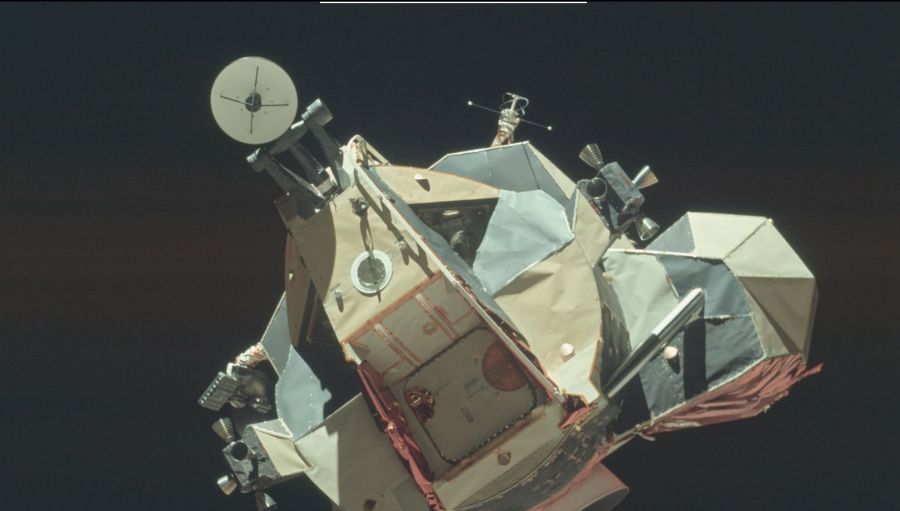
Your Win 11 desktop will be different; that’s the Apollo 17 lunar module ascent stage.
The thin line along the center top is the Remmina toolbar, peeking over the edge. Move the mouse cursor up there to roll it down into view:

Because this is a fullscreen view, hitting the Toggle Fullscreen icon (highlighted blue) is the only way out. It required a disturbing number of iterations before realizing none of the hotkeys worked, then figuring out how to enable toolbar peeking.
Moving the mouse pointer to the bottom of the screen rolls up the Win 11 Task Bar (which I always set to Hide mode to get it out of the way):
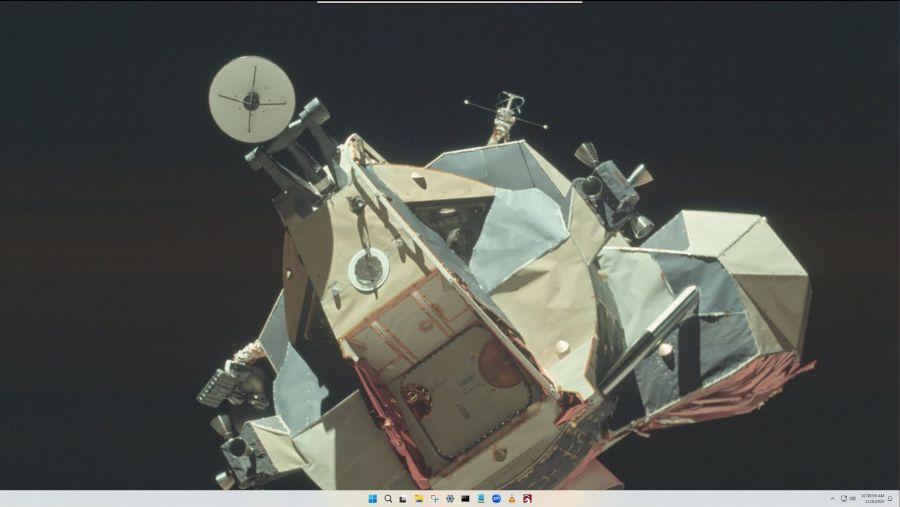
I pinned the LightBurn icon to the task bar where it’s easy to hit, as that’s the whole point of the exercise.
And then It Just Works™:

Because this is Windows, one user can sign onto the box from either the local keyboard or the RDP connection, but not both.
Being an Old School type of guy, I reflexively save my work before trotting either upstairs or downstairs and signing on wherever I end up, but it’s the same file in the same program on the same hardware.
The performance over the LAN and through Remmina is good enough to make the fullscreen session feels exactly like running LightBurn locally. In truth, LightBurn is not a particularly resource-heavy program.
Then I deleted both Linux installations from the LightBurn license portal …
 The Smell of Molten Projects in the Morning